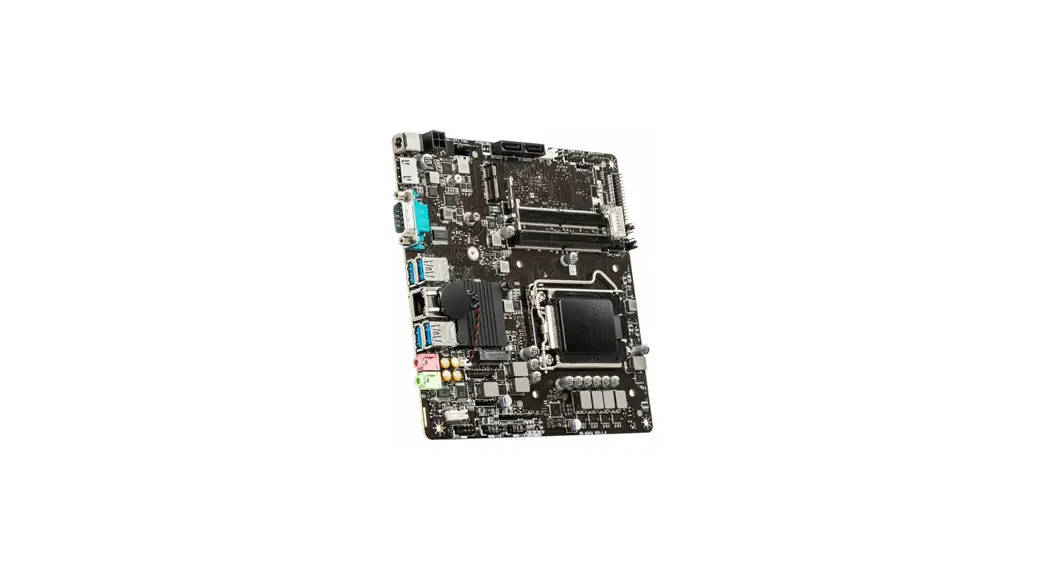
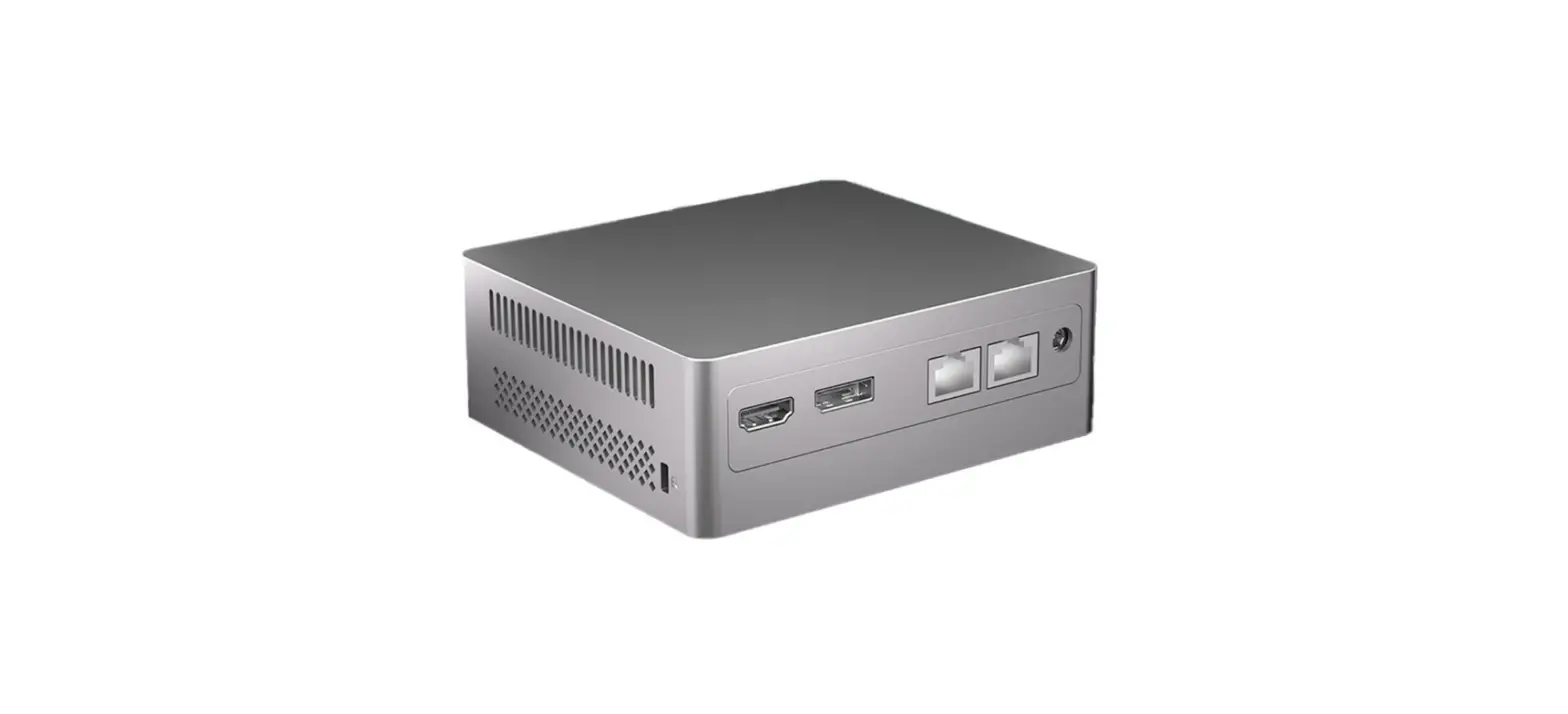
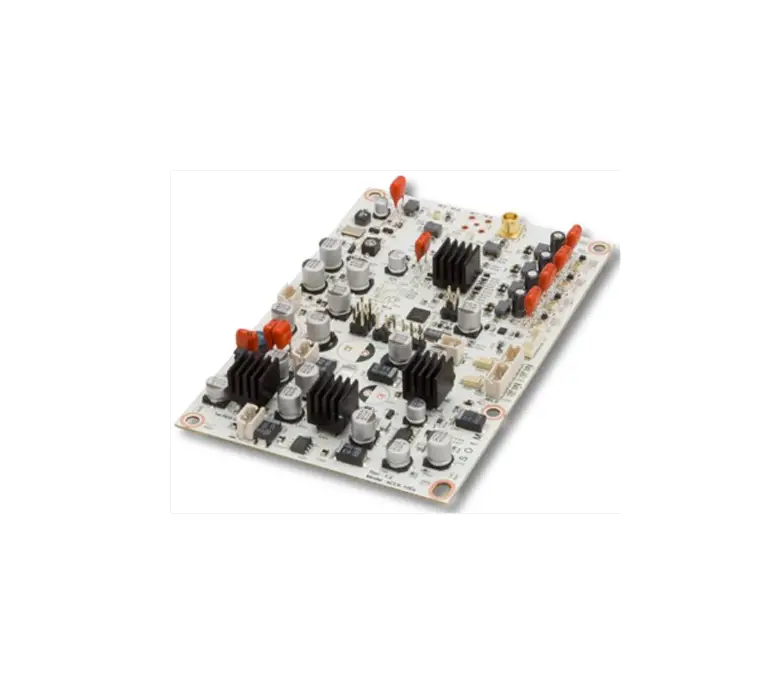
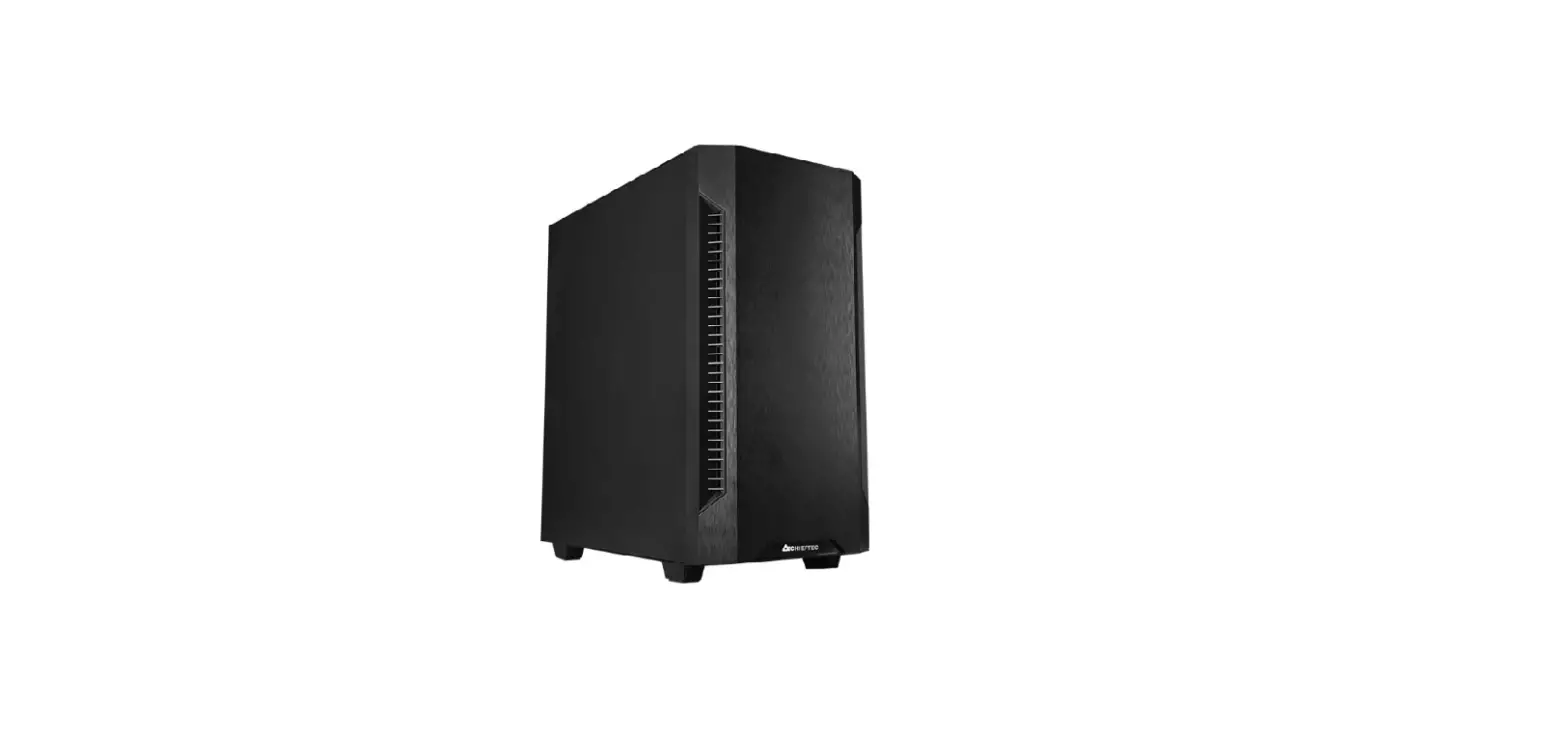
SMARTCASE S511 Mini STX Motherboard
Product Information: SMARTCASETM S511 & Motherboard
D3714-Rx V1.0
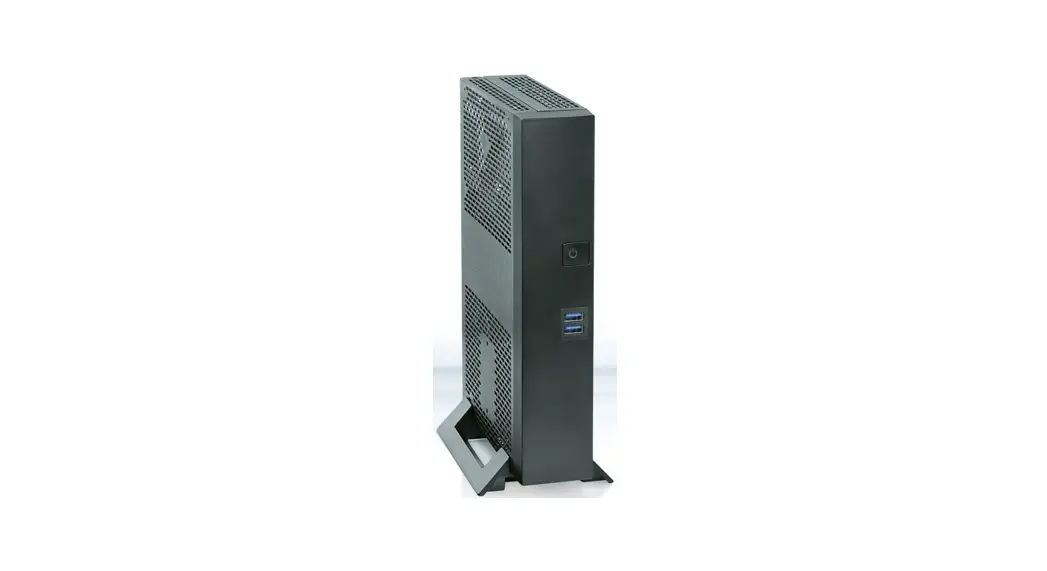
The SMARTCASETM S511 is a chassis kit solution designed for
industrial computer systems. The kit includes a chassis,
motherboard (D3714-Rx), and accessories required for assembly. The
product is manufactured by Kontron.
Delivery Kit & Accessories: Screw Overview
The delivery kit includes screws and accessories required for
assembly. The following screws are included:
| Assembly Screws Type | Amount | Mandatory Assembly Torque | Note |
|---|---|---|---|
| M2.5 x 6mm | 2 | 0.4Nm | For desk stand (vertical position) assembly and chassis rear cover |
| M3 x 4.5mm | 4 | 0.6Nm | For motherboard assembly |
| M3 x 5mm | 4 | ||
| M3 x 3.2mm | 2 | ||
| M3 x 3mm | 1 | ||
| COM screws UNC4-40 | 2 | 0.4Nm | For optional rubber feet (horizontal position) assembly |
Note: Actual screw models may differ from pictures shown above!
The screws requiring 0.6Nm (e.g. motherboard assembly) are designed
for using a hexagonal screwdriver. The additional cross recess is
considered as backup only, e.g. for service purpose, if no
hexagonal screwdriver is available.
Preparing the Chassis
To prepare the chassis for assembly:
- Open the chassis with two hands by putting some pressure on
your thumbs to push the top cover reverse. - Remove top cover and unpack the accessories.
- Verify position of the additional small square EMI Gasket
(position marker is located on chassis bottom).
Inserting additional Modules (Memory / M.2 / …)
To insert additional modules:
- Do not touch any pins! Touch the memory at the outer edges
only. Do not stick a barcode onto any modules! - For memory installation, follow these steps:
- First insert the lower memory angular and pay attention to the
notch! - Remove the memory again completely from the DIMM socket!
- Insert memory again.
- Press down the memory until it fits.
- Do not press in the middle of the memory, but press down on the
outer edges only. - Install the upper memory (if available) in the same way as the
lower one.
- First insert the lower memory angular and pay attention to the
- For M.2 module assembly (PCIe SSD / WLAN), first remove the M.2
mounting screws (for the M.2 Key M SSD and M.2 Key E WLAN/BT, the
assembly nuts and screws are pre-installed).
ASSEMBLY INSTRUCTIONS
SMARTCASETM S511 & Motherboard D3714-Rx
V1.0
www.kontron.com
// 1
SMARTCASETM S511 ASSEMBLY INSTRUCTIONS V1.0
SMARTCASETM S51 & D3714-Rx – ASSEMBLY INSTRUCTIONS
1. Delivery Kit & Accessories: Screw Overview
3
2. Preparing the Chassis
4
3. Inserting additional Modules (Memory / M.2 / …)
5
4. Heatsink Assembly
6
5. Motherboard Assembly
8
6. Installing WLAN Antennas (optional)
9
7. Installing COM Cable/Connector (optional)
10
8. Closing the Chassis
11
9. Adding Stands
12
10. Passive Cooling Specific Details
13
Technical data are subject to change without prior notice. Kontron accepts no responsibility with regards to technical or editorial mistakes or omissions.
SMARTCASE S511 Datasheet:
ftp://ftp.kontron.com/Products/Accessories/SMARTCASE_Chassis-Kit-Solutions/SMARTCASE_S511/DS_SMARTCASE_S511.pdf
www.kontron.com
// 2 of 14
1. Delivery Kit & Accessories: Screw Overview
SMARTCASETM S511 ASSEMBLY INSTRUCTIONS V1.0
Assembly Screws Type
M2.5 x 6mm
Amount 2
Mandatory Assembly Torque
0.4Nm
2
0.4Nm
Note
for desk stand (vertical position) assembly
(delivered in plastic bag)
for chassis rear cover
(delivered in plastic bag)
M3 x 4.5mm 4
0.6Nm
for motherboard assembly
(delivered in plastic bag)
M3 x 5mm 4
M3 x 3.2mm 2
M3 x 3mm 1
COM screws UNC4-40 2
0.4Nm
for rubber feet (horizontal position) assembly
(delivered in plastic bag)
0.2Nm 0.3Nm 0.6Nm
Screw for M.2 SSD/WLAN module assembly
(pre-installed on motherboard)
Hexagon bolt (“assembly nut”) for M.2 SSD module assembly
(pre-installed on motherboard)
Screw for optional COM cable
(included in cable kit F5000-K005/-K010)
Note: Actual screw models may differ from pictures shown above!
Assembly note: The screws requiring 0.6Nm (e.g. motherboard assembly) are designed for using a hexagonal screwdriver. The additional cross recess is considered as backup only, e.g. for service purpose, if no hexagonal screwdriver is available.
www.kontron.com
// 3 of 14
SMARTCASETM S511 ASSEMBLY INSTRUCTIONS V1.0
2. Preparing the Chassis
Open the chassis with two hands by putting some pressure on your thumbs to push the top cover reverse.
Top Cover
Remove top cover and unpack the accessories.
Rear Cover with integrated EMI gasket
Verify position of the additional small square EMI Gasket (position marker is located on chassis bottom)
www.kontron.com
// 4 of 14
3. Inserting additional Modules (Memory / M.2 / …)
SMARTCASETM S511 ASSEMBLY INSTRUCTIONS V1.0
Attention: Do not touch any pins! Touch the memory at the outer edges only. Do not stick a barcode onto any modules!
The following procedure is recommended in order to ensure secure electrical contact:
1. First insert the lower memory angular and pay attention to the notch!
2. Remove the memory again completely from the DIMM socket!
3. Insert memory again
4. Press down the memory until it fits
5. Do not press in the middle of the memory, but press down on the outer edges only
6. Install the upper memory (if available) in the same way as the lower one
Note: D3714-R1 provides lower memory socket only!
lower
M.2 Module Assembly (PCIe SSD / WLAN)
First remove the M.2 mounting screws (for the M.2 Key M SSD and M.2 Key E WLAN/BT, the assembly nuts and screws are pre-installed).
.
Key-E (2230) screw position
Key-M (2230/2242/2280) screw positions. Default = 2280
In order to use a different Key-M module size (2230 or 2242), the nut has to be removed first and installed to the desired position. Insert M.2 modules angular into the socket (while paying attention to the coding / notch). Any modules have to be touched on the outer edges only.
Mandatory torque for the M.2 screw is 0.2Nm, and 0.3Nm for the Key-M nut.
www.kontron.com
// 5 of 14
4. Heatsink Assembly
SMARTCASETM S511 ASSEMBLY INSTRUCTIONS V1.0
F5000-C022: Passive Cooler (up to 10W TDP) for SMARTCASE S511 incl. Mounting Backplate
Heatsink Position on D3714:
Big “cut area” located towards LVDS connector
www.kontron.com
Notes: Recommended mounting torque for heatsink screws: 0.6Nm (max. 0.8Nm) Do not remove the insulating foil of the backplate, otherwise the motherboard may be damaged due to possible short circuit.
// 6 of 14
SMARTCASETM S511 ASSEMBLY INSTRUCTIONS V1.0
Important Heatsink Assembly Note
Due to space restrictions, some components (D3714 bottom side) are located close to the mounting backplate. Assembly of the backplate has to be handled with care in order not to damage/remove any component.
Furthermore, the internal COM port connectors had to be located close to the processor fan. When using the COM ports respectively connecting the cables, it may be recommended to install the COM connectors first before assembling the heatsink.
COM1 Cable
Note: COM1 = RS-232 COM2 = RS-232/-422/-485 (BIOS Setup options)
www.kontron.com
COM2 Cable
// 7 of 14
SMARTCASETM S511 ASSEMBLY INSTRUCTIONS V1.0
5. Motherboard Assembly
Note: Before assembling the motherboard into the chassis, it is recommended to install the optional onboard components like heatsink, memory, M.2 modules, etc.
1
2
1. Slide in the motherboard carefully below the power button towards the front I/O apertures (red marking)
2. Move the motherboard carefully down to the final position Take care that the front EMI gaskets stay in the correct position.
Push down the mainboard carefully while the four mounting holes fit onto the chassis nuts. Assemble the four screws (M3x4.5). Mandatory torque = 0.6Nm
www.kontron.com
// 8 of 14
6. Installing WLAN Antennas (optional)
SMARTCASETM S511 ASSEMBLY INSTRUCTIONS V1.0
Please check the color-coding of the antennas. On the chassis front side the antenna bays are marked black respectively gray.
Please note that the plastic front bezel has to be removed first.
Push the antenna cables completely through the opening in the housing and pay attention to the antenna cable notch (see red circles).
Carefully install the WLAN antennas. The metal plate must not be bent.
Insert the black antenna cable in the hooks (see red circles), and then plug the black antenna cable to socket #1 of the M.2 WLAN module. Plug the gray antenna cable to socket #2.
www.kontron.com
// 9 of 14
7. Installing COM Cable/Connector (optional)
SMARTCASETM S511 ASSEMBLY INSTRUCTIONS V1.0
COM cable F5000-K007
Remove carefully COM metal cover first (use of screwdriver recommended). SMARTCASE S511 provides the rear aperture for one COM port; the cable can be connected to either COM1 or COM2 connector of the motherboard D3714.
COM1 Cable
COM2 Cable
Note: COM1 = RS-232 COM2 = RS-232/-422/-485 (BIOS Setup options)
Install the Sub-D connector of the cable to the chassis rear cover (specific COM screws UNC4-40). Mandatory torque = 0.6Nm
www.kontron.com
// 10 of 14
8. Closing the Chassis
SMARTCASETM S511 ASSEMBLY INSTRUCTIONS V1.0
Slide the cover on top of the chassis while pushing it forward. Some pressure may be required.
Close the chassis rear cover using the screws (M2.5 x 6) included in the SMARTCASE chassis kit. Mandatory torque: 0.4Nm
www.kontron.com
// 11 of 14
SMARTCASETM S511 ASSEMBLY INSTRUCTIONS V1.0
9. Adding Stands
The chassis kit includes a desk stand for vertical use, and four rubber feet for horizontal use.
Assemble the two M2.5×6.0 screws (0.4Nm) for the desk stand (blue) or the four screws M3x5 (0.4Nm) for the rubber feet (red).
“Vertical Use” = Recommended Operating Position due to improved cooling performance
www.kontron.com
// 12 of 14
10. Passive Cooling Specific Details
SMARTCASETM S511 ASSEMBLY INSTRUCTIONS V1.0
See D3714 TechNotes document for details regarding TDP setting and processor temperature limiting.
Summary – SMARTCASE S511 operating conditions & related BIOS settings:
Chassis Operating Mode
Motherboard Version
Ambient Temperature
CPU TDP
Enhanced Passive Cooling (BIOS Setup) 1)
CPU Temperature Limit
(BIOS Setup) 2)
Recommended Operating Mode
max. 35°C
disabled
—
D3714-R1
6W
max. 40°C
disabled
—
()
Notes 3)
max. 35°C
disabled
—
8W
(Desktop)
D3714-R2
max. 40°C
X
X
max. 35°C
enabled
90°C
10W
max. 40°C
X
X
—
()
System performance reduction
—
max. 35°C
disabled
—
D3714-R1
6W
max. 40°C
disabled
—
max. 35°C
disabled
—
8W
max. 40°C
disabled
—
D3714-R2
(Tower)
max. 35°C
disabled
—
10W
max. 40°C
enabled
90°C
()
3)
1) BIOS Setup Advanced CPU Configuration Passive Cooling [disabled/enabled] Default setting: Passive Cooling = [disabled] Note: CPU Temperature Limit = 100°C if set to [disabled] (=AMD internal default)
2) BIOS Setup Advanced CPU Configuration CPU Temperature Limit Possible range: 85°C … 90°C; Default setting: 90°C Note: “Passive Cooling” must be set to [enabled] in order to select/adjust temperature limit
3) Battery temperature may be > 60°C if M.2 WLAN module is installed
www.kontron.com
// 13 of 14
About Kontron
Kontron is a global leader in IoT/Embedded Computing Technology (ECT). As a part of technology group S&T, Kontron, together with its sister company S&T Technologies, offers a combined portfolio of secure hardware, middleware and services for Internet of Things (IoT) and Industry 4.0 applications. With its standard products and tailor-made solutions based on highly reliable state-of-the-art embedded technologies, Kontron provides secure and innovative applications for a variety of industries. As a result, customers benefit from accelerated time-to-market, reduced total cost of ownership, product longevity and the best fully integrated applications overall.
For more information, please visit: www.kontron.com
Global Headquarters
Kontron Europe GmbH
Gutenbergstraße 2 85737 Ismaning, Germany Tel.: + 49 821 4086 0 Fax: + 49 821 4086 111 [email protected]
www.kontron.com
// 14