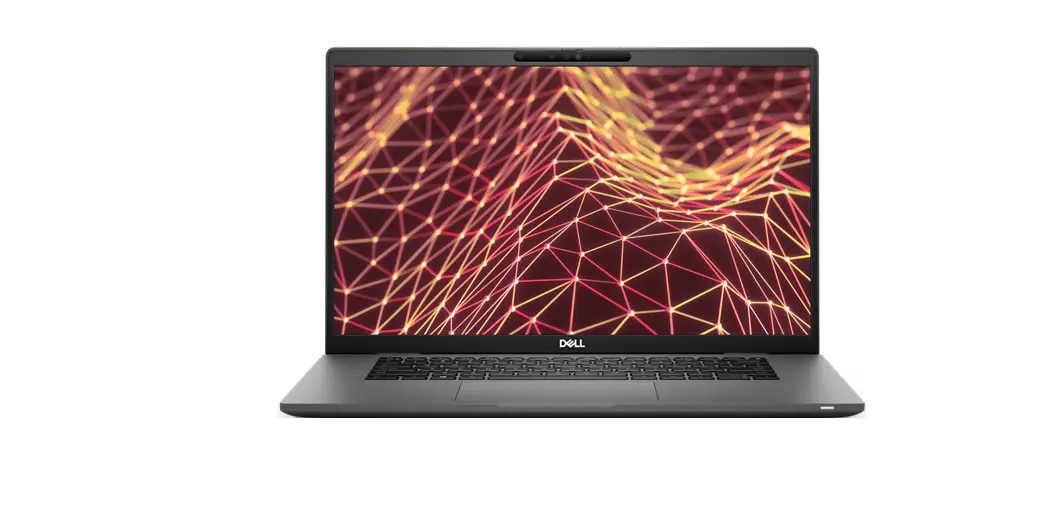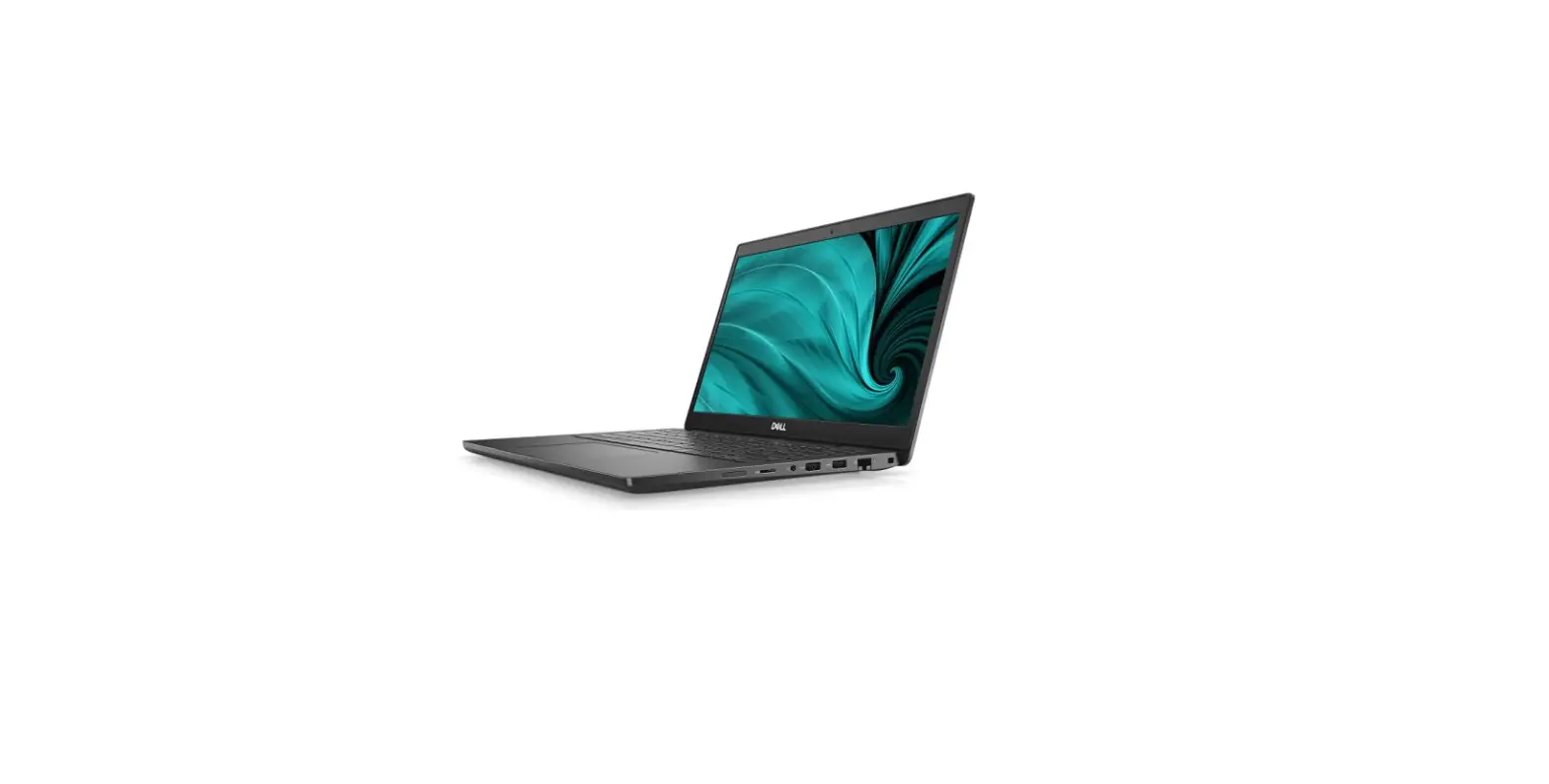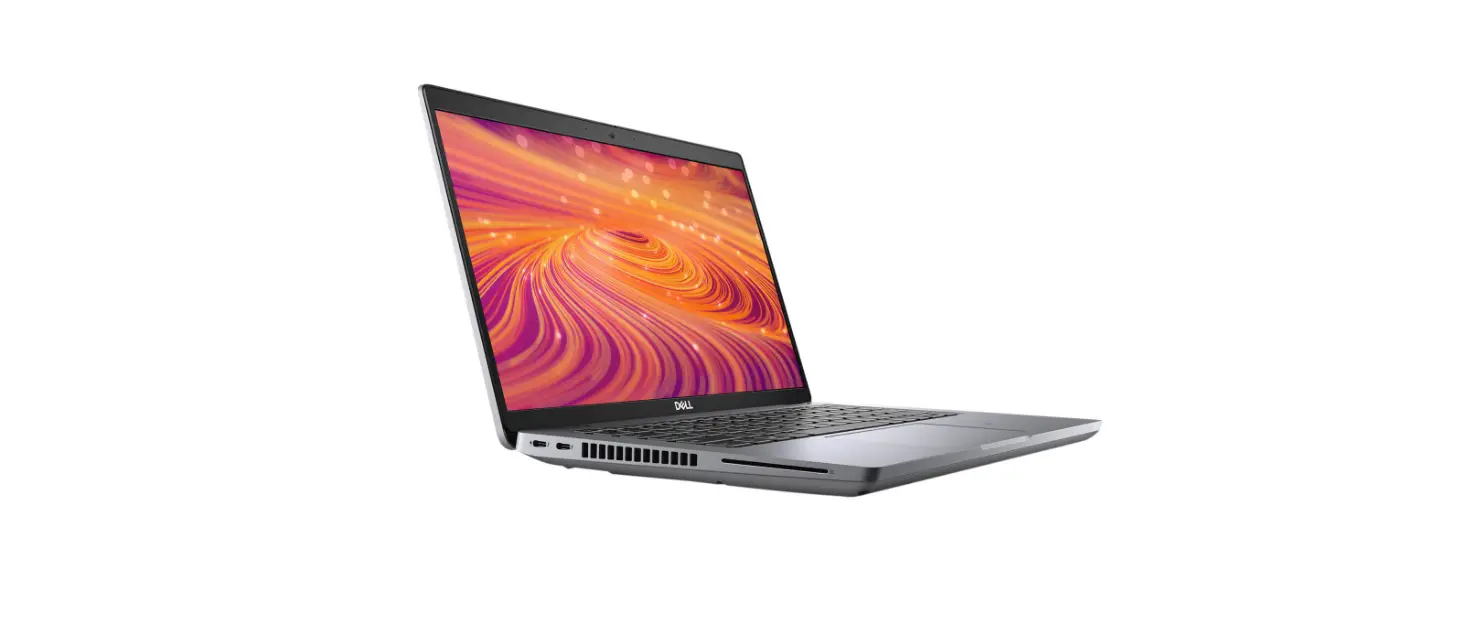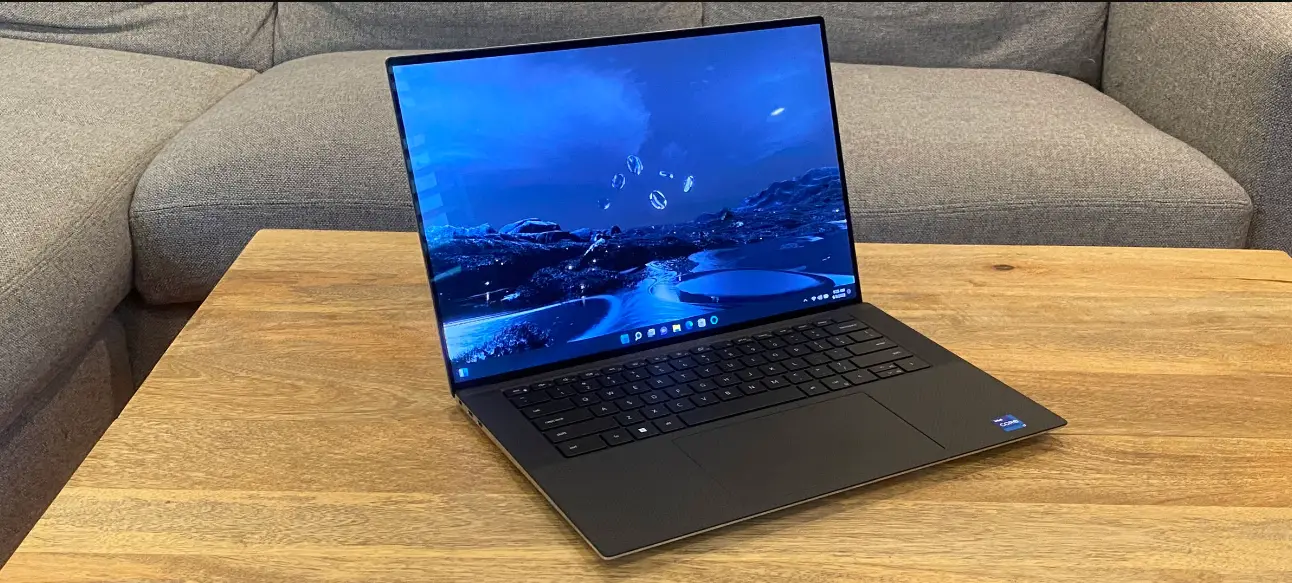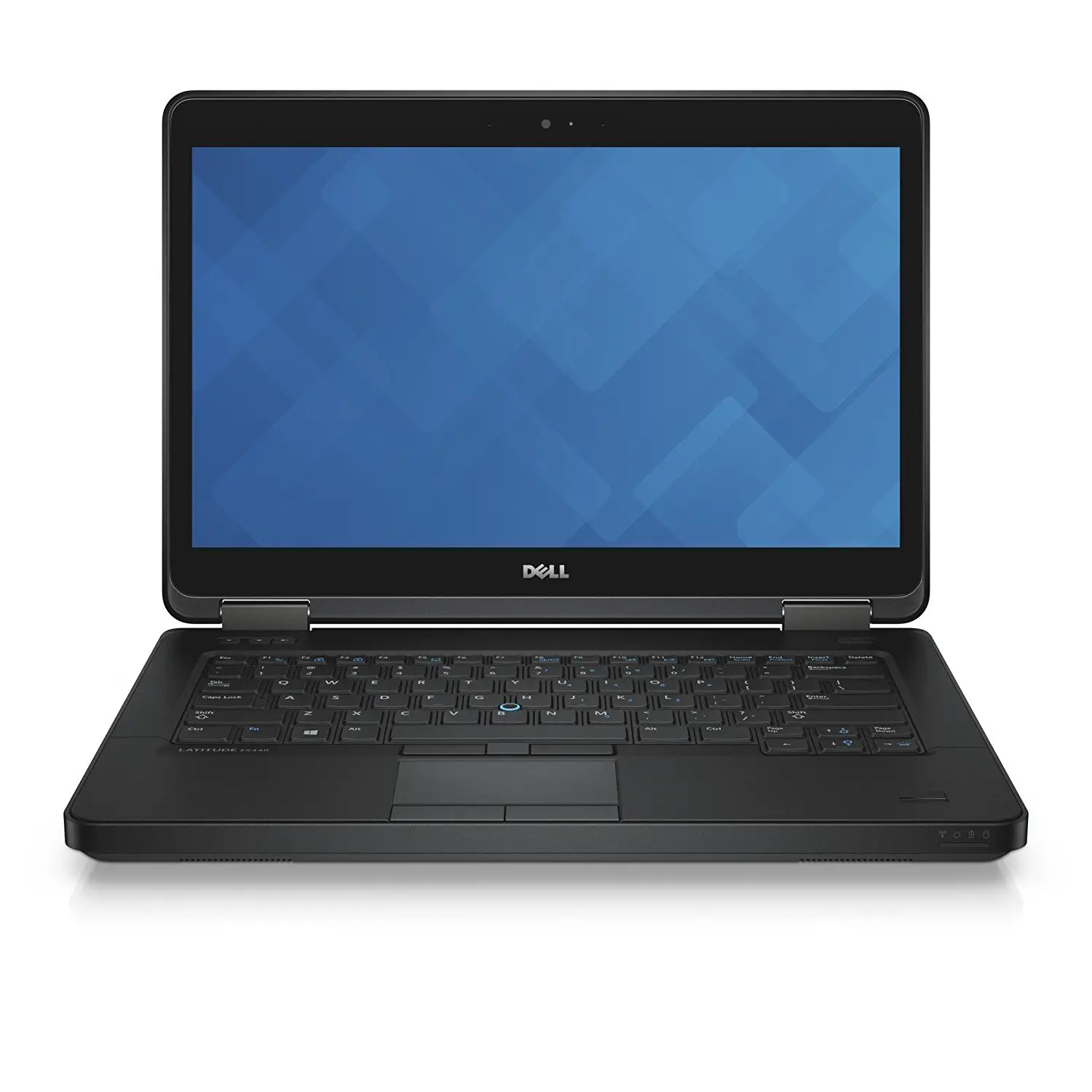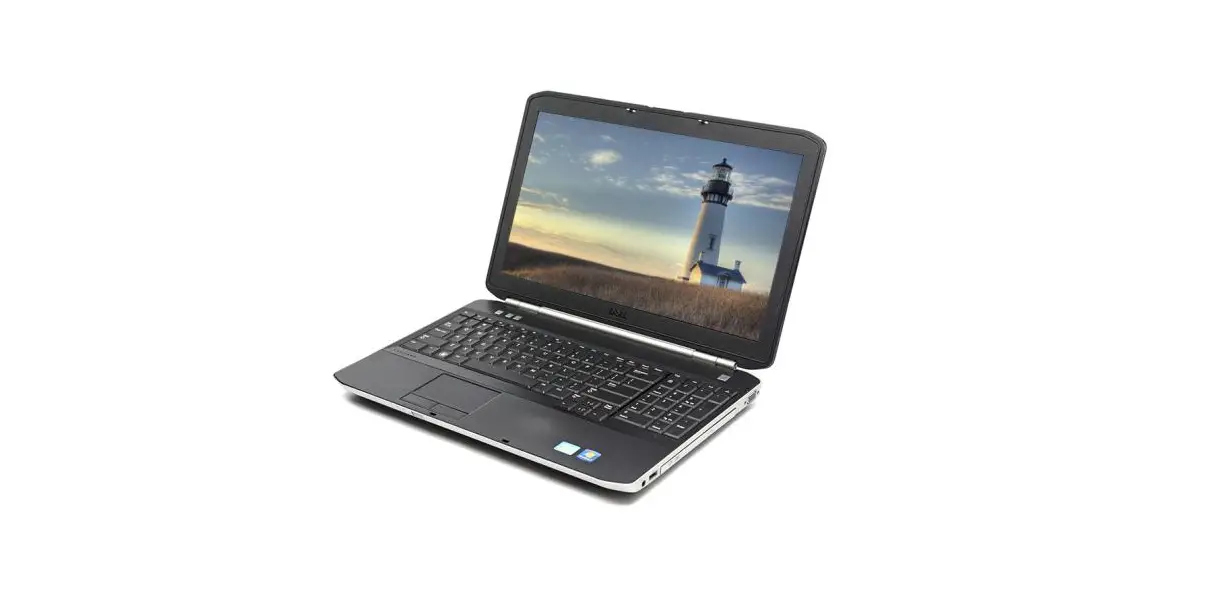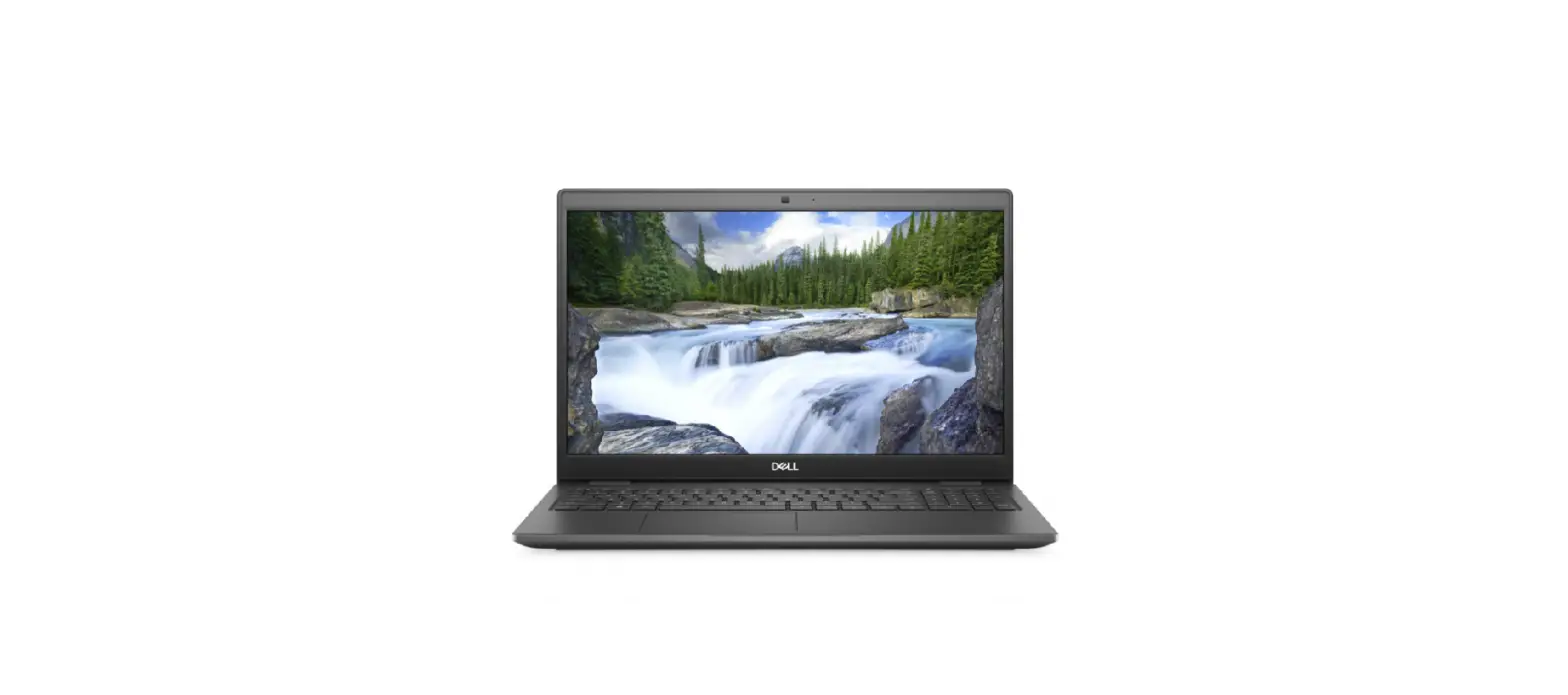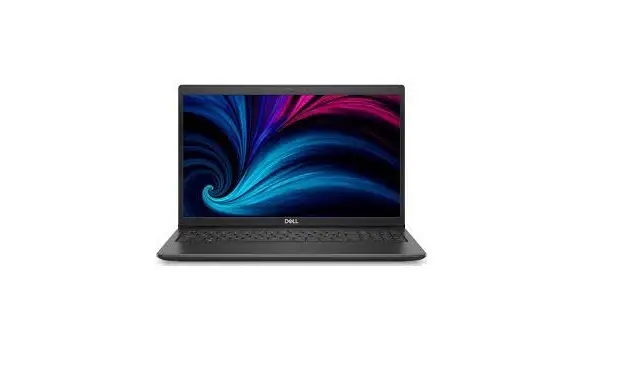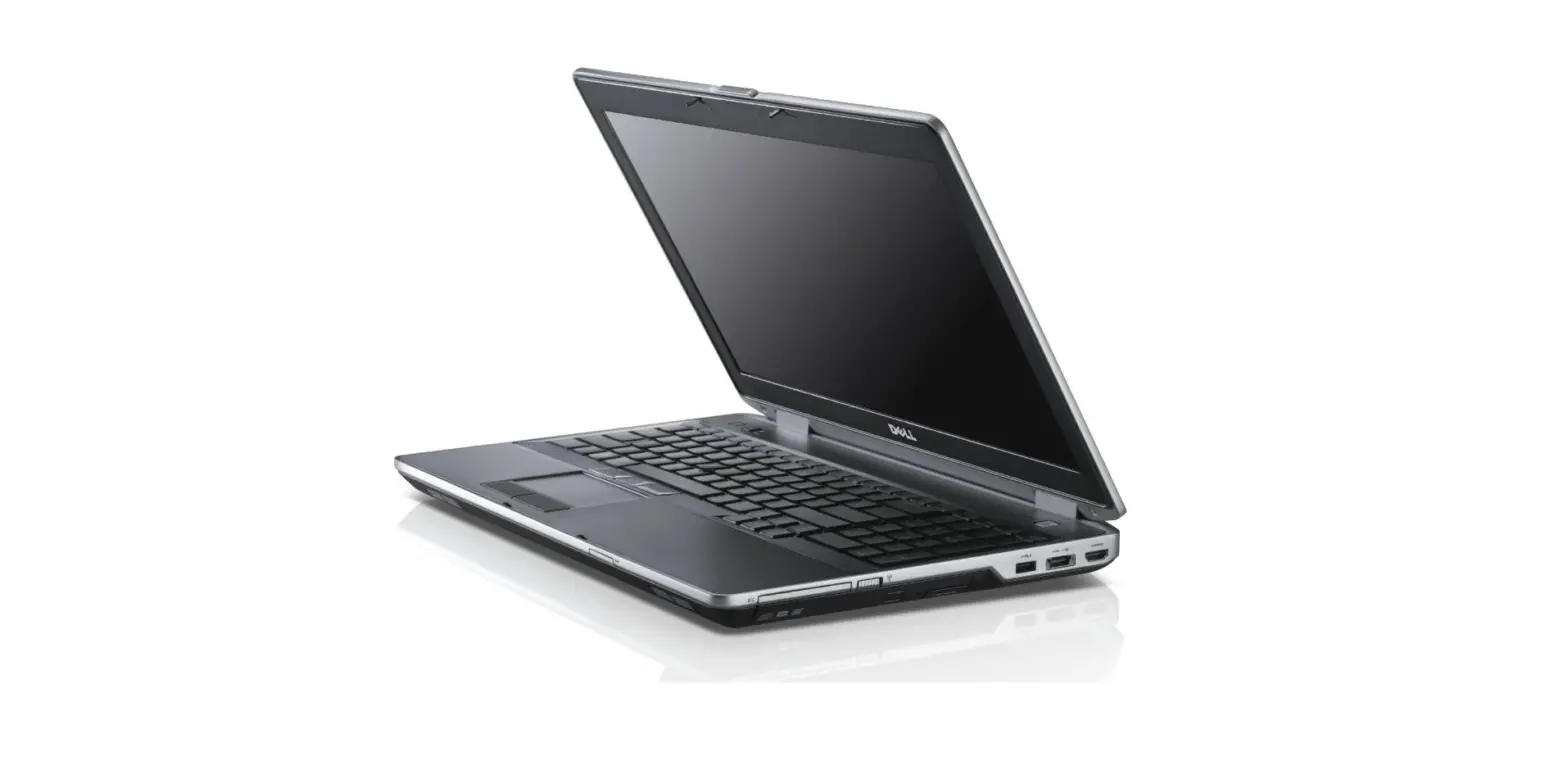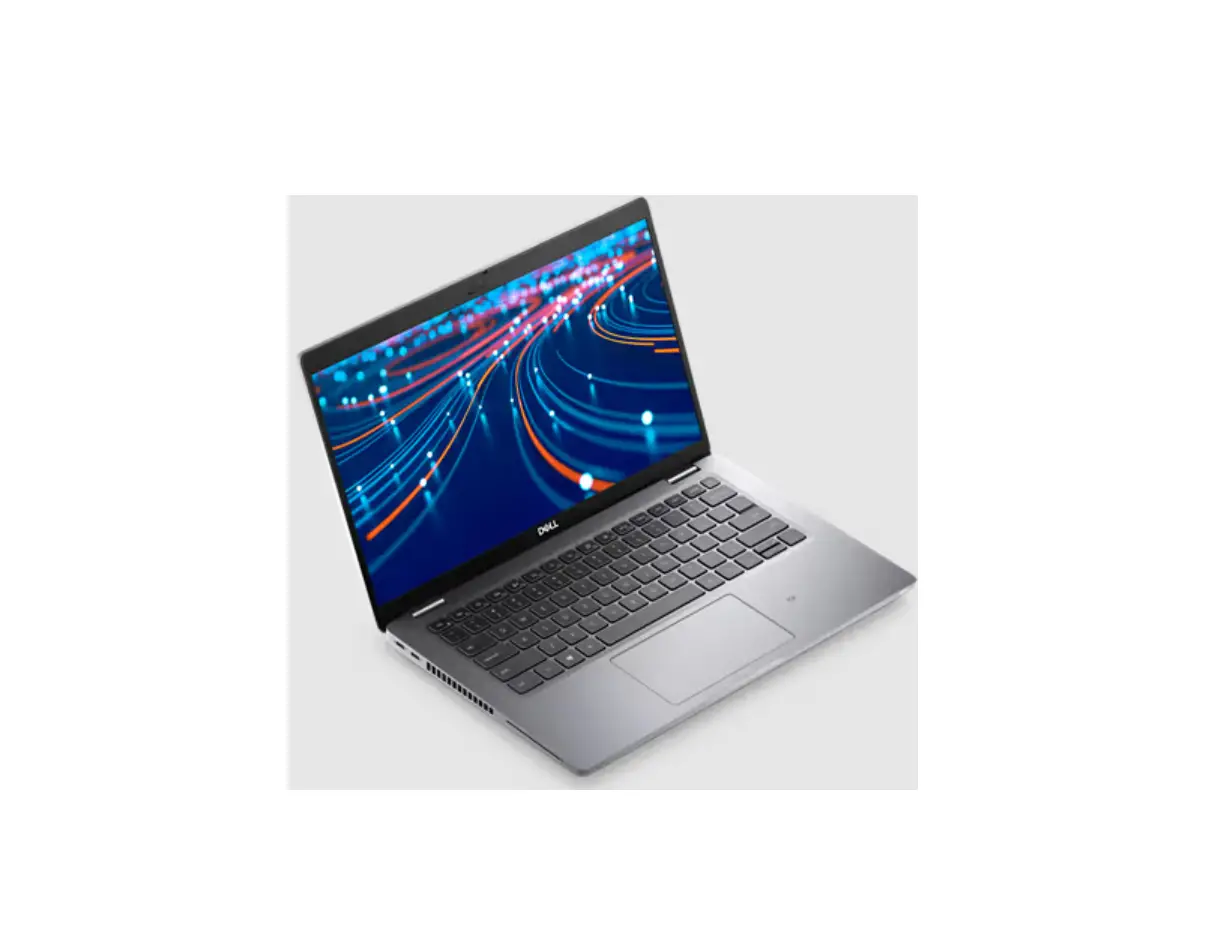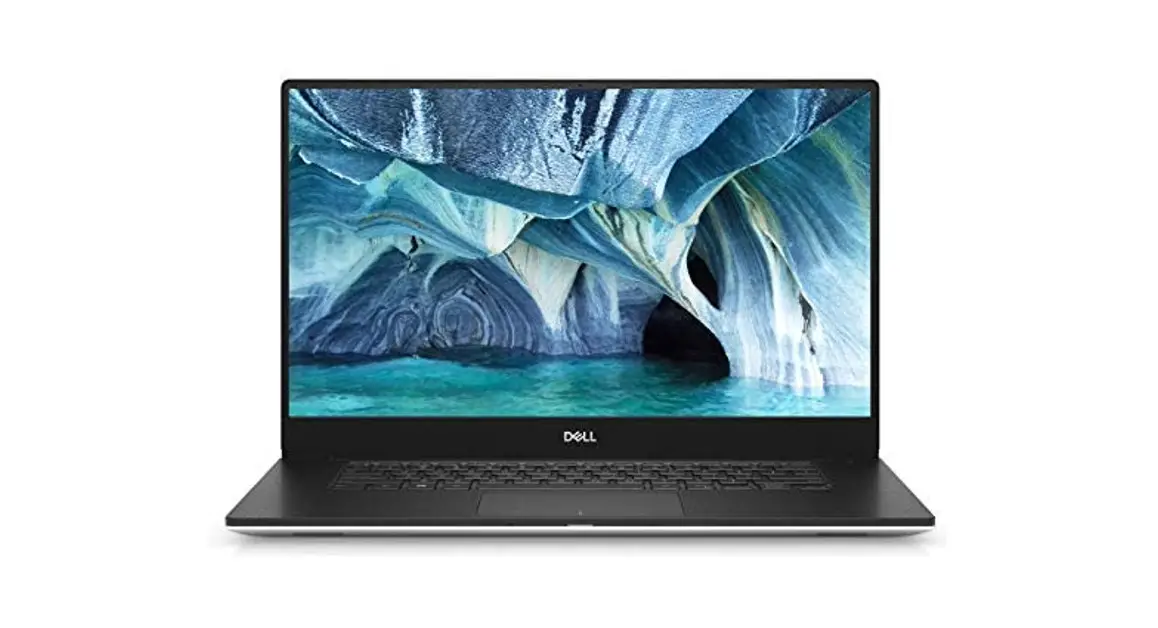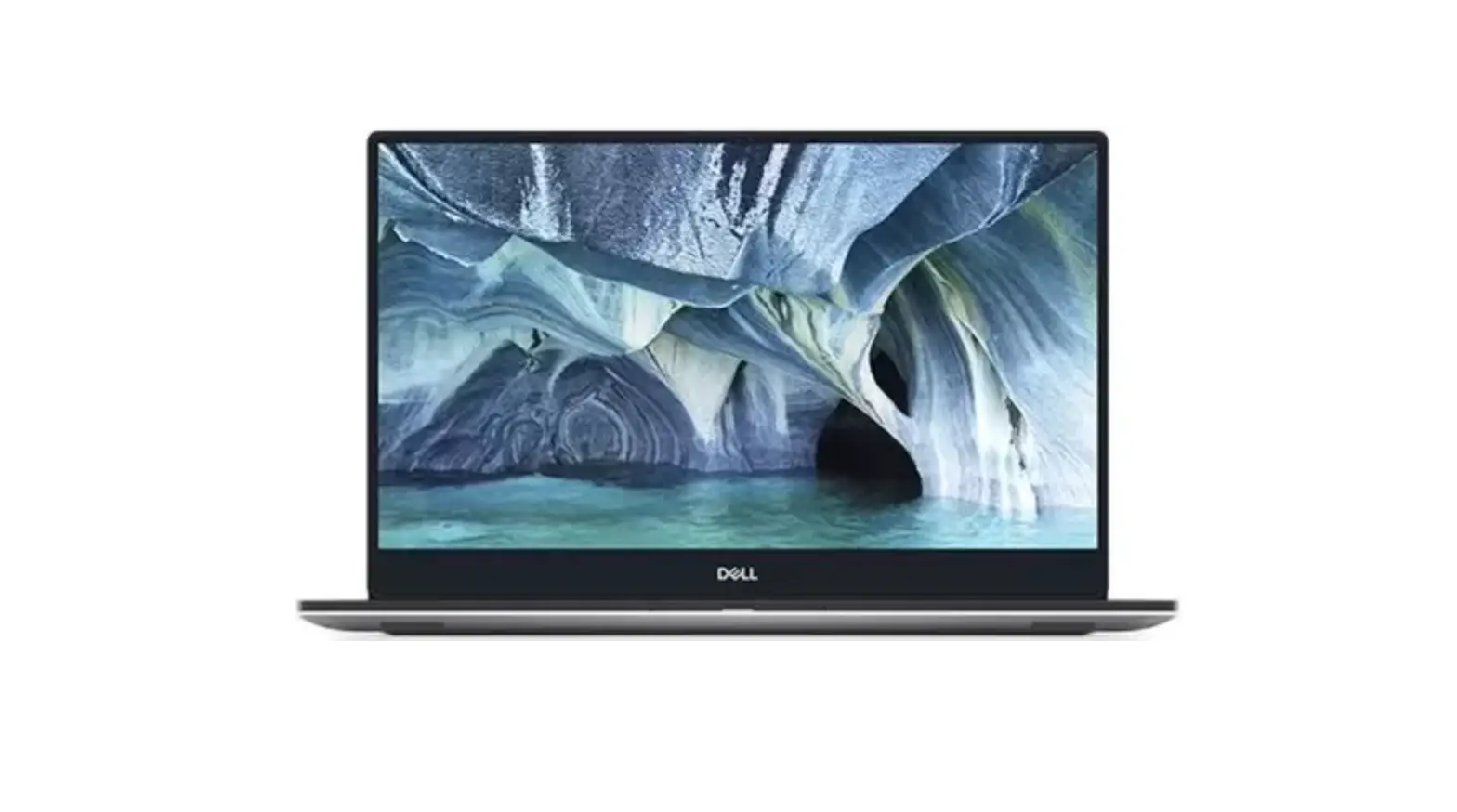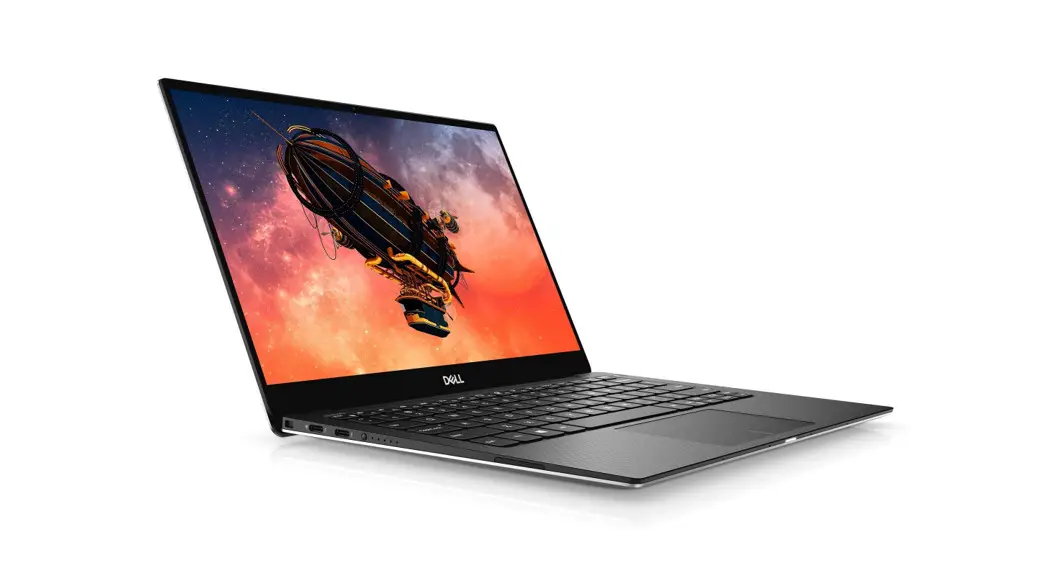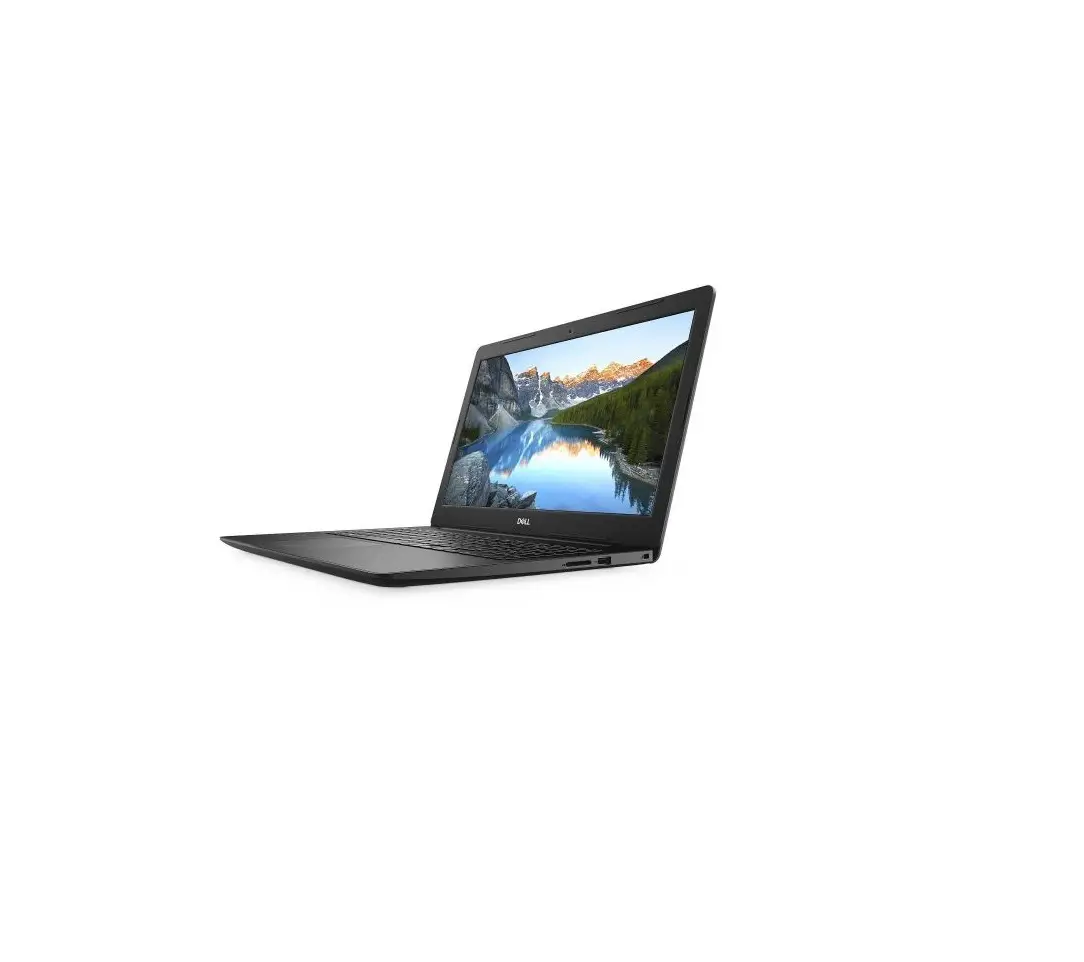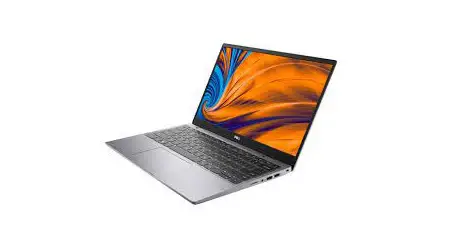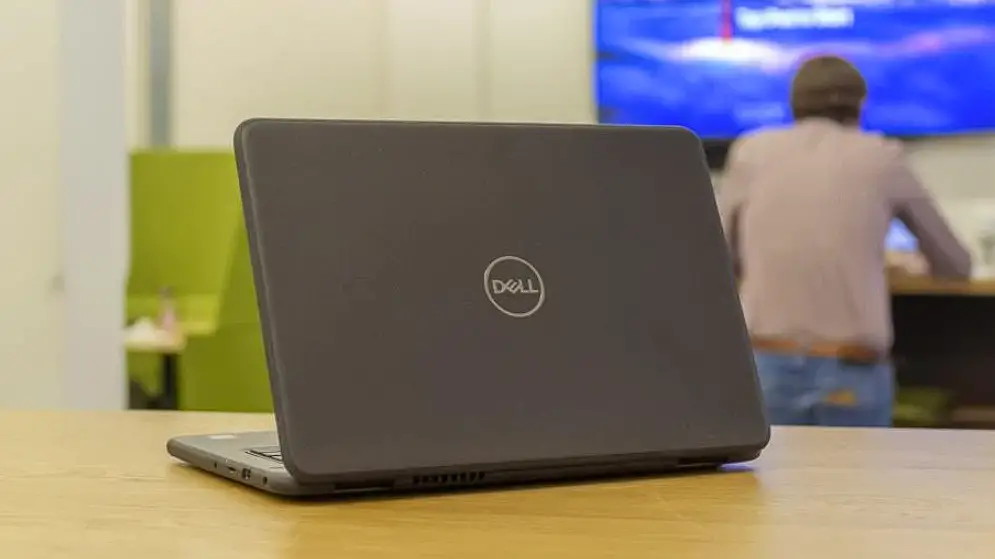

DELL Latitude 3310 Laptop
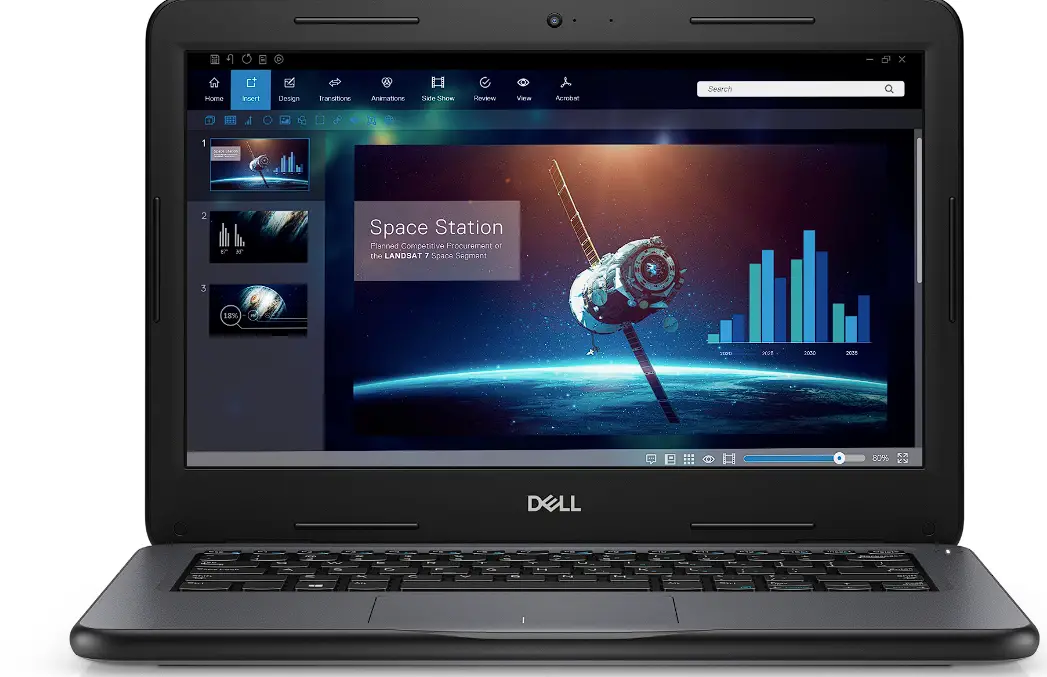
Set up your Latitude 3310
- Connect the power adapter and press the power button.
NOTE: To conserve battery power, the battery might enter power saving mode. Connect the power adapter and press the power button to turn on the computer. - Finish operating system setup.
For Windows:
Follow the on-screen instructions to complete the setup. When setting up, Dell recommends that you:
● Connect to a network for Windows updates.
NOTE: If connecting to a secured wireless network, enter the password for the wireless network access when prompted.
● If connected to the internet, sign-in with or create a Microsoft account. If not connected to the internet, create an offline account.
● On the Support and Protection screen, enter your contact details. - Locate and use Dell apps from the Windows Start menu—Recommended.
Table 1. Locate Dell apps
| Resources | Description |
 | Dell Product Registration Register your computer with Dell. |
 | Dell Help & Support Access help and support for your computer. |

| SupportAssist SupportAssist is the smart technology that keeps your computer running at its best by optimizing settings, detecting issues, removing viruses and notifies when you need to make system updates. SupportAssist proactively checks the health of your system’s hardware and software. When an issue is detected, the necessary system state information is sent to Dell to begin troubleshooting. SupportAssist is preinstalled on most of the Dell devices running Windows operating system. For more information, see SupportAssist for Home PCs User’s Guide on www.dell.com/serviceabilitytools. NOTE: In SupportAssist, click the warranty expiry date to renew or upgrade your warranty. |
 | Dell Update Updates your computer with critical fixes and latest device drivers as they become available. For more information about using Dell Update, see the knowledge base article 000149088 at www.dell.com/support. |
 | Dell Digital Delivery Download software applications, which are purchased but not pre-installed on your computer. For more information about using Dell Digital Delivery, see the knowledge base article 000129837 at www.dell.com/support. |
- Create recovery drive for Windows.
NOTE: It is recommended to create a recovery drive to troubleshoot and fix problems that may occur with Windows.
Chassis Overview
This chapter consists of the product view features along with technical specifications. The chassis overview features calls out the different ports, connectors, and components available in the computer.
Topics:
- Front view
- Left view
- Right view
- Base view
- Palmrest view
Front view
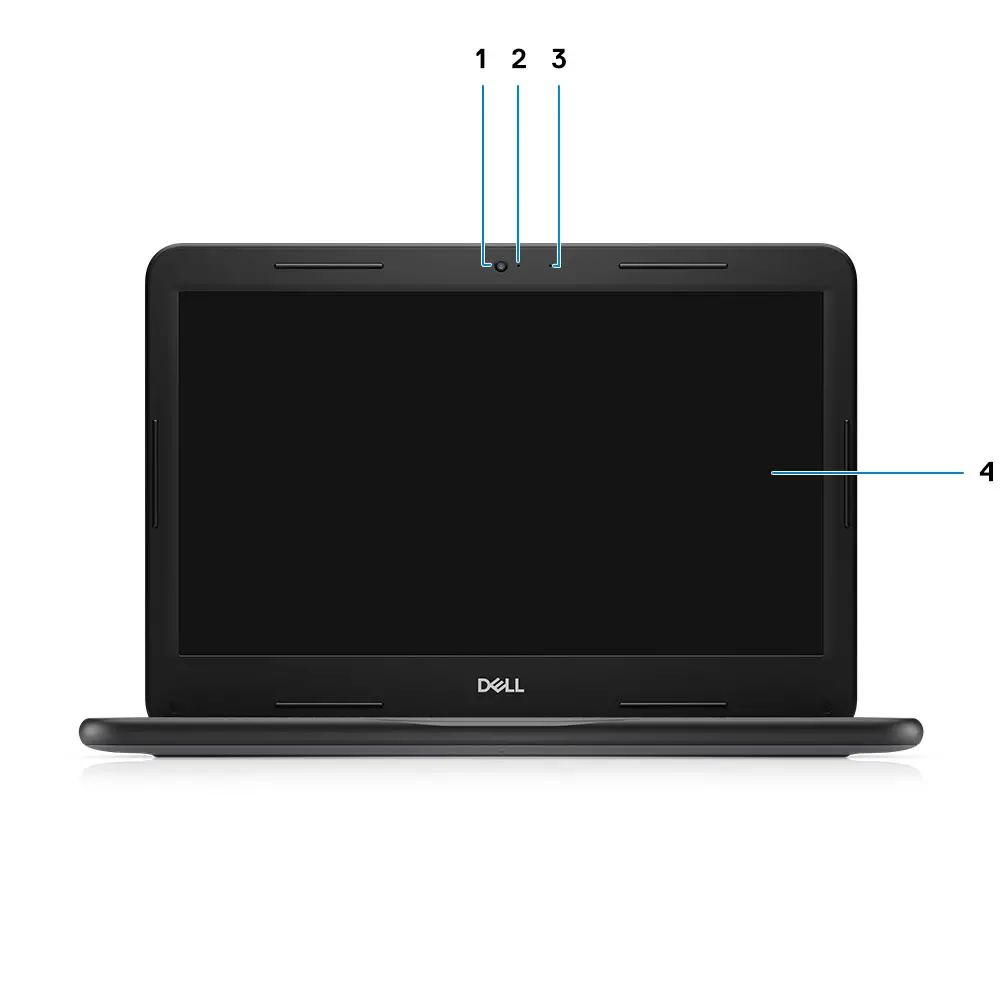
- Camera
- Camera status light
- Microphone
- LCD Panel
Left view
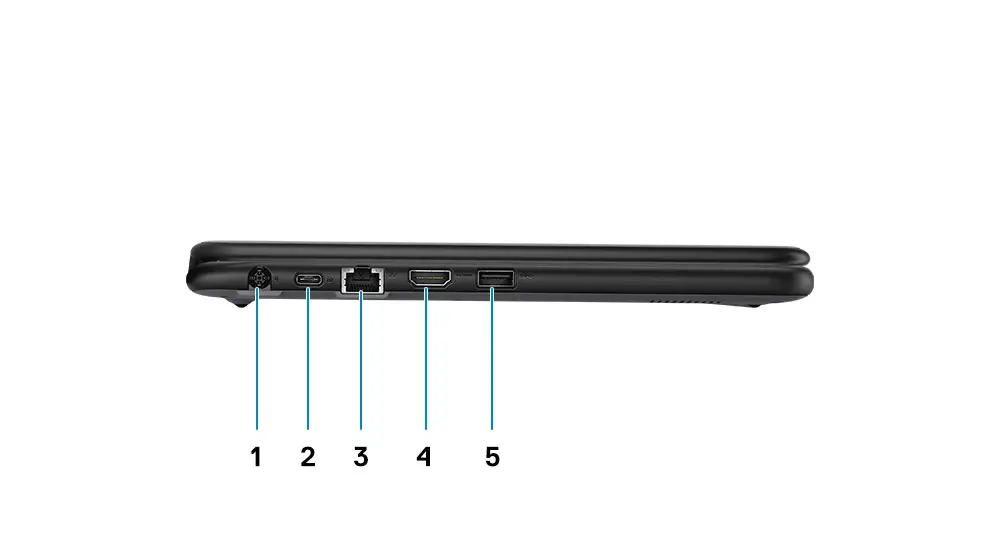
- Power connector
- USB Type-C port
- Network port
- HDMI port
- USB 3.1 port
Right view
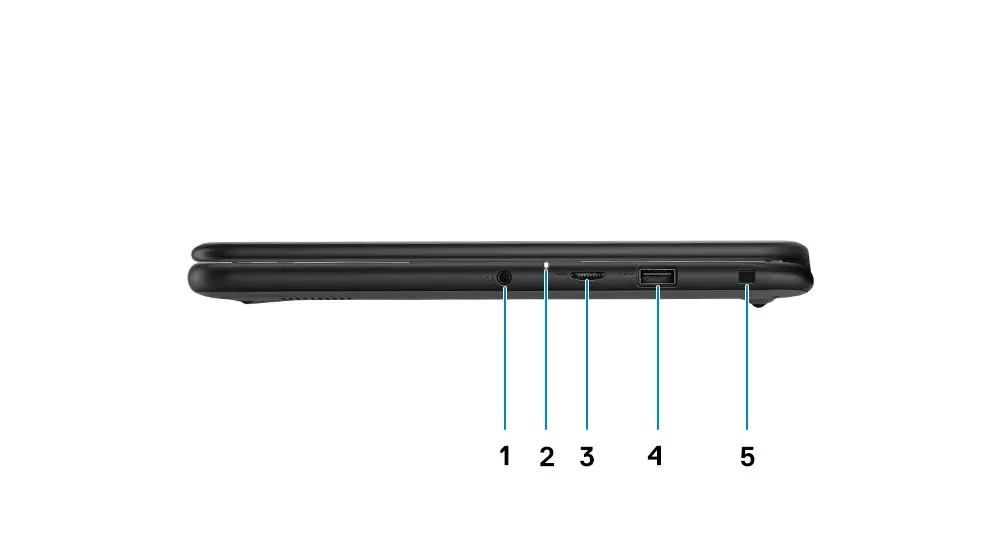
- Audio port
- Battery status light
- microSD port
- USB 3.1 port
- Wedge-shaped lock slot
Base view
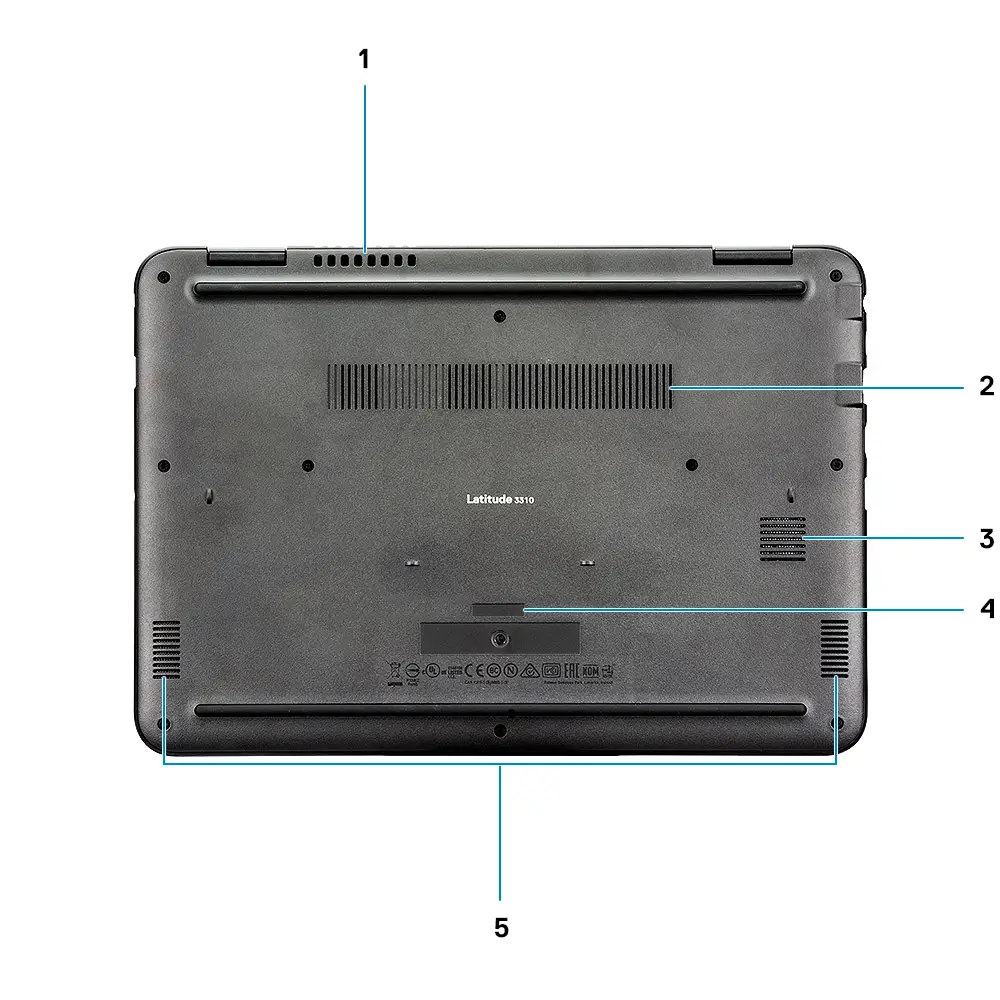
- System fan vent
- SSD vent
- Heatsink vent
- Speakers
- Service tag
Palmrest view
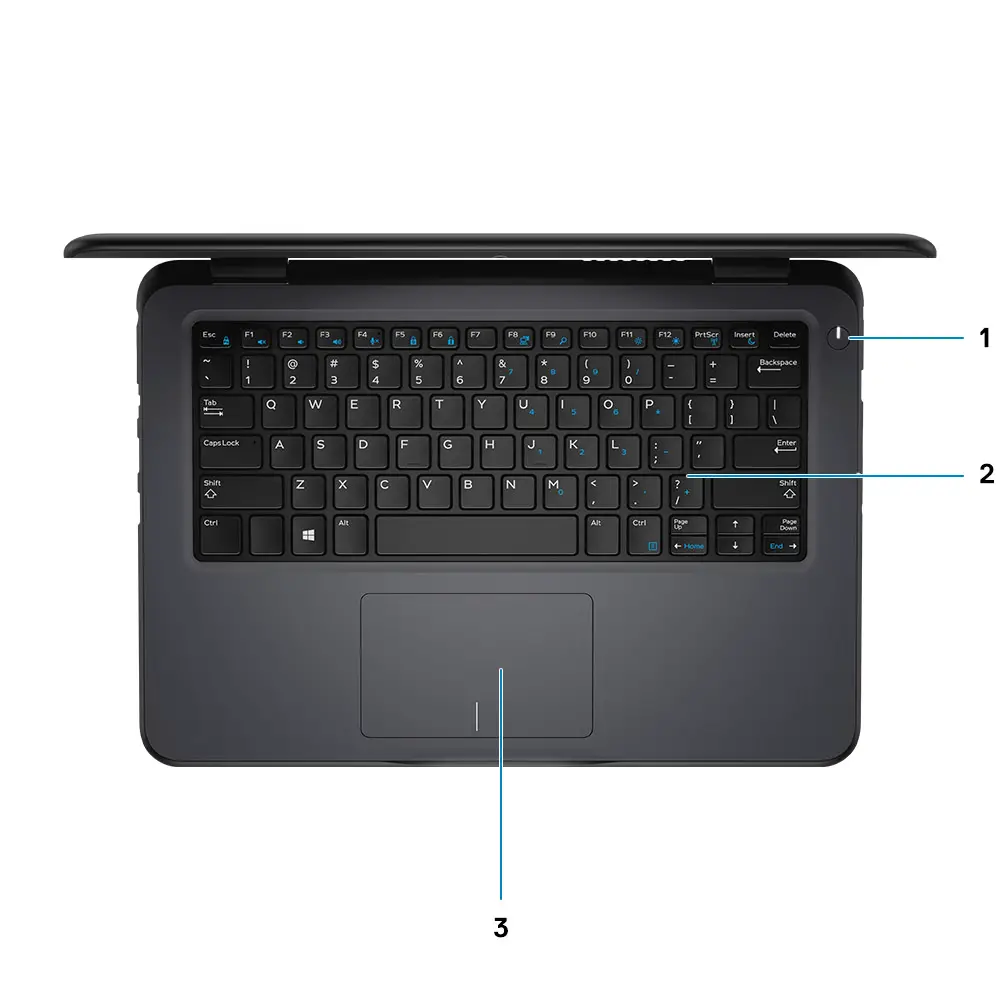
- Power button
- Keyboard
- Touchpad
Keyboard shortcuts
NOTE: Keyboard characters may differ depending on the keyboard language configuration. Keys that are used for shortcuts remain the same across all language configurations.
Table 2. List of keyboard shortcuts
| Keys | Description |
| Fn + F1 | Mute audio |
| Fn + F2 | Decrease volume |
| Fn + F3 | Increase volume |
| Fn + F4 | Mic Mute |
| Fn + F5 | Num Lock |
| Fn + F6 | Scroll Lock |
| Fn + F8 | Display Toggle (Win + P) |
| Fn + F9 | Search |
| Fn + F11 | Print Screen |
| Fn + F12 | Insert |
| Fn + Home | Toggle Wireless On/Off |
| Fn + End | Sleep |
| Fn + Ctrl | open application |
| Fn + Esc | Toggle Fn-key lock |
| Fn + Up arrow | Increase brightness |
| Fn + Down arrow | Decrease brightness |
Specifications of Latitude 3310
Topics:
- Dimensions and weight
- Processors
- Chipset
- Operating system
- Memory
- Ports and connectors
- Communications
- Audio
- Storage
- Media-card reader
- Keyboard
- Camera
- Touchpad
- Power adapter
- Battery
- Display
- Video
- Computer environment
Dimensions and weight
Table 3. Dimensions and weight
| Description | Values | |
| Height: | ||
| Front | 22.30 mm (0.88 in.) | |
| Rear | 22.30 mm (0.88 in.) | |
| Width | 329.60 mm (12.98 in.) | |
| Depth | 230.45 mm (9.07 in.) | |
| Weight | 3.52 lbs (1.59 kg) NOTE: The weight of your computer depends on the configuration ordered and the manufacturing variability. | |
Processors
Table 4. Processors
| Description | Values | |||
| Processors | Intel Celeron-4205U | Intel Pentium-5405U | Intel Core i3-8145U | Intel Core i5-8265U |
| Wattage | 15 W | 15 W | 15 W | 15 W |
| Core count | 2 | 2 | 2 | 4 |
| Thread count | 2 | 4 | 4 | 8 |
| Speed | Up to 1.8 GHz | Up to 2.3 GHz | Up to 3.9 GHz | Up to 3.9 GHz |
| Cache | 2 MB | 2 MB | 4 MB | 6 MB |
| Integrated graphics | Intel UHD Graphics 610] | Intel UHD Graphics 610 | Intel UHD Graphics 620 | Intel UHD Graphics 620 |
Chipset
Table 5. Chipset
| Description | Values | |
| Processors | Intel Celeron DC/Pentium DC | Intel Core i3/i5 |
| Chipset | Whiskey Lake | Whiskey Lake |
| DRAM bus width | 64-bit | 64-bit |
| PCIe bus | Up to Gen 2.0 | Up to Gen 3.0 |
Operating system
Your Latitude 3310 supports the following operating systems:
- Windows 11 Home, 64-bit
- Windows 11 Home National Academic, 64-bit
- Windows 11 Pro, 64-bit
- Windows 11 Pro National Academic, 64-bit
- Windows 10 Pro, 64-bit
Memory
Table 6. Memory specifications
| Description | Values |
| Slots | 1 SO-DIMM slot |
| Type | Single channel DDR4 |
| Speed | 2133 MHz for Intel Celeron DC/ Pentium DC MHz, 2400 MHz for Intel Core i3/i5 |
| Maximum memory | 16 GB |
| Minimum memory | 4 GB |
| Memory size per slot | 4 GB, 8 GB, 16 GB |
| Configurations supported | ● 4 GB DDR4 (1 x 4 GB) [2133 MHz for Intel Celeron DC/ Pentium DC, 2400 MHz for Intel Core i3/i5] |
Ports and connectors
Table 7. External ports and connectors
| Description | Values |
| External: | |
| Network | One RJ-45 port |
| USB |
|
| Audio | One Universal audio jack |
| Video | 1 x HDMI 1.4a, 1 x DP 1.2 via Type-C |
| Media card reader | One Micro SD-card 3.0 slot |
| Power adapter port | One 7.4 mm barrel |
| Security | One Noble Wedge security |
Table 8. Internal ports and connectors
| Description | Values |
| Internal: | |
| M.2 |
|
Communications Ethernet
Table 9. Ethernet specifications
| Description | Values |
| Model number | REALTEK RTL8111HSD PCIe Gigabit Ethernet controller |
| Transfer rate | 10/100/1000 Mbps |
Wireless module
Table 10. Wireless module specifications
| Description | Values |
| Model number | Intel 9560 (160 MHz) |
| Transfer rate | Up to 1733 Mbps |
| Frequency bands supported | 2.4 GHz/5 GHz |
| Wireless standards | WiFi 802.11a/b/g WiFi 4 (WiFi 802.11n) WiFi 5 (WiFi 802.11ac) |
| Encryption |
|
| Bluetooth | 5.0 |
Audio
Table 11. Audio specifications
| Description | Values | |
| Controller | REALTEK ALC3246 | |
| Stereo conversion | Supported | |
| Internal interface | High definition audio | |
| External interface | Universal audio jack | |
| Speakers | Two | |
| Internal speaker amplifier | Supported (audio codec integrated) | |
| External volume controls | Keyboard shortcut controls | |
| Speaker output: | ||
| Average | 2 W | |
| Peak | 2.5 W | |
| Subwoofer output | Not supported | |
| Microphone | Supported (Single digital microphone) | |
Storage
Your computer supports any one of the following configurations:
- One M.2 2242 eMMC
- One M.2 2230 Solid State Drive
Table 12. Storage specifications
| Storage type | Interface type | Capacity |
| One M.2 2242 eMMC | SATA | 64 GB |
| One M.2 2230 Solid state drive | PCle | 128/256 GB |
Media-card reader
Table 13. Media-card reader specifications
| Description | Values |
| Type | One Micro SD-card 3.0 slot |
| Cards supported |
|
Keyboard
Table 14. Keyboard specifications
| Description | Values |
| Type |
|
| Layout | QWERTY |
| Number of keys |
|
| Size | X= 19.05 mm key pitch Y= 18.05 mm key pitch |
| Shortcut keys | Some keys on your keyboard have two symbols on them. These keys can be used to type alternate characters or to perform secondary functions. To type the alternate character, press Shift and the desired key. To perform secondary functions, press Fn and the desired key. NOTE: You can define the primary behavior of the function keys (F1–F12) changing Function Key Behavior in BIOS setup program.Keyboard shortcuts. |
Camera
Table 15. Camera specifications
| Description | Values | ||
| Number of cameras | One | ||
| Type | RGB High Definition camera | ||
| Location | Front camera | ||
| Sensor type | CMOS sensor technology | ||
| Resolution (RGB) | |||
| Still image | 0.92 megapixel | ||
| Video | 1280 x 720 at 30 fps | ||
| Diagonal viewing angle | |||
| Camera | 78.6 degrees | ||
Touchpad
The following table lists the touchpad specifications of your Latitude 3310.
Table 16. Touchpad specifications
| Description | Values | |
| Touchpad resolution: | ||
| Horizontal | 3220 | |
| Vertical | 1952 | |
| Touchpad dimensions: | ||
| Horizontal | 105 mm (4.13 in.) | |
| Vertical | 65 mm (2.56 in.) | |
| Touchpad gestures | For more information about touchpad gestures available on Windows, see the Microsoft knowledge base article 4027871 at support.microsoft.com. | |
Power adapter
Table 17. Power adapter specifications
| Description | Values |
| Type | 65 W |
| Diameter (connector) | 7.4 mm |
| Input voltage | 100 VAC x 240 VAC |
| Input frequency | 50 Hz x 60 Hz |
| Input current (maximum) | 1.50 A |
| Output current (continuous) | 3.34 A |
Battery
Table 18. Battery specifications
| Description | Values | |||
| Type | Polymer 3C 42 WHr smart battery with express charge | Polymer 4C 56 WHr smart battery with express charge | Polymer 4C 56 WHr smart battery (life cycle) | |
| Voltage | 11.40 VDC | 15.20 VDC | 15.20 VDC | |
| Weight (maximum) | 0.44 lb (0.20 Kg) | 0.55 lb (0.25 Kg) | 0.55 lb (0.25 Kg) | |
| Dimensions: | ||||
| Height | 5.90 mm (0.23 in.) | 5.90 mm (0.23 in.) | 5.90 mm (0.23 in.) | |
| Width | 103.25 mm (4.06 in.) | 104.49 mm (4.11 in.) | 104.49 mm (4.11 in.) | |
| Depth | 191.85 mm (7.55 in.) | 242.11 mm (9.53 in.) | 242.11 mm (9.53 in.) | |
| Temperature range: | ||||
| Operating | 0°C to 35°C | 0°C to 35°C | 0°C to 35°C | |
| Storage | -20°C to 65°C | -20°C to 65°C | -20°C to 65°C | |
| Operating time | Varies depending on operating conditions and can significantly reduce under certain power- intensive conditions. | Varies depending on operating conditions and can significantly reduce under certain power-intensive conditions. | Varies depending on operating conditions and can significantly reduce Under certain power-intensive conditions. | |
| Charging time (approximate) | NOTE: Control the charging time, duration, start and end time, and so on using the Dell Power Manager application. For more information on the Dell Power Manager see www.dell.com/. | NOTE: Control the charging time, duration, start and end time, and so on using the Dell Power Manager application. For more information on the Dell Power Manager see www.dell.com/. | ● Standard charge: 0°C to 50°C: 4 hours ● Express Charge: 0°C to 15°C: 4 hours; 16°C to 45°C: 2 hours; 46°C to 50°C: 3 hours NOTE: Control the charging time, duration, start and end time, and so on using the Dell Power Manager application. For more information on the Dell Power Manager see, Me and My Dell on https://www.dell.com/ | |
Display
Table 19. Display specifications
| Description | Values | |
| Type | Full High Definition | |
| Panel technology | In-Plane Switching (IPS) | |
| Luminance (typical) | 220 nits | |
| Dimensions (active area): | ||
| Height | 165.24 mm (6.05 in.) | |
| Width | 164.97 mm (6.49 in.) | |
| Diagonal | 13.3″ | |
| Native resolution | 1366 x 768 | |
| Color gamut | 72% (sRGB), 100% (Adobe RGB) | |
| Contrast ratio (min) | 0.67 | |
| Refresh rate | 60 Hz | |
| Horizontal view angle | 80 +/- degrees | |
| Vertical view angle | 80 +/- degrees | |
| Power consumption (maximum) | 65 W | |
| Anti-glare vs glossy finish | Anti-Glare | |
| Touch options | Yes | |
Video
Table 20. Integrated graphics specifications
| Integrated graphics | |||
| Controller | External display support | Memory size | Processor |
| Intel UHD Grapics 610 | 1 x HDMI 1.4a, 1 x DP 1.2 via Type-C | Shared system memory | Intel Celeron DC/ Pentium DC |
| Intel UHD Graphics 620 | 1 x HDMI 1.4a, 1 x DP 1.2 via Type-C | Shared system memory | Intel Core i3/i5 |
Computer environment
Airborne contaminant level: G1 as defined by ISA-S71.04-1985
Table 21. Computer environment
| Description | Operating | Storage |
| Temperature range | 0°C to 35°C (32°F to 95°F) | -40°C to 65°C (-40°F to 149°F) |
| Relative humidity (maximum) | 10% to 90% (non-condensing) | 0% to 95% (non-condensing) |
| Vibration (maximum)* | 0.66 GRMS | 1.30 GRMS |
| Shock (maximum) | 110 G† | 160 G† |
| Altitude (maximum) | -15.2 m to 3048 m (-49.87 ft to 10000 ft) | -15.2 m to 3048 m (-49.87 ft to 10000 ft) |
- Measured using a random vibration spectrum that simulates user environment.
- Measured using a 2 ms half-sine pulse when the hard drive is in use.
Getting help and contacting Dell
Self-help resources
You can get information and help on Dell products and services using these self-help resources:
Table 22. Self-help resources
| Self-help resources | Resource location |
| Information about Dell products and services | www.dell.com |
| My Dell app |  |
| Tips |  |
| Contact Support | In Windows search, type Contact Support, and press Enter. |
| Online help for operating system | www.dell.com/support/windows |
| Troubleshooting information, user manuals, setup instructions, product specifications, technical help blogs, drivers, software updates, and so on. | www.dell.com/support |
| Dell knowledge base articles for a variety of computer concerns. | 1. Go to www.dell.com/support. 2. Type the subject or keyword in the Search box. 3. Click Search to retrieve the related articles. |
| Learn and know the following information about your product: ● Product specifications ● Operating system ● Setting up and using your product ● Data backup ● Troubleshooting and diagnostics ● Factory and system restore ● BIOS information | See Me and My Dell at www.dell.com/support/manuals. To locate the Me and My Dell relevant to your product, identify your product through one of the following: ● Select Detect Product. ● Locate your product through the drop-down menu under View Products. ● Enter the Service Tag number or Product ID in the search bar. |
Contacting Dell
To contact Dell for sales, technical support, or customer service issues, see www.dell.com/contactdell.
- NOTE: Availability varies by country/region and product, and some services may not be available in your country/region.
- NOTE: If you do not have an active internet connection, you can find contact information on your purchase invoice, packing slip, bill, or Dell product catalog.