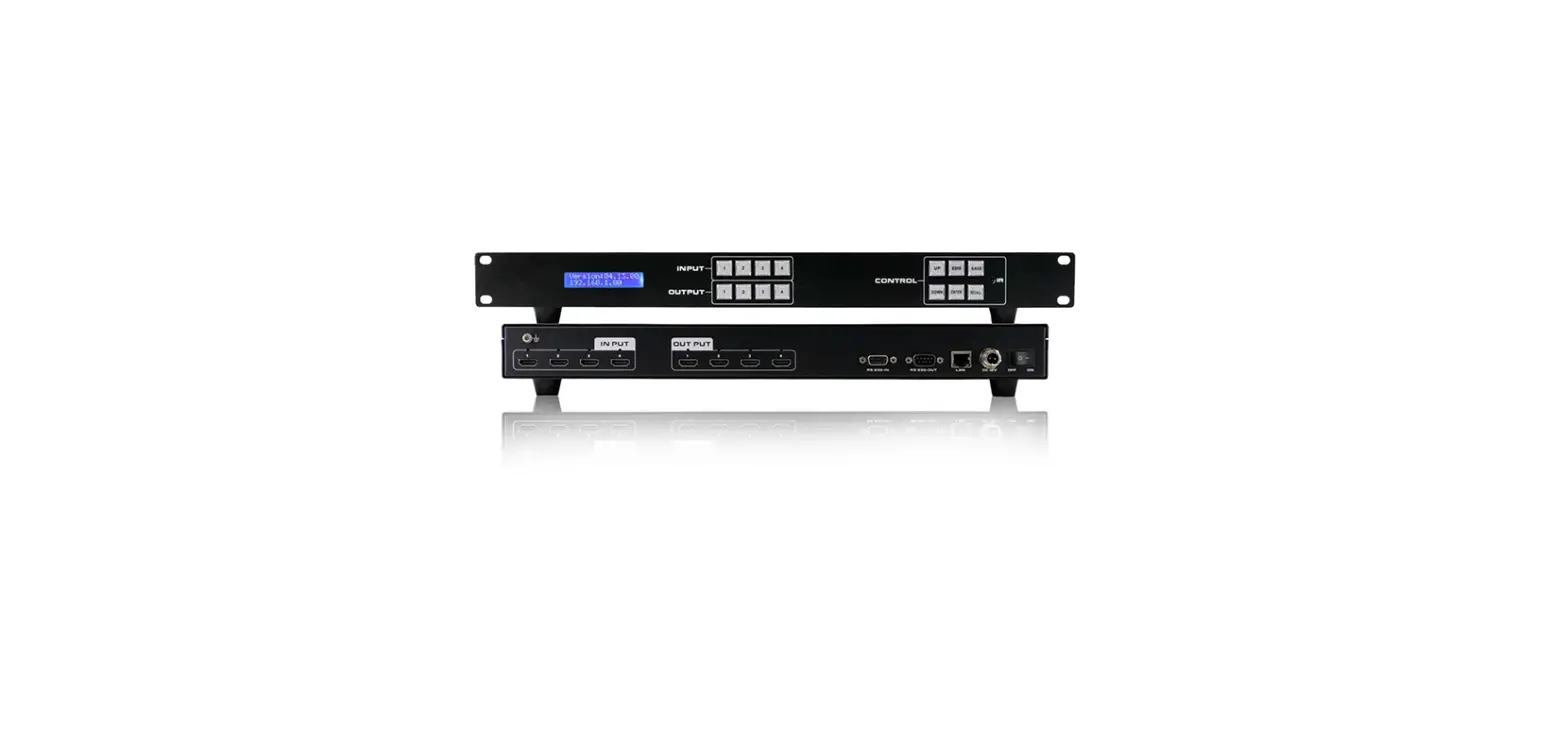
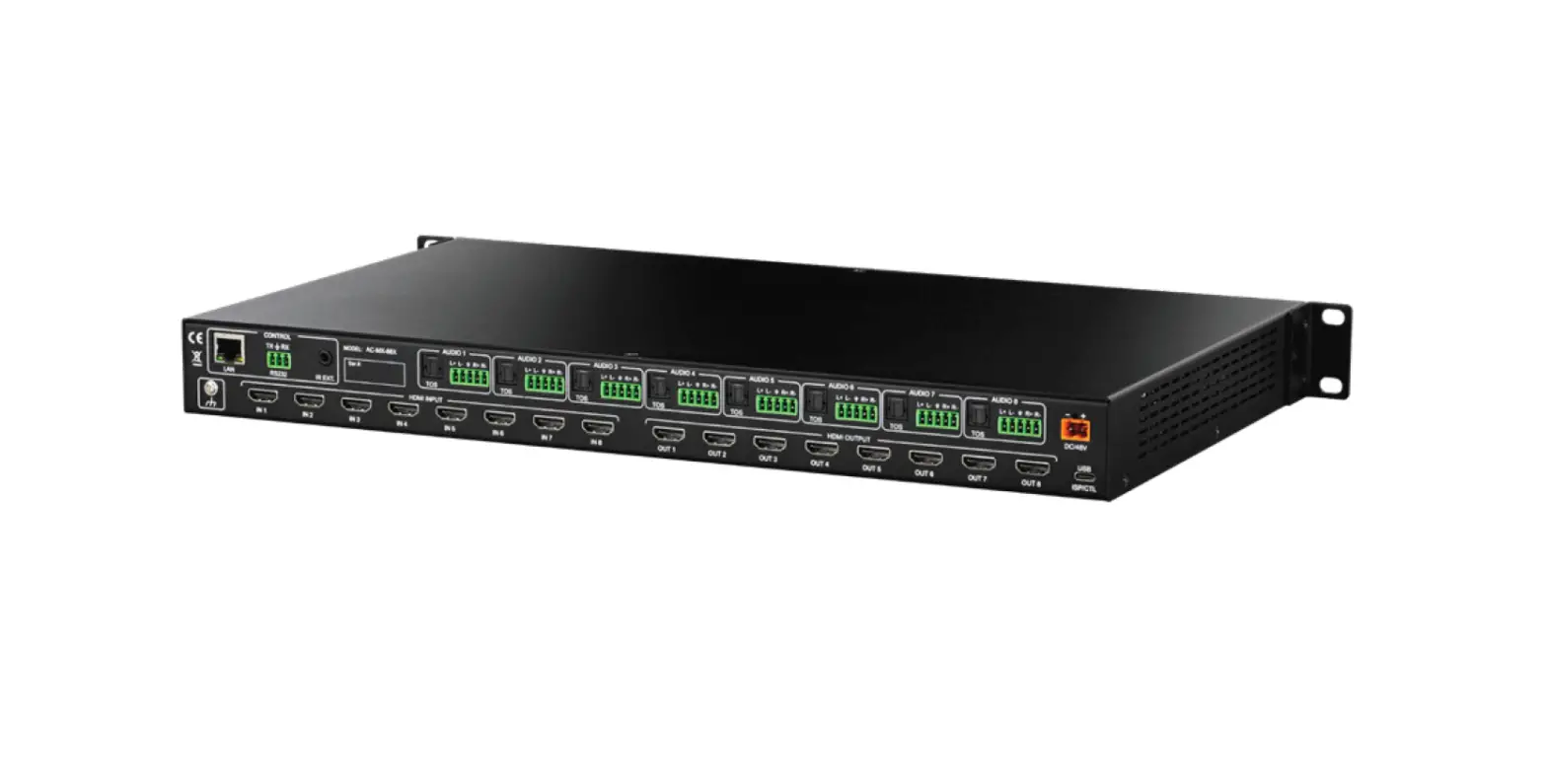
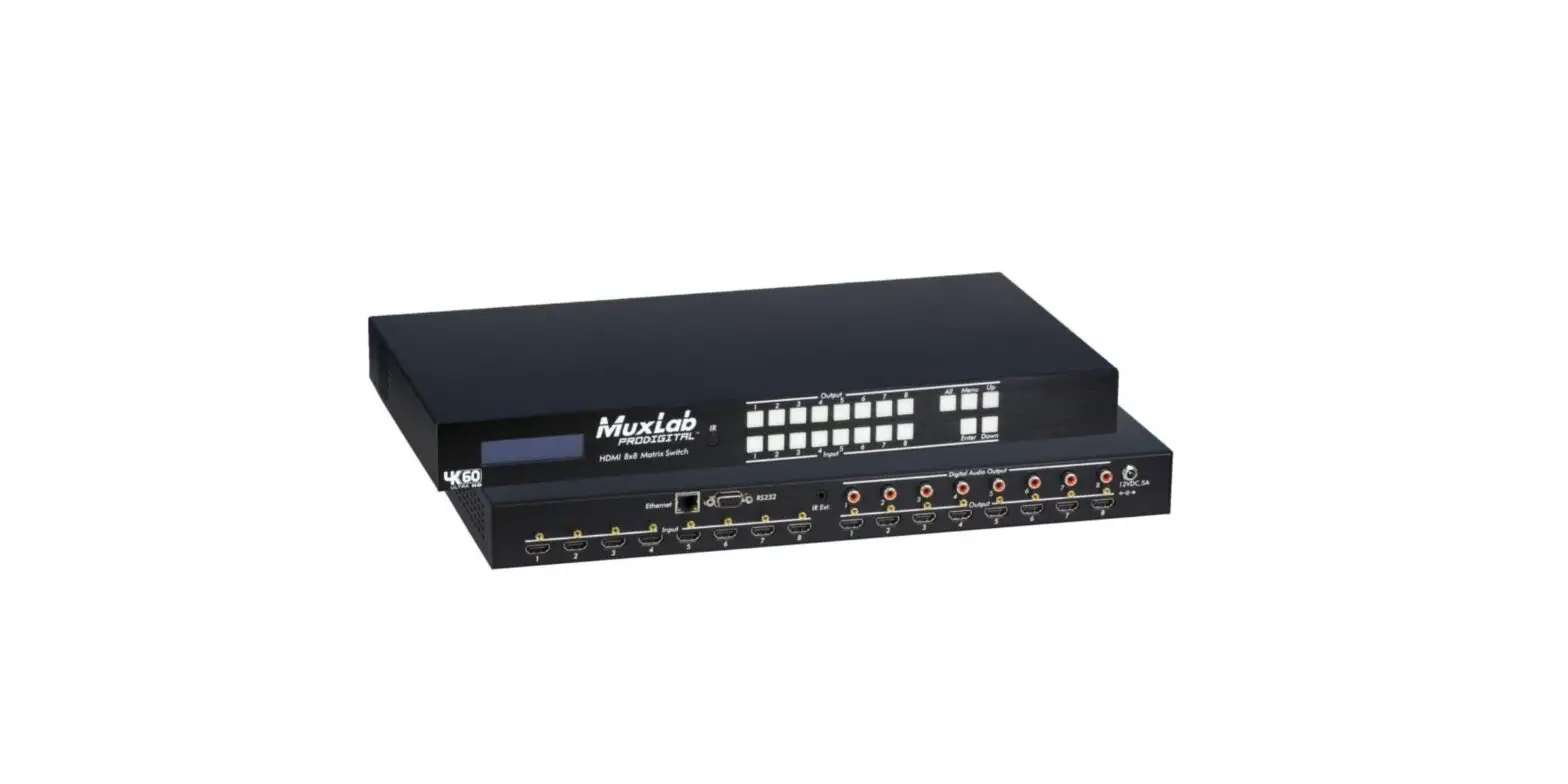
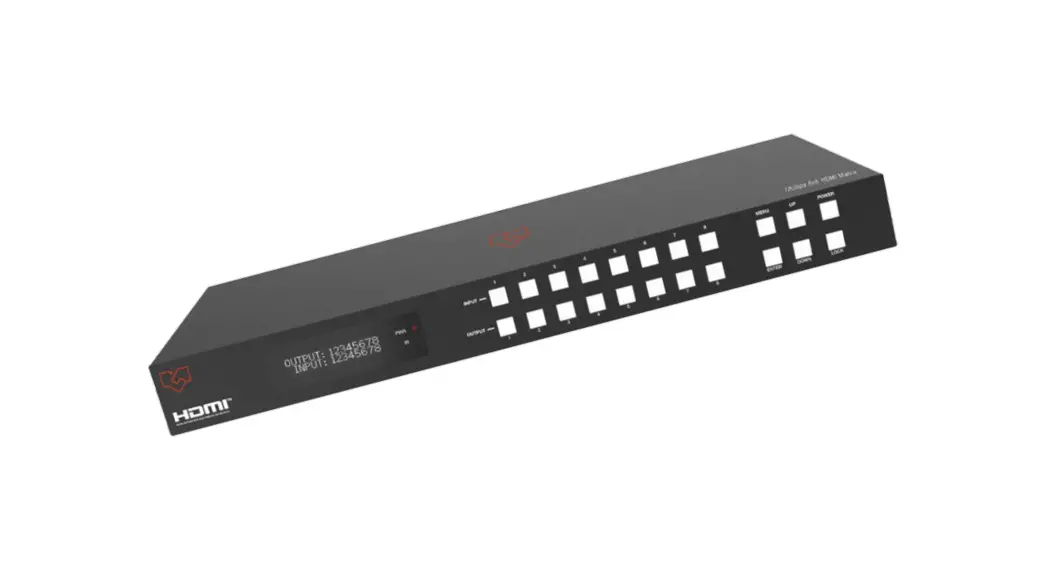
ZT-MT88A 8×8 4K 60Hz HDMI Matrix Switch
Zenty ZT-MT88A Professional A/V Solution
The Zenty ZT-MT88A is the ultimate Audio-Visual solution for
consumers looking to integrate multiple source devices to multiple
displays. It is designed for use in various settings such as
restaurants, bars, churches, and conference centers. This matrix
allows users to connect up to 8 4K source devices and route them to
any of the 8 connected displays.
Product Specifications:
- Bandwidth: High-speed HDMI with up to 18 Gbps
- Resolution: Supports up to 4K Ultra HD (3840 x 2160 @
60Hz) - Video Input Connectors: 8 HDMI inputs (support for DVI sources
with HDMI to DVI adapter) - Video Output Connectors: 8 HDMI outputs
- RS-232 Serial Port: For connecting to a PC or other serial
control device - Ethernet Port (IP Control): For control via telnet/Web GUI
- IR Ext. Port: For extending the IR control range of the
unit - Rack-Mountable: Yes (rack ears included)
- Dimensions (W x H x D): Not specified in the manual
- Net Weight: Not specified in the manual
- Operating Temperature: Not specified in the manual
- Storage Temperature: Not specified in the manual
- Power Consumption: Not specified in the manual
Product Usage Instructions:
1. Source and Display Connections:
- Connect the HDMI source devices (e.g., media players, game
consoles) to the INPUT 1~8 ports using HDMI cables. - Connect the HDMI TVs, monitors, or amplifiers to the OUTPUT 1~8
ports using HDMI cables. - Note: For DVI sources, use an HDMI to DVI adapter and connect
to the corresponding INPUT port.
2. Control Options:
- IR Control: Use the included IR remote to
control the unit. Point the remote at the IR WINDOW on the front
panel. - IP Control: Connect the unit directly to a PC
or laptop using an Ethernet cable or through a network switch for
control via telnet/Web GUI. - RS-232 Control: Connect the unit directly to a
PC, laptop, or other serial control device using an appropriate
cable for sending RS-232 commands.
3. Additional Features:
- Locking & Unlocking: To lock all button
functions on the front panel, press and hold Input8 for 3 seconds.
Repeat this step to release the lock function. - Checking & Setting IP Address / DHCP: To
check the IP address and DHCP settings, press and hold Input7 for 3
seconds. Press Input5 to exit. Use Input1 to move the cursor left,
Input2/Output2 to revise data, Input3 to move the cursor right, and
Output1 to confirm revisions. - Checking & Setting EDID: To check and set
the EDID (Extended Display Identification Data), press and hold
Input6 for 3 seconds. Press Input5 to exit. Use Input2/Output2 to
revise data and Output1 to confirm revisions.
4. Power:
- Plug the 12V DC power adapter into the DC POWER slot on the
unit. - Connect the power adapter to an AC wall outlet for power.
For further assistance or inquiries, please contact Zenty’s
customer support at (844) 200-1945 or email [email protected].
Zenty | Professional A/V Solution Provider
(844) 200-1945 | [email protected]
Page 1 of 21
ZENTY ®
9807 EMILY LANE STAFFORD, TX 77477
(844) 200-1945 [email protected]
Copyright © Zenty AV
(844) 200-1945 | [email protected]
Page 2 of 21
Copyright © Zenty AV
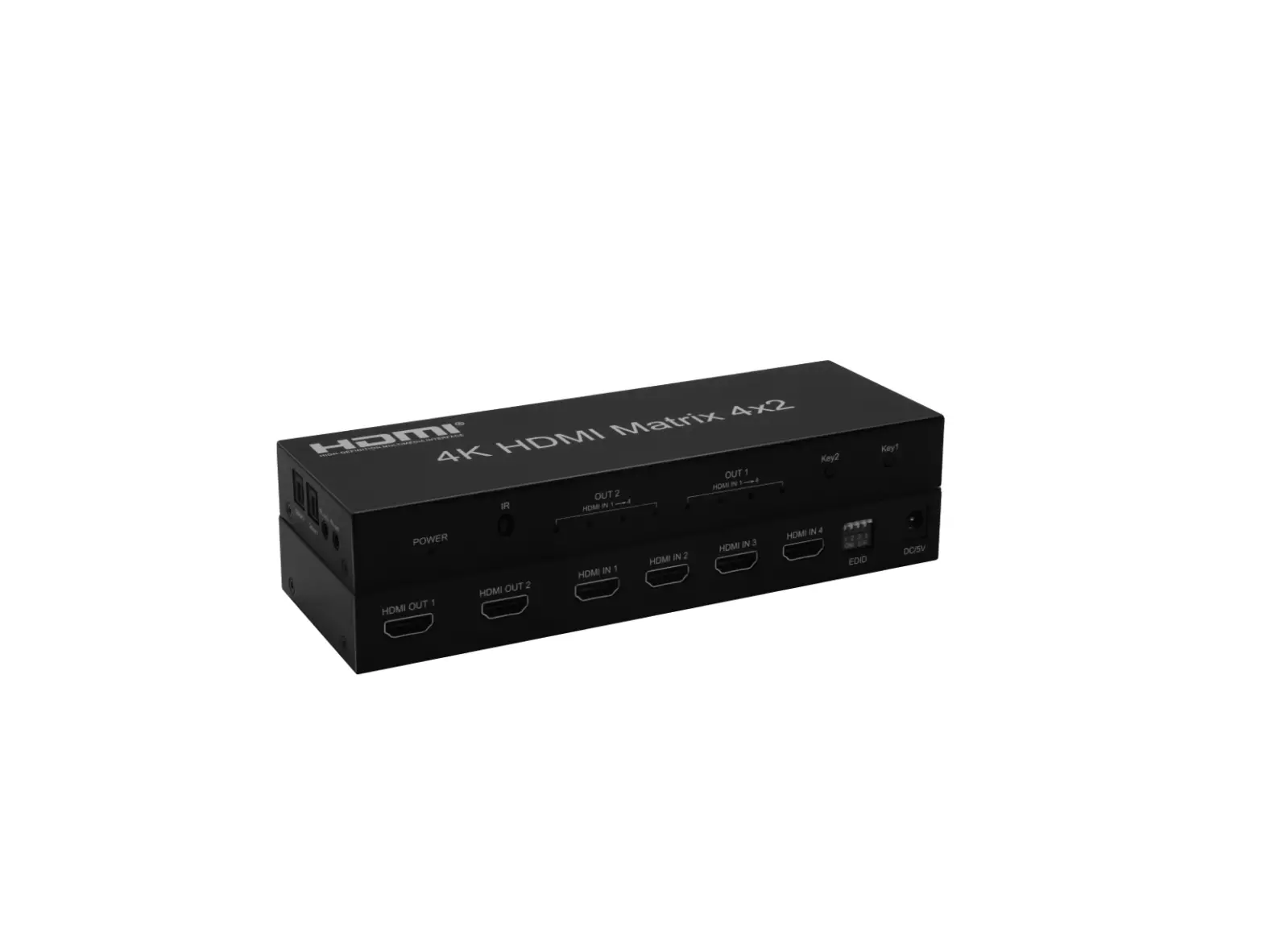
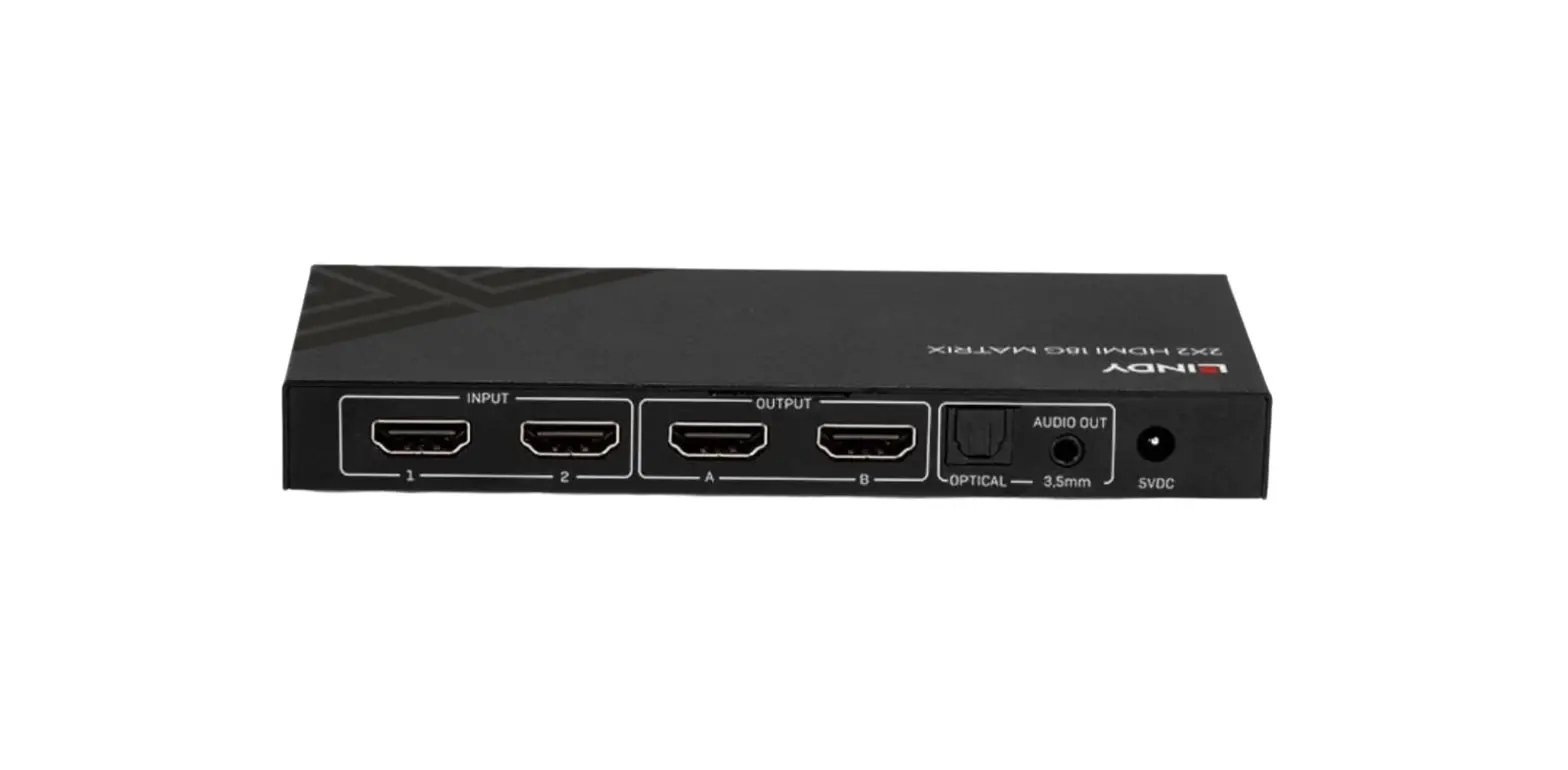
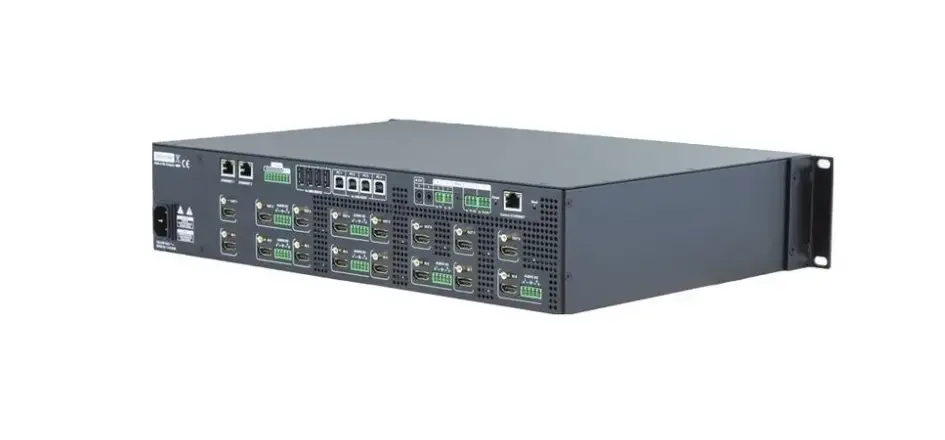
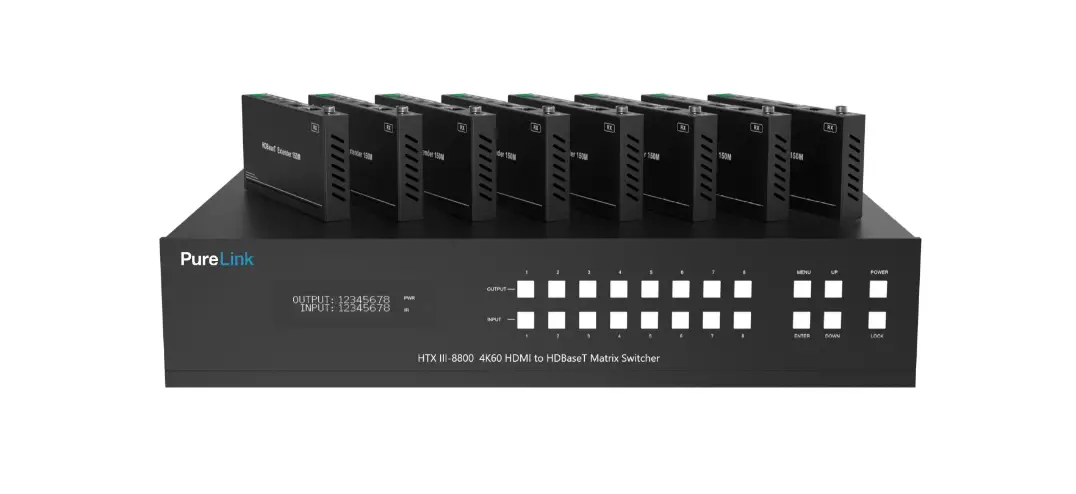
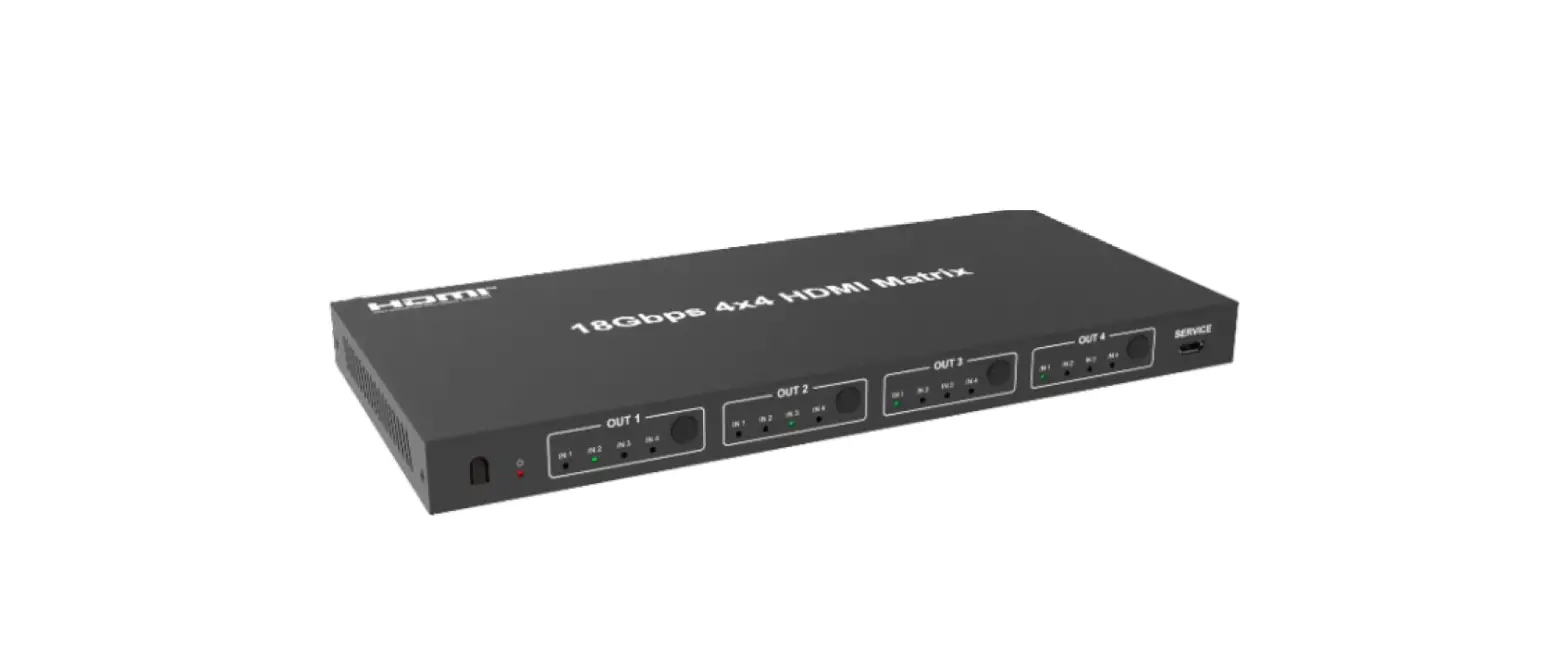
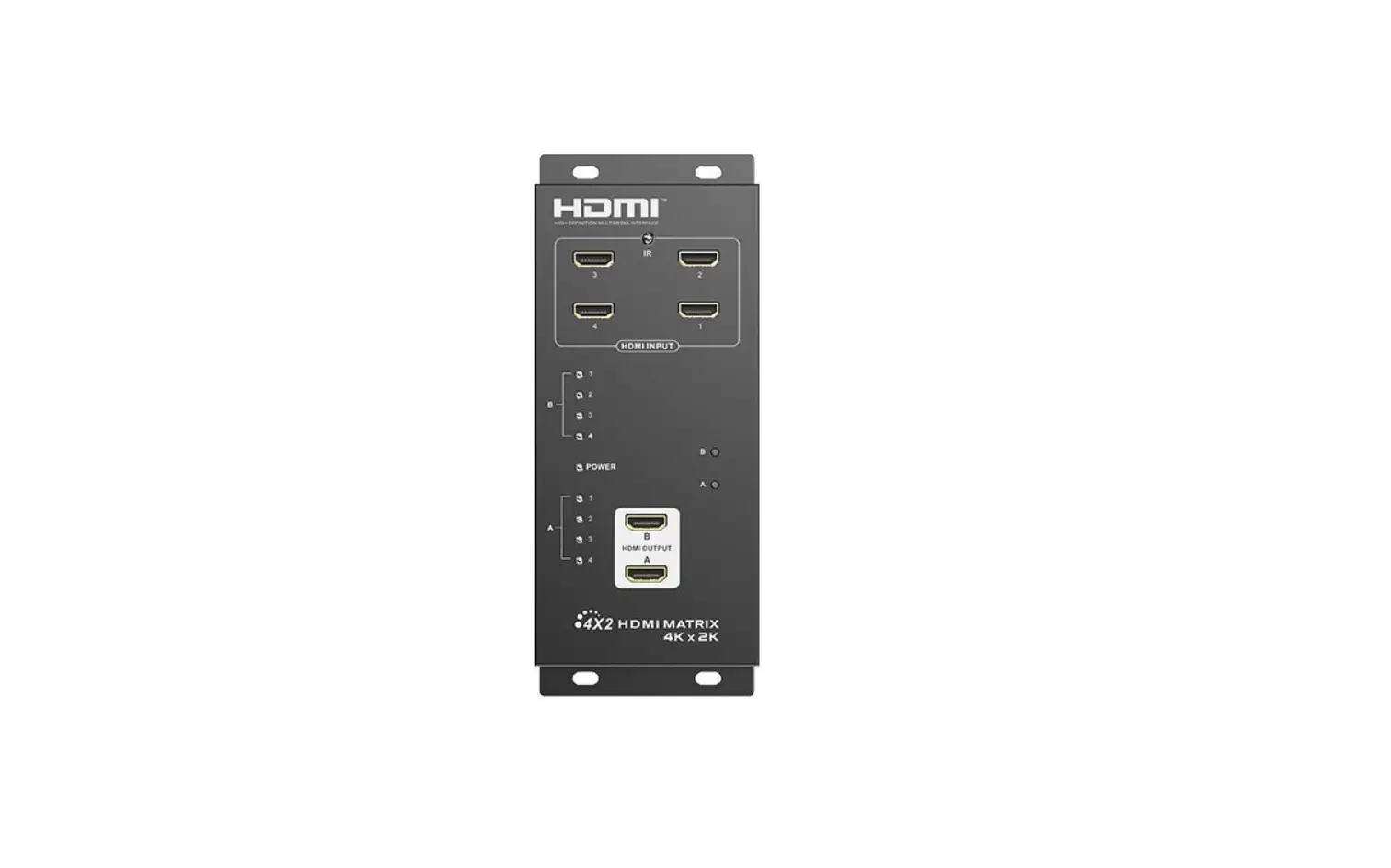
The Zenty ZT-MT88A is the ultimate Audio-Visual solutions for consumers looking to integrate multiple source devices to multiple displays, such as for use in a restaurant or bar, a church or conference centers. With this matrix users can connect up to 8 4K source devices, and route to any of their 8 connected displays.
Each output has an individual SPDIF output, allowing for the audio to be extracted to a separate destination such as a sound bar, AV receiver, or Surround Sound System. Experience the best quality picture by using this matrix, which can support 4K HDR and YUV 4:4:4 Chroma subsampling. Match the display settings of your devices to that of your display using the EDID copy feature of this Matrix, which can set using RS-232 or IP control. When connected to the Matrix, you can set your EDID settings, control your Input and Output assignments, as well as your SPDIF output settings, and more.
It switches one of eight Ultra HD source to any destination with HDCP content protection. For ease of setup, the matrix includes a PC application for EDID configurations. HDMI 2.0 significantly increases bandwidth with some up to 18Gbps and adds key enhancements to enhance your video and audio experience. This matrix is ideal for residential and commercial applications where a number of AV sources must be shared to reduce the installed equipment footprint and to reduce the costs associated with multiple, redundant devices.
· Video/TV wall display · Security surveillance and control · Commercial advertising · University lecture hall · Retail sales and demonstration
· (1) x HDMI Matrix · (1) x 12V DC Power Supply
(844) 200-1945 | [email protected]
Page 3 of 21
Copyright © Zenty AV
· (1) x Remote Control · (1) x IR Ext. Receiver Cable · (1) x Mounting Kit · (1) x User Manual
· HDMI source equipment such as media players, video game consoles or set-top boxes
· HDMI receiving equipment such as HDTVs, monitors or audio amplifiers · The use of “Premium High-Speed HDMI” cables is highly recommended
· HDMI 2.0 version (Supports 4K@60Hz YUV4:4:4) · Bandwidth up to 18Gbps · HDCP 2.2 Input | HDCP 2.2 output · HDCP 1.4 input, HDCP 1.4 output · Supports HDR | HDR10 | Dolby Vision · 8 x HDMI Inputs, 8 x HDMI outputs, with 8 x SPDIF Audio · Any one of the 8 Ultra HD sources can be routed to any one of the 8 Ultra HD displays · Supports Dolby True HD and DTS-HD master audio · Micro-USB interface for user to upgrade firmware · Controllable via front-panel buttons, IR remote, RS232, TCP/IP, Web GUI Control · 1U rack design, easy installation
(844) 200-1945 | [email protected]
Page 4 of 21
Copyright © Zenty AV
Bandwidth Resolution Video Input Connectors Video Output Connectors RS-232 Serial Port Ethernet Port (IP Control) IR Ext. Port Rack-Mountable Dimensions (W x H x D)
Net Weight Operating Temperature Storage Temperature Power Consumption
18Gbps Up to 4K 60Hz 4:4:4 8 x HDMI Type A [19-pin female] 8 x HDMI Type A [19-pin female] DB9 RJ45 1 x 3.5mm Stereo Jack Rack Ears Included 440mm x 220mm x 44.5mm 17.32″ x 8.67″ x 1.75″ 2.8kg | 6.17lbs. 32°F ~ 104°F | 0°C ~ 40°C 14°F ~ 140°F | -10°C ~ 60°C 23W (Max)
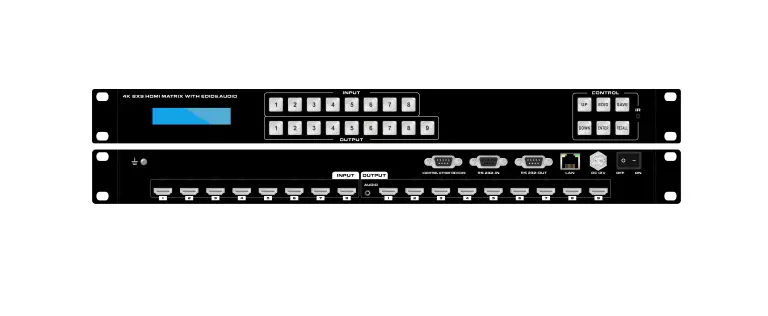
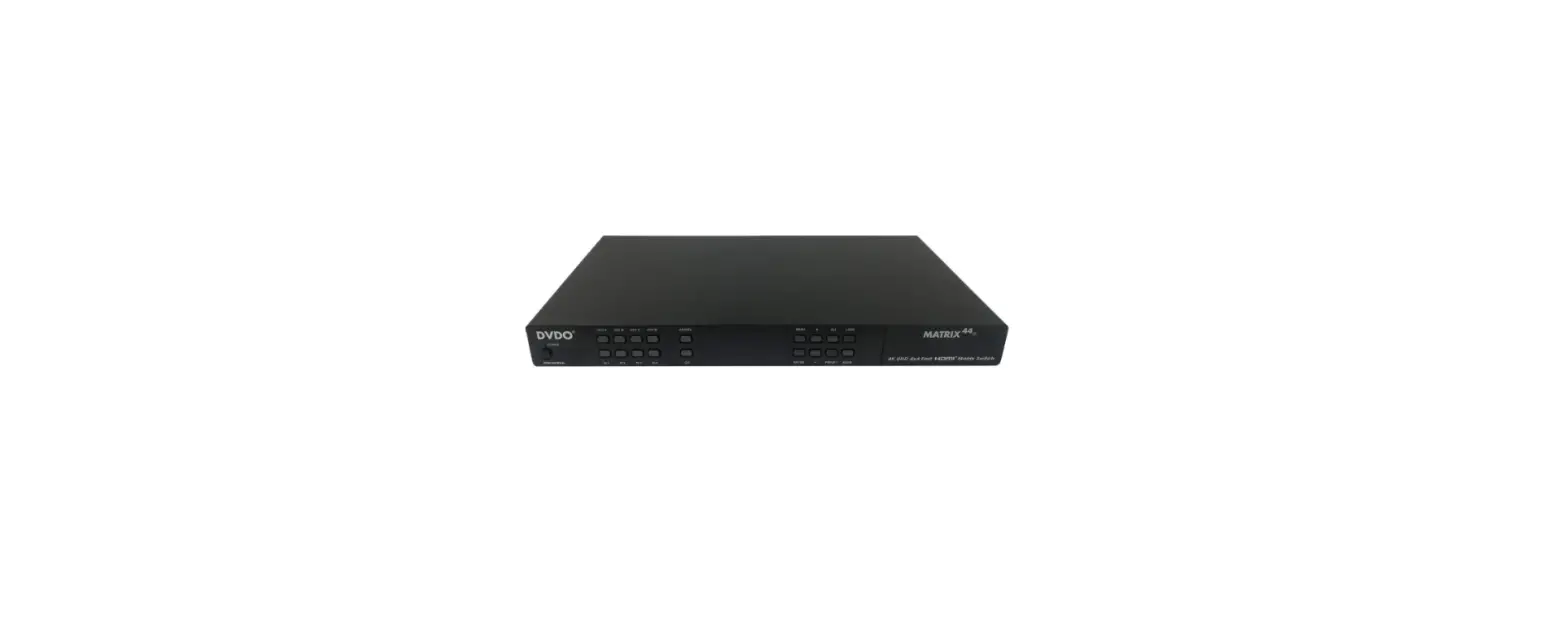
1. IR WINDOW: Accepts IR signals from the included IR remote for control of this unit only. 2. OUTPUT 1~8 & INPUT 1~8: Press output keys (1~8) to select output source; then press input buttons to select input source (1~8). Users can also could press and hold Input & Output buttons for
(844) 200-1945 | [email protected]
Page 5 of 21
Copyright © Zenty AV
3 second to set up below functions:
Locking & Unlocking: Press and hold the Input8 for 3 seconds to lock all button functions on the front panel. Press and hold Input8 for 3 seconds again to release the lock function.
Checking & Setting IP Address / DHCP: Press and hold the Input7 for 3 seconds to enter into the mode of checking IP address and DHCP. Press and hold Input5 for 3 seconds to Exit. Press below buttons shortly to revise the IP address and DHCP accordingly. Press Input1 button to let cursor move LEFT Press Input2 and/or Output2 button to revise the data Press Input3 button to let cursor move RIGHT Press Output1 button to confirm revising
Checking & Setting EDID: Press and hold the Input6 for 3 seconds to enter into the mode of checking EDID. Press and hold Input5 for 3 seconds to Exit. Press below buttons shortly to revise the EDID accordingly. Press Input2 and/or Output2 button to revise the data Press Output1 button to confirm revising
1. IP CONTROL: Connect directly, or through a network switch, to your PC or laptop to control the unit via telnet/Web GUI.
(844) 200-1945 | [email protected]
Page 6 of 21
Copyright © Zenty AV
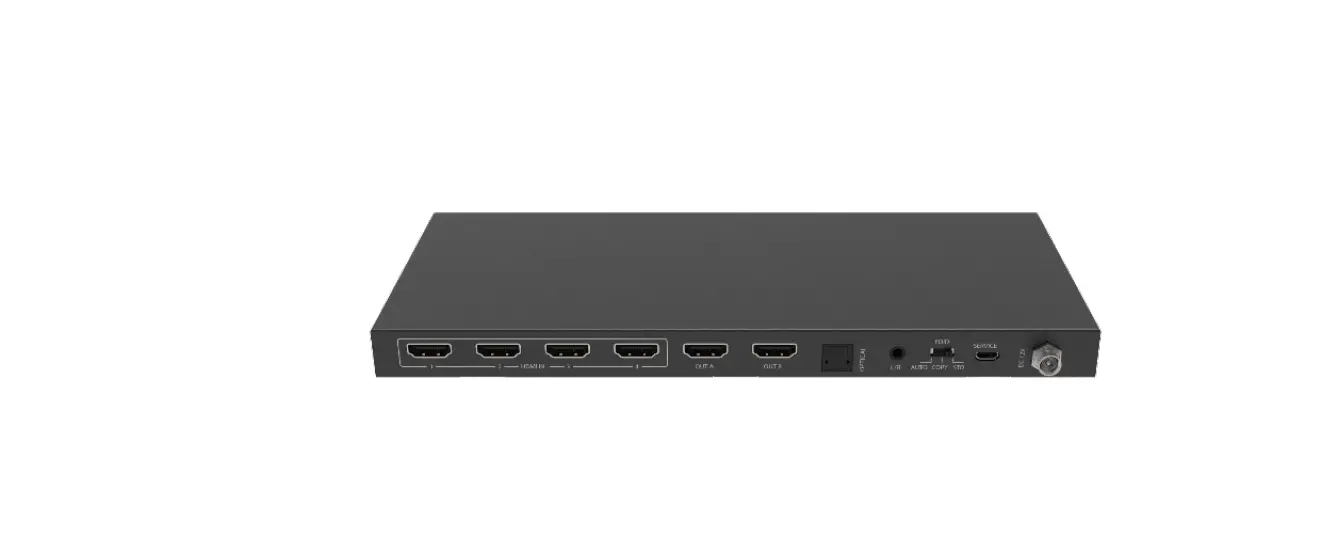
2. RS232: Connect directly to a PC, laptop or other serial control device to send RS-232 commands to control the unit
3. MICRO USB: This slot is reserved for firmware update use only
4. IR IN: Connect to the provided IR Extender to extend the IR control range of the unit. Ensure that the remote being used is within direct line-of-sight of the IR Extender.
5. SPDIF Audio Output: Audio output is from the selected HDMI source
6. DC POWER: Plug the 12V DC power adapter into the unit and connect it to an AC wall outlet for power.
7. INPUT 1~8: Connect to HDMI source equipment such as media players, game consoles or set-top boxes. DVI sources are supported with the use of an HDMI to DVI adapter.
8. OUTPUT 1~8: Connect to HDMI TVs, monitors or amplifiers for digital video and audio output.
(844) 200-1945 | [email protected]
Page 7 of 21
Copyright © Zenty AV
· Connect the 8×8 Matrix to PC with a RS232 cable, open the software on your PC. On the COM Setting session, select the COM port according to your PC and click “Connect” to get connected.
· On this COM setting session, you can also change the Device name, Device name support up to 16 characters. Save or edit your status by clicking the Edit button.
· Come to Port Set session to select or switch your input sources for each output, We can read the current status by clicking the “Status” button, or “Clear” our historical operating record by clicking “Clear” button. The right down blank shows the operating history.
(844) 200-1945 | [email protected]
Page 8 of 21
Copyright © Zenty AV
· The EDID session helps us to Read and Configure EDID for each input, such as HDR, 3D, Data rates and Audio channel.
(844) 200-1945 | [email protected]
Page 9 of 21
Copyright © Zenty AV
· The IP configure session helps to read and configure the IP address and MAC of the Matrix. Check DHCP if you want the router to assign an IP for the Matrix automatically.
· The Net Config session allows us to configure the PC and Matrix in the same LAN with the IP Address and connection.
· Click “Net config” “Connect” “Search Device” “Sel Device Number” “Connect” then you can see the device name, it means successful connection.
(844) 200-1945 | [email protected]
Page 10 of 21
Copyright © Zenty AV
· You can also click “IE”, easy and click to enter into web
· The last session is System Config, which allows power ON/OFF or reset, default the Matrix.
(844) 200-1945 | [email protected]
Page 11 of 21
Copyright © Zenty AV
Clean this unit with a soft, dry cloth. Never use alcohol, paint thinner, or benzine to clean.
(844) 200-1945 | [email protected]
Page 12 of 21
Copyright © Zenty AV
(844) 200-1945 | [email protected]
Page 13 of 21
Copyright © Zenty AV
1. Connect the HDMI Matrix and PC to the LAN under the Matrix DHCP Mode. 2. Open the PC tool (included in the provided CD) 3. Search the IP address of the HDMI Matrix. (Default Matrix IP address is: 192.168.1.168) 4. Open a web browser and enter the IP address you searched, then enter the following credentials:
(844) 200-1945 | [email protected]
Page 14 of 21
Copyright © Zenty AV
(844) 200-1945 | [email protected]
Page 15 of 21
Copyright © Zenty AV
(844) 200-1945 | [email protected]
Page 16 of 21
Copyright © Zenty AV
(844) 200-1945 | [email protected]
Page 17 of 21
Copyright © Zenty AV
Connect 8×8 HDMI Matrix to PC or laptop with Micro USB cable after matrix is powered on. Open the “updated software’ which has been downloaded in our CD. And then click “Search” “Port Sel” (to choose correct port) “Connect” (It will show “S3RLC” when connect successfully) “Load FW File” “Update” Please do not power off or disconnect when it is updating the FW file.
(844) 200-1945 | [email protected]
Page 18 of 21
Copyright © Zenty AV
If your product does not work properly because of a defect in materials of workmanship, our company (referred to as “the warrantor”) will, for the length of the period indicated as below, “Parts and Labor (5) Years”, which starts with the date of original purchase (“Limited Warranty period”), at its option either (a) repair your product with new or refurbished parts, or (b) replace it with a new or a refurbished product. The decision to repair or replace will be made by the warrantor.
During the “Labor” limited warranty period, there will be no charge for labor. During the “Parts” warranty period, there will be no charge for parts. You must mail-in your product during the warranty period. This Limited Warranty is extended only to the original purchaser and only covers products purchased as new. A purchase receipt or other proof of original purchase date is required for Limited Warranty service.
(844) 200-1945 | [email protected]
Page 19 of 21
Copyright © Zenty AV
When shipping the unit, carefully pack and send it prepaid, adequately insured, and preferably in the original carton. Include a letter detailing the complaint and provide a day time phone and/or email address where you can be reached.
This Limited Warranty ONLY COVERS failures due to defects in material or workmanship, and DOES NOT COVER normal wear and tear or cosmetic damage. The Limited Warranty ALSO DOES NOT COVER damages which occurred in shipment, or failures which are caused by products not supplied by warrantor, or failures which result from accidents, misuse, abuse, neglect, mishandling, misapplication, alteration, faulty installation, set-up adjustments, mis-adjustment of consumer controls, improper maintenance, power line surge, lightning damage, modification, or service by anyone other than a Factory Service center or other Authorized Servicer, or damage that is attributed to acts of God.
THERE ARE NO EXPRESS WARRANTIES EXCEPT AS LISTED UNDER “LIMITED WARRANTY COVERAGE”. THE WARRANTOR IS NOT LIABLE FOR INCIDENTAL OR CONSEQUENTAIL DAMAGES RESULTING FROM THE USE OF THIS PRODUCT, OR ARISING OUT OF ANY BREACH OF THIS WARRANTY. (As examples, this excludes damages for lost time, cost of having someone remove or re-install an installed unit if applicable, travel to and from the service, loss of or damage to media or images, data or other recorded content. The items listed are not exclusive, but are for illustration only.) PARTS AND SERVICE, WHICH ARE NOT COVERED BY THIS LIMITED WARRANTY, ARE YOUR RESPONSIBILITY.
(844) 200-1945 | [email protected]
Page 20 of 21
Copyright © Zenty AV
WWW.ZENTY.COM 9807 EMILY LANE STAFFORD, TX 77477
(844) 200-1945 [email protected]
[email protected]
(844) 200-1945 | [email protected]
Page 21 of 21
Copyright © Zenty AV
 Zenty - The AV Technology Leader