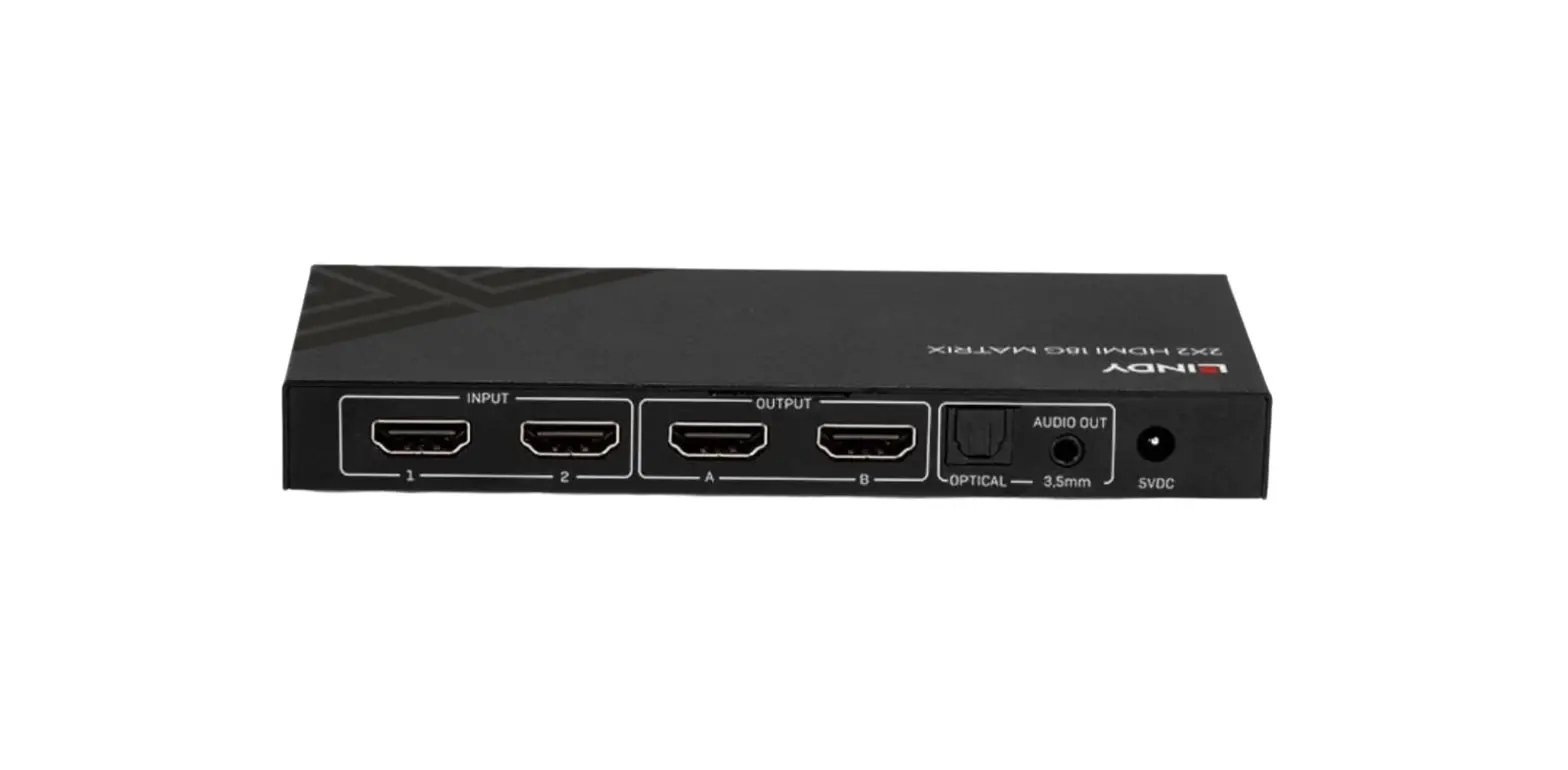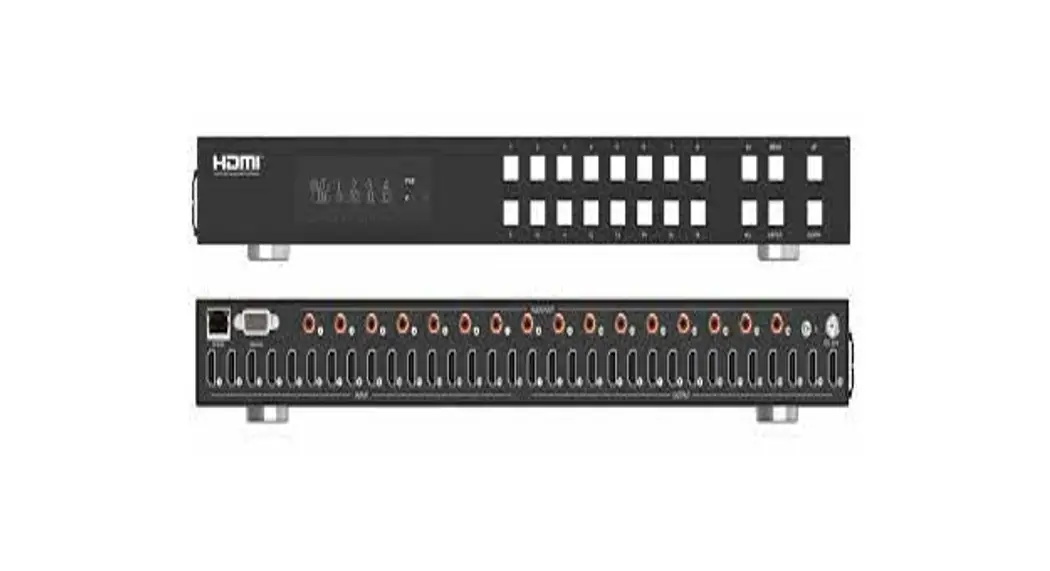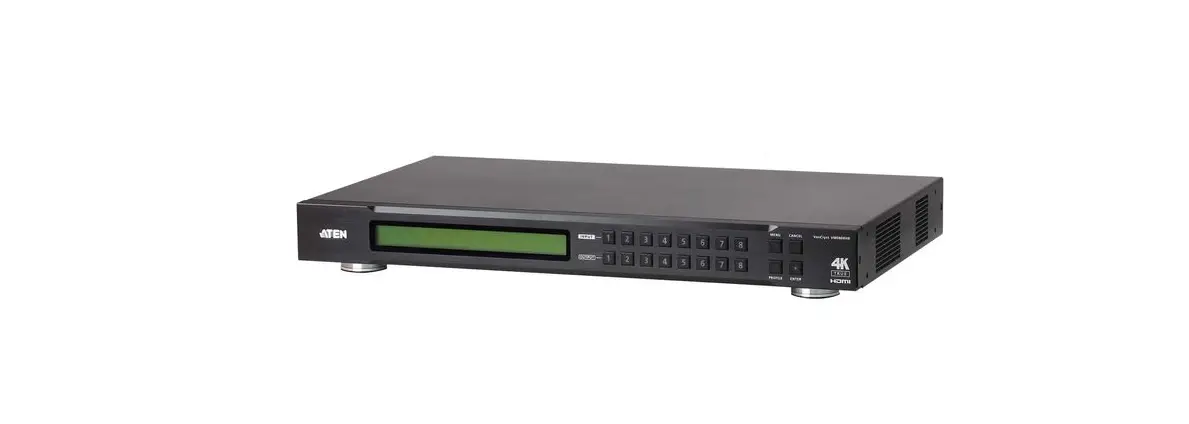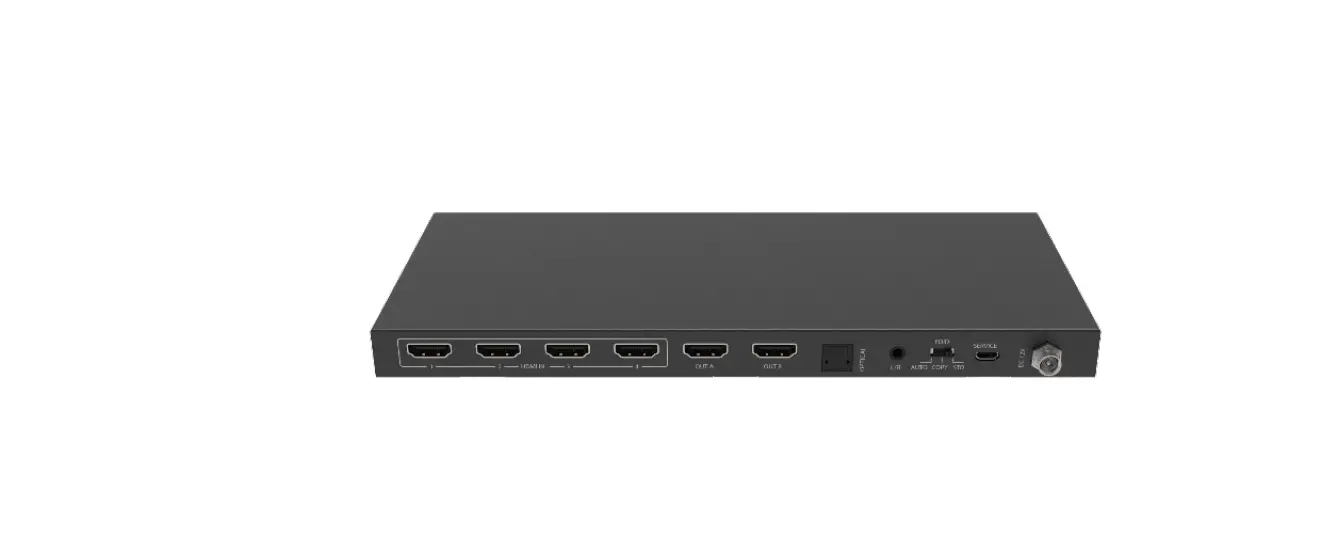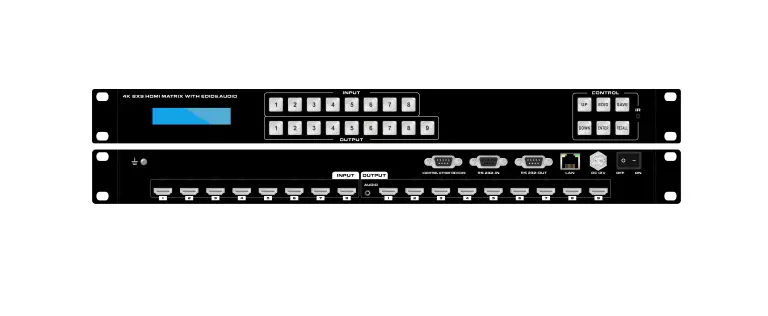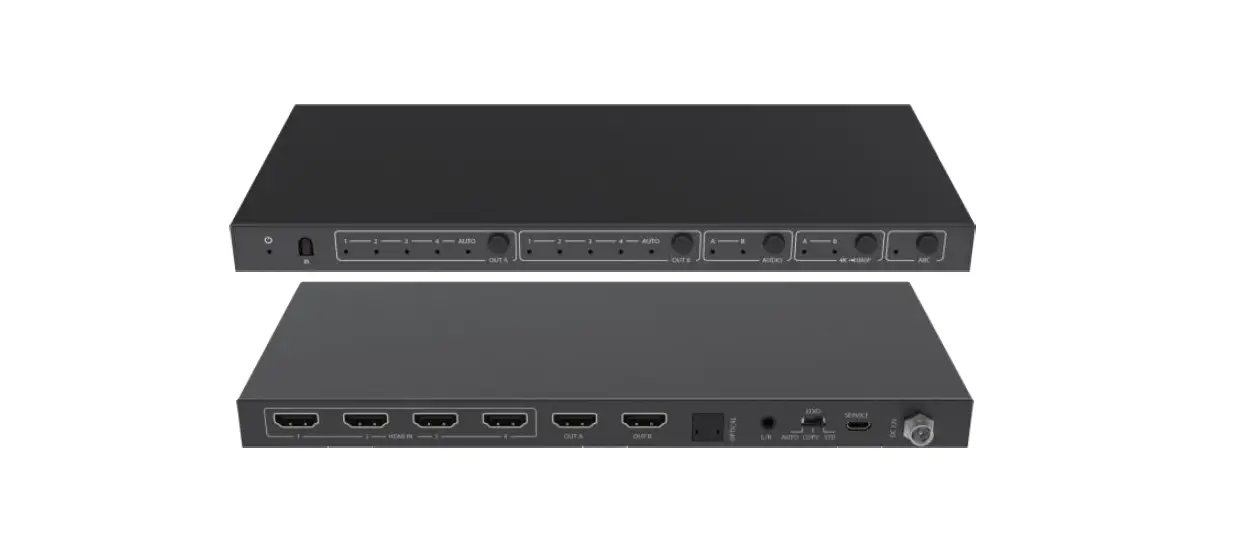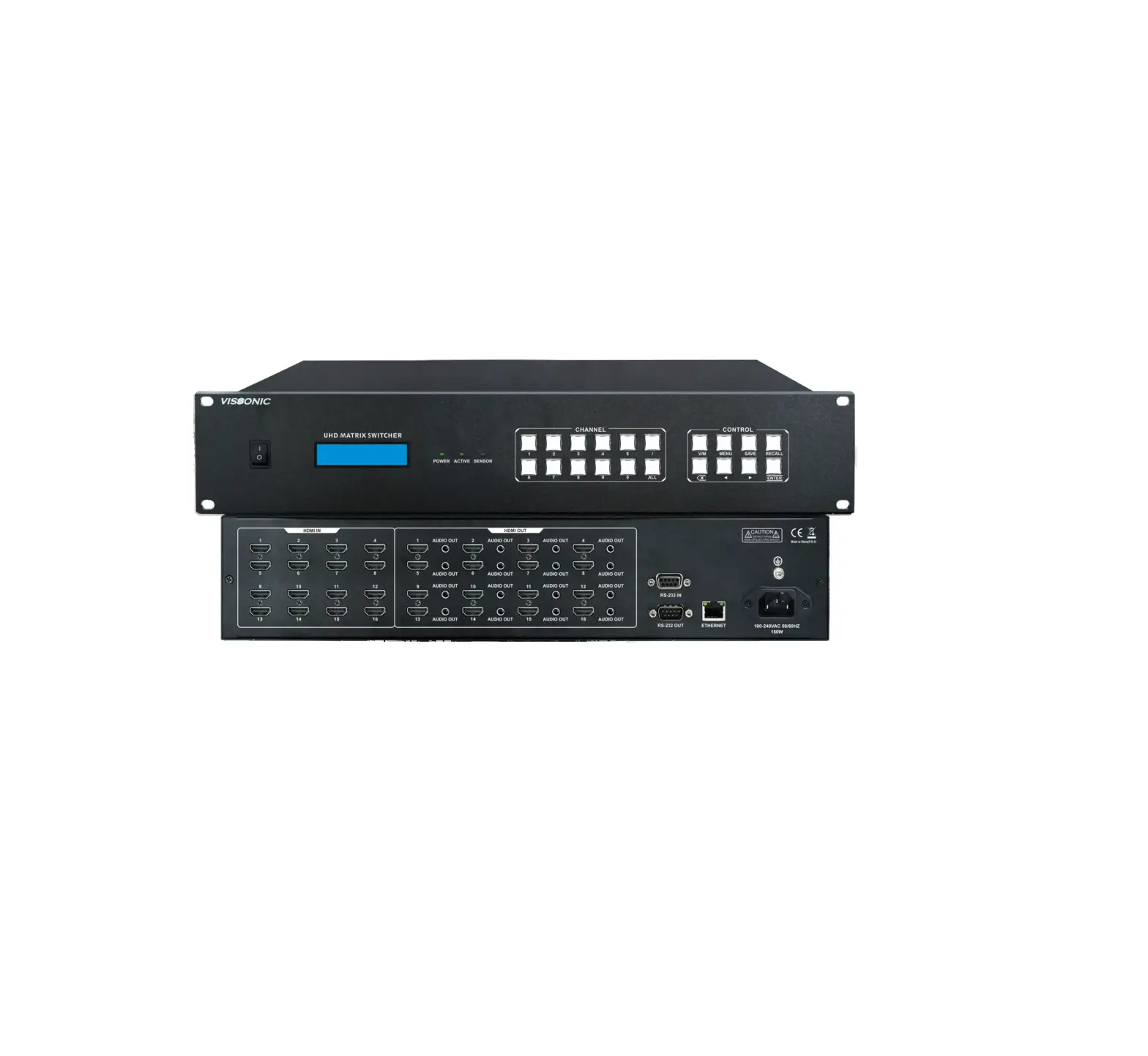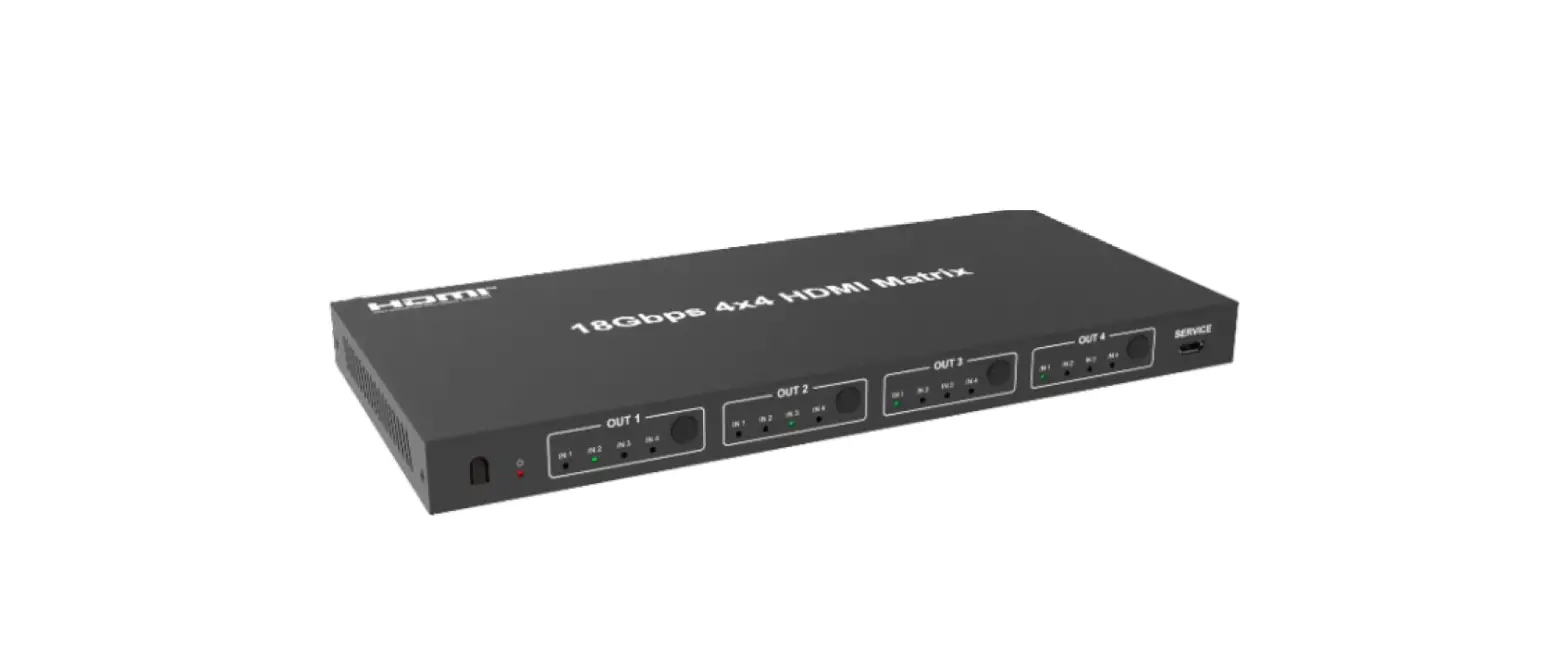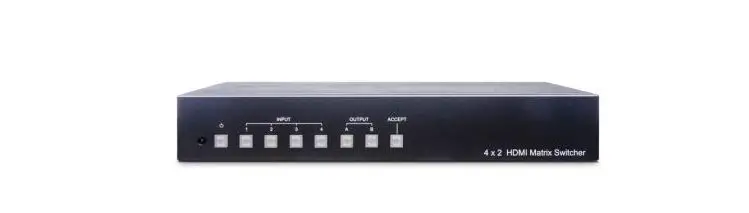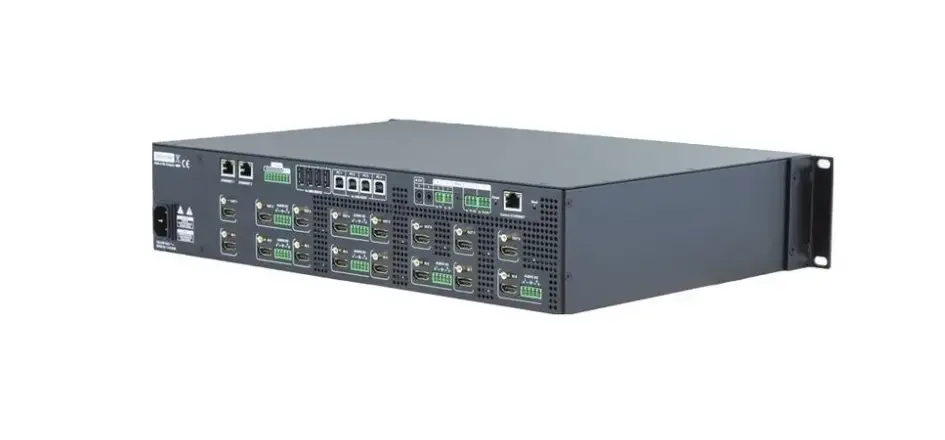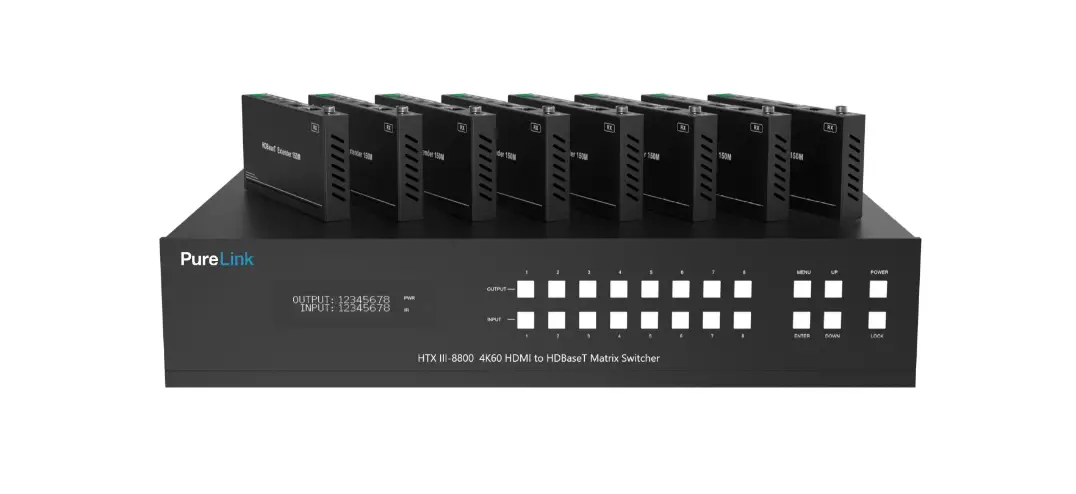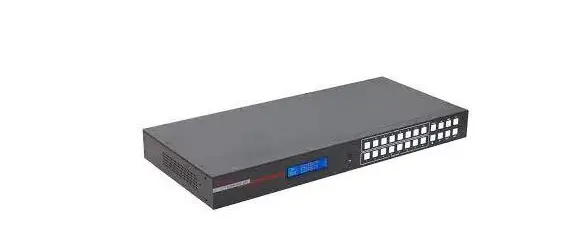

HALL TECHNOLOGIES HSM-88-4K 4K 8X8 HDMI Matrix Switcher
Hall Technologies • 1234 Lakeshore Dr Suite #150 Coppell, TX 75019 • halltechav.com
- Supports 4K UHD resolution
- HDCP 2.2 and 1.4 compliant with EDID Management
- Fast-Switch™ Technology
- RS-232, IP, IR and Front panel Control with Status LCD Display
- Uses Hall Technologies Genesis™ Control Command Set (GCCS)
TRADEMARKS USED IN THIS MANUAL
Hall Technologies and its logo are trademarks of Hall Technologies. Any other trademarks mentioned in this manual are acknowledged as the property of the trademark owners.
FCC RADIO FREQUENCY INTERFERENCE STATEMENT
This equipment generates, uses, and can radiate radio frequency energy and if not installed and used properly, that is, in strict accordance with the manufacturer’s instructions, may cause interference to radio communication. It has been designed to comply with the limits for a Class B computing device in accordance with the specifications in Subpart B of Part 15 of FCC rules, which are intended to provide reasonable protection against such interference when the equipment is operated in a commercial environment. Operation of this equipment in a residential area is likely to cause interference, in which case the user at their own expense will be required to take whatever measures may be necessary to correct the interference.
Changes or modifications not expressly approved by the party responsible for compliance could void the user’s authority to operate the equipment.
Introduction
General
As a member of Genesis Digital Matrix™ series of switchers, the HSM-88-4K matrix provides exceptional quality, intuitive operation and powerful control methods that are hallmarks of Hall Technologies’ video matrix switches.
The HSM-88-4K is an 8×8 cross-point switch in a compact 1-RU enclosure. It supports HDMI resolutions up to 4K @ 30 Hz 4:4:4 and 4K @ 60 Hz 4:2:0. It also supports HDCP 2.2 and 1.4, 3D, deep-color. PCM, Dolby, DTS, and HD audio standards. The matrix intelligently calculates EDID for each input based on the EDID of the connected sinks.
Users are able to save and recall multiple matrix routing configuration PRESETs. HDMI outputs can also be blanked. The matrix includes a two-line character LCD on its front panel in order to display the current video routing and to facilitate creating or recalling Presets.
The HSM-88-4K matrix is ideal for conference rooms, multimedia presentations, digital signage, houses of worship, and many other settings.
Features
- Supports 4K UHD resolution
- HDCP 2.2 and 1.4 compliant
- Fast-Switch™ technology
- RS-232, IP, IR and intuitive front panel control
- Two-line character LCD on front panel for status indication
- Uses Hall Technologies Genesis™ Control Command Set (GCCS)
- Supports HDTV resolutions of 4K @60 Hz 4:2:0, 4K @30Hz 4:4:4, 1080P@120Hz, 1080P 3D@60Hz and PC resolutions to WUXGA
- Supports Deep Color 48/36/30/24-bit
- Allows any source to be displayed on multiple displays at the same time
- Save and Recall Presets of commonly used routing patterns
- HDMI video output can be blanked or un-blanked
- Controlled via: Front Panel, RS-232, IP (Telnet), and IR
- 1-RU rack-mountable metal enclosure
Package Contents
(1) Model HSM-88-4K
(1) 12VDC @2.5A Universal Power Supply (1) IR Remote
(1) Rack mounting brackets (2 pcs)
(1) RS-232 Cable
(1) User’s Manual
Configuration and Operation
Connection Diagram
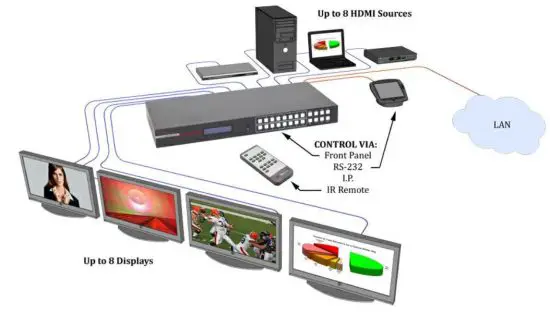
Typical Connection Diagram
General Operation
Front Panel Functions
The front panel can be used for the following purposes:
- View current input/output routings (ties) on LCD
- Make new ties either starting from input or from output
- Recall or Save Preset patterns
- Lock or Unlock the front panel
- Change EDID configuration
- View EDID configuration and preset configuration on LCD
- Monitor & Control Power On/Off status
All of the front panel buttons have built-in LEDs to help with their operation. Front panel functions are designed for maximum intuitiveness. With just a little practice, one can easily learn to monitor and control the matrix.
LOCK is used to disable all the keys on front panel. Lock the front panel by pressing LOCK button. Hold the same button for 3 seconds to unlock the panel. Locking the front panel is intended to prevent inadvertent actions for example, if the buttons are pressed unintentionally. Note that when the front panel is locked, the IR remote function is also locked, but other means to control the matrix (RS-232 and IP) are still functional.
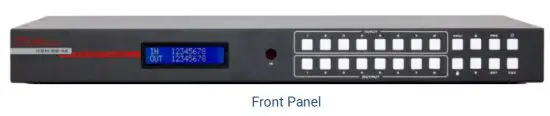
Front Panel Operation
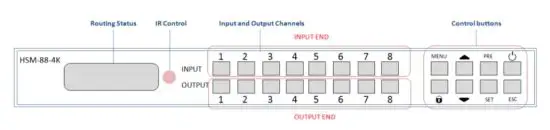
The front panel pushbuttons have LEDs built-in. The buttons can be off, on, or blinking. These modes help users control the matrix with ease.
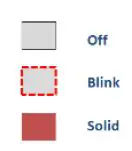
Front panel button LED states
Reading the LCD routing configuration
Easy to understand routing information is displayed on the LCD. On the LCD the input row changes but the output positions are fixed and never change.
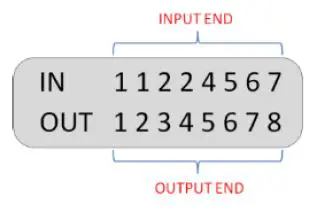
In the above example, the routing configuration can be understood from the output end as follows:
- Output 1 is tied to Input 1
- Output 2 is tied to input 1 and so on …
Turning the unit on and off
Press the power button any time to turn ON the matrix. For safe operation, to turn the unit OFF, you must hold the power button for 3 seconds.
Making AV Routing or “Ties” from the Front Panel
Hall Technologies products are designed with maximum usability in mind. That’s why the front panel allows users to initiate “ties” either from the OUTPUT point of view or from the INPUT.
For most users it is more logical to initiate ties starting with the OUTPUT. Think of it as: “I want OUTPUT 1 to get its video from INPUT 2” for example!
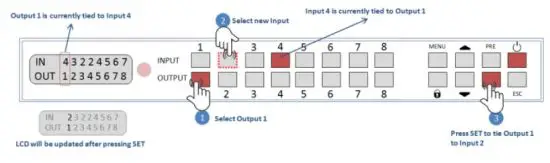
Making a tie starting from the OUTPUT
To tie an output to an input, perform the following steps:
- Press the desired output button. The button for the currently tied input will light up. Note: At this point, you can use the navigation (▲▼) buttons to view the previous or next Output routing.
- Press the input button you want to tie to. This will make the selected input button blink. Blinking button designates it as a “candidate” choice; an actual tie is not made until you press the SET button.
- Press the SET button. If you do not press the SET button, after a few seconds, the process times out and button lights go out.
Example: Route output 1 to input 2
Making a tie starting from input
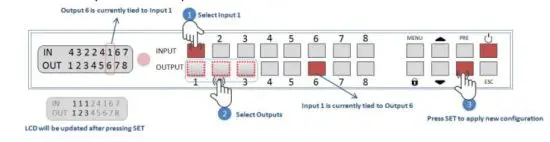
Routing from the input end is similar to the above but an input can be routed to multiple outputs.
- Press one of the input buttons. That button will light up in solid along with ALL the outputs currently routed from that input. Note: you can use the navigation (▲ ▼) buttons to view the previous or next Input routing.
- Select all the outputs you wish to route to. Candidate outputs can be multiple and all will be blinking until the SET button is pressed. To remove a candidate, press the blinking output again.
- Press SET to apply the changes.
Example: Route Input 1 to Output 1, 2 and 3
Blanking Outputs
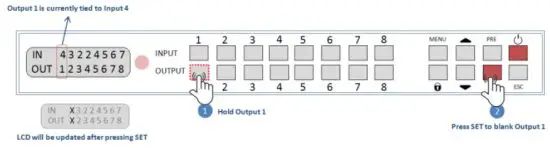
The matrix allows the output to be blanked. You can blank a particular output or you can blank all the outputs that are connected to a specific input.
- To blank an output, hold the Output button for 3 seconds or until its led starts blinking.
- Press SET to apply the change. The blanked Output will be crossed on the front panel LCD with an “X”, indicating that it is blanked.
Example: Blanking output 1
You can also blank all the outputs that are connected to a particular input.
- Hold the input for 3 seconds.
- Press SET to apply the change. All the affected output ports and blanked.
Presets (Memorized Routing Patterns)
The number of presets accessible from the front panel is the same as the total # of input buttons. Each front panel input button can memorize a pattern. Therefore, you can recall 8 presets.
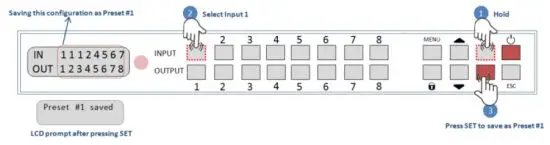
Saving ongoing configuration as a Preset
- To save ongoing configuration as a preset, hold PRE button for 3 seconds until it blinks.
- Select preset position by pressing an input button
- Press SET to save the pattern as a Preset in that key position.
Example: Saving ongoing configuration as Preset #1
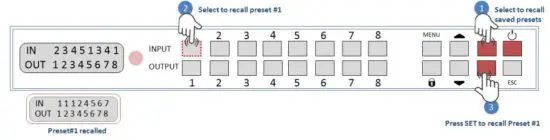
Recalling Presets
- To recall a saved preset, press the PRE button.
- Select the desired Preset # by pressing an input button.
- Press SET to recall the preset.
Example: Saving preset #1 from the previous example
Editing or Copying Presets
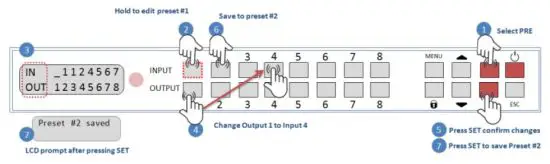
- To edit a saved preset, press PRE button.
- Hold the preset number you want to edit on the input button until you see the prompt “Editing Preset #” on LCD.
- Start changing the preset config from the output end just like making ties from the output end. Holding an entry will clear the output. Unassigned outputs will be blanked by default.
- Press SET and select the preset number you want to copy. Note that you can even copy the preset to the number you started editing.
- Press SET again the save the new preset.
Example: Edit output 1 in Preset #1, which is saved in previous example and saving it to preset #2
Using the IR Remote to route video

The IR Remote included with the Matrix allows simple control of the matrix. You can use the IR remote to power the matrix on/off and you can use it to make video ties.
Similar to making ties from the front panel starting with the Output channel, press one of the 8 output buttons on the IR Remote, then press the input you want it to show. You can also tie all the outputs to the same input quickly by pressing the ALL button in the output group, then press the input you want all outputs to show.
Rear Panel
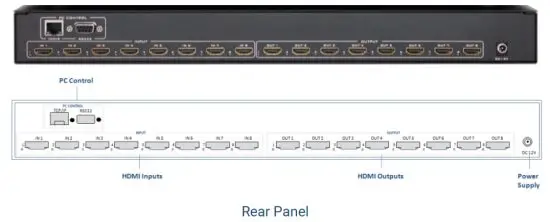
HDMI Inputs: Connect to HDMI source such as Video players, PCs, STBs etc.
HDMI Outputs: Connect to the display’s HDMI input port.
NOTE HDMI connectors have small LEDs next to them to indicate status. When an input LED is lit, the signal from source is detected; when an output LED is on, a sink is detected.
TCP/IP: Connect to an active Ethernet network via a switch or router to control the matrix from LAN using Telnet.
DC 12V: Plug the supplied 12V DC power adapter into this port.
RS-232: Use the RS-232 port via DB9 cable to control the unit
EDID Management
The HSM-88-4K gives users the flexibility to configure the EDID for each input. The source for the EDID data associated with each input can be from one of 15 standard built-in choices or copied from any of the TVs connected to a particular output. There is also an advanced mode for dynamic “on-the-fly” EDID Computation to guarantee that all displays connected to any input will be able to display the video from that input (as explained below in Section 4.2).
By default, the EDID for all inputs are set to 1080p video with 2-channel audio for maximum compatibility but users can easily change the EDID used at all or any of the inputs.
EDID Configuration
This option allows the user to choose a specific EDID table and load it into any selected input port on the matrix. HSM-88-4K comes with 15 common EDIDs saved in its internal memory or you can copy the EDID of any TV connected to outputs.
- Press MENU and navigate to “EDID Config” and press SET. Browse through the 15-different preset EDIDs or any of the eight EDIDs of the current outputs.
- Press SET to select the EDID.
- Select an input to copy the EDID.
- Press SET to load the EDID to selected input.
Note: If you decide to copy EDID from an output, but the EDID of the output is not valid (for example if the output is disconnected), the Matrix does not modify the input EDID and will display an error message.
Below are the choices of EDIDs under EDID Config menu:
| Index | EDID Description |
| 1 | 1080p Video, 2 Ch Audio |
| 2 | 1080p Video, 5.1 Audio |
| 3 | 1080p Video, 7.1 Audio |
| 4 | 1080i Video, 2 Ch Audio |
| 5 | 1080i Video, 5.1 Audio |
| 6 | 1080i Video, 7.1 Audio |
| 7 | 1080p 3D Video, 2 Ch Audio |
| Index | EDID Description |
| 8 | 1080p 3D Video, 5.1 Audio |
| 9 | 1080p 3D Video, 7.1 Audio |
| 10 | 4k*2k@30Hz Video, 2Ch Audio |
| 11 | 4k*2k@30Hz Video, 5.1 Audio |
| 12 | 4k*2k@30Hz Video, 7.1 Audio |
| 13 | 4k*2k@60Hz Video, 2Ch Audio |
| 14 | 4k*2k@60Hz Video, 5.1 Audio |
| 15 | 4k*2k@60Hz Video, 7.1 Audio |
Compute EDID
When “Compute EDID” mode is selected, the system dynamically generates the EDID for each input according to the “highest common denominator” of the TVs that are routed to that input. To select this mode:
- Press MENU and navigate to “COMPUTE-EDID” and press SET.
- Press SET again to confirm.
When the “Compute-EDID” mode is enabled, routing an input to multiple TVs with different capabilities will force the system to “compute” a new EDID for that input based on the TV with minimum resolution capability. Therefore, in this mode if the EDID changes a short interruption may result in the video signal from the source as it changes its resolution.
Example: say you have two monitors, one that supports 1080p and one that supports 4K. When a particular input is routed to both of these outputs, the system will compute an EDID with 1080p for the input because a 4K signal would not be displayable on the 1080p monitor. Now let’s assume the user disconnects or switches the 1080p monitor to a different input. Then, the only monitor routed to our source is the 4K one. The system will notice this and re-compute a 4K EDID for our input causing the source to output 4K video (if it can). Switching takes a couple of seconds. If the 1080p monitor is turned back on or routed to the same input, the system will downgrade the EDID for the source to 1080p.
Network Settings
As shipped from the factory (or after restoring factory defaults), the HSM-88-4K IP address is set for static IP address of 192.168.1.1. To change the IP or to switch to DHCP, you can use either RS-232 or Telnet.
For example, to use the RS-232 port to change the IP address do the following:
- Connect a PC with Terminal-Emulator software to the RS-232 port
- DHCPn command can be used to change DHCP setting
- Please see the next section with further information on commands
Serial & Telnet Commands
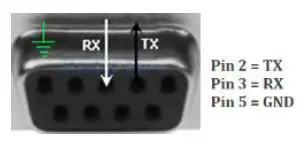
Telnet port is 6324, RS-232 port settings are:
Baud rate: 115200, Parity: None, Stop: 1-bit
- Commands are in ASCII format.
- Commands are case sensitive.
- Use a single <CR> character to terminate each command.
- Responses from the Matrix are terminated with <CR><LF>.
- Other than Power command (PW1), the matrix must be powered on.
- Unknown commands respond with “INVALID COMMAND”<CR><LF>.
- After plugging power to the matrix, you must wait ~45 seconds for it to fully boot up before sending any commands.
- Command characters should be sent continuously without pauses. If you pause for more than 5 seconds, the command will not execute.
- When the front panel buttons are used, some serial commands will be sent out the RS-232 port.
| Command | Description | Response |
| CVn,m n= Output [1-8] m= Input [1-8] or m=x to blank Output (x must be lower case) | Connect Video output n to input m | CVn,m |
| CV*,m m= Input [1-8] m=x to blank Output (x must be lower case) | Connect all Outputs to Input m | CV1,m CV2,m : CV8,m |
| CVn,m/n,m/n,m n= Output [1-8] m= Input [1-8] m=x to blank the output. | Connect multiple outputs | CVn,m CVn,m CVn,m |
| CVn,? n= Output [1-8] | Query output routing | CVn,m n= Output [1-8] m= Input [1-8] m=x means blanked |
| Command | Description | Response |
| CV?,m m= Input [1-8] | Query input routing | CVn,m n= Output [1-8] m= Input [1-8] |
| CV | Query all the outputs | CV1,? : CV8,? |
| PSx x= Preset number [1 to 8] | Preset Save Saves the current configuration as a preset | PSx |
| PSx=1,m/2,m/3,m/4,m m=Input [1-8] m=x (to blank the output) | Define and Save a Preset on the fly | PSx=1,m/2,m/3,m/4,m |
| PRx x=Preset # [1 to 8] | Preset Recall | CV1,? : CV8,? |
| PWn n=0 — OFF n=1 — ON | Power On/Off | PWn |
| PW | Query the status of power | PWn |
| RB | Reboot the system | FW Version:x.xx PW1 CV1,? : LK? BP? IP ???.???.???.??? MAC ??-??-??-??-??-?? DHCP? |
| FD | Restore factory defaults Note: Resets all parameters including network settings | Same as RB (above) |
| LKn n = 0 Lock OFF n = 1 Lock ON | Lock Front Panel | Panel Unlock LK0
Panel lock LK1 |
| LK | Lock Status Query | LKn n = 0 Lock OFF n = 1 Lock ON |
| HOn n = Output # [1-8] | HOT Plug Query Read the Hot Plug status of TV connected to each output. Hot Plug signal is generated by the TV (Sink) | LOW (No Sink) HIGH (Sink attached) |
| Command | Description | Response |
| HIn n = Input # [1-8] | Source On Query Read the =5V_DDC signal from HDMI Source | LOW (No Source) HIGH (Source Active) |
| HDn n = Input # [1-8] | HDCP Query | ON OFF |
| ESi,m m = Input # [1-8] i = EDID Index [1-15] from table in section 5.1 | Set EDID for a particular input m | ESi,m |
| ESi i = EDID Index [1-15] from table in section 5.1 | Set EDID for all inputs | ESi |
| ERm m = Input # [1-8] | Read EDID for a particular input m | EDID i (i = EDID index) |
| ECn,m m = Input # [1-8] n = Output # [1-8] | Copy EDID for a particular input m from output n | ECn,m |
| ECn n = Output # [1-8] | Copy EDID from output n to all inputs | ECn |
| BPn n = 0 (beep off) n = 1 (beep on) | Beep Sound on/off | BPn |
| BP | Beep Sound Query | BPn (n=0 or 1) |
| IP | IP Address Query | IP xxx.xxx.xxx.xxx |
| MAC | MAC Address Query | MACxx.xx.xx.xx.xx.xx.xx |
| IP xxx.xxx.xxx.xxx | Assign Static IP Address (DHCP must be off) | IP xxx.xxx.xxx.xxx |
| DHCPn n = 0 (DHCP off) n = 1 (DHCP on) | Enable DHCP | DHCPn (n=0 or 1) |
| DHCP | DHCP Status Query | DHCPn |
| FW | Firmware Version Query | FW Version:x.xx |
| HSM | HSM Matrix Status Query | FW Version:x.xx PW1 CV1,? : LK? BP? IP ???.???.???.??? MAC ??-??-??-??-??-?? DHCP? |
Troubleshooting
There are no field serviceable parts or circuits in the device. If you think the device is malfunctioning (or you have no connectivity), please try to use the following methods for troubleshooting:
- Try Rebooting the device by removing and applying power.
- Restore factory defaults (FD command)
Contacting Hall Technologies
If you determine that your Matrix Switch is malfunctioning, do not attempt to repair the unit. Instead contact Hall Technologies Technical Support at 714-641-6607. To return the unit to Hall R Technologies you must first get a Return Authorization (RMA) number. Package the unit carefully, if returning. We recommend that you use the original container.
Specifications
| Input Ports | 8xHDMI IN |
| Output Ports | 8xHDMI OUT |
| HDCP | HDCP 2.2 and HDCP 1.4 |
| HD Resolutions | 480i, 480p, 576i, 576p,720p, 1080i, 1080p 8, 12 or 16 bits per channel (24, 36 or 48 bits aggregate), 4K30 4:4:4, 4K60 4:2:0 |
| PC Resolutions | VGA through WUXGA |
| Audio | PCM2, PCM5.1, PCM7.1, Dolby5.1, DTS5.1, DD+, D-TrueHD, DTS-HD 16/20/24 bits per sample and up to 96 KHz Sampling Rate |
| Control | Front Panel / Telnet/ RS-232/ IR |
| Baud Rate | 115200 bps |
| Power Supply | 12V, 2.5A DC (US/EU standards/ CE/FCC/UL certified) |
| Power consumption | 23 W (Max)/0.5 W (Standby) |
| Housing Color | Metal Enclosure Black |
| ESD Protection | Human body model – ±12kV [air-gap discharge] & ±8kV |
| Operating Temp | 32 to 122 °F (0 to 50 ℃) 10%~90%, non-condensing |
| Storage Temp | -40 to +158 °F (-40 to +70 °C) |
| Dimensions | Device: 17.3”(440 mm) W x 7.8”(200 mm) D x 1.8”(45 mm) H
Shipping: 18.9”(480mm) x 13.6”(345mm) x 3.4”(85mm) |
| Weight | Device: 5.1 lbs. (2310g) Shipping: 10 lbs. (4535g) |
| EMI/EMC | CE, FCC Class B |
| MTBF | 90,000 hours |
© Copyright 2018. Hall Technologies All rights reserved.
1234 Lakeshore Dr, Suite 150, Coppell, TX 75019 Ph: (714)641-6607
 Home - Hall Technologies