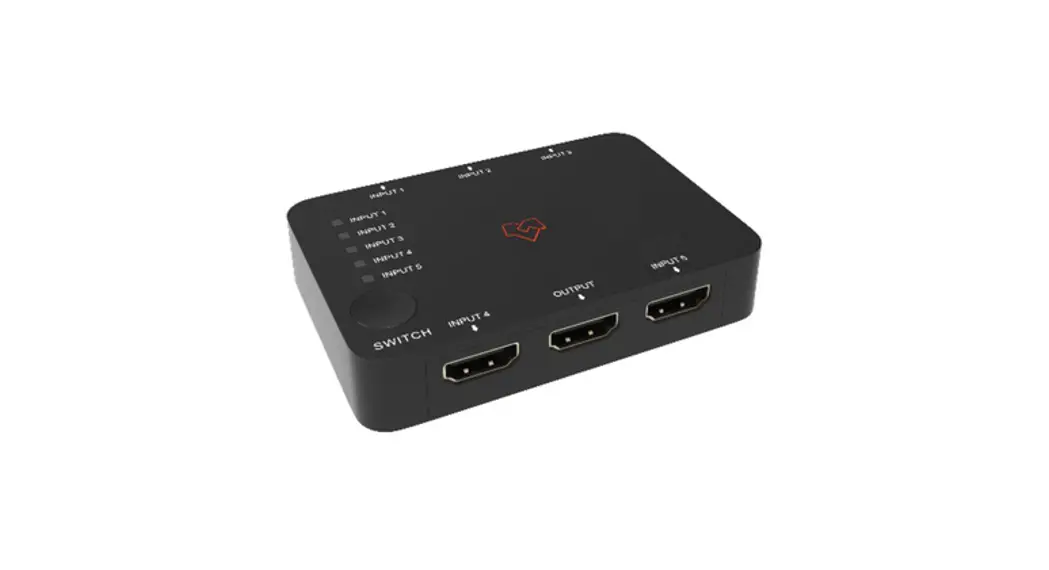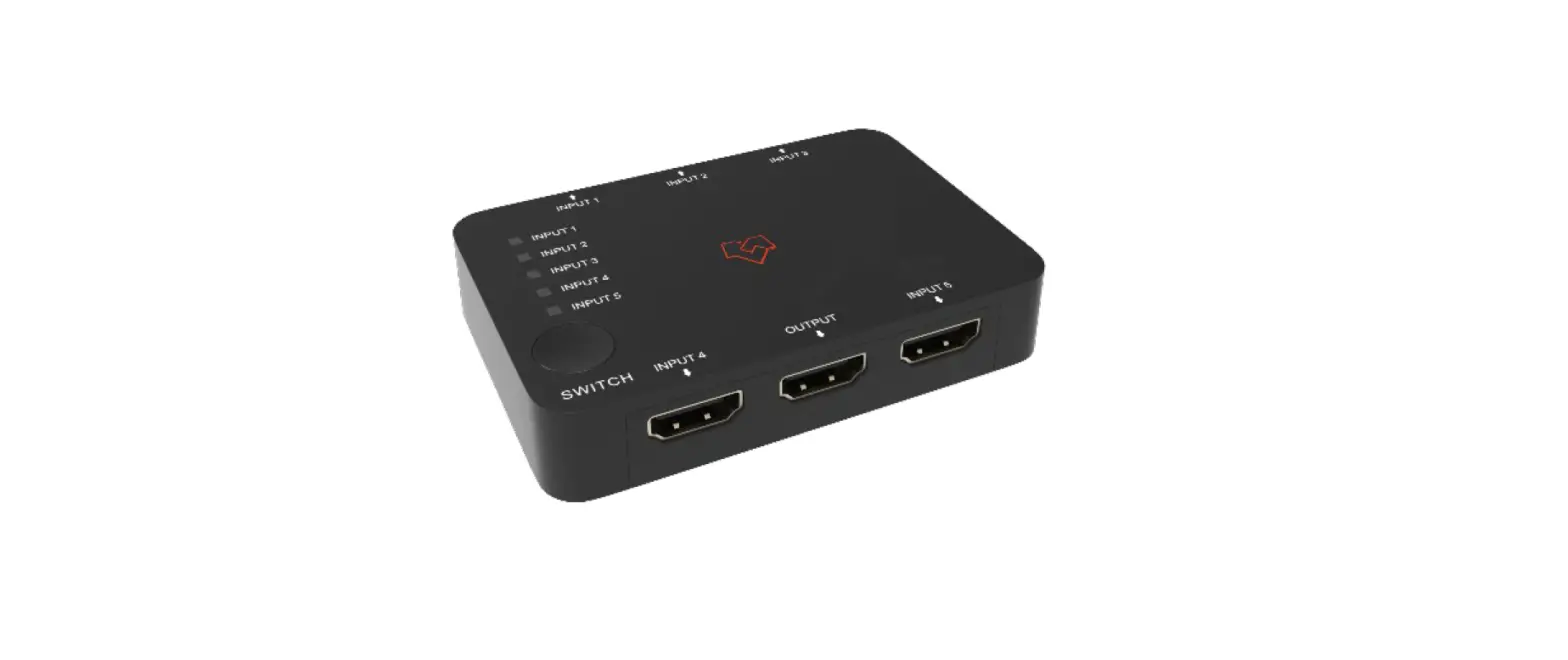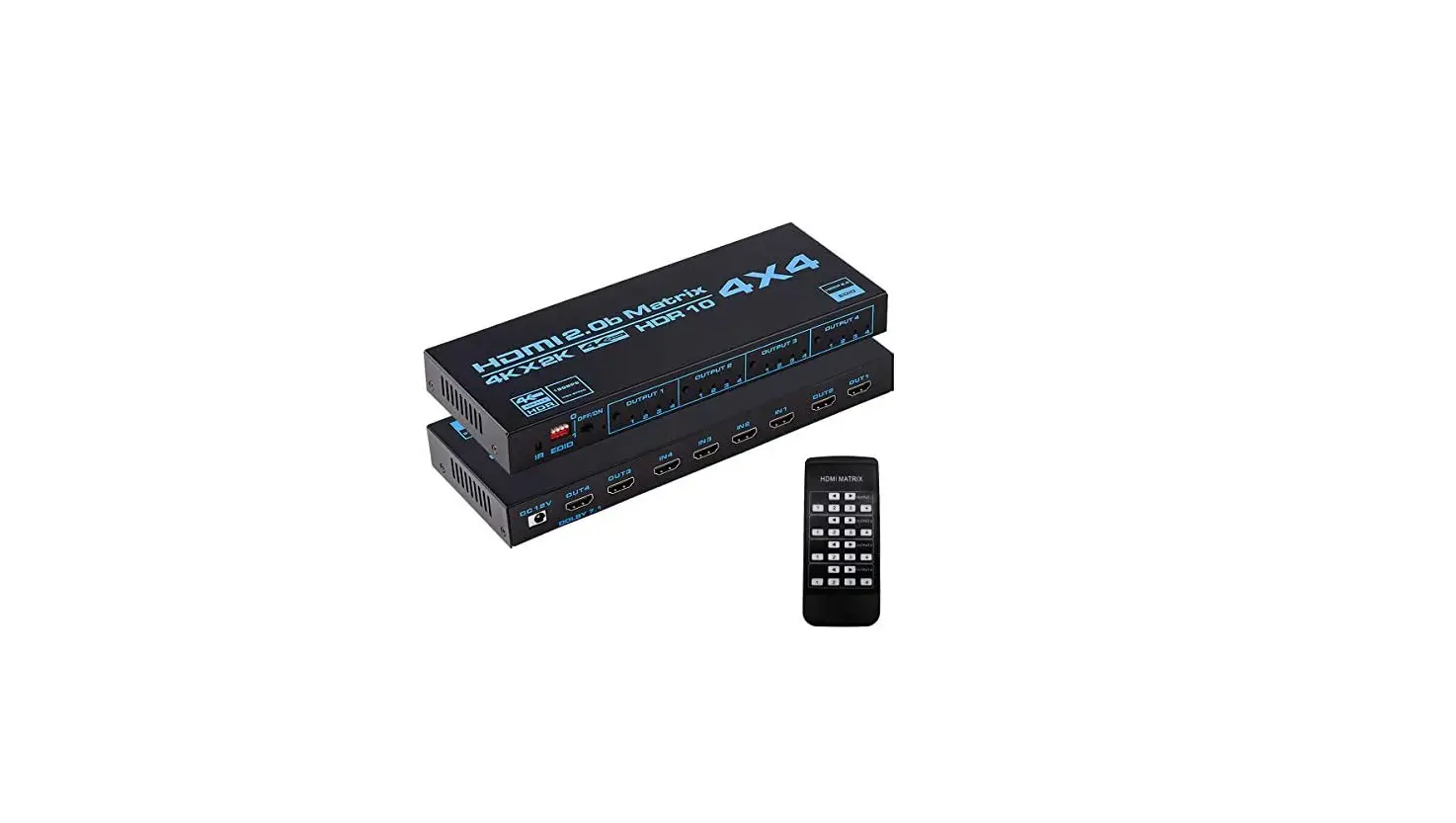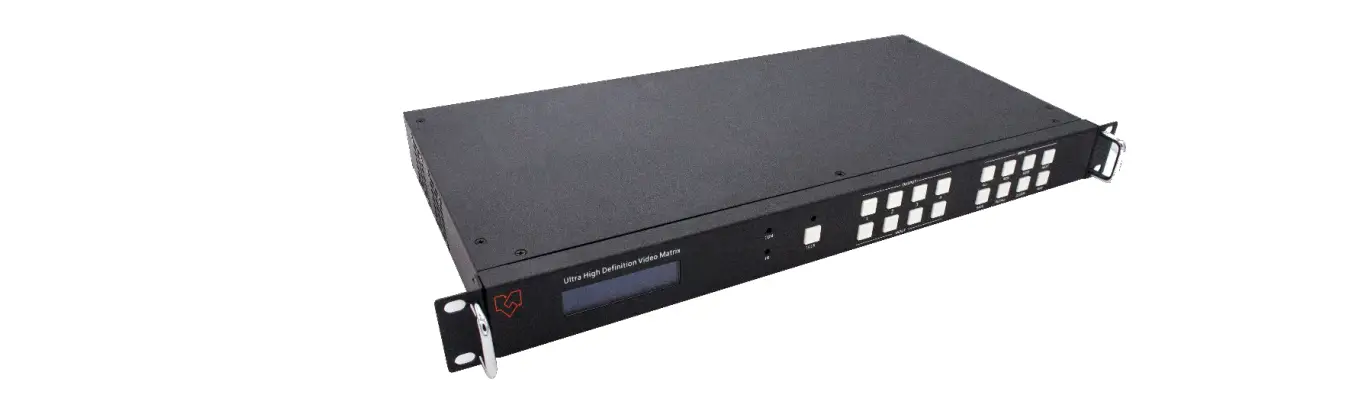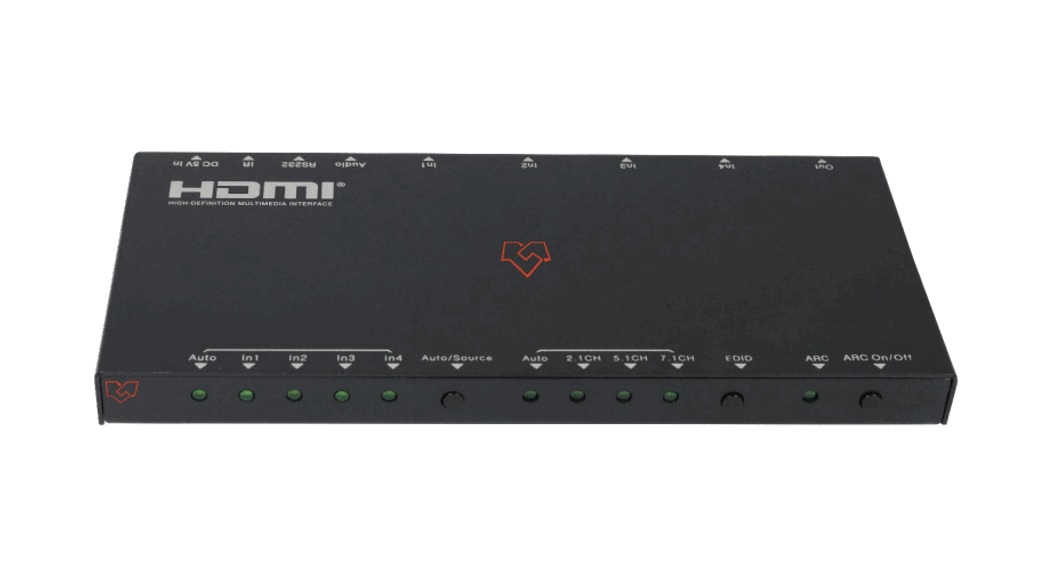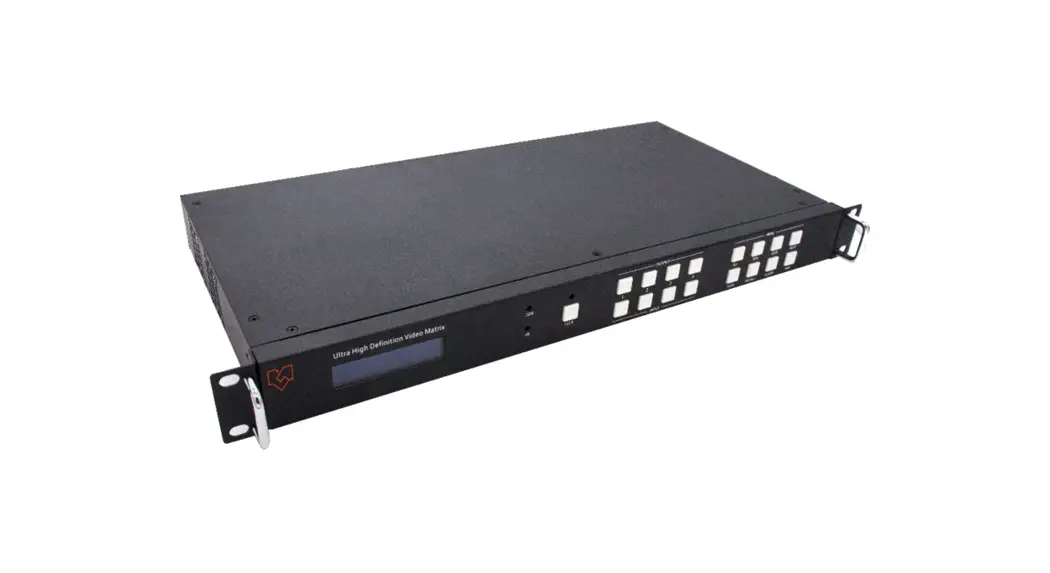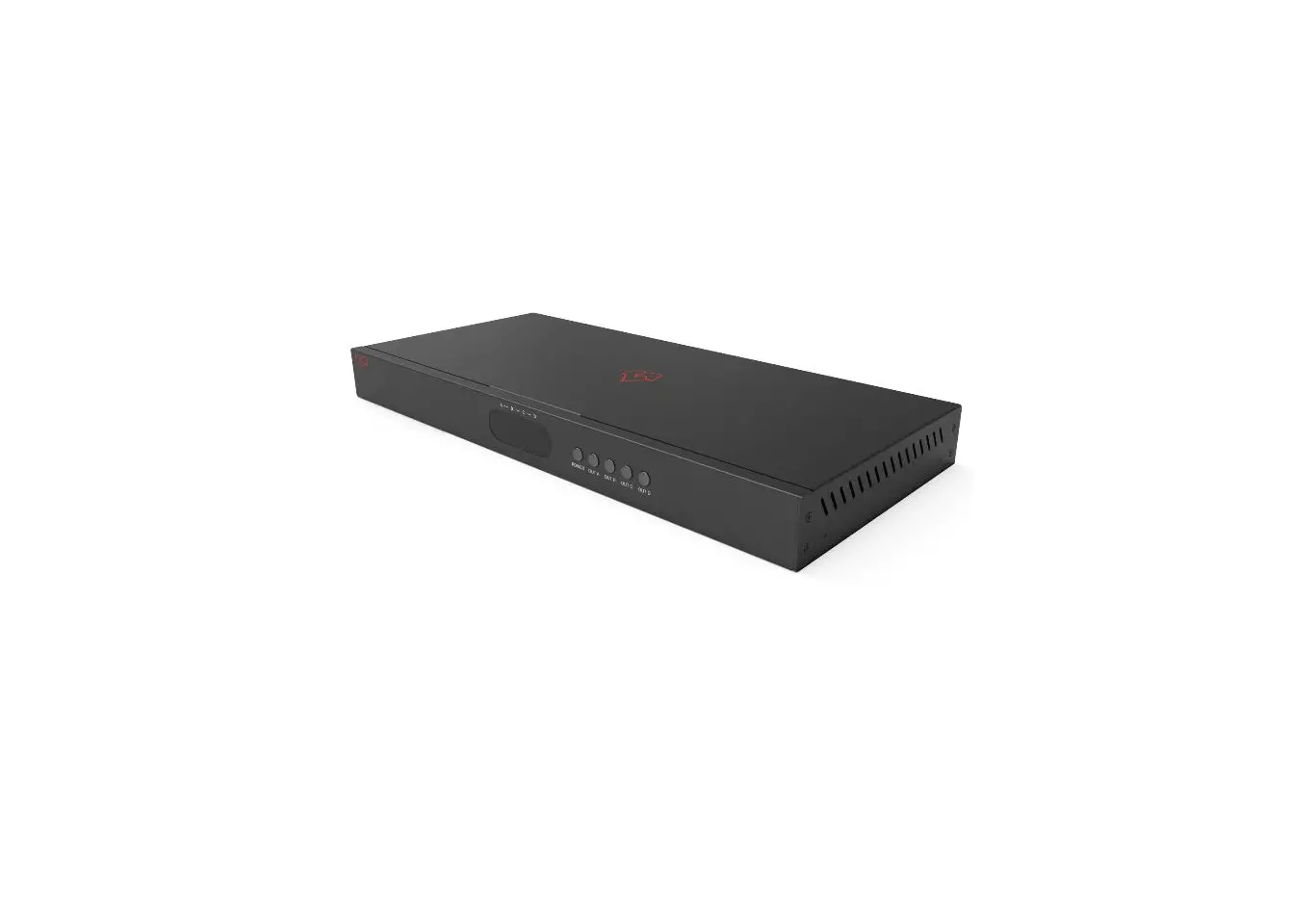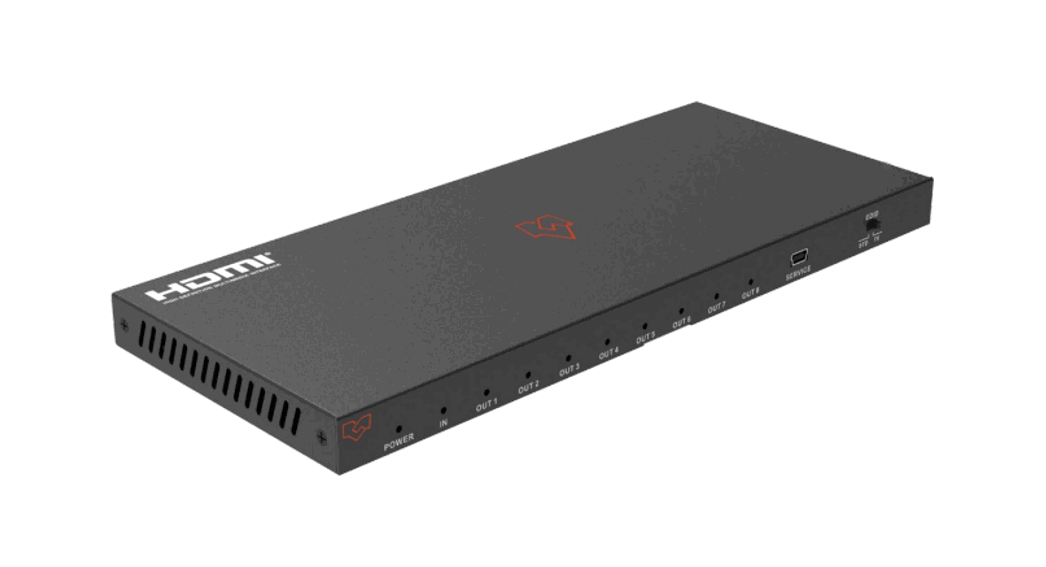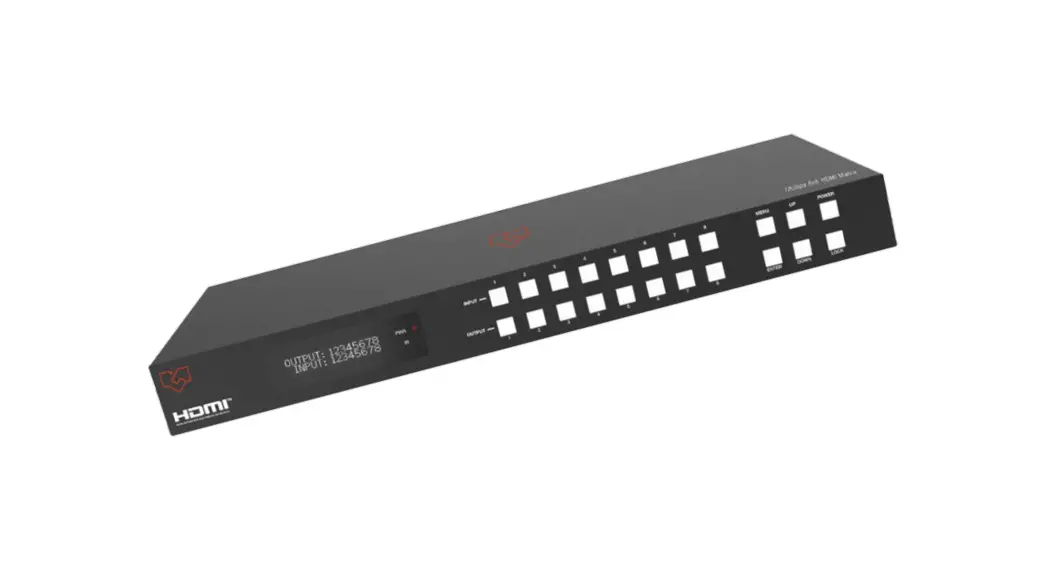
 VLMX-0808E 8×8 HDMI 2.0 Matrix 18Gbps Switch Switcher
User Manual
VLMX-0808E 8×8 HDMI 2.0 Matrix 18Gbps Switch Switcher
Thank you for purchasing this product
Please read these instructions carefully for optimum performance and safety before connecting, operating, or adjusting this product. Please keep this manual for future reference.
A surge protection device is recommended
This product contains sensitive electrical components that electrical spikes may damage, surges, electric shocks, lightning strikes, etc. The use of surge protection systems is highly recommended to protect and extend the life of your equipment.
Introduction
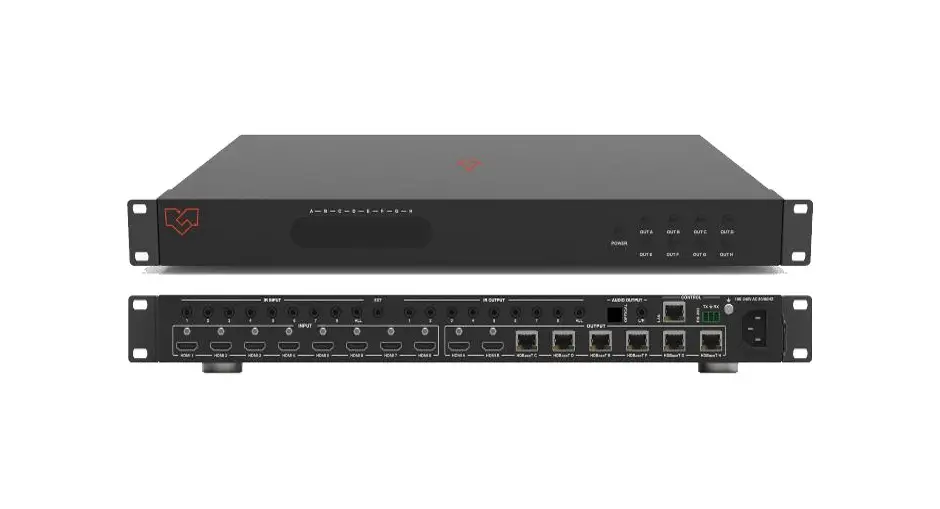
The 18Gbps 8×8 HDMI Matrix supports the transmission of video (up to 4K2K@60Hz YUV 4:4:4) and multi-channel high-resolution digital audio from eight (8) HDMI sources to eight (8) HDMI displays. Audio-embedded to analog and coaxial audio is supported from eight (8) HDMI output ports. While the HDMI output ARC function is enabled, the ARC audio from HDMI display devices will be extracted to coaxial audio output. Each HDMI output of this 8×8 HDMI Matrix supports 4K2K to 1080P more downscale independently. Control is via front panel buttons, IR remote, RS-232, LAN, and Web GUI.
Features
- HDMI 2.0b, HDCP 2.2, and HDCP 1.4 compliant
- Video resolution up to 4K2K@60Hz (YUV 4:4:4) on all HDMI ports
- Support 18Gbps video bandwidth
- Dolby Vision, HDR10+, and HLG are supported.
- Support 4K->1080P Down Scaler for each output port
- HDMI audio pass-through up to 7.1CH HD audio (LPCM, Dolby TrueHD, and DTS-HD Master Audio)
- Audio de-embedded is supported via analog and coax ports
- ARC, CEC, and innovative EDID management are supported
- 1U rack mounted design with front panel OLED display
- Control via front panel buttons, IR remote, RS-232, LAN, and Web GUI
Package Contents
- 1 x 18Gbps 8 x 8 HDMI Matrix
- 1 x 12V/5A Power Adapter
- 1 x IR Remote
- 1 x IR Receiver cable (1.5 meters)
- 1 x RS-232 serial cable (1.5 meters, male to female head)
- 2 x Mounting Ear
- 1 x User Manual
Specifications
| Technical | |||
| HDMI Compliance | HDMI 2.0b | ||
| HDCP Compliance | HDCP 2.2 and HDCP 1.4 | ||
| Video Bandwidth | 18Gbps | ||
| Video Resolution | Up to 4K2K@50/60Hz (4:4:4) | ||
| Color Space | RGB, YCbCr 4:4:4/4:2:2/4:2:0 | ||
| Color Depth | 8-bit, 10-bit, 12-bit | ||
| HDMI Audio Formats (Pass-through) | LPCM 2/5.1/7.1, Dolby Digital, DTS 5.1, Dolby Digital+, Dolby TrueHD, DTS-HD Master Audio, Dolby Atmos, DTS:X | ||
| Coax Audio Formats | LPCM 2.0, Dolby Digital / Plus, DTS 5.1 | ||
| L/R Audio Formats | PCM2.0 | ||
| HDR formats | HDR10,HDR10+,Dolby Vision, HLG | ||
| ESD Protection | v | ||
| Connection | |||
| Input Ports | 8×HDMI Type A [19-pin female] 1×IR EXT [3.5mm Stereo Mini-jack] | ||
| Output Ports | 8×HDMI Type A [19-pin female] 8×Coax Audio (RCA) 8×L/R Audio [3.5mm Stereo Mini-jack] | ||
| Control Ports | 1×TCP/IP [RJ45] 1×RS-232 [D-Sub 9] | ||
| Mechanical | |||
| Housing | Metal Enclosure | ||
| Color | Black | ||
| Dimensions | 440mm (W)×200mm (D)×44.5mm (H) | ||
| Weight | 2.8kg | ||
| Power Supply | Input: AC 100 – 240V 50/60Hz Output: DC 12V/5A (US/EU standard, CE/FCC/ULcertified) | ||
| Power Consumption | 43W | ||
| Operating Temperature | -10°C ~ 45°C / 14°F ~ 113°F | ||
| Storage Temperature | -20°C ~ 60°C / -4°F ~ 140°F | ||
| Relative Humidity | 20~90% RH (non-condensing) | ||
| Resolution/Cable length | 4K60 – Feet/Meters | 4K30 – Feet/Meters | 1080P60 – Feet/Meters |
| HDMI IN / OUT | 16ft / 5M | 32ft / 10M | 50ft / 15M |
| The use of a “Premium High-Speed HDMI” cable is highly recommended. | |||
Operation Controls and Functions
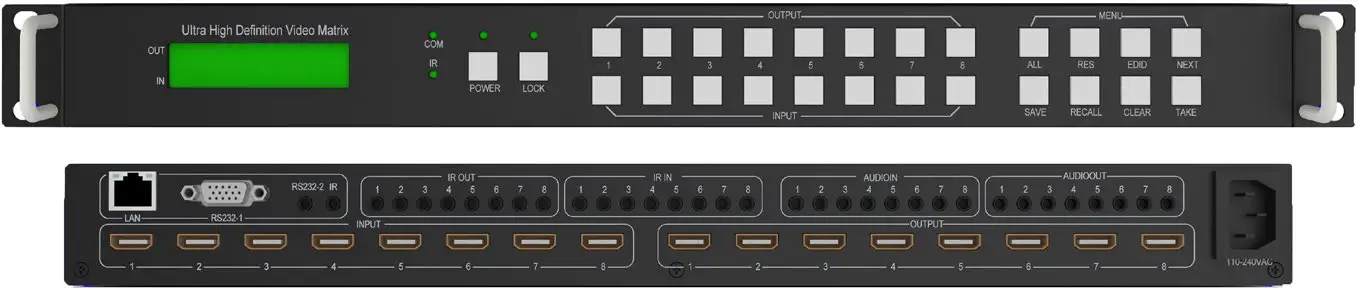
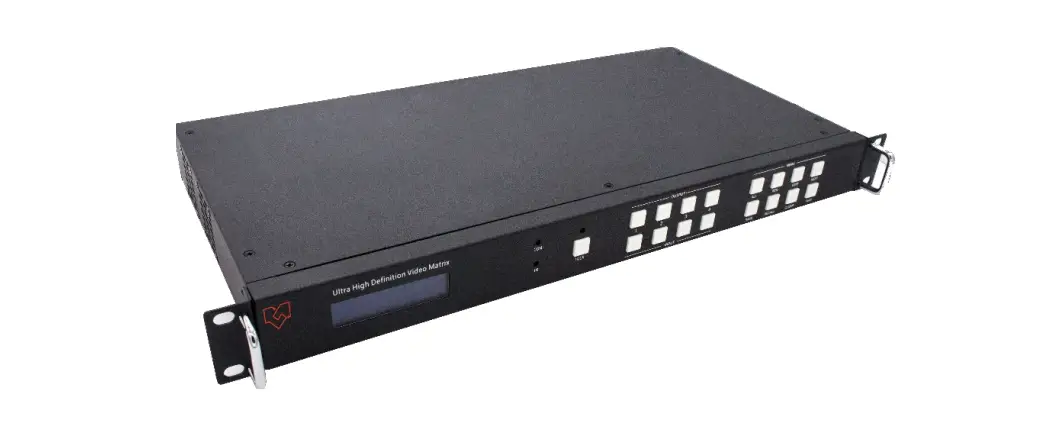
Front Panel
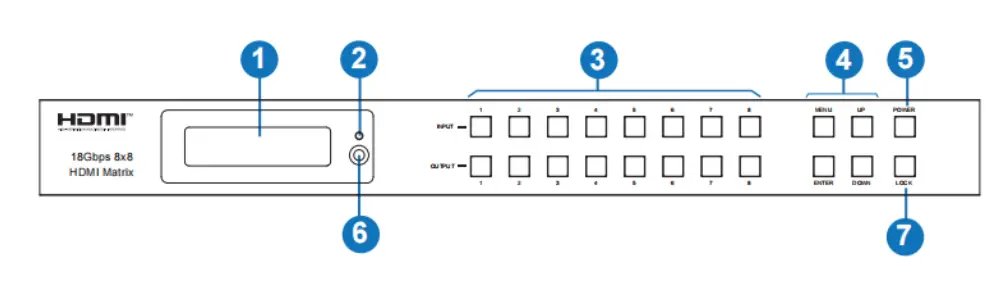
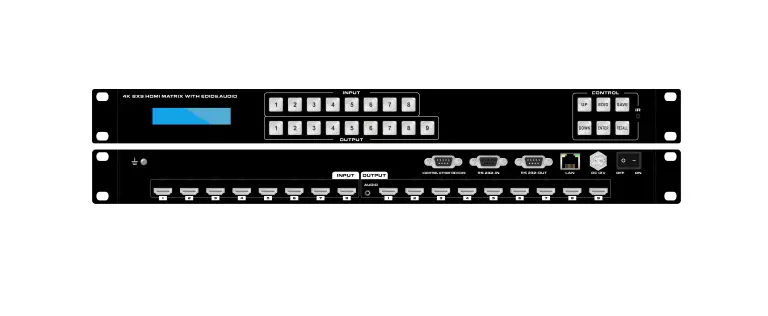
| NO. | Name | Function Description |
| 1 | OLED screen | Display matrix switching status, input/output port, EDID, Baud rate, IP Address. |
| 2 | Power LED | The LED will illuminate in green when the product is connected to the power supply and red when the product is on standby. |
| 3 | Input/Output buttons | You need to press an output button first then ,press an input button (1~8) to select the output port’s corresponding source. |
| 4 | MENU/ENTER /UP /DOWN | ①EDID Check: On the initial OLED display screen, press “MENU” button to enter the Matrix switching state interface, then press the “UP/DOWN” button to check the current EDID information of each HDMI input port. ②EDID setting: On the initial OLED display screen, press “MENU” button to enter the EDID setting interface, press The “UP/DOWN” button selects the required DID and press the “ENTER” button. A prompt “copy to input:” will appear. Then press “the UP/DOWN” button to select the input port you need to set and press the “ENTER” button again to confirm. ③Baud rate setting: On the initial OLED display screen, The press “MENU” button to enter the Baud rate interface, and Press the “UP/DOWN” button to select the required Baud rate, and press the “ENTER” button to confirm the setting. ④IP Address Check: On the initial OLED display screen, press the “MENU” button to enter the IP interface, then press “UP/DOWN” button to check the current IP address. Pressing the “MENU” button again will return to the initial OLED display status. |
| 5 | POWER button | Long press the POWER button for 3 seconds to enter the standby mode, then short press it to wake up the device. |
| 6 | IR Window | IR receiver window only receives the IR remote signal from this product. |
| 7 | LOCK button | Press the LOCK button to lock the front panel buttons (Except the power button); Press it again to unlock. |
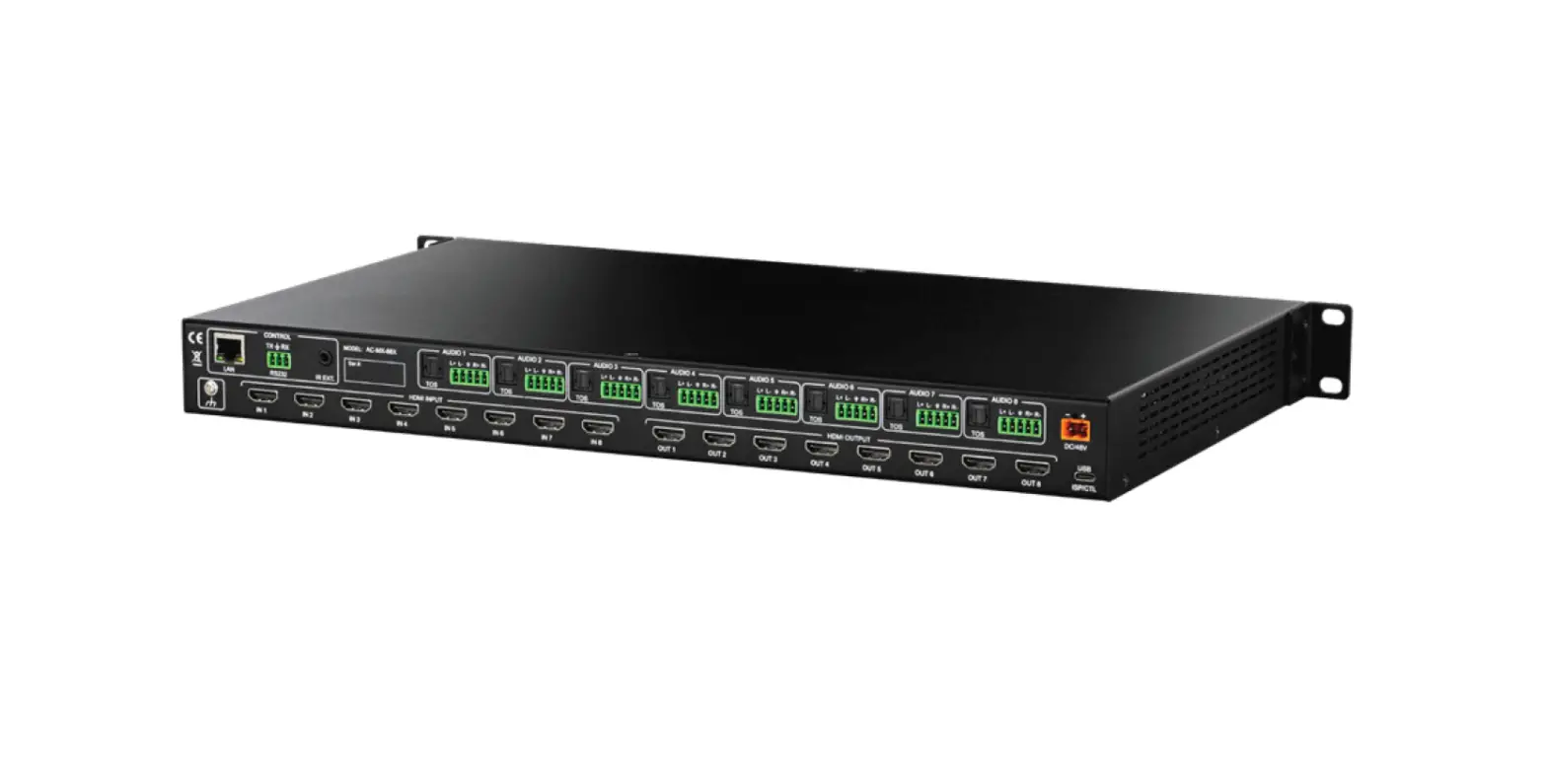
Rear Panel
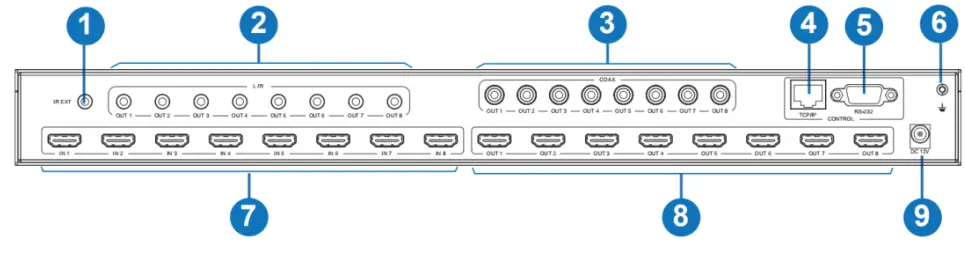
| No. | Name | Function Description |
| 1 | IR EXT | If the IR receiver window of the unit is blocked or the unit is installed in a closed area out of the infrared line of sight, the IR receiver cable can be inserted into the “IR EXT” port to receive the IR remote signal. |
| 2 | L/R OUT(1-8) | Analog audio output port, connect to an amplifier or speaker via a 3.5mm audio cable. |
| 3 | COAX OUT (1-8) | A coaxial audio output porconnectsct to an audio output device such as an audio amplifier via a coaxial cable. |
| 4 | TCP/IP port | The TCP/IP control port connects to the PC or router with an RJ45 cable. |
| 5 | RS-232 port | Connect to a PC or control system by D-Sub 9-pin cable to transmit the RS-232 command. |
| 6 | GND | Connect the housing to the ground. |
| 7 | INPUT ports (1-8) | HDMI input ports connect to HDMI source devices such as DVDs or set-top boxes with an HDMI cable. |
| 8 | OUTPUT ports (1-8) | HDMI output ports connect to HDMI display devices such as TV or monitor with an HDMI cable. |
| 9 | DC 12V | Connect to 12V/5A power adapter. |
IR Remote
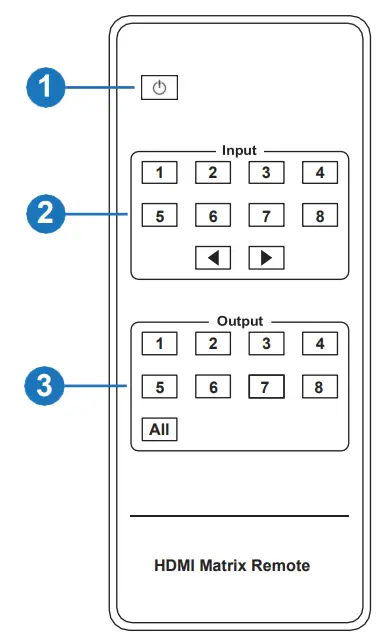
- Power on or Standby: Power on the Matrix or set it to standby mode.
- Input 1/2/3/4/5/6/7/8: Select the input source button. : Select the last or next input source button.
- Output 1/2/3/4/5/6/7/8: Select the output source button. All:
 Select all output sources simultaneously. For example, when you press the “All” button and then press the input “1” button, at this time, the input “1” source will output to all display devices.
 Select all output sources simultaneously. For example, when you press the “All” button and then press the input “1” button, at this time, the input “1” source will output to all display devices.
Operation instruction: You need to press the output and put buttons to select the corresponding input source. For example,
Press Output-X
(X means output button from 1 to 8, including “the All” button)
Then press Input-Y
(Y means input button from 1 to 8 )
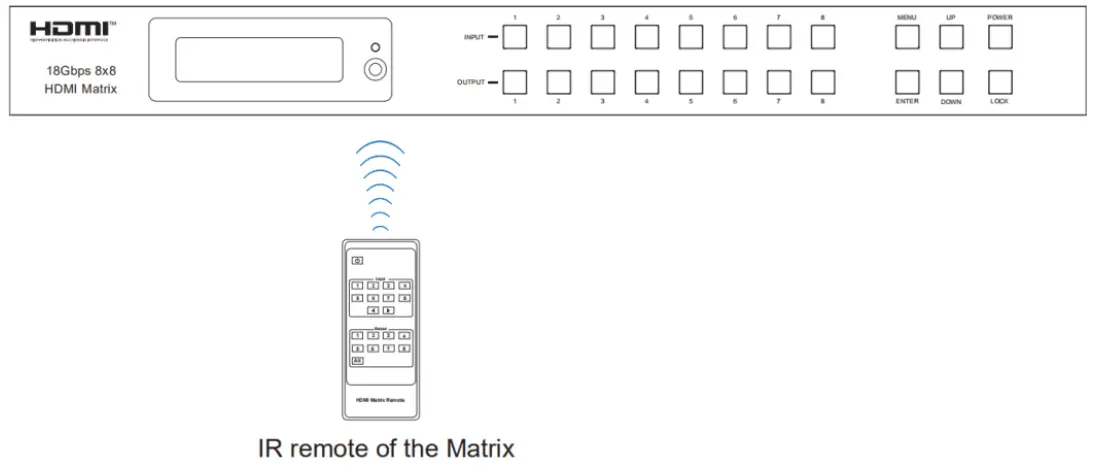
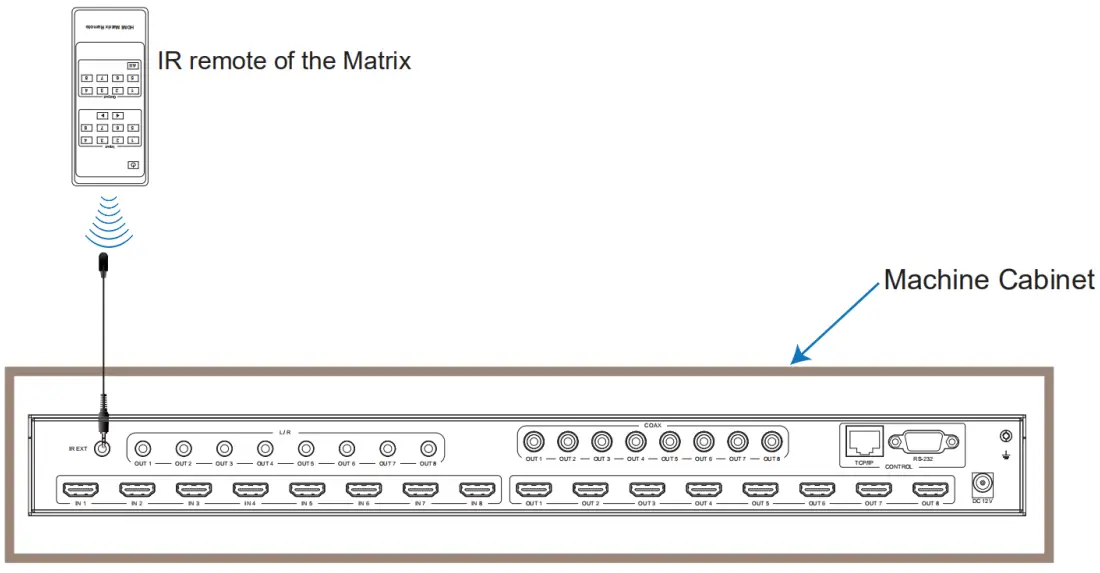
The Matrix can be selected as input and output sources by using the IR remote. There are two ways to receive the IR remote signal.
The first way: The IR window accepts the IR remote signal. When using the IR remote, the furthest distance is 7 meters, and the angle is ± 45°. The diagram is shown below:
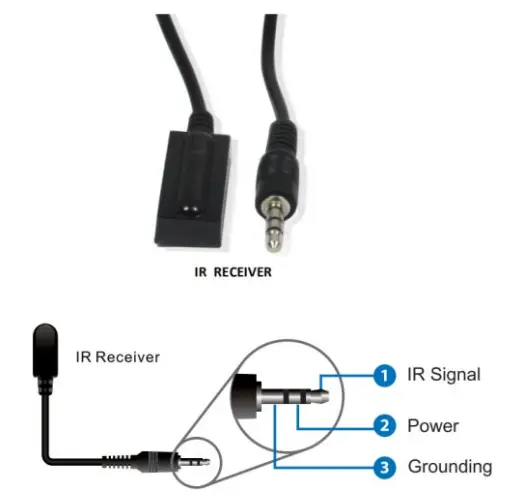
The second way: If the IR receiver window of the Matrix is blocked or the Matrix is installed in a closed area out of the infrared line of sight, the IR receiver cable can be inserted into the “IR EXT” port to receive the IR remote signal. The furthest distance of using the IR remote is 7 meters, and the IR remote is directly faced to the IR receiver head. The diagram is shown below.
IR Cable Pin Assignment
EDID Management
This Matrix has 21 factories defined EDID settings, 2 user-defined EDID modes, and 8 copy EDID modes. You can select restricted EDID mode or copy EDID mode to input port through front panel buttons, RS-232 control, or Web GUI.
On-panel button operation: On the initial OLED display screen, press the “MENU” button to enter the EDID setting interface, press the “UP/DOWN” button to select the required EDID, and press the “ENTER” button. A prompt “copy to input:” will appear. Then press “the UP/DOWN” button to select the input port you need to set and press the “ENTER” button to confirm this operation.
RS-232 control operation: Connect the Matrix to PC with a serial cable, then open a Serial Command tool on PC to send ASCII command “s EDID in x from z!” to set EDID. For details, please refer to “EDID Setting” in the ASCII command list of “10. RS-232 Control Command”.
Web GUI Operation: Please check the EDID management on the “Input page” of “9. Web GUI User Guide”.
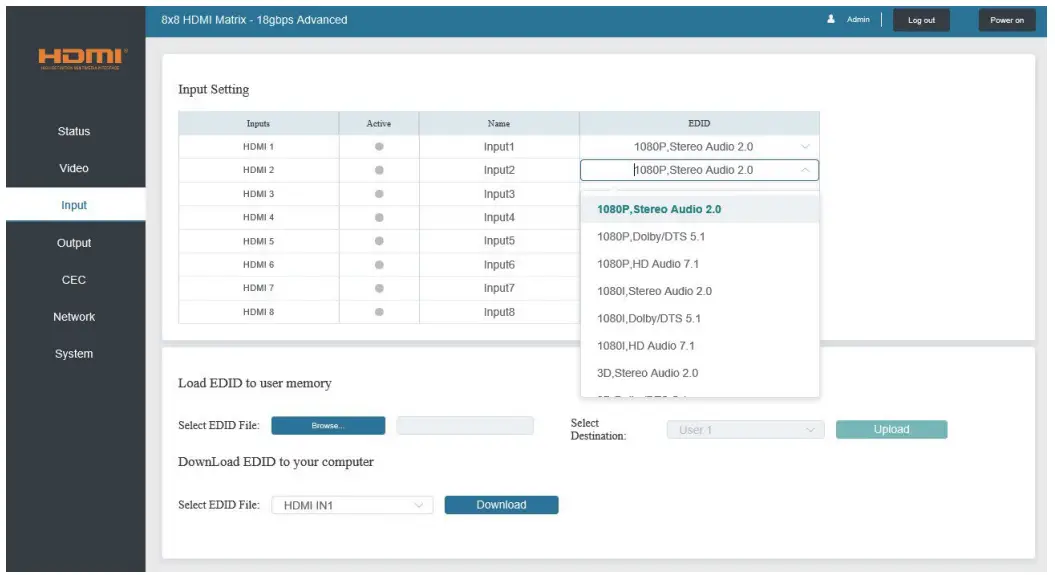
The defined EDID setting list of the product is shown below:
| EDID Mode | EDID Description |
| 1 | 1080p, Stereo Audio 2.0 |
| 2 | 1080p, Dolby/DTS 5.1 |
| 3 | 1080p, HD Audio 7.1 |
| 4 | 1080i, Stereo Audio 2.0 |
| 5 | 1080i, Dolby/DTS 5.1 |
| 6 | 1080i, HD Audio 7.1 |
| 7 | 3D, Stereo Audio 2.0 |
| 8 | 3D, Dolby/DTS 5.1 |
| 9 | 3D, HD Audio 7.1 |
| 10 | 4K2K30_444, Stereo Audio 2.0 |
| 11 | 4K2K30_444, Dolby/DTS 5.1 |
| 12 | 4K2K30_444, HD Audio 7.1 |
| 13 | 4K2K60_420, Stereo Audio 2.0 |
| 14 | 4K2K60_420, Dolby/DTS 5.1 |
| 15 | 4K2K60_420, HD Audio 7.1 |
| 16 | 4K2K60_444, Stereo Audio 2.0 |
| 17 | 4K2K60_444, Dolby/DTS 5.1 |
| 18 | 4K2K60_444, HD Audio 7.1 |
| 19 | 4K2K60_444, Stereo Audio 2.0 HDR |
| 20 | 4K2K60_444, Dolby/DTS 5.1 HDR |
| 21 | 4K2K60_444, HD Audio 7.1HDR |
| 22 | USER1 |
| 23 | USER2 |
| 24 | Copy from HDMI output 1 |
| 25 | Copy from HDMI output 2 |
| 26 | Copy from HDMI output 3 |
| 27 | Copy from HDMI output 4 |
| 28 | Copy from HDMI output 5 |
| 29 | Copy from HDMI output 6 |
| 30 | Copy from HDMI output 7 |
| 31 | Copy from HDMI output 8 |
Web GUI User Guide
Web GUI can control the Matrix. The operation method is shown below:
Step 1: Get the current IP Address.
The default IP address is 192.168.1.100. You can get the current Matrix IP address in two ways:
The first is to get the IP address via panel buttons. On the initial OLED display, press the “MENU” button to enter the IP interface, then press the “UP/DOWN” button to check the current IP address.
The second way: You can get the IP address via RS-232 control. Send the command “ r ipconfig!” through an ASCII Command tool; then, you’ll get the feedback information as shown below:
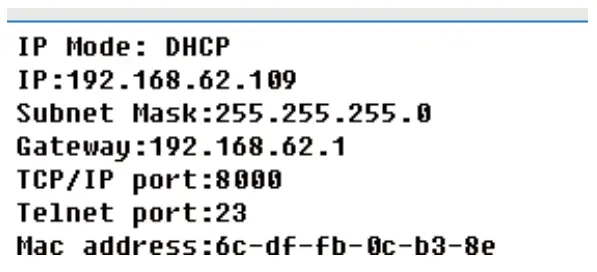
IP:192.168.62.109 in the above figure is the IP Address of the Matrix (the IP address is variable, depending on what the specific machine returns).
For the details of ASCII control, please refer to “10. RS-232 Control Command”.
Step 2: Connect the TCP/IP port of the Matrix to a PC with a UTP cable, and set the PC’s IP address to be in the same network segment as the Matrix.
Step 3: Input the IP address of the Matrix into your browser on the PC to enter the Web GUI page. After entering the Web GUI page, there will be a Login page, as shown below:

Select the Username from the list and enter the password. The default passwords are:
Username User Admin
Password user admin
After entering the password, click the “LOGIN” button, and the following Status page will appear.
■ Status Page
The Status page provides basic information about the Model, the installed firmware version, and the device’s network settings.

■ Video Page
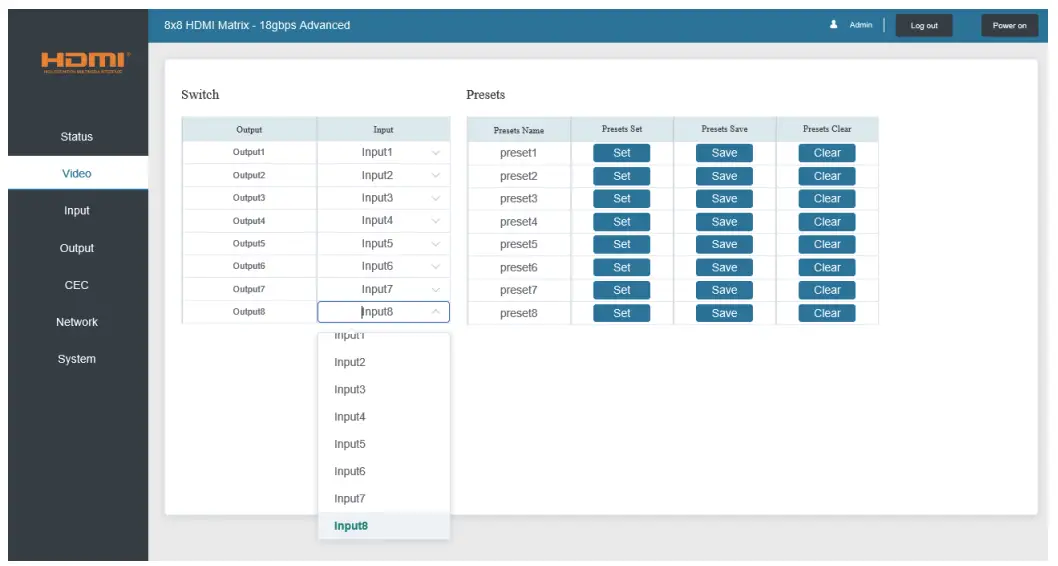
You can do the following operations on the Video page:
- Output: The current device’s OUTPUT port. You can select the signal source for it.
- Input: You can click the drop-down menu to select the signal source for the corresponding OUTPUT port.
- Presets Name: You can name the current scene with a maximum length of 12 characters
- Presets Set: You can restore the last saved audio-video matrix switching relationship settings.
- Presets Save: You can save the audio-video matrix switching relationship.
- Presets Clear: You can clear the saved audio-video matrix switching relationship.
■ Input Page
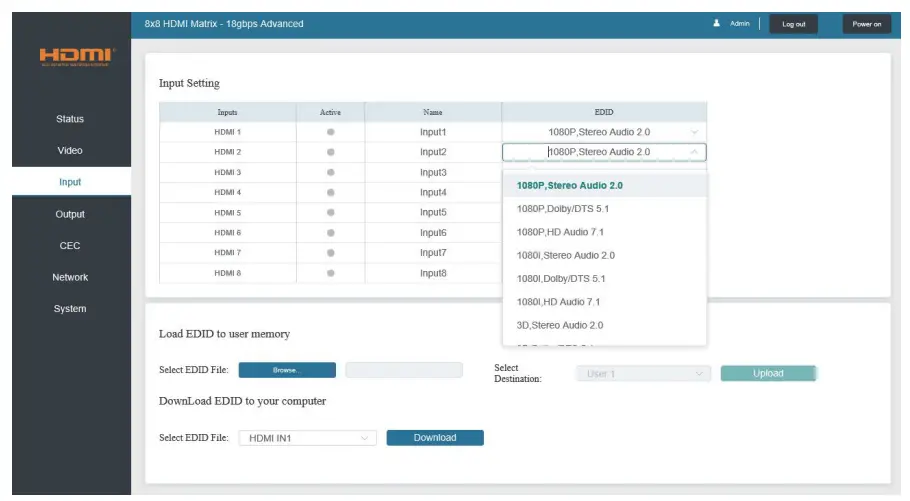
You can do the following operations on the Input page:
- Inputs: Input channel of the device.
- Active indicates whether the channel is connected to a signal source.
- Name: The input channel’s name. You can modify it by entering the input box’s corresponding name (max length: 12 characters)
- EDID: You can set the current channel’s EDID. The specific operation is as follows:
Set EDID for the User
Click the “Browse” button, then select the bin file. If you choose the wrong EDID file, there will be a prompt, as shown in the following figure:
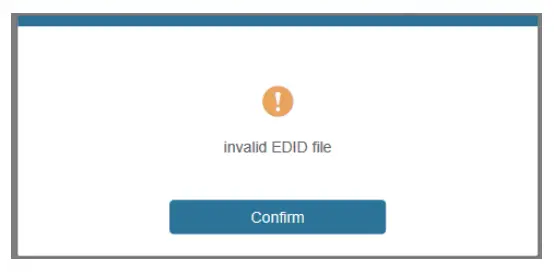
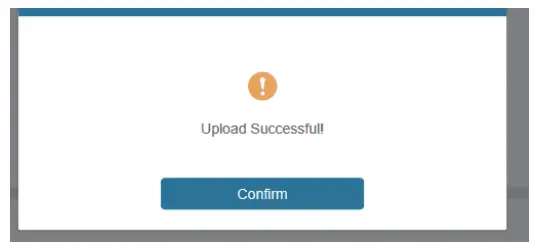
Make sure to select the correct file; then, you can check the selected file’s name. Select “User 1” or “User 2”, then click “Upload.” After successful setting, it will prompt as follows:
Download the EDID File of the Corresponding Input Channel
Click the drop-down box of “Select EDID File” to select the corresponding input channel. Then click “Download” to download the related EDID file.
■ Output Page
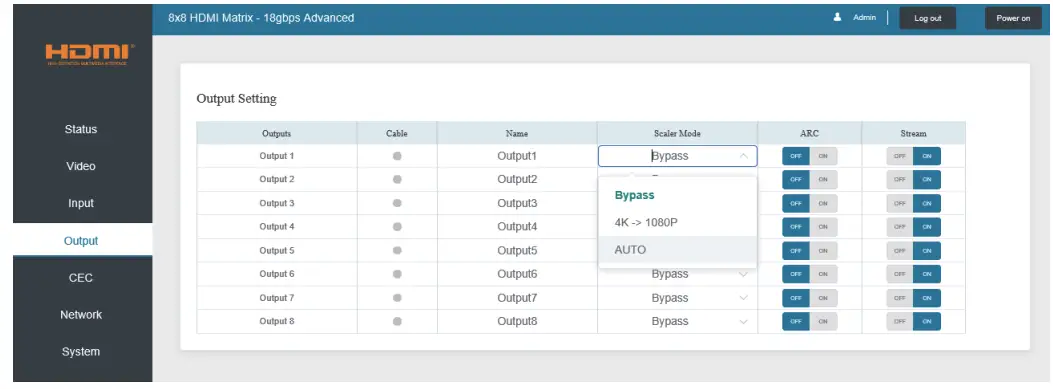
You can do the following operations on the Output page:
- Outputs: Output channel of the device.
- Name: The current output channel’s name. You can modify it by entering the input box’s corresponding name (max length: 12 characters)
- Cable: It indicates the connection status of output ports. When the output port is connected to the display, it shows green. Otherwise, it shows gray.
- Scaler Mode: Set the current output resolution mode.
- ARC: Turn on/off the ARC function.
- Stream: Turn on/off the output stream.
■ CEC Page
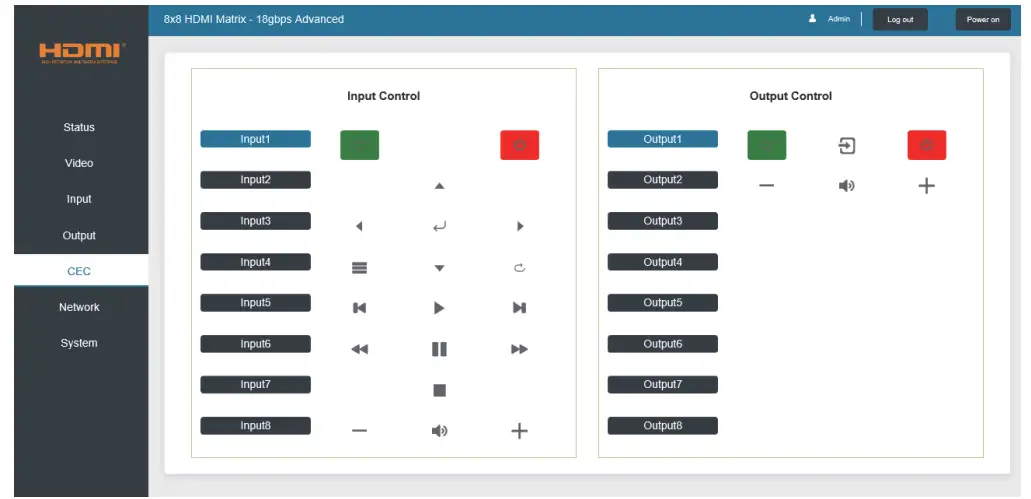
You can perform CEC management on this page:
- Input Control: You can control the operation of each input source by clicking the icons on the page.
- Output Control: You can control the process of each display, such as power on/off, volume +/-, and active source switching.
■ Network Page
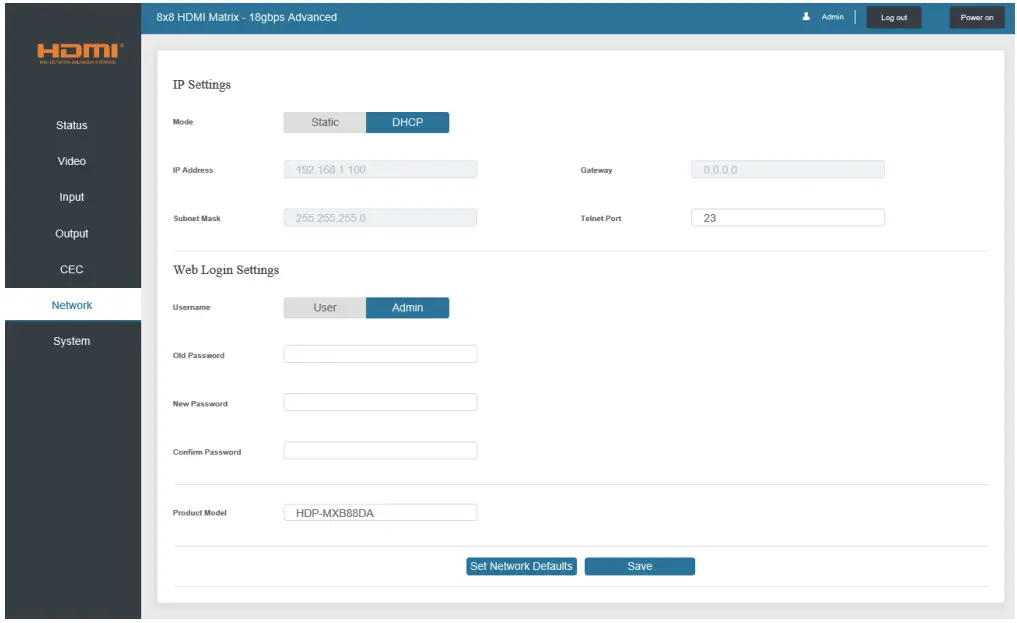
Set the Default Network
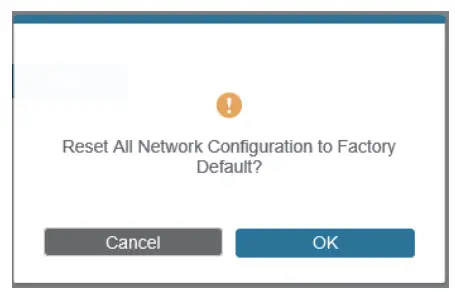
Click “Set Network Defaults,” and there will be a prompt, as shown in the following figure:.
Click “OK” to search the IP Address again, as shown in the following figure:
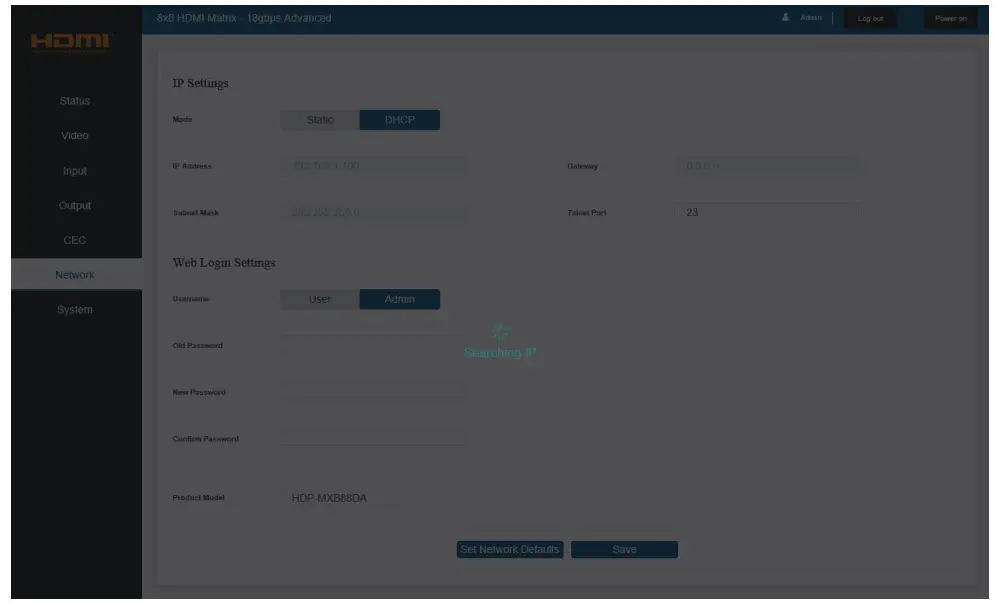
After searching, it will switch to the login page; the default network setting is completed.
Modify Username
Click the “User” button, enter the correct Old Password, New Password, and Confirm Password, then click “Save.” After successful modification, there will be a prompt, as sown in the following figure:
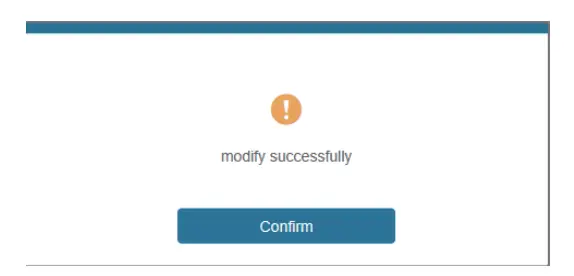
Note: Input rules for changing passwords:
- The password can’t be empty.
- New Password can’t be the same as the Old Password.
- New Password and Confirm Password must be the same.
Modify Network Setting
Modify the Mode/IP Address/Gateway/Subnet Mask/Telnet Port as required, click “Save” to save the settings, then it will come into effect.
After modification, if the Mode is “Static,” it will switch to the corresponding IP Address; if the Mode is “DHCP,” it will automatically search and switch to the IP Address assigned by the router.
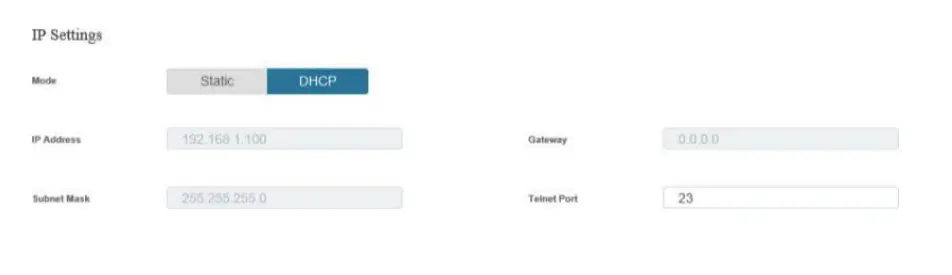
■ System Page
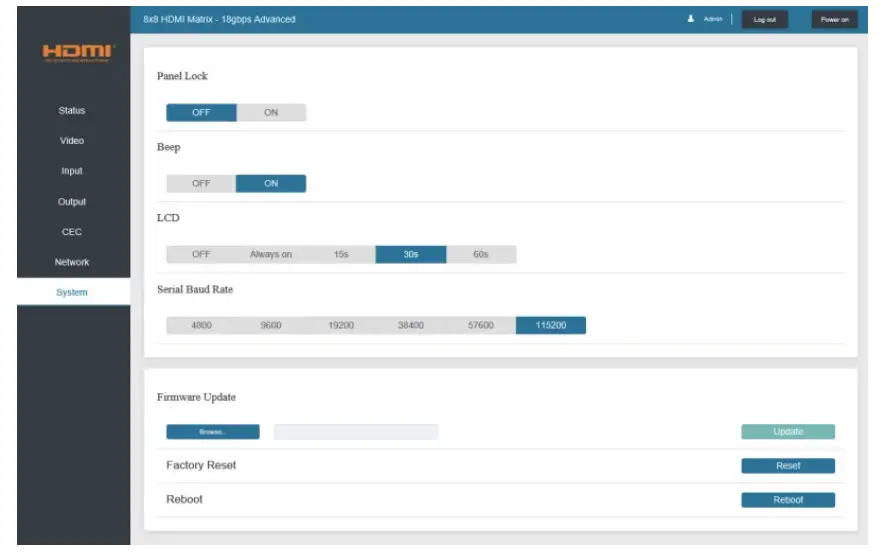
- Panel Lock: Click “Panel Lock” to lock/unlock panel buttons. “On” indicates that panel buttons are unavailable; “Off” indicates panel buttons are available.
- Beep: Click “Beep” to turn on/off the beep.
- LCD: You can turn on/off the LCD and set the turn-on time (15s/30s/60s).
- Serial Baud Rate: Click the value to set the Serial Baud Rate.
- Firmware Update: Click “Browse” to select the update file, then click “Update” to complete the firmware update.
- Factory Reset: You can reset the unit to factory defaults by clicking “Reset.”
- Reboot: You can reboot the team by clicking “Reboot.”
Note: After reset/reboot, it will switch to the login page.
RS-232 Control Command
The product also supports RS-232 control. You need a serial cable with an RS-232 male head and a DB9 transfer USB male head. The RS-232 head of the serial cable is connected to the RS232 control port with DB 9 at the rear of the Matrix, and the USB head of the serial cable is connected to a PC. The connection method is as follows:
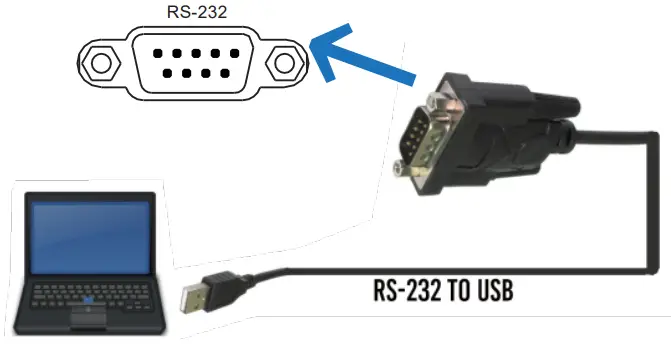
Then, open a Serial Command tool on a PC to send an ASCII command to control the Matrix. The ASCII command list about the product is shown below.
| ASCII Command | ||||
| Serial port protocol. Baud rate: 115200, Data bits: 8bit, Stop bits:1, Check bit: 0 | ||||
| x – Parameter 1 y – Parameter 2 ! – Delimiter | ||||
| Command Code | Function Description | Example | Feedback | Default Setting |
| Power | ||||
| s power z! | Power on/off the device,z=0~1 (z=0 power off, z=1 power on) | s power 1! | Power on System Initializing… Initialization Finished! power off | power on |
| r power! | Get the current power state | r power! | Power on/power off | |
| s reboot! | Reboot the device | s reboot! | Reboot… System Initializing… Initialization Finished! FW version x.xx.xx | |
| System Setup | ||||
| help! | List all commands | help! | ||
| r type! | Get device model | r type! | HDP-MXB88DA | |
| Command Code | Function Description | Example | Feedback | Default Setting |
| r status! | Get the device’s current status | r status! | Get the unit all status: power, beep, lock, in/ out connection, video/ audio crosspoint, EDID, scaler, network status | |
| r fw version! | Get Firmware version | r fw version! | MCU BOOT: Vx.xx.xx MCU APP: Vx.xx.xx WEB GUI: Vx.xx | |
| r link in x! | Get the connection status of the x input port,x=0~8(0=all) | r link in 1! | HDMI input 1: connect | |
| r link out y! | Get the connection status of the y output port,y=0~8(0=all) | r link out 1! | HDMI output 1: connect | |
| s reset! | Reset to factory defaults | s reset! | Reset to factory defaults System Initializing… Initialization Finished! FW version x.xx.xx | |
| s beep z! | Enable/Disable the buzzer function, z=0~1(z=0 beep off, z=1 beep on) | s beep 1! | beep on beep off | beep on |
| r beep! | Get buzzer state | r beep! | beep on / beep off | |
| s lock z! | Lock/Unlock front panel button, z=0~1 (z=0 lock off,z=1 lock on) | s lock 1! | panel button lock on panel button lock off | panel button lock off |
| r lock! | Get panel button lock state | r lock! | panel button lock on/off | |
| s LCD on time z! | Set LCD screen remain on time, z=0~4 (0:off, 1:always on, 2:15s, 3:30s, 4:60s) | s LCD on time 1! | LCD on 15 seconds | LCD on 30 seconds |
| r LCD mode! | Get the backlight status of the LCD screen | r LCD mode! | LCD always on | |
| s save preset z! | Save switch state between all output ports and the input port to preset z, z=1~8 | s save preset 1! | save to preset 1 | |
| s recall preset z! | Call saved preset z scenarios, z=1~8 | s recall preset 1! | recall from preset 1 | |
| s clear preset z! | Clear stored preset z scenarios, z=1~8 | s clear preset 1! | clear preset 1 | |
| r preset z! | Get preset z information, z=1~8 | r preset 1! | video/audio crosspoint | |
| s logo1 ****************! | Set the logo name displayed on the first line of the LCD screen, the max character is 16 | s logo1 Initializing…! | logo1:Initializing… | |
| s logo2 ****************! | Set the logo name displayed on the second line of the LCD screen, the max character is 16 | s logo2 HDP-MXB88DA! | logo2 HDP-MXB88DA! | |
| s baud rate xxx! | Set the serial port baud rate of RS02 module, z=(115200,57600, 38400,19200,9600,4800) | s baud rate 115200! | Baudrate:115200 | 115200 |
| r baud rate! | Get the serial port baud rate of RS02 module | r baud rate! | Baudrate:115200 | |
| s id z! | Set the control ID of the product, z=000~999 | s id 888! | id 888! | 0 |
| Output Setting | ||||
| s in x av out y! | Set input x to output y, x=1~8, y=0~8(0=all) | s in 1 av out 2! | input 1 -> output 2 | PTP |
| r av out y! | Get output y signal status y=0~8(0=all) | r av out 0! | input 1 -> output 1 input 2 -> output 2 input 8 -> output 8 |
| Command Code | Function Description | Example | Feedback | Default Setting |
| s HDMI y stream z! | Set output y stream on/off, y=0~8 (0=all) z=0~1(0:disable,1:enable) | s HDMI 1 stream 1! s HDMI 0 stream 1! | Enable HDMI output 1 stream Disable HDMI output 1 stream Enable HDMI all outputs stream Disable HDMI all outputs stream | enable |
| r HDMI y stream! | Get output y stream status, y=0~8(0=all) | r HDMI 1 stream! | Enable HDMI output 1 stream | |
| s HDMI y scaler z! | Set HDMI output y port output scaler mode, y=0~8(0=all), z=1~3(1=bypass,2=4k->1080p, 3=Auto) | s HDMI 1 scaler 1!
s HDMI 0 scaler 1! | HDMI output 1 set to bypass mode HDMI all outputs set to bypass mode | HDMI all outputs set to bypass mode |
| r HDMI y scaler! | Get HDMI output y port output mode y=0~8(0=all) | r HDMI 1 scaler! | HDMI output 1 set to bypass mode | |
| EDID Setting | ||||
| s EDID in x from z! | Set input x EDID from default EDID z, x=0~8(0=all),z=1~31 1, 1080p,Stereo Audio 2.0 2, 1080p,Dolby/DTS 5.1 3, 1080p,HD Audio 7.1 4, 1080i,Stereo Audio 2.0 5, 1080i,Dolby/DTS 5.1 6, 1080i,HD Audio 7.1 7, 3D,Stereo Audio 2.0 8, 3D,Dolby/DTS 5.1 9, 3D,HD Audio 7.1 10, 4K2K30_444,Stereo Audio 2.0 11, 4K2K30_444,Dolby/DTS 5.1 12, 4K2K30_444,HD Audio 7.1 13, 4K2K60_420,Stereo Audio 2.0 14, 4K2K60_420,Dolby/DTS 5.1 15, 4K2K60_420,HD Audio 7.1 16, 4K2K60_444,Stereo Audio 2.0 17, 4K2K60_444,Dolby/DTS 5.1 18, 4K2K60_444,HD Audio 7.1 19, 4K2K60_444,Stereo Audio 2.0 HDR 20, 4K2K60_444,Dolby/DTS 5.1 HDR 21, 4K2K60_444,HD Audio 7.1 HDR 22, User1 23, User2 24~31, copy from HDMI output 1~8 | s EDID in 1 from 1! s EDID in 0 from 1! | input 1 EDID:1080p, Stereo Audio 2.0 all inputs EDID:1080p, Stereo Audio 2.0 | 1080p,Stereo Audio 2.0 |
| r EDID in x! | Get EDID status of the input x, x=0~8(0=all input) | r EDID in 0! | input 1 EDID: 4K2K60 _444,Stereo Audio 2.0 input 8 EDID: 4K2K60 _444,Stereo Audio 2.0 | |
| r EDID data HDMI y! | Get the EDID data of the HDMI output y port,y=1~8 | r EDID data HDMI 1! | EDID: 00 FF FF FF FF FF FF 00 ……… | |
| Audio Setting | ||||
| s HDMI y arc z! | Turn on/off ARC of HDMI output y, y=0~8(0=all) z=0~1(z=0,off,z=1 on) | s HDMI 1 arc 1! s HDMI 0 arc 1! | HDMI output 1 arc on HDMI output 1 hook off HDMI all outputs arc on HDMI all outputs are off | off |
| r HDMI y arc! | Get the ARC state of HDMI output y,y=0~8(0=all) | r HDMI 1 arc! | HDMI output 1 arc on |
| Command Code | Function Description | Example | Feedback | Default Setting |
| CEC Setting | ||||
| s CEC in x on! | set input x power on by CEC, x=0~8(0=all input) | s CEC in 1 on! | input 1 power on | |
| s CEC in x off! | set input x power off by CEC, x=0~8(0=all input) | s CEC in 1 off! | input 1 power off | |
| s CEC in x menu! | set input x open menu by CEC, x=0~8(0=all input) | s CEC in 1 menu! | input 1 open menu | |
| s CEC in x back! | set input x back operation by CEC, x=0~8(0=all input) | s CEC in 1 back! | input 1 back operation | |
| s CEC in x up! | set input x menu up operation by CEC, x=0~8(0=all input) | s CEC in 1 up! | input 1 menu up operation | |
| s CEC in x down! | set input x menu down operation by CEC, x=0~8(0=all input) | s CEC in 1 down! | input 1 menu down operation | |
| s CEC in x left! | set input x menu left operation by CEC, x=0~8(0=all input) | s CEC in 1 left! | input 1 menu left operation | |
| s CEC in x right! | set input x menu right operation by CEC, x=0~8(0=all input) | s CEC in 1 right! | input 1 menu right operation | |
| s CEC in x enter! | set input x menu enter by CEC, x=0~8(0=all input) | s CEC in 1 enter! | input 1 menu enter operation | |
| s CEC in x play! | set input x play by CEC, x=0~8(0=all input) | s CEC in 1 play! | input 1 play operation | |
| s CEC in x pause! | set input x pause by CEC, x=0~8(0=all input) | s CEC in 1 pause! | input 1 pause operation | |
| s CEC in x stop! | set input x stop by CEC, x=0~8(0=all input) | s CEC in 1 stop! | input 1 stop operation | |
| s CEC in x rew! | set input x rewind by CEC, x=0~8(0=all input) | s CEC in 1 rew! | input 1 rewind operation | |
| s CEC in x mute! | set input x volume mute by CEC, x=0~8(0=all input) | s CEC in 1 mute! | input 1 volume mute | |
| s CEC in x vol-! | set input x volume down by CEC, x=0~8(0=all input) | s CEC in 1 vol-! | input 1 volume down | |
| s CEC in x vol+! | set input x volume up by CEC, x=0~8(0=all input) | s CEC in 1 vol+! | input 1 volume up | |
| s CEC in x ff! | set input x fast forward by CEC, x=0~8(0=all input) | s CEC in 1 ff! | input 1 fast-forward operation | |
| s CEC in x previous! | set input x previous by CEC, x=0~8(0=all input) | s CEC in 1 previous! | input 1 previous operation | |
| s CEC in x next! | set input x next by CEC, x=0~8(0=all input) | s CEC in 1 next! | input 1 next operation | |
| s CEC HDMI out y on! | set output y power on by CEC, y=0~8(0=all output) | s CEC HDMI out 1 on! | HDMI output 1 power on | |
| s CEC HDMI out y off | set output y power off by CEC, y=0~8(0=all output) | s CEC HDMI out 1 on! | HDMI output 1 power off | |
| s CEC HDMI out y mute! | set output y volume mute by CEC, y=0~8(0=all output) | s CEC HDMI out 1 mute! | HDMI output 1 volume mute | |
| s CEC HDMI out y vol-! | set output y volume down by CEC, y=0~8(0=all output) | s CEC HDMI out 1 vol-! | HDMI output 1 volume down | |
| s CEC HDMI out y vol+! | set output y volume up by CEC, y=0~8(0=all output) | s CEC HDMI out 1 vol+! | HDMI output 1 volume up | |
| s CEC HDMI out y active! | set output y active source by CEC, y=0~8(0=all output) | s CEC HDMI out 1 active! | HDMI output 1 active source |
| Command Code | Function Description | Example | Feedback | Default Setting |
| Network Setting | ||||
| r ipconfig! | Get the Current IP Configuration | r ipconfig! | IP Mode: Static IP: 192.168.1.72 Subnet Mask: 255.255.255.0 Gateway: 192.168.1.1 TCP/IP port=8000 Telnet port=10 Mac address: 00:1C:91:03:80:01 | |
| r mac addr! | Get the network MAC address | r mac addr! | Mac address: 00:1C:91:03:80:01 | |
| s IP mode z! | Set network IP mode to static IP or DHCP, z=0~1 (z=0 Static, z=1 DHCP ) | s IP mode 0! | Set IP mode: Static (Please use “s net reboot!” command or repower device to apply new config!) | |
| r IP mode! | Get network IP mode | r IP mode! | IP Mode: Static | |
| s ip addr xxx.xxx.xxx.xxx! | Set the network IP address | s IP address 192.168.1.100! | Set IP address: 192.168.1.100 (Please use “s net reboot!” command or repower device to apply new config!) DHCP on, Device can’t config static address, set DHCP off first. | |
| r IP address! | Get the network IP address | r IP address! | IP address: 192.168.1.100 | |
| s subnet xxx.xxx.xxx.xxx! | Set the network subnet mask | s subnet 255.255.255.0! | Set Subnet Mask: 255.255.255.0 (Please use the “s net reboot!” ommand or repower device to apply the new config!) DHCP on, Device can’t config subnet mask, set DHCP off first. | |
| r subnet! | Get a network subnet mask | r subnet! | Subnet Mask: 255.255.255.0 | |
| s gateway xxx.xxx.xxx.xxx! | Set network gateway | s gateway 192.168.1.1! | Set gateway: 192.168.1.1 Please use the “s net reboot!” command or repower the device to apply the new config! DHCP on, Device can’t config gateway, set DHCP off first. | |
| r gateway! | Get network gateway | r gateway! | Gateway:192.168.1.1 | |
| s TCP/IP port x! | Set network TCP/IP port (x=1~65535) | s TCP/IP port 8000! | Set TCP/IP port:8000 | |
| r TCP/IP port! | Get a network TCP/IP port | r TCP/IP port! | TCP/IP port:8000 | |
| s telnet port x! | Set network telnet port (x=1~65535) | s telnet port 23! | Set Telnet port:23 | |
| r telnet port! | Get network telnet port | r telnet port! | Telnet port:23 |
| Command Code | Function Description | Example | Feedback | Default Setting |
| s net reboot! | Reboot network modules | s network reboot! | Network reboot… IP Mode: Static IP: 192.168.1.72 Subnet Mask: 255.255.255.0 Gateway: 192.168.1.1 TCP/IP port=8000 Telnet port=10 Mac address: 00:1C:91:03:80:01 |
Application Example
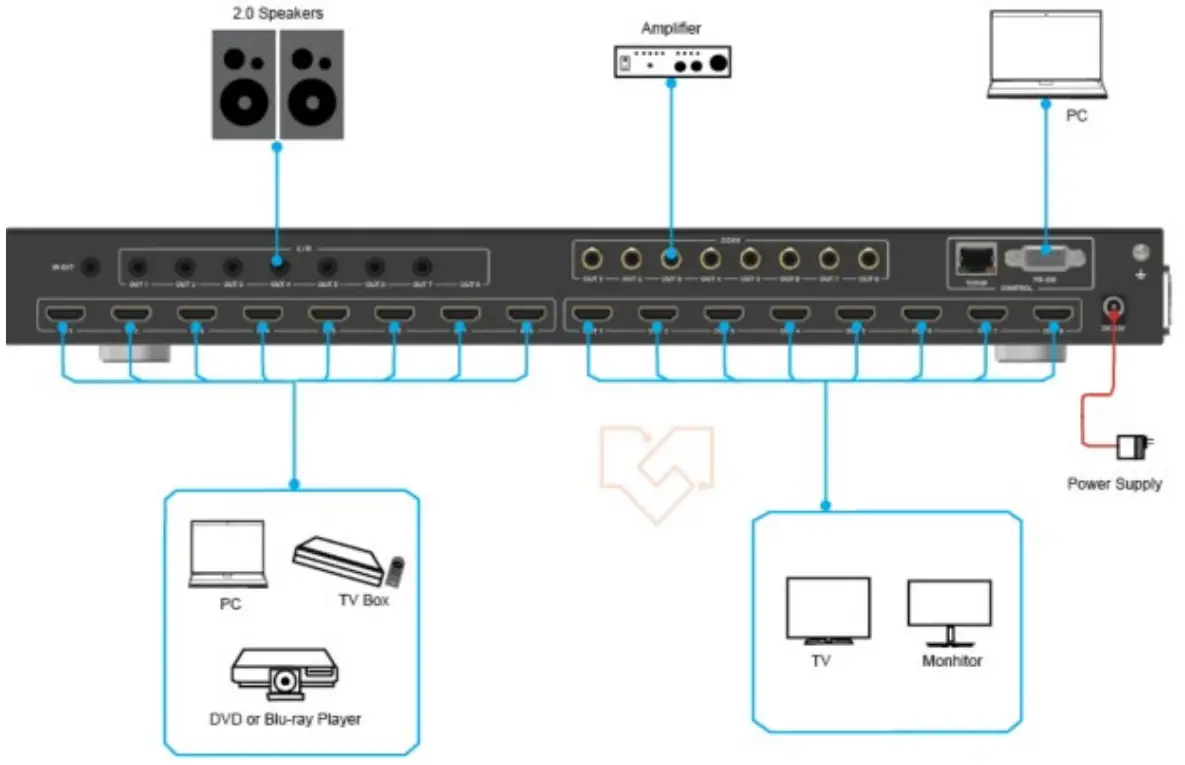

The terms HDMI and HDMI High-Definition Multimedia Interface, and the HDMI Logo are trademarks or registered trademarks of HDMI Licensing LLC in the United States and other countries.
VER 1.1