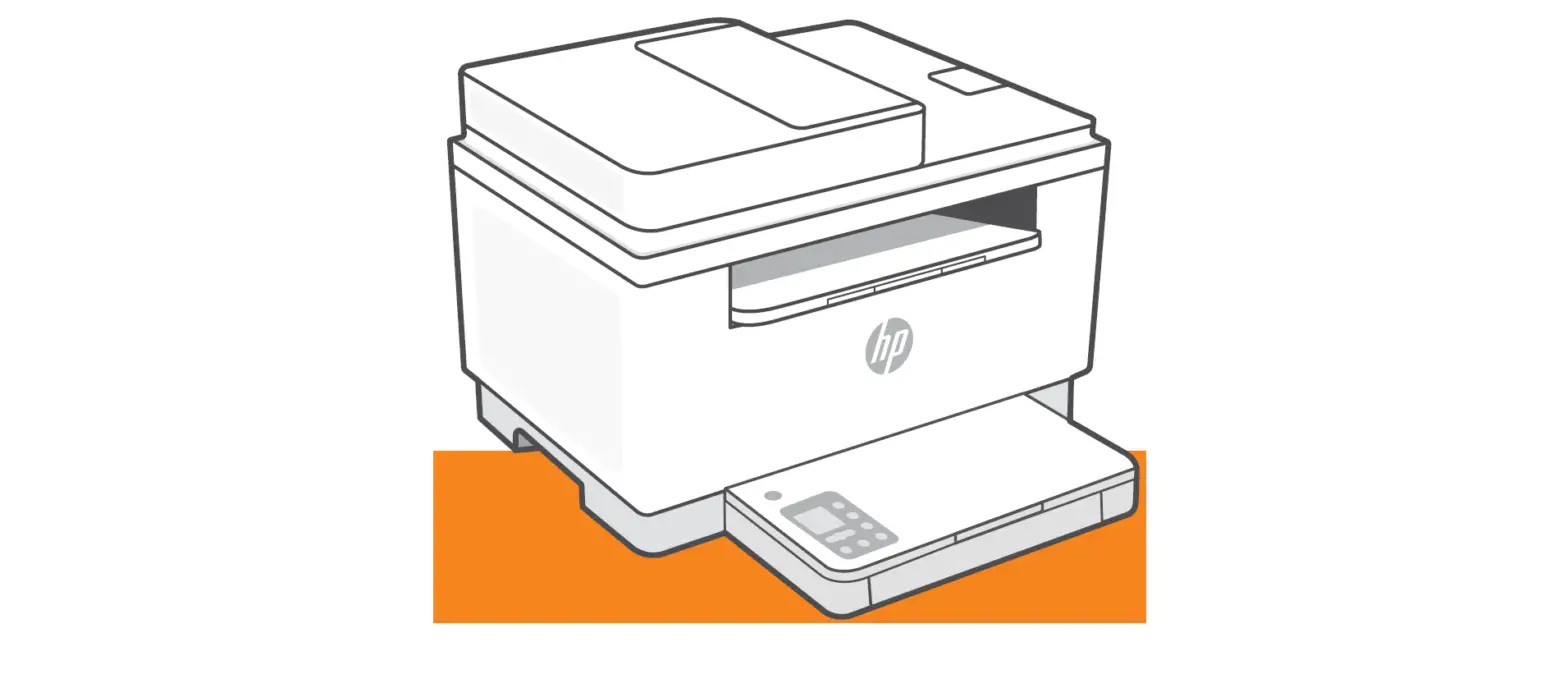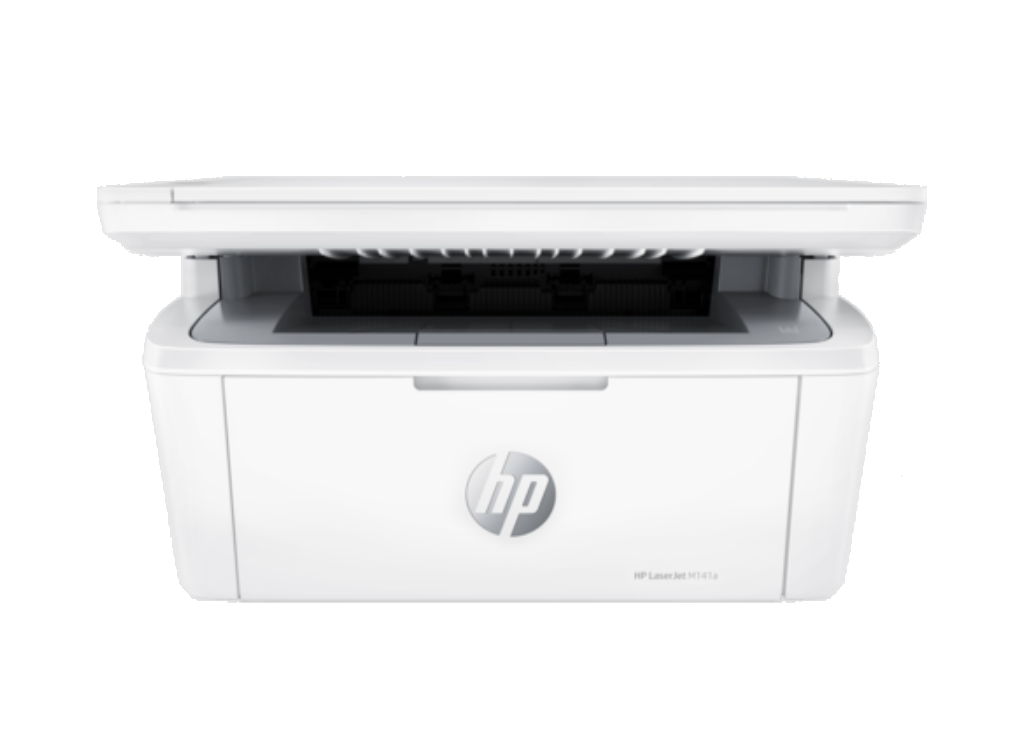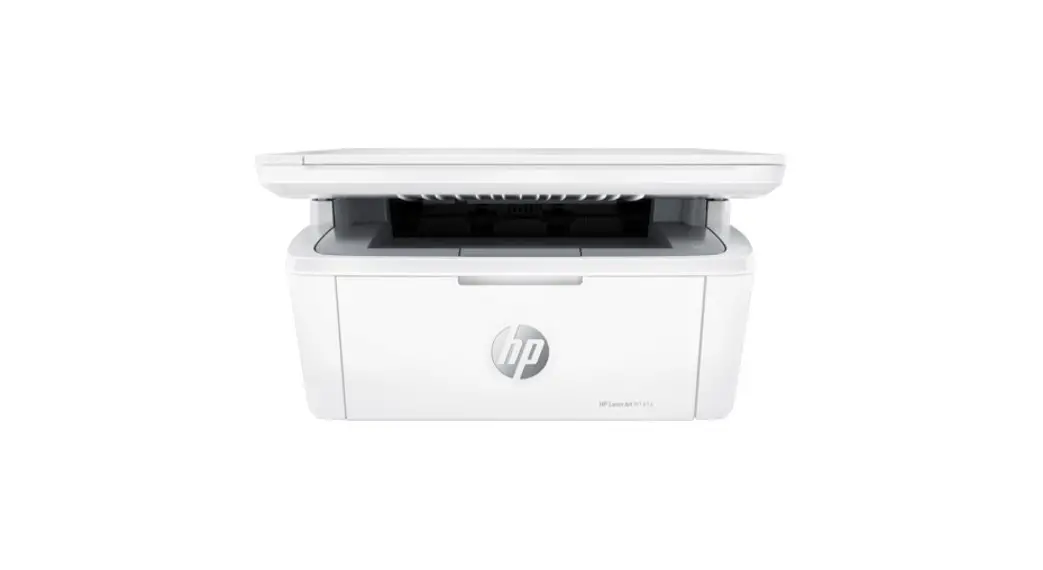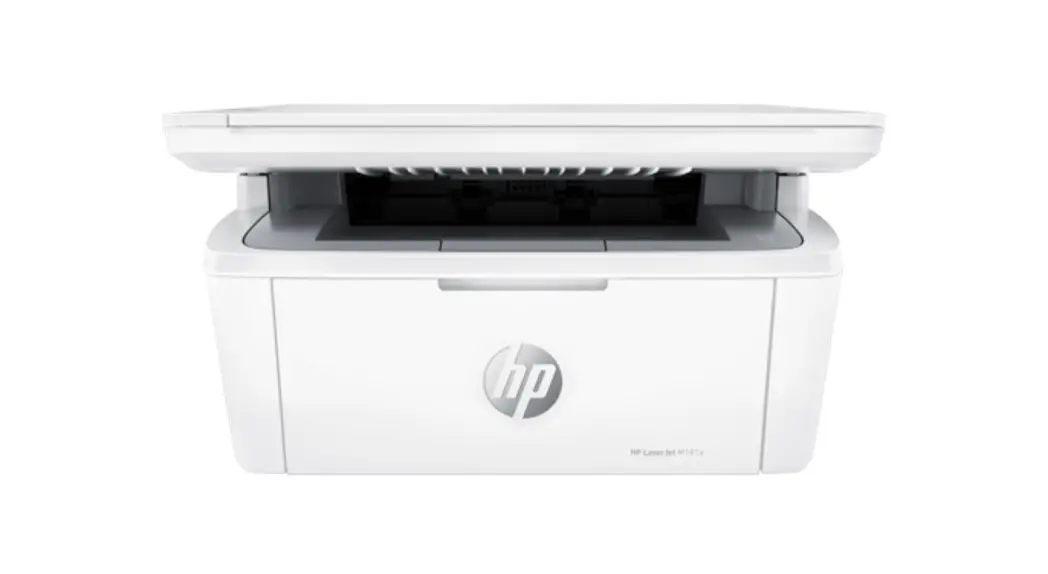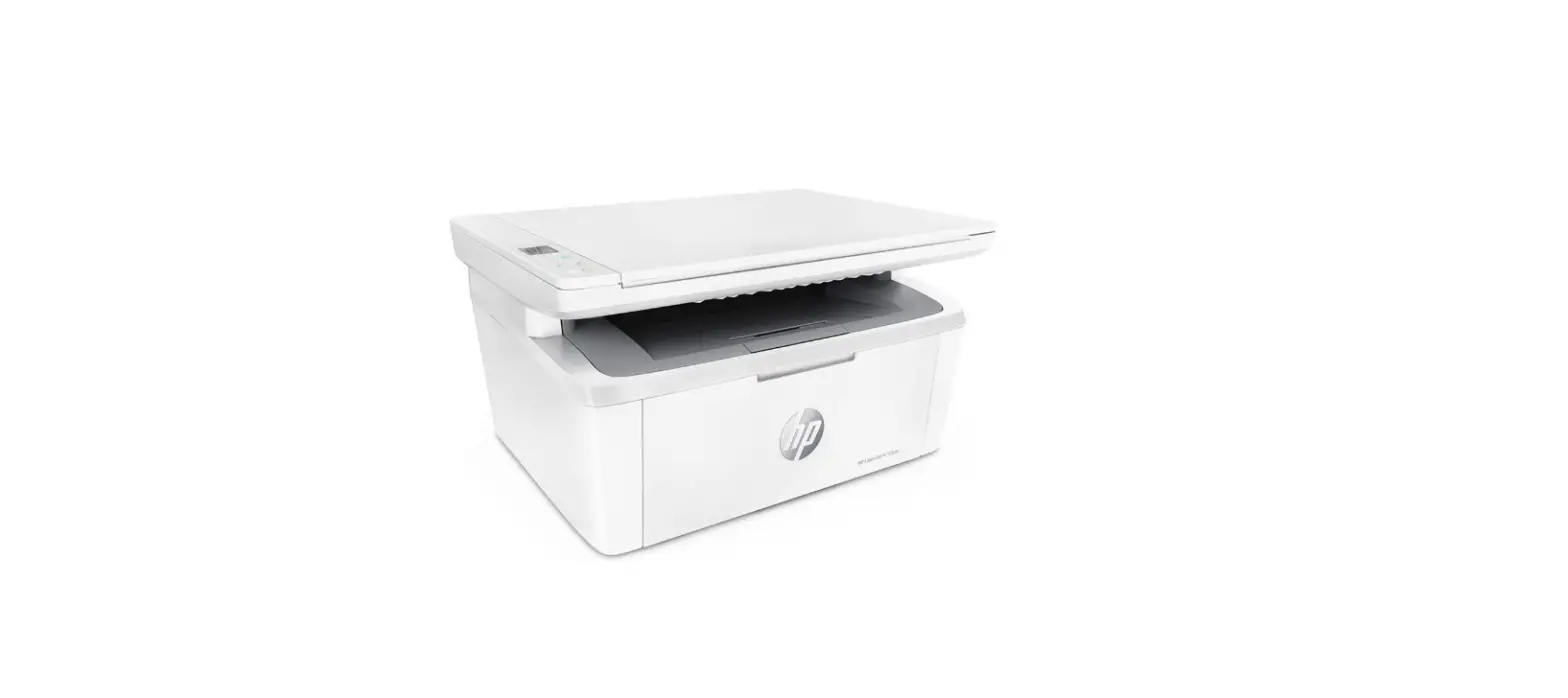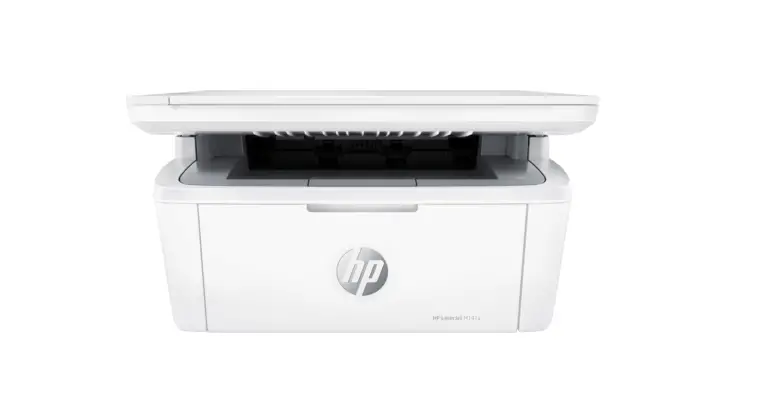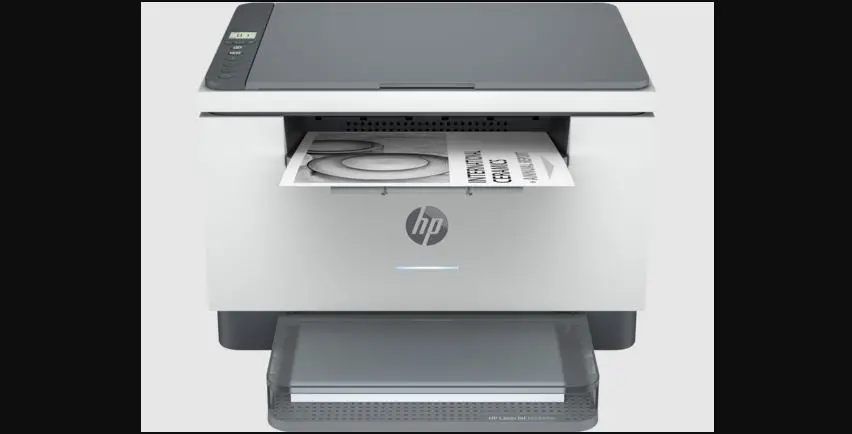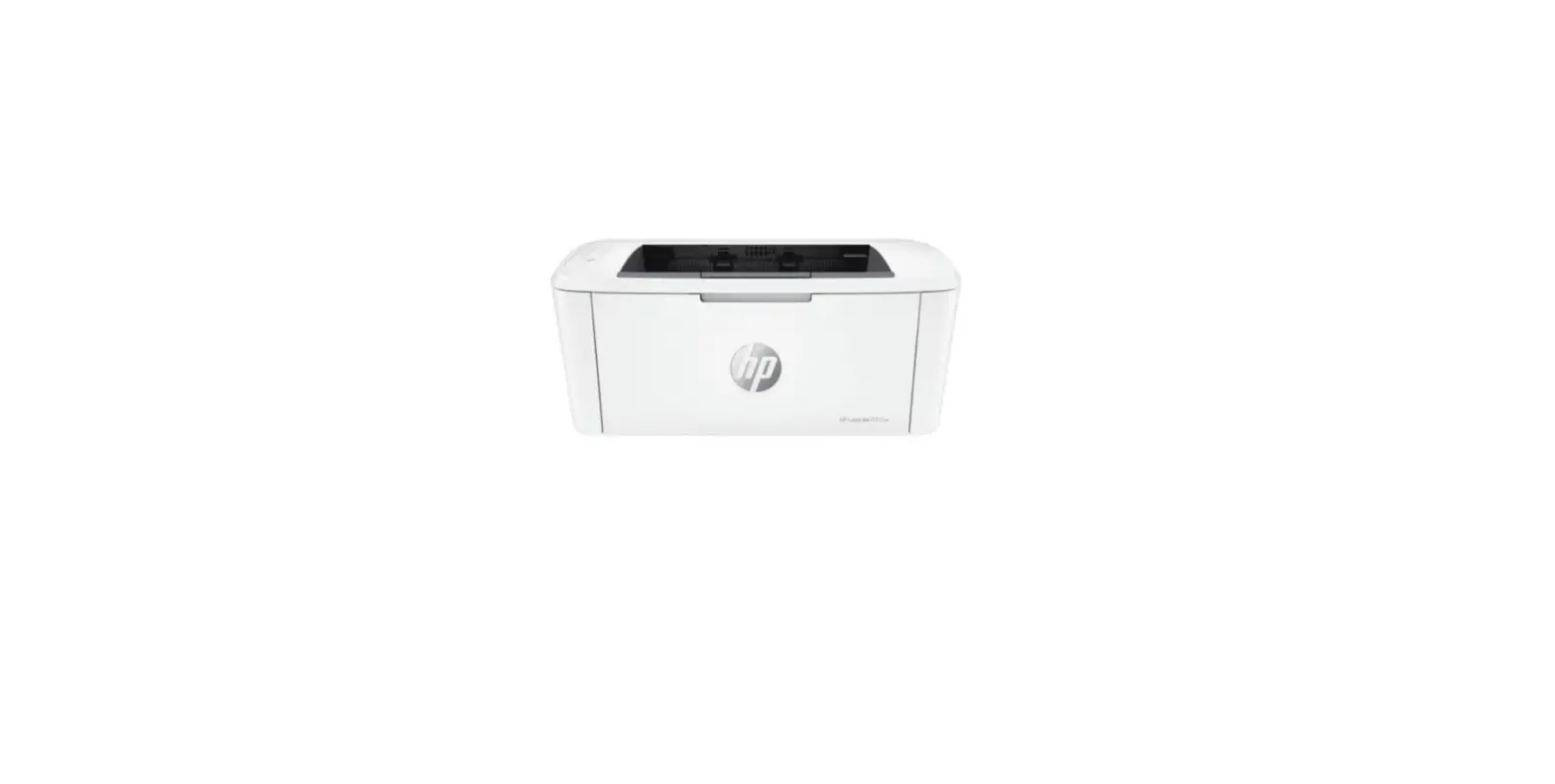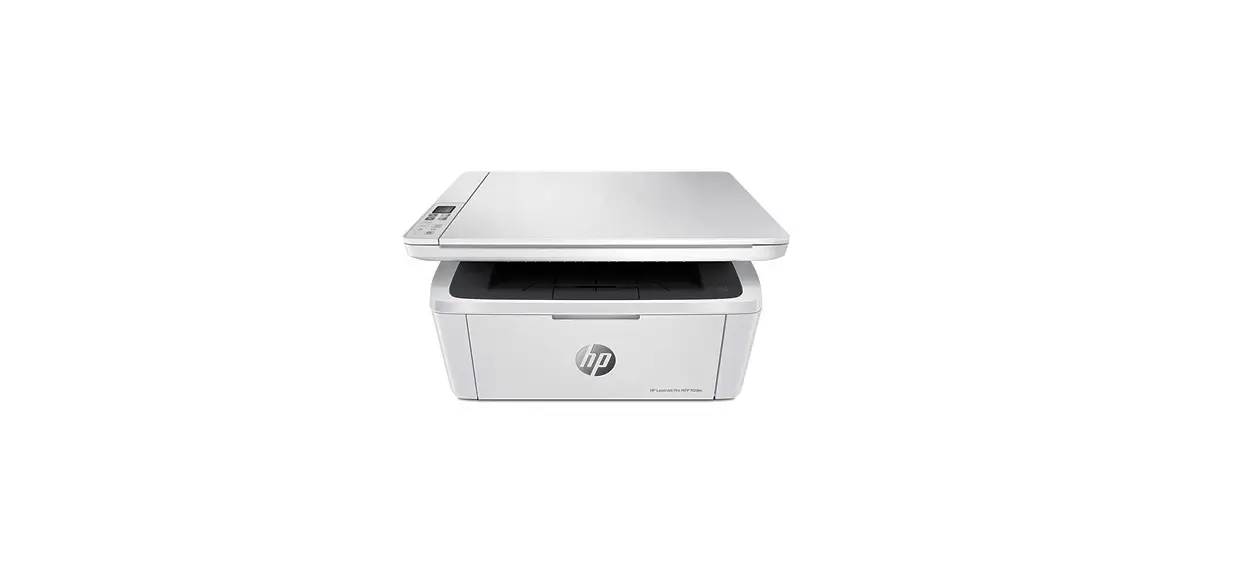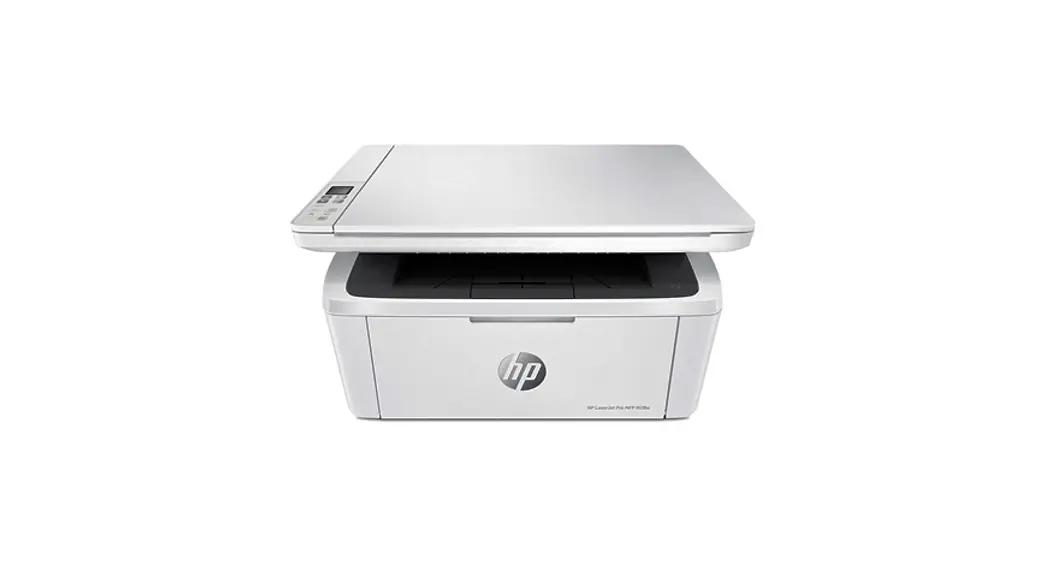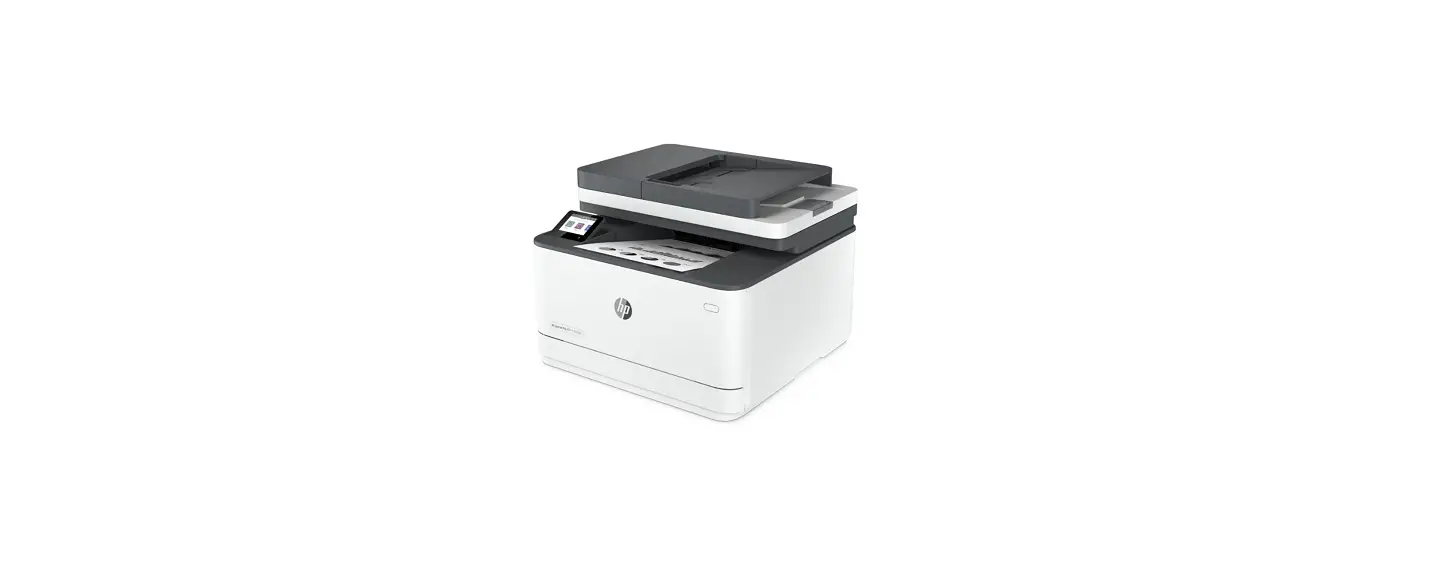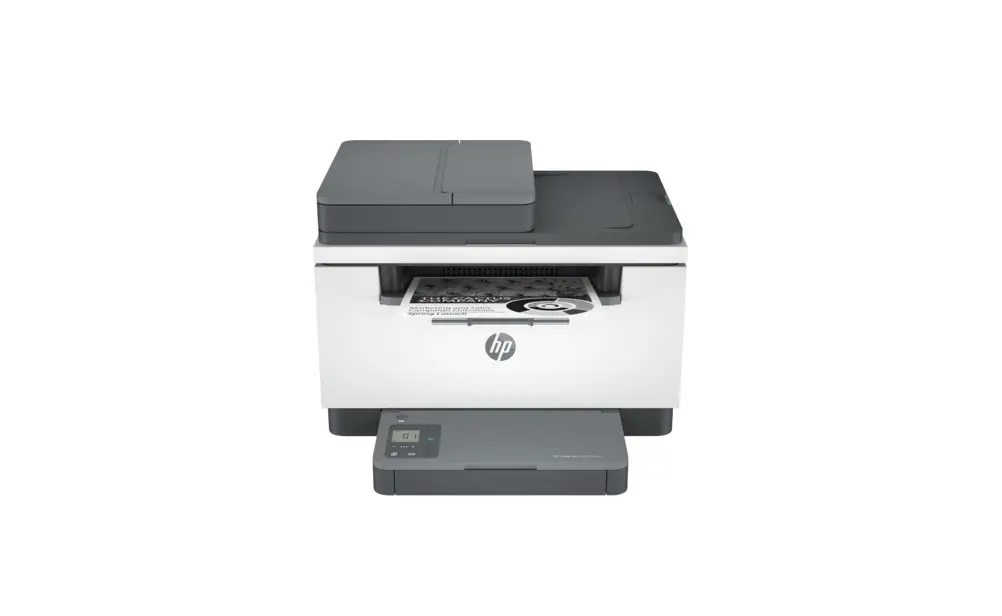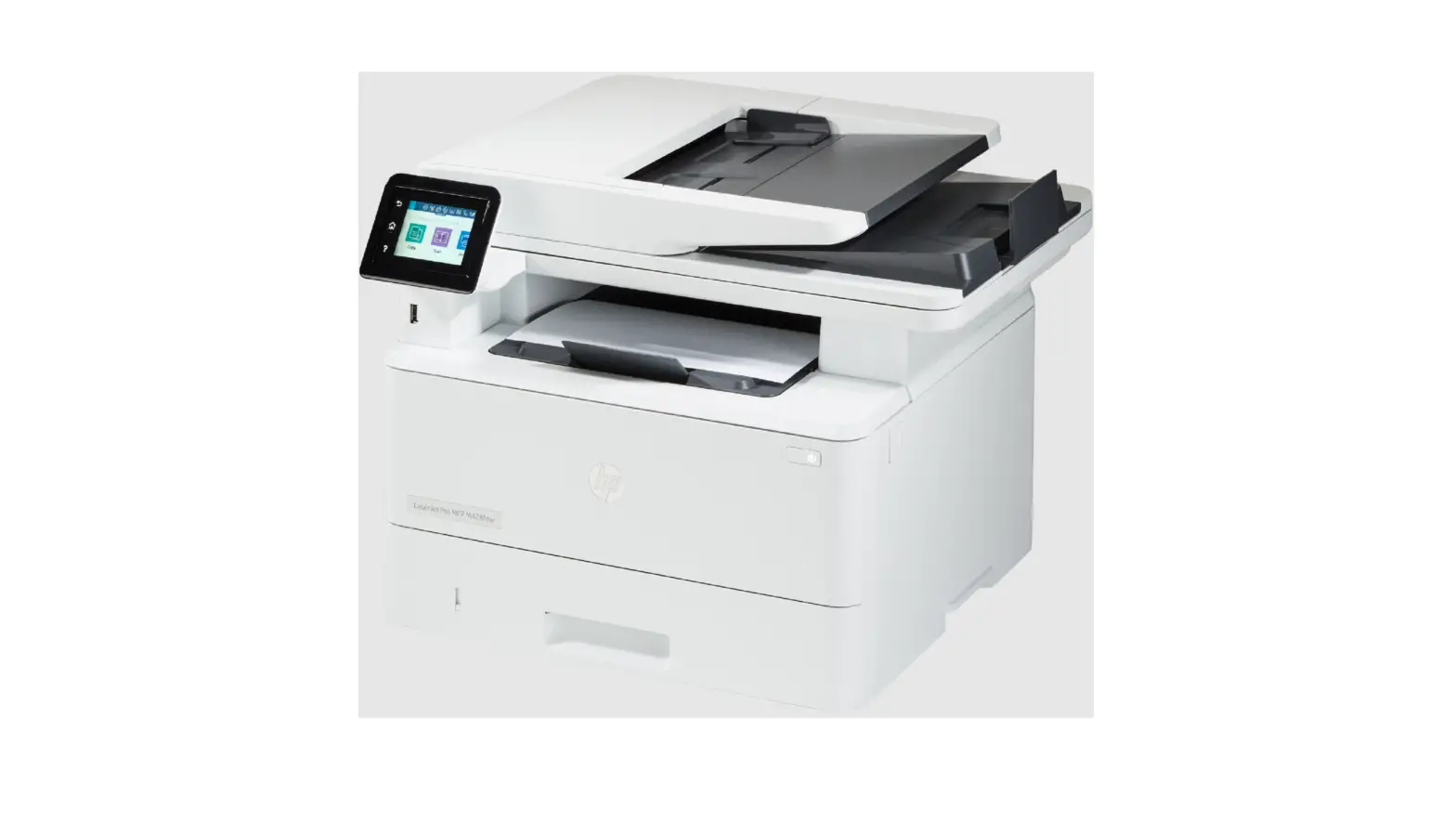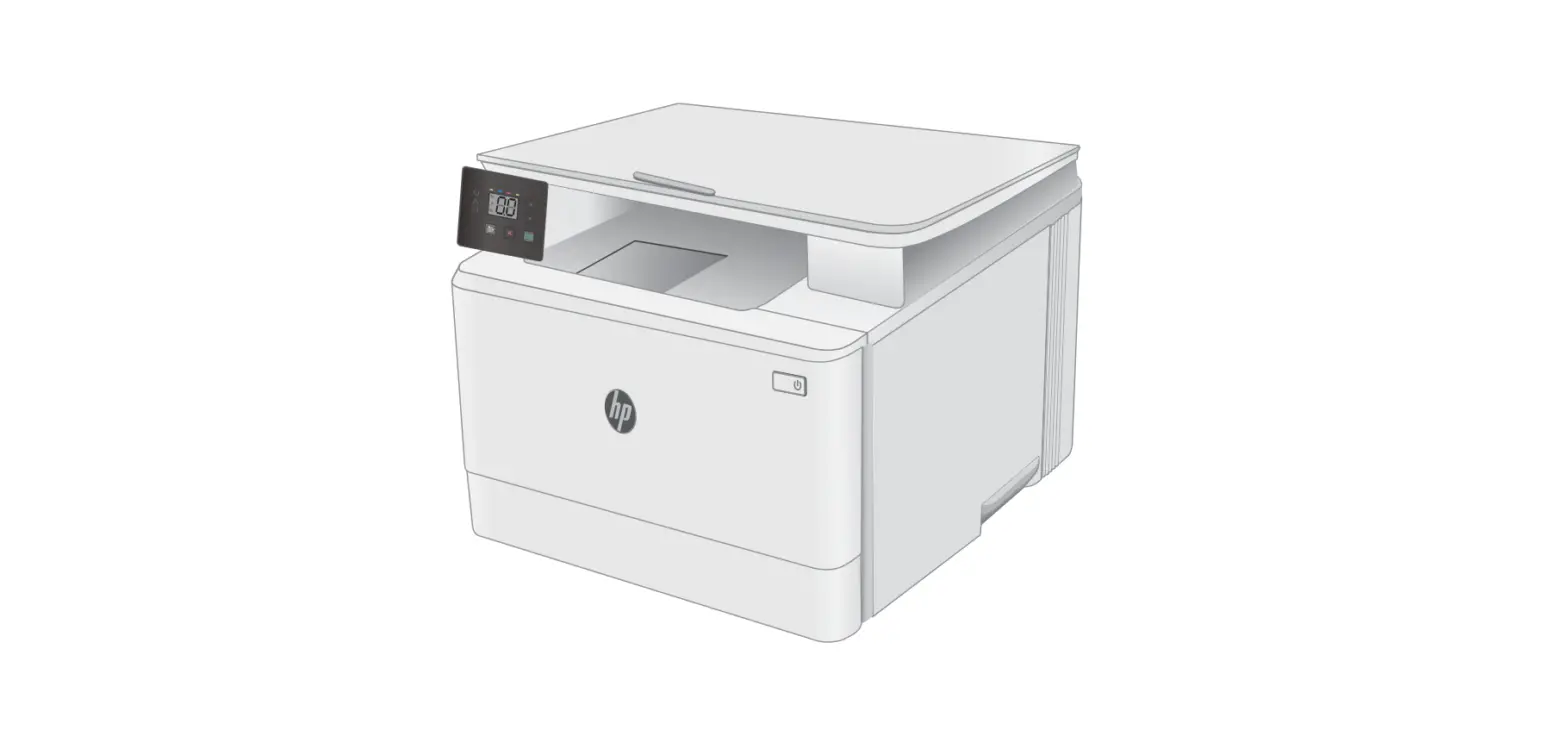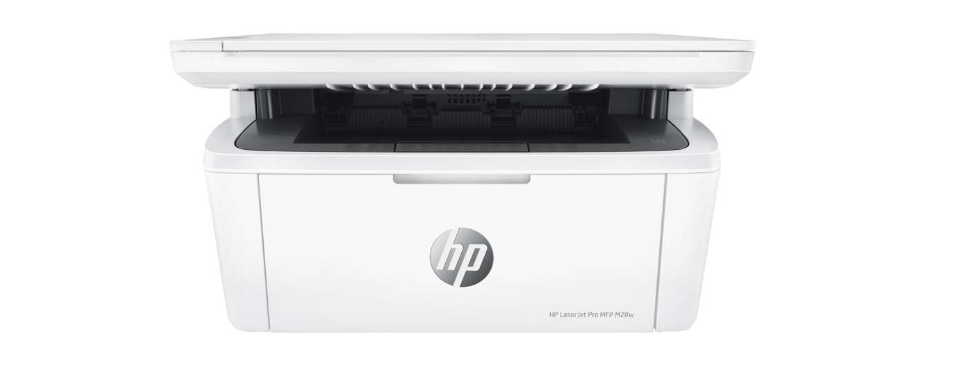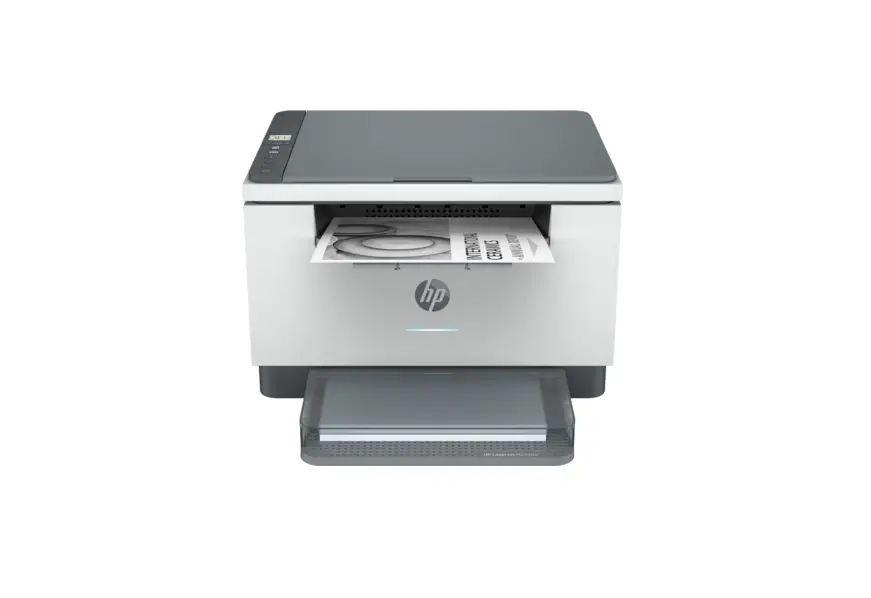
M232-M237 series HP LaserJet MFP User Guide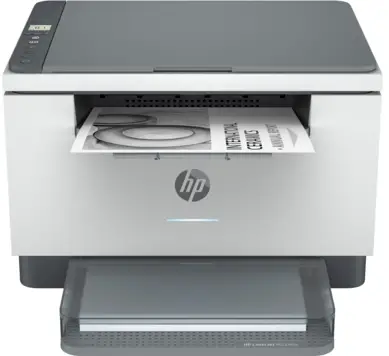
Control panel
 Copy Options
 Copy button/light
 ID Card Copy button/light
 Information button/light Press to print a summary of printer settings and status.
 Resume button/light Press when lit to continue a job.
 Cancel button/light
 Power button
 Wireless button1
 Status light2 Blinks when starting or processing a job.
 Paper light
Blinks when out of paper or paper is jammed. Attention light2
 Cartridge light
Blinks when cartridge needs attention. Open Lid light
Open lid and turn over ID card to copy second side. Wi-Fi Direct icon1
Status lights

Pulsing purple
Wireless setup mode. Lasts for 2 hours after first turning on printer. See “Help and tips for Wi-Fi and connectivity”.

Pulsing blue
Connecting to network

Solid light blue
Connected/ready for use

Solid amber
Problem. Check the HP Smart app for troubleshooting information.

Pulsing green
Updating or busy
For more information on lights and errors, visit hp.com/support/ljM232MFP
Help and tips for Wi-Fi and connectivity
If the software is unable to find your printer during setup, check the following conditions to resolve the issue.
| Potential Issue | Solution |
Printer Wi-Fi setup mode timed out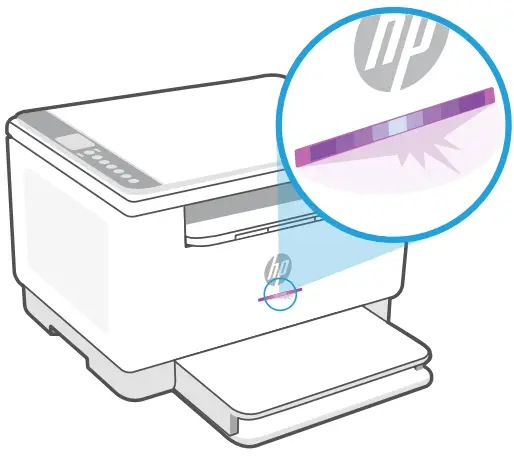 | If the status light is not purple, the printer might not be in Wi-Fi setup mode. Restart setup mode: 1. If the control panel is not lit, press  to exit sleep mode. 2. Press and hold to exit sleep mode. 2. Press and hold  for 5 seconds and then release the button. All control panel buttons will light up. 3. Press for 5 seconds and then release the button. All control panel buttons will light up. 3. Press  and at the same time once and then release the buttons. The status light will purple. 4. Wait for one minute. Close and reopen HP Smart, and then try connecting again. and at the same time once and then release the buttons. The status light will purple. 4. Wait for one minute. Close and reopen HP Smart, and then try connecting again. |
| Computer or mobile device too far from printer | Move your computer or mobile device closer to the printer. Your device might be out of range of the printer’s Wi-Fi signal. |
| Computer connected to a Virtual Private Network (VPN) or remote work network | Disconnect from a VPN before installing HP Smart software. You can’t install apps from the Microsoft Store when connected to a VPN. Connect to the VPN again after finishing printer setup. Note: Consider your location and the security of the Wi-Fi network before disconnecting from a VPN. |
| Wi-Fi turned off on computer (computer connected by Ethernet) | If your computer is connected by Ethernet, turn on the computer’s Wi-Fi while setting up the printer. Disconnect the Ethernet cable temporarily to complete setup over Wi-Fi |
| Bluetooth and location services are turned off on your mobile device | If setting up with a mobile device, turn on Bluetooth and location services. This helps the software find your network and printer. Note: Your location is not being determined and no location information is being sent to HP as part of the setup process. |
Help and Support

For printer troubleshooting and videos, visit the HP support site. Enter your model name to find the printer.

https://www.hp.com/support/ljM232MFP
© Copyright 2021 HP Development Company, L.P.
Microsoft and Windows are either registered trademarks or trademarks of Microsoft Corporation in the United Stated and/ or other countries. Mac, OS X, macOS, and AirPrint are trademarks of Apple Inc., registered in the U.S. and other countries.
Android is a trademarks of Google LLC. iOS is a trademark or registered trademark of Cisco in the U.S. and other countries and is used under license.
 HP LaserJet MFP M232-M237 Printer series | HP® Customer Support