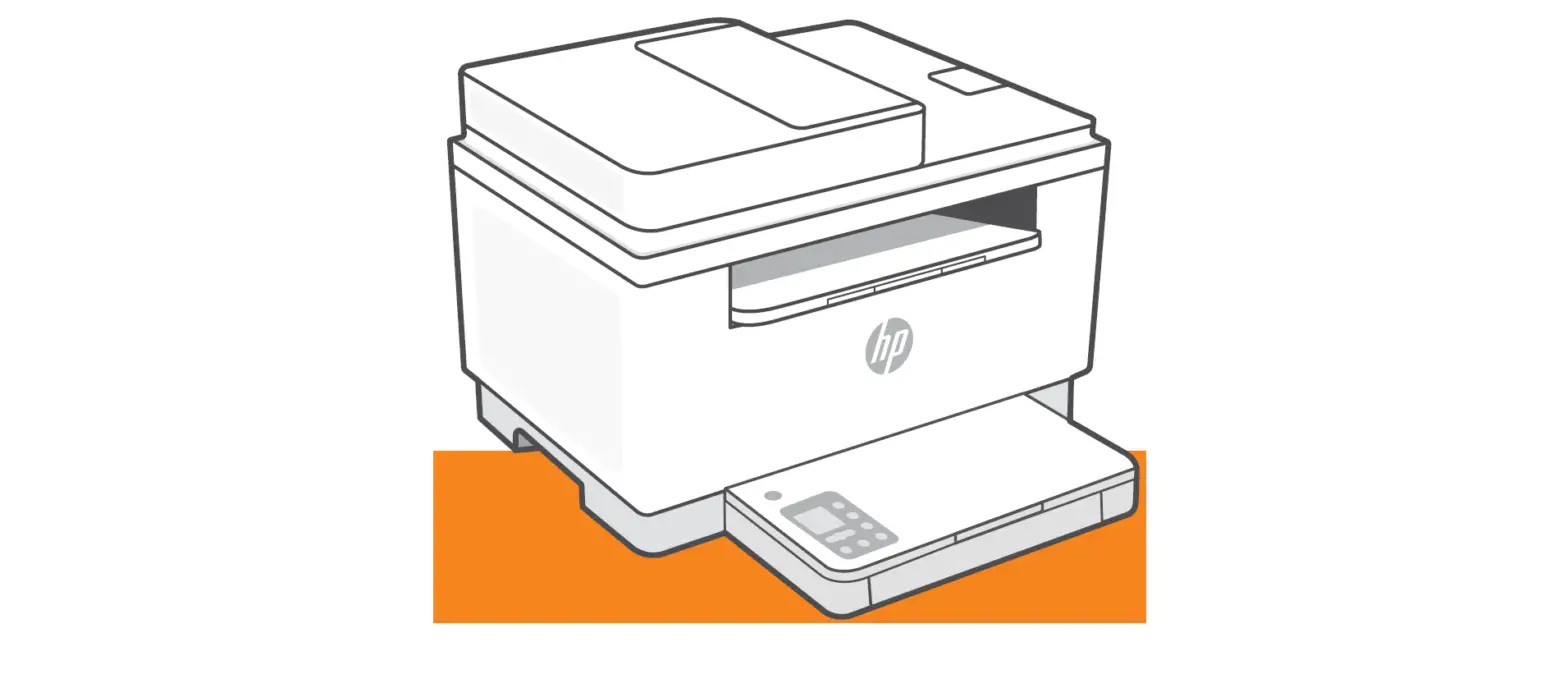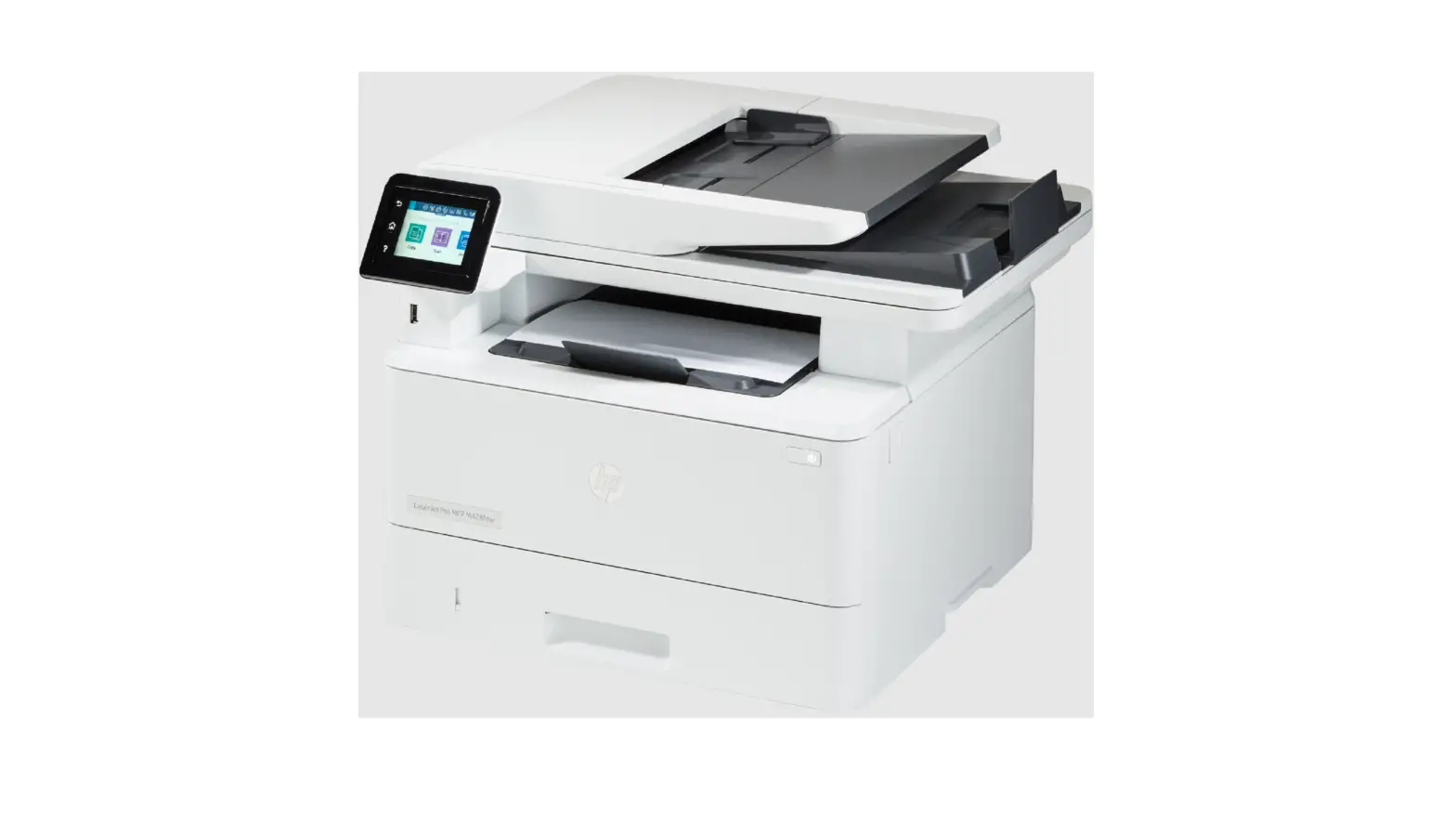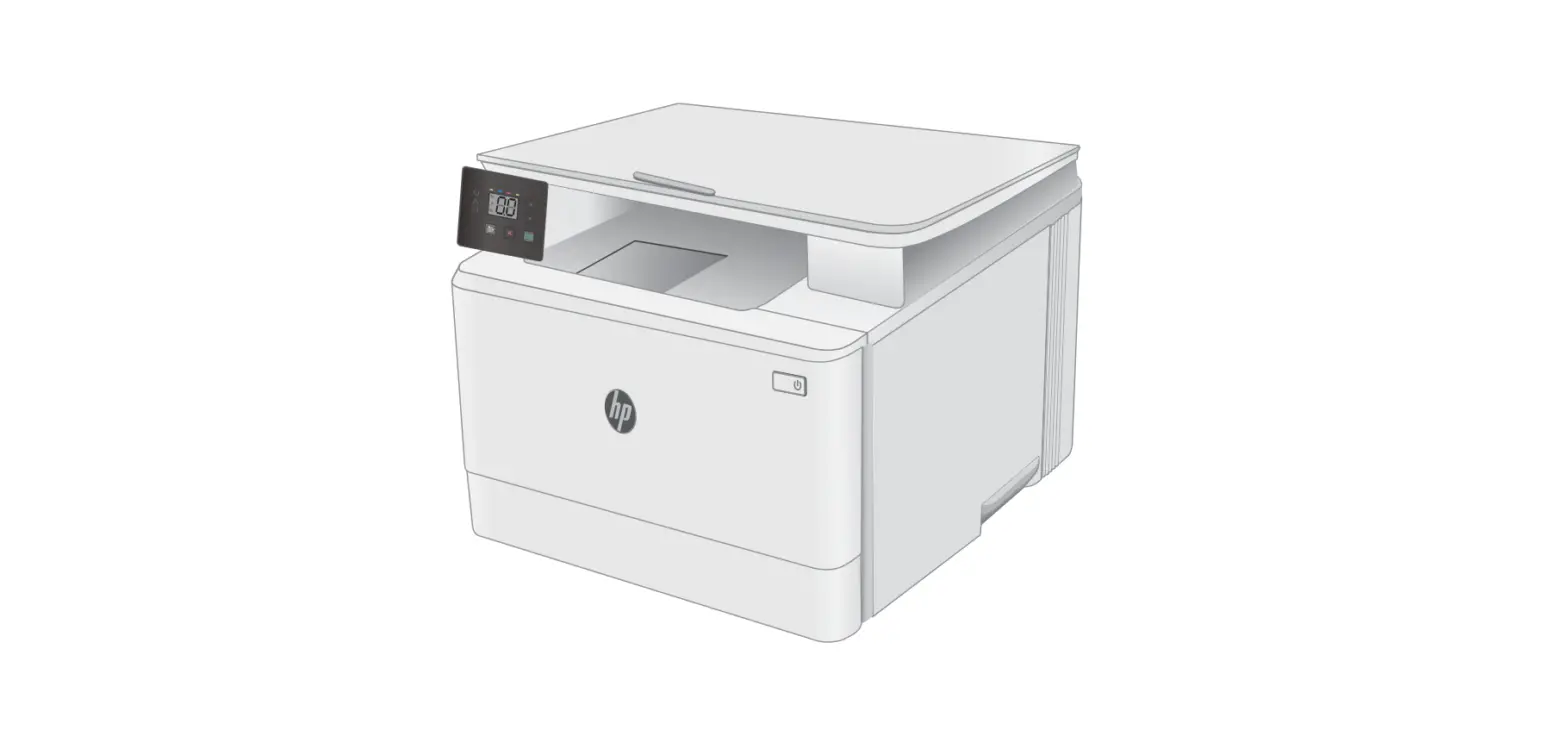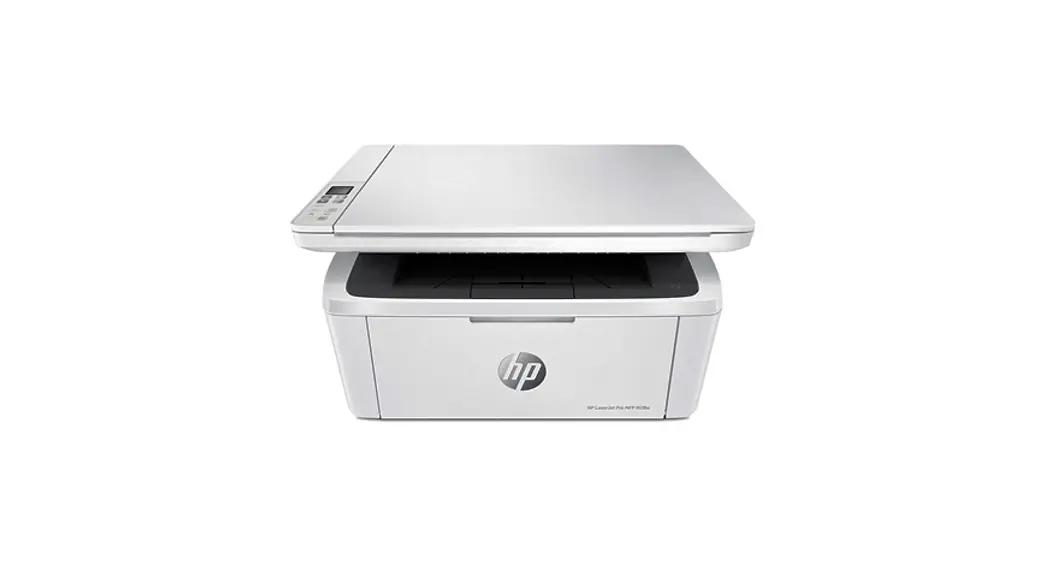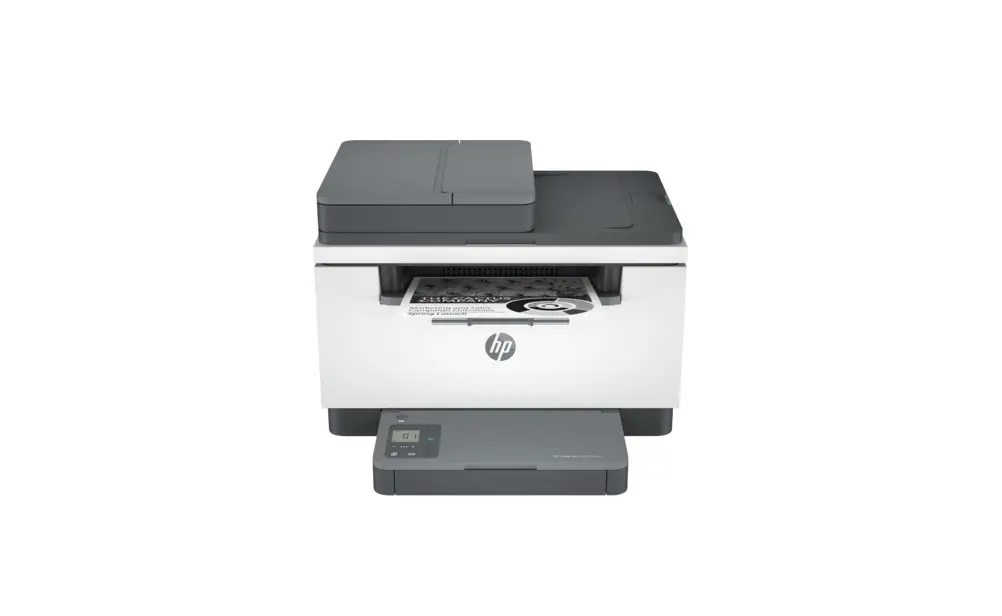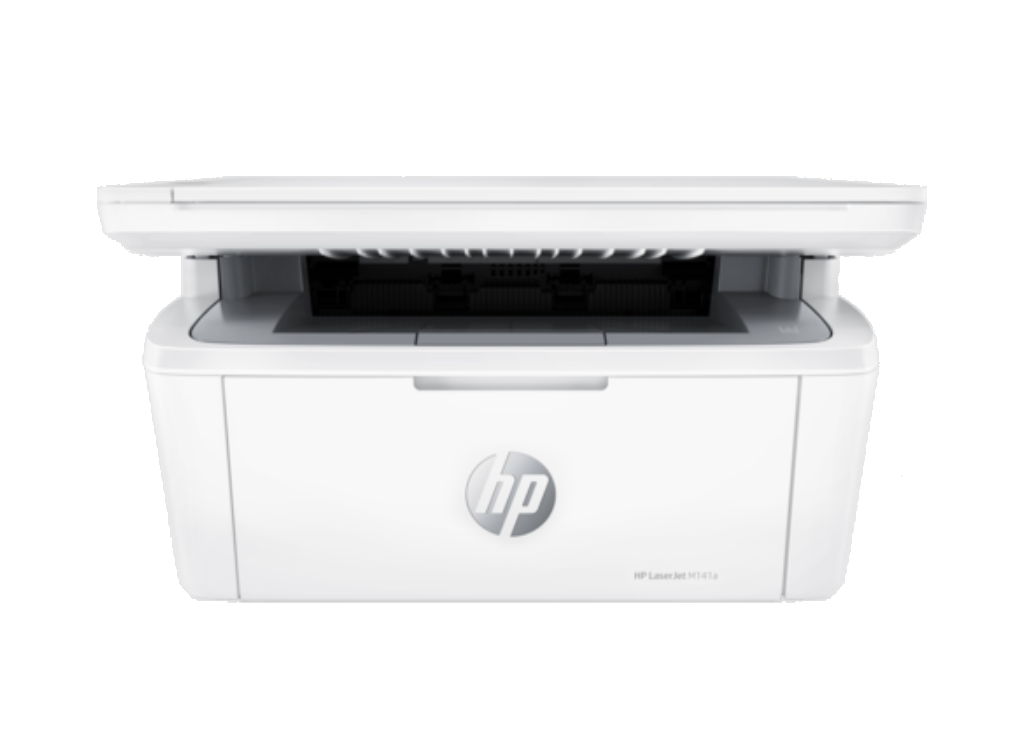
hp LaserJet MFP M139-M142 Series User Guide
Control panel
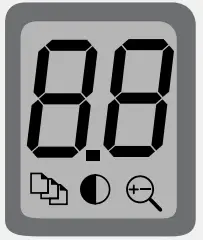 | Printer display Shows numerical information for copy settings and event codes. |
 | Copy Options button Press to access  (Number of Copies), (Number of Copies),  (Lighter/Darker), or (Lighter/Darker), or (Reduce/Enlarge) copy options (Reduce/Enlarge) copy options |
 | Start Copy/Resume button |
 | Cancel button |
 | Supplies light |
 | Power button |
 | Attention light |
 | Wireless button and light* |
 | ID Copy button* |
 | Up/Down button Press to change copy setting value. Wireless model only. |
Light patterns
 | Ready |
 | Processing |
 | Initializing, cleaning, or cooling down |
 | Error, manual feed, manual duplex, or out of paper |
 | Cartridge error |
 | Cartridge very low |
Printer display codes
These codes may flash after initially turning on the printer.
Complete setup using the HP Smart software to resolve them.
| Error | Action |
| Er/01 | Load paper |
| Er/04, Er/05, Er06 | Clear paper jam. Visit hp.com/support. |
| Er/07, Er/11 | Reinstall the cartridge. See Setup Guide |
For a complete list of printer display codes and light patterns, refer to user guide on: hp.com/support.
Help and tips for Wi-Fi and connectivity (wireless model only)
If the software is unable to find your printer during setup, check the following conditions to resolve the issue.
| Potential Issue | Solution |
Printer Wi-Fi setup mode timed out.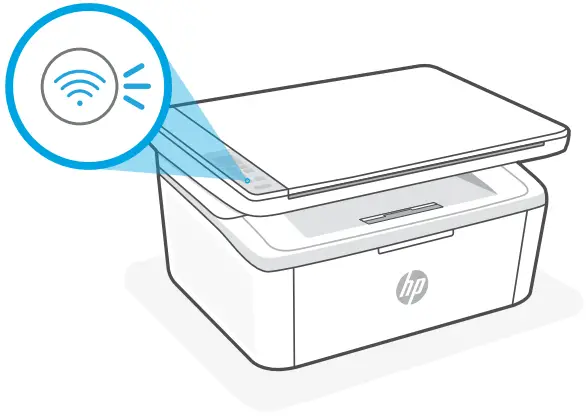 | If the Wireless light is not blinking blue, the printer might not be in Wi-Fi setup mode. Restart setup mode:
Note: Only 2.4 GHz connection supported. |
| Computer or mobile device too far from printer | Move your computer or mobile device closer to the printer. Your device might be out of range of the printer’s Wi-Fi signal. |
| Computer connected to a Virtual Private Network (VPN) or remote work network | Disconnect from a VPN before installing HP Smart software. You can’t install apps from the Microsoft Store when connected to a VPN. Connect to the VPN again after finishing printer setup. Note: Consider your location and the security of the Wi-Fi network before disconnecting from a VPN. |
| Wi-Fi turned off on computer (computer connected by Ethernet) | If your computer is connected by Ethernet, turn on the computer’s Wi-Fi while setting up the printer. You don’t need to disconnect the Ethernet cable |
| Bluetooth and location services are turned off on your mobile device | If setting up with a mobile device, turn on Bluetooth and location services. This helps the software find your network and printer. Note: Your location is not being determined and no location information is being sent to HP as part of the setup process. |
 and
and for 5 seconds.
Help and Support
Scan Me
 For printer information, troubleshooting, and videos, visit the printer support website.
Enter your model name to find the printer.
hp.com/support
 hp.com/support