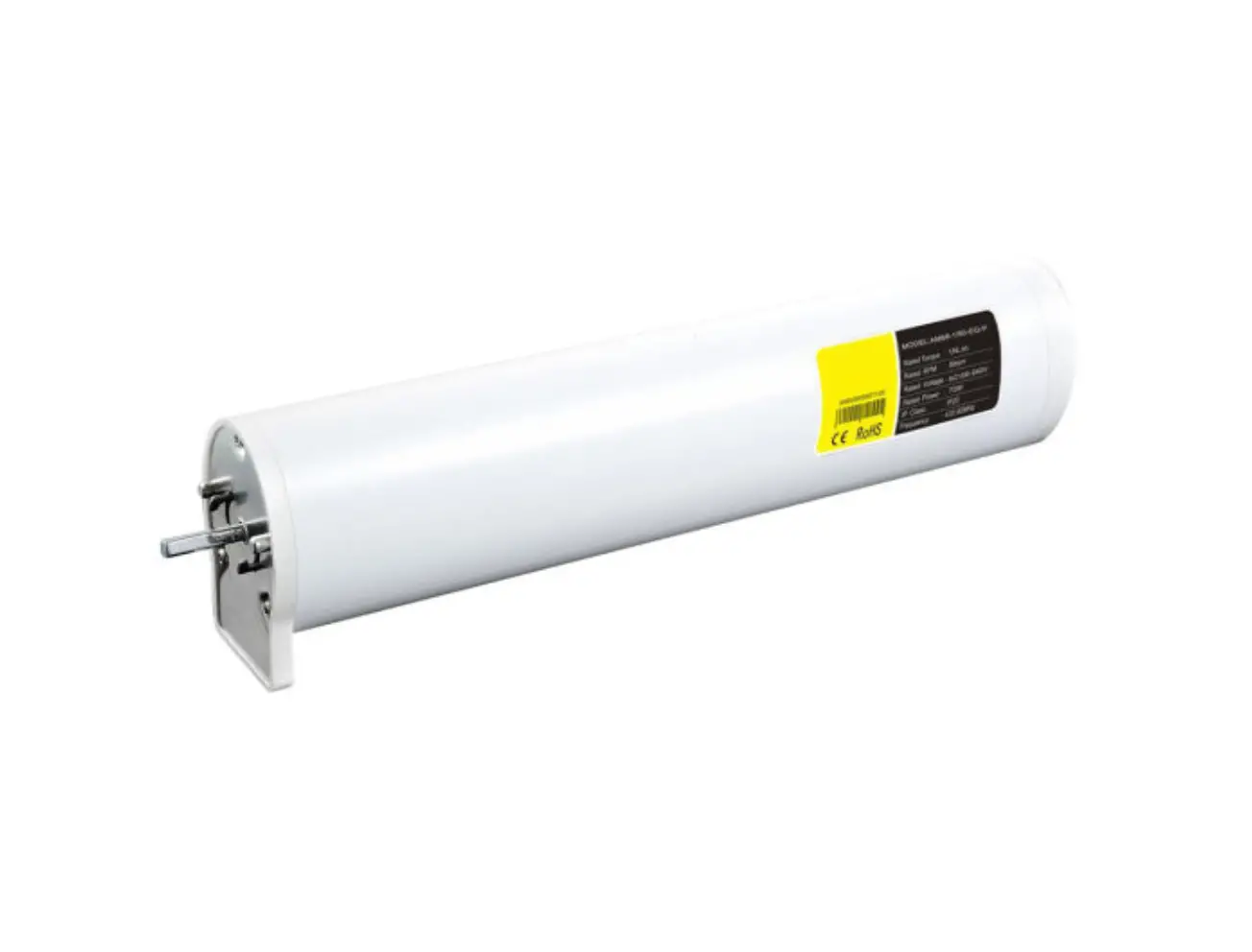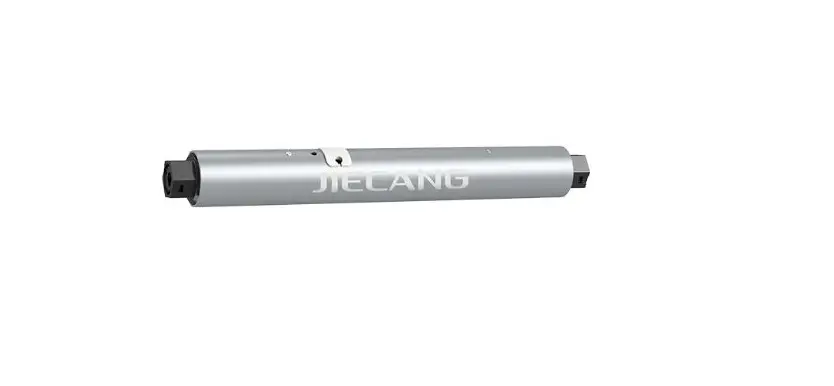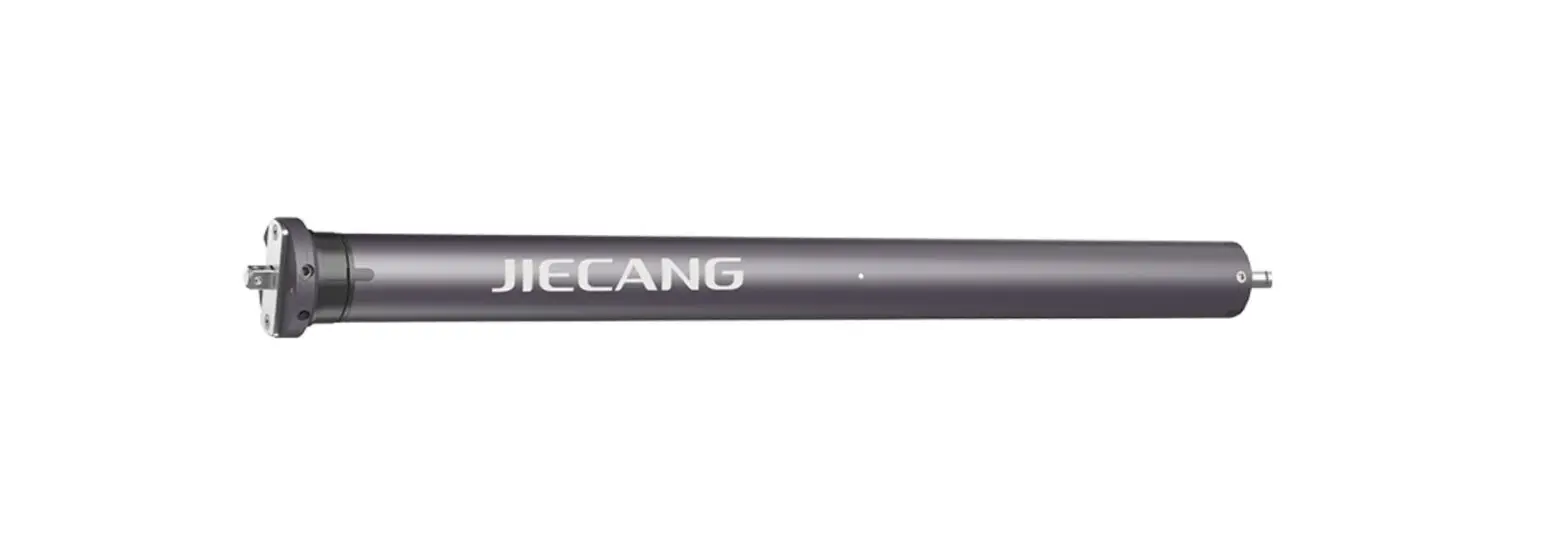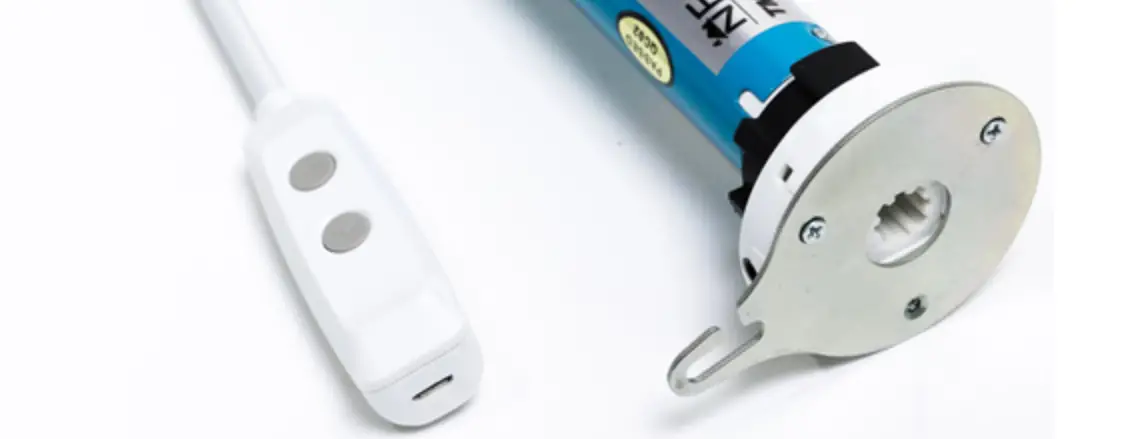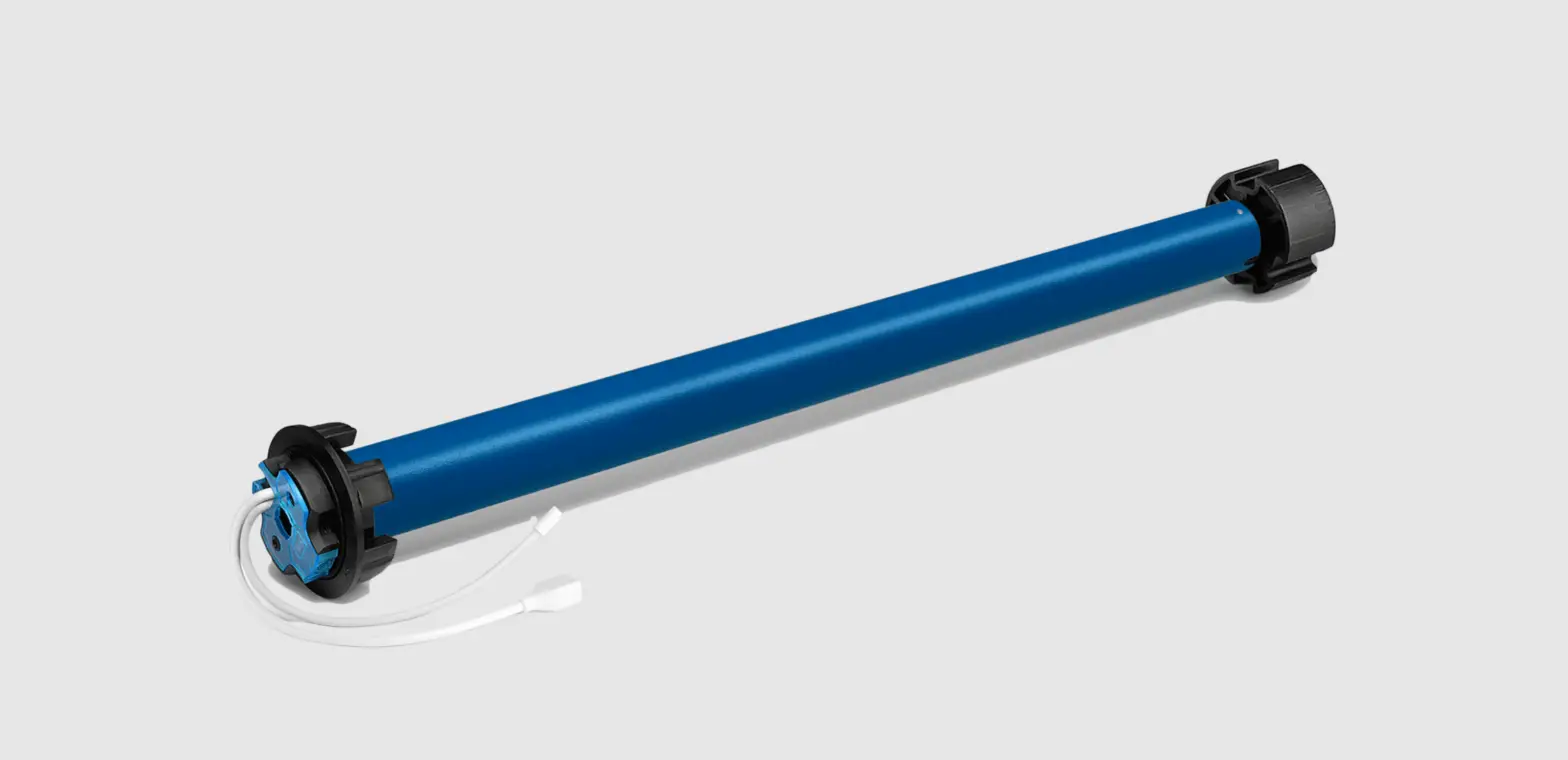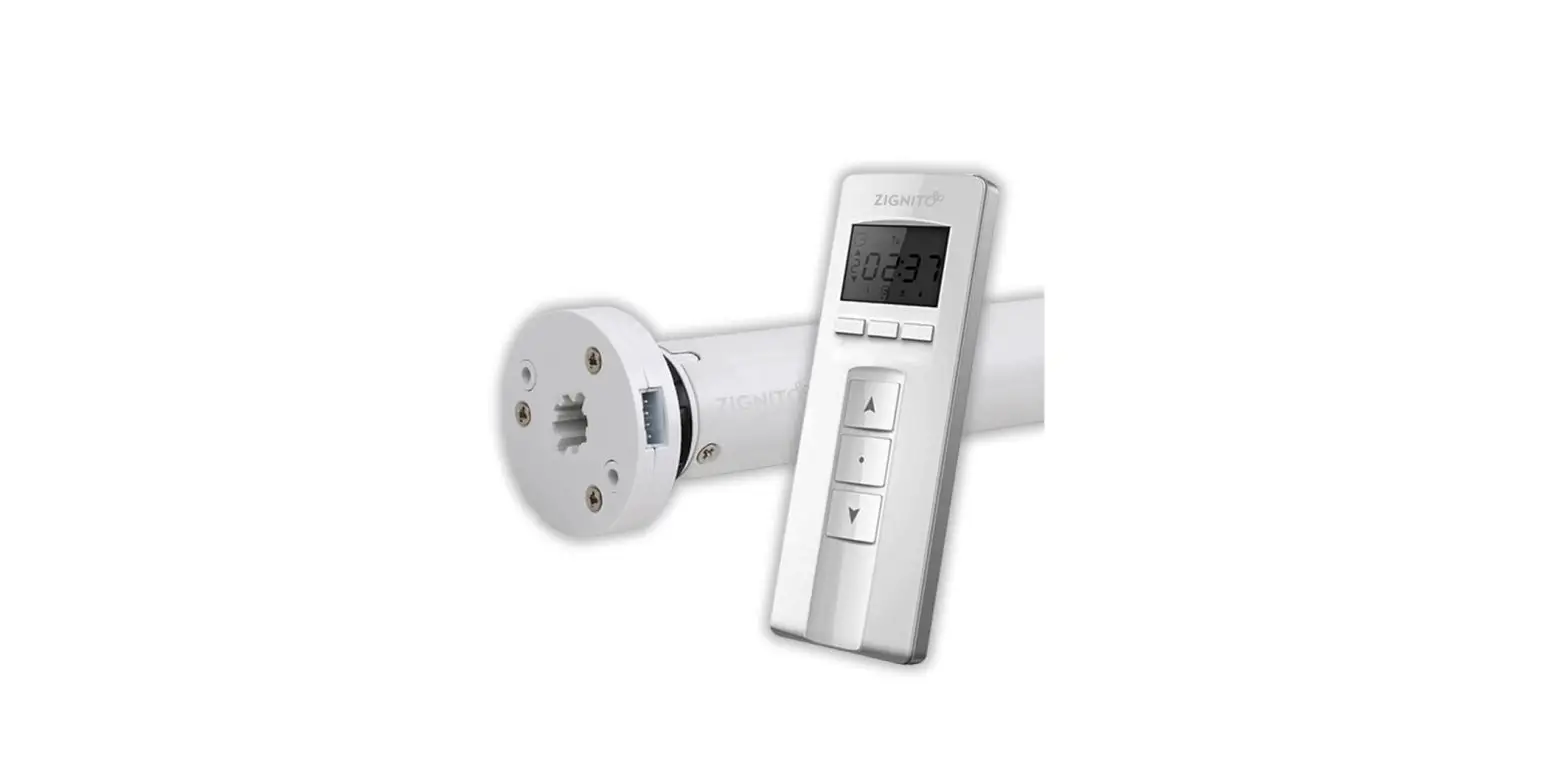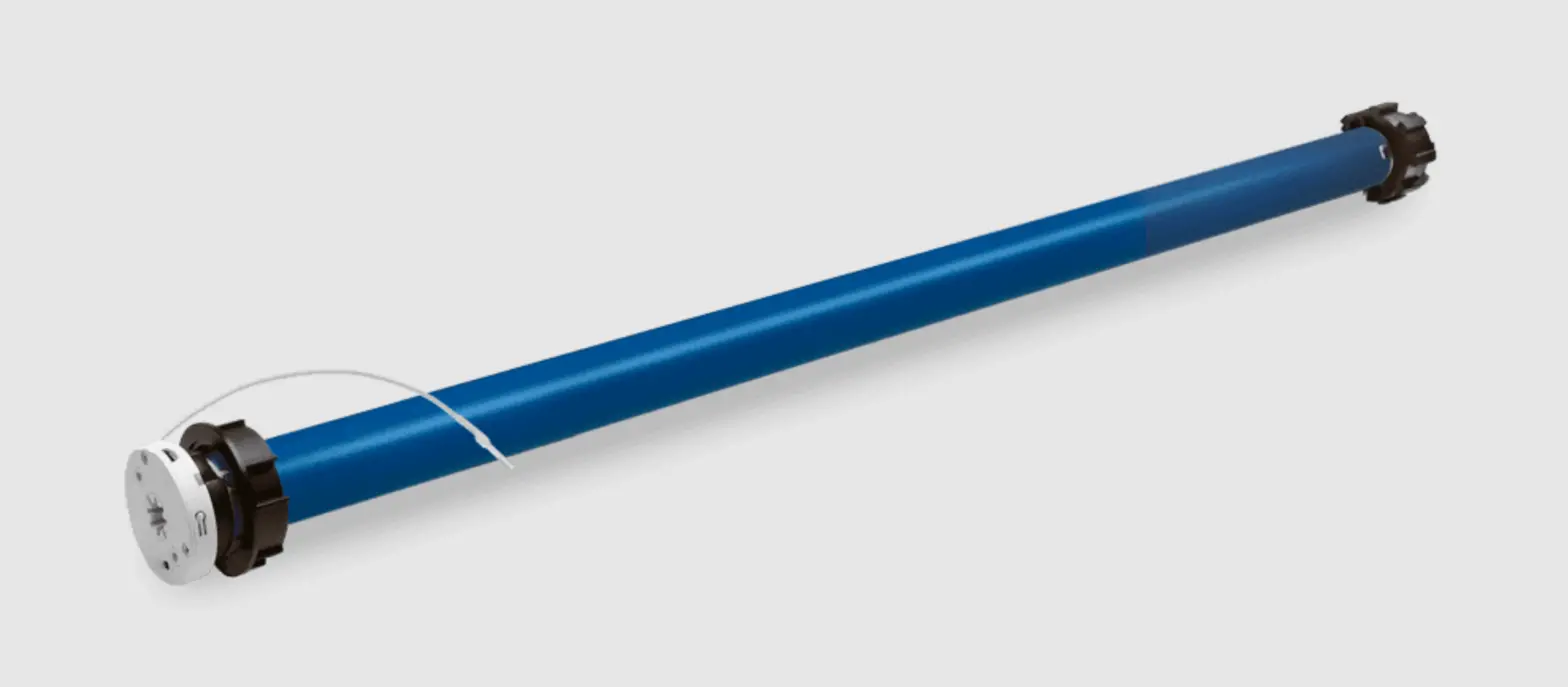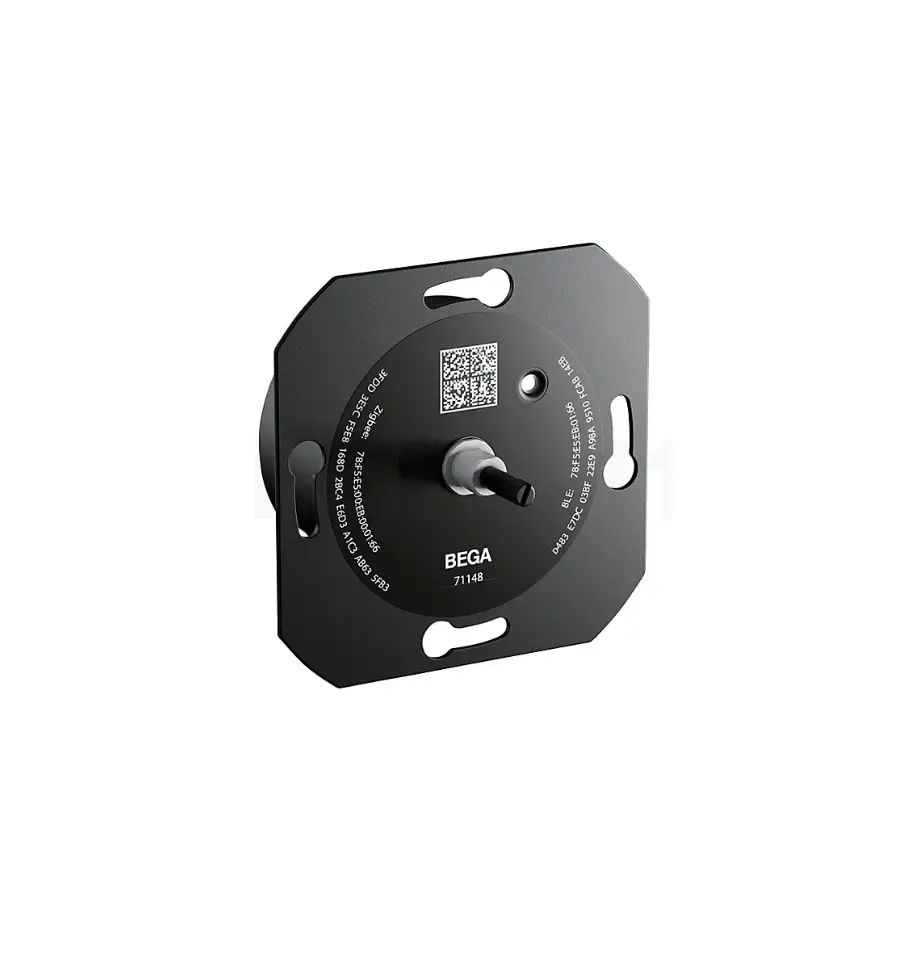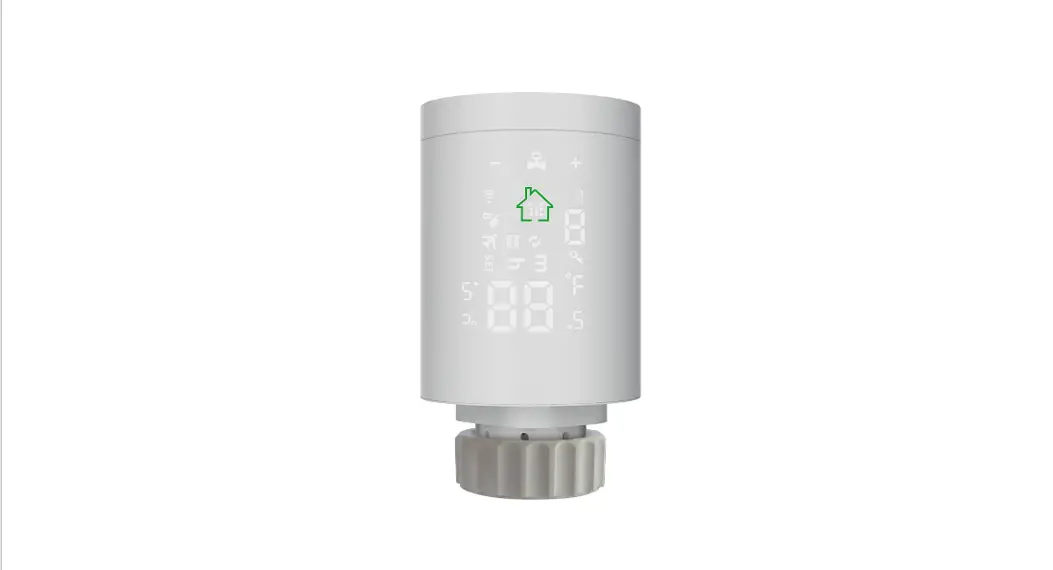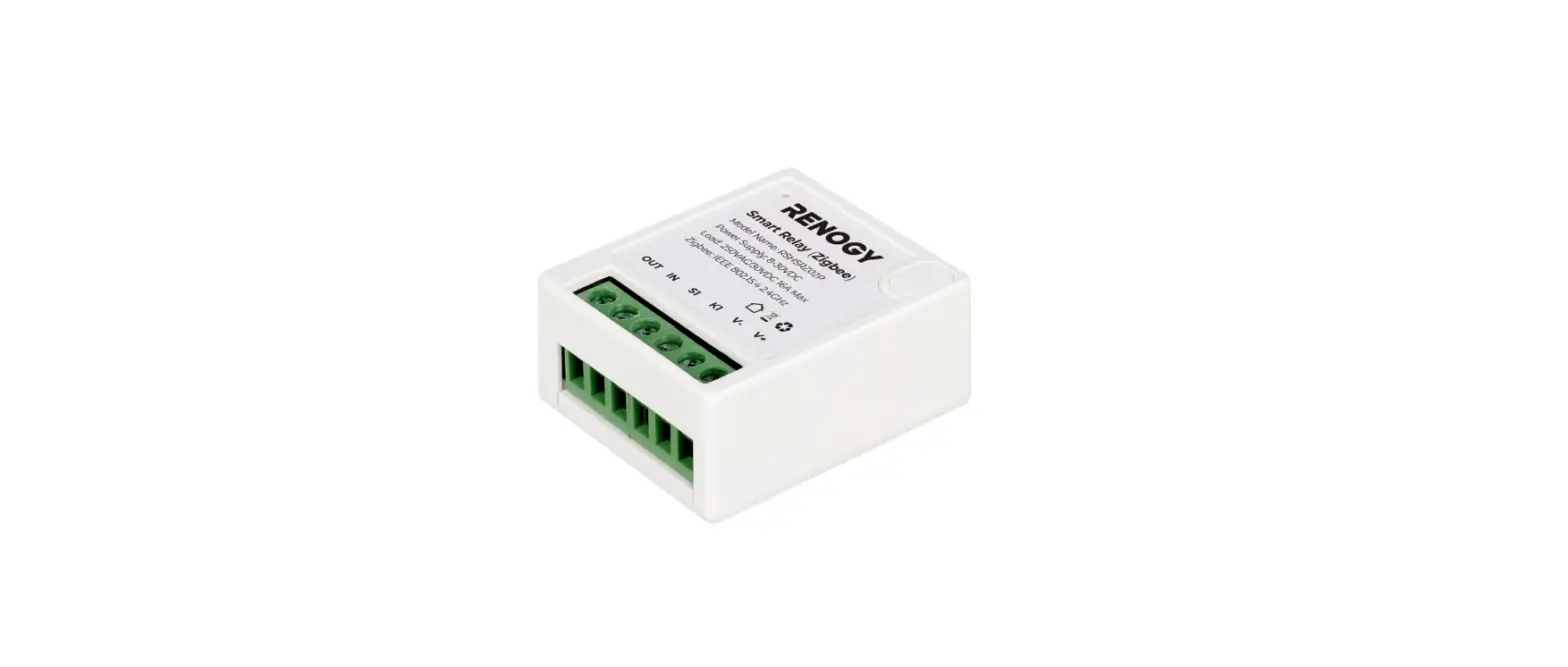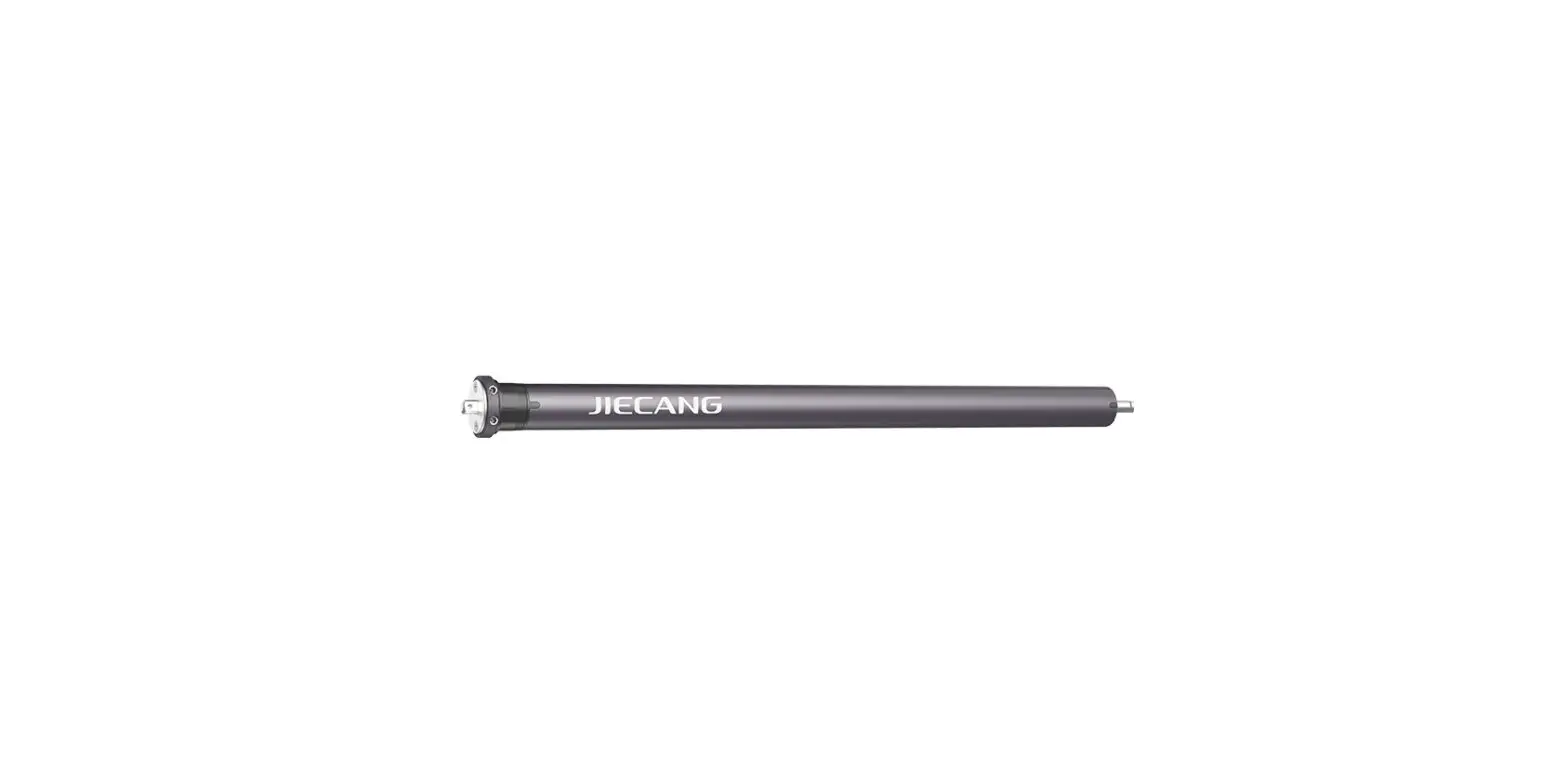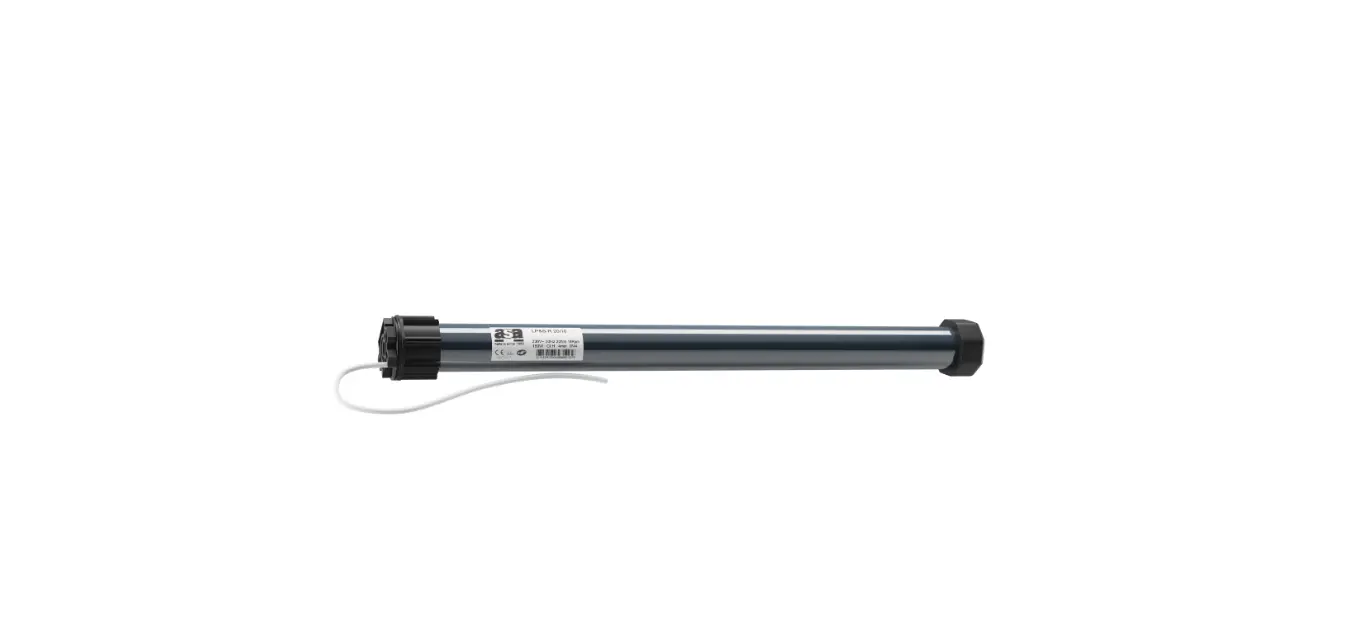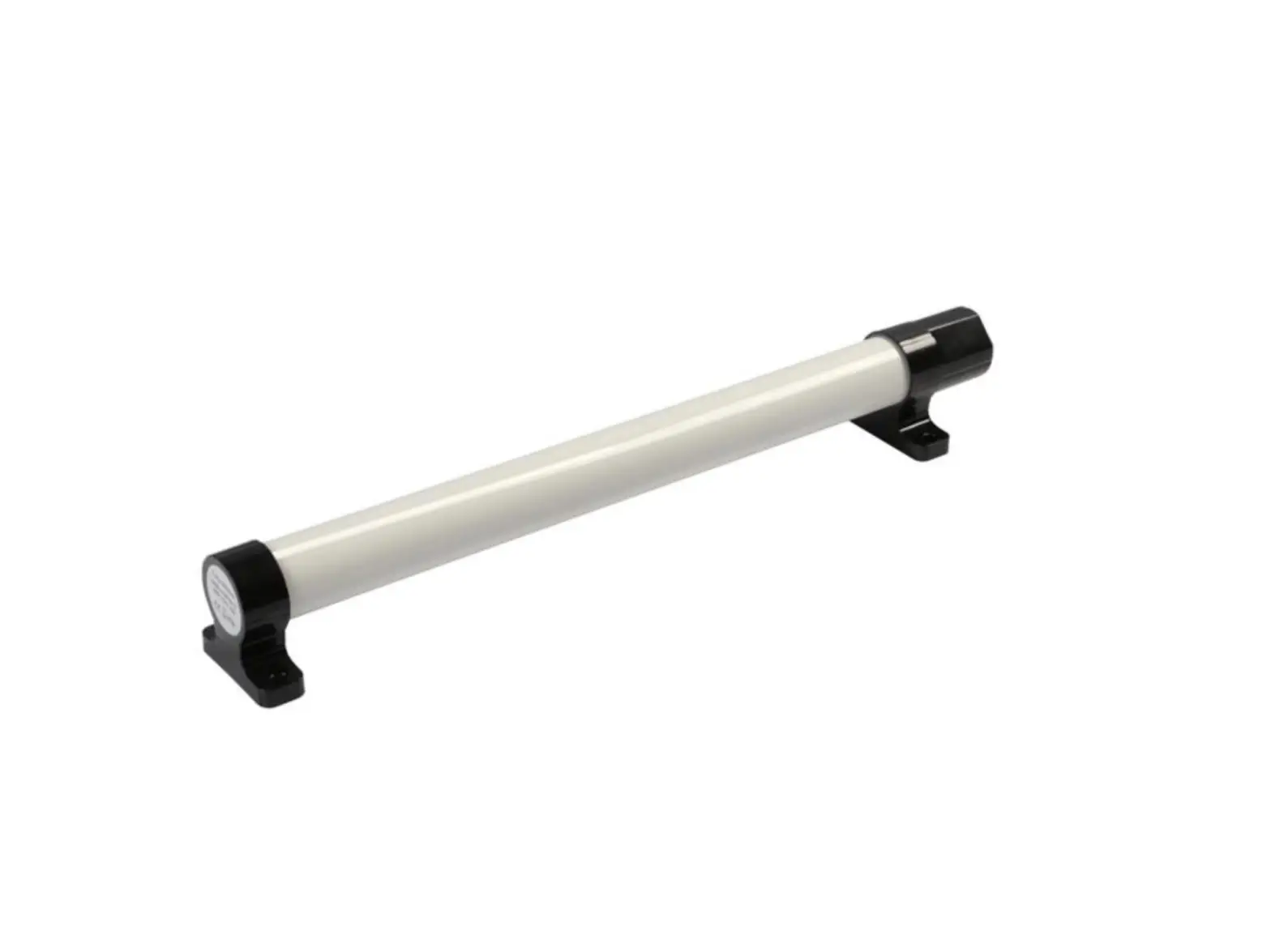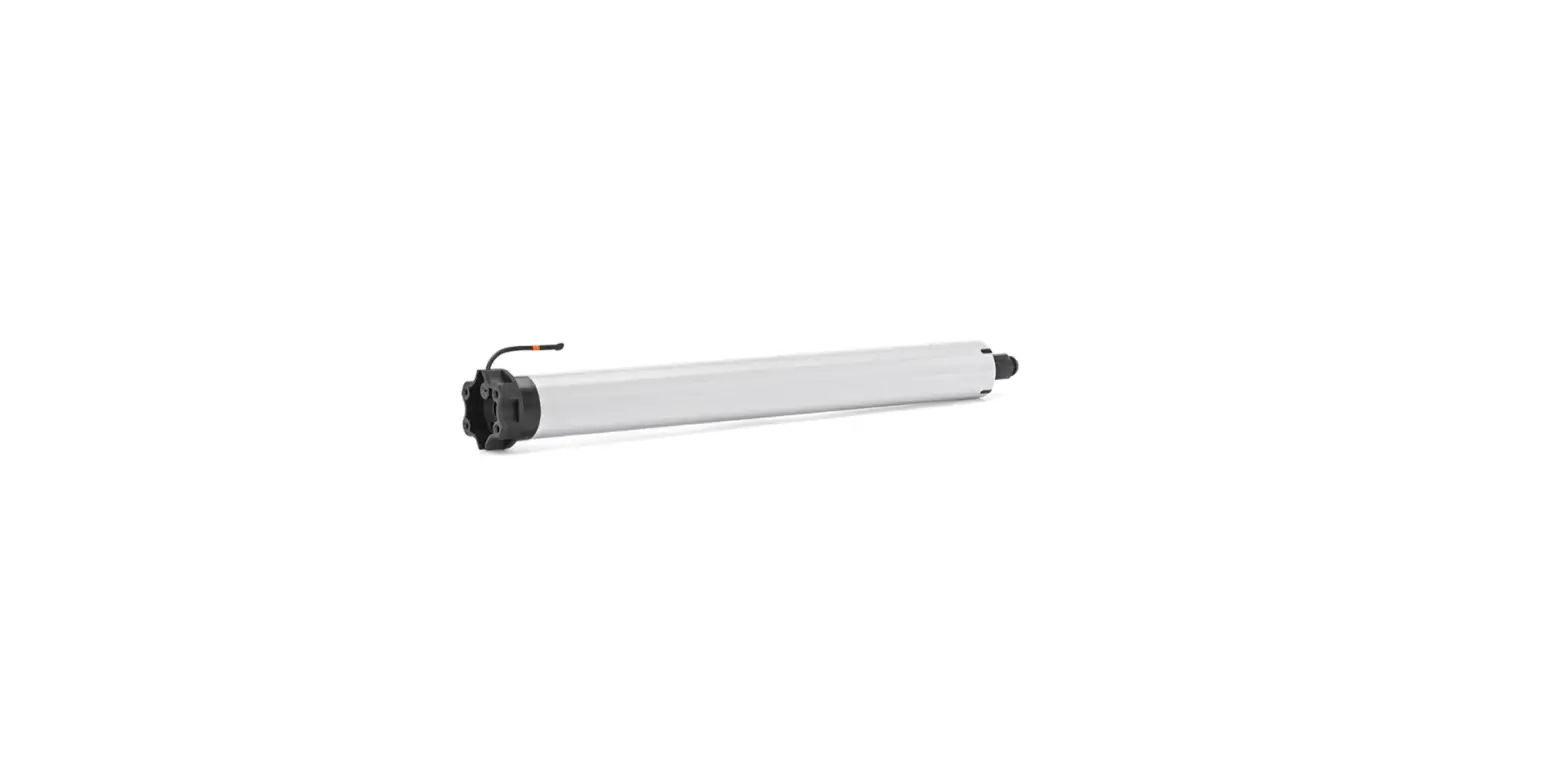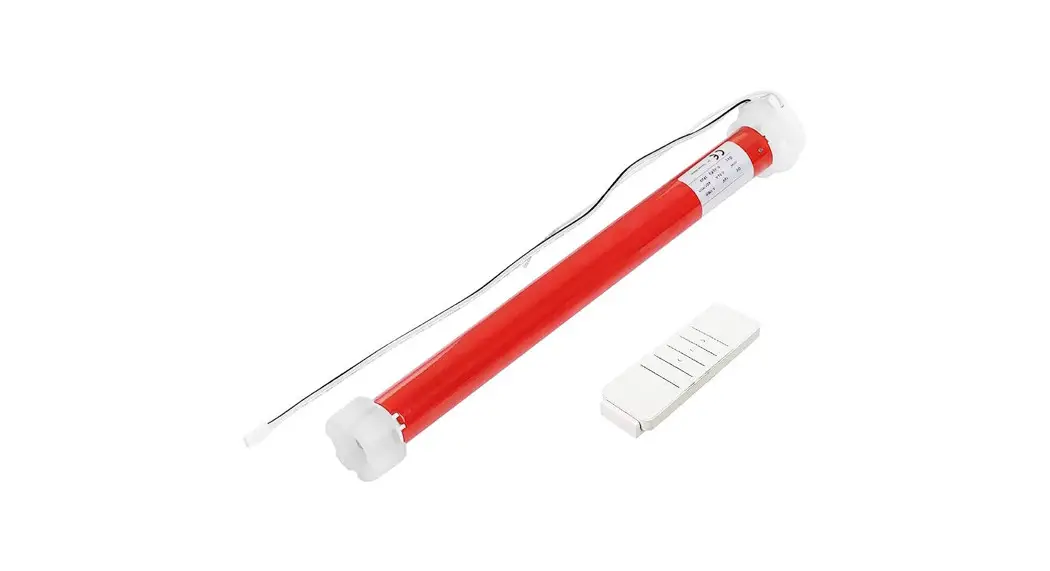
 Zlgbee Tubular Motor
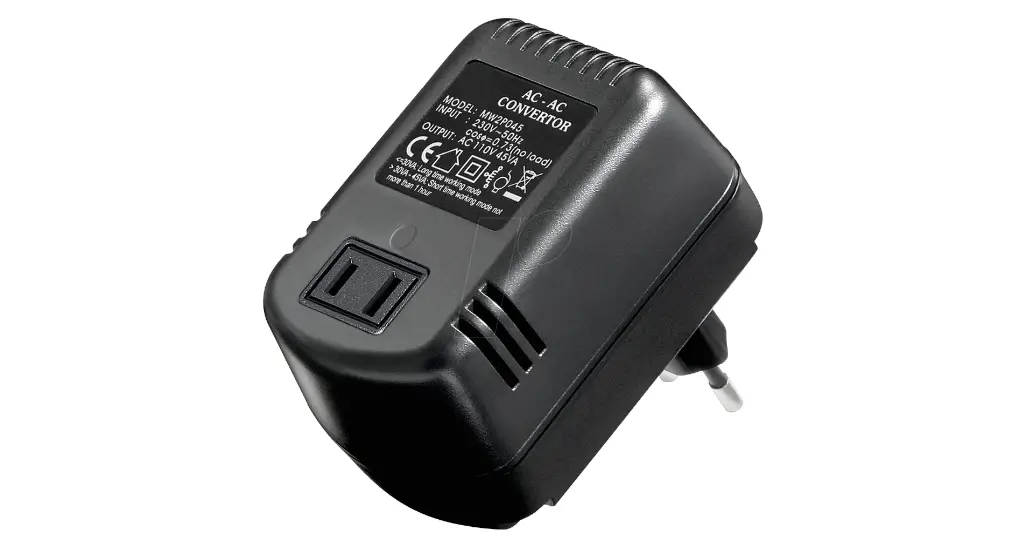
with Transformer(AC Supply)
User Manual
Product Info
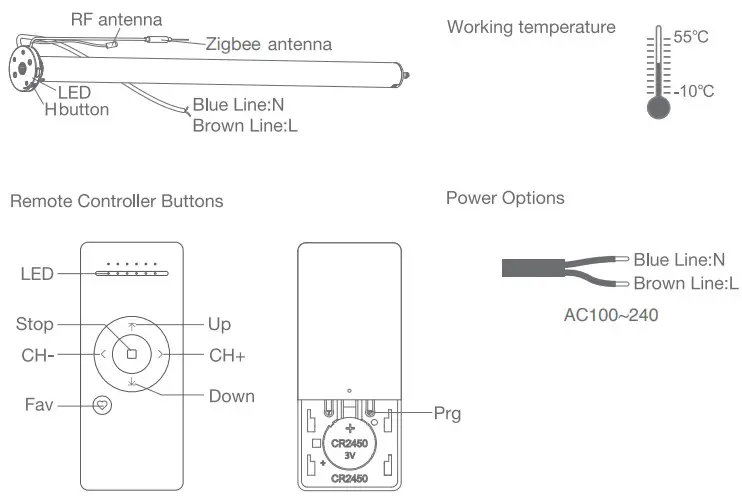
Models & Parameters (for details about other parameters, see the product nameplate)

 Caution!
 Caution!
- This product i for indoor use only, do not use outdoor or n humid environments.
- The power supply is AC Supply (AC100~240).
- The motor will jog in operation, please do not proceed to the next step until it complete.
- During operation, the effective interval of the ransitter button operation is 10 seconds.
If there s no effective transmitter operation for more than 10 seconds, it will automatically exit the current mode. - The motor can be paired with max 10 controllers
- UpperELower imitscannot be set at the same postion, mits saved even povier of.
- The motor runs constantly for at 6 min max without any other operation.
- Do not lift the motor by orabting the wire or antenna.
Instructions
Motor head button (H) functions
| Functions | Operation | Jogging time | LED lamp flicker | Note |
| Control the UP/STOP/ DOWN of the Shade | Short press | / | / | Can only operate after the limits are set |
| Adding/Removing Controller | Hold for 2s | Jog*1 | Flicker*1 | Operation needs be done within 10s |
| Zigbee connecting | Hold for 6s | Jog*2 | Flicker*2 | Entering Zigbee connectionmode |
| Direction Reverse | Hold for 10s | Jog*3 | Flicker*3 | All setttioinngrsevsearvseedd after |
| Reset | Hold for 16s | Jog*4 | Flicker*4 | All settings deleted |
a.Pairing Motor with Controller
Way 1: Before adding a new controller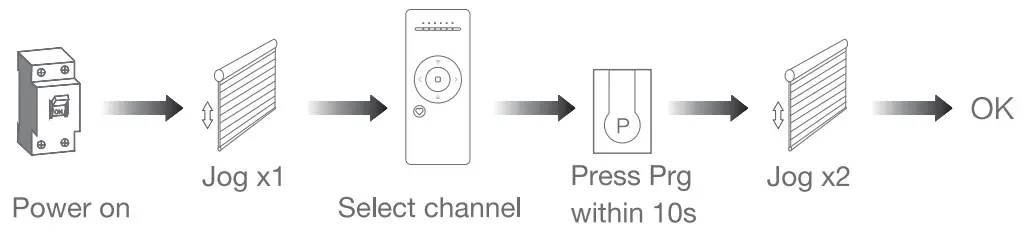 Way 2: After motor is powered on for more than lOs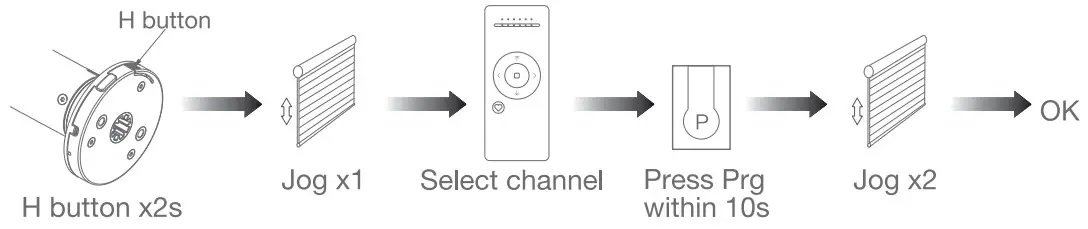
Way 3:Power on, add controller B via pre-existing controller A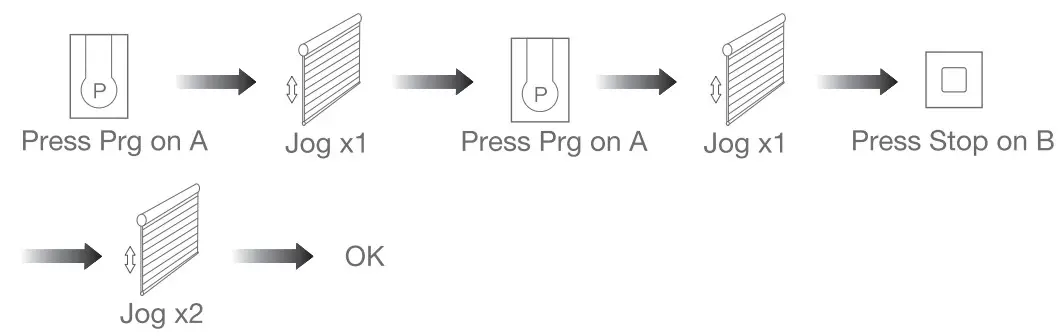
Note: Pairing can not be done under group channel or 0 channel.
b.Direction Reverse
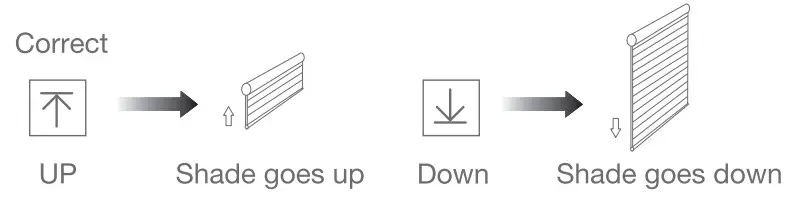
If the limits are not set, and direction goes opposite
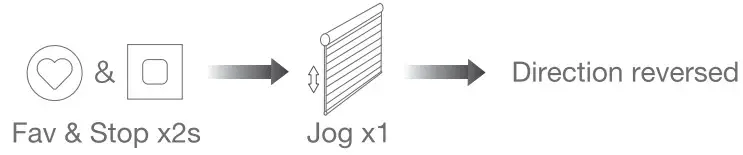
Iflimits are set and direction goes opposite.

Note: Do reverse the direction when it goes opposite.
c. Upper&Lower Limits Setting
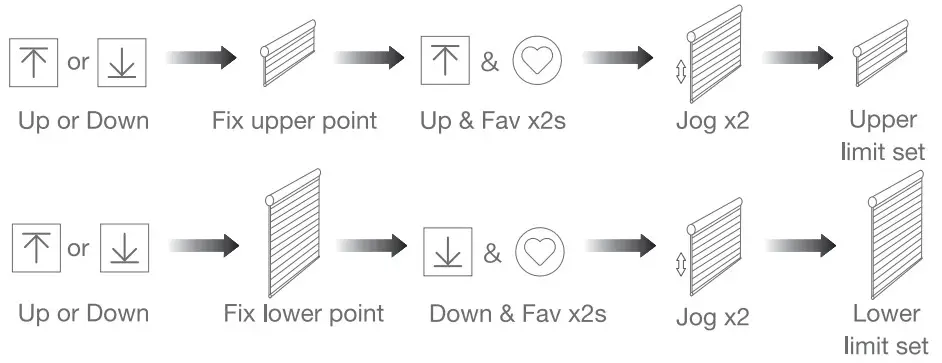
Note: Upper&Lower limits cannot be set at the same point.
Before mits set, the motor will run in one-touch mode by pressing Up or Down,
hold Up or Down for 25, motor runs in constant-touch model.
Once limits set, press Up or Down, motor runs n constantiouch mode.
d.One-touch/Constant-touch Mode
Constant—touch —————–>One—touch
Same operation can toggle from one-touch to constant -touch mode.
Note: When motor in one-touch mode, hold Up or Down for more than 2s, it will run in constant-touch mode.
e.Setting and Cancelling Favorite Position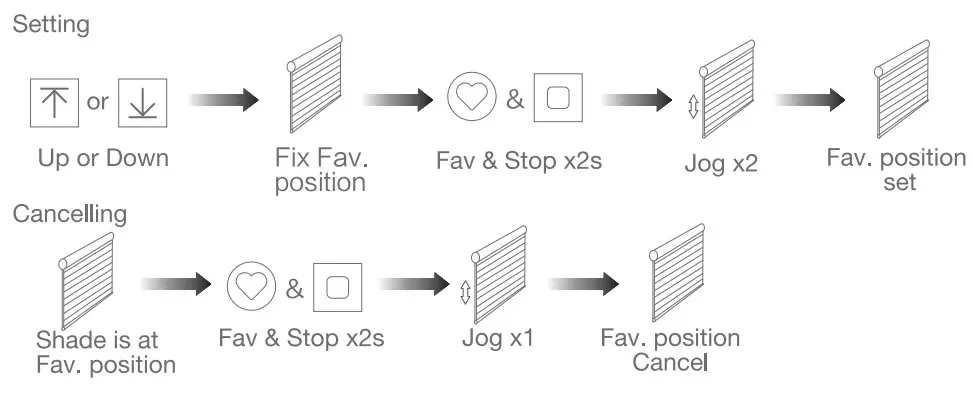 f.Hot key to the Fay. Position
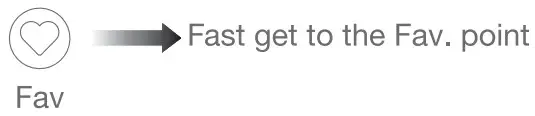 Note: The Fay.position setting only can be done after upper&lower limits set.
g.Adjusting Upper & Lower Limits
Adjust Upper limit
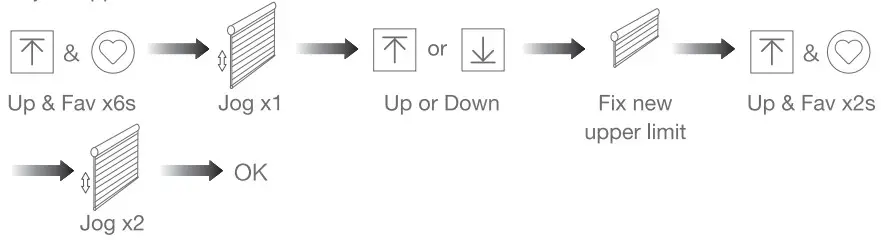 Adjust Lower limit
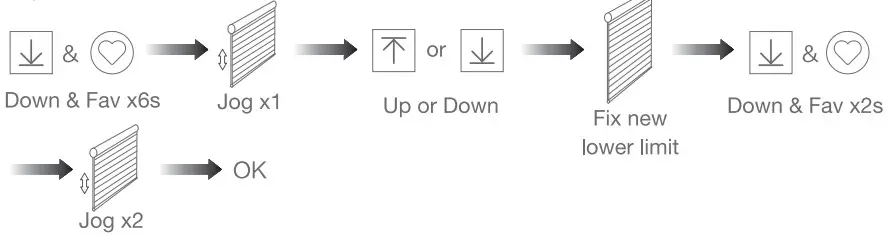 Note: The operation shoule be done with 4mins.
h.Adjusting Motor Speed
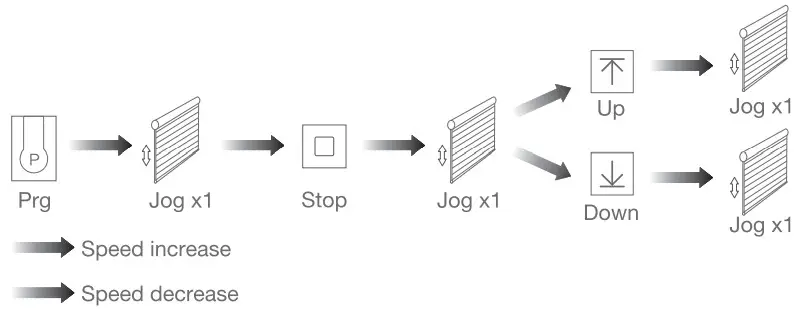 Note: If motor doesn’t jog, the max/min speed has already been reached. There are 3 speeds adjustable.
i.Removing Controllers
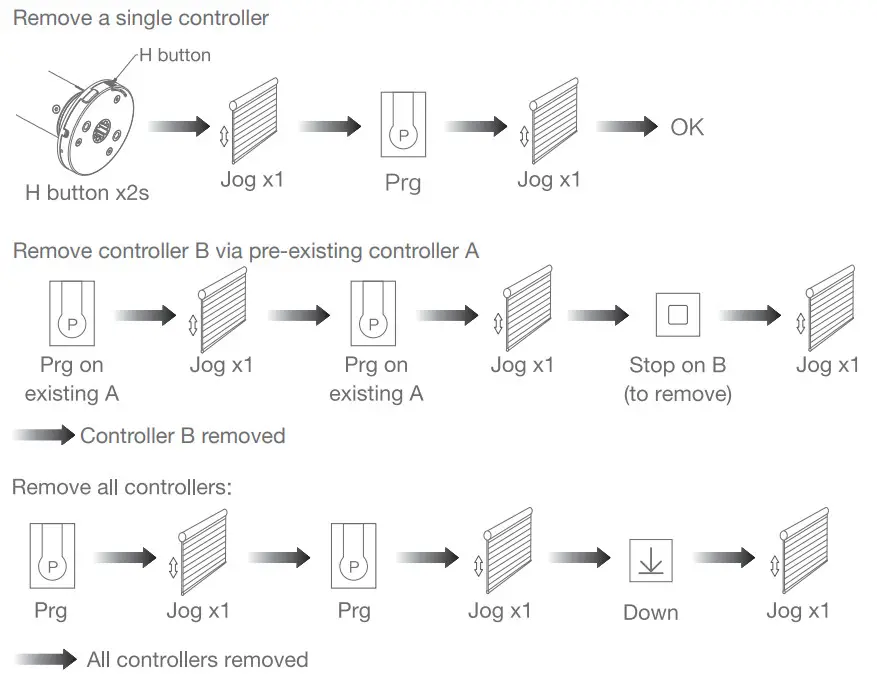 Note: All the settings are saved even controllers removed(limits set are saved). Controller A/B are already paired to motor.
j.Cancelling Limits
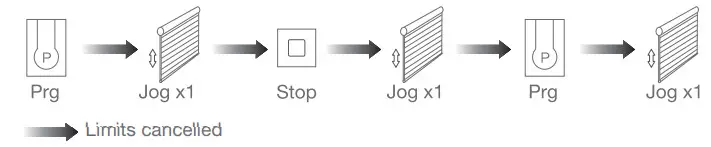 Note: It is forbidden to run the motor if installed into the shade without limits. Limits should be set immediately to protect the shade.
Zigbee connecting
*Connection requirement
a.Make sure the phone is connected to the Wi-Fi network.
b.The Tuya Zigbee gateway device need to be added to the “Smart Life” APP first, please refer to its manual for details.
- Download APP
a.Search for “Smart Life” in the app store or scan the QR code
b.Complete account registration and login to the app https://smartapp.tuya.com/smartlife
 - Add Device
a. Make sure the phone is connected to the Wi-Fi network
b. Make sure the Tuya Zighee gateway device is connected to “Smart Life” App
c. Make the motor is ready to be connected to Zigbee by following steps:
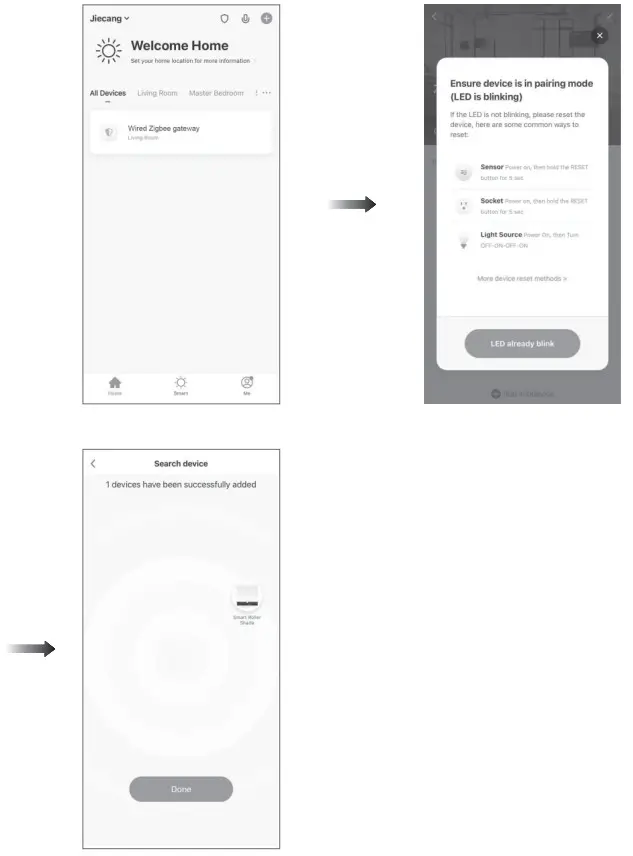
 d Find the added Tuya Zigbee gateway on the “Smart Life” App, click “+ o add a sub- device, and then click “LED already biink”, the APP wil automatically search for motor device.
 e. After adding successiully, clck ”
  ” to modiy the device name.
 f.After the motor device is added successfully, the LED on motor head will be on for 10s and then go of.
 g. Now the motor can be controlled by App from anywhere, anytime

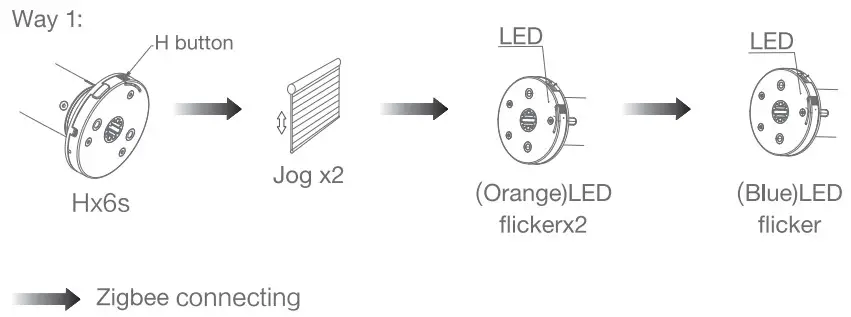
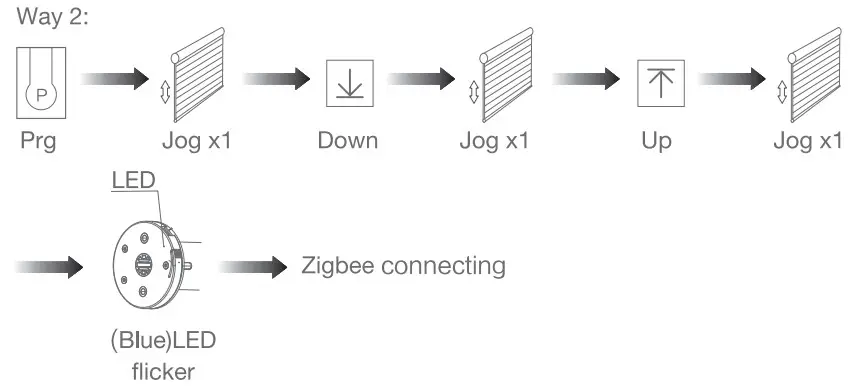 d Find the added Tuya Zigbee gateway on the “Smart Life” App, click “+ o add a sub- device, and then click “LED already biink”, the APP wil automatically search for motor device.
 e. After adding successiully, clck ”
  ” to modiy the device name.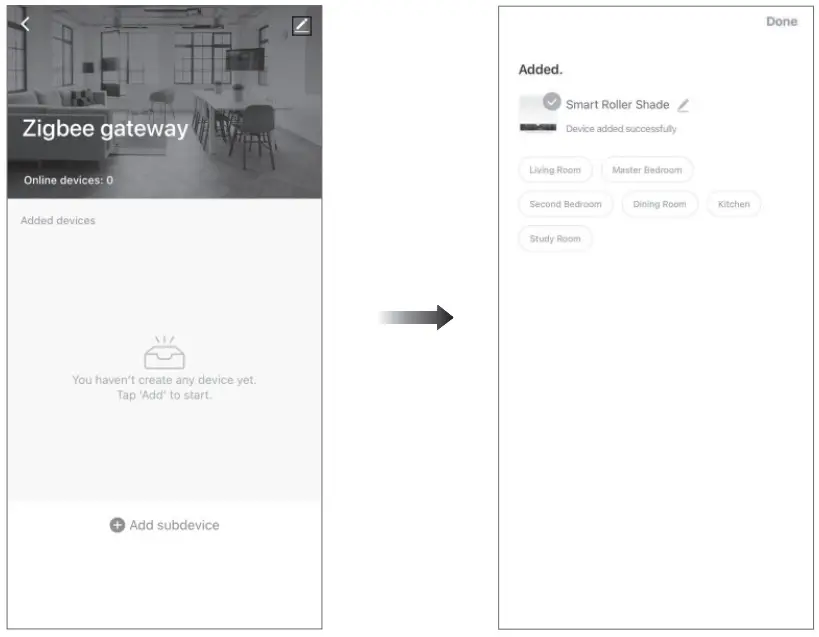
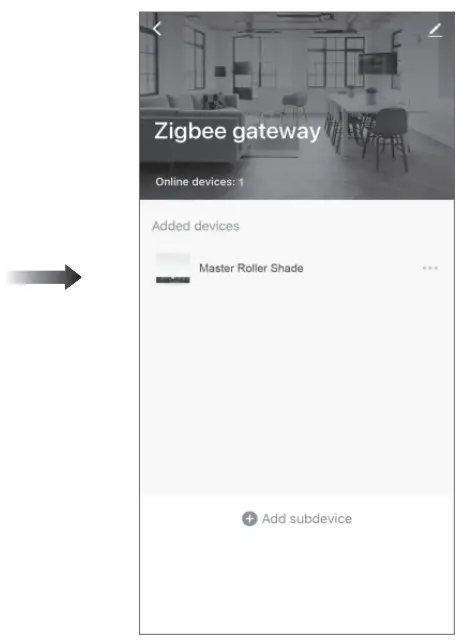 f.After the motor device is added successfully, the LED on motor head will be on for 10s and then go of.
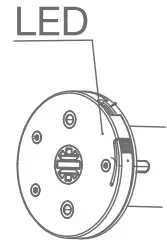 g. Now the motor can be controlled by App from anywhere, anytime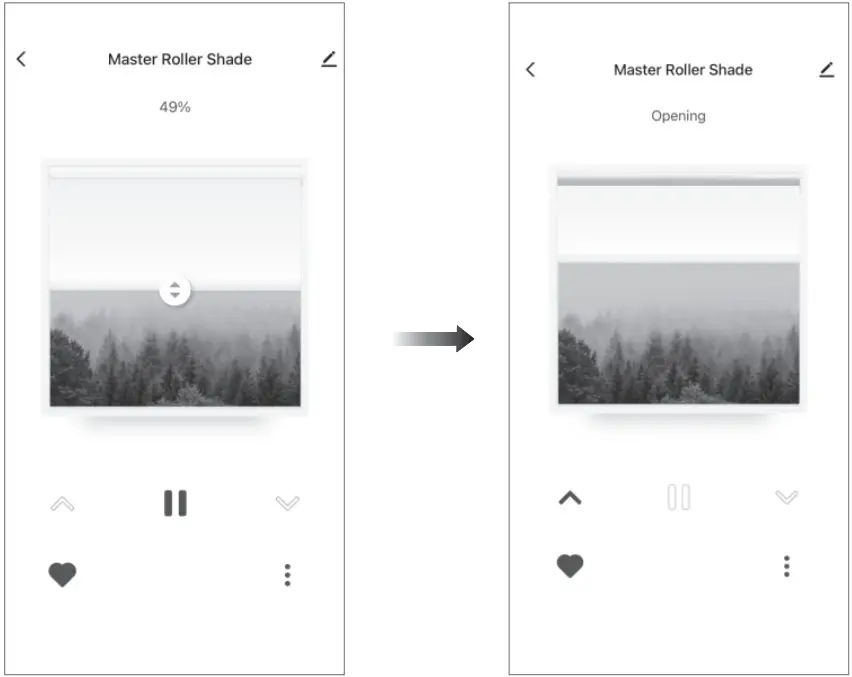
Troubleshooting
| Fault | Cause | Solution |
| Motor does not work | 1.Controller not paired 2.Motor inactive | 1.Add controller 2.Hold H button for 2s to activate motor |
| Motor stops suddenly | 1.Upper & Lower limit set incorrectly 2.Shade exceed rated load | 1.Re-set Upper & Lower limits 2.Adjust load |
| Motor just goes in one direction | Wrong limits setted | Cancel original limits, set new limits |