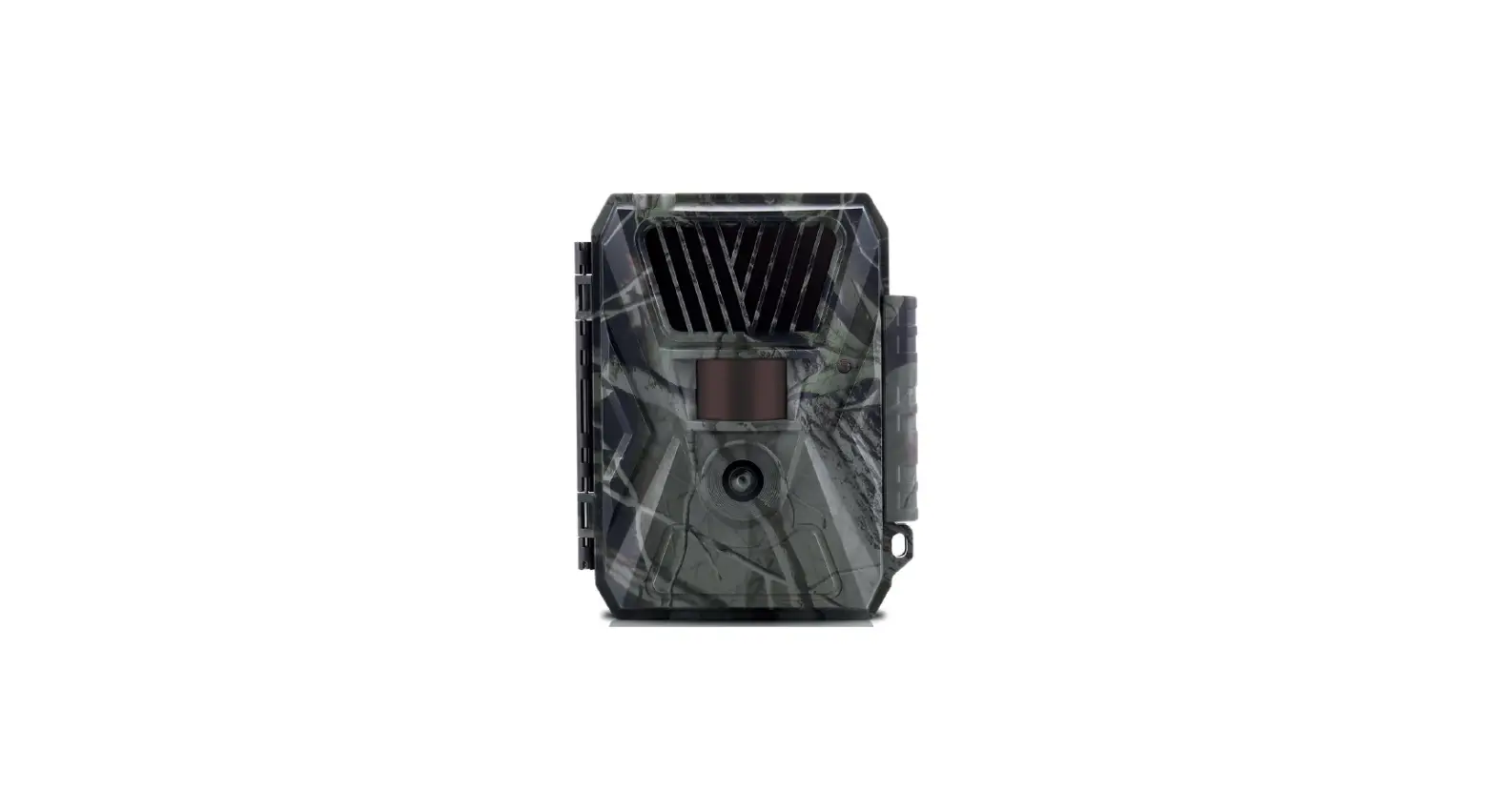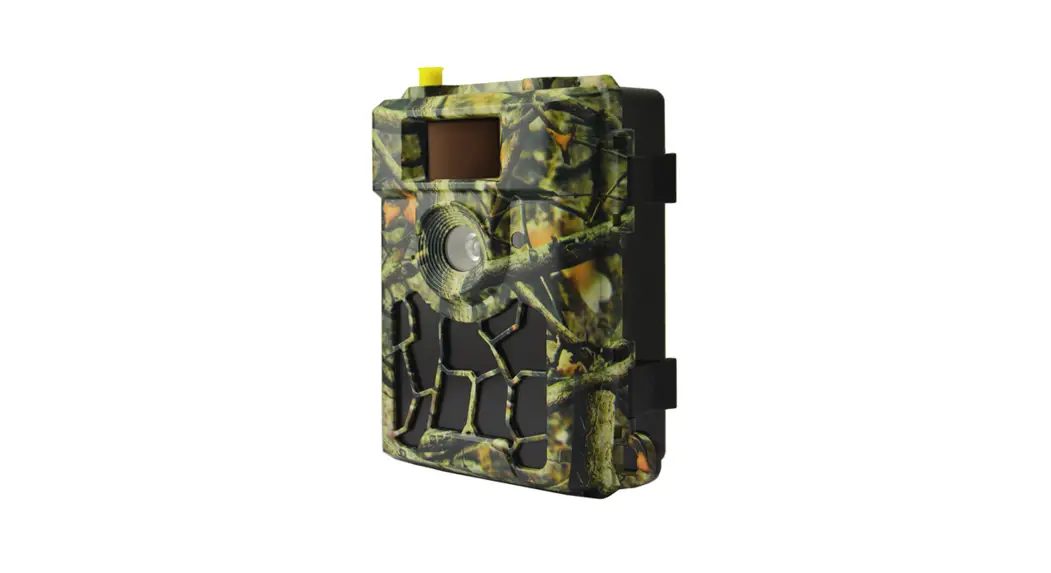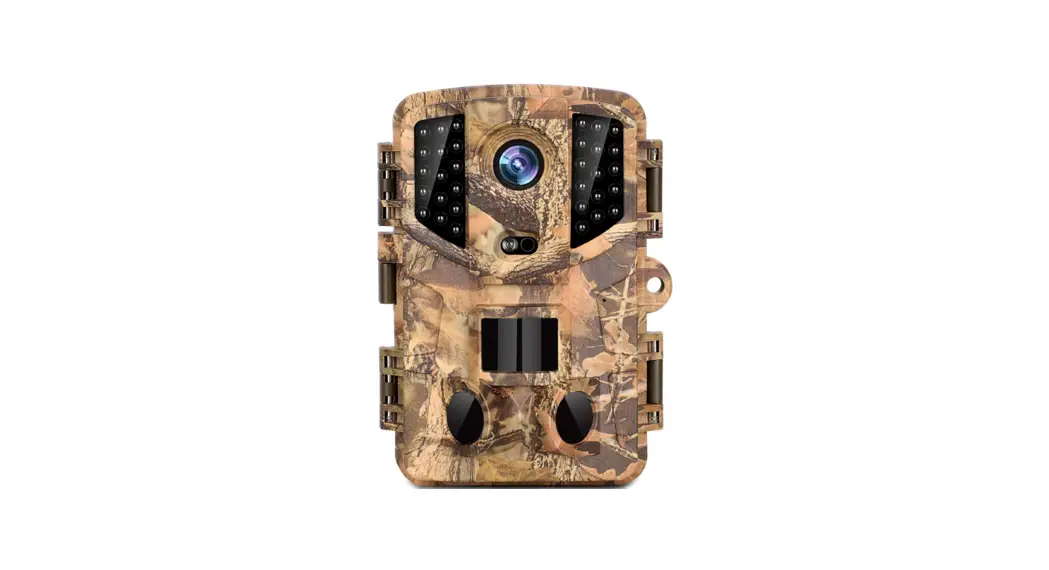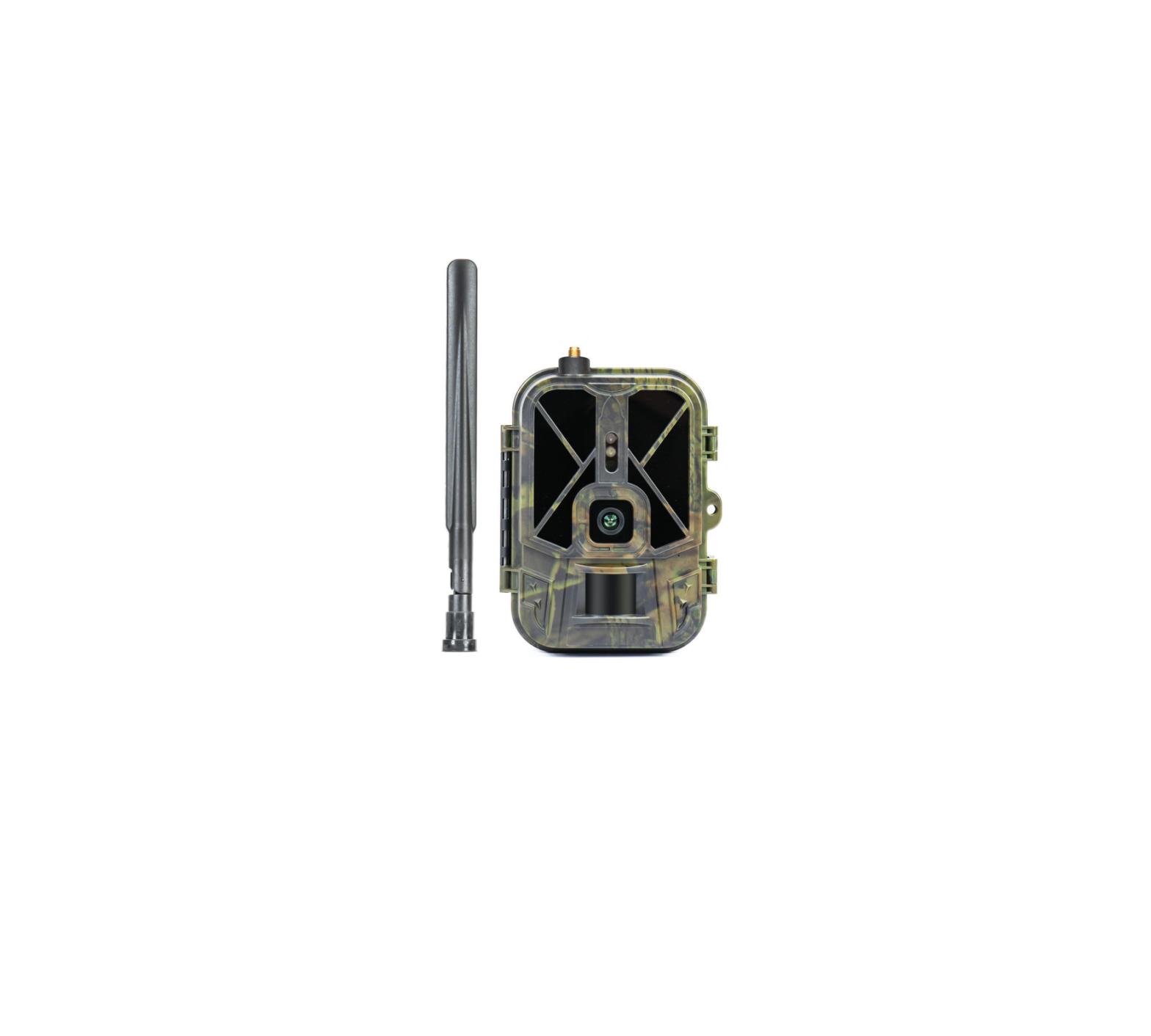
PNi 550C 4G Hunting Camera
Technical specifications
| Photo | |
| Sensor | 5MP IMX335 |
| Lens | 4mm, F/1.6 |
| Photo resolution | 36M / 30M / 24M / 20M / 16M / 12M / 8M / 5M / 3M |
| Photo file extension | .JPG |
| Time lapse | 5 / 30min , 1 / 2 / 3 / 6 / 12 / 24 h |
| Multishot mode | Up to 9 photos/capture |
| Stamp | Date, time, temperature (°C/°F) and moon phase |
| Video | |
| Video resolution | 4K / 2K / 1080P / 720P / VGA |
| Video file extension | .MP4 / H.265 |
| Video file length | 5 / 10 / 30 / 60 / 90 seconds |
| Recording mode | Colorful mode at daytime, Black and white mode at night |
| Other | |
| Operating modes | Photo / Video / Photo & Video / Time lapse |
| Memory | SD card slot (maximum supported capacity 256GB). The card is not included. |
| Screen | TFT 2.4” |
| Power supply | 12V 8000mAh Li-Ion battery External power supply: 12V DC |
| Current (Amper) | 1mA(in standby) / max. 300mA |
| Motion sensor | 1 x PIR |
| PIR detection angle | 120° |
| PIR detection distance | Adjustable, from 0.30 m (1 ft) to 30 m (98 ft) |
| IR LEDs | 56 |
| IR illumination distance | Up to 30 m (98 ft) |
| Exposure | Auto / 100 / 200 / 400 |
| Field of view (FOV) | 120° |
| Trigger speed | 0.3 seconds |
| Delay between two detections | 1/10 seconds, 1/3/5/10/15/30 minutes |
| GSM frequency | 4G FDD-LTE B1 B3 B5 B7 B20 3G WCDMA B1 B5 B8 2G GSM 850/900/1800/1900 |
| Dimensions | 155 x 110 x 85 mm |
| Operating temperature | -26°C ~ +80°C |
| Protection grade | IP65 |
Product description
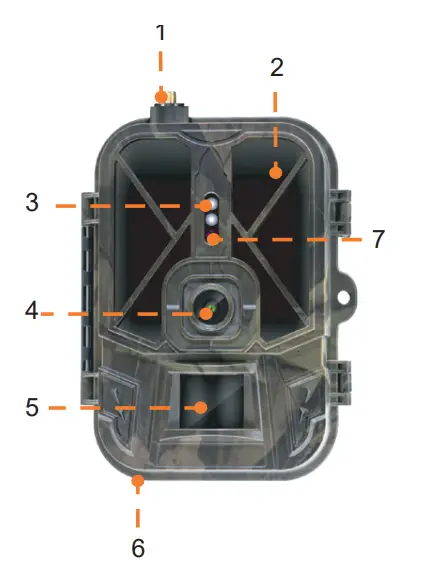
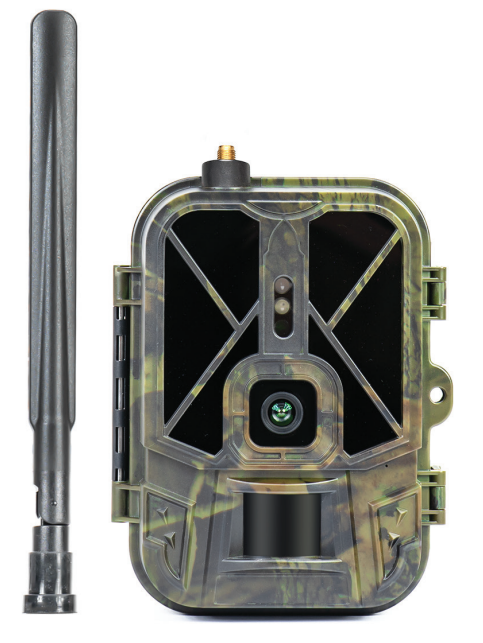
- Antenna
- Invisible LEDs
- LED indicator
- Lens
- PIR sensor
- Jack for external 12V DC power supply
- Light sensor
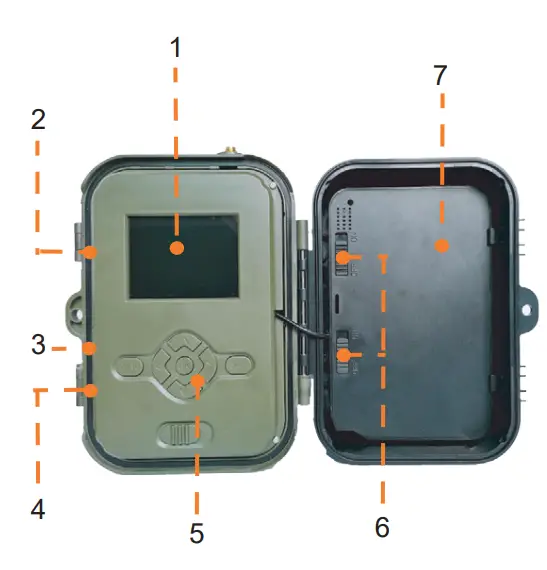
- Color display
- SD card slot
- Mini USB port
- SIM card slot
- Control buttons
- Battery lock buttons
- Li-Ion battery
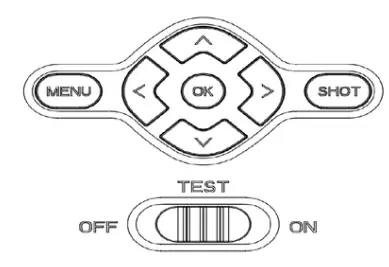
 | Menu button |
 | Start/end video recording or photo taking |
 | Video recording mode |
 | Photo mode |
 | Playback mode |
 | OK button |
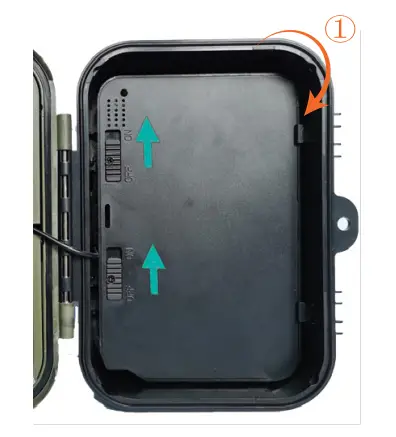
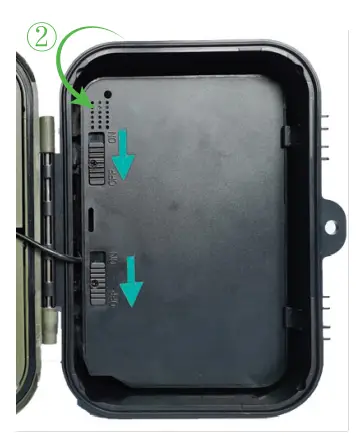
Install/Remove the battery
- To remove the battery, move the two buttons to the ON position.

- After putting the battery in place, move the two buttons to the OFF position to lock it.

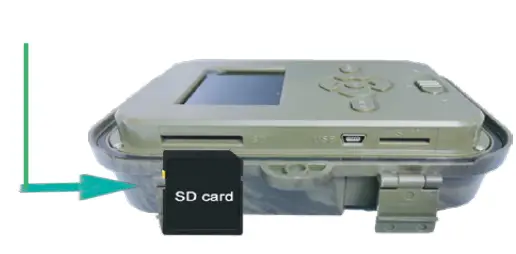
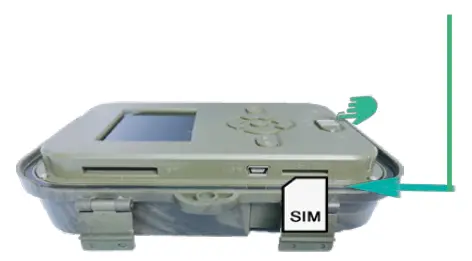
SD card and SIM card installation
- Insert the SD card as in the image above.
The camera supports SD card with a maximum capacity of 256GB, formatted FAT32.
- Insert the 4G SIM card as in the image above.
You need a standard size SIM card, with active mobile data and not protected by a PIN code.
Tuya Smart mobile application
Note: We recommend configuring and adding the camera to the application before installing it in the final location.
- Install the Tuya Smart application from Google Play or App Store or scan the attached QR code:

- Create an account and log in.
- Connect the phone to the WiFi network and activate the Location.
Before adding the hunting camera to the application, insert the SD card and the SIM card into the camera and turn on the camera by moving the OFF/TEST/ON button to the TEST position.
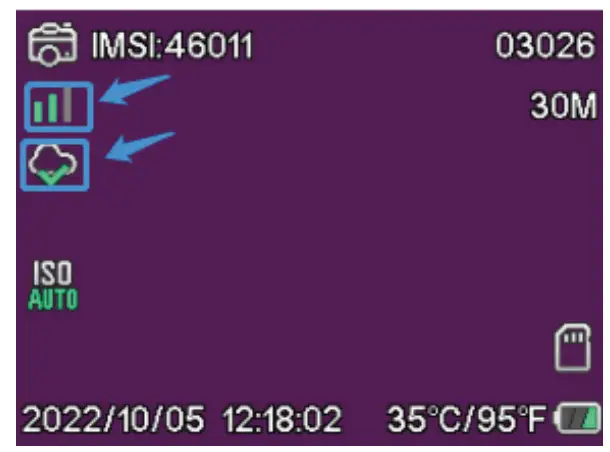
Wait for 5 minutes after turning the camera on until it connects to the GSM network and to the Internet.
The camera is ready to be added to the application if the Signal and Cloud icons look like the image below:

Edit the APN manually
If the Cloud icon looks like this  , it means that the device is not connected to the Internet and the APN must be set manually.
- Connect the hunting camera to the computer via a USB cable.
- Edit the “tmp_apnuser.csv” file (located in the root of the SD card installed in the camera) adding the APN, Username, Password data according to the operator of the SIM card installed in the camera. Request the APN from the SIM card operator.

For example, the APN for the Orange GSM network:
- Save the file in the same location with the name “apnuser.csv”.

- Turn off the camera by moving the OFF/TEST/ON button to the OFF position.
- Disconnect the camera from the computer.
- Restart the camera by moving the OFF/TEST/ON button to the TEST position.
- Wait a minute until the data is updated. The newly created file “apnuser.csv” will be deleted automatically.
- Shortly, the camera will connect to the Internet. The Cloud icon will look like this:

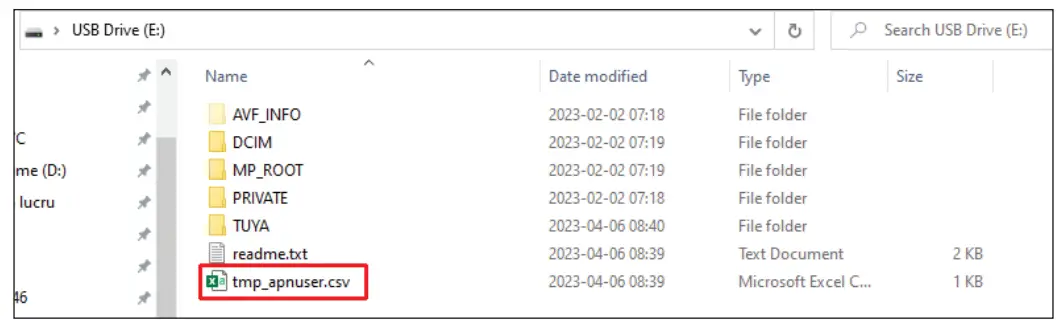

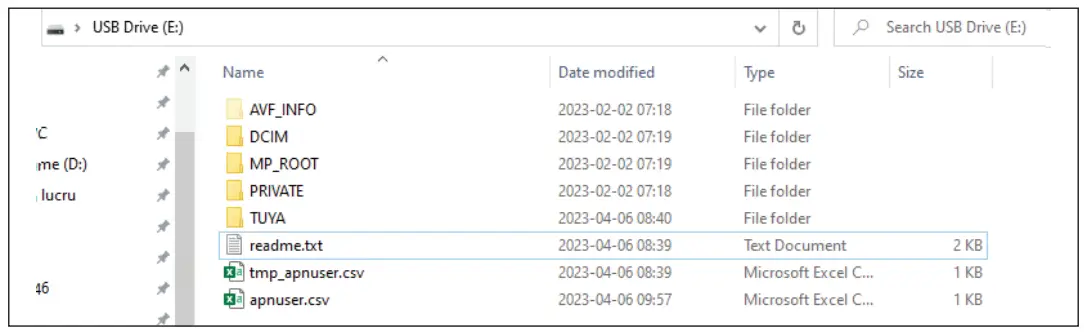

Details about changing the APN can be found in the “readme.txt” file on the SD card installed in the camera.
Camera configuration
- Open the Tuya Smart application and press the + or “Add device “ icon.
- Select “Outdoor Travel” – “4G Camera”.
- In the following interface, press “Scan”.
- In the hunting camera, press the MENU key, then select “Network” – “Device ID”.
- Using your phone, scan the QR code displayed on the hunting camera screen.
- Wait for the camera to be added to the application.
- After the camera has been added, edit its name and press “Done” to finish.


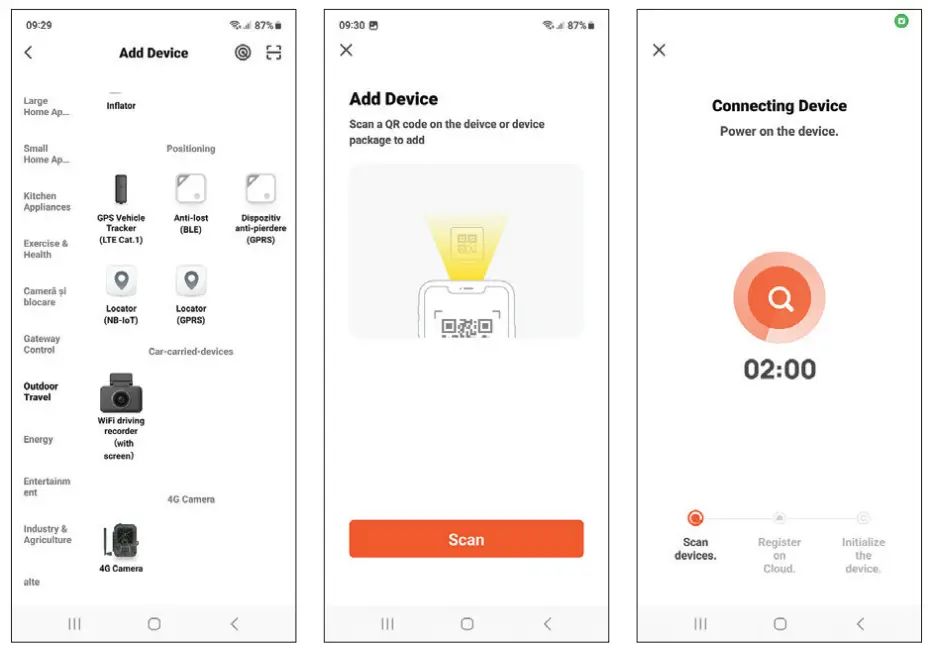
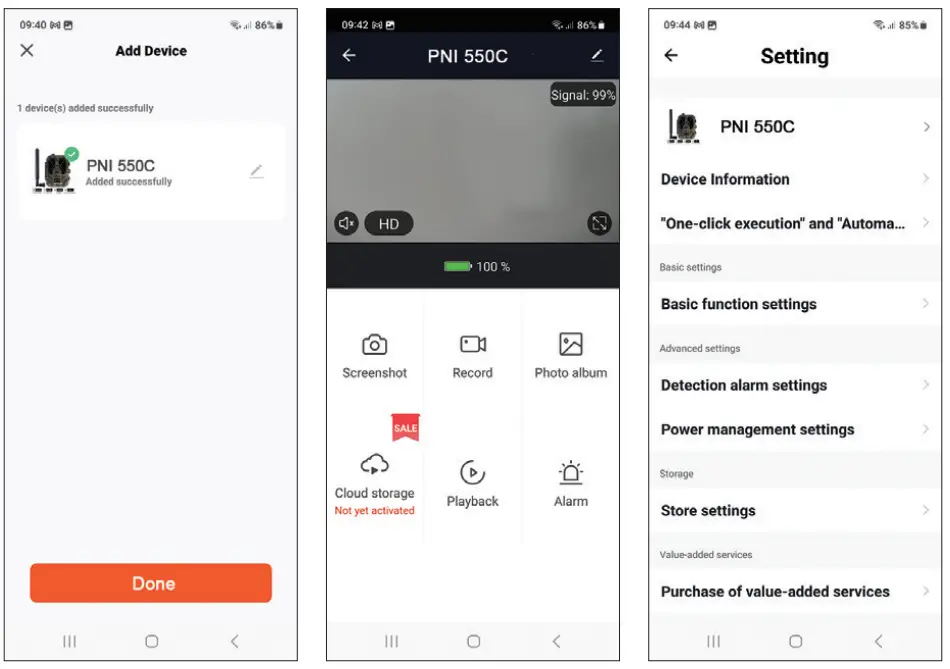
Main interface options
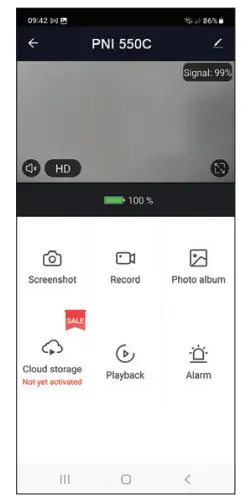
- Screenshot – press to instantly take a photo.
- Record – press to start manual recording.
- Photo album – press to access the photo album.
- Cloud Storage – click to access the chargeable Cloud service.
- Playback – press to access video recordings.
- Alarm – motion detection settings: activation/deactivation and sensitivity adjustment.
Basic function settings
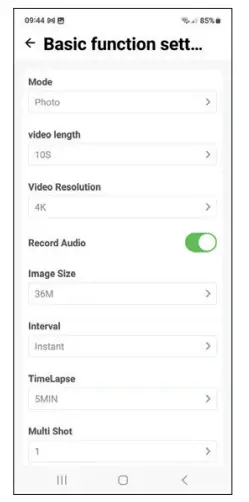
When you don’t have direct access to the camera, you can make the basic settings remotely, from your phone, using the Tuya Smart application.
Mode: Photo/Photo + Video/Video/Timelapse
Video recording duration: 5-90 seconds
Video length: VGA – 4K
Image size: 16MB – 36MB
Interval: 10 s. – 5 min.
Timelapse: 5 min. – 3 hours
Transfer: every image or 1 time per day up to 12 times per day
Press the MENU key on the camera to access the settings menu.
| Menu | Options | Description |
| Network | Device ID | Displays the camera ID and the QR code for adding the camera to the application |
| IOS APP | Displays the QR code for downloading the application on iOS phones | |
| Android APP | Displays the QR code for downloading the application on Android phones | |
| APN | Show network information (APN, user, password) | |
| Check Update | The camera is looking for APN or firmware updates. | |
| Mode | Camera Video Camera & Video TimeLapse | Select the operating mode of the camera |
| Resolution | 4K / 2K / 1080P / 720P / VGA | Select the video resolution |
| Video length | 5 / 10 / 30 / 60 / 90 seconds | Select the length of the video files |
| Record audio | Off / On | Enable/Disable audio recording |
| Image size | 36M / 30M / 24M /20M / 16M / 12M / 8M / 5M / 3M | Select the resolution of the photos |
| Interval | 1 s. / 10 s. 1 / 3 / 5 / 10 / 15 / 30 min. | Set the time interval when the camera captures photos when it detects continuous motion. |
| Timelapse | 5 min. / 30 min. 1 / 2 / 3 / 6 / 12 /24 h | If you set the camera to Timelapse mode, the camera’s motion sensor will be disabled. The camera will take photos/ videos from once every 5 minutes to once every 24 hours. |
| Sequence | Single 3 / 6 / 9 photos | Select how many photos the camera takes at a trigger |
| ISO | Auto 100 / 200 / 400 | ISO sensitivity settings |
| Overwrite | Off / On | Enable/Disable overwriting when SD card is full |
| PIR sensitivity | Low / Medium / High / Off | Set the motion sensitivity |
| Language | English | Select the menu language |
| Frequency | 50 Hz / 60 Hz | Select the video frequency |
| Transfer frequency | Each 1 / 2 / 6 / 12 times a day | Select the frequency the camera sends the pictures with |
| Camera ID | Set an ID to identify the camera when transmitting the photos | |
| Password | Set a password to protect the camera | |
| Timer | Set the start time and the stop time of the camera (hour/ minute). The camera will only work in that interval. | |
| Date/Time | Set the date and time | |
| Format | Cancel OK | Format the SD card |
| Default settings | Cancel OK | Return to the factory settings |
| Version | Displays the FW version |
1 For example, if you set an interval of 1 minute, after the camera captures a photo and the subject is still in the range of the camera, the camera will wait 1 minute before taking the next capture.
So the camera will not capture many identical images, to save battery and space on the SD card.
Frequently asked questions and answers
- How can I share the hunting camera with other users?
In the application, in the camera settings menu, access “Shared devices” to add a new user or to view all users who have access to the camera. - Where does the camera save the photos and the video recordings?
The camera saves photos and video recordings on the SD card installed in the camera. Activate the chargeable Video Cloud service to save video recordings remotely. - Why does the camera not connect to the Internet?
- The SIM card has an activated PIN code. Deactivate the PIN code with the card inserted in a mobile phone.
- The SIM card has no active credit or active mobile data. Recharge the card.
- The APN of the camera is not correct. Read the “Edit the APN manually” chapter.
- What happens when the camera detects motion?
When the camera detects motion, it takes a photo or starts video recording (depending on the operating mode set) and sends an alarm notification and a photo to the application.
EU Simplified Declaration of Conformity
SC ONLINESHOP SRL declares that Hunting camera PNI Hunting 550C complies with the Directive EMC 2014/30/EU and RED 2014/53/UE. The full text of the EU declaration of conformity is available at the following Internet address:
https://www.mypni.eu/products/9061/download/certifications

 mypni.eu/products/9061/download/certifications