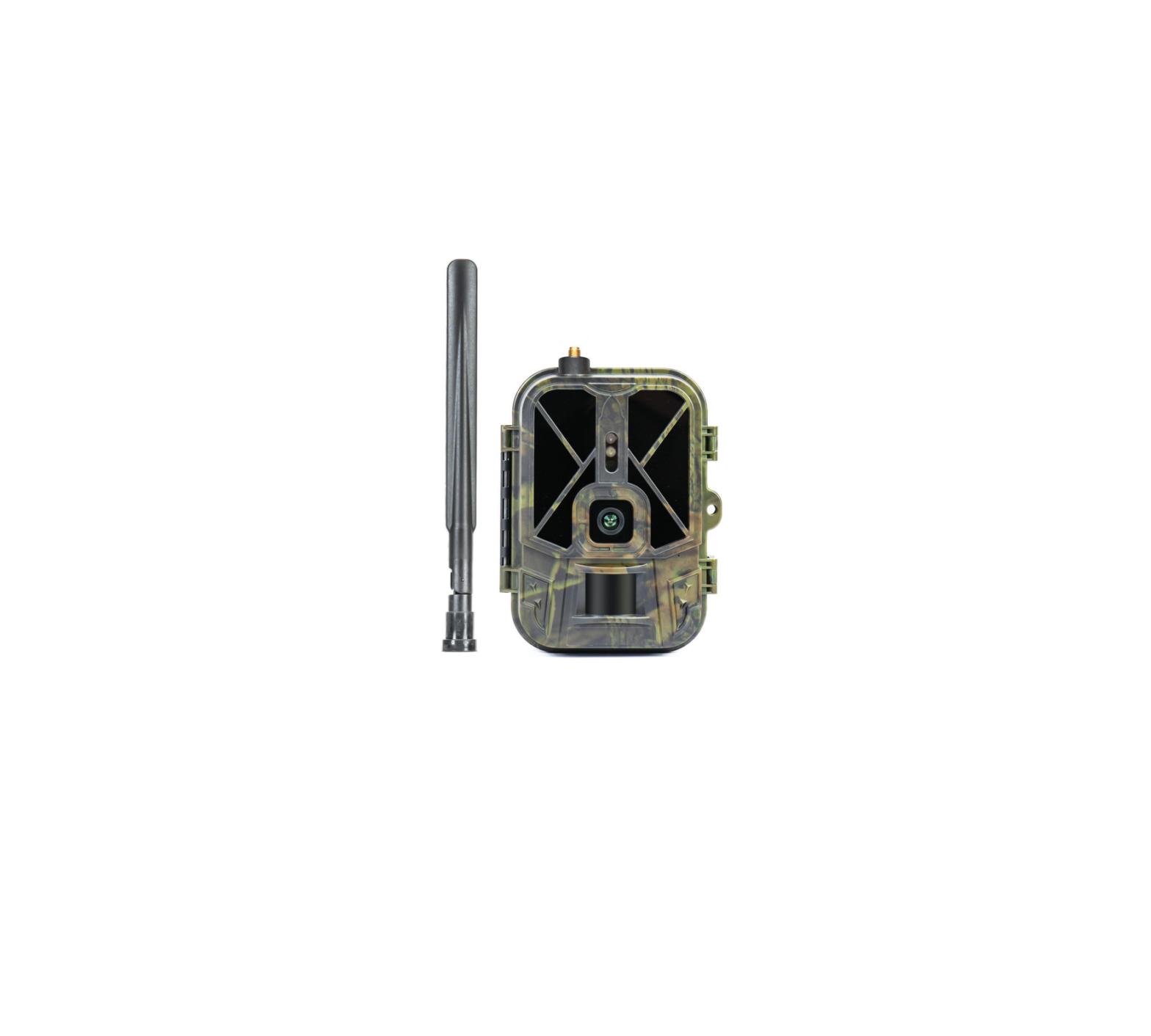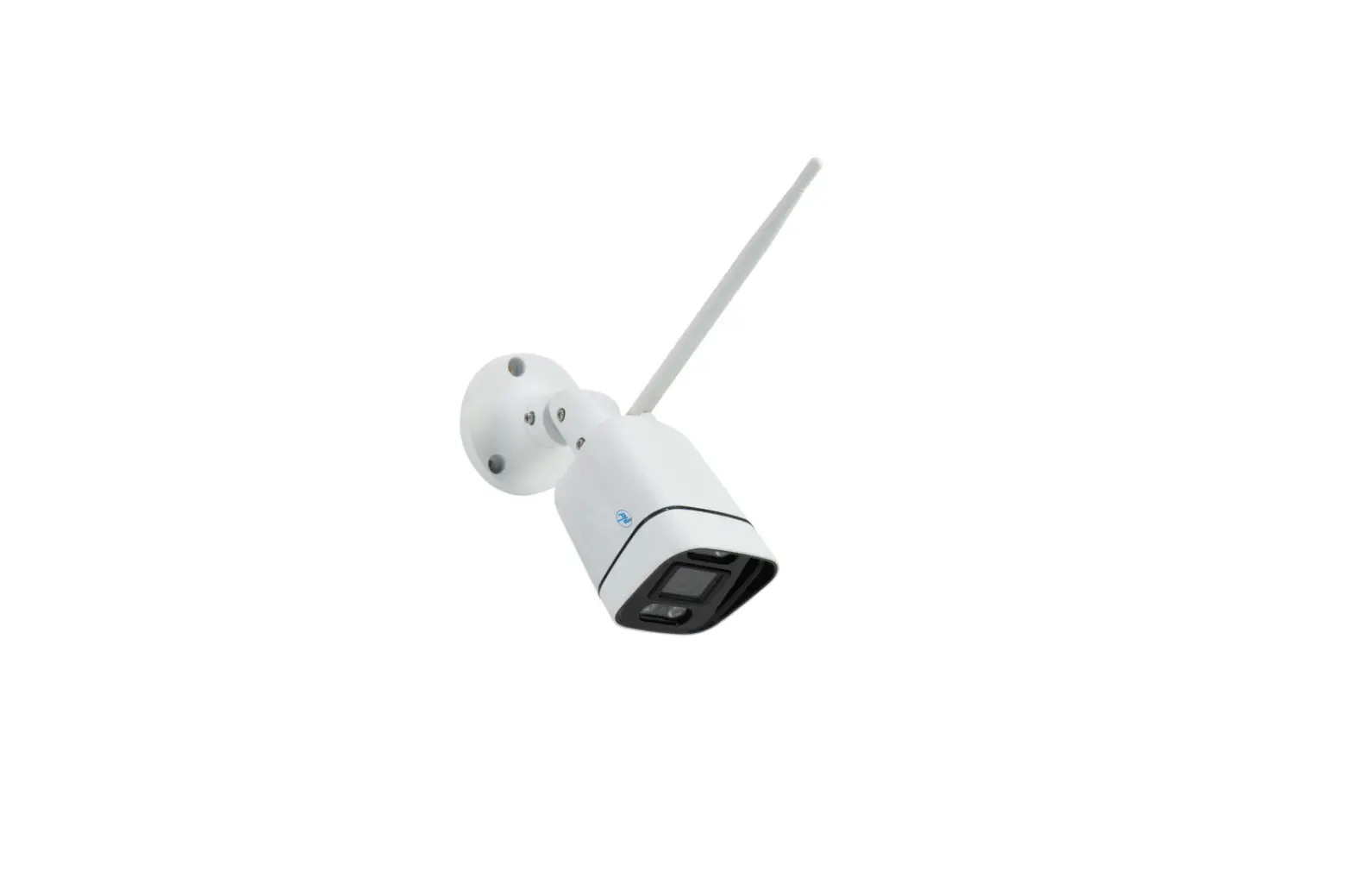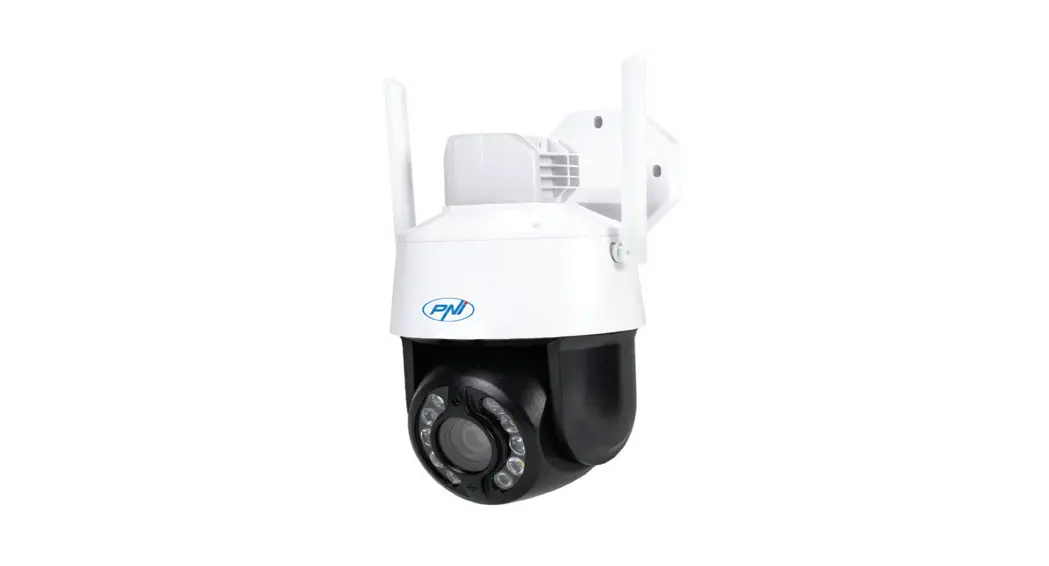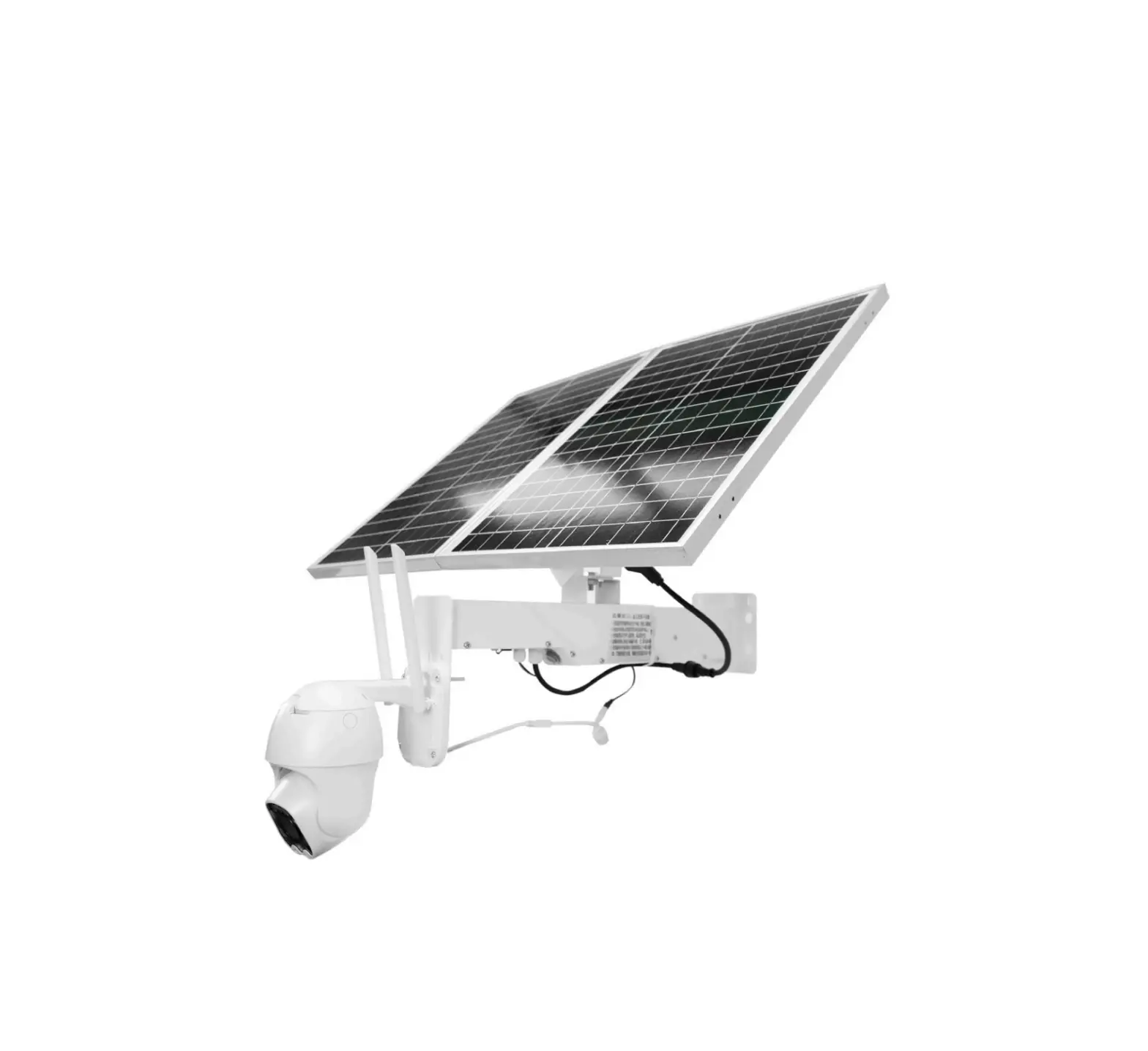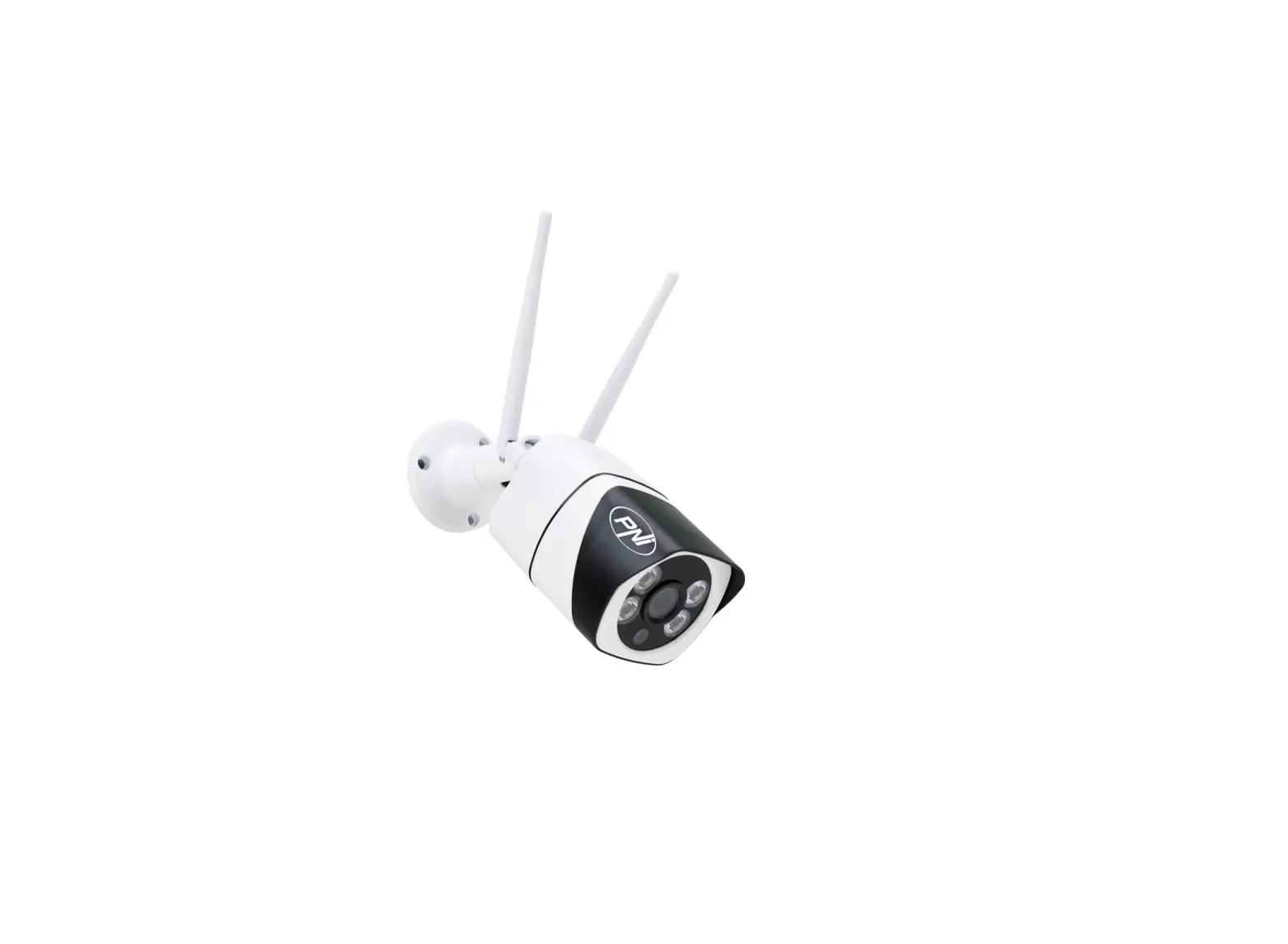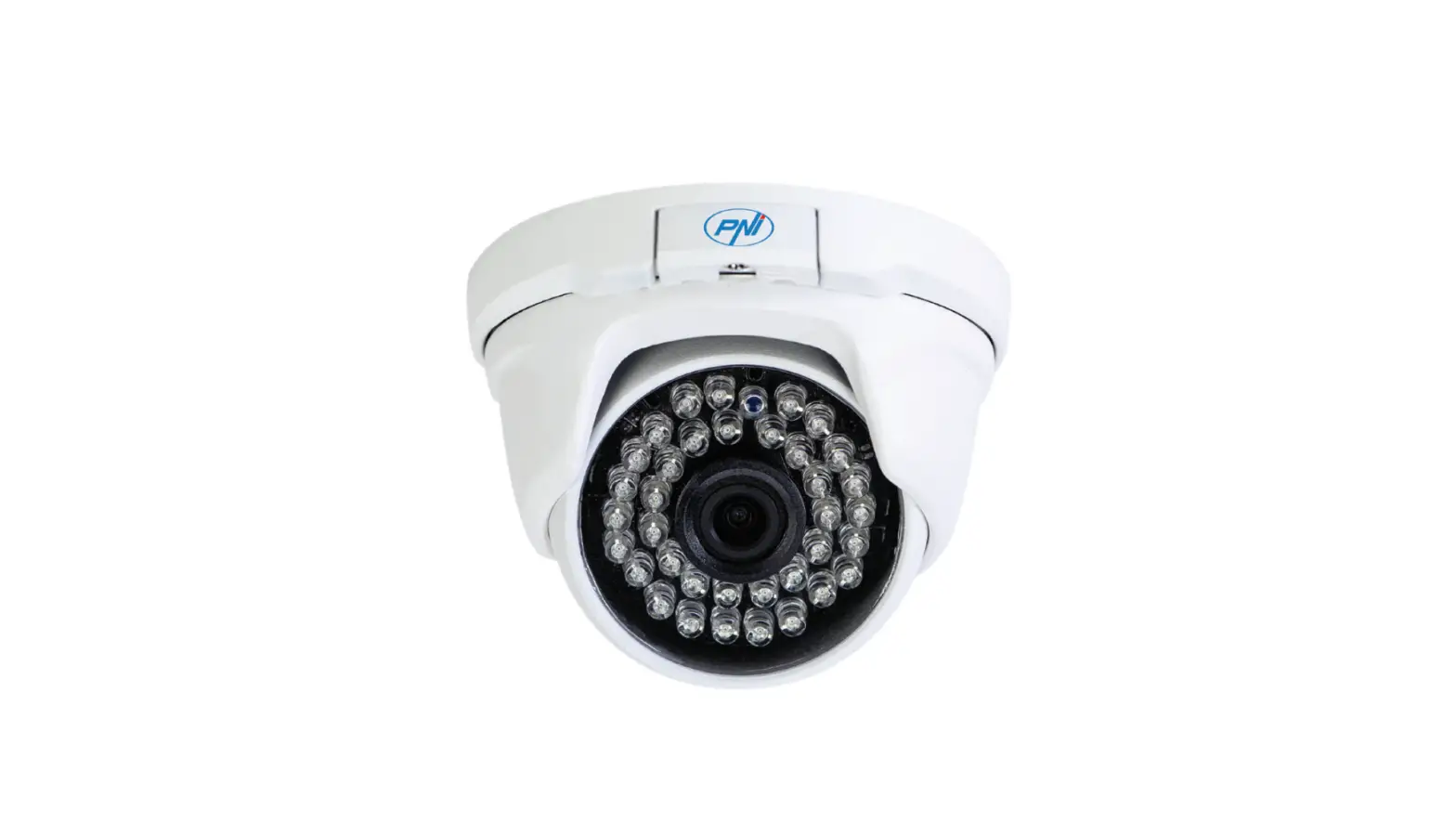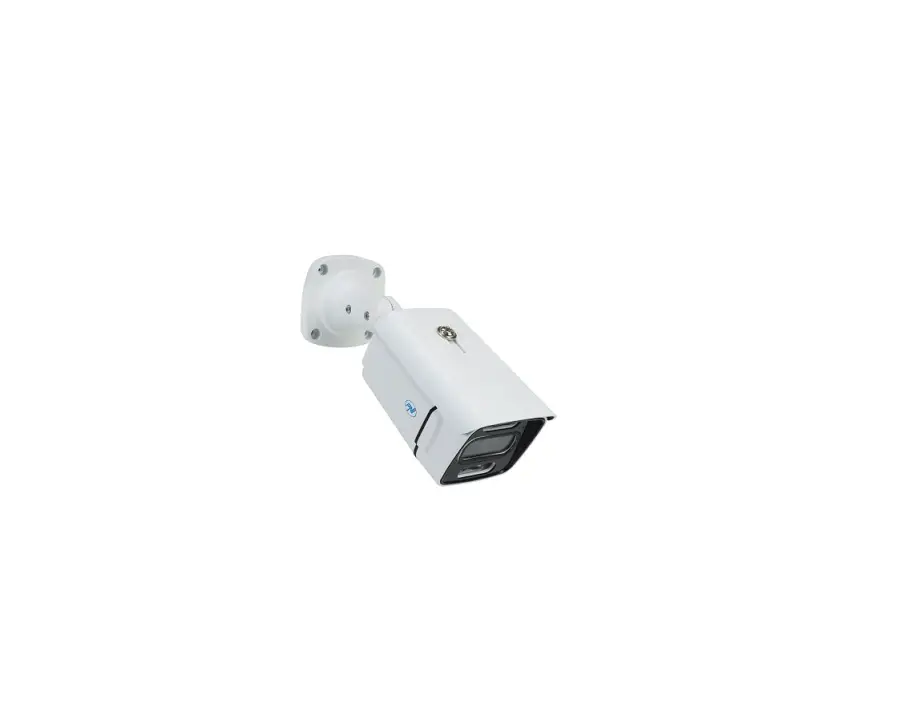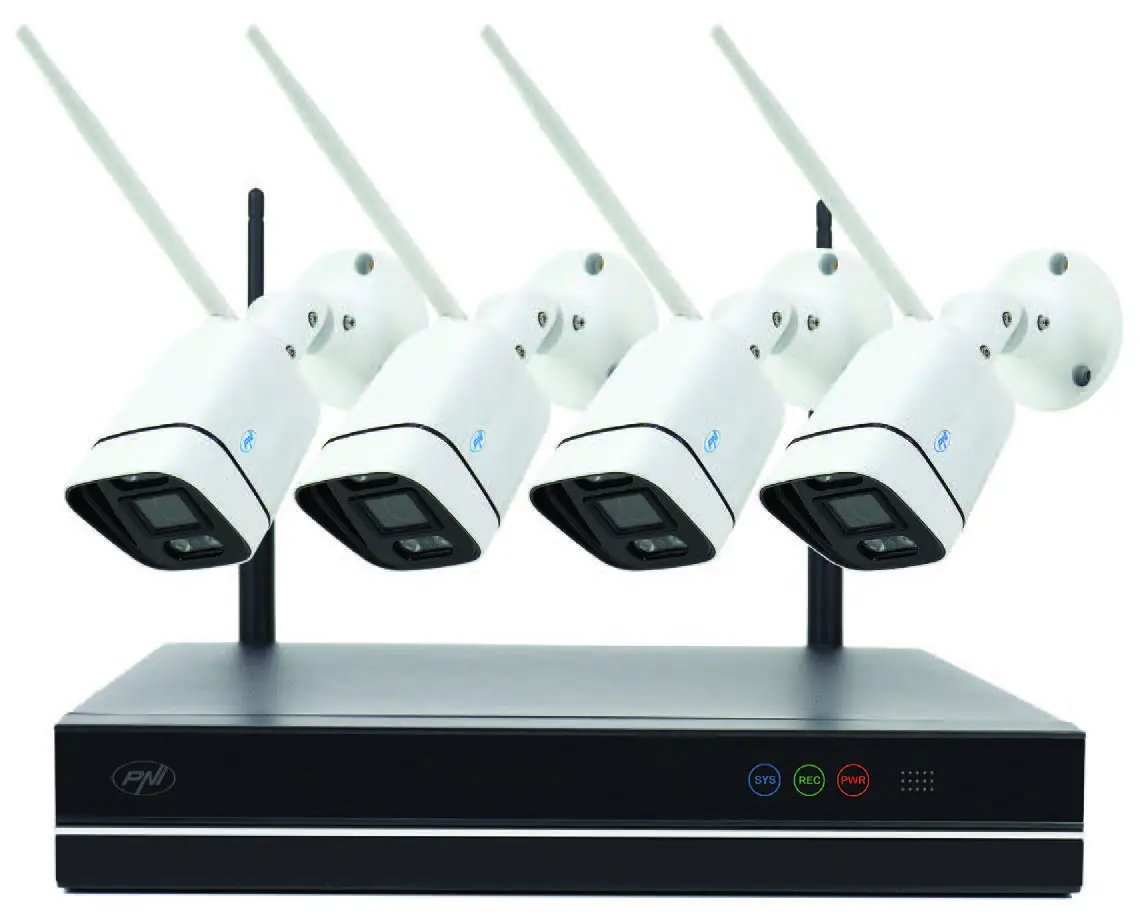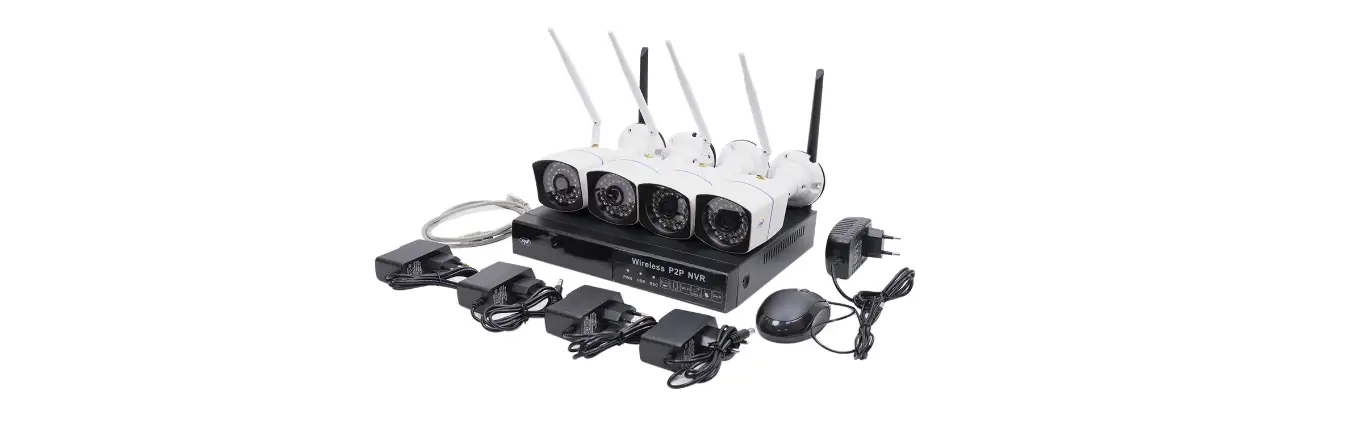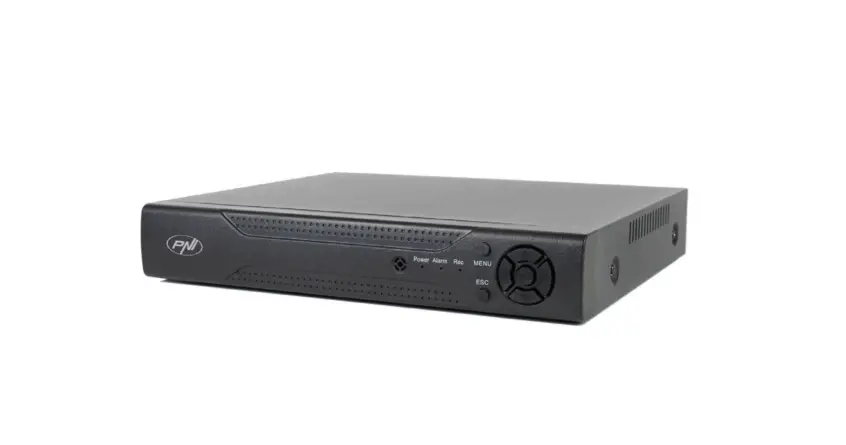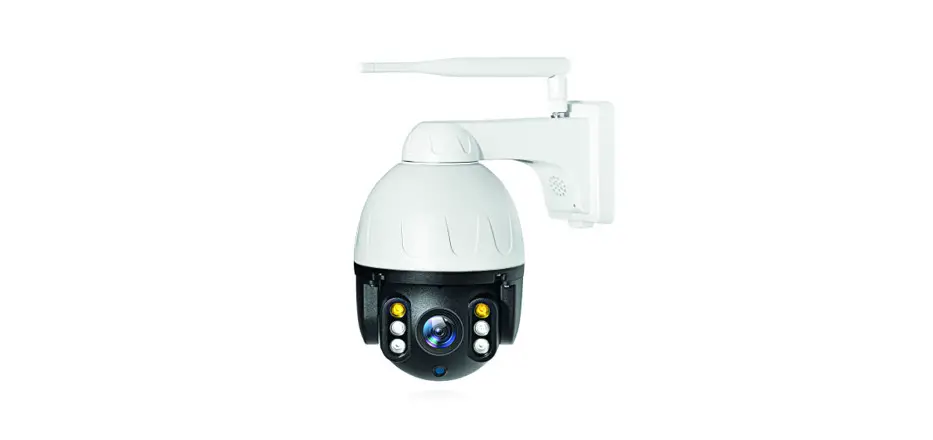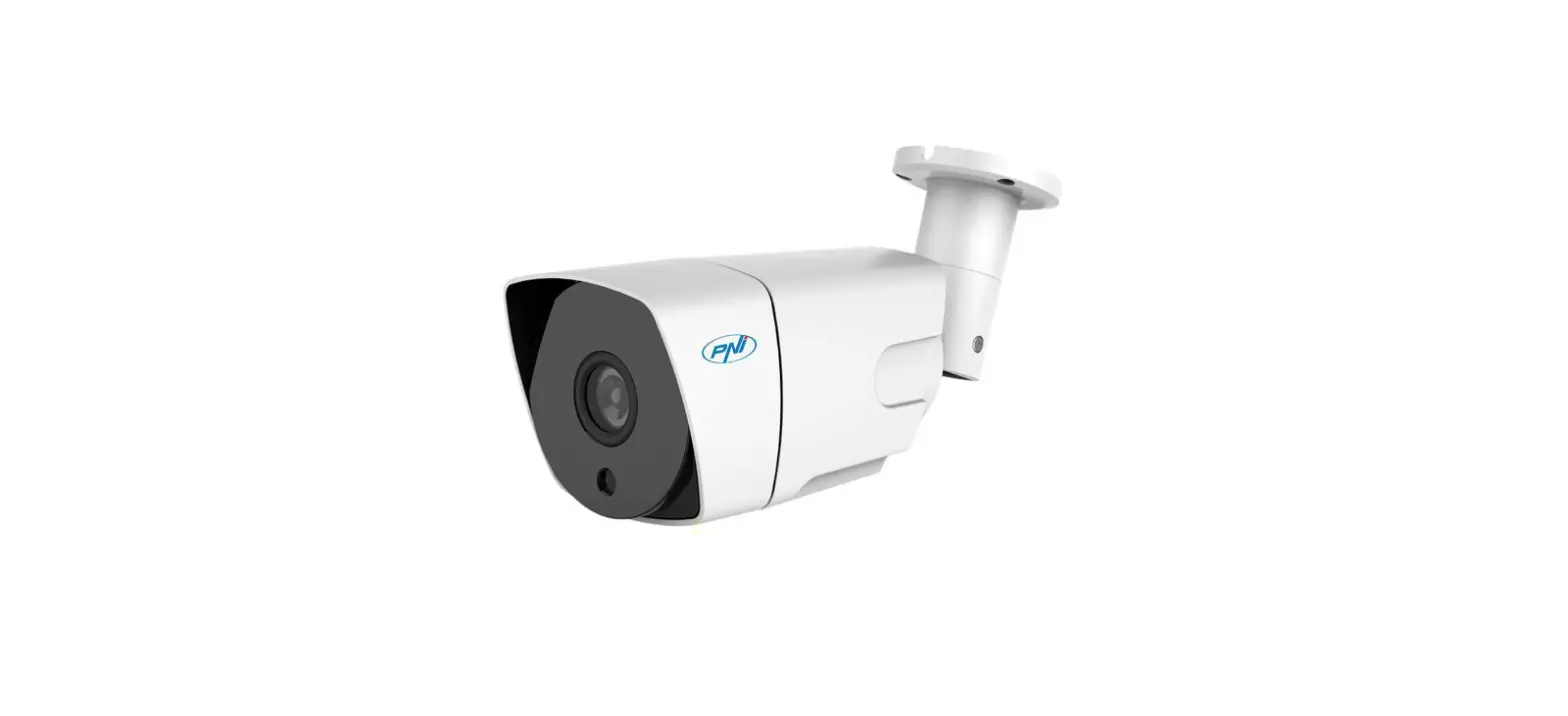

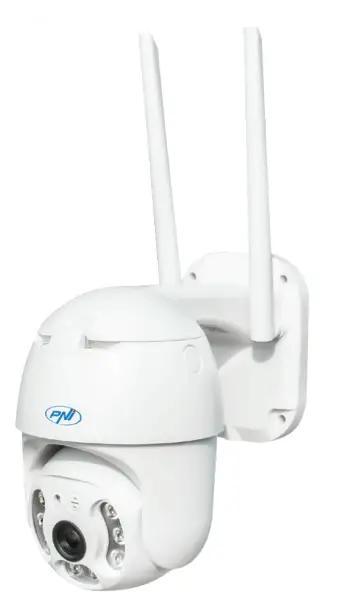
PNI IP65 live 5MP GSM 4G Video Surveillance Camera
Product Information
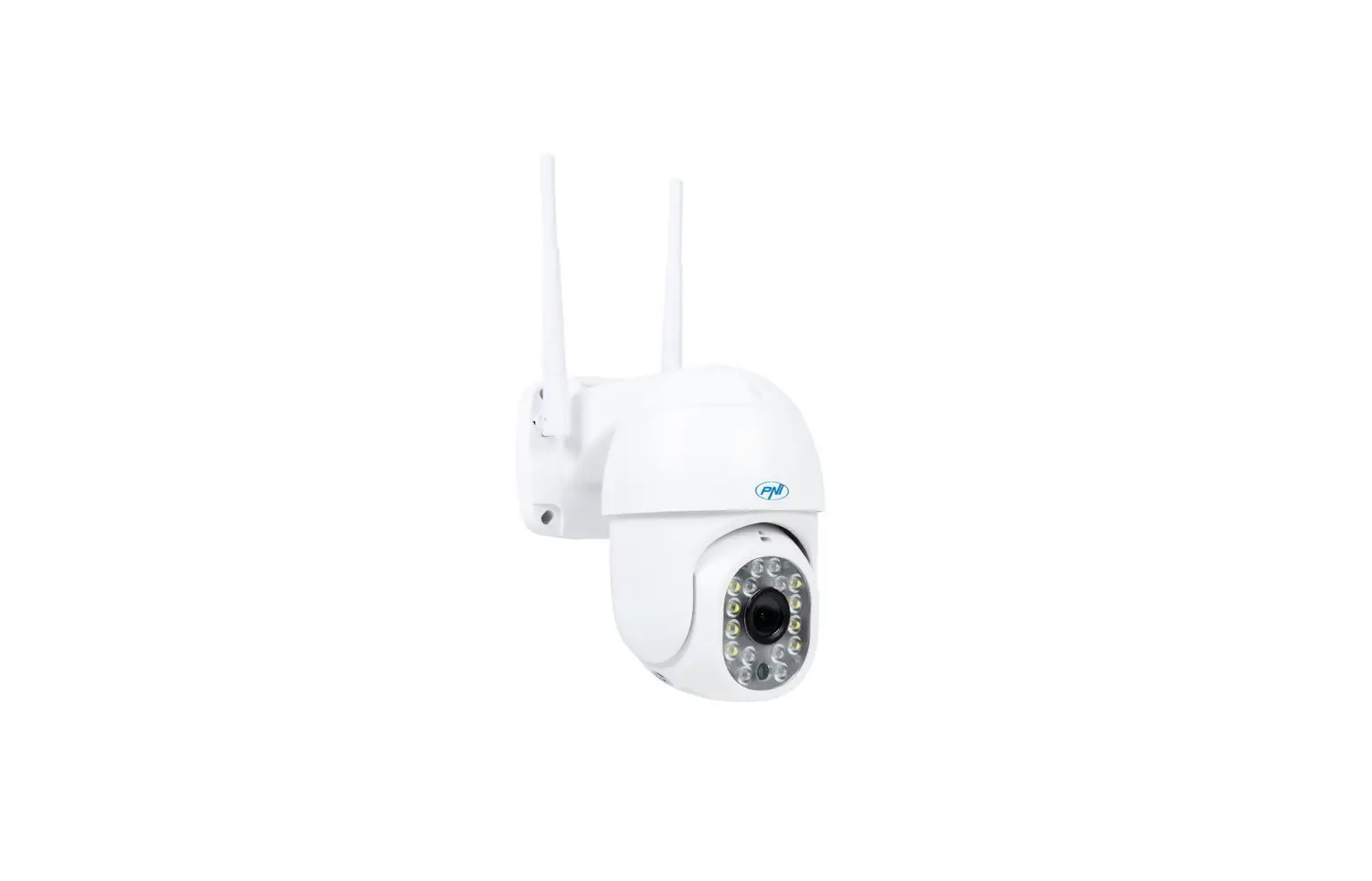
The PNI IP65 Live Video 5MP GSM 4G Surveillance Camera is a high-tech security camera that can be remotely accessed through the CamHi or CamHi Pro application on your mobile phone (Android or iOS) or through the HiP2P Client application on your PC (Windows). It comes with basic features such as motion detection, human silhouette detection, and audio alarm.
The camera has a sensor chipset, video compression, and lens with a viewing angle. It also has LED lights and an IR distance with digital zoom. The audio compression and input/output allow for two-way communication. The camera is powered by Ethernet and has a reset button, a micro SD card slot (max. 128GB), a SIM slot, and an ONVIF interface. The camera supports 3G/4G with different frequencies and is PTZ-enabled with rotation angle and speed. It has a waterproof housing, dimensions, and weight.
Product Usage Instructions
- Before installing the camera, insert a micro SD card and a nano SIM card into the camera, power it on, add it to the application, and test its functionality. Undo the screw and remove the compartment cover from the back of the camera to install both cards.
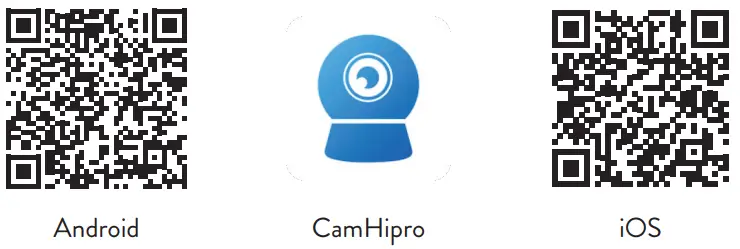
- Install the CamHi or CamHi Pro application on your mobile phone by accessing Google Play or the App Store or scan the QR codes provided in the user manual.
- Power the camera using the power supply in the package. The camera will start initializing. When the camera stops rotating, it is ready for configuration.
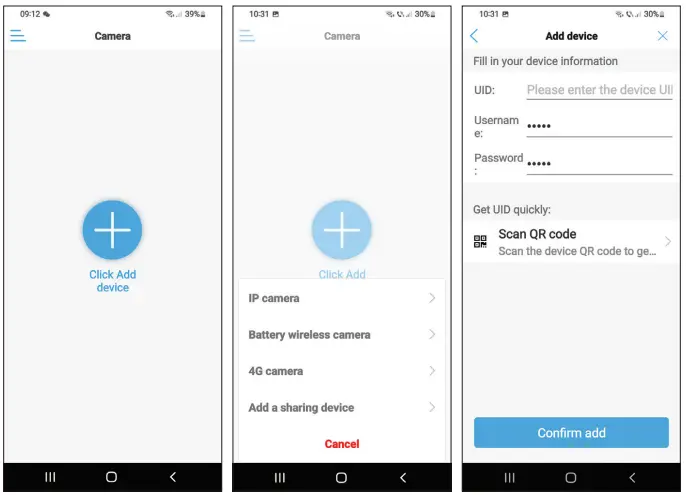
- Open the application and press the + icon. From the displayed options, select 4G camera. Enter the camera’s UID manually or scan the QR code. The UID, username, password, and QR code can be found on the label attached to the camera. Press Confirm add.
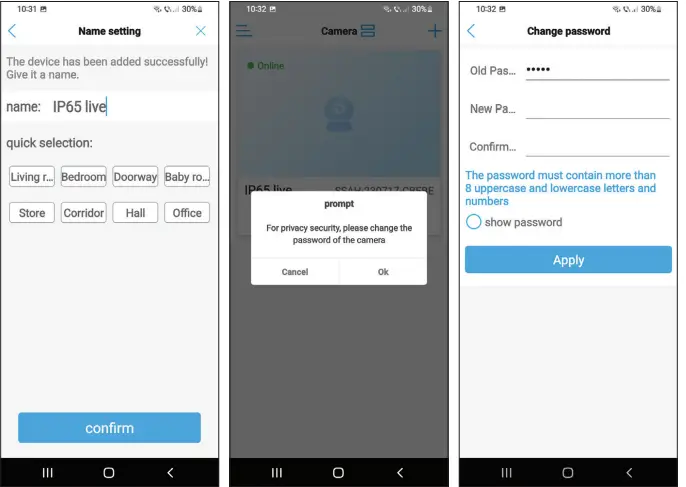
- Give the room a name and press Confirm. Change the room password and press Apply.
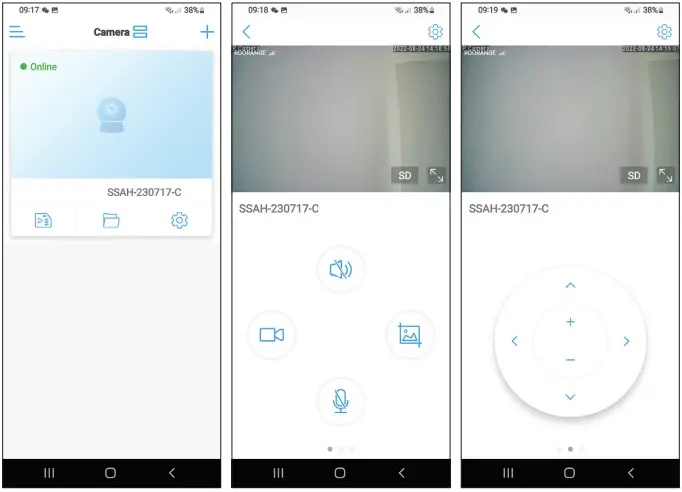
- After you have successfully added the camera, click on the camera in the list to view the images taken by it in real-time. Note that the camera status must be Online. If the status is Offline, proceed as described in the chapter Manually adding GSM parameters.
- If the status of the camera is Offline, connect the camera to the router via Ethernet cable. Wait for the camera status to become Online. Press the icon to access the additional settings menu. Access the 4G setting menu and choose the Manual option for APN Mode. Manually enter the APN, Username, and Password corresponding to the GSM operator of the card inserted in the camera.
Note that IP65 live camera does not support WiFi connection, only LAN via RJ45.
PNI IP65 live
5MP GSM 4G video surveillance camera/5MP GSM 4G камера за видеонаблюдение/5 MP GSM 4G-Videoüberwachungskamera/Cámara de videovigilancia GSM 4G de 5MP/Caméra de vidéosurveillance 5MP GSM 4G/5MP GSM 4G videó megfigyelő kamera/Telecamera di videosorveglianza GSM 4G da 5 MP/5MP GSM 4G videobewakingscamera/Kamera do nadzoru wideo 5MP GSM 4G/Camera supraveghere video 5MP GSM 4G
Basic features
- 4G and LAN connection (RJ45 connector)
- Recording on micro SD card, max. 128 GB (card not included)
- Bidirectional audio communication (built-in microphone and speaker)
- Outdoor mounting, protection class IP66, ABS housing
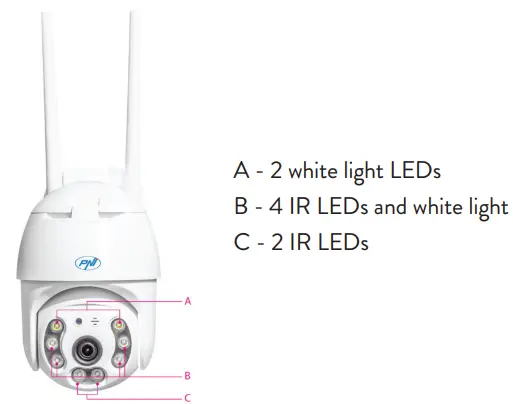
- 2 IR LEDs, 2 white light LEDs, 4 IR LEDs and white light
- P2P connection for remote monitoring
- Remote control through the CamHi/CamHi Pro application (Android/iOS) and through the HiP2P Client application (PC Windows)
Technical specifications
|
Video | Sensor | 5.0 MP 1/2.7” SC5238 CMOS |
| Chipset | T31X | |
| Video compression | H.264/H.265 | |
| Lens | 3.6mm | |
| Viewing angle | 82.5° | |
| LED | 2 IR LEDs, 2 white light LEDs, 4 IR LEDs and white light | |
| IR distance | up to 30 meters | |
| Digital zoom | 2X | |
| Audio | Audio compression | G.726/G.711 |
| Audio Input/Output | Built-in Microphone/Loudspeaker | |
| Allarm | Motion detection | Yes, adjustable sensitivity (1-100), 4 independent detection zones |
| Human silhouette detection | Yes, it can work together with the motion detection function for more accurate detection |
|
Allarm | Actions if alarm was triggered | Send a message in the application |
| Save recording or captured image on micro SD card | ||
| Send email with image capture | ||
| Save recording or captured image on FTP server | ||
|
Interface | Power | 5.5 x 2.1 mm connector |
| Ethernet | RJ45 connector | |
| Reset button | Press for 5 seconds to reset the camera | |
| Micro SD card slot | Maximum supported capacity 128GB | |
| SIM slot | Nano SIM (12mm x 9mm) | |
| ONVIF | Supports ONVIF 2.4 (and earlier versions) | |
|
3G/4G | 3G standard | WCDMA |
| 3G frequency | B1(2100MHz), B8(900MHz) | |
| 4G standard | FDD-LTE/TDD-LTE | |
| 4G frequency | B1(2100MHz), B3(1800MHz), B7(2600MHz), B8(900MHz), B20(800MHz), B38(2600MHz), B40(2300MHz), B41(2500MHz) | |
| PTZ | Rotation angle | Horizontal: 350° |
| Rotation speed | Vertical: 90° | |
|
General | Power supply | Horizontal: 30°/sec. |
| Consumption | Vertical: 35°/sec. | |
| Waterproof | IP66 | |
| Housing | ABS | |
| Dimensions | 105 x 100 x 170 mm | |
| Weight | 500 g |
Installation
Note: Before installing the camera in the final location, insert a micro SD card and a nano SIM card into the camera, power the camera, add it to the application and test its functionality.
Micro SD and nano SIM card installation
- Undo the screw and remove the compartment cover from the back of the camera.
- Install a micro SD card (max. 128GB) and a nano SIM card inside.
Warning: the SIM card with 4G mobile data must not have the PIN code activated. Insert the SIM card with mobile data into a mobile phone, disable the security PIN and check if mobile data is available by accessing any web page.
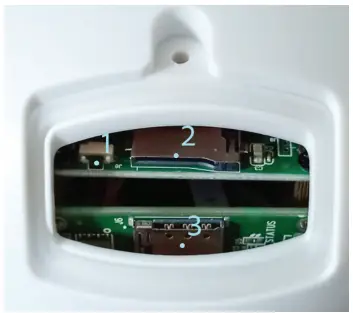
- Reset button
- Micro SD card slot
- Nano SIM slot
CamHi Pro app
- Install the CamHi or CamHi Pro application on your mobile phone by accessing Google Play or the App Store or scan the QR codes below:

Camera configuration - Power the camera using the power supply in the package.
- The camera will start initializing. When the camera stops rotating, it is ready for configuration.
- Open the application and press the “+” icon.
- From the displayed options, select “4G camera”.
- Enter the camera’s UID manually or scan the QR code. The UID, username, password and QR code can be found on the label attached to the camera. Press “Confirm add”.
- Give the room a name. Press “Confirm”.
- For reasons of brevity, you are advised to change the room password. Change the password and press “Apply”.
- After you have successfully added the camera, click on the camera in the list to view the images taken by it in real time.
Note: The camera status must be Online. If the status is Offline, proceed as described in the chapter “Manually adding GSM parameters”.
IP65 live camera does not support WiFi connection, only LAN via RJ45.
Meaning of the red LED on the GSM card
- Blinks rarely – Not connected to GSM
- Blinks very often – Connected to GSM
Manually add the GSM parameters
If the status of the camera is Offline, proceed as follows:
- Connect the camera to the router via Ethernet cable.
Note: IP65 live camera does not support WiFi connection, only LAN via RJ45. - Wait for the camera status to become Online.
- Press the icon
 to access the additional settings menu.
 - Access the “4G setting” menu.
- Choose the “Manual” option for “APN Mode”.
- Manually enter the APN, Username and Password corresponding to the GSM operator of the card inserted in the camera.
For example, for the Vodafone SIM card: APN: live.vodafone.com
Username and Password: leave blank - Remove the Ethernet cable from the camera.
- Restart the camera.
 to access the additional settings menu.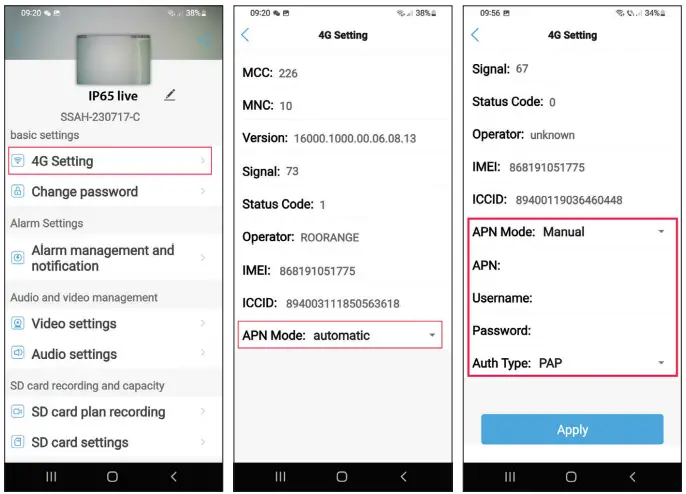
Preview interface settings
Available options:
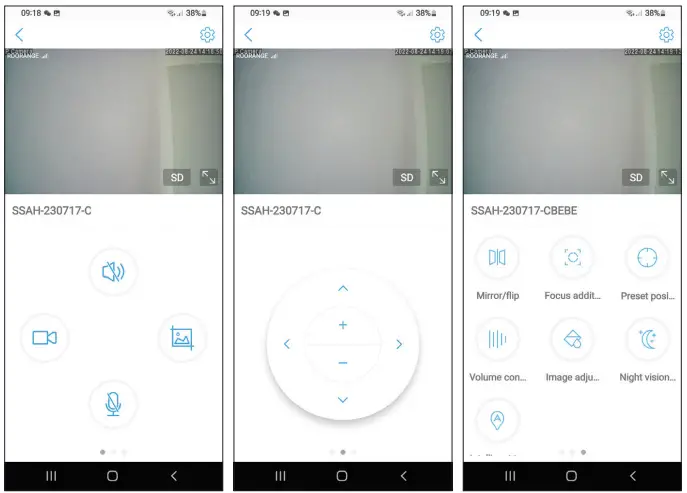
- Start/Stop manual recording.
- Enable/Disable loudspeaker (press to listen to the sounds picked up by the surveillance camera).
- Retrieve capture image.
- Activate/Deactivate microphone (press to talk to the person in front of the surveillance camera).
- Camera rotation up/down, left/right.
- Image enlargement (digital zoom).
- Image mirroring (horizontally or vertically).
- Predefined camera position setting.
- Volume control.
- Image adjustments (contrast, brightness, saturation).
- Night mode setting:
- Infrared mode: the 2 IR LEDs + 4 IR LEDs and white light light up.
- Color mode: the 4 LEDs with IR and white light light up.
- Smart mode: the 2 LEDs light up with white light only when the camera detects movement.

- Functions: Focus addition and subtraction (optical focus and zoom), Preset position and Intelligent tracking are not available for this camera.

Additional settings
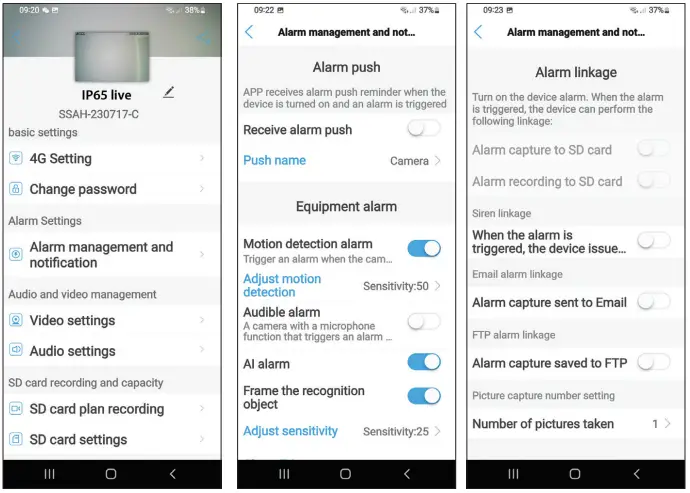
Options:
- 4G settings.
- Change password.
- Alarm settings:
Enable/Disable alarm notification.
Enable/Disable motion detection and sensitivity setting.
Enable/Disable sound detection and sensitivity setting.
Enable/Disable human silhouette detection and sensitivity adjustment. Behavior setting in case of alarm: send capture by email, save capture on FTP server. - Video settings.
- Audio settings (volume settings).
- Micro SD card recording mode settings: continuous recording, scheduled recording by days and hours.
- Format SD card.
- Time zone, date and time settings.
- Return to factory settings.
- Information about the device, including the Check for updates option.
EU Simplified Declaration of Conformity
SC ONLINESHOP SRL declares that PNI IP65 live video surveillance camera complies with the Directive EMC 2014/30/EU. The full text of the EU declaration of conformity is available at the following Internet address: https://www.mypni.eu/products/8826/download/certifications
 Home
Home mypni.eu/products/8826/download/certifications