
App Instruction Manual
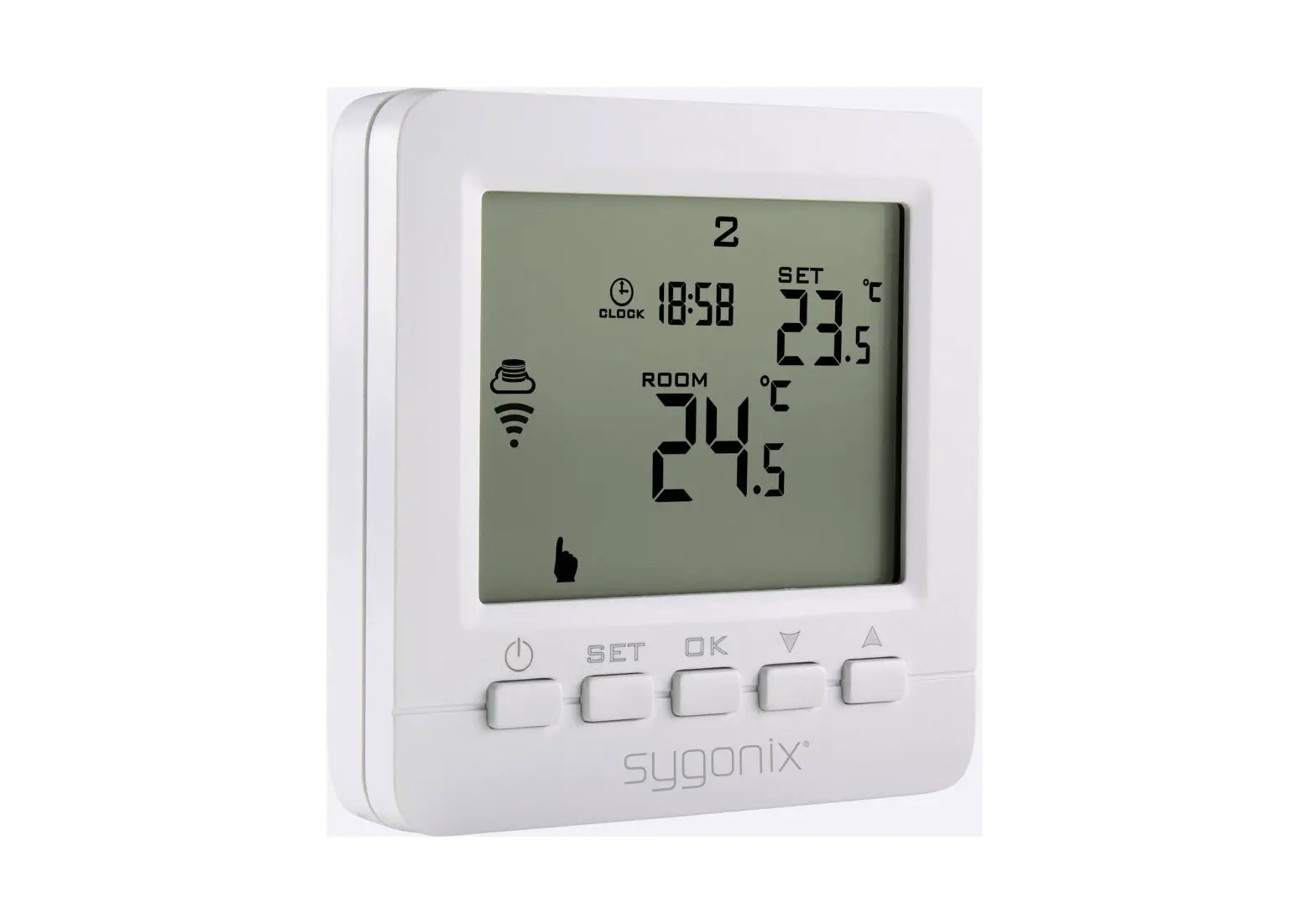
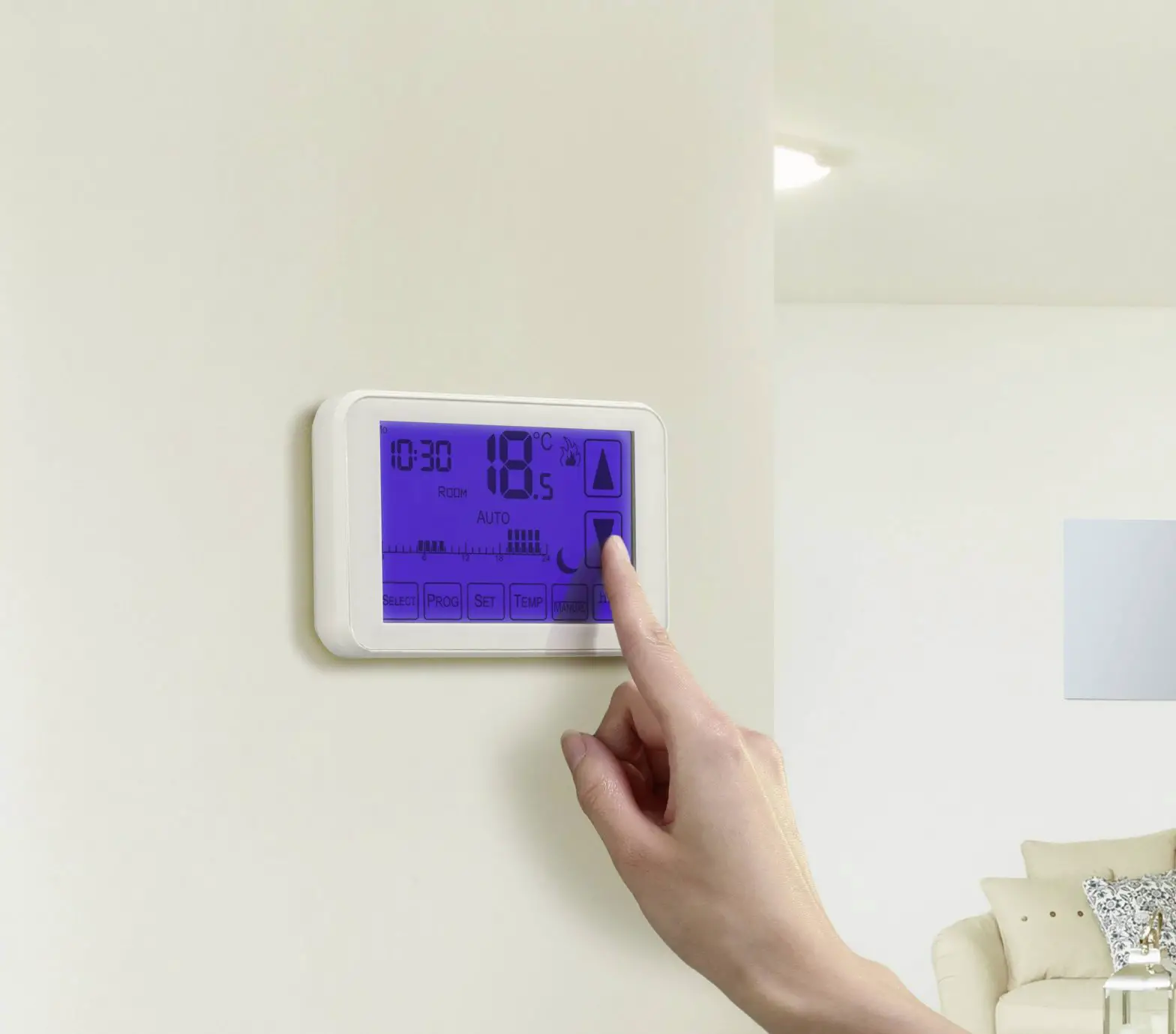
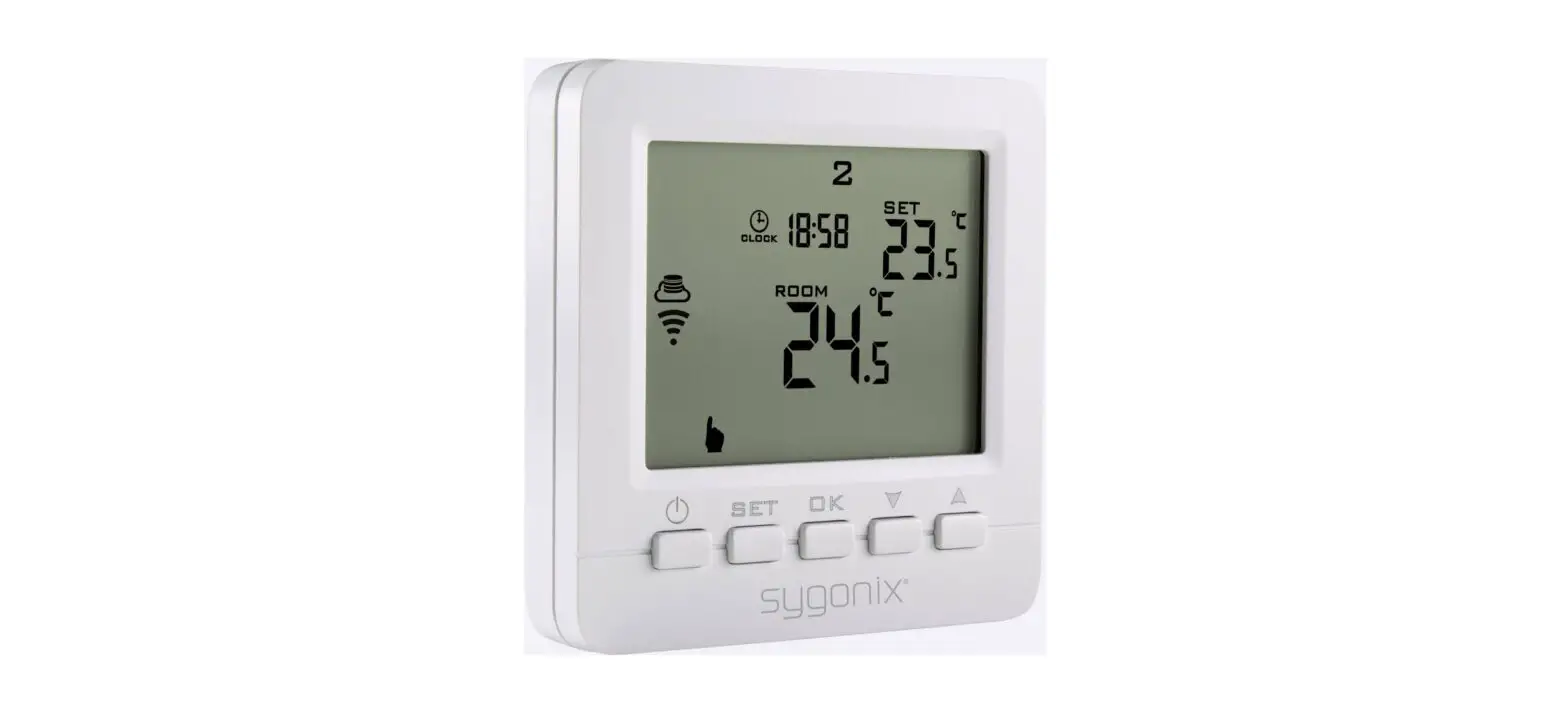
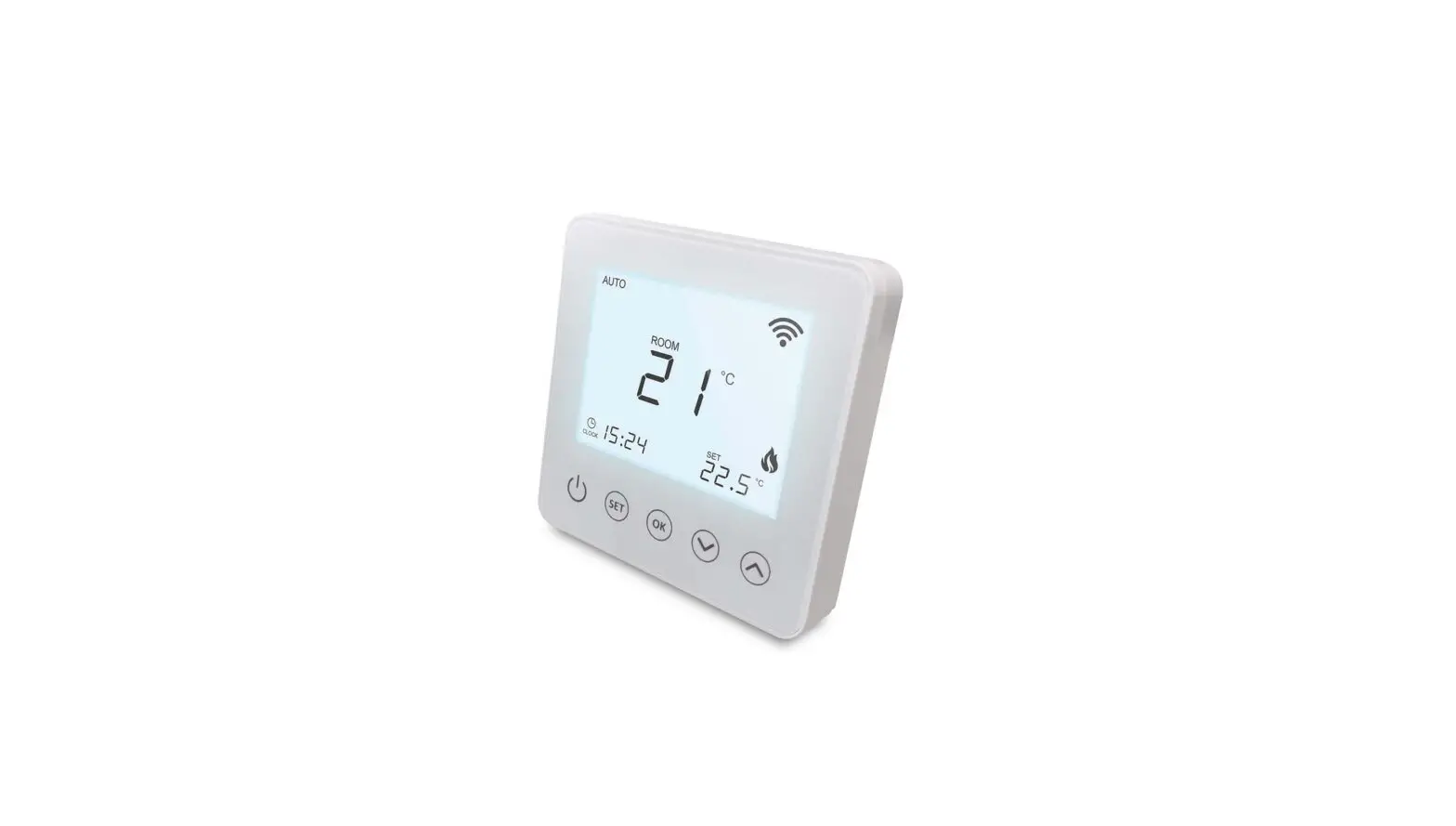
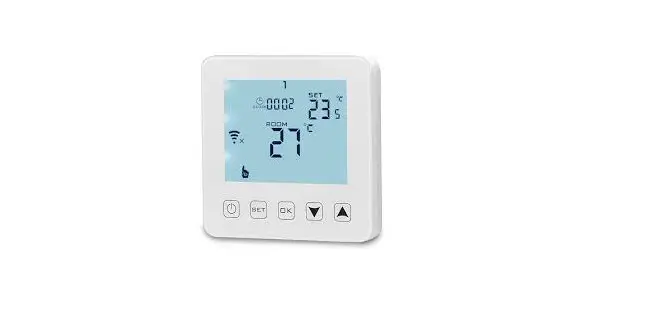
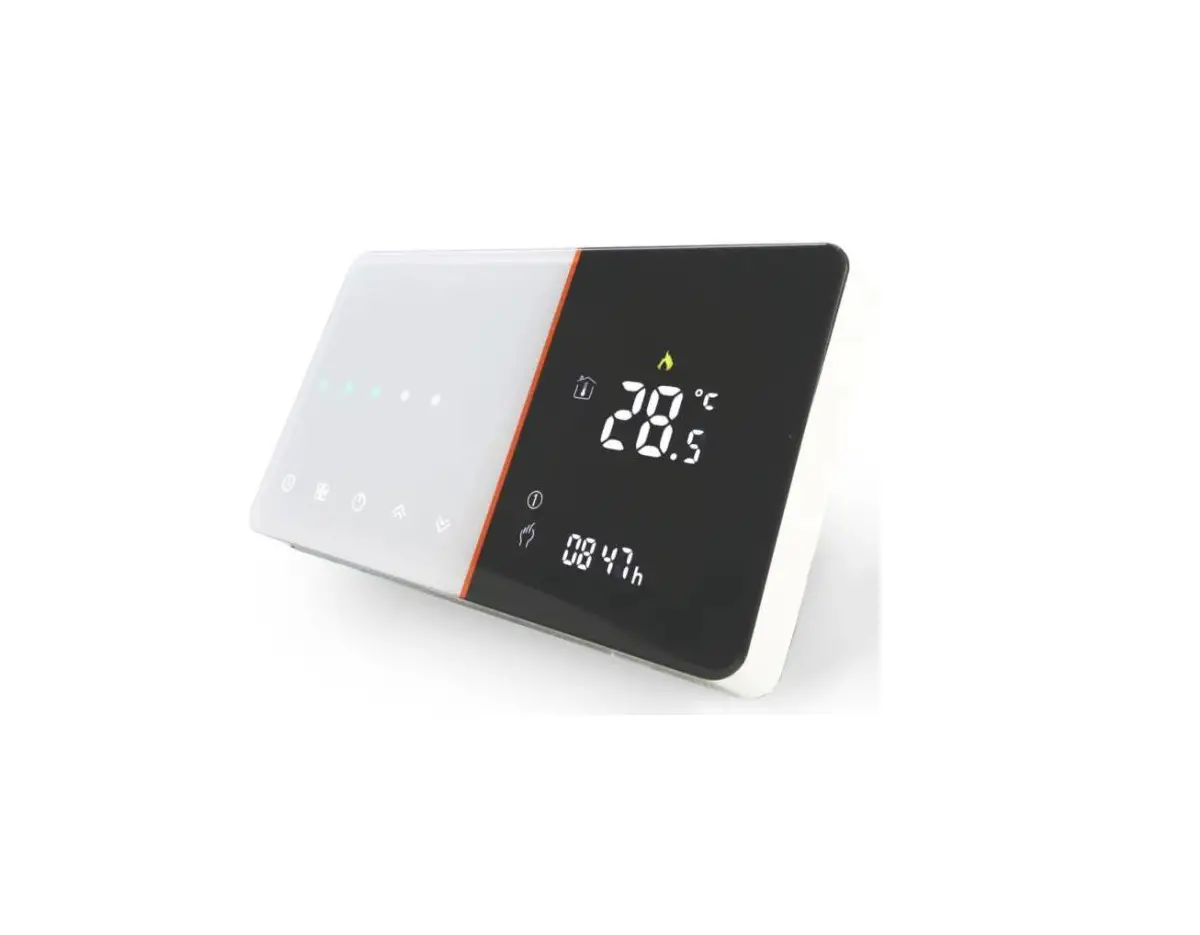
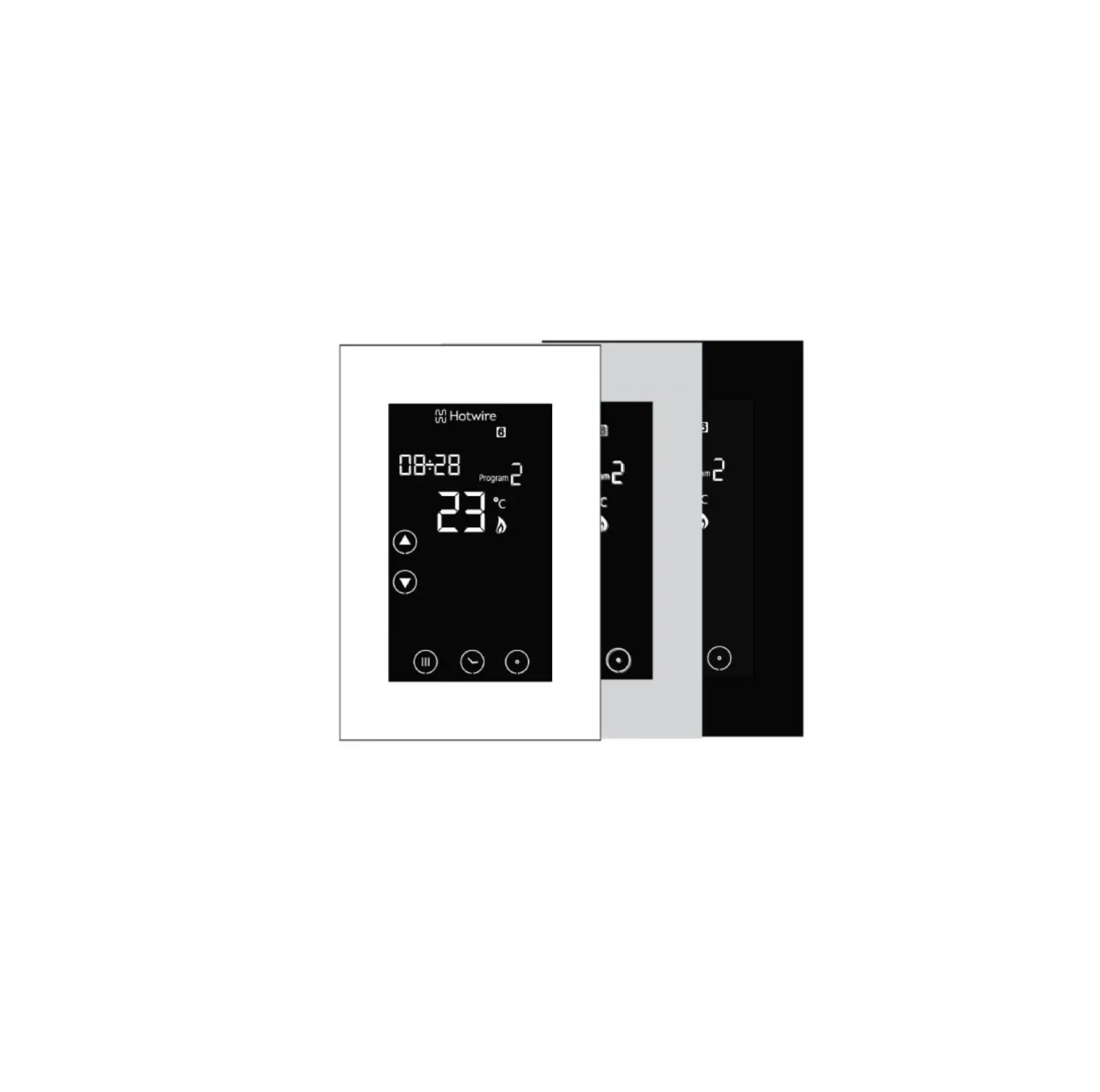
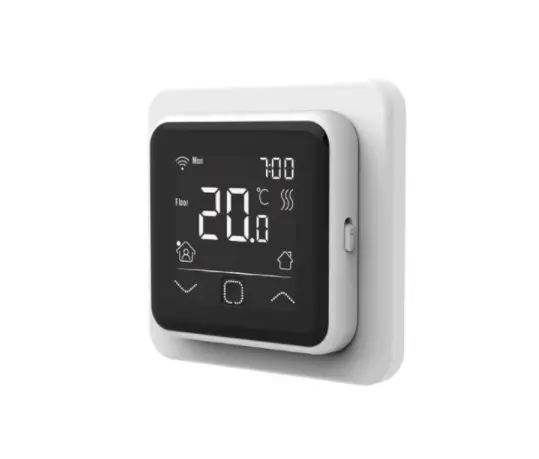
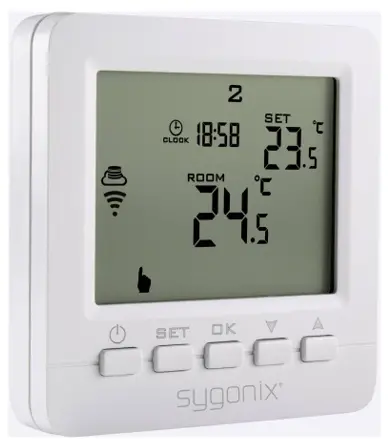
Heating Thermostat with WiFi and Sensor
Item No. 2250410
Introduction
The connected device works through a Wi-Fi network together with the “Smart Life – Smart Living” app. This mobile app allows you to control, manage, and receive alerts on devices connected to your network.
General Information
Important Information Observe the information in a red frame to avoid harming yourself or others, and prevent product damage.
Give information in an orange frame special attention.
The blue frame provides tips on product use and features.
Legal Notice
This is a publication by Conrad Electronic SE, Klaus-Conrad-Str. 1, D-92240 Hirschau (www.conrad.com).
All rights including translation reserved. Reproduction by any method, e.g. photocopy, microfilming, or the capture in electronic data processing systems requires prior written
approval by the editor. Reprinting, also in part, is prohibited. This publication represents the technical status at the time of printing. Copyright 2021 by Conrad Electronic SE.
Requirements
Security
It is strongly recommended that you set up your Wi-Fi Router/Wi-Fi Access Point (AP) to use the most secure encryption option it supports.
App to Device Connection
- To add a new device to the app, the mobile device that runs the app and the smart device must be connected to the same Wi-Fi network.
- You can control the smart device through the app via Wi-Fi or using mobile device data.
Safety
Remind yourself of the possible dangers the device you intend to connect can pose to your environment. Read the instruction manual that came with the product you are going to connect to the smart device to find out if it is suitable to be operated without attendance.
If it is not, then do not use it in conjunction with timer and schedules.
- A heater can cause a fire if left unattended!
- A kettle that contains no water may cause a fire!
- A coffee maker may overheat if not turned off on time and cause a fire!
Mobile App
Please note that the following instructions may change for future app versions. Getting Started
First-time users should follow these steps:
- Download and Install the App.
- Create a User Account.
- Log In.
- Add Device.
Download and
Install the App
App Installation
Apps are available for Android and iOS mobile devices.
Visit the respective app store and search for “Smart Life – Smart Living”, or scan the QR code shown here.
Make sure your mobile device satisfies the minimum requirements as outlined on the app store download page.
User Account
Your account settings are stored in the cloud.
Create a User Account
A user account is required for you to operate the device.
- Select Register to create an account.
- Log In.
- You will then be taken to the “Home Page”.
Home Page
The home page lists all devices that are under your account’s control. When you log in for the first time, the device list will be blank.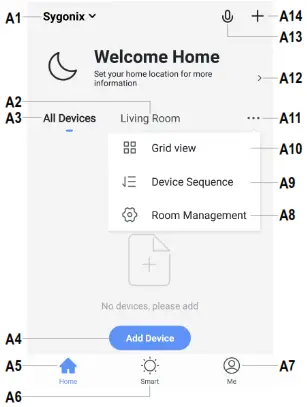
Swipe down from the top of the screen to refresh the page.
A1 Access to “Home Management” settings, where you can name a home, set the home location on a map, and assign/add new devices to each room.A2 Enter a room to view or add devices.A3 View all devices at once.A4 Adds a new device; identical with A14A5 Return to “Home Page” viewA6 Access “Tap-to-Run” and “Automation”.A7 Access your profile and settings.A8 Manage your rooms and assigned devices.A9 Remove one or all devices.A10 Switch between list and grid view,A11 Access submenus, see items A8, A9, and A10A12 Displays location information such as current temperature, humidity, air pressure, and wind speed.A13 Voice control.A14 Adds a new device; identical with A4
Add Device
Familiarize yourself with the product before setting it up. Refer to the product operating instructions for further information.
- Connect your mobile device to a Wi-Fi network.
- Add a device by selecting Add Device or the icon+.
- Select Small Home Appliances → Thermostat.
- Follow the on-screen instructions to complete the setup process.
Overview
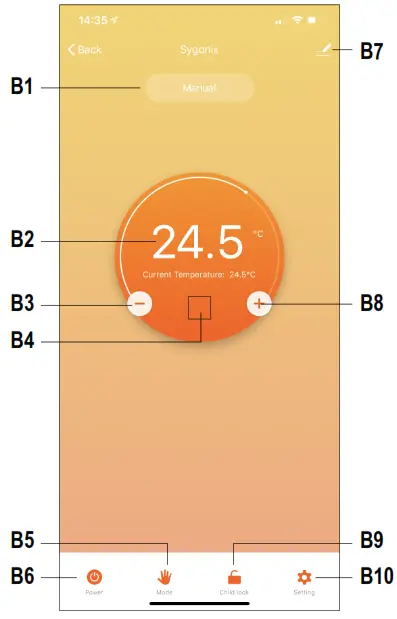
B1 Active modeB2 Current temperatureB3 Decrease temperatureB4 Flame icon (  ) shows when the heating has been triggered.
B5 Mode Select: Manual, Program, HolidayB6 Power ON/OFFB7 App settingsB8 Increase temperatureB9 Keypad lock ON/OFFB10 Thermostat settings
App settings
Change Device Name
- From the “overview” screen select

- Enter a new device name.

Device Sharing
To share access to a device e.g. with a family member:
- From the “Overview” screen select
 Share Device.
 - Follow the onscreen instructions.
Remove Device
You must remove the device before it can be used with a new account you have not “shared” with. E.g. If giving it to a third party.
From the “Overview” screen select  Remove Device.
Offline Notification
Receive a notification if your device goes offline.
From the “Overview” screen select Offline Notification > toggle on/off.
Create Groups
Devices under the same group can be controlled all at once.
1. From the “Overview” screen select > Create Group.
2. Follow the onscreen instructions.
Push Notifications
To receive notifications, notifications should be enabled in the app and in your mobile device notification settings.
1. From the “Home Page” view select Me > Settings > App Notification.
2. Set your notification settings as required.
FAQ
Visit a list of frequently asked questions here: From the “Overview” screen select FAQ & Feedback.
Device settings
To access device settings, select the icon from the “overview” screen. Enter the following password when prompted: 123456
- Application device settings are the same as the ones that can be adjusted directly on the thermostat.
- The table shows application settings alongside equivalent thermostat settings.
- Refer to the hardware manual for further information about each setting.
| Application | Thermostat |
| Temperature Setting | BN |
| Temperature Calibration | A1 |
| high temp Protection | AA |
| LowTemp Protection | A9 |
| Int Sensor Deadzone | A2 |
| Ext Sensor Deadzone | |
| Device State On Power | A4 |
| Max Temperature Limit | A8 |
| Min. Temperature Limit | A7 |
| Program Type | A6 |
| Weekly program setting | Weekly schedule program |
Troubleshooting
The app cannot connect to the device
This may be due to a weak Wi-Fi signal or an interrupted connection.
- Check that your internet connection is working correctly. Check cables, routers, and connections. Restart network devices if necessary.
- Check that the device is within range of your Wi-Fi access point. Use of other 2.4 GHz products e.g. wireless networks and microwave ovens may cause interference.
- You may need to set up a wireless repeater to improve the connection.
- If the device is battery powered, it may need to have the batteries replaced.