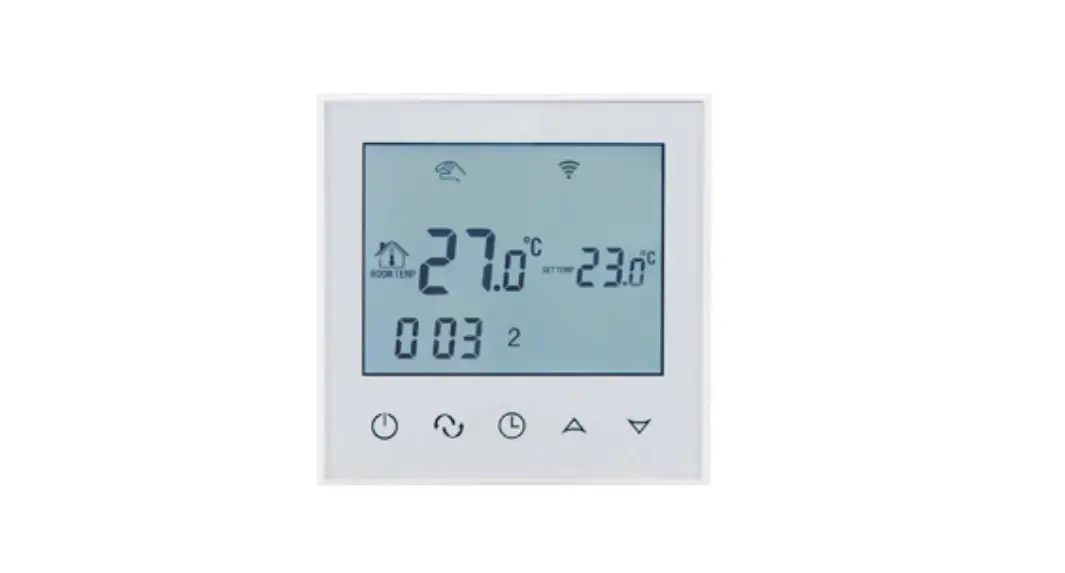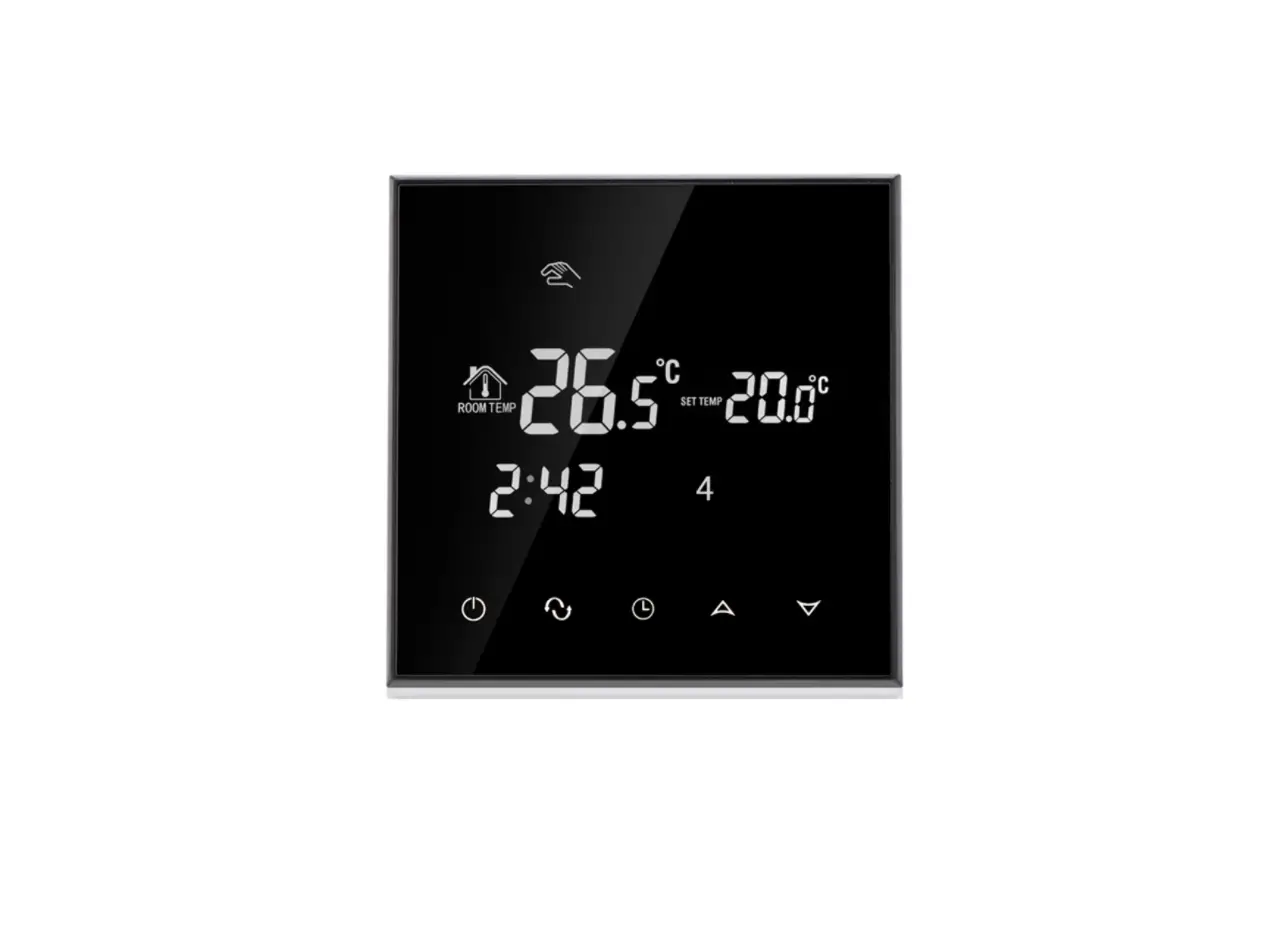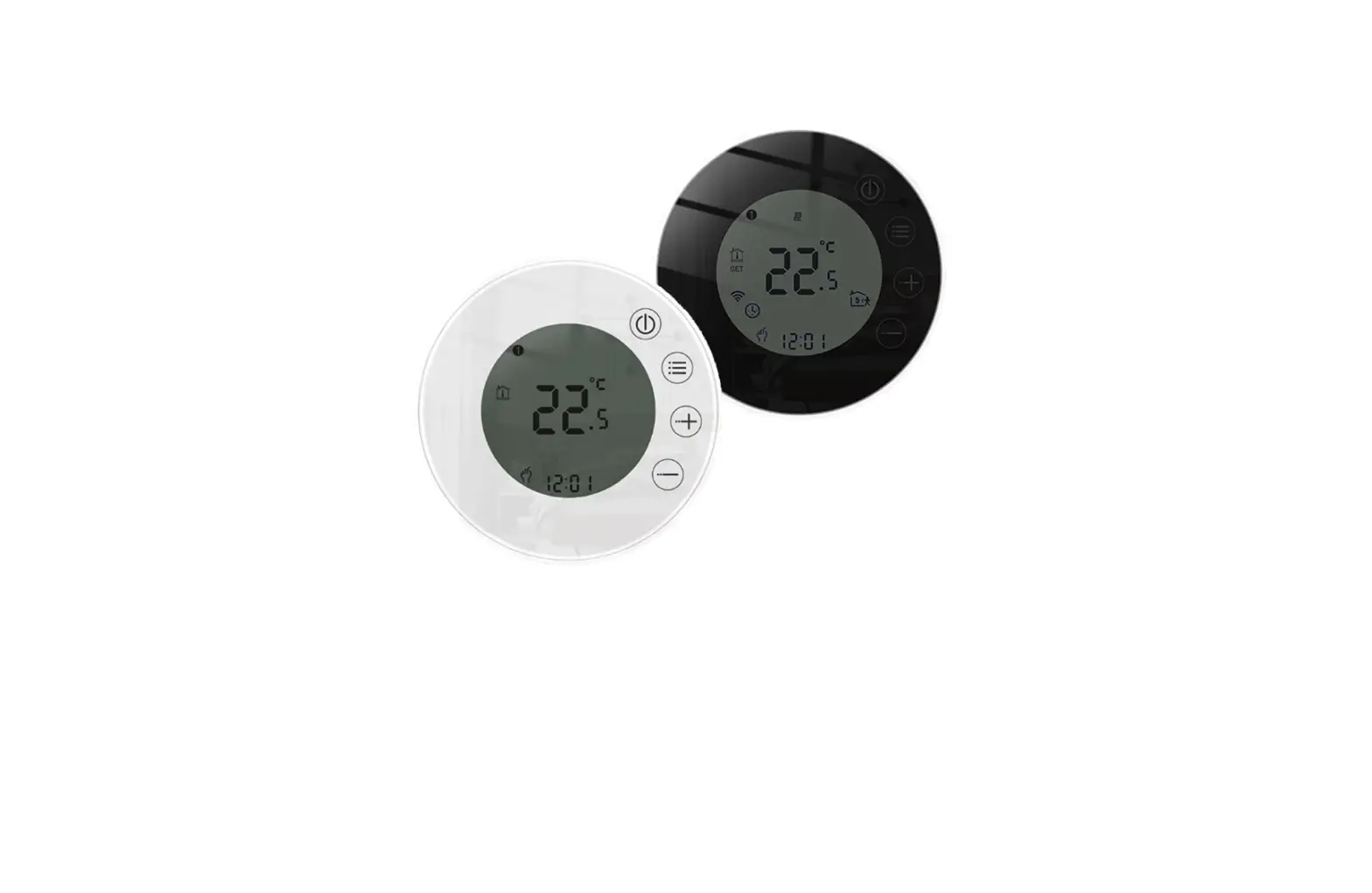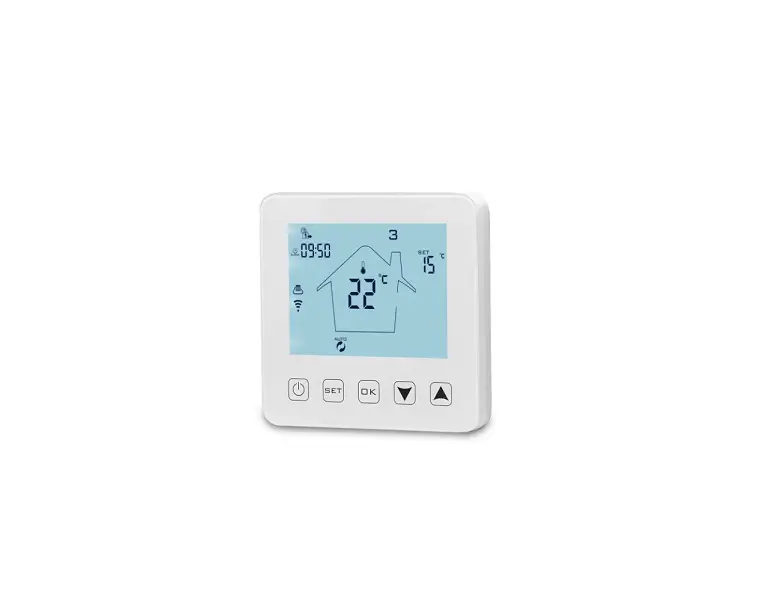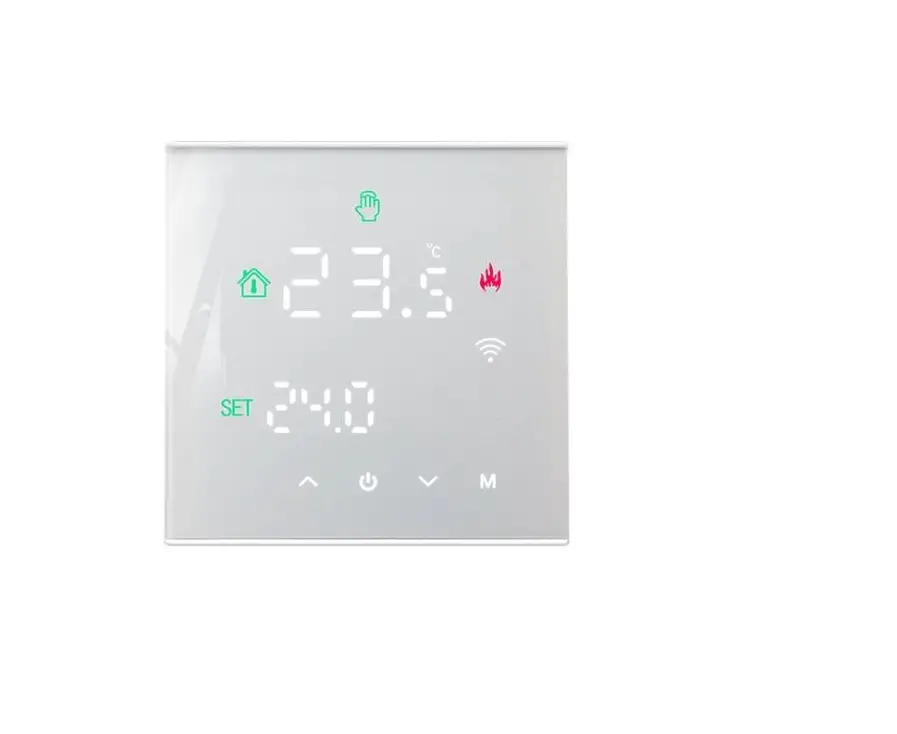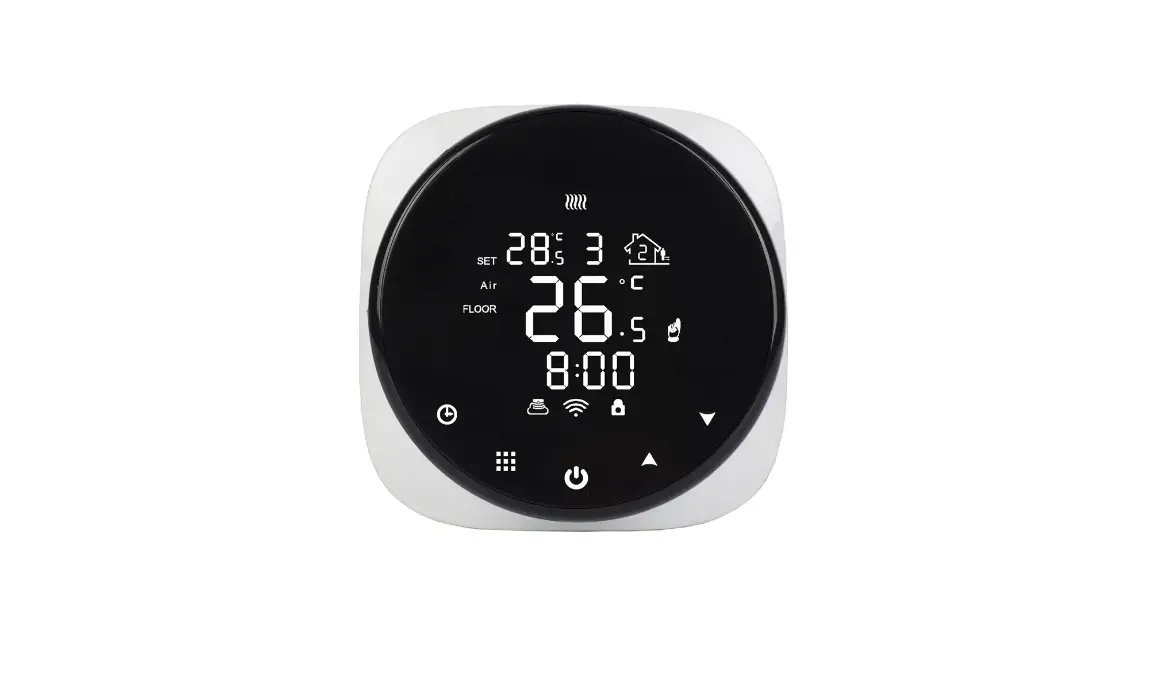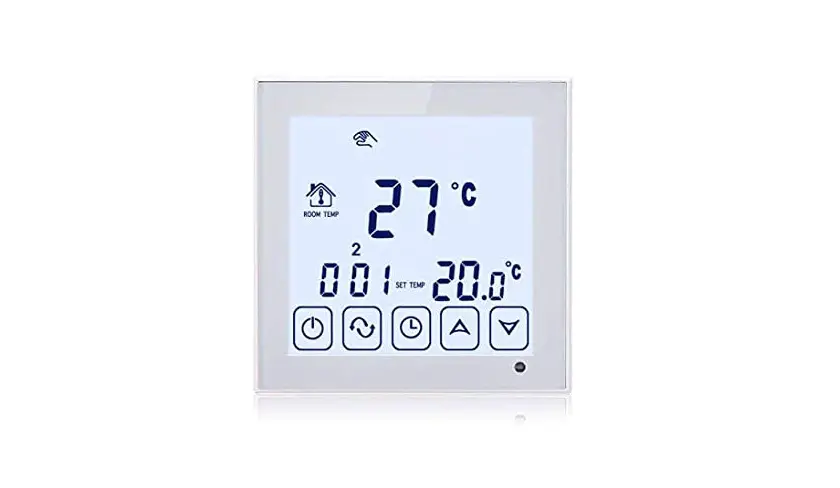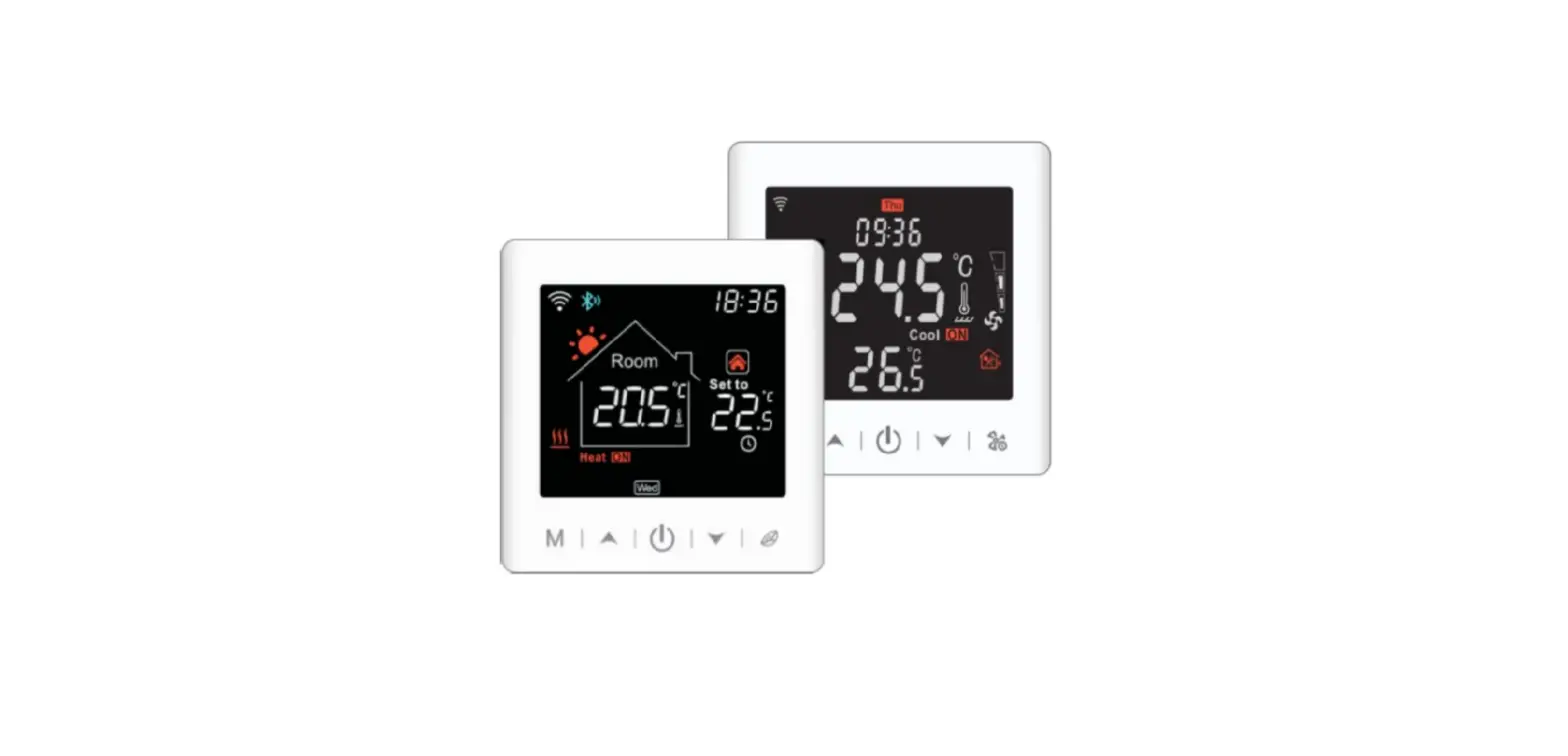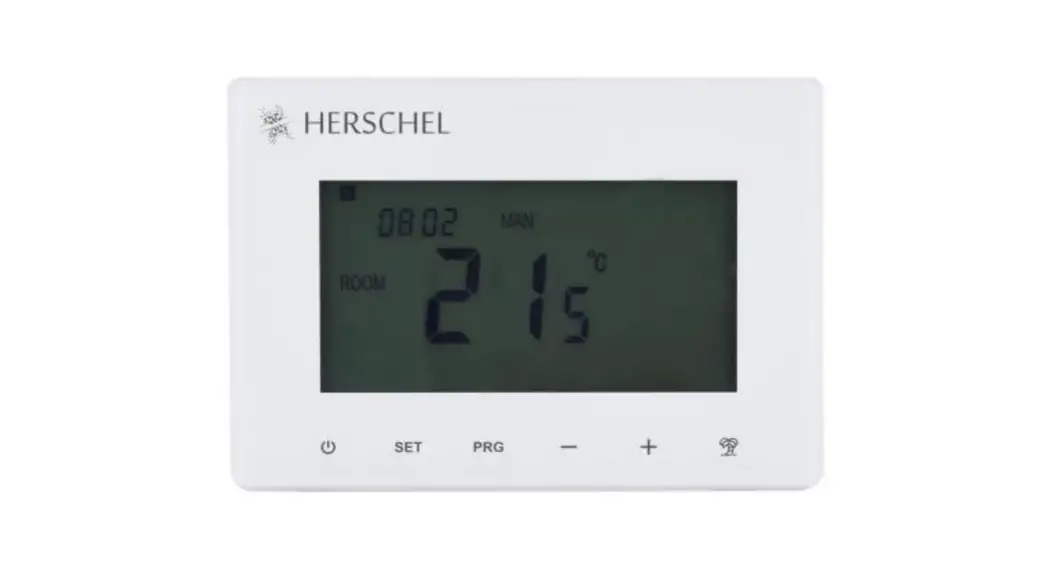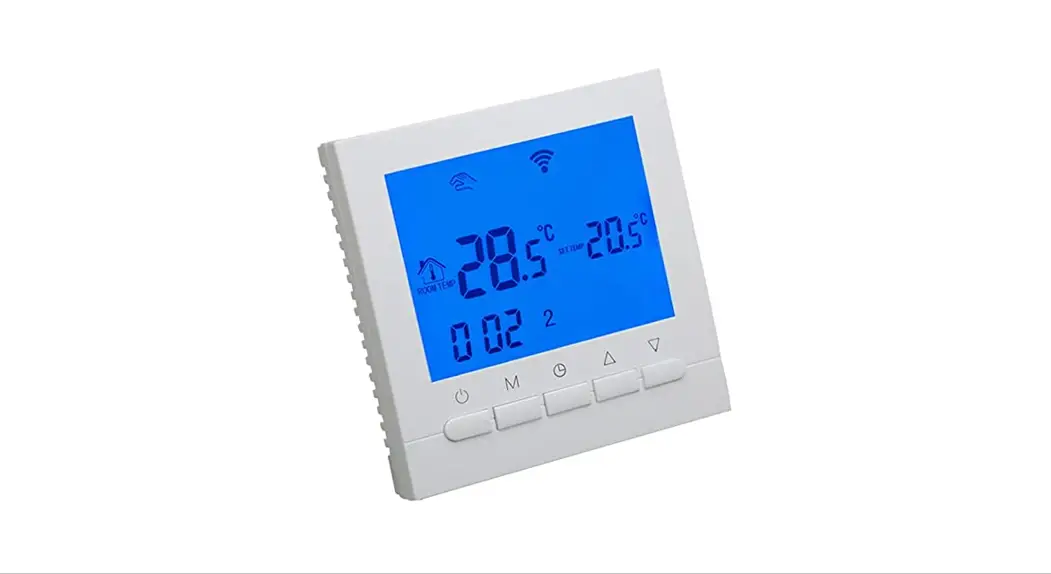

BEOK TDS23 WiFi Heating Thermostat 
Product Summary
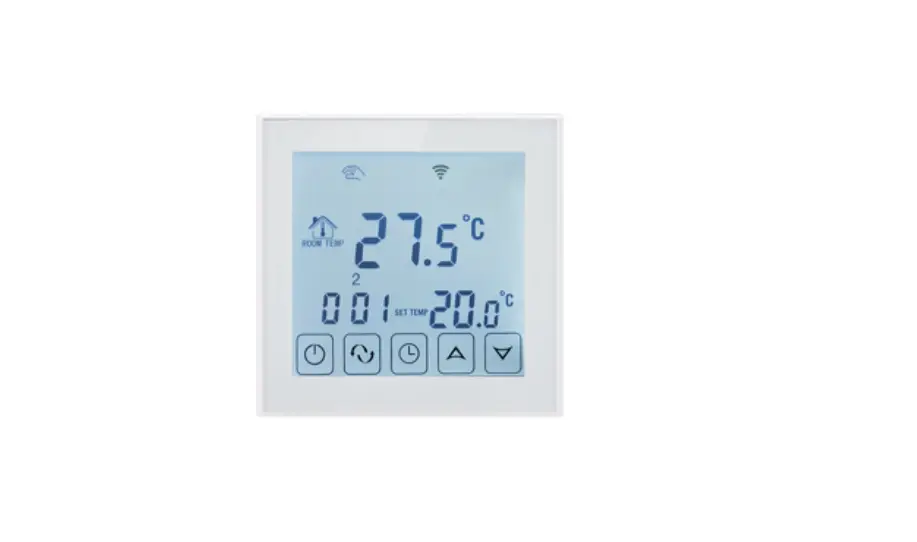
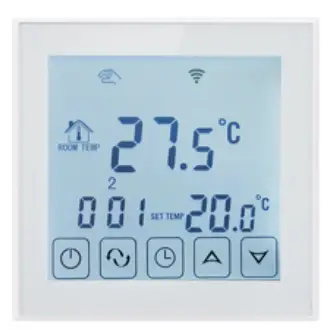
TDS23 WiFi Heating Thermostat is a WiFi touch screen thermostat with phone control. It is applied to temperature control of the industrial, commercial, and domestic room, and start of control heating appliances, especially floor heating systems. It can be controlled by phone. Phone systems are IOS and Android system optional.
Technical Parameter
| Power Supply | 200 ~ 240V 50 ~60Hz |
| Current Load | ≤3A(water heating) ≤16A(electric heating) |
| Power Consumption | <0.3W |
| External Material | PC+ABS (flame retardant) |
| Sensing Element | NTC |
| Set Temp. Range | 5-60℃ |
| Floor Set Temp. Range | 5-99℃ |
| Accuracy | ±1℃ |
| Dimension | 86x86x13.3mm |
| Ambient Temp. | 0-45℃,5-95%RH(Non-condensing) |
| Storage Temp. | -5~55℃ |
| Timing Error | <1% |
Main Functions and Characteristics
- Large screen display and touch button
- Power-off memory function
- Real-time data save function
- 5+2 or 6+1or 7days six periods program schedule
- Anti-freezing function
- 3 sensor modes can be set
- Selectable 80mmx80mm European hidden box.
- With child lock function
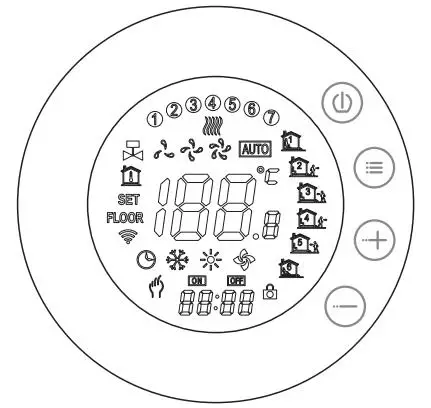
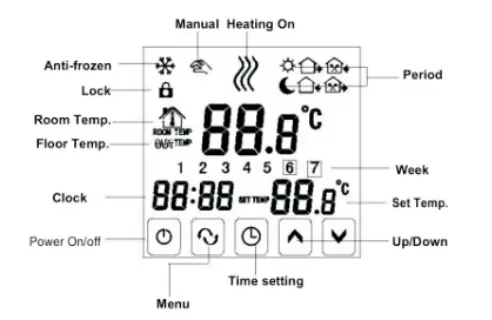
User Interface Explanation(Thermostat Port)
| Power Supply | 200 ~ 240V 50 ~60Hz |
| Current Load | ≤3A(water heating) ≤16A(electric heating) |
| Power Consumption | <0.3W |
| External Material | PC+ABS (flame retardant) |
| Sensing Element | NTC |
| Set Temp. Range | 5-60℃ |
| Floor Set Temp. Range | 5-99℃ |
| Accuracy | ±1℃ |
| Dimension | 86x86x13.3mm |
| Ambient Temp. | 0-45℃,5-95%RH(Non-condensing) |
| Storage Temp. | -5~55℃ |
| Timing Error | <1% |
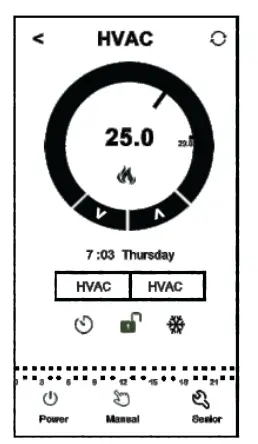
User Interface Explanation(Phone Port)
Model Spec
| Week Program | Controlled Objects | |
| TDS23WIFI-EP | 16A | For electric heating appliances |
| TDS23WIFI-WP | 3A | For water heating appliances |
| DS23WIFI-WPB | 3A | For gas boiler |
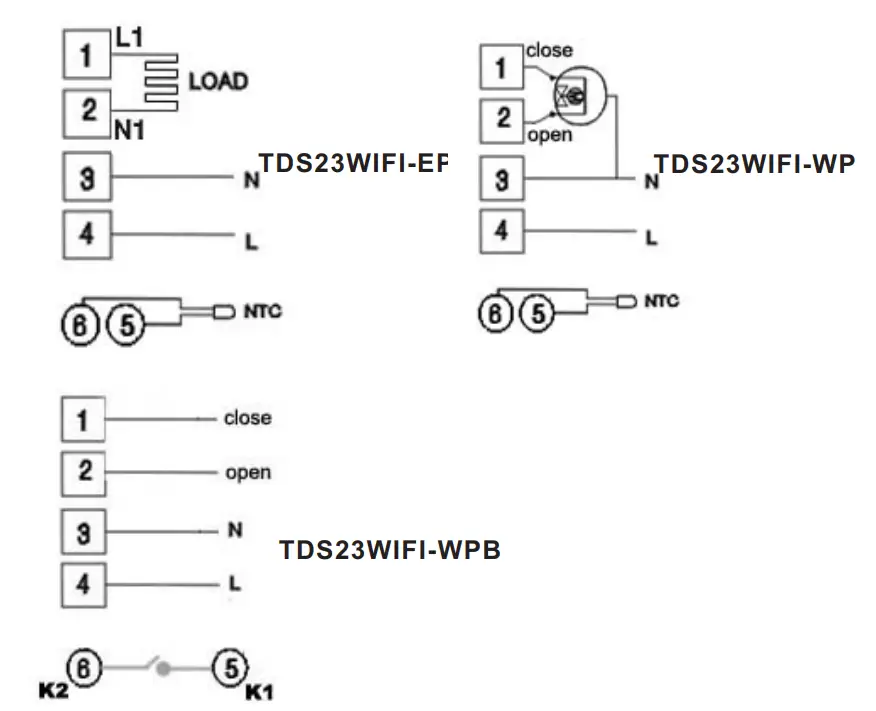
Wiring Diagram
VIII. Thermostat Operation Instruction
Setting Power on/off
- Press to turn on/off the power.
Setting Temperature
- Press to set the temperature.
Setting the Clock
- Press to set minute, hour and week.
- Press for adjusting.
Setting the Manual Mode.
- Manual mode means non-programmable mode.
- will display in the screen, it is in manual mode.
- Press to set the temperature. Press to set the minute, hour and week.
Setting the Child Lock
- Long press again, the child lock will be disappeared
Setting the Programmable Mode.
- Press and hold into programmable mode. LOOP and 12345 will display.
- Press to select the control way: 5+2 or 6+1 or 7 days programmable.
- 12345 display in the position of the week means 5+2;
- 123456 display in the position of the week means 6+1;
- 1234567 display in the position of the week means 7 days programmable.
- Press to select the periods.
- Press to change the temperature;
- Press to do time adjustment.
- Press to change the time;
- Press again to select the weekend’s temp.
- If you want to make temporary adjustments in any period,
- press then will flash. When finish the setting, all will confirm
| Period | Period Icon | Defaulted Time | Defaulted Temp. | |
|
Week | 1 | 6:00 | 20℃ | |
| 2 | 8:00 | 15℃ | ||
| 3 | 11:30 | 15℃ | ||
| 4 | 12:30 | 15℃ | ||
| 5 | 17:30 | 22℃ | ||
| 6 | 22:00 | 15℃ | ||
| Weekend | 1 | 8:00 | 22℃ | |
| 2 | 23:00 | 15℃ | ||
Remark:
- The defaulted temperature of period3 and period4 is the same as period2. Please change it according to the request.
- When the setting temperature is 00, this period is powered off.
- How to check floor temp?
- check floor temp.. OUT TEMP will display. Press again to display room temp..
Advanced Setting
In the state of power-off, long press and hold advanced setting mode. Then press to set relative item.
| Display Code | Function | Setting And Options | Factory Defult |
| SEN | Sensor mode | 0:Internal sensor 1:Floor sensor 2:Both internal sensor and floor sensor | 0 |
| OSV | Set temp. range for floor sensor | 5-99℃ | 42℃ |
| DIF | Precision for floor temp. | 1-9℃ | 2℃ |
| SVH | High limit temp. for internal sensor | 5-99℃ | 35℃ |
| SVL | Low limit temp. for internal sensor | 5-99℃ | 5℃ |
| ADJ | Measure temp. | Check and calibrate the actual room temp. | 0.5℃accurac calibrate |
| FRE | Anti-frozen | 00:Close anti-frozen 01:Open anti-frozen | 00 |
| PON | Power memory | 00:Power memory off 01:Power memory on | 00 |
| DFI | Precision for room temp. | 0.5~3℃ | 1℃ |
| FAC | Factory setting | 10 or 32:Wifi mode open 08:Just display | 08 |
Remark:
Deadzone for floor temp.: i.e. the setting deadzone for floor sensor is 2, OSV is 42℃ when actual temp. reach 44℃, the relay will stop working; when actual temp. is back to 40℃, the relay starts working again. It works when room temp. is lower than set temp.
Sensor error:
Please select the right sensor mode. If select a different mode or there is the error of the sensor, Err will display on the LCD screen, the thermostat will stop heating till the problem is solved.
IX. Phone Port Operation Instruction
- Install APP on phone
For iOS system: Login in App Store, search “ Book Home”, you can download it on your iPhone.
Or scan the below code to download:

For Android System: Login in Google Play, search “Beok Home”, you can download it on your phone.
Or scan below code to download: 2. Connection Thermostat with Phone
Thermostat Setting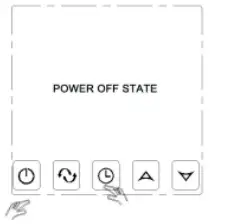
Hold on the Clock key, then press the Power key. 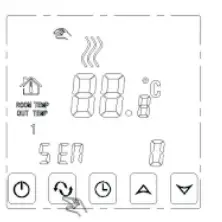
Go into Advanced Setting, press the Menu key 9 times until FAC mode appears. 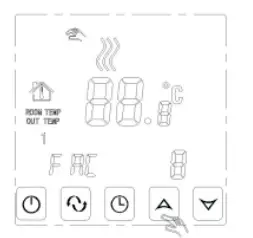
When FAC appears, press the UP key to change from 8 to 10 or 32. 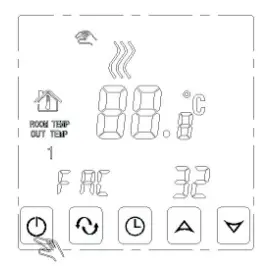
Then, press power off.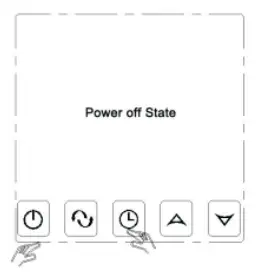
Hold on the Clock key, then press the Power key again. 
At this time, the wifi symbol will be twinkling quickly and frequently. It means you can connect the thermostat with your phone now.
When the wifi symbol stops twinkling, it means the thermostat is successfully connected to the phone.
Connection with Phone
Open Book Home APP on your phone, you can see APP welcome page 
When the thermostat Wifi Symbol twinkles fast, you can start the configure on your Phone. 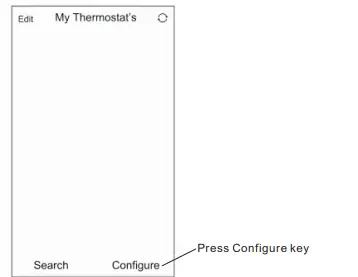
Enter your wifi name and password, then start connection at below. When connection success, it will appear “Connection Success”.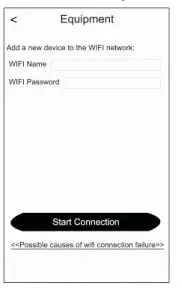
After connection success, you need to press the “Search “ key.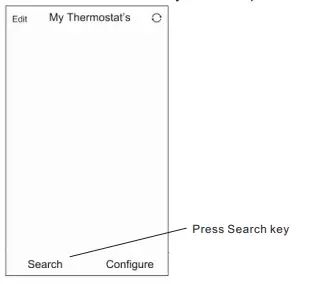
Then it will appear your wifi thermostat HVAC. HVAC is the factory setting name, when you have more than 2 thermostats, you can change it to any name you want.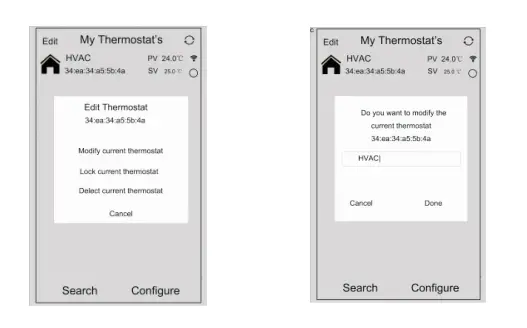
APP Interface on the Phone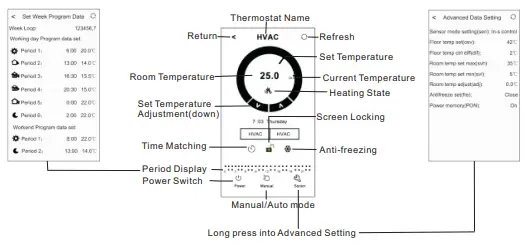 Thermostat Setting through Phone Operation
- Clock: You can press Time Matching switch to match your phone clock with the thermostat clock.
- Children lock (screen locking): Press to lock the thermostat.
- Anti-Freezing: Press thermostat will show on the screen, which means the Anti-freezing function is open.
- Temperature setting: You can drag the pointer on Temperature Setting Dial to set the temperature. Or press and to set temperature step. directly
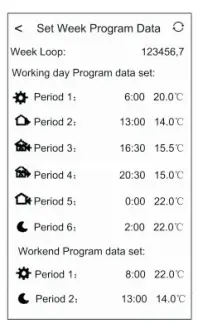
- .Period setting: Long press Period Display, then you will go into the Period Setting mode:

- Touch work loop: you can choose the week program mode: 5+2/ 6+1 /7.
- Touch each time value: you can set the time of the period.
- Touch each temperature: you can set the temperature of the period.
Notice: When you choose the program mode to 7, the Weekend program data set will no appear.
Advanced Setting: Long Press Senior, you will go into Advanced
setting mode: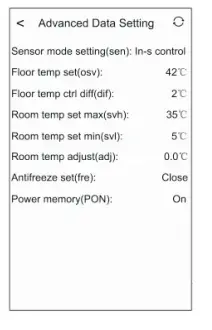
| Display Code | Function | Setting And Options | Factory Defult |
| SEN | Sensor mode | In-s control Out-s control In-s control., Out-s limit | In-s control |
| OSV | Floor set temp. range | 5-99℃ | 42℃ |
| DIF | Floor temp. ctrl diff | 1-9℃ | 2℃ |
| SVH | Room temp set max | 5-99℃ | 35℃ |
| SVL | Room temp set min | 5-99℃ | 5℃ |
| ADJ | Room temp. adjust | -5-5℃ | 0℃ |
| FRE | Anti-frozen | close/open | Close |
| PON | Power memory | off/on | On |
Switch of Manual mode and Auto mode: Press to switch manual
mode or Auto mode.
Power off Press to turn on or off the thermostat.
Attention to Phone WiFi Connection:
- After you press Configure if the connection fails:
- Please confirm your mobile phone is set to WLAN mode, and ensure its (mobile data)3g/4g is turned off. Please connect to 2.4G wifi, not 5G wifi.
- Please add your wifi router name, we recommend it does not include spaces or Chinese symbols.
- Please check your wifi router password. We recommend not over 32 characters, no spaces, no blank password, no special symbols except letters and numbers.
- Please check module is successfully reset. In the power-off state, press the Time key first, then press the Power key to enter Advanced Setting. Find Press Time key within 2 minutes, then press the Power key again. This time, it will not enter Advanced Setting, but the WIFI symbol on the LCD screen will be flashing quickly and frequently. This means the wifi module has been reset successfully. Then wait for APP to connect well.
Please confirm wifi password is correctly filled. We recommend you check the password to be visible when it is input.2. If it displays the following reminder, please go to Advanced Setting to reset the corresponding setting.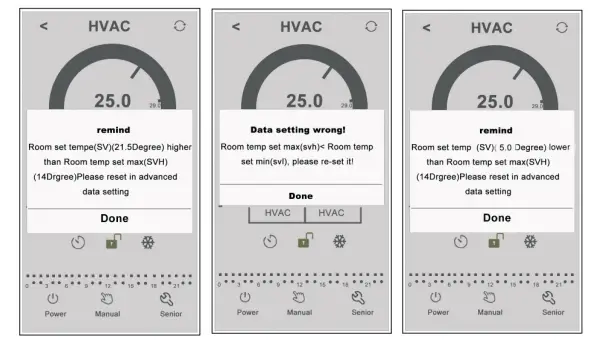
Installation Instruction
This product is suitable for standard 80*80mm wall boxes and 60 mm European round boxes.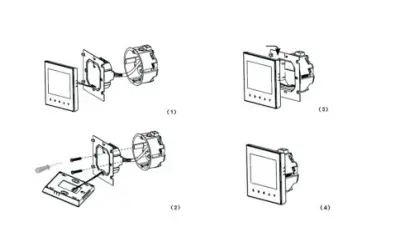
- Connect the line of power and valve into the terminals. Fix the wall plate into the wall box by a screwdriver.
- Connect the lines with the LCD board.
- Connect the LCD board to the wall plate.
NOTICE: The installation wire should be 1.5-2.5mm2.
ATT
Thank you for buying this product!
Please read this manual for complete instructions on installing and operating your thermostat. If you require further assistance, please feel free to contact us.
In the box you will find:
| Model | TDS23WIFI-EP | TDS23WIFI-WP | TDS23WIFI-WPB |
| Thermostat | √ | √ | √ |
| User Manual | √ | √ | √ |
| Screws | √ | √ | √ |
| External sensor | √ |
Our Service:
We offer a warranty of 24 months from the sales day.
During the warranty, if it belongs to the quality issue, we will fix or replace them for you for free after testing them.
If it is not a quality problem or beyond the warranty time, we will charge for the after-sales service.