
Quick Start Guide
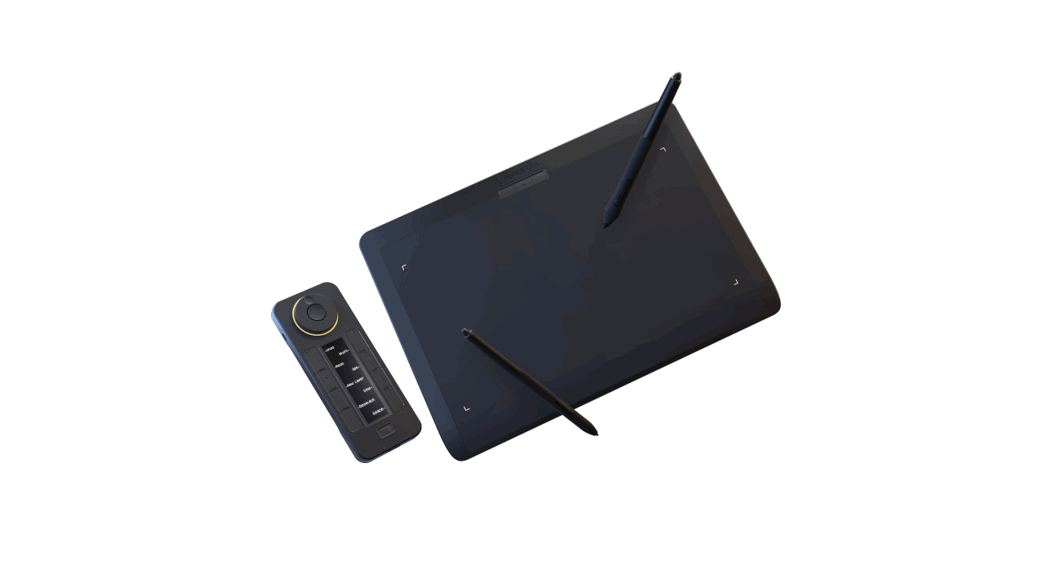
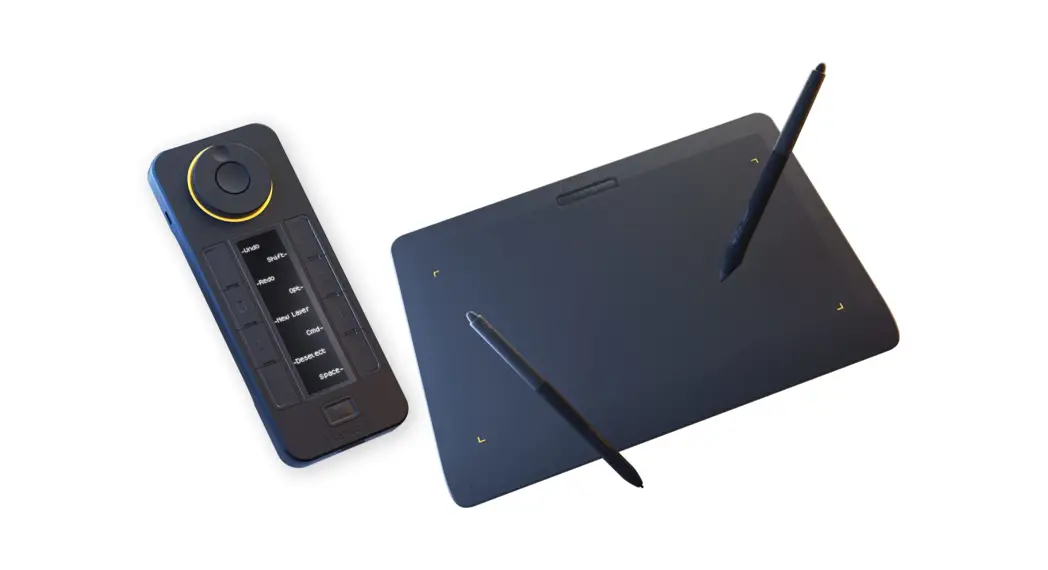
Xencelabs Pen Tablet Small / Medium
What’s in the Box
Xencelabs Pen Tablet Small / Medium
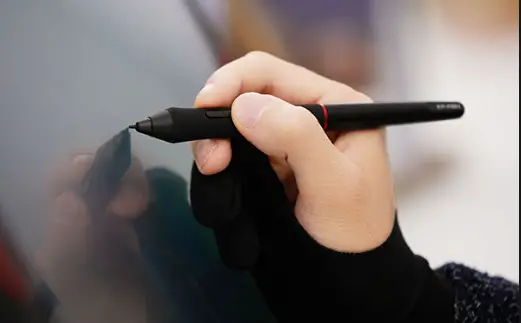
| Pen Tablet L-Style USB-A to USB-C Cable USB-A to USB-C Cable Pen Case Thin Pen 3-Button Pen Adapter USB-A to USB-C Wireless Dongle | Nibs (6 standards, 4 felt) Nib Extractor Drawing Glove Xencelabs Decal Tablet Sleeve *** Warranty Sheet and Thank-You Card (not shown) |
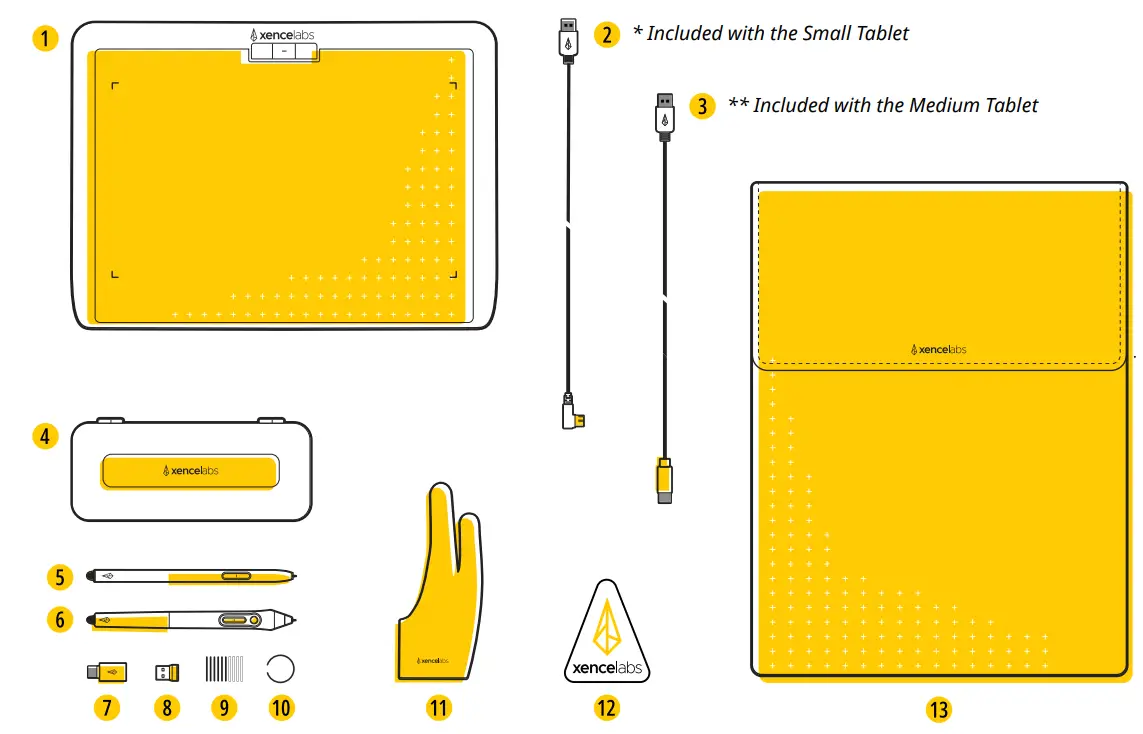
If you have any questions or concerns, please feel free to reach out at: [email protected]
Initial Setup
Xencelabs Pen Tablet Small / Medium
1. Download Drivers
To get the tablet’s full benefits, we strongly recommend you download and install the driver. The tablet will only have basic navigation functions without the driver. Use the link below to access the Xencelabs downloads page for the latest drivers for Windows, Mac, and Linux. xencelabs.com/support/download-drivers/
2. Install Drivers
After your download is complete, run the driver installer, start the setup wizard, and begin using your new tablet. Mac users should restart their computer after the software installation is complete for the driver to function correctly.
Find quick answers to the most commonly asked questions by checking on our online FAQ Knowlege Base page: xencelabsassist.freshdesk.com/en/support/solutions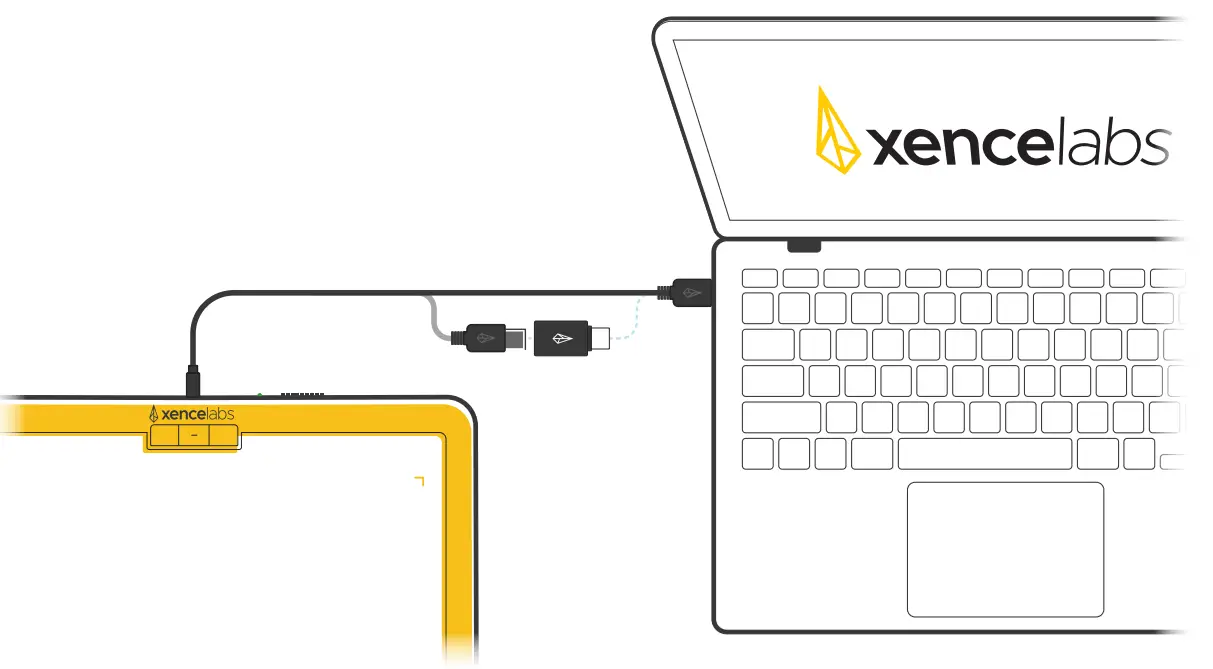
Important Note: For the initial setup only, the installation wizard requires a wired connection to at least one of your Xencelabs devices
Tablet Features
Xencelabs Pen Tablet Small / Medium
- Security
Kensington NANO Security Slot - Charging Indicator
A solid green light indicates full charge, breathing green light indicates charging, solid amber light indicates the device has a low charge. - Power Slide Switch
Slide and hold to turn on/off. Adjustable sleep times are in the settings panel. - Connection Indicator
Blinking blue light indicates searching for connection, solid blue light indicates successful wireless connection, and breathing blue light when connected via USB cable. - Buttons
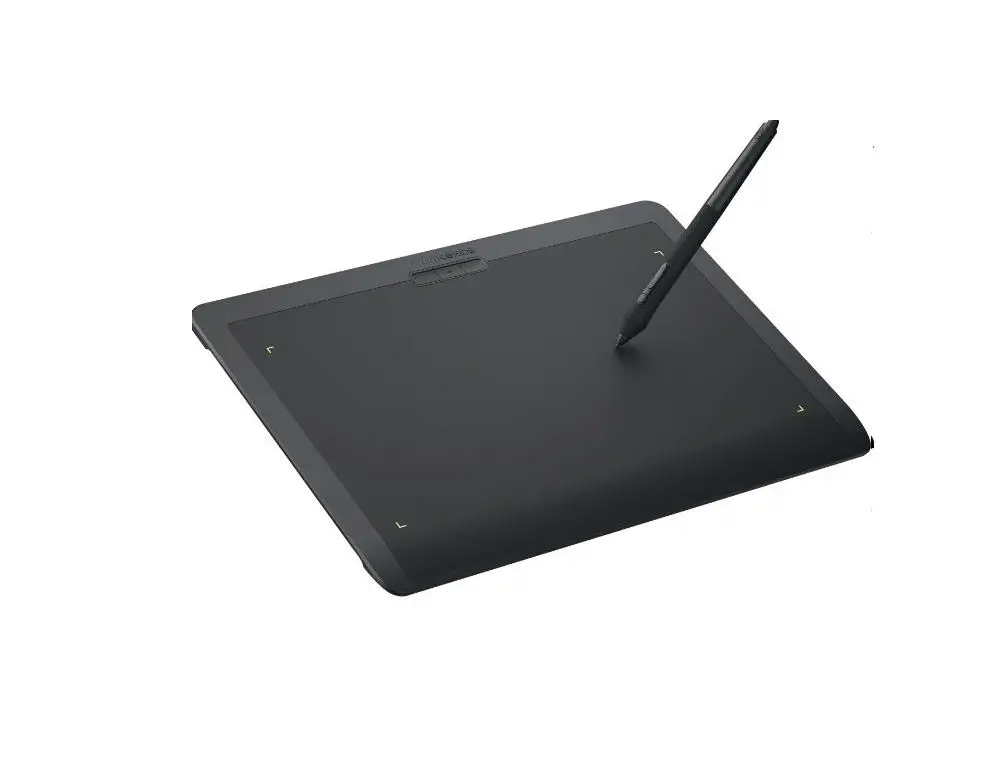
Three buttons at the top of the tablet give access to commonly used functions. All the buttons can be easily re-assigned in the software settings panel. - LED Active Area Markers
Active area brightness and color can be changed in the settings panel. - Curved Palm Rest
Seamless transition from the drawing area to the gently curved palm rest for increased comfort. - Sculpted Returns
Allows for easy pickup.
Connection Indicator Solid Blue -Connected
 Breathing Blue -Wired ConnectionBlinking Blue -Trying to Connect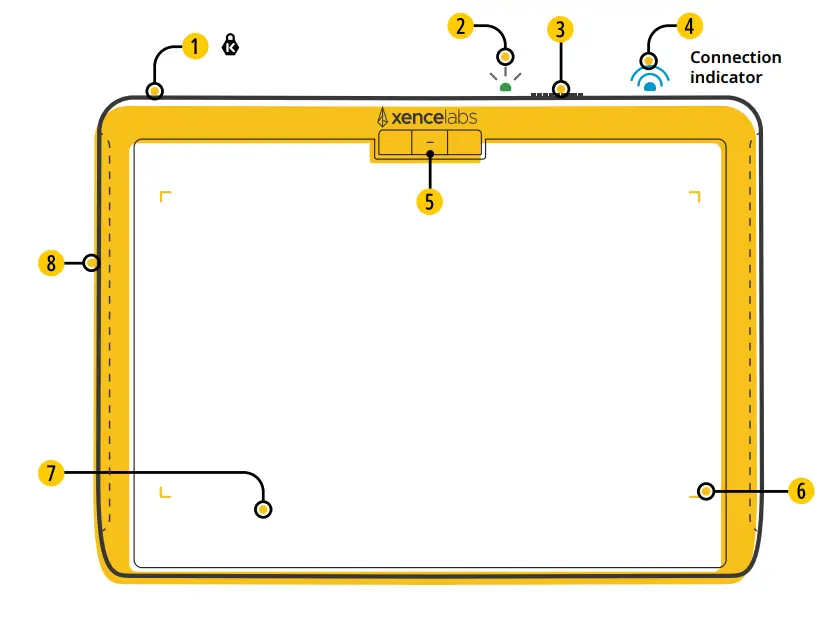
Connect Wirelessly
Xencelabs Pen Tablet Small / Medium
You can connect the tablet wirelessly with the provided dongle which establishes a wireless connection between the dongle and the tablet.
Additionally, we have provided a USB-A to USB-C adapter should you need it.
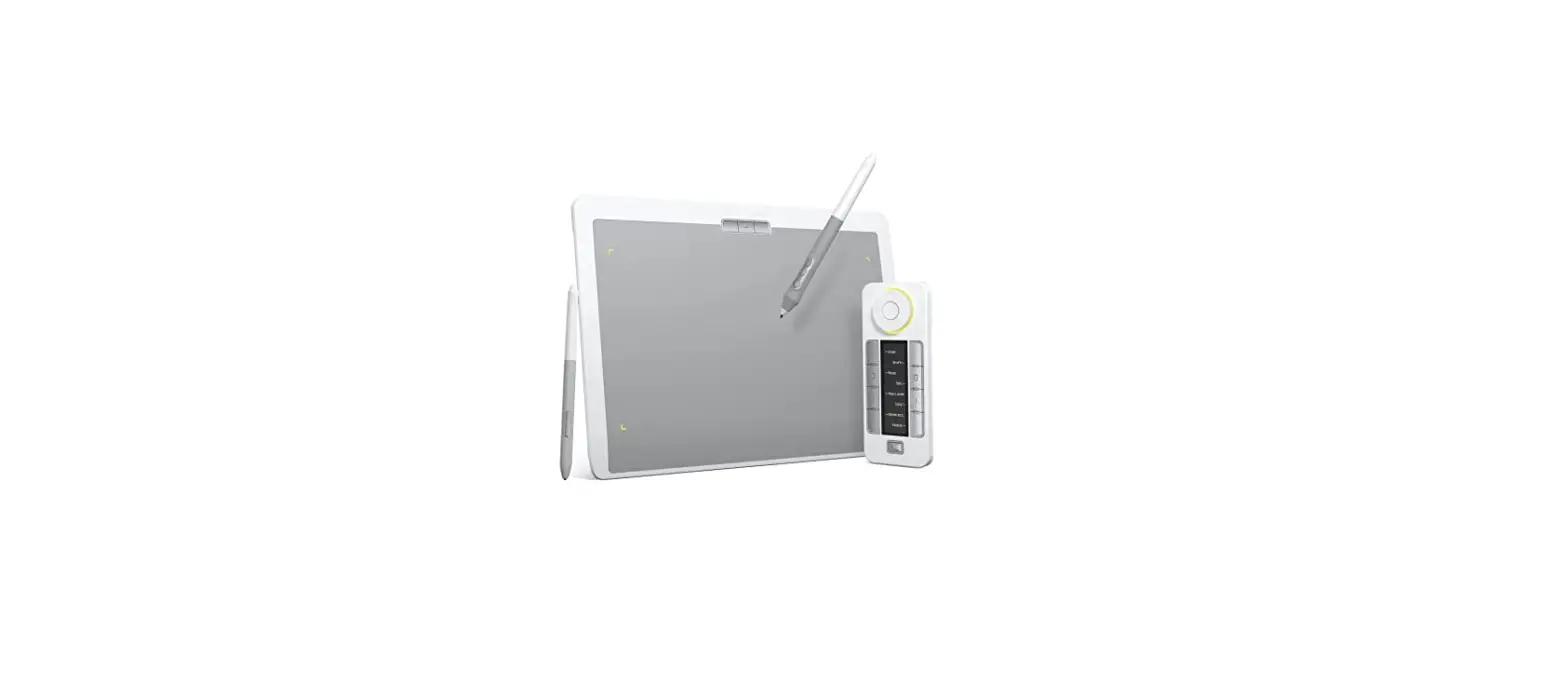
If you decide to purchase the Quick Keys later, the single provided dongle will connect both the tablet and the Quick Keys for added convenience.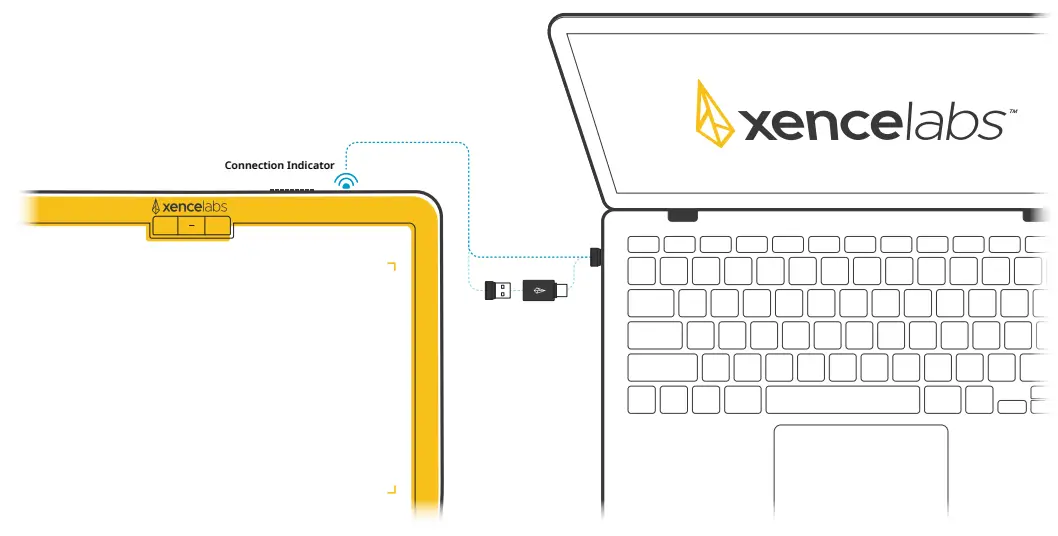
Connection Indicator Solid Blue - Connected Breathing Blue - Wired Connection Blinking Blue -Trying to Connect
If you have any questions or concerns, please feel free to reach out at: [email protected]
Device Charging
Xencelabs Pen Tablet Small / Medium
To charge your tablet connect it to a powered-on computer, powered USB hub, or another USB charger (5mAh required). To use your devices over a wireless connection, make sure they are sufficiently charged. When fully charged, the tablet will give you approximately 16 hours of continuous use. When critically low the LED lights will turn amber, and a breathing green light indicates charging. See driver settings panel for charge status.
If you have any questions or concerns, please feel free to reach out at: [email protected]Charging Indicator Solid Amber Low Charge
 Breathing Green Charging Solid Green Fully Charged
Product Registration
Xencelabs Pen Tablet Small / Medium
Register your New Product
Register to join the growing community of creatives using Xencelabs products and receive access to benefits like:
- Update Notifications
- Tips and Tricks
- New Product Announcements
- Special Promotions
- Xencelabs Events
Register Today at: register.xencelabs.com
Product Support at: support.xencelabs.com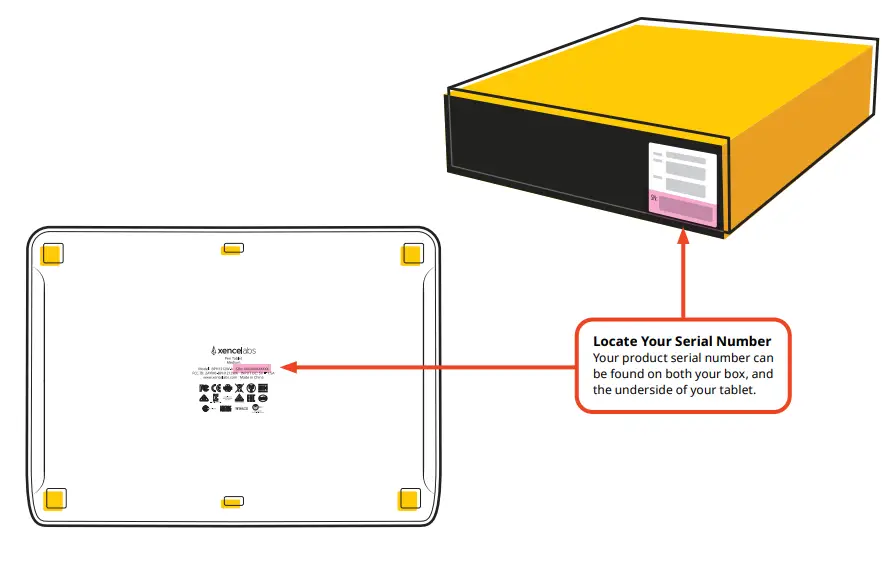
Xencelabs Technologies Ltd.
202 E. Evergreen Blvd STE 100
Vancouver, WA 98660, USA
xencelabs.com