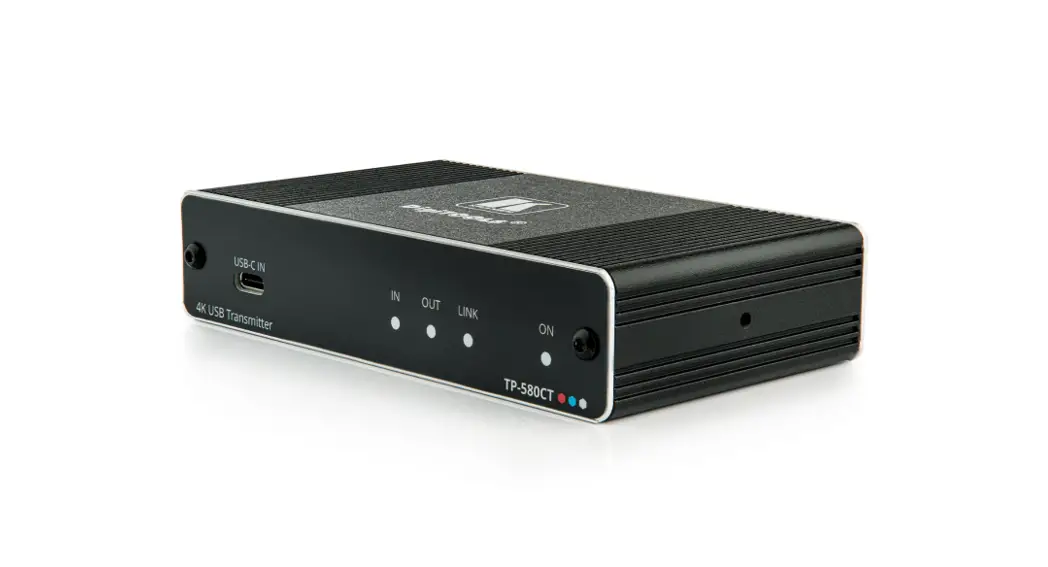
 TP-580CT Quick Start Guide
This guide helps you install and use your TP-580CT for the first time.
Go to www.kramerav.com/downloads/TP-580CT to download the latest user manual and check if firmware upgrades are available.
Scan for full manual
https://de2gu.app.goo.gl/Q24mpJn3V63TuZqo9
Step 1: Check what’s in the box
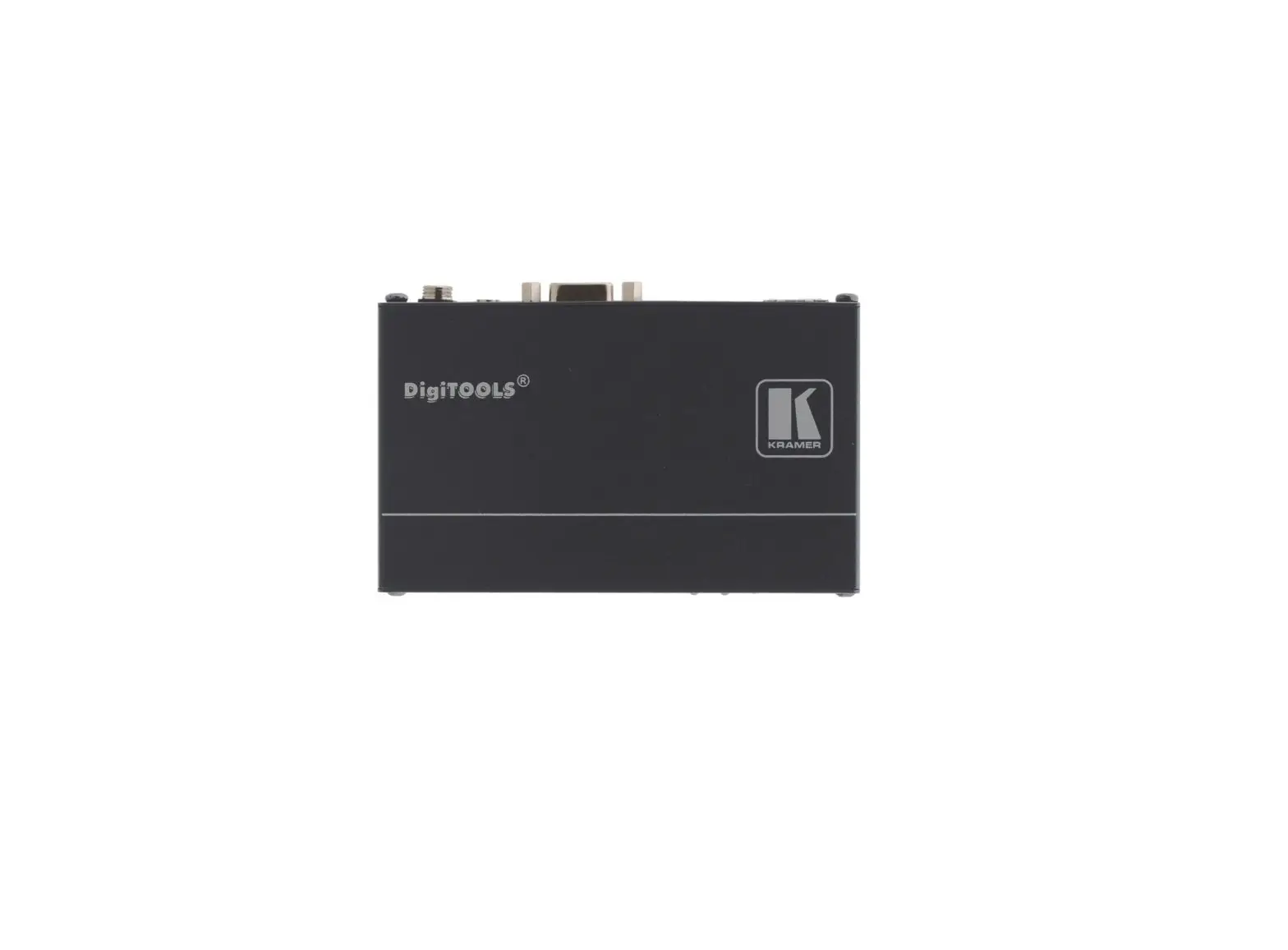
- TP-580CT 4K USB Transmitter
- 1 Bracket set
- 1 Quick start guide
- 1 Power adapter and cord
- 4 Rubber feet
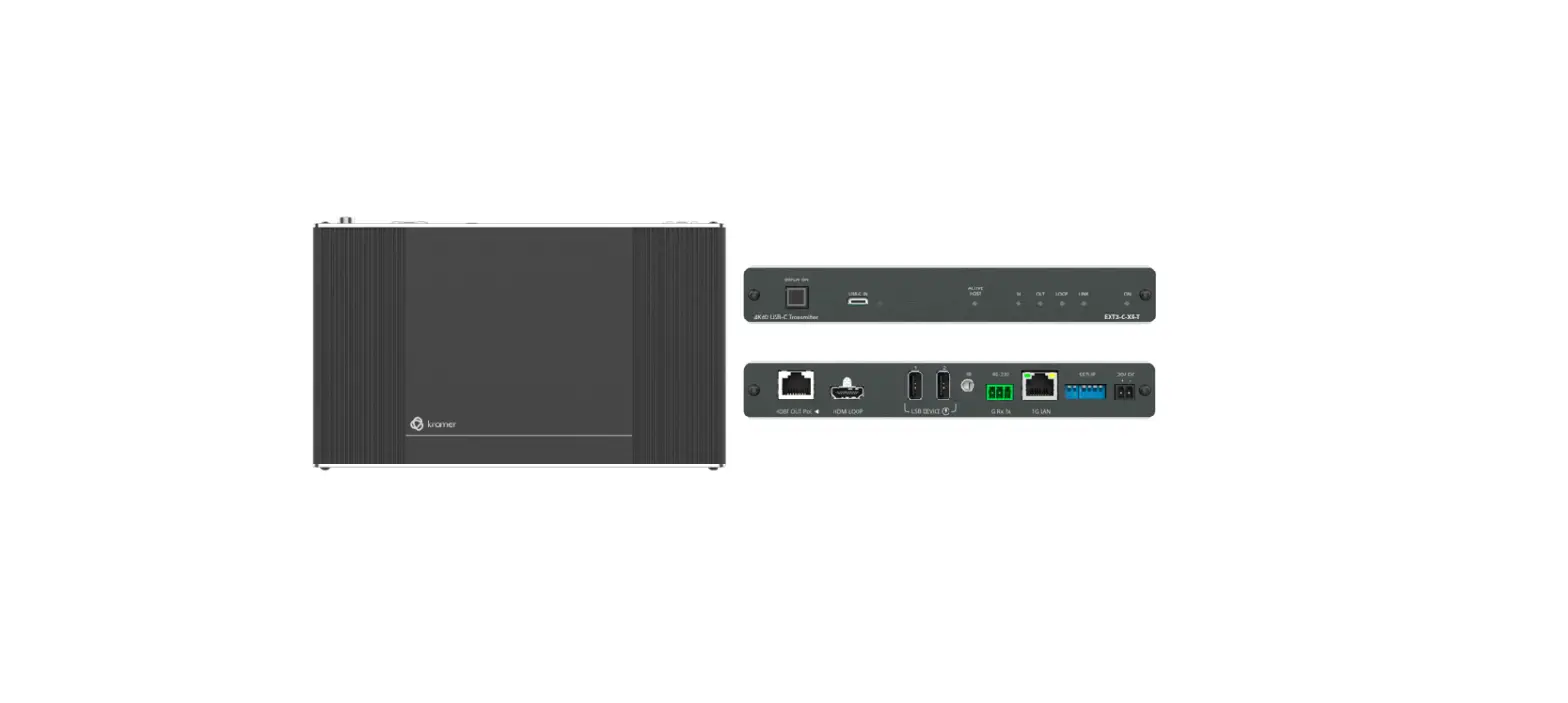
Step 2: Get to know your TP-580CT
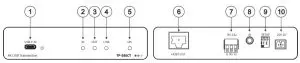
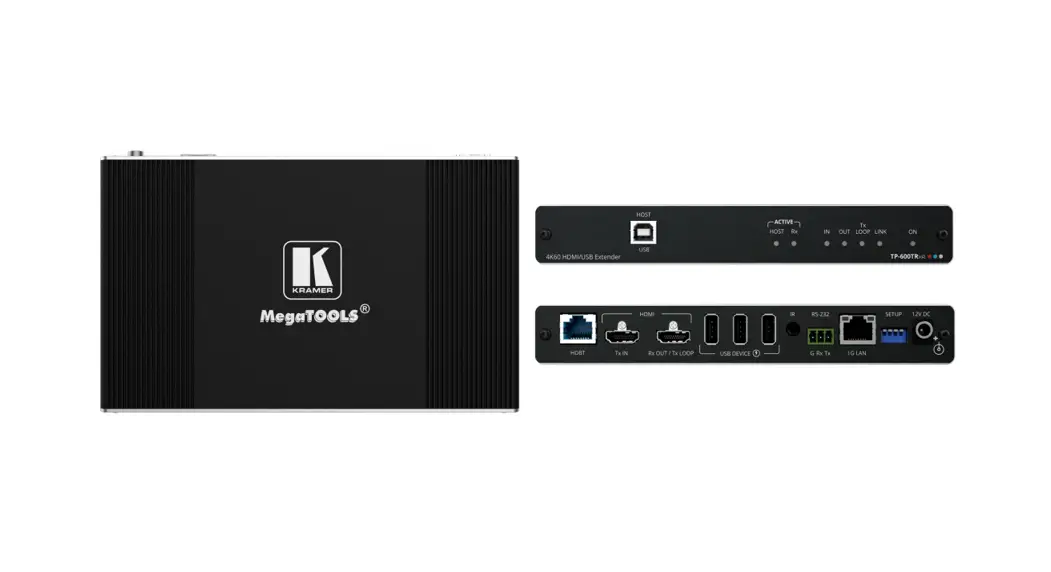
| # | Feature | Function | |||
| 1 | USB-C IN Connector | Connect to a USB-C AV source (that supports DisplayPort Alternate Mode). Charges sources (that support USB Power Delivery 2.0) up to 60W. While charging, the charging icon (to the right of the connector) becomes visible and lights orange. | |||
| 2 | IN LED | Lights blue when a USB-C input device is connected. | |||
| 3 | OUT LED | Lights blue when an HDMI output device is detected on the receiver side. | |||
| 4 | LINK LED | Lights green when the HDBT connection is active. | |||
| 5 | ON LED | Lights green when receiving power. | |||
| 6 | HDBT OUT RJ-45 Connector | Connects to the HDBT IN RJ-45 connector on a receiver (for example, TP-580R). | |||
| 7 | RS-232 3-pin Terminal Block Connector | Connects to a PC/serial controller to control the remote-controlled unit (for example, the display on the receiver). | |||
| 8 | IR 3.5mm Mini Jack | Bidirectional IR connection. Outputs a received IR signal (from the HDBT receiver) to a connected IR emitter or transmits an IR signal (from IR sensor) to the HDBT receiver. | |||
| 9 | SETUP DIP-Switches | Set DIP-switches. By default, DIP switches are set to OFF (up). Changes in DIP-switch settings apply immediately. | |||
| DIP # | Description | State | |||
| 1 | IR output modulation | OFF (up) — default | IR pass-through is disabled (38KHz modulation to IR output signal is added). | ||
| ON (down) | IR pass-through is enabled. | ||||
| 2 | OFF (up) — default | Normal operation. | |||
| ON (down) | FW upgrade via RS-232 is enabled. | ||||
| 10 | 20V DC | +20V DC 6A connector for powering the unit and charging the connected input device. | |||
TP-580CT Quick Start
Step 3: Mount TP-580CT
Install TP-580CT using one of the following methods:
- Attach the rubber feet and place the unit on a flat surface.
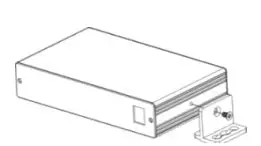
- Fasten a bracket (included) on each side of the unit and attach it to a flat surface (see www.kramerav.com/downloads/TP-580CT).
- Mount the unit in a rack using the recommended rack adapter (see www.kramerav.com/product/TP-580CT).

- Ensure that the environment (e.g., maximum ambient temperature & airflow) is compatible with the device.
- Avoid uneven mechanical loading.
- Appropriate consideration of equipment nameplate ratings should be used for avoiding the overloading of the circuits.
- Reliable earthing of rack-mounted equipment should be maintained.
- The maximum mounting height for the device is 2 meters.
Step 4: Connect inputs and outputs
Always switch OFF the power on each device before connecting it to your TP-580CT.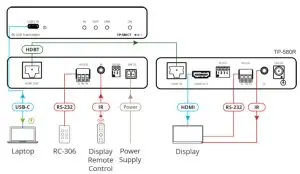
Wiring the RJ-45 Connectors
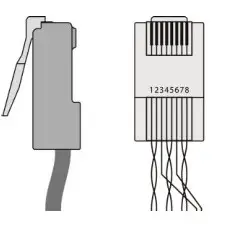
This section defines the TP pinout, using a straight pin-to-pin cable with RJ-45 connectors.
 For HDBT cables, it is recommended that the cable ground shielding be connected/soldered to the connector shield.
| EIA /TIA 568B | |
| PIN | Wire Color |
| 1 | Orange / White |
| 2 | Orange |
| 3 | Green / White |
| 4 | Blue |
| 5 | Blue / White |
| 6 | Green |
| 7 | Brown / White |
| 8 | Brown |
Step 5: Connect the power
Connect the adapter to TP-580CT and plug it into the mains electricity.
Safety Instructions (See www.kramerav.com for updated safety information)
Caution:
- For products with relay terminals and GPI\O ports, please refer to the permitted rating for an external connection, located next to the terminal or in the User Manual.
- There are no operator serviceable parts inside the unit.
Warning:
- Use only the power cord that is supplied with the unit.
- Disconnect the power and unplug the unit from the wall before installing.