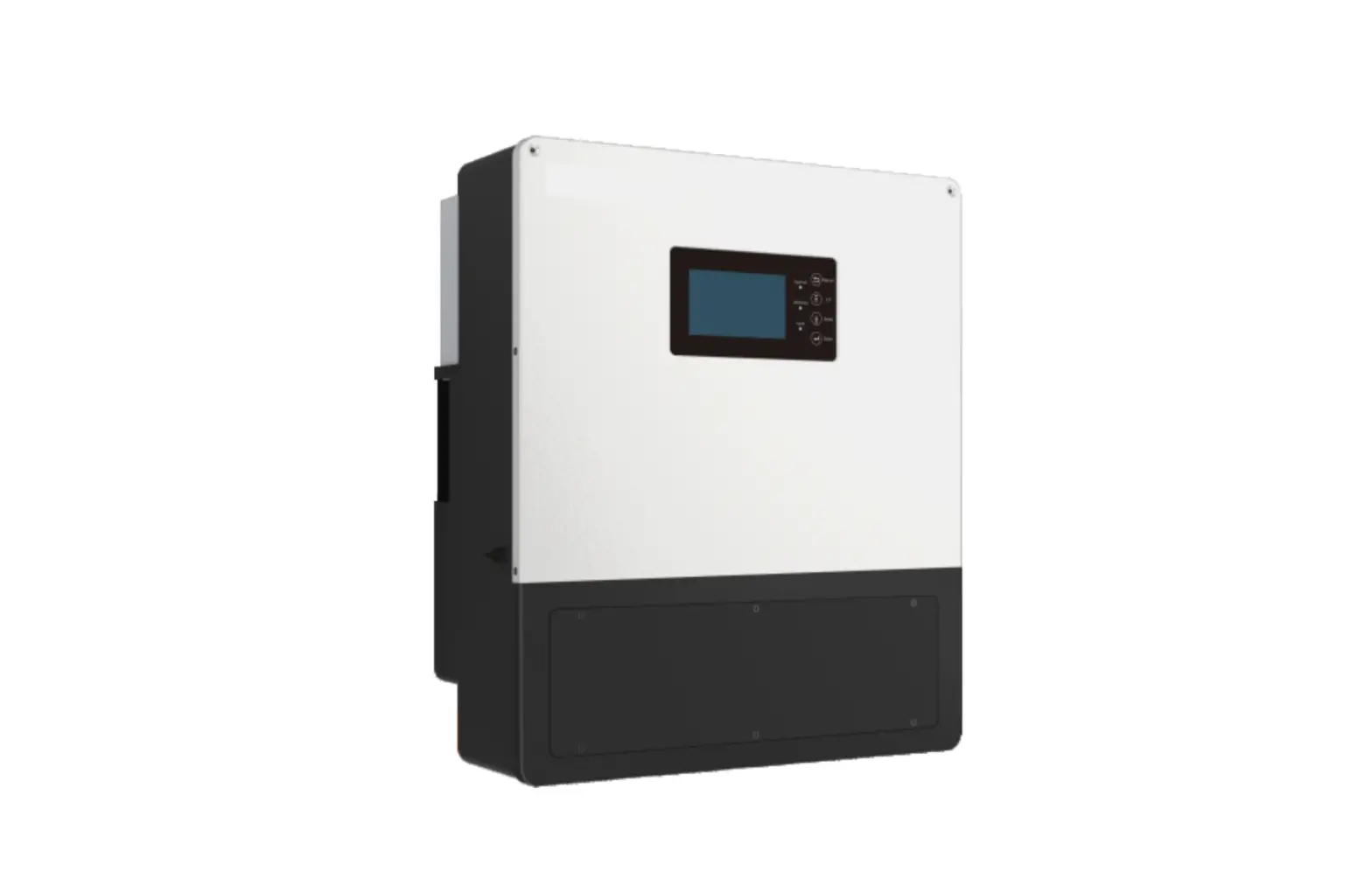
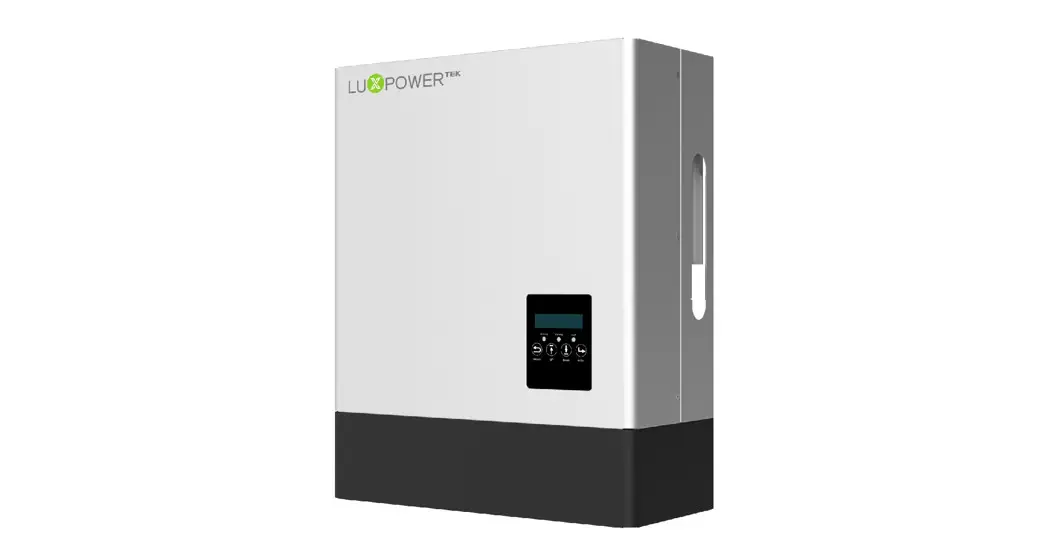
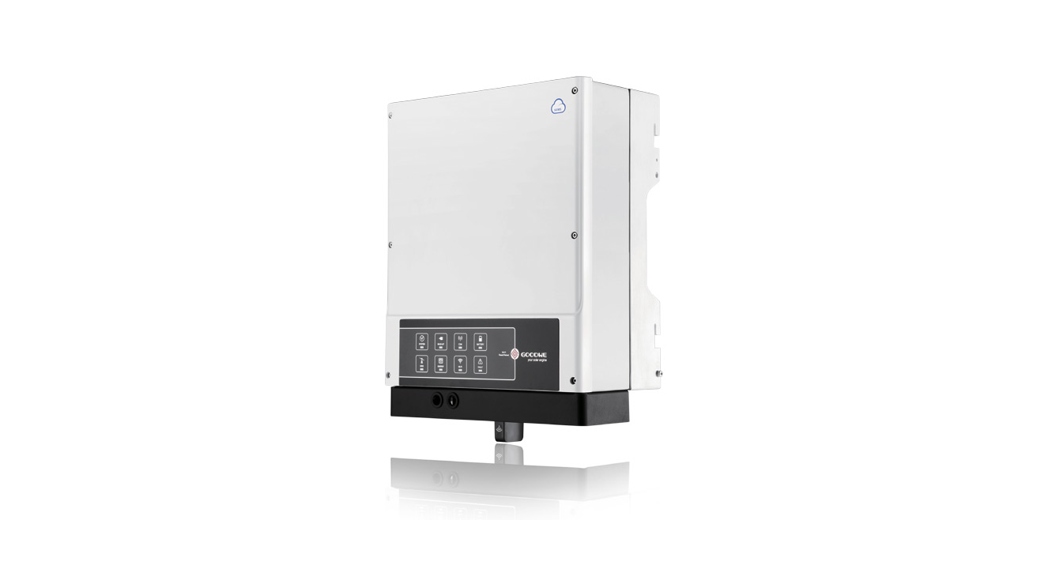
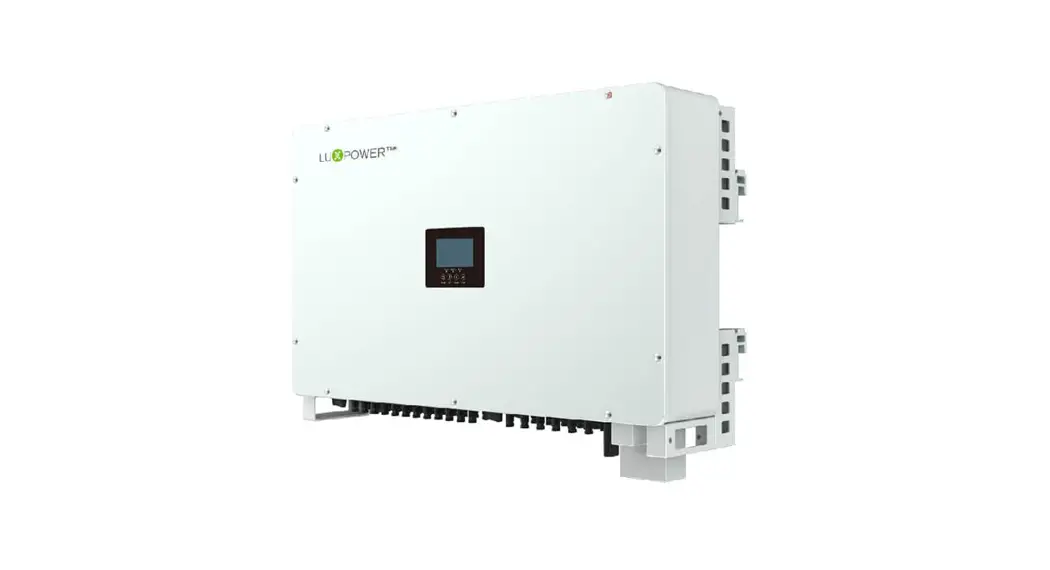
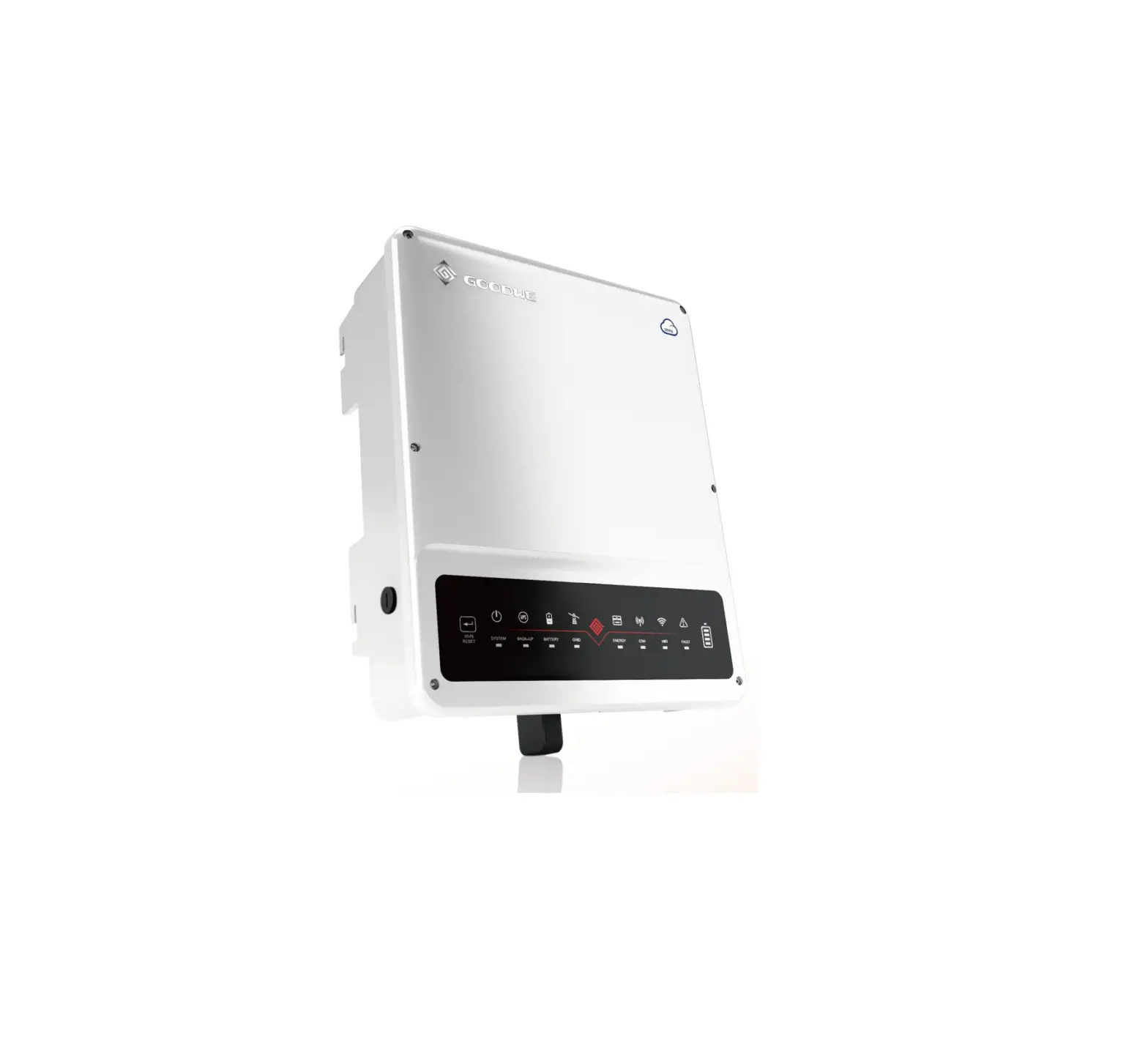
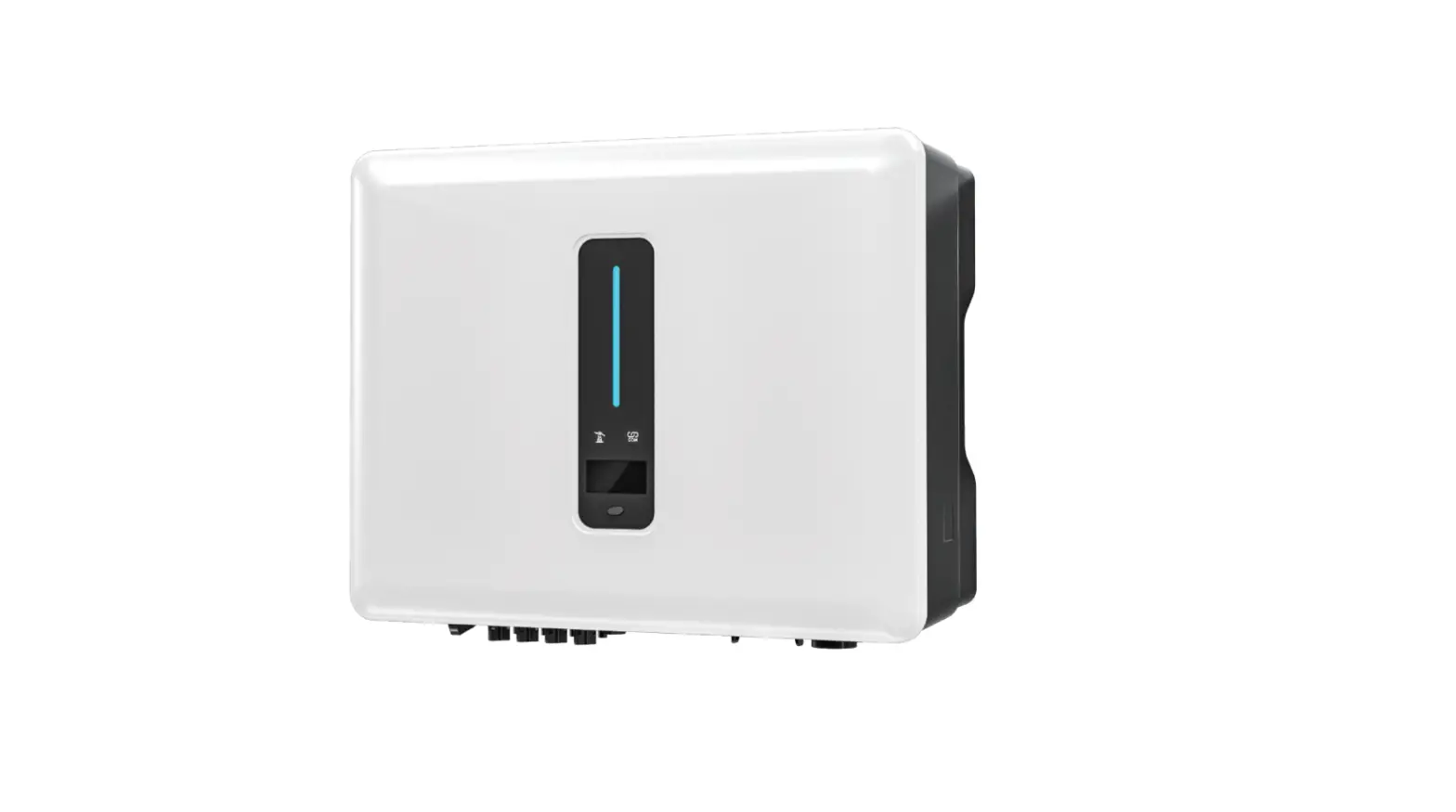
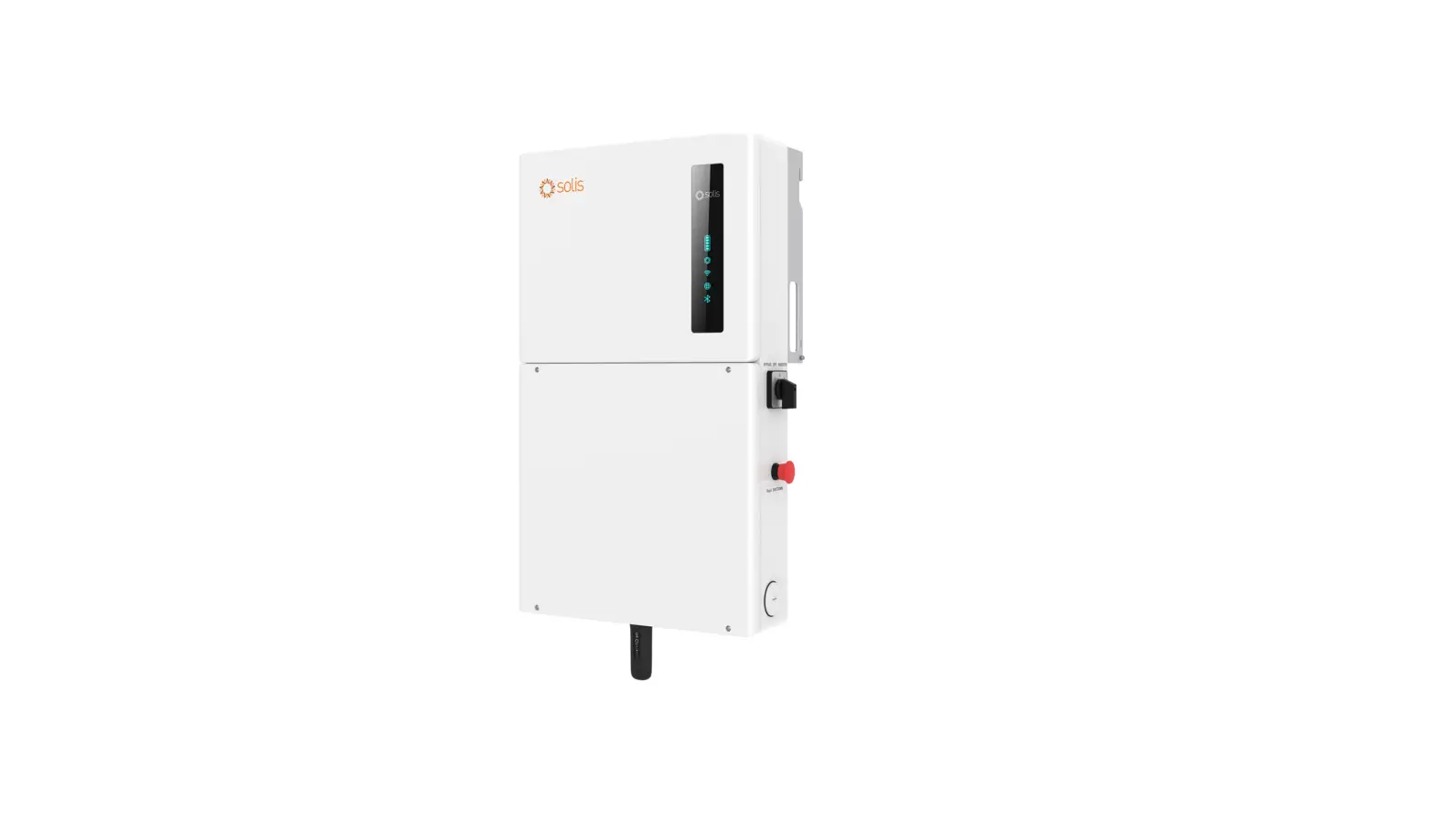
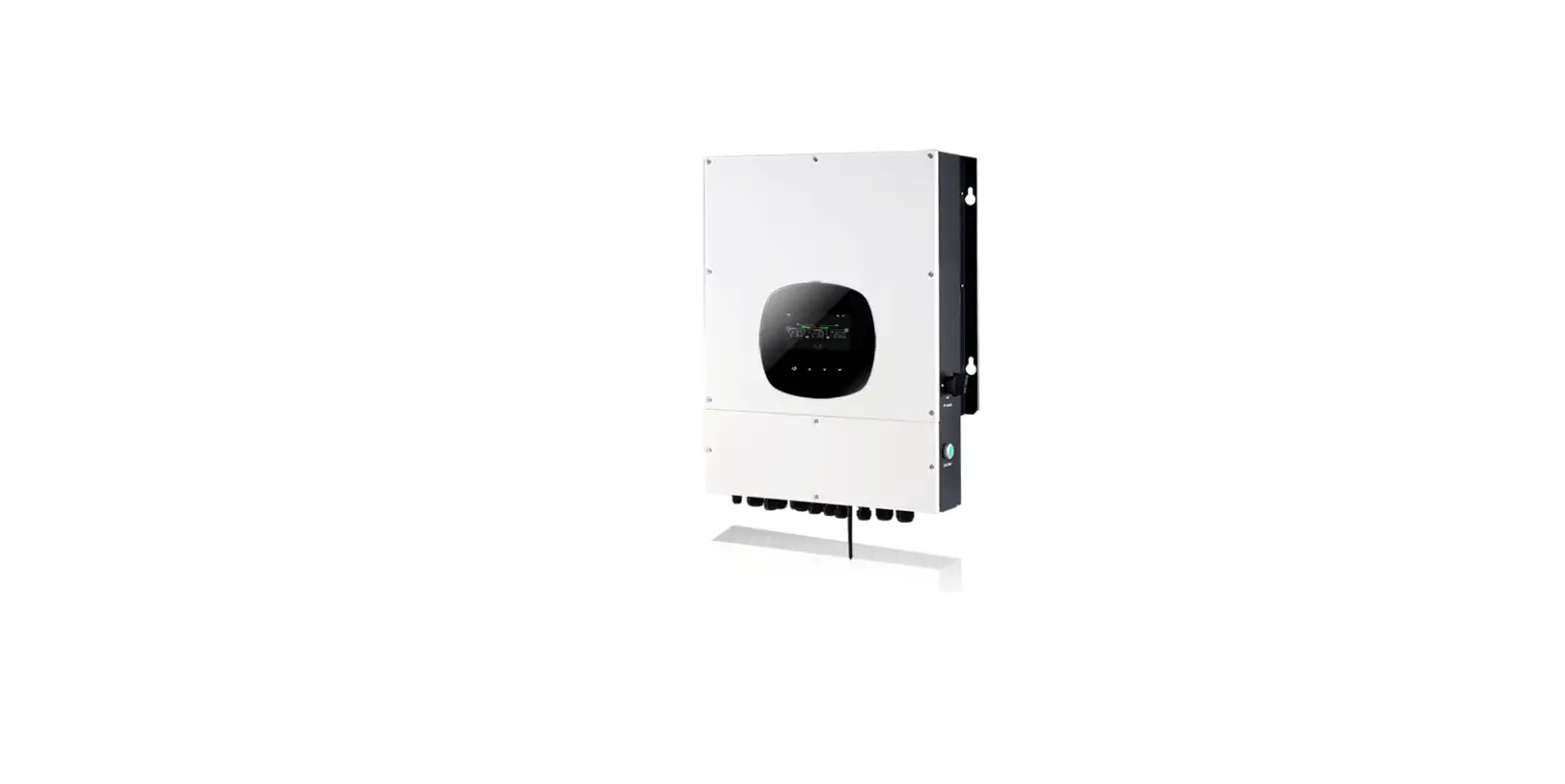
8-10K EU Hybrid Inverter
Product Information
Product Name: HYBRID INVERTER 8-10K EU
Version: EN-UM-1.0-00 SN: 092.0010600
Website: www.luxpowertek.com
Email: [email protected]
Address: 5th floor, Building 11, Hengchangrong High-Tech
Industrial Park, Hangcheng Street, Bao’an District, Shenzhen,
China, 518100.
About This Manual
This manual provides important safety instructions and detailed
information on the installation, operation, troubleshooting, and
maintenance of the HYBRID INVERTER 8-10K EU.
Brief Introduction
System Solution
The HYBRID INVERTER 8-10K EU offers a comprehensive system
solution for renewable energy applications. It provides options for
self-usage mode, charge first mode, AC charge mode, grid
peak-shaving function, and smart load function.
Product Usage Instructions
Safety Instruction
The inverter has been designed and tested strictly according to
international safety regulations. It is important to read and
follow all safety instructions provided in this manual before any
work on or with the inverter. Only qualified personnel should
perform the installation, following relevant national or
international standards or regulations.
Location Selection and Installation
Before installation, ensure that the installation location meets
the requirements specified in the manual. Properly install the
inverter according to the provided instructions.
Connection Overview
Follow the system connection instructions to connect the PV,
battery, grid, and EPS load to the inverter.
LCD Display
The inverter features an LCD display that provides information,
alarm/fault records, and parameter settings. Refer to the manual
for instructions on viewing information, setting parameters, and
navigating the LCD display.
Start-up and Shut Down
Learn how to start up and shut down the inverter correctly by
following the instructions provided in the manual.
Troubleshooting & Maintenance
Regular maintenance is necessary to ensure optimal performance.
The manual provides instructions on regular maintenance,
troubleshooting based on LCD displays, and fan replacement.
Working with Generator
If using a generator in conjunction with the inverter, follow
the instructions for generator system connection, startup and stop
settings.
AC Coupling Installation Connection
If using AC coupling installation, follow the provided
instructions for connection.
Parallel System Connection
If connecting multiple inverters in parallel, refer to the
manual for instructions on the connection process.
Note:
Please refer to the complete user manual for detailed
instructions and additional information.
HYBRID INVERTER 8-10K EU
Version: EN-UM-1.0-00 SN: 092.0010600
Tel+86 0755 8520 9056 Webwww.luxpowertek.com [email protected]
5th floor, Building 11, Hengchangrong High-Tech Industrial Park, Hangcheng Street, Bao’an District, Shenzhen, China, 518100.
CONTENTS
About This Manual 1 Safety
01
3.10 Monitor System Setup
21
01
3.10.1 Wifi/GPRS/4G/WLAN dongle connection
21
1.1 Safety Instruction
01
3.10.2 Setup the Monitor system
21
2 Brief Introduction
2.1 System Solution
3 Installation
3.1 Packaging List
03
3.10.3 Set homewifi password to dongle
22
03
3.10.4 Third party RS485 communication
23
04
4 Operation Guide
24
04
4.1 Operation Mode
24
3.2 Location Selection and Installation
04
4.1.1 Self-usage mode (Default)
24
3.2.1 Requirements for installation location
04
4.1.2 Charge first mode
25
3.2.2 Installing the inverter
05
4.1.3 AC charge mode
25
3.3 Connection Overview
07
4.1.4 Grid peak-shaving Function
26
3.3.1 System connection
07
4.1.5 Smart load Function
26
3.4 PV Connection 3.5 Battery Connection
08
4.2 LCD Display
27
10
4.2.1 Viewing information and alarm/fault record
27
3.5.1 Battery power cable connection
10
4.2.2 Setting parameters
28
3.5.2 Battery communication cable connection
10
4.3 Start-up and shut down the inverter
30
3.6 Grid&EPS load Connection
12
4.3.1 Start up the inverter
30
3.6.1 Grid type selection
12
4.3.2 Shut down the inverter
30
3.6.2 Grid and EPS load connection for split-phase service
12
5 Troubleshooting & Maintenance
31
3.6.3 AC cable connection
13
5.1 Regular Maintenance
31
3.6.4 CT/Meter connection
13
5.2 LED Displays
31
3.7 Working with Generator
3.7.1 Generator system connection
15
5.3 Troubleshooting Based On LCD Displays
31
15
5.4 Fan replacement
34
3.7.2 Generator Startup and stop settings
17
3.8 AC Coupling Installation Connection
17
3.9 Parallel System Connection
19
3.9.1 Connection for paralleling system
19
1. Safety
1.1 Safety Instruction
General Safety Instructions The inverter has been designed and tested strictly according to international safety regulations. Read all safety instructions carefully prior to any work and observe them at all times when working on or with the inverter. The operator must be qualified personnel and the installation must be capable with relevant national or international standards or regulations. Incorrect operation or work may cause:
– injury or death to the operator or a third party – damage to the inverter and other properties belonging to the operator or a third party.
Important Safety Notifications There are many safety issues need to be carefully notified before, during and after the installation, and also in future operation and maintenance, following is important safety notifications to operator, owner and user of this product in appropriate usage.
Dangers of High Voltages and Large Current
Beware of high PV voltage. Please turn-off the DC switch of PV Panel output before and during the installation to avoid electric shock. Beware of high grid voltage. Please turn-off the AC switch of grid connection before and during the installation to avoid electric shock. Beware of large current of the battery output. Please turn-off the battery module before and during the installation to avoid electric shock. Do not open the inverter when it’s working to avoid electric shock and damages from live voltage and current from the system. Do not operate the inverter when it’s working, only the LCD and buttons can be touched in limited cases by qualified personnel, other parts of the inverter can be touched when the inverter is under a safe state (e.g. fully shut-down). Do not connect or disconnect any connections (PV, battery, grid, communication etc.) of the inverter when it’s working. Make sure the inverter is well grounding, an operator should make sure himself is good protected by reasonable and professional insulation measurements (e.g. personal protective equipment (PPE)).
Inspect relevant existed wiring on-site of the installation is under good condition before installation, operation or maintenance. Inspect the connections are good between inverter and PV, battery and grid during installation to prevent damages or injuries caused by bad connections.
01
Avoid misoperation and Inappropriate Usage All the work of this product (system design, installation, operation, setting , configuration and maintenance must be carried out by qualified personnel as required. All connections must be in accordance with local and national regulations and standards. Only when permitted by utility grid, the inverter and system can interconnected with the utility grid. All the warning lable or nameplate on the inverter must be clearly visible and must not be removed, covered or pasted. The installation should choose a right position and location as required in this manual with consideration to safety of users’ in future operation. Please keep the children away from touching or misoperation the inverter and relevant system. Beware of burning hurt, the inverter and some parts of the system could be hot when working, please do not touch the inverter surface or most of the parts when they are working. During inverter working states, only the LCD and buttons could be touched.
Please carefully read this manual before any work carried out on this inverter, after the installation, please keep this manual carefully stored and easy to access at any time. The qualified personnel should have had training in the installation and commissioning of the electrical system as well as dealing with hazards, also they should have the knowledge of the manual and other related documents. As the installer or operator they are required to be familiar with local regulations and directives.
02
2. Brief Introduction
2.1 System Solution
This product and relevant system is suitable for following system applications (system diagram):
A. Solar and battery storage system
B. AC Coupling with existed solar system
C. On-grid solar system without battery (Support EPS even without battery)
Existed On-grid Solar System
D. Off-grid and back-up applications
Reserved Battery&UPS
Interfaces
E. Single and three phase paralleling system
Router
Viewer
Grid
F. Energy storage system with peak shaving Function
3. Installation
3.1 Packaging List & Storing
Packaging List When the packaging is unpacked, the inner components should be the same as described in below packaging list.
User Manual X1
Waterproof PG Cable Gland X6
Wi-Fi dongle X1 Optional
Bracket: wall-mounted×1
Hybrid Inverter X1
Expansion Screw and Tube X4
Cross Head Screw X17
Battery communication cable Length 2mx1(Grey)
Parallel communication cable L=2m×1(Grey)
3.2 Location Selection and Installation
3.2.1 Requirements for installation location
a. The wall for mounting should be strong enough to bear the weight of inverter . b. Please maintain the minimum clearances below for adequate heat dissipation.
1.3″ CT x1
400mm 400mm
400mm
400mm
03
04
c. Never install the inverter in a place with direct sunlight, rain or snow. Please refer to below figure and select a well shaded place or install a shed to protect the inverter from direct sunlight, rain and snow etc. PROTECT the LCD screen from excessive UV exposure
Step1. Mark the positions of drill holes with the mounting bracket, then drill 4 holes of 8mm(5/16inch) diameter and make sure the depth of the holes is deeper than 50mm(2inch).
d. The inverter should be installed upright on a vertical surface.
>75
90
>90
90
3.2.2 Installing the inverter
The inverter is wall-mounted type, should be installed on a vertical, solid mounting surface, such as wood studs, brick or concrete wall. Two or more persons may be needed to install the inverter due to its weight. The slots on mounting bracket can accommodate various stud spacing from 12inch(305mm) to 16.46inch(418mm).
2.36 in(60mm)
4.49in(114mm)
16.46 in(418mm) 18 in(458mm)
The mounting steps are as below: (Use brick wall as example) 05
Step2. Install the expansion bolts into the holes and tighten them, then use the corresponding nuts and washers (packaged together with the expansion bolts) to install and fix the wall-mounting bracket on the wall.
Step3. Hang the inverter onto the wall-mounting bracket and lock the inverter on the wall using 2 self-tapping screws on the top of the inverter.
For installation on wood studs Fasten the mounting bracket on the studs with 4 wood screws, then hang the inverter onto the bracket and lock the inverter on the wall with 2 self-tapping screws. Please note that the wood screws and self-tapping screws are not provided with the inverter. Installers need to prepare the screws before installation.
06
3.3 Connection Overview
3.3.1 System Connection
The system connection diagram is as below( for US version):
N L
PV Breakers
LN L N LN
Geneartor breaker
Battery Breaker
Load Breaker
UPS Load
Please prepare the breakers before connetion, breakers selection recommendation for both DC and AC
Inverter model
PV Breakers(2Px4)
Battery Breaker(2P) Main Breaker(2P) Load Breaker(2P) Geneartor breaker
8K MPPT1 string 1 : 600V/20A MPPT1 string 2 : 600V/20A MPPT2 string 1: 600V/20A MPPT2 string 2: 600V/20A 100V/300A 100A/230Vac 63A/230Vac
63A/230V
10K MPPT1 string 1 : 600V/20A MPPT1 string 2 : 600V/20A MPPT2 string 1: 600V/20A MPPT2 string 2: 600V/20A 100V/300A 100A/230Vac 63A/230Vac
63A/230V
Overview of Connection Ports
DC Switch
PV INPUT
WIFI COM
35.5mm(1.4 in)
BAT INPUT
LOAD
GRID
4-51mm(2 in)
95 mm(3.74in)
87 mm(3.43in)
101 mm(3.98in)
72 mm(2.83in)
07
Overview of the cable box
FAN1 f. FAN2
FAN3
g. TEMP
h.
Meter
485B 485A
GND
RSD
i. +VIN +12V
k. NO GEN NC
l. NO DRY NC
a. DRM Interface b. Battery Communication Interface c. CT Interface d. INV485
j. CAN Matching resistance e. Parallel cable communication Interface
a). DRM port(Applied only in AU) b). Battery communication port(CAN&RS485)
please check Chapter 3.5.2 for Pin definition c). CT Interface: please check Chapter 3.6.4 for CT connection d). INV 485: Debugging port e). Parallel communication port
please check Chapter 3.9 for Parallel connection
f). FAN1/2/3 g). TEMP: Connection for temperature sensor of lead-acid battery h). Meter 485B&485A: For Meter communication i). VIN/+12V: Connect a outside emergency switch on these 2 terminals j). CAN Matching resistance: Set DIP switch when use inverters in parallel
k). GEN(NO, NC): Connection for generator auto-start function l). DRY(NO,NC): reserved
3.4 PV Connection
PV connection of this hybrid inverter is same as traditional on-grid solar inverter (string inverter).
* Please check the lowest ambient temperature of the location of the installation. The rated Voc on solar panel nameplate is obtained at 25 temperature. Solar panel Voc will increase with the decreasing of ambient temperature. Please ensure the Max.solar string voltage corrected at the lowest temperature not exceed the inverter max input voltage 550V for safe.
Cable Requirement:
Cable Size 10-8 AWG(5-8 mm2)
Minimum Voltage 600V
08
1. The inverters has two MPPTs. Both MPPT1 and MPPT2, users can connect two strings.
2. When users connect 2 strings to MPPT, make sure the two strings has same quantity of solar panels. The inverter will limit the total MPPT1 and MPPT2 input current to 25A/25A.
3. The inverter will limit the max solar input power to 15kW for 10kw model and 12kw for 8kw model totally.
face the same direction
face the same direction 09
Steps for PV connection
a. Strip off 1/4-5/16inch(6~8mm) insulation on the PV string positive and negative conductors.
b. Use wire ferrules for PV string conductors if they are stranded wire type.
c. Insert the conduit fitting to the opening for PV connection and tighten it from inside using the counter nut. d. Route the PV conductors through the conduit and conduit fitting into the inverter.
e. Secure the cable gland in place.
f. Ensure that the cables are connected correctly and securely. Then take appropriate measures to ensure that the conduit and conduit fittings are fastened reliably, and seal the cable entry holes.
3.5 Battery Connection
3.5.1 Battery power cable connection
Cable Requirement:
Model 8-10K
Cable Size 3/0-4/0 AWG(85-100 mm2)
Minimum Voltage 600V
Torque for cable connection 20(N.M)
OT ring RNB100-10
Step 1: Strip 1/4-5/16inch(6-8mm) insulation from the cable end and crimp OT rings for the cable ends. Step 2: Route the battery power cable through the cable gland, connect positive to BAT+,negative to BAT-. Step 3: Secure the conduit fitting to the enclosure using the counter nut. Step 4: Fasten the OT rings of battery positive and negative cables to the lugs according to the marking. Step 5: Fix the cable gland in place.
Polarity reverse will damage the inverter!
Install a DC isolator between battery and inverter can avoid potential damages caused by electric arc.
3.5.2 Battery communication cable connection
A correct battery communication cable must be used to connect the battery to the inverter when users choose lithium-ion battery type. Please select `Lead-acid ` type if the lithium battery can not communicate with inverter. The battery communication port on inverter is a RJ45 socket, Pin for the RJ45 plug of the communication cable is as below. Make the communication cable according to the below inverter Pin and the correct pinout of communication port on battery. The inverter supports both CAN and RS485 communication.
Pin
1 2 3 4 5 6 7 8
Description
NC GND NC BAT CAN H BAT CAN L NC BAT RS485 A BAT RS485 B
Pin 1 2 3 4 5 6 7 8
Battery CAN&RS485
10
After battery power cable and communication cable connection, users need to enter Advanced setting and choose Battery type and brand on the inverter LCD
Basic Charge Discharge Advanced Debug Device info.
Grid type
230V
Grid regulation 3: SouthAfrica
HV1
V
LV1
V
HF1
Hz
LF1
Hz
S HV2 S LV2 S HF2 S LF2
Battery type 1:Lead-acid Lithium brand 6:Lux
Gird Freq 50
Set
Reconnect time(S)
V
S HV3
V
S
V
S LV3
V
S
Hz
S HF3
Hz
S
Hz
S LF3
Hz
S
Set
BAT capacity(Ah)
Basic
Charge first(PV)
Time 1
:
:
Charge
Time 2
:
:
Discharge Time 3
:
:
Lead-acid
Advanced Absorb voltage(V)
Debug
Start derate Volt(V)
Device info.
Set Charge first power(kW) Stop charge first SOC(%) Stop charge first Volt(V)
Float voltage(V)
Set
For Li-ion battery 1. Please make sure the lithium-ion battery to be used is compatible with Luxpower inverters. Please contact your distributor for updated battery compatible list. 2. If you are using multiple battery modules with the inverter, the inverter communication cable must be connected to the master battery. Please check with your battery supplier for battery master and slave settings.
For Lead-acid battery
1. The temperature sensor for lead-acid battery is optional. If you need it, please contact distributor for purchasing.
2. There are three stages for lead-acid battery charging. For charging/discharge related parameters, please check charge /discharge setting page.
3.6 Grid&EPS load Connection
3.6.1 Grid regulation selection
The inverter has passed the main grid-connection regulations NRS097:
Basic Charge Discharge Advanced Debug Device info.
Grid type
230V
Grid regulation 3: SouthAfrica
HV1
V
LV1
V
HF1
Hz
LF1
Hz
S HV2 S LV2 S HF2 S LF2
Battery type 1:Lead-acid Lithium brand 6:Lux
Gird Freq 50
Set
Reconnect time(S)
V
S HV3
V
S
V
S LV3
V
S
Hz
S HF3
Hz
S
Hz
S LF3
Hz
S
Set
BAT capacity(Ah)
3.6.2 Grid and EPS load connection
The inverter can be connected to the load side of the service disconnecting means if the busbar rating in the main panel can meet the NEC705.12(B)(3) requirements. Otherwise, a Line side connection can be made to avoid an expensive main panel upgrade.
Grid and EPS Load Connection
EPS GEN GRID
LN L N L N
PE
CT
Utility Meter
Kw. h
79866
480r/kw. h 10A
L
N
PE
Backup Panel
CT
L
N
PE
Inverter Disconnect
Generator Disconnect
PE
N Generator
L
Main Panel
11
12
3.6.3 AC cable connection
Cable Requirement:
Cable Size 9-7 AWG(6-10 mm)
Minimum Voltage 600V
a. Strip off 5/16-3/8inch(8~10mm) insulation sleeve on the cables. b. Use wire ferrules if the cables are made of find stranded wires. c. Secure the conduit fitting to the enclosure using the counter nut of the fitting.
d. Fasten the grid and EPS load cables to the terminal block in accordance with the markings. e. Secure conduit to the conduit fitting. f. Checks that the cables are connected correctly and securely, then take appropriate measures to ensure that the conduit and conduit fitting are secured reliably, and seal the cable entry holes.
56
CT L
TO PCS TO Grid
PN
Pin8 Pin7
3.6.4 CT/Meter Connection
To measure the power import from and export to the grid, a pair of CTs or one triphase meter must be installed at the service entry point in or near the main service panel. We standard supply 1 CT for one inverter. CT Port Pin definition
The CT interface for 1 CTs connection is a RJ45 port ,we have made a RJ45 plug on those 1 CTs in advance, so you can connect it to port directly.
Pin
1-4 5 6 7 8
Description
reserve reserve reserve
CT1N CT1P
Pin 1 2 3 4 5 6 7 8
13
GRID
Please refer to the above connection diagram for the correct positions of CTs. The arrows on the CTs must point to inverter side.
CT Clamp Ratio The Luxpower inverters support two ratios of CT clamp- 1000:1 and 3000:1 . The CT ratio of the CTs in the accessory bag is 1000:1. If you are using a 3rd party CT, please ensure the CT ratio is either 1000:1 or 3000:1, and then select the correct CT ratio setting in the inverter monitor page or on inverter LCD. Extend CT clamp cable The CT wires can be extended with a common ethernet cable if the length is not enough. A RJ45 adapter is needed for the extending. The CT wires can be extended up to 300ft(around 100m).
14
FAN1 FAN2 FAN3
TEMP
Meter
485B 485A
GND
RSD
+VIN
+12V
NO GEN
NC NO DRY NC
Basic Charge Discharge Advanced Debug Device info.
PV input MODBUS addr Vpv start (V)
Meter or CT Meter type CT ratio
Offgrid output Seamless switch AC couple Smart load
EPS output without Battery
Charge last
Micro-grid RSD disable
CT direction reversed
PV Arc
PV Arc fault clear
Set
Set Set
Meter Connection
Currently only EASTRON SDM630-Modbus meters can be used. If you need to use meter for import/export detection instead of CTs, you need to connect it to the Meter 485A and 485B terminals on the inverter, please contact Luxpowertek for detailed guideline.
3.7 Working with Generator
3.7.1 Generator system connection
This hybrid inverter can work with generator. There are Gen ports on the inverter for generator connection.
Generator Connection-Partial Backup
CT
Utility Meter
EPS
GEN GRID
LN L N L N
PE
Kw. h
79866
480r/kw. h 10A
L
N
PE
Backup Panel
15
CT
L
N
PE
Inverter Disconnect
Generator Disconnect
PE
N Generator
L
Main Panel 2-wire start
Generator Connection-Whole Home Backup
EPS GEN GRID
LN L N L N
PE
CT
Utility Meter
Kw. h
79866
480r/kw. h 10A
NL
CT
PE
Service
Disconnect
L
N
PE
Inverter Disconnect
Backup Panel
Generator Disconnect
PE
N Generator
L
2-wire start
When generator is started, all the loads connected to EPS will be supplied by the generator. Meanwhile battery will be charged.
The pass-through relay on the generator port is 50A. When generator is on, please ensure the total load and charge current will not exceed 50A.
The generator start signal shall connect to COM board GEN(NO,NC port) if users want to start generator remotely.
NO GEN
NC NO
Generator
16
3.7.2 Generator Startup and Stop settings
Basic
Bat charge control Use SOC %
Use Bat V
Set
Charge
Bat charge current limit(A)
Discharge Advanced
Debug Device info.
AC charge
Time 1
:
Time 2
:
Time 3
:
Set
:
AC charge power(kW)
:
Stop AC charge SOC(%)
:
Stop AC charge Volt (V)
Basic Charge Discharge
Generator Charge current limit(A) Charge start Volt(V) Charge end Volt(V)
Advanced
Debug
Device info.
Gen rated power(kW)
Set
Charge start SOC(%)
Charge end SOC(%)
Depends on the Bat charge control setting, system will use either battery SOC or battery voltage to judge if system need to start or stop the generator. Generator Start Conditions When utility fails and -When battery is discharged to cut-off settings or there is force charge request from battery. or when the battery voltage or SOC lower than Generator Charge start Volt/SOC settings, Generator Stop Conditions when battery voltage or SOC higher than Charge end Volt/SOC settings value.
3.8 AC Coupling Installation Connection
The inverter supports AC coupling connection with existing grid-interactive solar system. The existing solar system is connected to the inverter’s EPS port.
17
Connection for AC coupled solar system
EPS GEN GRID
LN L N L N
PE
CT
Utility Meter Kw. h
79866
480r/kw. h 10A
L
N
PE
CT
L
N
PE
Inverter Disconnect
Main Panel
Existing Solar System
Backup Panel
When grid is on, the EPS terminal is connected to grid terminal inside inverter by a passthrough relay. so the hybrid inverter will bypass the interactive inverter AC to grid in this situation. The spec of the passthrough relay is 90A.
When grid is off, the hybrid inverter will work as a power source for the grid interactive inverter to synchronize and feed power to the micro-grid. The loads will be first supplied by solar power. If solar panels are generating more power than load consumption, the excess solar power will be stored to the battery. When solar power exceeds the sum of load power and max battery charging power, e.g. when battery is nearly full. The inverter will signal the grid interactive inverter to reduce power via the frequency shifting power reduction mechanism, thus to maintain the balance of generation and consumption of the microgrid system.
Users need to enable AC coupling function when they connect existing on grid system to EPS terminal.
Basic Charge Discharge Advanced Debug Device info.
PV input MODBUS addr Vpv start (V)
Meter or CT Meter type CT ratio
Offgrid output Seamless switch AC couple Smart load
EPS output without Battery
Charge last
Micro-grid RSD disable
CT direction reversed
PV Arc
PV Arc fault clear
Set
Set Set
18
CT
Load
PE
Panel
PE
L Generator
N
N
Manual Bypass Switch
Utility Meter
Kw. h
79866
480r/kw. h 10A
Please put the 2-bit CAN balancing resistor switch to ON status for the first and end inverter of the daisy chain loop.
L
CT
PE
N
Generator Panel
PE
PE
N
N
L
L
L
Utility Panel
PE
PE
PE
3.9 Parallel System Connection
3.9.1 Connection for paralleling system
The hybrid inverter supports parallel connection to expand power and energy capacity to suit different using scenarios. Up to 10 units can be paralleled to reach a capacity of 120kW. Wiring diagram is as below, The manual bypass switch connect loads to EPS panel for default. When inverters fail, users can switch the loads to utility.
Please put the CAN communication PIN to on status for the first and the end inverter
Parallel line1
Parallel line(n to 1) Parallel line2
The max parallel quantity is 10, so 2<n<10
Parallel line(n-1 to n)
No.1
11
1 0
3
No.2
00
1 0
3
No.n-1
00
1 0
3
No.n
If the parallel cable is not enough or long enough, please make a straight pin to pin cable
11
1 0
3
Settings for paralleling function in monitor system
1. Set up monitoring for the system, add all dongles into one station. Users can login to visit the monitor system, Configuration->Station->Plant Management->Add dongle to add dongles.
Stations Datalogs Inverters Users
Monitor
Data
+ Add Station
Plant name
1 Genesis 2 Butler Home 3 Office 4 Cronje Home
Installer Elangeni Broomhead
End User Aspergo Install johnbutler
cronje
Overview
Maintain
Aspergo User Center
Search by station name
Country South Africa South Africa South Africa South Africa
Timezone GMT+2 GMT+2 GMT+2 GMT+2
Daylight saving time Create date
No
2019-03-14
No
2019-03-25
No
2019-06-03
No
2019-07-16
Action Plant Management Plant Management Plant Management Plant Management
2. Enable share battery for the system if the system share one battery bank, otherwise disable the shared battery function 3. Set the system as a parallel group in the monitor system
Monitor
Data
Overview
Maintain
Aspergo User Center
Stations Overview
Station Name
Search by inverter SN
Device Overview
Serial number Status Solar Power Charge Power Discharge Pow Load
Solar Yielding Battery Dischar Feed Energy Consumption E Plant name Parallel Action
1 0272011008
Normal 228 W
42 W
0 W
182 W 215.3 kWh
39.6 kWh
0 kWh
551.2 kWh
Dragonview A-1 Parallel
2 0272011011
35 W
32 W
0 W
0 W
158.7 kWh
21.1 kWh
0 kWh
160.5 kWh
Dragonview A-2 Parallel
3 0272011012
1 kW
129 W
0 W
1 kW
170.3 kWh
49.9 kWh
0 kWh
434.5 kWh
Dragonview A-3 Parallel
4 0272011017
79 W
48 W
0 W
106 W 99 kWh
85.6 kWh
0 kWh
257.1 kWh
Dragonview A-4 Parallel
Please contact your inverter supplier for more detailed guidance for paralleling system
LN L N L N
GEN GRID
LN L N L N
EPS GEN GRID
LN L N L N
GEN GRID
EPS
EPS
PV BAT
Slave inverter
PV BAT
Slave inverter
Master inverter
PV BAT
–
+
19
20
3.10 Monitor System Setup
3.10.1 Wifi/GPRS/4G/WLAN dongle connection
Users can use WiFi/ WLAN /4G /2G dongle to monitor their inverter, and view the monitoring data on computer or smart phone remotely.
To view data on smartphone, please download the LuxPowerView APP from Google Play or Apple APP store, then login with their user account.
3.10.2 Setup the monitor system
1. Sign up an account on the mobile phone APP or Website The “customer code” is a code we assigned to your distributor or installer. You can contact your supplier for their code.
User name Pass word Remember username
LOGIN
Auto login
or
REGISTER WIFI MODULE CONNECT
LOCAL CONNECT Version 1.7.1
* E-mail * Language * Tel number * Station name
English
* Nominal power (W)
* Daylight saving time * Income formula (kWh) * Continent * Region
RMB (¥) Asia
East Asia
* Country * Time zone
China
* Address * Customer code * Datalog serial number * PIN
REGISTER
2. Create station and add dongle for the station add station, add wifi module
21
3.10.3 Set homewifi password to dongle
1. Connect your mobile phone to the “BAxxxxxxxx” wireless network where “BAxxxxxxxx” is the serial number of the WiFi dongle. 2. Click the “WiFi MODULE CONNECT” button on the APP 3. Select the home WiFi that the WiFi dongle is to be connected to, enter the WiFi’s password. And then click “HomeWifi Connect”. The WiFi dongle will restart and try to connect to our server automatically.
4 .Check the LEDs’ status on the WiFi dongle. The middle light should be solid lit when the WiFi dongle connects to our server successfully.
12:20
CMCC
WI-FI
BA 19520257
Obtaining address…
luxpower luxpowertek_5g
luxpowertek ChinaNet-wG49 CMCC-BAKR HF-WIFI ChinaNet-EWP luxpower_5G
MORE SETTINGS
DONE
luxpower Pass word Remember username
LOGIN
Auto login
or
REGISTER WIFI MODULE CONNECT
LOCAL CONNECT Version 1.7.1
Set WIFI password to Inverter WIFI module
SSID:
unknown ssid
Password: Please input password
Homewifi Connect
TCP Set
5. Now you can disconnect your mobile phone from the “BAxxxxxxxx” wireless network. Login on the APP with your account, you’ll find the inverter information already appears. Now you’ll be able to monitor and control the inverter remotely on any smart phone or computer that has Internet connection.
22
Please download the following guides for setting up WiFi dongle and monitoring account at
Document Reference: 1. Wifi Quick Guidance Quick guidance for setting connection of WiFi module to home WiFi, you can also find a printed version in the packaging of the WiFi module.
2. Monitor system setup for Distributors and Monitor system setup for endusers Account registration, the description of each items and parameters, setting parameters 3. Lux_Monitor_UI_Introduction Introduction of monitor interface
3.10.4 Third party RS485 communication
Meter 485B&485A: when the Meter is not connected. these two pin can be used to communicate with inverter using our RS485 modbus protocol.
INV485: this interface is shared with WIFI module. If WIFI module is not in use, users can use this interface to communicate with inverter. Please contact your distributor to get the protocol for third party APP development.
FAN1 FAN2 FAN3
TEMP
Meter
485B 485A
GND
RSD
+VIN
+12V
NO GEN
NC NO DRY NC
DRM Interface Battery Communication Interface CT Interface INV485
CAN Matching resistance Parallel cable communication Interface
Pin
1 2 3-8
Description
485B 485A
/
Pin 1 2 3 4 5 6 7 8
23
4. Operation Guide
4.1 Operation Mode and Function
The inverter has different working mode to meet customers’ various demands, the working modes are as below:
4.1.1 Self-usage Mode (Default)
In this mode, the priority order of load supply source is Solar>Battery>Grid. The priority order of solar power usage is Load>Battery>Grid.
Application Scenarios Self consumption mode will increase self consumption rate of solar power and reduce the energy bill significantly Related Settings Effective when Charge Priority , AC Charge, and Forced discharge are disabled Example
103 W
Charge Power
2
38%
Battery Level(SOC)
49.4Vdc
PV 1 209 W 359.2 v PV 2 172 W 351.5 v
Solar power
1
Normal
0 W
3
249.2Vac 49.94Hz
Standby
Backup Power(EPS)
268 W
Consumption Power
When solar power is enough, solar power will take load, then charge battery, and at last feedback into grid(when feedback function is enabled)
158 W
Charge Power
PV 1 207 W 274.8 v PV 2 127 W 249.1 v
Normal 0 W
80%
Battery Level(SOC)
49.8Vdc
243.1Vac 50.05Hz
Standby
Backup Power(EPS)
484 W
Consumption Power
When solar is not enough to take load, the solar and battery will take load together. If battery is empty, grid will used to take load
24
4.1.2 Charge First Mode
The priority order of solar power usage will be Battery >Load >Grid. During Charge Priority time period, load is first supplied with grid power. If there is excess solar power after battery charging, the excess solar power will take load together with grid power.
Application Scenarios When users want to use solar power to charge battery, grid power to supply load. Related Settings
Basic
Charge first(PV)
Time 1
:
:
Charge
Time 2
:
:
Discharge Time 3
:
:
Lead-acid
Advanced Absorb voltage(V)
Debug
Start derate Volt(V)
Set Charge first power(kW) Stop charge first SOC(%) Stop charge first Volt(V)
Float voltage(V)
Set
Device info.
Example
201 W
Charge Power
1
100%
Battery Level(SOC)
57Vdc
PV 1 22 W 278.7 v PV 2 700 W 452.8 v
Solar
2
Normal
60 W
Import Power
3
228.1Vac 49.92Hz
Standby
Backup Power(EPS)
567 W
Consumption Power
Solar power will used to charge battery first, if there is extra power, it will be used to take load.
4.1.3 AC Charge Function
Users can charge battery with grid power when electricity price is cheap, and discharge battery power to supply load or export to the grid when electricity price is high. Application Scenarios When users have a Time of Use(TOU) rate plan. Related Settings
25
Basic
Bat charge control Use SOC %
Use Bat V
Set
Charge
Bat charge current limit(A)
Discharge Advanced
Debug Device info.
AC charge
Time 1
:
Time 2
:
Time 3
:
Set
:
AC charge power(kW)
:
Stop AC charge SOC(%)
:
Stop AC charge Volt (V)
4.1.4 Grid peak-shaving Function
Basic Charge Discharge Advanced Debug Device info.
Grid peak-shaving
Time 1
:
:
Time 2
:
:
Smart load Start PV power (kW) Smart load start Volt(V) Smart load end Volt(V)
Peak-shaving power(kW) Stop peak-shaving SOC Stop peak-shaving Volt
Smart load start SOC(%) Smart load end SOC(%)
Set Set
Grid peak-shaving & Grid peak-shaving power(kW): Is used to set the maximum power that the inverter will draw from its grid power.
4.1.5 Smart load Function
Basic Charge Discharge Advanced Debug Device info.
Grid peak-shaving
Time 1
:
:
Time 2
:
:
Smart load Start PV power (kW) Smart load start Volt(V) Smart load end Volt(V)
Peak-shaving power(kW) Stop peak-shaving SOC Stop peak-shaving Volt
Smart load start SOC(%) Smart load end SOC(%)
Set Set
Smart Load: This function is to make the Gen input connection point as an load connection point, if you enable it, inverter will supply power to this load when the battery SOC and PV power is above a user setup value. e.g. Smart load start SOC=90%, Smart load end SOC=85%, Start PV power=300W, it means: When the PV power exceeds 300W, and battery system SOC gets to 90%, Smart Load Port will switch on automatically to supply the load which is connected on this side. When the battery SOC<85% or PV power<300w, the Smart Load Port will switch off automatically.
Basic Charge Discharge Advanced Debug Device info.
PV input MODBUS addr Vpv start (V)
Meter or CT Meter type CT ratio
Offgrid output Seamless switch AC couple Smart load
EPS output without Battery
Charge last
Micro-grid RSD disable
CT direction reversed
PV Arc
PV Arc fault clear
Set
Set Set
Note: If you enable the Smart load function, it’s forbidden to connect the generator at the same time, otherwise the device will be damaged!
26
4.2 LCD Display
Users can view inverter running status, real time power, daily and accumulated energy information conveniently on inverter LCD. In addition to the above information, users can also check alarm and fault record on the display for troubleshooting.
4.2.1 Viewing information and alarm/fault record
Home Page
Touch the screen to light it up if it’s in sleep mode. The Home page will appear on the display. Users will see a system overview diagram along with the real time information of each component, such as battery SOC, battery charging/discharging power, grid import/export power, load power, etc. On the right part of the screen, users can check daily and accumulated solar energy, battery charged/discharged energy, grid imported/ exported energy, as well as load consumption.
PV Energy
Today: Total: Charge Energy
Today: Total: Export
Today: Total: Consumption Today: Total:
Detailed System Information
Click on the pie icon at the bottom of the screen, you’ll be able to view the detailed real time solar information, battery information, grid information and EPS output information.
Solar Battery Grid UPS Other
Vpv1 Vpv2 Vpv3 Epv1_day Epv2_day Epv3_day
Solar Battery Grid UPS Other
Vbat Pchg Vbat_Inv SOC/SOH Vchgref I maxchg Vcellmax
Tcellmax BMSEvent1 Echg_day Echg_all
Ibat Pdischg BatState CycleCnt VcutVolt I maxdischg Vcellmin
Tcellmin BMSEvent2 Edischg_day Edischg_all
Solar Battery Grid UPS Other
Vgrid VgridL1N Vgen Pimport Pinv Pload Eimport_day
Eexport_all Einv_day Einv_all Eload_day
Solar Battery Grid UPS Other
Vups VupsL1N Pups PupsL1N PupsL2N Eups_day EupsL1N_day EupsL2N_day
27
Fups VupsL2N Sups SupsL1N SupsL2N Eups_all EupsL1N_all EupsL2N_all
Solar Battery Grid UPS Other
Status SubStatus FaultCode Vbus1 VbusP T0 T2 OCPCnt
InnerFlag NoChgReason ExitReason1
Ppv1
Ppv2
Ppv3
Epv1_all
Epv2_all
Epv3_all
Fgrid VgridL2N Fgen Pexport Prec
Eexport_day Eexport_all Erec_day Erec_all Eload_all
StatusPre SubStatusPre AlarmCode Vbus2 VbusN T1 T3 GridOnOffSWCnt RunTrace NoDischgReason ExitReason2
Fault/Alarm Information Touching the bell icon at the bottom of the screen, you’ll see all current and historical fault & warning information on this page.
Fault status Alarm status Fault record Alarm record
M3 Rx failure Eps power reversed M8 Tx failure Eps connect fault Neutral fault Bus sample fault ReservedA
ReservedD ReservedG ReservedJ
Model fault Bus short circuit M3 Tx failure PV volt high PV short circuit Inconsistant ReservedB
ReservedE ReservedH ReservedK
Eps short circuit Relay fault Vbus over range Hard over curr Temperature fault M8 Rx fault ReservedC
ReservedF ReservedI ReservedL
Fault status Alarm status Fault record Alarm record
Bat com failure Meter com failure Lcd com failure Bat reversed Trip by Fac abnormal Trip by dci high Bat volt high Offgrid overload Offgrid dcv high ReservedP
AFCI com failure Bat Fault Fwm mismatch Trip by no AC Trip by iso low PV short circuit Bat volt low Offgrid overvolt RSD Active ReservedQ
AFCI high Auto test failure Fan stuck Trip by Vac abnormal Trip by gfci high GFCI module fault Bat open Meter reversed Arc fault ReservedR
Fault status
1
Alarm status 2
3
Fault record 4
5
Alarm record 6
7 8
9 10
Error code
Error time
Fault status
1
Alarm status 2
3
Fault record 4
5
Alarm record 6
7 8
9 10
Alarm code
Alarm time
4.2.2 Setting Parameters
Clicking on the gear icon at the bottom of the screen, you’ll get into the parameter setting page of the inverter. a. Basic settings
Basic
Standby:
Charge Discharge
Feed-in grid Fast zero export
Advanced
Debug
Device info.
Restart inverter Reset
Feed-in power(kW)
Set
Standby: Is for users to set the inverter in normal status or in standby status. In Standby status, the inverter will stop any charging or discharging operation, as well as solar-feed-in.
Restart inverter: Restart the system, please note the power maybe interrupted when restart
Feed-in Grid: Is for users to set zero export function. If exporting solar power is not allowed, users need to disable “Feed-in Grid” option. If users’ utility meter will be tripped with even a little solar export, “Fast zero export” can be enabled thus the export detection and adjustment will take place every 20mS, which will effectively avoid any solar power being exported. If export is allowed, users can enable “Feed-in Grid” and set a maximum allowable export limit in “Feed-in Power(kW)”.
28
b. Charge setting
Basic
Bat charge control Use SOC %
Use Bat V
Set
Charge
Bat charge current limit(A)
Discharge Advanced
Debug Device info.
AC charge
Time 1
:
Time 2
:
Time 3
:
Set
:
AC charge power(kW)
:
Stop AC charge SOC(%)
:
Stop AC charge Volt (V)
Basic
Charge first(PV)
Time 1
:
:
Charge
Time 2
:
:
Discharge Time 3
:
:
Lead-acid
Advanced Absorb voltage(V)
Debug
Start derate Volt(V)
Device info.
Set Charge first power(kW) Stop charge first SOC(%) Stop charge first Volt(V)
Float voltage(V)
Set
Bat charge control: Users can decide to use SOC or BatV to control charge and discharge logic depends on battery type.
Bat charge current limit(A): users can set Max charge current.
AC Charge: Setting for utility charge. If users want to use grid power to charge battery, then they can enable “AC Charge”, set time periods when AC charging can happen, AC Charge power(kW) to limit utility charging power, and “Stop AC Charge SOC(%)” as the target SOC for utility charging. “Stop AC Volt(V)” as the target battery voltage for utility charging.
Charge first: Setting for PV charge. When uses enable Charge first, PV will charge the battery as priority, set time periods when PV charge can happen, Charge first power(kW) to limit PV charge power, and “Charge first SOC(%)” as the target SOC for PV charge first. “Charge first Volt(V)” as the target battery voltage for PV Charge first.
Lead acid: When uses connect Lead-acid battery, need set parameter in these programs, follow the battery manufacturer’s recommendation.
Basic Charge Discharge
Generator Charge current limit(A) Charge start Volt(V) Charge end Volt(V)
Advanced
Debug
Device info.
Generator
Gen rated power(kW)
Set
Bat charge current limit(A): Set the Max. battery charge
Charge start SOC(%)
current from Generator. Generator will start charging according
Charge end SOC(%)
to the Charge start Volt/SOC,and stop charging when the
battery voltage or SOC get the Charge end Volt/SOC value.
Gen rated power: Maximun allowable power from generator.
c. Discharge setting
Basic Charge Discharge
Bat discharge control Use SOC %
Use Bat V
Set
Discharge current limit(A)
Discharge start power(W)
On-grid EOD(%)
Off-grid EOD(%)
On-grid Cut-off(V)
Off-grid Cut-off(V)
Advanced Forced discharge
Time1
:
:
Debug
Time 2
:
:
Device info. Time 3
:
:
Set Discharge power(kW) Stop discharge SOC(%) Stop discharge Volt(V)
Bat discharge control You can choose “Use SOC %” or Use Bat V” to control the battery discharge state
29
Discharge current limit(A): The Max. discharge current from battery
Discharge start power(W): The Min. value can be set to 50. When the inverter detect the import power is higher than this value, battery start discharging, otherwise battery will keep standby
On-grid EOD(%) and Off-grid EOD(%) /On-grid Cut-off(V) and Off-grid Cut off(V): End of discharge SOC/Cut off voltage in on-grid and off-grid condition respectively.
Forced discharge: Settings for battery force discharge within certain time period. In the preset time period, the inverter will discharge battery at the power set by “discharge power”, until battery SOC or voltage reaches “Stop discharge “value.
d. Advanced setting Advanced setting is mainly by installer after installation.
Basic Charge Discharge Advanced Debug Device info.
Grid type
230V
Grid regulation 3: SouthAfrica
HV1
V
LV1
V
HF1
Hz
LF1
Hz
S HV2 S LV2 S HF2 S LF2
Battery type 1:Lead-acid Lithium brand 6:Lux
Gird Freq 50
Set
Reconnect time(S)
V
S HV3
V
S
V
S LV3
V
S
Hz
S HF3
Hz
S
Hz
S LF3
Hz
S
Set
BAT capacity(Ah)
Grid type: You can choose by yourself,230V
Battery type: No battery, lead-acid or lithium-ion. If lead-acid battery is selected, please input correct battery capacity If lithium-ion battery is selected, please choose the battery brand in the Lithium brand drop down list.
Basic Charge Discharge Advanced Debug Device info.
PV input MODBUS addr Vpv start (V)
Meter or CT Meter type CT ratio
Offgrid output Seamless switch AC couple Smart load
EPS output without Battery
Charge last
Micro-grid RSD disable
CT direction reversed
PV Arc
PV Arc fault clear
Set
Set Set
The supported CT ratio is 1000:1 and 3000:1. default CT ratio is 1000:1. If 3rd party CT is to be used, please ensure its CT ratio is either 1000:1 or 3000:1, and set it accordingly. the battery brand in the Lithium brand drop down list.
Meter type: Please select it according to the meter that’s to be installed.
Offgrid output: Is for users to set if the inverter provides backup power or not when the grid is lost. If users want load to be seamlessly transferred to inverter backup power, “Seamless switch” must be enabled. If customers don’t have battery installed yet, but still wish to have inverter backup power with only solar panels connected, “PV Grid Off” can be enabled to use solar power to supply load when grid fails or load-shedding happens. Micro-grid: only needs to be set when generator is connected at the inverters grid port. With this option enabled, the inverter will use AC power to charge battery and won’t export any power through grid port if AC power is present at inverter grid port.
Charge last: When users want to use solar power in the order of loads — grid export — battery charging.
AC couple: When you want to use the inverter as an ac coupled model, you can enable
CT direction reversed: When the CT is installed on the wrong direction, installer can modify it by selecting it, no need reconnect. er in the order of loads — grid export — battery charging.
30
4.3 Start-up and shut down the inverter
4.3.1 Start up the inverter
Step1. Turn on the battery system firstlythen turn on the DC breaker between battery and inverter.
Step2. Make sure the PV voltage of the strings are higher than 120V ,and check if the inverter works in PV charge or PV charge back-up mode. Step3. Make sure step1and 2 above work properly before turning on the grid power or generator breaker, and check if the inverter can go to bypass mode and on-grid mode normally.
4.3.2 Shut down the inverter
Danger: Do not disconnect the battery , PV and AC input power under load.
If there is emergency issue , and you have to shut down the inverter ,please follow the steps as below. Step1. Turn off the Grid breaker of the inverter. Step2. Switch off the load breaker. Step3. Turn off PV breaker and then battery breaker, waiting for the LCD to go off.
5. Troubleshooting & Maintenance
5.1 Regular Maintenance
Inverter Maintenance
a. Check the inverter every 6 months or 1 year to verify if there are damages on cables, accessories, terminals and the inverter itself.
b. Check the inverter every 6 months to verify if the operating parameter is normal and there is no abnormal heating or noise from the inverter.
c. Check the inverter every 6 months to confirm there is nothing that covers the inverter heat sink, if there is, shut-down the inverter and clear the heat sink.
Battery Maintenance Follow the manufacturer’s requirements on maintenance. When you carry out these works on batteries, please make sure to fully shut-down the inverter for safety consideration.
5.2 LED Displays
LED
Green LED
Yellow LED Red LED
Display
Solid lit Flashing Solid lit Solid lit
Description
Working normally Firmware upgrading Warning, inverter working Fault, inverter stop work
Suggestion
Wait till upgrading complete Need troubleshooting Need troubleshooting
5.3 Troubleshooting Based On LCD Displays
Once there is any warning or fault occurring, users can troubleshoot according to the LED status and the warning/fault information on the LCD.
1. Fault on the LCD
If the dot on the left of fault item is red, it means the fault is active. When it is grey, it means the fault is deactive
Fault status Alarm status Fault record Alarm record
M3 Rx failure Eps power reversed M8 Tx failure Eps connect fault Neutral fault Bus sample fault ReservedA
ReservedD ReservedG ReservedJ
Model fault Bus short circuit M3 Tx failure PV volt high PV short circuit Inconsistant ReservedB
ReservedE ReservedH ReservedK
Eps short circuit Relay fault Vbus over range Hard over curr Temperature fault M8 Rx fault ReservedC
ReservedF ReservedI ReservedL
31
Fault M3 Rx failure Model fault Eps short circuit
Eps power reversed Bus short circuit Relay fault M8 Tx failure M3 Tx failure
Vbus over range
Eps connect fault
PV volt high
Hard over curr Neutral fault PV short circuit
Temperature fault Bus sample fault
Inconsistant M8 Rx fault
Meaning M3 microprocessor fails to receive data from DSP Incorrect model value
Inverter detected short-circuit on EPS output terminals
Inverter detected power flowing into EPS port DC Bus is short circuited Relay abnormal DSP fails to receive data from M8 microprocessor DSP fails to receive data from M3 microprocessor
DC Bus voltage too high
EPS port and grid port are connected mixed up
PV voltage is too high
Hardware level over current protection triggered Voltage between N and PE is greater than 30V
Short circuit detected on PV input
Heat sink temperature too high
Inverter detected DC bus voltage lower than PV input voltage Sampled grid voltage values of DSP and M8 microprocessor are inconsistent M8 microprocessor fails to receive data from DSP
Troubleshooting
Restart inverter, if the error still exists, contact Luxpower service or your inverter supplier.
1. Check if the L1, L2 and N wires are connected correctly at inverter EPS output port; 2. Disconnect the EPS breaker to see if fault remains. If fault persists, contact Luxpower service or your inverter supplier.
Restart inverter, if the error still exists, contact Luxpower service or your inverter supplier.
Please check if the PV string voltage is within the inverter specification. If string voltage is within range, and this fault still appears, contact Luxpower service or your inverter supplier.
Check if the wires on EPS port and grid port are connected correctly. If the error exists, contact Luxpower service or your inverter supplier. Please check if the PV string voltage is within the inverter specification. If string voltage is within range, and this fault still appears, contact Luxpower service o your inverter supplier. Restart inverter, if the error still exists, contact Luxpower service or your inverter supplier.
Check if the neutral wire is connected correctly.
Disconnect all PV strings from the inverter. If the error persists, contact Luxpower service or your inverter supplier. Install the inverter in a place with good ventilation and having no direct sunlight. If the installation site is okay, please check if the NTC connector inside the inverter is loose.
Restart inverter, if the error still exists, contact Luxpower service or your inverter supplier.
32
2. Alarm on the LCD If the dot on the left of fault item is yellow, it means the fault is active. When it is grey, it means the fault is deactive
Fault status Alarm status Fault record Alarm record
Bat com failure Meter com failure Lcd com failure Bat reversed Trip by Fac abnormal Trip by dci high Bat volt high Offgrid overload Offgrid dcv high ReservedP
AFCI com failure Bat Fault Fwm mismatch Trip by no AC Trip by iso low PV short circuit Bat volt low Offgrid overvolt RSD Active ReservedQ
AFCI high Auto test failure Fan stuck Trip by Vac abnormal Trip by gfci high GFCI module fault Bat open Meter reversed Arc fault ReservedR
Alarm Bat com failure
Meter com failure
Bat Fault
Auto test failure Lcd com failure Fwm mismatch
Fan stuck Trip by gfci high Trip by dci high PV short circuit
Meaning
Troubleshooting
Inverter fails to communicate with battery
Check if communication cable is correct, and if you have chosen the correct battery brand on inverter LCD. If all is correct but this error persists, please contact Luxpower service or your inverter supplier.
Inverter fails to communicate with the meter
1. Check if the communication cable is connected correctly and in good condition.
2. Restart inverter. If the fault persists, contact Luxpower service or your inverter supplier.
Battery cannot charge or discharge
1.Check the battery communication cable for correct pinout on both inverter and battery end;
2. Check if you have chosen an incorrect battery brand;
3. Check if there is fault on battery’s indicator. If there is fault, please contact your battery supplier.
Auto test failed
LCD fails to communicate with M3 microprocessor
Firmware version mismatch between the microprocessors
Only applied to Italy model
Restart inverter. If fault still exists, contact Luxpower service or your inverter supplier.
Cooling fan(s) are stuck
Inverter detected leakage current on AC side
1.Check if there is ground fault on grid and load side;
2.Restart inverter. If the fault remains, contact Luxpower service or your inverter supplier.
Inverter detected high DC injection current on grid port
Inverter detected short circuited PV input
Restart inverter. If the fault remains, contact Luxpower service or your inverter supplier.
1.Check if each PV string is connected correctly; 2.Restart inverter. If the fault remains, contact Luxpower service or your inverter supplier.
33
GFCI module fault GFCI module is abnormal
Bat volt high
Battery voltage too high
Bat volt low
Battery voltage too low
Bat open
Battery is disconnected from inverter
Offgrid overload Overload on EPS port
Offgrid overvolt EPS voltage is too high
Meter reversed Offgrid dcv high
Meter is connected reversely
High DC voltage component on EPS output when running off-grid
Restart inverter. If fault still exists, contact Luxpower service or your inverter supplier.
Check if battery voltage exceeds 59.9V, battery voltage should be within inverter specification.
Check if battery voltage is under 40V, battery voltage should be within inverter specification.
Check battery breaker or battery fuse.
Check if load power on inverter EPS port is within inverter specification.
Restart inverter. If fault still exists, contact Luxpower service or your inverter supplier.
Check if meter communication cable is connected correctly on inverter and meter side.
Restart inverter. If fault still exists, contact Luxpower service or your inverter supplier.
5.4 Fan replacement
Please check and clean the fans regularly. The recommended period is 6 months. Please replace the fan following up the below diagram if there is problem with the fans. Turn off the system and wait for more than 5 minutes before disassembling the machine.
a. Open the wiring cover b. Unplug the fan cable
34
c. Loosen the screws and remove them
d. Remove the fan fixing
e. Loosen the waterproof connector f. Remove the fan and replace it g. After the fan is installed, follow the steps just now to push back and assemble it back 35
PV Input data
Max. usable input current(A) Max. short circuit input current(A) Start input voltage(V) Startup voltage(V) Full power MPPT voltage range(V) DC nominal voltage(V) MPPT tracker DC voltage range(V) MPP operating voltage range(V) Max. power(W) Number of MPPT Inputs per MPPT
AC Grid output data
Nominal Output Current(A) Max. Output Current(A) Rated voltage(V) Operating voltage range(V) Nominal power output(W) Operating frequency(Hz) Operating frequency range(Hz) Phase shift Reactive power adjust range
THDI Sync inrush current(A)
UPS AC output data
Nominal output current(A) Nominal output voltage(V) Rated output power(VA) Operating frequency(Hz) Peak power(VA) THDV Switching Time
Efficiency
Europe Efficiency Max. Efficiency @ PV to grid Max. Efficiency @ battery to grid MPPT Efficiency
Battery data
Type Max. charge current(A) Max. discharge current(A) Nominal voltage(V) Voltage range(V) Max. voltage(V)
General Data
Integrated disconnect Reverse polarity protection
DC switch rating for each MPPT Output over-voltage protection varistor Output over current protection Ground fault monitoring Grid monitoring Pole sensitive leakage current Monitoring unit Dimensions(mm) Weight(kg) Degree of protection Cooling concept Topology Relative humidity Altitude(m) Noise emission(dB) Internal consumption(W) Display
Communication interface Standard warranty
LXP8K SPEC
25/25 34/34 100 140 170-480
360 100-600 120-480 12000
2 2/2
35 38.5 230 180-270 8000 50/60 45-55/55-65 0.99@full load -0.8~+0.8 leading Adjustable <3% 35
35 230 8000 60 2xPn, 0.5s <3% <20
96% 97.5% 94% 99.9%
Lead-acid battery/Lithium battery 167 167 48 40-60 60
DC switch Yes Yes Yes Yes Yes Yes Yes
580*490*265mm(22.8*19.3*10.4inch) 44kg(96.8 Ibs) NEMA4X / IP 65 FAN Transformer-less 0-100% <2000m <50dB <15W
Touch color screen Rs485/ Wi-Fi/ CAN
5years
LXP10K SPEC
25/25 34/34 100 140 200-480
360 100-600 120-480 15000
2 2/2
43.5
47.8 230 180-270
10000 50/60 45-55/55-65 0.99@full load -0.8~+0.8 leading Adjustable <3%
35
43.5 230 10000 60 2xPn, 0.5s <3% <20
96% 97.5% 94% 99.9%
Lead-acid battery/Lithium battery 210 210 48 40-60 60
DC switch
Yes Yes
Yes
Yes
Yes
Yes
Yes
580*490*265mm(22.8*19.3*10.4inch)
44kg(96.8 Ibs)
NEMA4X / IP 65
FAN
Transformer-less
0-100%
<2000m
<50dB
<15W
Touch color screen
Rs485/ Wi-Fi/ CAN
5years
36
 Solar Power Inverters Manufacturer | Solar Inverter Factory | LuxpowerTek