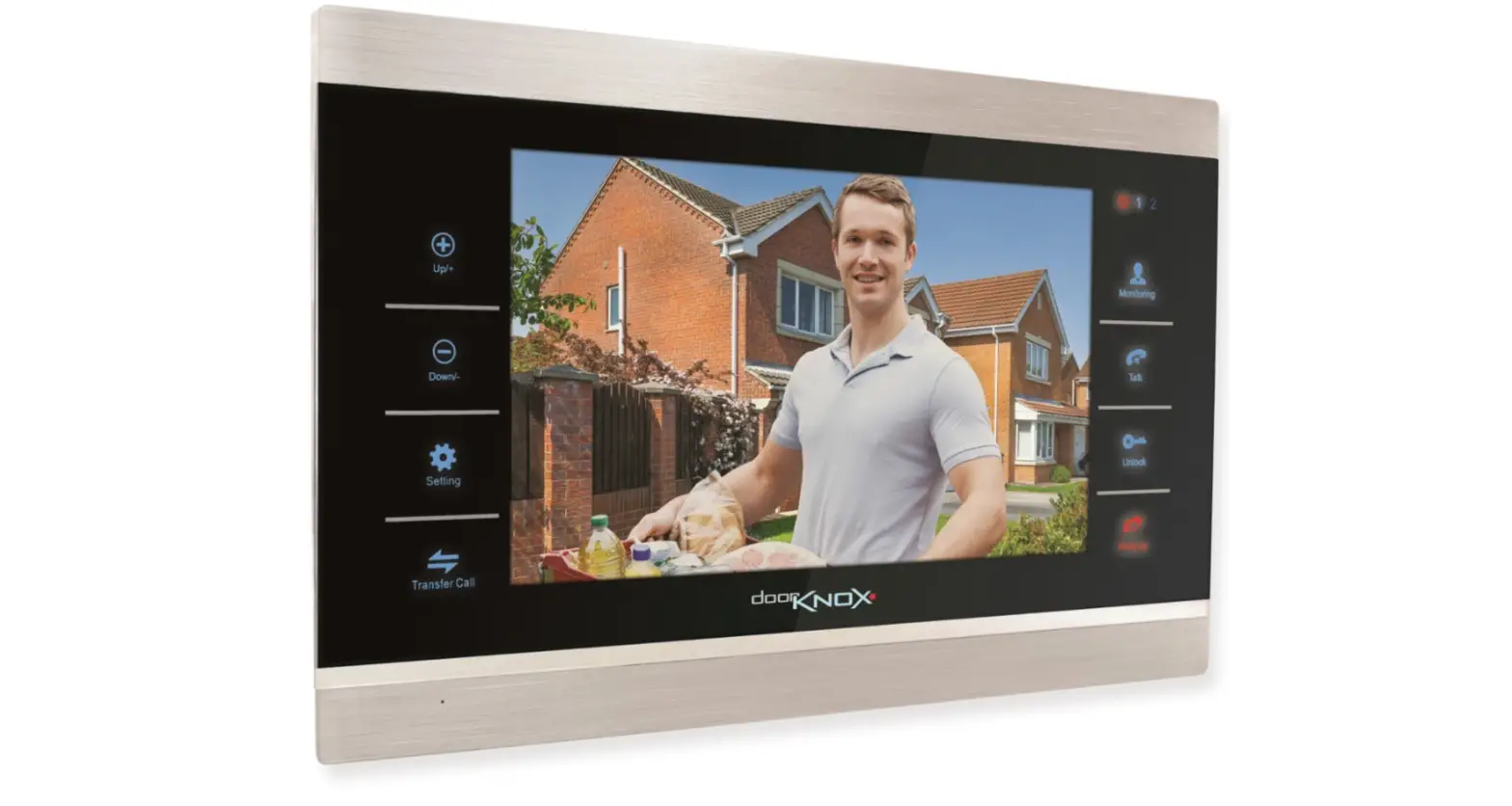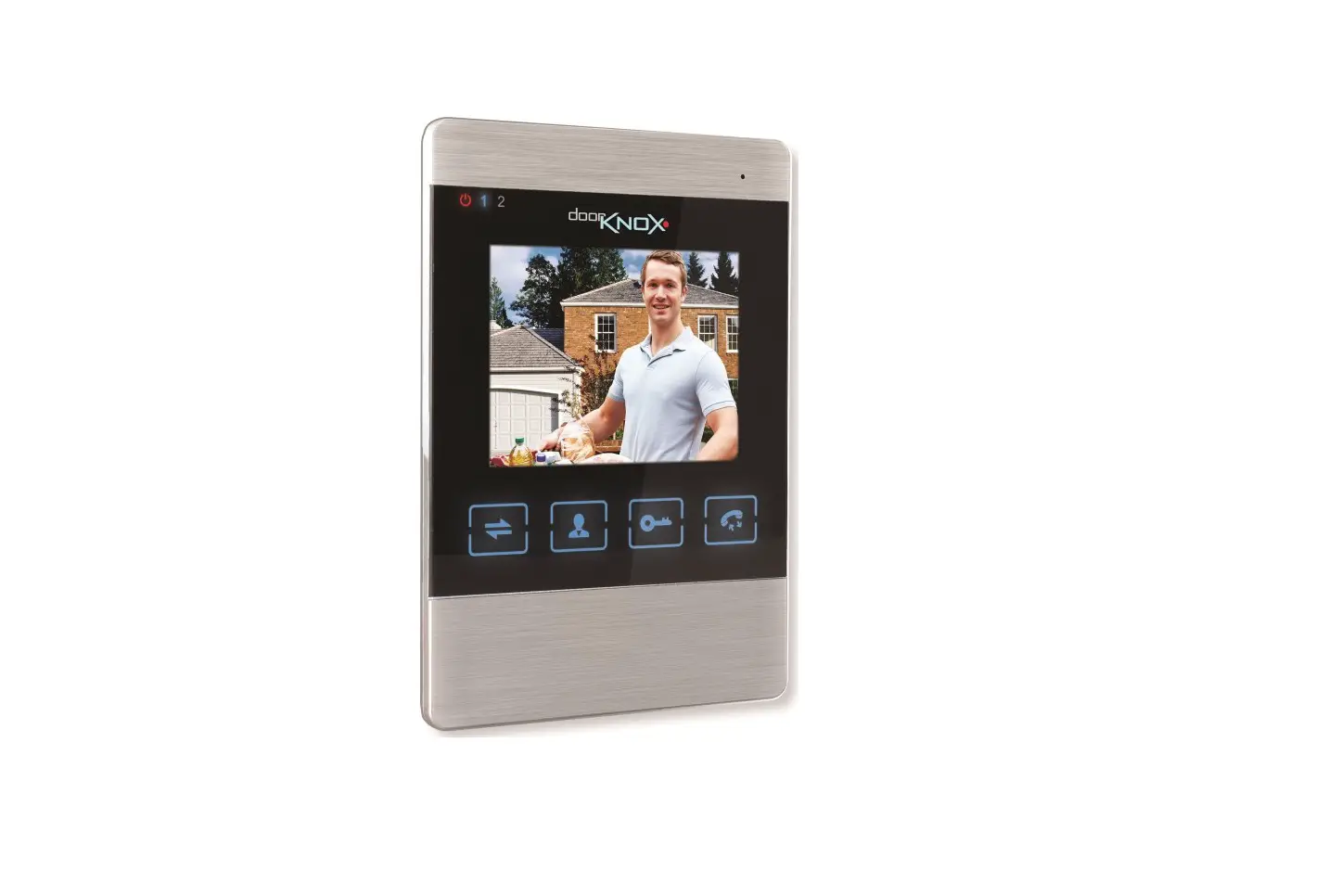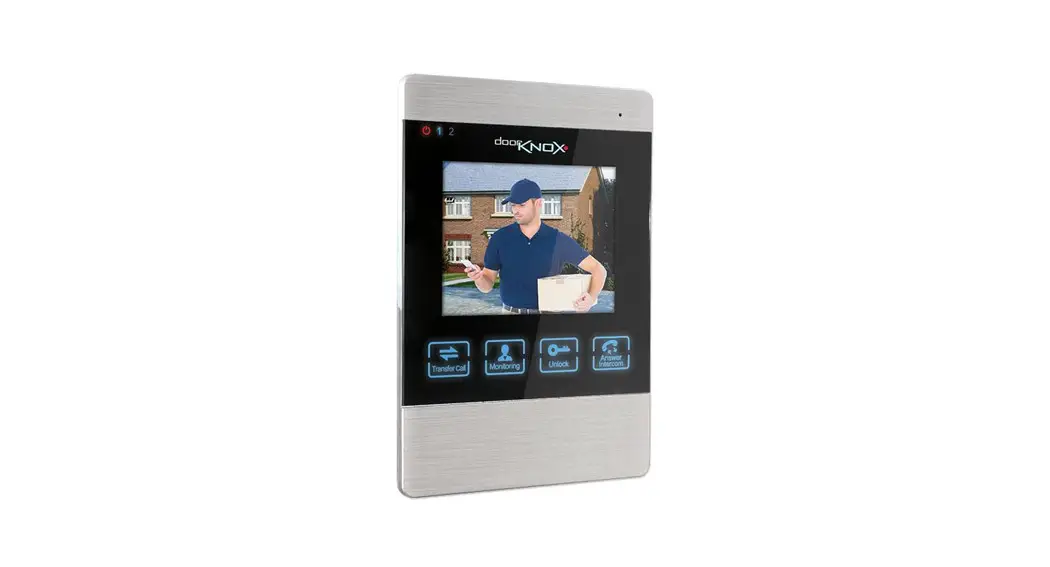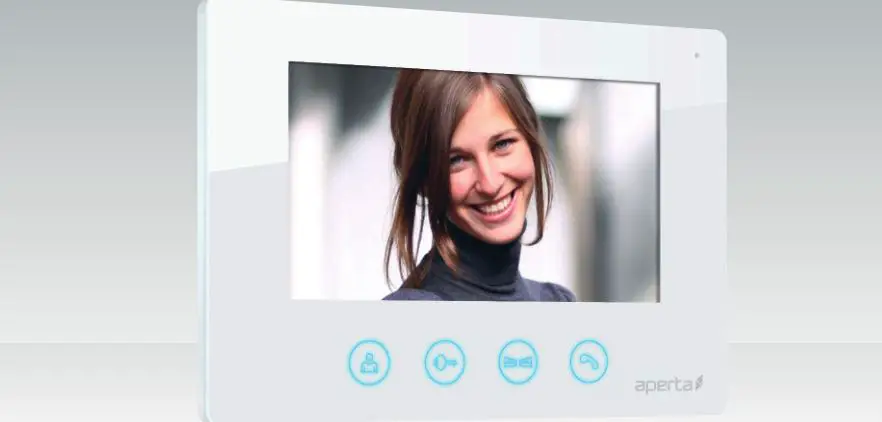
 xVDP207 DoorKnox Video Door Entry 7 inch Monitor
Instruction Manual
Introduction
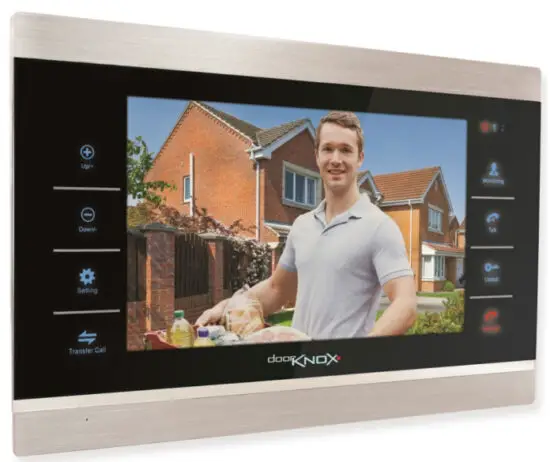
The new and improved DoorKnox VDP207 and VDP210 from serial numbers HCA01001 and HCB00401 onwards have many new features.
With a stylish brushed aluminum & gloss, black finish and quality build the DoorKnox is ideal for retail and commercial projects.
Our touch button monitors provide you with full control of your door entry system and are available in a choice of two sizes; 7” and 10”.
Two-door cameras and two-door locks can be connected to the main monitor.
Note:
DoorKnox Monitors from serial numbers VDP207 (HCA01001) & VDP210 (HCB00401) cannot be used alongside existing DoorKnox Monitors with earlier serial numbers
Key Features
- Up to 6 monitors on a system. 1 Main Monitor plus 5 Auxiliary Monitors.
- Camera to Monitor Intercom
- Monitor to Monitor Intercom
- 12 built ringtones
- Customize ringtone MP3
- Motion detection
- Ring at camera
- Automated Message & Video Mail Recording
- Local Unlock
- Standby Screen Saver Customisation
- Media Player – Music, Video & Pictures
Controls & Features

Mounting
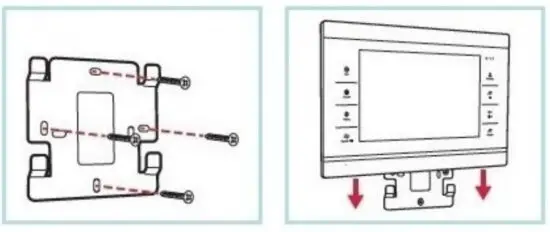
The mounting place is secured to the mounting surface and then the monitor slots onto it.
There is a large hold in the center of the mounting plate to allow the cables to pass through.
Connections and Wiring
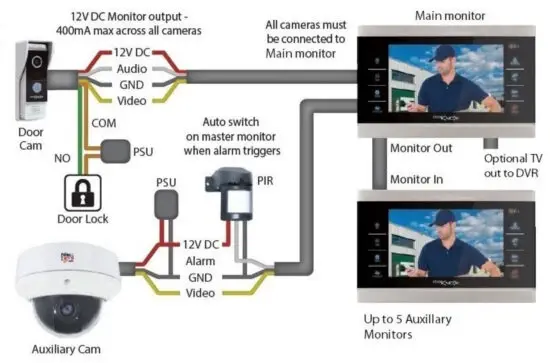
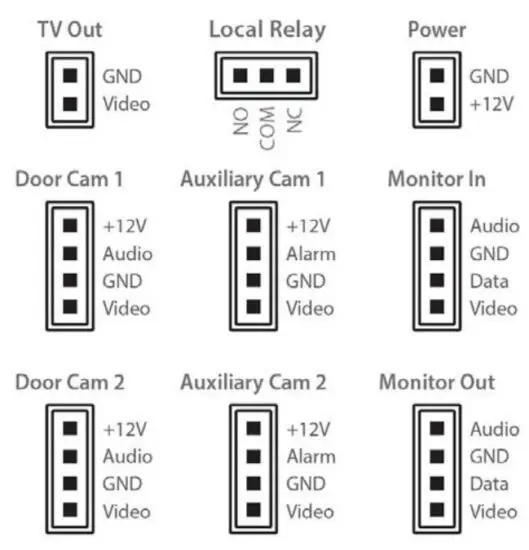
To make life easier all three monitors feature the exact same connection layout as shown below.
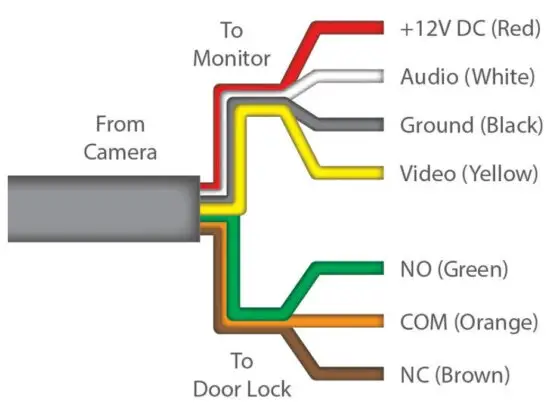
Cameras
All of our door cameras have connection cables terminated into the same 7 color-coordinated wires. 4 wires are used to connect to the monitor and then 2 of the 3 remaining wires are used to connect to an electronic door lock.
The common (COM) wire is always used along with either the normally open (NO) or normally closed (NC) wire depending on the lock type, power for the lock is separate as the Door Lock relay does not provide power output.
Monitors
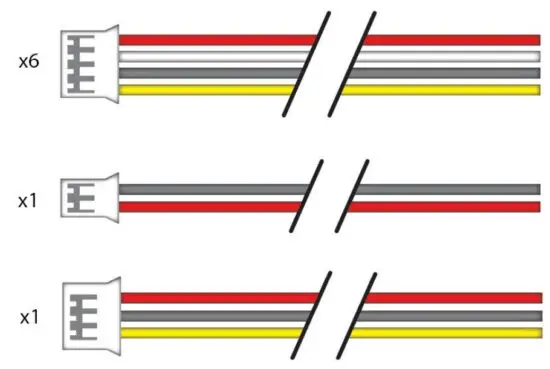
Every monitor is supplied with 6x 4 wire y-leads, 1x 2 wire y-lead, and 1x 3 wire y-lead.
The 4 wire y-leads are terminated into 4 pin plugs which are simply inserted into the sockets on the rear of the monitor. These are used for connecting door cameras, auxiliary cameras, and auxiliary monitors, the 4 wires are color-coordinated to match the 4 wires from the door camera.
The 2 wire y-lead is terminated with a 2 pin plug and is used as the TV out for connecting the door monitor to a TV monitor or DVR.
The 3 wire y-lead is terminated for the local relay plug and is used to unlock a local relay like a door release local to the monitor.
Powering Cameras
Door cameras and auxiliary cameras can be powered in two ways, either locally or via the main monitor.
The doorknob monitors can supply a 12V DC output to any of the four cameras but can only supply a maximum of 400mA across all outputs.
To power, a camera locally connects the Audio (white) and Video (yellow) to the door monitor, the GND (black) to the PSU and the door monitor, and then the 12V DC (red) to the PSU only.
Powering Monitors
Door monitors are supplied with a 12V DC 2A plug-in PSU that terminates into a 2-pin plug that slots into the rear of the monitor.
Cable Runs
The maximum achievable cable run is limited by the voltage drop in the chosen cable and also the quality of the video cable which can cause signal loss and interference.
Resistance differs depending on the cable used and the higher the resistance the more the voltage drops hence the shorter cable run is achievable.
It is recommended to use one of three types of cable, PTZ combo cable sometimes known as RG59+4, CAT5+2 cable, or 4 core cable with 0.3mm2 cores.
Below shows the maximum recommended cable run for each cable type. Cable runs exceeding the stated maximum run are at risk of issues caused by voltage drop and nonperformance of equipment.
Camera to Main Monitor
| Cable Type | Max Cable Run |
| PTZ Combo Cable (RG59+4) | Up To 150m |
| CAT5+2 Up To 100m 4 Core Cable (0.3mm2 | Up To 100m |
| 4 Core Cable (0.3mm2) | Up To 50m |
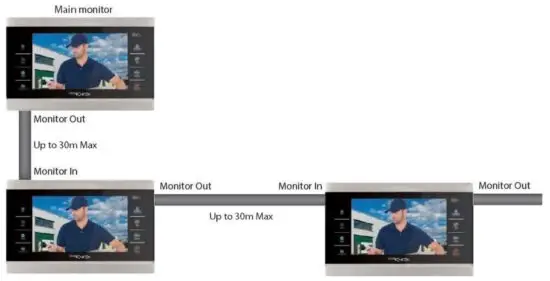
Main Monitor to Auxiliary Monitors
| Cable Type | Max Cable Run |
| PTZ Combo Cable (RG59+4) | Up To 30m (Per Monitor) |
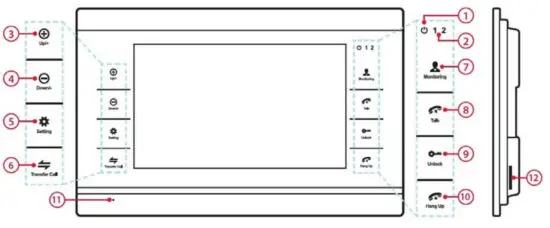
The Main Menu is entered by pressing the Setting button and navigated by using + for up or left, and – for down or right.
Once in the menu, the Setting button is used to select the feature.

To go back at any time or to exit the menu use the Hang Up button. Repeatedly pressing this button from any page will take you out of the settings. Any settings that you have made will be automatically saved.
Basic Monitor Settings
If only using 1 door camera and 1 monitor then skip setting monitor ID and camera switch.
Setting Monitor ID
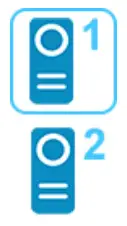
Up to 6 DoorKnox Monitors can be used, this means 1 Main Monitor and up to 5 Auxiliary Monitors
NOTE
The Main Monitor ID must be set to 1, and the Auxiliary Monitors ID range is set from 2 to 6.
To set Monitor ID
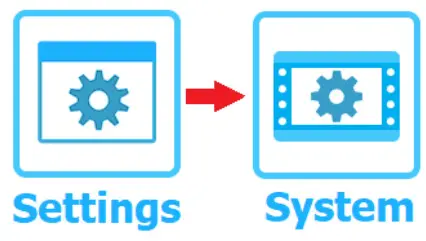
- From the menu select Settings and then System

- In the System menu, select Device ID uses the + and – buttons to change the ID, and then use the Hang up button to exit.
Camera Switch
As default Door, Cam 2, and CCTV (Auxillary) Cameras are turned off.
- From the menu select Settings and then System
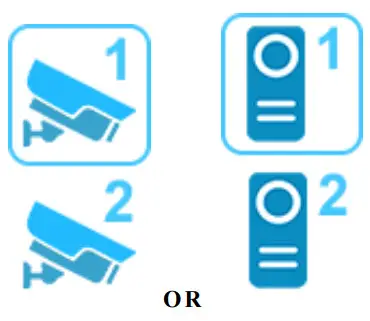
- Go to Door Cams / CCTV Cams

- Select Channel

- Then change Status in the list to ON.

Using the Door Entry System
Visitor Calls
When a visitor presses the call button on a door camera the ringtone will be played and their image will be displayed on all door monitors. To answer the call press the Talk button
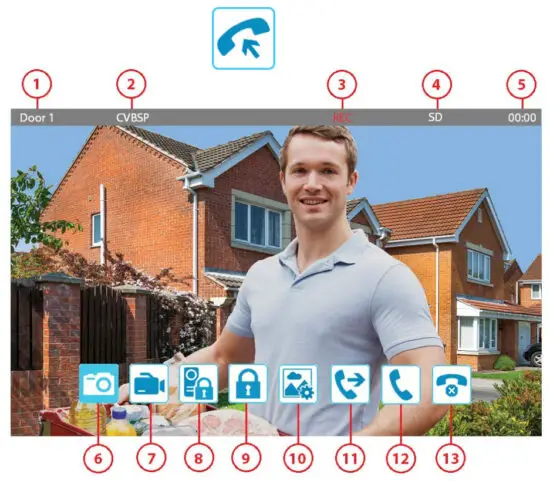
| 1 | Door Camera Number | 8 | Outdoor Door / Camera Relay Unlock |
| 2 | Video Format | 9 | Local Relay Unlock |
| 3 | Recording Status | 10 | Picture Settings |
| 4 | Storage Status | 11 | Transfer Call |
| 5 | Call Time | 12 | Answer Call |
| 6 | Snapshot | 13 | Hang Up |
| 7 | Manual Video Record | ||
Intercom (Monitor to Monitor Audio only)
Press and hold the Transfer Call button to show different monitor extension IDs
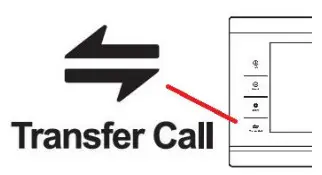
Press the Up and Down to select the different monitor IDs then select using Setting to call another monitor.
To answer the call press the Talk button on the receiving monitor.
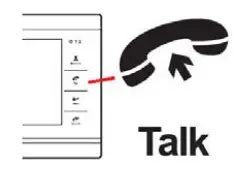
To end the call press the Hang Up Button.
Monitoring Cameras
To monitor any camera press the Monitoring button to cycle through camera inputs.
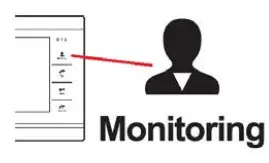
When monitoring a door camera opens two-way audio by pressing the Talk button.
Unlock the door by pressing the Unlock button.
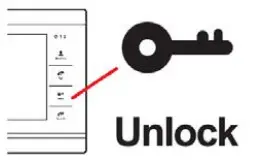
When monitoring cameras the door monitor will return to standby after 60 seconds of inactivity.
Monitor Features
Standby Mode
The standby screen mode can be set to either:
Clock mode – which shows the time date and the notifications bar at the bottom
Digital Photo Frame mode – This shows a sideshow/image which can be accompanied by background music.
Clock Mode
On clock mode, the monitor will go back to the clock screen after 1 minute of inactivity in the menu.
The clock will display for 1 minute after the screen will turn off.
Notifications
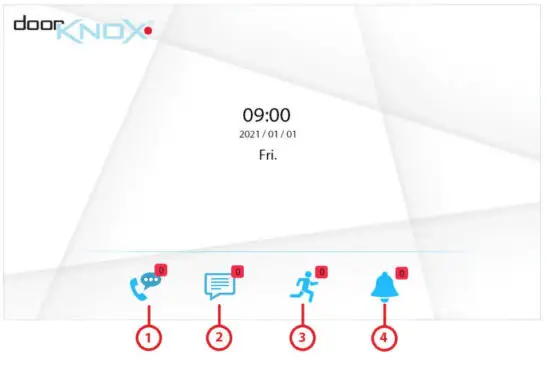
- Call – During any Door Camera call, the monitor automatically captures a snapshot or records video.
- Messages – Automatic Video Message recording when no one answers the call on a monitor.
- Motion – Motion can be set to record when motion is triggered at a door camera or CCTV (Auxiliary) Camera.
- Alarm – When CCTV (Auxiliary Camera) alarm input is triggered the monitor automatically captures a snapshot or records video.
NOTE:
This feature requires an SD Card to be installed in the monitor.
Digital Photo Frame Mode
Digital photo frame mode will play the pictures on the SD card in standby.
The monitor will create a “Photo” folder on the SD Card, any pictures required for the system to play need to be placed in this folder.
Remove the SD Card and place it into a compatible device, like a PC or Phone.
On the SD card go to:-
User > Photo
Any photos placed in this folder will then automatically display as a digital photo frame.
Standby Mode Options
- From the menu select Settings

Select Standby Mode
| Standby Mode Options | |
| Digital photo frame | OFF / ON |
| Digital photo switch time | 1 – 30 Seconds |
| Background music | OFF / ON |
| Background music volume | 1 – 10 |
Motion Detection
Can be set up to trigger recording to the SD card in the monitors connected and also be reviewed later as a notification from the menu.
- From the menu select Settings
- Go to Door Cams / CCTV Cams
- Select Channel
- Set Motion Detection to ON
Motion Record Time – Adjustable 10s – 20s , 40s, 60s, 80s, 100s, 120s, 140s, 160s, 180s, 200s, 220s, 240s, 260s, 280s, 300s
All Motion Events will then be displayed as a notification from the main screen which can be played back.
NOTE
The motion will only trigger and record an event on 1 channel at a time. For example, If Door Cam 1 is triggered and recording motion and Door Cam 2 is also triggered, then only Door Cam 1 will record the motion event. i.e simultaneous recording from multiple cameras is not possible, as the first event is the event that is logged.
Motion Detection Preview
When motion is detected then the camera which is activated can be set to display on the monitor.
To turn Motion Detection Preview on:-
- From the menu select Settings and then System
- Set Motion Detection Preview to ON
NOTE
If Digital Photo Frame is running and Motion is triggered then the motion event will trigger and show the motion event. If the motion detection preview is turned off then the digital photo frame will be interrupted to show the message “motion detection, video recording”. Select the setting to remove the event or the notice will end after the motion event has finished.
Messages & Availability Status
The monitor supports Automated Message Recording if nobody answers the call on a monitor.
The monitor will handle this differently depending on your availability status.
The message needs to be turned on in the Door Camera First, Message Time can also be set, go to:-
- From the menu select Settings
- Go to Door Cams

- Select Channel

- Set Message to ON
- Set Max Message Time – 30s, 60s, 120s
Availability Status
This is set in the Main Menu on the monitor
Available – The call will go through to the monitor and ring for 30 seconds. Then “Please leave a message” audio will play at the camera, then the caller can leave a message.
Unavailable – The call will go straight to “Please leave a message” audio at the camera, then the caller can leave a message.
Silent – The call will go through to the monitor but will not ring or sound for 30 seconds. Then “Please leave a message” audio will play at the camera, then the caller can leave a message.

Local Relay Unlock
This can be activated in two ways:-
Option 1. Press and hold Unlock to activate a local relay
Option 2. in the Main Menu Select Lock
Unlock Time
To change the unlock time (Default 2 seconds)
- From the menu select Settings and then System
- Set Internal Unlock time, this is adjustable 1 – 10s
Additional Features
Additional features like Media Player and Ringtones that may not be included in this version of the manual will be added later.
Troubleshooting
Signal Loss / No Image
Poor Connections – A poor lead connection may cause signal loss or interference so check that each component is firmly plugged in and any joints (soldered or otherwise) have been made well and solid with no shorts or crossed wires.
Lack Of Power – This May cause a lack of pictures or other intermittent results. Check your equipment works on a short lead to rule out unsuitable cable runs. Ensure that each add-on item such as cameras, PIRs, etc. has its own adequate power supply source. Finally, try powering the unit locally with a suitably rated power supply unit (12V DC 2A). See Powering Monitors for help on this.
Long Cable Runs Causing Signal Loss – A long cable run may result in poor or complete signal loss. Firstly check if this is the cause by testing the camera and screen on a short test cable. If the problem disappears then both units are working correctly.
Next check if the correct cable is being used. If your cable is below specification then it will need replacing with a more suitable heavier duty cable. See Connections and Wiring 
All above checks should be carried out in any situation where one unit does not appear to be receiving a signal whether video, audio or data from another unit.
General Maintenance
- Ensure that nothing is obscuring the field of view, position the camera to ensure the subject is in the field of view and can be seen clearly.
- Ensure that the Microphone is clear and not obscured at all.
- Routinely clean the monitor to prevent dust build-up as this can affect the performance. We recommend a damp non-abrasive microfibre cloth.
- Routinely check the connections for power and data to ensure the connections are secure and solid.
- Check that the monitor is firmly attached to the wall mounting bracket.
- Check playback in the monitor to ensure it is recording & triggering properly on the SD Card
VDP207 Specification
| Screen Size | 7” |
| Video-Input | CVBS |
| Resolution | 800 x 600 |
| Camera Input | 2x Door Cameras / 2x Auxiliary Cameras |
| Door Monitor Inputs | 1 |
| Door Monitor Outputs | 1 (5 Auxiliary Max) |
| TV Monitor Outputs | 1 (720 x 576) |
| SD Card | Micro SD / 2GB – 128GB Class 10 Min (32 GB Supplied) |
| Power /Consumption | 12V DC / 1200mA (2A PSU Supplied) |
| Build | Brushed Aluminium & Plastic |
| Dimensions | (H) 165 x (W) 245 x (D) 23mm |
Conditions
All specifications are approximate. System Q Ltd reserves the right to change product specifications or features without notice. Whilst every effort is made to ensure that these instructions are complete and accurate, System Q Ltd cannot be held responsible for any losses, no matter how they arise, from errors or omissions in these instructions, or the performance or non-performance of the equipment referred to.
This symbol indicates that equipment must not be mixed with general household waste.
For treatment, recovery, and recycling please return to your local designated WEE/CG0783SS collection point as defined by your local council.

© Copyright 2020
DoorKnox is a registered trademark of System Q Ltd, Chesterfield. Derbyshire. S40 2WB
 DoorKnox.com