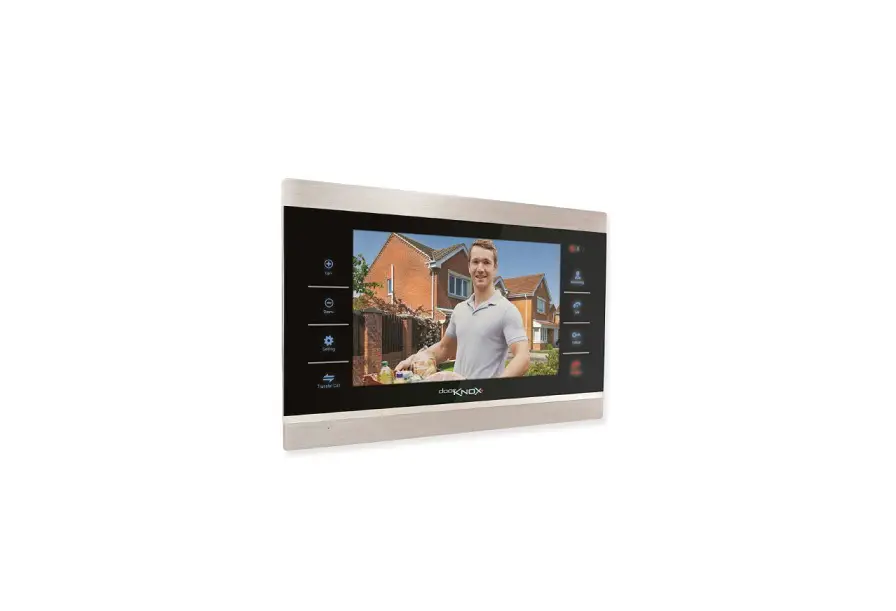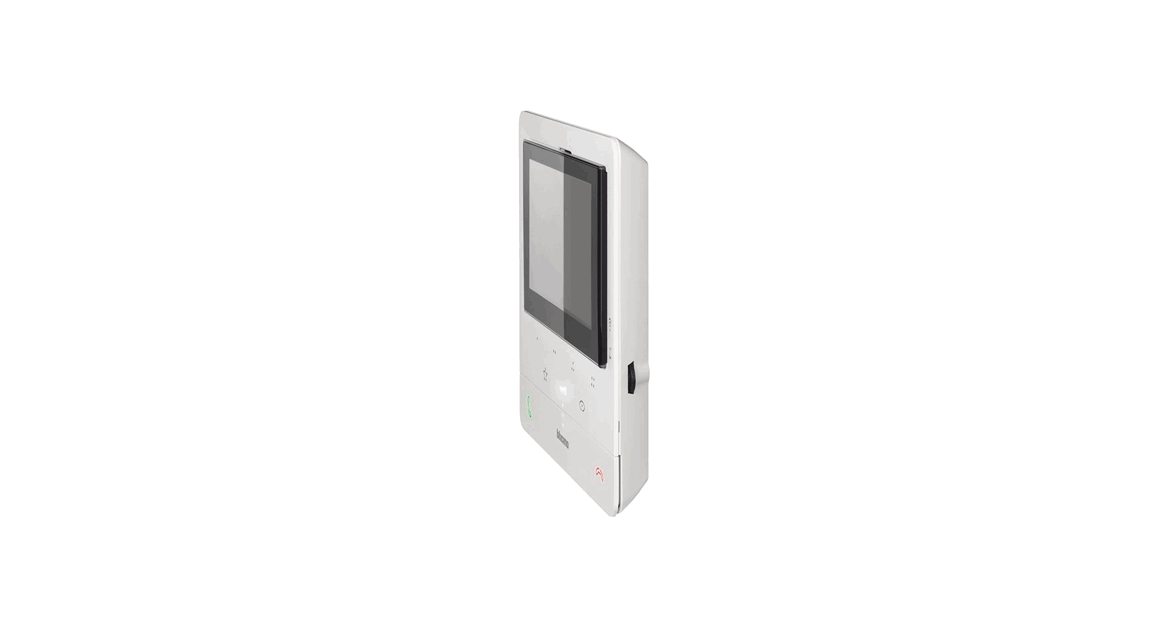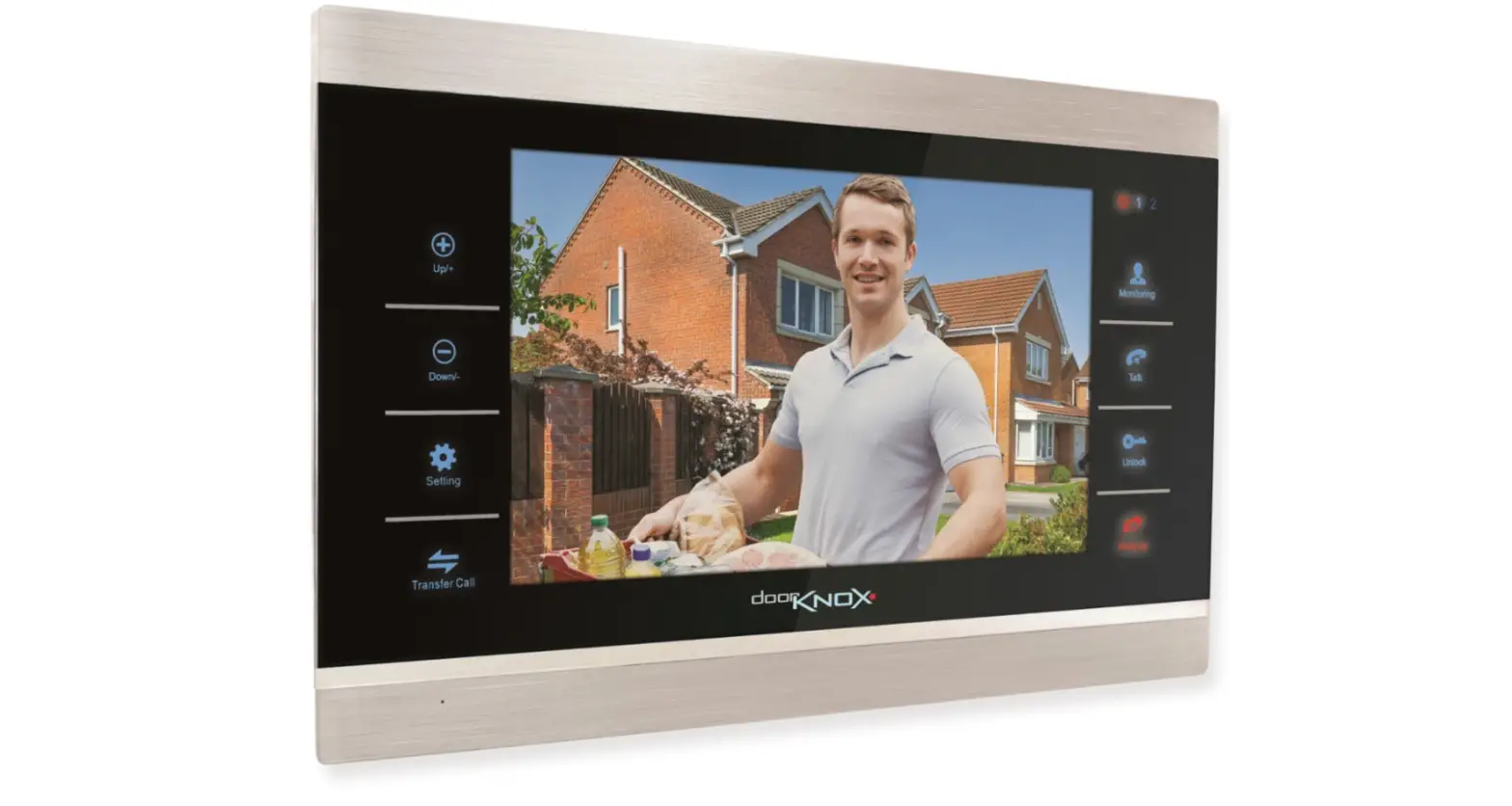

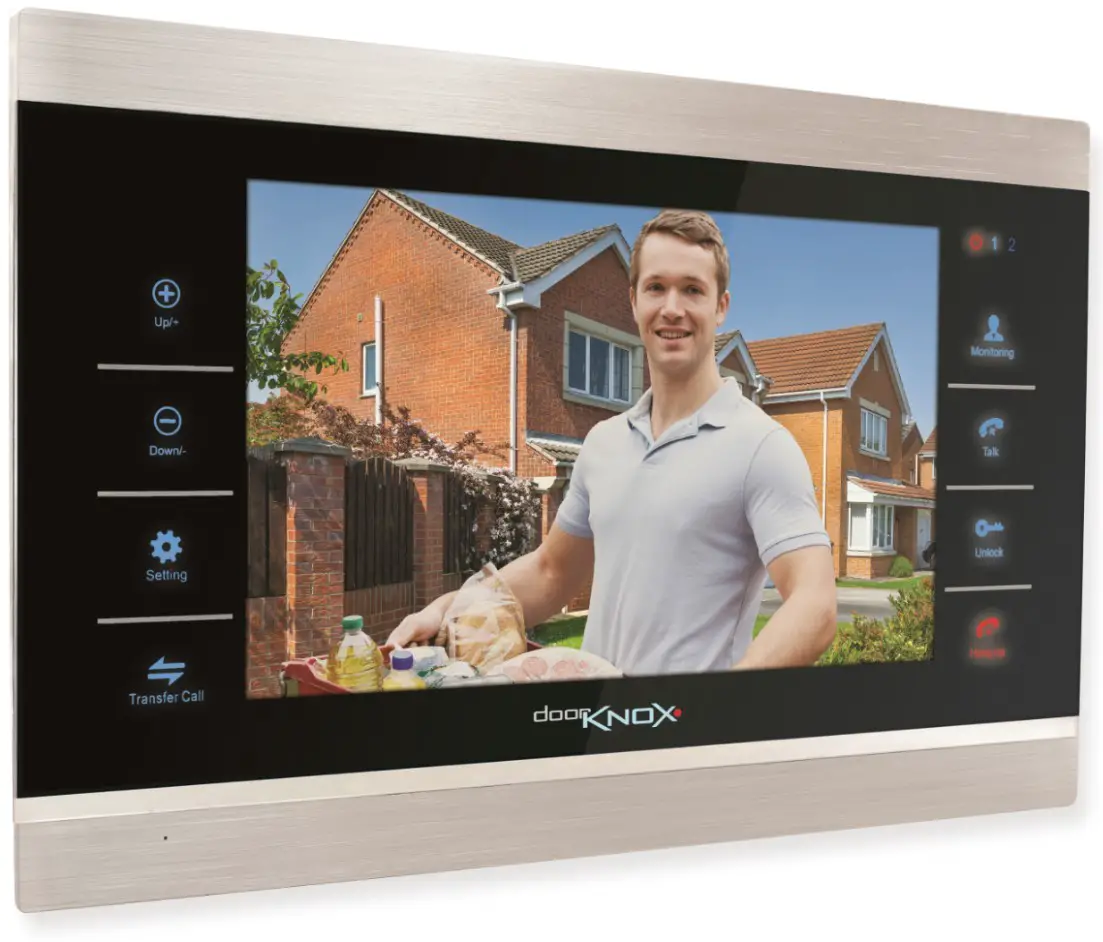
DoorKNOX VDP207 Video Door Entry 7-Inch Monitor
Instruction
Scan QR Code for Full Manual https://www.systemq.com/PDF/manual/xVDP207.pdf

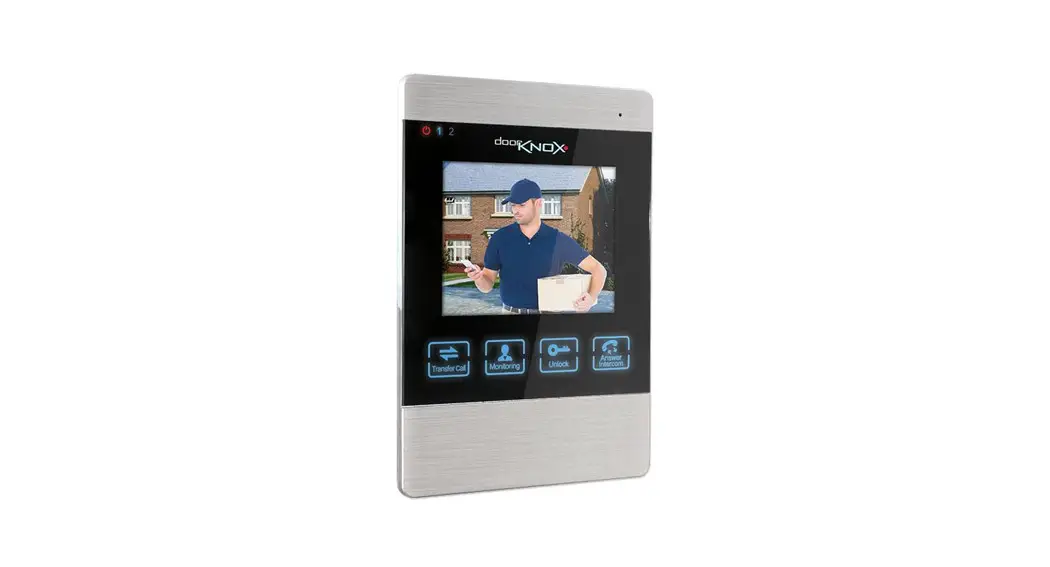
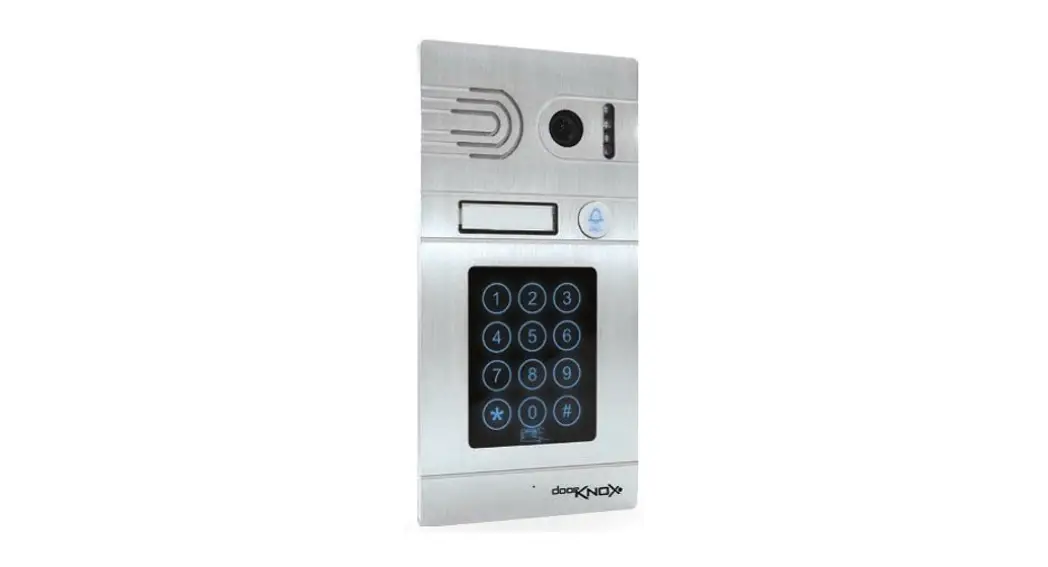
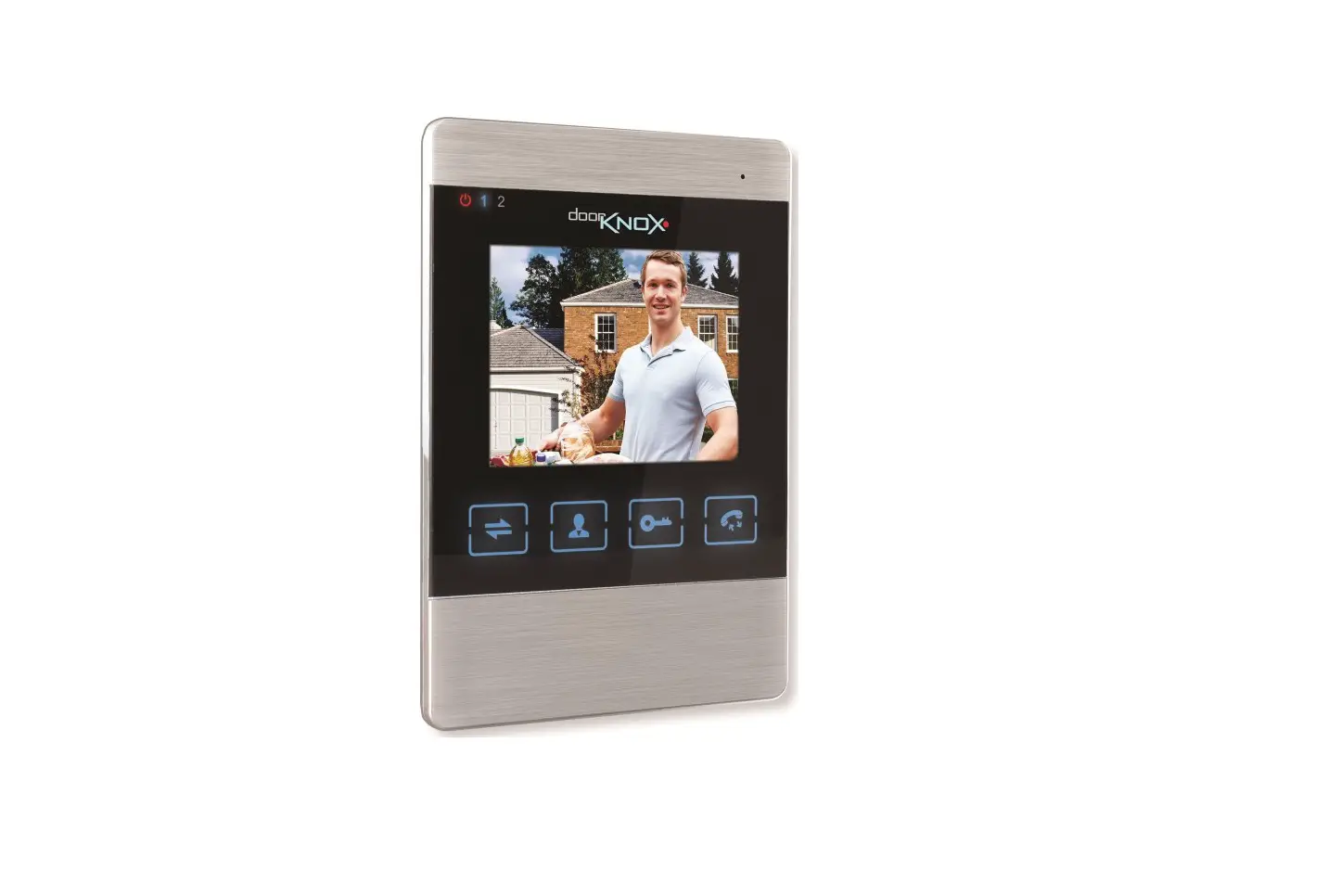
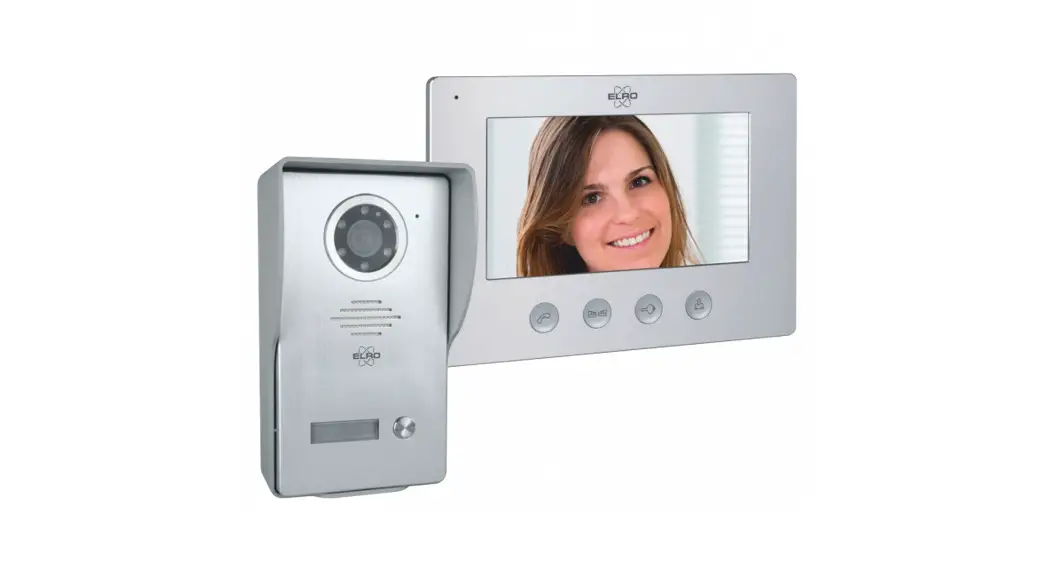
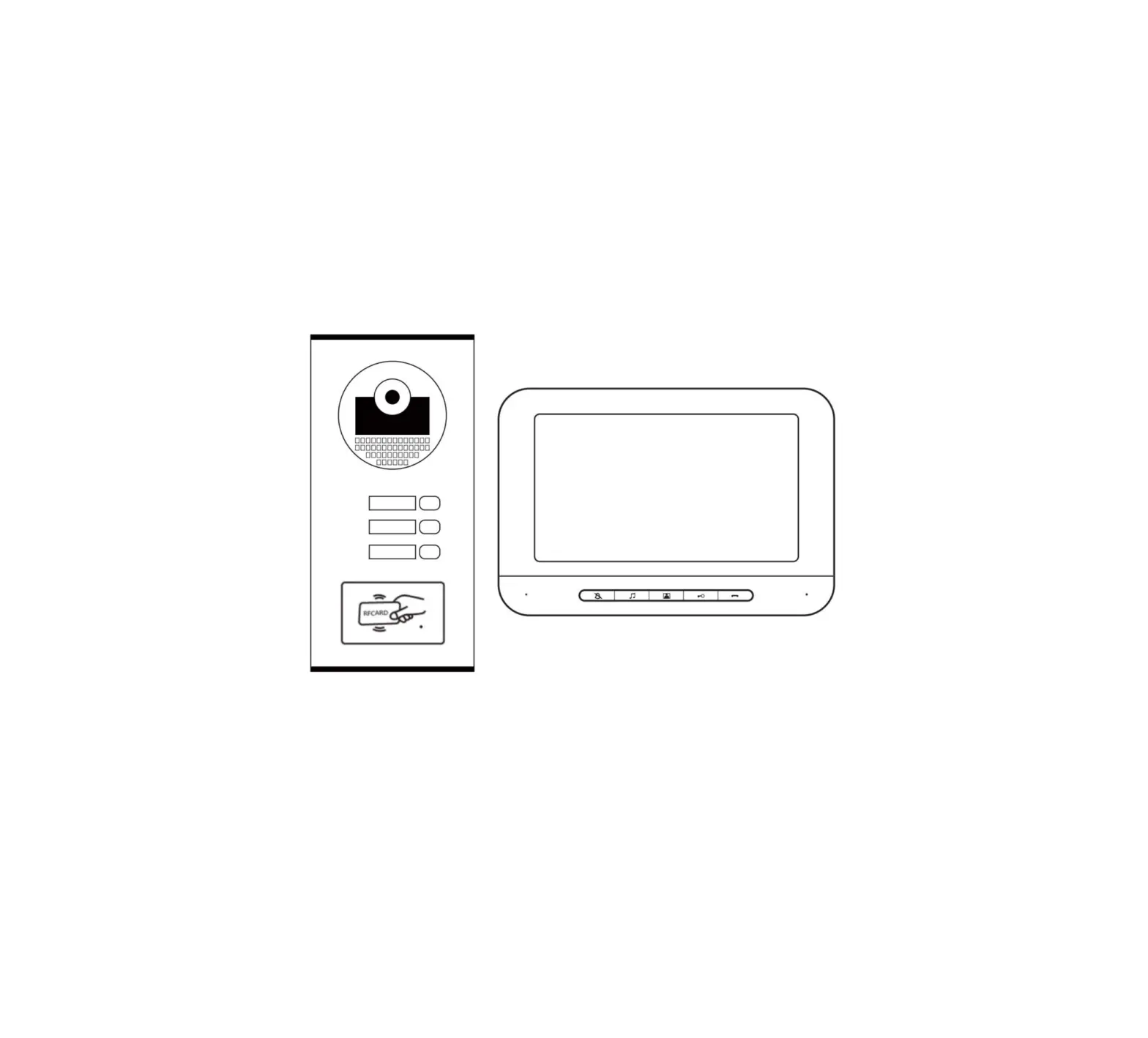
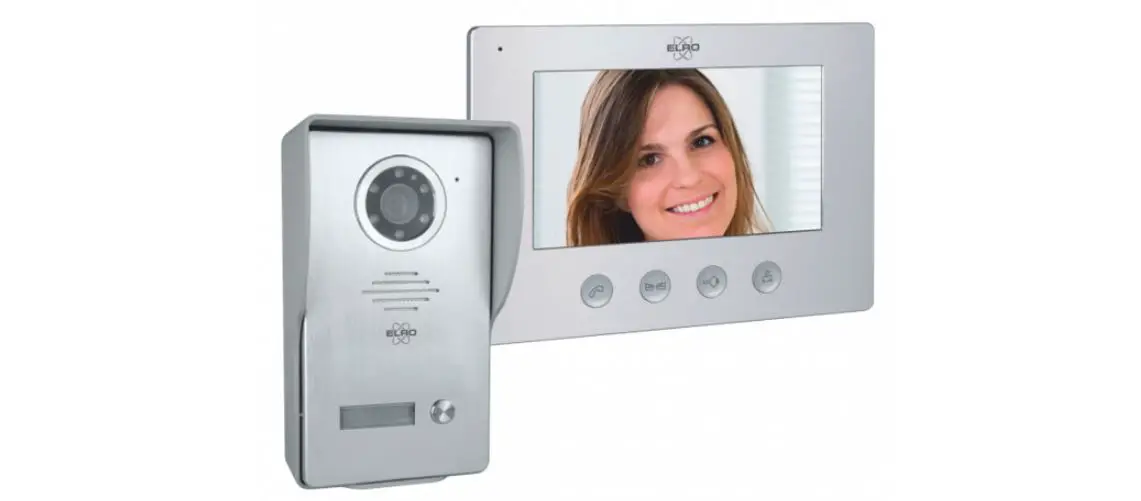
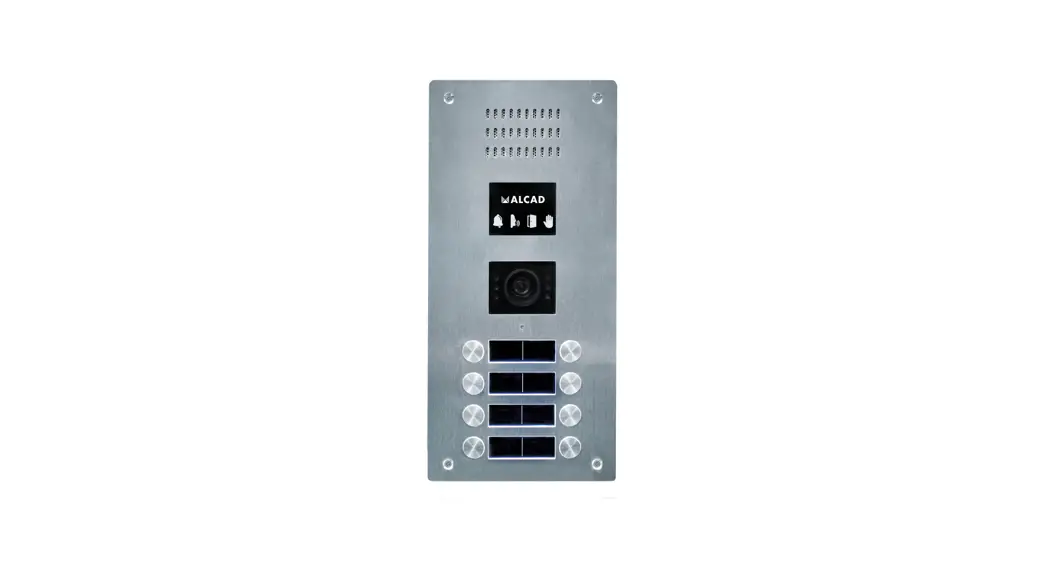
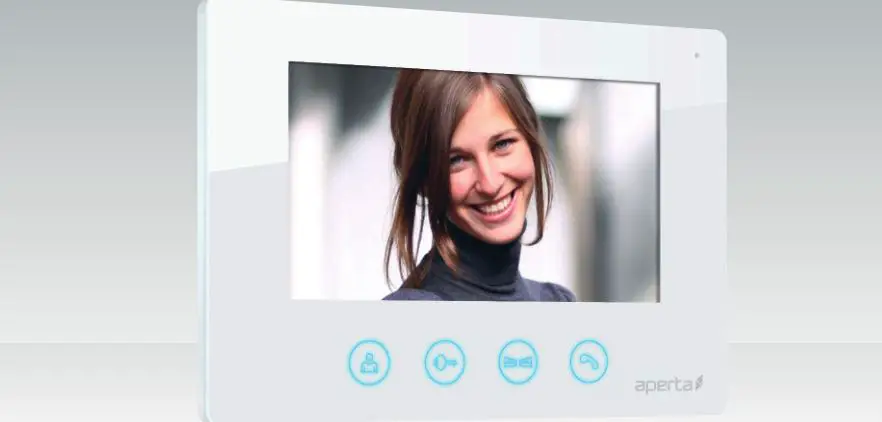
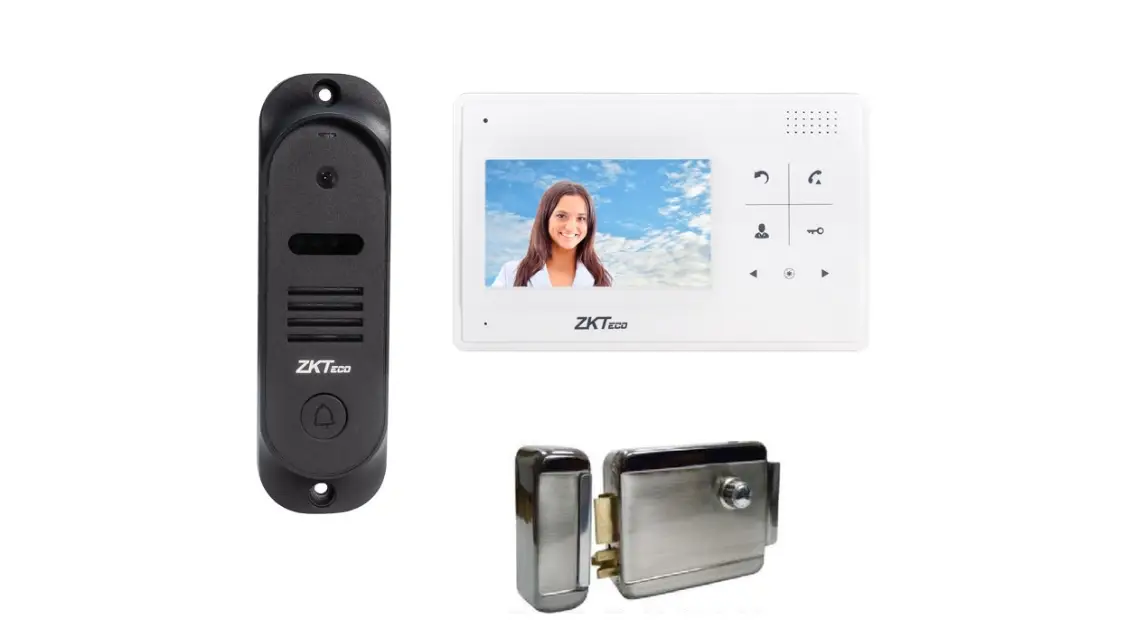
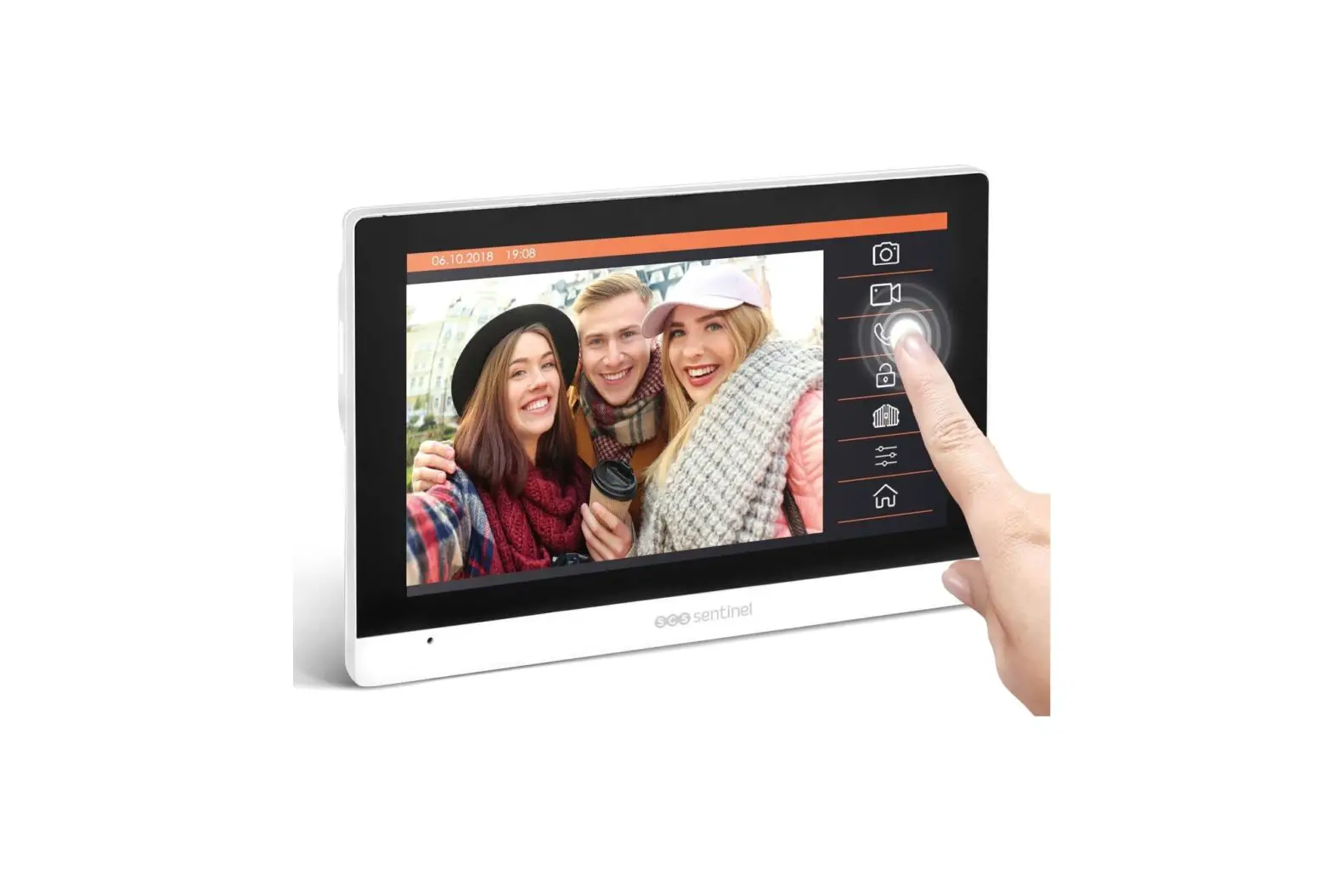
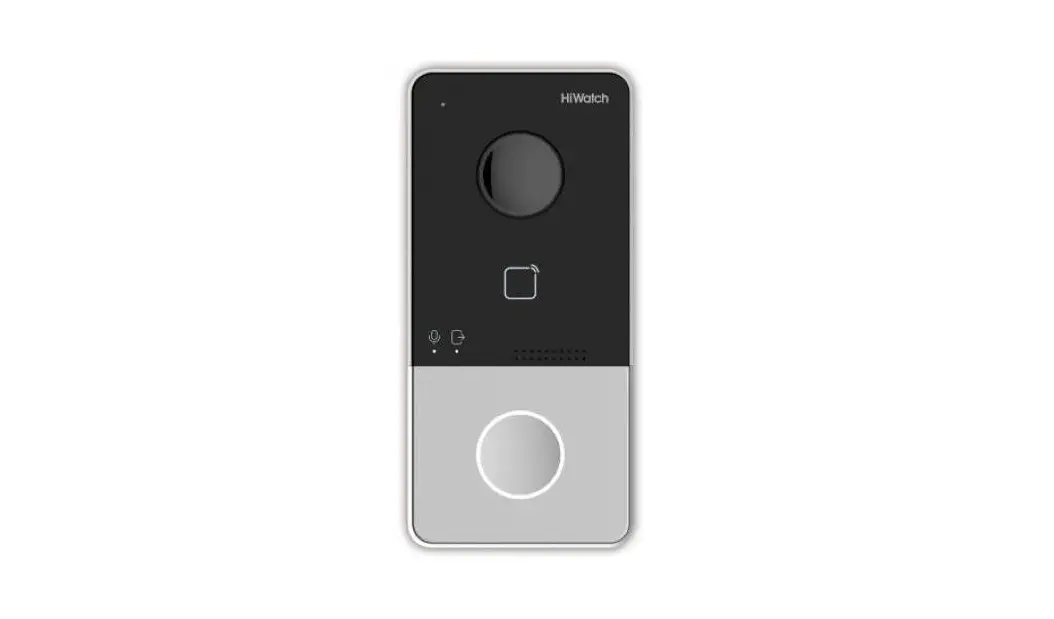
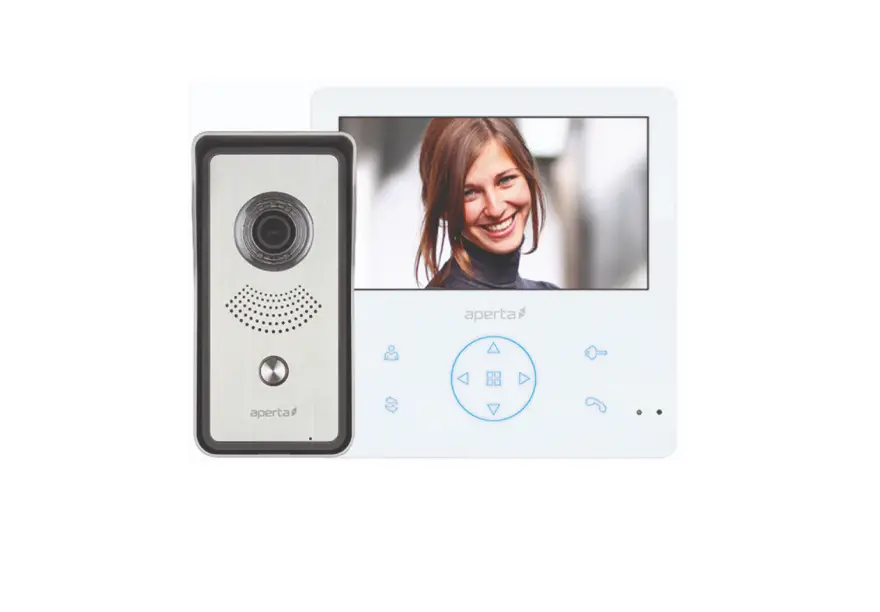
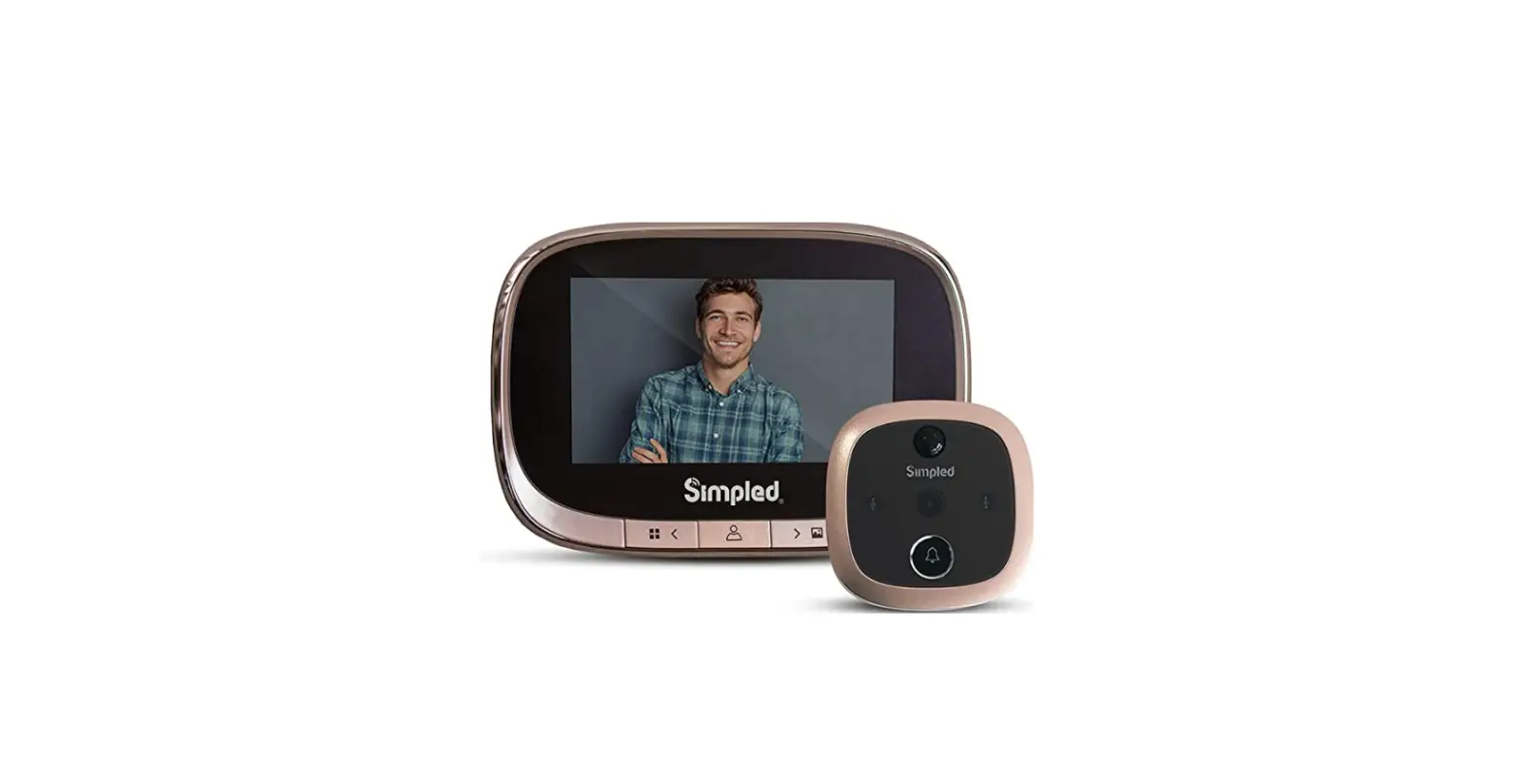
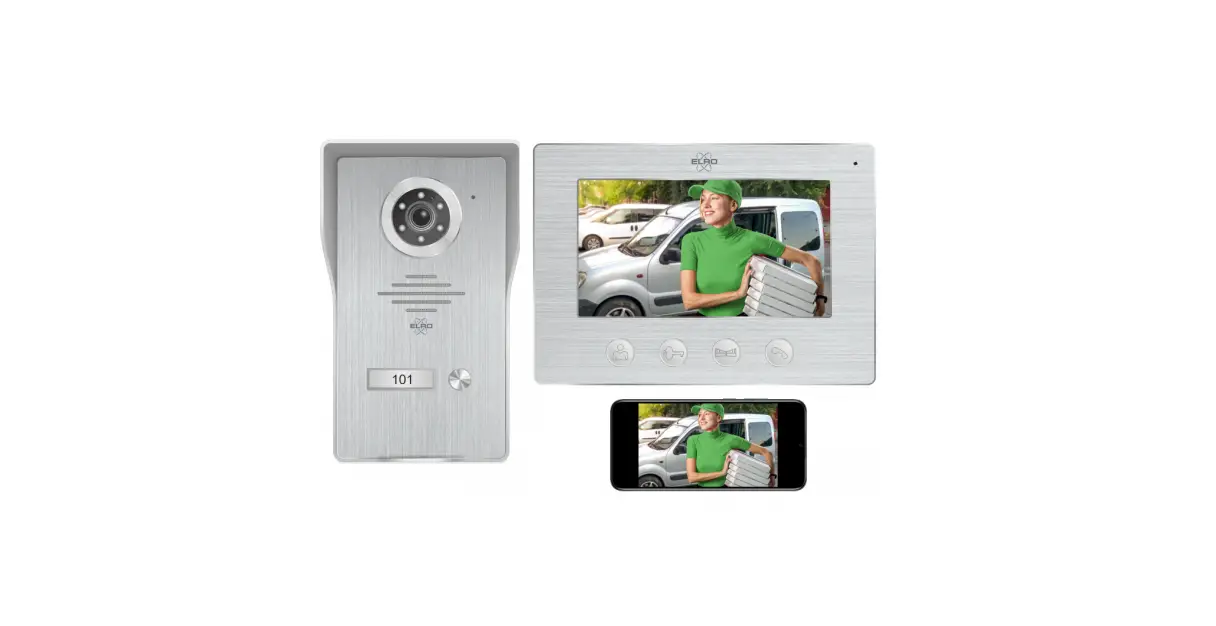
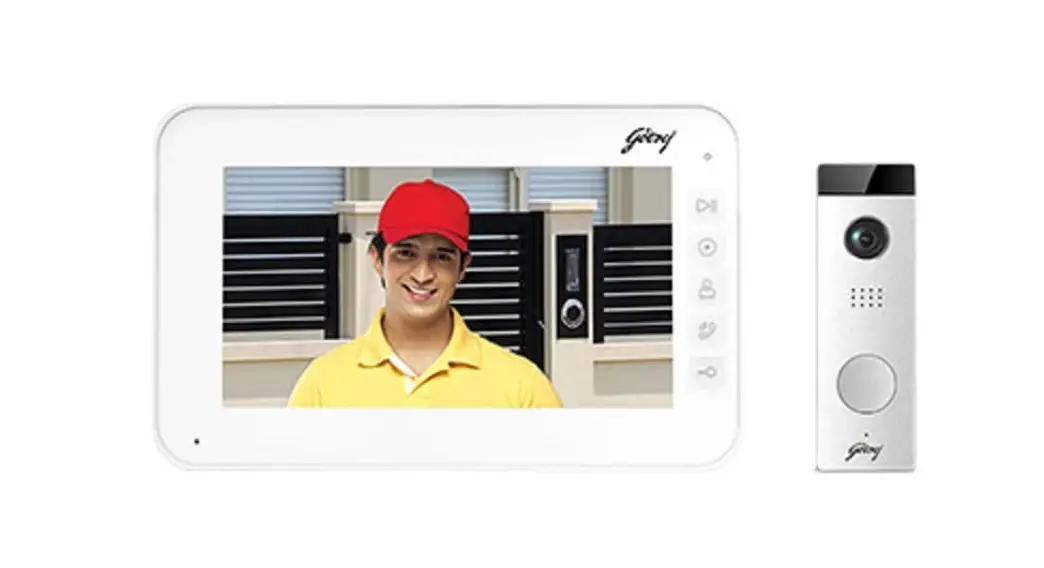
- The latest range of DoorKnox video entry products provides a mix and match system with a choice of door cameras and attractive video displays to suit any home or business reception area.
- The new and improved DoorKnox VDP207 from serial numbers HCA01001 onwards have many new features.
- Note: DoorKnox Monitors from serial numbers VDP207 (HCA01001) & VDP210 (HCB00401) cannot be used along side existing DoorKnox Monitors with earlier serial numbers.
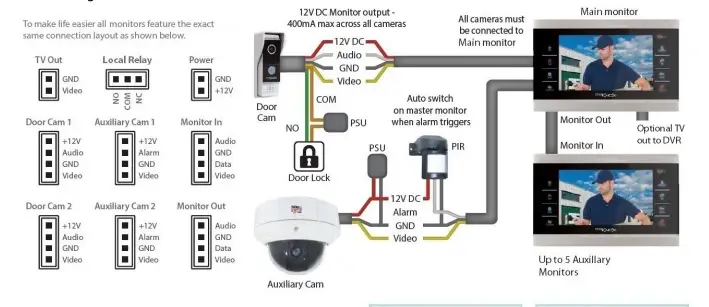
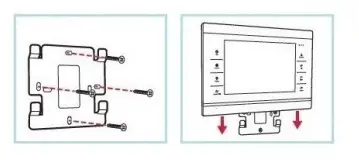
- The mounting place is secure to the mounting surface and then the monitor slots on to it.
- There is a large hold in the centre of the mounting plate to allow the cables to pass through.

Setting Monitor ID
Up to 6 DoorKnox Monitors can be used, this means 1 Main Monitor and up to 5 Auxiliary Monitors.
The Main Monitor ID must be set to
- And the Auxiliary Monitors ID range is set from 2 to 6. \
- Select Settings
- Go to System
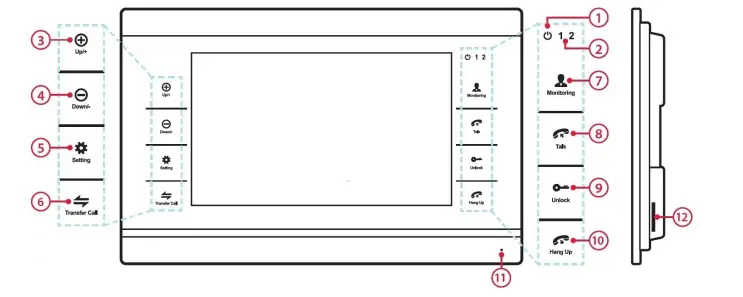
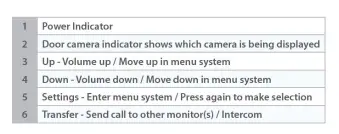
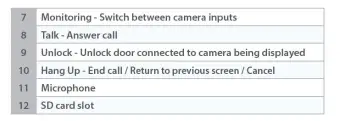
- Select Setting on the monitor controls Setting Set. item
- Set the Device ID, for Main Monitor (1) or Auxiliary Monitor (2-6) Camera Switch
As default Door, Cam 2, and CCTV (Auxiliary) Cameras are Turned off.
- Select Setting on the monitor
- Select Settings controls Setting Sttins
- Go to Door Cams/CCTV Cams
- Select Channel, Then change Status in the list to ON/
All specifications are approximate. System Q Ltd reservesthe right to change product specifications or features without notice. Whilst every effort is made to ensure that these instructions are complete and accurate, System Q Ltd cannot be held responsible for any losses, no matter how they arise, from errors or omissionsin these instructions, or the performance or non-performance ofthe equipment refered to.