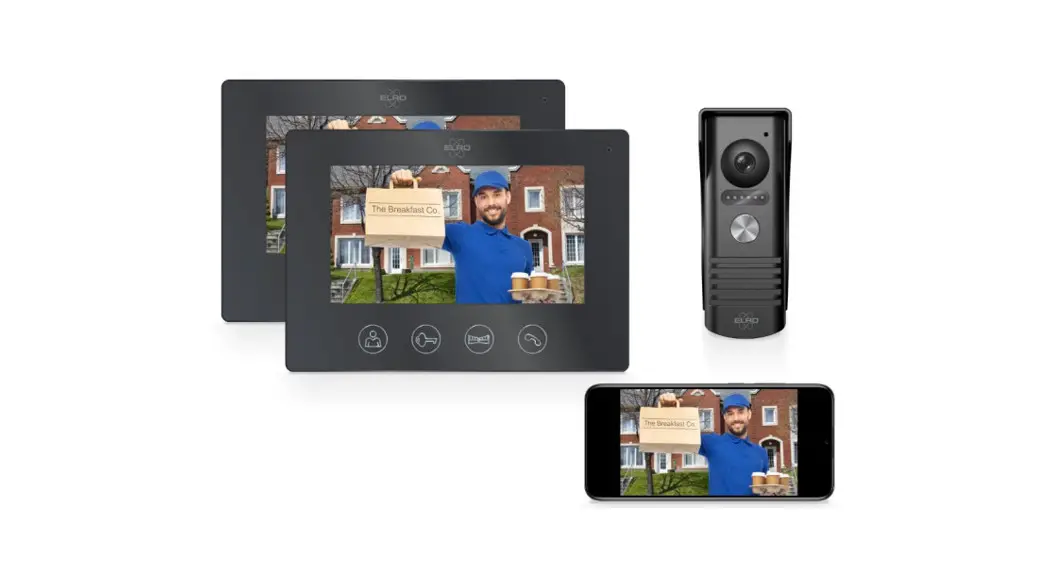
ELRO DV477IP IP Video Door Intercom with 7 Inch 18cm Monitor User Manual
Introduction
Please read this manual before you start mounting and installing the IP VIDEO DOOR INTERCOM.
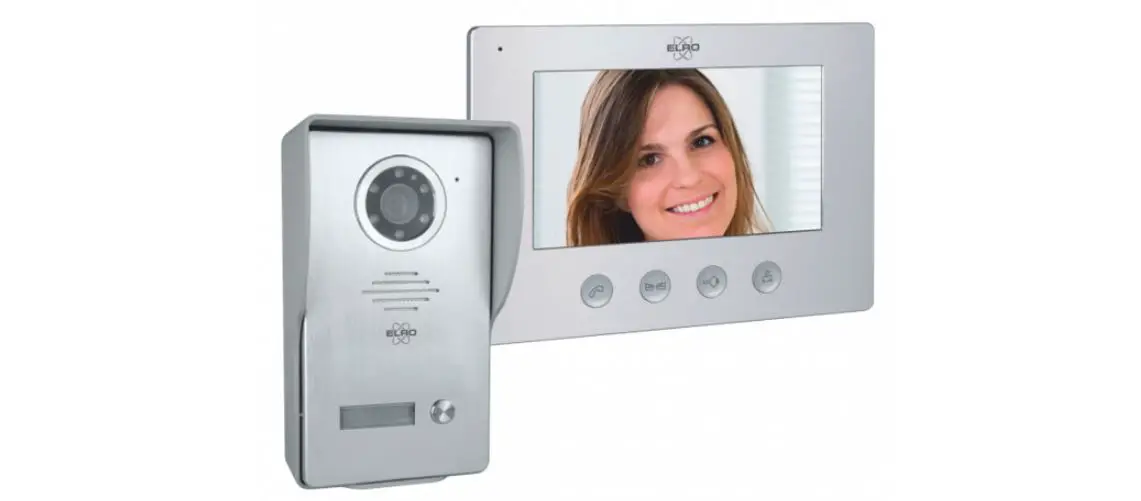
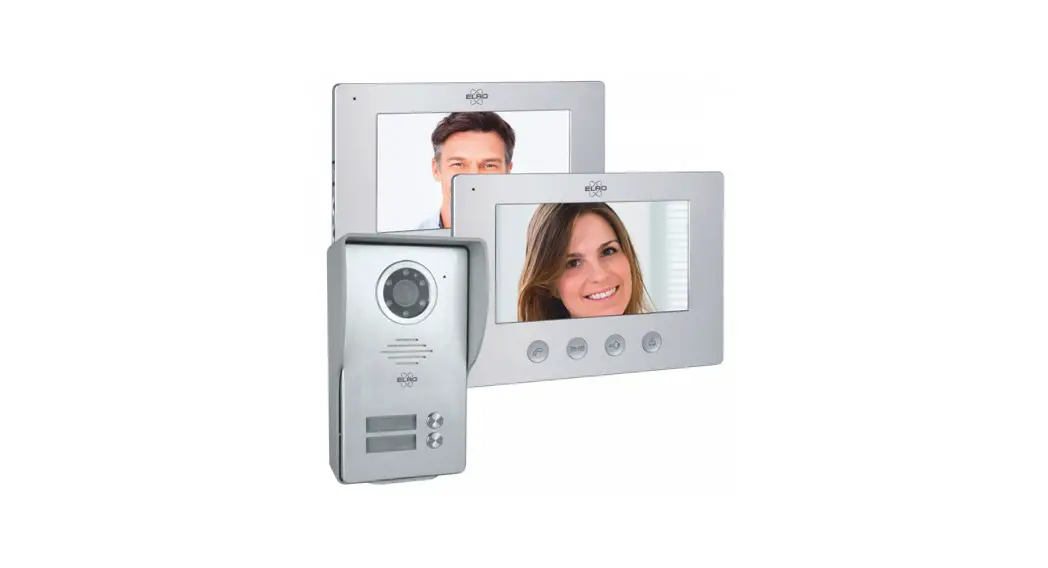
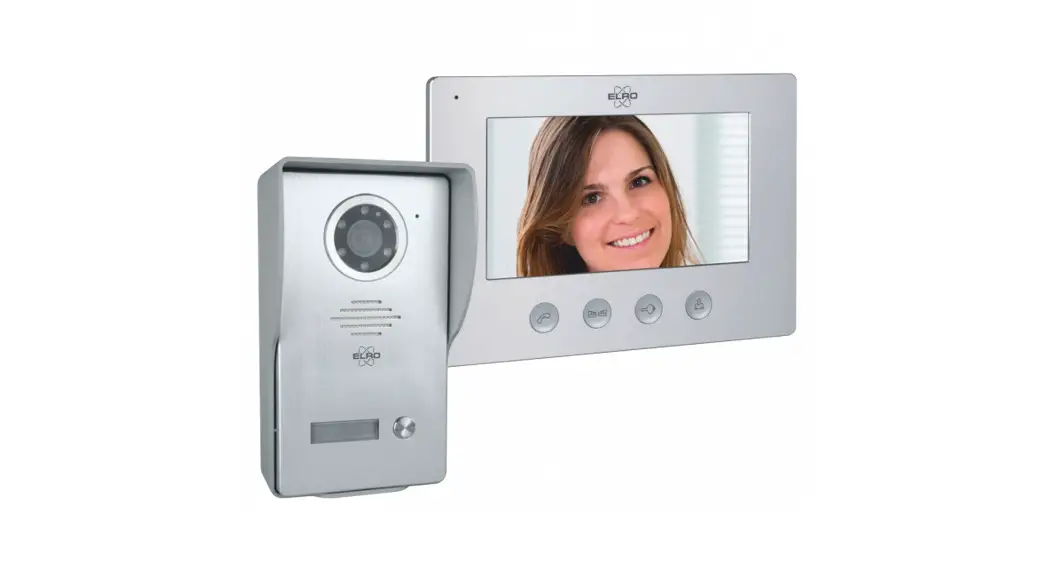
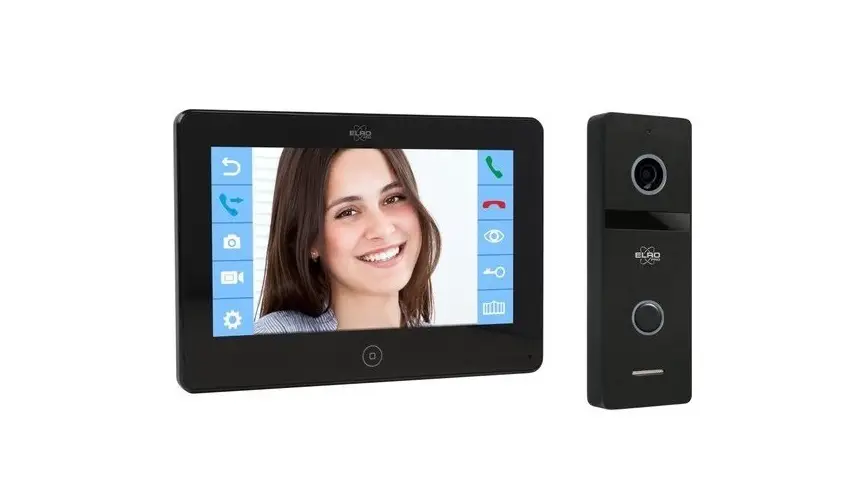
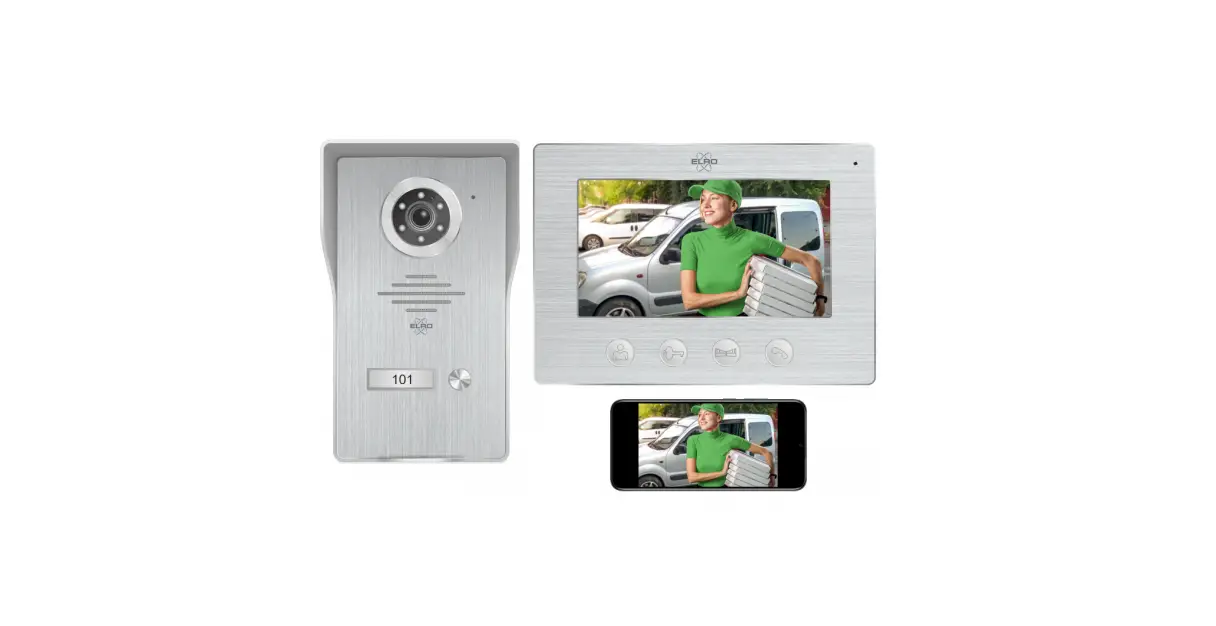
The set has an outdoor unit with brushed aluminum finish and a protective heavy metal rain cover for mounting on the wall. For indoor use a nicely designed monitor in brushed aluminum is included.
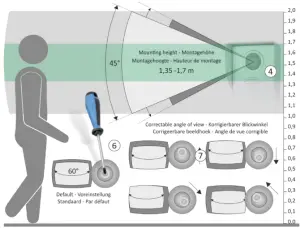
- The camera has a viewing angle of 60° horizontally/45° vertically and has 6 white LEDs for optimal night viewing up to at least two meters away from the camera.
- The outdoor unit has a nameplate that lights up when the call button is pressed.
- A twilight switch activates the 6 white LEDs in the dark.
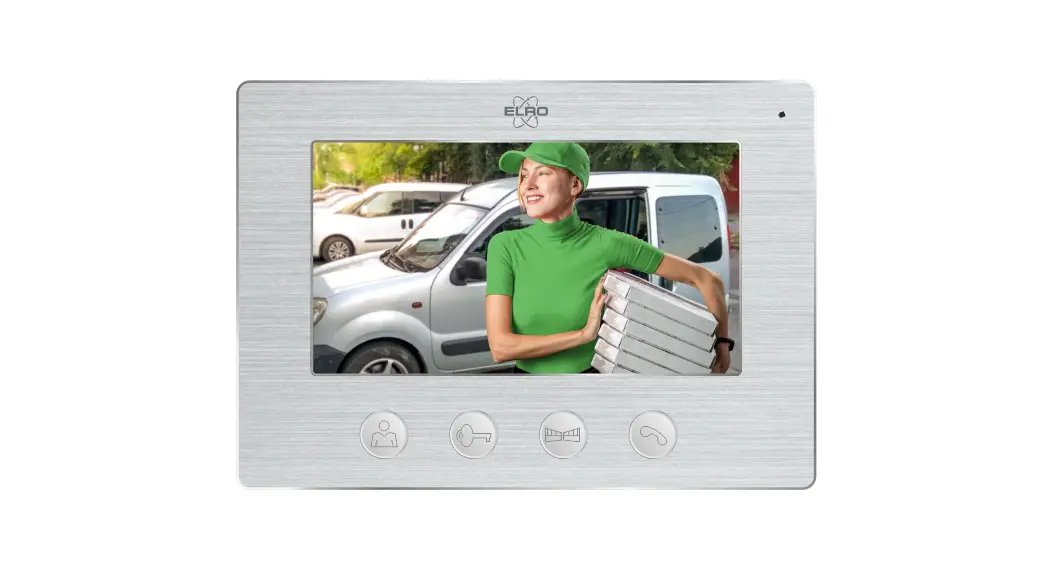
- The monitor has an 18 cm LCD screen.
- There are 16 ringtones available from which you can choose.
- You can adjust the volume, brightness and color intensity to your preference.
- The system provides a 12V DC voltage for an electric door opener.
- There is a potential-free contact for switching, for example, a gate or fence with its own power supply.
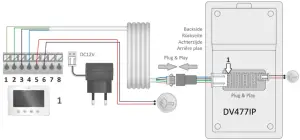
- For the connection of an electric door opener use a 2 core cable with a thickness of 0.2 mm² per wire. See the wiring diagram in this manual on page 7/8.
- There is a 2-core cable with a plug supplied for the connection of an electric door opener through the outdoor unit. Please note that in this case, the outside door only gives access to a common room / staircase and not directly the access to your home.
- With the free ELRO Intercom application on your smartphone, you can talk to a visitor, take a picture/video and you can even remotely control the electric door opener.
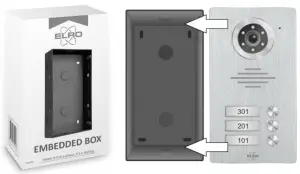
- A built-in box (ELRO DV47EB) is available as an accessory via www.elro.eu or via the retailer where you purchased this set.

Package contents
- Outdoor unit with bell pushers and camera
- Rain shelter
- Monitor
- Connection cable length 15 m
- Connection cable
- Adapter with 1.75 m cord
- Mounting bracket
- Connection cable for electric door opener
- Screws, plugs and Allen wrench


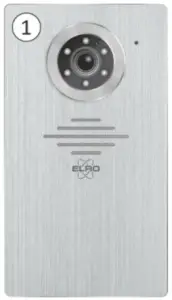
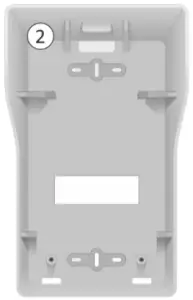
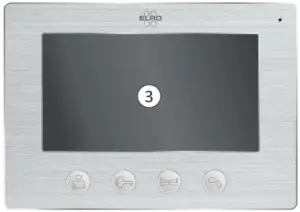
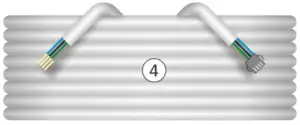

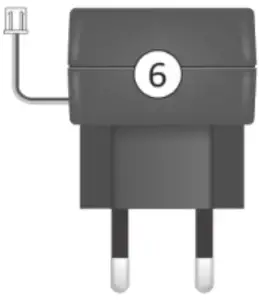
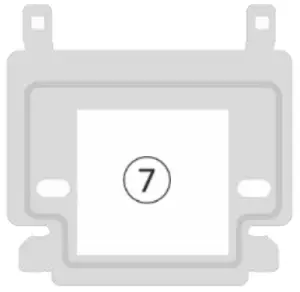

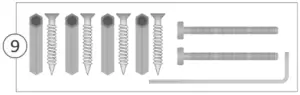
| D+A1:J4V477IP | 1 | 1 |  | 1 | 1 | 1 | 1 | 1 | 1 |
| DV477IP2 | 2 | 2 |  | 2 | 2 | 2 | 1 | 1 | 2 |
| DV477IP3 | 3 | 3 |  | 3 | 3 | 3 | 1 | 1 | 3 |
| Content Inhalt inhold Contenu | 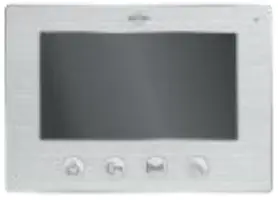 |  | 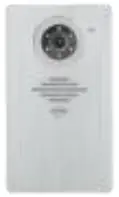 |  |  | 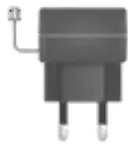 |  | 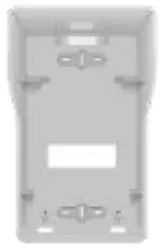 | 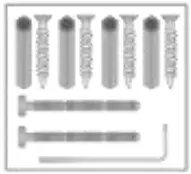 |
Mounting outdoor unit
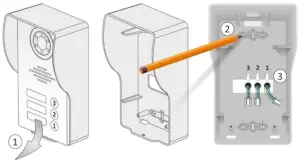
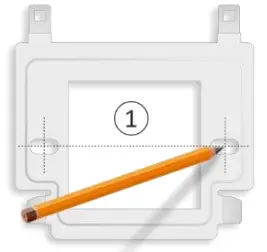
- Remove the outdoor unit (1) from the rain-sun shade and use it to mark drill holes for mounting on the wall (2).
- The shade must be mounted flush with the entire rear side of the wall/wall.
- Drill one or more holes (3) to connect the connection cables through the wall/wall to the outdoor unit.


- We recommend a mounting height (4) between 1,35 and 1,70 meters.
- Try to avoid direct exposure to sunlight.
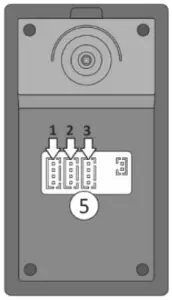
- Plug the connection cables into the respective slots (5).
- After mounting, the angle of view of the camera can be corrected if necessary. Use a screwdriver (6) to loosen the screw a little and point (7) the camera to correct the image.
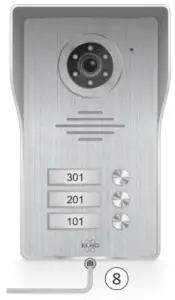
- On the underside of the outdoor unit is an Allen screw (8) which you can unscrew with the supplied Allen key. Carefully remove the aluminum front plate, rock the transparent plastic cover with a flat screwdriver. You can now put your house number(s) on a piece of paper.
- Use the Allen key to screw the outdoor unit into the rain shade.

Mounting the monitor
- The monitor should be mounted within range of your WiFi. The supplied cable is 15 meters, take this into account the location of the monitor.
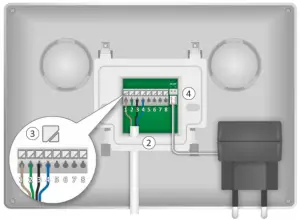
- Mount the mounting bracket (1) on the wall and take into account that the connections of the outdoor unit, the 12V DC adapter and possibly the electric door lock have to be made on the back of the monitor.


- The mounting bracket provides exactly the space to connect the 4 core connection cable (2) between the monitor and bracket. Press (3) to open the clamp contact:
- 1 brown = Audio
- 2 green = Ground
- 3 black = Video
- 4 blue = Power
- Plug the adapter plug (4) into the DC12V connection.
- Now you can place the monitor on the mounting bracket and carefully slide it down, think of the cabling.
Control Regulators
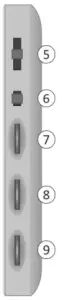
The following controls are located on the side of the monitor:
- Ringer volume (5), adjustable in 3 steps.
- Ringtone selection (6), choice of 16 ringtones.
- Brightness (7), controls the image from bright to dark.
- Chroma (8), which controls the intensity from color to black and white.
- Speech volume (9).
Functions of the monitor

With this button you can look “outward” at any time. After 40 seconds, the monitor automatically switches off again. If you want to stop prematurely, press the button with the receiver twice.
This allows you to switch an electric door opener. After pressing this button, a 12V DC voltage is released. The connection is via terminal contacts 5 and 6 of the monitor or by means of the 2 wire cord via the outdoor unit.
With this button you switch the potential free terminals 7 and 8. Here you connect a port/ gate opener with its own power supply.
When a visitor logs on, the monitor switches on automatically. Press this key to start a call. Press again to end the call, the monitor automatically turns off.


Wiring diagrams
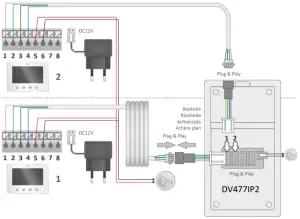
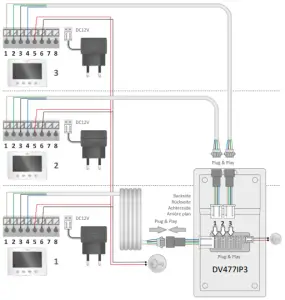
ELRO Intercom app
- Convince yourself that the smartphone on which you install the app uses the same WiFi signal as the one on which you want to install the intercom.
- The intercom system only works on 2.4 Ghz.
- Download the ELRO Intercom app, go to:
- Google Play Store for Android
- Apple App Store for iOS.
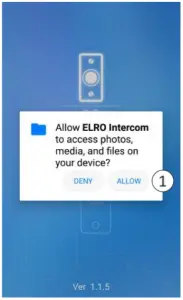
- You will be asked for permission to access your smartphone (1).
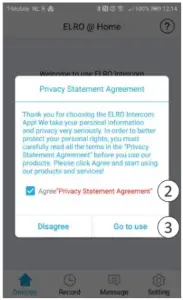
- You will then be presented with a “Privacy Statement Agreement”, click on it (2) to view the “Privacy Policy”. Press “Go to use” (3) to continue.


Pairing the app
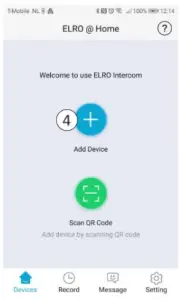
- Open the app and press the plus (4) to add a new device.
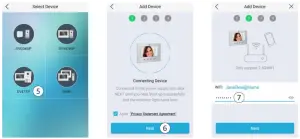
- Select your device (5) from this screen.
- Plug the adapter of the monitor into an electrical outlet to connect the device and wait for the monitor to say “Please setup network by your mobile application”. Check “Agree” and press next (6).
- Now the name of the WiFi signal will be displayed, you need to enter the WiFi password (7) yourself. Click on the eye to check, pay attention to upper and lower case letters. Press next.
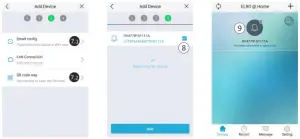
Choose “Smart Config”.
- A device is now being searched for. When the device is found, tick it (8) and press add.
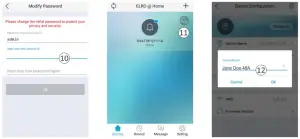
- The device has been added and is coming “Online”. Press (9), change and repeat to confirm the password to a personal password. Caution, case sensitive, min. 8 / max. 16 letters and numbers, attention NO special characters (10)
- In the configuration (11) you can change the name to your personal preference (12).
Or choose “QR Code way”
- Now scan with the camera of the outdoor unit the QR Code that is visible on your smartphone.
- When the device is found, tick it (8) and press add.
- The device has been added and is coming “Online”. Press (9), change and repeat to confirm the password to a personal password. Caution, case sensitive, min. 8 / max. 16 letters and numbers, attention NO special characters (10)
- In the configuration (11) you can change the name to your personal preference (12).

Explanation app icons

Press to view outside via the app at any time.
Configuration and advanced settings.
Device list, here you will find all devices in your app.
Storage of photos and videos with time and date.
List of unanswered calls.
Ringing tone, alarm tone, vibration and no interference settings.
End or reject a call.
Unlock an electric door opener.
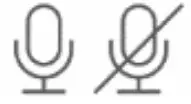
Turn on/off the microphone to communicate with the visitor.
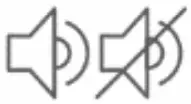
Turn on/off the loudspeaker that emits ambient noise.
Start a video recording.
Stop a video recording.
Taking a picture.
Full screen and back again.








The app can be shared for example with family or visitors/guests. The guest user must be in the WiFi environment of the main user and download the app to his smartphone, see the print screens on page 10.
- Open the app and press the plus (4) to add a new device.
- On this screen, select your device (5).
- Check “Agree” and press next (6).
- Now the name of the WiFi signal will be shown, you need to enter the WiFi password (7) of the main user (Jane Doe) yourself.
- Choose LAN Config, it will search for Jane Doe 48A. When the device is found tick it (8) and press add.
- If Jane Doe 48A is added press (9).
- You will now be asked for the password that is set at (10) change password.
Restricted rights
The main user (Jane Doe) shows the guest user a QR code that is scanned by the guest user. Proceed as follows: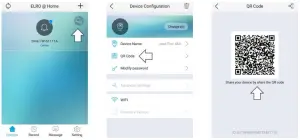
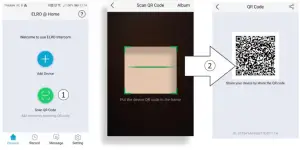
- The guest user then opens the app and chooses “QR Code scan” (1).
- The host user’s smartphone opens a scanner (2) , scan the QR code on the main user’s smartphone

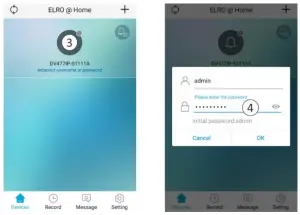
- Press the added device (3), you will now be asked for the password (4) of the main user.

Note With limited rights there is no access via configuration to advanced settings.
Removing device
Removing a device from the app is very easy. Open the app and slide to the left, press delete and the device will be removed from the app.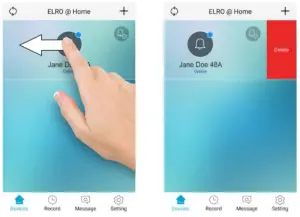
Reset
 If the pairing of the ELRO Intercom app fails and you are convinced that you are using the correct WiFi signal (2.4Ghz) with associated password, it is recommended to reset the monitor. Proceed as follows:
- Press the key with the key for at least 5 seconds, the monitor will start the reset procedure.
- When the reset procedure is in operation you will hear: “Reset parameter is successful, the system is about to restart”. This means: “Reset parameter is successful, the system is about to restart”.
- Then wait until the monitor reports with the text: “Please setup network by your mobile application”. This means: “Please setup network by your mobile application”. Mobile application refers to your Android or iOS smartphone/tablet.
- You can now try again to connect the app to the WiFi monitor.
Specifications
MONITOR
Resolution | 800(H)*3RGB*480(V) |
| Size | 18 cm (7″) |
Observation time | 40 seconds |
| Talk time | 120 seconds |
Power Consumption | In rest ≤ 4.5W, |
Operating State ≤ 9.5W | |
Adapter | Input AC100-240V |
Output DC12V, 2A, 24W | |
WiFi | 2.4GHz. |
| Cable length | 15 m; 4 x 0,2 mm |
Dimensions | 214 x 152 x 17 mm |
| Number of ringtones | 16 |
BUITENUNIT
Resolution | 700 TV lines |
Viewing angle | 60° horizontal |
45° vertical | |
Working temperature | -10°C ~50°C |
| Humidity | 10%~90%(RH) |
Night view | 6 x white light led’s, 2 meters |
| Dimensions (rain shade) | 122 x 206 x 79 mm |
Safety instructions
- Do not install the equipment in an environment of high temperature or high humidity.
- Do not place the equipment near televisions, as signals from televisions and the intercom may interfere with each other.
- Do not touch the equipment with wet hands.
- Do not throw, drop, or otherwise damage the equipment.
- Clean the equipment with a soft cloth. Do not use any polish, thinner, or caustic agents.
- Do not expose the camera to direct sunlight.
- Use the product in a situation where there is no interference.
- When a car or motorcycle passes by, the image may become blurred or disappear due to interference from radio waves.
Note: - To prevent damage, install the devices according to the instructions.
- Place the AC adapter in an accessible location where it can be disconnected.
- Use the supplied cables.
Declaration of Conformity DoC
- I, ELRO Europe, hereby declare that the type of radio equipment DV477IP complies with Directive 2014/53/EU. The full text of the EU declaration of conformity can be consulted at the following internet address: www.elro.eu/compliance“.
- Frequency: 2.4GHz
- Maximum transmission power: < 20 dBm
Symbols
 Recycling and Disposal: The WEEE symbol means that this product and batteries must be disposed of separately from household waste. When this product reaches the end of its life, take it to a designated waste collection point nearby to ensure safe disposal or recycling. Protect the environment and human health, use natural resources responsibly!
 Read the manual before use and keep it in a safe place for future use and maintenance.
 Guarantee visit www.elro.eu
 ELRO Europe | www.elro.eu
Postbus 9607 – Box E800 1006 GC Amsterdam – The Netherlands