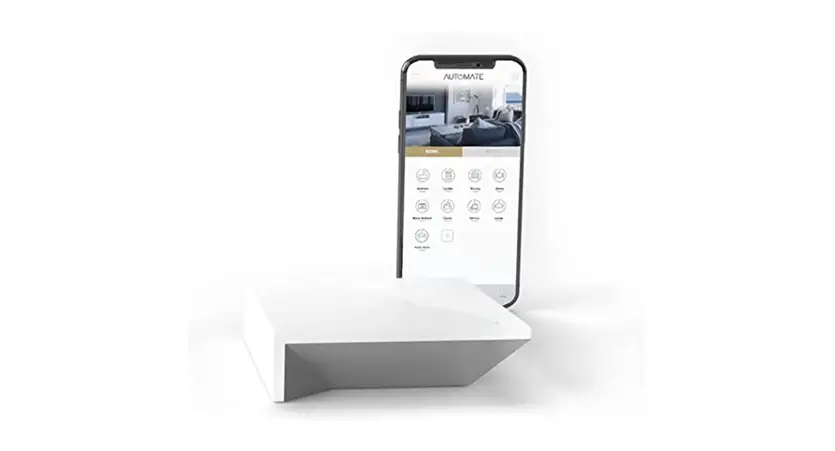

Automate Pulse
Instructions
Automate Pulse
Set-Up Instructions
ABOUT THE “AUTOMATE SHADES” SKILL
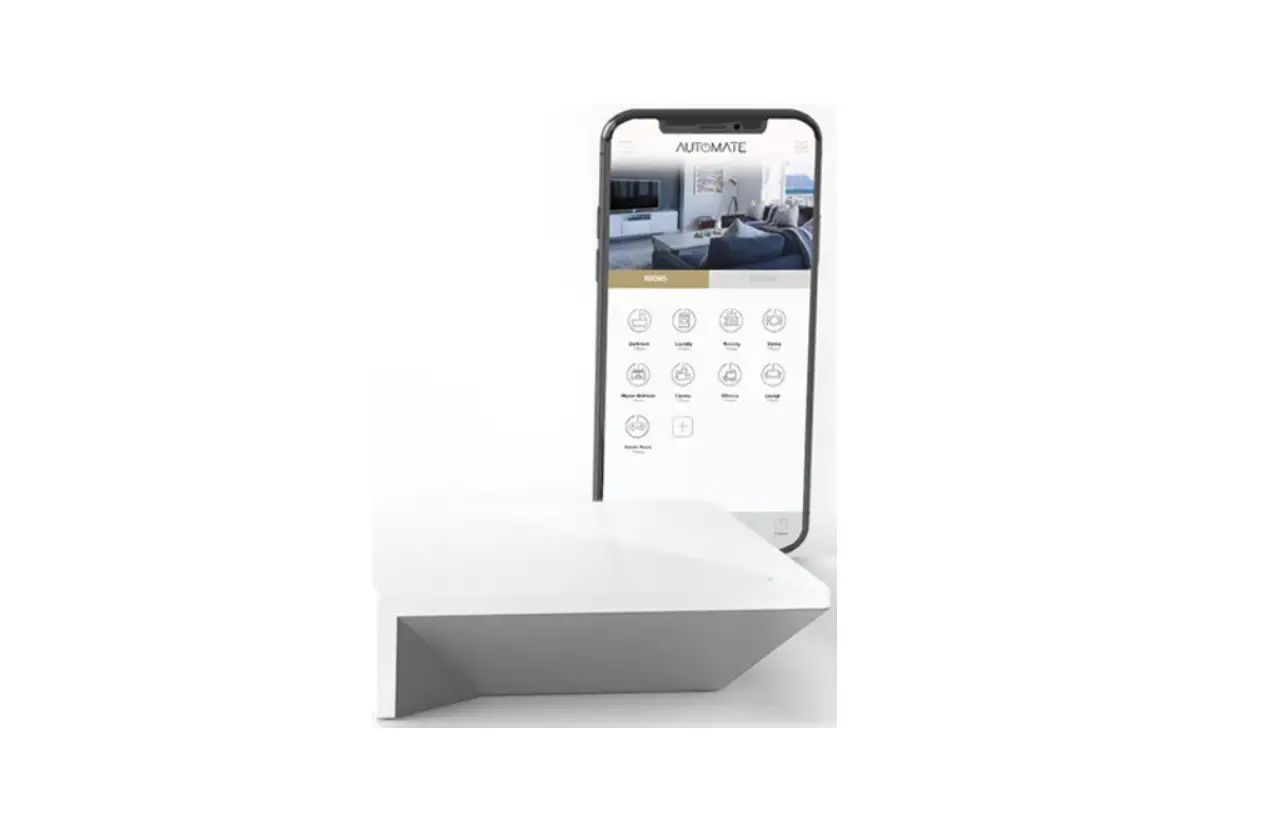
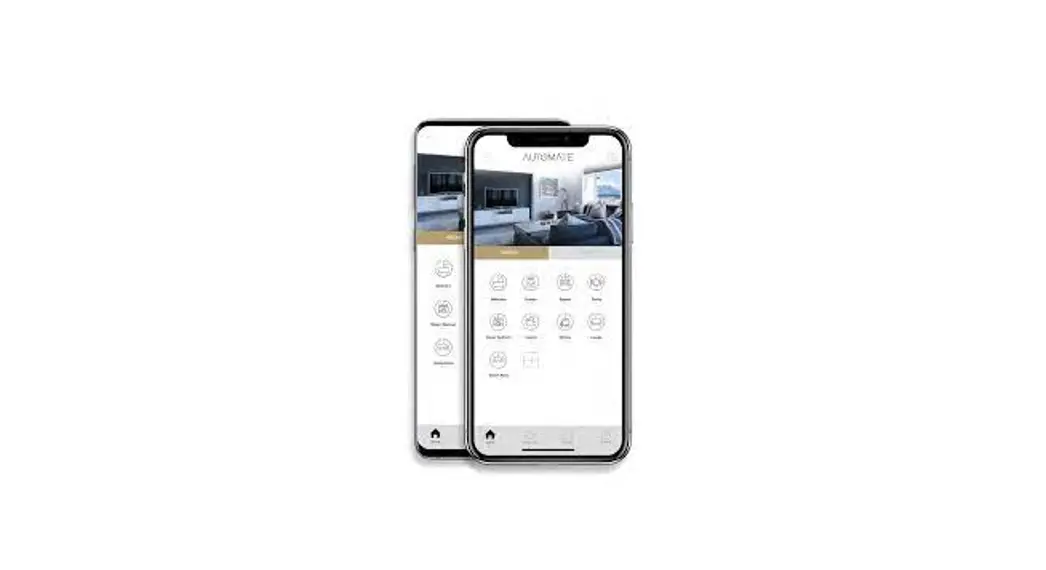
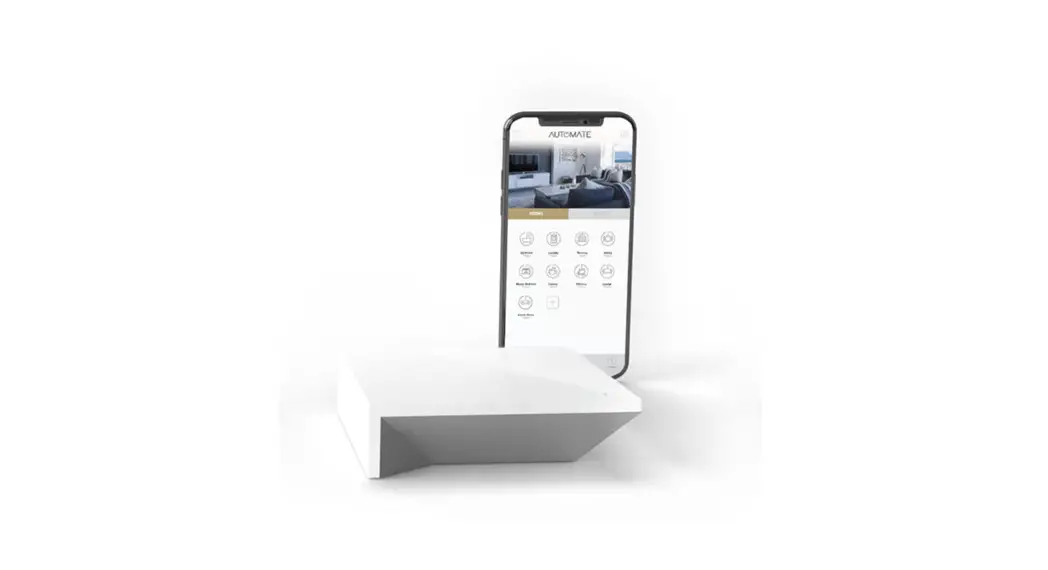
The Automate Pulse app allows for control of your motorized window treatments through your smartphone/tablet
THE APP ALLOWS FOR:
- Individual and group control
- Scene control
- Timer functionality
- Compatible with Amazon Alexa devices
GETTING STARTED:
In order to control your motorized window treatments through The Automate Pulse app, you will need to have:
- Downloaded the free app via the Apple App Store (available under iPhone apps) or the Google Play Store.
- Purchased one or more Wi-Fi Bridges depending on size of the space.
WI-FI BRIDGE TECHNICAL SPECIFICATIONS:
- Radio Frequency range: ~60 feet (no obstructions)
- Radio Frequency: 433 MHz
- Wi-Fi: 2.4 GHz
- Power: 120V AC
- For Indoor Use Only
SETUP BEST PRACTICES:
- The bridge must be within signal range of both the motorized window treatments and the Wi-Fi router.
- The Wi-Fi network must be visible.
- Environments with multiple WAPs (wireless access points) may need to temporarily disable all but one.
- Security settings may need to be temporarily disabled.
CAPABILITIES:
- Motors per Bridge: 30
- Locations per account: 5
- Wi-Fi Bridges per location: 5
- Rooms per Location: 20
- Scenes per Location: 20
- Timers per Location: 20
WHAT’S IN THE BOX?
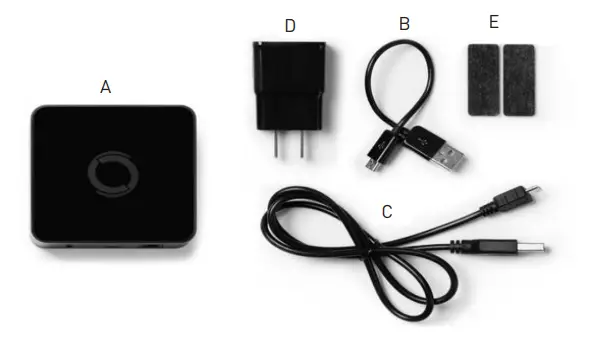
- 1x Automate Pulse Bridge (a)
- 1x 6” Short Power Cord (b)
- 1x 12” Long Power Cord (c)
- 1x Outlet Power Plug (d)
- 2x Antiskid Pads (e)
UNPACKING THE WI-FI BRIDGE
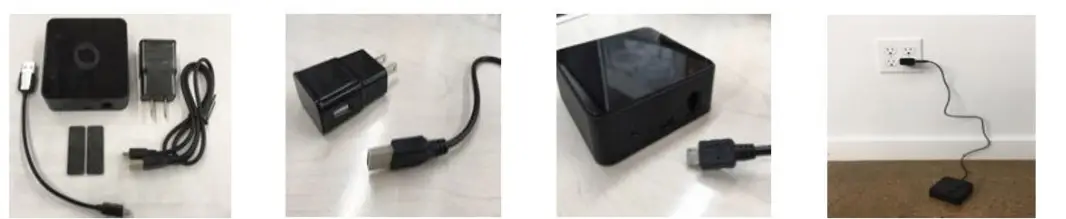 | |||
| 1Unpack the Wi-Fi Bridge | 2. Insert the USB end of the power cord (long or short) into the outlet power plug.2 | 3. Insert the micro USB end of the power cord (long or short) into the Wi-Fi Bridge. | 4. Place the bridge in a centrally located position in your home and plug in to outlet. (You may need to experiment with different locations to be able to reach the desired shades). |
rolleaseacmeda.com
© 2017 Rollease Acmeda Group
SETTING UP THE APP
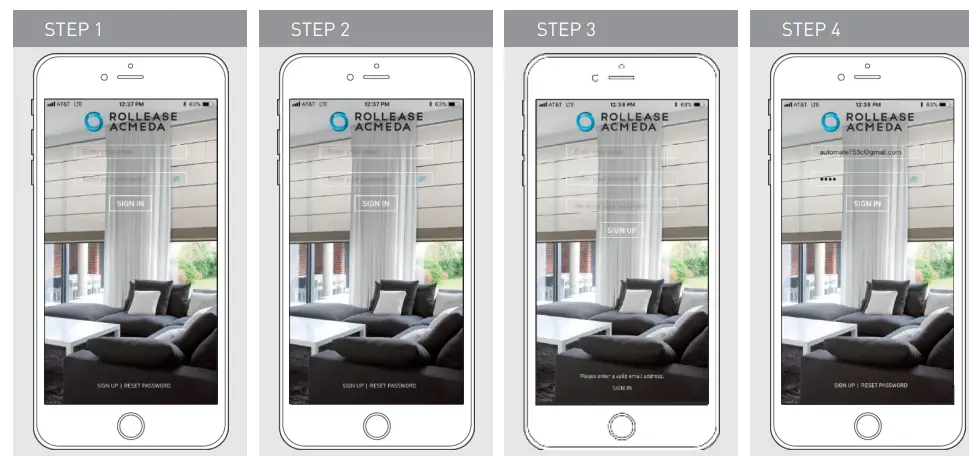 | |||
| Open The Automate Pulse mobile application. | If required, create a new account. Select Sign Up on the bottom left corner of the screen. | Creating an account will require an email address and a password. | SIGN IN with your account information. |
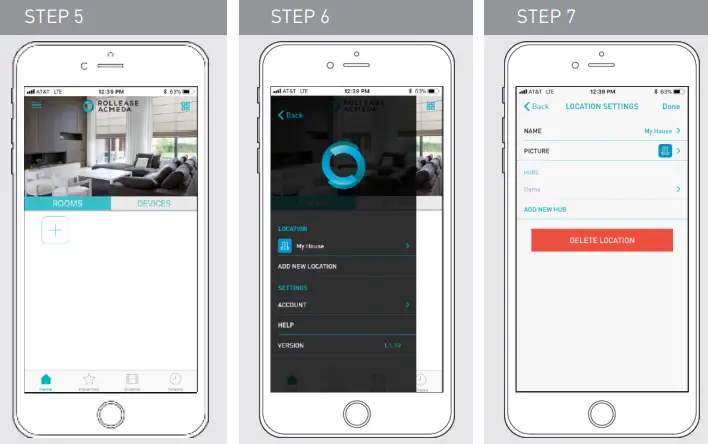 | ||
| Link the application to the new Wi-Fi Bridge. Select the menu button in the upper left corner of the home screen (3 lines). | Select the default “Home” option under LOCATION to open Location Settings. | Select “ADD NEW HUB” to enter the pairing process. |
PAIRING THE APP & WI-FI BRIDGE
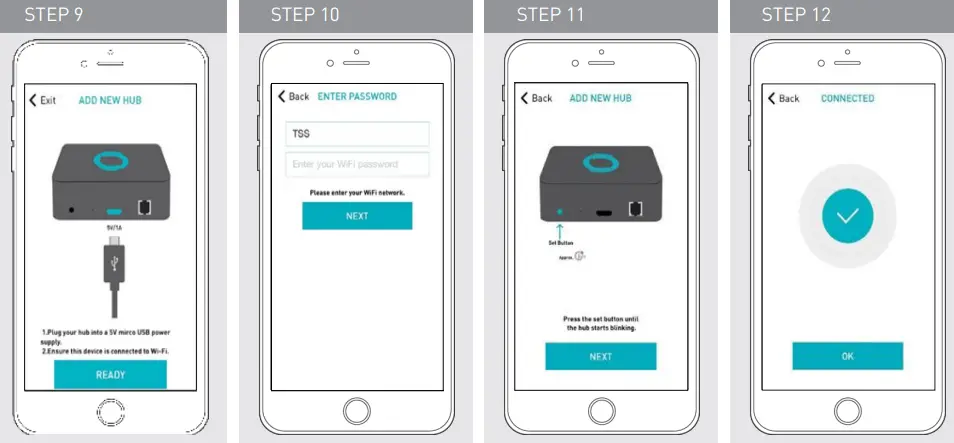 | |||
| Follow on screen instructions to pair the new Wi-Fi Bridge to the application Ensure Wi-Fi Bridge is plugged in. Select “Next”. | All of the shades and scenes configured in your Automate Pulse app will now appear in the Devices section of the Alexa app. | Hold the Wi-Fi Bridge set button for 2 seconds. The bridge will start blinking blue to signify it is ready to pair to the network. | The Wi-Fi Bridge will attempt to pair to your Wi-Fi network for 60 seconds. Select “Set Hub” after success. |
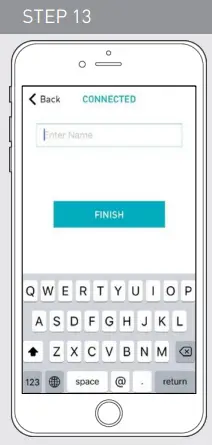
Name your Wi-Fi Bridge to complete the Wi-Fi connection process.
PAIRING TROUBLESHOOTING
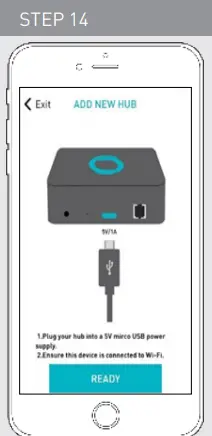
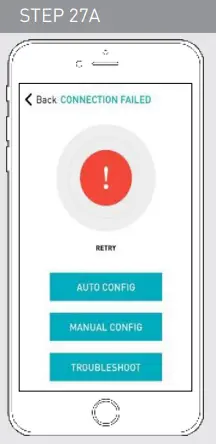
There are a number of factors that will influence the network pairing process. Some networks require more time to make the initial communication links with the application servers. In the event you receive the “Connection Failed” screen, we suggest you reattempt the pairing sequence by selecting “Auto Configuration”. This will redirect you to complete the above process again. If then unsuccessful again you may choose the second connection path by selecting “Manual Configuration”. See Manual Configuration steps below.
MANUAL CONFIGURATION
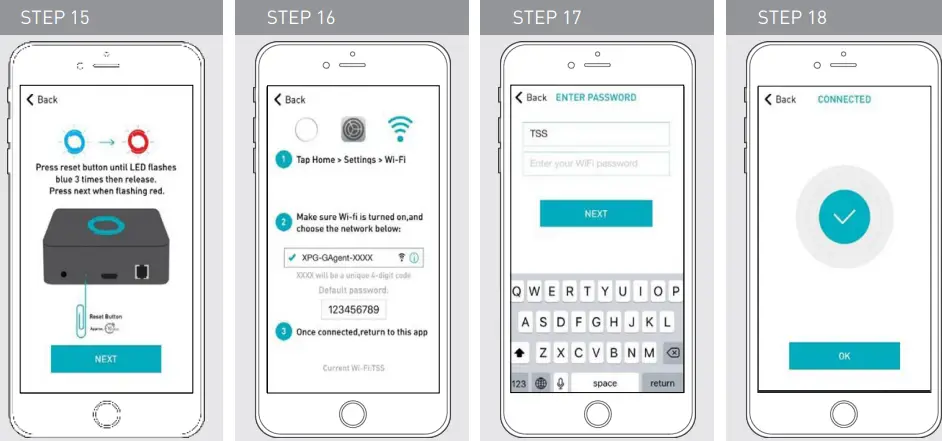 | |||
| Using a paper clip, press and hold the recessed button on the Wi-Fi Bridge until the Bridge links blue 3 times. Press next when the Bridge begins blinking red. | Using your home button exit the Automate Pulse app and enter your i- i settings. Select the XPG- Agent-XXXX network and enter the default password 23456789. Return to the Automate Pulse app. | You will be prompted to enter the password or your Wi- i network. Enter your i-Fi password. Click next. | Your Bridge should connect to our Wi-Fi network and direct you to the Connected screen. ress OK. Name your Bridge and click finish to complete the Wi-Fi connection process. |
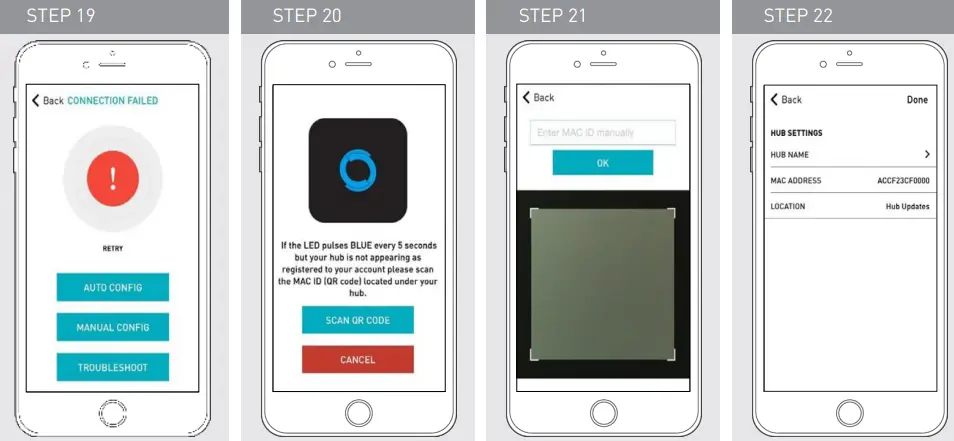 | |||
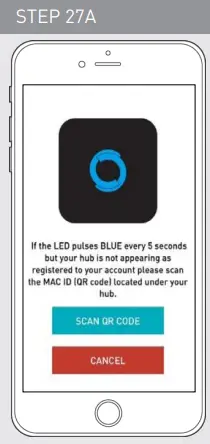
| In the event that after the manual config process completes ou are directed to the Connection Failed screen again. Confirm your Bridge | This will allow you to manually connect the Wi-Fi Bridge to your App. Press “Scan QR Code” You must llow The Automate Pulse app rights to use your smartphone/ tablet camera when prompted. | On the bottom of your Wi-Fi Bridge, there will either be a number/ Letter code or a small QR code. Use the amera to scan the QR code or anually type in the Number/Letter code and press OK. | On the settings screen you will e prompted o name your Wi-Fi ridge. Name our Bridge and press OK to complete the Wi-Fi onnection process. |
HOW TO LINK EACH SHADE TO THE APP:
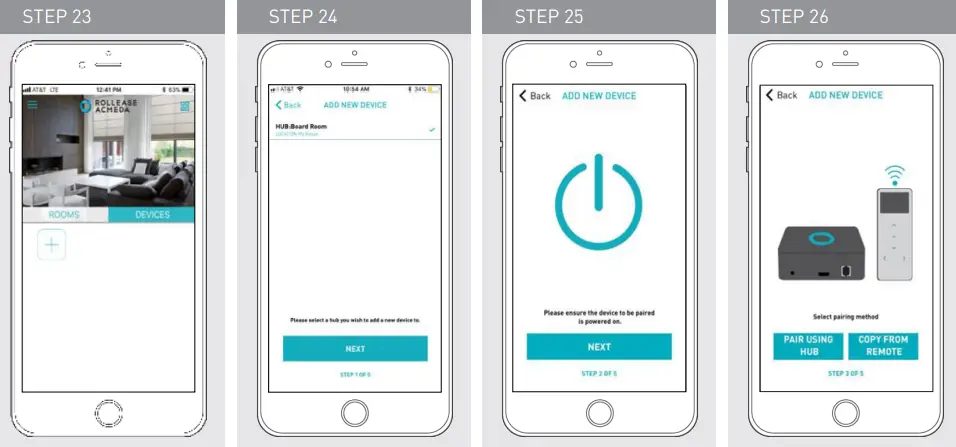 | |||
| On the home screen select “Device” then select the Plus” icon to add a new shade device. | Select from the list the hub to which you wish to pair a shade and select “Next”. | Make sure the shade device is plugged in or ready to be aired and elect “Next”. | Choose your pairing method: “PAIR USING HUB” or “COPY FROM EMOTE”. |
HOW TO LINK EACH SHADE TO THE APP:
 |  |
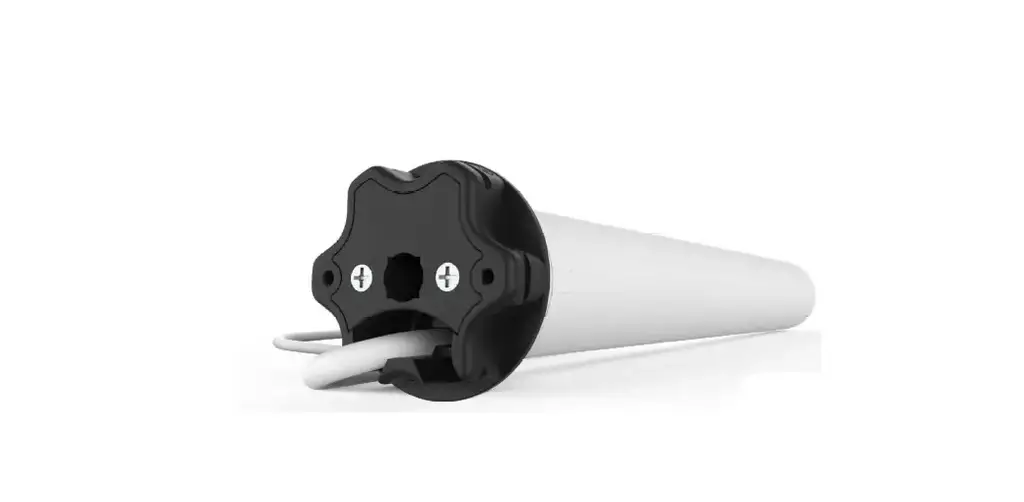
| PAIR USING HUB (Requires access to the motor head) • Press and hold the “P1” button on the motor head for 2 seconds. The motor will jog up and down once and ou will hear one audible beep • press “Pair” on the app screen Next”. | COPY FROM REMOTE (Only requires remote in hand) • Make sure the remote is tuned to the shade’s individual channel (not Ch 0). • Remove the remote attery cover and press the upper left P2 button next to the battery. The motor will jog p and |
PAIRING COMPLETE
Once the motors have paired, the application will take you directly to the shade properties screen to edit the settings for your treatment.
HOW TO EDIT SETTINGS FOR EACH SHADE:
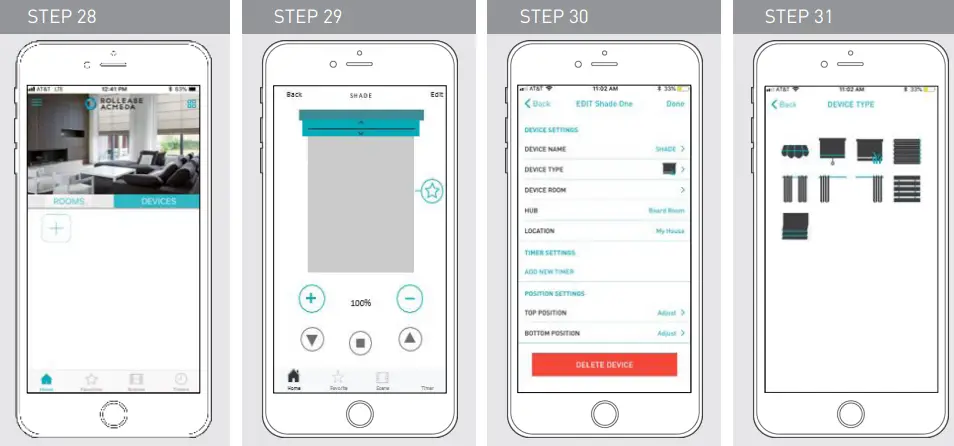 | |||
| Select the device. | Select “Edit” in the upper right corner. | Modify Device Name to customize your treatment name. | Modify Device Type to the representative icon of your product. |
SETTING & SCENE INSTRUCTIONS
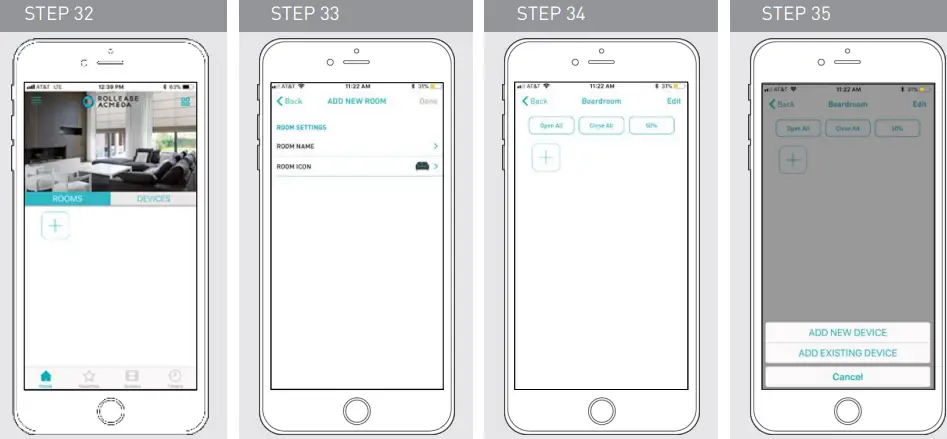 | |||
| Once all shades are linked to the application. Click the “ROOMS” tab. Select the “Plus” icon to add a new room designation, return to the home screen, Select “Room”. | Name the room, pick the room icon and click “Done”. | Select the newly created room and select the “Plus” icon to add a linked shade to the room. | Select “Add Existing Device” to select treatments from the dropdown to add to the room. (Choosing “Add New Device” will revert back to the pairing a new device sequence.) |
SET-UP COMPLETE
Your mobile application setup and product pairing is now complete. Shades added to rooms can be controlled simultaneously after selecting the desired room. See the following sections for instructions on creating scenes, setting timers and troubleshooting pairing failures.
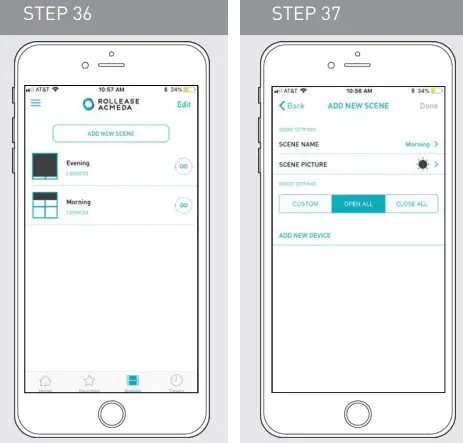
Once you have completed the pairing process for the Wi-Fi bridge and linked all of your shades to the application, you can create scenes to set a treatment or group of treatments to specific heights.
- On the lower menu bar select the Scene icon. This will take you to the scene homepage.
- Select “Add New Scene” to begin programming your desired scene.
- Input your scene name and select a scene picture.
- You can choose custom heights (by %) or set open/closed for all selected treatments. (If you select custom you must select a treatment height for each selected treatment)
- Select “Add New Device” to add your treatment to the scene being created.
- Set the treatment height percentage if necessary.
- Select “Done” to finalize your scene.
You can activate your custom scene by navigating to the scene menu and pressing “GO” next to the desired scene name. If you wish to set a programmed timer to activate your cene or individual shades, please see the next section “Programming Timers”.
CREATING SCENES:
Once you have completed the pairing process for the Wi-Fi bridge and linked all of your shades to the application, you can create scenes to set treatments or groups of treatments to specific heights.
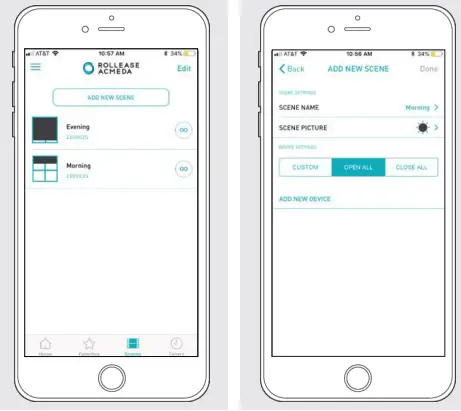
- On the lower menu bar select the Scene icon. This will take you to the scene homepage.
- Select “Add New Scene” to begin programming your desired scene.
- Input your scene name and select a scene picture.
- You can choose custom heights (by %) or set open/closed for all selected treatments. (If you select custom you must select a treatment height for each selected treatment)
- Select “Add New Device” to add your treatment to the scene being created.
- Set the treatment height percentage if necessary.
- Select “Done” to finalize your scene.
You can activate your custom scene by navigating to the scene menu and pressing “GO” next to the desired scene name. If you wish to set a programmed timer to activate your cene or individual shades, please see the next section “Programming Timers”.
PROGRAMMING TIMERS
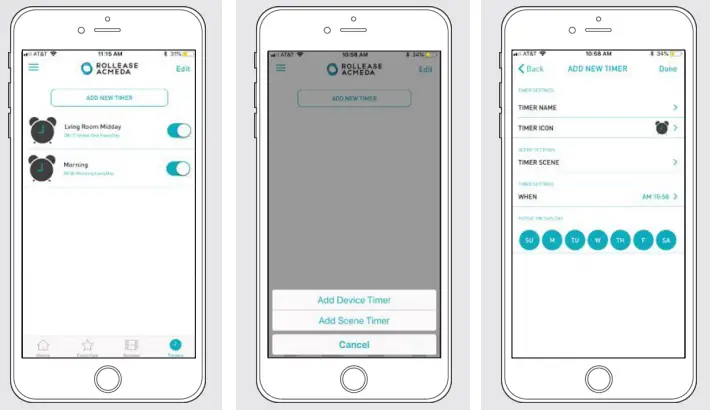
You can program timers to trigger the specific operation of your shades and scenes at your desired times throughout the day.
- On the lower menu bar select the Timer icon. This will take you to the Timer homepage.
- Select “Add New Timer” to begin programming your desired timer.
- Select either “Add Device Timer” or “Add Scene Timer”
- Input your timer name and select a timer picture.
- Add the devices or scenes you wish to operate.
- Set the time you wish the timer to trigger shade control.
- Select the days you wish the timer to operate. (Black dot signifies the timer will repeat on that day)
- Select “Done” to finalize your timer.
You can turn your timer on or off to accommodate changes to your regular schedule. Slide the on/off selector on the Timer homepage next to the desired timer to activate or deactivate the time-based control.
LED INDICATION
| COLOR | RESPONSE | STATUS |
 | Flashes Twice | Power On |
| Continuous Flashing | Wi-Fi Bridge is in pairing mode | |
| Flashes Three Times | Wi-Fi Bridge has been reset for manual configuration | |
 | ON | App is connected to Wi-Fi Bridge |
 | Continuous Flashing Blue to Purple | Wi-Fi Bridge is connected to Wi-Fi router (no cloud connection) |
 | 1 Flash Every 5 Seconds | Wi-Fi Bridge is connected to cloud server and is in standby mode |
 | Continuous Flashing | Wi-Fi Bridge is not connected to Wi-Fi and is actively searching for a Wi-Fi signal |
 | Flashing | Wi-Fi Bridge’s firmware is being updated |
TROUBLESHOOTING:
The following scenarios are common issues that may cause connectivity problems during the Wi-Fi bridge pairing process. If you cannot achieve success connecting the Wi-Fi
Bridge to your network, please reference the below most common pairing roadblocks.
I CAN NOT CONNECT TO MY HIDDEN WI-FI NETWORK.
Rollease Acmeda Wi-Fi Bridge does not currently support pairing with hidden networks. To connect to a hidden network, you will need to unhide the network. Once the network pairing process is complete you can re-hide the network and the Wi-Fi Bridge will work without issue.
I HAVE MULTIPLE ACCESS POINTS AND CAN NOT COMPLETE THE PAIRING PROCESS.
If you have multiple wireless access points we recommend that you turn off all but one to complete the network pairing process. Once this is complete you can turn on all of the
wireless access points and the Wi-Fi Bridge will work without issue.
I CAN NOT CONNECT TO MY 5GHZ WI-FI NETWORK.
Rollease Acmeda Wi-Fi Bridge does not currently support operation over a 5GHz network. It operates on a 2.4GHz network. Most routers are dual-band and can support both
network configurations. Please make sure that the 2.4GHz band is turned on in your wireless router’s settings.
NETWORK SECURITY SETTINGS ARE INTERFERING WITH THE SETUP PROCESS.
Some companies or large corporate offices have network security settings more advanced than the typical homeowner. If you are setting up in this environment please consult your network administrator. It may be necessary to enable device-to-device communication. One solution is to use a device with a mobile data connection available in the background to complete the set-up process.
MY WI-FI BRIDGE IS NOT CONSISTENTLY WORKING.
There are many things that can interfere with the radio communication that the Wi-Fi Bridge uses. Try positioning the Wi-Fi Bridge in a different location and/or closer to the
shade to improve performance. Due to varying levels of interference, it may be necessary to purchase additional
Wi-Fi bridges to extend the coverage throughout your location.
For further assistance, contact your retailer, visit our website at www.rolleaseacmeda.com or email us at; [email protected]
This device complies with Part 15 of the FCC Rules / Industry Canada licence-exempt RSS standard(s). Operation is subject to the following two conditions: (1) this device may not cause harmful interference, and (2) this device must accept any interference received, including interference that may cause undesired operation.
Changes or modifications not expressly approved by the party responsible for compliance could void the user’s authority to operate the equipment. This equipment has been tested and found to comply with the limits for a Class B digital device, pursuant to part 15 of the FCC Rules. These limits are designed to provide reasonable protection against harmful interference in a residential installation.
This equipment generates uses and can radiate radio frequency energy and, if not installed and used in accordance with the instructions, may cause harmful interference to radio communications. However, there is no guarantee that interference will not occur in a particular installation.
If this equipment does cause harmful interference to radio or television reception, which can be determined by turning the equipment off and on, the user is encouraged to try to correct the interference by one or more of the following measures:
– Reorient or relocate the receiving antenna.
– Increase the separation between the equipment and receiver.
– Connect the equipment into an outlet on a circuit different from that to which the receiver is connected.
– Consult the dealer or an experienced radio/TV technician for help.
MPE Requirements
To satisfy FCC / IC RF exposure requirements, a separation distance of 20 cm or more should be maintained between the antenna of this device and persons during device operation. To ensure compliance, operations at closer than this distance are not recommended.
rolleaseacmeda.com
© 2017 Rollease Acmeda Group
 Rollease Acmeda - Precision in Motion
 Rollease Acmeda - Precision in Motion