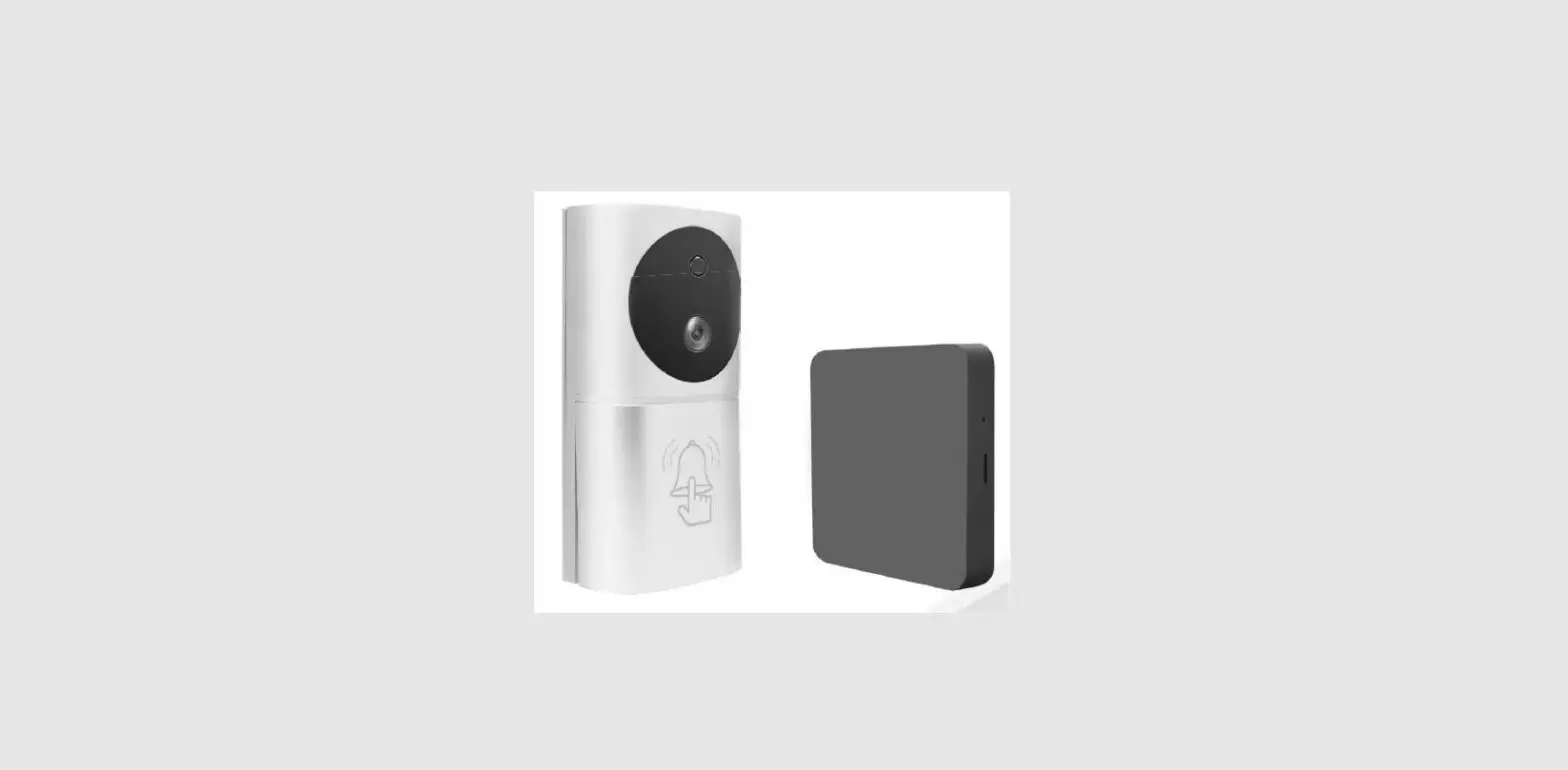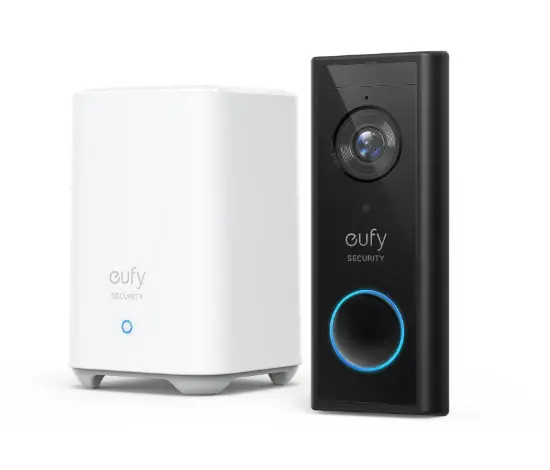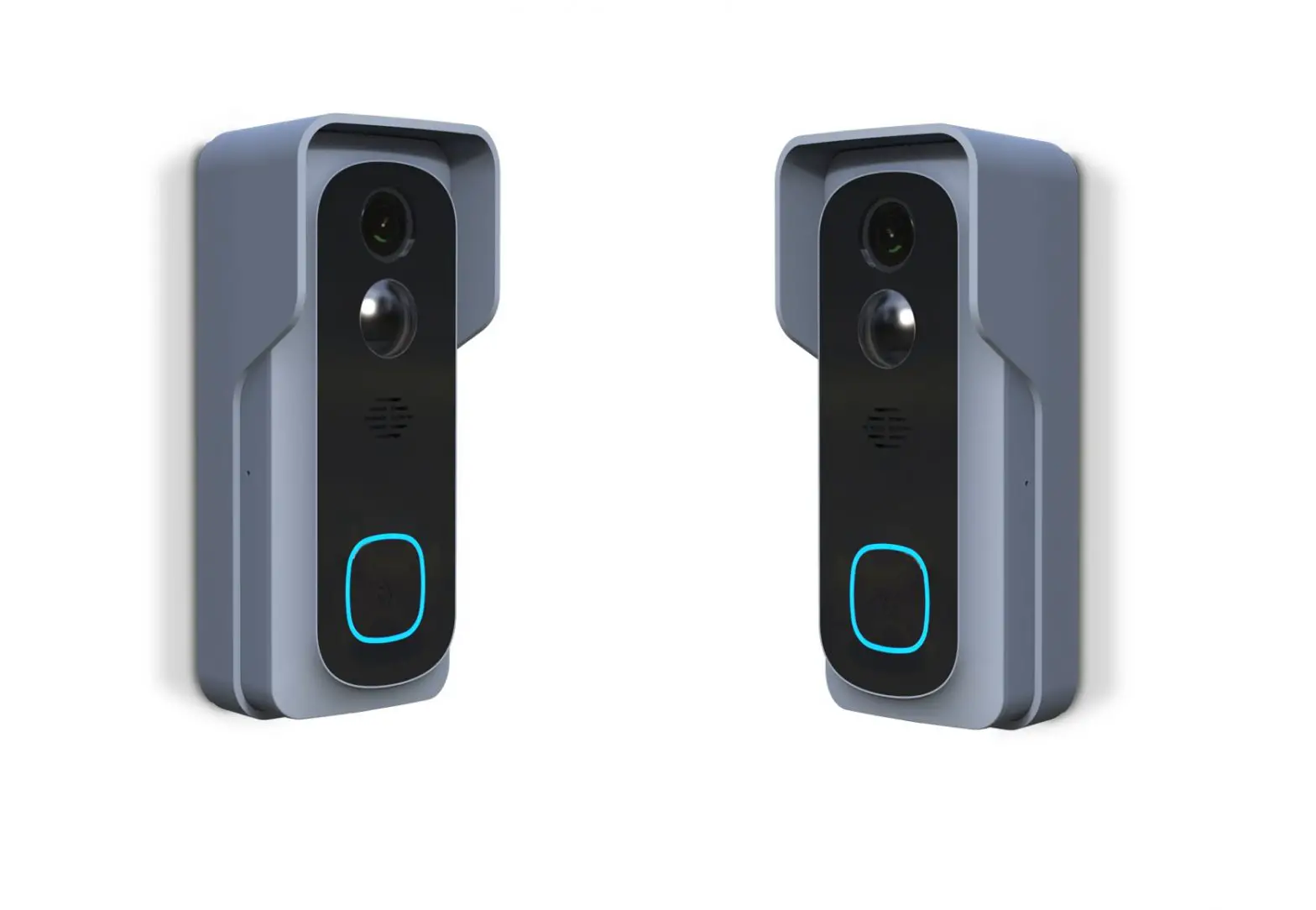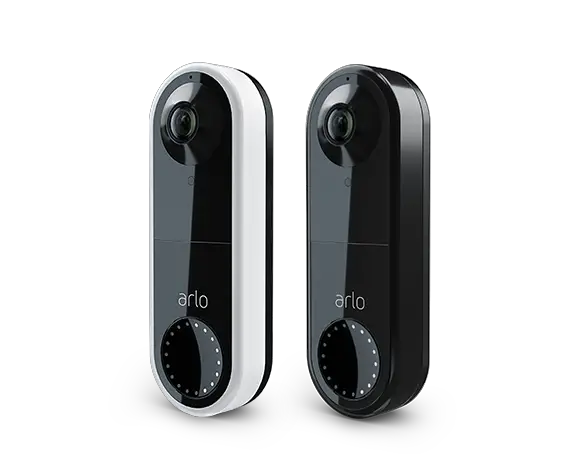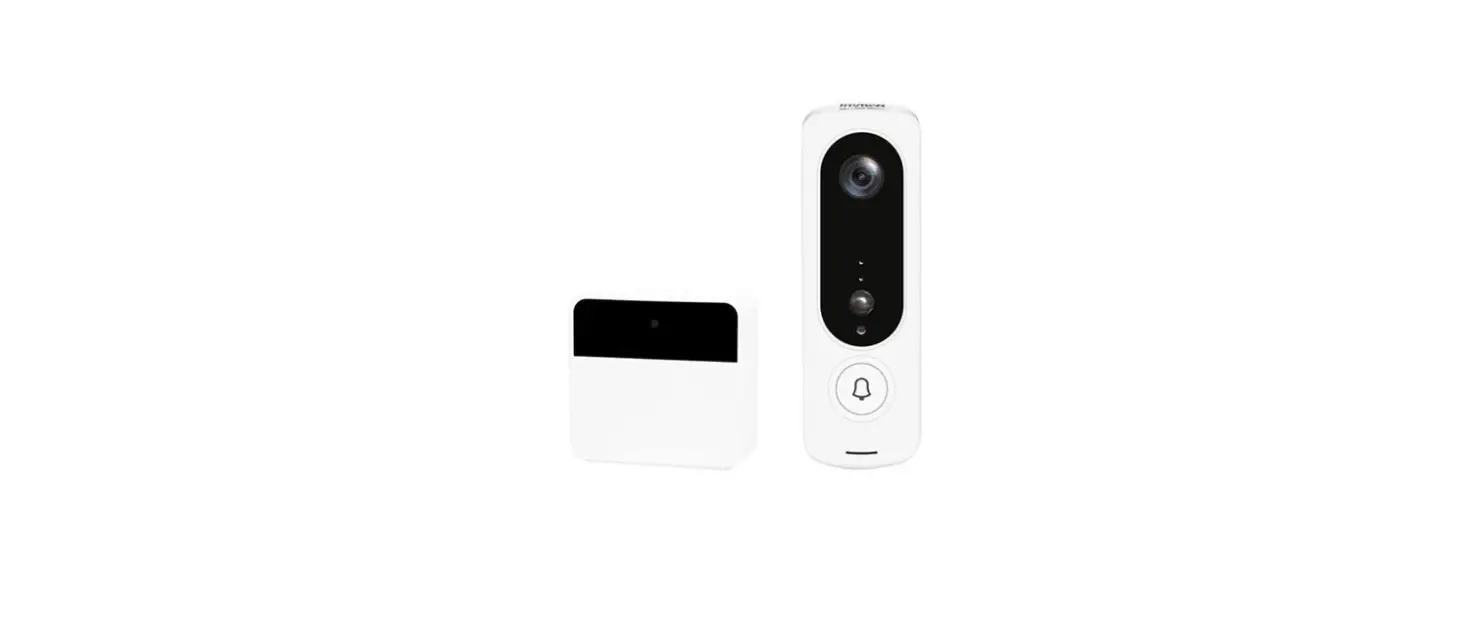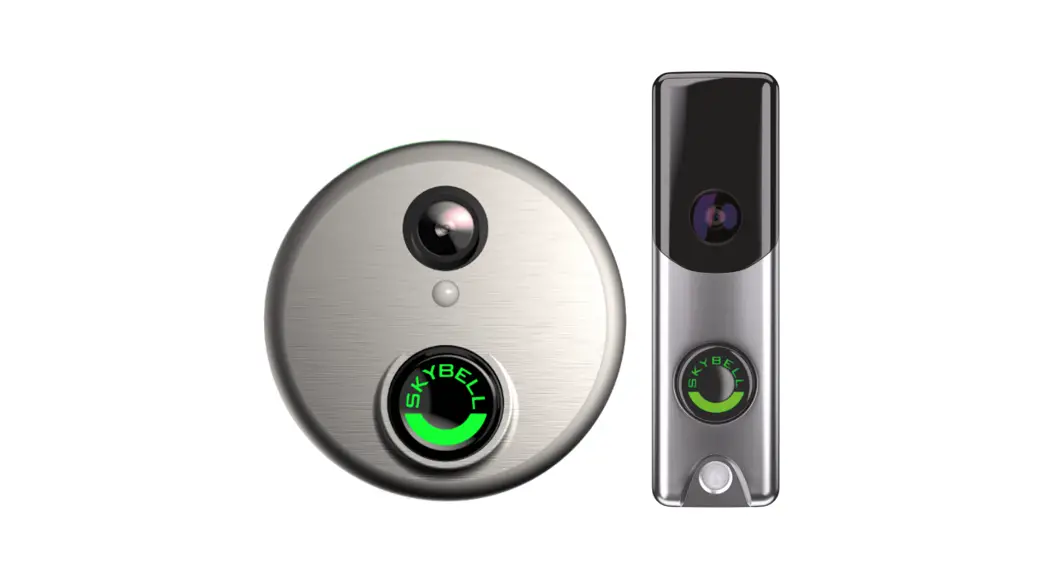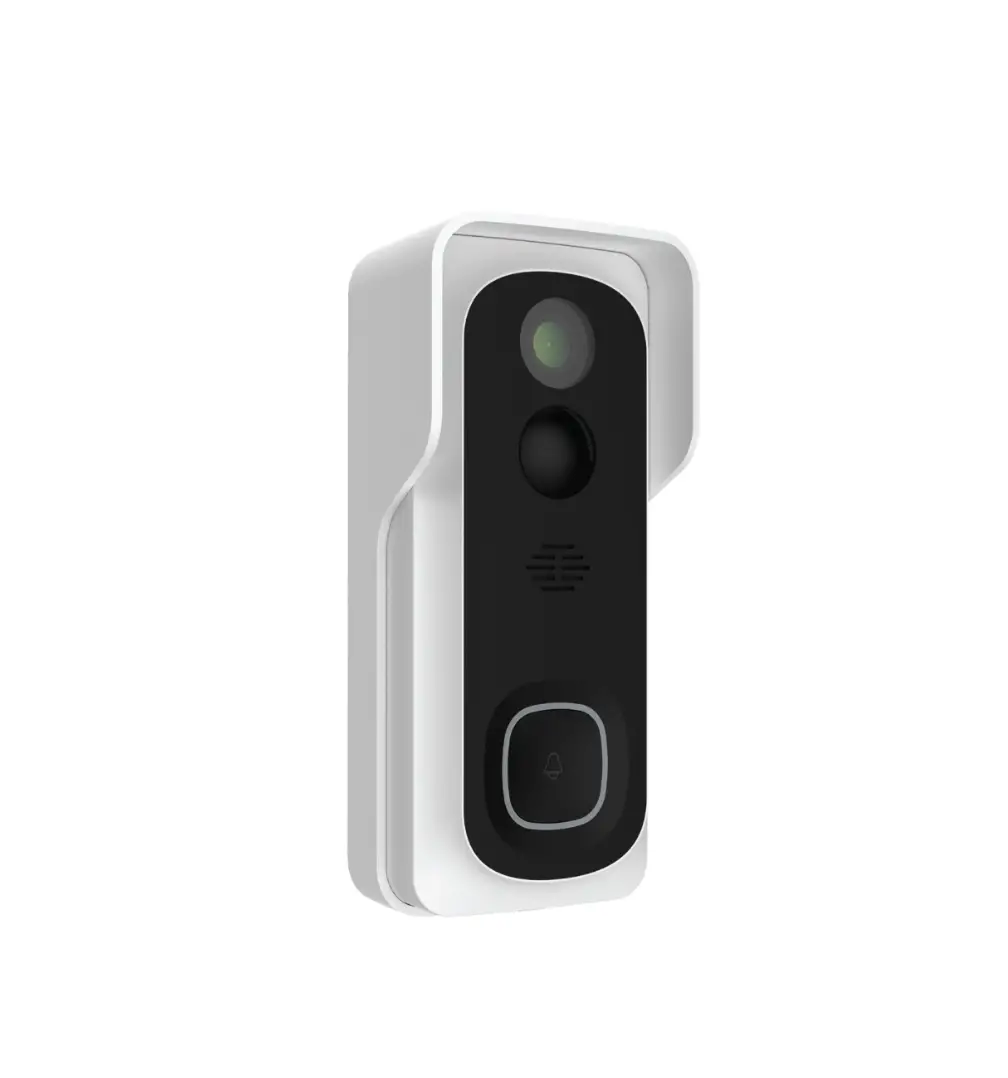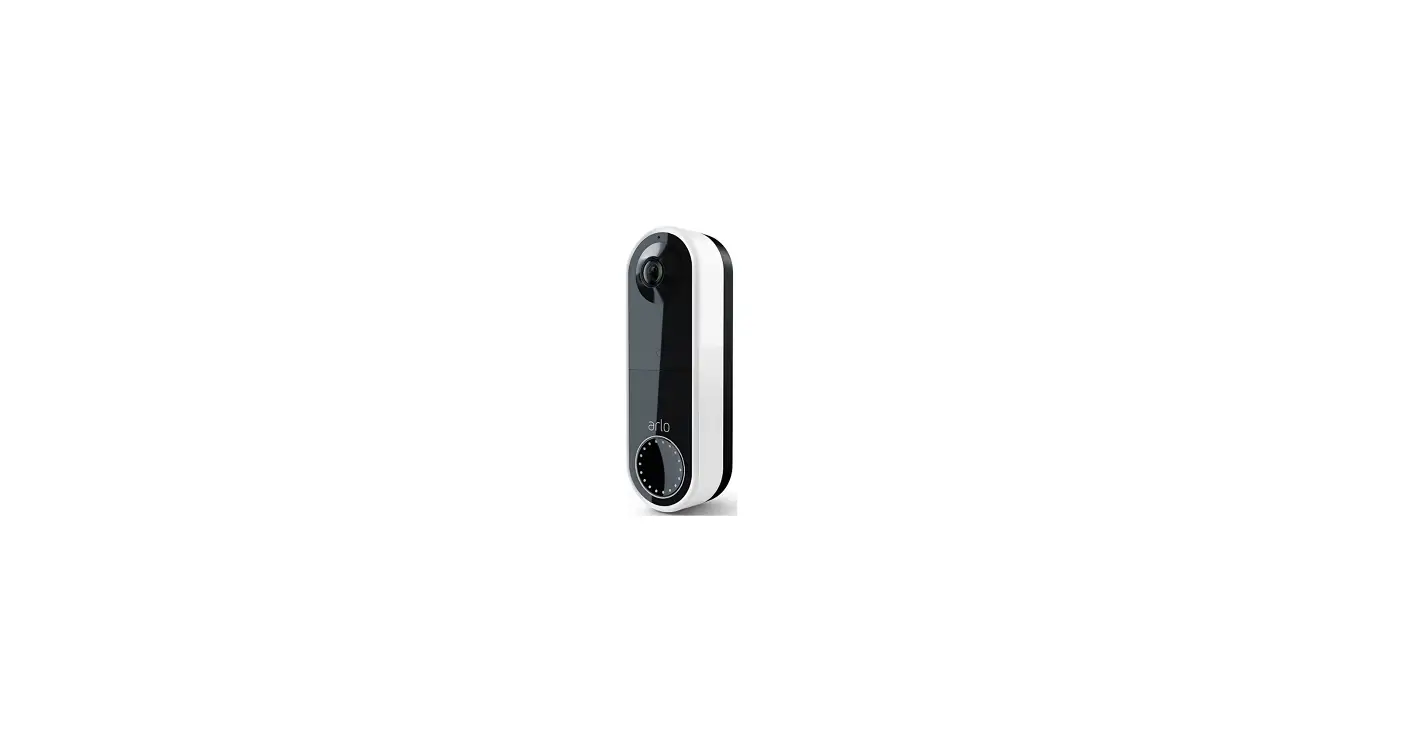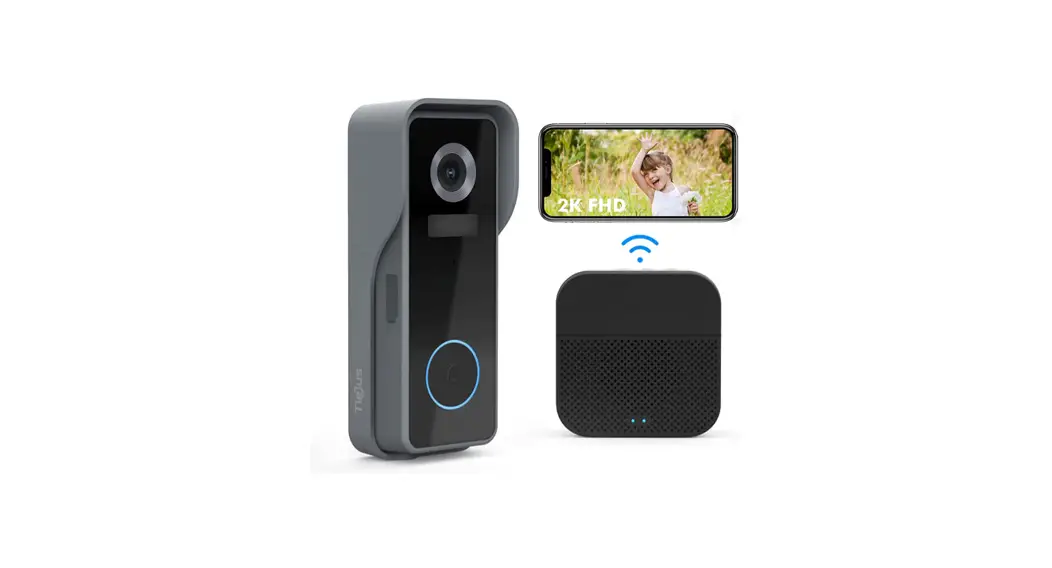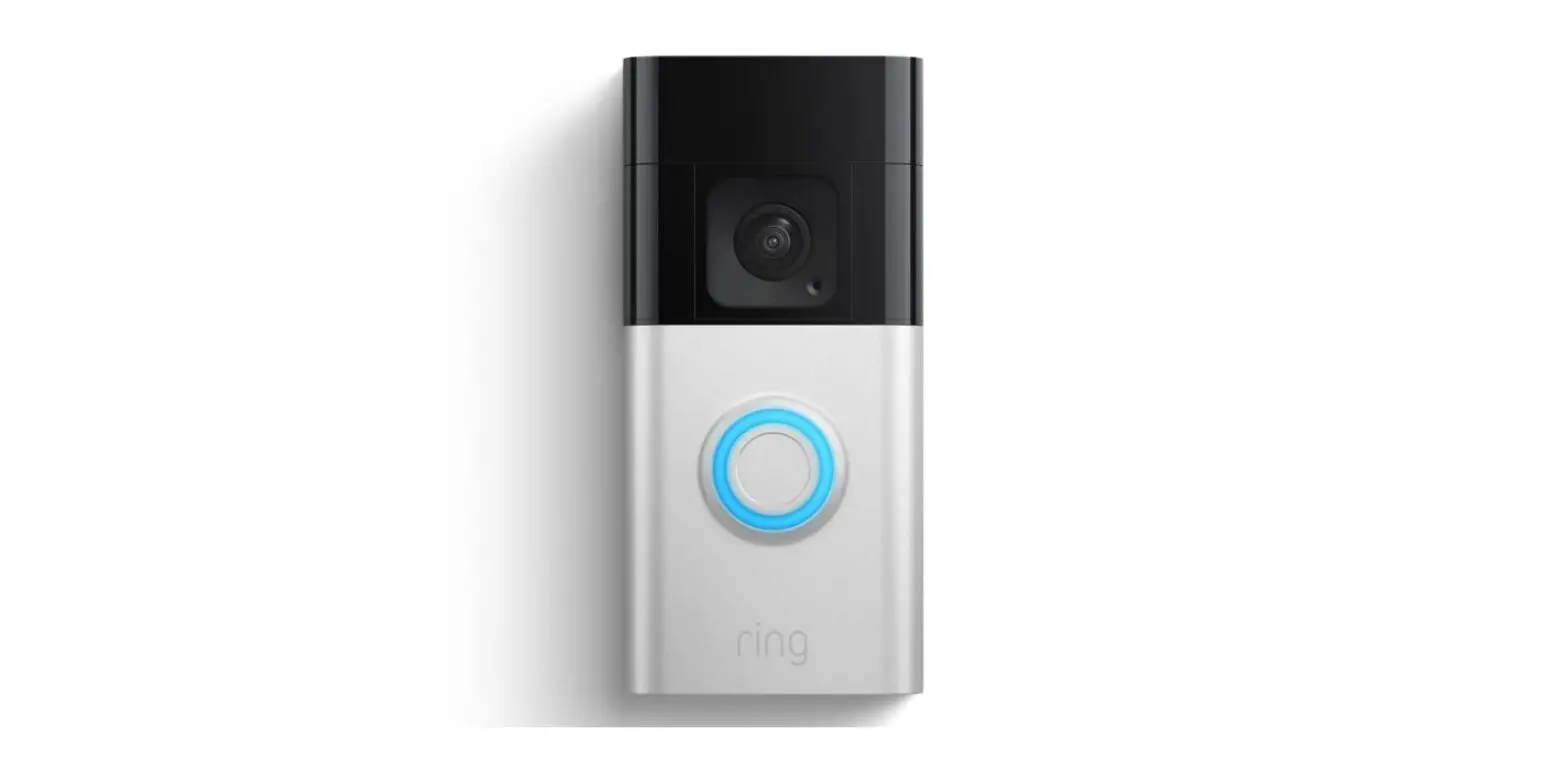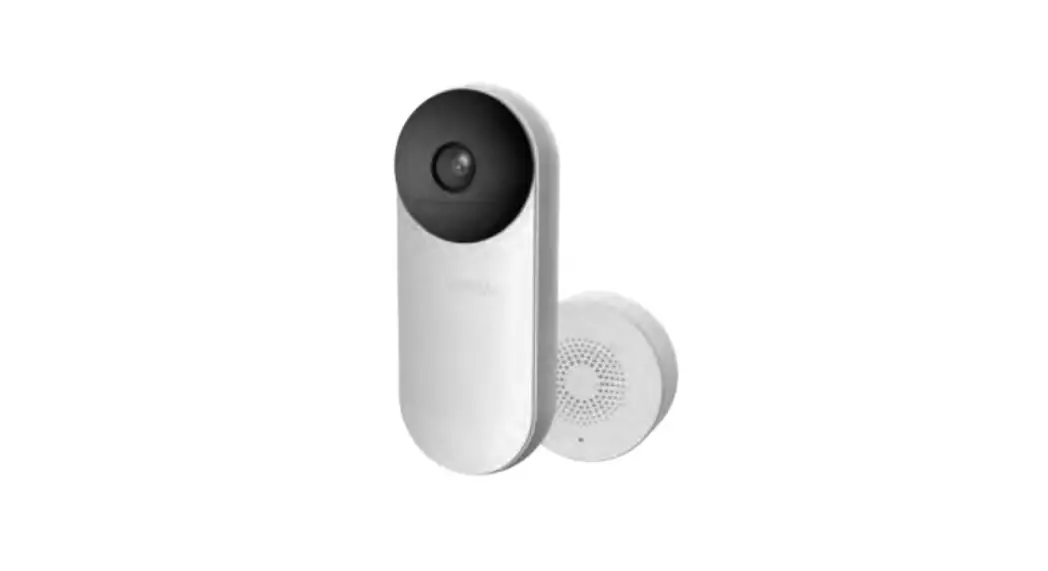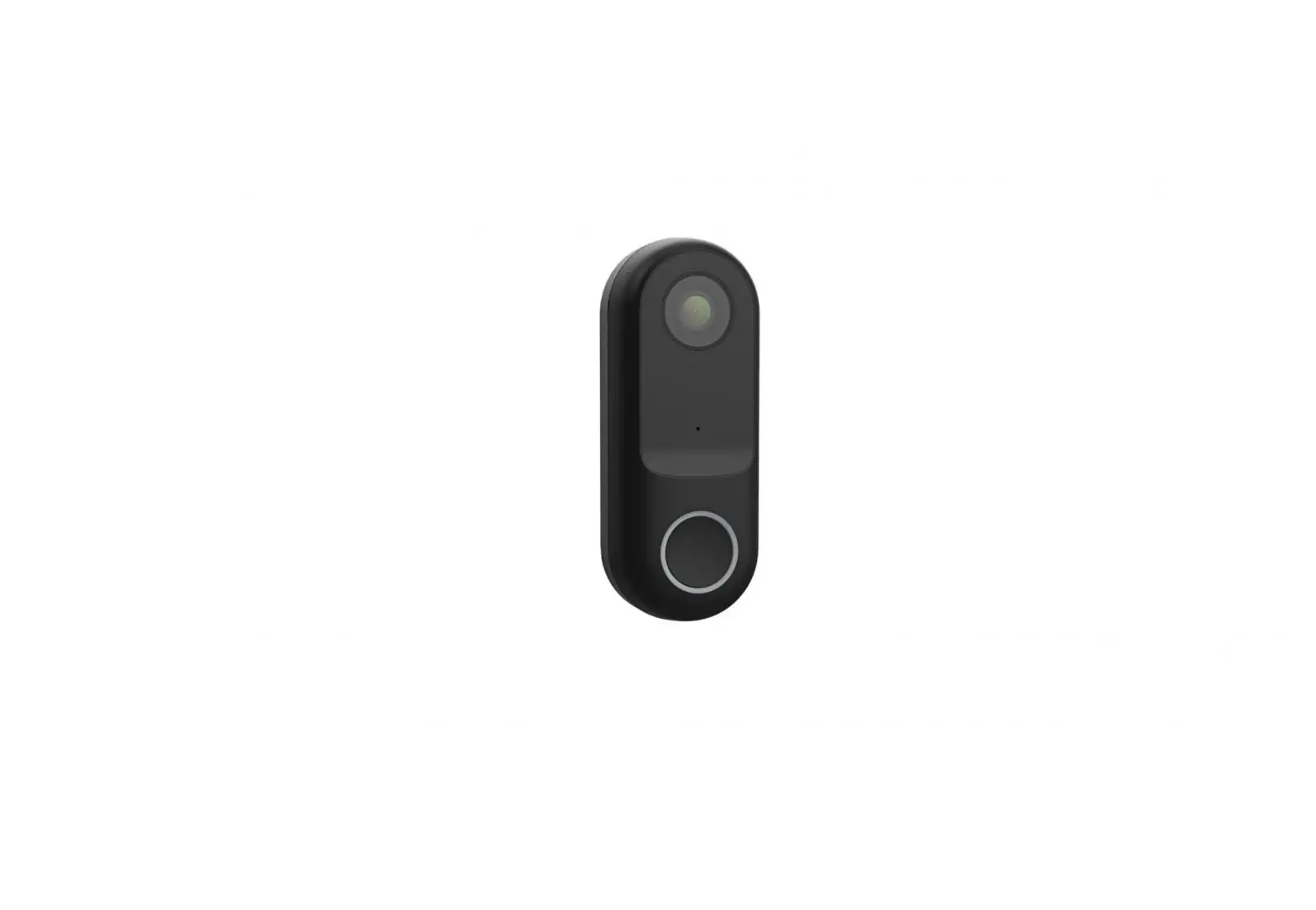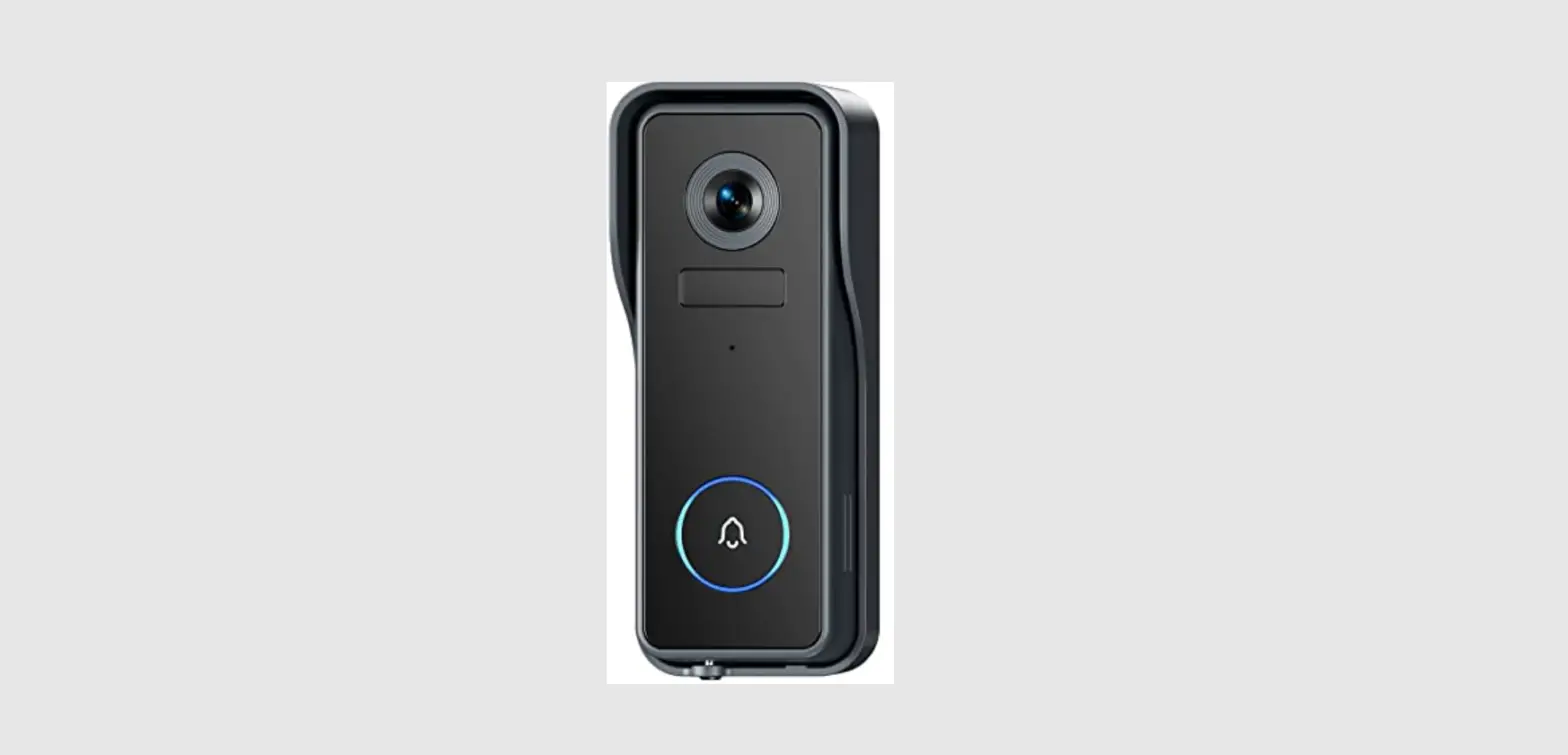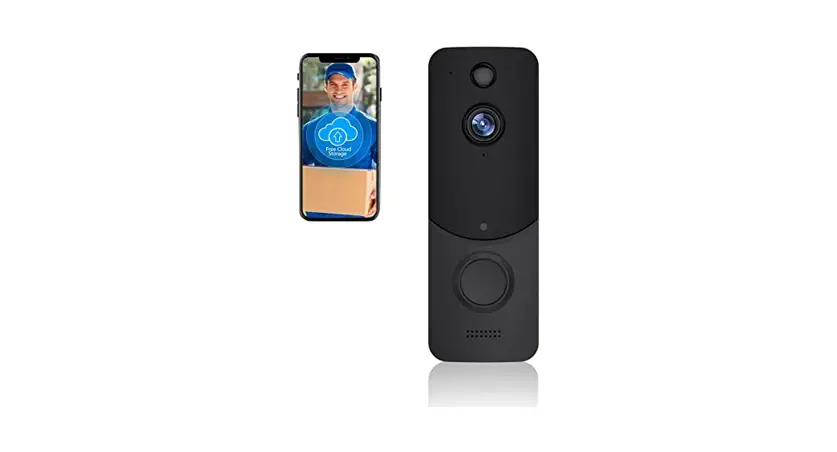
 Battery-Powered Smart Video Doorbell
User Manual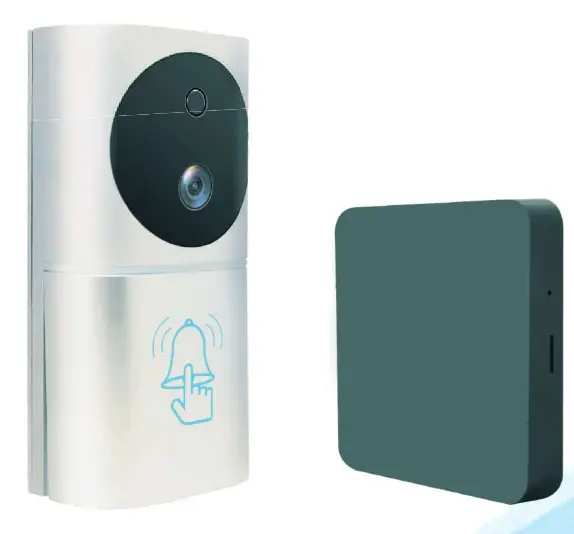
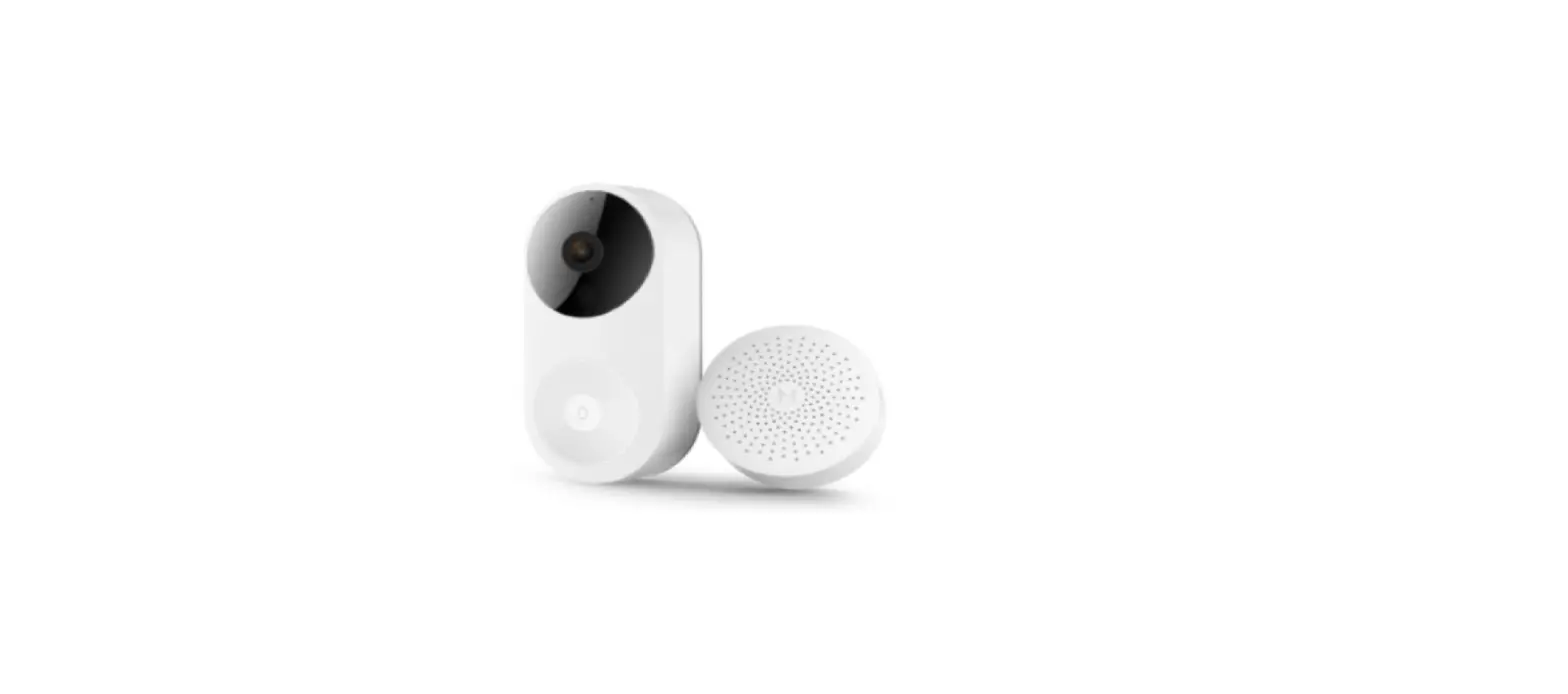
Product Description
- Doot Camera

- Geteway

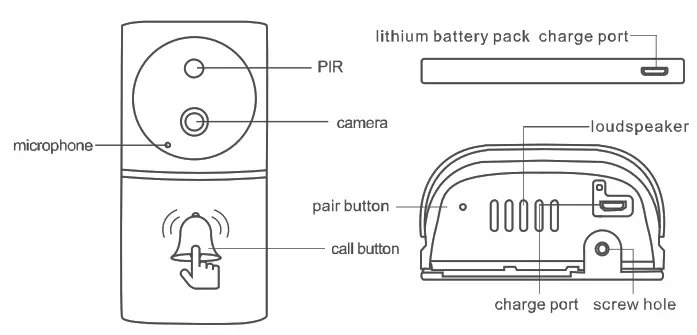
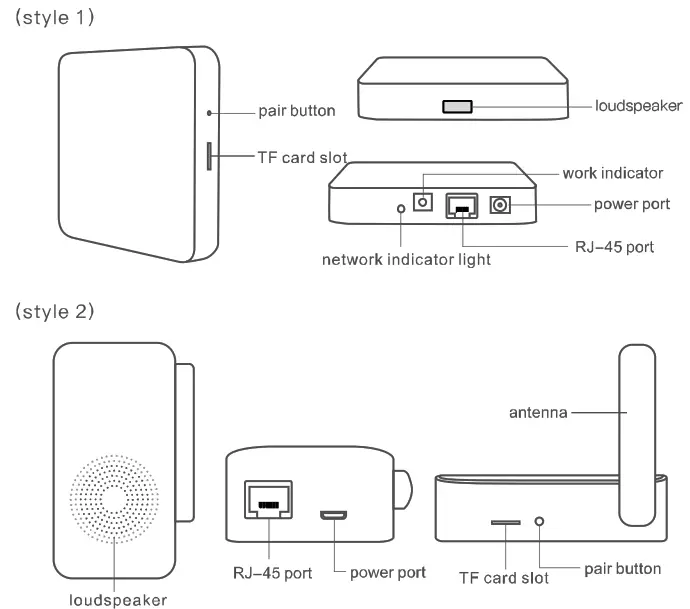
Preparation before Installation
Check packing content
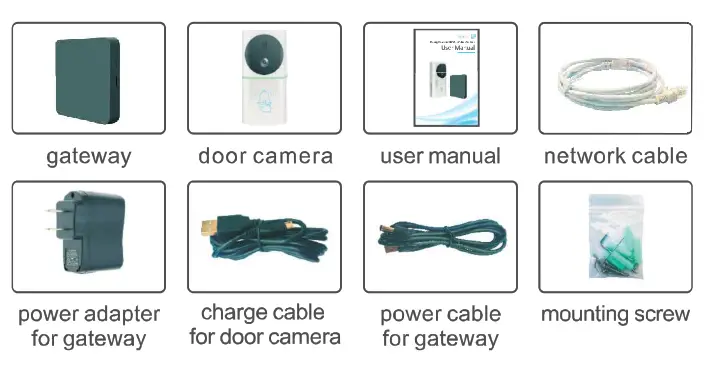
Operation Instruction
- Scan OR code to download APP
 |  |
| https://itunes.apple.com/us/app/acebell/id1440418912?l=zh&ls=1&mt=8 | https://play.google.com/store/apps/details?id=com.icare.acebell |
Account Registration
Input your email address and set up a password. Click “Verify’; a verification code will be sent to the email you input ( If you do not find the email in your inbox, please check your spam filter). Enter the code and click ‘Sign Up”.
Pair between Gateway and Door Camera
Tip: this step is not required because the gateway and door camera is paired well before delivery. If APP alerts no pair between them, please contact local sellers before taking this step.
- Long press the “pair button (also “reset” button) on the gateway for 10 seconds till it alerts “restore factory setting”.
- Long press the “pair’ button on the door camera for 10 seconds till its green indicator flashes and goes off.
- Then fast press the “pair button on the door camera 3 times; it will alert “pairing”. Next fast press the “pair button on the gateway 3 times: it will alert “pairing’.
- When two devices both alert “pair success, pair completes between them.
Add Device on APP
- Connect gateway with the router via network cable; then connect it with power via adapter and cable.
- Ensure network (WiFi or mobile data) is available on phone.
- Open APP and click “add device” (see Picture 1).
- Click “pair via QR code”(view image 2).
- Scan QR code on gateway (see photo 4) to auto recognize and add device (see picture 5). Or enter the device ID number and password (default: 888888) to add a device. Click “V” (Image 3).
- the device is added then back to the main interface. (Pic 6)
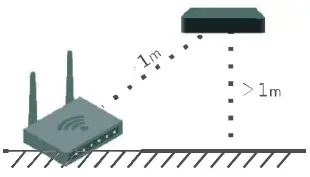 Note: distance between router and gateway must be farther than 1 meter; gateway must be kept 1 meter away from floor.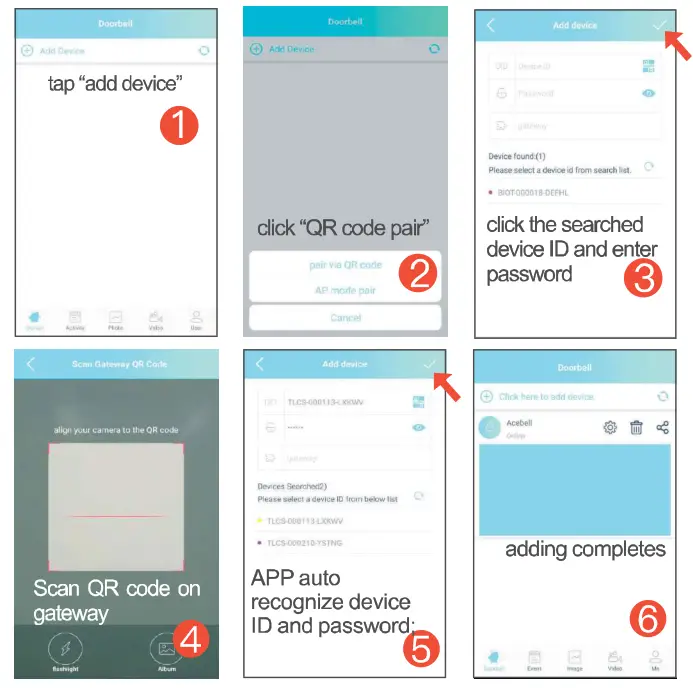
APP Interface Introduction
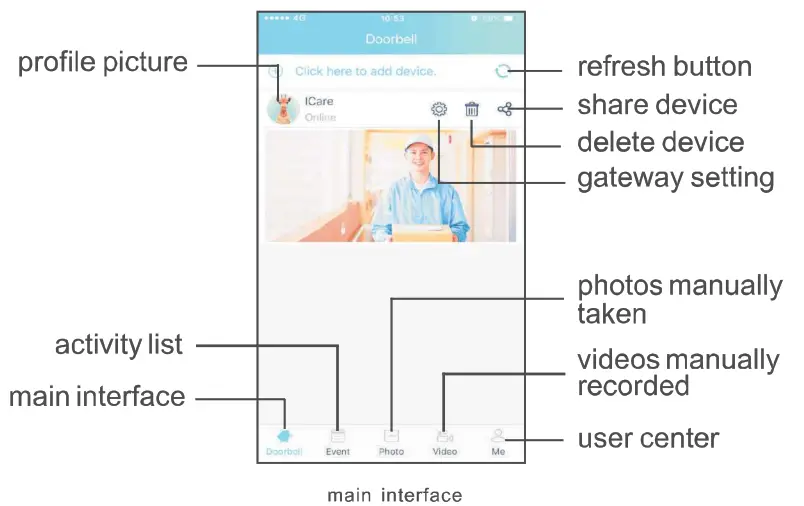
Share Device to More Users
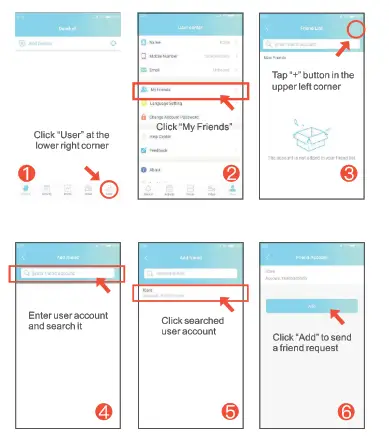
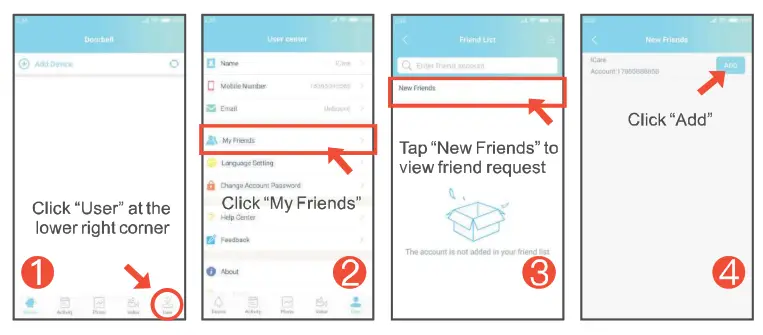
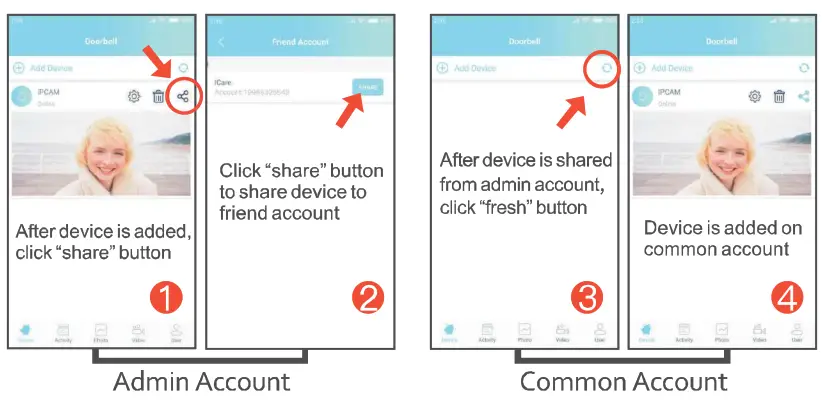
A gateway is allowed to be added on only one account, which is called an admin account. If other users want to be connected, the admin user should first list their friends and then share this device with them. The below steps shows how to add friend and share device.
- How to Send Friend Request

- How to Accept Friend Request

- Share Device from Admin Account to Common Account (both must be listed friends first)

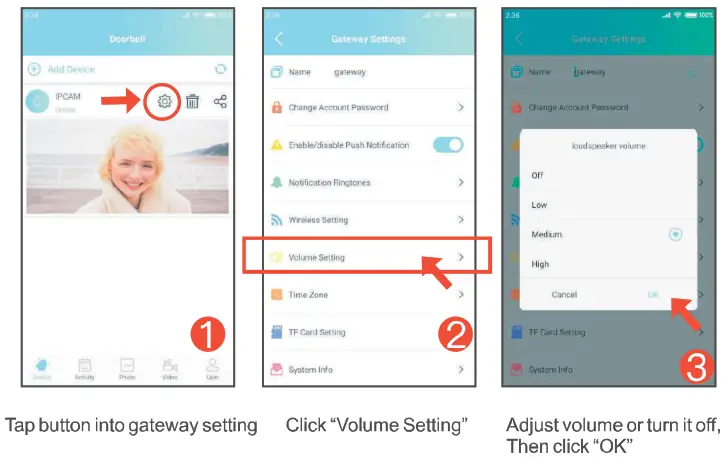
Gateway Speaker Volume Setting System Update
Function
 System Update
Video Intercom
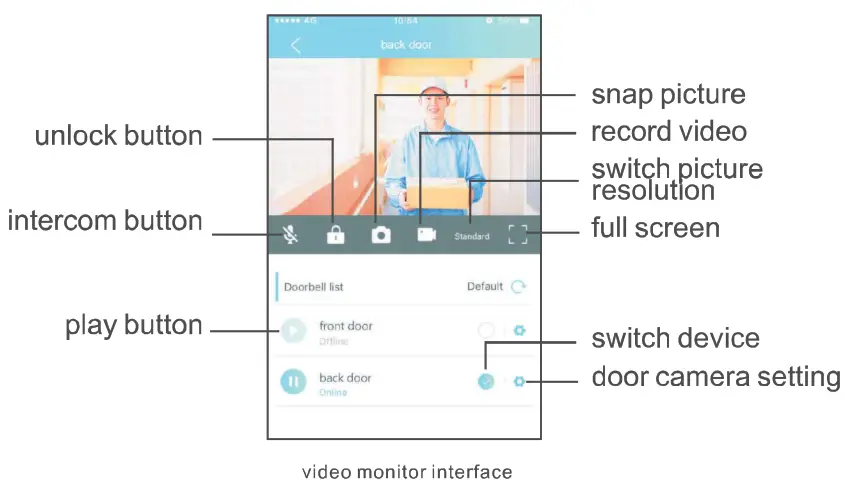
After each visitor makes a call, you will get an instant notification on your mobile app and view the visitor on your phone if you answer the call. Then you can hear and speak to them at your door anytime from anywhere. At the same time, visitor pictures will be stored in the TF card on the gateway. If the call is not answered at a specified time, the visitor can leave a message.
Unlock via APP (An extra unlock module is a must)
In the intercom or live view video state, press the “unlock” button on APP and enter unlock password (default password: 0000) to release the door.
Remote Monitoring
You can monitor your front door at any time by starting the video from the app.
Data Storage
A TF memory card (max support 32GB) can be inserted into the gateway. Activity videos of visitor calls, motion detection, unlock, and leave messages will be saved in this TF card.
Other operations:
Gateway password, unlock password, friend nickname, etc can be changed.
Motion Detection:
If someone moves within the camera view, an instant alert will be sent to mobiles; and a video of anyone approaching will be captured and saved. (please view the below screenshots for operation)
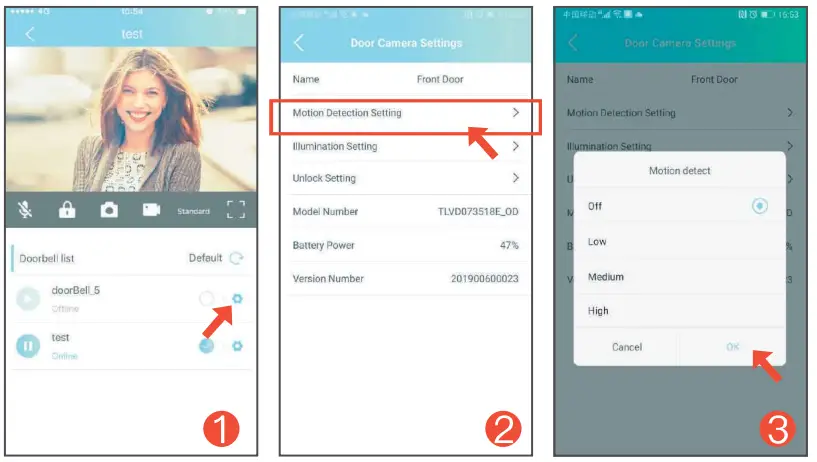 | ||
| 1. door camera setting | 2. motion detection setting | 3. select sensitivity and click “OK” |
Installation
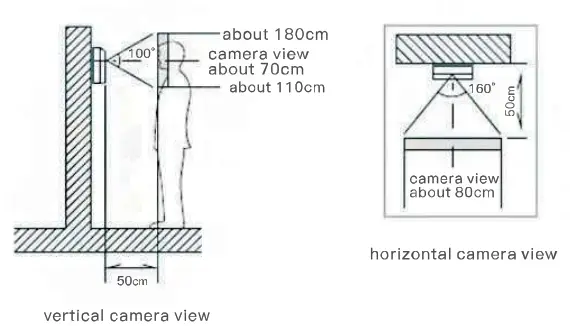
- Door camera position
 Note: Avoid camera from direct sunshine. In the darkness, if the camera is intensely illuminated by street light or light-emitting object, installing a lamp near to door camera is needed to enhance camera imaging.
 - Installation

 Note: Avoid camera from direct sunshine. In the darkness, if the camera is intensely illuminated by street light or light-emitting object, installing a lamp near to door camera is needed to enhance camera imaging.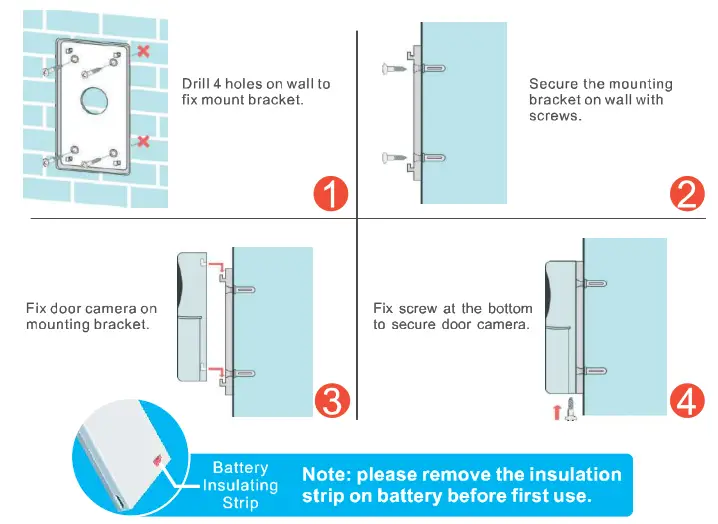
Precautions
- Leave door camera and gateway from strong magnetic field.
- Do not spray water or other liquid on the door camera and gateway.
- Do not heavily hit the gateway and doorbell.
- Leave it from direct-sun exposure and strong re-lected light.
- Do not install door cameras near places with ammonia or toxic gas.
- No disassembling this product because a high voltage current exits inside it.
- Do not wipe the door camera and gateway with detergent or another chemical solvent.
- Do not disassemble this device in case of failure. Please repair it at your local maintenance locations or direct contact our after-sale customer service.
Troubleshooting
- No sound in intercom state. (Picture 1)
(a). Check whether mobile allows the APP to access the microphone and record audio.
(b). Check whether the microphone is blocked up. - No alerts to mobile phones. (Picture 2.3)
(a). check whether the gateway and door camera is paired well; and whether the device status is online.
(b). Check whether notification permission to APP is allowed on the mobile setting.
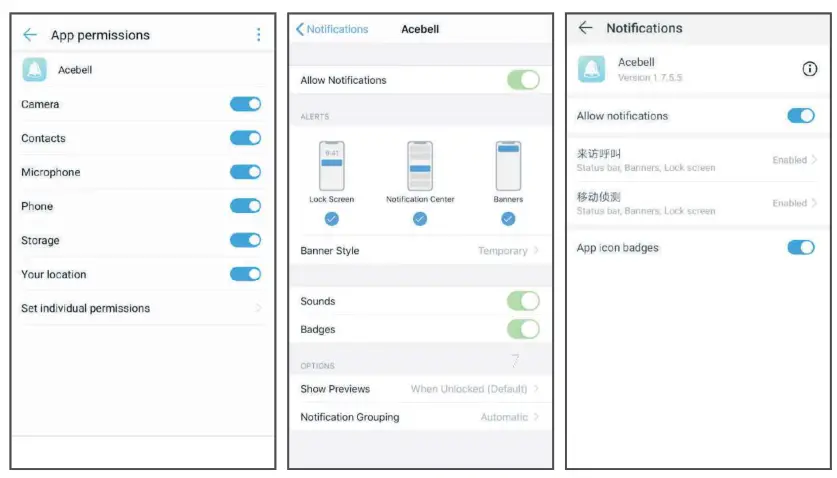 | ||
| 1. microphone permission setting | 2. notification setting on iPhone | 3. notification settings on Huawei devices |
Main Technical Data
Gateway
| Power adapter | DC 5V |
| Power consumption | 1.5W |
| Work temperature | -20-60°C |
| Size | 10*10*1.7cm |
| Memory card | max support 32GB |
Door Camera
| Power adapter | DC 5V |
| Power consumption | Standby: 175pA; Work: 240mA |
| Camera view angle | Diagonal 170 |
| Night vision | IR lamp (distance: 5 meters) |
| Work temperature | -20-60°C |
| Each intercom duration | 90 seconds |
| Size | 12.9*6.4*3.2cm |
Smaart Home Starts “Acebell”
| |
| https://itunes.apple.com/us/app/acebell/id1440418912?l=zh&ls=1&mt=8 | https://play.google.com/store/apps/details?id=com.icare.acebell |
Ccan QR code to download APP