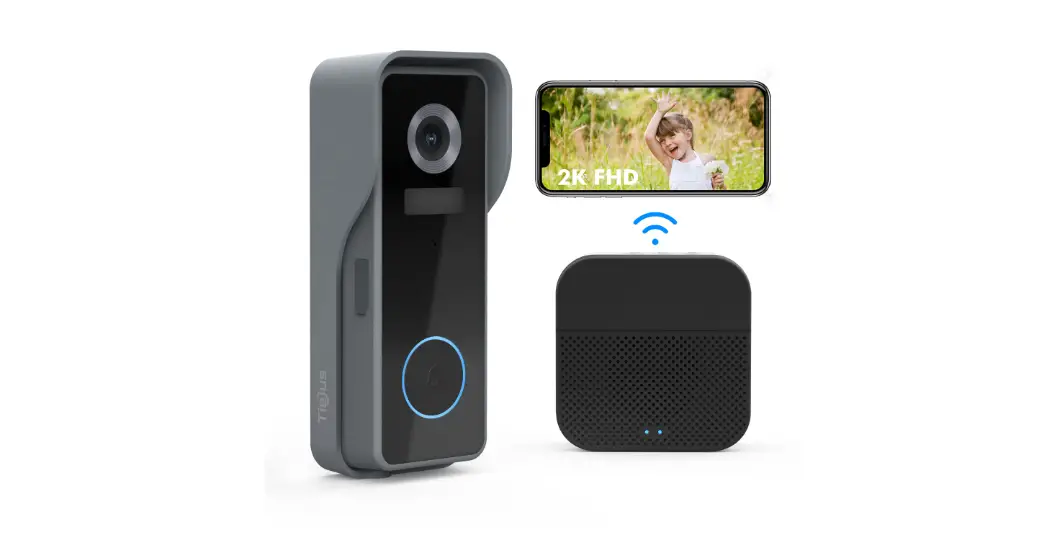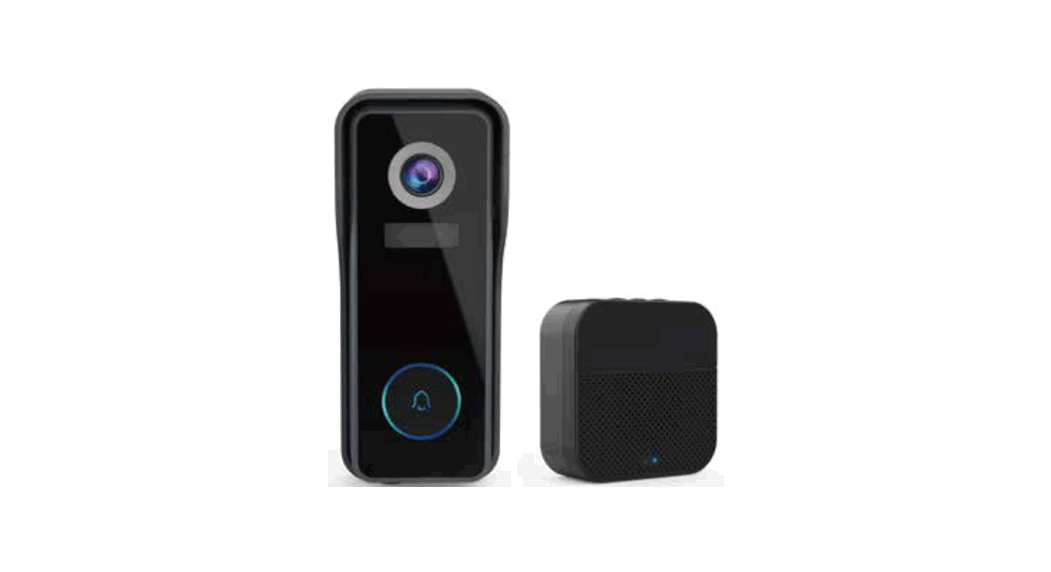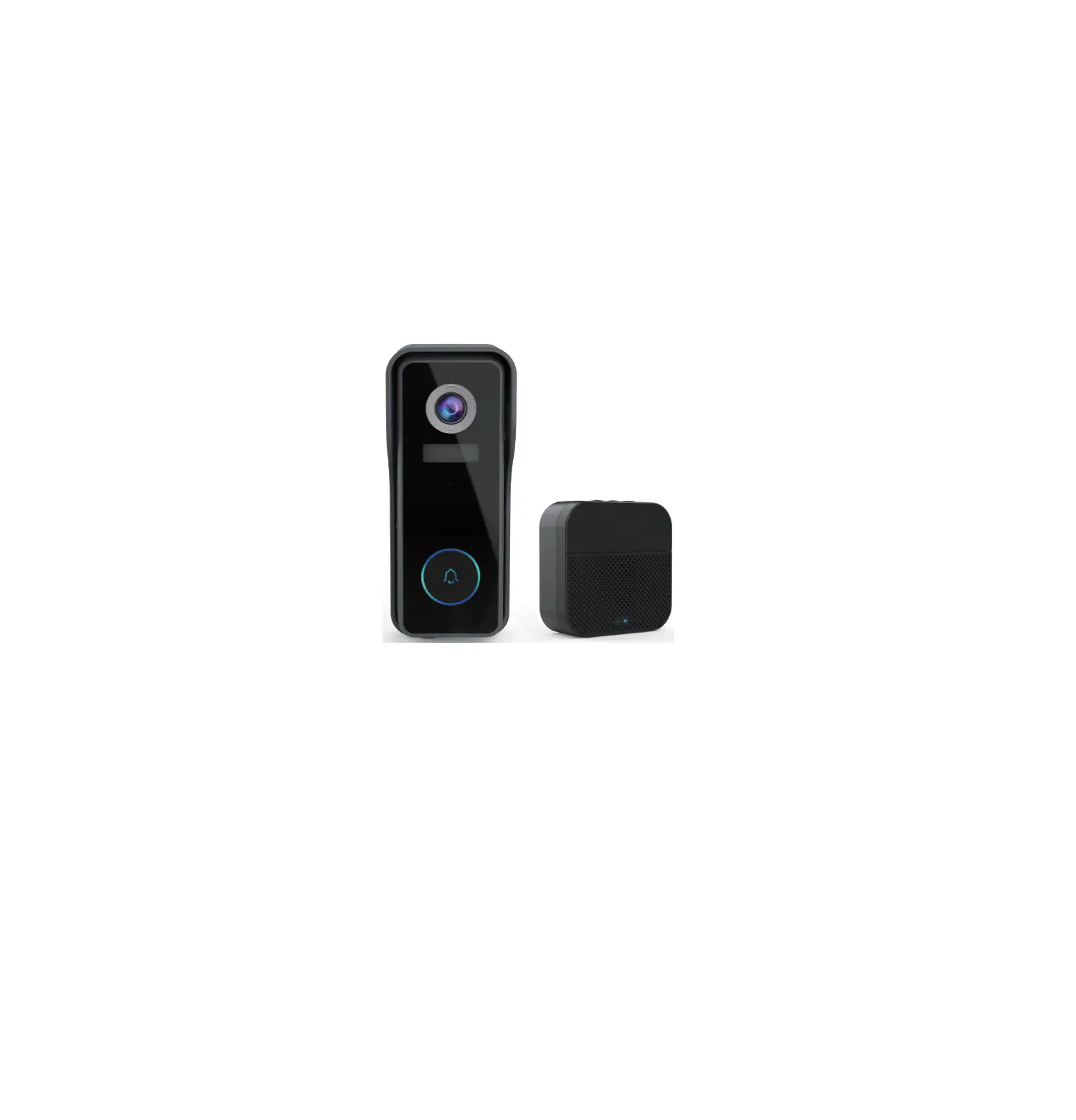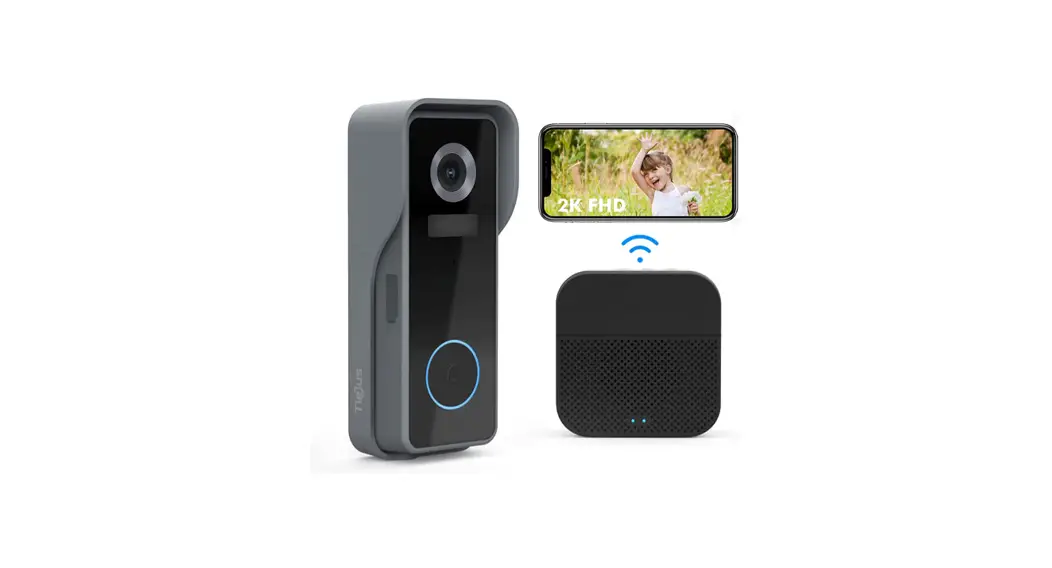
 Make your life smarter and safer
QUICK START GUIDE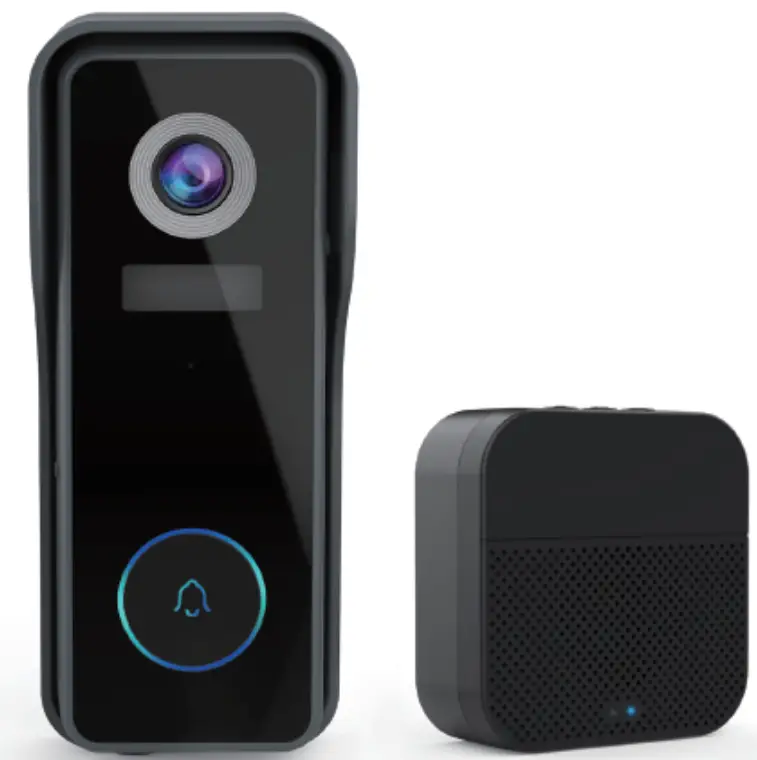
 SMART VIDEO DOORBELL WIRELESS I WIFI I OUTDOOR I SECURITY
Brand Story
TieJus is a young and fresh security brand that has attracted millions of technology enthusiasts in just 6 months of establishment. TieJus is committed to creating a smarter and easier modern lifestyle for consumers. Let more consumers enjoy convenient modern life without worrying about information security.
At the beginning of 2022, combined with advanced intelligent AI technology, TieJus launched the first surveillance camera that combines artificial intelligence and security system. We believe small details make a big difference – that’s why we create quality, easy-to-use smart home products.
Choose TieJus – the new security weathervane.
What’s in the Box
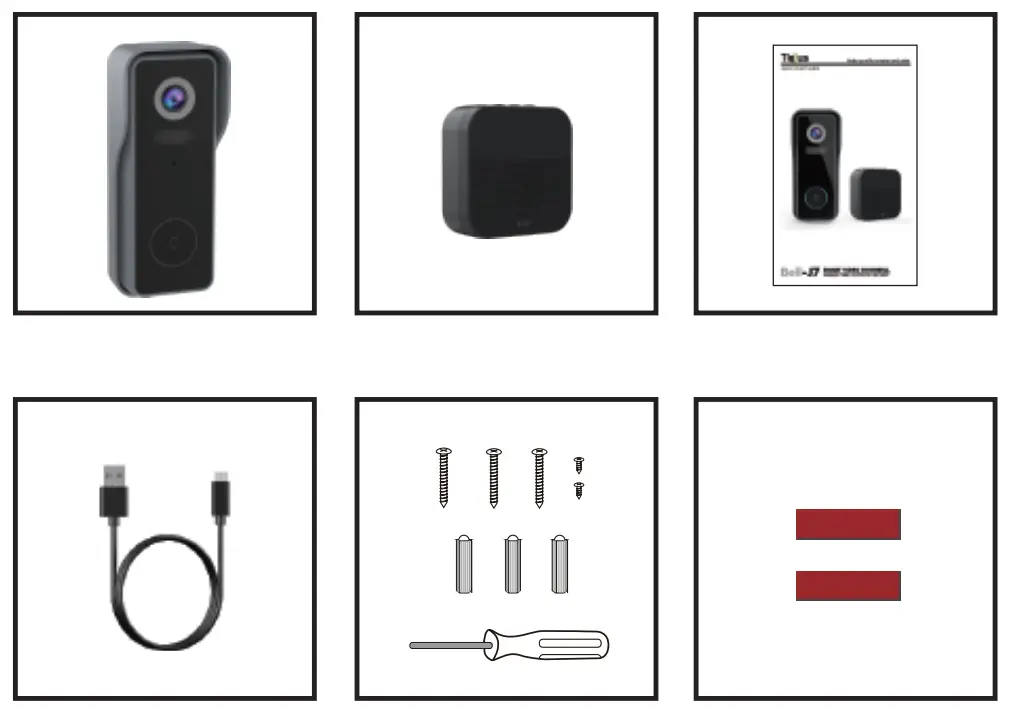
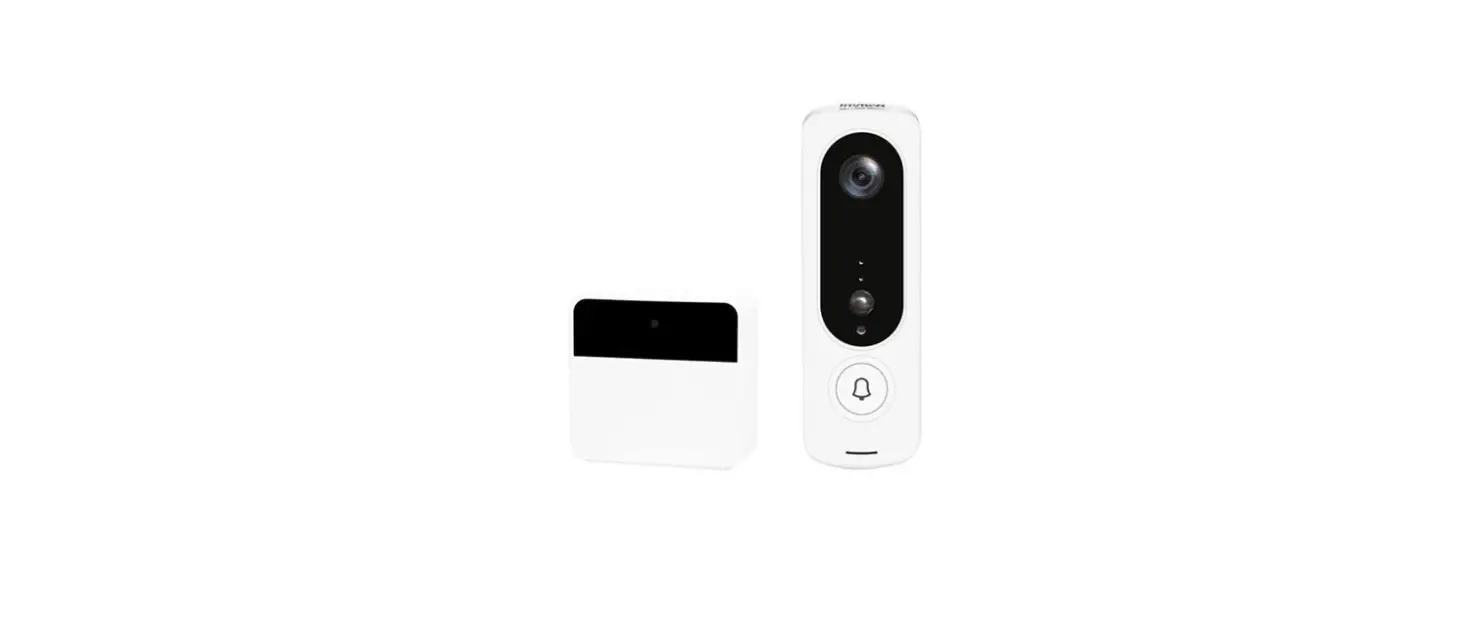
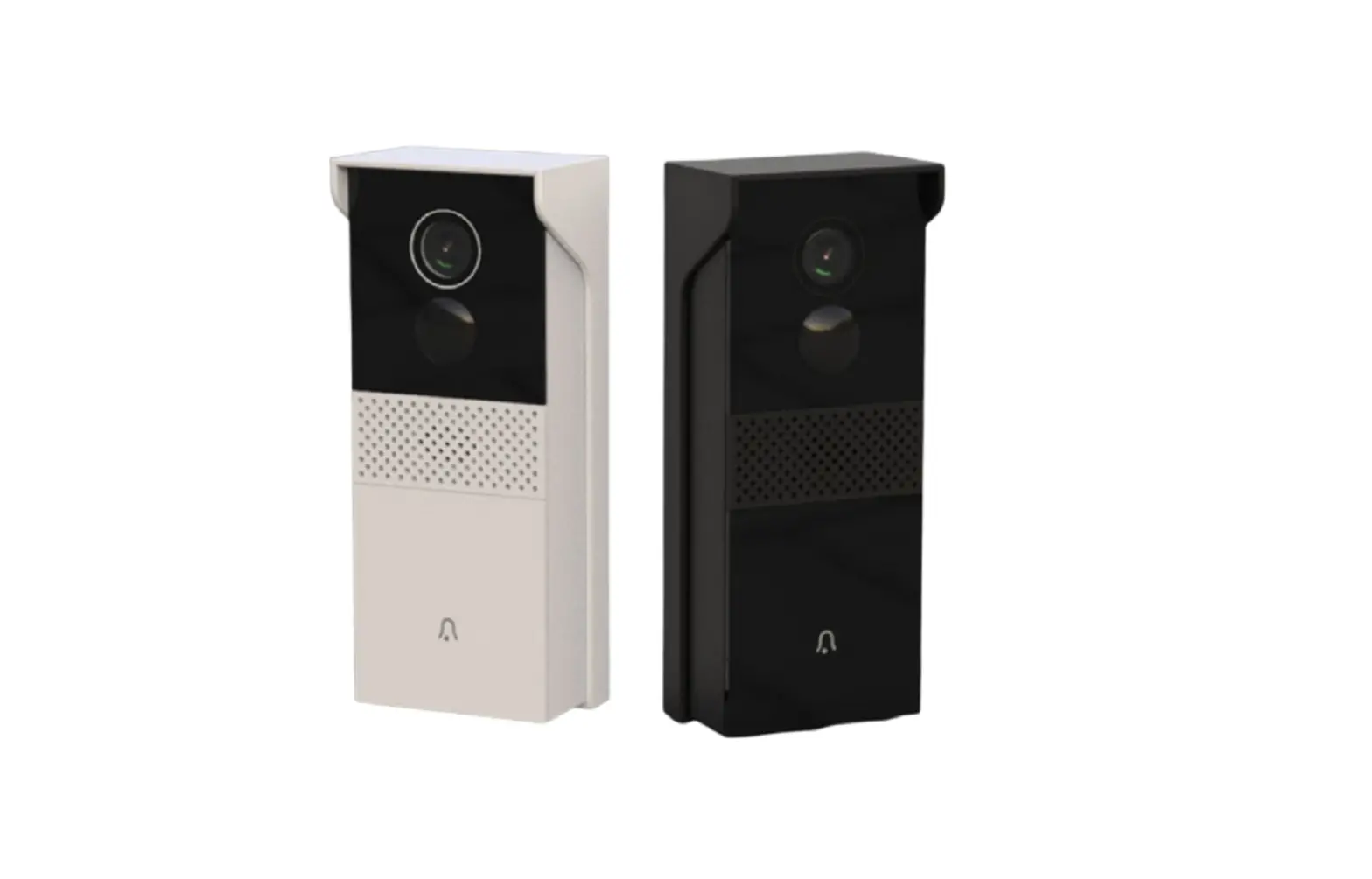
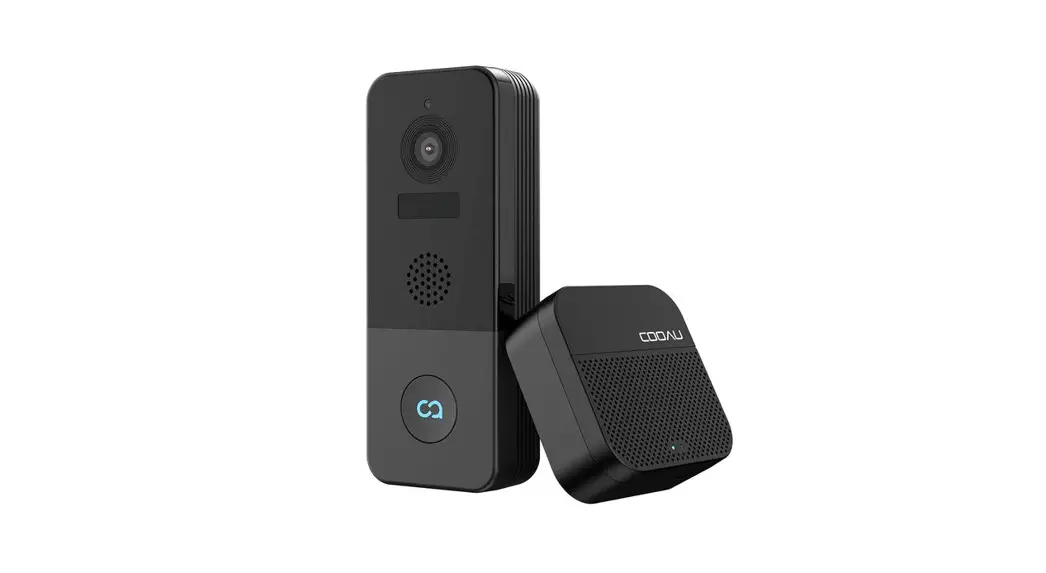
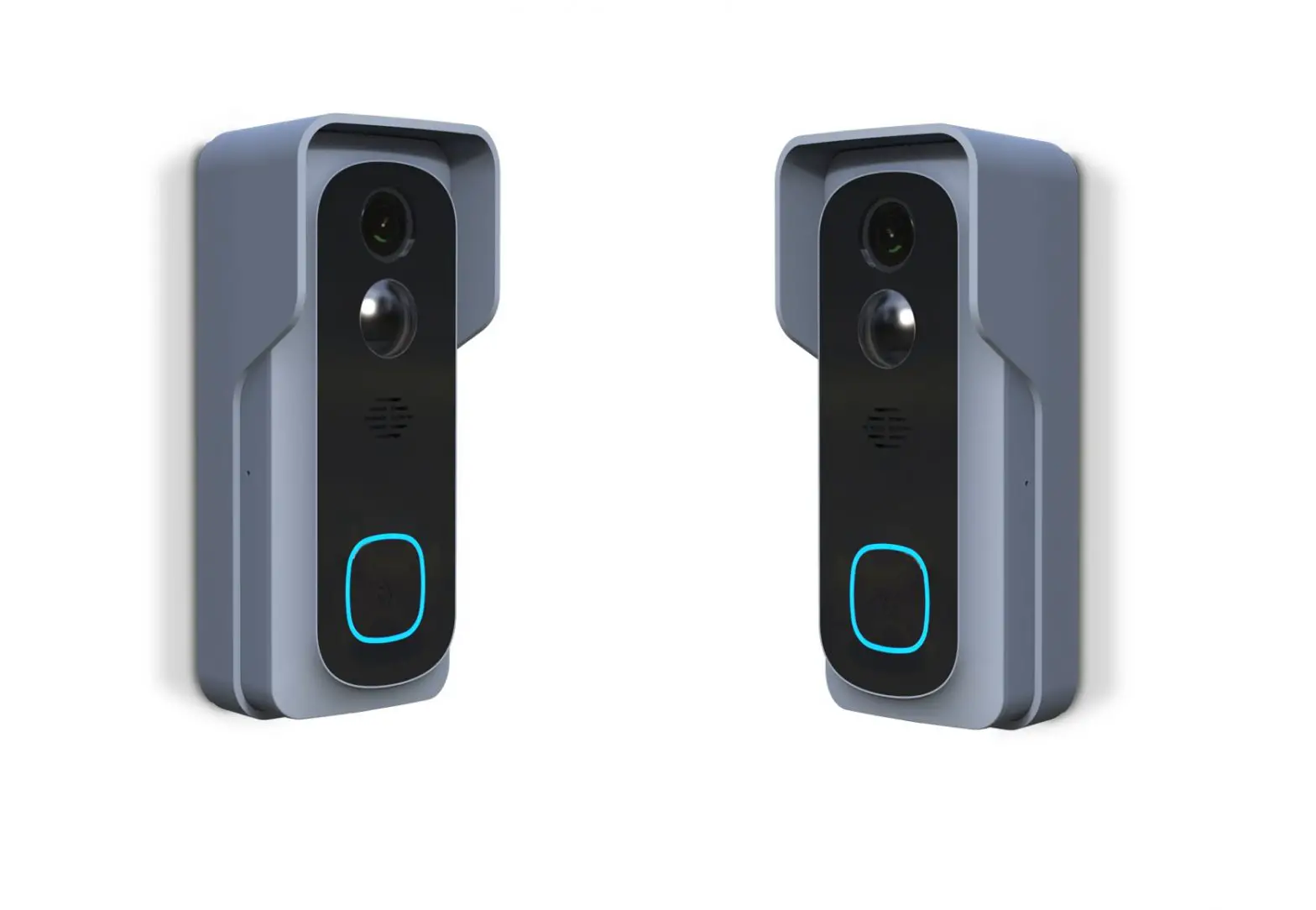
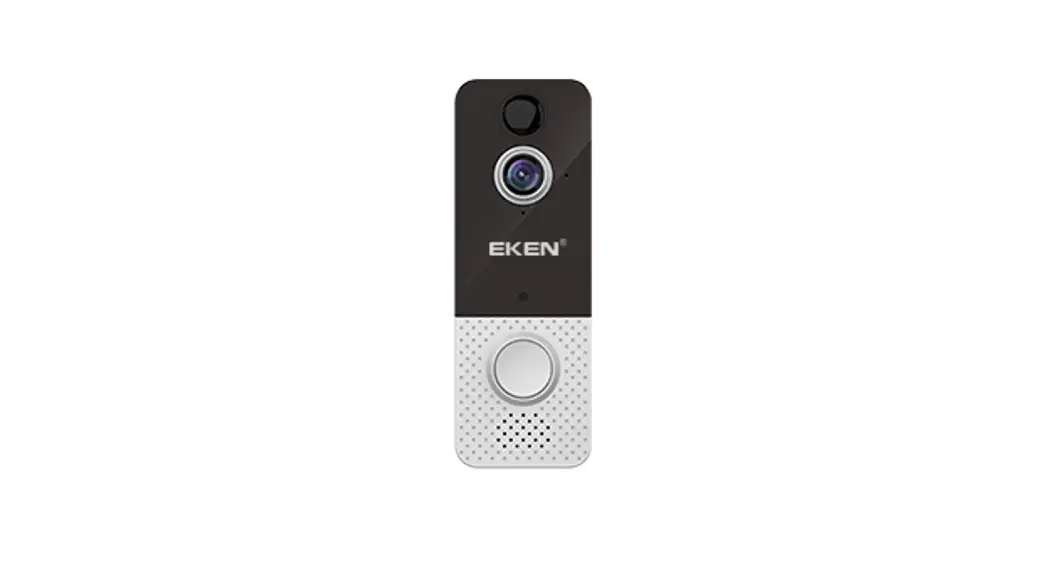
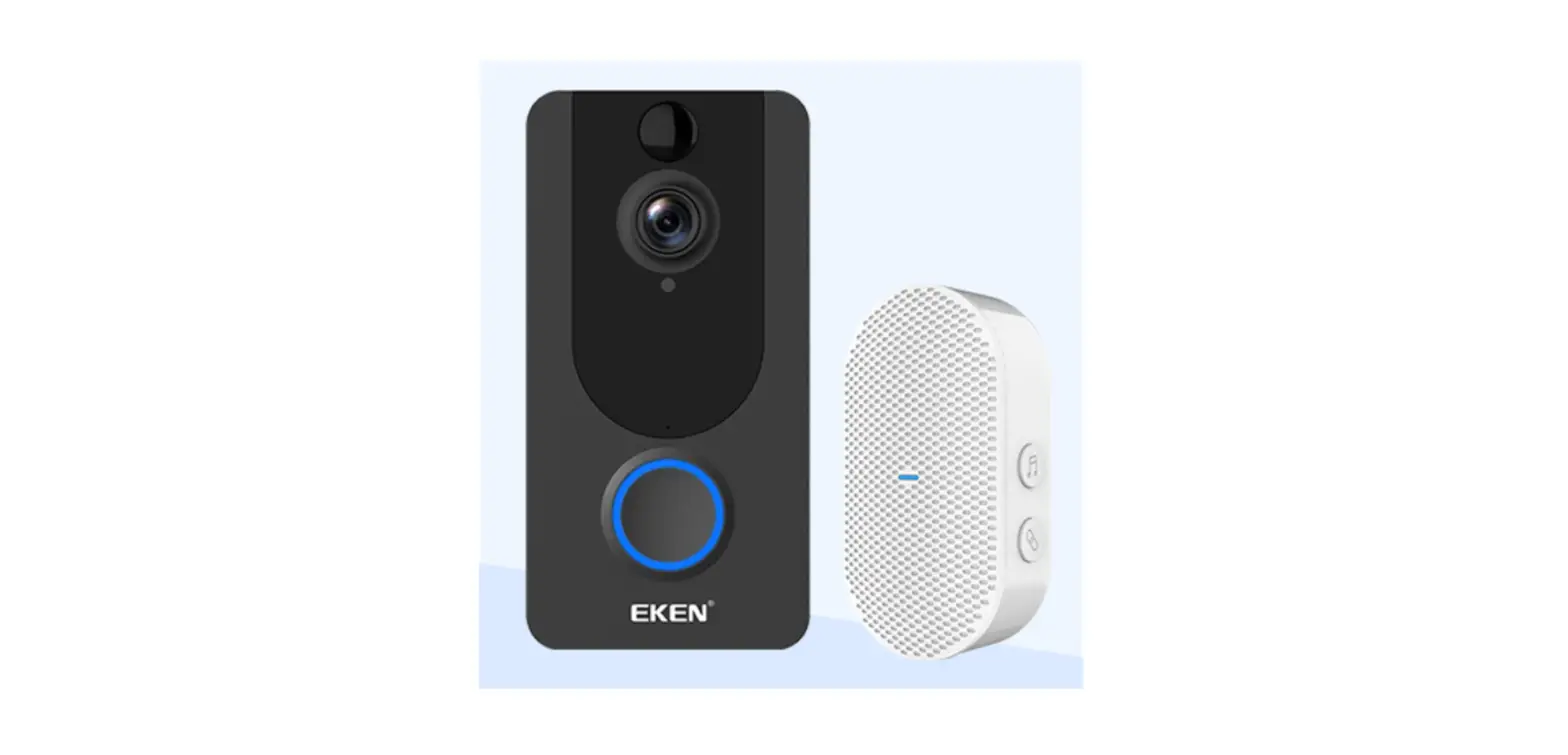
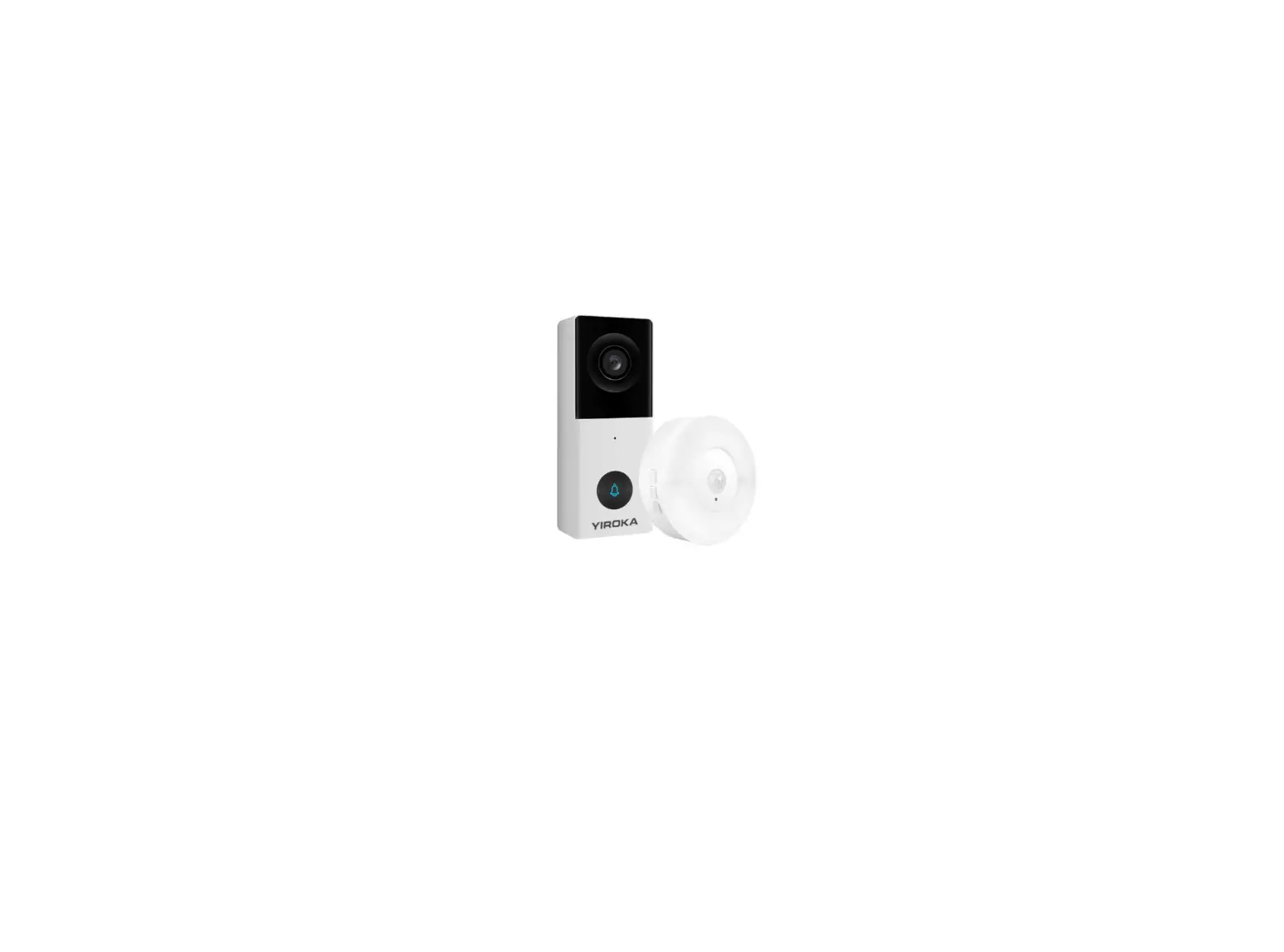
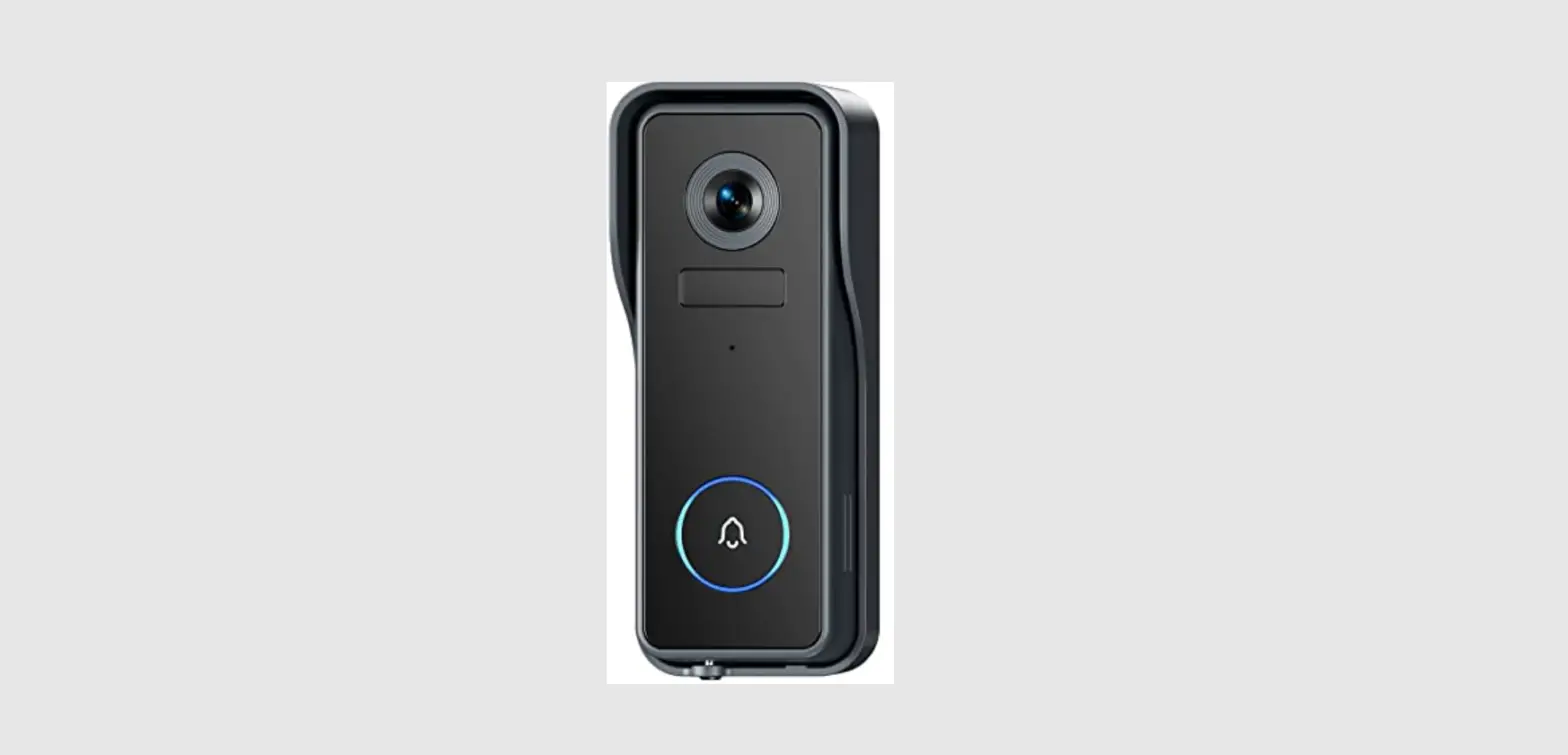
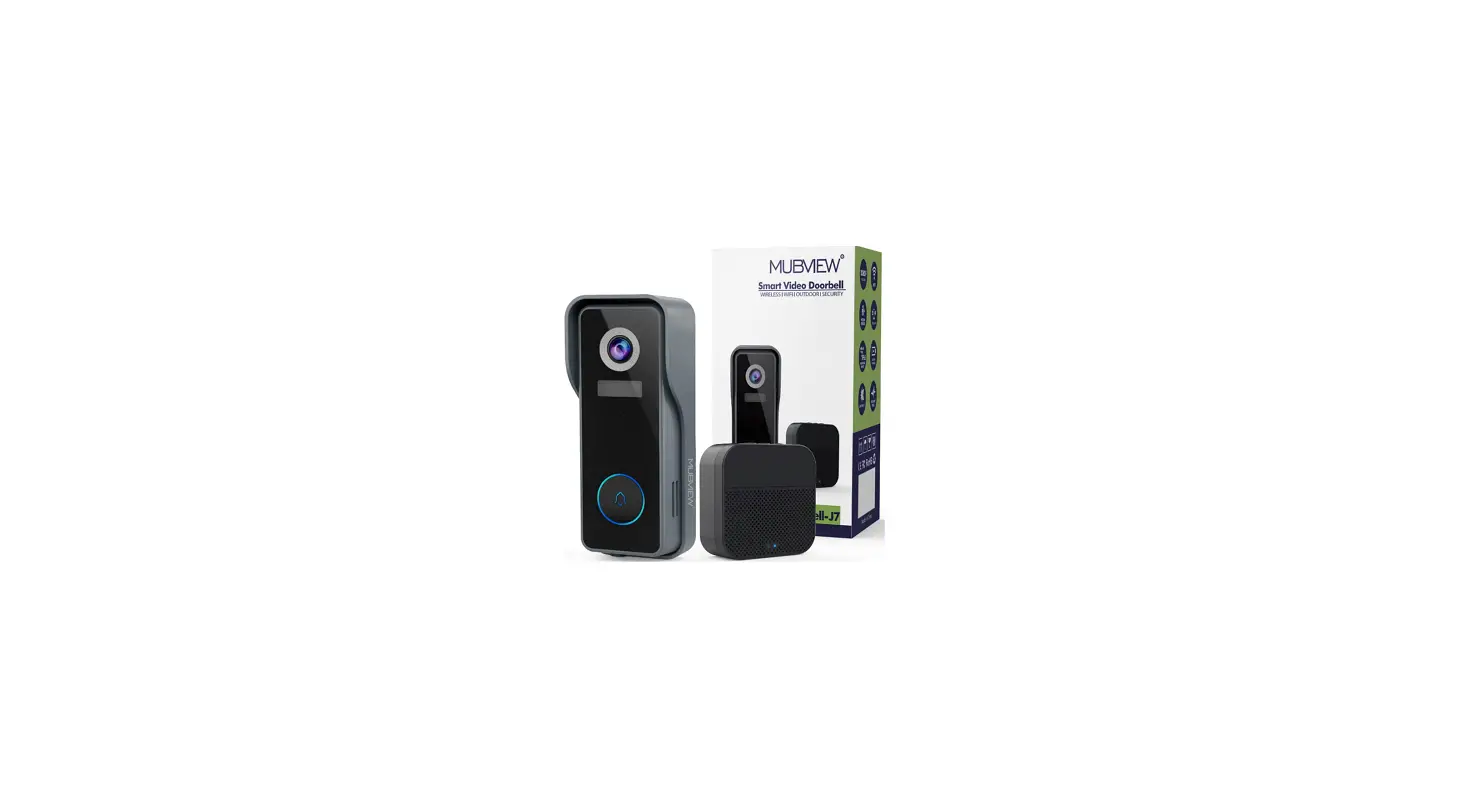
Doorbell * 1
DingDong *1
Quick User Guide *1
USB Cable *1
Screws Set/Screwdriver *1
3M Tape *2
NOTE: Micro SD card and power adapter are not included.
Meet the Doorbell
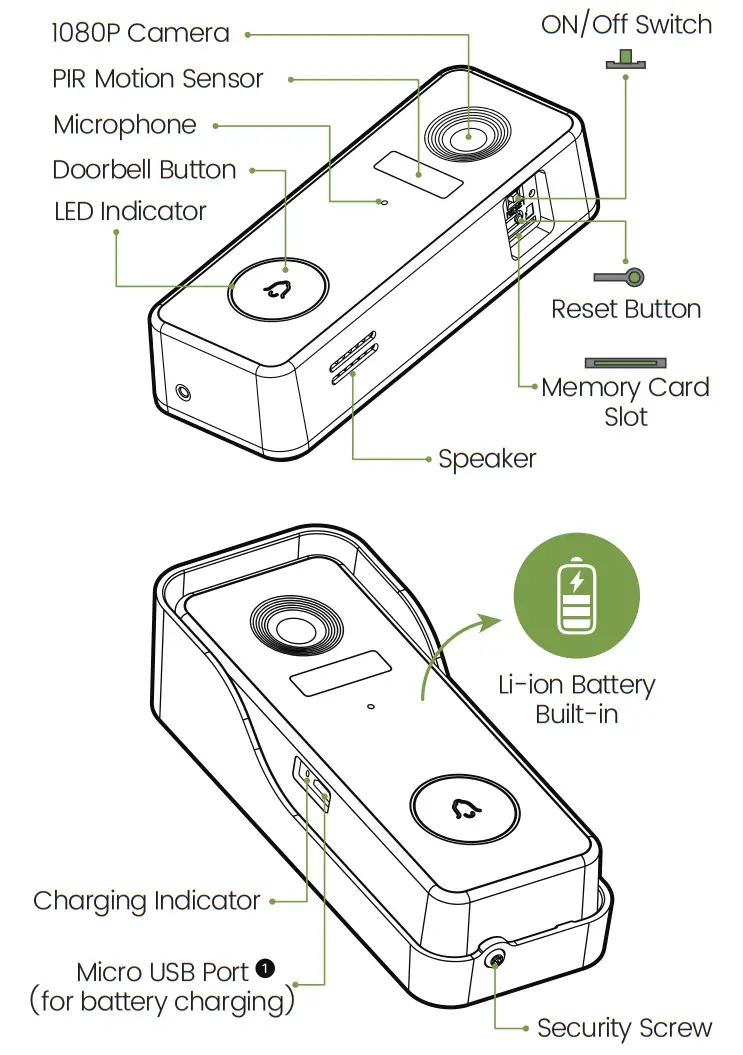
Meet the Chime
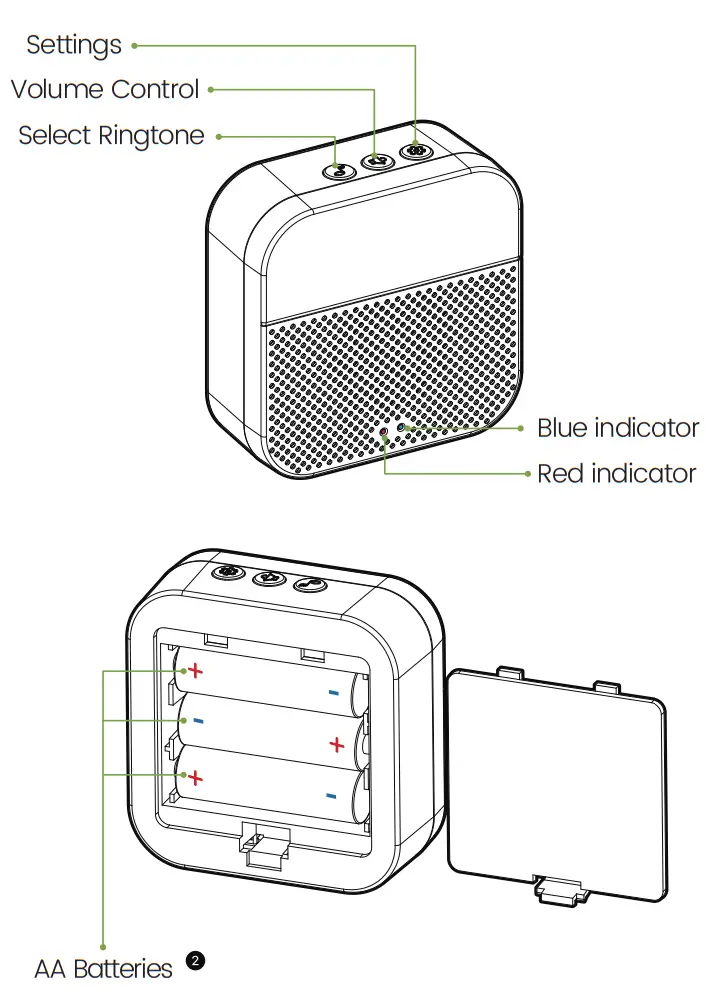
Please mind the battery polarities while installing the batteries.
Download and Install App
Download ZUMIMALL App from Google Play™ or App Store™. Or scan the QR codes as below, with your smart phone.
NOTE: Google Play™ is a trademark of Google Inc. App Store™ is a service mark of Apple Inc.
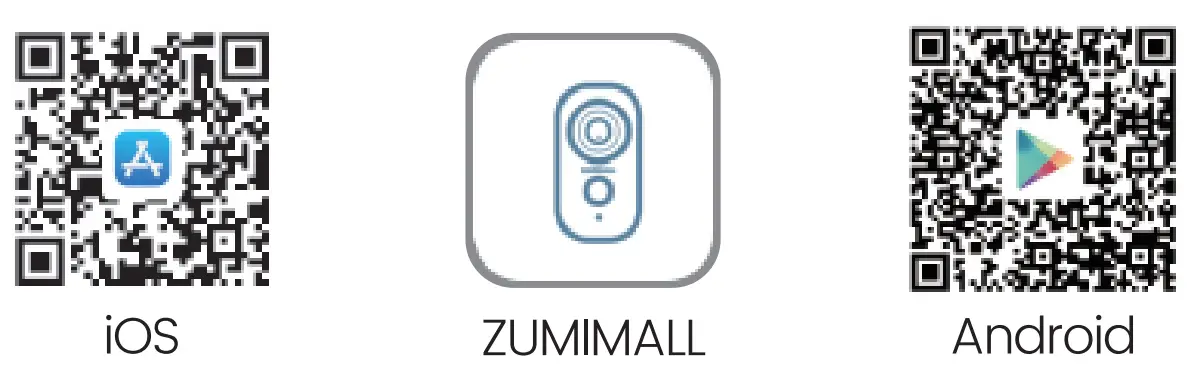 https://apps.apple.com/app/zumimall/id1515849509
https://apps.apple.com/app/zumimall/id1515849509
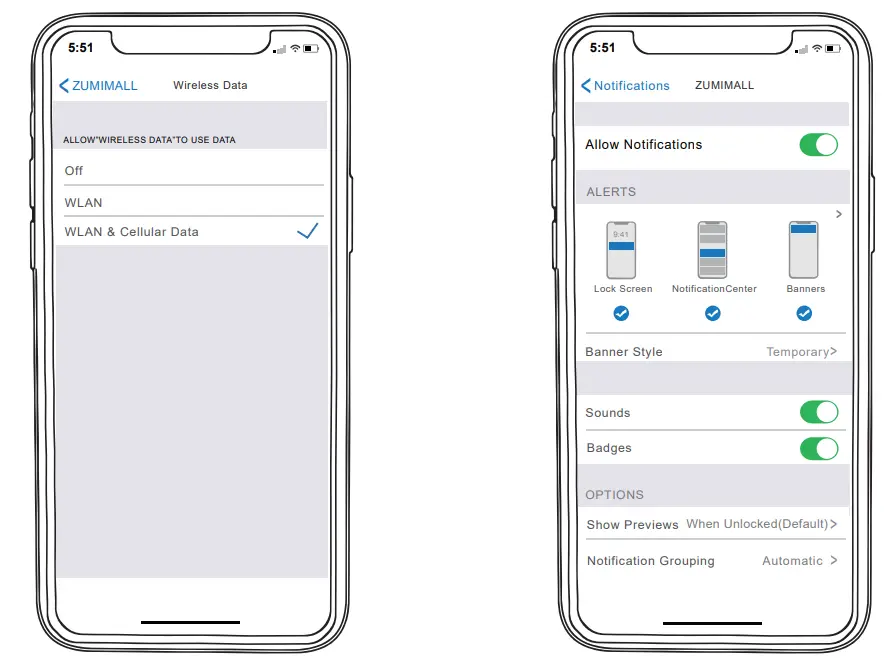
NOTE: Please turn on both of the following permissions.
- Allow ZUMIMALL App to access mobile cellular data and wireless LAN, otherwise it will fail to connect the camera.
- Allow ZUMIMALL App to receive pushed messages, otherwise, the phone will not receive alarms when motion is detected.
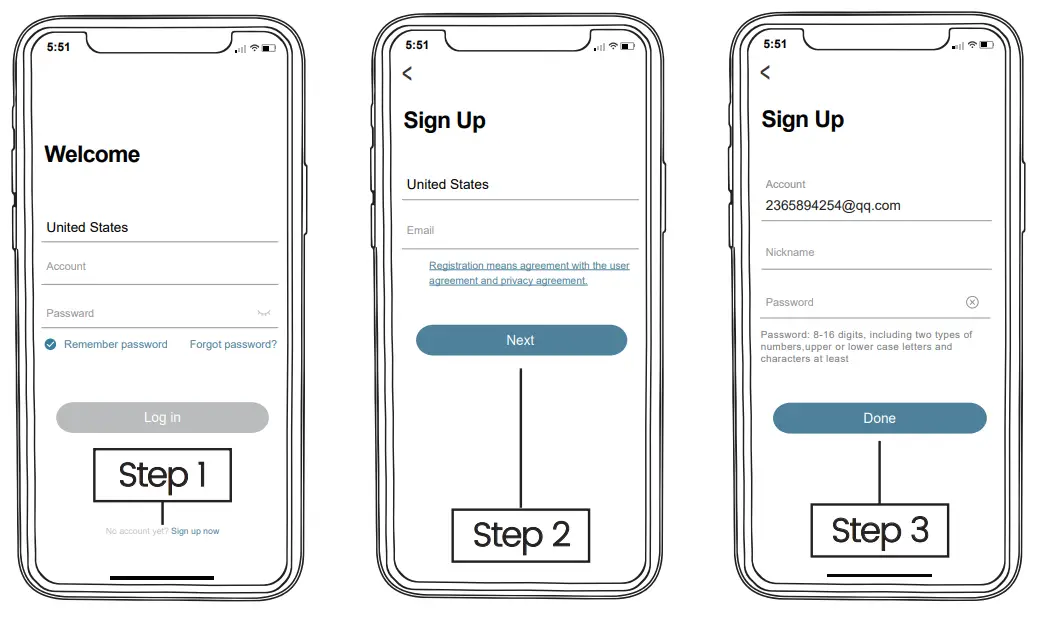
Account Registration
New user needs to sign up ZUMIMALL App with email address. Click ‘Sign up’ to create a New Account and follow the steps to complete registration.
Add Camera to App
6.1 Preparations for connection
- Insert a Micro SD Card into the camera to save video clips or you can start the 7-day free cloud service.
Without Micro SD Card or cloud service, no video will be saved. - The camera only works with 2.4GHz Wi-Fi, not support 5GHz.
- When connecting to the network, please take the camera close to the router (Recommended within 10-15ft).
6.2 Connect Camera to App
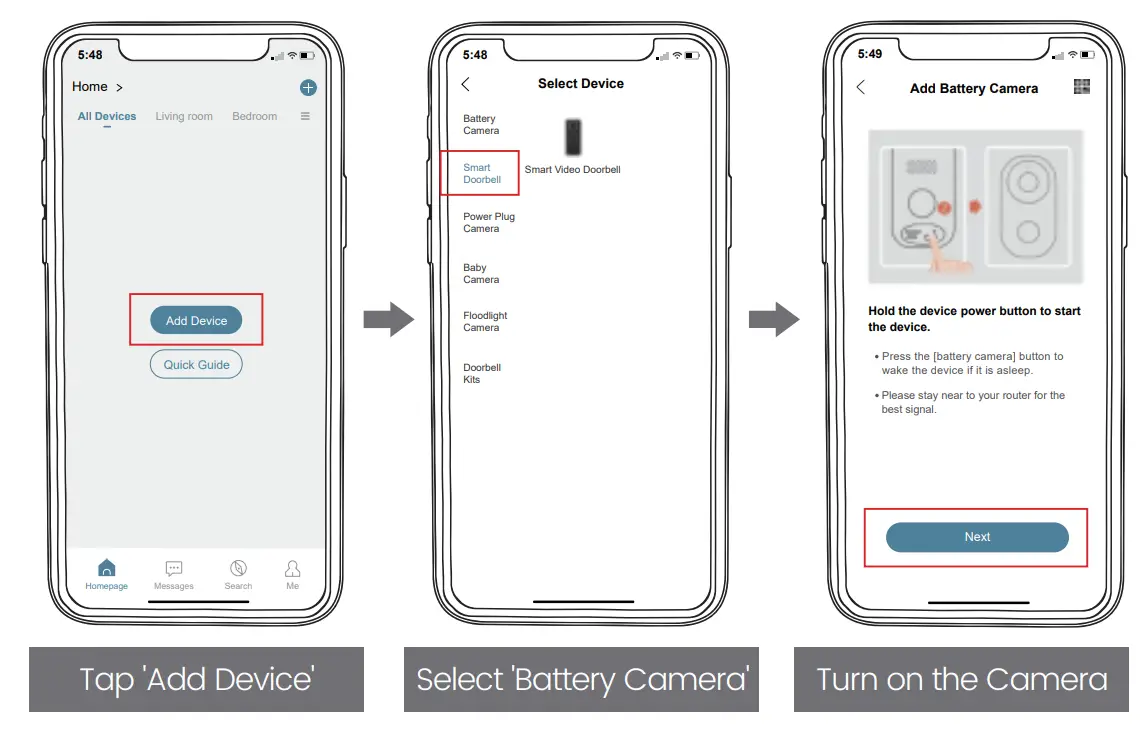
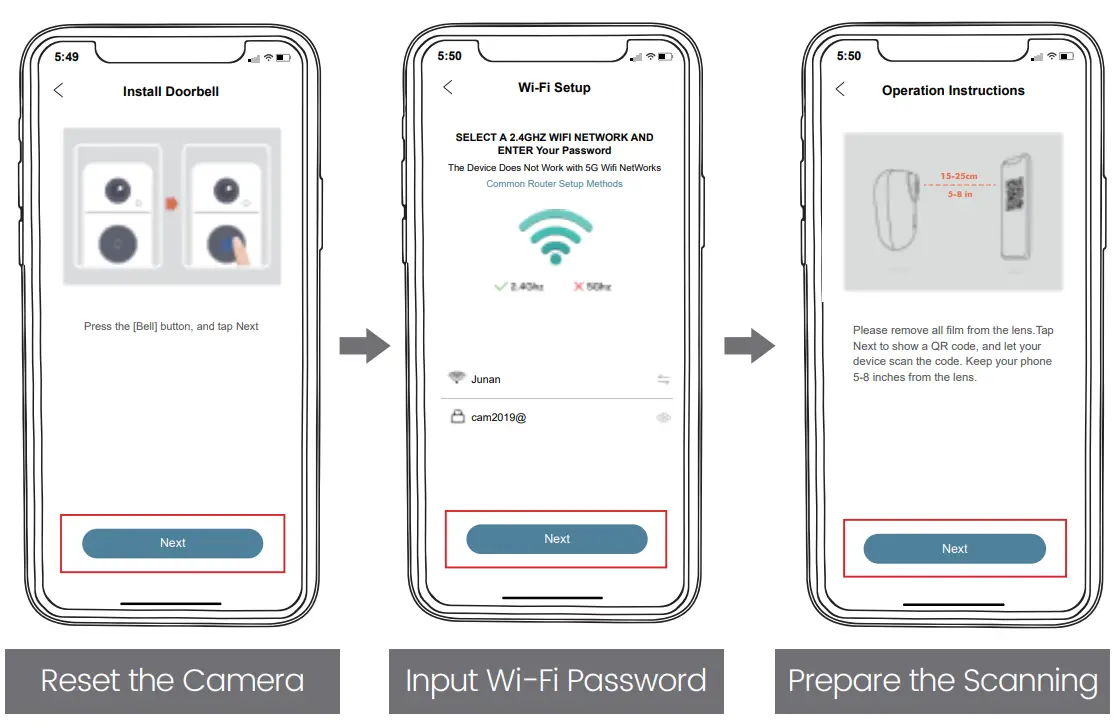
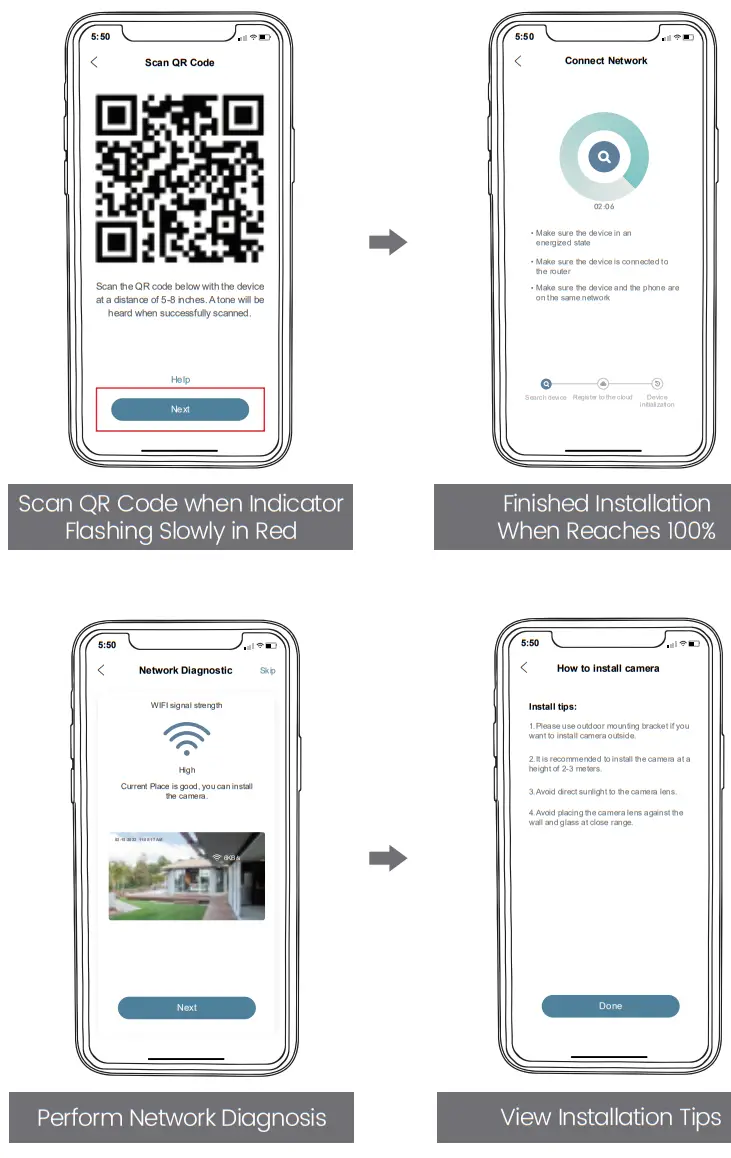
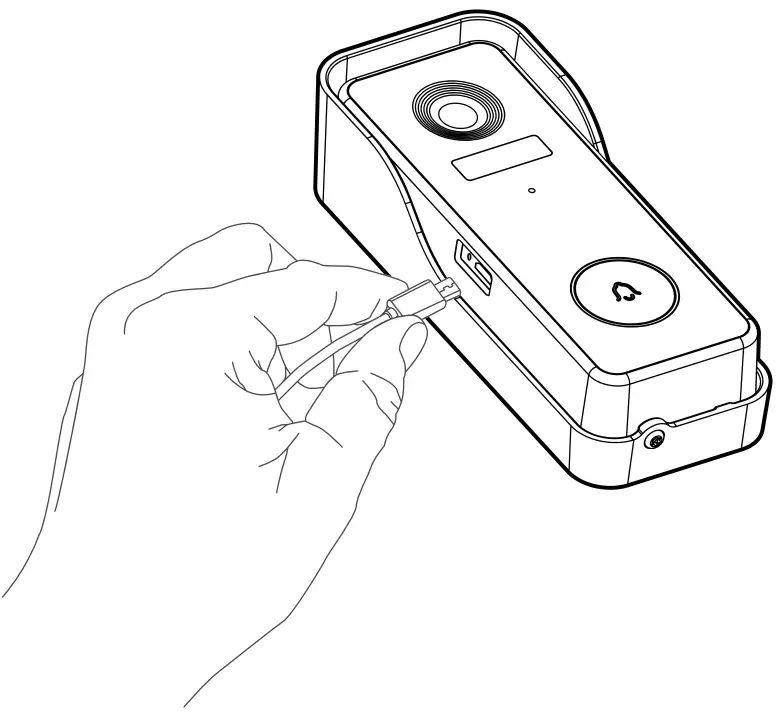
Charge your doorbell
Prior to the doorbell installation, please charge up your doorbell for about 8-10 hours till the charging LED turns BLUE from RED.
| LED STATUS | INDICATION |
 Solid red | Battery charging |
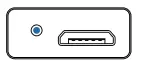 Solid blue | Fully charged |
Compatible charger (not provided):
USB compatible mobile phone charger (DC 5V 1A~2A).
Set up Doorbell
- Switch on power for your doorbell, and you will see the LED indicator flashes red (once per second). Start setting up your doorbell following the in-app instructions.

- Tips
· Please operate the setup near your Wi-Fi router.
· Make sure your phone is connecting to a 2.4GHz Wi-Fi.
· Make sure the doorbell is turned on, and its indicator LED is flashing red. If not, press and hold RESET for 5 seconds.
· Ensure the Wi-Fi signal is good, and the Wi-Fi password is correct.
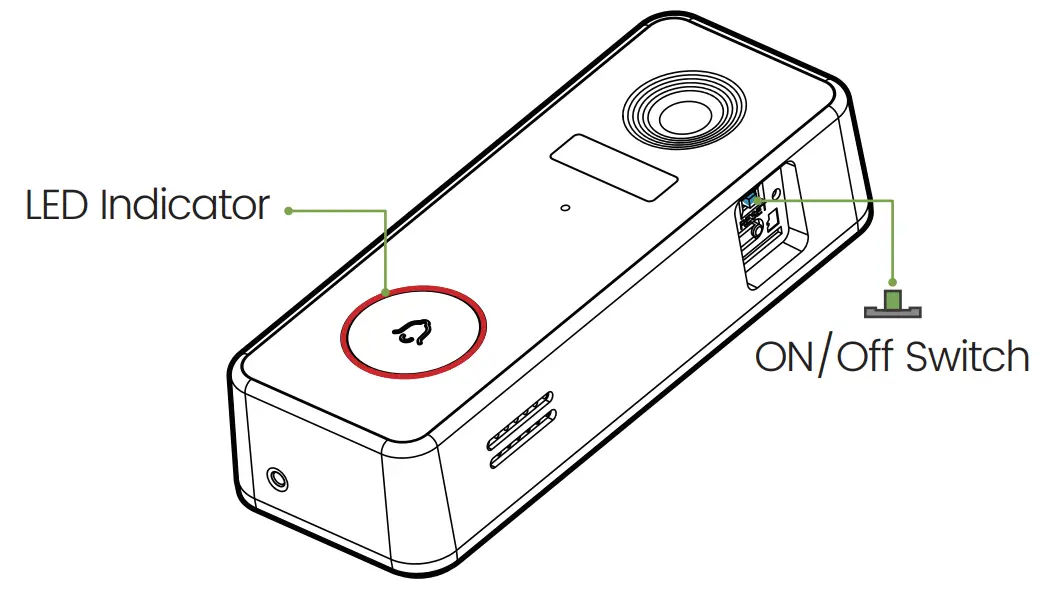
| LED STATUS | INDICATION |
 Solid red | Device is abnormal. |
 Flash red (once/sec) | Ready for Wi-Fi configuration. |
 Flash red (twice/sec) | Connecting to Wi-Fi |
 Solid blue | Device is online |
 Flash blue (once/sec) | LiVe-viewing doorbell cam |
 Flash blue (twice/sec) | Firmware upgrading |
Pair With Your Indoor Chime
- Click the SETTING button on the chime, and the chime will be in pairing mode for 20 seconds, with its red LED flashing.

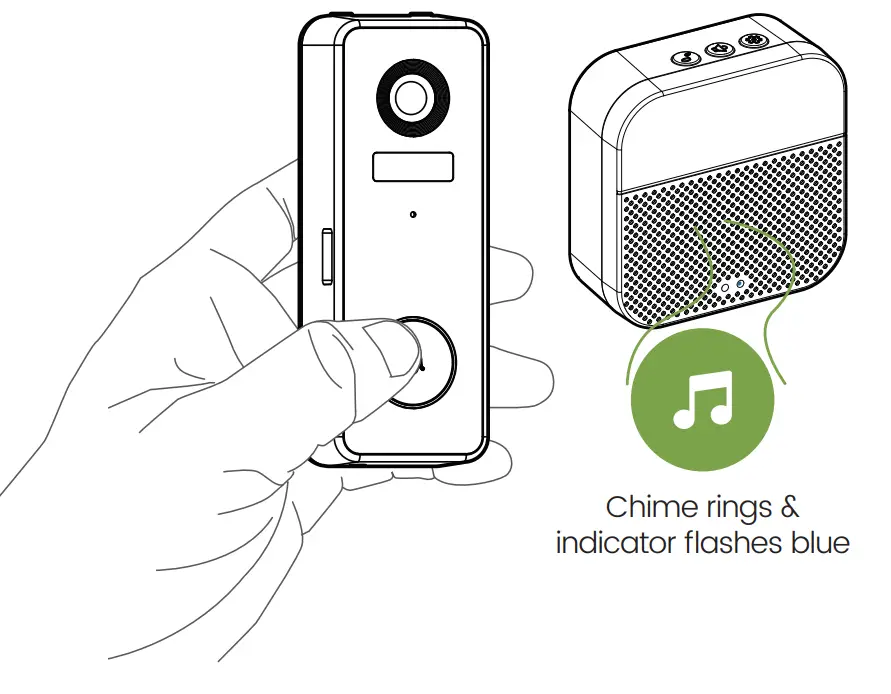
- Press the doorbell button to send a pairing signal, and your chime will sound to react, together with its blue LED flashing. Chime pairing succeeds.

- Chime settings.
 Ringtone selection.
Click to change ringtone (4 ringtones available). Volume control button.
Click to control volume:
level 1: 110 dB; level 2: 100 dB
level 3: 90 dB; level 4: 80 dB Settings.
Click to enter/quit pairing mode;
Press & hold for 5 seconds to restore factory defaults.
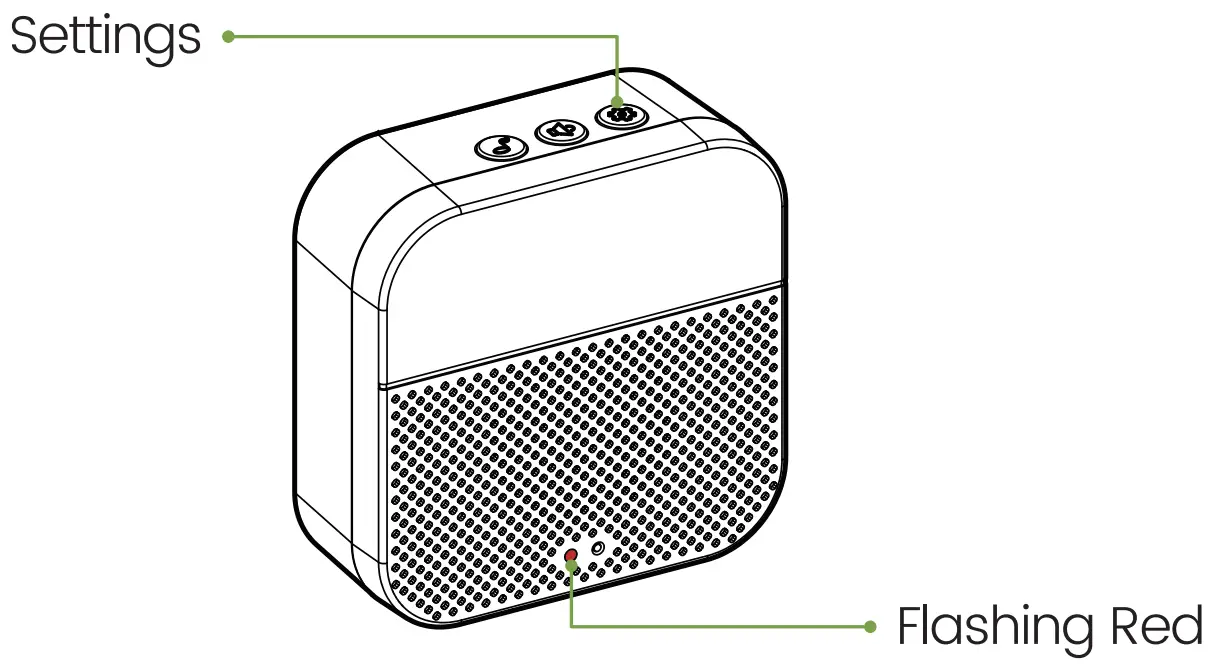
 Ringtone selection.
 Volume control button.
 Settings.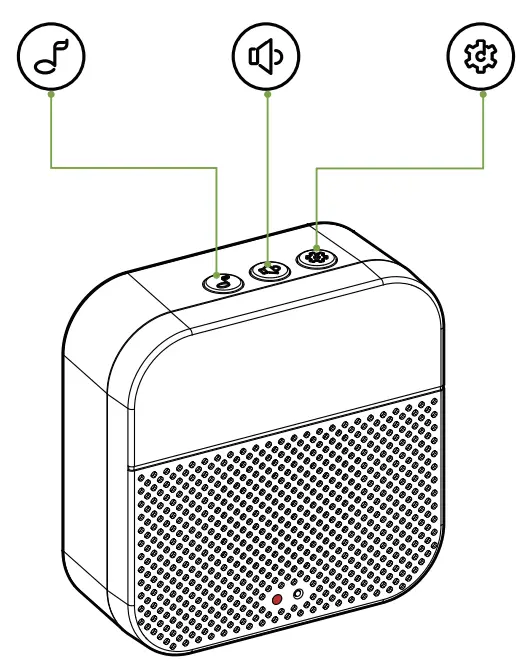
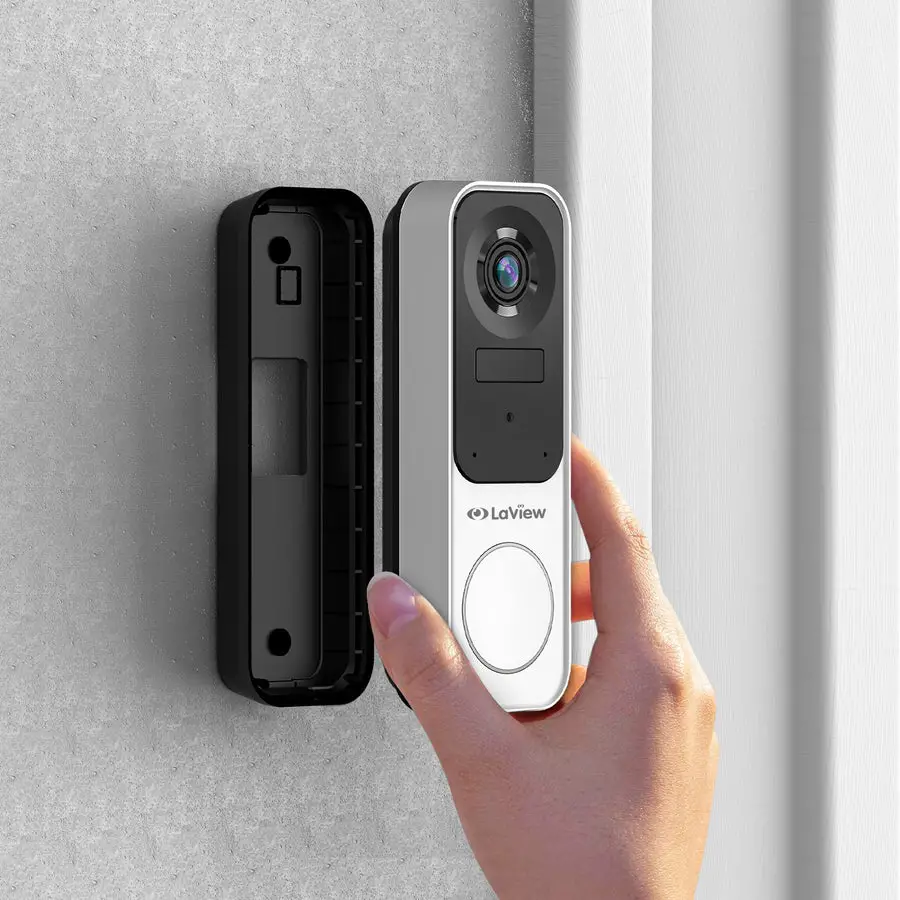
Install Your doorbell
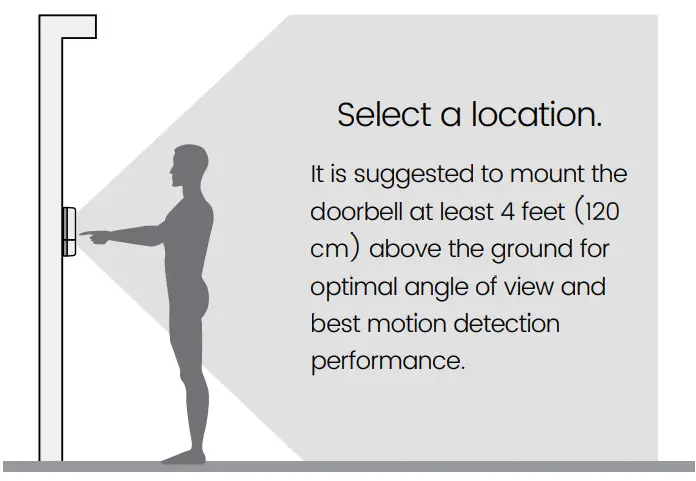
- Select location for your doorbell.

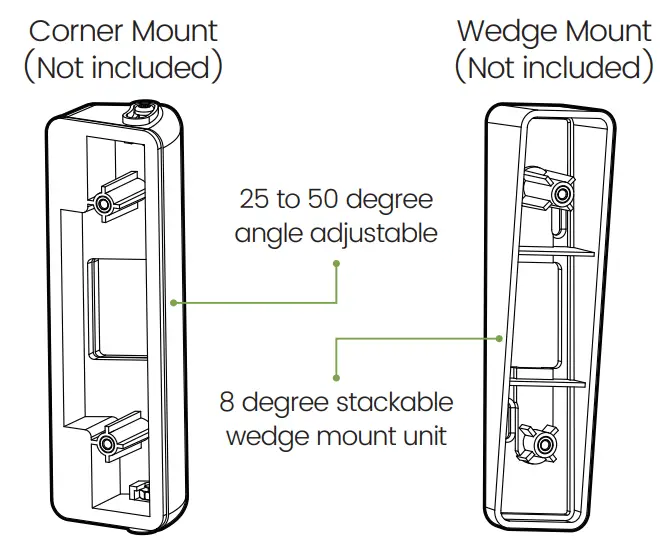
- (OPTIONAL) Install at an angle.
You can purchase the following angled brackets so as to point your doorbell to a specific view angle.
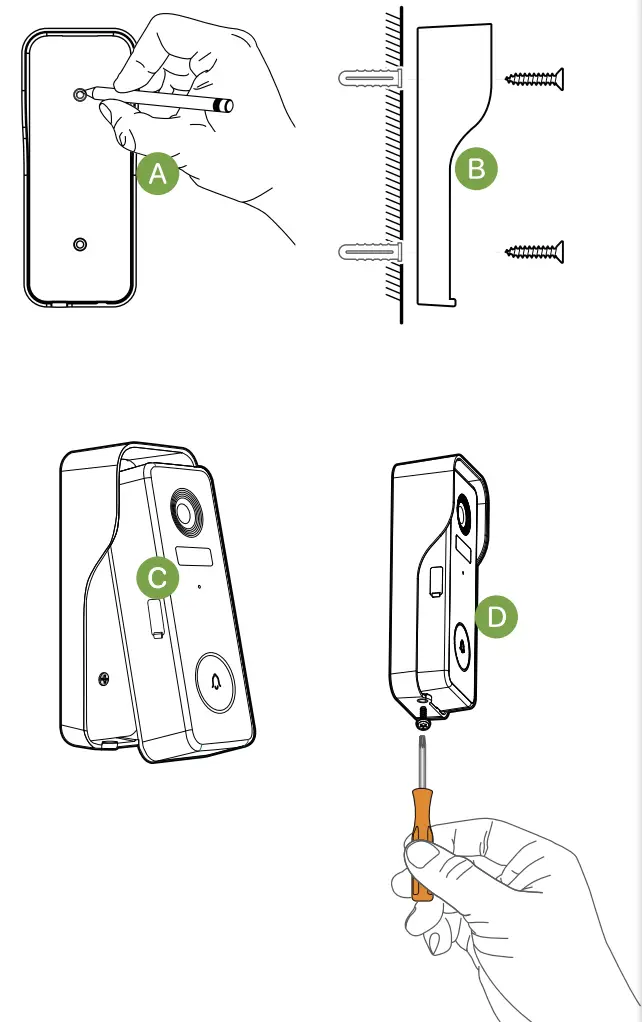
- Standard installation.

Tamper Alarm
Anti-theft Tamper Alarm.
You can also enable the anti-theft alarm in doorbell settings.
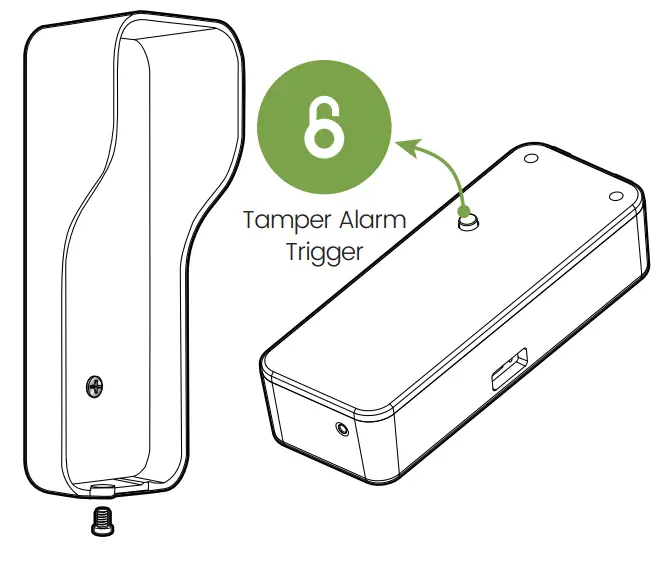
Tamper Alarm On
With tamper alarm on, your doorbell detects disassembly by the trigger on its back, and then a 30-second siren alarm will be triggered. Meantime, video recording get started, and alarm notification will be pushed to the owner’s APP account.
Tamper Alarm Off
You can disable the tamper alarm in doorbell settings, and detach the doorbell without any alarm for battery recharge or regular maintenance.
Product Specifications
Video Doorbell Model No.:Bell J7
| Camera | Full-HD Camera |
| Effective pixels | 1920(H) x 1080(V) |
| IR LED | High power dot-array IR LED x 1 |
| View angle | 145° |
| Motion detect range | 100° (Max 5m) |
| Motion sensitivity | 5 level sensitivity settable |
| Alarm trigger | Call button, motion detect, anti-theft alarm |
| Wi-Fi | 2.4 ~ 2.4835 GHz WIFI (IEEE802.11b/g/n) |
| Video recording | Video clips against events |
| Audio | Full duplex 2-way audio |
| Storage | SD card (Max. 128G) |
| Cloud storage | Yes (7-days-free trial) |
| Power supply | Built-in rechargeable Li-ion battery |
| Battery capacity | 4,500mAh |
| Ingress protection | IP65 |
| Operating Temp. | -10℃ to 50℃ |
| Dimensions | 34.5 x 56 x 134.6mm |
| Net weight | 125.8g (Battery Included) |
Wireless Chime Model No.: Chime06
| Power source 1 | DC 5V 1A (from Micro USB) |
| Power source 2 | AA LR6 1.5V battery x 3 units |
| Consumption | 0.4W |
| Ringtones | 4 ringtones optional |
| Connection type | Radio frequency 433MHz |
| Place of use | Indoor |
| Blue LED flashing | Pairing mode |
| Red LED flashing | Working normally |
| Blue LED flashing twice | Reset factory default succeeds |
| Working Temp. | -10℃ ~ 50℃ |
| Humidity | <90%, no condensation |
| Dimension | 75.5 x 75 x 28mm |
| Weight | 70g (Exclude batteries) |
 ZUMIMALL: Wireless Smart Home HD Security Cameras