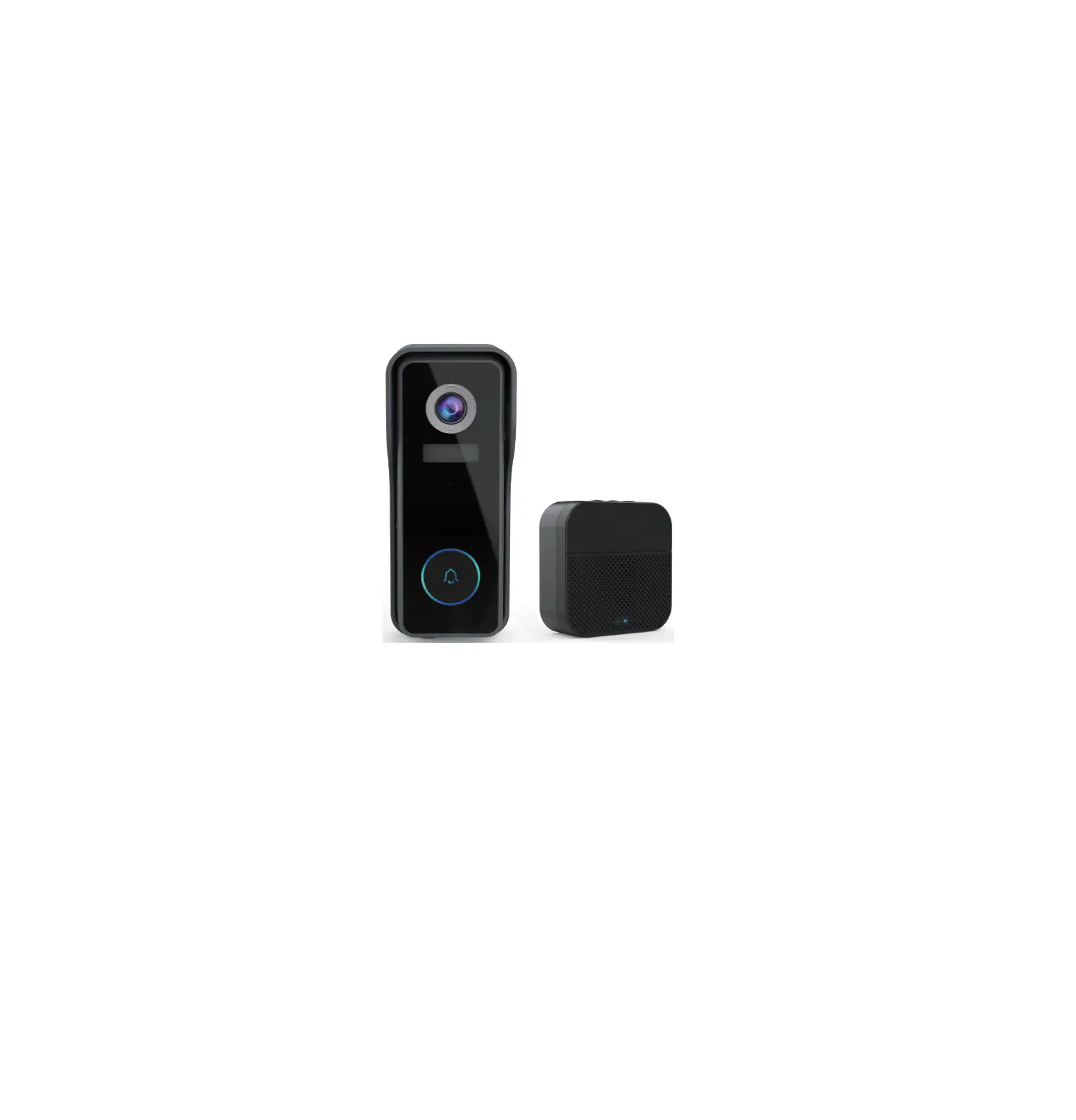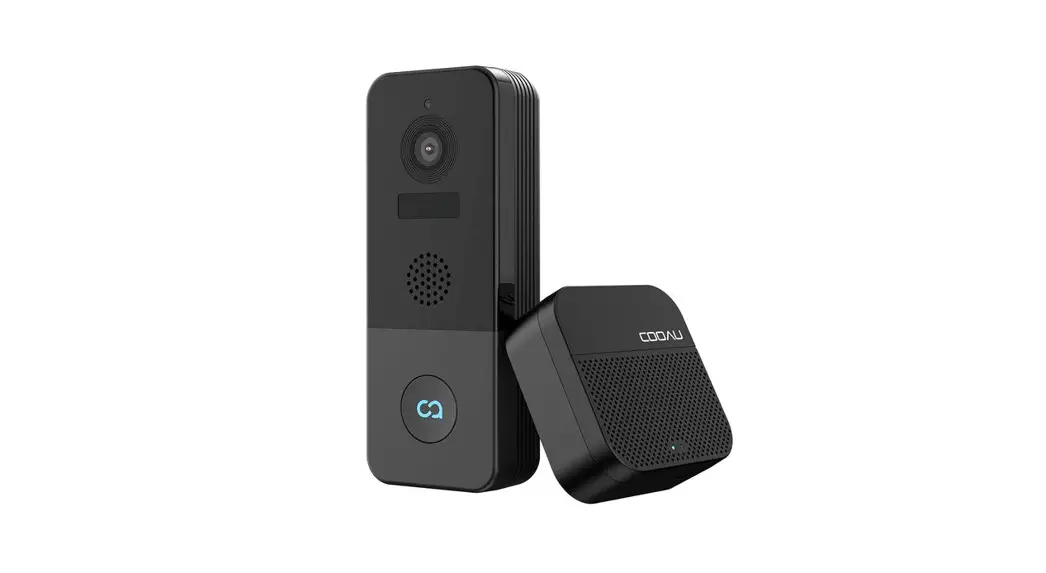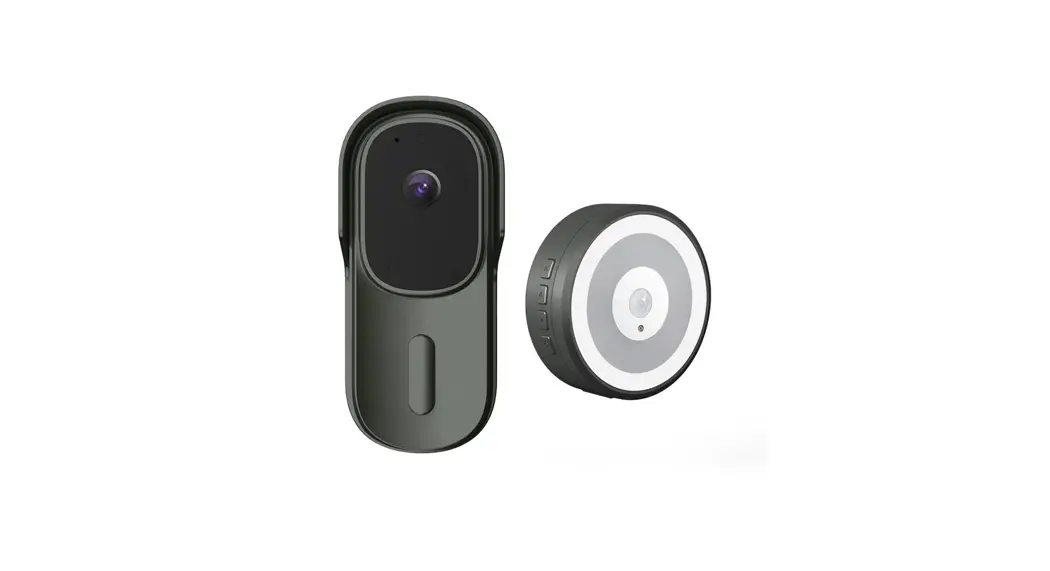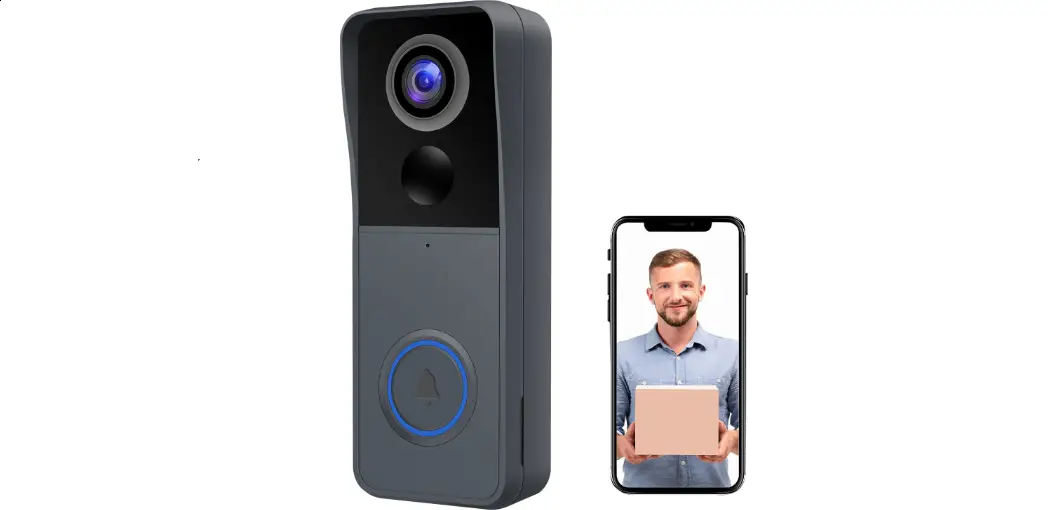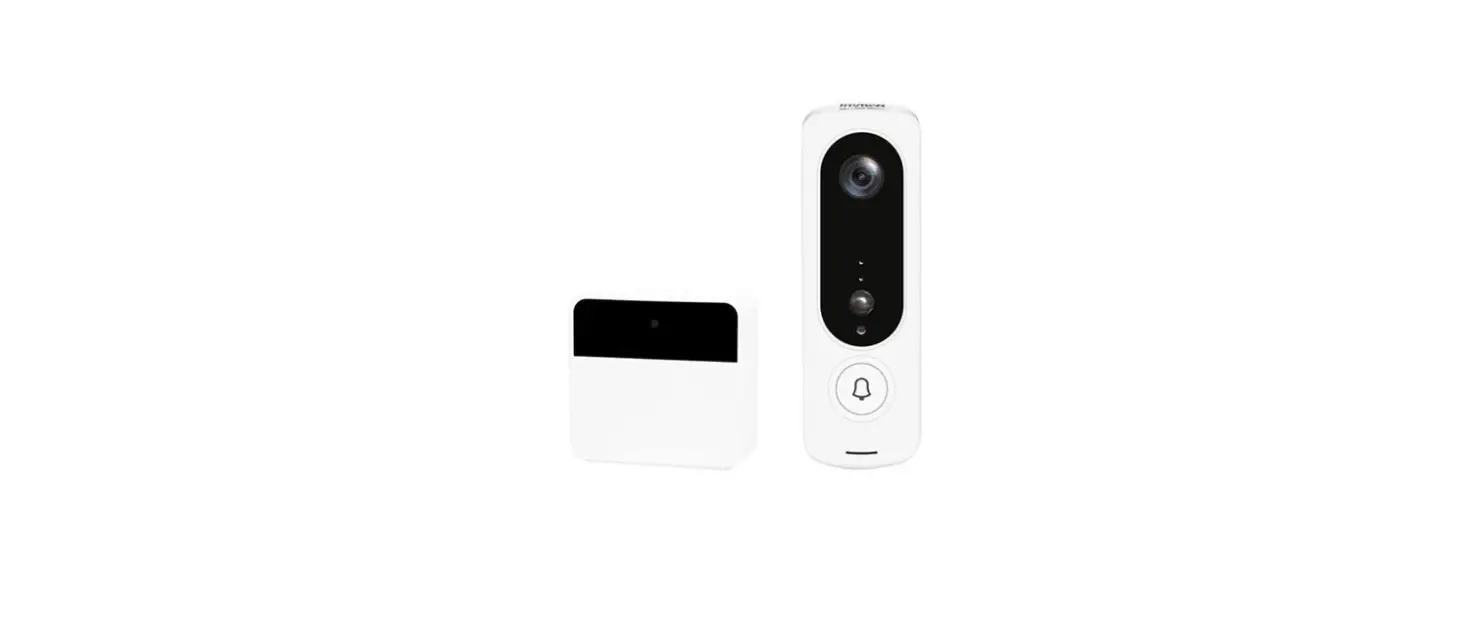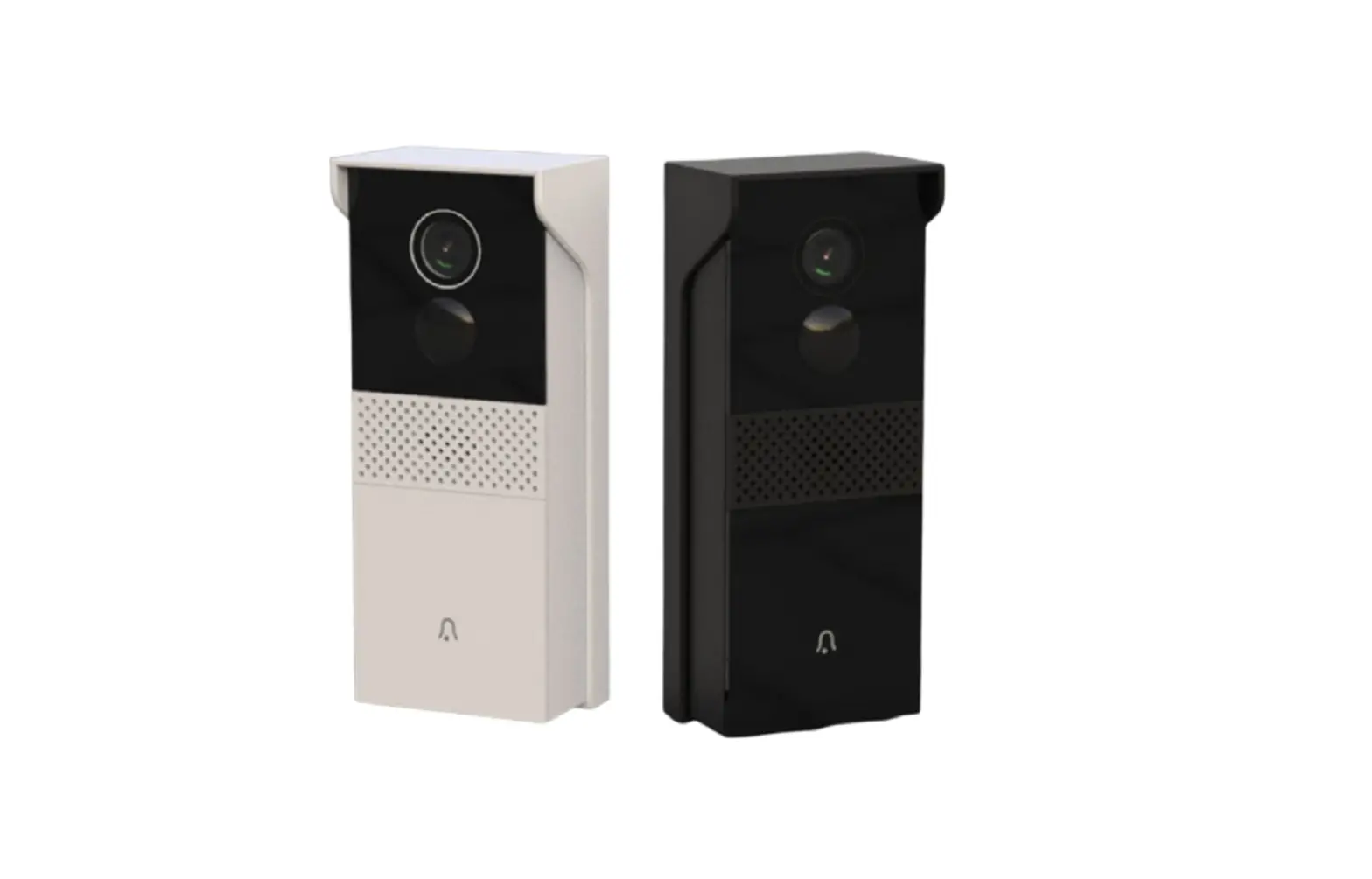
Shenzhen Joystek Intelligence BELL J2 Video Doorbell User Guide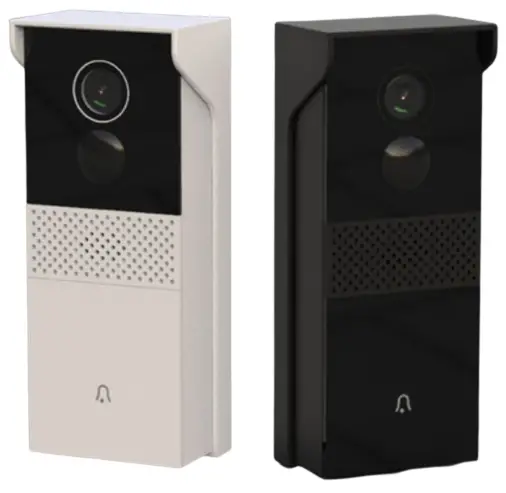
* Thanks for purchasing and using our product. Please read this quick start guide before using, and keep it for future reference. * Manual contents are subject to change without notice in accordance with our policy of continuous product improvement.
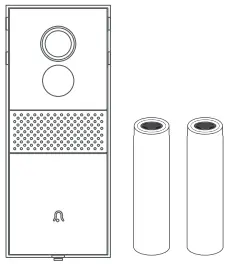
WHAT’S IN THE BOX
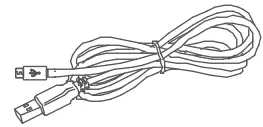
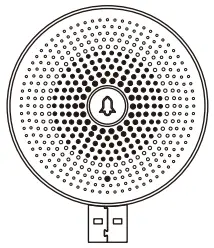
Please consult below checklist for all the components.
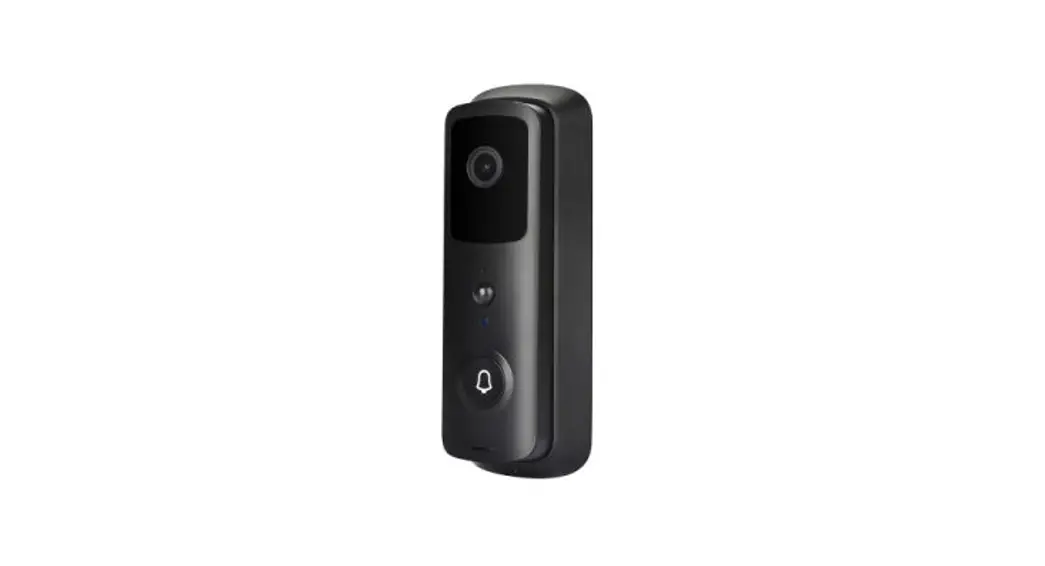
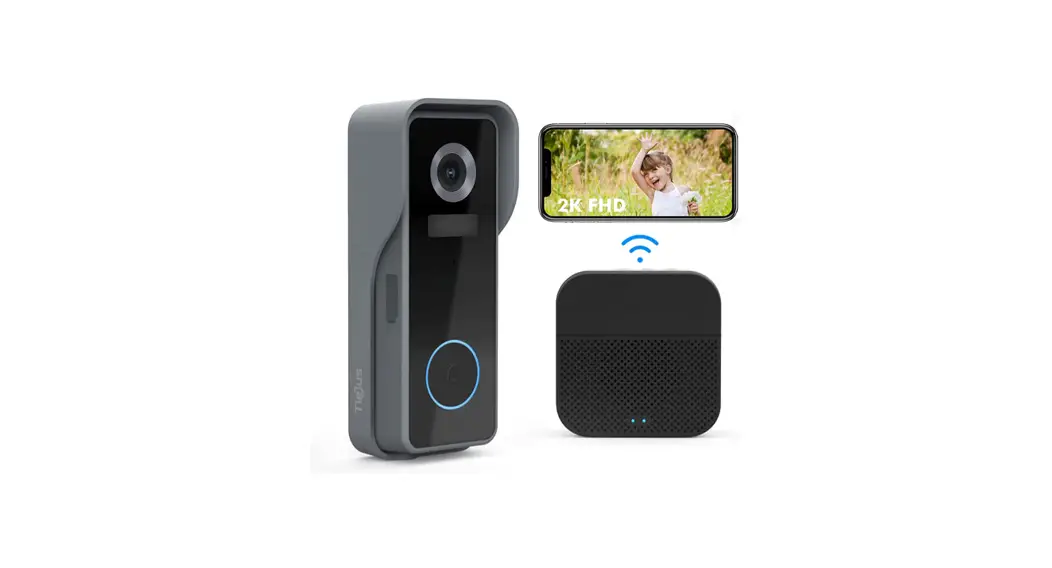
- Video Doorbell

- USB Cable

- User Guide

- Indoor Chime

- Screw & Tools

- Double-sided Tape

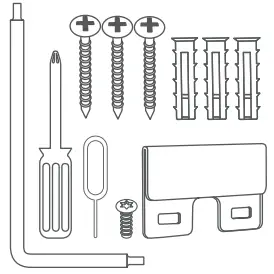
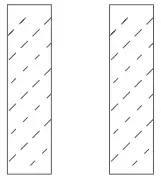
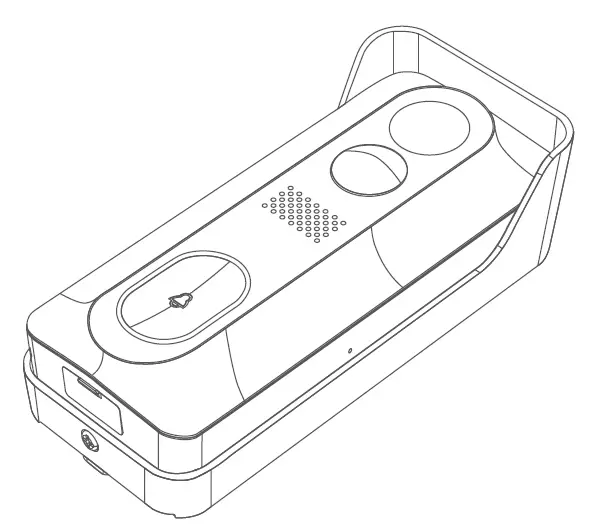
MEET THE DOORBELL
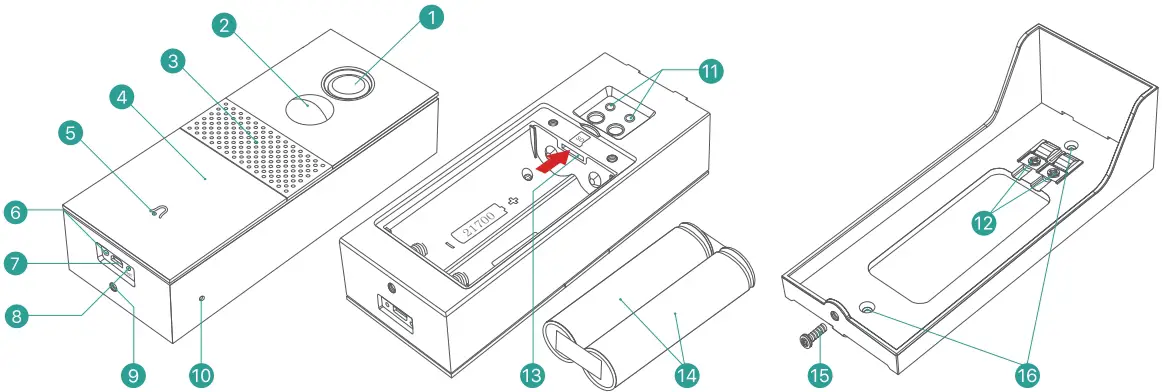
- 2MP camera
- PIR motion sensor
- Speakers
- Doorbell button
- LED indicator
- Charging indicator
- Micro-USB port
- Reset hole
- Security screw hole
- Microphone
- AC electric contact
- AC hardwire terminals
- Micro-SD card slot
- 21700 Battery x 2 .
- Security screw
- Mounting screw holes
MEET THE CHIME
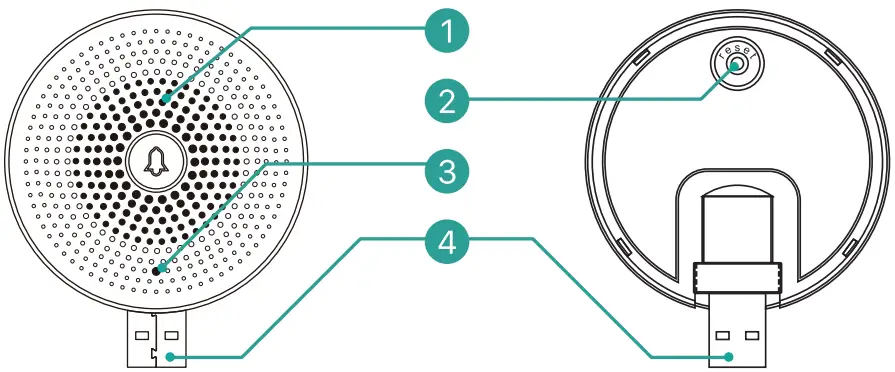
- Speakers
- Reset
- LED Indicator
- USB Port (Type-A/M)
BATTERY INSTALLATION
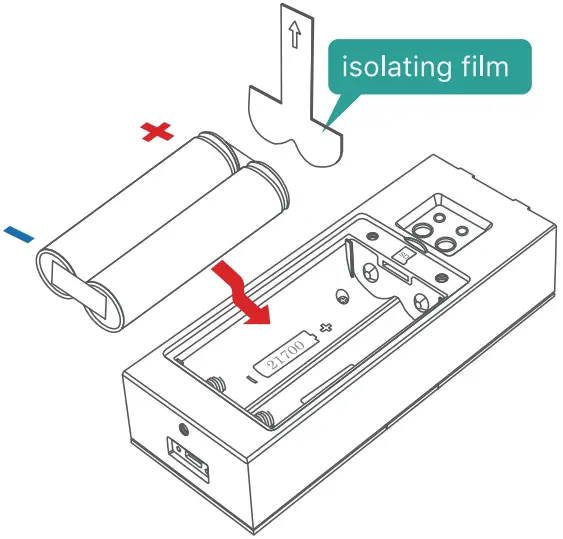
The batteries are pre-installed in the doorbell, with an isolating film inserted in the positive poles. Please peel off the isolating film before battery installation. Please insert the batteries with positive poles upward! NOTE: Improper battery installation will cause damage to the internal components and may result in serious injury.
BATTERY CHARGING
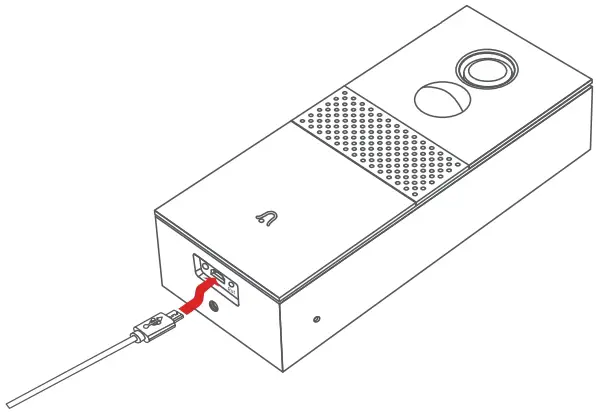
The batteries inside the doorbell are not fully charged in accordance with transportation safety regulations. Please charge the batteries with a USB compatible wall charger (not included) and the provided USB cable for about 8-10 hours prior to installation.
DOWNLOAD THE APP
Download and install the ‘CloudEdge’ App from Google Play” or the App Store’. The App is also available by scanning the QR codes on the right, using your QR code scanner on your smart phone.
NOTE: Google PlayTM is a trademark of Google Inc. App Store” is a service mark of Apple Inc.


WI-FI SET UP
Before you start the Wi-Fi configuration, please note below:
- The doorbell works with 2.4 GHz Wi-Fi, but not with 5 GHz Wi-Fi.
- Avoid using special characters or symbols like )(@-!#$%^&*…, either in your Wi-Fi name or in the password.
- Perform the configuration near your Wi-Fi router.
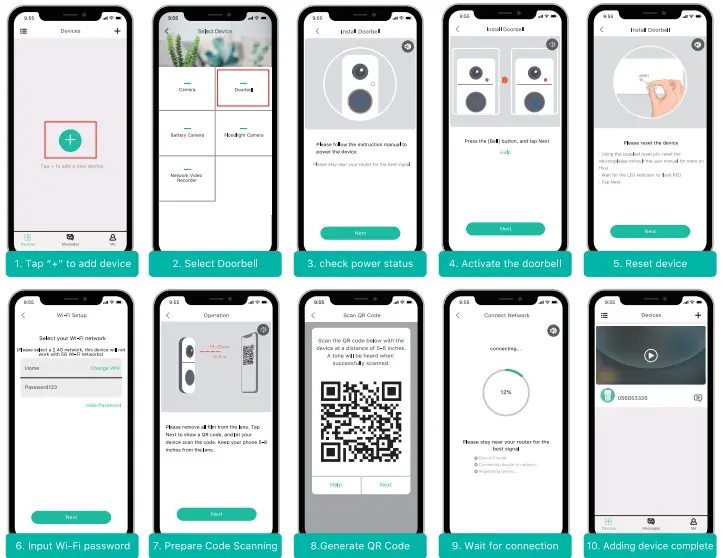
Launch the ‘CloudEdge’ App and register an account with your mobile phone number or email ID. And start the Wi-Fi configuration, following the in-App instructions, or refering to the following guiding steps:
GUIDING STEPS:
RUN A TEST
After setup, tap on the live view window in the App for a test. Then take your doorbell outside to the installation spot and run a test there. Make sure the installation spot is covered by strong 2.4 GHz Wi-Fi signal.
NOTE: If the video quality from the doorbell outside is not as good as it was indoors, you may need to move your router closer to your installation spot, or invest in an Wi-Fi extender.
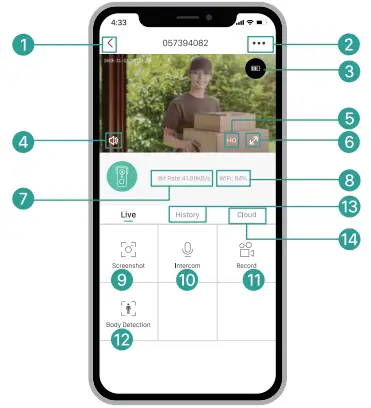
LIVE VIEW
- Quit live viewing
- Setting menu
- Battery status
- Volume on/off
- HD/SD switch
- Wi-Fi signal status
- Stream bit rate
- Wi-Fi signal status
- Screenshot button
- Speak to the scene
- Record on the phone
- Body detection on/off
- Notification history
- Cloud storage service

PLAYBACK
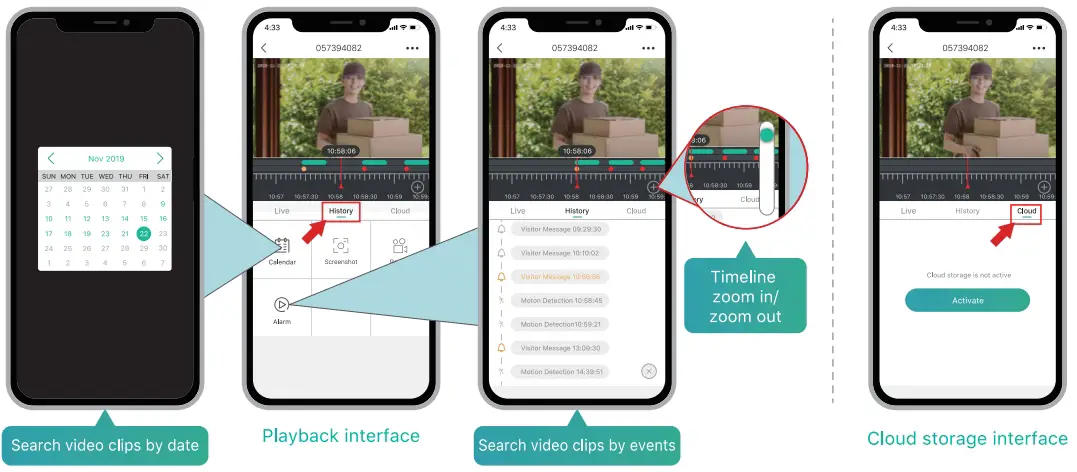
If the Micro-SD card is properly installed, you can playback the video clips taken after detected motions or visitor calls. Video clips can also be recorded to the cloud, if you have activated the cloud storage service (Charge after a 7-Days-Free trial).
LEAVE VOICE MESSAGES
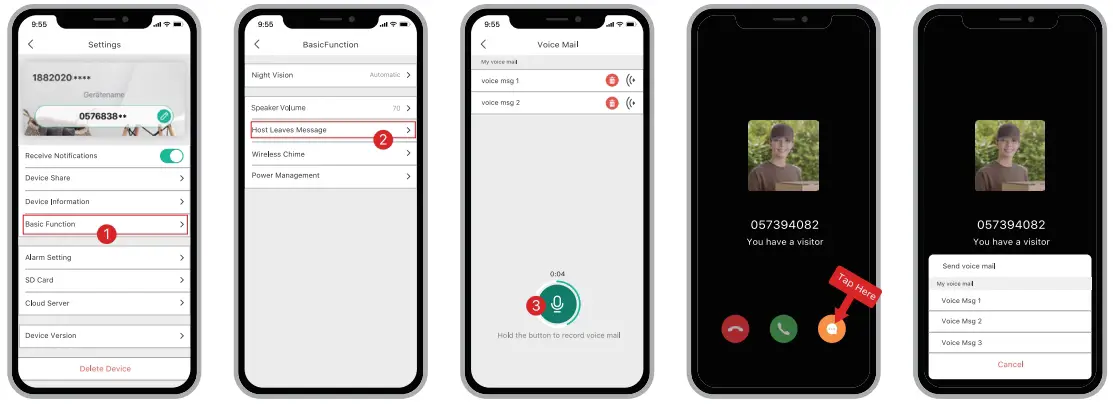
Maximum 3 voice messages (Max. 10 seconds each) can be pre-recorded into the doorbell, quickly respond to your visitors when you are not convenient to answer the doorbell call.
STEPS: Setting –> Basic function –> Host Leaves Message –> Press and hold this  to record voice messages –> Play the selected voice message in reply to doorbell call.
SHARING BY ACCOUNT SEARCHING
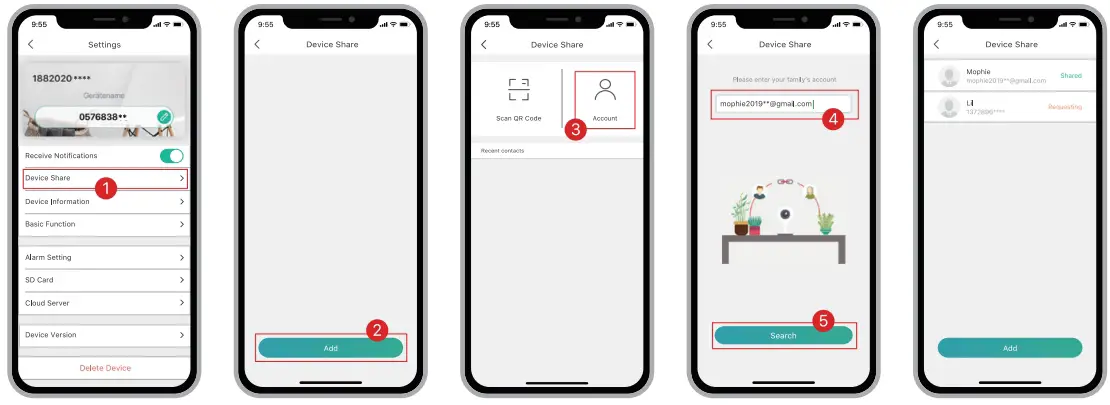
STEPS: Settings –> Device Share –> Tap on ” Add ” –> Tap on ” Account” –> Type in account ID –> Confirm Sharing.
SHARE BY OR CODE SCANNING
The new users can find out their QR codes in the App, and let the administrator scan the QR Code and share device. FIND YOUR QR CODE: Run CloudEdge App –> Tap or& ” –> Tap  ” –> Tap on
  ” Tap on My QR Code” –> Let the administrator scan your OR Code
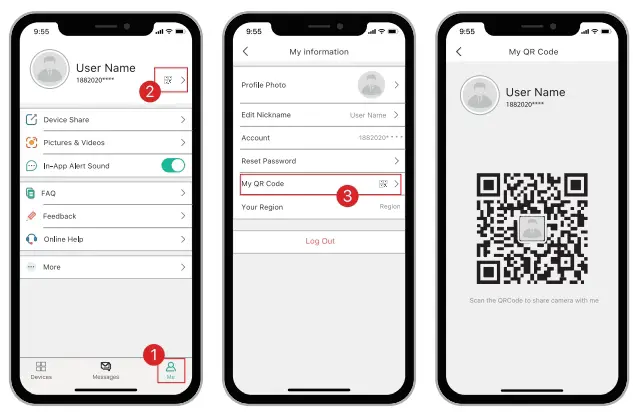
NOTE:
- Guide your family members to download and install the CloudEdge App, and register an account before device-sharing.
- There is no limitation on numbers of users sharing one device.
- Only the administrator got access to the setting menu. Other users can only live view & playback.
- All users can receive doorbell calls and alarm notifications.
- Many users can access to the doorbell simultanously, to live view or playback.
CONNECT THE CHIME
SUPPLY POWER TO THE CHIME
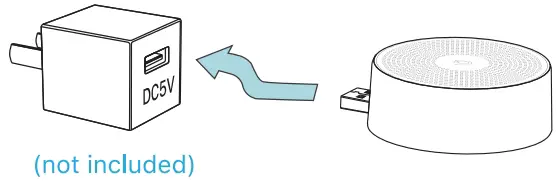
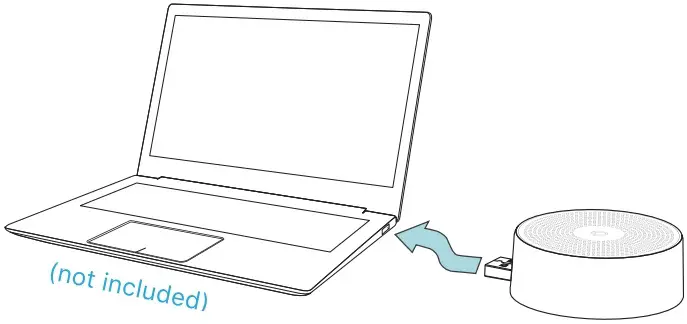
The chime can be powered by an USB compatible phone charger (DC5V ‘I.2A). You can also plug the chime to the USB port on your PC/notebook to supply power.
- Powered by DC5V adapter (phone charger).

- Powered by PC USB Port.

PAIR WITH DOORBELL
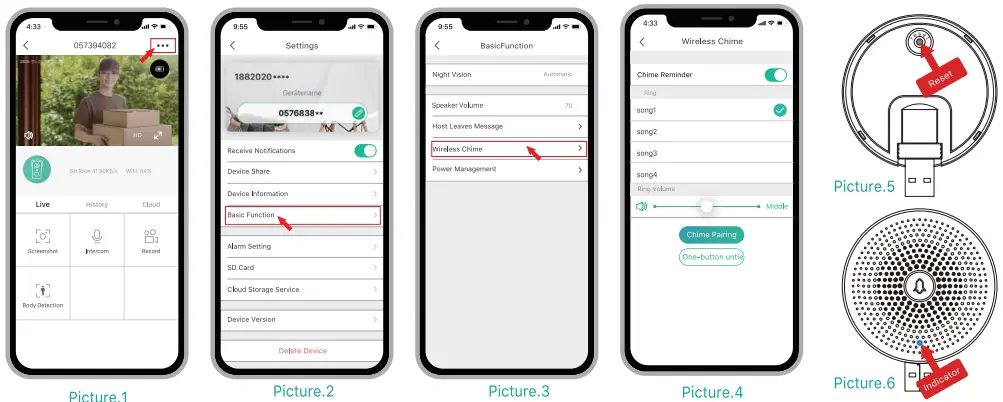
- Tap on “•••” and enter into Settings-> Basic function, select Wireless Chime page.(refer to Picture.4)

- A short click on the reset button behind the chime(refer to Picture.5), and the LED indicator will flash blue, indicating the device is in pairing mode.
- Tap ”
 ” button in the APP (refer to Picture.4), and the doorbell will send a wireless pairing signal to the chime. Pairing succeeds and the indicator on the Chime will be in solid blue. All set! Congratulations! You can push the doorbell button to test the result.
 ” button in the APP (refer to Picture.4), and the doorbell will send a wireless pairing signal to the chime. Pairing succeeds and the indicator on the Chime will be in solid blue. All set! Congratulations! You can push the doorbell button to test the result.
SELECT RINGTONE
Enter into Settings->Wireless Chime, there are 4 ringtones available (refer to Picture.4).
VOLUME CONTROL
Drag the Ring Volume bar to control the volume level for the chime (refer to Picture.4).
UNBIND
- Press and hold reset button on the chime for about 5 seconds till the indicator flashes blue twice, and the chime will be restored to factory default.
- You can also tap on
 ” (refer to Picture.4) in the App to release the connection between the doorbells and the wireless chimes.
 ” (refer to Picture.4) in the App to release the connection between the doorbells and the wireless chimes.
INSTALLATION
SELECT LOCATION
Your doorbell has 166-degree view angle and 120-degree human detection range.
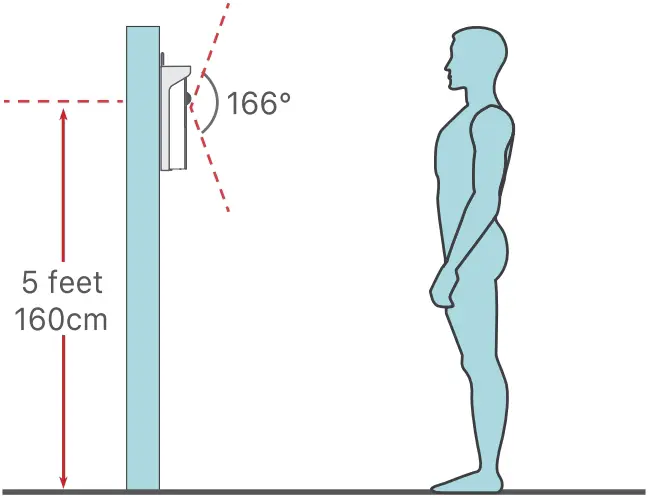
It is suggested to mount your doorbell at least 5 feet (160 cm) above the ground for the best angle of view and motion detection performance.
HARDWIRE YOUR DOORBELL (OPTIONAL)
If replacing an existing doorbell, please shut off the power breaker in advance, and remove it from the wall and disconnect the wires. Our doorbell works with both 12V – 24V AC and 12V DC power source.
- Shut off power at the breaker, remove the old doorbell from the wall and dis connect the wires.

- Connect the wires to the screw terminals on your mounting bracket. Either wire can be connected to either terminal.

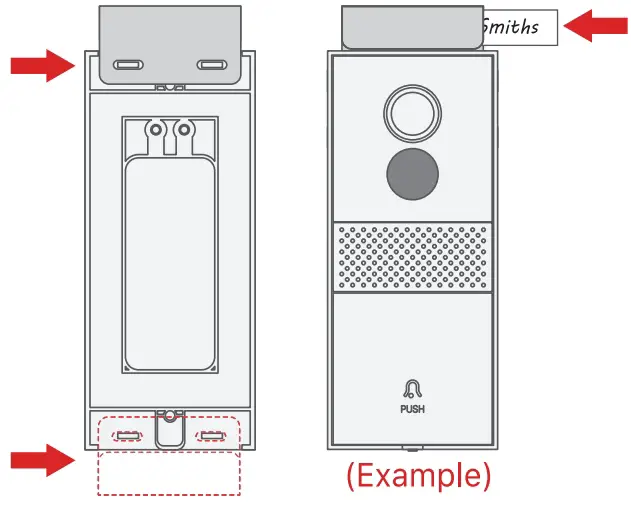
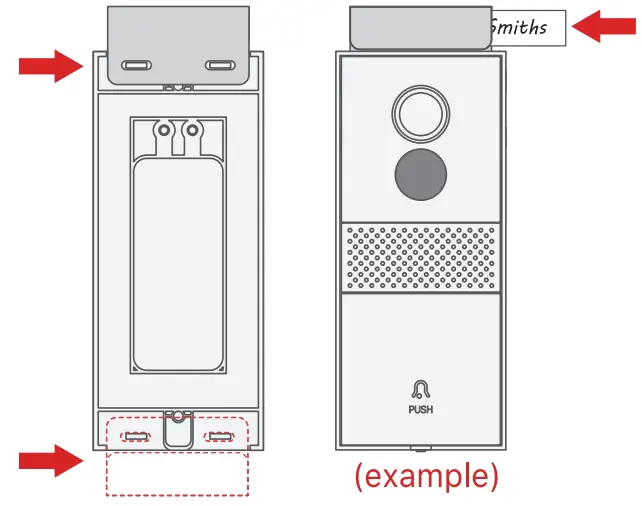
- (Optional) The nameplate holder can be – mounted on the top rear/ bottom rear of the bracket, prior to bracket installation.

- Drive the screws into the anchors, or directly into your wall untill the bracket is tightly fastened on your wall.

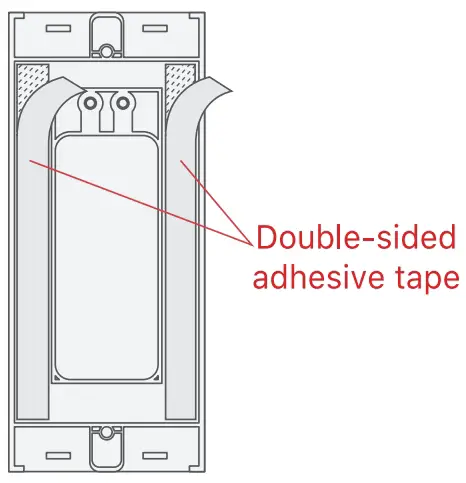
- (Optional) You can also use the provided double-sided tape instead of screws.

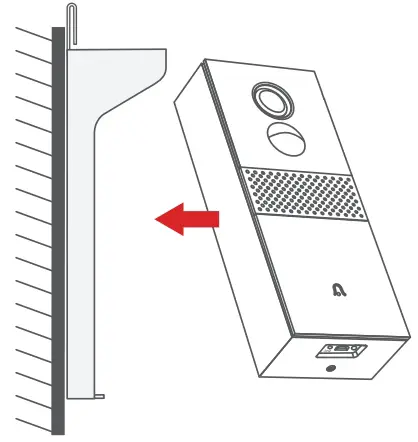
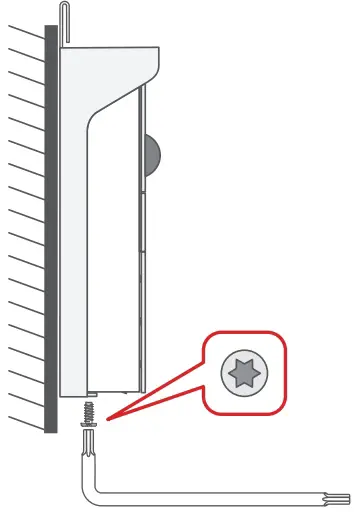
- Mount the doorbell to the bracket, and secure it with the provided star-shape security screw and screw driver. All set!

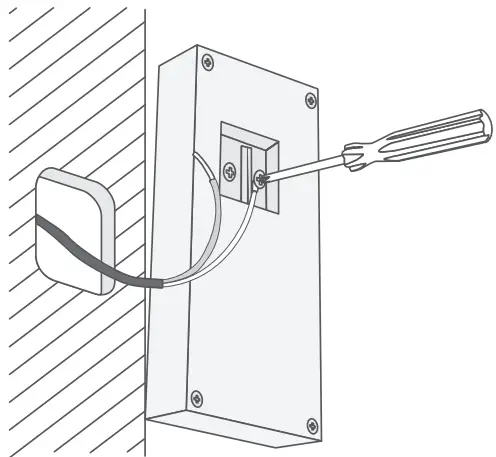
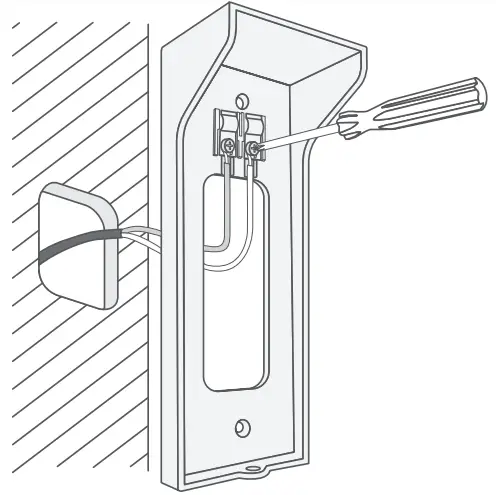
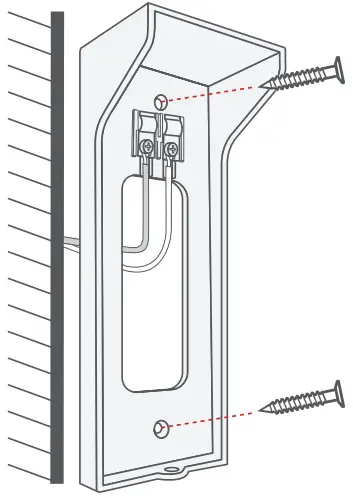
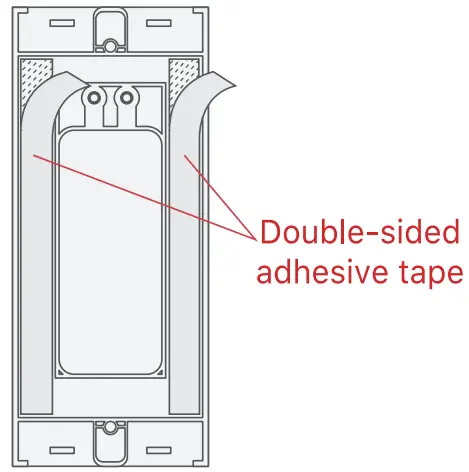
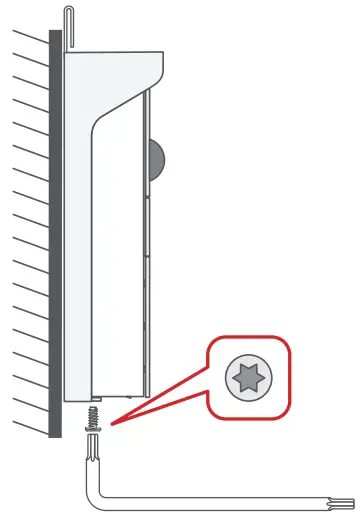
GO WIRELESS INSTALLATION
- Locate the installation spot, and mark the screw positions to mount your bracket on your wall.

- (Optional) You can also use the provided double-sided tape instead of screws.

- (Optional) The nameplate holder can be mounted on the top rear/ bottom rear of the bracket, prior to bracket installation.

- Mount your doorbell to the fixed bracket. Make sure it reaches the bottom where you can hear a click.

- Secure your doorbell with the provided star-shape security screw and screw driver.

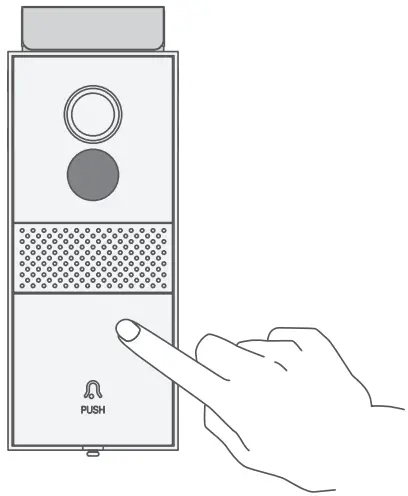
- All set, congratulations! Now you can press the doorbell button to try it out.

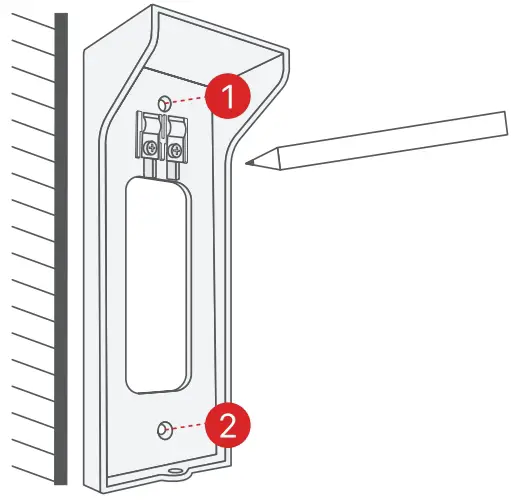
NOTE:
- When hardwire your doorbell, please operate under the guide of the professionals.
- The doorbell works with 12V – 24V AC and 12V DC power source. And either cable can connect to either terminals.
The connecting order doesn’t matter - If your doorbell is powered solely on batteries, you may need to charge your doorbell once in a while.
Lab-tested battery life: 12 month standby, 6 month regular using(activate 20 time per day).
The actual battery life may be different due to different activation frequency.
SPECIFICATION
| Video & Audio | |
| Image Sensor | 1{2.7” CMOS (2.0MP) |
| OS | Hisilicon Lite-OS |
| Resolution | 1920 x 1080 px |
| Stream | HD/SD dual stream |
| Infrared LED | High power IR LED with ICR |
| Lense | 1.7mm/F2.0 |
| Angle of view | 166° |
| Min. illumin. | Color: 0.01 Lux; B&W: 0.001Lux |
| WDR | Digital WDR |
| Audio | 2-way audio with noise cancellation |
| Storage | |
| Storage Type | Micro SD Card (Max 128G} |
| Cloud storage | Support |
| Recording | Triggered by PIR motion sensor |
| Network | |
| Wifi Frequency | 2.4 GHz ~ 2.4835 GHz |
| Standards | IEEE 802.11 b/g/n |
| Live View Speed | Within 3 ~ 4 Sec |
| Software | |
| App Name | CloudEdge |
| OS | iOS, Android |
| Remote View | Within 2~4 sec |
| Notification | Push notification within 2~4 sec |
| General | |
| Working Temp & Humidity | -20°C ~ 50°C; <90% (No condensation) |
| Power Source | 21700 Li-ion Battery(3.5-4.2V, Max 4800mAh)x 2/ AC 12V – 24V hardwire power / DC 12V hardwire power |
| Standby Current | 300pA |
| Working Current | 250mA |
| Standby Time | about 12 Months |
| Working Time | about 6 Months (20 times wake up per day) |
| Battery Charging | DC5V 1A~2A (Micro USB Port) |
| Firmware Upgrade | OTA (on the air) |
| Dimension (mm) | 61x 41 x 144 |
| Weight (g) | 161 + 138.5(Battery weight) |
INDOOR CHIME
| General | |
| Power source | DC 5V12A |
| Power port | USB (Type-A) |
| Consumption | 0.2W |
| Ringtones | 4 ringtongs optional |
| Volume | Max 100dB |
| Volume control | Low(mute), middle, high |
| Place of use | indoor |
| LED | Flashing blue: pairing mode Solid blue: power on/pairing succeeded Flash blue twice: reset to factory default |
| Working Temp. | -30°C ~ 70°C |
| Humidity | < 90%, no condensation |
| Dimension(mm) | ΦG6O x 24 |
| Weight (g) | 33 |
FCC & IC WARNING
FCC Warning
Any Changes or modifications not expressly approved by the party responsible for compliance could void the user’s mauthority to operate the equipment.
This device complies with part 15 of the FCC Rules. Operation is subject to the following two conditions: (1) This device may not cause harmful interference, and (2) this device must accept any interference received, including interference that may cause undesired operation.
Note: This equipment has been tested and found to comply with the limits for a Class B digital device, pursuant to part 15 of the FCC Rules. These limits are designed to provide reasonable protection against harmful interference in a residential installation. This equipment generates, uses and can radiate radio frequency energy and, if not installed and used in accordance with the instructions, may cause harmful interference to radio communications. However, there is no guarantee that interference will not occur in a particular installation. If this equipment does cause harmful interference to radio or television reception, which can be determined by turning the equipment off and on, the user mis encouraged to try to correct the interference by one or more of the following measures:
- Reorient or relocate the receiving antenna.
- Increase the separation between the equipment and receiver.
- Connect the equipment into an outlet on a circuit different from that to which the receiver is connected.
- Consult the dealer or an experienced radio/TV technician for help.
This equipment complies with FCC radiation exposure limits set forth for an uncontrolled environment. This equipment should be installed and operated with minimum distance 20cm between the radiator& your body.
IC Warning
This device complies with Industry Canada licence-exempt RSS standard(s). Operation is subject to the following two conditions:
- This device may not cause interference, and
- This device must accept any interference, including interference that may cause undesired operation of the mdevice.
The device has been evaluated to meet general RF exposure requirement. To maintain compliance with RSS102 — Radio Frequency (RF) Exposure guidelines, this equipment should be installed and operated with a minimum distance of 20cm between the radiator and your body.