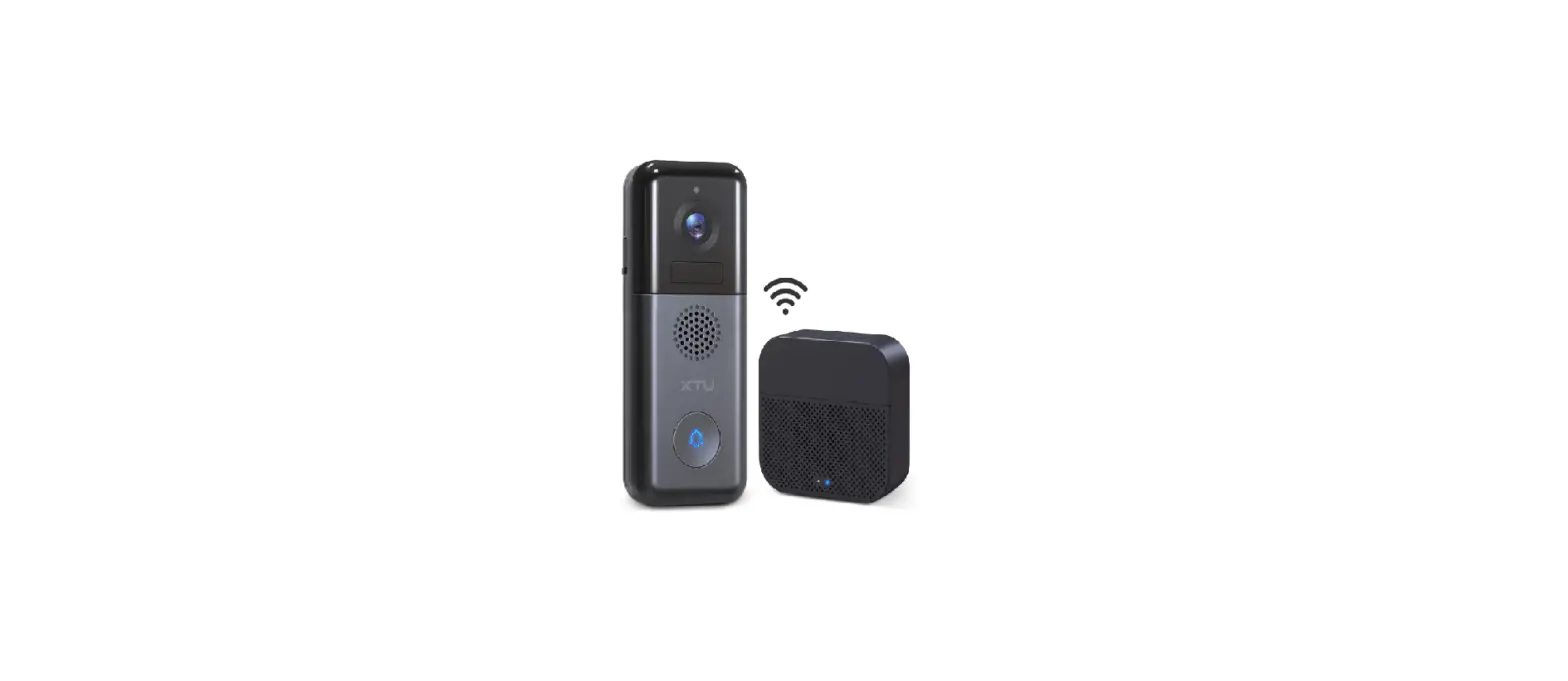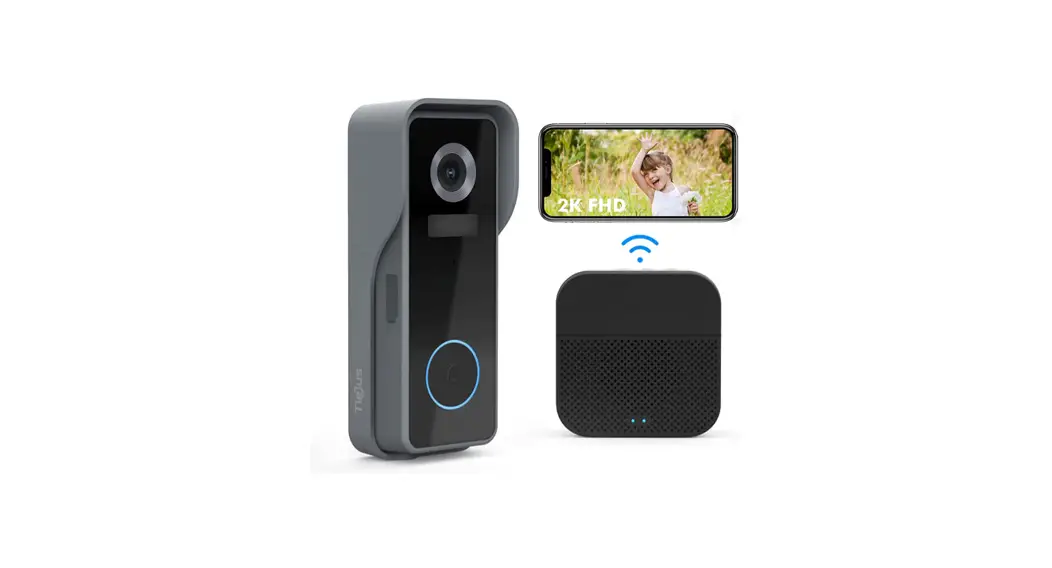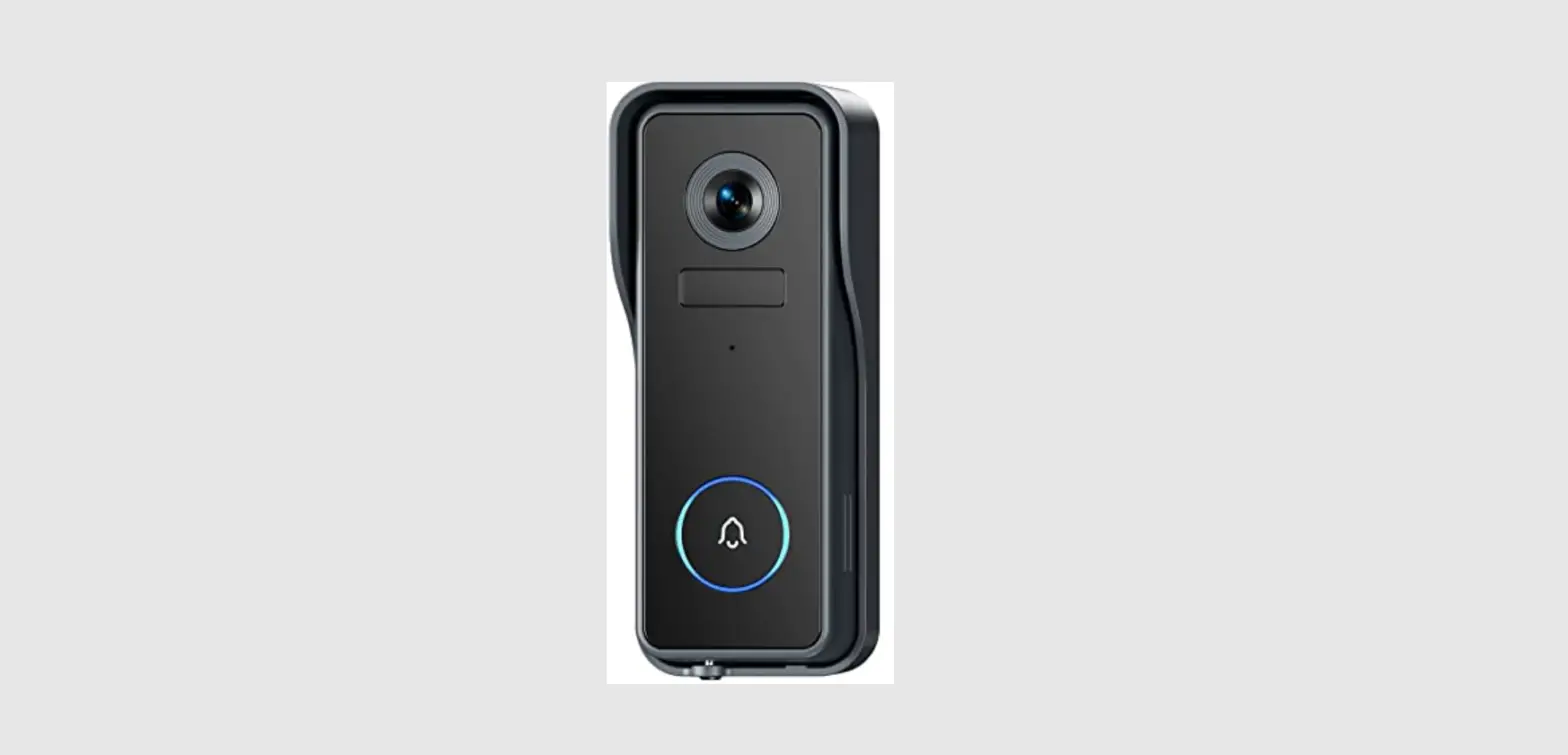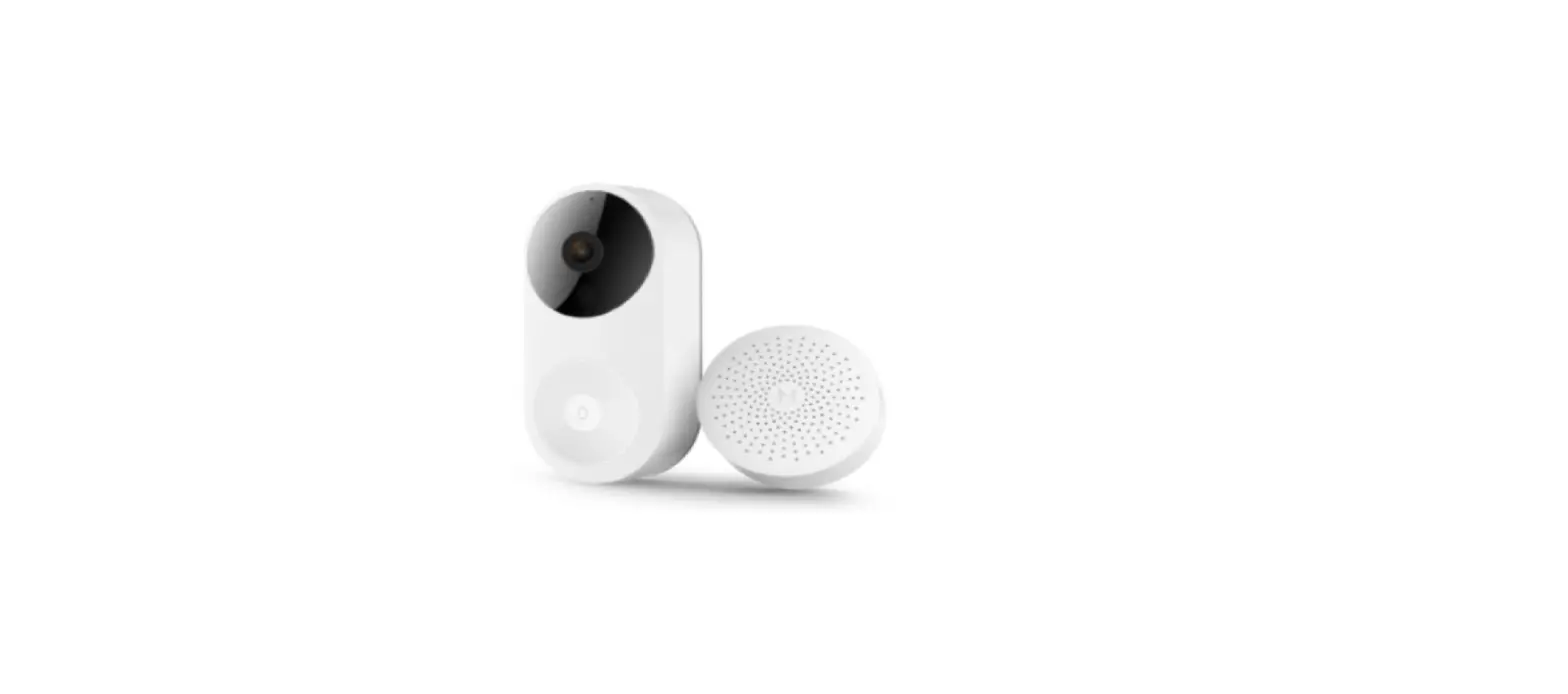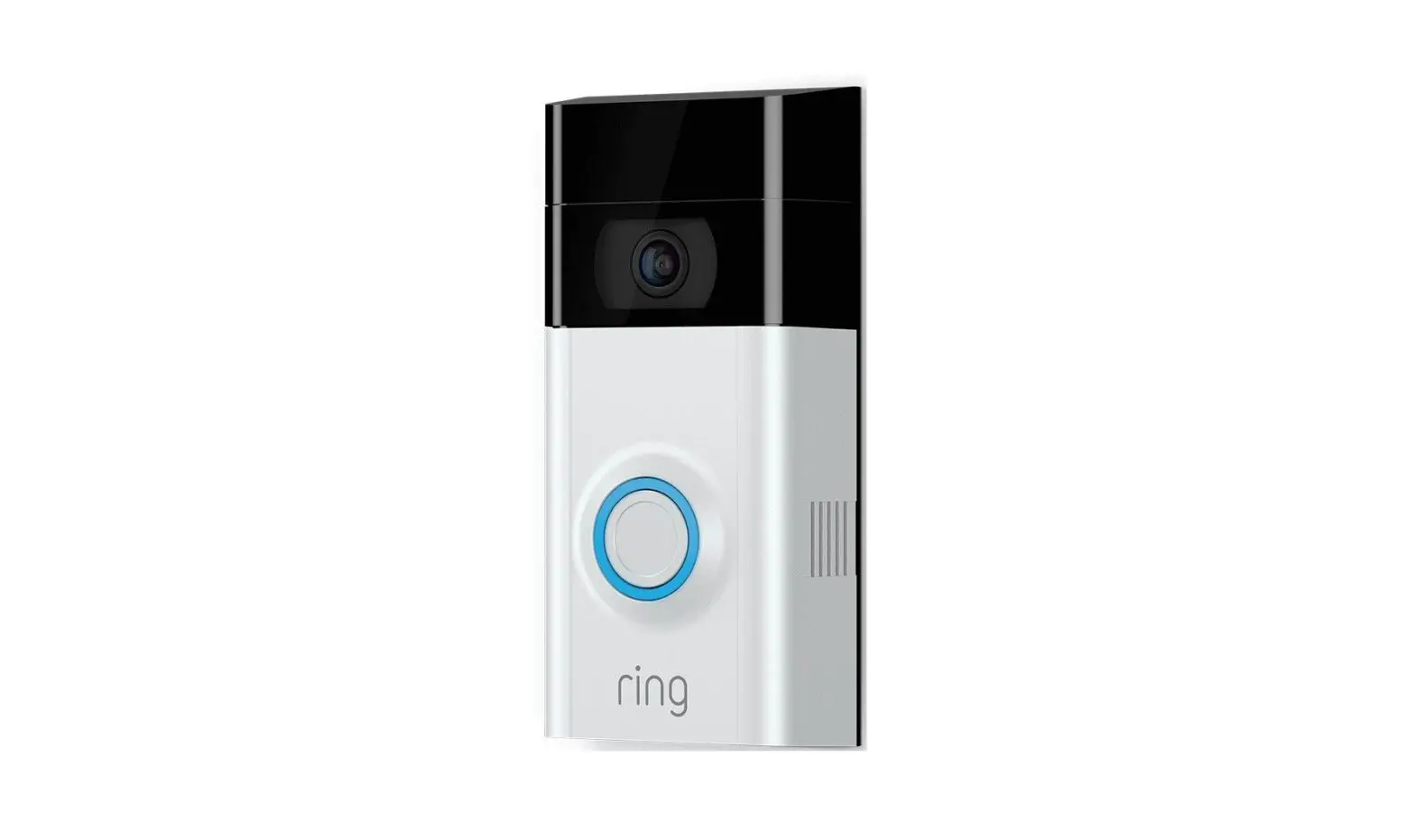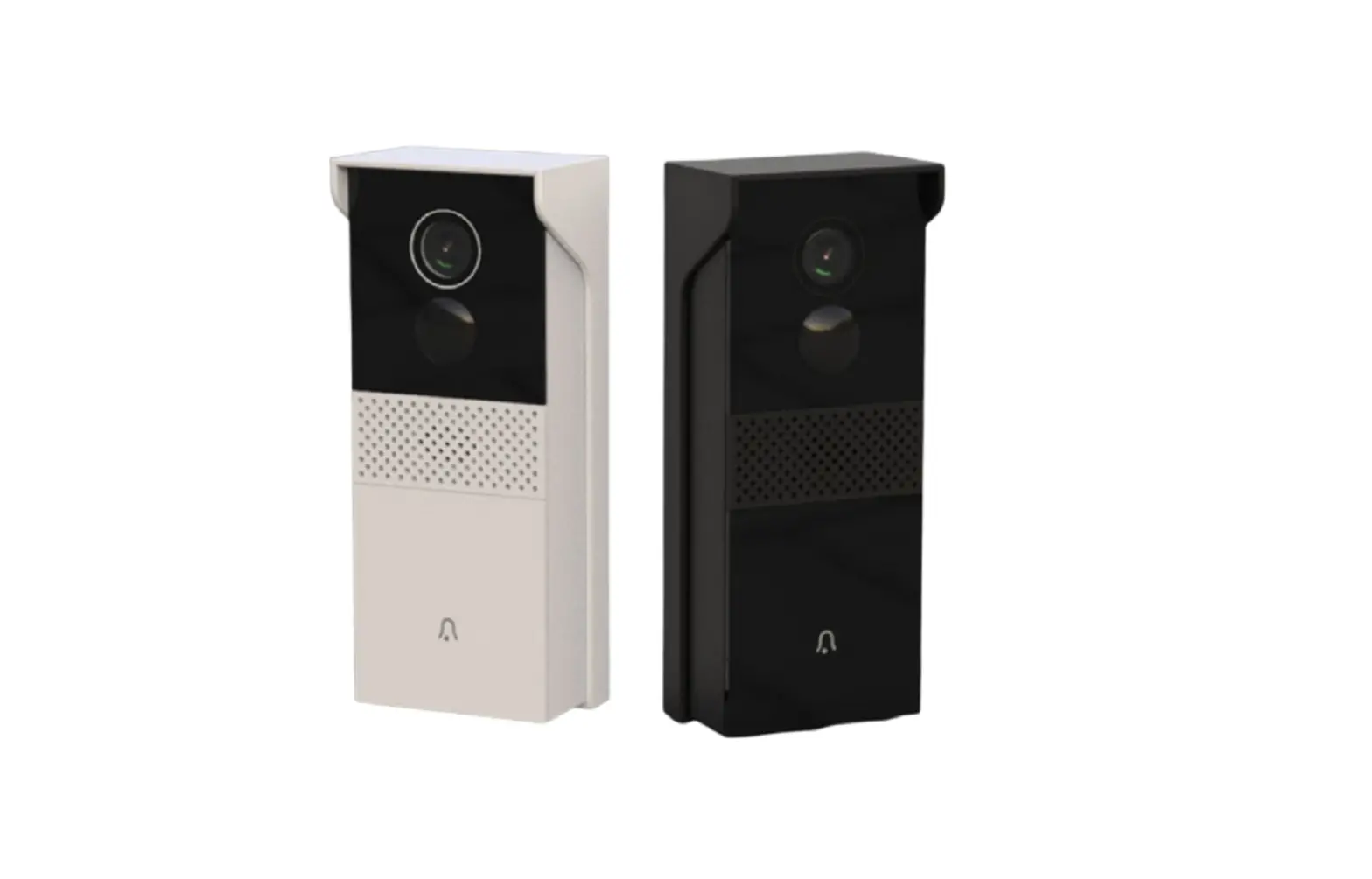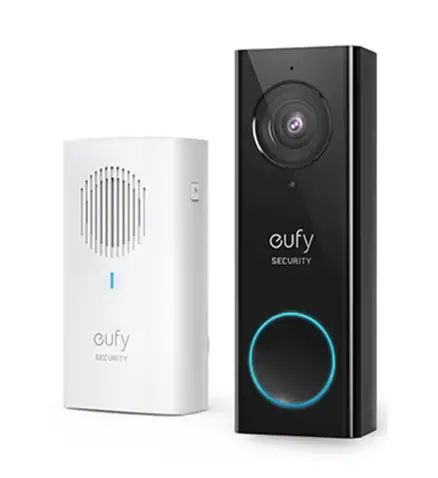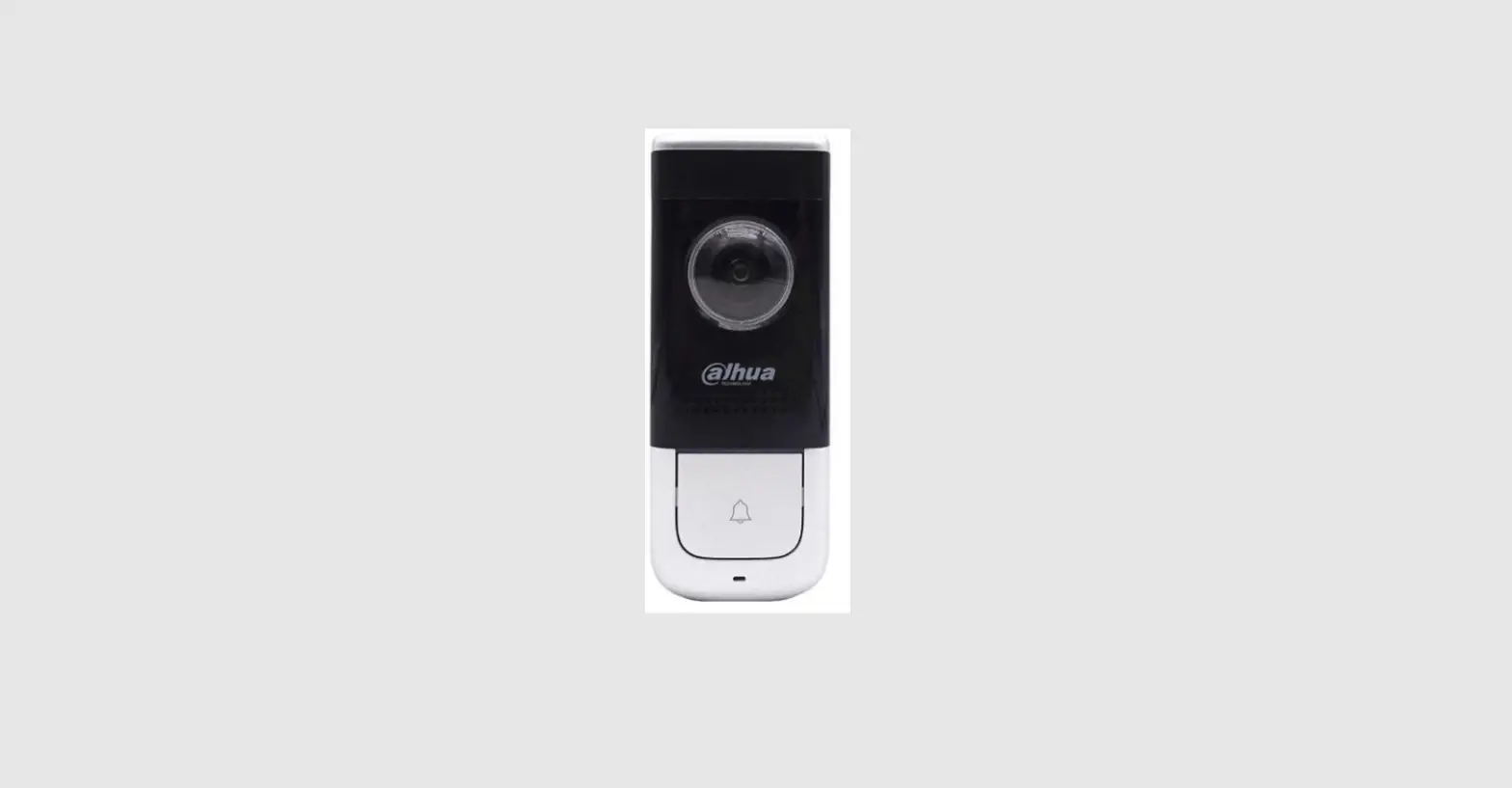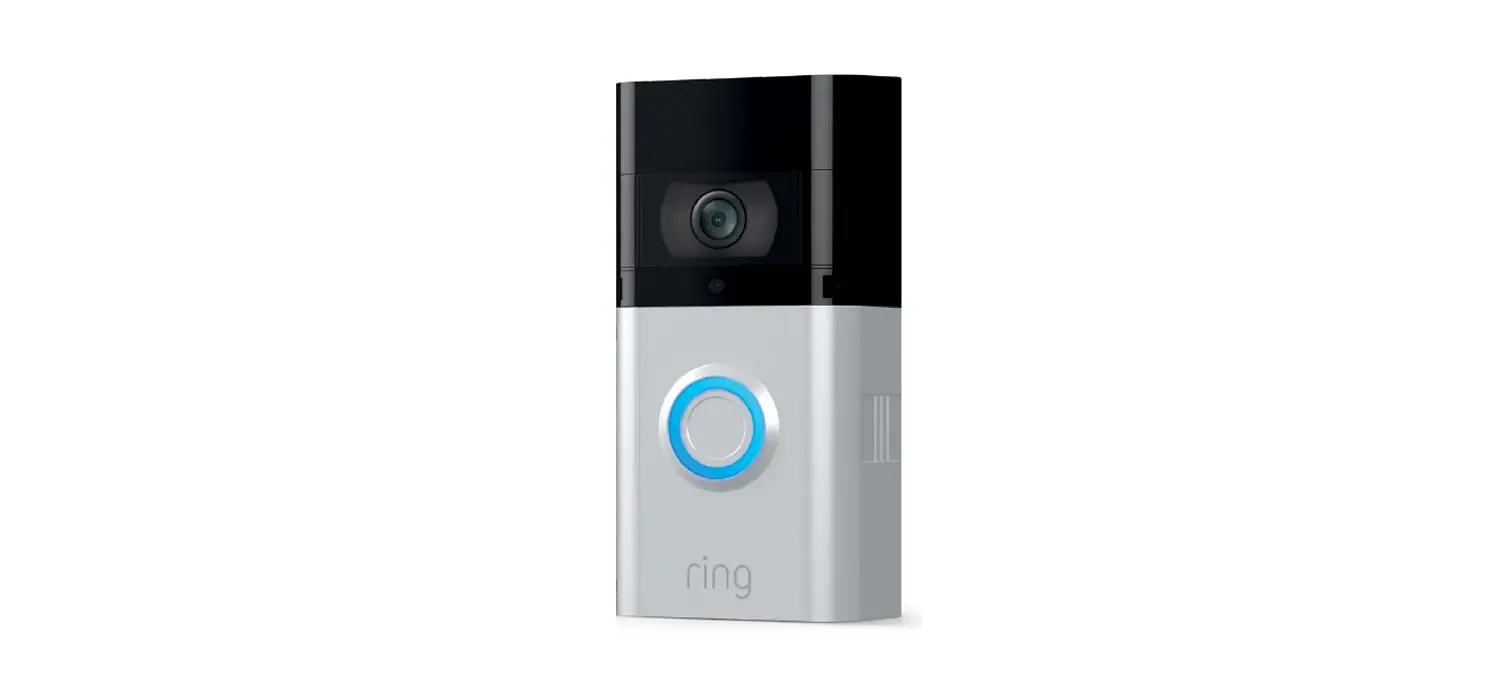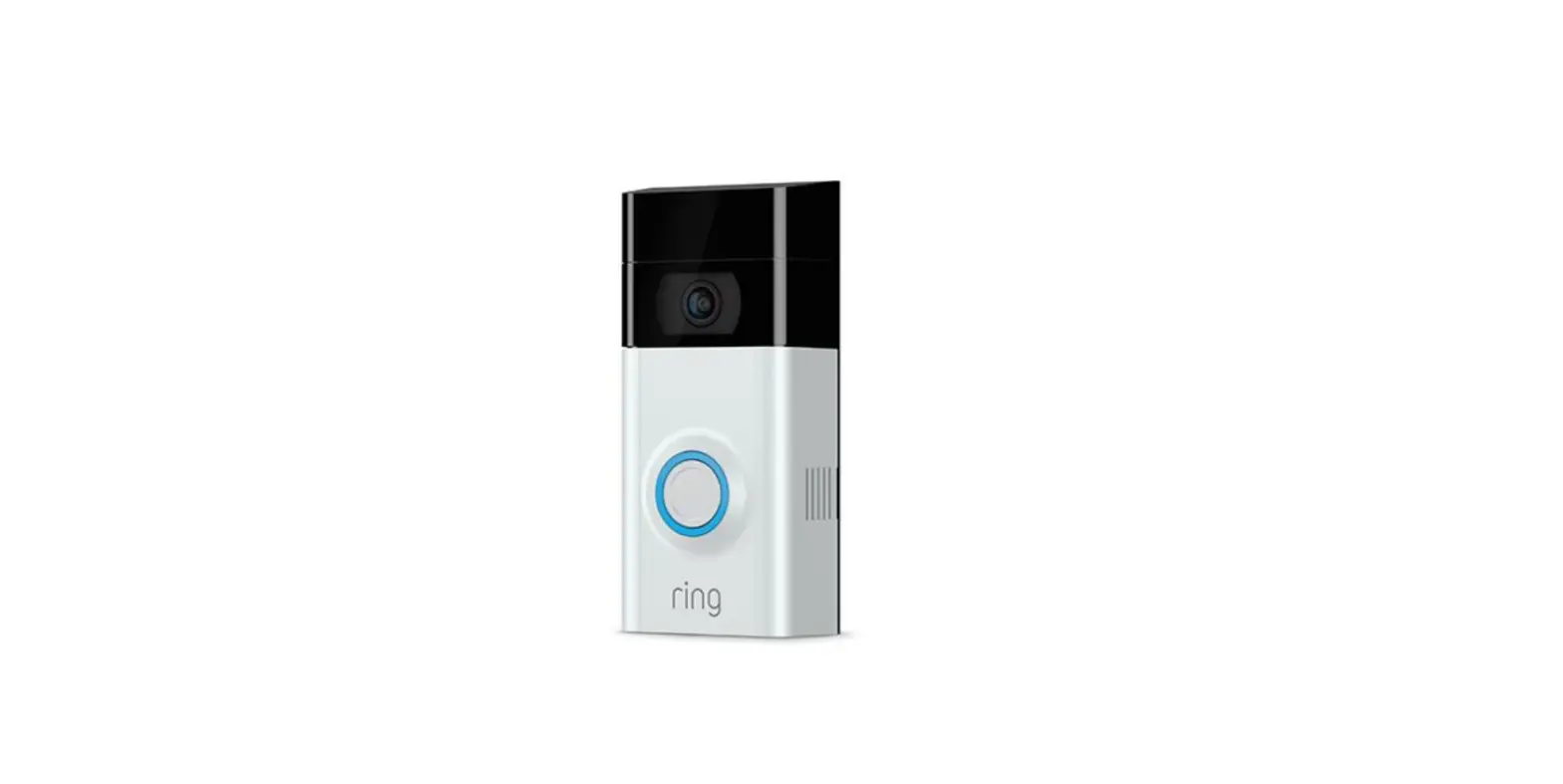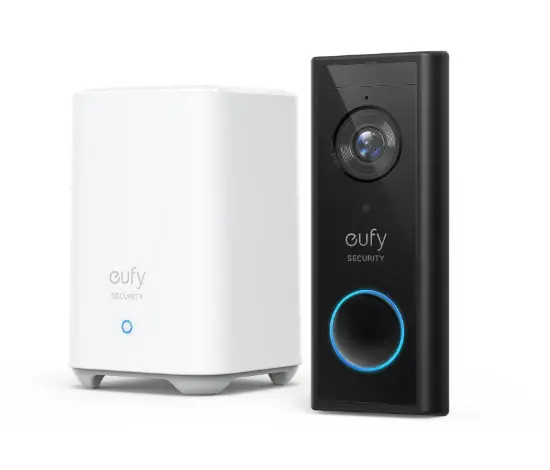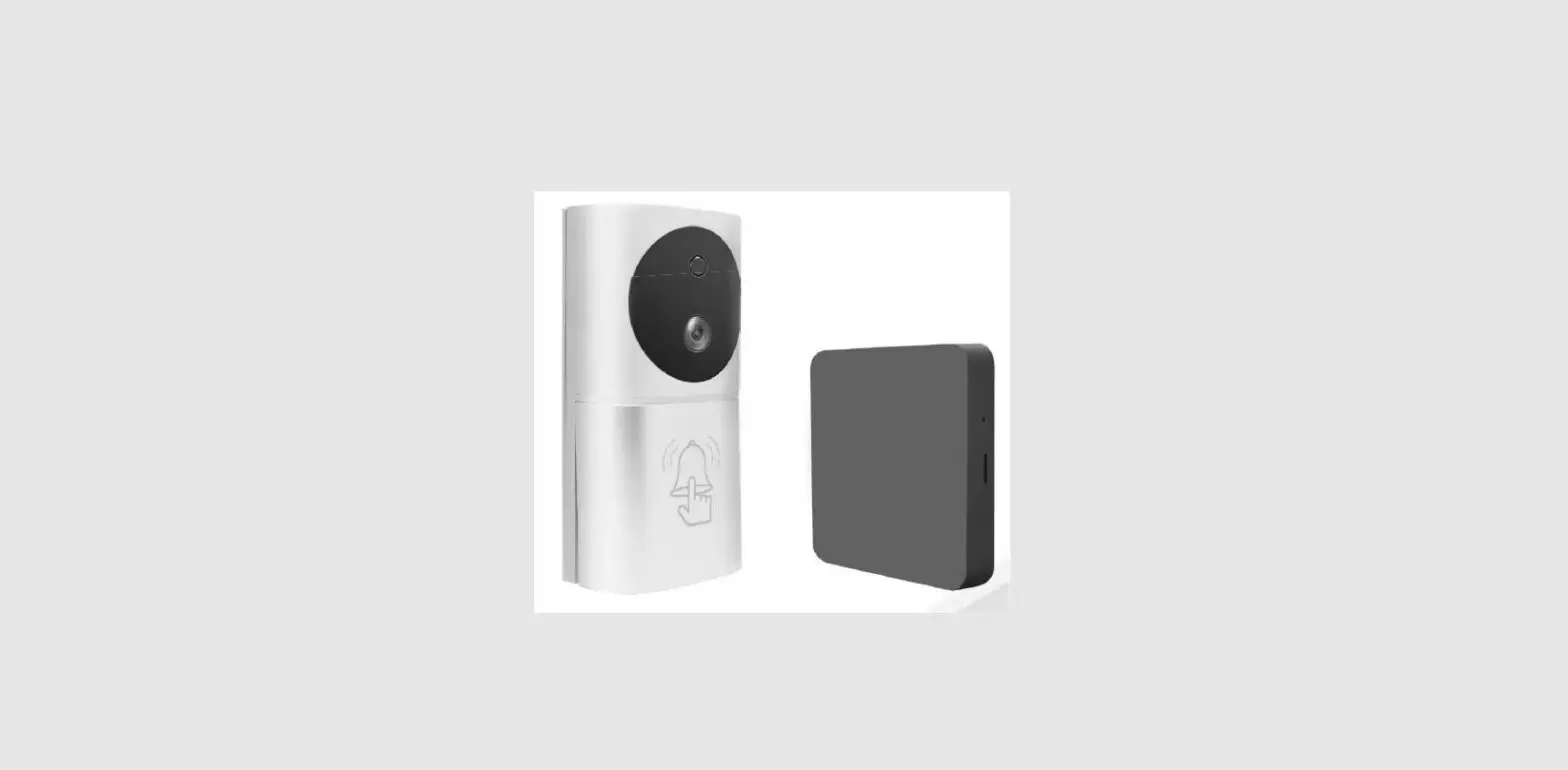

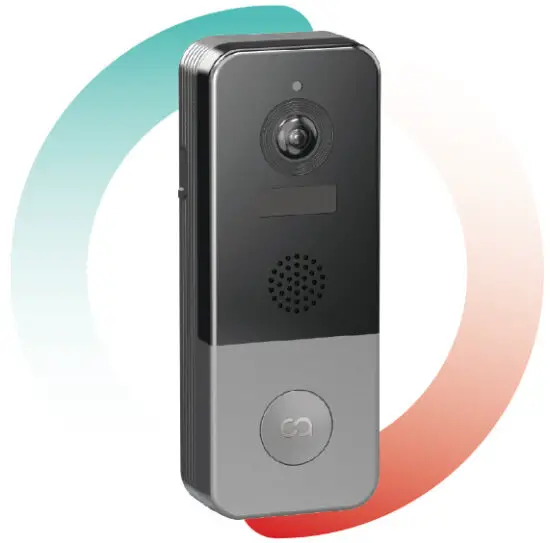
BELL J6 PLUS
2K Video Doorbell
 |  |
| Scan ”Cooau.com” QR Code to contact us | Follow @cooau.Official on Facebook |
 www.cooau.com
 C000U.OffICia
 COOGU-official
 Cooau-official
 Cooau-official
 /u/Cooau
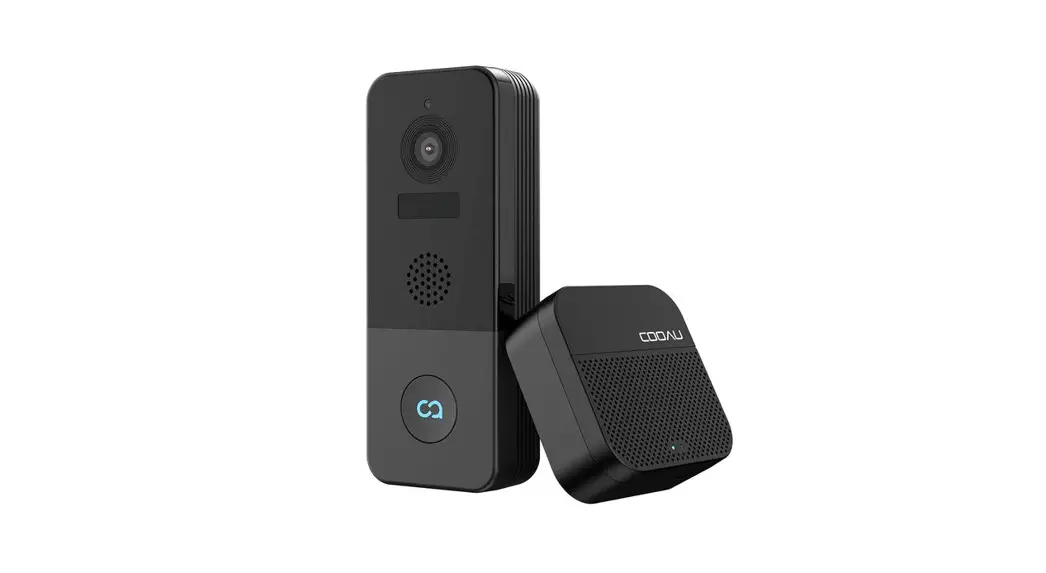
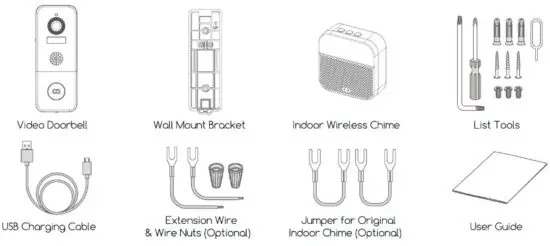
What’s in the boz
Meet the doorbell
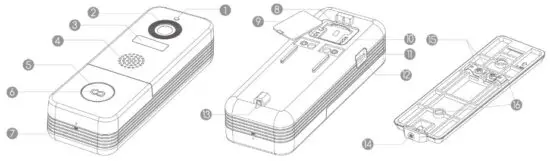
| 0 Photoresistor | Doorbell Button | Reset Button | ® Security Screw Hole |
| Camera | LED Indicator | 3 On/Off Switch | Security Screw |
| PIR Motion Sensor | Microphone | Charging Indicator | ® Hardwire Terminals |
| Speaker Lens | Memory Card Slot | ® Micro USB Port | (r) Wall Mount Screw Holes |
Meet the Chime
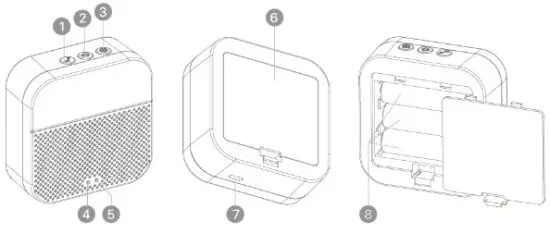
Button Function Explanation:
 Click to select a ringtone
 Click to set volume:
level 1: 110 ci-
level 2:100 oB
level 3:90 dB
level 4: 80 dB
 Click:
Enter/Quit pairing mode
Press & hold for 5 sec:
Restore factory defaults
- Ringtone Selection
- Volume Control
- Setting (Pair/ Reset)
- Red LED Indicator
- Blue LED Indicator
- Battery Compartment
- Micro USB Power Port
- AA Battery x 3
SET up your doorbell
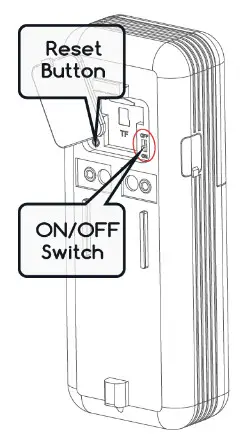
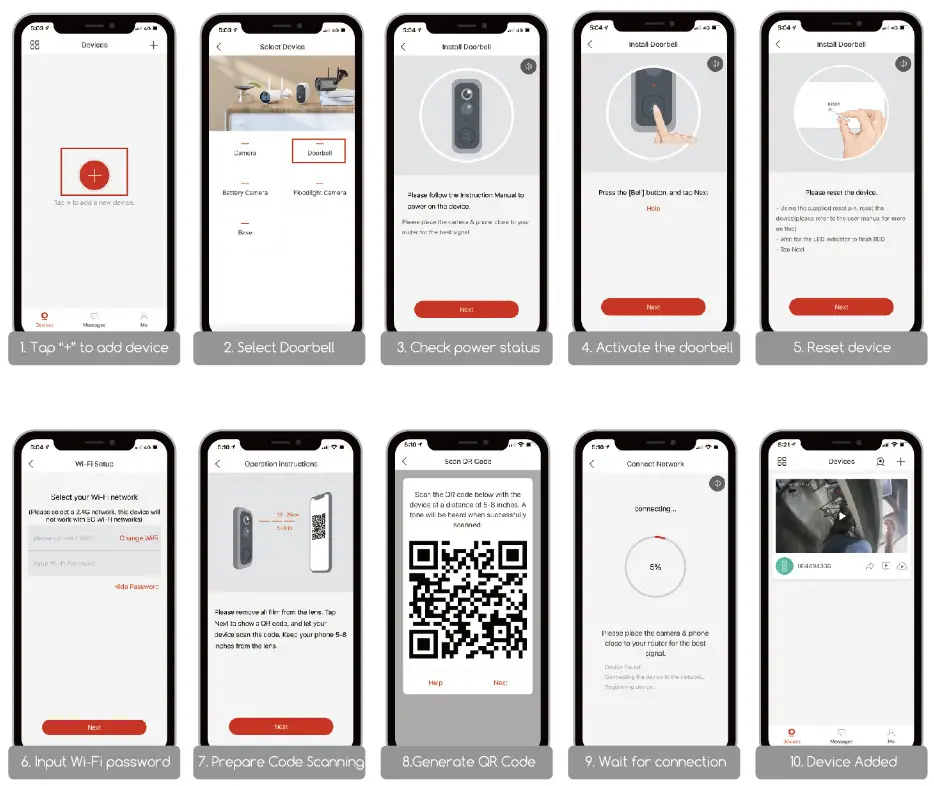
- Turn on the doorbell by the on/off switch on the rear of the doorbell. Press and hold’ RESET ‘ for S seconds to restore factory default. The indicator on the doorbell will flash red, indicating your doorbell is ready for Wi-Fi configuration.

- Download and install the’ CloudEdge ‘ App to your smartphone. Launch the App and register an account with your mobile phone number or email ID.


https://play.google.com/store/apps/details?id=com.cooau.smartlife
- Operate the configuration near your Wi-Fi router.
- Start the Wifi configuration by following the in-App instructions or the below tutorial steps.

- LED Indicator explanation.

Solid Red Device is abnormal. 
Solid Blue Successfully connected to WiFi network. 
Flashing Red Slowly Ready for WiFi configuration. 
Flashing Blue Quickly Firmware is upgrading. 
Flashing Red Quickly Nothing Device is connecting to WiFi. Stand by mode/ Power off.






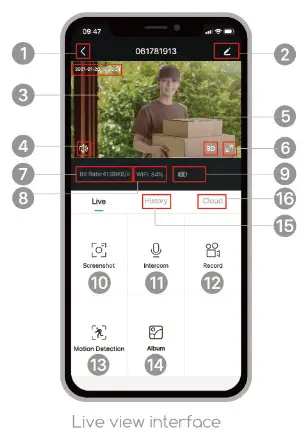
Live view
Moan the Home page devices to watch the live view from your doorbell
- Quit live viewing
- Setting menu
- Date & time watermark
- Audio on/off
- FHD/SD switch
- Full-screen display
- Stream bit rate
- Wi-Fi signal status
- Battery status
- Screenshot button
- Intercom keyer
- Record on the phone
- Motion detection on/off
- Photo/video album
- History playback
- Cloud storage service
Note: Live viewing will not trigger device recording.
Settings
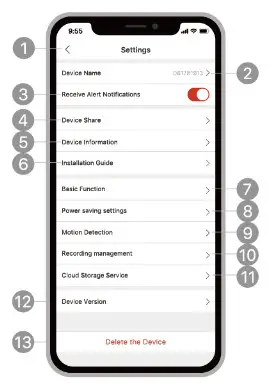
- Back to live view e Edit device name
- Receive/block alert notifications
- Share devise with other users
- Device information
- Installation guide
- Basic function:
- Power saving settings
- Motion detection settings
- Recording management
- Cloud storage setting
- Device version O Delete the device
Recording
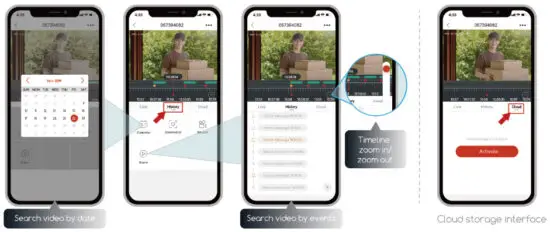
If the Micro-SD card is properly installed, you can playback the video clips taken after motion events or visitor calls. (Live viewing will not trigger device recording). You can also back up video clips to the cloud, only if you have activated the cloud storage service (Charge after a 7-Days-Free trial).
History Playback
Top ‘ ‘ ‘ to ploy the video clips recorded in the MicroSD card.
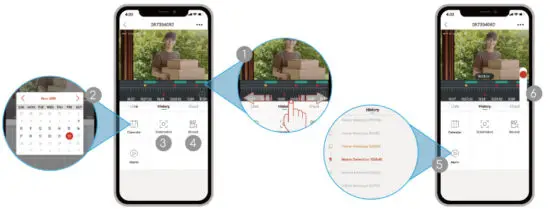
- TimeLine: Slide the timeline to the left or right to locate video recordings according to the time period. •The green bar stands for video length. • The yellow dot stands for the alarm point when someone has pressed the doorbell button. • The red dot stands for the alarm point when a motion has been detected.
- Calendar: Check video history by dote. The numbers in green stand for the dates that have video recordings.
- Screenshot: Top to capture o photo and save to Me -> Pictures & Videos, Where you can shore it to others.
- Record: Top to start recording a video, tap again to end, and save to Me -> Pictures & Videos, Where you shore the video clips to others.
- Atom: Top the listed alarm records to quickly locate and display each alarm video. Stands for visitor colt events; W.stands for motion detection recordings.
- Timeline Zoom Slide upward to zoom in the timeline and downward to zoom out.
Connect the chime
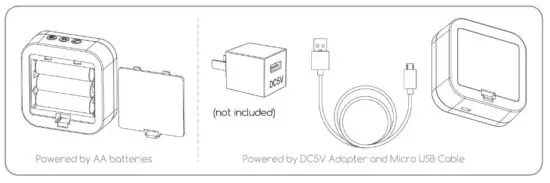
- Supply power to the chime can be powered by 3 units of AA batteries (Provided) or a DC5V — IA power adapter.

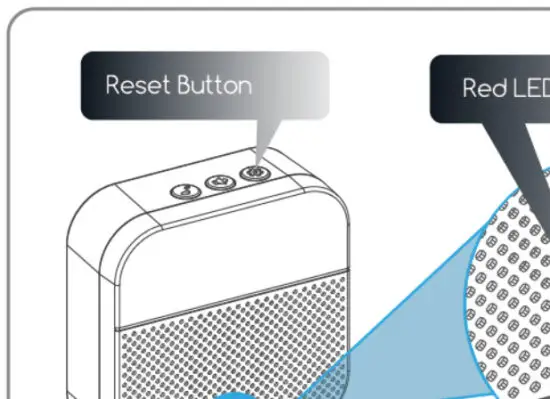
- Click reset button
Click on RESET only once, and you will see the chime indicator flushing red, indicating that the chime is in pairing mode.
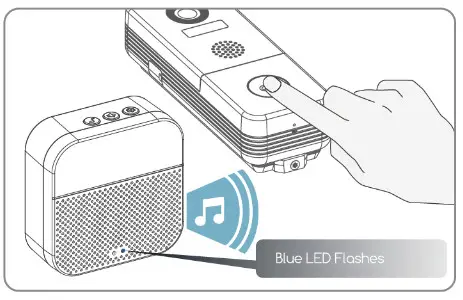
- Press the doorbell button
Press the doorbell button, and the chime will sound, together with its blue LED flashing. Chime poring succeeds, congrats.
Installation
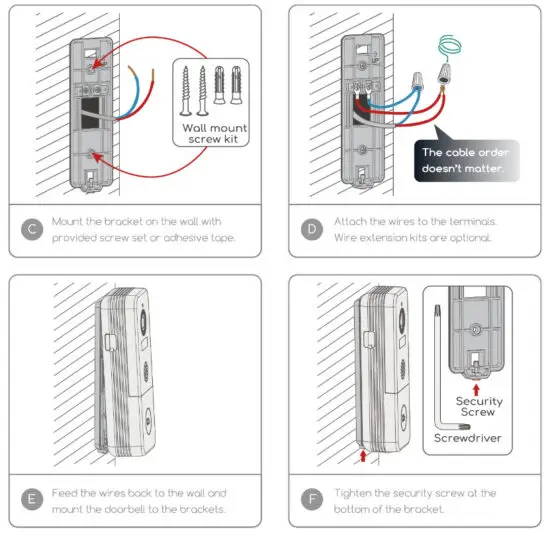
Your doorbell comes with a rechargeable battery pack built-in, and it also works with the existing 12V-24V AC hardwire power source. It enables you to make use of your legacy doorbell wiring for retro-fit installation.
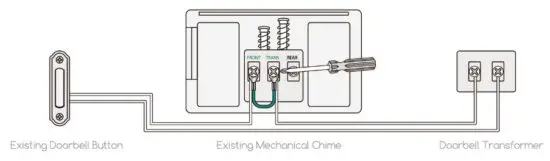
NOTE: For retro-fit installation, you need to bypass your indoor mechanical chime so as to provide sufficient power for the new video doorbell.
10.1 Retro-fit installation (Optional) To replace your existing doorbell and mechanical chime, please follow the below installation steps:
- Shut off the master circuit breaker In your house.
- Bypass your indoor chime with provided Jumper
. In most cases, the existing doorbell circuit looks similar to the image below. Remove the cover of the indoor chime and loosen the ” FRONT ” and ” TRANS ” terminal screws. Use the provided jumper to connect the two terminals, and replace the chime cover.
- Select o location for your video doorbell.
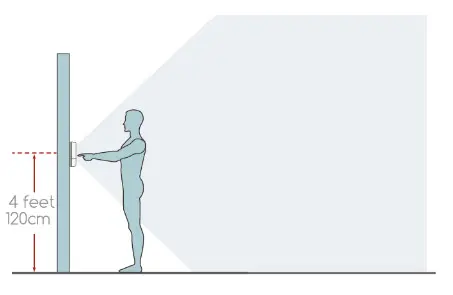
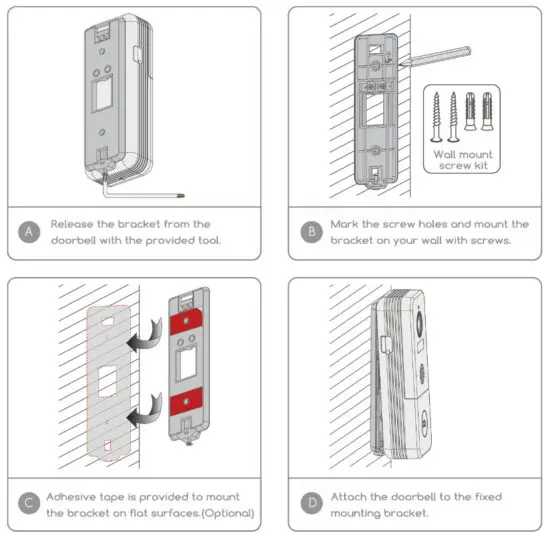
Determine the mounting position of the doorbell. Check if you can reuse the existing holes on the wall. If not drill new holes to mount your video doorbell. It is suggested to mount the doorbell at least 4 feet (120 cm) above the ground for the optimal angle of view and best motion detection performance.
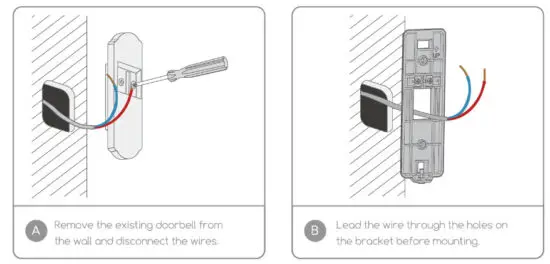
- Replace your existing doorbell.


- Restore power at the breaker, and your doorbell Is ready for use.
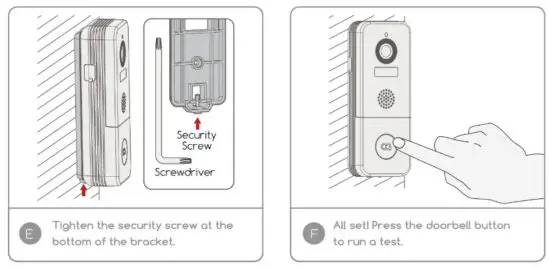
10.2 Wireless installation

Trouble Shooting
Q1: Is the video doorbell powered by a battery?
Al: Yes, there is a rechargeable big Li-ion battery pack built-in. Thanks to the low power consumption technology, a full charge lasts for more than 3 months in our lab test environment.(20 events per day, 15 seconds of video recording per event)
Q2: How to connect the hardwire to the doorbell? Does the cable order matter?
A2: Your doorbell works with both DC 12V and AC 12V – 24V hardwire power sources. There are 2 hardwire terminal screws on the bracket, and you can connect each wire to each power terminal screw. The cable order doesn’t matter.
Q3: I found a Micro USB port on the left side, what’s it for?
A3: Yes, this is the power charging port. You may need to charge your doorbell once in a while.
Q4: What’s the Wi-Fi range of the video doorbell?
A4: The video doorbell works with any 2.4GHz wireless Wi-Fi router, mesh system or modems. In the outfield test, it works well in most 3000sqft houses. The Wi-Fi range may vary because of different WiFi transmit power, transmission distance, and wall blocks in between.
Q 5: I installed my video doorbell, but the video or audio quality is poor, why?
A5: In live view interface, WiFi status will be listed. It is suggested to ensure the Wi-Fi status be more than 70%, so os to get your doorbell to work as expected. If you think your problem is caused by low Wi-Fi signal strength, try moving your Wi-Fi router closer, or odd one Wi-Fi Booster to extend your Wi-Fi range.
Q 6: Does the video doorbell work with the existing indoor mechanical chime?
A6: No. The doorbell comes with a battery-powered wireless chime to notify people when your visitor presses the doorbell button. If you have an existing indoor chime, please use the provided jumper to bypass the existing chime, so as to provide sufficient power to the new video doorbell. And our wireless chime is 100% wireless, you can place it almost everywhere you like. The transmission distance in open space is more than 100 meters (328 feet).
Q 7: How many wireless chimes can be paired with one video doorbell?
A7: You can add as many wireless chimes as your wish on one video doorbell.
Q 8: Does motion detection sensitivity settable?
A8: Yes it does. There are 5 levels of sensitivity status optional in doorbell settings
Q 9: How does the video doorbell detect the motions? Con motion detection be disabled?
A9: The doorbell camera detects motion through the latest PIR motion sensor, it will further undergo a Nrnan-shape detection to reduce false dorm rote. You can adjust the motion detection sensitivity, schedule alarm intervals, and disable motion detection accordingly due to various user scenarios.
Q 10: I installed a 16GB memory card, how many days of event recordings does it keep?
A10: The video bitrate is around 100KB/s. If you have 10 event recordings per day, and each of the video clips lasts for 20 seconds, a 16GB memory cord is capable of keeping 24-Month video recordings.
Q 11: Does the doorbell support cloud storage?
All: Your doorbell supports local video storage by Micro SD card as well as cloud storage. You can activate the cloud storage service in the App. There is a 7-day free cloud recording trial service.
My Moment My Passion