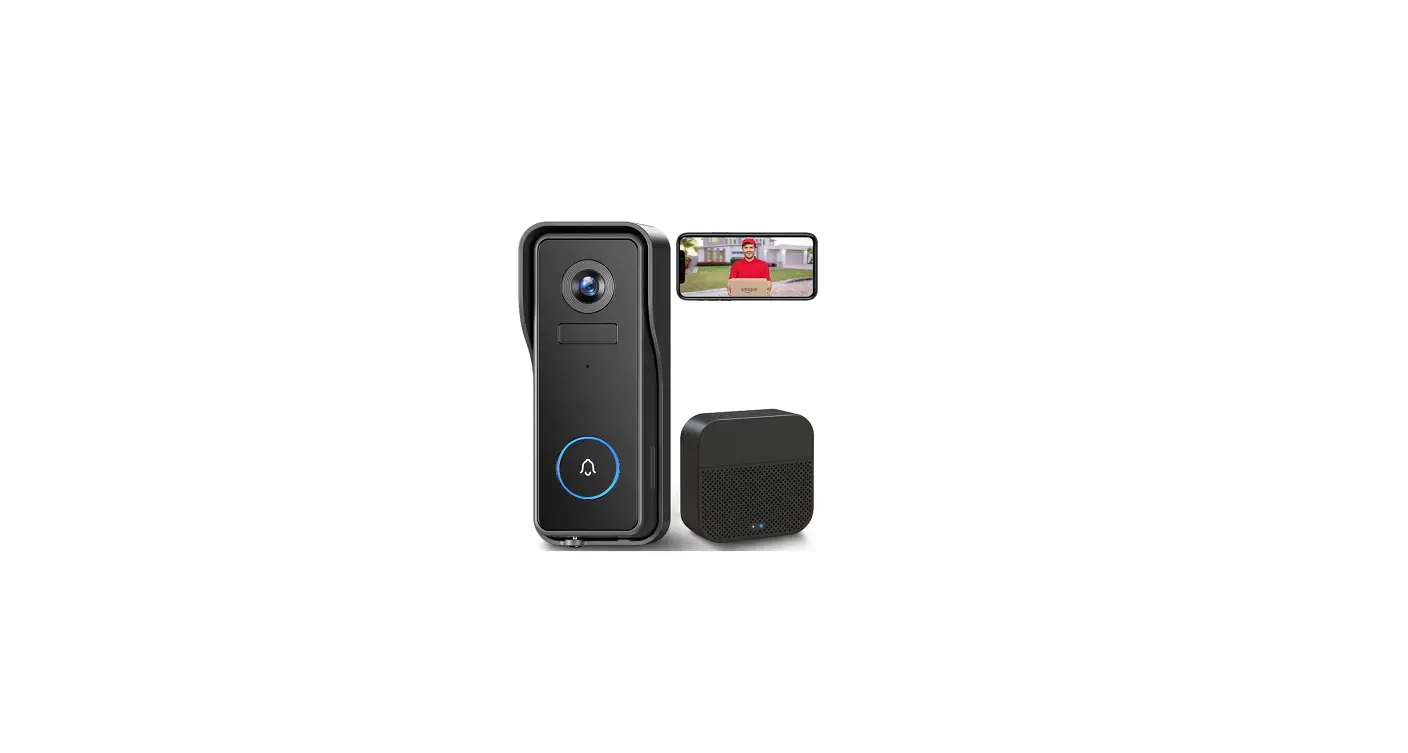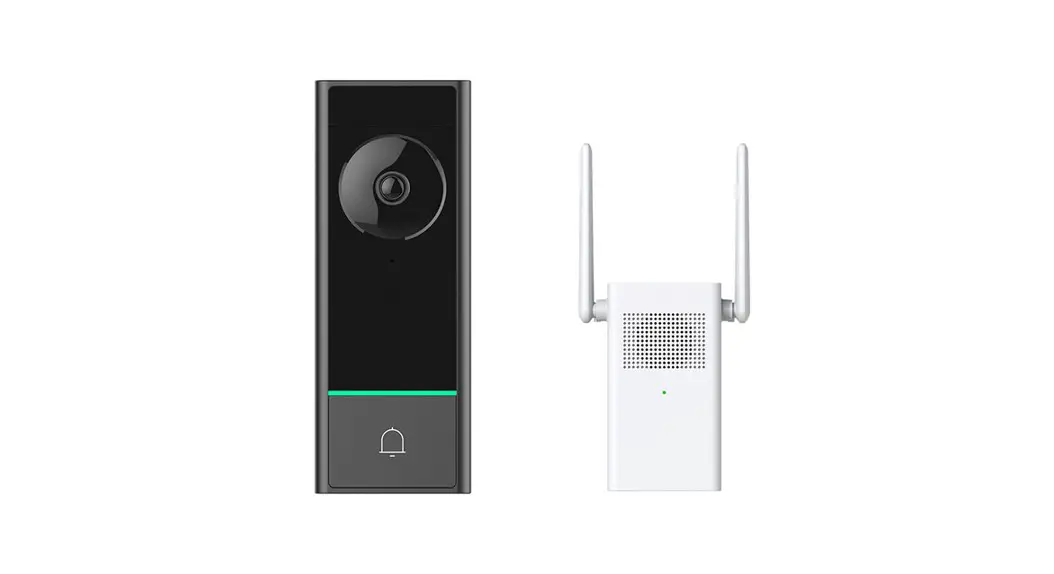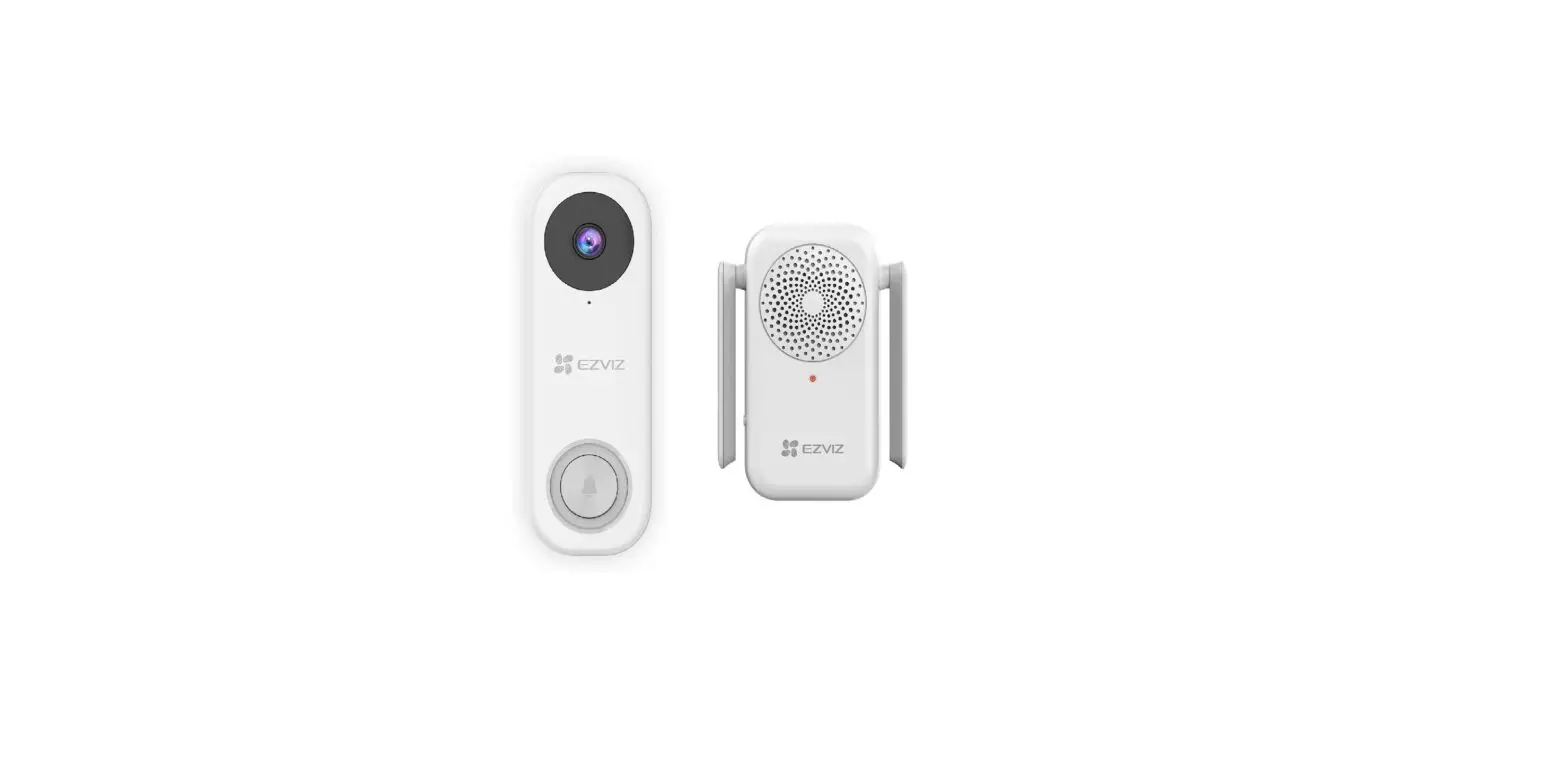

2nd Generation
Video Doorbell
QUICK Start Guide
V1.0.1
* Thanks for purchasing and using our product. Please read this quick start guide before using it, and keep it for future reference.
* Manual contents are subject to change without notice in accordance with our policy of continuous product improvement.
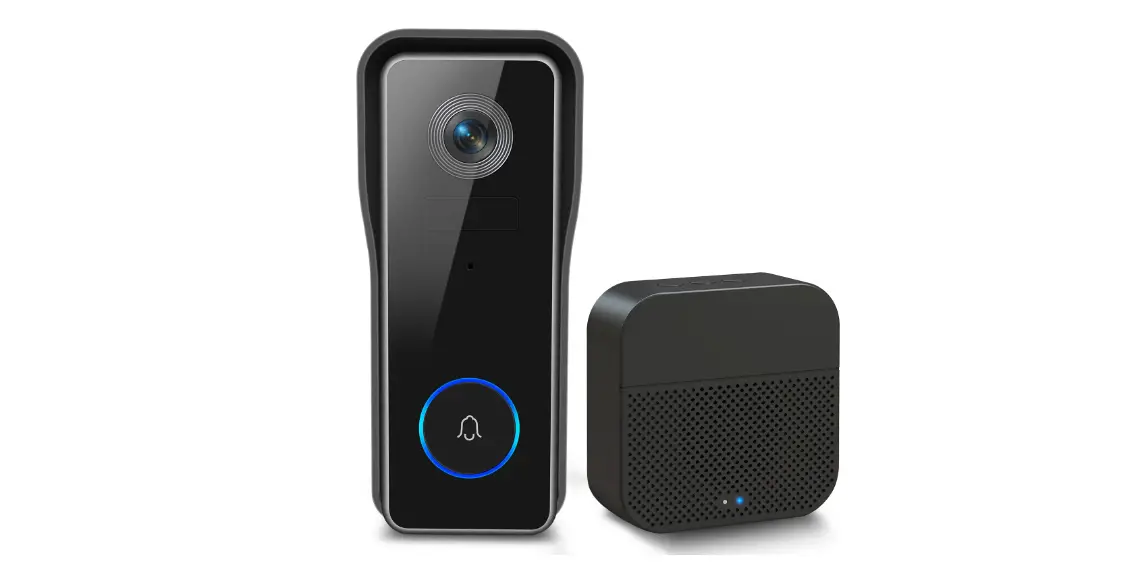
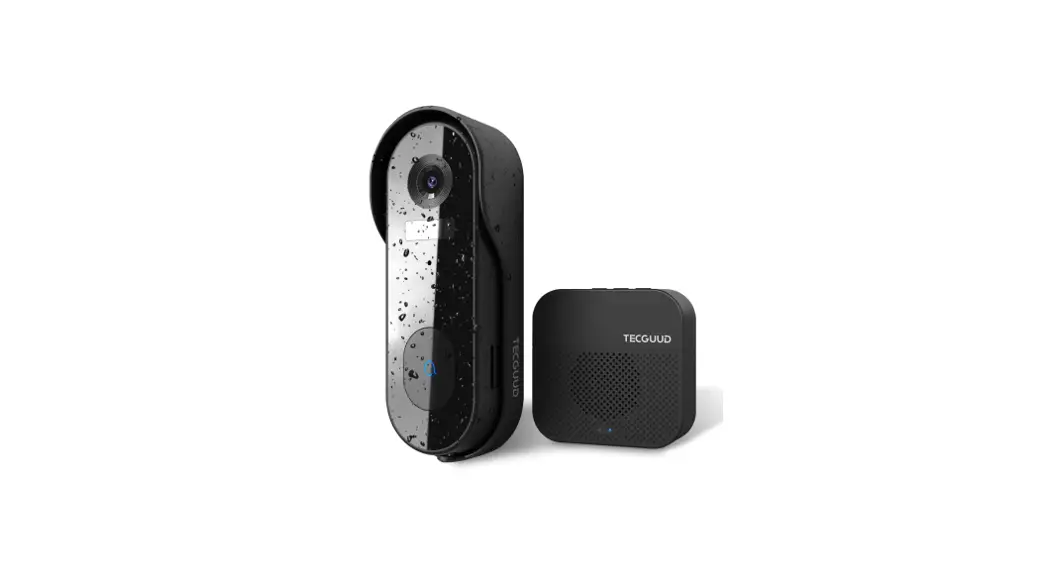
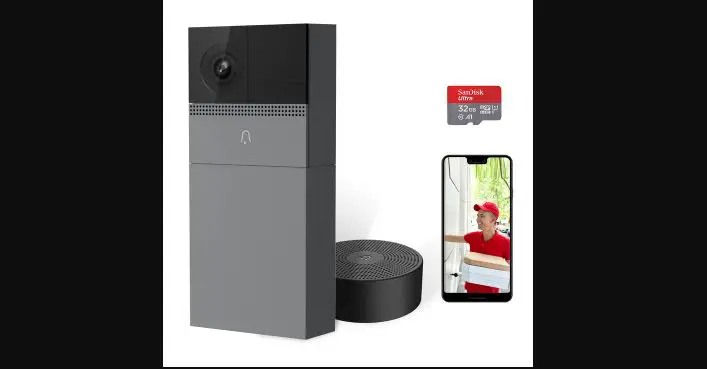
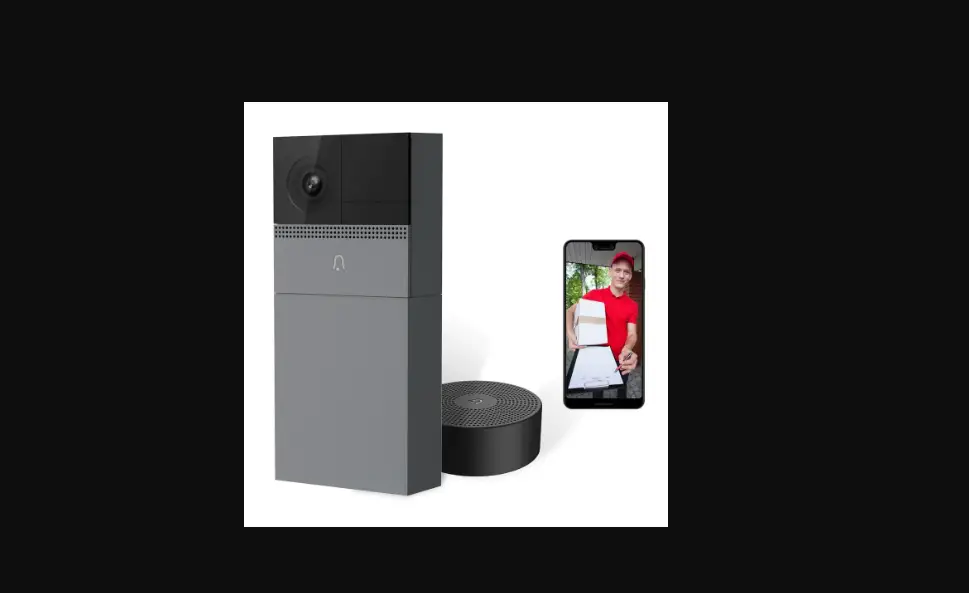
what’s in the box
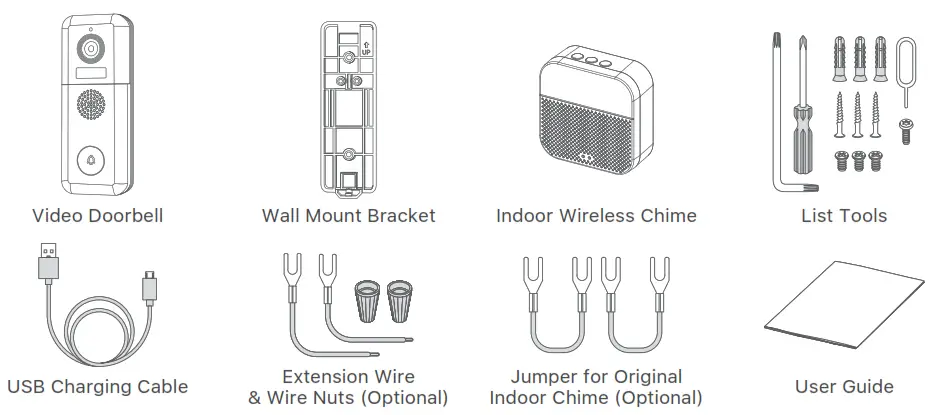
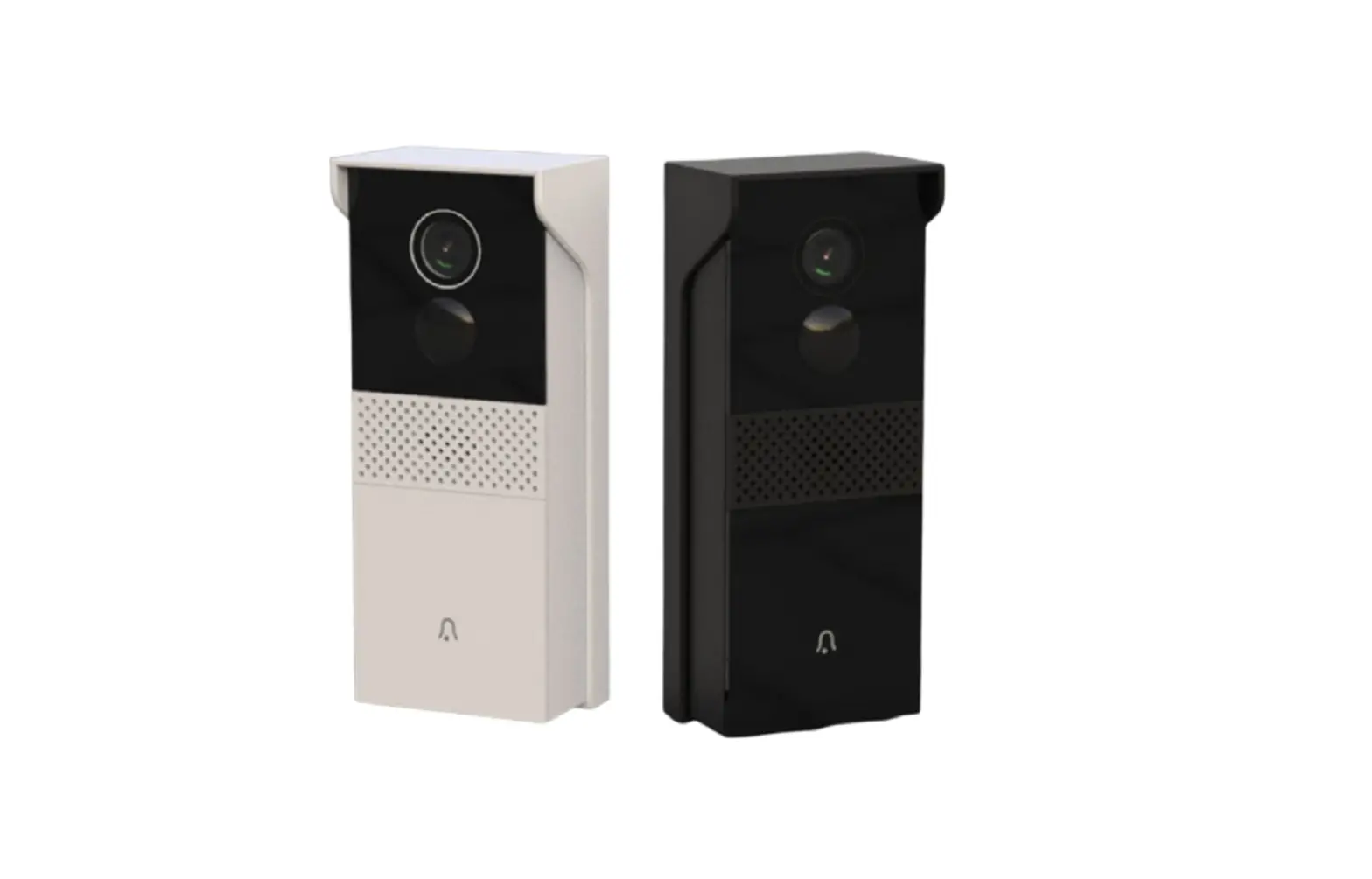
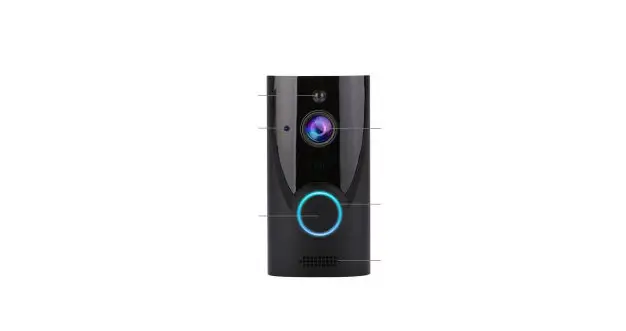
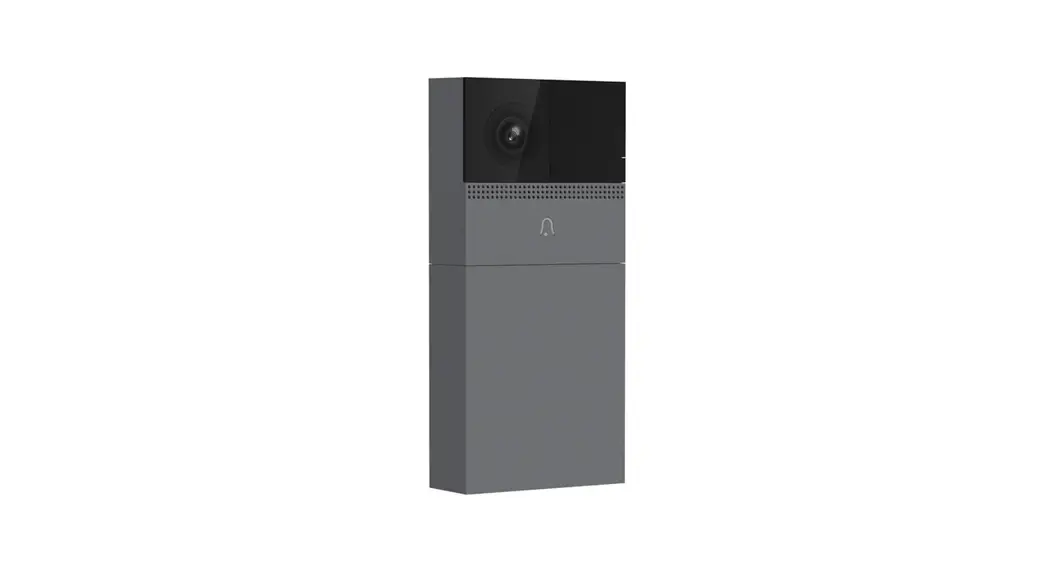
meet the doorbell
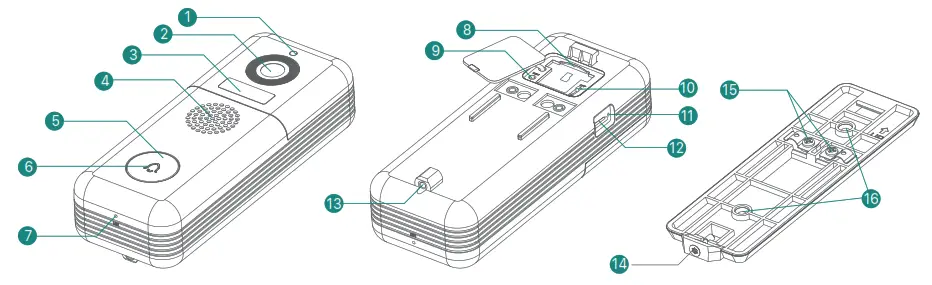
| 1. Photoresistor 2. Camera 3. PIR Motion Sensor 4. Speaker | 5. Doorbell Button 6. LED Indicator 7. Microphone 8. Memory Card Slot | 9. Reset Button 10. On/Off Switch 11. Charging Indicator 12. Micro USB Port | 13. Security Screw Hole 14. Security Screw 15. Hardwire Terminals 16. Wall Mounting Screw Holes |
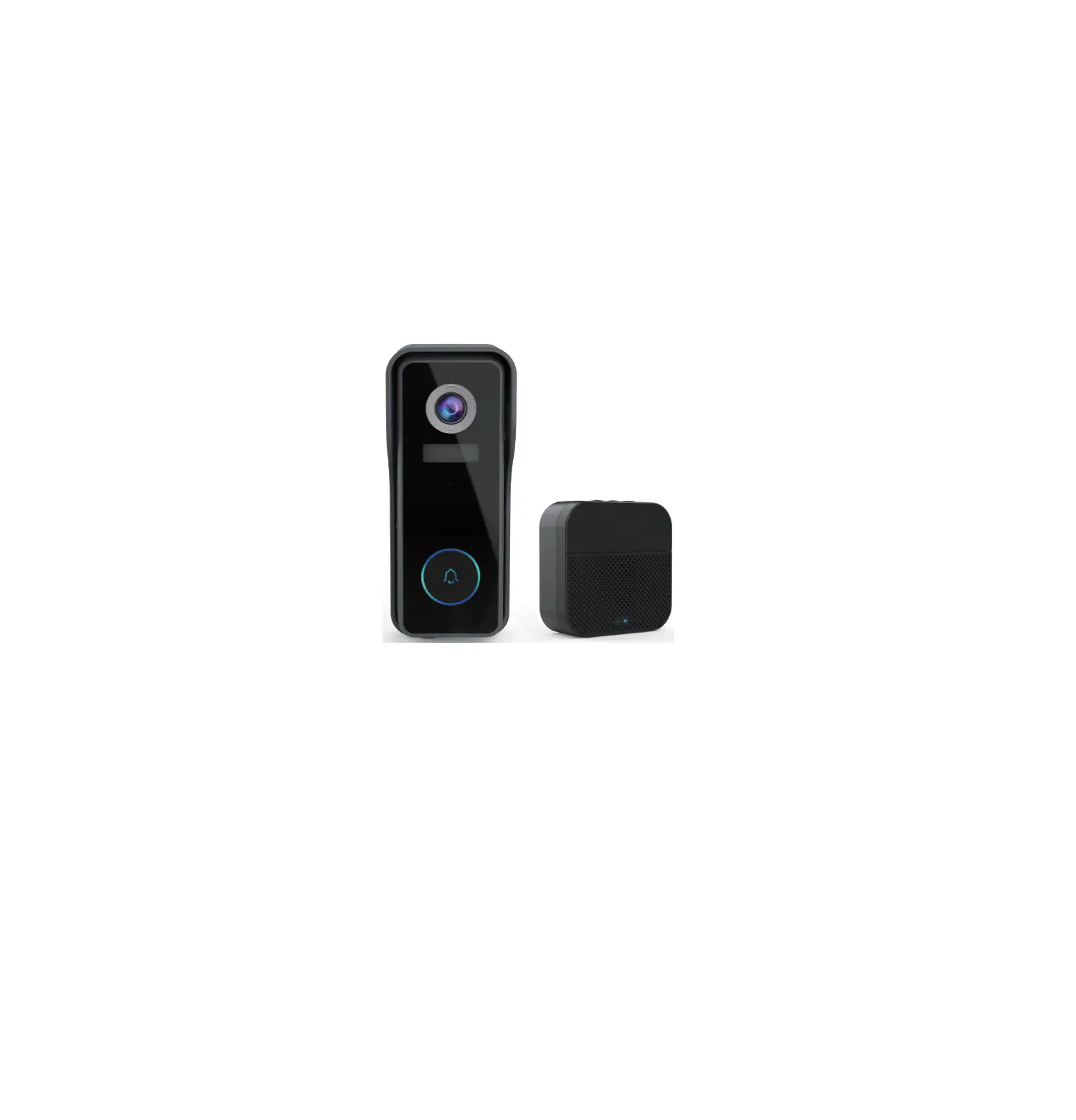
Meet the chime
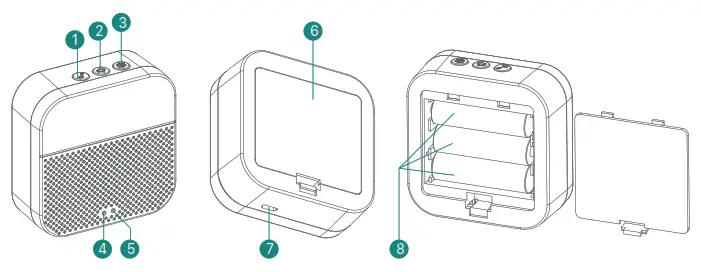
| 1. Ringtone Selection 2. Volume Control 3. Setting (Pair/ Reset) 4. Red LED Indicator | 5. Blue LED Indicator 6. Battery Compartment 7. Micro USB Power Port 8. AA Battery × 3 |
Button Function Explanation:
 Click to select a ringtone
 Click to set volume:
level 1: 110 Dbl
level 2: 100 Dbl
level 3: 90 Dbl
level 4: 80 Dbl Click:
Enter into/quit pairing mode
Press & hold for 5 sec:
Restore factory defaults
SET up your doorbell
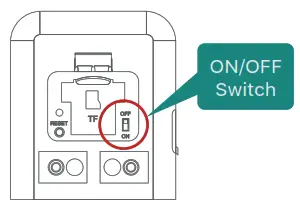
- Turn on the doorbell by the on/off switch on the rear of the doorbell.
Press and hold ‘RESET’ for 5 seconds to restore factory default.
The indicator on the doorbell will flash red, indicating your doorbell is ready for Wi-Fi configuration.
- Download and install the ‘CloudEdge’ App to your smartphone.
Launch the App and register an account with your mobile phone number or email ID.
- Operate the configuration near your Wi-Fi router.


https://itunes.apple.com/app/id1294635090?mt=8 - Start the Wi-Fi configuration following the in-App instructions or refer to the below tutorial steps.

- LED indicator explanation:

Solid Red
The device is abnormal.
Solid Blue
Successfully connected to WiFi n
Flashing Red Slowly
Ready for WiFi configuration.
Flashing Blue Quickly
Firmware is upgrading.
Flashing Red Quickly
The device is connecting to WiFi.
Nothing
Power off.
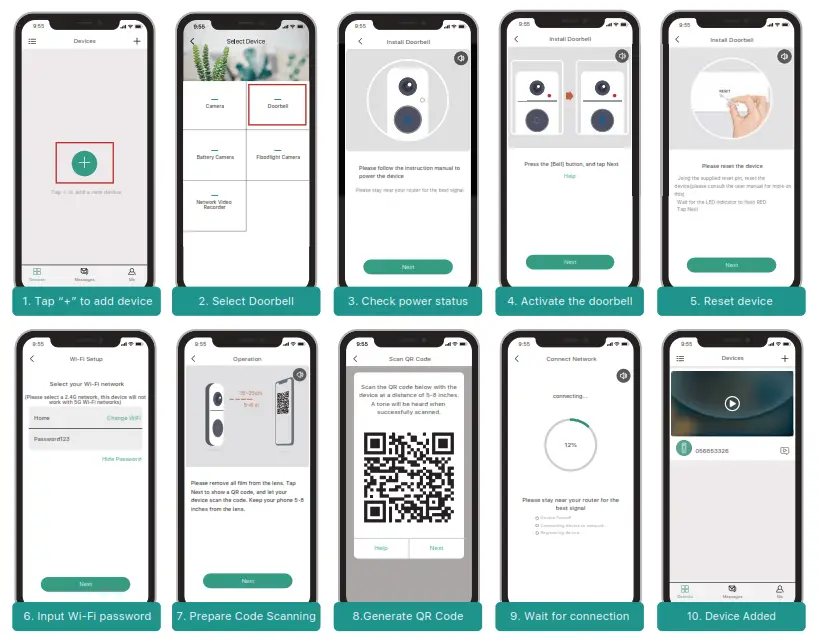




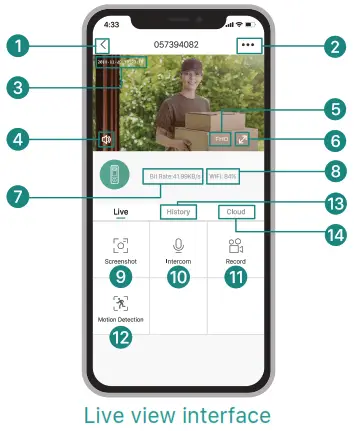
Live view
Tap on the Home page devices to watch the live view from your doorbell.
| 1. Quit live viewing 2. Setting menu 3. Date & time watermark 4. Volume on/off 5. FHD/HD/SD switch 6. Full-screen display 7. Stream bit rate | 8. Wi-Fi signal status 9. Screenshot button 10. Speak to the scene 11. Record on the phone 12. Body detection on/off 13. Notification history 14. Cloud storage service |
Note:
Live viewing will not trigger device recording at Event recording mode.
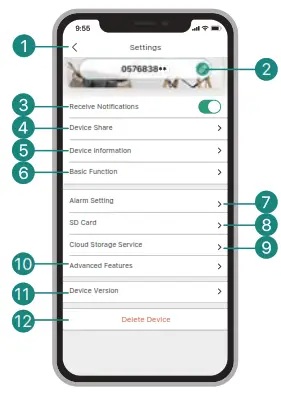
Settings
| 1. Back to live view 2. Edit device name 3. Receive/block motion alarms 4. Share devise with other users 5. Device information 6. Basic function: 1. LED Indicator on/off 2. Night vision on/off/auto 3. Human detection frame on/off 4. Wireless chime settings 7. Alarm setting: |
8. SD Card Setting |
Recording
If the Micro-SD card is properly installed, you can playback the video clips taken after detected motions or visitor calls. (Live viewing will not trigger device recording). You can also back up video clips to the cloud, only if you have activated the cloud storage service (Charge after a 7-Days-Free trial).
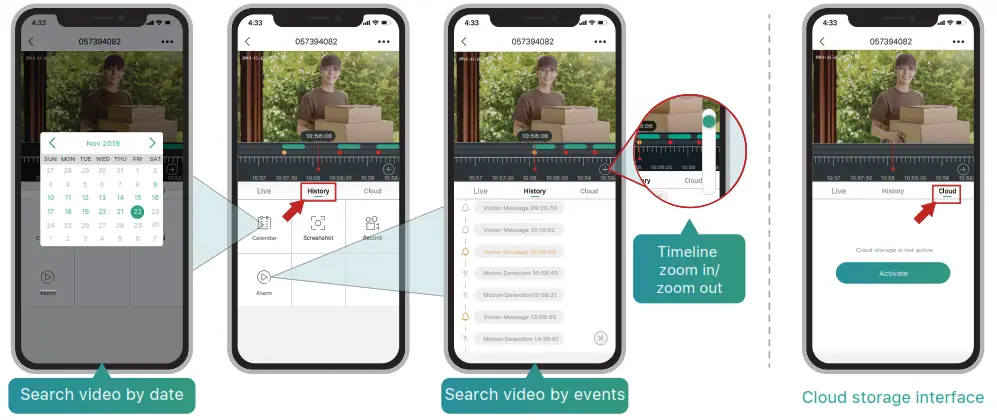
History Playback
Tap ‘History’ to play the video clips recorded on the MicroSD card.
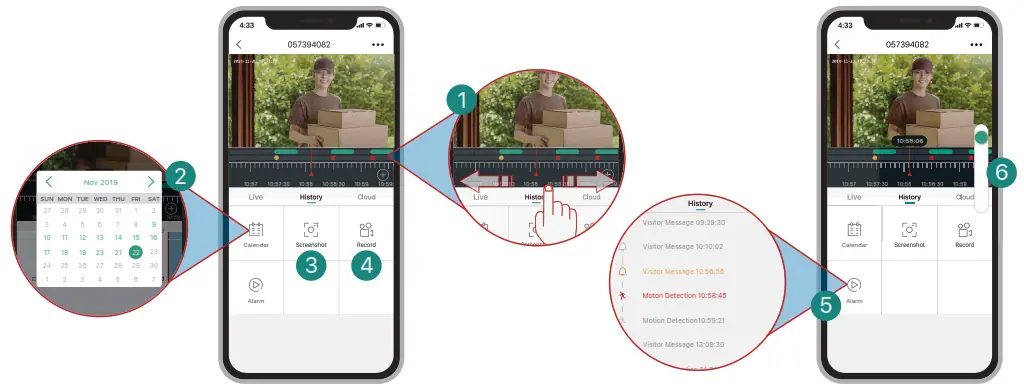
- TimeLine:
Slide the timeline to the left or right to locate video recordings according to the time period. The green bar stands for video length.
 The yellow dot stands for the alarm point when someone has pressed the doorbell button.
  The red dot stands for the alarm point when a motion has been detected.
 - Calendar:
Check video history by date. The numbers in green stand for the dates that have video recordings. - Screenshot:
Tap to capture a photo and save it to Me -> Pictures & Videos, Where you can share it with others. - Record:
Tap to start recording a video, tap again to end, and save to Me -> Pictures & Videos, Where you share the video clips to others. - Alarm:
Tap the listed alarm records to quickly locate and display each alarm video. Stands for visitor call events; stands for motion detection recordings.
 - Timeline Zoom:
Slide upward to zoom in the timeline and downward to zoom out.
 The green bar stands for video length.
 The yellow dot stands for the alarm point when someone has pressed the doorbell button.
  The red dot stands for the alarm point when a motion has been detected.
 Stands for visitor call events; stands for motion detection recordings.
Connect the chime
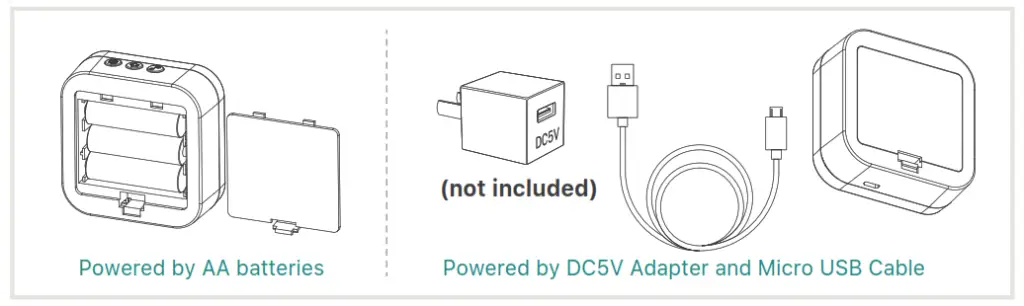
Supply power to the chime
The chime can be powered by 3 units of AA batteries(Provided) or a DC5V 1A power adapter.
Click reset button
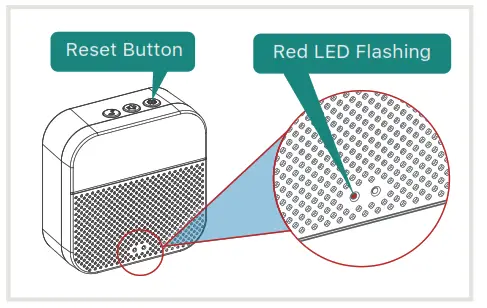
Click on RESET only once, and you will see the chime indicator flashing red, indicating that the chime is in pairing mode.
Press the doorbell button
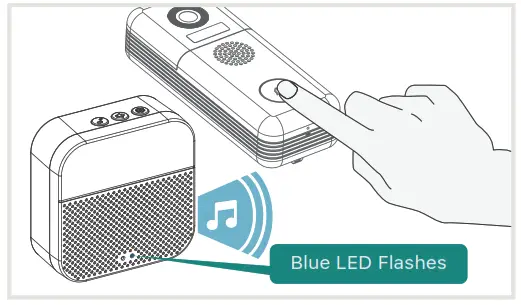
Press the doorbell button, and the chime will sound, together with its blue LED flashing. Chime paring succeeds, congrats.