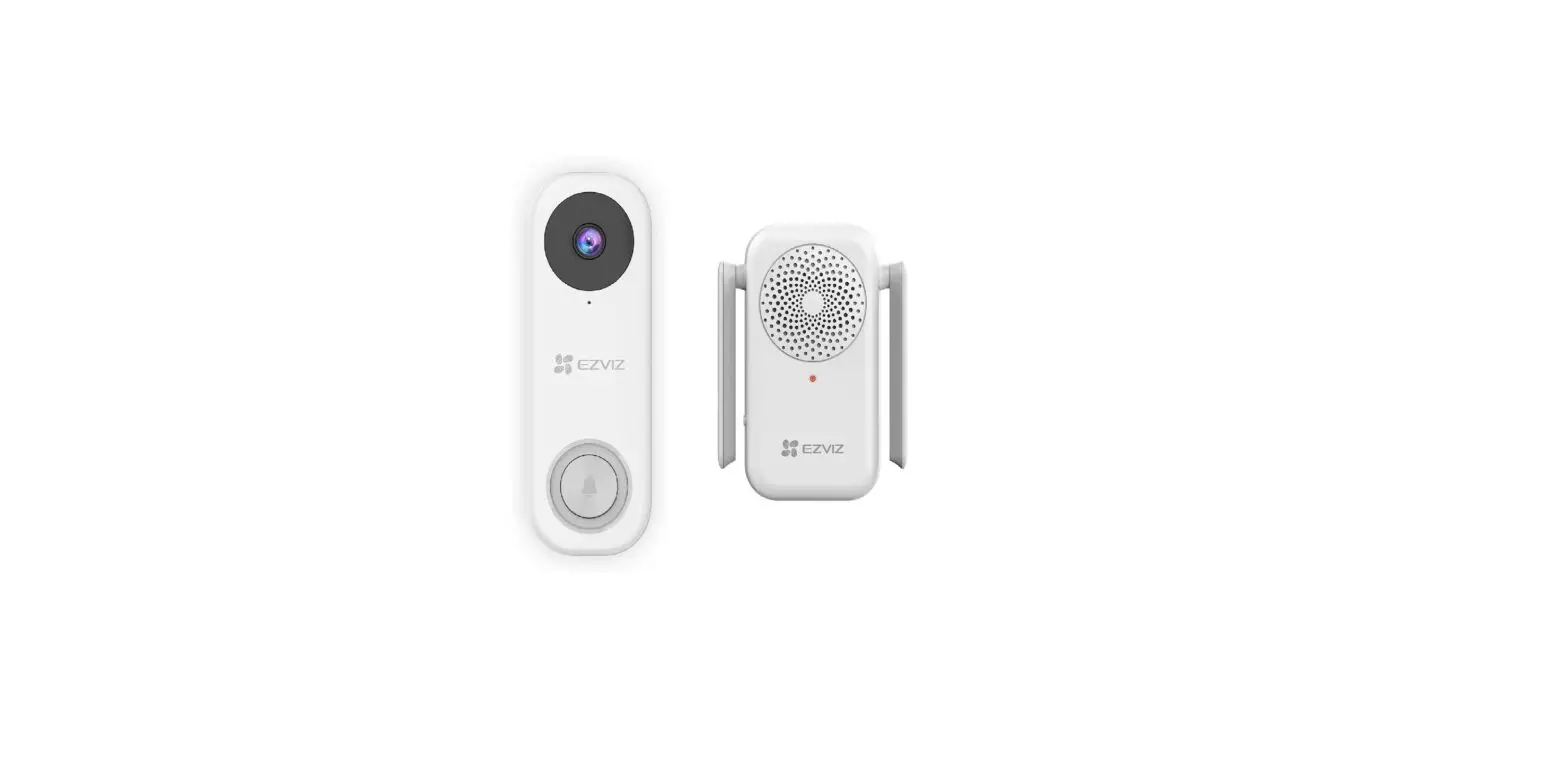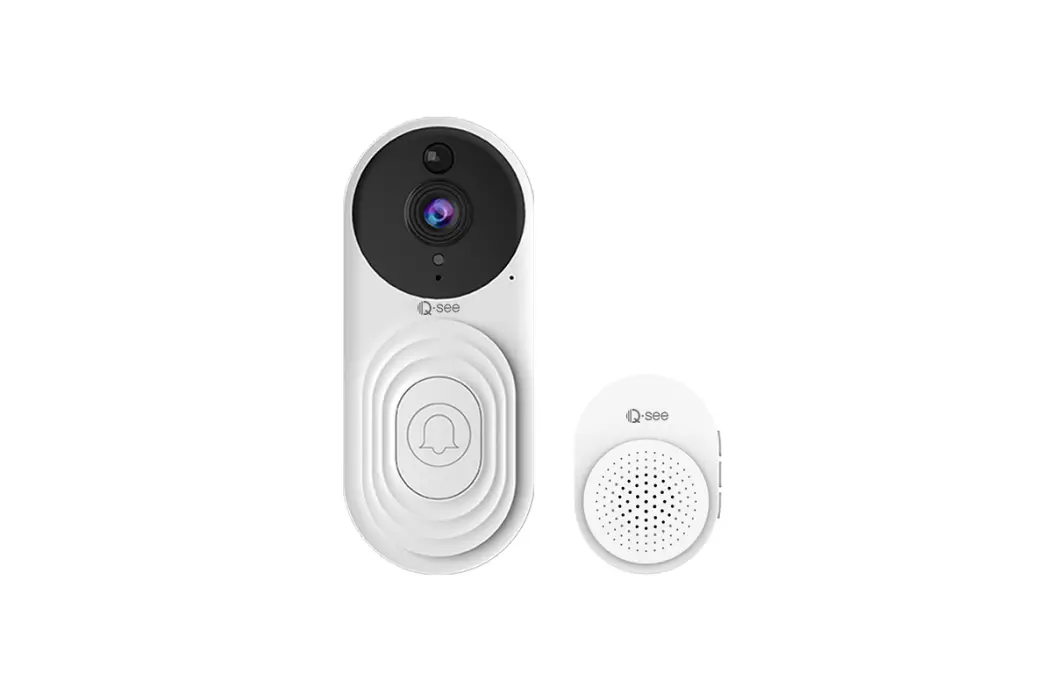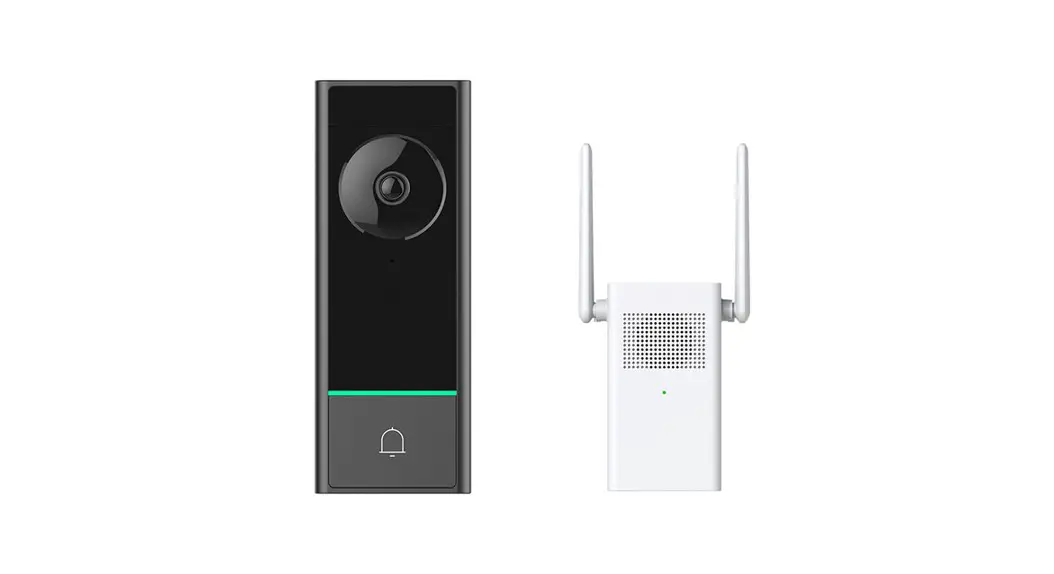

Doorbell Chime
Quick Start Guide
V1.0.0T2.00250635
https://en.imoulife.com
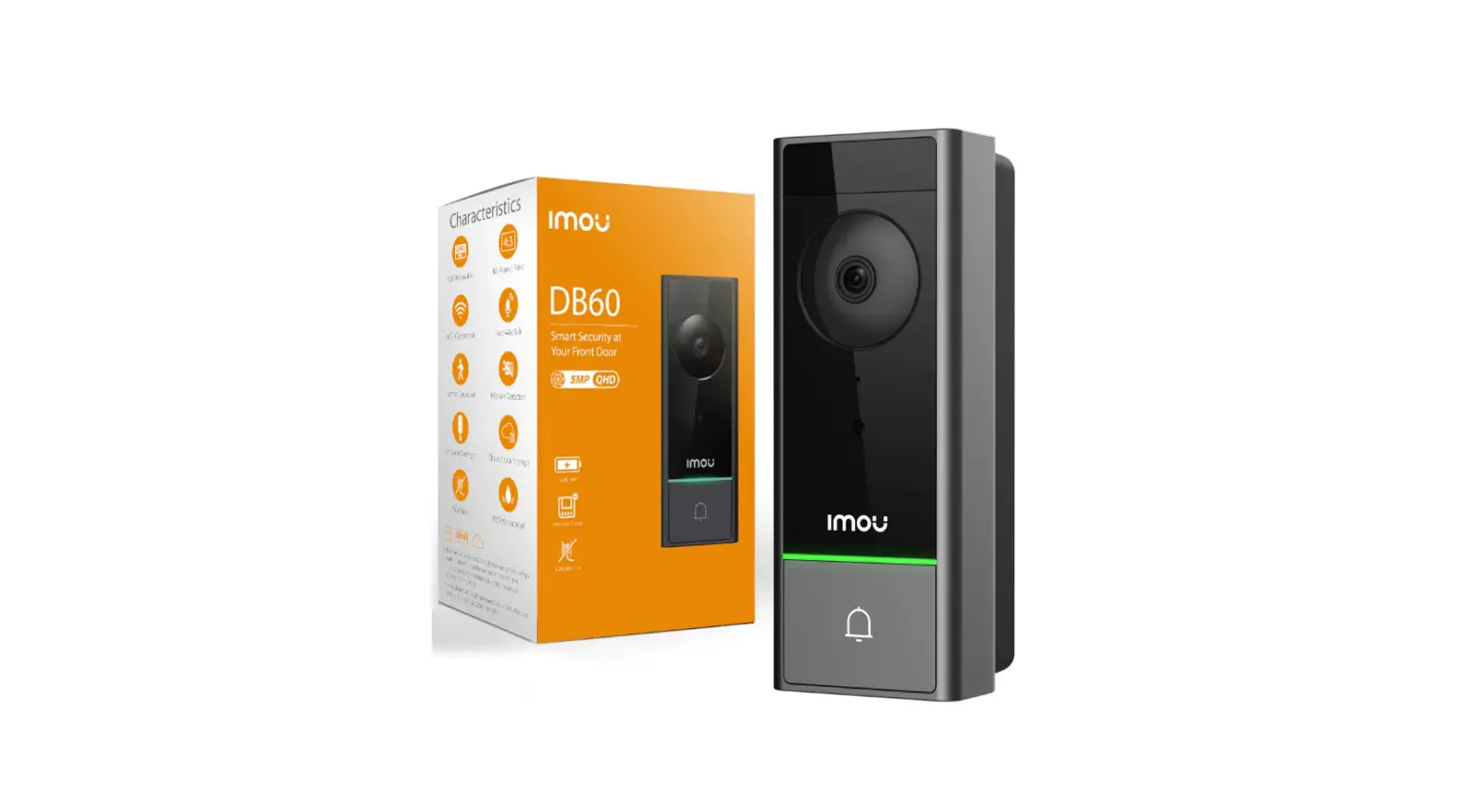
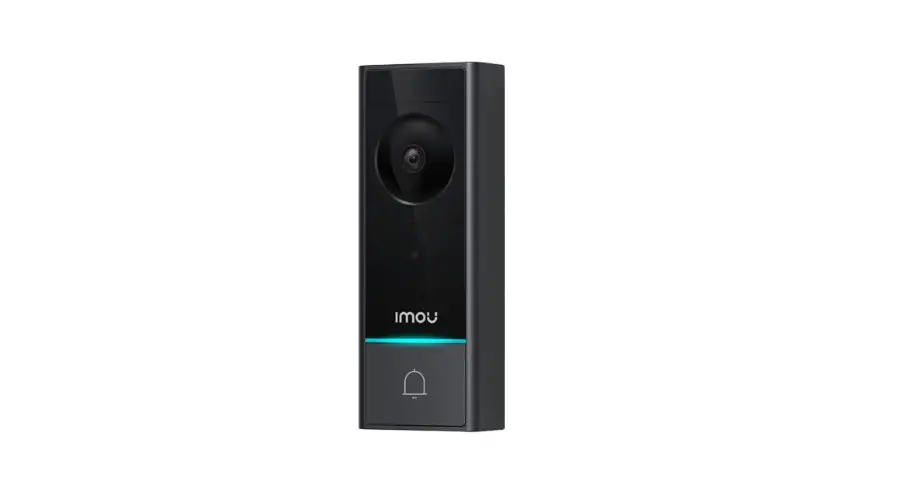
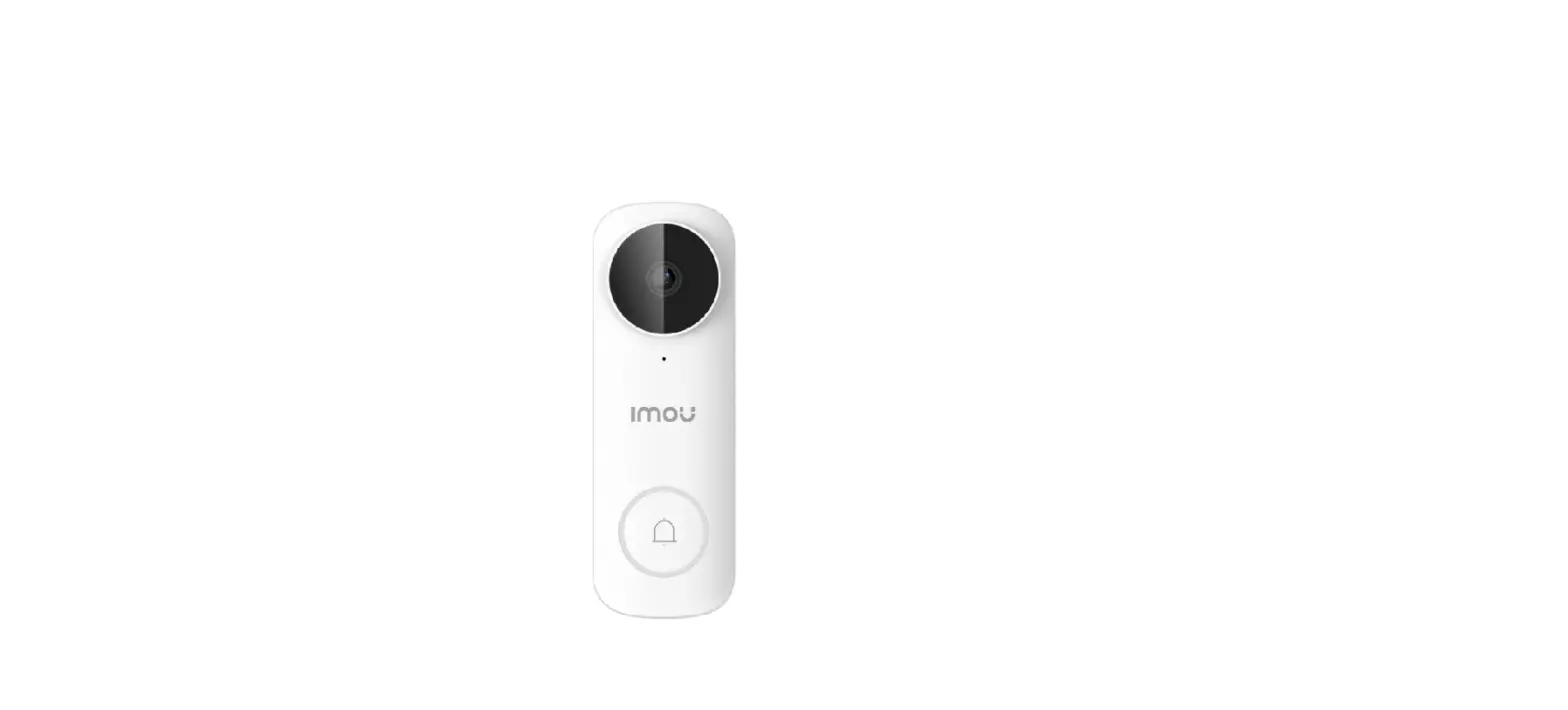
DB60 5MP WiFi Video Doorbell
Welcome
Thank you for choosing IMOU.
We are devoted to providing you easy smart home products. If you have problems using the product, please contact our service team at [email protected].
Package Contents
 | 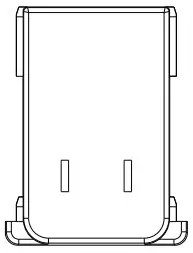 |  |
Doorbell Chime ×1 | Power Pin ×1 | Quick Start Guide ×1 |
Overview
Front View
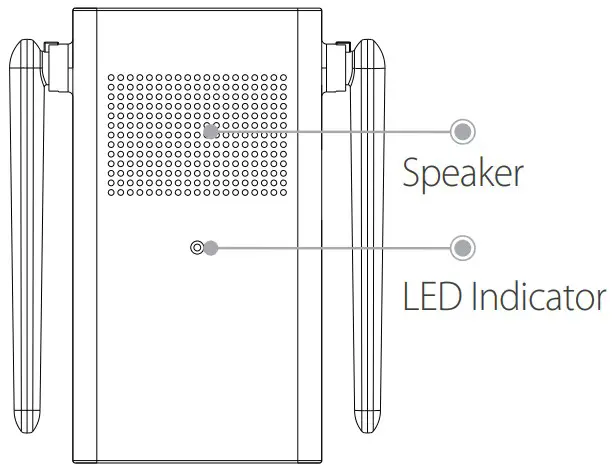
| LED Status | Device Status |
| Solid green | – Operating correctly – Setup successful |
| Flashing green | Ready to set up the device |
| Solid red | – Booting/Restarting – Resetting to factory default |
| Flashing red | Network disconnected |
| Flashing green and red | Updating firmware |
| Off | Power disconnected |
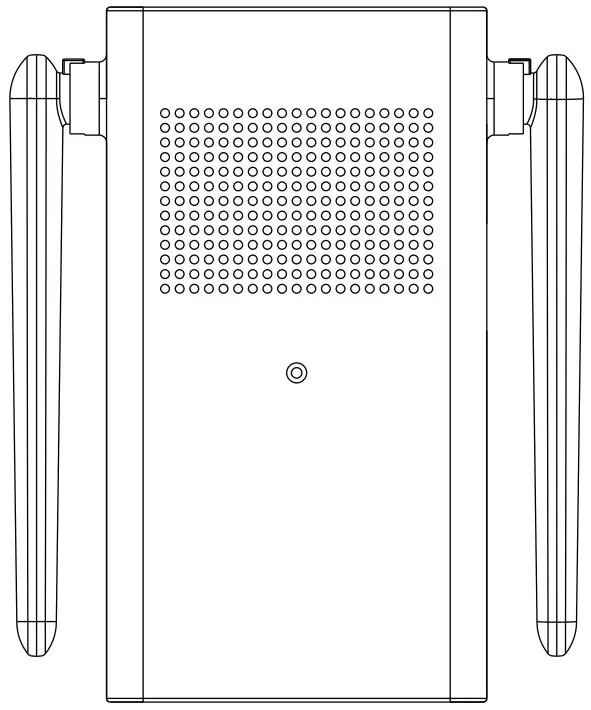
Back View | Side View |
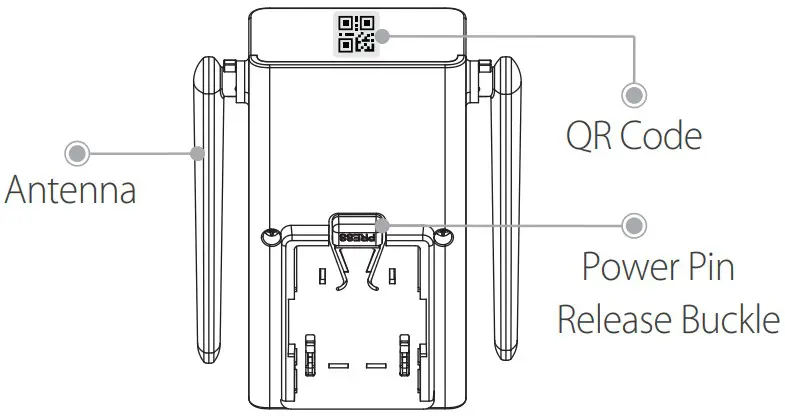 | 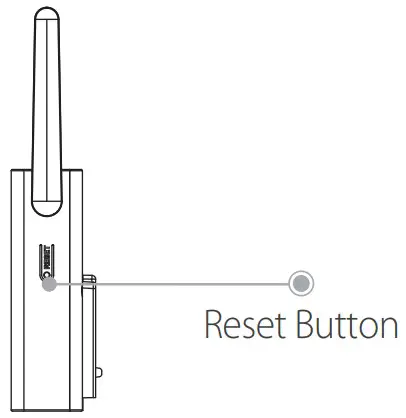 |
How to reset the chime Press and hold the reset button for 10 s until the LED turns solid red.
Function of the QR code Scan the QR code with Imou Life App to add the device to your account.
Please keep it well for future use.
Installation
Step 1
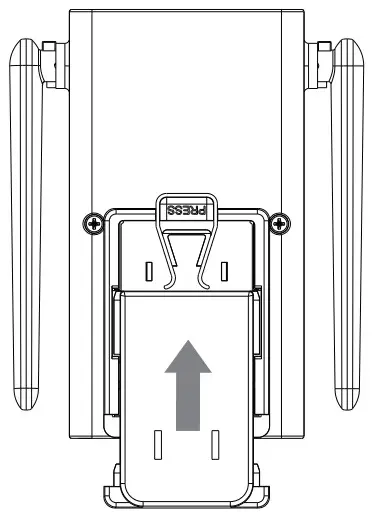
Place the power pin onto the rear side of the chime, and then press it down to fit the two parts together.
Step 2
Slide the power pin upwards to secure it. A click sound will indicate that it is locked in.
Step 3 (optional)
Install the video doorbell. For details, please refer to the doorbell guide.
Step 4
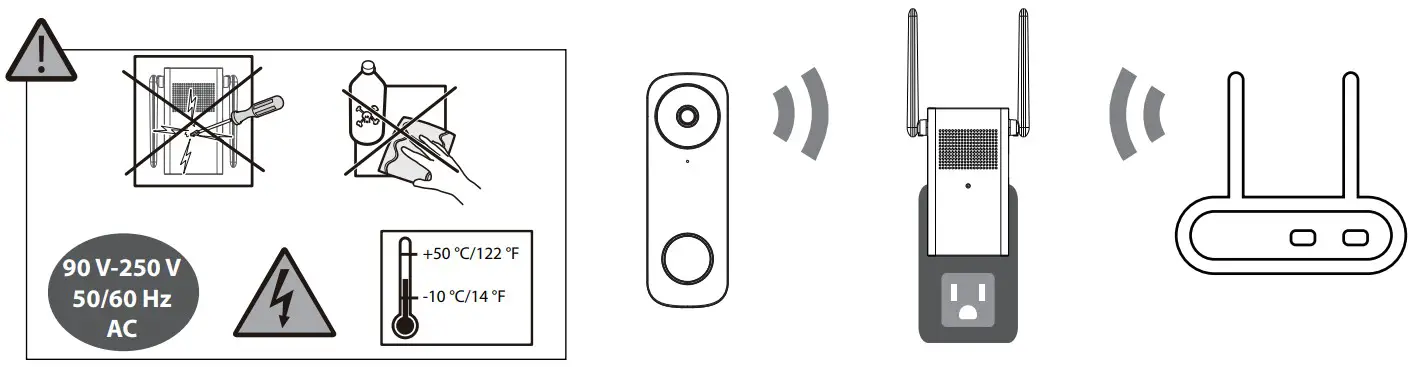
Plug your chime into the power outlet where you can hear the ringtone easily, such as the hallway. It is recommended that the chime is located between the Wi-Fi router and the doorbell. Place them as close to each other as possible for optimal performance.
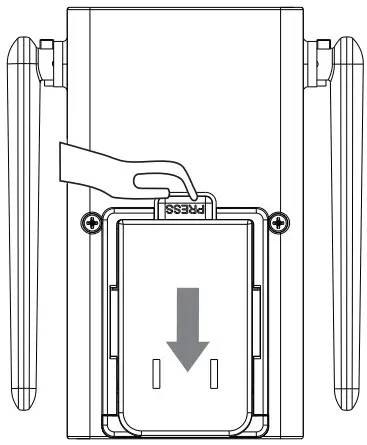
How to detach the power pin from the chime
Press the release button and meanwhile slide down the power pin to remove it.
Set Up the Device
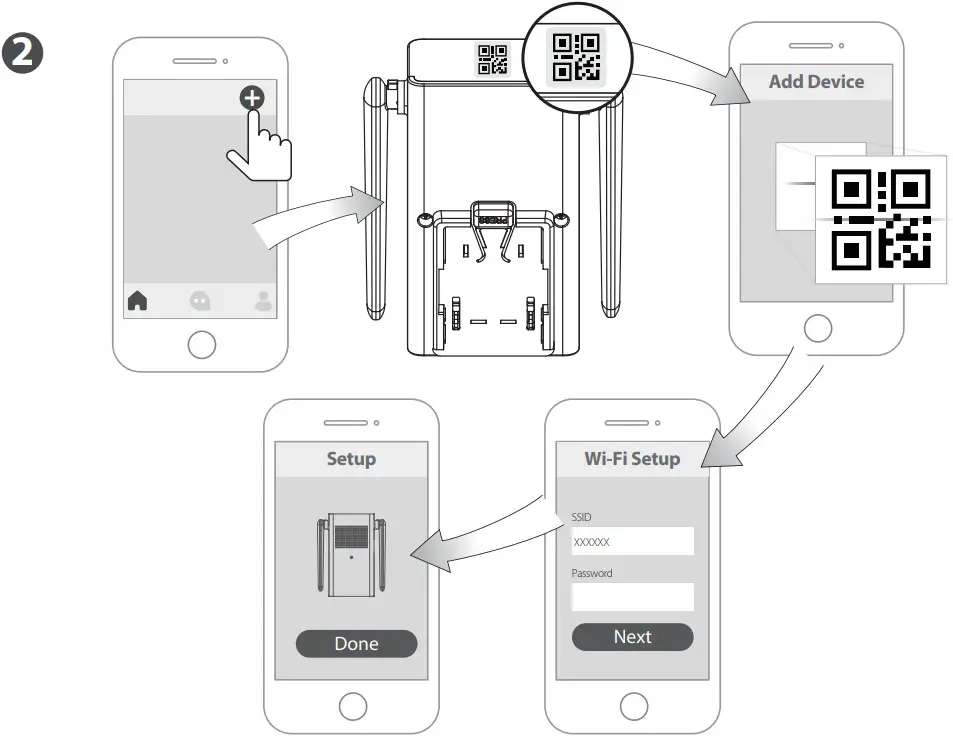
Scan the QR code below, search for “Imou Life” in the app store, or navigate to Support > Download Center in our official website to download and install the app.
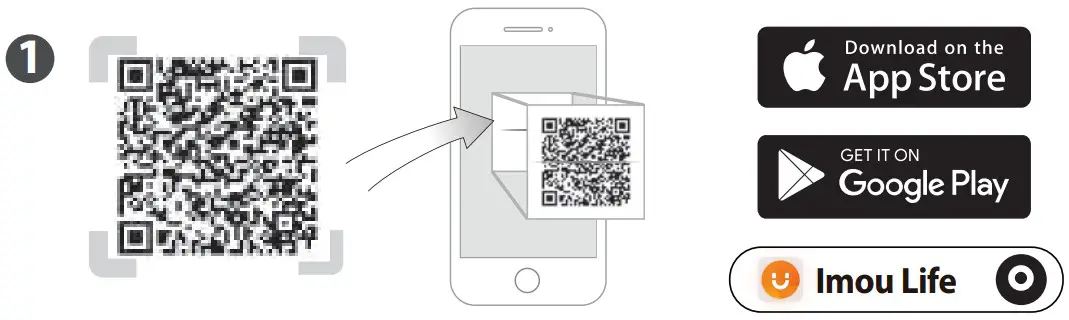
If you already use the app, make sure that you are using the latest version.
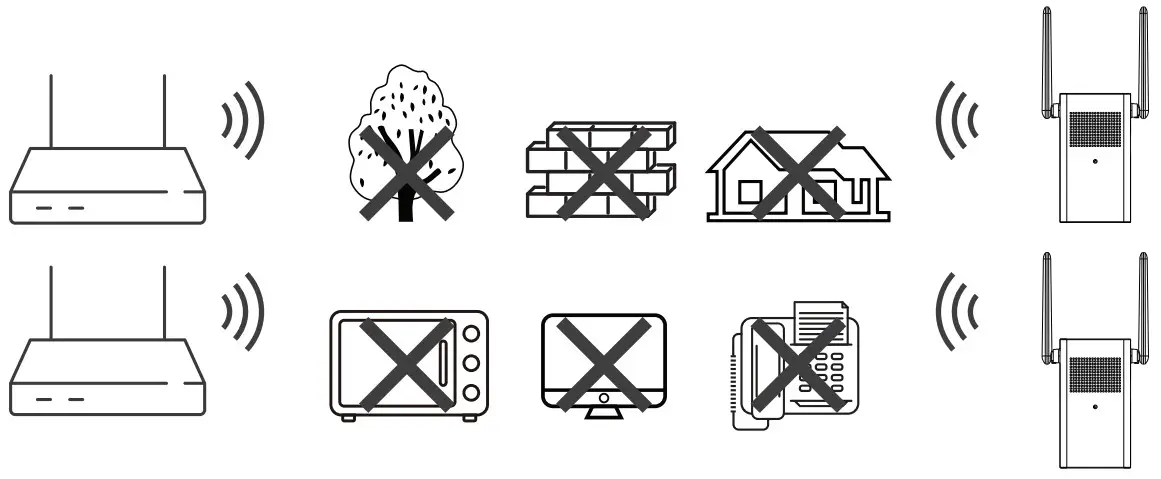
To ensure the best possible wireless performance, please make sure there are no obstacles and electromagnetic interference between the device and the router.
The app will guide you through the setup process.
Please link the chime to your doorbell on the device setting page of the doorbell; otherwise, your chime will not respond to the doorbell.
Troubleshooting
– Ensure your smart phone and the device are within range of your Wi-Fi router (recommended to be no more than 5 m/16 ft). If the location where the chime is installed has a weak signal, consider adding a Wi-Fi extender between your router and the chime.
– Ensure the LED on the device is flashing green before setup.
– Reset the device, and then set it up again.
– Ensure the chime has been linked to the doorbell. On the device setting page of the doorbell, tap Link Chime, select the correct chime type, and then follow on-screen instructions.
– Ensure the chime is online and Audio Alert toggles on. On the device setting page of the chime, tap Chime Sound to find Audio Alert.
– If Snooze Alert (in Chime Sound) toggles on, the chime ringing within the snooze schedule will be silenced.
– After setting up the chime, on its setting page, tap Quick Setup, and then follow on-screen instructions.
– Switch the WLAN of the doorbell to the one from the chime.
– Install the chime between the doorbell and the router, such as the hallway.
– Check if your network is stable and at least 2 Mbps of the bandwidth is required.
– If the LED is flashing red, check whether the router can connect to the Internet. If the network is connected, restart the device. If the device is still offine, reset it.
You can update the firmware through the “Imou Life” app in Devices Settings > Firmware. It shows a red dot when an update is available. The chime will restart automatically when it finishes update.
For more questions, please scan the QR code or visit: https://en.imoulife.com/support/help

http://www.imoulife.com/web/support/help


 @imouglobal
 [email protected]
 https://en.imoulife.com
 Imou | Enjoy Smart Life