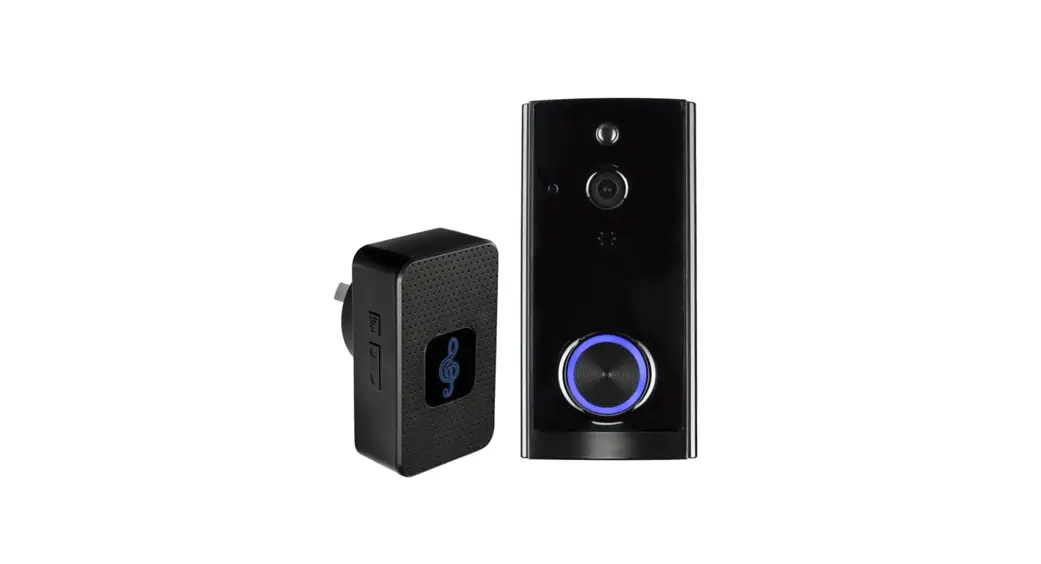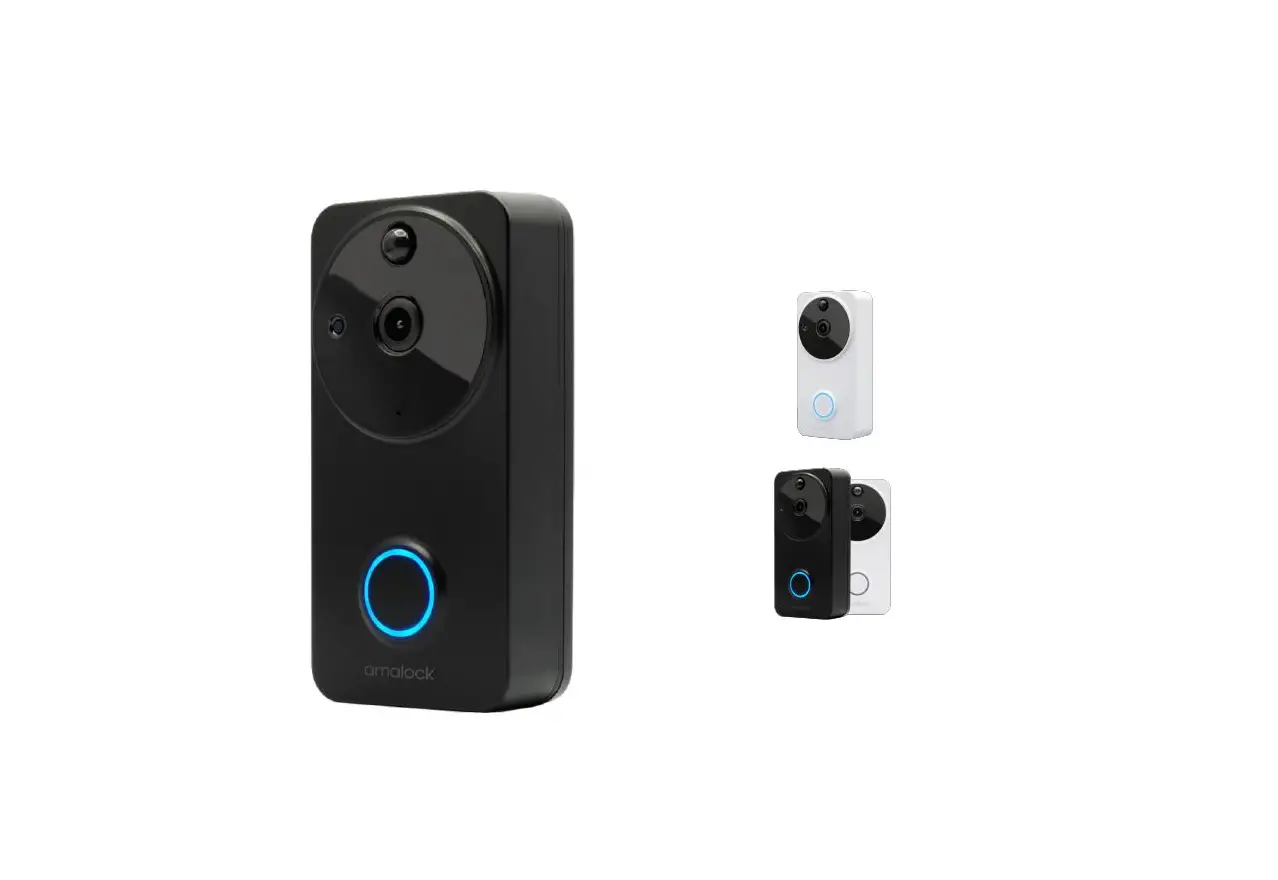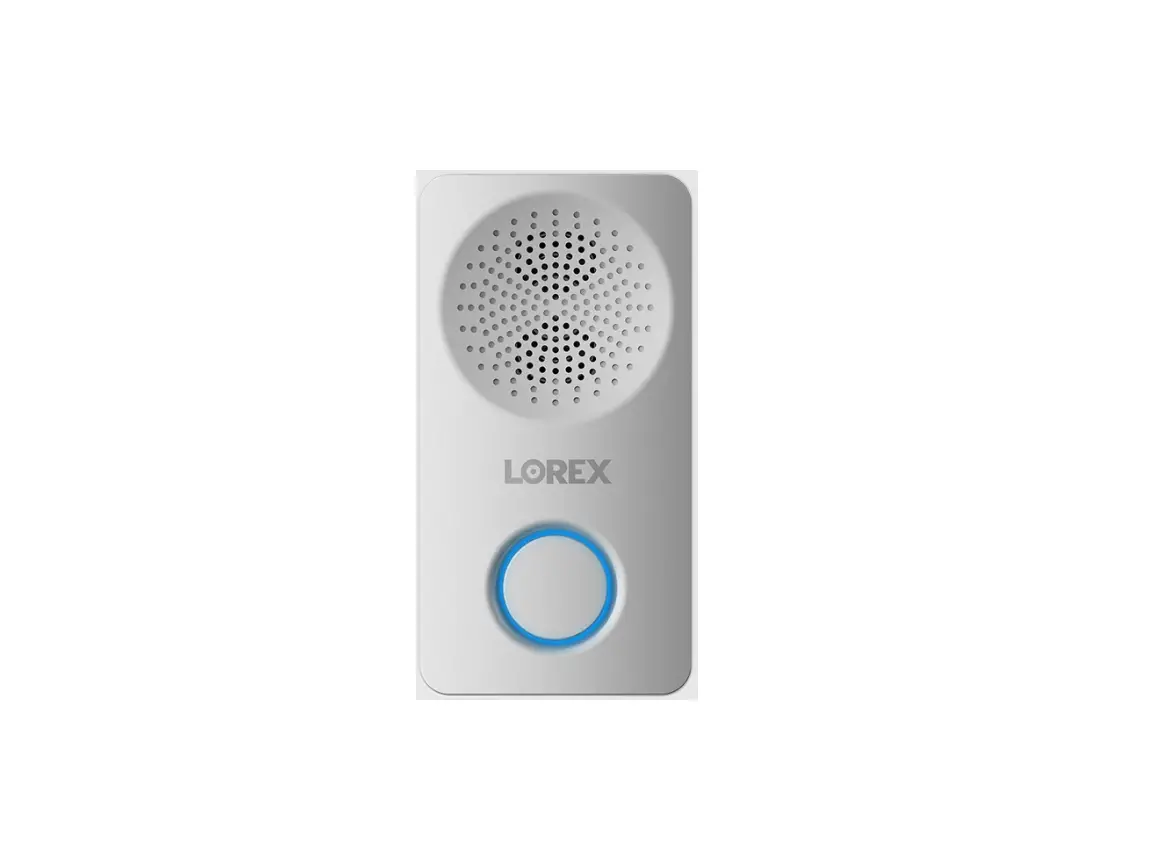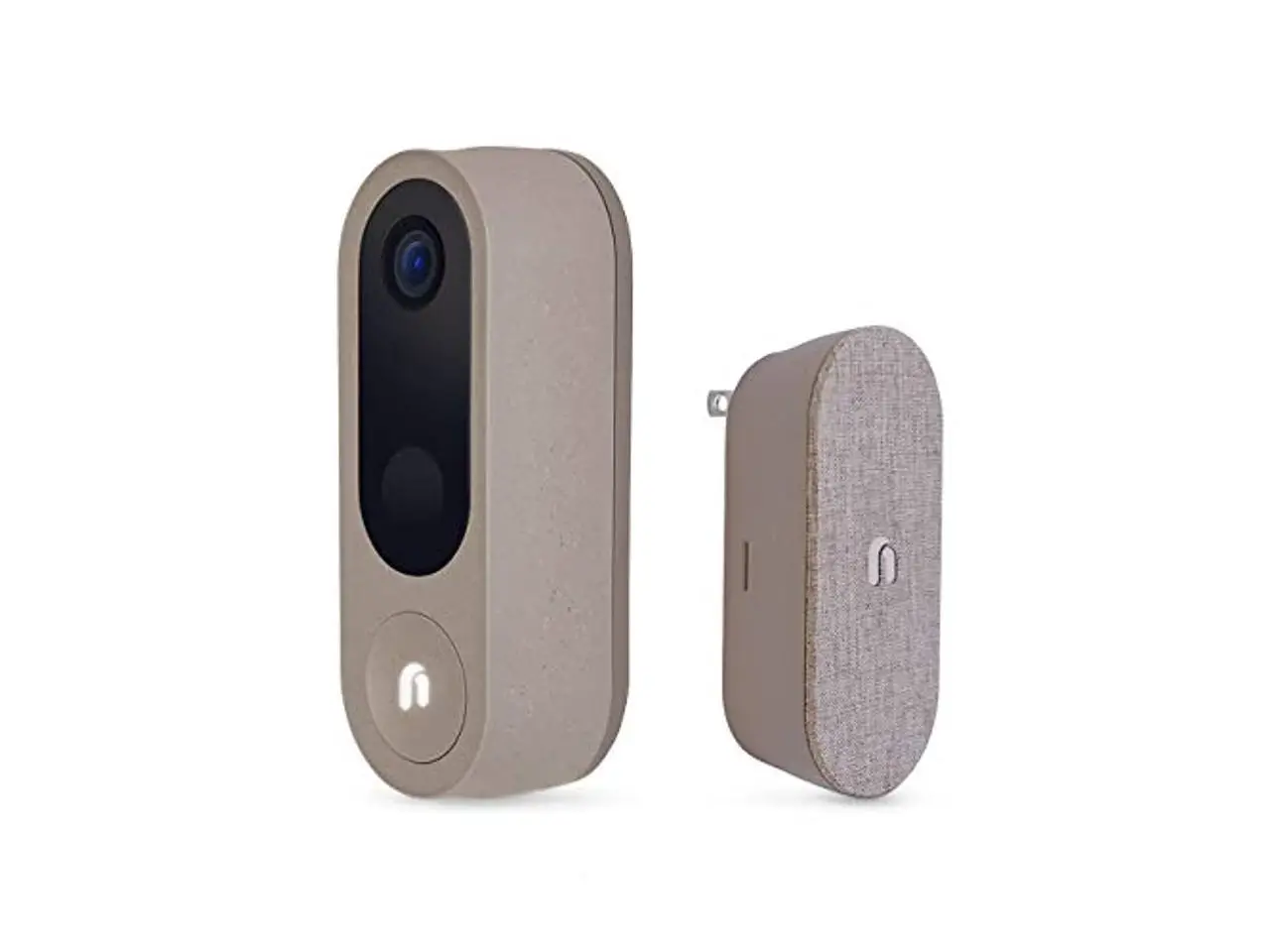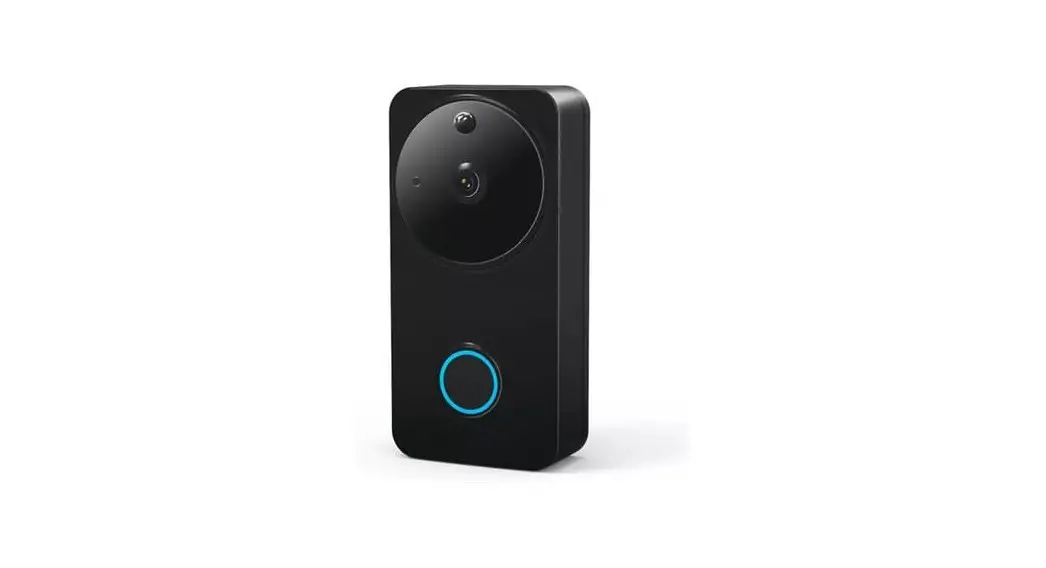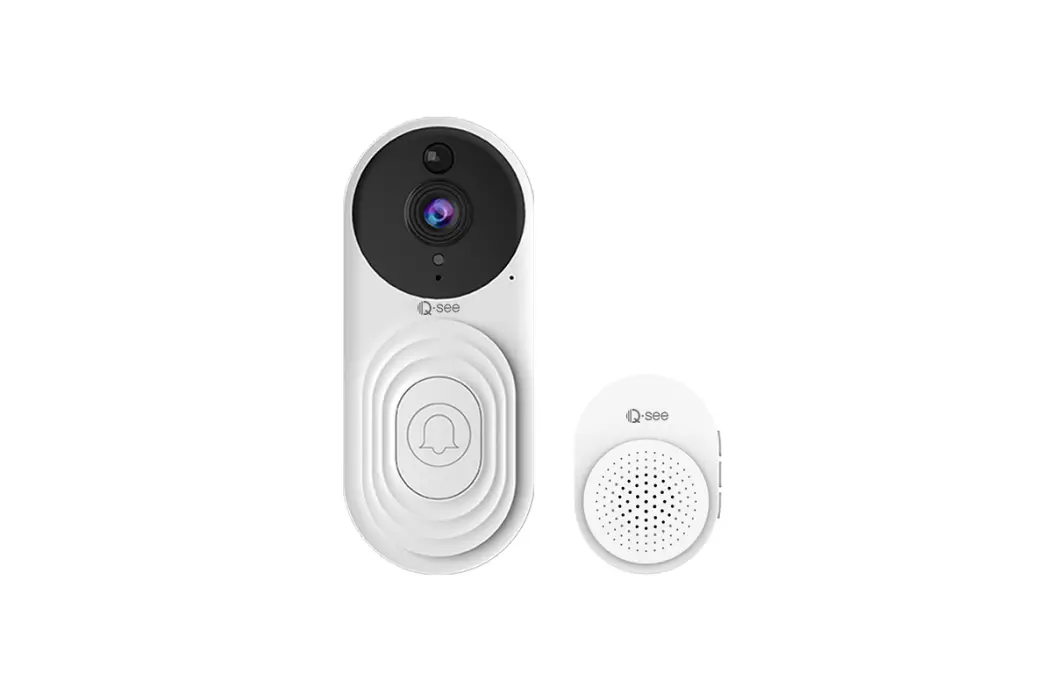
Q-see Miles 2MP WIFI Video Doorbell with Chime Instruction Manual

What’s Include?
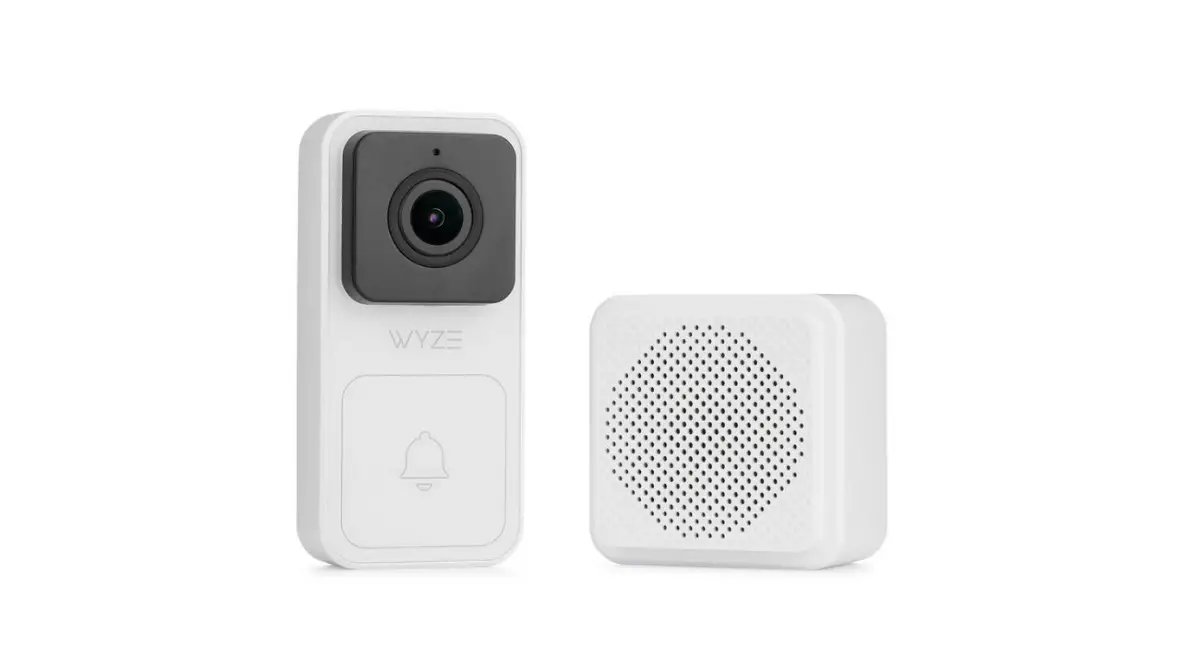
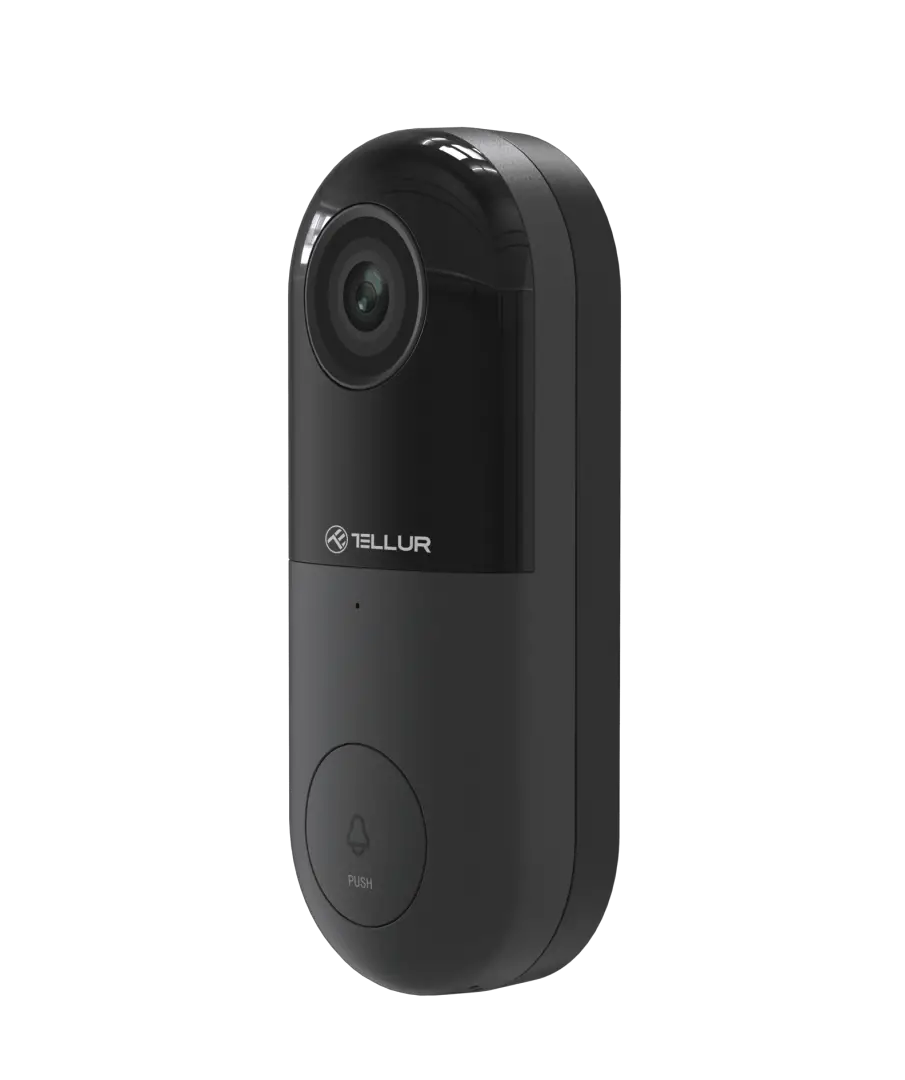
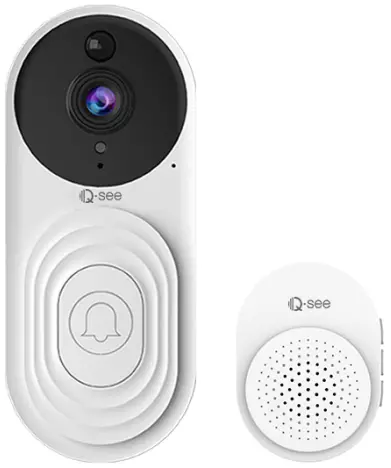
- 1X Miles

- 1X Mounting Brackets

- 1X Adhesive Stickers

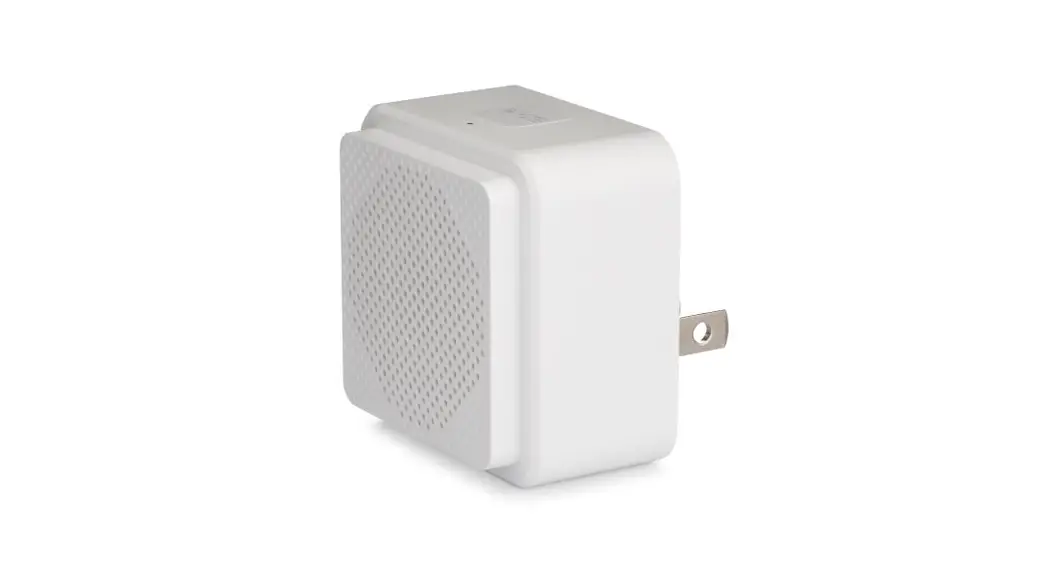
- 1X Chime

- 1X USB Cable

- 1X Location Stickers

- 1X Screw Kit

- 1X Manual Instruction

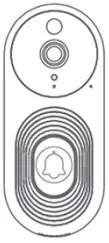
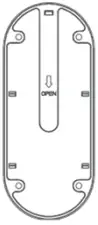
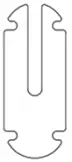
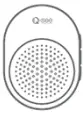
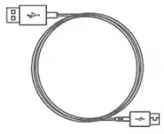
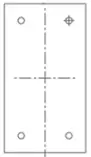
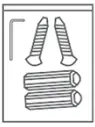
NOTE:-After unboxing, check that the console is intact and fully equipped.
Get to Know Your Doorbell
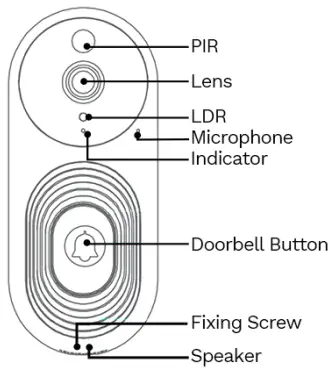
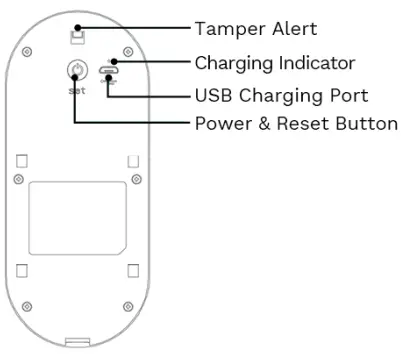
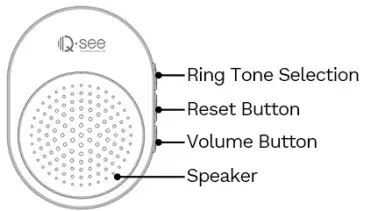
Specification
| Model | Miles | |
| System | Image Compression | H.265 |
| Resolution | 1080P ©15fps | |
| Lens | Fixed 3.0mm | Fixed 3.0mm |
| LED | 8pcs Invisable IR LED | Night Vision 5-7m |
| Connect | Wireless Network | 2.4GHz(lEEE 802.11b/g/n) |
| WiFi Rate | 150Mbps(Max) | |
| Wired Network | Scan QR Code | |
| PIR | Sensing Distance | 3M |
| Sensing Angle | 120° | |
| Sensitivity Adjustment | Support | |
| Power Supply | Lithium Battery | 5000mAh |
| Chime | AC110-240V | |
| Chime | Ringtone | ?10 Chord Ringtone optional |
| Volume | 5 Volume Level adjustable | |
| Features | Motion Detection/PIR Detection/Tamper Alert/Wandering Stay Alert/Bp-VF | |
| Storage | Local Storage | Not Support |
| Cloud Storage | Qsee Cloud | |
| Interface | Reset | Support |
| Power Input | 5V/1A(Micro USB) | |
| Other | Version of Phone | Android 5.0 or above, IOS 9.0 or above |
| General | Working Temperature | ‘-10° C to 45° C |
| Working Humidty | 90% or less | |
| Material | Plastic-ABS | |
| Dimensions | 140 x 60 x 31mm(Camera); 55 x 45 x 74mm(Chime) | |
| Net Weight | 380g |
How to Set up the Device?
Step 1: Doorbell and Chime Paring
- Please confirm that the doorbnell and chime are on the same network seg- ment.
- Press the set button on the back of the doorbell for 3 to 5 seconds to turn on the device. (The front doorbell button and status indicator both light up)
- Plug the Chime into a outlet. Hold down the Reset button (1) for 3 seconds, or until the Chime twice emits the sound “Ding Dong.”
- Press the doorbell button. A Ding Dong sound signals that the connection is complete.
NOTE: Please unpack, remove the mounting bracket, and charge the doorbell prior to setting up.
Indicator Light
| Instructions | LED definition |
| Stay red light ON | Stay red light ON |
| Slow flashing red light | Device is waiting to connect to WiFi |
| Fast flashing red light | Receive QR code information |
| Stay blue light ON | Device is connected to WiFi and App successfully |
Step 2: Install Qsee-Smart Home APP to Remote Access
Search for Qsee-Smart Home in App strore or Scan the QR code to download. Register your app account (Login with name and password which will require email verification)


Step 3: Device Connection
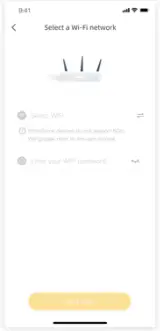
Make sure your phone is connected to WiFi.
- Completing the steps 1 and 2 first.
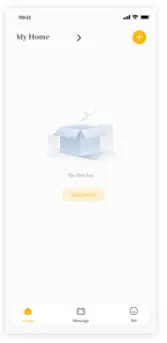
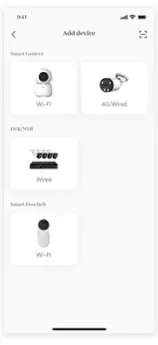
- Launch App, click “
- elect Smart Doorbell. ” to add device.
- Connect doorbell to same WiFi as your phone and proceed the steps
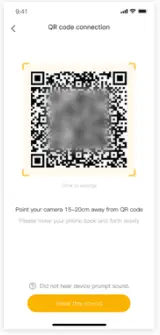
- Reset the doorbell by pressing the reset button for 1 second.
- Scan the QR code on your App with doorbell camera lens.
- The doorbell will be and confirm the configuration. Please wait for the device voice promt. to completed pairing process


Installation
The device can be mounted to the wall using an adhesive sticker on the bracket. For a more precise fixation, we advise using screws to secure the bracket to the wall as shown in the below picture.
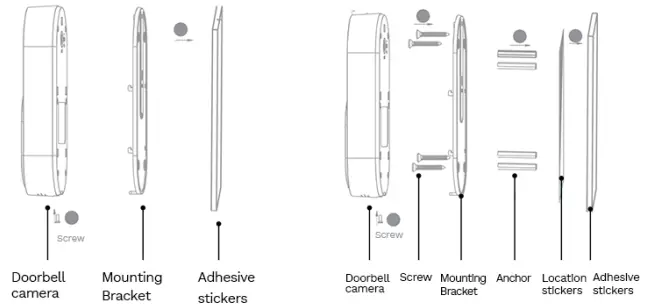
NOTE 1: Please make sure you have completed all the previous set up steps before installation
NOTE 2: Before installation, please check the power on Q-see Smart App to ensure that there is sufficient power to keep the doorbell runing property.
FAQ’s
Q: Why does the indicator light not illuminate?
A: Please charge the doorbell.
Q: Why can't the device connect with WiFi?
A: This doorbell camera support 2.4GHz WiFi only, not 5GHz. Please make sure the WiFi signal for the router and the camera is connected within the coverage area.
Q: Can you talk to the person who is on the camera? And will alert you via mobile device?
A: Yes, your phone alerts you when someone is at your door via Qsee App. You can respond through your phone.
Q: What is the battery's lifespan?
A: Battery life depends on how active your doorbell are. On busy or crowded doors, you will obtain at least 5 months of battery life with the default settings. You should be able to get a year of battery life overall.
Q: If I already use Qsee cameras, will this doorbell simply be an addition to my present app settings?
A: Yes, you can use the Qsee-Smart Home App to easily add the Qsee Video Doorbell to your current setup. Simply select Smart Doorbell by clicking on the plus icon in the top right corner of the app.
If you encounter any troubles in product information, product installation and use, please email us at [email protected]
Notification of Compliance
FCC Statement
This device complies with Part 15 of FCC rules. Operation is subject to the con- dition that this device may not cause harmful interference.
NOTE:- This equipment has been tested and found to comply with the limits for a class B digital device, pursuant to part 15 of the FCC rules. These limits are designed to provide reasonable protection against harmful interference in a residential installation.
CE Declaration
Qsee declares that this device in compliance with essential requirements and other relevant provisions of EMC directive 2014/30/EU.
RoHS Compliance declaration
Qsee products delivered to our customers confirm to the RoHS requirements, in which six banned substances are not detected or are under the limitation. The Restriction of Hazardous Substances Directive (EU) 2015/863 and (EU)2017/2102 amending Annex II to Directive 2011/65/EU. This declaration is based on Qsee’s understanding of the RoHS directive and knowledge of the materials that go into products.
Warranty
This product comes with 2-year warranty under certain conditions. Learn more:
https://www.q-see.com/policies/refund-policy
NOTE: If you are not satisfied with Qsee product purchase, we suggest you to reset the camera and return it under specific conditions.
Congratulations!
Your security camera is ready to use. Thank you for choosing Qsee as your security partner. Want to know more about Qsee products?
 @Q-See
 @Q_See
 @QSEESECURITY