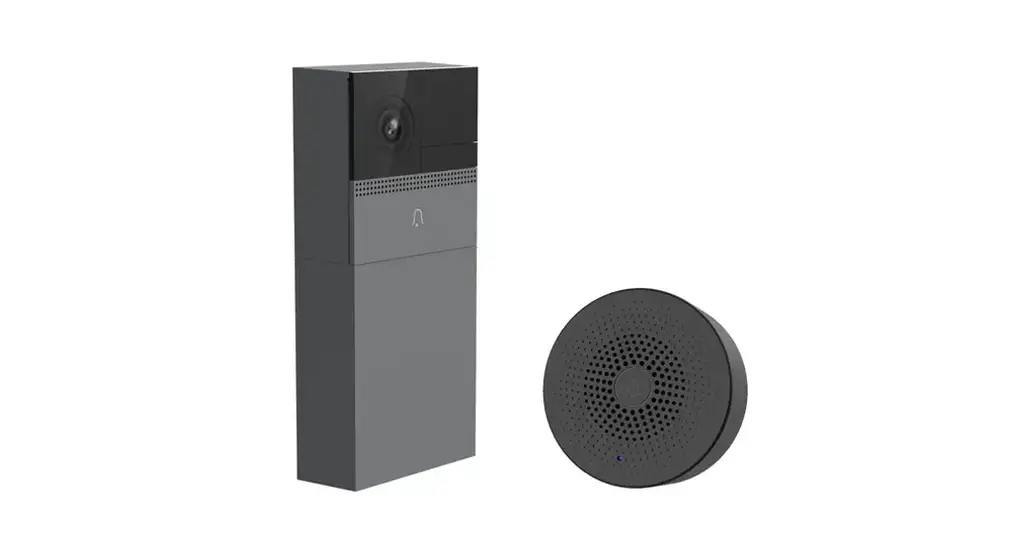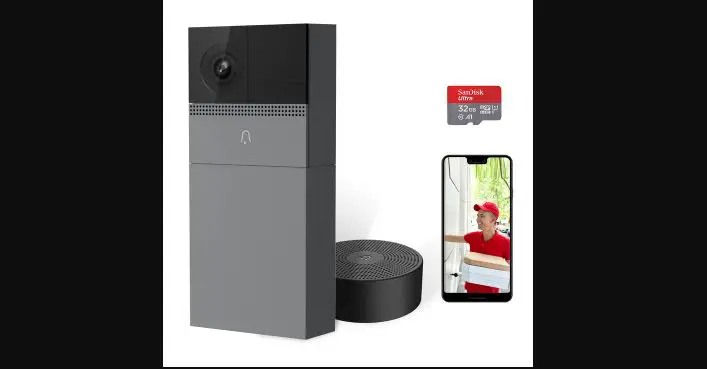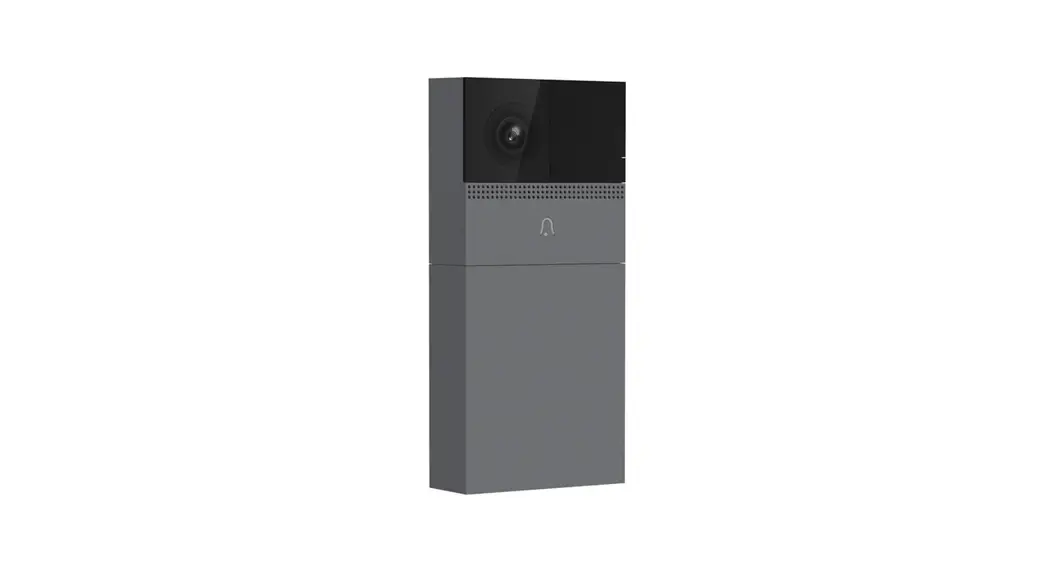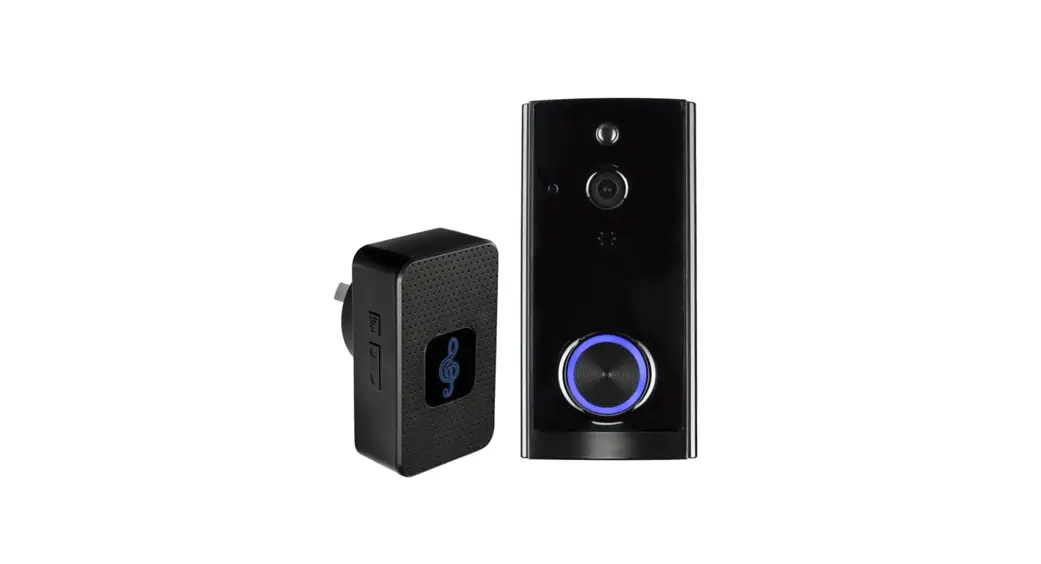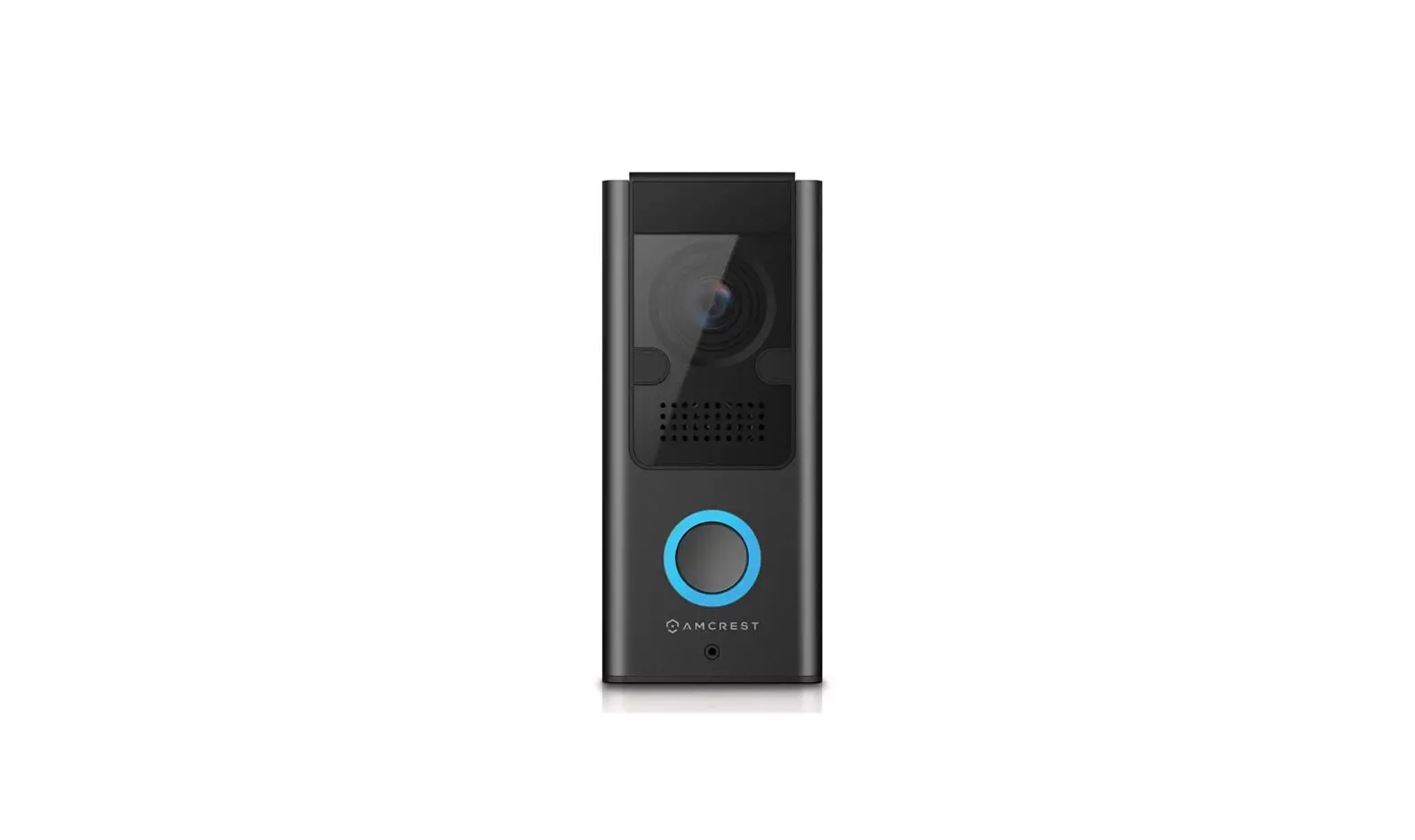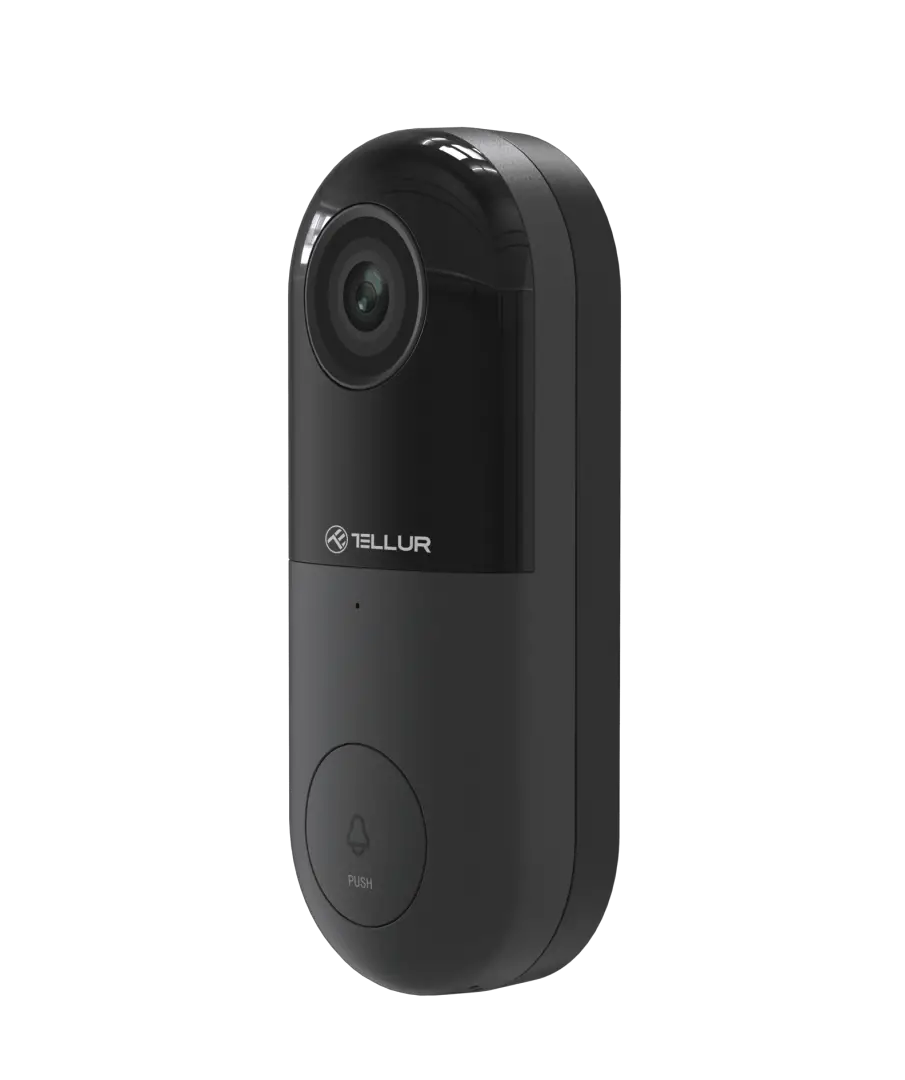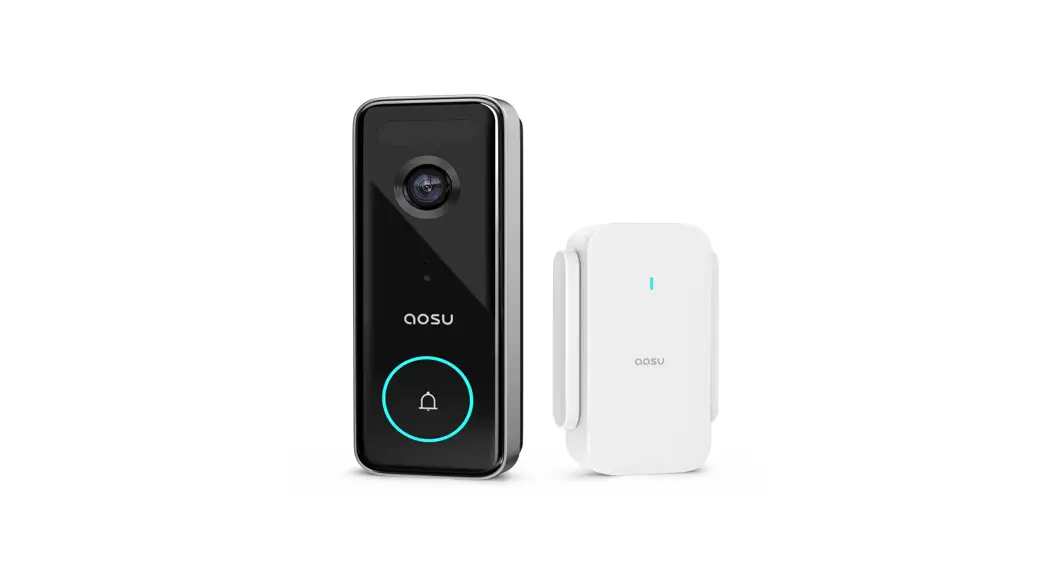

B1
. . . . . . . . .
QUICK GUIDE
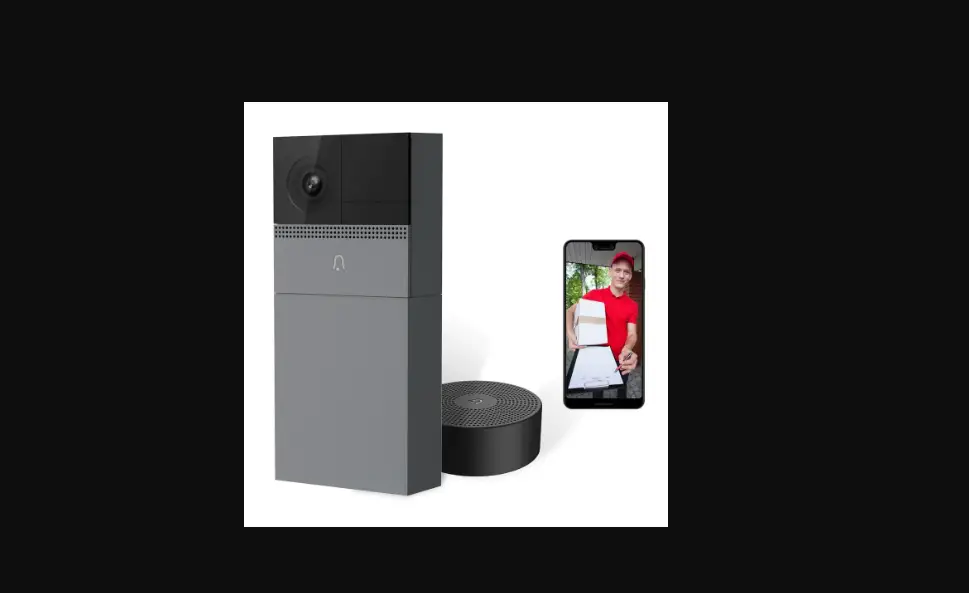
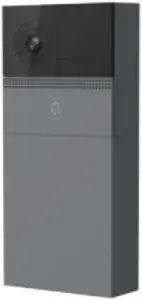
Smart Wi-Fi Video Doorbell
Compatible with Amazon Alexa
Thank you for purchasing Laxihub smart home product. Get started using your new devices by downloading Laxihub, one convenient app that manages everything straight from your phone or tablet. Easily connect to your home WiFi and control multiple devices from the touch of your fingertips.
1. Contents
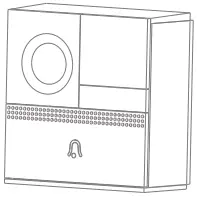
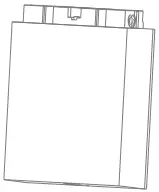
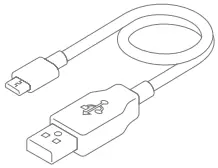
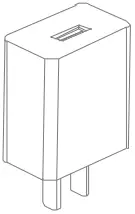
B1 Battery box USB cable AC adaptor
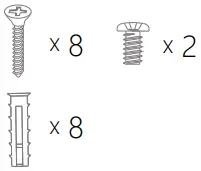
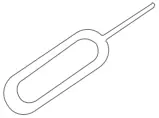
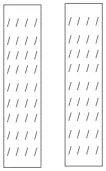

Screws package Pin Double sided tape Quick Guide
2. Description
B1 main body
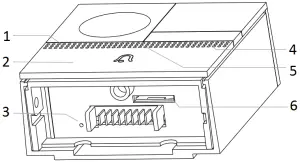
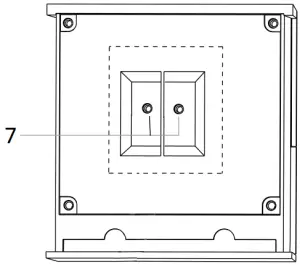
- Microphone
- Doorbell button
- Reset 1
- Status light
- Speaker
- SD card slot
- External power port
Battery box
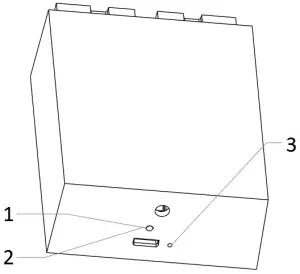
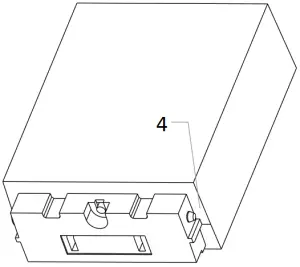
- Charging indicator
- Mini USB
- Reset 2
- Bayonet lock
3. Download the App
Download the Arenti from App Store or Google Play.
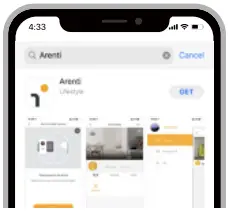
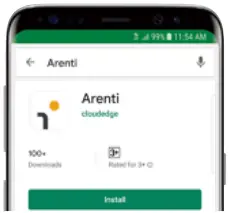




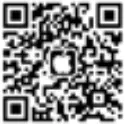
Scan and download Arenti App for free
4. Register an account
In order to receive notification in time, please click “Allow”.
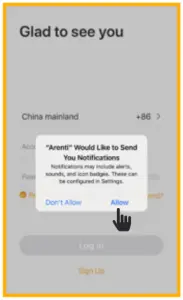
Open the Arenti App. If you are a new user, tap create new account and follow the prompts to complete registration.
Note: Please agree with the Privacy Agreement.
5. Pair your device
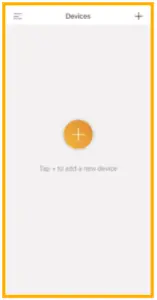
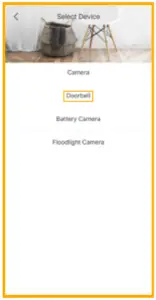
Click  to add a new device, and select “Doorbell”.
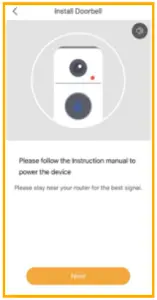
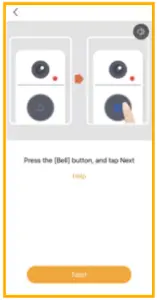
Power on your doorbell, you will hear a welcome sound. If the status light is red and blinking (once per second). The doorbell is successfully powered on and ready for pairing.
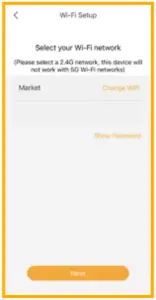
Enter the Wi-Fi password and tap Next to proceed. If needed, you can tap Change WiFi to switch to another suitable WiFi network for your doorbell.
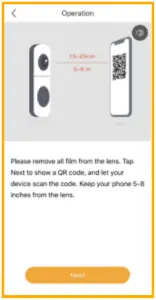
Press “Next” to scan QR code using your doorbell. Keep 5~8inches away from your mobile screen.
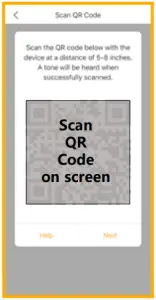
Press “Next” after hearing a sound from your doorbell.
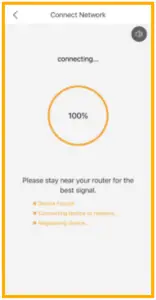
The Arenti App will start to connect to the doorbell automatically as indicated by the status light blinking rapidly and then staying solid blue.
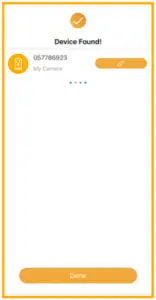
Once the pairing process is complete, a page showing “Device Found!” will appear.
You may choose to edit the device name or assign the device to a dedicated room before tapping Done to finish the pairing process.
Once your camera is paired, your camera can be viewed at anytime from your smartphone as long as there is Internet access.
If no device is found and the pairing process failed, please check below instructions:
1) WiFi network is 2.4GHz.
2) WiFi password entered is correct and the same WiFi network is used for the mobile device.
3) Arenti device is in pairing mode.
4) Check your WiFi for network activity.
6. Live viewing
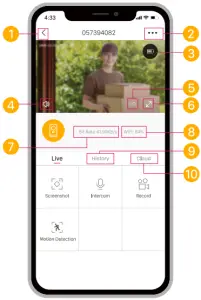
(1) Return
(2) Setting menu
(3) Battery status
(4) Volume on/off
(5) HD/SD switch
(6) Full screen display
(7) Stream bit rate
(8) WiFi signal strength
(9) Notification history
(10) Cloud storage service
7. History
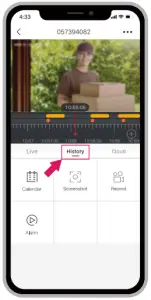


Tap to capture a photo/video during live view or playback
Note: the photo and video are saved to the internal memory of your smartphone

Tap to enable talking
Tap to enable motion detection

Select a data to review your playback from SD card

Tap to search video clips by date
8. Installation
Before choosing your preferred location, check the WiFi strength/coverage to ensure the doorbell is fully functional.
Battery powered mode
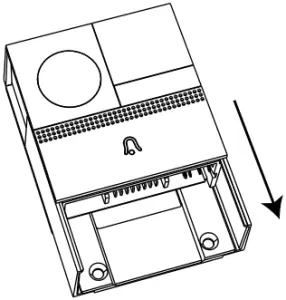
Step 1 Remove the bracket from B1.
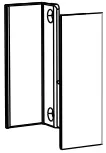
Bracket
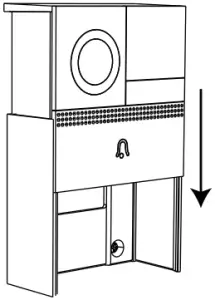
Step 2 Fix the bracket on the wall with screws and insert the doorbell into the bracket.
Step 3 Insert the battery box into the doorbell.
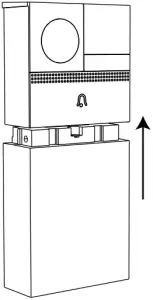
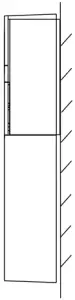 Side view
AC powered mode
Step 1 Remove the bracket from B1.
Bracket
Step 2 Connect AC power with your wires.
12~24V AC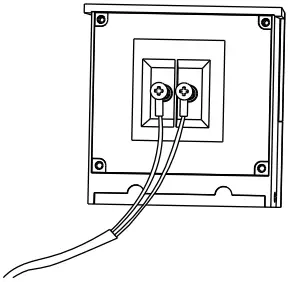
Step 3 Fix the bracket on the wall with screws and insert the doorbell into the bracket.
Side view
Double sided tape mode
Step 1 Attach the double sided tape to both sides of the bracket
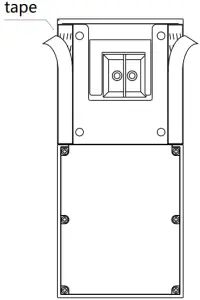
Step 2 Stick the doorbell to a clean flat tightly.
9. Trouble shooting
| Status Light |  Blink: Currently connecting Blink: Currently connecting |
 Solid on: Camera running correctly Solid on: Camera running correctly | |
 Blink: Awaiting WiFi connection and Currently connecting (faster blinking) Blink: Awaiting WiFi connection and Currently connecting (faster blinking) | |
 Solid on: The camera or network is abnormal Solid on: The camera or network is abnormal |
| What can I do if I fail to pair my Laxihub device? | 1. Check your mobile device is connected to a 2.4GHz WiFi network. 2. Check WiFi password entered is correct and the same WiFi network is used both for mobile and pairing. 3. Check Laxihub device is in pairing mode, the status light blinks red slowly. (1 time/s) |
| Does our current Laxihub device support 5GHz wireless? | No – Laxihub device currently does not support 5GHz wireless connection. |
| How to change the camera network to another router? | First reset the device or remove it on the Arenti App, then configure the device again by the App. |
| Why doesn’t the device identify the SD card? | It’s recommended to plug SD card after power cut. Confirm whether the SD card is normally available and the format is FAT32. And the SD card can’t be identified when the Internet environment is not good. |
Please visit our official website for further assistance.

FCC NOTE
This device complies with Part 15 of the FCC Rules. Operation is subject to the following two conditions:
1- this device may not cause harmful interference,
2- this device must accept any interference received, including interference that may cause undesired operation.
The manufacturer is not responsible for any radio or tv interference caused by unauthorized modifications or change to this equipment. Such modifications or change could void the user’s authority to operate the equipment.
This equipment has been tested and found to comply with the limits for a Class B digital device, pursuant to part 15 of the FCC Rules. These limits are designed to provide reasonable protection against harmful interference in a residential installation.
This equipment generates, uses and can radiate radio frequency energy and, if not installed and used in accordance with the instructions, may cause harmful interference to radio communications. However, there is no guarantee that interference will not occur in a particular installation. If this equipment does cause harmful interference to radio or television reception, which can be determined by turning the equipment off and on, the user is encouraged to try to correct the interference by one or more of the following measures:
– Reorient or relocate the receiving antenna.
– Increase the separation between the equipment and receiver.
– Connect the equipment into an outlet on a circuit different from that to which the receiver is connected.
– Consult the dealer or an experienced radio/TV technician for help.
RF warning statement:
To maintain compliance with FCC’s RF exposure guidelines, this equipment should be installed and operated with a minimum distance of 20 cm between the radiator and your body.
© 2020 Laxihub. All rights reserved. All trade names are registered trademarks of respective companies Apple, the Apple logo, iPhone are trademarks of Apple Inc. registered in the U.S. and other countries. Google, the Google logo, Android are trademarks of Google Inc. App Store is a service mark of Apple Inc. Google Play is a service mark of Google Inc.
Laxihub Europe
Zandsteen 50, 2132 MR Hoofddorp, The Netherlands
 Laxihub Smart Home Sicherheit – Laxihub By Arenti