
USER MANUAL
iGS130S GPS CYCLING COMPUTER
www.igpsport.com
WUHAN QIWU TECHNOLOGY CO., LTD.
| Power on | Press left button |
| Record/Pause | Press the left button to Record or Pause |
| Switch display | Press the right button to switch data |
| Save activity | Hold the right button for more than 2 seconds while recording. |
| Power off | Hold the left button for more than 2 seconds. |
| Forced shutdown | Hold the left button for more than 10 seconds. |
| Setting mode | Hold the right button for more than 2 seconds while not recording. |
| Save setting | Hold right button for more than 2 seconds while setting. |
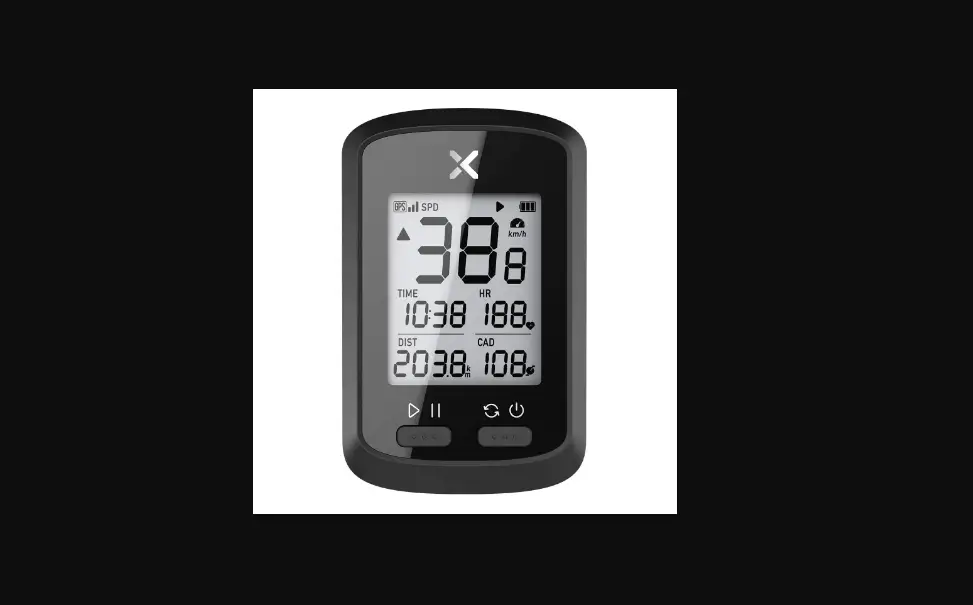
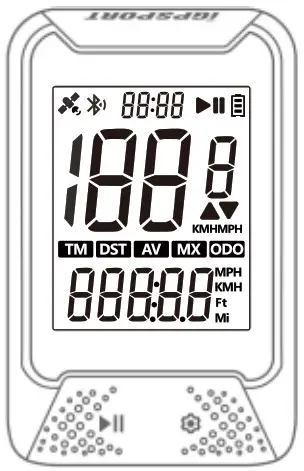
STATUS ICONS
 | Satellite signals |
 | Bluetooth |
 | Recording |
 | Pause |
 | Battery |
 | Speed arrow(The speed is greater or less than the average speed.) |
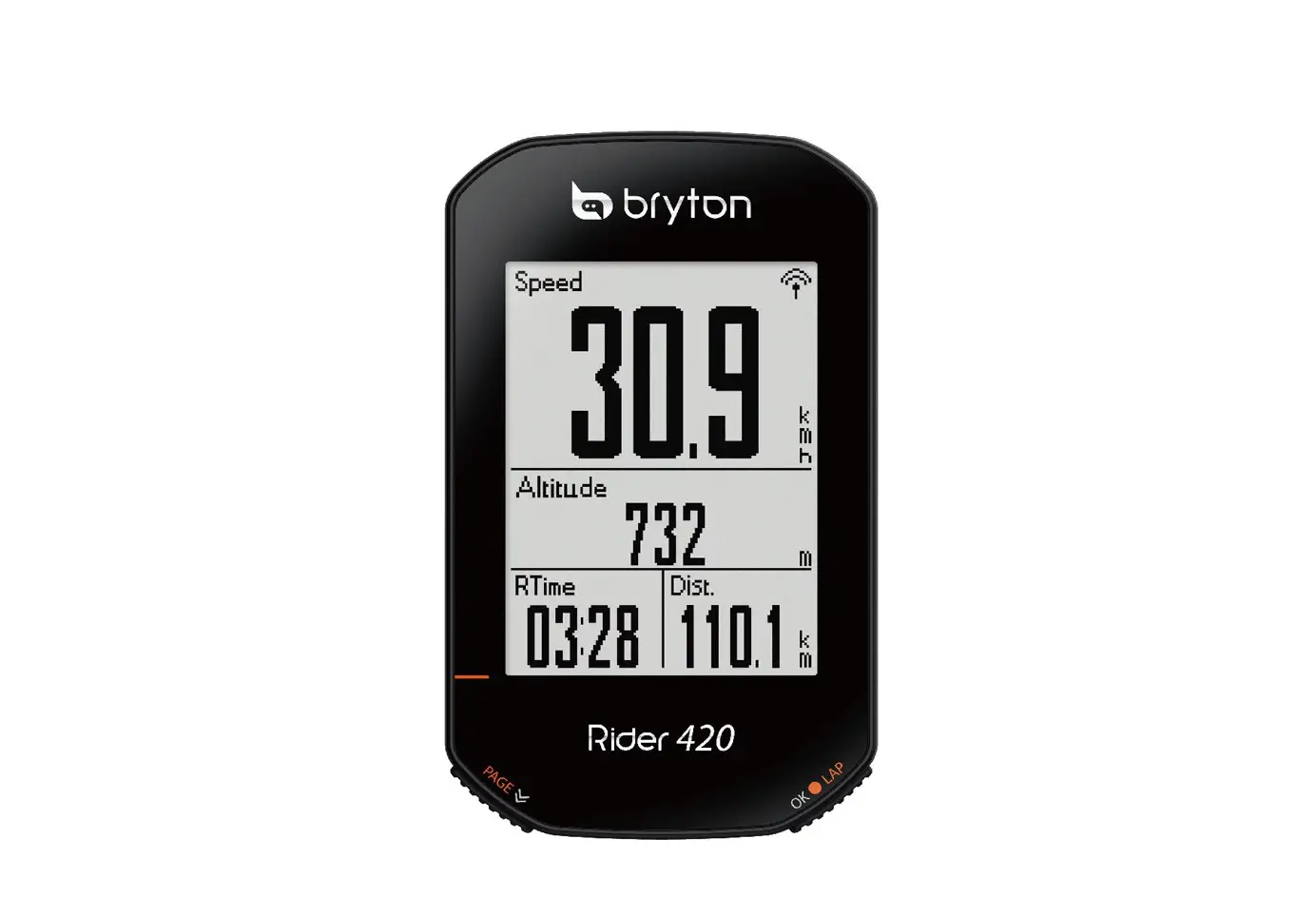
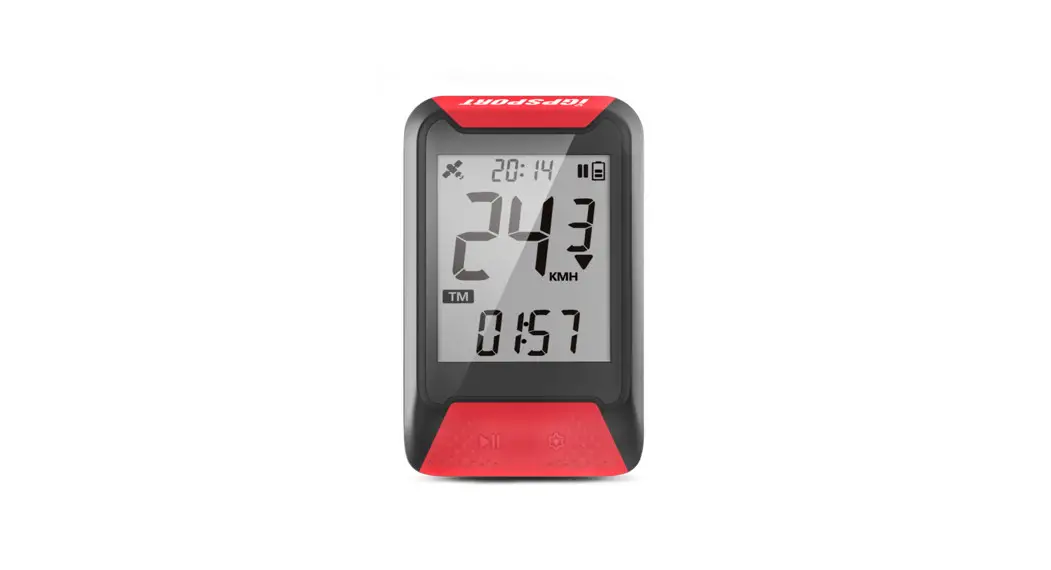
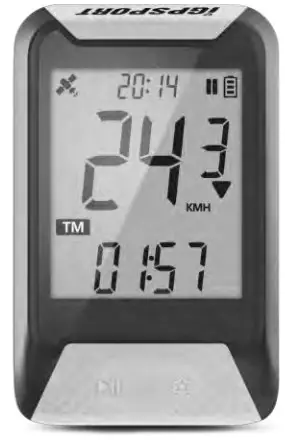
Display
Time of Day
Speed
Timer, Distance, Average Speed, Max Speed, or Odometer.
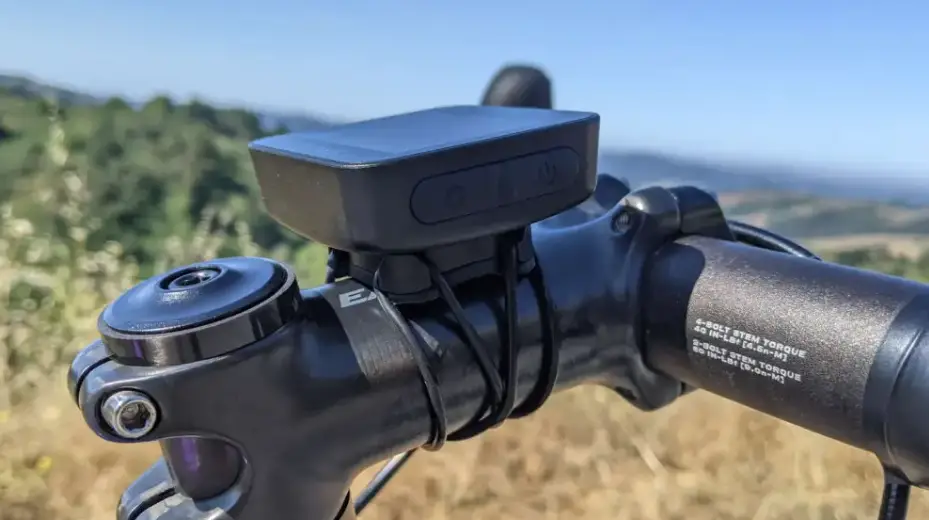
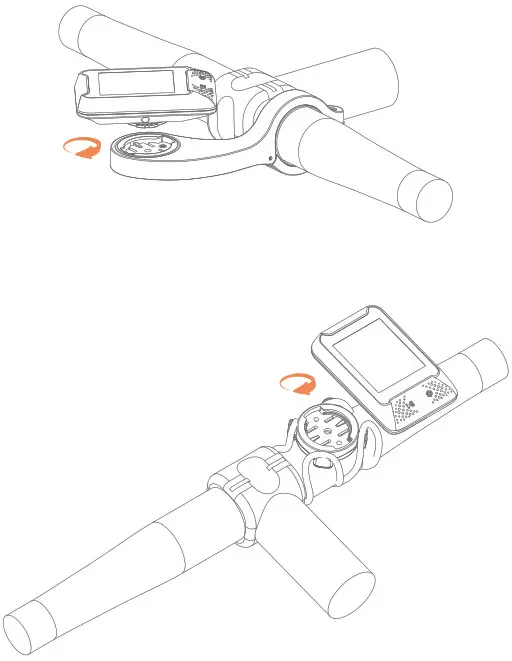
INSTALLATION OF BIKE MOUNT
Use the included zip ties to attach to bike stem.
PAIRING YOUR SMARTPHONE (SETTING MODE E1)

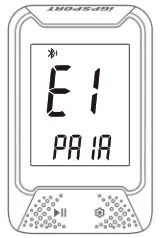
Pair your smartphone for the first time.
- Download iGPSPORT APP。
- Turn on the Bluetooth of the smartphone and pair Bluetooth with the device in the iGPSPORT APP.
- iGS130S’s Bluetooth icon lights up means it is connected and paired.
Pair your smartphone for the next time.
- Hold the right button for more than 2 seconds to enter the setting mode.
- Press the right button to scroll setting mode from E1 to E3.
- Press the left button to enter E1 mode when E1 is flashing.
- Press the right button to unpair the phone, the device will restart.
- Bluetooth icon flashes means it is searching.
- Pair Bluetooth with the device in the iGPSPORT APP.
Note:
- After the phone is paired successfully, the device and the phone will automatically connect with Bluetooth.
- iGS130S’s Bluetooth icon lights up means that it has paired the phone but is not connected.
SETTING TIME ZONE (SETTING MODE E2)

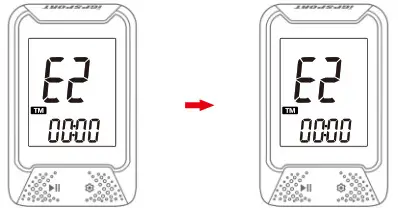
- In the setting mode, press the right button to scroll from E1 to E3.
- Press the left button to enter E2 mode when E2 is flashing.
- Press the left button to change digits of an hour and minute, press the right button to change the value.
- Hold the right button for more than 2 seconds to save and exit.
Note:
Default time zone: UTC/GMT+00:00(Please set the local time zone).
The setting will be automatically saved if no operation in 10 seconds.
SETTING METRIC AND IMPERIAL UNITS
Default unit: metric (kilometer)
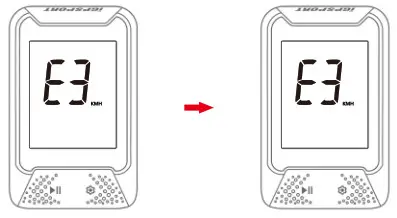
- Enter E3 in setting mode.
- Press the right button to switch metric (kilometer) and imperial (mile) units.
- Hold the right button for more than 2 seconds to save and exit.
ACQUIRING SATELLITE SIGNALS AND TIME SETTING
Please make sure the device is outdoor and under a clear view of the sky.
It usually takes 5 to 120 seconds to locate the satellite signal.
Remain stationary when acquiring satellite signals.
The time and date will be calibrated automatically after locating satellite signals.
SMART BACKLIGHT
Backlight turns on before sunset and turns off after sunrise automatically.
When the backlight is off, press any button to turn on the backlight for 30 seconds.
BATTERY
| Battery type | Rechargeable, built-in lithium-ion battery |
| Battery life | About 25 hours, typical usage |
| Operating temperature range | From -10°C to 50°C (14℉ to 122 ℉) |
| Charging temperature range | From 0°C to 45°C (32℉ to 113 ℉ ) |
| Input | DC5V, 500mA |
| Charging time | 1.5 Hours |
Note:
- Please use DC 5V power adapter for charging.
- As the temperature drops, the battery life will decrease.
- iGS130S supports charging during use.
- Do not overstretch the USB plug for keeping waterproof and dustproof.
FACTORY RESET
- Power off the device.
- Connect the device to a power adaptor or computer by USB cable.
- Hold left and right buttons at the same time for more than 2 seconds until “FA” displays on the screen.
- Disconnect the device to the power adaptor.
Note:
Factory reset will reset configuration, unpair Bluetooth, clear out all data and odometer, please backup activity files before factory reset.
SPECIFICATIONS
| Location | GPS, BeiDou |
| Screen | 2.0 inch |
| Weight | About 60g |
| Physical dimension | 75x48x20mm |
| Waterproof | IPX7 |
| Memory | About 250 hours |
| Interface | Micro USB |
| Wireless transmission | Bluetooth 5.0 Support connecting to a smartphone |
STANDARD PACKAGE
– iGS130S x1
– Micro USB Cable x1
– User Manual x1
– Standard Bike Mount x1
Statement:
The user manual is only for users’ reference, if any differences between it and device, please subject to device. We reserve the right to change or improve our products and to make changes in the content of this manual without obligation to notify any person or organization of such changes or improvements. All rights reserved by Wuhan Qiwu Technology Co., Ltd.
WARNING
 RED
RED
Manufacturer’s Name: Wuhan Qiwu Technology Co., Ltd.
Product Name: GPS CYCLING COMPUTER
Model number: iGS130S, iGS130B,iGS130C,iGS130P,iGS130SE
Operating Temperature: -10° C to 40° C
This product can be used across all EU member states.
Hereby, Wuhan Qiwu Technology Co.,Ltd. declares that this GPS CYCLING COMPUTER product is in compliance with the essential requirements and other relevant provisions of Directive 2014/53/EU. A copy of the Declaration of Conformity can be found at the Website: www.igpsport.cn
CAUTION: RISK OF EXPLOSION IF BATTERY IS REPLACED BY AN INCORRECT TYPE. DISPOSE OF USED BATTERIES ACCORDING TO THE INSTRUCTIONS
Care for the environment! Must not be discarded with household waste!
WARNING
This device complies with part 15 of the FCC Rules. Operation is subject to the condition that this device does not cause harmful interference (1) this device may not cause harmful interference, and (2) this device must accept any interference received, including interference that may cause undesired operation. Any changes or modifications not expressly approved by the party responsible for compliance could void the user’s authority to operate the equipment.
NOTE: This equipment has been tested and found to comply with the limits for a Class B digital device, pursuant to Part 15 of the FCC Rules. These limits are designed to provide reasonable protection against harmful interference in a residential installation. This equipment generates, uses and can radiate radio frequency energy and, if not installed and used in accordance with the instructions, may cause harmful interference to radio communications. However, there is no guarantee that interference will not occur in a particular installation. If this equipment does cause harmful interference to radio or television reception, which can be determined by turning the equipment off and on, the user is encouraged to try to correct the interference by one or more of the following measures:
— Reorient or relocate the receiving antenna.
–Increase the separation between the equipment and receiver.
— Connect the equipment into an outlet on a circuit different from that to which the receiver is connected.
— Consult the dealer or an experienced radio/TV technician for help.
To maintain compliance with FCC’s RF exposure guidelines, This equipment should be installed and operated with a minimum distance of 20cm the radiator your body: Use only the supplied antenna.
FCC ID:2AU4M-IGS130S
SPECIFICATIONS:
Operating Temperature:-10°~50°C
CONTACT US
 www.igpsport.com
 Wuhan Qiwu Technology Co, Ltd
 3 / F, Creative workshop, No.04, District D, Creative world, No.16 Yezhihu West
Road, Hongshan District, Wuhan City, Hubei Province, China (86) 27-87835568
 [email protected]
 科学运动健康生活-iGPSPORT 官网
 Bike Computers, Cycling Sensors, Heart Rate Monitors | iGPSPORT