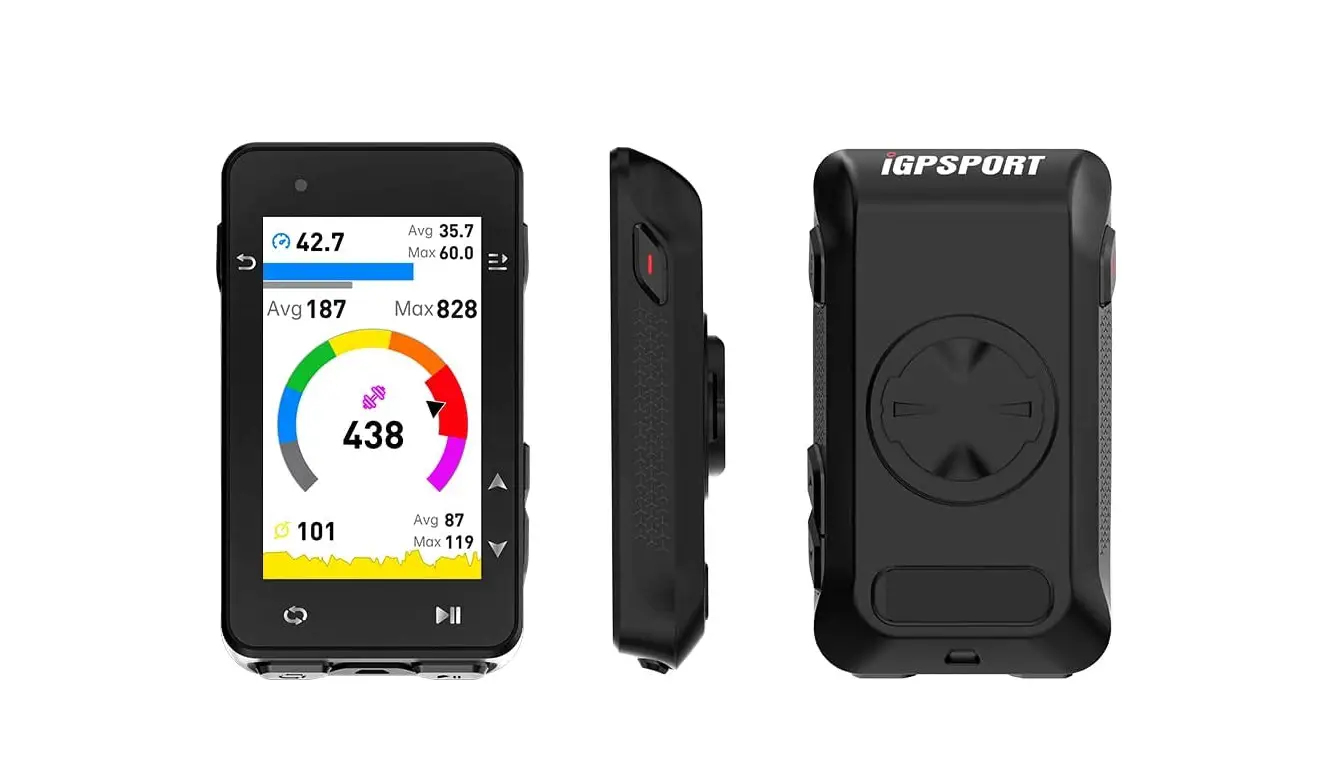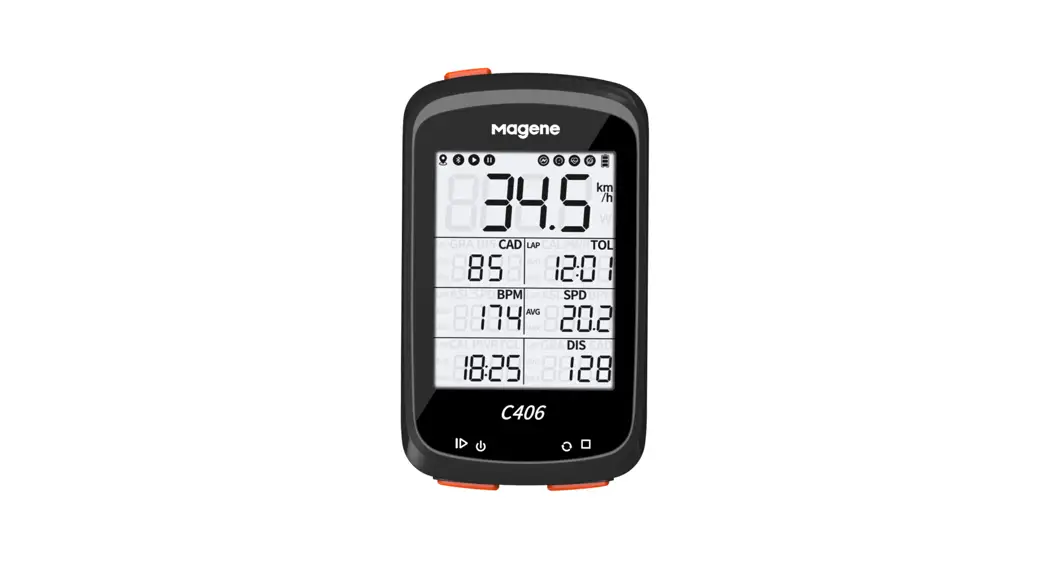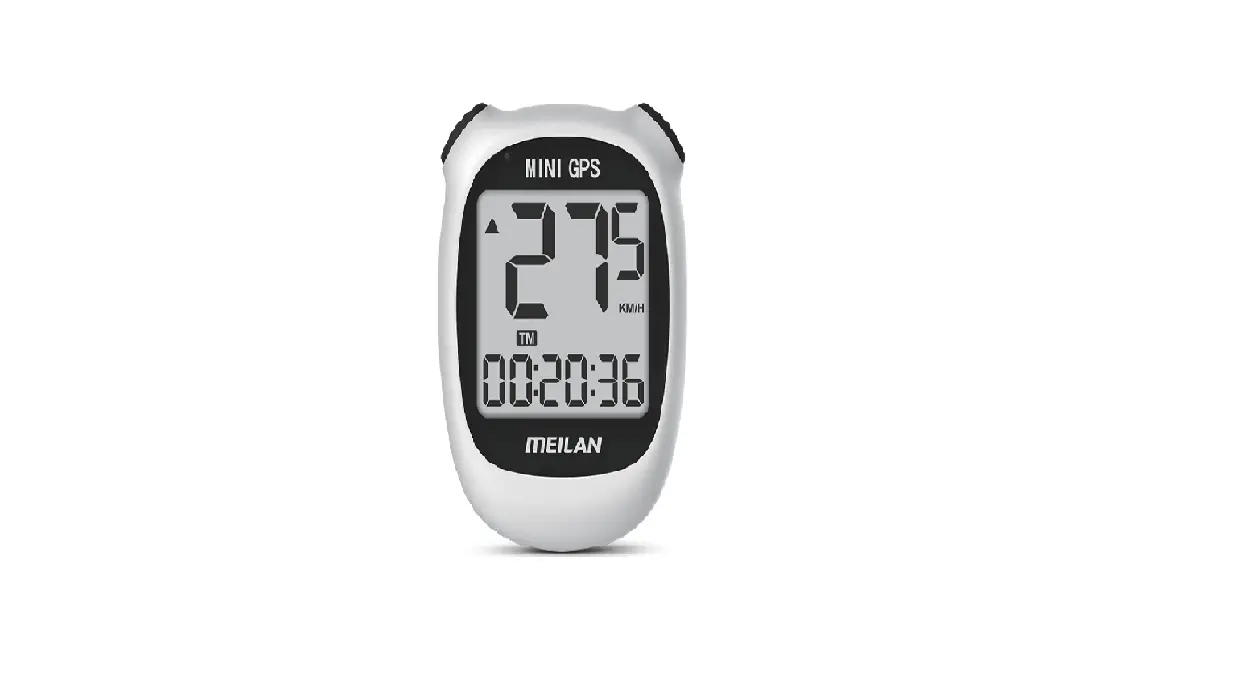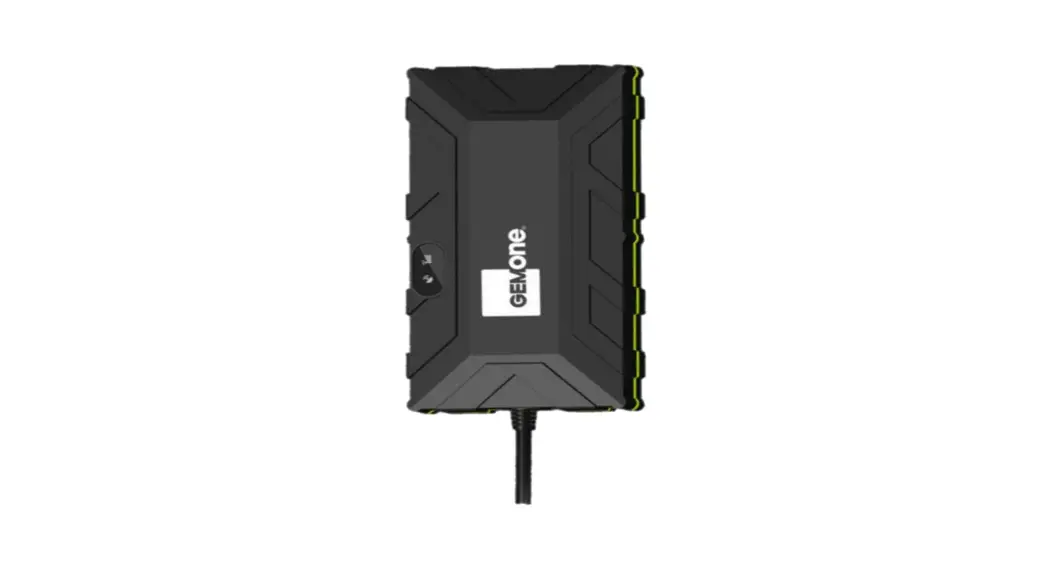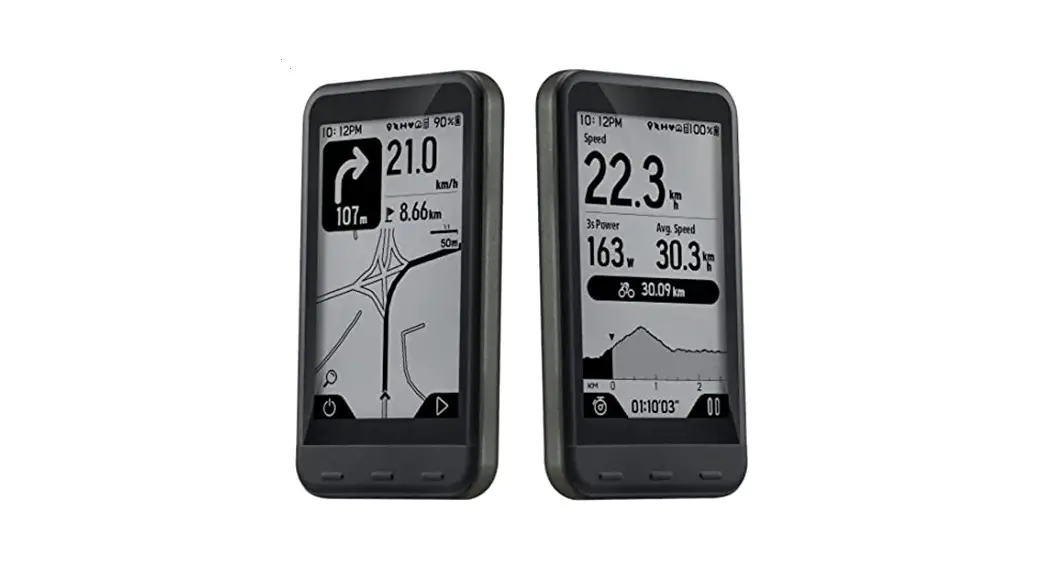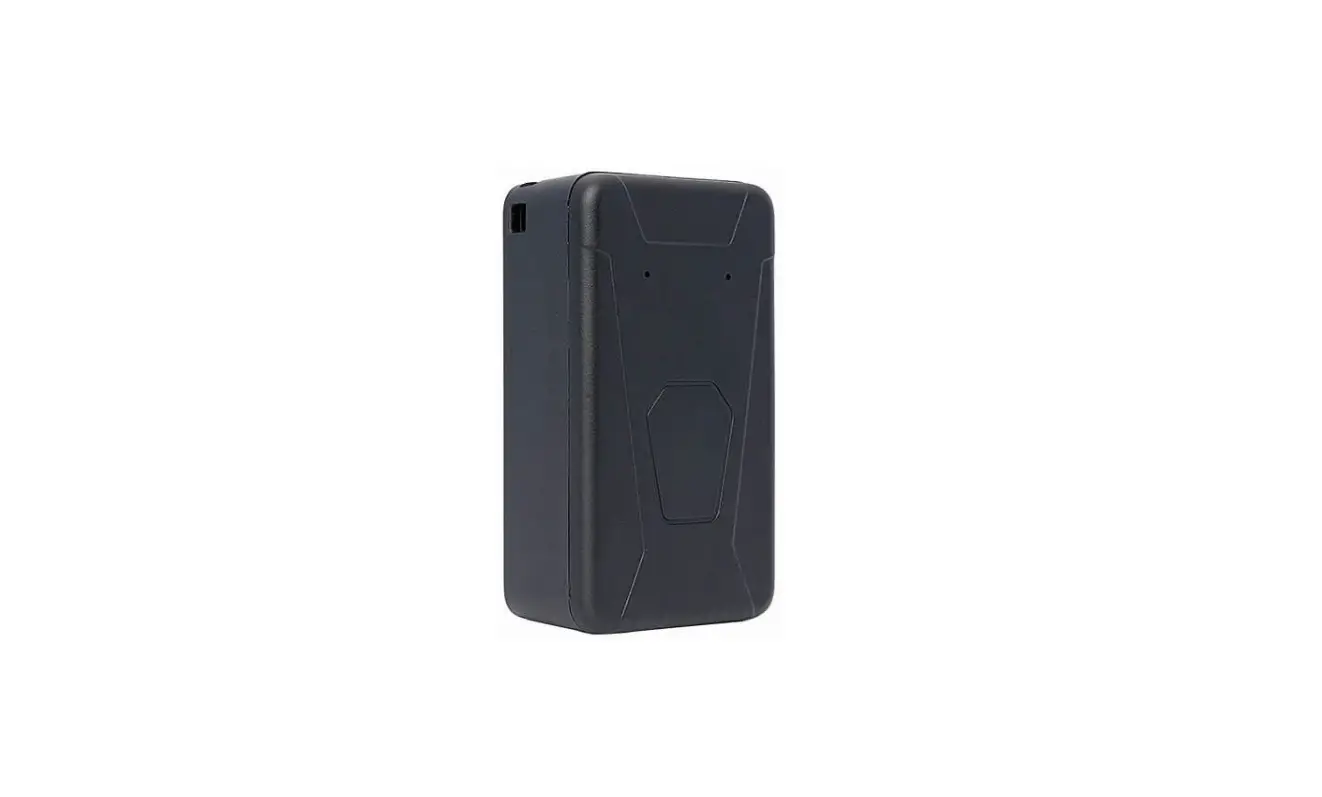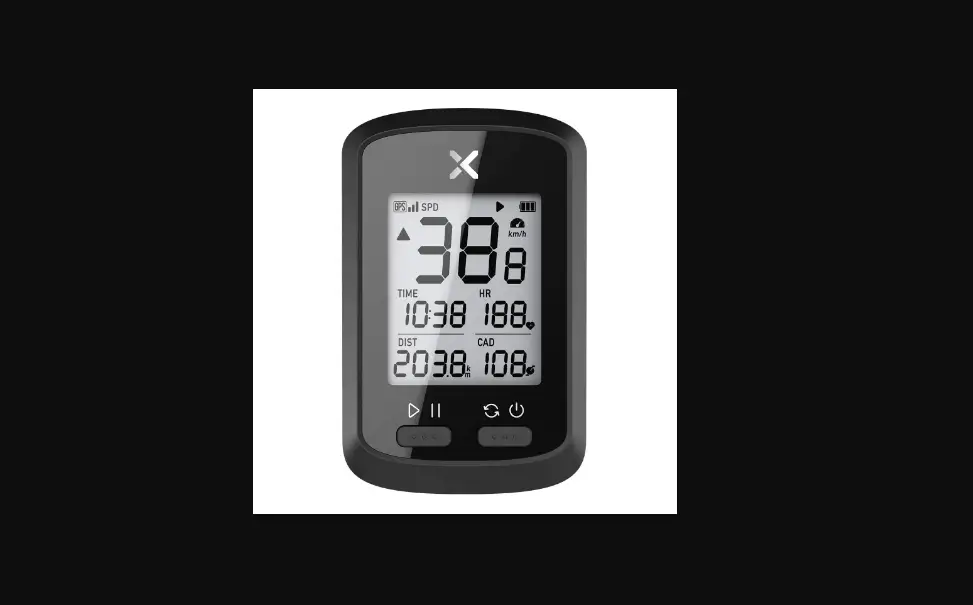

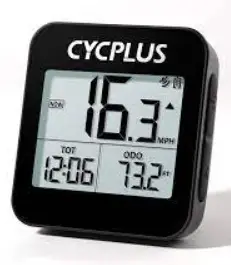
AZUR G1 GPS Bike Computer
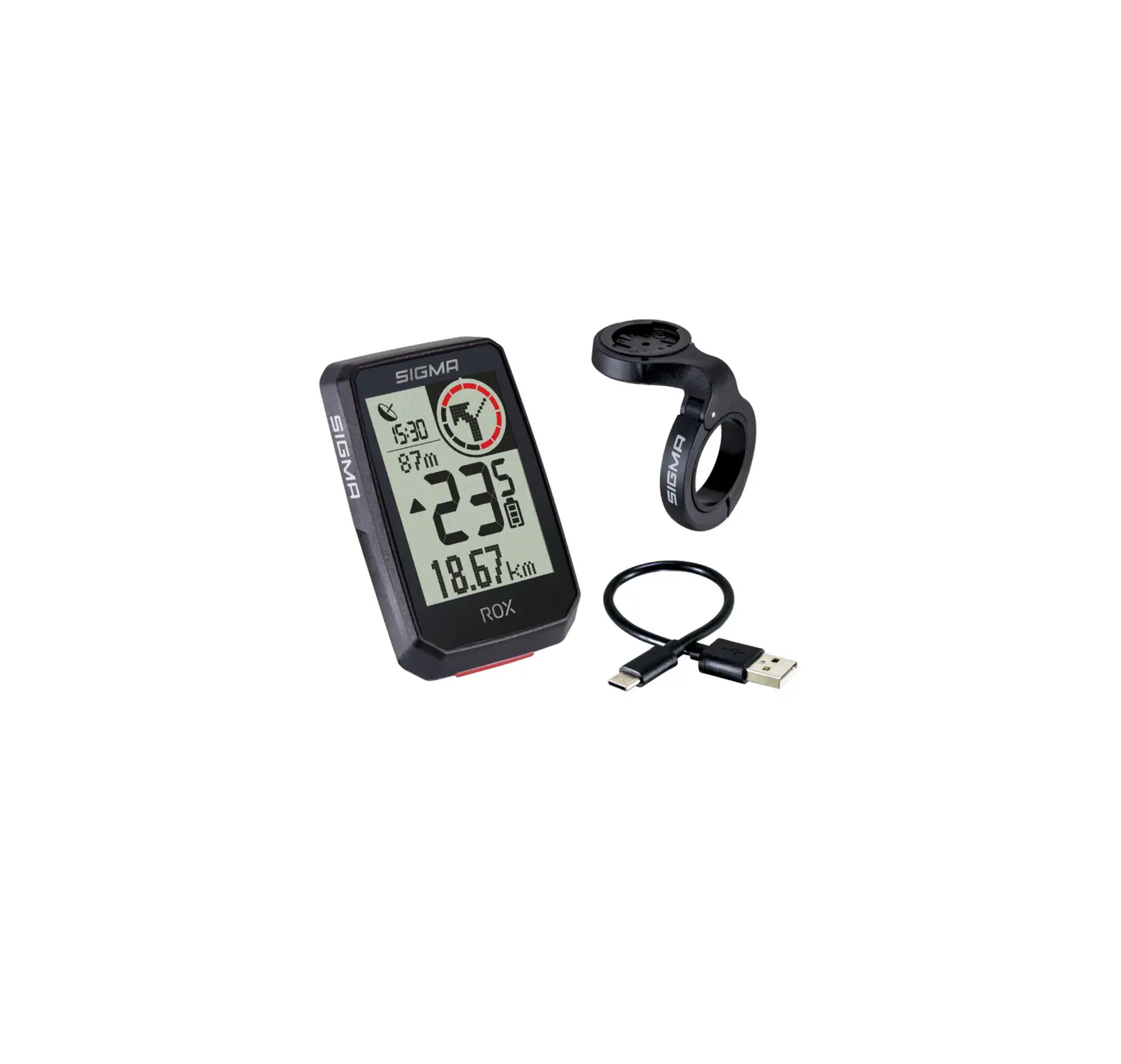
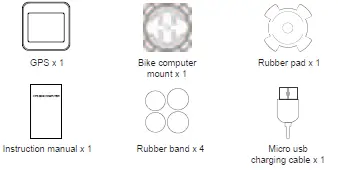
Package List
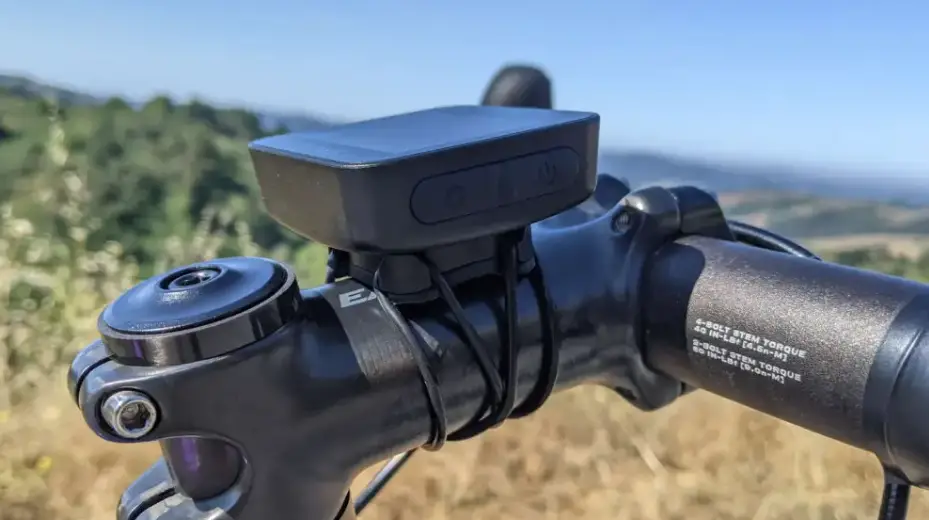
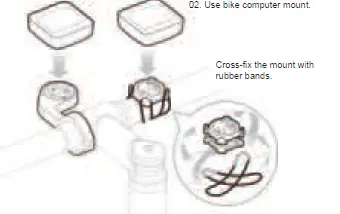
About Installation
Specifications
| Product Weight | 56g |
| Battery | 600mAh |
| Charging Mode | Micro USB |
| Endurance Time | 20 hours |
| Charging Time | 2 hours |
| Waterproof | IPX6(Can resist high-pressure, heavy sprays of water.) |
About Function
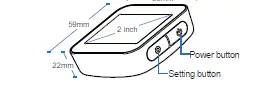
| Power button | Setting button | ||
| Off state | Short press | Turn on | |
| On state | Short press | Switch Current/Average/ Max Speed | Switch Time/Distance/Total Time/ Odometer/Clock/Altitude |
| On state | Long press | Turn off | Enter/Exit setting |
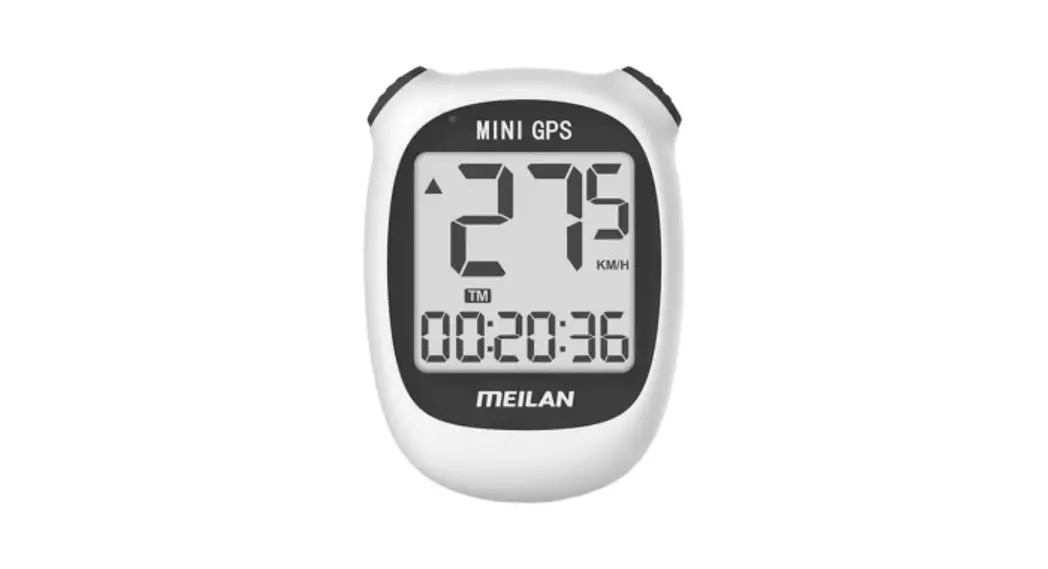
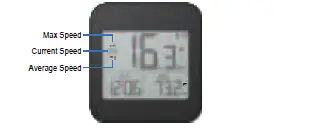
- Support GPS speed measurement, display Current/Max/Average Speed.
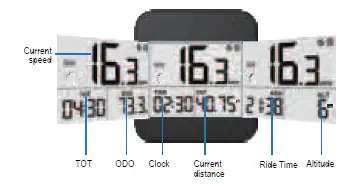
- Display Riding Time, Distance, Total Riding Time, ODO, Time Zone, Altitude.
- Support setting ODO, Time Zone, Unit and Restoring Factory Settings.
- Device will automatically enter sleep mode after 10 minutes of inactivity, it will display your last cycling data when you turn it on.
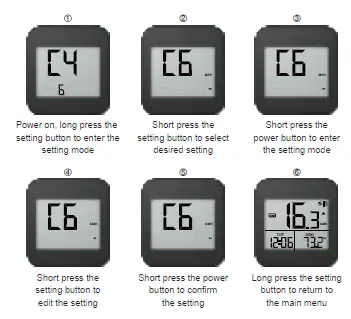
There are 4 menus in settings(C4, C6, C7, C8). In the display mode, long press the setting button to enter the setting mode. Short press the setting button to select setting menus. After setting, long press the setting button to return to the main menu.
- Time zone setting(C4)
After the screen displays C4, short press power button to confirm. The display will blink, then short press setting button to change the value and press power button to confirm. - Unit setting(C6)
After the screen displays C6, short press power button to confirm. The display will blink, then short press setting button to select the unit and short press the power button to confirm. - Factory reset(C7)
After the screen displays C7, short press power button to confirm. After RECOVER starts blinking, press the setting button twice, the screen starts flashing, and it will automatically return to the display interface after three flashes. - Odometer setting (C8)
After screen displays C8, short press the power button to confirm. After the number starts blinking, press the setting button to select the data fields and press the power button to confirm.