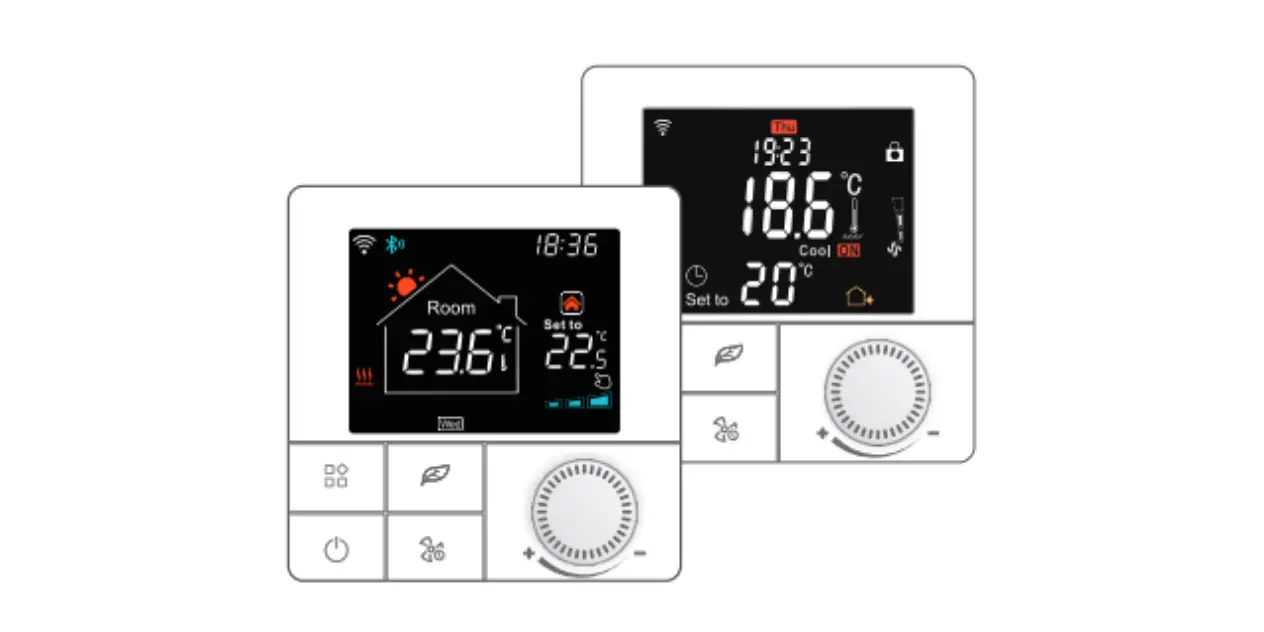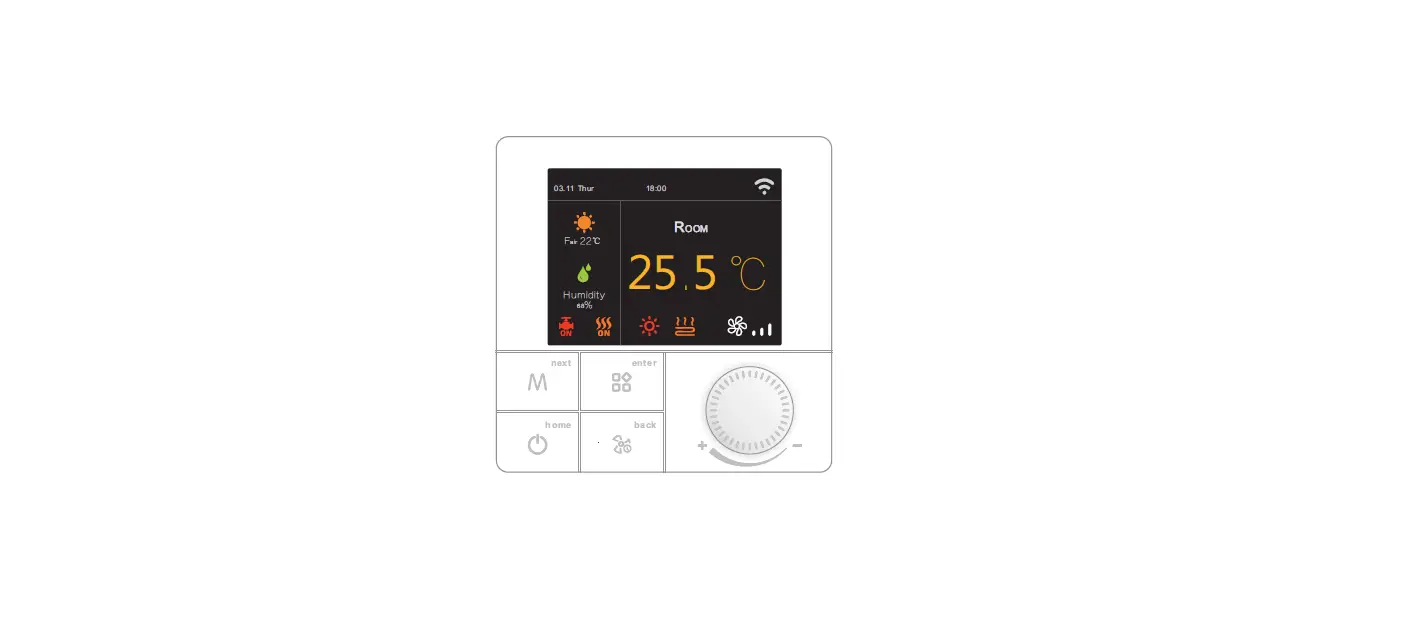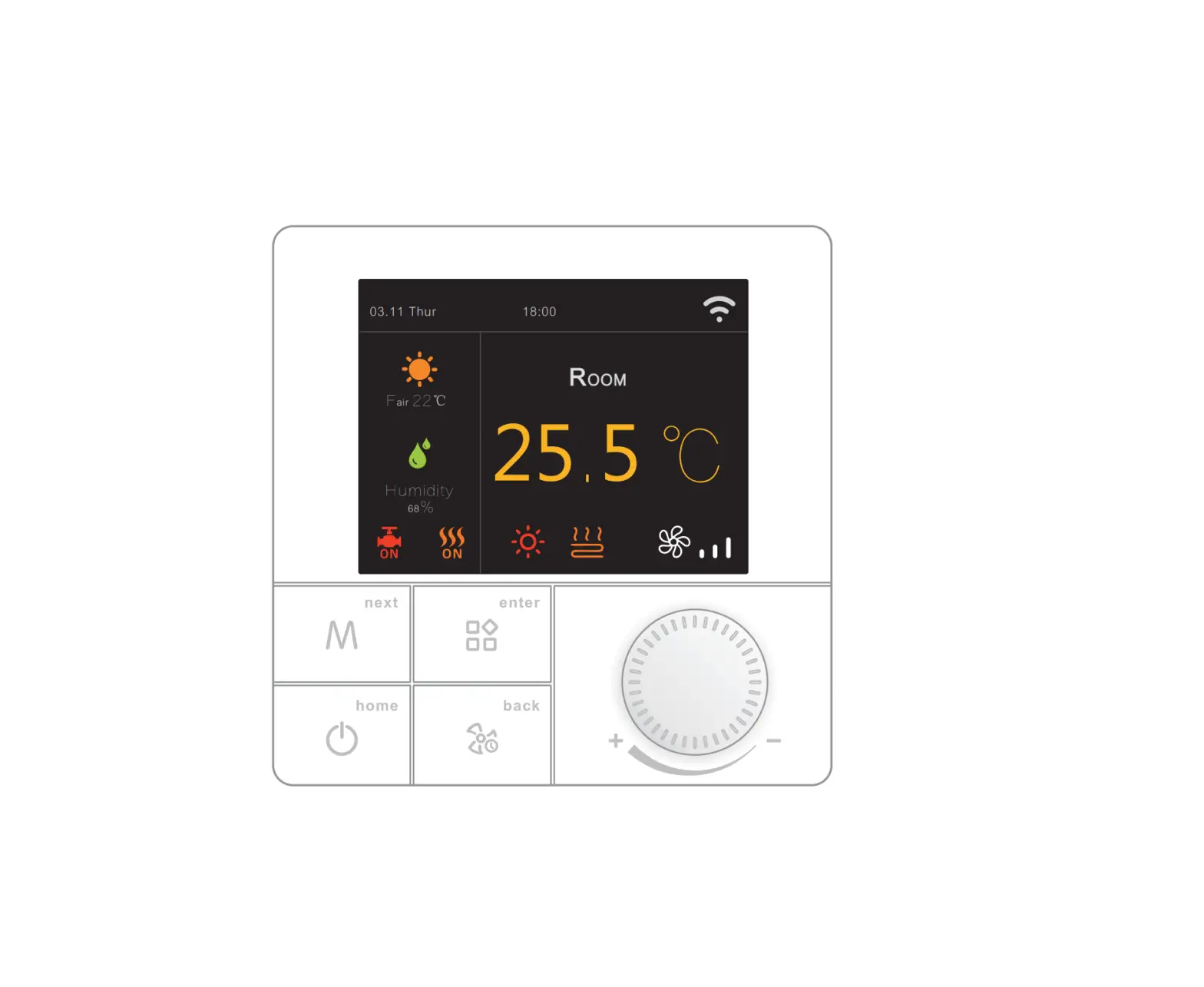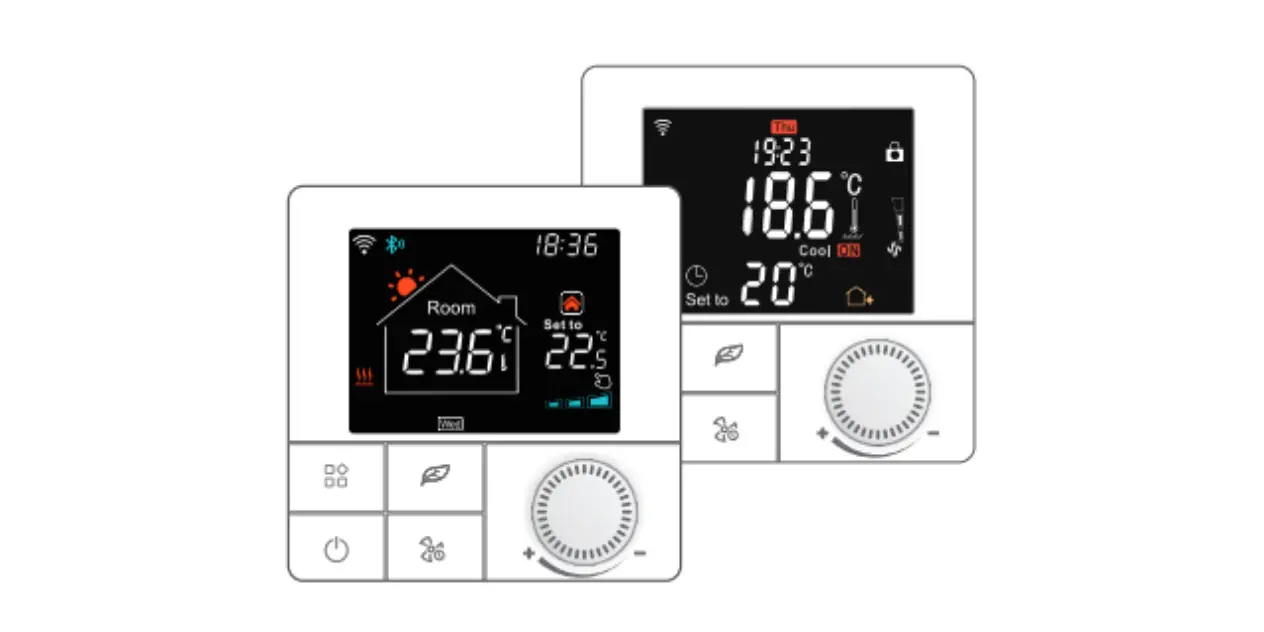

BEOK TR8B Series Week-Programme Handwheel Thermostat with Color LCD Screen
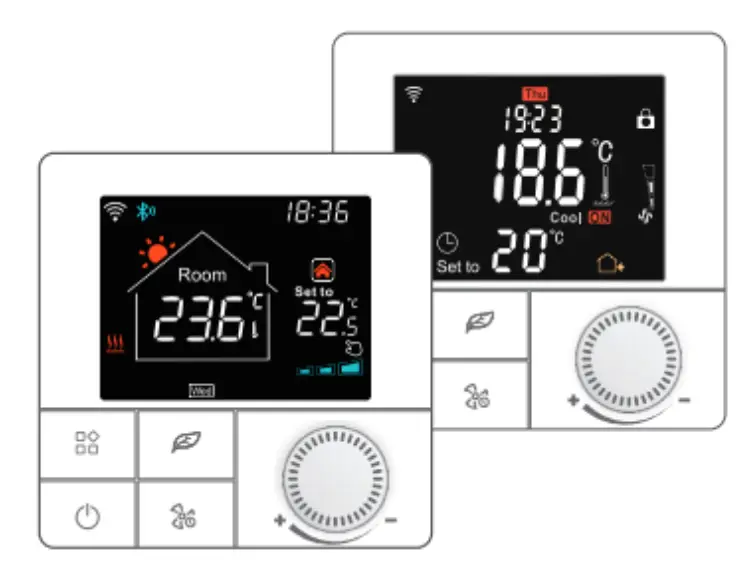
Product Overview
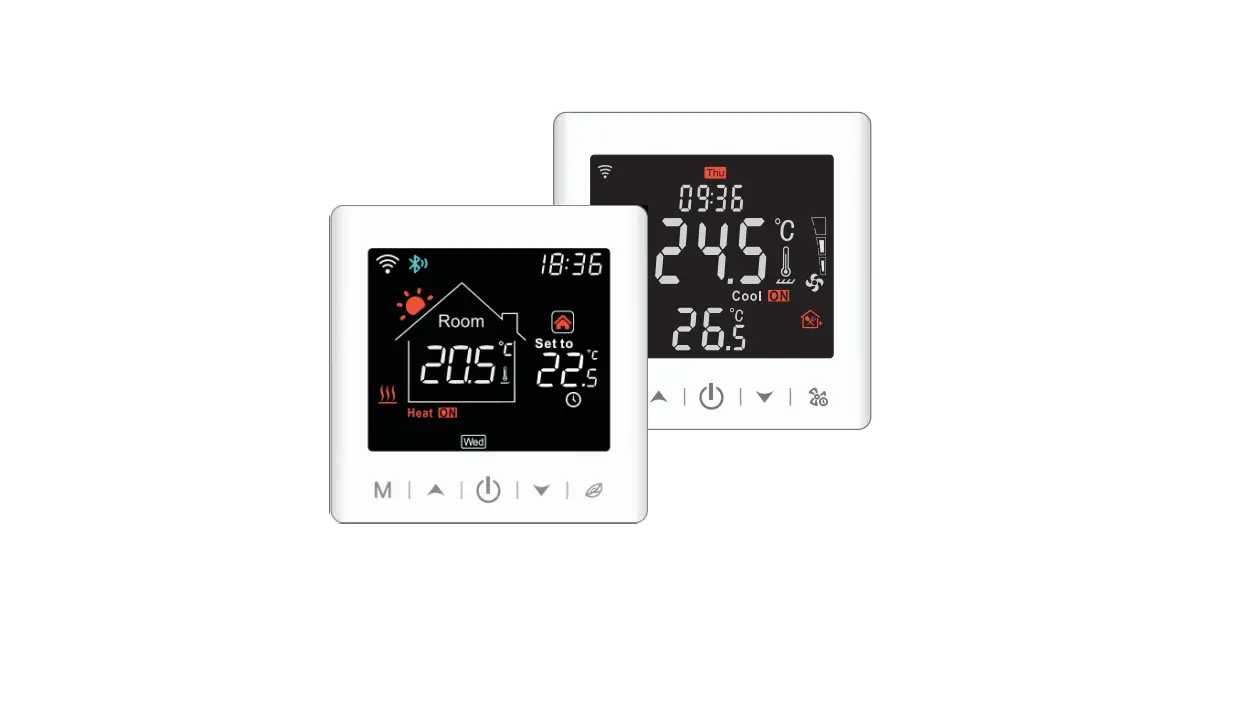
This series of thermostats have Floor Heating, Fan Coil, and Integrated version, meeting the requirements under different scenarios.
| Version | System mode | Model | Application |
| Floor heating | Heating | EP | Built-in & floor sensor, floor limit sensor + Weekly programming |
| WP | A NC/NO dual-output + Weekly programming | ||
| WPB | A NC/NO dual-output + Weekly programming+ Potential-free output | ||
| Fan Coil | Heating /Cooling / Ventilation | Ac2 | Timer task + 2-pipe system |
| Ac2- 485 | Timer task + 2-pipe system + 485Modbus (optional) | ||
| Ac4 | Timer task + 4-pipe system + 485Modbus (optional) | ||
| Integrated | Heating / Cooling / Ventilation/Floor heating / Floor heating + Heating | AWY | Floor heating & fan coil, weekly programming + Potential-free output + Timer task + 485Modbus (optional) + Door card (optional) |
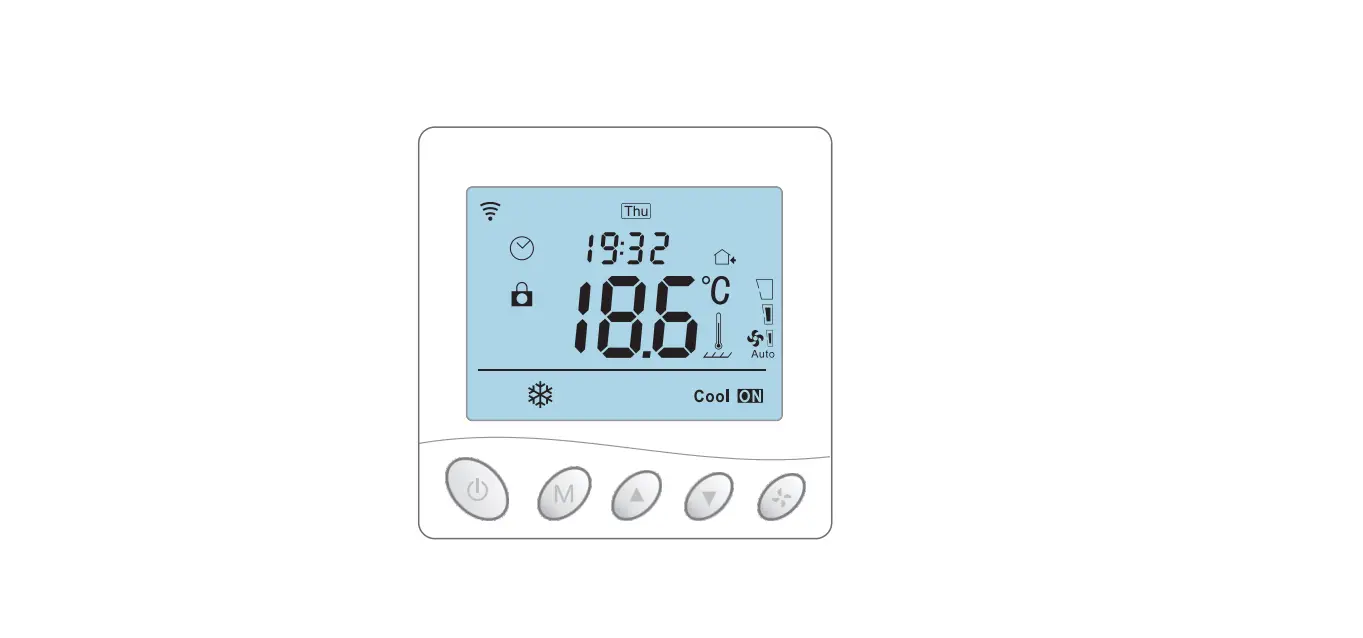
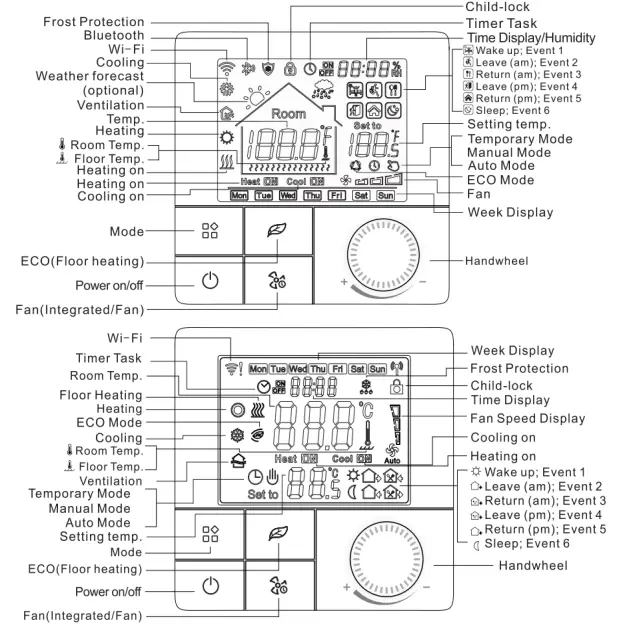
Display Symbols
Temperature Control Mode(Floor Heating/Integrated)
- Auto Mode
In the weekly-circled program, up to 6 heating events can be set per day. Heating events, workdays, and temperatures can be separately customized based on personal routines. - Manual Mode
The thermostat works based on manually-set temperature, disconnecting from auto mode. - Temporary Mode
The thermostat works based on manually-set temperature temporarily and then shifts back to auto mode till the next event.
User Operation
- Power on/off: Press “ ” shortly to turn on/off the thermostat.
- System mode: Press “ ” shortly to switch cooling/heating/ventilation/floor heating/floor
- heating + heating. (Integrated)
- ECO mode: Press“ ”shortly to set to ECO mode 18°C(64°F). (Floor heating)
- Timer task: Press “ ” for 3 seconds to edit the timer task. (Integrated)
- Press “ ” twice for 3 seconds to set the time. (Automatic time synch for Wi-Fi version)
- Press “ ” shortly to switch manual/auto mode. (Floor heating)
- Press “ ” shortly to switch manual/auto mode. (Integrated, floor heating)
- Fan speed setting: Press “ ” shortly to adjust the fan speed. (Integrated)
- Rotate handwheel“ ”to change the set temperature by 0.5°C.
- Child-lock: Press “ ” for 3 seconds to activate child-lock.
- Auto-mode: Press “ ” for 3 seconds to edit auto-mode settings. (Floor Heating/Integrated
- Customized exclusive temperature plan – up to 6 events allowed to be set per day
- Sail shape design-
- Large LCD screen-better user experience
- 485 Modbus and room card linkage – customized equipment (optional)
Parameter
| Events | Symbols | Time | Temperature | |||
| Default value | Modify | Default value | Modify | |||
|
Workdays | 1 | 06:00 | Press “ ” or
“ ” | 20 ℃( 68 ℉) | Press “ ” or
“ ” | |
| 2 | 08:00 | 15 ℃( 59 ℉) | ||||
| 3 | 11:30 | 15 ℃( 59 ℉) | ||||
| 4 | 12:30 | 15 ℃( 59 ℉) | ||||
| 5 | 17:00 | 22 ℃( 72 ℉) | ||||
| 6 | 22:00 | 15 ℃( 59 ℉) | ||||
| Weekends | 1 | 08:00 | 20 ℃( 68 ℉) | |||
| 2 | 22:00 | 15 ℃( 59 ℉) | ||||
Auto-mode Setting
When the device is off, press “ ” to enter the menu page, choose “period setting” to set parameters, then press “ ” to save and exit.
| Events | Time | Temperature | |||
| Default value | Modify | Default value | Modify | ||
|
Workdays | Sunrise | 06: 00 | Rotate handwheel | 20℃ | Rotate handwheel |
| Morning | 08: 00 | 15 ℃ | |||
| Nooning | 11: 30 | 15 ℃ | |||
| Afternoon | 12: 30 | 15 ℃ | |||
| Evening | 17: 00 | 22 ℃ | |||
| Night | 22: 00 | 15 ℃ | |||
| Weekends | Sunrise | 06: 00 | 20℃ | ||
| Night | 22: 00 | 15 ℃ | |||
Advanced Setting
Choose “advanced setting” on the menu page and put in password 123456 to enter the advanced setting page, set parameters then press “ ” to save and exit.
| Meaning | Rotate handwheel | Default value |
| Sensor Mode | Built-in Sensor Floor Sensor Built-in Control&Floor Limitation | IN |
| Buit-in Sensor Calibration | -5~5℃ | -3℃ |
| Buit-in Max Setting Value | 5~95℃ | 50℃ |
| Floor Max Setting Value | 10~95℃ | 50℃ |
| Limitation Value | 20~95℃ | 35℃ |
| Output Jitter Control | 0~5℃ | 1℃ |
| Anti-Freeze Protection | ON/OFF | OFF |
| Linkage Mode | Noninverting Inverting Inverting Inverting and Anti-Freeze closed | Noninverting |
| Linkage Time Delay | 0~5Min | 0Min |
| Weekday Mode | Monday to Friday/Monday to Saturday /Monday to Sunday/ | 2-day |
| Boot Type | Function Off/Function On/Function Saved | O F F |
| Temperature Unit | ℉/℃ | ℃ |
| Child Lock Type | None Lock All All but power | None |
| Control Mode | All/Air/Floor | Floor |
| Cloud Region | CN/US/EU | CN |
| Reset All Settings | / | / |
Sensor failure
Please select the work mode of sensors correctly. When it shows E0/E1 error, the thermostat will stay powered off till the error is eliminated.E0: the built-in sensor is short-circuited or disconnected. E1: floor sensor is short-circuited or disconnected.
Timer Task Setting (Fan Coil/Integrated)
Press“ ”to enter the menu page. Turn theknob“ ”, choose “Auto Mode”, and then choose “Schedule”. Set the parameters by turning the knob, then press “Home” to save and exit to the home page.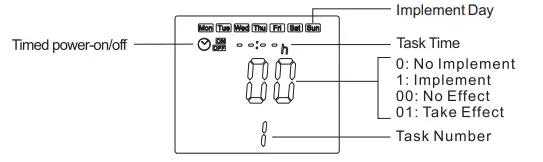
Dimensions (Unit: mm)
Mounting Steps
- The thermostat adopts the pre-guide and limited snap-fit design. It is easy to mount. 1)Release the front cover by inserting a head screwdriver into the bottom crack.

- Insert the wires and then fix these wires with screws. The suggested wire-stripping length is 7-9mm.
- Mount backing plate into wall-cassette, put screws, and then fix thermostat. Make sure that the thermostat is fixed without deformation. Suggested torque is 0.2~0.4N.m (2.0~4. 1kgf.cm).



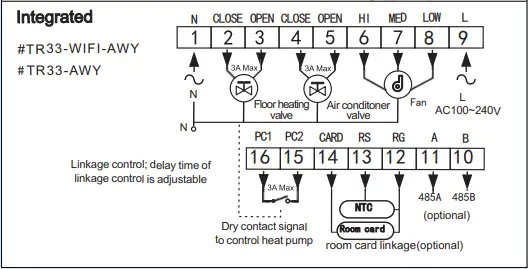
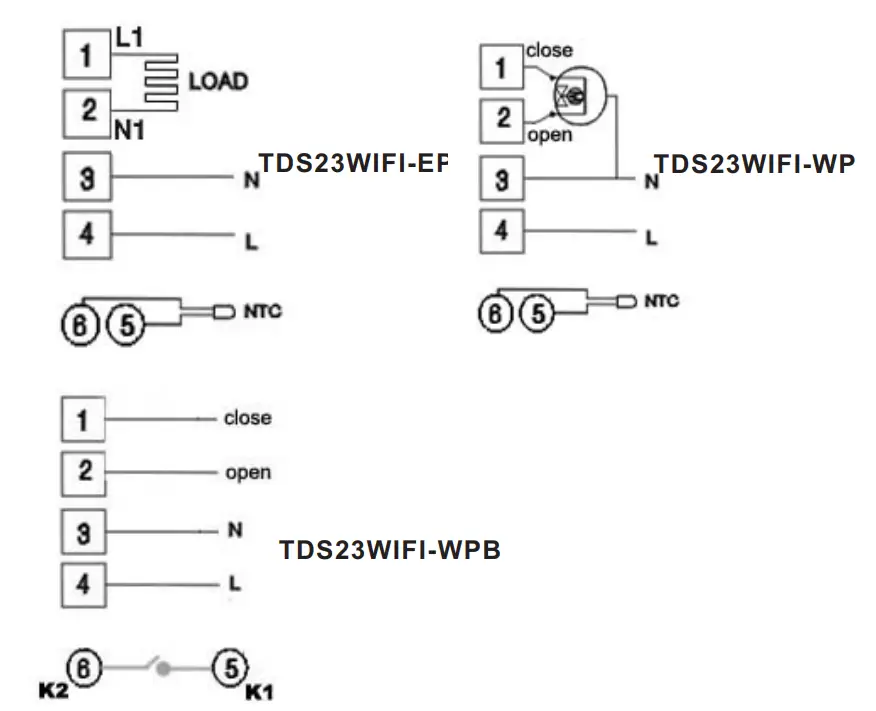
Connecting Diagram
The thermostat operates at full capacity in areas with an altitude of less than 2500 above sea level. The power rating of external load should be less than or equal to 80%rated power of the thermostat in areas with an altitude of 2500m to 4200m.
Floor Heating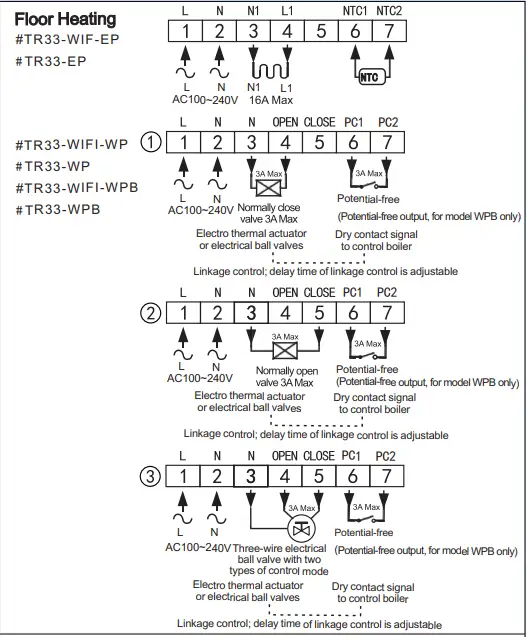
Fan Coil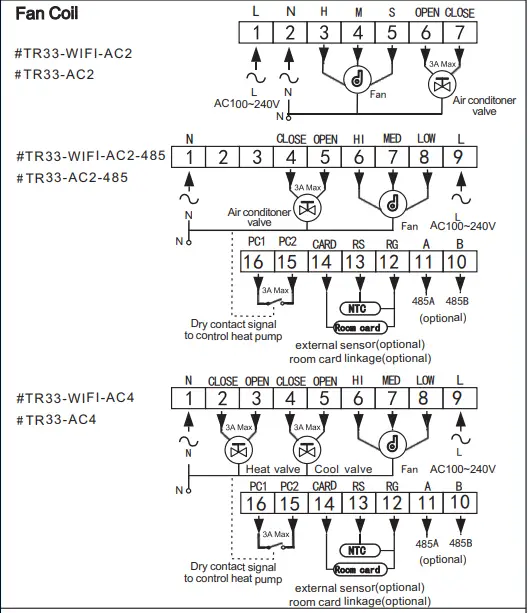
Integrated