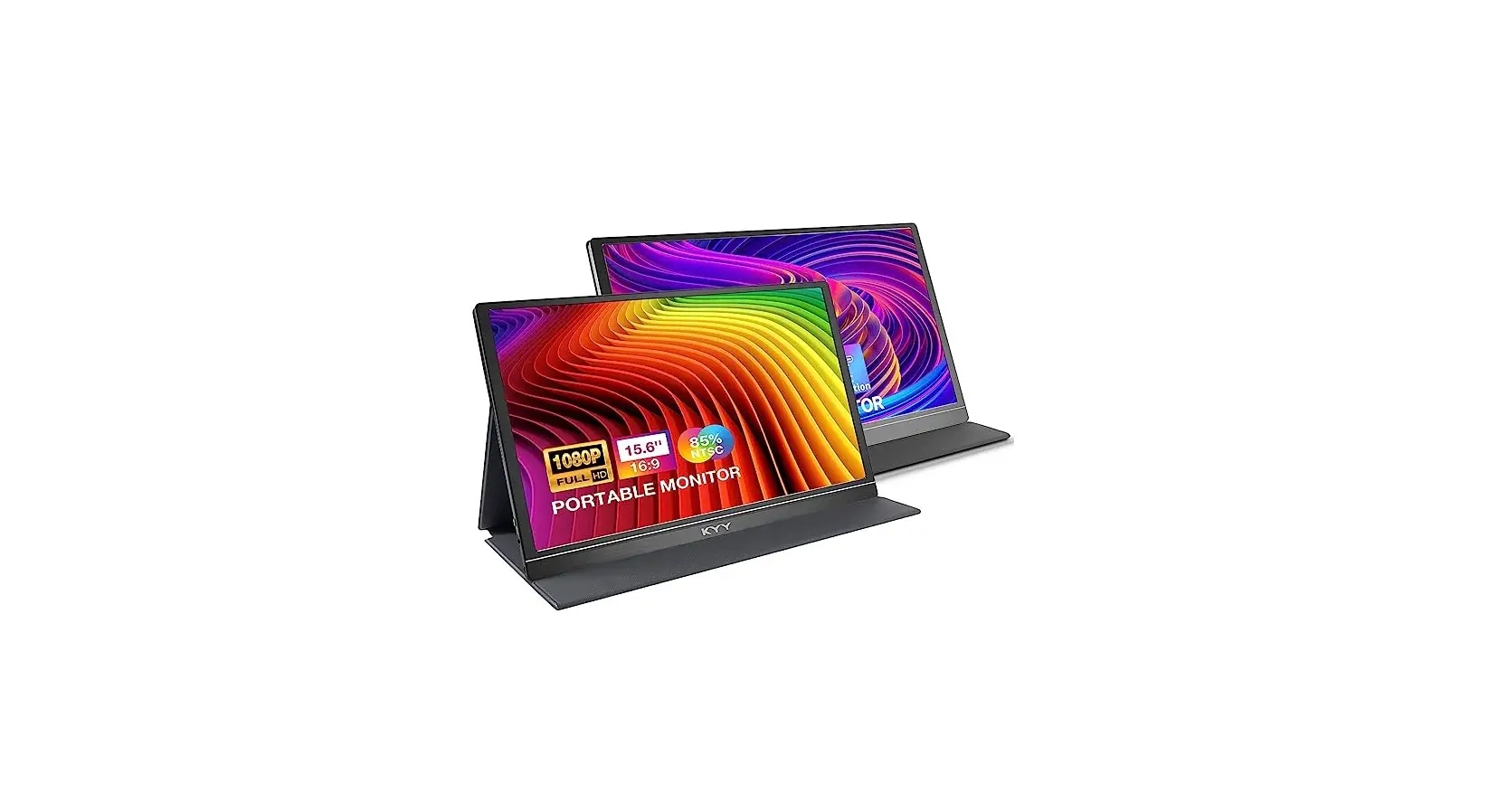
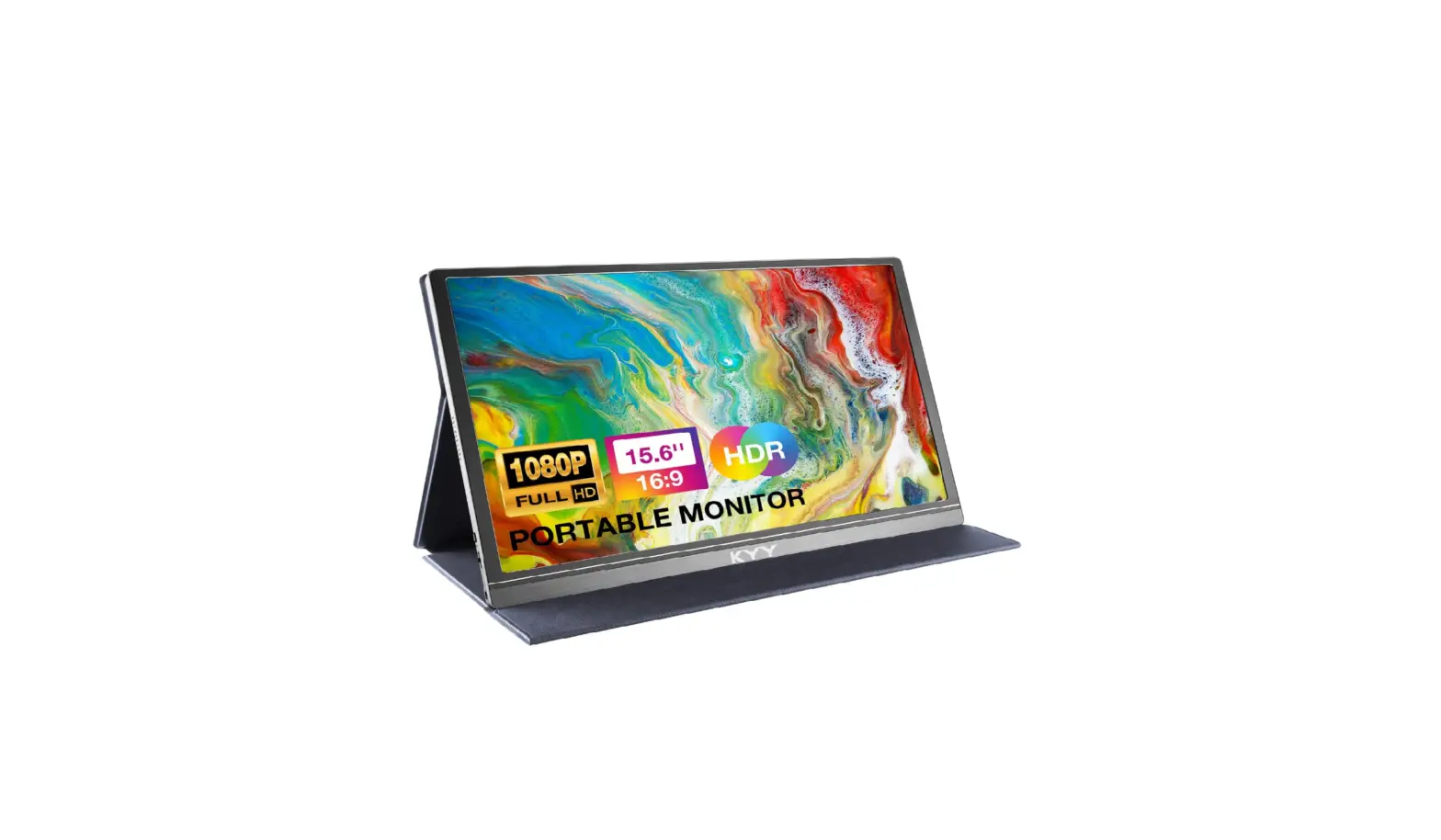
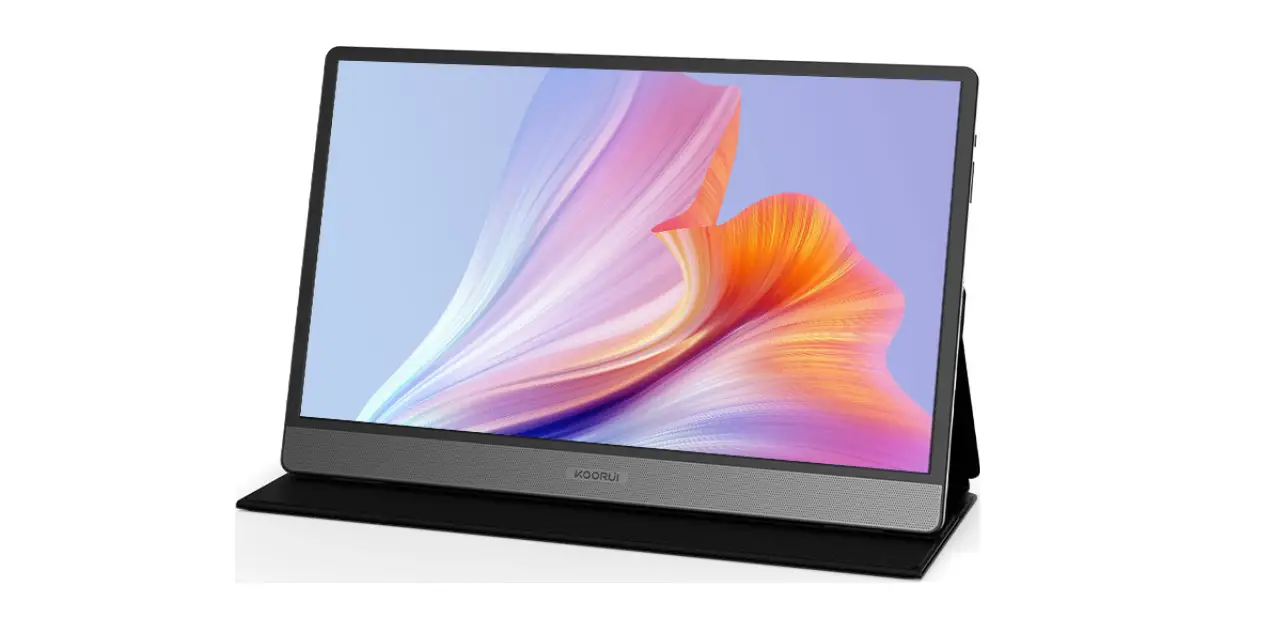
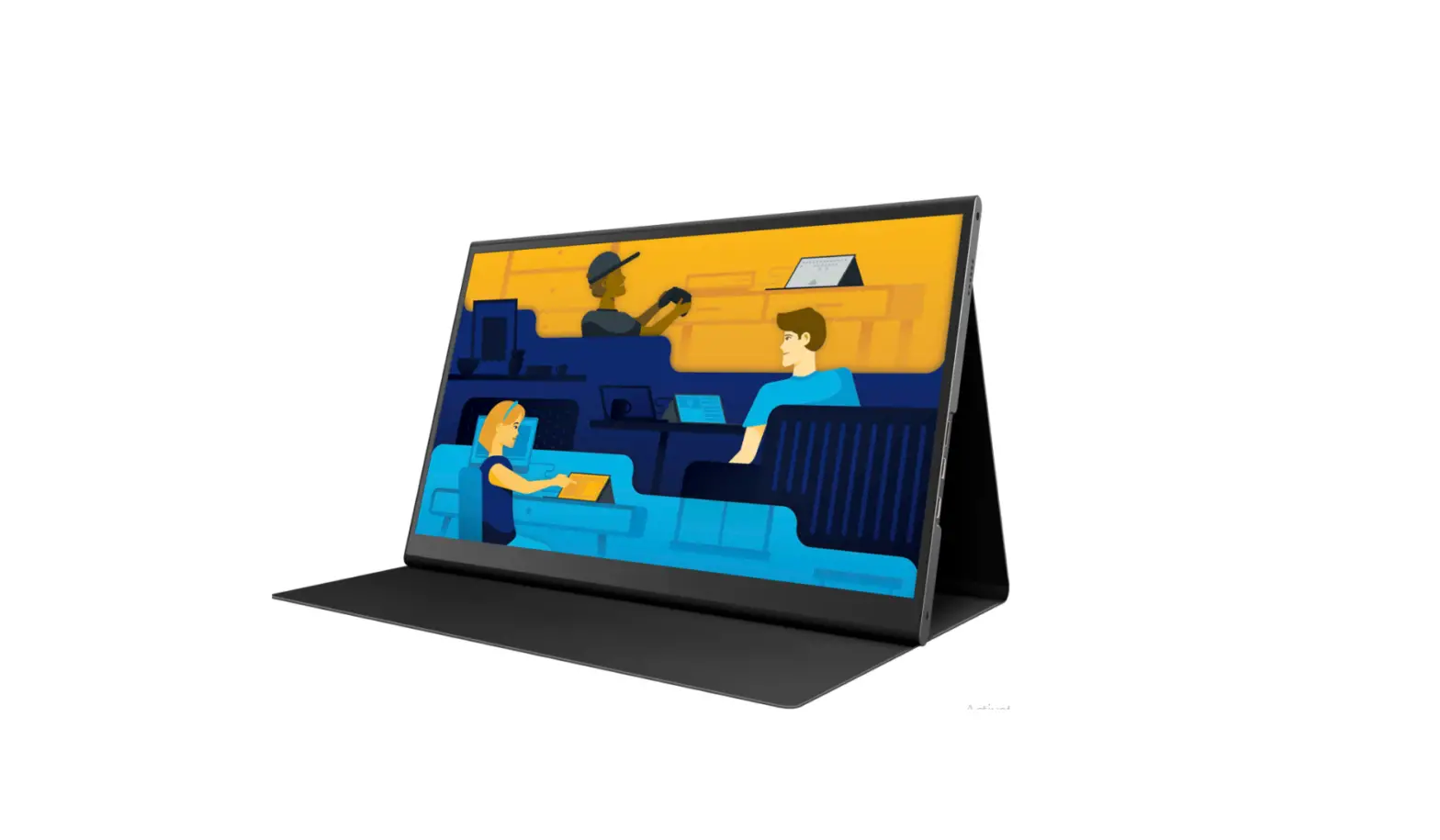
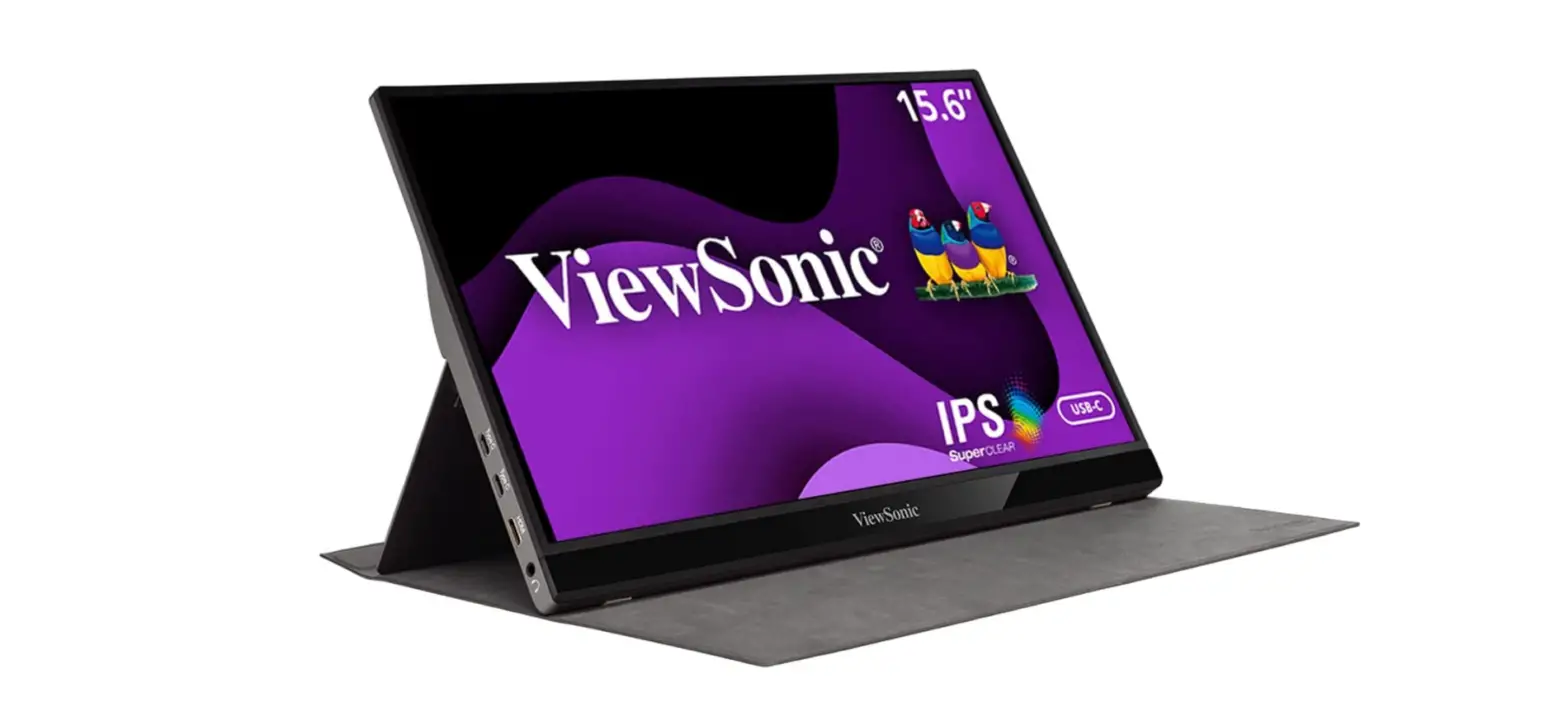
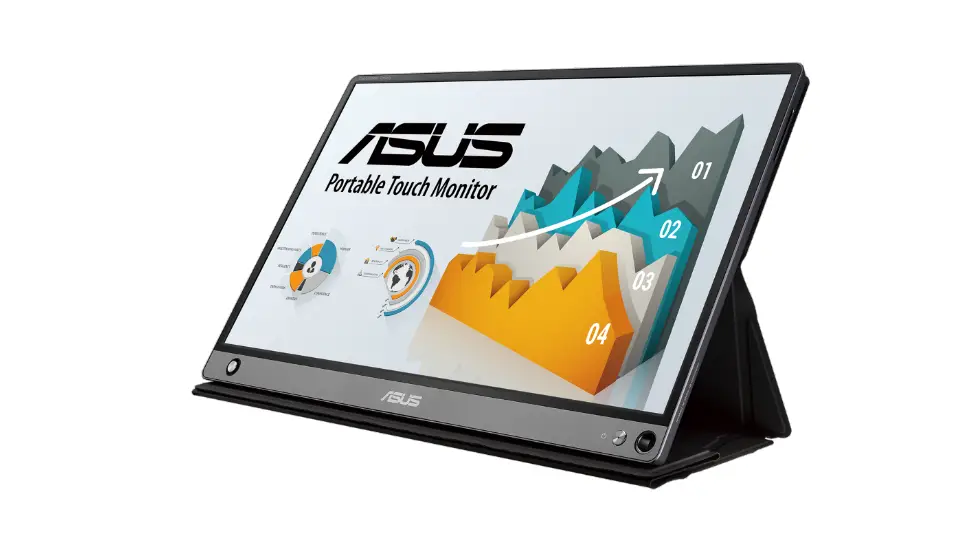
KX 15.6 Inch Portable External Travel Touchscreen Monitor with 9 Languages UI Keyboard
Product Information:
- Product Name: Multi-functional Touch Screen Monitor
- Packing List:
- Item 1: KX
- Item 2: USB-C TO USB-C *2
- Item 3: USB-C TO HDMI+2 USB-A
- Item 4: Box
- Item 5: Manual
- Modes: Landscape and Portrait
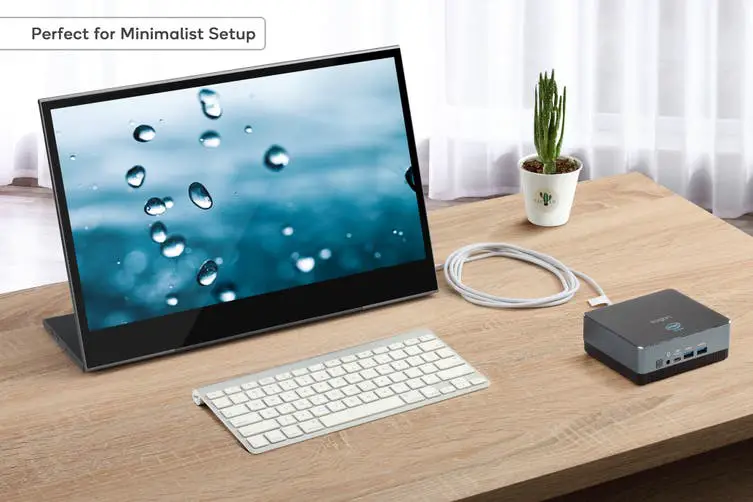
- The Ultimate 15.6 Touchscreen for Work and Play
- Ports:
- TYPE-C
- PD (Power Delivery)
- USB-C 3.1
- LED Power Key
- Keyboard Toggle Key
Product Usage Instructions:
Important Tips:
- Ensure that all connected cables are secure and not loose prior
to usage. - The required sustained power for this product is 10W. Please
confirm that the notebook USB-C or USB-A port can sustain 10W
(5V/2A).
How to Connect:
Method 1:
If your laptop has a full-featured TYPE-C interface, all you
need to do is connect the KX to your laptop’s USB-C port via a
USB-C to USB-C cable. You will need items 1 and 2.
Method 2:
If your laptop cannot provide 5V/2A power through the USB-C
port, or if the display has no signal/has unstable signal after
being connected, an external power adapter with 5V/2A output is
required to be connected to the PD port on the KX. The external
power adapter is not included in the package. You will need items 1
and 2.
Method 3:
If your laptop has an HDMI port, and the package (item 3)
includes a USB-C to HDMI+2USB-A cable, simply connect the KX USB-C
port to your laptop’s HDMI port. The black USB-A connector and red
USB-A connector need to be connected to the computer’s USB-A port.
You will need items 1 and 3.
Method 4:
If your laptop cannot provide 5V/2A power through the USB-A
port, or if the display has no signal/has unstable signal after
being connected, an external power adapter with 5V/2A output is
required to be connected to the red USB-A port on the data cable.
The external power adapter is not included in the package. You will
need items 1 and 3.
Keyboard Settings:
- Hold down the key for 1 second to switch the keyboard
mode. - For the best visual experience, when turning on the keyboard
mode, please set the Monitor to Extend. Only in the extended mode,
the keyboard screen supports fullscreen display with 1920x540P
resolution. - Press FN + F9 to switch the keyboard language. KX supports 9
languages. (This way can only switch the keyboard language of the
KX. The language of the PC needs to be set on the PC.) - Press and hold FN + F10 to toggle the key sound. KX supports 5
typing sounds. - The functions of F1-F12 shortcut keys shall be set according to
the international standard keyboard, and the actual operation shall
prevail.
Touch Settings:
- Click the Start Icon, search for “Control Panel”, choose
“Hardware and Sound”, and click “Tablet Settings”. - In the Tablet PC settings, click “Display” and then click
“Set”. - The following text will appear on the main screen of the PC:
Tap this screen with a single finger to identify it as
the touchscreen. If this is not the Tablet PC screen, press Enter
to move to the next screen. To close the operation, press
Esc.
Multi-functional Touch Screen Monitor Packing List
Landscape and Portrait Modes
KX Item 1
KX
USB-C TO USB-C *2 Item 2
USB-C TO HDMI+2 USB-A Item 3
The Ultimate 15.6″ Touchscreen for Work and Play
Box Item 4
Tips: 1. Ensure that all connected cables are secure and not loose prior to usage. 2. The required sustained power for this product is 10W. Please confirm that the notebook USB-C or USB-A port can sustain 10W (5V/2A).
Manual Item 5
These ports you need to know
TYPE-C / PD / USB-C 3.1 / LED Power Key / Keyboard Toggle Key
Note: 1. Please align the holes when installing. 2. When disassembling, sway the connection part side to side for easy disassembly. 3. Beware of pinching.
How to connect
Step 1: Connect the KX to the PC device through the USB Type-C port.
TYPE-C
USB-C 3.1 Indicator light PD 60W
Type-C Connection SUPPORTS LAPTOP WITH FULL-FUNCTIONED TYPE-C
Speaker
Speaker
Typing Speaker
360° Rotatable
HDMI Data Transfer
Power Supply
HDMI Connection
SUPPORTS PC WITH HDMI
Method 1: If your laptop has a full-featured TYPE-C interface, all you need to do is connect the KX to your laptop’s USB-C port via a USB-C to USB-C cable. You will need items 1 and 2.
Method 2: If your laptop cannot provide 5V/2A power through the USB-C port, or if the display has no signal/has unstable signal after being connected, an external power adapter with 5V/2A output is required to be connected to the PD port on the KX. The external power adapter is not included in the package. You will need items 1 and 2.
Method 3: If your laptop has an HDMI port, and the package (item 3) includes a USB-C to HDMI+2USB-A cable, simply connect the KX USB-C port to your laptop’s HDMI port. The black USB-A connector and red USB-A connector need to be connected to the computer’s USB-A port. You will need items 1 and 3.
Method 4: If your laptop cannot provide 5V/2A power through the USB-A port, or if the display has no signal/has unstable signal after being connected, an external power adapter with 5V/2A output is required to be connected to the red USB-A port on the data cable. The external power adapter is not included in the package. You will need items 1 and 3.
Keyboard Settings
Hold down the key for 1 second to switch the keyboard mode NOTE:
1. For the best visual experience, when turning on the keyboard mode, please set the Monitor to “Extend”. Only in the extended mode, the keyboard screen supports fullscreen display with 1920x540P resolution.
2. Press FN + F9 to switch the keyboard language. KX supports 9 languages. (This way can only switch the keyboard language of the KX. The language of the PC needs to be set on the PC.)
3. Press and hold FN + F10 to toggle the key sound, KX supports 5 typing sounds.
4. The functions of F1-F12 shortcut keys shall be set according to the international standard keyboard, and the actual operation shall prevail.
Touch Settings
1.Click the Start Icon Search Open Control Panel Choose Hardware and Sound Click Tablet Settings.
2.Tablet PC settings Click to display Click to set. 3.The following text appears on the main screen of the PC.
Tap this screen with a single finger to identify it as the touchscreen. If this is not the Tablet PC screen, press Enter to move to the next screen. To close the operation, press Esc.
Press ENTER to go to the next screen
Tap this screen with a single finger to identify it as the touchscreen. If this is not the Tablet PC screen, press Enter to move to the next screen. To close the operation, press Esc.
Tap the keyboard screen to complete the settings
MAC system touch settings
1. Move the mouse cursor to the keyboard screen, touch the coordinate point on the keyboard screen to complete the settings.
2. When connected to a MAC OS system computer, when the vertical screen is displayed, you need to rotate the touch coordinates in the fourth option of the OSD menu.
Note: When connecting the MAC OS system computer in the vertical display of the product mounting bracket, it is necessary to rotate the touch coordinate in the OSD menu to 270 degrees.
For more detailed information please check the manual of the product