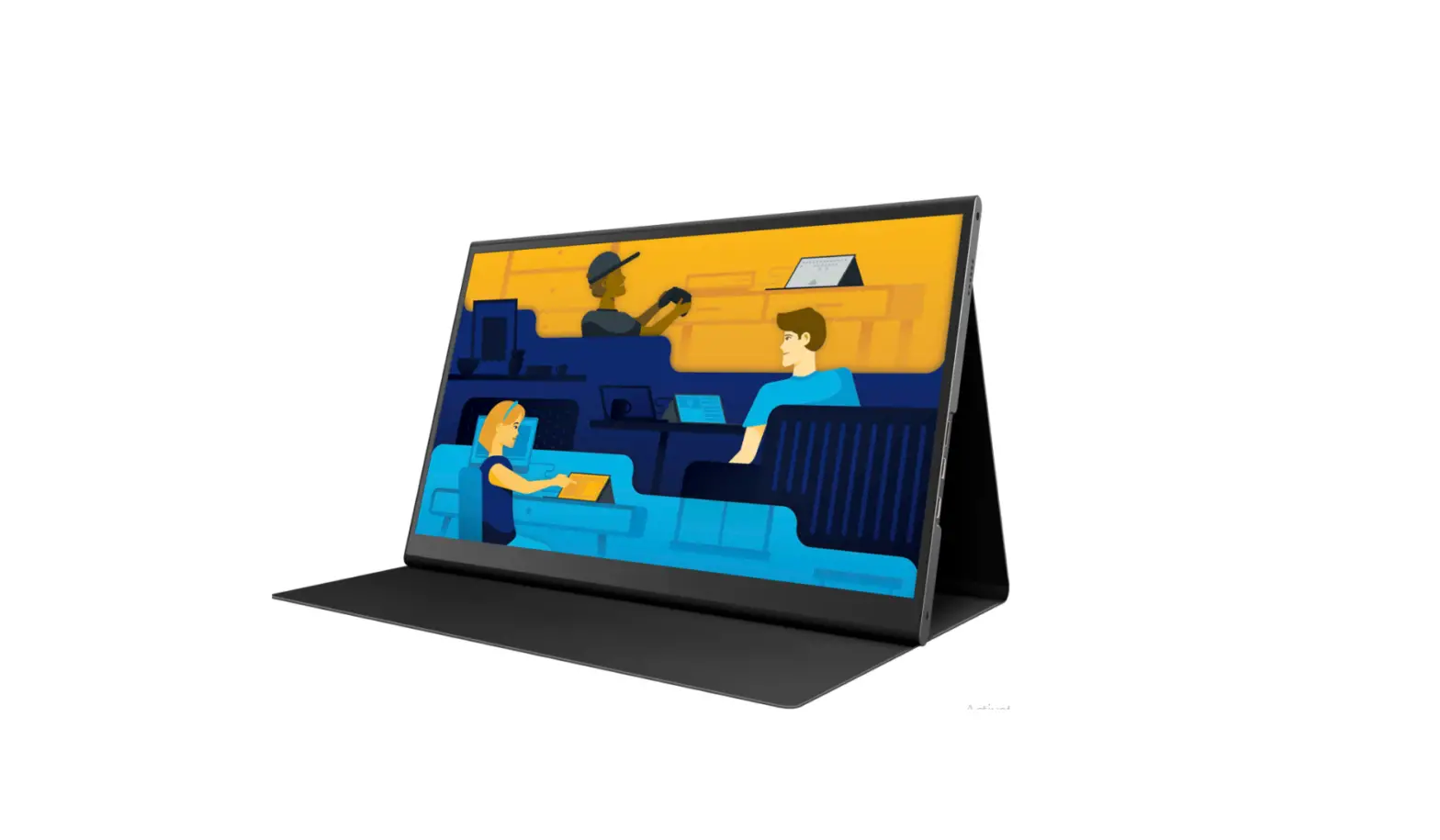
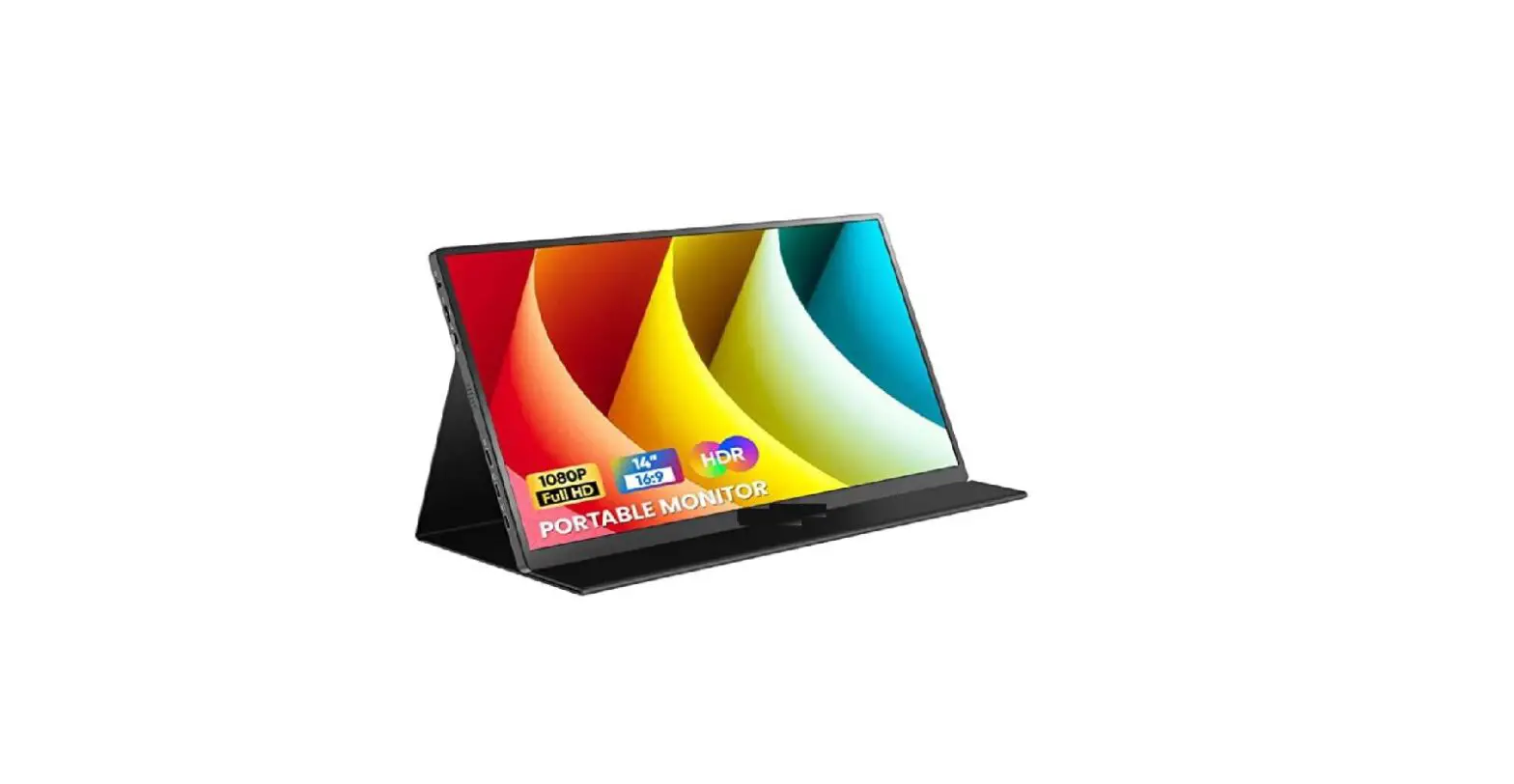
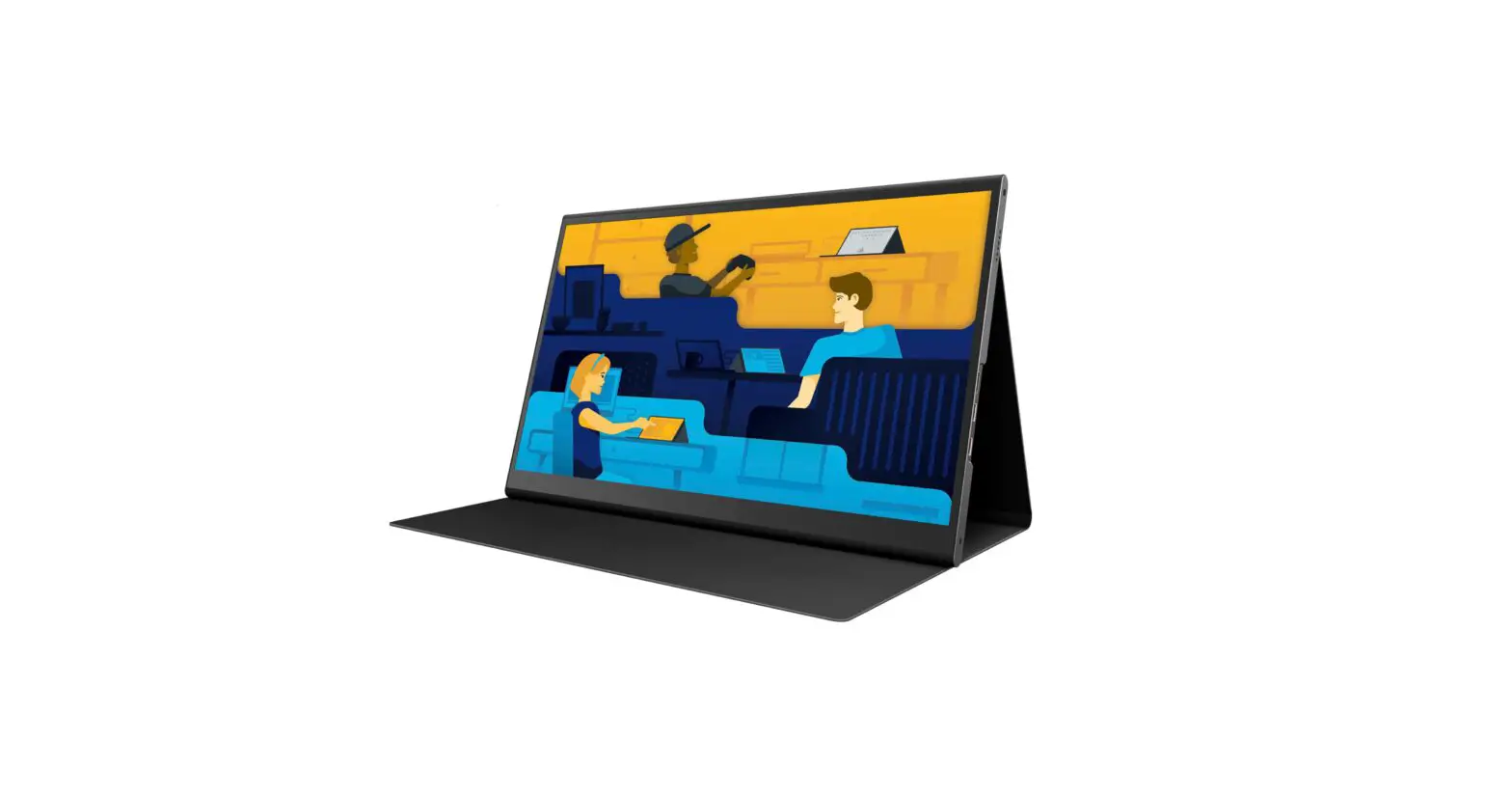
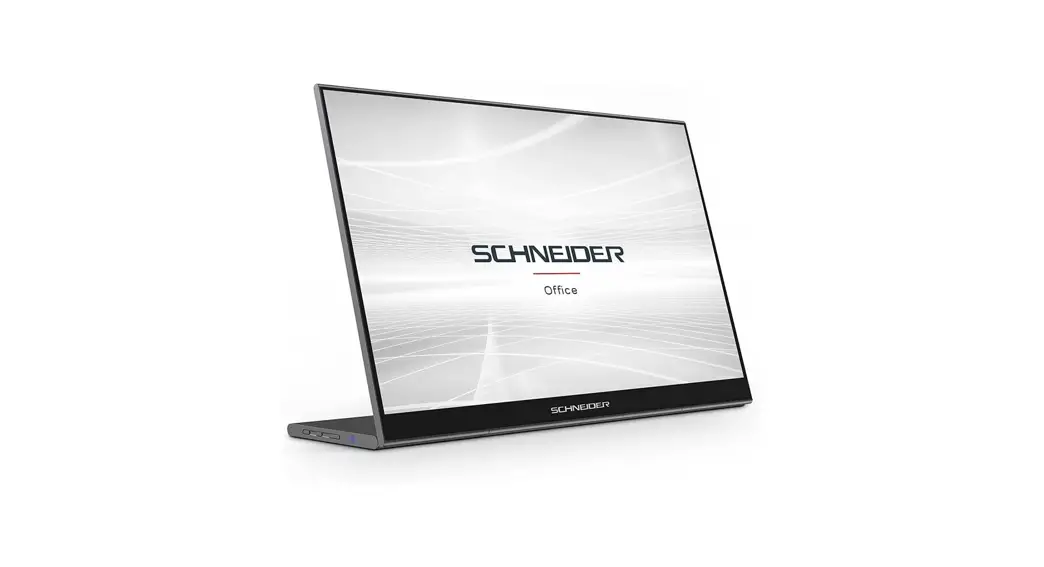
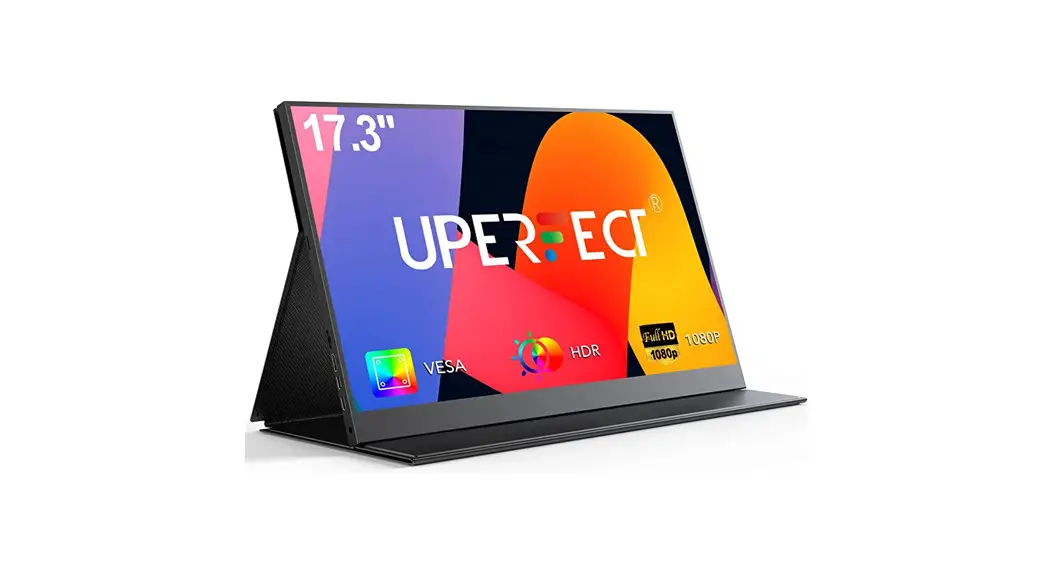
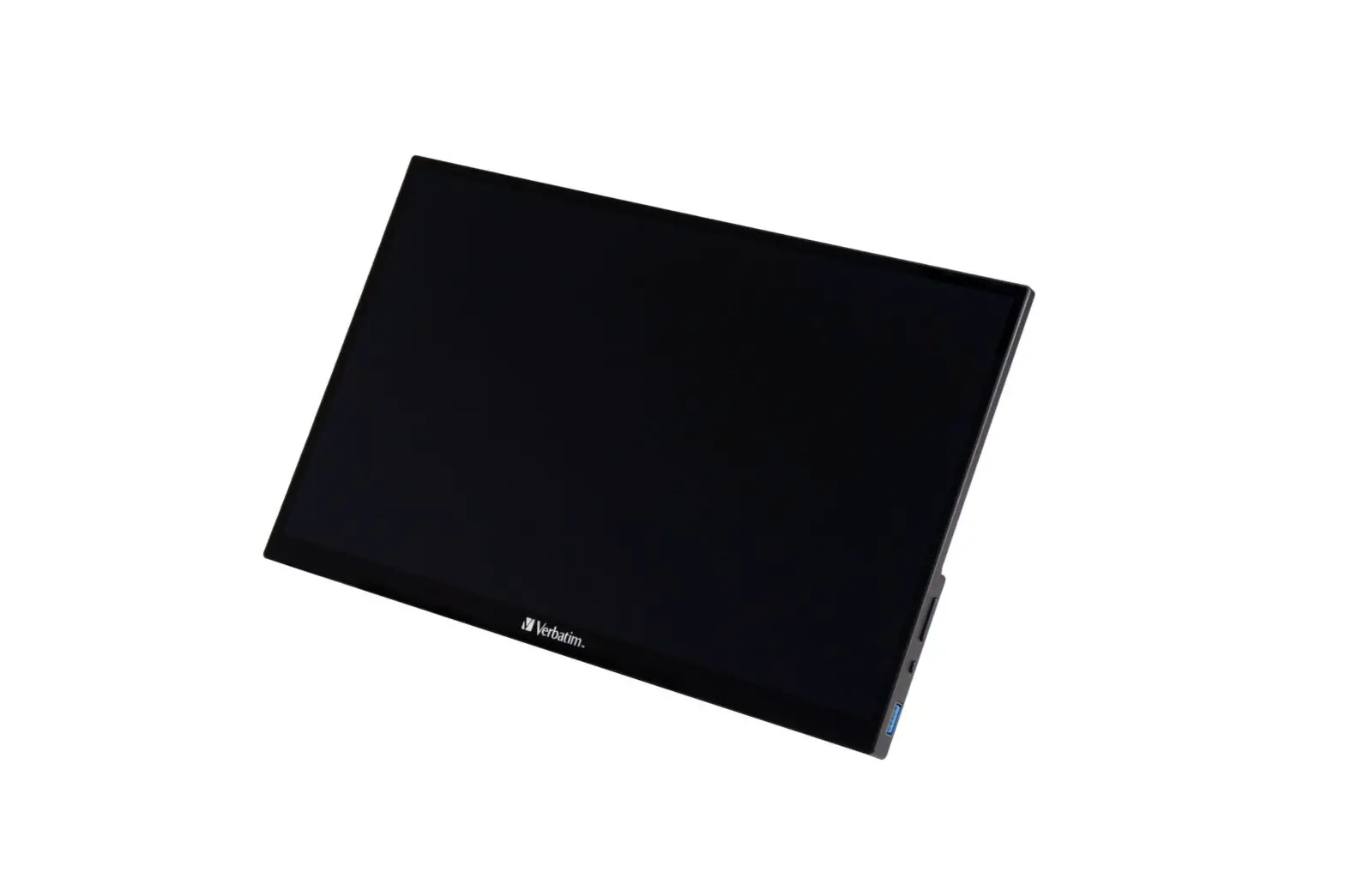
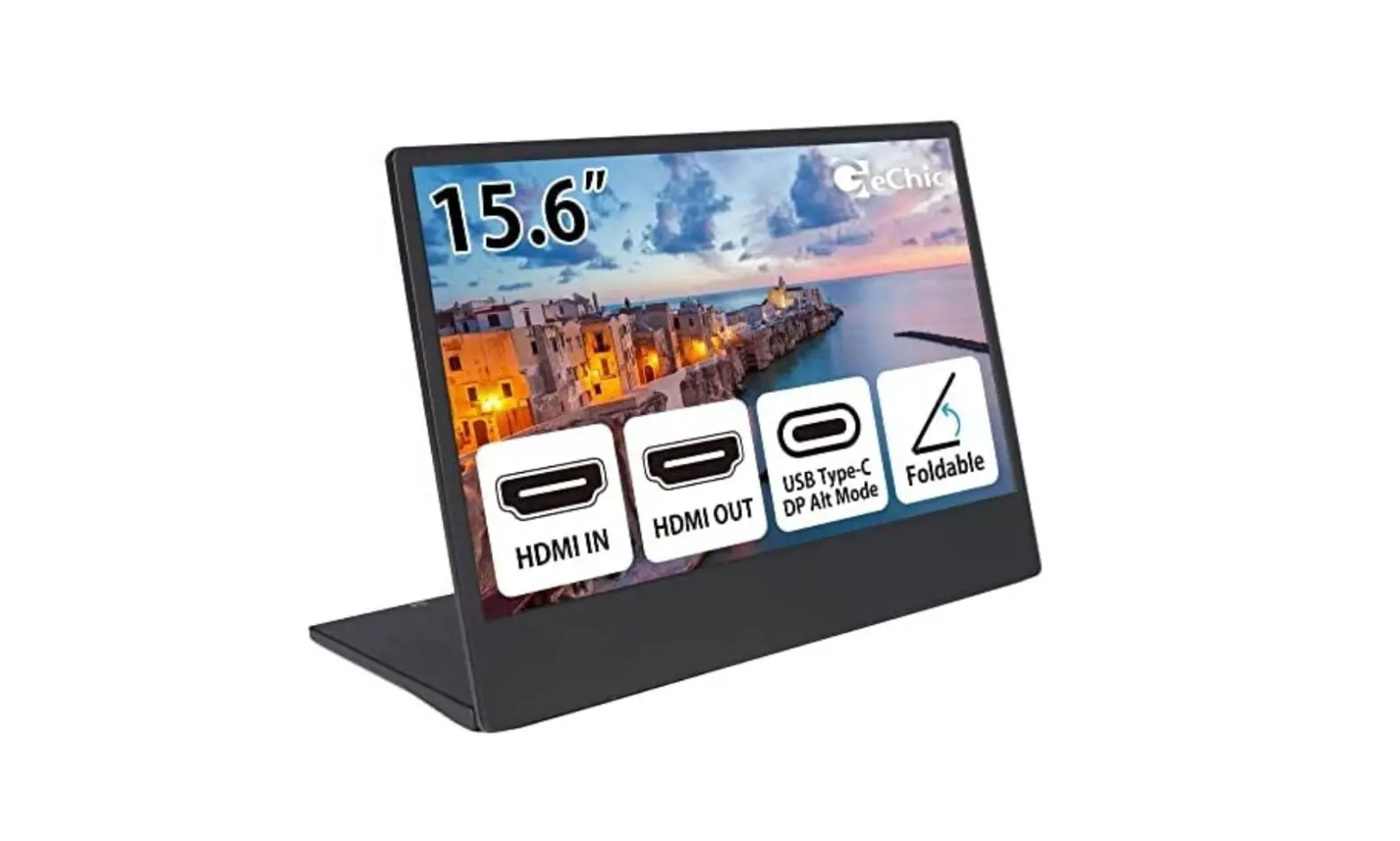
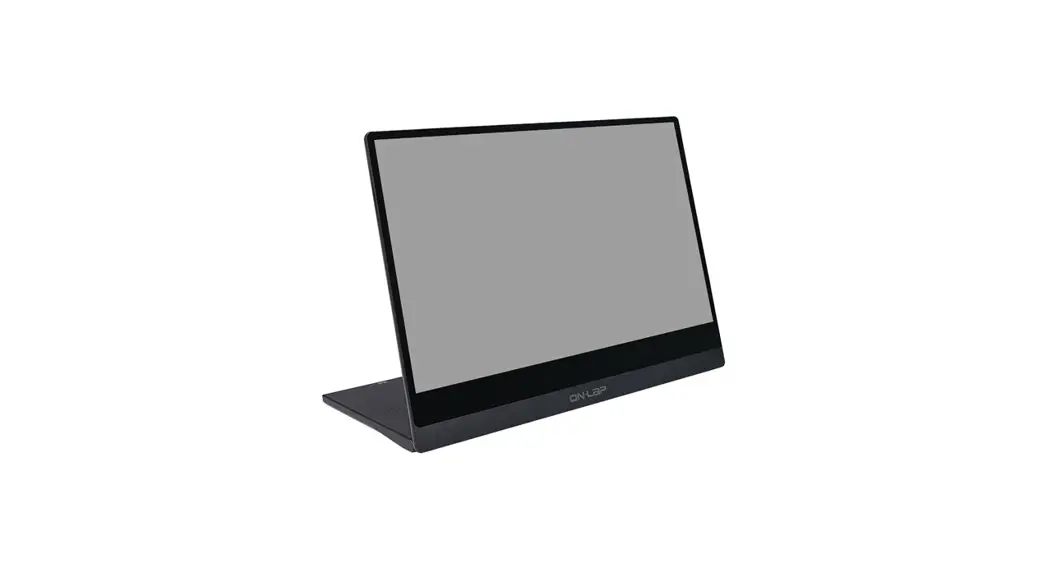
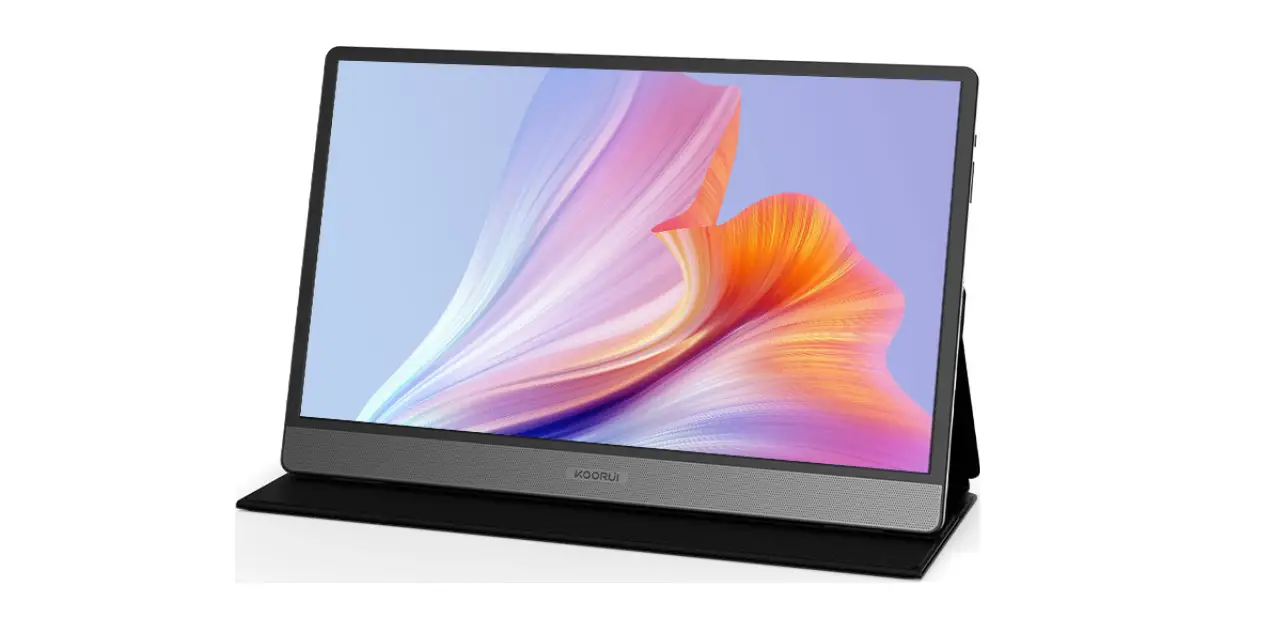
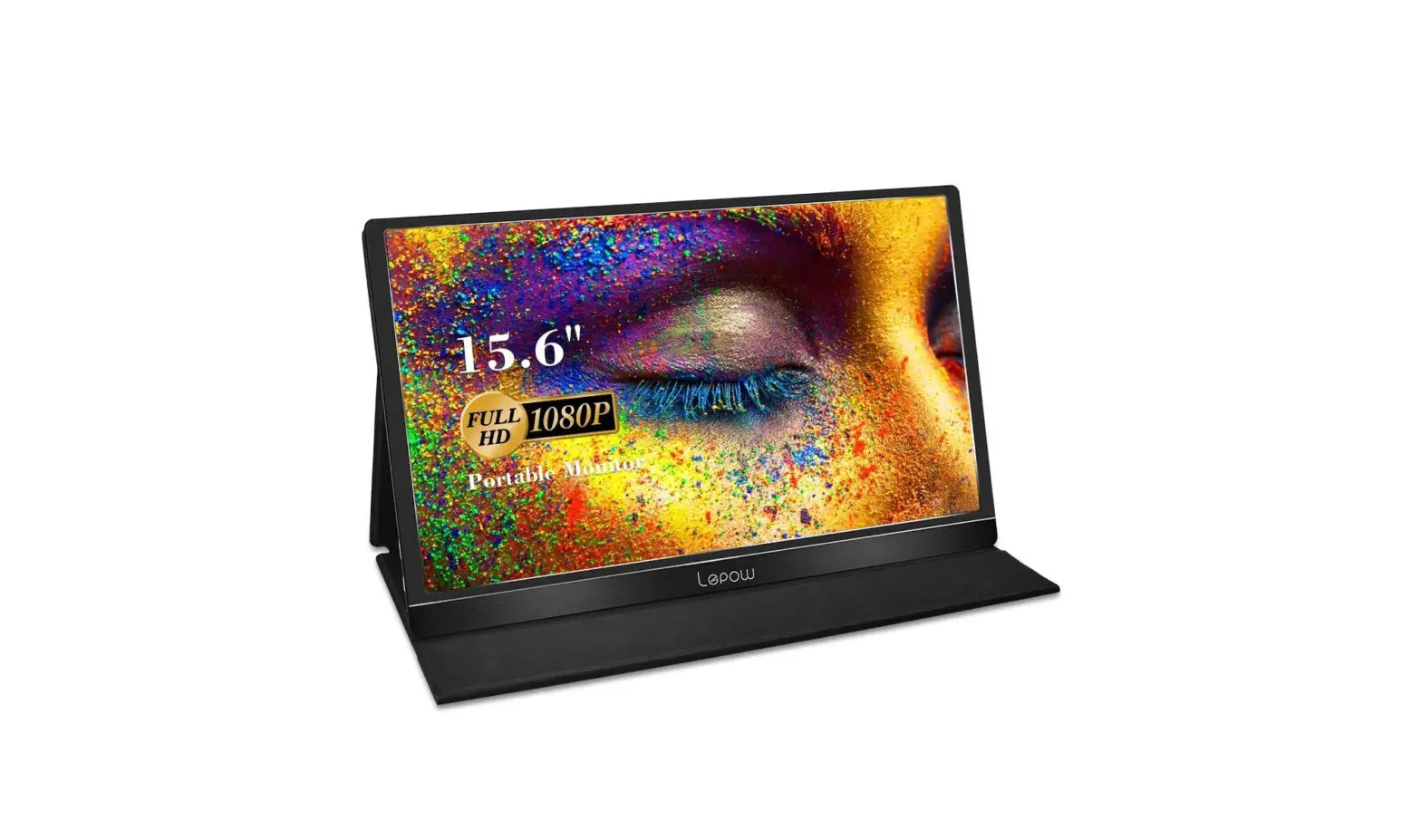
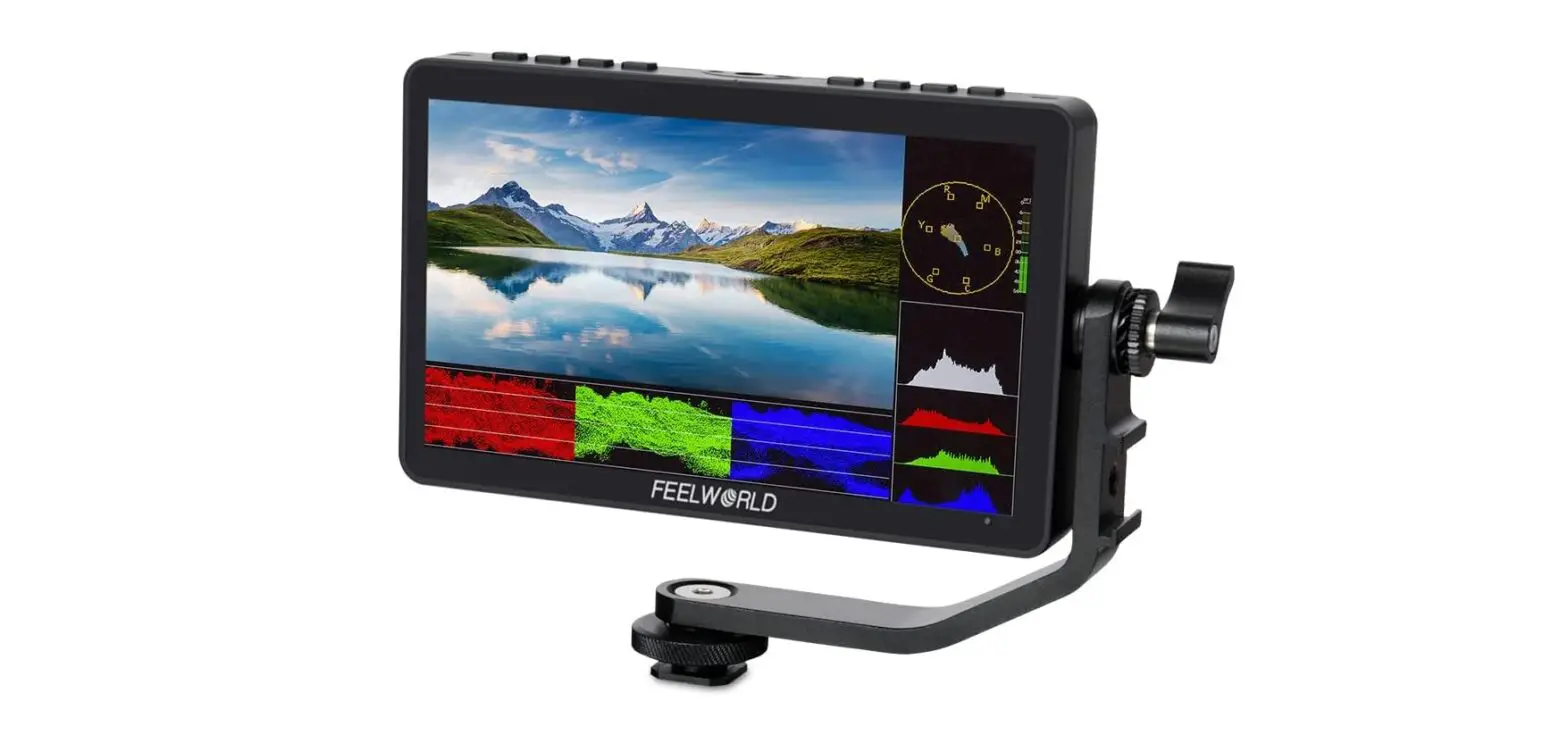
EM2PTAD15BS 15.6 Inch 1080p FHD Touchscreen Portable Monitor
Product Information: Portable Monitor
The Portable Monitor is a device that can be used as a secondary
display for your laptop or smartphone. It comes with a built-in
folio case that provides protection and doubles as a stand for the
monitor. The monitor has common connectivity options including
USB-C, Mini HDMI, and USB cables that allow you to connect to
various devices such as Windows laptops, iOS devices, and
smartphones. The monitor also comes with a USB power adapter for
convenience.
Product Usage Instructions
Using the Folio Case:
- Align the folio case with the opening at the top and the screen
facing forward. - With the folio case open, stand the screen up and place it in a
groove of the cover. - Adjust the screen to your desired angle by placing in either of
the grooves. - Do not remove the integrated design of the folio case from the
monitor.
Common Connectivity Options:
To connect to USB-C devices:
- Use a USB-C to USB-C cable for DP Alt Mode Windows devices
only. - Use a USB-C to USB cable for other USB-C devices.
- Use a Mini HDMI to HDMI cable for devices with a Mini HDMI
port. - Use a USB power adapter for convenience.
To connect to iOS devices:
- Use a USB-C to USB cable or Mini HDMI to HDMI cable.
- Use a Lightning to HDMI adapter (not included) for devices with
a Lightning connection type. - Use a USB power adapter for convenience.
Note that illustrations are for example purposes only and
compatible devices and functionality may vary. For more details on
compatibility, please visit elementelectronics.com.
If you need further assistance, please visit
elementelectronics.com/support for support.
PORTABLE MONITOR QUICK START CARD
How to Use the Folio Case:
The folio case provides protection and can be used to support the monitor as a stand. Its integrated design is
built-in to the monitor and should not be removed.
Step 1:
Align the folio case with the opening at the top and the screen facing forward.
Step 2:
With the folio case open, stand the screen up and place it in a groove of the cover.
Step 3:
Adjust the screen to your desired angle by placing in either of the grooves.
FOR SUPPORT, VISIT ELEMENTELECTRONICS.COM/SUPPORT
PORTABLE MONITOR QUICK START CARD
Common Connectivity Options:
Connect to USB-C Devices
USB-C to USB-C Cable
· For compatible USB-C devices with DP Alt Mode. · Power adapter (included) may be required to power the monitor
if source device does not have adequate power supply. · Touchscreen functionality is supported by compatible USB-C
(DP Alt Mode) Windows devices only.
Connect to HDMI® Devices
USB-C to USB Cable
Mini HDMI to HDMI Cable
USB Power Adapter
· Power adapter (included) must be used to power the monitor.
· Touchscreen functionality is not supported for this connection type.
Connect to iOS Devices
USB-C to USB Cable
Mini HDMI to HDMI Cable
Lightning to HDMI Adapter (not included)
· Power adapter (included) must be used to power the monitor. · Touchscreen functionality is not supported for this
connection type.
USB Power Adapter
Illustrations are for example purposes only. Compatible devices and functionality may vary. Please visit elementelectronics.com for more details on compatibility.
FOR SUPPORT, VISIT ELEMENTELECTRONICS.COM/SUPPORT
 Element Electronics Home - TVs, Audio, Home Entertainment, Appliances