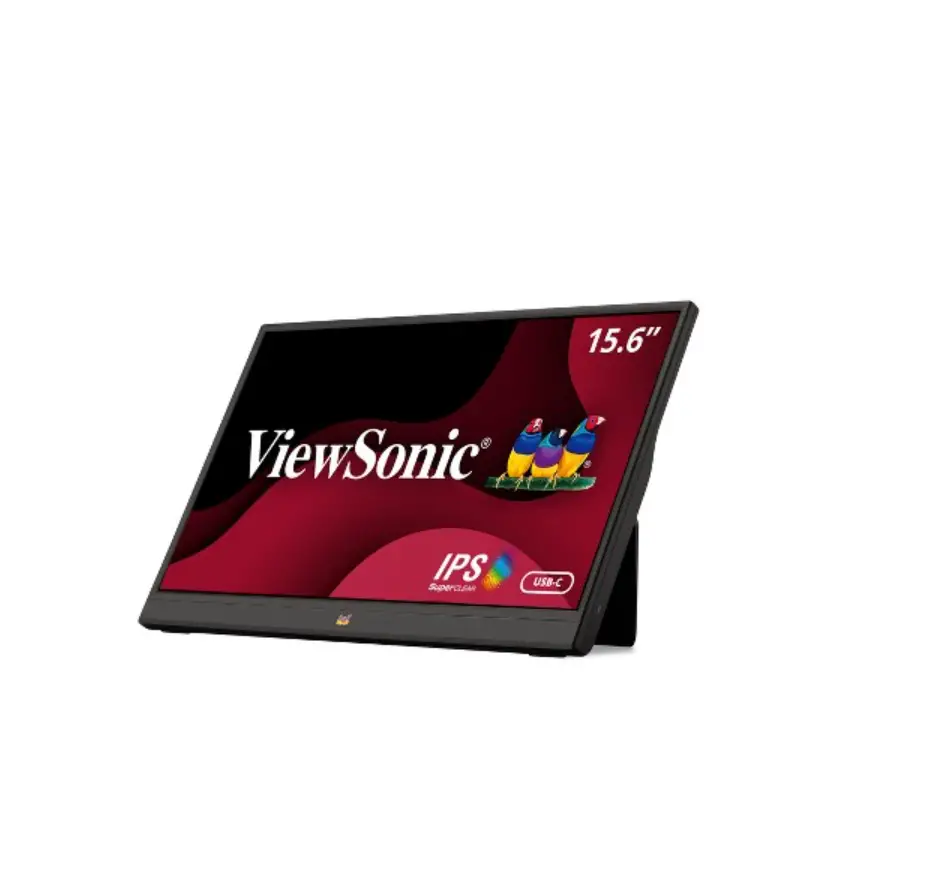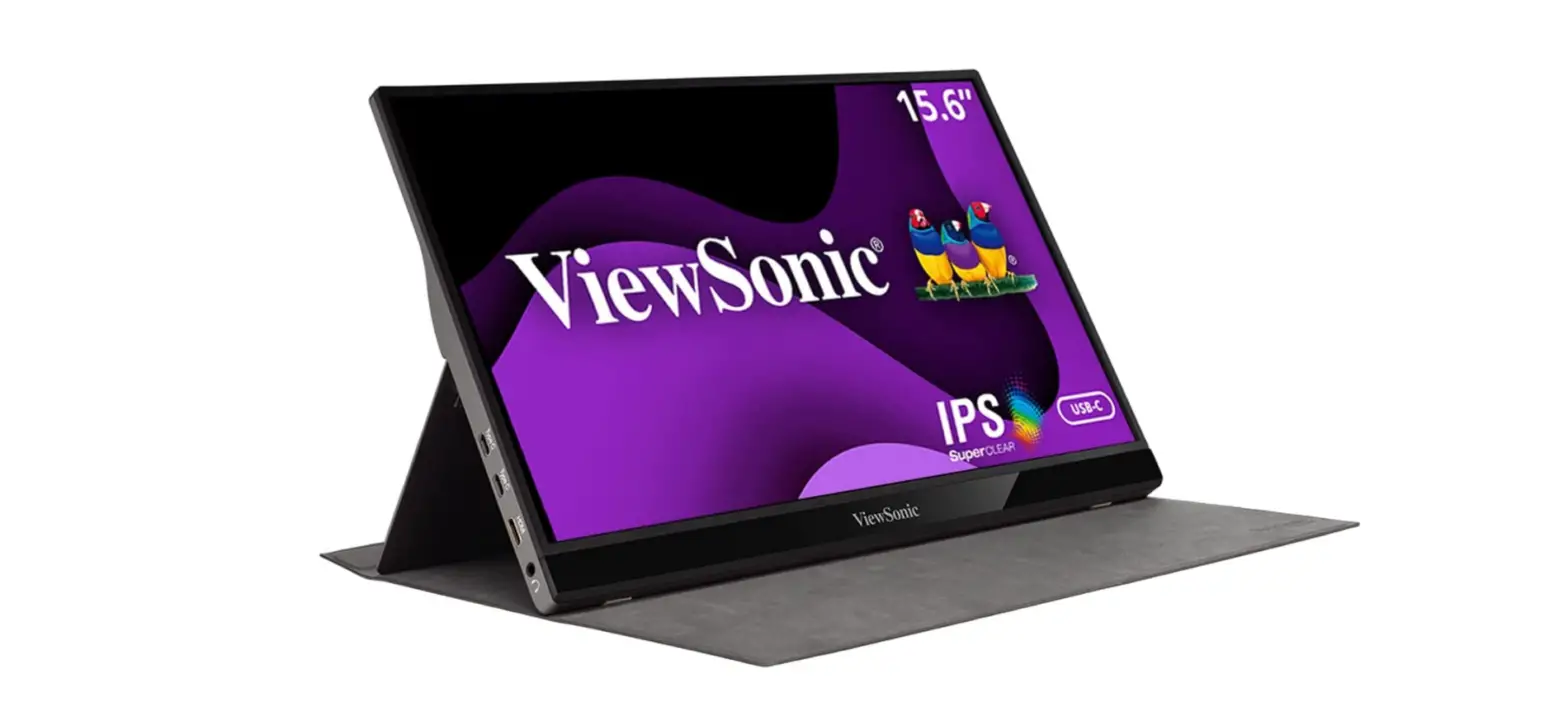

ViewSonic VG1655 15.6-Inch Portable Monitor
Safety Precautions
- Please read the following Safety Precautions before you start using the device.
- Keep this user guide in a safe place for later reference.
- Read all warnings and follow all instructions.
- Sit at least 18″ (45 cm) away from the device.
- Allow at least 4″ (10 cm) clearance around the device to ensure proper ventilation.
- Place the device in a well-ventilated area. Do not place anything on the device that prevents heat dissipation.
- Do not use the device near water. To reduce the risk of fire or electric shock, do not expose the device to moisture.
- Avoid exposing the device to direct sunlight or other sources of sustained heat.
- Do not install near any heat sources such as radiators, heat registers, stoves, or other devices (including amplifiers) that may increase the temperature of the device to dangerous levels.
- Use a soft, dry cloth to clean the external housing. For more information, refer to the “Maintenance” section on page 34.
- Oil may collect on the screen as you touch it. To clean the greasy spots on the screen, refer to the “Maintenance” section on page 34.
- Do not touch the screen surface with sharp or hard objects, as it may cause damage to the screen.
- When moving the device, be careful not to drop or bump the device on anything.
- Do not place the device on an uneven or unstable surface. The device may fall over resulting in an injury or a malfunction.
- Do not place any heavy objects on the device or connection cables.
- If smoke, an abnormal noise, or a strange odor is present, immediately turn the device off and call your dealer or ViewSonic®. It is dangerous to continue using the device.
- do not attempt to circumvent the safety provisions of the polarized or grounding-type plug. A polarized plug has two blades with one wider than the other. A grounding-type plug has two blades and a third grounding prong. The wide blade and the third prong are provided for your safety. If the plug does not fit into your outlet, obtain an adapter and do not attempt to force the plug into the outlet.
- When connecting to a power outlet, DO NOT remove the grounding prong. Please ensure grounding prongs are NEVER REMOVED.
- Protect the power cord from being treaded upon or pinched, particularly at the plug, and at the point where it emerges from the equipment. Ensure that the power outlet is located near the equipment so that it is easily accessible.
- Only use attachments/accessories specified by the manufacturer.
- When a cart is used, use with caution when moving the cart/equipment combination to avoid injury from tipping over.
- Disconnect the power plug from the AC outlet if the device is not being used for a long period of time.
- Refer all servicing to qualified service personnel. Service will be required when the unit has been damaged in any way, such as:
- if the power supply cord or plug is damaged
- if liquid is spilled onto or objects fall in the unit
- if the unit is exposed to moisture
- if the unit does not operate normally or has been dropped
- NOTICE: LISTENING THROUGH EAR-/HEADPHONES AT A HIGH VOLUME FOR EXTENDED PERIODS CAN CAUSE HEARING DAMAGE/HEARING LOSS. When using ear-/headphones, adjust the volume to appropriate levels, or hearing damage may result.
- NOTICE: THE MONITOR MAY OVERHEAT AND SHUTDOWN! If the device shuts down automatically, please turn on your monitor again. After rebooting, change your monitor’s resolution and refresh rate. For details, please refer to the graphics card’s user guide.
Introduction
Package Contents
- Portable Display
- Power adapter
- USB Type C cable
- USB Type C to Type A cable
- Mini HDMI to HDMI cable
- Protective cover
- Cleaning cloth
- Quick start guide
NOTE: The power adapter and video cables included in your package may vary depending on your country. Please contact your local reseller for more information.
Product Overview
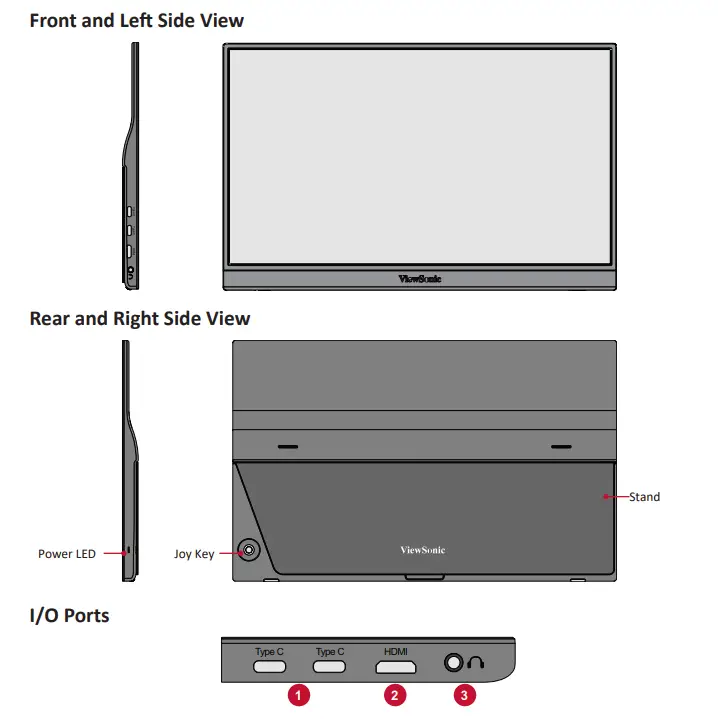
- USB Type C
- Audio Out
- Mini HDMI
NOTE: For more information about the Middle
 key and its functions, refer to “Hot Keys” on page 17.

Initial Setup
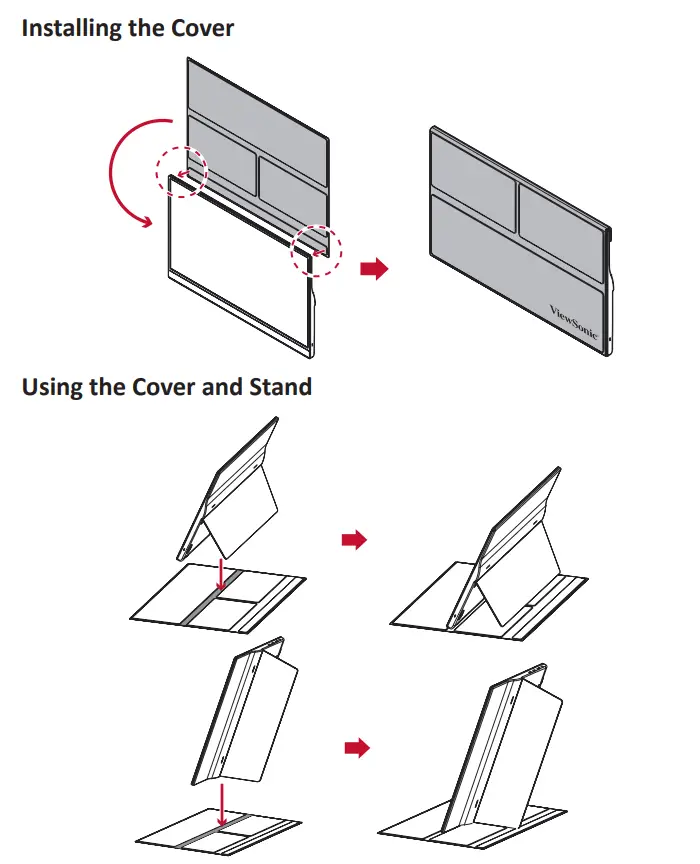
NOTE: Always place the device on a flat, stable surface. Failure to do so may cause the device to fall and damage the device and/or result in personal injury.
Making Connections
Connecting to Power
The monitor can be powered in any of the following configurations: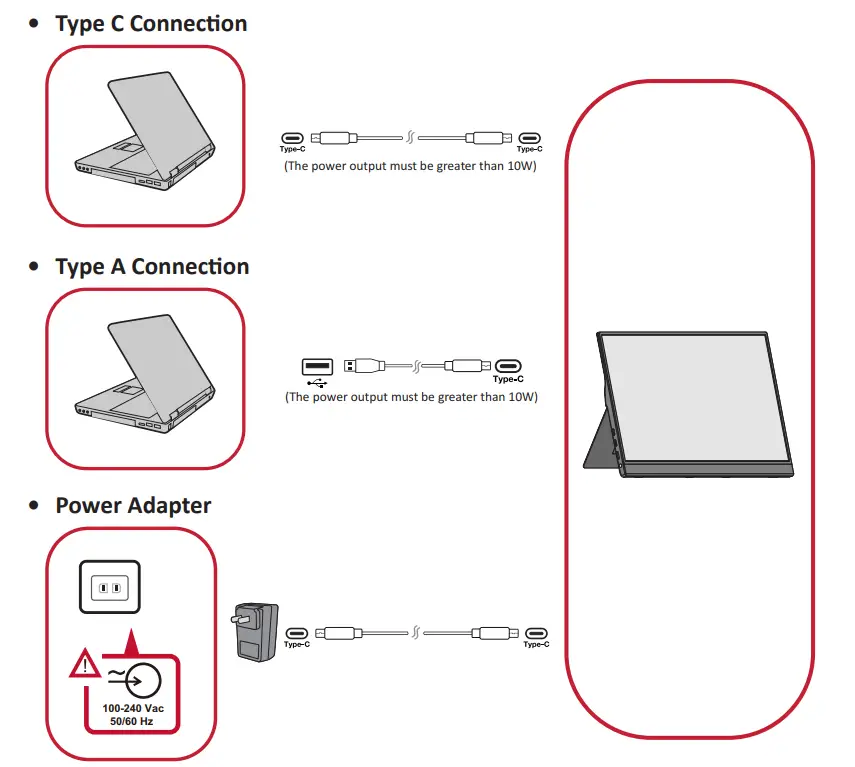 NOTE: For more information, please see “Power Delivery” on page 12.
Connecting External Devices
Your external device(s) can be connected in any of the following configurations:
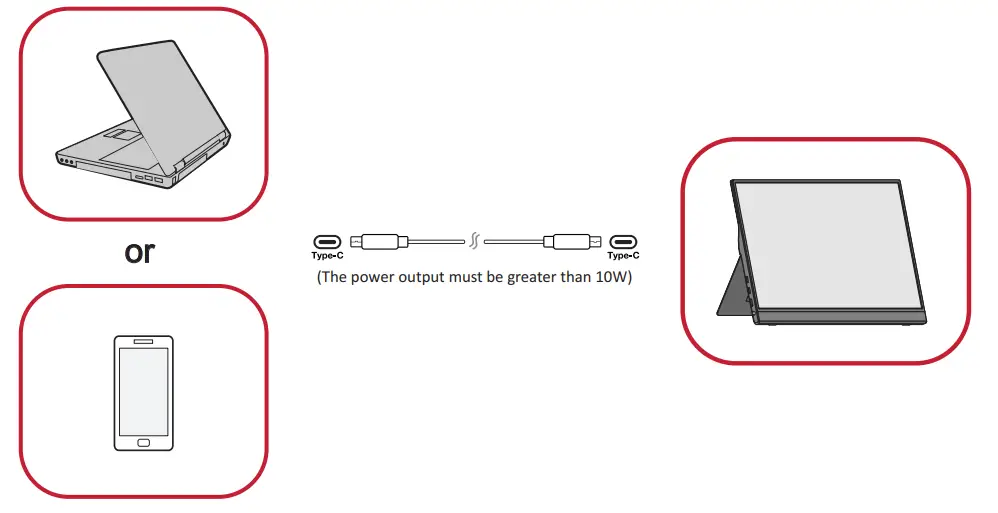
- Type C Connection
Connect a Type C cable from your external device to a Type C port on the monitor.
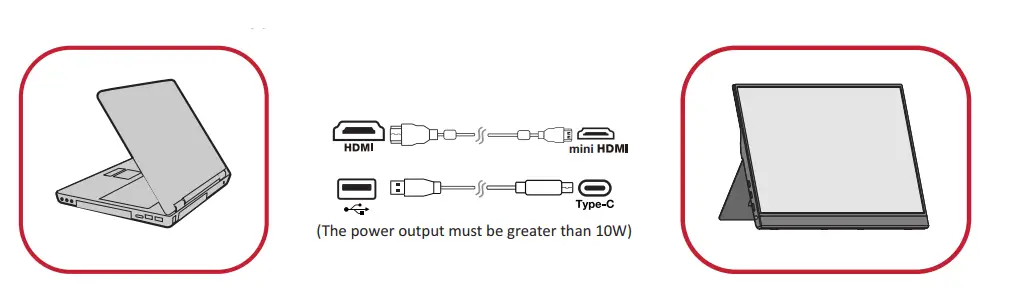
- Mini HDMI Connection
- Connect the mini HDMI cable from your external device to the mini HDMI port on the monitor.
- Connect the USB Type A to Type C cable from your external device.
 NOTE:
NOTE:
The USB Type A to Type C connection will also supply power to the monitor from the notebook. The power output must be greater than 10W.
 NOTE:
NOTE:Power Delivery
Powering a Notebook or Mobile Phone
If the included power adapter is connected to the monitor, then the monitor can charge a connected notebook or mobile phone.
NOTE: Power Delivery Output: DC 5V/9V/12V/15V/20V/Max 3A.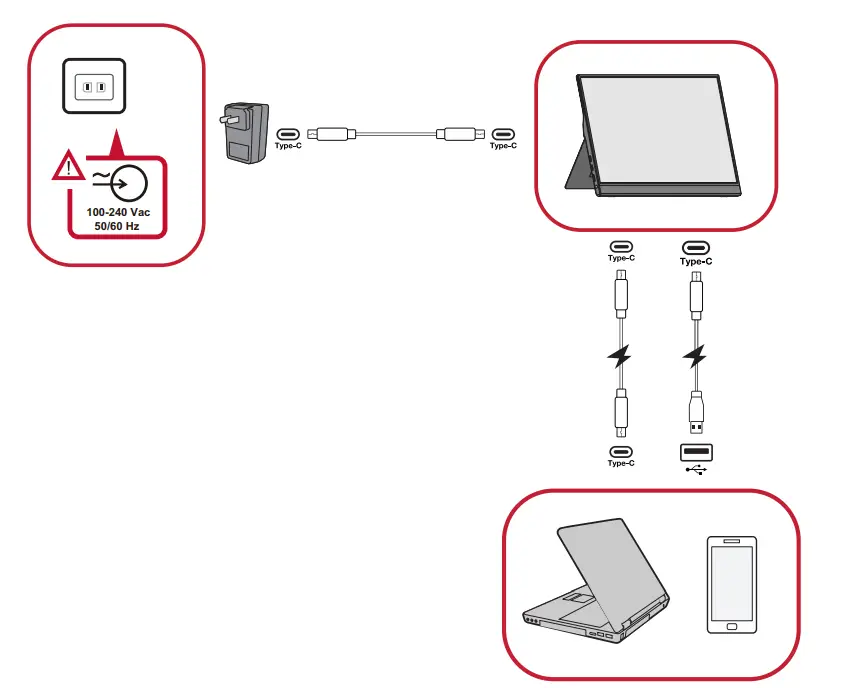
Power Supply Detection
This product will detect if the power supply device is an adapter, laptop or mobile phone.
- If the power source is an adapter or notebook, the default brightness value will be 100.
- If the power source is a mobile phone, the default brightness value will be 15.
- When using a mobile phone to power the monitor, the default brightness level will be 15.
NOTE: Due to the limited power output of the mobile phone, do not adjust the brightness level higher as this may cause the display to flash or shut down.
Power Delivery – Further Information
Due to the VG1655’s design please note:
- The first connected device will be the main input signal.
- When a Type C port recognizes an external device as a power adapter, it will only distribute the power. It will NOT display the input signal.
- Only when one of the Type C ports is recognized as a power adapter can the other one deliver two-way power.
If a laptop is connected first to the VG1655, then a mobile phone is connected second, the mobile phone’s battery will not be charged as neither Type C port recognizes the connection as being connected to a power adapter.
NOTE: If you want to display the mobile phone’s screen, you must unplug the Type C cable connected to the laptop.
If a mobile phone is connected first to the VG1655, then a laptop is connected second, the mobile phone’s battery will be charged as one of the Type C ports is recognized as being connected to a power adapter.
NOTE: If you want to display the laptop screen, you must unplug the Type C cable connected to the mobile phone.
Due to the VG1655’s design, do not connect two laptops or one laptop and a desktop computer at the same time. This can cause power distribution conflicts, resulting in flashing screens or the forced shutdown of the laptop(s).
NOTE:
- If the laptop has a Type C port, please connect via Type C to the VG1655.
- Do not connect the other Type C port of the VG1655 to another laptop or desktop computer via Type A and HDMI at the same time.
- If the laptop only has HDMI and Type A ports, please connect via HDMI and Type A to Type C to the VG1655.
- If the power output of the Type A port of the laptop is not greater than 10W, please use our power adapter to connect to the VG1655.
- Do not connect the other Type C port of the VG1655 to another laptop or desktop computer at the same time.
Using the Monitor
Adjusting the Viewing Angle
Tilt Angle Adjustment
Tilt the monitor backwards to the desired viewing angle via the attached stand (20˚ to 60˚).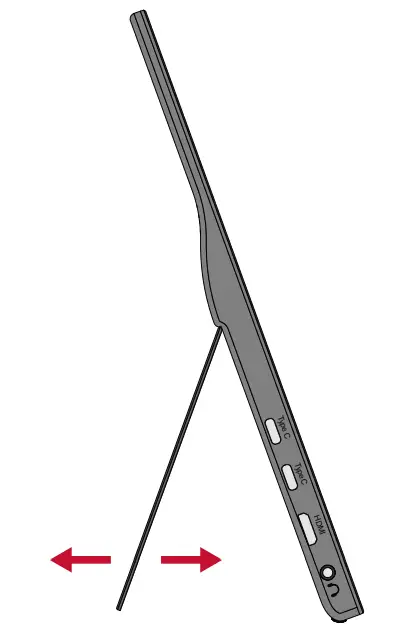
NOTE: When adjusting, support the monitor firmly with one hand while tilting the stand backwards with the other hand.
Turning the Device On/Off
- Connect to a power source in one of the available configurations. For more information, see page 10.
- Press the Middle (l) button to turn on the monitor.
- To turn the monitor off, press the Middle (l) button again.

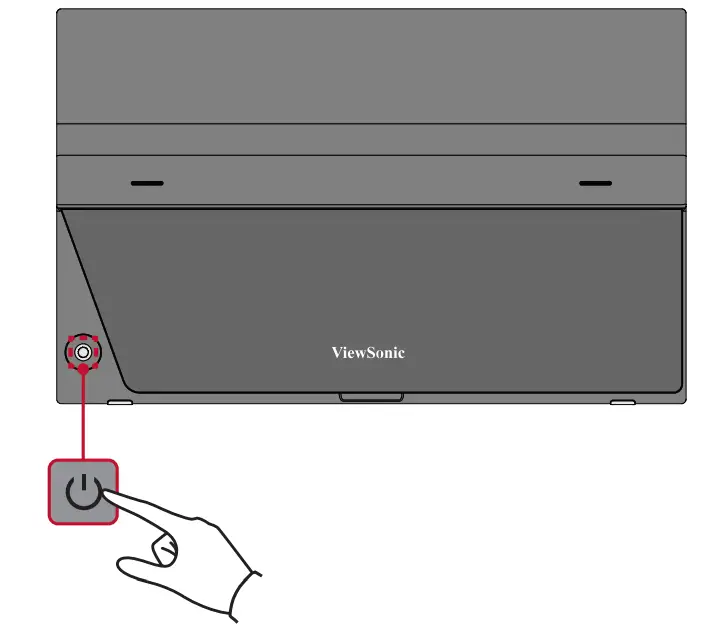
NOTE: The monitor will still consume some power as long as the power cord is connected to the power outlet. If the monitor is not being used for a long period of time, please disconnect from the power outlet.
Using the Control Panel Joy Key
Use the control panel joy key to access the Quick Menu, activate Hot Keys, navigate the On-Screen Display (OSD) Menu, and change the settings.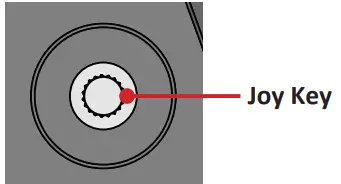
Quick Menu
Press the  key to activate the Quick Menu.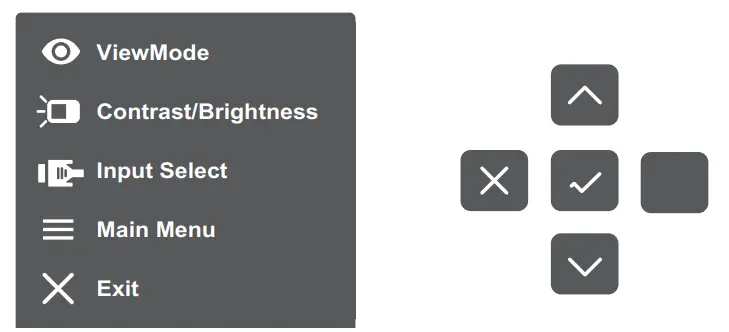
NOTE: Follow the key guide that appears on the screen to select the option or make adjustments.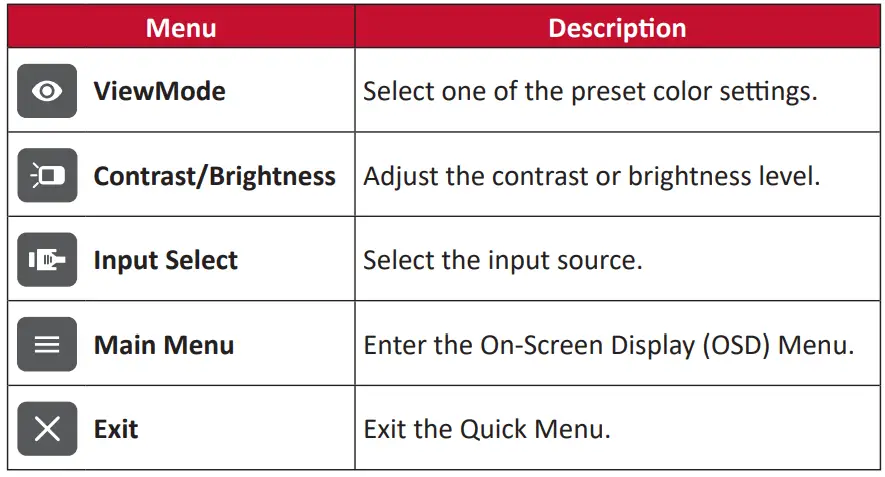
Hot Keys
When the On-Screen Display (OSD) Menu is off, you can quickly access special functions by using the control panel keys.
| Key | Description |
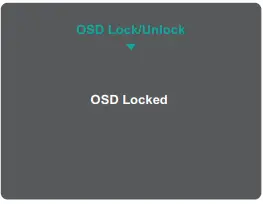
| ◄ | Press and hold the key to lock/unlock the OSD Menu.When the menu appears on the screen, continue holding the key for 5 seconds to lock/unlock the OSD Menu. 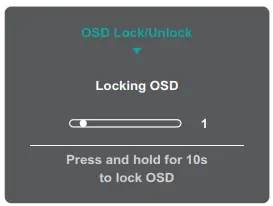
If the OSD Menu is locked, the below message will appear on the screen: |
| Key | Description |
| ► | Press and hold the key to lock/unlock the Power button.When the menu appears on the screen, continue holding the key for 5 seconds to lock/unlock the Power button.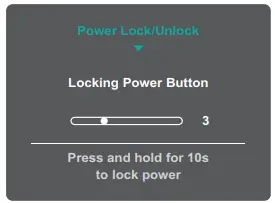
If the Power button is locked, the below message will appear on the screen: |
Press and hold the key for 5 seconds to display/hide the boot up screen when the device is turned on.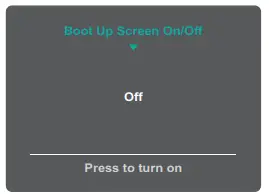 |
| Key | Description |
Press and hold the key for 5 seconds to turn on DDC/CI and DDC/2B.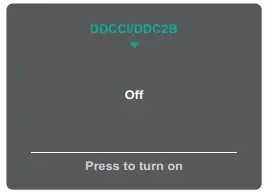 |
Configuring the Settings
General Operations
- Press the Middlekey to display the On-Screen Display (OSD) Menu.

- Press the
 key to select the main menu. Then press the Middle key to enter the selected menu.
- Press the key to select the desired menu option. Then press the Middle key to enter the sub-menu.
- Press the key to select the setting. Then press the Middle key to confirm. Or press the key to make adjustments.

NOTE: Certain menu option adjustments do not require the user to press the Middle (l) key to confirm the selection. Follow the key guide to select the option or make adjustments. - Follow the key guide to return to the previous screen.
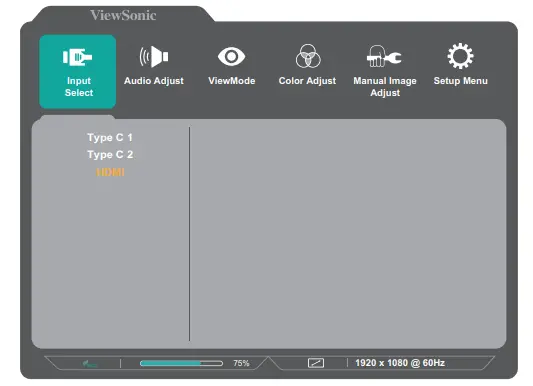
 key to select the main menu. Then press the Middle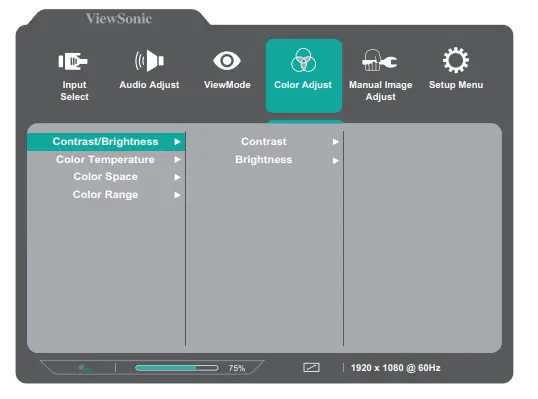
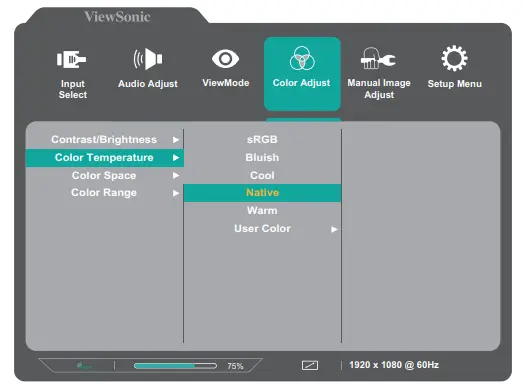
| Main Menu | Sub-menu | Menu Option | |||
| Input Select | Type C | ||||
| HDMI | |||||
| Audio Adjust | Volume | (-/+, 0~100) | |||
|
Mute | On | ||||
| Off | |||||
| ViewMode | Off | ||||
|
Office | Web | ||||
| Text | |||||
| Custom 1/2/3 | Low Input Lag | On | |||
| Off | |||||
| Black
Stabilization | (-/+, 0~100) | ||||
| Advanced DCR | (-/+, 0~100) | ||||
| Response Time | Standard | ||||
| Advanced | |||||
| Ultra Fast | |||||
| Hue | Red | (-/+, 0~100) | |||
| Green | (-/+, 0~100) | ||||
| Blue | (-/+, 0~100) | ||||
| Cyan | (-/+, 0~100) | ||||
| Magenta | (-/+, 0~100) | ||||
| Yellow | (-/+, 0~100) | ||||
| Saturation | Red | (-/+, 0~100) | |||
| Green | (-/+, 0~100) | ||||
| Blue | (-/+, 0~100) | ||||
| Cyan | (-/+, 0~100) | ||||
| Magenta | (-/+, 0~100) | ||||
| Yellow | (-/+, 0~100) | ||||
| Rename | |||||
| Recall | |||||
| Main Menu | Sub-menu | Menu Option | ||
| ViewMode | Movie | |||
| MAC | ||||
| Mono | ||||
|
Game | FPS 1 | |||
| FPS 2 | ||||
| RTS | ||||
| MOBA | ||||
| Color Adjust | Contrast/ Brightness | Contrast | (-/+, 0~100) | |
| Brightness | (-/+, 0~100) | |||
| Color Temperature | sRGB | |||
| Bluish | ||||
| Cool | ||||
| Native | ||||
| Warm | ||||
|
User Color | Red | (-/+, 0~100) | ||
| Green | (-/+, 0~100) | |||
| Blue | (-/+, 0~100) | |||
|
Color Space | Auto | |||
| RGB | ||||
| YUV | ||||
|
Color Range | Auto | |||
| Full Range | ||||
| Limited Range | ||||
|
Gamma | 1.8 | |||
| 2 | ||||
| 2.2 | ||||
| 2.4 | ||||
| 2.6 | ||||
| 2.8 | ||||
| Manual Image Adjust | Sharpness | (-/+, 0/25/50/75/100) | ||
| Aspect Ratio | 4:3 | |||
| Full Screen | ||||
| Overscan | On | |||
| Off | ||||
| Blue Light Filter | (-/+, 0~100) | |||
| Main Menu | Sub-menu | Menu Option | |
| Setup Menu | Language Select | English | |
| Français | |||
| Deutsch | |||
| Español | |||
| Italiano | |||
| Suomi | |||
| Svenska | |||
| Русский | |||
| Türkçe | |||
| Česká | |||
| 日本語 | |||
| 한국어 | |||
| 繁體中文 | |||
| 简体中文 | |||
| Resolution Notice | On | ||
| Off | |||
| Information | |||
| OSD Time Out | (-/+, 5/15/30/60) | ||
| OSD
Background | On | ||
| Off | |||
| OSD Pivot | 0° | ||
| 90° | |||
| Power Indicator | On | ||
| Off | |||
| Boot Up Screen | On | ||
| Off | |||
| Auto Power
Off | On | ||
| Off | |||
| Main Menu | Sub-menu | Menu Option | |
| Setup Menu | Sleep | 30 Minutes | |
| 45 Minutes | |||
| 60 Minutes | |||
| 120 Minutes | |||
| Off | |||
|
ECO Mode | Standard | ||
| Optimize | |||
| Conserve | |||
| DDC/CI | On | ||
| Off | |||
| Auto Detect | On | ||
| Off | |||
| All Recall | |||
Appendix
Specifications
| Item | Category | Specifications |
| LCD | Type | TFT Active Matrix 1920 x 1080 LCD;
0.1792 (H)mm x 0.1792 (V)mm pixel pitch |
| Display Size | 39.6 cm, 16″ (15.6” viewable) | |
| Color Filter | RGB Vertical stripe | |
| Glass Surface | Anti-Glare type, 3H hard coating | |
|
Input Signal | Video Sync | TMDS digital (100 Ω)
HDMI (v 1.4): fh15-82 Khz, fv:50-75 Hz Micro-Packet Type C: fh15-82 Khz, fv:50-75 Hz |
|
Compatibility | PC | up to 1920 x 1080 |
| Macintosh | up to 1920 x 1080 | |
| Recommended | 1920 x 1080 @ 60Hz | |
| Resolution1 | Supported | • 1920 x 1080 @ 50, 60Hz
• 1680 x 1050 @ 60Hz • 1600 x 1200 @ 60Hz • 1600 x 900 @ 60Hz • 1440 x 900 @ 60, 75Hz • 1400 x 1050 @ 60Hz • 1366 x 768 @ 60Hz • 1360 x 768 @ 60Hz • 1280 x 1024 @ 50, 60, 75Hz • 1280 x 960 @ 50, 60, 75Hz • 1280 x 800 @ 50, 60, 75Hz • 1280 x 768 @ 50, 60, 75Hz • 1280 x 720 @ 50, 60Hz • 1152 x 870 @ 75Hz • 1152 x 864 @ 60, 75Hz • 1024 x 768 @ 50, 60, 70, 72, 75Hz • 800 x 600 @ 56, 60, 72, 75Hz • 720 x 576 @ 50Hz • 720 x 480 @ 60Hz • 720 x 400 @ 70Hz • 640 x 480 @ 50, 60, 67, 72, 75Hz • 640 x 400 @ 60, 70Hz • 640 x 350 @ 70Hz |
| Power Adapter2 | Input Voltage | AC 100-240V, 50/60Hz (auto switch) |
| UE Electronic | UES60LCP-200300SPC | |
| Display Area | Full Scan (H x V) | 341.16 x 193.59 mm (13.43” x 7.62”) |
| Operating conditions | Temperature | 0° C to 40° C (32° F to 104° F) |
| Humidity | 20% to 90% (non-condensing) | |
| Altitude | 9,842.5 feet (3 km) |
| Item | Category | Specifications |
| Storage
conditions | Temperature | -20° C to 60° C (-4° F to 140° F) |
| Humidity | 5% to 90% (non-condensing) | |
| Altitude | 40,000 feet (12.1 km) | |
| Dimensions | Physical (W x H x D) | 355.5 x 223.4 x 15.5 mm
(14.5” x 8.79” x 0.61”) |
| Weight | Physical | 0.81 kg (1.78 lbs) |
| Power saving modes | On3 | 7W (Typical) |
| Off | < 0.3W |
- do not set the graphics card in your computer to exceed these timing modes; doing so may result in permanent damage to the display.
- Please use the power adapter from ViewSonic® or an authorized source only.
- The test condition follows EEI standards.
Glossary
This section describes the standard glossary of terms used in all LCD display models. All terms are listed in alphabetical order.
NOTE: Some terms may not be applicable to your monitor.
Advanced DCR
Advanced DCR technology automatically detects the image signal and intelligently controls the backlight brightness and color to improve on the ability to make the black blacker in a dark scene, and make the white whiter in a bright environment.
Audio Adjust
Adjusts the volume, mutes the sound, or toggles between inputs if you have more than one source.
Auto Detect
If the current input source has no signal, the monitor will automatically switch to the next input option. This function, on some models, is disabled by default.
Auto Image Adjust
Automatically sizes, centers, and fine tunes the video signal to eliminate waviness and distortion.
Blue Light Filter
Adjusts the filter that blocks high-energy blue light for a more comfortable viewing experience.
Brightness
Adjusts background black levels of the screen image.
Color Adjust
Provides several color adjustment modes, to help adjust the color settings to fit the user’s needs.
Color Space
Allows users to choose which color space they would like to use for monitor color output (RGB, YUV).
Color Temperature
Allows users to select specific color temperature settings to further customize their viewing experience.
| Panel Default | Panel Original Status |
| sRGB | Standard color space used for the Windows system. |
| Bluish | Set the color temperature to 9300K. |
| Cool | Set the color temperature to 7500K. |
| Native | Default color temperature. Recommended for general use. |
| Warm | Set the color temperature to 5000K. |
Contrast
Adjusts the difference between the image background (black level) and the foreground (white level).
Information
Displays the timing mode (video signal input) coming from the graphics card in the computer, the LCD model number, the serial number, and the ViewSonic® website URL. See your graphics cards’s user guide for instructions on changing the resolution and refresh rate (vertical frequency).
NOTE: VESA 1024 x 768 @ 60Hz, for example, means that the resolution is 1024 x 768 and the refresh rate is 60Hz.
Input Select
Toggles between the various input options that are available for the monitor.
Manual Image Adjust
Displays the “Manual Image Adjust” menu. You can manually set a variety of image quality adjustments.
Memory Recall
Returns the adjustments back to factory settings if the display is operating in a factory preset timing mode listed in the “Specifications” of this manual.
NOTE:
- (Exception) This control does not affect changes made in the “Language Select” or “Power Lock” setting.
- Memory Recall is the default as-shipped display configuration and settings. Memory Recall is the setting in which the product qualifies for ENERGY STAR®. Any changes to default as-shipped display configuration and settings would change the energy consumption, and may increase energy consumption beyond the limits required for ENERGY STAR® qualification, as applicable. ENERGY STAR® is a set of power-saving guidelines issued by the U.S. Environmental Protection Agency (EPA). ENERGY STAR® is a joint program of the U.S. Environmental Protection Agency and the U.S. Department of Energy helping us all save money and protect the environment through energy efficient products and practices.
Overscan
Refers to a cropped image on your monitor’s screen. A setting on your monitor zooms in on movie content, so that you cannot see the outermost edges of the film.
Recall
Resets the ViewMode monitor settings.
Resolution Notice
The notice tells users that the current viewing resolution is not the correct native resolution. This notice will appear in the display settings window when setting up the display resolution.
Response Time
Adjusts the response time, creating smooth images without streaking, blurring, or ghosting. A low response time is perfect for the most graphic-intense gaming, and provides amazing visual quality while watching sports or action movies.
Setup Menu
Adjusts On-Screen Display (OSD) Menu settings. Many of these settings can activate on-screen display notifications so users do not have to reopen the menu.
Sharpness
Adjusts the picture quality of the monitor.
ViewMode
ViewSonic’s unique ViewMode feature offers “Game”, “Movie”, “Web”, “Text”, “MAC”, and “Mono” presets. These presets are specifically designed to deliver an optimized viewing experience for different screen applications.
Troubleshooting
This section describes some common problems that you may experience when using the monitor.
| Problem or Issue | Possible Solutions |
| No power | • Make sure you have turned on the monitor by pressing the Power button.
• Make sure the power cord is properly and securely connected to the monitor and power outlet. • Plug another electrical device into the power outlet to verify that the outlet is supplying power. |
| Power is On, but no image appears on screen | • Make sure the video cable connecting the monitor
to the computer is properly and securely connected. • Adjust the brightness and contrast settings. • Make sure the correct input source is selected. |
| Wrong or abnormal colors | • If any colors (red, green, or blue) are missing, check the video cable to make sure it is properly and securely connected. Loose or broken pins
in the cable connector could cause an improper connection. • Connect the monitor to another computer. • If you have an older graphics card, contact ViewSonic® for a non-DDC adapter. |
| Screen image is too light or dark | • Adjust brightness and contrast settings via the OSD
Menu. • Reset the monitor to factory settings. |
| Screen image cuts in and out | • Make sure the correct input source is selected.
• Check for bent or broken pins in the video cable connector. • Make sure the video cable connecting the monitor to the computer is properly and securely connected. |
| Screen image is blurred | • Adjust the resolution to the correct Aspect Ratio.
• Reset the monitor to factory settings. |
| The screen isn’t centered correctly | • Adjust the horizontal and vertical controls via the
OSD Menu. • Check the Aspect Ratio. • Reset the monitor to factory settings. |
| Problem or Issue | Possible Solutions |
| The screen appears yellow | • Make sure the “Blue Light Filter” is Off. |
| The OSD Menu does not appear on the screen/the OSD controls are inaccessible | • Check whether the OSD Menu is locked. If yes, press and hold the 3 and 5 key for 10 seconds.
• Turn off the monitor, unplug the power cord, plug it back in, and then turn on the monitor. • Reset the monitor to factory settings. |
| Control panel keys do not work | • Press only one key at a time.
• Restart the computer. |
| Some menus aren’t selectable in the OSD | • Adjust the ViewMode or the input source.
• Reset the monitor to factory settings. |
| No audio output | • If using ear-/headphones, ensure the mini stereo jack is connected.
• Make sure the volume is not muted, nor set to 0. • Check the Audio Input setting. |
| The monitor will not adjust | • Make sure there are no obstructions near or on the
monitor, and that there is adequate spacing. • For more information, see “Adjusting the Viewing |
| USB devices connected to the monitor do not work | • Make sure the USB cable is connected properly.
• Try changing to another USB port (if applicable). • Some USB devices require a higher electric current; connect the device directly to the computer. |
| The external device is connected, but no
image appears on the screen | • Make sure the Power is On
• Adjust brightness and contrast via the OSD Menu. • Check the connecting cable and make sure it is properly and securely connected. Loose or broken pins in the cable connector could cause an improper connection. |
Maintenance
General Precautions
- Make sure the monitor is turned off and the power cable is unplugged from the power outlet.
- Never spray or pour any liquid directly onto the screen or case.
- Handle the monitor with care, as a darker-colored monitor, if scuffed, may show marks more clearly than a lighter-colored monitor.
Cleaning the Screen
- Wipe the screen with a clean, soft, lint-free cloth. This removes dust and other particles.
- If the screen is still not clean, apply a small amount of non-ammonia, non-alcohol based glass cleaner onto a clean, soft, lint-free cloth; then wipe the screen.
Cleaning the Case
- Use a soft, dry cloth.
- If the case is still not clean, apply a small amount of non-ammonia, non-alcohol based, mild non-abrasive detergent onto a clean, soft, lint-free cloth, then wipe the surface.
Disclaimer
- ViewSonic® does not recommend the use of any ammonia or alcohol-based cleaners on the display screen or case. Some chemical cleaners have been reported to damage the screen and/or case of the monitor.
- ViewSonic® will not be liable for damage resulting from use of any ammonia or alcohol-based cleaners.
Regulatory and Service Information
Compliance Information
This section addresses all connected requirements and statements regarding regulations. Confirmed corresponding applications shall refer to nameplate labels and relevant markings on the unit.
FCC Compliance Statement
This device complies with part 15 of FCC Rules. Operation is subject to the following two conditions:
- this device may not cause harmful interference, and
- this device must accept any interference received, including interference that may cause undesired operation. This equipment has been tested and found to comply with the limits for a Class B digital device, pursuant to part 15 of the FCC Rules.
These limits are designed to provide reasonable protection against harmful interference in a residential installation. This equipment generates, uses, and can radiate radio frequency energy, and if not installed and used in accordance with the instructions, may cause harmful interference to radio communications. However, there is no guarantee that interference will not occur in a particular installation. If this equipment does cause harmful interference to radio or television reception, which can be determined by turning the equipment off and on, the user is encouraged to try to correct the interference by one or more of the following measures:
- Reorient or relocate the receiving antenna.
- Increase the separation between the equipment and receiver.
- Connect the equipment into an outlet on a circuit different from that to which the receiver is connected.
- Consult the dealer or an experienced radio/TV technician for help.
Warning: You are cautioned that changes or modifications not expressly approved by the party responsible for compliance could void your authority to operate the equipment.
Industry Canada Statement
CAN ICES-3 (B)/NMB-3(B)
The following information is only for EU-member states:
The mark shown to the right is in compliance with the Waste Electrical and Electronic Equipment Directive 2012/19/EU (WEEE). The mark indicates the requirement NOT to dispose of the equipment as unsorted municipal waste, but use the return and collection systems according to local law.
Declaration of RoHS2 Compliance
This product has been designed and manufactured in compliance with Directive 2011/65/EU of the European Parliament and the Council on restriction of the use of certain hazardous substances in electrical and electronic equipment (RoHS2 Directive) and is deemed to comply with the maximum concentration values issued by the European Technical Adaptation Committee (TAC) as shown below:
| Substance | Proposed Maximum
Concentration | Actual
Concentration |
| Lead (Pb) | 0.1% | < 0.1% |
| Mercury (Hg) | 0.1% | < 0.1% |
| Cadmium (Cd) | 0.01% | < 0.01% |
| Hexavalent Chromium (Cr6⁺) | 0.1% | < 0.1% |
| Polybrominated biphenyls (PBB) | 0.1% | < 0.1% |
| Polybrominated diphenyl ethers (PBDE) | 0.1% | < 0.1% |
| Bis(2-ethylhexyl) phthalate (DEHP) | 0.1% | < 0.1% |
| Butyl benzyl phthalate (BBP) | 0.1% | < 0.1% |
| Dibutyl phthalate (DBP) | 0.1% | < 0.1% |
| Diisobutyl phthalate (DIBP) | 0.1% | < 0.1% |
Certain components of products as stated above are exempted under the Annex III of the RoHS2 Directives as noted below:
- Mercury in cold cathode fluorescent lamps and external electrode fluorescent lamps (CCFL and EEFL) for special purposes not exceeding (per lamp):
- Short length (500 mm): maximum 3.5 mg per lamp.
- Medium length (> 500 mm and 1,500 mm): maximum 5 mg per lamp.
- Long length (> 1,500 mm): maximum 13 mg per lamp.
- Lead in glass of cathode ray tubes.
- Lead in glass of fluorescent tubes not exceeding 0.2% by weight.
- Lead as an alloying element in aluminum containing up to 0.4% lead by weight.
- Copper alloy containing up to 4% lead by weightLead in high melting temperature type solders (i.e. lead-based alloys containing 85% by weight or more lead).
- Electrical and electronic components containing lead in a glass or ceramic other than dielectric ceramic in capacitors, e.g. piezoelectronic devices, or in a glass or ceramic matrix compound.
Indian Restriction of Hazardous Substances
Restriction on Hazardous Substances statement (India). This product complies with the “India E-waste Rule 2011” and prohibits use of lead, mercury, hexavalent chromium, polybrominated biphenyls or polybrominated diphenyl ethers in concentrations exceeding 0.1 weight % and 0.01 weight % for cadmium, except for the exemptions set in Schedule 2 of the Rule.
Product Disposal at End of Product Life
ViewSonic® respects the environment and is committed to working and living green. Thank you for being part of Smarter, Greener Computing. Please visit the ViewSonic® website to learn more.
USA & Canada:
http://www.viewsonic.com/company/green/recycle-program/
Europe:
http://www.viewsoniceurope.com/eu/support/call-desk/
Taiwan:
https://recycle.epa.gov.tw/
Copyright Information
Copyright© ViewSonic® Corporation, 2020. All rights reserved.
Macintosh and Power Macintosh are registered trademarks of Apple Inc.
Microsoft, Windows, and the Windows logo are registered trademarks of Microsoft Corporation in the United States and other countries.
ViewSonic®, the three birds logo, OnView, ViewMatch, and ViewMeter are registered trademarks of ViewSonic® Corporation.
VESA is a registered trademark of the Video Electronics Standards Association. DPMS, DisplayPort, and DDC are trademarks of VESA.
ENERGY STAR® is a registered trademark of the U.S. Environmental Protection Agency (EPA).
As an ENERGY STAR® partner, ViewSonic® Corporation has determined that this product meets the ENERGY STAR® guidelines for energy efficiency.
Disclaimer: ViewSonic® Corporation shall not be liable for technical or editorial errors or omissions contained herein; nor for incidental or consequential damages resulting from furnishing this material, or the performance or use of this product.
In the interest of continuing product improvement, ViewSonic® Corporation reserves the right to change product specifications without notice. Information in this document may change without notice.
No part of this document may be copied, reproduced, or transmitted by any means, for any purpose without prior written permission from ViewSonic® Corporation.
Customer Service
For technical support or product service, see the table below or contact your reseller.
NOTE: You will need the product’s serial number.
Limited Warranty
ViewSonic® Display
What the warranty covers:
ViewSonic® warrants its products to be free from defects in material and workmanship during the warranty period. If a product proves to be defective in material or workmanship during the warranty period, ViewSonic® will, at its sole option, and as your sole remedy, repair or replace the product with a similar product. Replacement Product or parts may include remanufactured or refurbished parts or components. The repair or replacement unit or parts or components will be covered by the balance of the time remaining on the customer’s original limited warranty and the warranty period will not be extended. ViewSonic® provides no warranty for any third-party software whether included with the product or installed by the customer, installation of any unauthorized hardware parts or components (e.g. Projector Lamps). (Please refer to: “What the warranty excludes and does not cover” section).
How long the warranty is effective:
ViewSonic® displays are warranted for between 1 and 3 years, depending on your country of purchase, for all parts including the light source and for all labor from the date of the first consumer purchase.
Who the warranty protects:
This warranty is valid only for the first consumer purchaser.
What the warranty excludes and does not cover:
- Any product on which the serial number has been defaced, modified, or removed.
- Damage, deterioration, or malfunction resulting from:
- Accident, misuse, neglect, fire, water, lightning, or other acts of nature, unauthorized product modification, or failure to follow instructions supplied with the product.
- Repair or attempted repair by anyone not authorized by ViewSonic®.
- DAmage to or loss of any programs, data, or removable storage media.
- Normal wear and tear.
- Removal or installation of the product.
- Software or data loss occurring during repair or replacement.
- Any damage of the product due to shipment.
- Causes external to the product, such as electric power fluctuations or failure.
- Use of supplies or parts not meeting ViewSonic’s specifications.
- Failure of owner to perform periodic product maintenance as stated in the User Guide.
- Any other cause which does not relate to a product defect.
- Damage caused by static (non-moving) images displayed for lengthy periods of time (also referred to as image burn-in).
- Software – Any third-party software included with the product or installed by the customer.
- Hardware/Accessories/Parts/Components – Installation of any unauthorized hardware, accessories, consumable parts or components (e.g. Projector Lamps).
- Damage to, or abuse of, the coating on the surface of the display through inappropriate cleaning as described in the product User Guide.
- Removal, installation, and set-up service charges, including wall-mounting of the product.
How to get service:
- For information about receiving service under warranty, contact ViewSonic® Customer Support (Please refer to the “Customer Service” page). You will need to provide your product’s serial number.
- To obtain warranty service, you will be required to provide: (a) the original dated sales slip, (b) your name, (c) your address, (d) a description of the problem, and (e) the serial number of the product.
- Take or ship the product, freight prepaid, in the original container to an authorized ViewSonic® service center or ViewSonic®.
- For additional information or the name of the nearest ViewSonic® service center, contact ViewSonic®.
Limitation of implied warranties:
There are no warranties, express or implied, which extend beyond the description contained herein including the implied warranty of merchantability and fitness for a particular purpose.
Exclusion of damages:
ViewSonic’s liability is limited to the cost of repair or replacement of the product. ViewSonic® shall not be liable for:
- Damage to other property caused by any defects in the product, damages based upon inconvenience, loss of use of the product, loss of time, loss of profits, loss of business opportunity, loss of goodwill, interference with business relationships, or other commercial loss, even if advised of the possibility of such damages.
- Any other damages, whether incidental, consequential or otherwise.
- Any claim against the customer by any other party.
- Repair or attempted repair by anyone not authorized by ViewSonic®.
Effect of state law:
This warranty gives you specific legal rights, and you may also have other rights which vary from state to state. Some states do not allow limitations on implied warranties and/or do not allow the exclusion of incidental or consequential damages, so the above limitations and exclusions may not apply to you.
Sales outside the U.S.A. and Canada:
For warranty information and service on ViewSonic® products sold outside of the U.S.A. and Canada, contact ViewSonic® or your local ViewSonic® dealer.
The warranty period for this product in mainland China (Hong Kong, Macao, and Taiwan Excluded) is subject to the terms and conditions of the Maintenance Guarantee Card.
For users in Europe and Russia, full details of warranty provided can be found at: http://www.viewsonic.com/eu/ under “Support/Warranty Information”.
Mexico Limited Warranty
What the warranty covers:
ViewSonic® warrants its products to be free from defects in material and workmanship, under normal use, during the warranty period. If a product proves to be defective in material or workmanship during the warranty period, ViewSonic® will, at its sole option, repair or replace the product with a like product. Replacement product or parts may include remanufactured or refurbished parts or components & accessories.
How long the warranty is effective:
ViewSonic® LCD displays are warranted for between 1 and 3 years, depending on your country of purchase, for all parts including the light source and for all labour from the date of the first consumer purchase.
Who the warranty protects:
This warranty is valid only for the first consumer purchaser.
What the warranty excludes and does not cover:
- Any product on which the serial number has been defaced, modified or removed.
- Damage, deterioration, or malfunction resulting from:
- Accident, misuse, neglect, fire, water, lightning, or other acts of nature, unauthorized product modification, unauthorized attempted repair, or failure to follow instructions supplied with the product.
- Causes external to the product, such as electrical power fluctuations or failure.
- Use of supplies or parts not meeting ViewSonic®’s specifications.
- Normal wear and tear.
- Any other cause which does not relate to a product defect.
- Any product exhibiting a condition commonly known as “image burn-in” which results when a static image is displayed on the product for an extended period of time.
- Removal, installation, insurance, and set-up service charges.
How to get service:
For information about receiving service under warranty, contact ViewSonic® Customer Support (Please refer to the attached “Customer Service” page). You will need to provide your product’s serial number, so please record the product information in the space provided below on your purchase for your future use. Please retain your receipt of proof of purchase to support your warranty claim.
For Your Records
Product Name:
Model Number:
Document Number:
Serial Number:
Purchase Date:
Extended Warranty Purchase?
(Y/N)
If so, what date does warranty expire?
- To obtain warranty service, you will be required to provide (a) the original dated sales slip, (b) your name, (c) your address, (d) a description of the problem, and (e) the serial number of the product.
- Take or ship the product, in the original container packaging, to an authorized ViewSonic® service center.
Round trip transportation costs for in-warranty products will be paid by ViewSonic®.
Limitation of implied warranties:
There are no warranties, express or implied, which extend beyond the description contained herein including the implied warranty of merchantability and fitness for a particular purpose.
Exclusion of damages:
ViewSonic®’s liability is limited to the cost of repair or replacement of the product. ViewSonic® shall not be liable for:
- Damage to other property caused by any defects in the product, damages based upon inconvenience, loss of use of the product, loss of time, loss of profits, loss of business opportunity, loss of goodwill, interference with business relationships, or other commercial loss, even if advised of the possibility of such damages.
- Any other damages, whether incidental, consequential or otherwise.
- Any claim against the customer by any other party.
- Repair or attempted repair by anyone not authorized by ViewSonic®.
| Contact Information for Sales & Authorized Service (Centro Autorizado de Servicio) within Mexico: | |
| Name, address, of manufacturer and importers:
México, Av. de la Palma #8 Piso 2 Despacho 203, Corporativo Interpalmas, Col. San Fernando Huixquilucan, Estado de México Tel: (55) 3605-1099 http://www.viewsonic.com/la/soporte/index.htm | |
| NÚMERO GRATIS DE ASISTENCIA TÉCNICA PARA TODO MÉXICO: 001.866.823.2004 | |
| Hermosillo:
Distribuciones y Servicios Computacionales SA de CV. Calle Juarez 284 local 2 Col. Bugambilias C.P: 83140 Tel: 01-66-22-14-9005 E-Mail: [email protected] | Villahermosa:
Compumantenimietnos Garantizados, S.A. de C.V. AV. GREGORIO MENDEZ #1504 COL, FLORIDA C.P. 86040 Tel: 01 (993) 3 52 00 47 / 3522074 / 3 52 20 09 E-Mail: [email protected] |
| Puebla, Pue. (Matriz):
RENTA Y DATOS, S.A. DE C.V. Domicilio: 29 SUR 721 COL. LA PAZ 72160 PUEBLA, PUE. Tel: 01(52).222.891.55.77 CON 10 LINEAS E-Mail: [email protected] | Veracruz, Ver.:
CONEXION Y DESARROLLO, S.A DE C.V. Av. Americas # 419 ENTRE PINZÓN Y ALVARADO Fracc. Reforma C.P. 91919 Tel: 01-22-91-00-31-67 E-Mail: [email protected] |
| Chihuahua:
Soluciones Globales en Computación C. Magisterio # 3321 Col. Magisterial Chihuahua, Chih. Tel: 4136954 E-Mail: [email protected] | Cuernavaca:
Compusupport de Cuernavaca SA de CV Francisco Leyva # 178 Col. Miguel Hidalgo C.P. 62040, Cuernavaca Morelos Tel: 01 777 3180579 / 01 777 3124014 E-Mail: [email protected] |
| Distrito Federal:
QPLUS, S.A. de C.V. Av. Coyoacán 931 Col. Del Valle 03100, México, D.F. Tel: 01(52)55-50-00-27-35 E-Mail : [email protected] | Guadalajara, Jal.:
SERVICRECE, S.A. de C.V. Av. Niños Héroes # 2281 Col. Arcos Sur, Sector Juárez 44170, Guadalajara, Jalisco Tel: 01(52)33-36-15-15-43 E-Mail: [email protected] |
| Guerrero Acapulco:
GS Computación (Grupo Sesicomp) Progreso #6-A, Colo Centro 39300 Acapulco, Guerrero Tel: 744-48-32627 | Monterrey:
Global Product Services Mar Caribe # 1987, Esquina con Golfo Pérsico Fracc. Bernardo Reyes, CP 64280 Monterrey N.L. México Tel: 8129-5103 E-Mail: [email protected] |
| MERIDA:
ELECTROSER Av Reforma No. 403Gx39 y 41 Mérida, Yucatán, México CP97000 Tel: (52) 999-925-1916 E-Mail: [email protected] | Oaxaca, Oax.:
CENTRO DE DISTRIBUCION Y SERVICIO, S.A. de C.V. Murguía # 708 P.A., Col. Centro, 68000, Oaxaca Tel: 01(52)95-15-15-22-22 Fax: 01(52)95-15-13-67-00 E-Mail. [email protected] |
| Tijuana:
STD Av Ferrocarril Sonora #3780 L-C Col 20 de Noviembr Tijuana, Mexico | FOR USA SUPPORT:
ViewSonic® Corporation 381 Brea Canyon Road, Walnut, CA. 91789 USA Tel: 800-688-6688 E-Mail: http://www.viewsonic.com |
FAQS
Can this connect to roku device?
You would need an adapter since the display only has a mini HDMI port and the Roku uses standard HDMI.
Does this monitor work with g-sync
This monitor does not support G-Sync, it supports AMD FreeSync Premium.
Is this combatible with samsung galaxy book flex alpha labtop
The ViewSonic model VG1655 can be connected to your laptop using an HDMI to mini HDMI cable. The HDMI end would connect to your laptop’s HDMI port and the mini HDMI end would connect to the portable monitor. This would provide you with a video signal.
Will the touchscreen work with iPhones
It may work with with a lightening to HDMI cable.
Does it support usb 3 port?
Two USB-C ports and a mini-HDMI. There is a USB-C to regular USB in the bag. I won’t guarantee it’ll
provide video, but seems likely.
Is this plug and play or does it require downloading software?
The VG1655 is indeed Plug & Play and does not require the download of software.
Does the touchscreen work when connected to an ipad pro?
Apple’s iOS currently does not support touch on an external display.
When connected using only usb-C to my laptop, the monitor defaults to brightness level = 15 –> Is there a way to default to a higher setting?
The default brightness cannot be adjusted as it depends on the power output of the source. In the case it does not get enough power, it adjusts the brightness accordingly.
does this have a 1/4″ hole on bottom to use with Superclamp or similar tripod mount?
This monitor not tripod mount compatible.
My laptop does not have usb-c, but it has hdmi. can i use a wall power brick to power via usb-c?
Yes, the ViewSonic VA1655 Portable Monitor can be powered by USB-C via a wall outlet adaptor, and video connected via mini-HDMI to HDMI.
Can i power up solely with the power adapter to an outlet & then use an hdmi cable to connect to the display?
Yes, the monitor comes with a power adapter include as well.
How will it work with an existing desktop monitor connected to pc displayport? i have an open usb-c port & would like to use this as a 2nd monitor.
You can connect the monitor directly to a USB-C port with the included cable. Provided the USB-C port supports Display over USB, the monitor will work as a second display just fine.