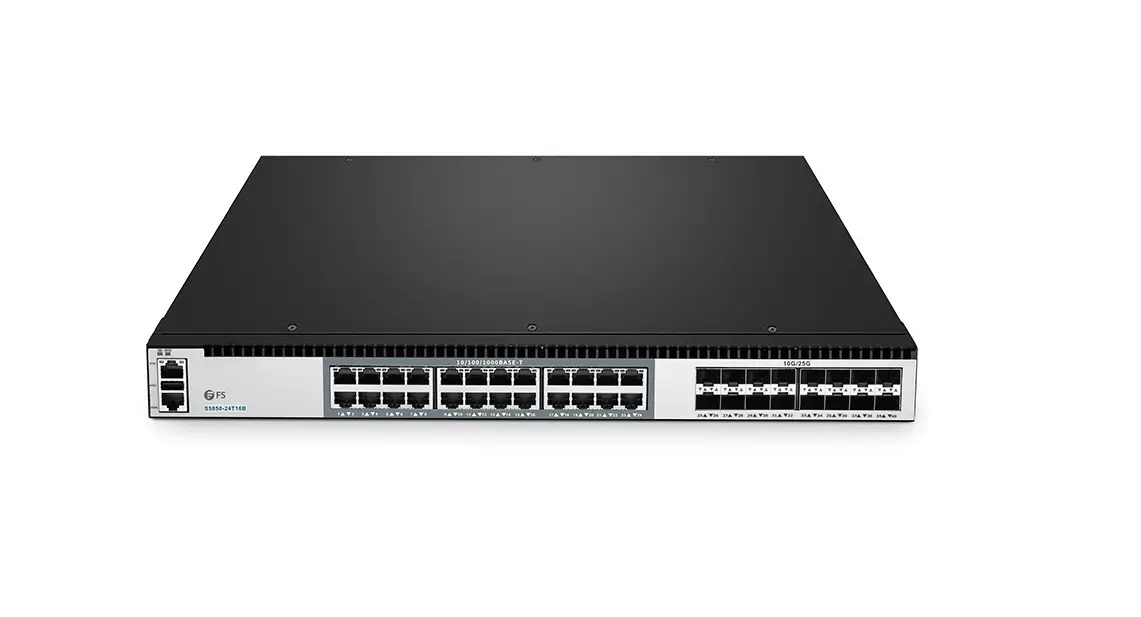
S5500 Series Switches Software
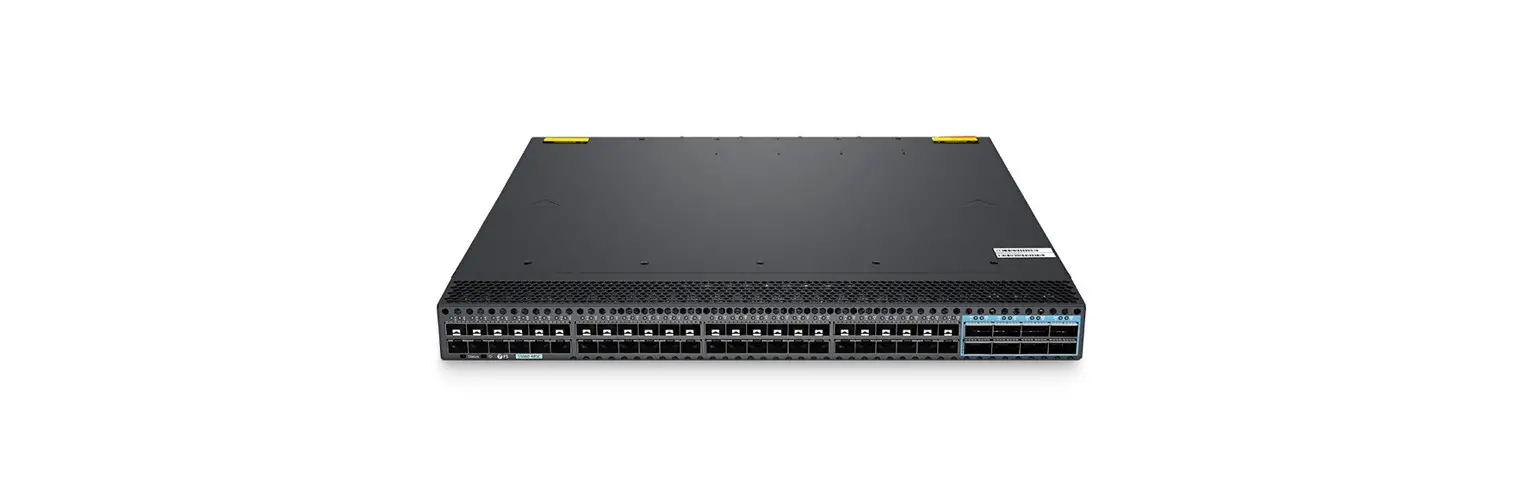
S5800/S8050/S5850 SERIES SWITCHES
Product Information
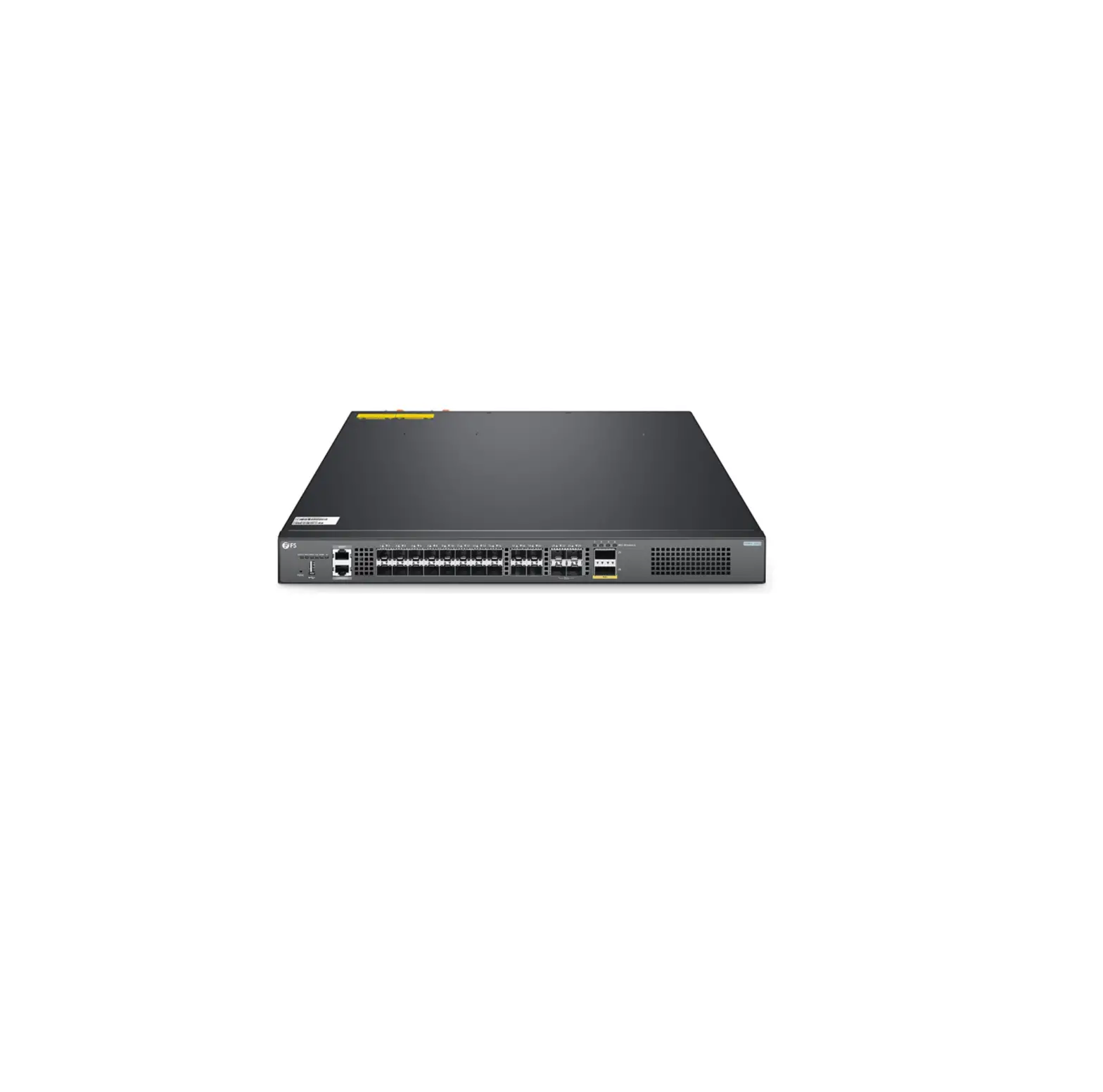
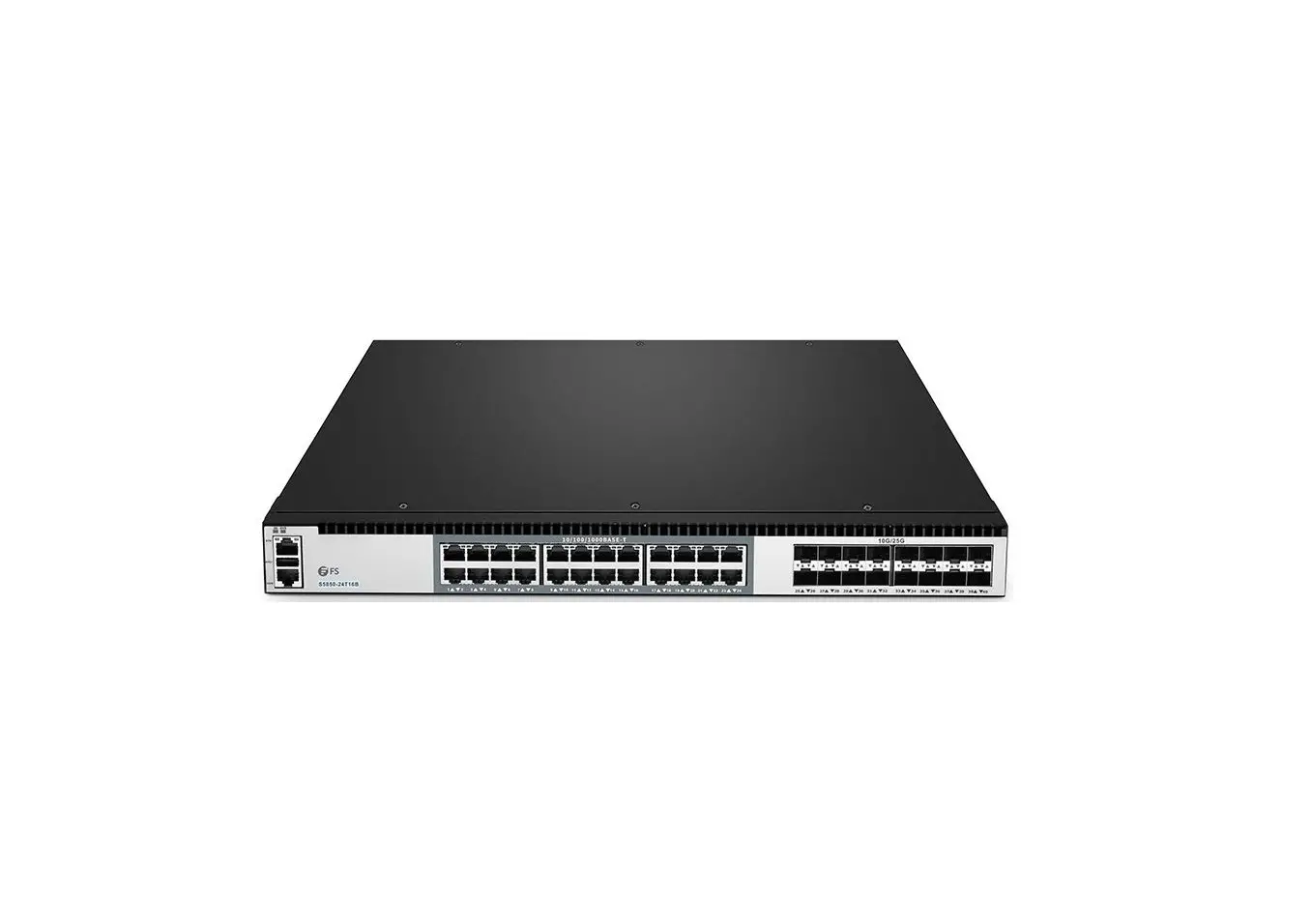
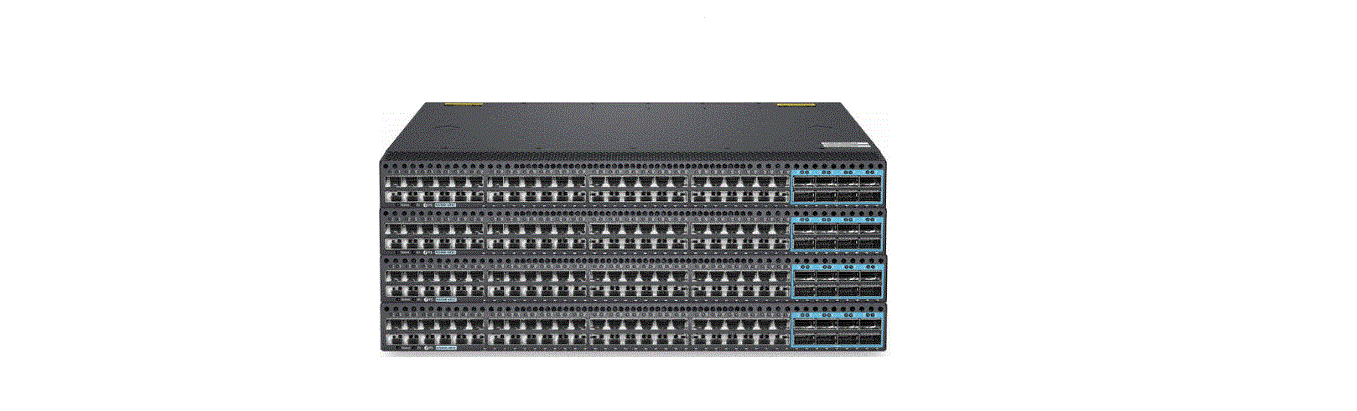
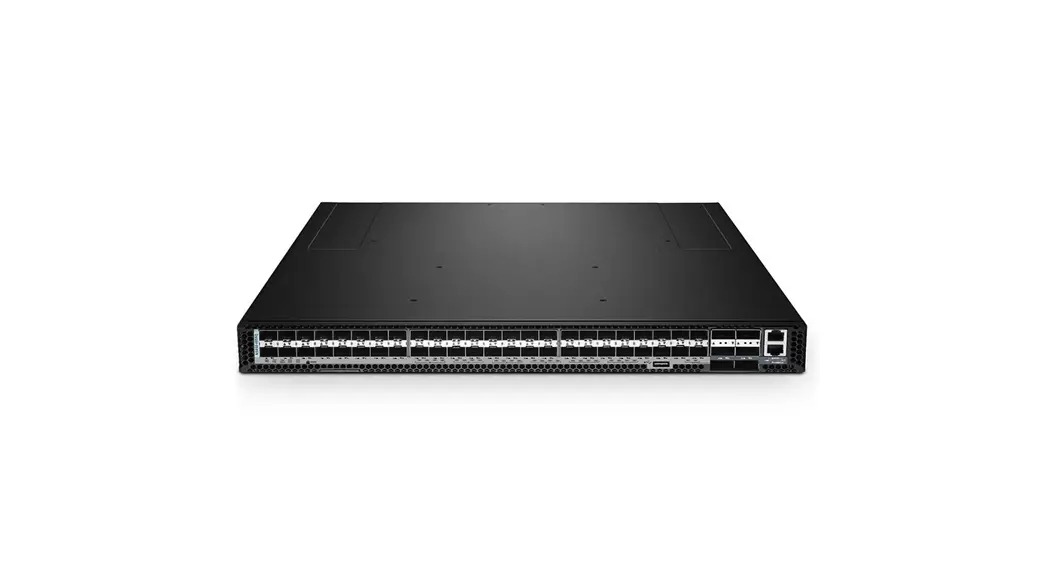
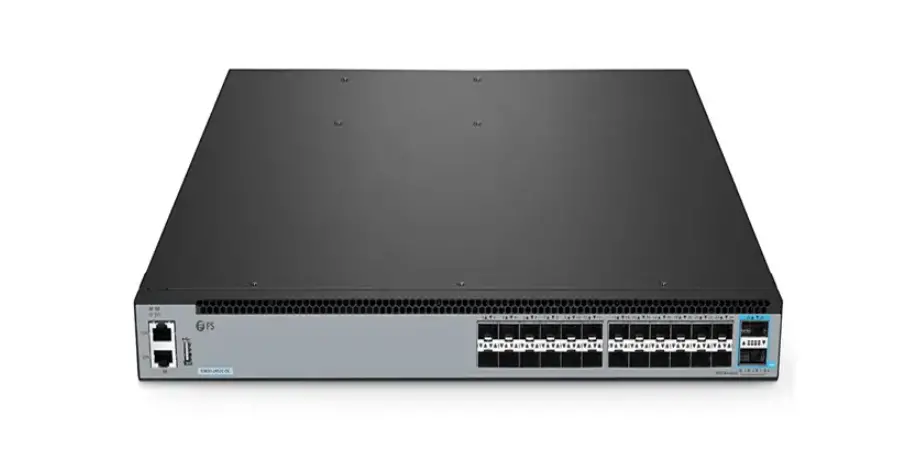
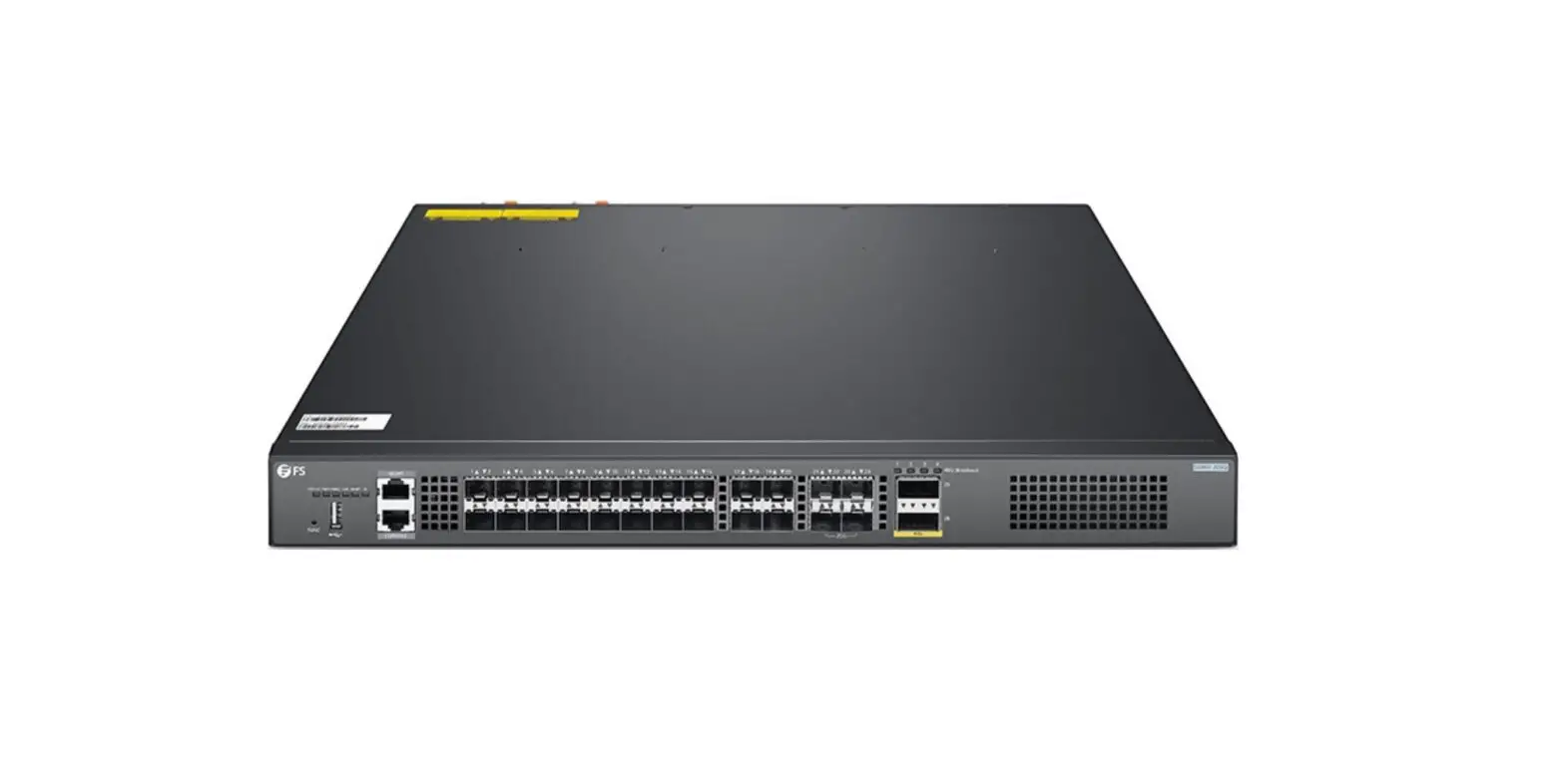
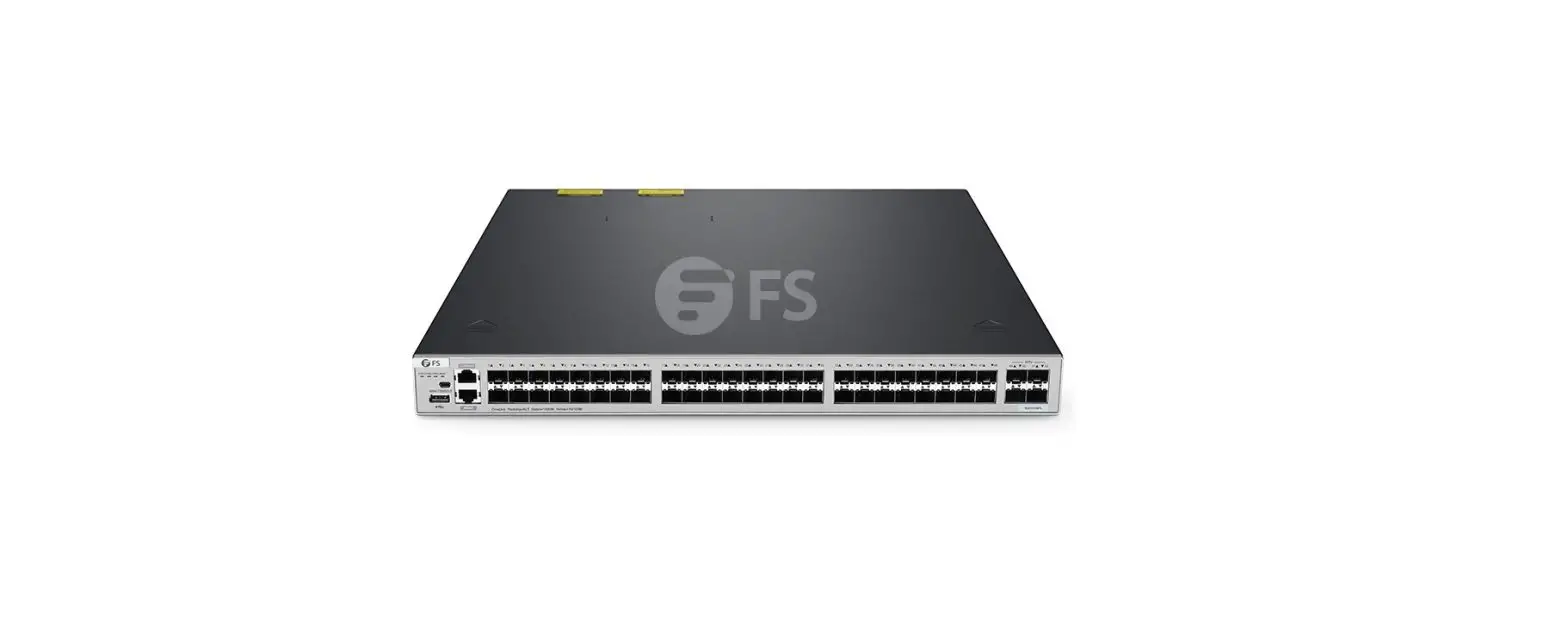
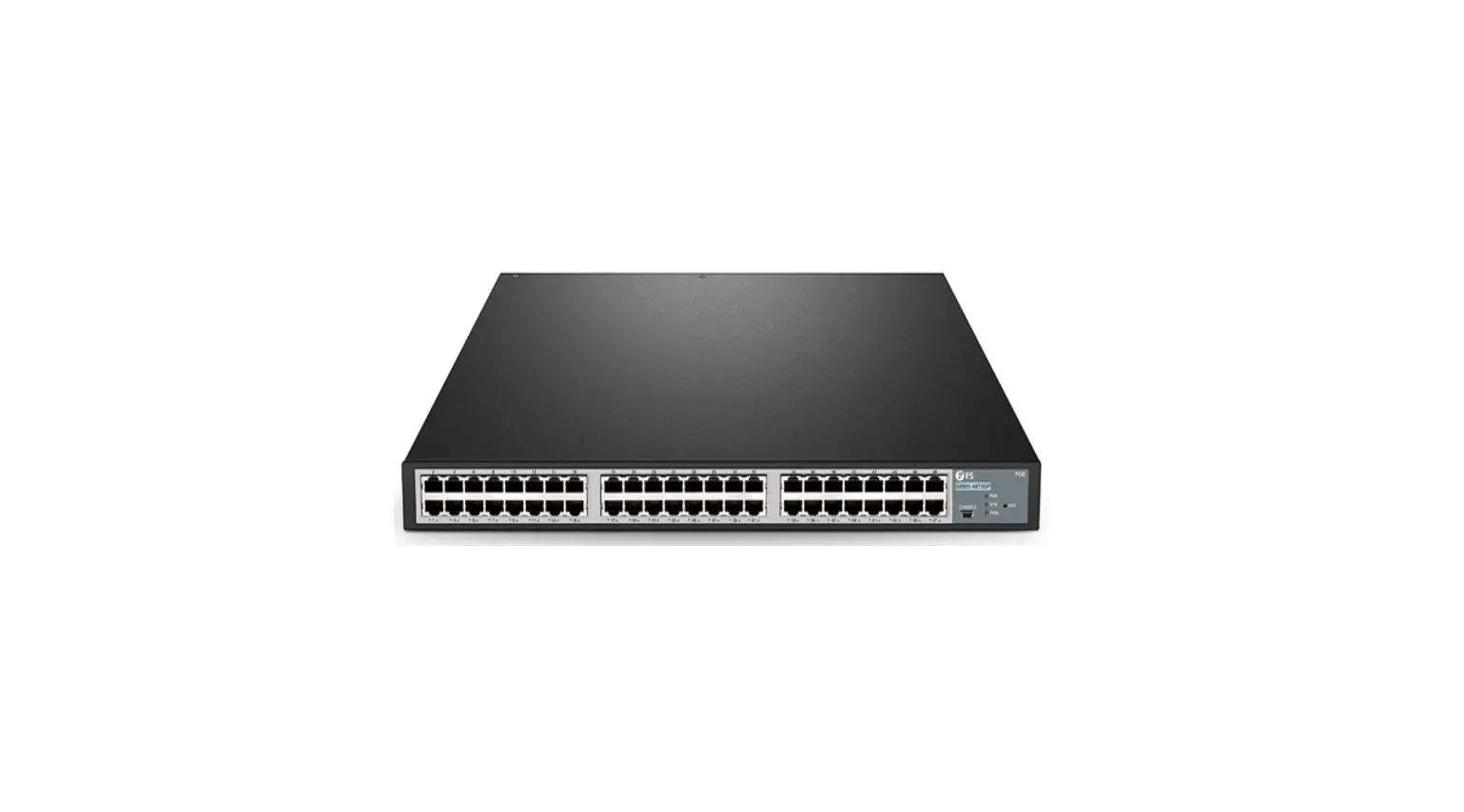
The S5800/S8050/S5850 Series Switches are high-performance
Ethernet switches designed for data center networks. These switches
offer a range of advanced features including high-speed
connectivity, low latency, and high reliability, making them ideal
for mission-critical applications. The switches come in different
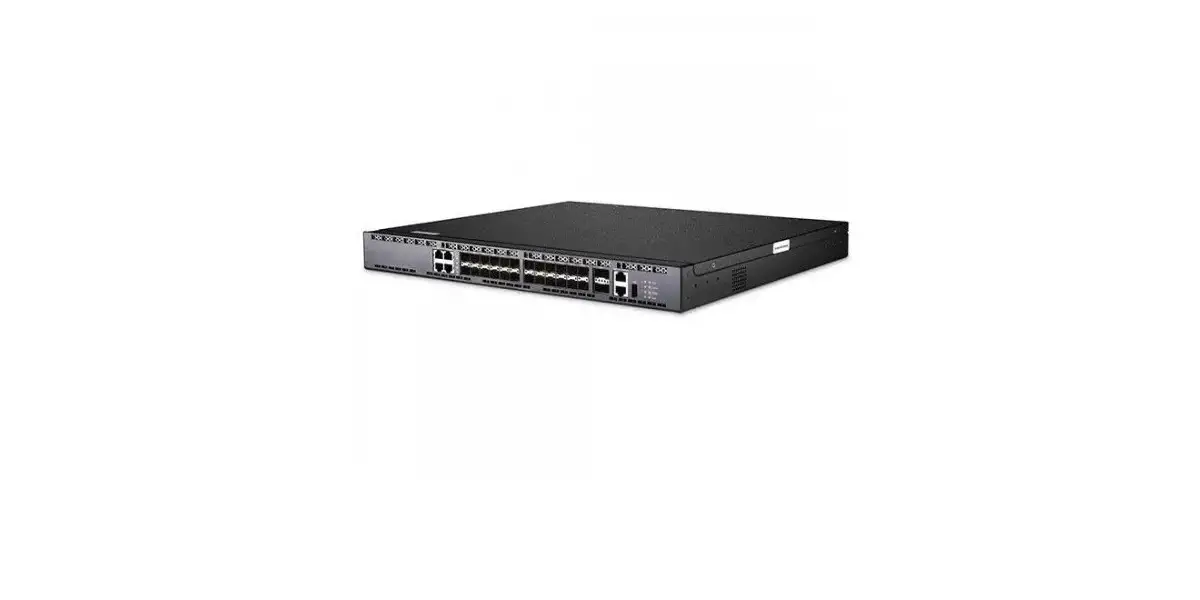
models including S3150-8T2FP, S3260-8T2FP, S3260-16T4FP,
S3400-24T4FP, S3400-48T4SP, S3700-24T4F, S3900-24T4S-R,
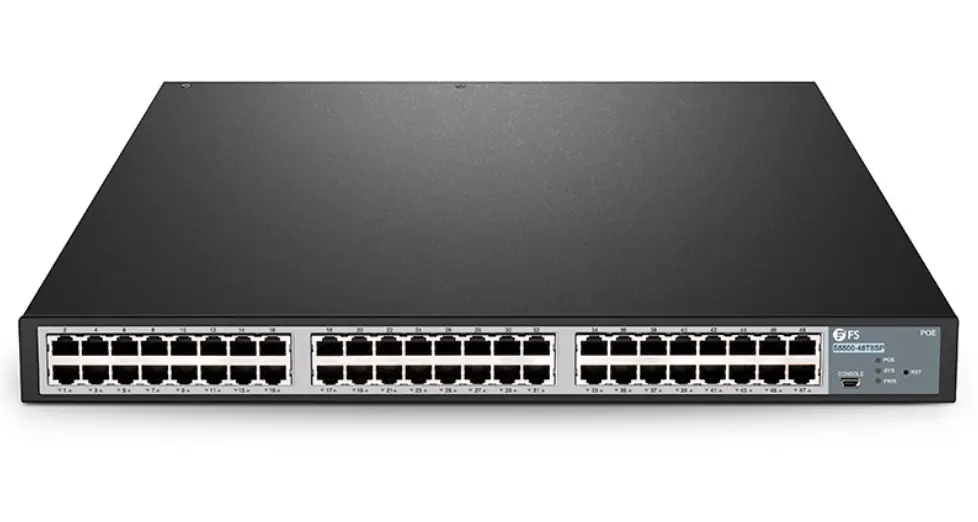
S3900-24F4S-R, S3900-48T6S-R, S5500-48T6SP-R and S5500-48T8SP.
Product Usage Instructions
When new features are added or the original performance needs to
be optimized and the current running version is out of date, the
device needs to be upgraded. In such cases, you need to load a high
version of the system software, upgrade through the CLI interface,
WEB interface, and restart the device.
CLI Upgrade
Follow the below steps to upgrade the software using CLI:
- Connect your PC to the switch using a console cable.
- Configure the IP address of the terminal emulation software on
your PC. - Configure the switch’s IP address.
- Login to the switch using the default username and password:
admin/admin. - Open the installed TFTP upload software and specify the server
root directory in its options. - Put the files to be uploaded into this directory.
- Upgrade the image switch by copying the TFTP file to the flash
using the command: copy tftp: flash: Source file
name[]?S3900-48T6S-R-Switch-2.2.0E-97109-08018.bin Remote-server ip
address[]?192.168.1.2 Destination file name[Switch.bin]?(Just type
enter) - If it is a stack switch group upgrade, you need to use the
command update switch to synchronize the firmware to the member
switches of the stack group before proceeding to the next
step.
Web Upgrade
Follow the below steps to upgrade the software using web:
- Connect your PC to the switch using a web browser.
- Login to the switch using the default username and password:
admin/admin. - Click on System Maintenance > Firmware Management >
Upgrade Firmware. - Select the firmware file and click on Upgrade.
- The switch will reboot after the upgrade process is
complete.
S5800/S8050/S5850 SERIES SWITCHES WEB CONFIGURATION GUIDE
S3150, S3260, S3400, S3700, S3900 and S5500 Series Switches Software Upgrade Guide
Model: S3150-8T2FP; S3260-8T2FP; S3260-16T4FP; S3400-24T4FP; S3400-48T4SP; S3700-24T4F; S3900-24T4S-R; S3900-24F4S-R; S3900-48T6S-R; S5500-48T6SP-R; S5500-48T8SP
www.fs.com
1
S3150/S3260/S3400/S3700/S3900/S5500 SERIES SOFTWARE UPGRADE GUIDE
Contents 1.Introduction to Version Upgrade ……………………………………………………………………………….1 2. CLI Upgrade ……………………………………………………………………………………………………………… 1
2.1 Network Topology ………………………………………………………………………………………………………………………………………………………………………1 2.2 Configuration Steps …………………………………………………………………………………………………………………………………………………………………… 1
3. Web Upgrade …………………………………………………………………………………………………………….3
3.1 Network Topology ………………………………………………………………………………………………………………………………………………………………………3 3.2 Configuration Steps …………………………………………………………………………………………………………………………………………………………………… 3
www.fs.com
I
S3150/S3260/S3400/S3700/S3900/S5500 SERIES SOFTWARE UPGRADE GUIDE
1. Introduction to Version Upgrade
When new features are added or the original performance needs to be optimized and the current running version is out of date, the device needs to be upgraded. In this case, you need to load a high version of the system software, upgrade through the CLI interface, WEB interface, and restart the device.
2. CLI Upgrade
2.1 Network Topology
Figure 1 PC connection switch page
2.2 Configuration Steps (1) connection Equipment #Connect the PC and the switch to the network cable and the console port. Connect one end of the RJ-45 network cable to the network card interface of the PC and the other end to the network port of the SW. Connect one end of the console c able USB to the USB port of the PC. One end of the RJ-45 is connected to the console port on the front panel of the switch. (2) Download Configuration Software # After the connection is completed, there we recommend the super terminal, putty or Secure CRT tool to configure the switch. (3) Switch on and Use Login Software #Energizing the switch, then open the installed login software, select the serial port of login mode, port through the device manager to determine. Baud rate :115200, Data bits: 8, Parity: None, Stop bits: 1. (Reference below) NOTE: COM Number can be viewed through device manager. (right click on my computer.>manage>device manager>port (COM and LPT) If it displays an unrecognized USB device, please download and install the corresponding driver.
Figure 2 Login cli configuration page
www.fs.com
1
S3150/S3260/S3400/S3700/S3900/S5500 SERIES SOFTWARE UPGRADE GUIDE
(4) Login Switch # After completing the above steps, hitting the Enter key of the keyboard will prompt you to enter the account password. At this time, enter the default username and password admin/admin to log in to the s witch.
(5) Upgrade Software # After logging in to the switch, open the installed TFTP upload software, specify the server root directory in its options, and put the files to be uploaded into this directory.
Figure 3 TFTP server configuration page
(6) Upgrade Image Switch# copy tftp: flash: Source file name[]?S3900-48T6S-R-Switch-2.2.0E-97109-08018.bin Remote-server ip address[]?192.168.1.2 Destination file name[Switch.bin]?(Just type enter)
NOTE: If it is a st ack sw it ch group upgrade, you need t o use t he command “updat e sw it ch” t o synchronize t he f irmw are t o t he member sw it ches of t he st ack group bef ore proceeding t o t he next st ep.
(7) Reboot the device Switch#reboot Do you want to reboot the Switch(y/n)?y
(8) Upgrade web Software Version Switch# copy tftp:web-v2.2.0.wrp flash:web.wrp 192.168.1.2
(9) Enable web services Switch#config Switch_config# no ip http server Switch_config# ip http server
www.fs.com
2
S3150/S3260/S3400/S3700/S3900/S5500 SERIES SOFTWARE UPGRADE GUIDE
3. Web Upgrade
3.1 Network Topology
Figure 1 PC connection switch page 3.2 Configuration Steps (1) Login WEB #Enter the IP address of the management interface in the URL field of the browser, and then enter the default username and password: admin/admin
Figure 2 Login web page After successful login, the monitor page will appear , as shown in figure 3.
Figure 3 Monitor page
www.fs.com
3
S3150/S3260/S3400/S3700/S3900/S5500 SERIES SOFTWARE UPGRADE GUIDE (2) Upgrade Image # After entering the WEB interface of the switch, click “System Mgr. > System Software” to select the Image file to be upgraded on web. During the upgrade process, do not close the upgrade page and power off the device.
Figure 4 Upgrade Image page NoteThe device web supports only the image upgrade. Currently, the device does not support the upgrade of the web software version
www.fs.com
4
 FS.com - Data Center, Enterprise, Telecom