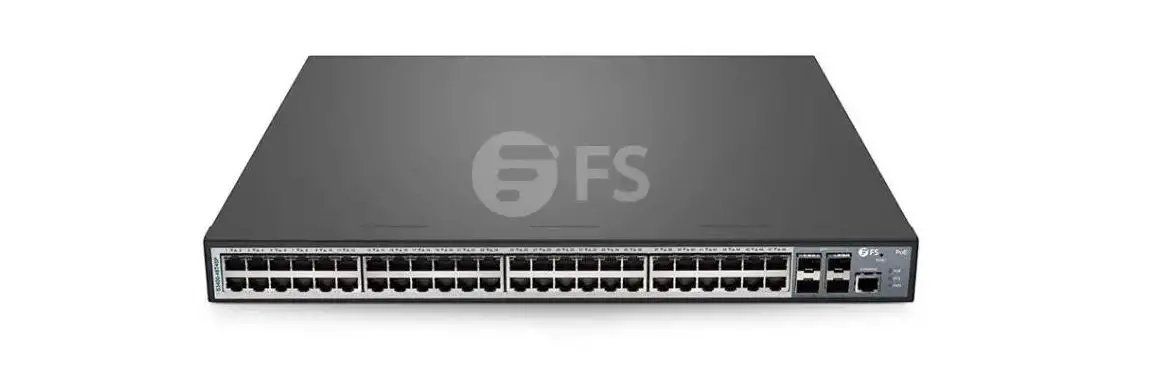
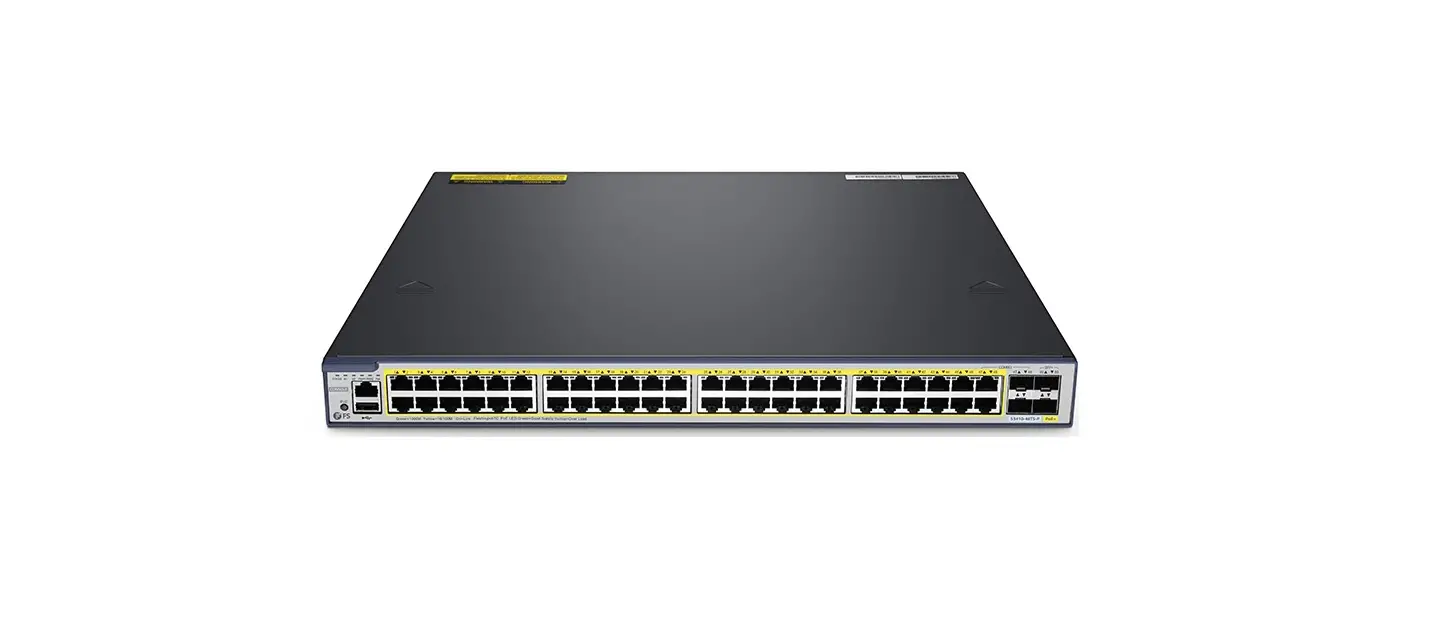
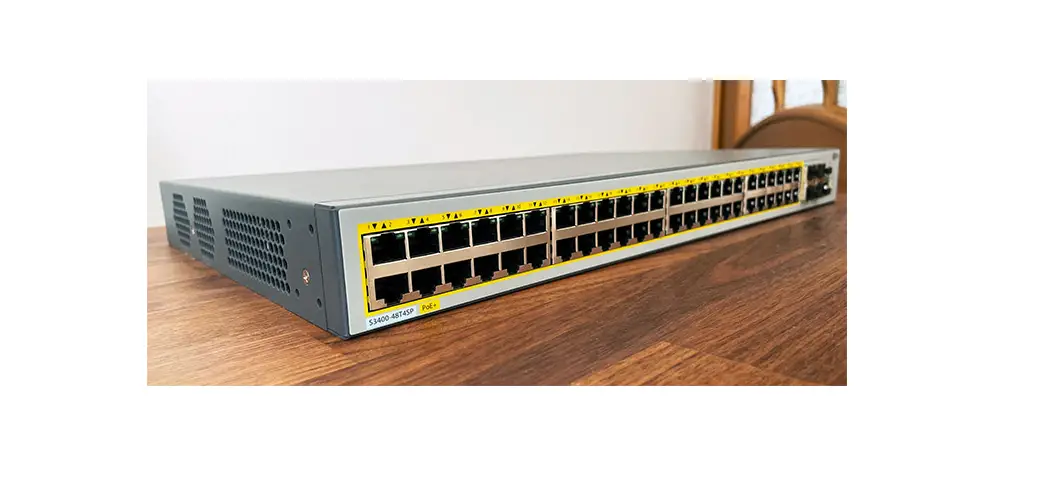
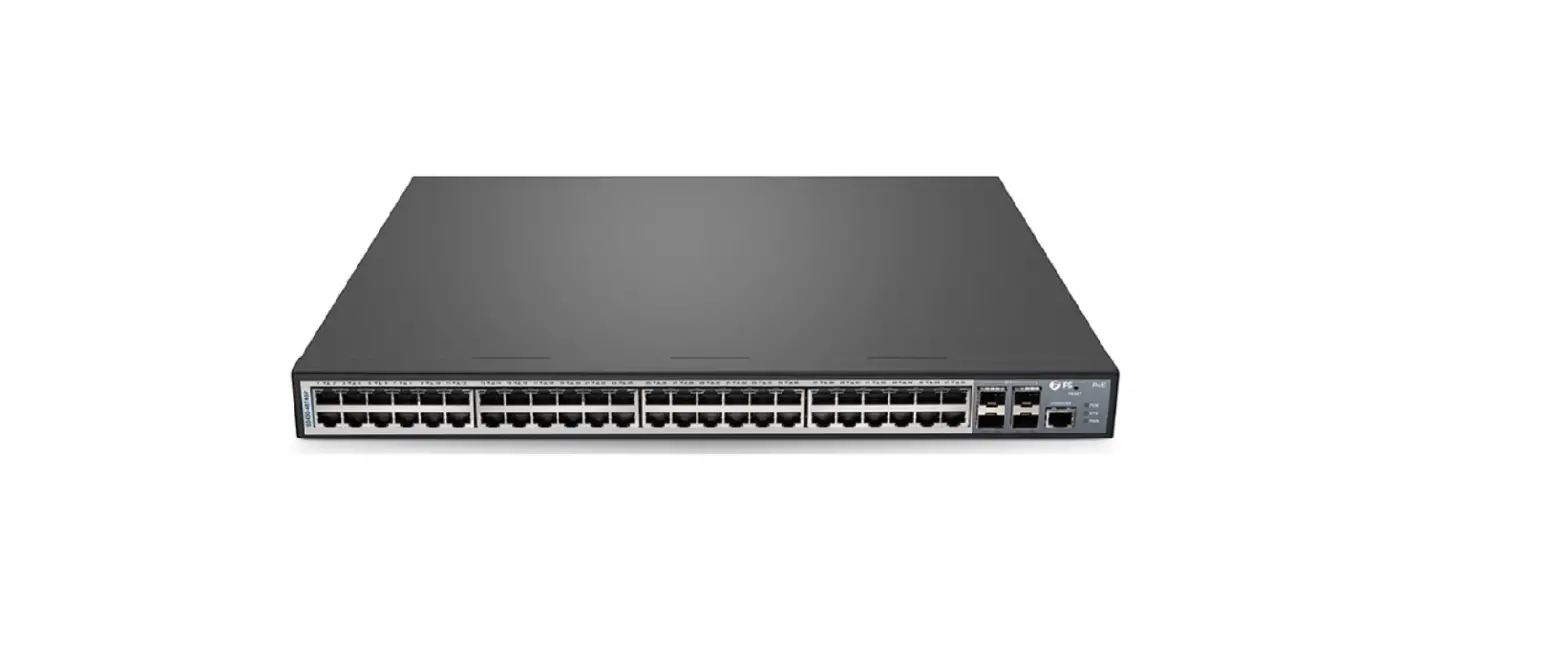
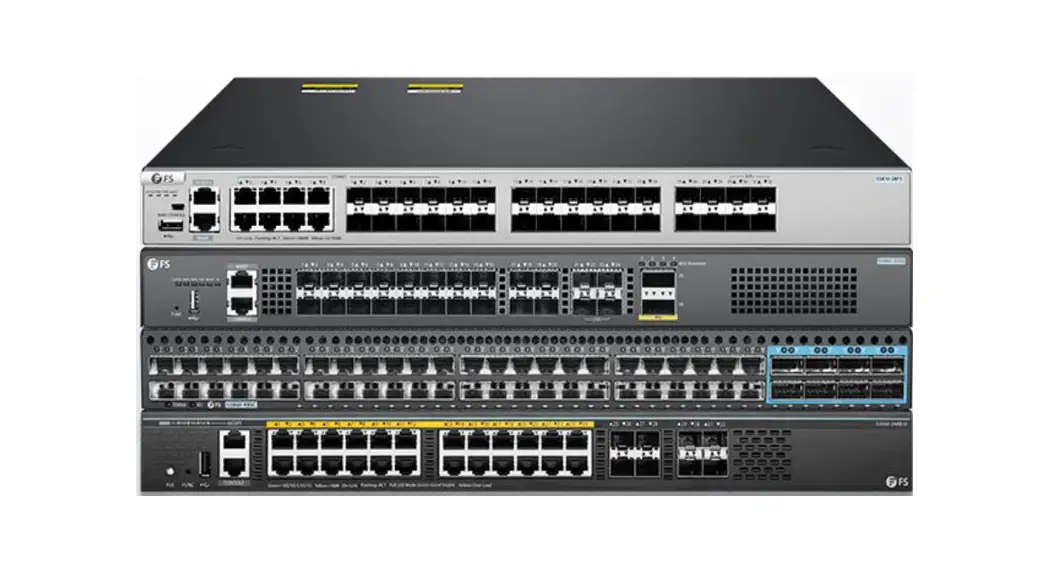
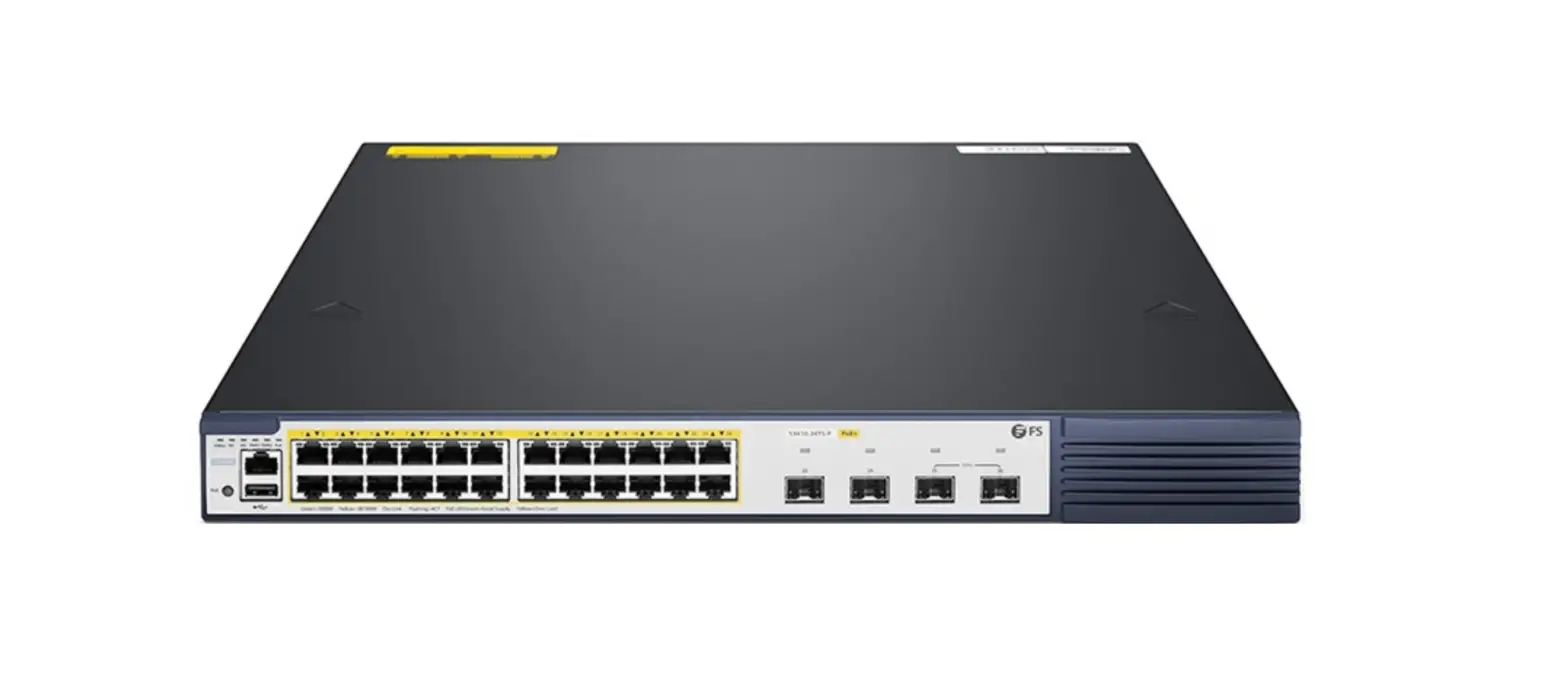
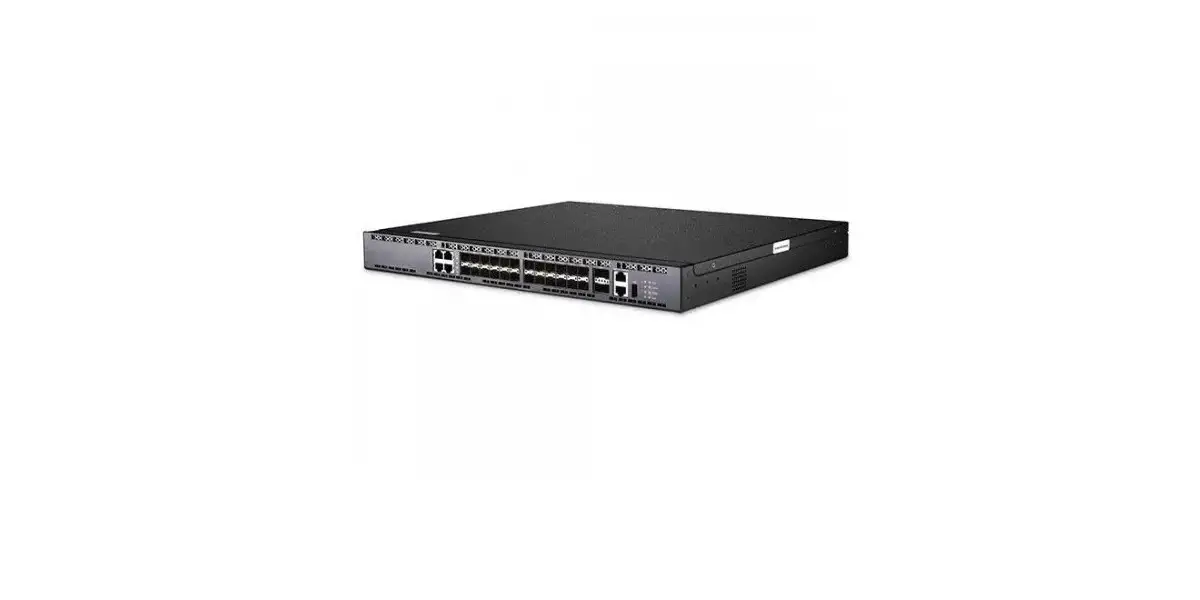
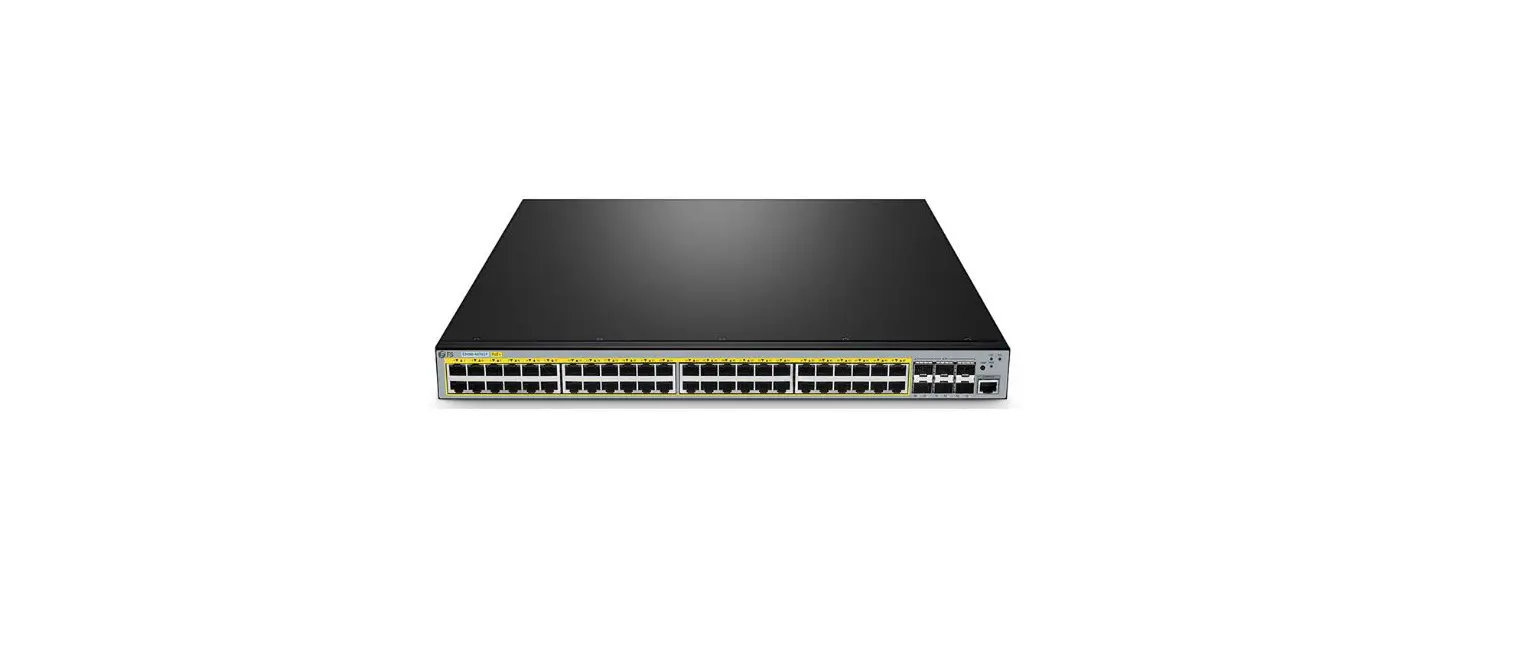
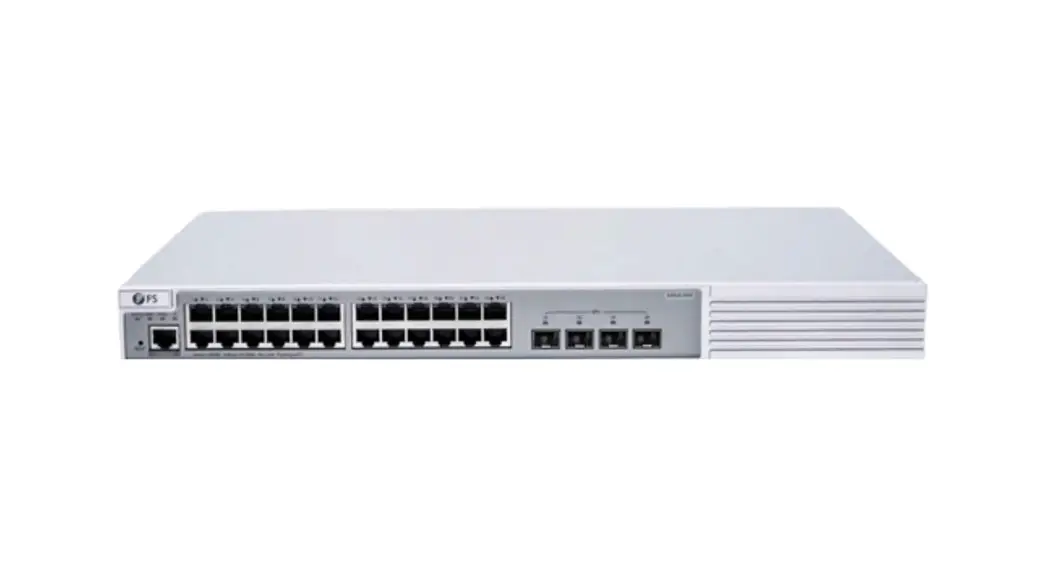
S3410 Series Switches
S3410 Series Switches Software Upgrade Guide
Models: S3410-24TS-P; S3410-48TS-P; S3410-10TF-P
S3410 SERIES SWITCHES SOFTWARE UPGRADE GUIDE
1. Explanation
When new features are added or the original performance needs to
be optimized and the current running version is lagging behind, the
device needs to be upgraded. At this time, you need to load the
higher version of the system software, upgrade through the CLI
interface, WEB interface, and restart the device to achieve.
Precautions
- In the process of upgrading and downgrading, please pay
attention to the prompt information output during the operation. If
it fails, please save the log information and contact FS Network
Technical Support. - During the upgrade and downgrade process, there will be a
prompt message not allowing restart. Once such a prompt message
appears, please do not power off, do not reset the system, and do
not insert or remove any modules. - After the upgrade and downgrade are complete, run the show
version command to view the current version number of the device to
confirm the upgrade is successful.
2. Upgrade File
To upgrade the device to this version or downgrade to this
version, you need to use the following upgrade file.
Applicable Products
S3410-24TS-P
| Upgrade File | File Description | File Size | MD5 Value |
|---|---|---|---|
| Upgrade File S3410-24TS-P_FSOS11.4(1)B70P1_install.bin | System installation package | 75402076 bytes | 820d6326f9228ad8067b794e063db015 |
3. TFTP Server Setup
Use software TFTP on local PC Specify the folder where the
version file is located and the IP address of the TFTP server.
4. Upgrade Steps
4.1 Upgrade Under the Main Program
4.1.1 Network Topology
[Diagram of network topology]4.1.2 Configuration Steps
- Set the IP address of the console port of the switch.
S3410-24TS-P>enable
------>Enter privileged mode
S3410-24TS-P#configure terminal
------>Enter global configuration mode
S3410-24TS-P(config)#interface vlan 1
------>Enter vlan 1 interface
S3410-24TS-P(config-if)#ip address 192.168.1.200
255.255.255.0
------>Set management ip on vlan 1 interface
S3410-24TS-P(config-if)#exit
------>Return to global configuration mode - Set the computer IP address, and confirm that the computer can
ping the switch, and the switch can also ping the computer.C:UsersFS>ping 192.168.1.200
Ping 192.168.1.200 with 32 bytes of data: Reply from 192.168.1.200:
Byte=32 Time=3ms TTL=64 Reply from 192.168.1.200: Byte=32 Time=2ms
TTL=64 Reply from 192.168.1.200: Byte=32 Time=2ms TTL=64 Reply from
192.168.1.200: Byte=32 Time=2ms TTL=64
Ping statistics of 192.168.1.200: Packet: Sent = 4, Received = 4,
Lost = 0 (0% lost), Estimated time of round trip (in milliseconds):
Shortest = 2ms, longest = 3ms, average = 2ms
S3410-24TS-P#ping 192.168.1.100 Sending 5, 100-byte ICMP Echoes to
192.168.1.100, timeout is 2 seconds:
< press Ctrl+C to break > !!!!! Success rate is 100 percent
(5/5), round-trip min/avg/max = 1/1/2 ms.
NOTE: The firewall function of the computer
must be turned off, and the anti-virus software must be exited,
otherwise the upgrade may not succeed.
References:
Product Usage Instructions:
To upgrade the device to a new version or downgrade to a
previous version, follow these steps:
- Download the applicable upgrade file from the table in section
2. - Set up a TFTP server on your local PC and specify the folder
where the upgrade file is located and the IP address of the TFTP
server. - Connect to the switch console port and set the IP address of
the console port using the configuration steps in section
4.1.2. - Set the computer IP address and confirm that the computer can
ping the switch and vice versa using the configuration steps in
section 4.1.2. - Upgrade the switch through the CLI interface or WEB interface
by loading the higher version of the system software and restarting
the device. - During the upgrade or downgrade process, pay attention to the
prompt information output and do not power off, reset the system,
or insert or remove any modules until the process is complete. - After the upgrade or downgrade is complete, run the show
version command to view the current version number of the device to
confirm that the upgrade was successful. - If there are any issues during the upgrade or downgrade
process, save the log information and contact FS Network Technical
Support for assistance.
S3410SS3e4r1i0esSSEwRIiEtcShSeWs SIToCfHtwEaSrSeOUFpTgWraAdReEGUuPiGdeRADE GUIDE
S3410 Series Switches Software Upgrade Guide
Models: S3410-24TS-P; S3410-48TS-P; S3410-10TF-P
www.fs.com
1
S3410 SERIES SWITCHES SOFTWARE UPGRADE GUIDE
Contents
1. Explanation…………………………………………………………………………………………………………………………………………………..1 2. Upgrade File………………………………………………………………………………………………………………………………………………… 1 3. TFTP Server Setup…………………………………………………………………………………………………………………………………………1 4. Upgrade Steps……………………………………………………………………………………………………………………………………………… 2
4.1 Upgrade Under the Main Program………………………………………………………………………………………………………………………………………….. 2 4.1.1 Network Topology………………………………………………………………………………………………………………………………………………………………….. 2 4.1.2 Configuration Steps………………………………………………………………………………………………………………………………………………………………… 2 4.1.3 Functional Verification……………………………………………………………………………………………………………………………………………………………..3 4.2 U Disk Upgrade………………………………………………………………………………………………………………………………………………………………………. 4 4.2.1 Network Topology………………………………………………………………………………………………………………………………………………………………….. 4 4.2.2 Configuration Steps………………………………………………………………………………………………………………………………………………………………… 4 4.2.3 Functional Verification……………………………………………………………………………………………………………………………………………………………..5 4.3 Upgrade in Uboot Mode…………………………………………………………………………………………………………………………………………………………. 6 4.3.1 Network Topology………………………………………………………………………………………………………………………………………………………………….. 6 4.3.2 Configuration Steps………………………………………………………………………………………………………………………………………………………………… 6 4.3.3 Functional Verification……………………………………………………………………………………………………………………………………………………………..8
www.fs.com
I
S3410 SERIES SWITCHES SOFTWARE UPGRADE GUIDE
1. Explanation
When new features are added or the original performance needs to be optimized and the current running version is lagging behind, the device needs to be upgraded. At this time, you need to load the higher version of the system software, upgrade through the CLI interface, WEB interface, and restart the device to achieve.
Precautions
In the process of upgrading and downgrading, please pay attention to the prompt information output during the operation. If it fails, please save the log information and contact FS Network Technical Support.
During the upgrade and downgrade process, there will be a prompt message not allowing restart. Once such a prompt message appears, please do not power off, do not reset the system, and do not insert or remove any modules.
After the upgrade and downgrade are complete, run the show version command to view the current version number of the device to confirm the upgrade is successful.
2. Upgrade File
To upgrade the device to this version or downgrade to this version, you need to use the following upgrade file.
Applicable Products
S3410-24TS-P
Upgrade File File Description
File Size MD5 Value
Upgrade File
S3410-24TS-P_FSOS11.4(1)B70P1_install.bin System installation package 75402076 bytes
820d6326f9228ad8067b794e063db015
3. TFTP Server Setup
Use software TFTP on local PC Specify the folder where the version file is located and the IP address of the TFTP server
www.fs.com
1
S3410 SERIES SWITCHES SOFTWARE UPGRADE GUIDE
4. Upgrade Steps
4.1 Upgrade Under the Main Program
4.1.1 Network Topology
4.1.2 Configuration Steps
Set the IP address of the console port of the switch
S3410-24TS-P>enable
——->Enter privileged mode
S3410-24TS-P#configure terminal
——->Enter global configuration mode
S3410-24TS-P(config)#interface vlan 1
——->Enter vlan 1 interface
S3410-24TS-P(config-if)#ip address 192.168.1.200 255.255.255.0
——->Set management ip on vlan 1 interface
S3410-24TS-P(config-if)#exit
——->Return to global configuration mode
Set the computer IP address, and confirm that the computer can ping the switch, and the switch can also ping the computer
C:UsersFS>ping 192.168.1.200
Ping 192.168.1.200 with 32 bytes of data: Reply from 192.168.1.200:
Byte=32 Time=3ms TTL=64 Reply from 192.168.1.200: Byte=32 Time=2ms
TTL=64 Reply from 192.168.1.200: Byte=32 Time=2ms TTL=64 Reply from
192.168.1.200: Byte=32 Time=2ms TTL=64
Ping statistics of 192.168.1.200: Packet: Sent = 4, Received = 4,
Lost = 0 (0% lost), Estimated time of round trip (in milliseconds):
Shortest = 2ms, longest = 3ms, average = 2ms
S3410-24TS-P#ping 192.168.1.100 Sending 5, 100-byte ICMP Echoes to
192.168.1.100, timeout is 2 seconds:
< press Ctrl+C to break > !!!!! Success rate is 100 percent
(5/5), round-trip min/avg/max = 1/1/2 ms.
NOTE: The firewall function of the computer must be turned off, and the anti-virus software must be exited, otherwise the upgrade may not succeed
Put the tftp software (tftp software can be downloaded from the Internet) and the new software version into the same directory. Start the tftp tool and execute the following commands on the switch, the device will be automatically upgraded: S3410-24TS-P#upgrade download tftp://192.168.1.100/S3410-24TS-P_FSOS11.4(1)B70P1_install.bin Upgrade the device must be auto-reset after finish, are you sure upgrading now?[Y/N]y
www.fs.com
2
S3410 SERIES SWITCHES SOFTWARE UPGRADE GUIDE
The following prompt indicates that the upgrade was successful: *Sep 19 12:37:24: %7: [Slot 0]:Upgrade processing is 10% *Sep 19 12:37:39: %7: *Sep 19 12:37:39: %7: [Slot 0]:Upgrade processing is 20% *Sep 19 12:37:39: %7: *Sep 19 12:37:40: %7: [Slot 0]:Upgrade processing is 30% *Sep 19 12:37:40: %7: *Sep 19 12:37:40: %7: [Slot 0]:Upgrade processing is 40% *Sep 19 12:37:40: %7: *Sep 19 12:37:40: %7: [Slot 0]:Upgrade processing is 50% *Sep 19 12:37:40: %7: *Sep 19 12:37:40: %7: [Slot 0]:Upgrade processing is 60% *Sep 19 12:37:41: %7: *Sep 19 12:37:41: %7: [Slot 0]:Upgrade processing is 70%
Upgrade info [OK] Rootfs version[1.0.0.ca7d092b->1.0.0.99662b17] Reload system to take effect! System is reload%FS_SYS-0-REBOOT
…… Erasing at 0xfe0000 — 100% complete. OK Erasing Nand… Erasing at 0x4e0000 — 100% complete. Writing to Nand… done
SUCCESS: UPGRADING OK.
resetting …
……
Restart the switch
S3410-24TS-P#reload
—–>Restart the switch to take effect
Reload system?(Y/N) y
After restart, confirm whether the switch is successfully upgraded
4.1.3 Functional Verification
Confirm whether the version is the upgraded version by show version
www.fs.com
3
S3410 SERIES SWITCHES SOFTWARE UPGRADE GUIDE
4.2 U Disk Upgrade
4.2.1 Network Topology
4.2.2 Configuration Steps
Set the IP address of the console port of the switch
S3410-24TS-P>enable
——->Enter privileged mode
S3410-24TS-P#configure terminal
——->Enter global configuration mode
S3410-24TS-P(config)#interface vlan 1
——->Enter vlan 1 interface
S3410-24TS-P(config-if)#ip address 192.168.1.200 255.255.255.0
——->Set management ip on vlan 1 interface
S3410-24TS-P(config-if)#exit
——->Return to global configuration mode
Set the computer IP address, and confirm that the computer can ping the switch, and the switch can also ping the computer
C:UsersFS>ping 192.168.1.200
Ping 192.168.1.200 with 32 bytes of data: Reply from 192.168.1.200: Byte=32 Time=3ms TTL=64 Reply from 192.168.1.200: Byte=32 Time=2ms TTL=64 Reply from 192.168.1.200: Byte=32 Time=2ms TTL=64 Reply from 192.168.1.200: Byte=32 Time=2ms TTL=64
Ping statistics of 192.168.1.200: Packet: Sent = 4, Received = 4, Lost = 0 (0% lost),
Estimated time of round trip (in milliseconds): Shortest = 2ms, longest = 3ms, average = 2ms
S3410-24TS-P#ping 192.168.1.100 Sending 5, 100-byte ICMP Echoes to 192.168.1.100, timeout is 2 seconds:
< press Ctrl+C to break > !!!!! Success rate is 100 percent (5/5), round-trip min/avg/max = 1/1/2 ms. NOTE: The firewall function of the computer must be turned off, and the anti-virus software must be exited, otherwise the upgrade may not succeed
Insert the U disk carrying the installation package into the USB port of the device
Log in to the switch and execute the following commands on the switch, the device will be automatically upgraded:
S3410-24TS-P#upgrade usb0:S3410-24TS-P_FSOS11.4(1)B70P1_install.bin
——->There is no space between usb0 and the
name of the rack package
*Sep 19 12:37:24: %7: [Slot 0]:Upgrade processing is 10%
www.fs.com
4
S3410 SERIES SWITCHES SOFTWARE UPGRADE GUIDE
*Sep 19 12:37:39: %7: *Sep 19 12:37:39: %7: [Slot 0]:Upgrade processing is 20% *Sep 19 12:37:39: %7: *Sep 19 12:37:40: %7: [Slot 0]:Upgrade processing is 30% *Sep 19 12:37:40: %7: *Sep 19 12:37:40: %7: [Slot 0]:Upgrade processing is 40% *Sep 19 12:37:40: %7: *Sep 19 12:37:40: %7: [Slot 0]:Upgrade processing is 50% *Sep 19 12:37:40: %7: *Sep 19 12:37:40: %7: [Slot 0]:Upgrade processing is 60% *Sep 19 12:37:41: %7: *Sep 19 12:37:41: %7: [Slot 0]:Upgrade processing is 70%
Upgrade info [OK] Rootfs version[1.0.0.ca7d092b->1.0.0.99662b17] Reload system to take effect! System is reload%FS_SYS-0-REBOOT
…… Erasing at 0xfe0000 — 100% complete. OK Erasing Nand… Erasing at 0x4e0000 — 100% complete. Writing to Nand… done
SUCCESS: UPGRADING OK.
resetting …
……
Restart the switch
S3410-24TS-P#reload
——> Restart the switch to take effect
Reload system?(Y/N) y
After restart, confirm whether the switch is successfully upgraded
4.2.3 Functional Verification
Confirm whether the version is the upgraded version by show version
www.fs.com
5
S3410 SERIES SWITCHES SOFTWARE UPGRADE GUIDE
4.3 Upgrade in Uboot Mode
4.3.1 Network Topology
4.3.2 Configuration Steps
Restart the device When the Ctrl+C prompt appears, press the CTRL and C keys simultaneously on the keyboard to enter the bootloader menu Boot 1.2.28-0c4a1bf (Feb 09 2017 – 17:14:53)
I2C: ready DRAM: 508 MiB NAND: (ONFI), chipsize 512 MiB In: serial Out: serial Err: serial Unlocking L2 Cache …Done arm_clk=1000MHz, axi_clk=400MHz, apb_clk=100MHz, arm_periph_clk=500MHz SETMAC: Setmac operation was performed at 2020-02-28 15:24:58 (version: 11.0) Press Ctrl+C to enter Boot Menu Net: eth-0 Entering simple UI….
====== BootLoader Menu(“Ctrl+Z” to upper level) ====== TOP menu items.
************************************************ 0. Tftp utilities. 1. XModem utilities. 2. Run main. 3. SetMac utilities. 4. Scattered utilities. 5. Set Module Serial
************************************************ After entering the bootloader menu, click the red reminder below to enter the address configuration menu ====== BootLoader Menu(“Ctrl+Z” to upper level) ======
TOP menu items. ************************************************
0. Tftp utilities. 1. XModem utilities.
www.fs.com
6
S3410 SERIES SWITCHES SOFTWARE UPGRADE GUIDE
2. Run main. 3. SetMac utilities. 4. Scattered utilities. 5. Set Module Serial ************************************************ Press a key to run the command: 0
====== BootLoader Menu(“Ctrl+Z” to upper level) ====== Tftp utilities.
************************************************ 0. Upgrade bootloader. 1. Upgrade kernel and rootfs by install package. 2. Down to memory and jump to run.
************************************************ Press a key to run the command: 1
Under the menu, follow the prompts to enter the switch device address, execute the pc address, and the file name to be upgraded
Plz enter the Local IP:[]: 192.168.1.200
———>Switch address
Plz enter the Remote IP:[]: 192.168.1.100
——–>PC address
Plz enter the Filename:[]: S3410-24TS-P_FSOS11.4(1)B70P1_install.bin
——–>Upgrade bin file
Follow the prompts to select Y to continue to the next step
Determined to upgrade? [Y/N]: Y
Upgrading, keep power on and wait please …
Upgrading boot …
After successful upgrade, automatically return to the bootloader menu interface, press ctrl+z to exit the menu item to restart ====== BootLoader Menu(“Ctrl+Z” to upper level) ======
Tftp utilities. ************************************************
0. Upgrade bootloader. 1. Upgrade kernel and rootfs by install package. 2. Down to memory and jump to run. ************************************************ Press a key to run the command:
====== BootLoader Menu(“Ctrl+Z” to upper level) ====== TOP menu items.
************************************************ 0. Tftp utilities. 1. XModem utilities. 2. Run main. 3. SetMac utilities. 4. Scattered utilities. 5. Set Module Serial
www.fs.com
7
S3410 SERIES SWITCHES SOFTWARE UPGRADE GUIDE
************************************************ Press a key to run the command: 2 Unmounting UBIFS volume kernel!
4.3.3 Functional Verification Confirm whether the version is the upgraded version by show version
www.fs.com
8
 Inicio - Fundación Grupo Social - Una semilla de cambio
 FS.com - Data Center, Enterprise, Telecom