S5860 Series Switches Reset and Recovery System
S5860 Series Switches Reset and Recovery System Configuration
Guide
Product Information
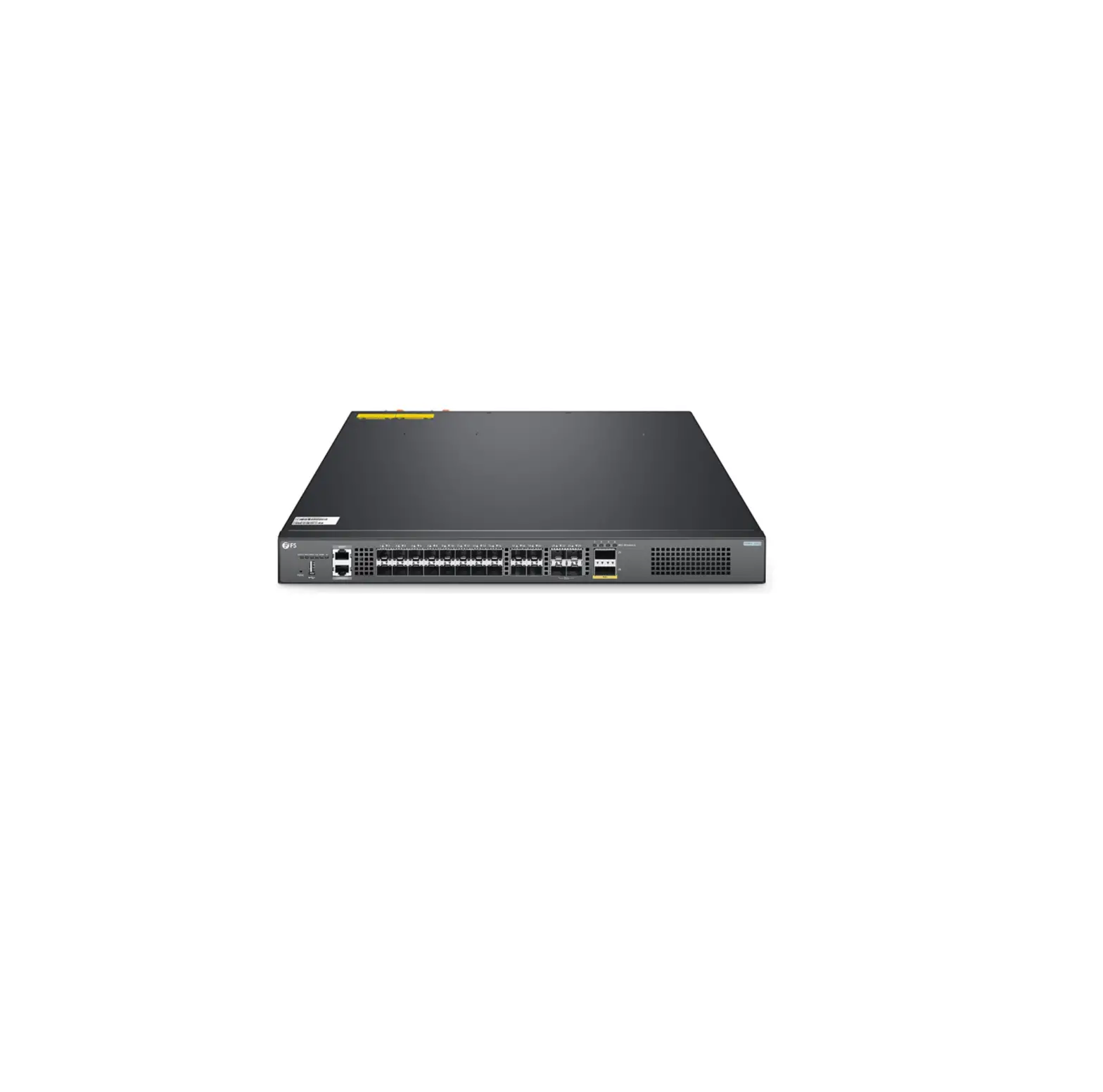
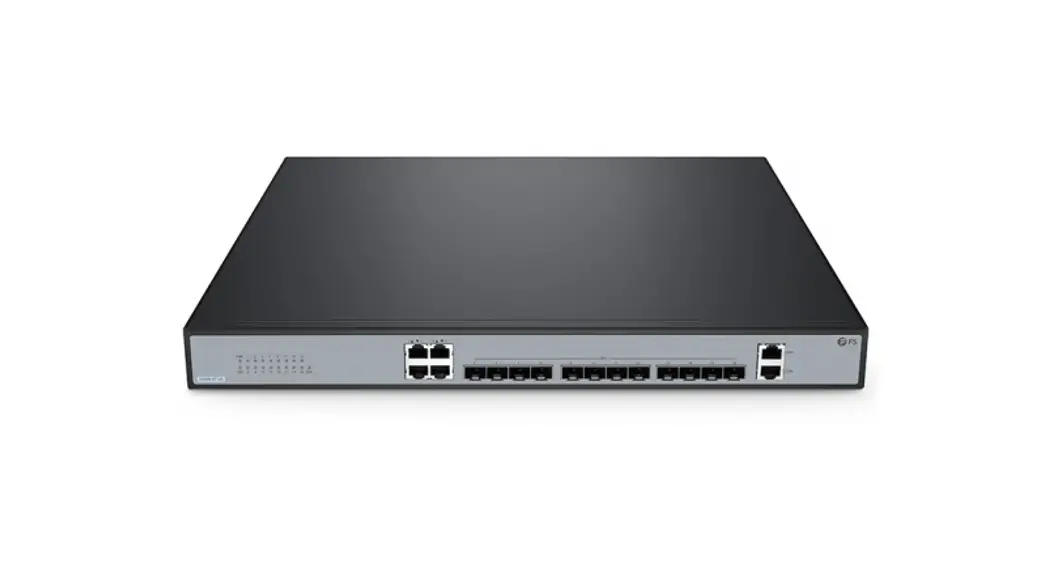
The S5860 Series Switches Reset and Recovery System
Configuration Guide provides instructions for resetting and
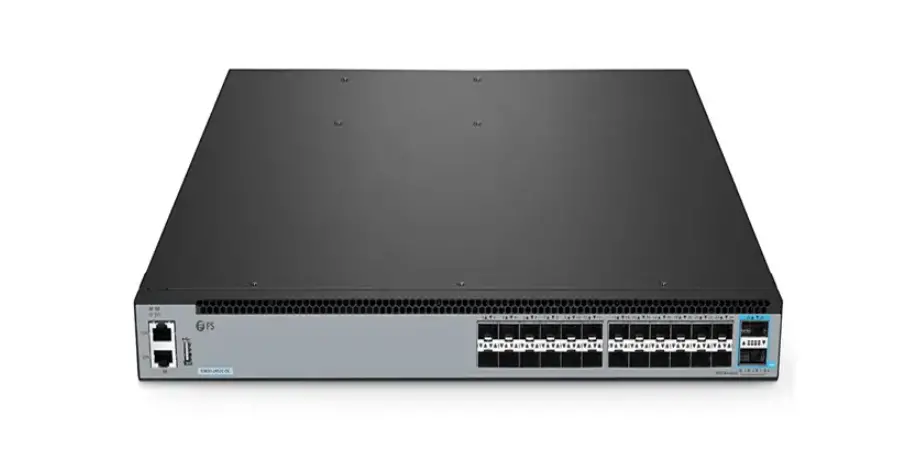
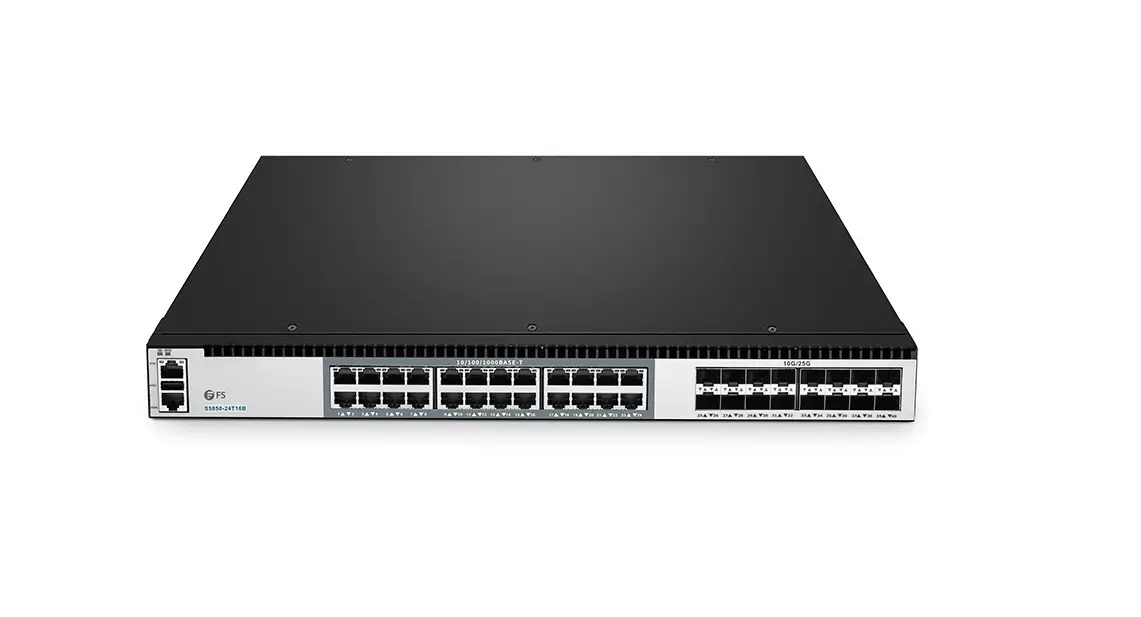
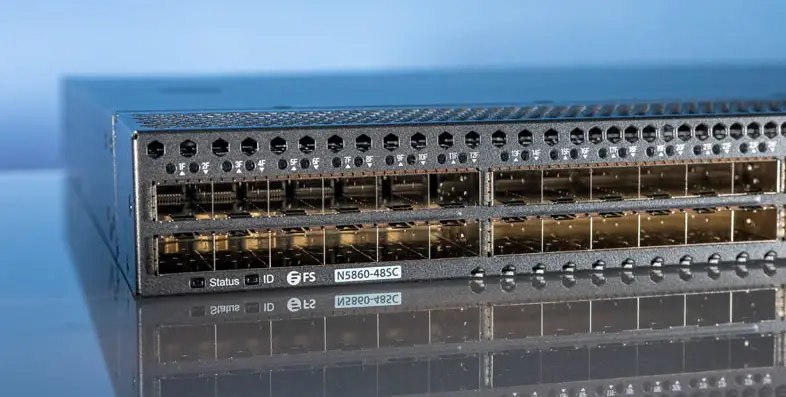
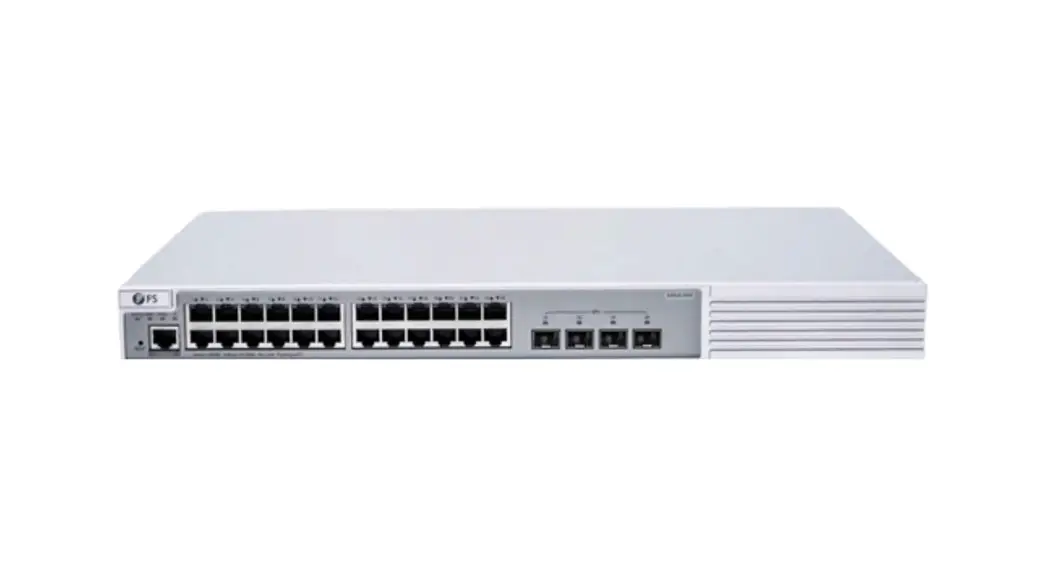
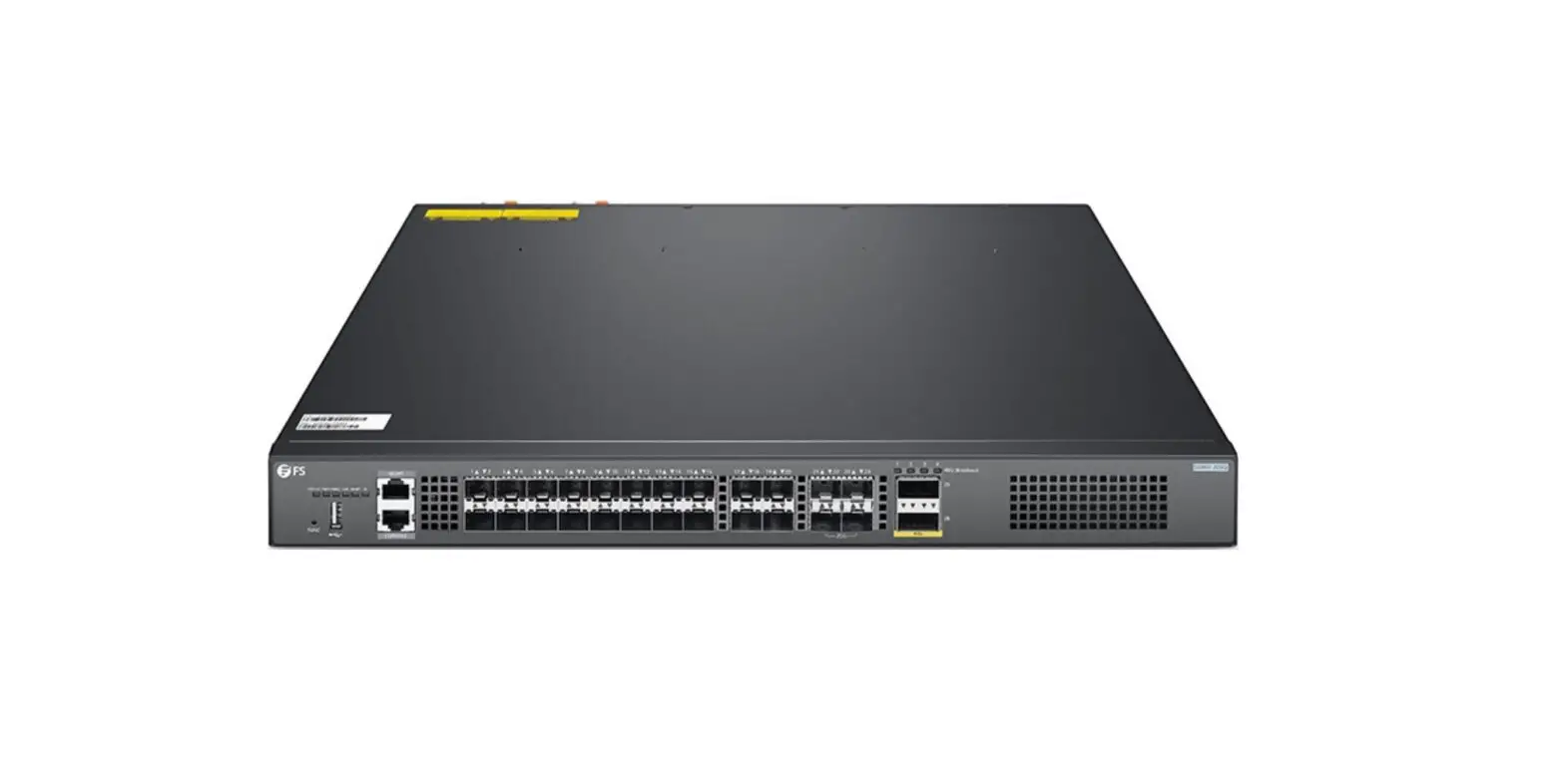
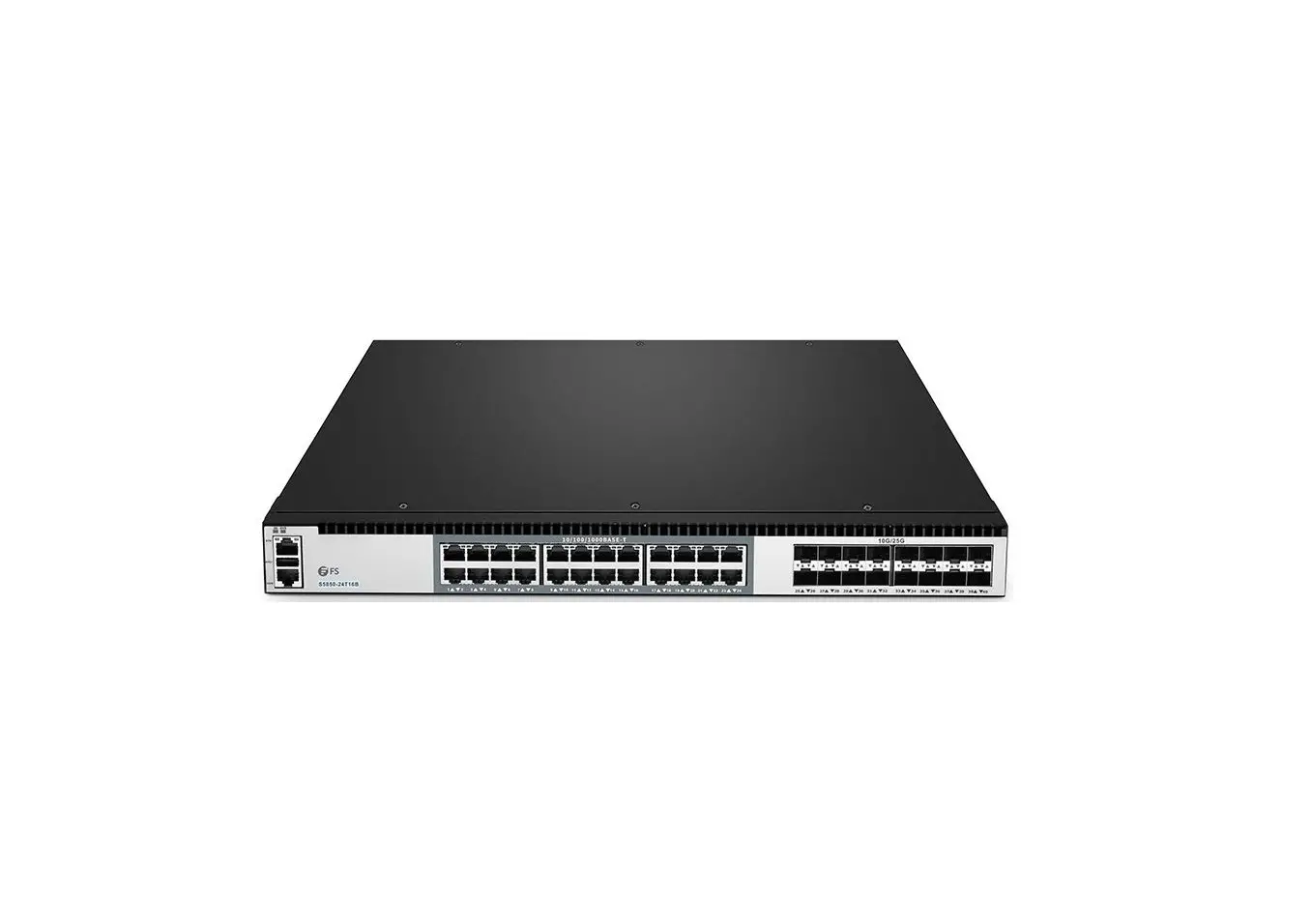
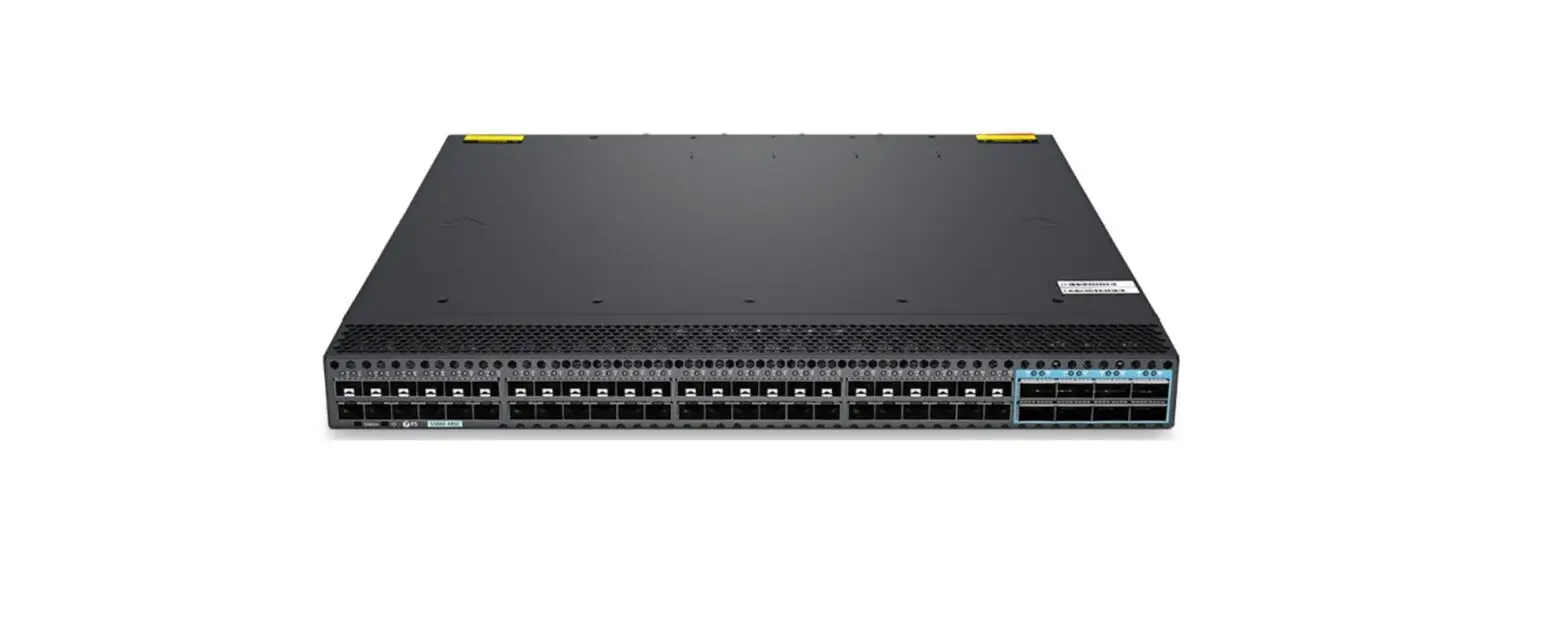
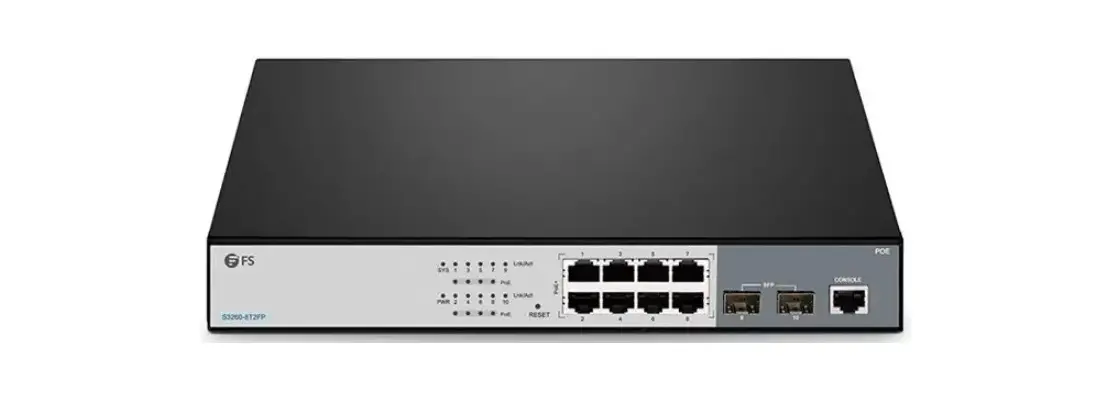
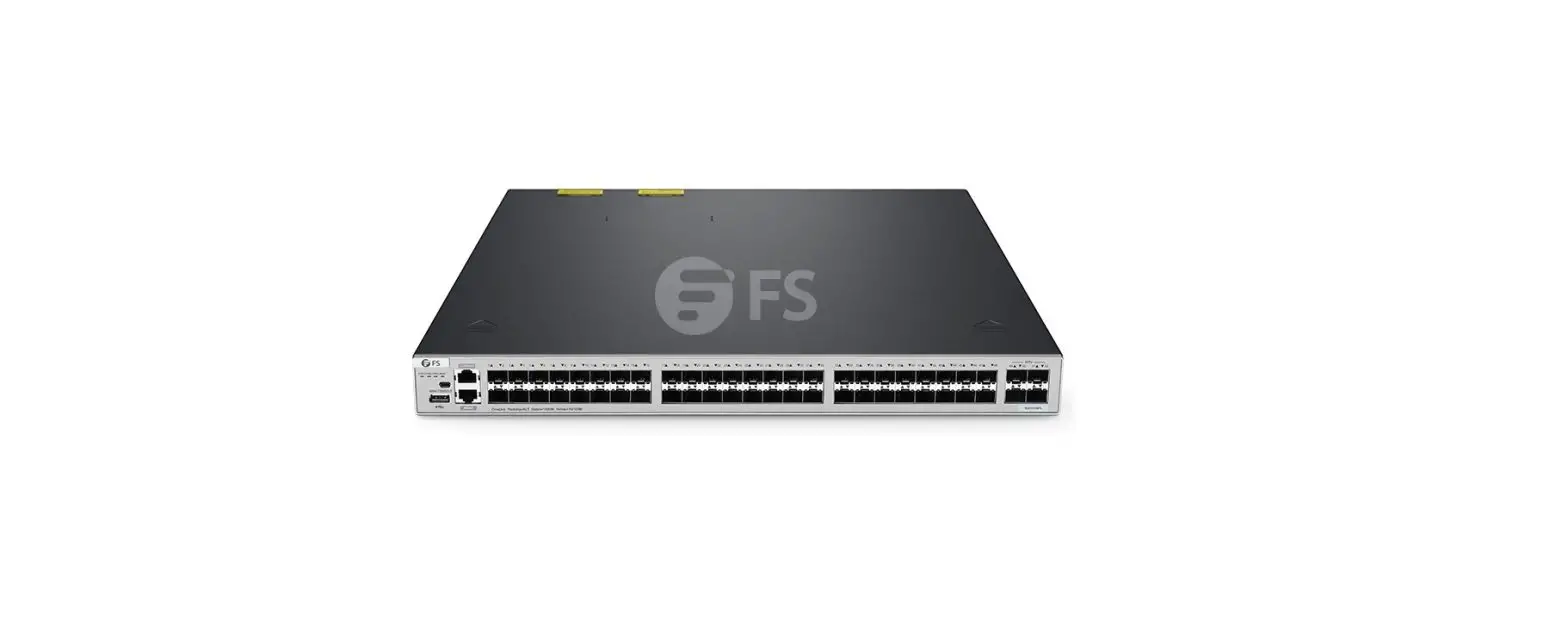
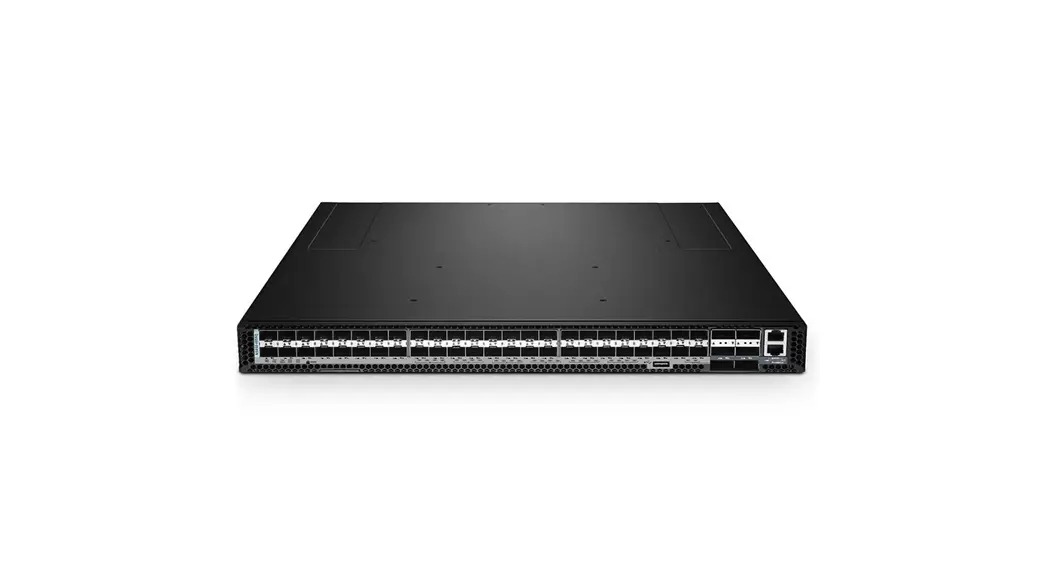
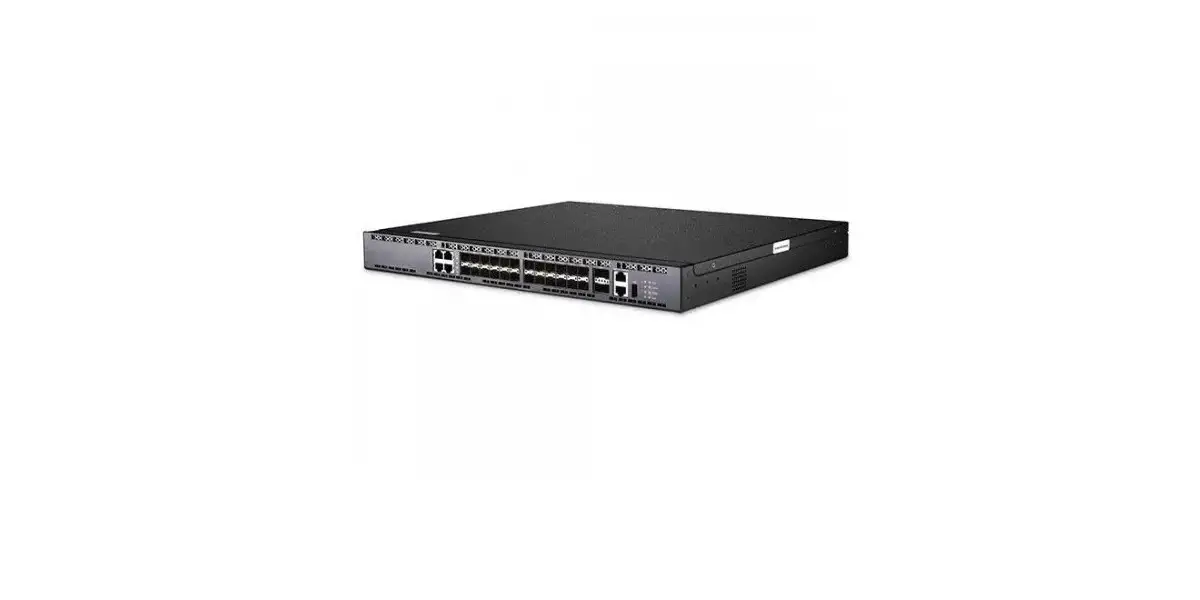
recovering the S5860-20SQ, S5860-24XB-U, and S5860-48SC switches.
The guide is available on the fs.com website.
Product Usage Instructions
1. Clear Device Password
1.1 Networking Requirements
The switch must be connected to a computer through a console
cable.
1.2 Network Topology
The switch should be connected to a computer through the console
port using a console cable.
1.3 Configuration Steps
1.3.1 U-boot Save Configuration and Reset Password
- Log in to the CLI interface of the switch.
- Connect the console port of the switch with a console
cable. - Open the hyper terminal CRT and set related parameters.
- Rename the config.text file to config.text.bak by entering “mv
config.text config.text.bak” command in the data directory. - Enter “sync” command.
- Enter “reboot” command.
1.3.2 U-boot Restore Factory Settings Reset Password
- Restart the switch.
- Press Ctrl+Z to enter the Rboot Menu.
- Select “Scattered utilities” by pressing 4 key.
- Select “Exit menu” by pressing 4 key.
- Enter “cd /mnt/data/” command.
- Enter “mv config.text config.text.bak” command.
- Enter “sync” command.
- Enter “reboot” command.
2. Reset
2.1 Networking Requirements
- Backup the configuration to the local computer before restoring
factory settings if the configuration is important. - The console cable and RJ45 network cable of the switch need to
be prepared.
2.2 Network Topology
The switch should be connected to a computer through the console
port using a console cable and RJ45 network cable.
2.3 Configuration Steps
2.3.1 Factory Reset via CLI Interface
- Log in to the CLI interface of the switch.
- Connect the console port of the switch with a console
cable. - Open the hyper terminal CRT and set related parameters.
- Enter “reset saved-configuration” command in the CLI interface
to restore factory settings.
S5860 SERIES SWITCHES RESET AND RECOVERY SYSTEM CONFIGURATION GUIDE S5860 Series Switches Reset and Recovery System Configuration Guide
S5860 Series Switches Reset and Recovery System Configuration Guide
Model: S5860-20SQ; S5860-24XB-U; S5860-48SC
CONFIGUTRTION GUIDE
www.fs.com
1
S5860 SERIES SWITCHES RESET AND RECOVERY SYSTEM CONFIGURATION GUIDE
Contents
1. Clear Device Password…………………………………………………………………………………………………………………………………. 1
1.1 Networking Requirements ………………………………………………………………………………………………………………………………………………………1 1.2 Network Topology………………………………………………………………………………………………………………………………………………………………….. 1 1.3 Configuration Steps……………………………………………………………………………………………………………………………………………………………….. 1 1.3.1 U-boot Save Configuration and Reset Password………………………………………………………………………………………………………………………… 1 1.3.2 U-boot Restore Factory Settings Reset Password……………………………………………………………………………………………………………………….. 2
2. Reset……………………………………………………………………………………………………………………………………………………………. 4
2.1 Networking Requirements……………………………………………………………………………………………………………………………………………………… 4 2.2 Network Topology………………………………………………………………………………………………………………………………………………………………….. 4 2.3 Configuration Steps……………………………………………………………………………………………………………………………………………………………….. 4 2.3.1 Factory Reset via CLI Interface…………………………………………………………………………………………………………………………………………………..4
www.fs.com
I
S5860 SERIES SWITCHES RESET AND RECOVERY SYSTEM CONFIGURATION GUIDE
1. Clear Device Password
1.1 Networking Requirements
(1) If the administrator forgets the login password and cannot enter the configuration mode for configuration, then you need to use the Consloe line to enter the CTRL layer for password recovery. (2) To do password recovery, you need to prepare the configuration line (console line). During the password recovery process, you need to restart the device to complete the operation at the CTRL layer. (3) During the password recovery process, pay attention to rename the file, do not choose to delete the file, otherwise the configuration will be lost.
1.2 Network Topology
1.3 Configuration Steps
1.3.1 U-boot Save Configuration and Reset Password Log in to the CLI interface of the switch, connect the console port of the switch with a console cable, open the hyper terminal CRT, and set related parameters.
www.fs.com
1
S5860 SERIES SWITCHES RESET AND RECOVERY SYSTEM CONFIGURATION GUIDE
Manually power off and restart the device. When prompted by Ctrl+C, press the Ctrl key C key on the keyboard at the same time to enter the u-boot interface. Under the Rboot menu, click the red reminder below to enter the address configuration menu U-Boot 1.4.2–gf4b0786 (Nov 01 2018 – 09:52:06 +0800) I2C: ready DRAM: 1 GiB NAND: 1024 MiB Loading Environment from SPI Flash… SF: Detected s25fl128s_64k with page size 256 Bytes, erase size 64 KiB, total 16 MiB OK Press Ctrl+B to enter Boot Menu, Press Ctrl+C to enter Rboot 0 ====== Rboot Menu(Ctrl+Z to upper level) ======
Scattered utilities. ************************************************
0. Tftp utilities. 1. X/Y/ZModem utilities. 2. Run main. 3. SetMac utilities. 4. Scattered utilities. ************************************************ Press a key to run the command: 4 ====== Rboot Menu(Ctrl+Z to upper level) ====== Scattered utilities. ************************************************ 0. Show Version. 1. Reload System. 2. Set Baudrate. 3. Format Flash. 4. Exit menu. ************************************************ Press a key to run the command: 4 data # cd /mnt/data ——>Enter the data directory data #vi config.text ——>Enter the config.text file Use the up, down, left and right keys of the keyboard to move the cursor, find the corresponding password configuration, press dd twice in succession, delete the entire line of commands, and finally press esc, enter: wq, exit the save file, and then just reboot. If you delete the wrong configuration, press esc, enter: q! to force quit the document, and then enter the document with vi config.text.
1.3.2 U-boot Restore Factory Settings Reset Password
Manually power off and restart the device. When the Ctrl+C prompt appears, press the Ctrl key C key on the keyboard at the same time to enter the u-boot interface. Under the Rboot menu, click the red reminder below to enter the address configuration menu U-Boot 1.4.2–gf4b0786 (Nov 01 2018 – 09:52:06 +0800) I2C: ready DRAM: 1 GiB NAND: 1024 MiB Loading Environment from SPI Flash… SF: Detected s25fl128s_64k with page size 256 Bytes, erase size 64 KiB, total 16 MiB OK Press Ctrl+B to enter Boot Menu, Press Ctrl+C to enter Rboot 0
www.fs.com
2
S5860 SERIES SWITCHES RESET AND RECOVERY SYSTEM CONFIGURATION GUIDE
====== Rboot Menu(Ctrl+Z to upper level) ======
Scattered utilities.
************************************************
0. Tftp utilities.
1. X/Y/ZModem utilities.
2. Run main.
3. SetMac utilities.
4. Scattered utilities.
************************************************
Press a key to run the command: 4
====== Rboot Menu(Ctrl+Z to upper level) ======
Scattered utilities.
************************************************
0. Show Version.
1. Reload System.
2. Set Baudrate.
3. Format Flash.
4. Exit menu.
************************************************
Press a key to run the command: 4
Enter the data directory
~ # cd /mnt/data/
Rename the config.text file to config.text.bak
/mnt/data # mv config.text config.text.bak
/mnt/data # sync
/mnt/data # reboot
The system is going down NOW!
Sent SIGTERM to allTerminated
sh: can’t set tty process group (Inappropriate ioctl for device)
[1]+ Terminatedreboot
Sent SIGKILL to all processes
Requesting system reboot
[ 1847.933991] reboot: Restarting systemwww.fs.com
3
S5860 SERIES SWITCHES RESET AND RECOVERY SYSTEM CONFIGURATION GUIDE
2. Reset
2.1 Networking Requirements
(1) After restoring the factory settings, the original configuration will be cleared. If the configuration is more important, please backup the configuration to the local computer first. (2) After restoring factory settings, the default ip is 192.168.1.200, web interface user name and password admin/admin (3) The console cable and RJ45 network cable of the switch need to be prepared.
2.2 Network Topology
2.3 Configuration Steps
2.3.1 Factory Reset via CLI Interface Log in to the CLI interface of the switch, connect the console port of the switch with a console cable, open the hyper terminal CRT, and set related parameters.
Enter the set user name and password, execute dir to view the file. Switch>enable Switch#dir
www.fs.com
4
S5860 SERIES SWITCHES RESET AND RECOVERY SYSTEM CONFIGURATION GUIDE
Enter the set user name and password, execute dir to view the file Switch#delete config.text This operation will delete [flash:/config.text], continue? [Y/N]:y Delete success. Switch# After deleting the configuration file, enter the reload command, when confirming the restart, enter Y, set to restore to the factory settings after restart. Switch#reload Reload system?(Y/N)y
www.fs.com
5
 FS.com - Data Center, Enterprise, Telecom