S5800 Series Switches Enable Web Management Configuration
S5800 SERIES SWITCHES ENABLE WEB MANAGEMENT CONFIGURATION
GUIDE
The S5800 Series Switches Enable Web Management Configuration
Guide provides step-by-step instructions on how to turn on the
relevant content of the Web and is only available for Web
management with version numbers V7.2.4.r1 or V5.3.10 and below.
Models:
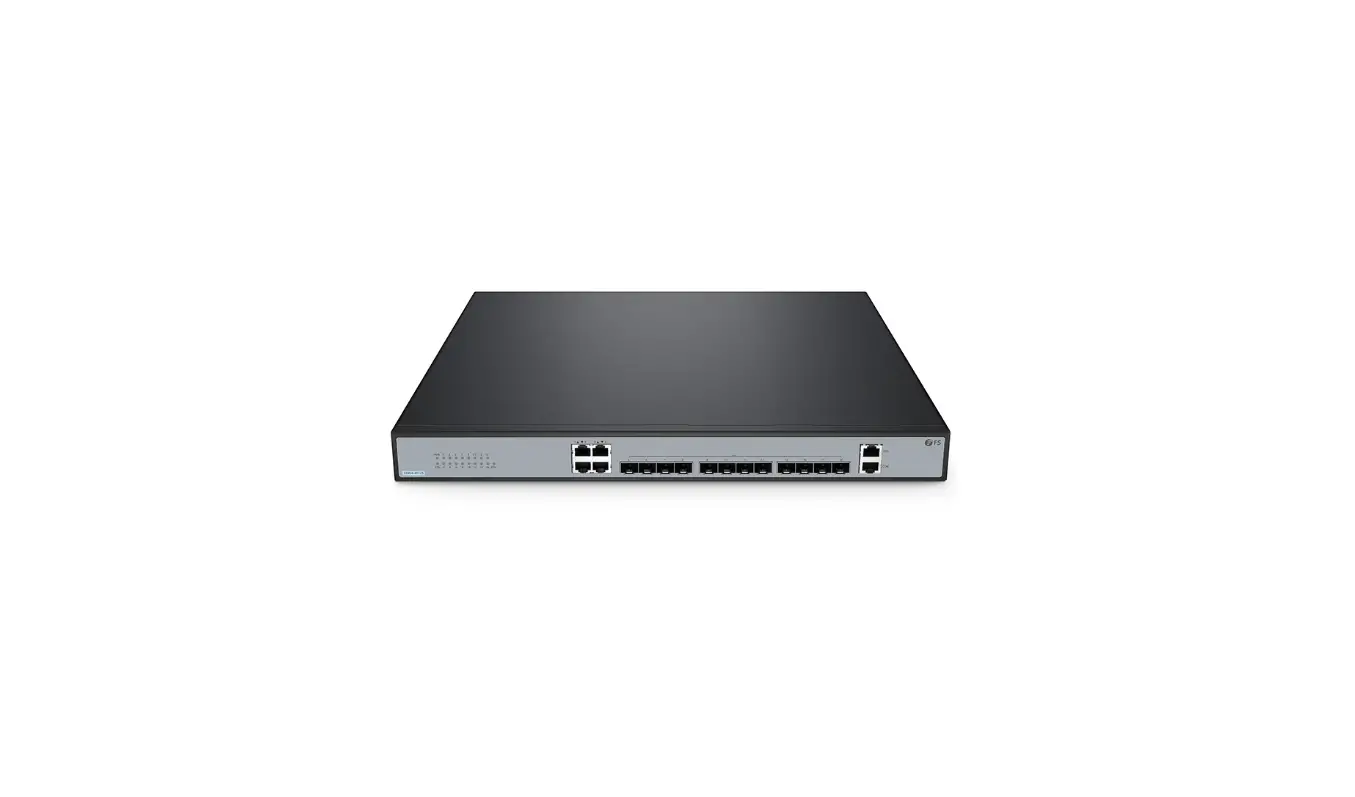
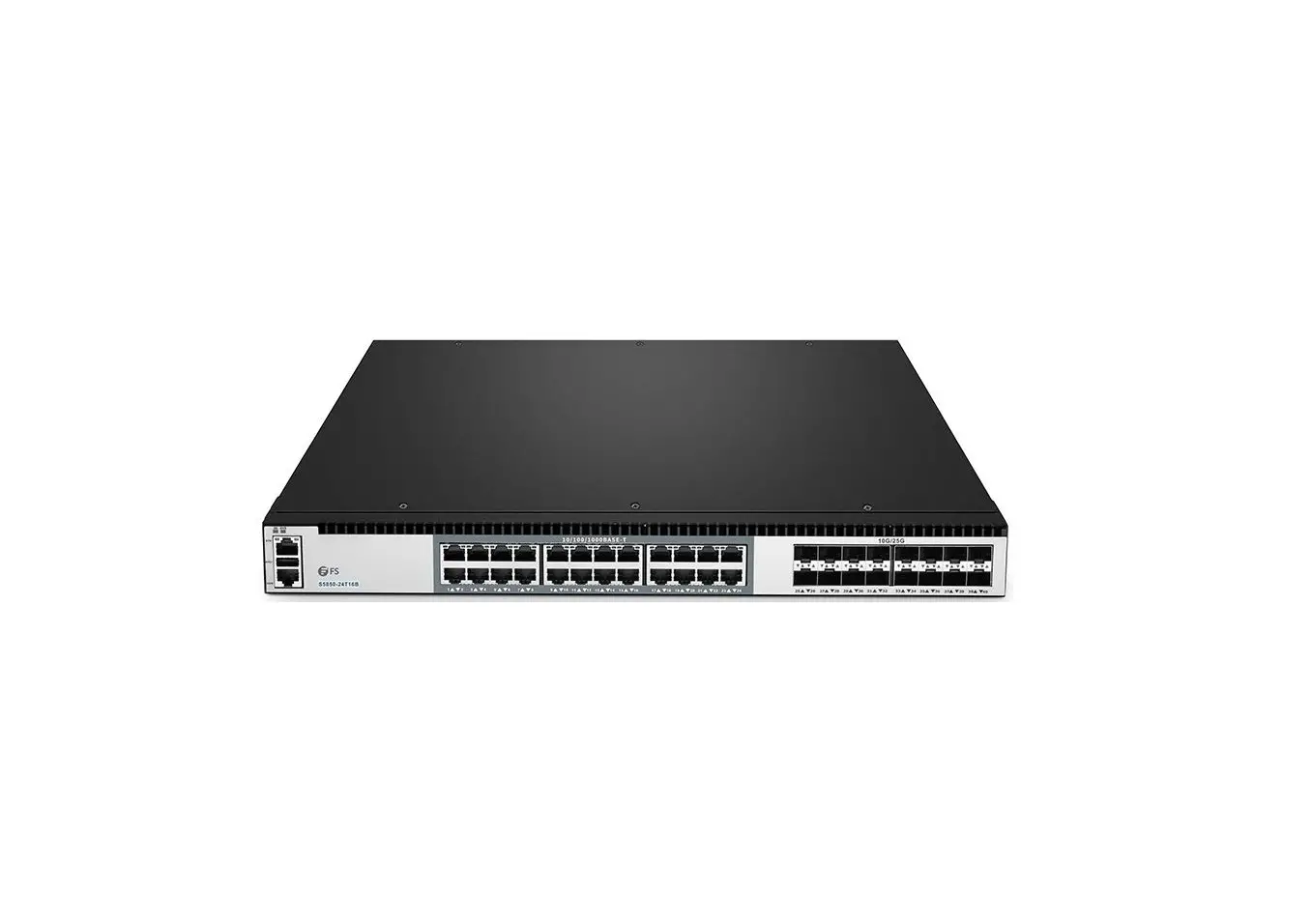
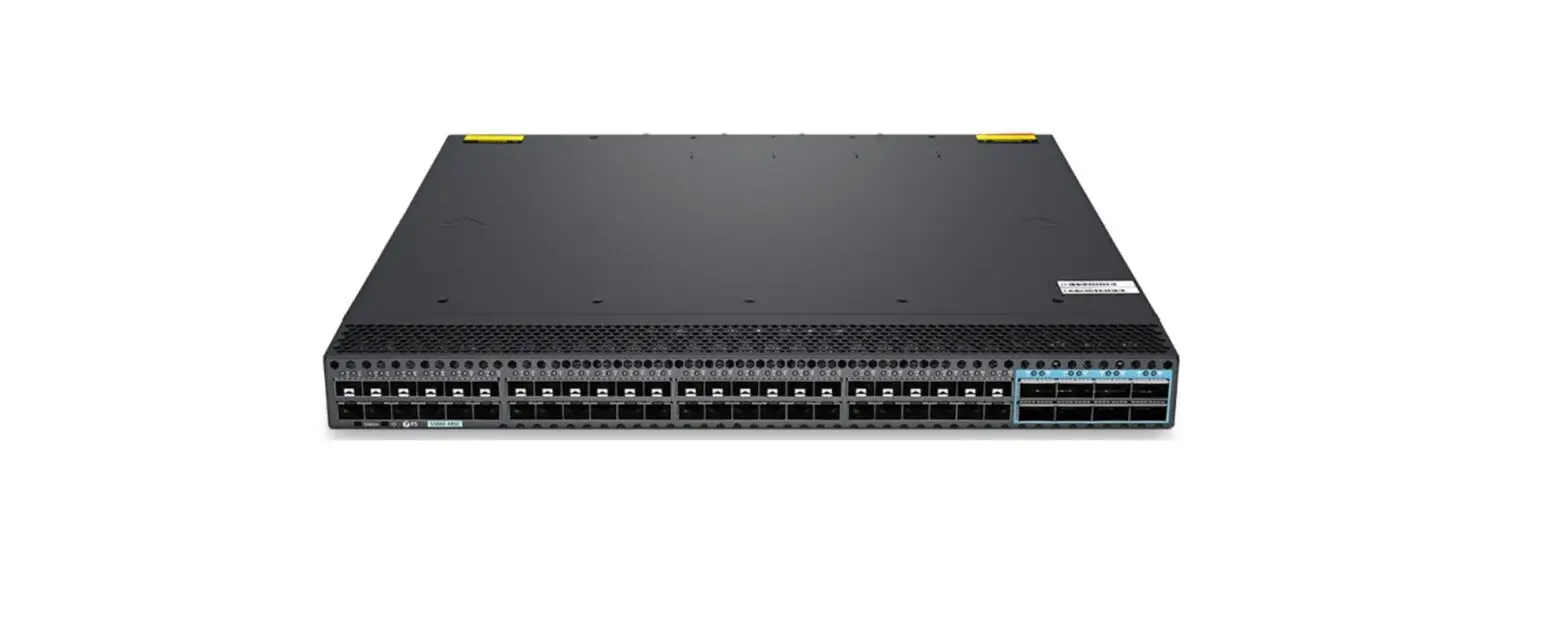
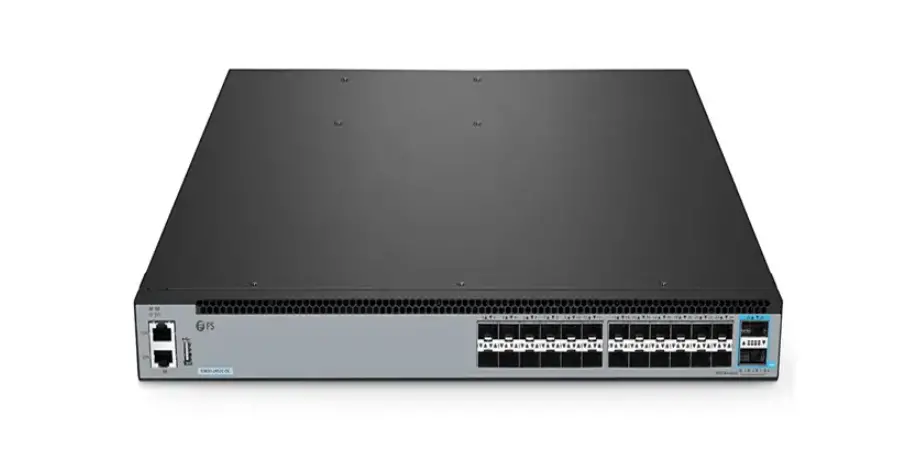
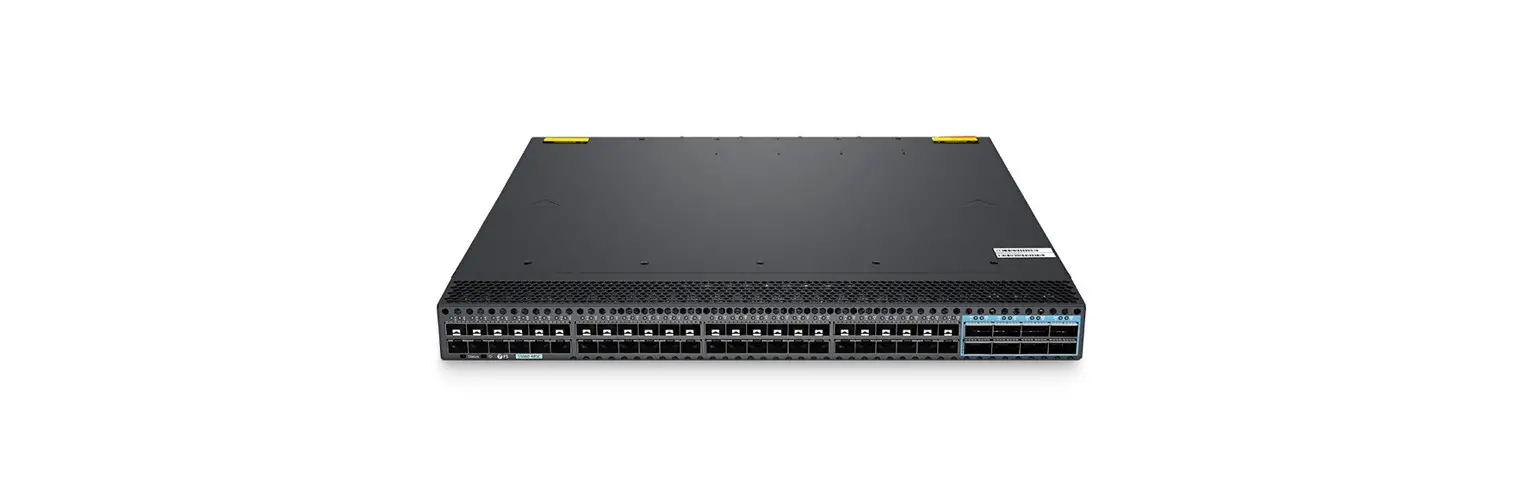
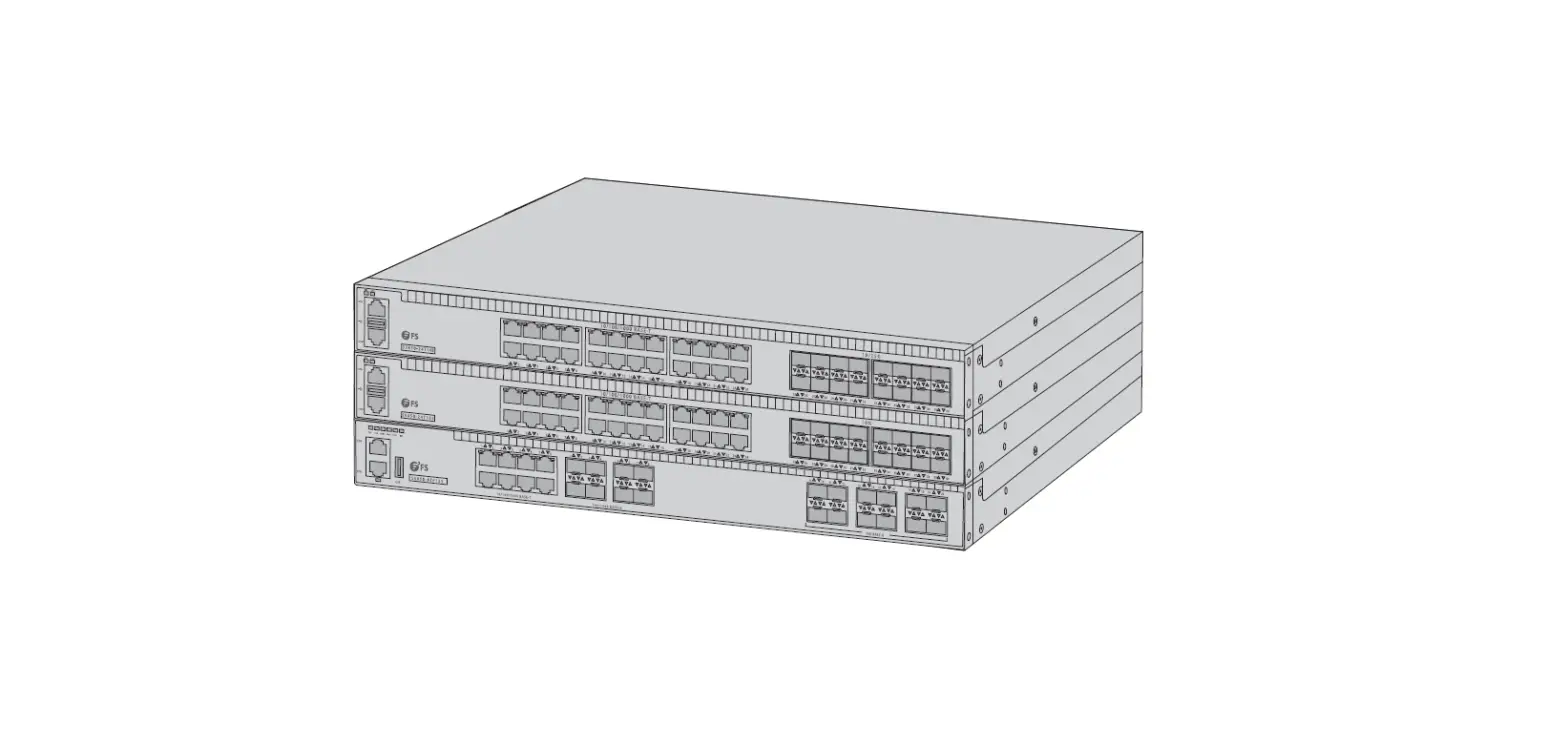
- S5800-8TF12S
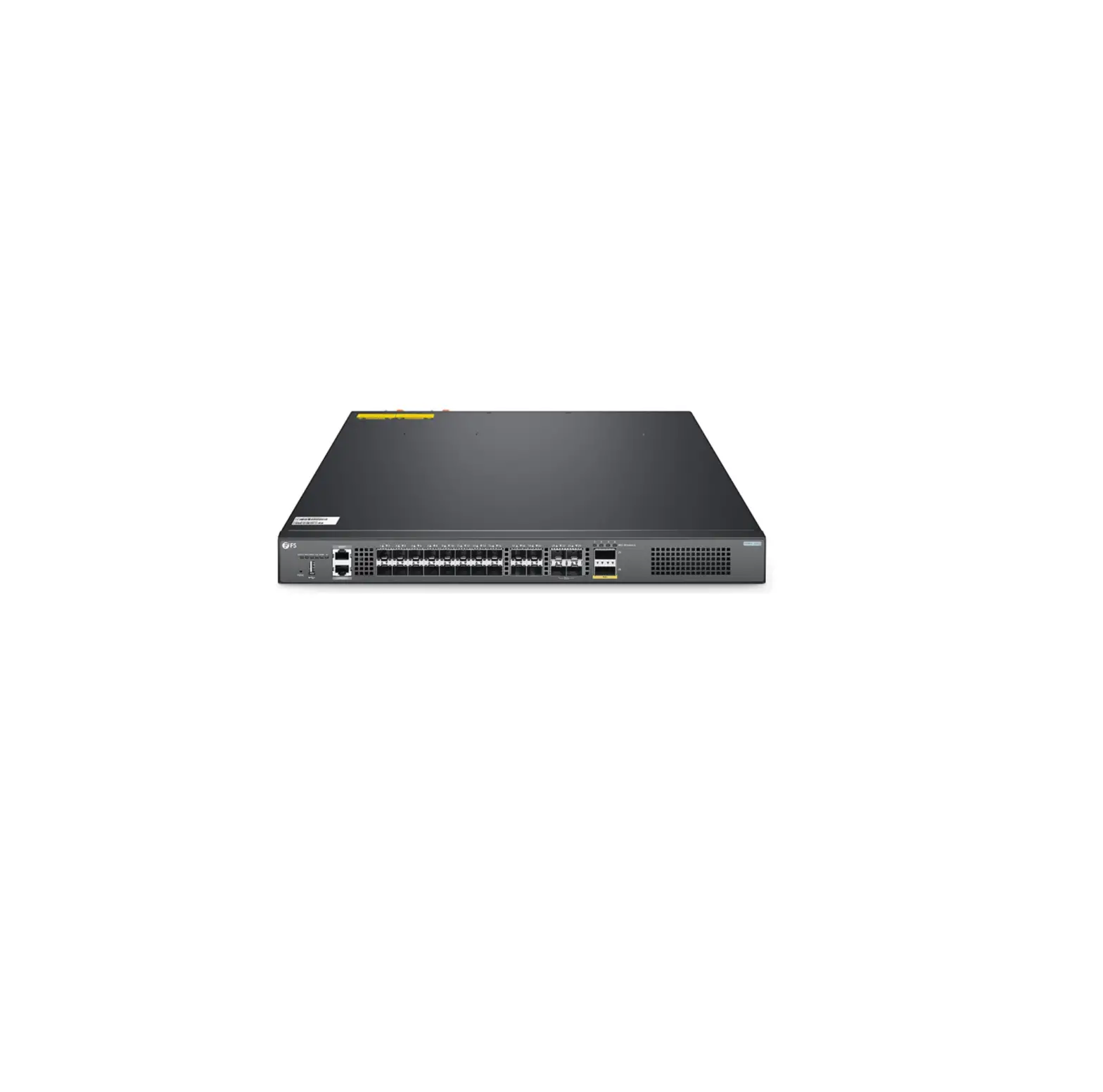
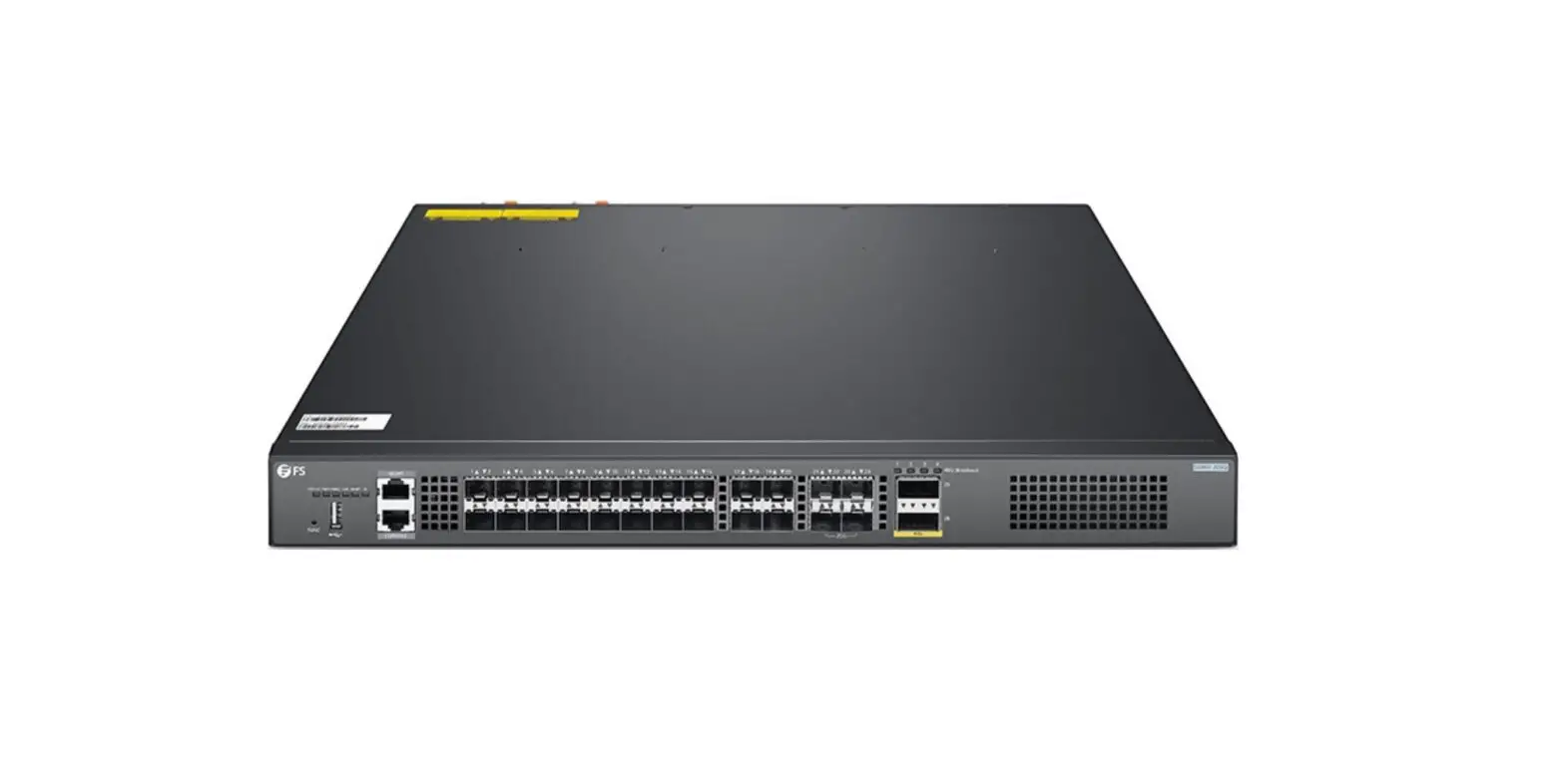
- S5800-48T4S
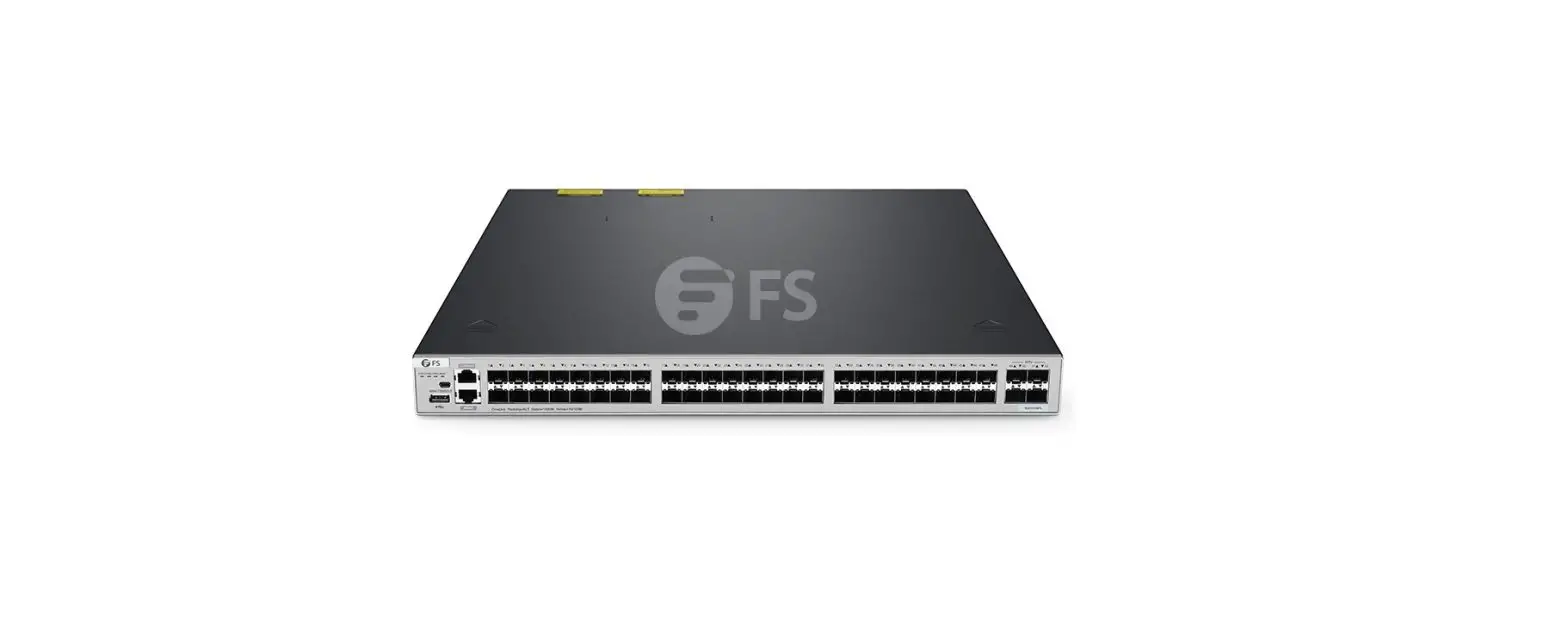
- S5800-48F4SR
Configuration Steps:
1. Connection equipment
Connect your PC and S5850-48T4Q switch to the network according
to the way of networking topo. One end of the RJ-45 cable should be
connected to the PC’s network port, and the other end should be
connected to the Manage interface of S5850-48T4Q. At the same time,
one end of console line USB should be connected to PC’s USB
interface, and the other end of RJ-45 connector should be connected
to console interface of front panel of switch.
Search and install SecureCRT debugging software and Tftpd32 file
transfer software through Google.
3. Configure software parameters
- Energize the switch.
- Right-click “My Computer” on PC and click “Management” to view
the com port corresponding to console cable from device manager.
(If it displays an unrecognized USB device, please download and
install the corresponding driver). - Open SecureCRT, select the serial login mode, and select the
serial number from the device manager. Baud rate is 115200, no flow
control is selected. As the picture shows. - After a successful connection, tap the Enter key on the
keyboard to jump out of the prompt to enter the account
password. - Enter the default username and password admin/admin to log in
to the switch. - Use “cd flash:/?” command to see if a WebImage file exists in
the system directory of the switch. As the picture shows, if this
file exists, skip to Step 7.
4. Configure Tftpd32 software
Open Tftpd32 software and set Server interfaces as the local IP
address of the computer. Current Directory fills in the file path
where the upgrade package is located. As the picture shows.
5. Download WebImage
Through Tftpd32 software, download WebImage to the root
directory of the switch, flash:/. S5850-48T4Q# copy mgmt-if
tftp://192.168.100.47/ FSOS-webImage-v7.2.3.bin flash:/
6. Configuration switch management IP
Configure management IP for Management interface of switch under
CLI interface:
S5850-48T4Q# configure terminal
S5850-48T4Q(config)# management ip address 192.168.100.6/24
S5850-48T4Q(config)# management route add gateway
192.168.100.1
S5850-48T4Q(config)#exit
7. Enable Http services
S5850-48T4Q# configure terminal
S5850-48T4Q(config)# http server load
flash:/FSOS-webImage-v7.2.3.bin
S5850-48T4Q(config)# service http enable
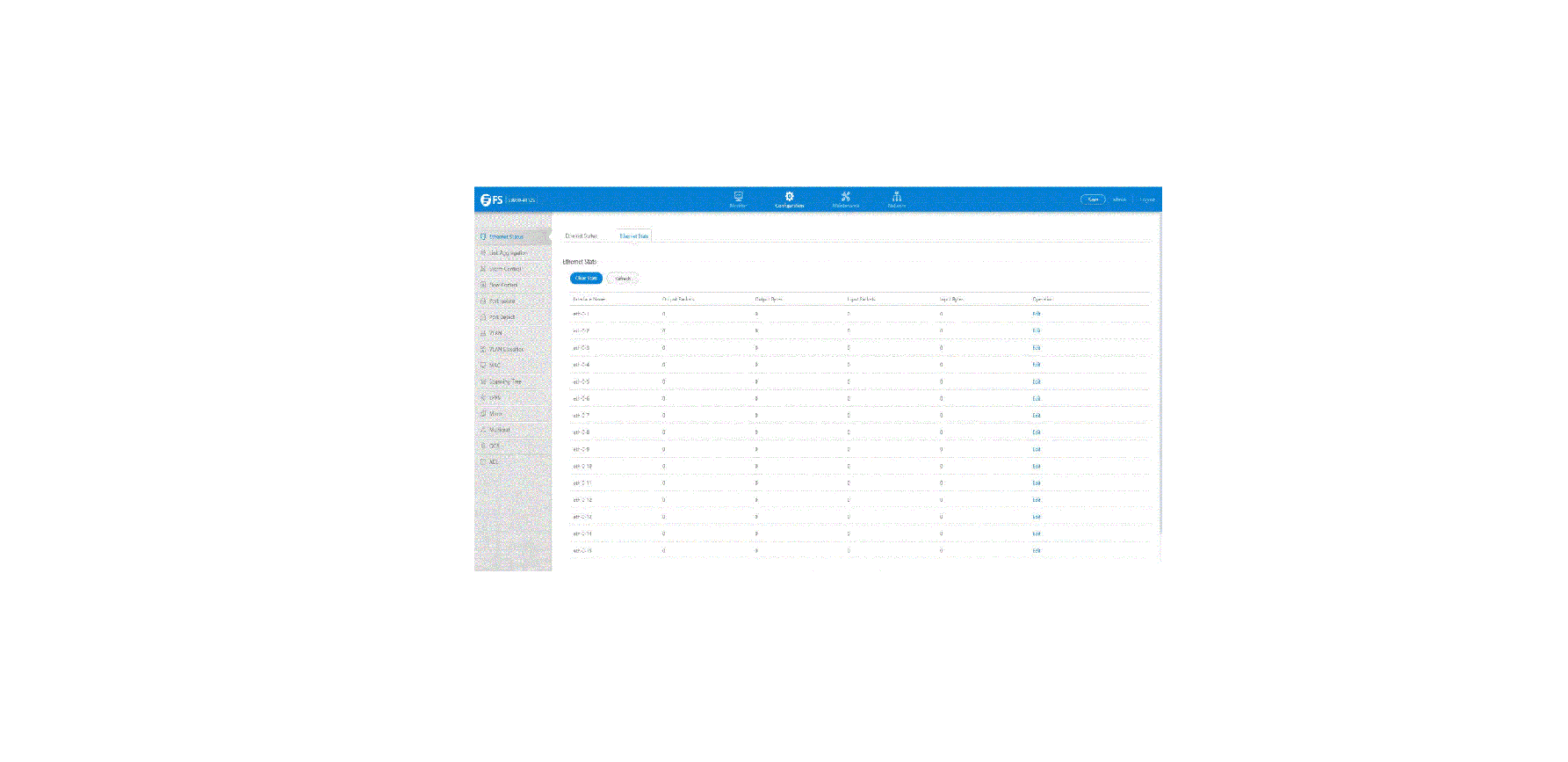
8. Enter Web interface
After completing all the above steps, you can enter the Web
interface of the switch to manage and configure it.
S5800 SERIES SWITCHES ENABLE WEB MANAGEMENT CONFIGURATION GUIDE
S5800 Series Switches Enable Web Management Configuration Guide
Models: S5800-8TF12S S5800-48T4S S5800-48F4SR
www.fs.com
1
S5800 SERIES SWITCHES ENABLE WEB MANAGEMENT CONFIGURATION GUIDE
Content
1. Introduction…………………………………………………………………………………………………………………………………………………..1 2. Topology……………………………………………………………………………………………………………………………………………………… 1 3.Configuration Steps……………………………………………………………………………………………………………………………………… 2
www.fs.com
I
S5800 SERIES SWITCHES ENABLE WEB MANAGEMENT CONFIGURATION GUIDE
1. Introduction
This document explains in detail how to turn on the relevant content of the Web, and it is only available for Web management with version numbers V7.2.4.r1 or V5.3.10 and below.
2. Topology
www.fs.com
1
S5800 SERIES SWITCHES ENABLE WEB MANAGEMENT CONFIGURATION GUIDE
3. Configuration Steps
(1) Connection equipment
According to the way of networking topo to connect PC and S5850-48T4Q switch to network.One end of the RJ-45 cable is connected to the PC’s network port, and the other end is connected to the Manage interface of S5850-48T4Q. At the same time, one end of console line USB is connected to PC’s USB interface, and the other end of RJ-45 connector is connected to console interface of front panel of switch.
(2) Download related software
Search and install SecureCRT debugging software and Tftpd32 file transfer software through Google.
(3) Configure software parameters
Energizing the switch.Then right-click “my computer” on PC, click management, and view the com port corresponding to console cable from device manager. (If it display an unrecognized USB device, please download and install the corresponding driver). Then open SecureCRT, select the serial login mode, and select the serial number from the device manager. Baud rate is 115200, no flow control is selected. As the picture shows.
(4) Login switch
After a successful connection, tapping the Enter key on the keyboard will jump out of the prompt to enter the account password. At this point, enter the default user name and password admin/admin, you can log in to the switch. Then use cd flash:/? command to see if a WebImage file exists in the system directory of the switch. As the picture shows, if this file exists, skip to Step 7.
www.fs.com
2
S5800 SERIES SWITCHES ENABLE WEB MANAGEMENT CONFIGURATION GUIDE S5850-48T4Q# cd flash:/?
(5) Configure Tftpd32 software Open Tftpd32 software and set Server interfaces as the local IP address of the computer. Current Directory fills in the file path where the upgrade package is located. As the picture shows.
www.fs.com
3
S5800 SERIES SWITCHES ENABLE WEB MANAGEMENT CONFIGURATION GUIDE
(6) Download WebImage
Through Tftpd32 software,download WebImage to the root directory of the switch, flash:/. S5850-48T4Q# copy mgmt-if tftp://192.168.100.47/ FSOS-webImage-v7.2.3.bin flash:/
(7) Configuration switch management IP
Configuration management IP for Management interface of switch under CLI interface S5850-48T4Q# configure terminal S5850-48T4Q(config)# management ip address 192.168.100.6/24 S5850-48T4Q(config)# management route add gateway 192.168.100.1 S5850-48T4Q(config)#exit
(8) Enable Http services
S5850-48T4Q# configure terminal S5850-48T4Q(config)# http server load flash:/FSOS-webImage-v7.2.3.bin S5850-48T4Q(config)# service http enable
(9) Enter Web interface
Enter the Administrator IP address:192.168.100.6 in the URL bar of Google Browser,then enter the default username and password admin/admin.As the picture shows.
NOTE: Recommended use of the latest version of WebImage files.
www.fs.com
4
 FS.com - Data Center, Enterprise, Telecom