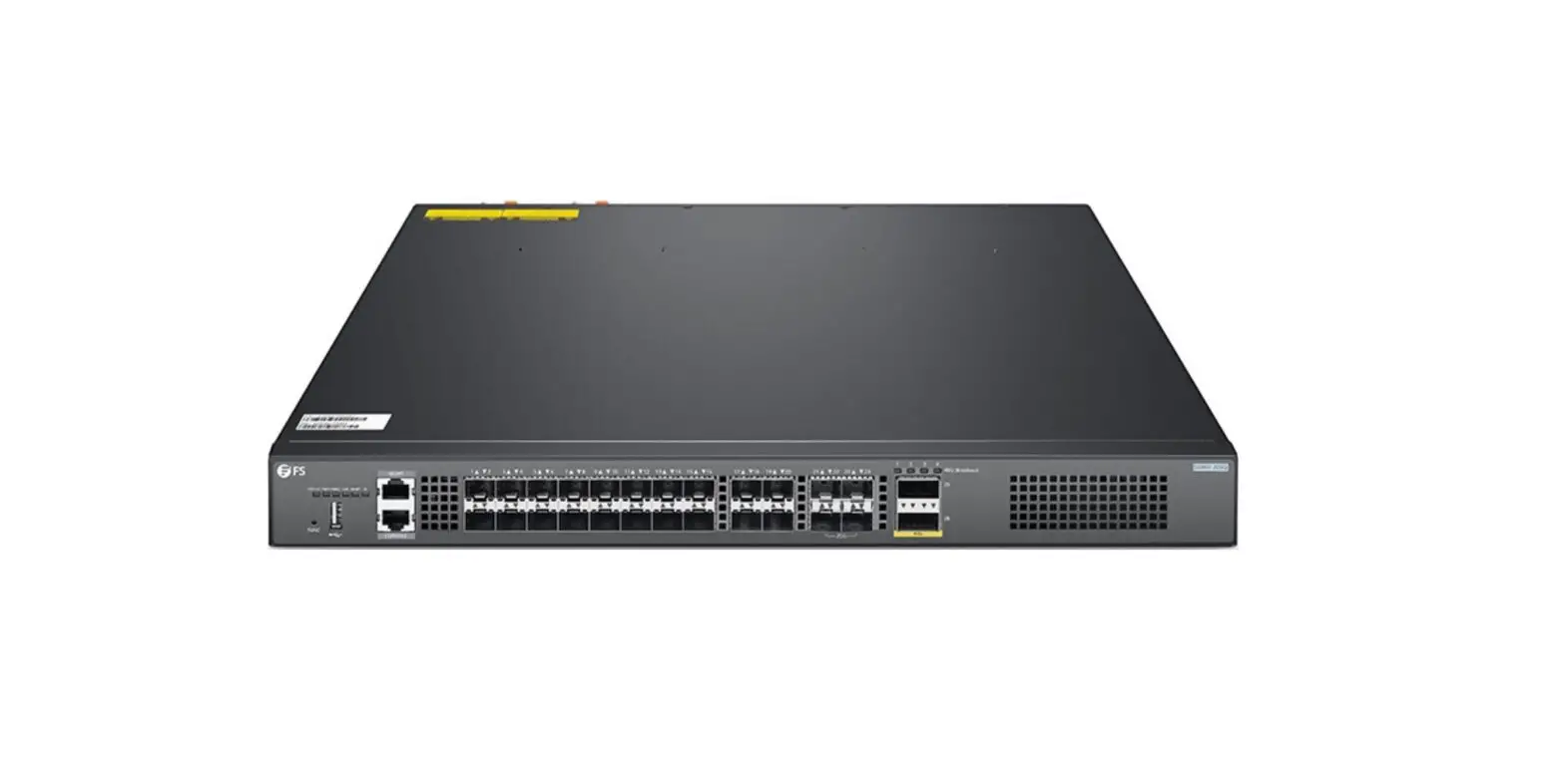
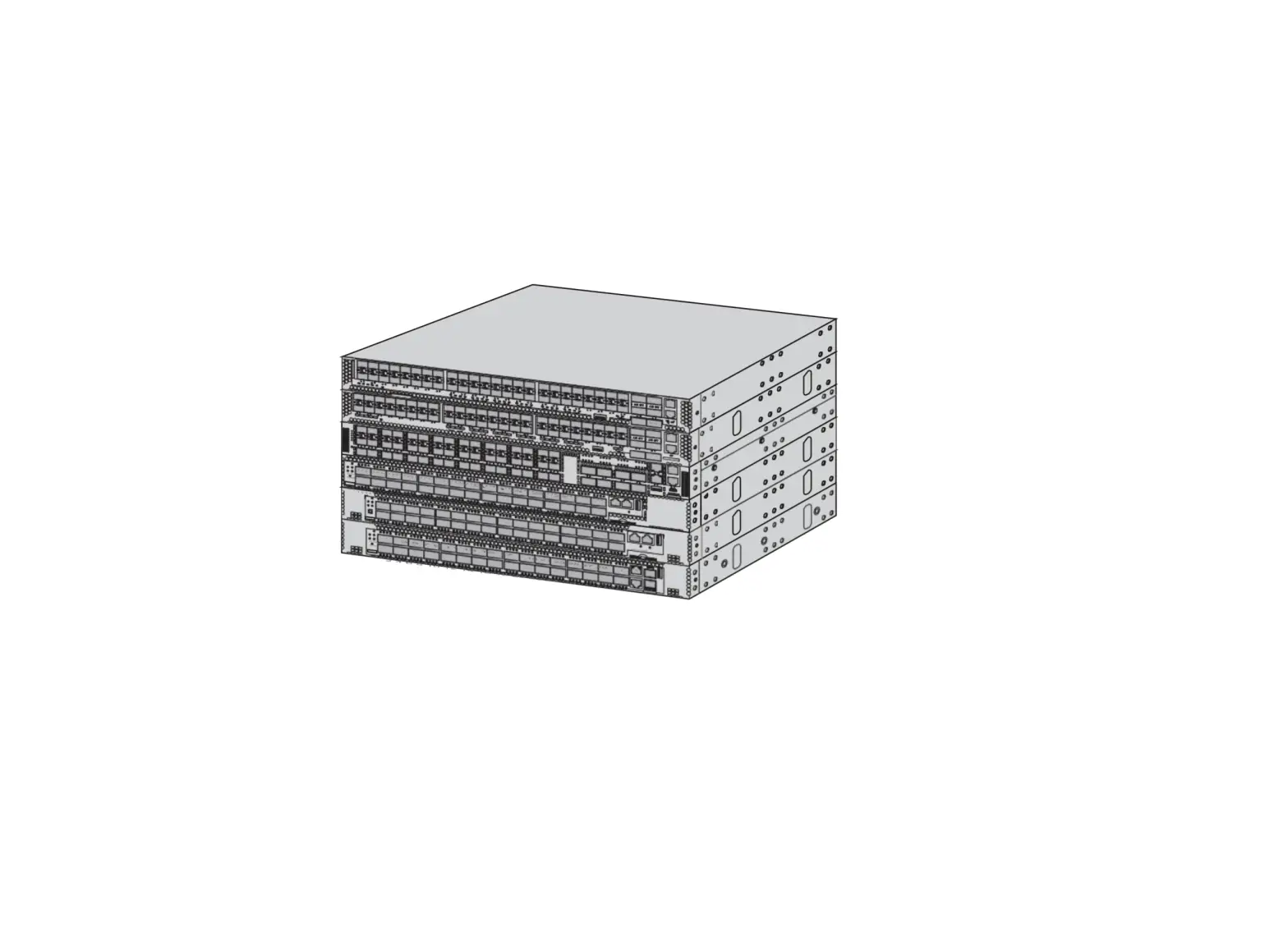
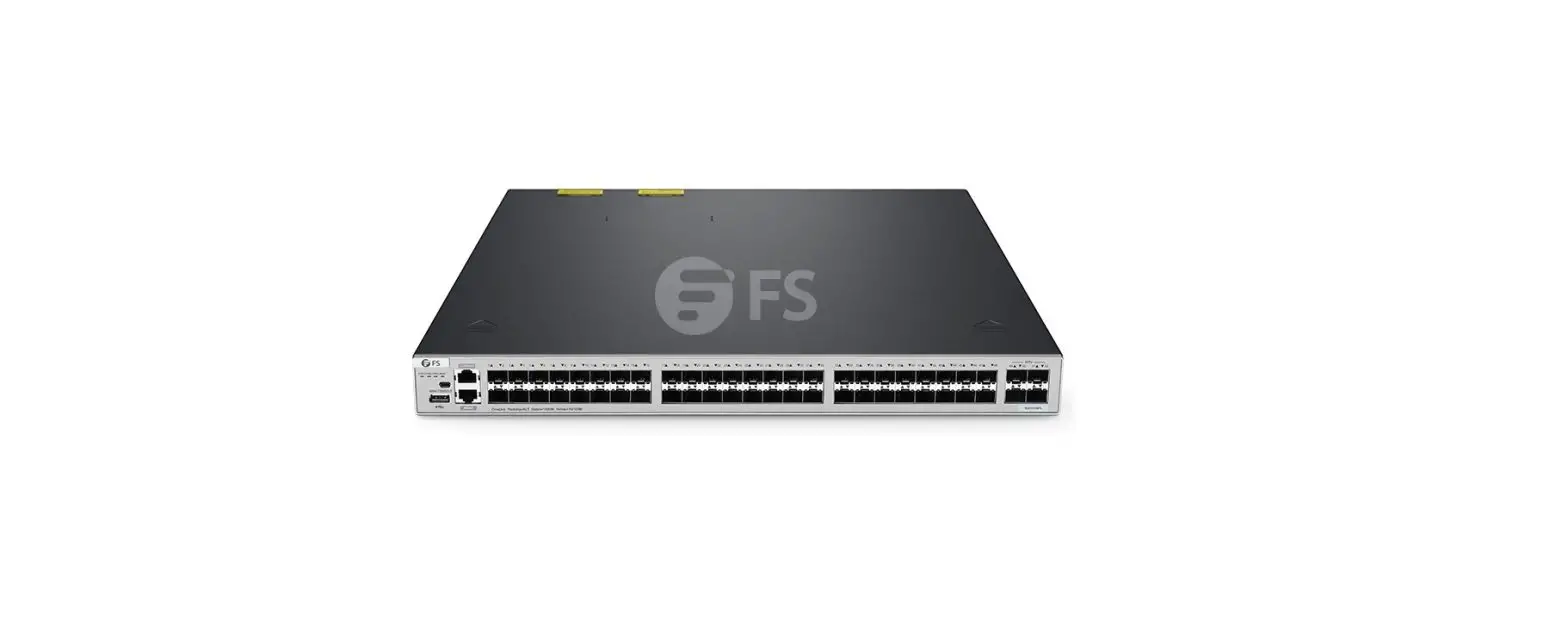
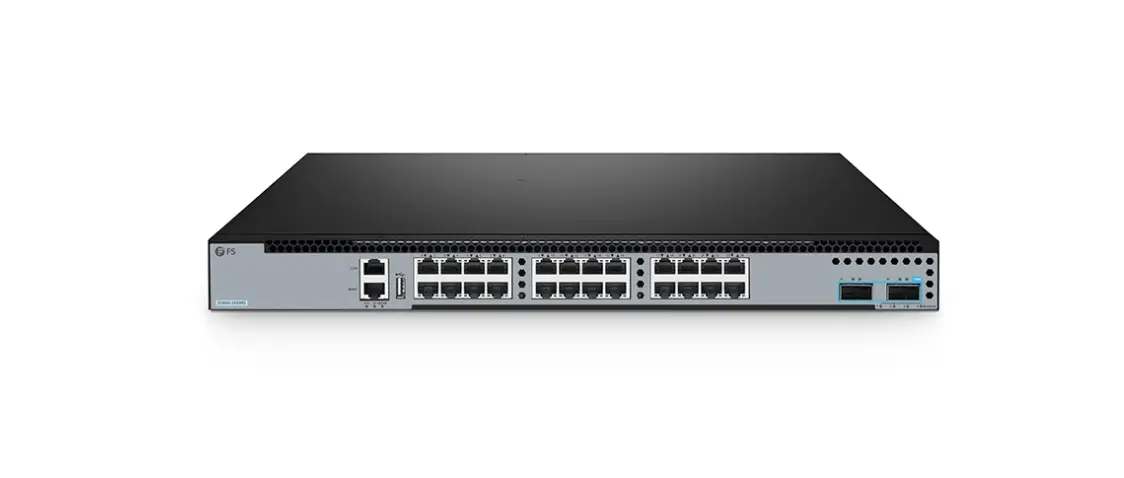
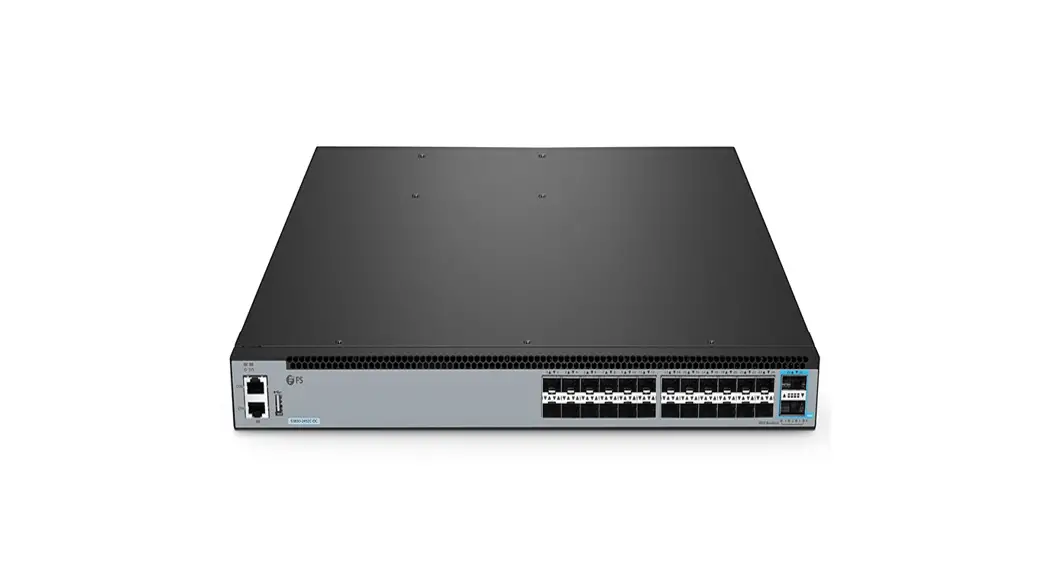
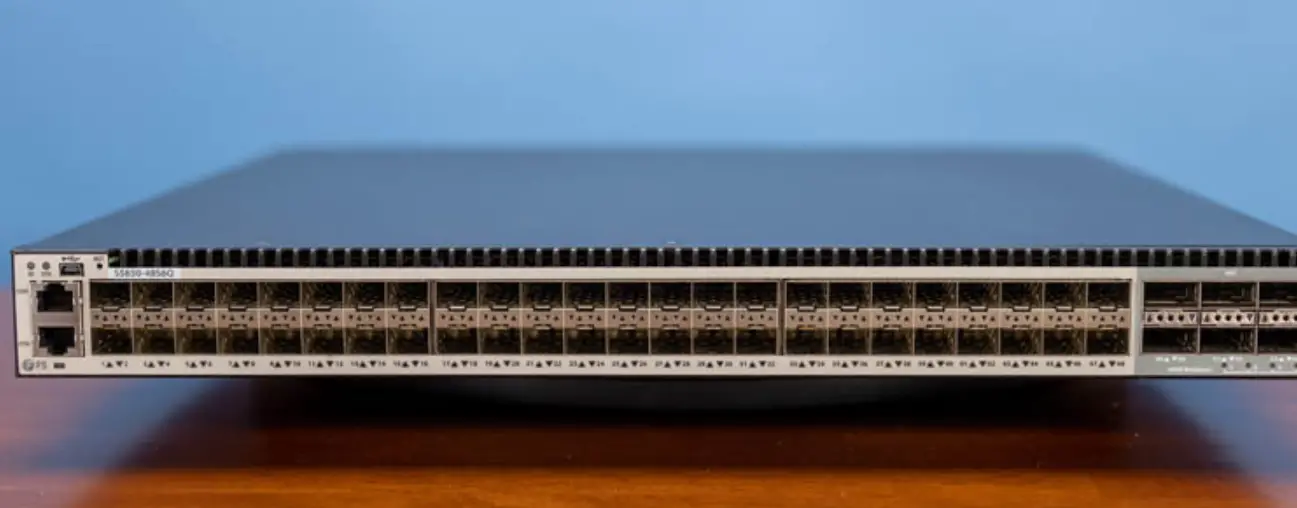
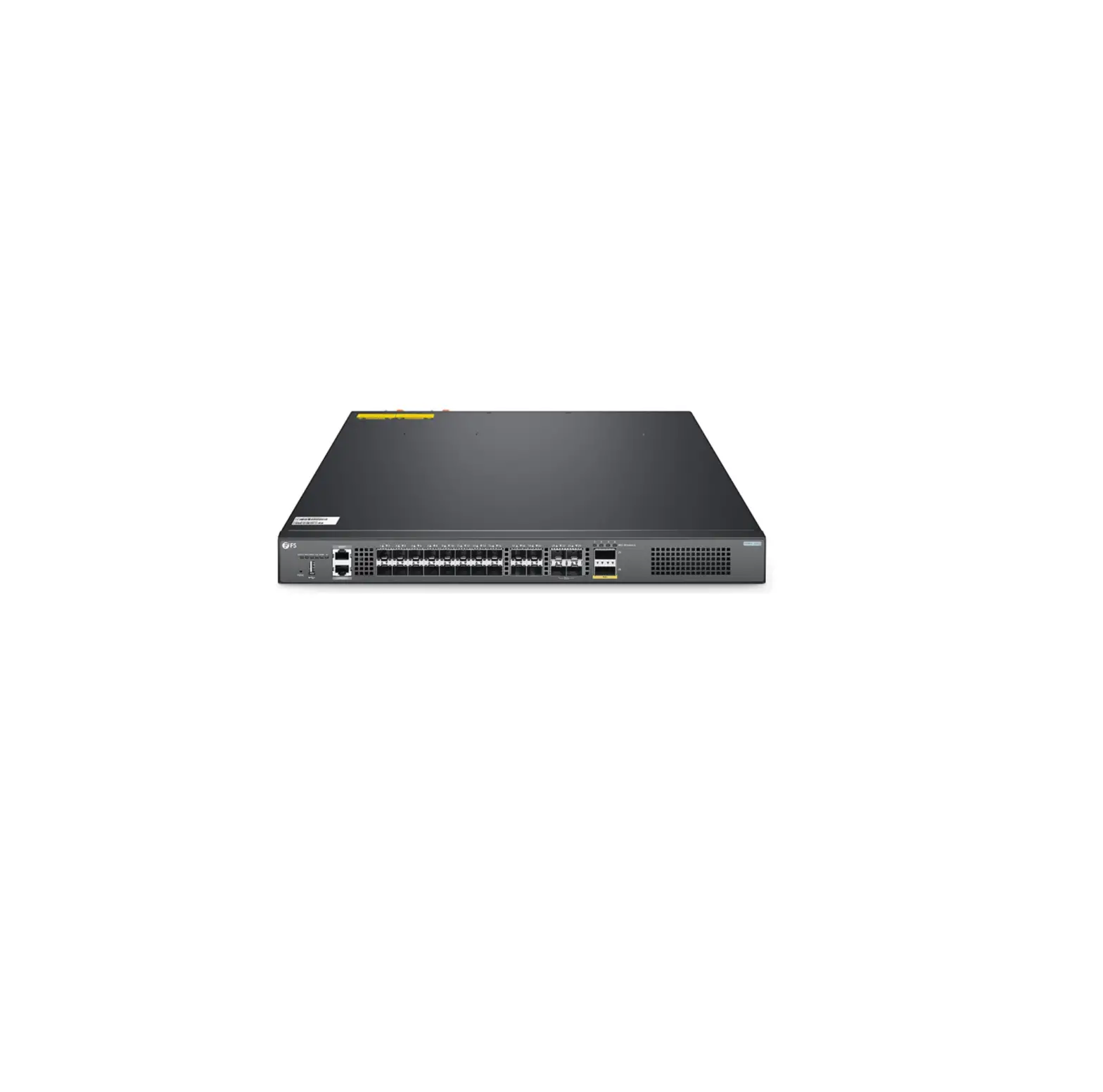
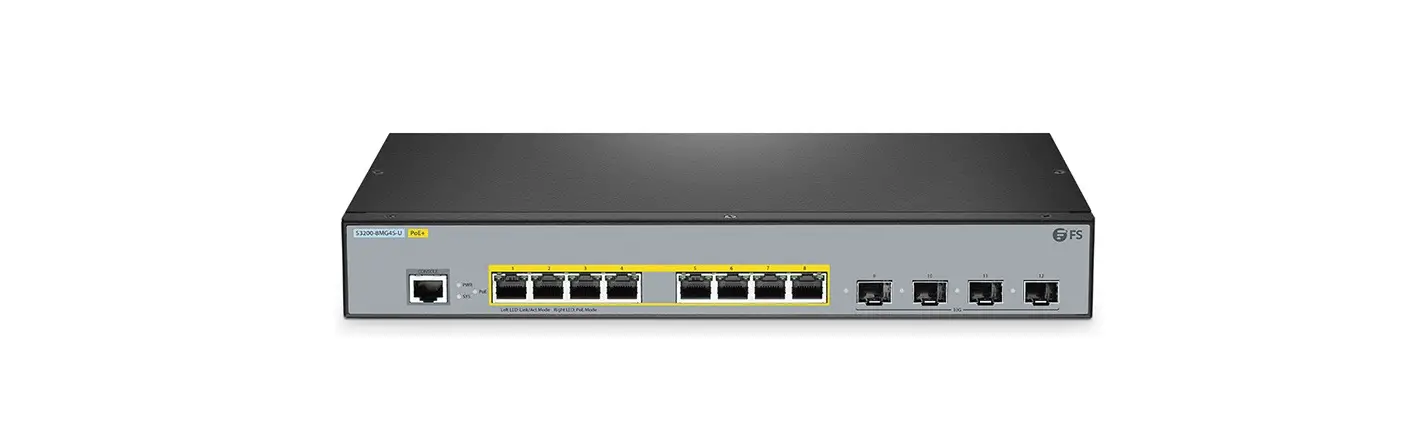
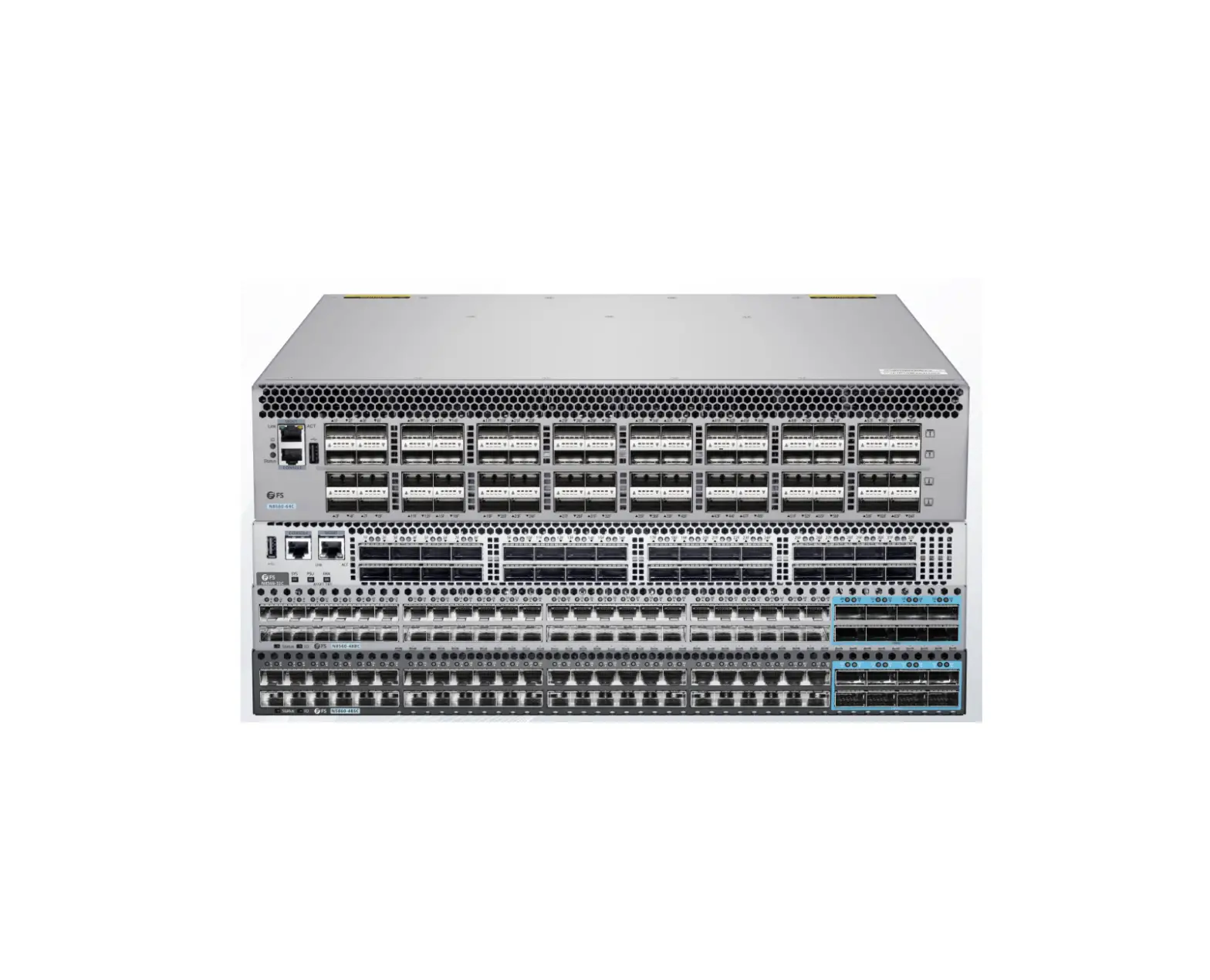
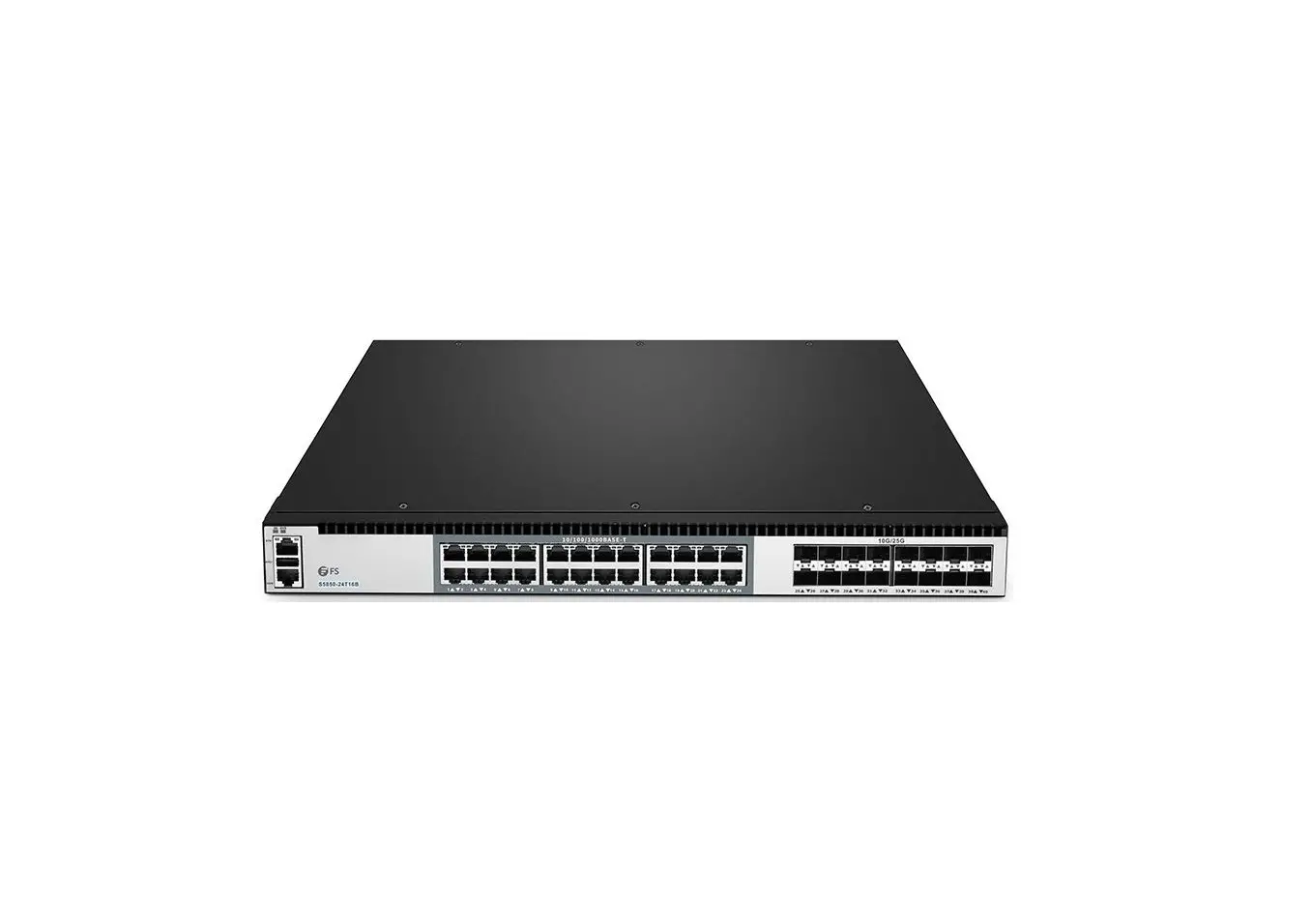
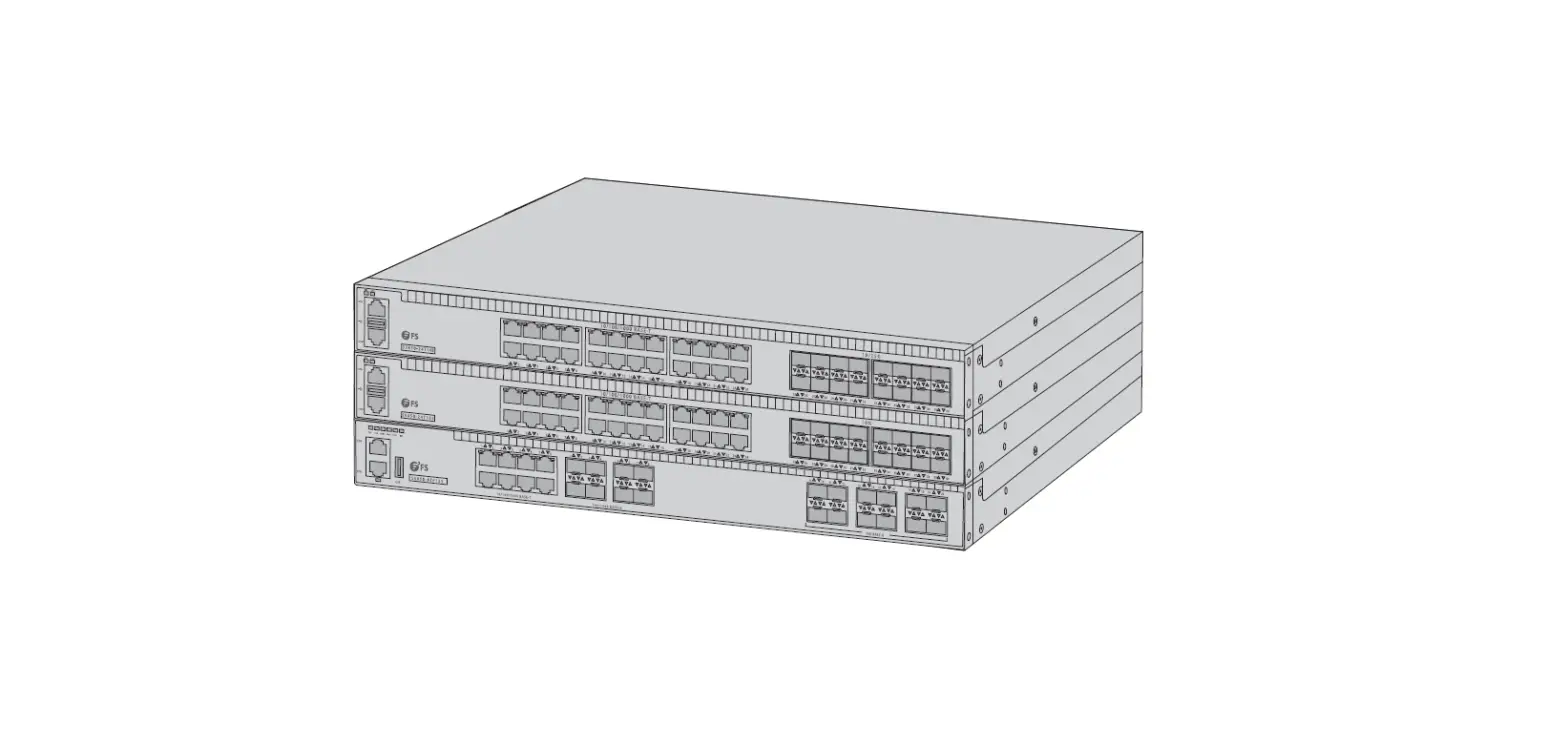
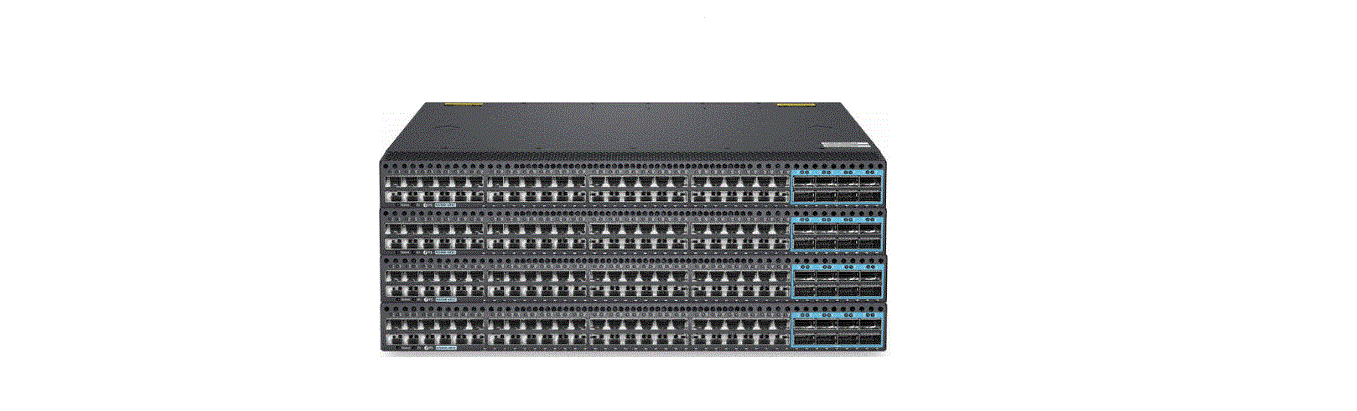
S5850 Series Managed L3 Data Center Switches
Managed L3 Data Center Switches
Quick Start Guide V1.0
Introduction
Thank you for choosing S5850 Series switches. This guide is
designed to familiarize you with the layout of the switches and
describes how to deploy the switches in your network.
Accessories
The following accessories are included with the switches:
- Power Cord x2
- Console Cable cDB9 to RJ45x1
- Cat 5e Cable x1
- Grounding Cable x1
- Rubber Pad x4
- M4 Screw x10
- Front Mounting Bracket x2
- Sliding Rail x2
- Rear Mounting Bracket x2
Hardware Overview
The switches include the following hardware:
Front Panel Ports
| Ports | Description |
|---|---|
| SFP28 | Ports for 1/10G transceivers |
| QSFP28 | Ports for 40/100G transceivers |
Front Panel LEDs
| LEDs | State | Description |
|---|---|---|
| ID | On/Off | ID indication function enable/disable |
| SYS | On/Amber/Off | The system is normally running/alarm or error occurs in the system/no power or the system is not running or abnormality |
| MGT | Green/Off | Port is linked/not linked |
| Breakout | Loop Blinking/Off | One or more 100G/40G ports are breakout/none of the 100G/40G ports is breakout |
Back Panel
| Ports | Description |
|---|---|
| Power Supply Module | A power supply module port |
| RJ45 Console Port (CON) | An RJ45 console port for serial management |
| ETH | An Ethernet management port |
| USB | A USB management port |
Back Panel LEDs
| LEDs | State | Description |
|---|---|---|
| ID | On/Off | ID indication function enable/disable |
| SYS | On/Amber/Off | The system is normally running/alarm or error occurs in the system/no power or the system is not running or abnormality |
| ETH | Green/Blinking/Off | Port is linked/receiving or transmitting packets/not linked |
Installation Requirements
To avoid equipment damage and personal injury caused by improper
use, please follow these precautions:
- Remove power source before cleaning switches.
- Do not use wet rags to wipe switches and clean switches with
liquid. - Do not place switches near water or in a wet environment, and
prevent water or moisture from entering switch chassis. - Do not place switches on an unstable case or table, since the
dropping would cause serious harm to switches. - Maintain good indoor ventilation and clear air holes of
switches. - Switches shall work normally under correct voltage, so make
sure the operating voltage agrees with the voltage marked on
switches. - To reduce the risk of electric shock, do not remove its
enclosure when a switch is working, and don’t do so at will even if
it is not powered.
Product Usage Instructions
To deploy the switches in your network, follow these steps:
- Ensure that the installation requirements are met.
- Connect the power cords to the power supply modules and the
power source. - Connect the console cable to the RJ45 console port and a
computer or other management device. - Connect the Ethernet management port to your network.
- If necessary, connect the USB management port to a USB device
for management purposes. - If necessary, attach the grounding cable to a grounding
point. - If necessary, attach the rubber pads to the bottom of the
switches for stability. - If necessary, use the mounting brackets and screws to mount the
switches to a rack or other stable surface.
MANAGED L3 DATA CENTER SWITCHES
MANAGED L3-SWITCHES FÜR RECHENZENTREN SWITCHS MANAGEABLES L3 POUR CENTRES DE DONNÉES
Quick Start Guide V1.0
Quick Start Anleitung Guide de Démarrage Rapide
EN
Introduction
Thank you for choosing S5850 Series switches. This guide is designed to familiarize you with the layout of the switches and describes how to deploy the switches in your network.
Accessories
S5850-48S8C S5850-48B8C S5850-48S8C-DC
Power Cord x2
Console Cable cDB9 to RJ45x1
Cat 5e Cable x1
Grounding Cable x1
Rubber Pad x4
M4 Screw x10
Front Mounting Bracket x2
Sliding Rail x2
Rear Mounting Bracket x2 1
Hardware Overview
Front Panel Ports
SS5850-48S8C-DC
100G QSFP28
EN
Ports
SFP28 QSFP28
25G SFP28
Description
SFP28 ports for 1/10G transceivers QSFP28 ports for 40/100G transceivers
Front Panel LEDs
S5850-48S8C-DC
100G QSFP28
SYS MGT ID
25G SFP28
Breakout
LEDs
ID SYS MGT Breakout
State
Description
On ID indication function enable. Blue
Off ID indication function disable.
Green
On The system is normally running.
Amber
On Alarm or error occurs in the system.
Off
No power or the system is not running or abnormality.
Green
On Port is linked. Off Port is not linked.
Loop Blinking
One or more 100G/40G ports are breakout.
Off
None of the 100G/40G ports is breakout.
2
EN
LEDs State
Green
SFP28 Amber Off
Green QSFP28
Amber
Off
On Blinking On Blinking
On Blinking On Blinking
Description
25G port is linked. 25G packets are receiving or transmitting. 10G/1G port is linked. 10G/1G packets are receiving or transmitting. Port is not linked 100G/40G port is linked. 100G/40G packets are receiving or transmitting. 10G/1G port is linked. 10G/1G packets are receiving or transmitting. Port is not linked.
Back Panel
S5850-48S8C/S5850-48B8C
Power Supply Module ID SYS
ID
SYS
CON
ETH PS2
CON
USB
ETH
S5850-48S8C-DC
Power Supply Module ID SYS
ID
SYS
CON
PS2
Grounding point
ETH
CON
USB
ETH
PS1
PS1
3
EN
Ports
Power Supply Module RJ45 Console Port (CON)
ETH USB
Description
A power supply module port An RJ45 console port for serial management An Ethernet management port A USB management port
Back Panel LEDs LEDs State
ID
Blue
Green
SYS
Amber
Off
ETH Green
Description
On
ID indication function enable.
Off
ID indication function disable.
On
The system is normally running.
On
Alarm or error occurs in the system.
No power or the system is not running or abnormality.
On
Port is linked.
Blinking Port is receiving or transmitting packets.
Off
Port is not linked.
Installation Requirements
Safety Precaution
The following precautions should be followed to avoid equipment damage and personal injury caused by improper use:
Power source should be removed before cleaning switches. Do not use wet rags to wipe switches and clean switches with liquid. Do not place switches near water or in a wet environment, and prevent water or moisture from entering switch chassis.
Do not place switches on an unstable case or table, since the dropping would cause serious harm to switches. Maintain good indoor ventilation and clear air holes of switches. Switches shall work normally under correct voltage, so make sure the operating voltage agrees with the voltage marked on switches. To reduce the risk of electric shock, do not remove its enclosure when a switch is working, and don’t do so at will even if it is not powered.
4
EN
Anti-static gloves must be worn when replacing interface board to prevent static electricity from damaging veneer.
Installation Site
To ensure a normal work environment, S5850 series switches should have the following requirements for workplace:
Ensure that there are some spaces at the inlet and outlet of switch for heat dissipation of switch chassis. Ensure that rack and working platform have good ventilation and heat dissipation systems. Ensure that rack and working platform are firm enough to support the weight of a switch and its accessories for installation. Ensure rack and working platform are well earthed.
Mounting the Switch
Rack Mounting
1. Install the front mounting brackets and the sliding rails on the switch.
5
EN
2. Fix the rear mounting brackets to the rack.
3. Push the switch slightly into the rack along the sliding rails, and fix the other end of front mounting brackets upon the front hold strip of rack using screws and matching nuts.
6
EN
Grounding the Switch
1. Connect one end of the grounding cable to a proper earth ground, such as the rack in which the switch is mounted. 2. Secure the grounding lug to the grounding point on the switch back panel with the washer and screws.
NOTE: 1. Only S5850-48S8C-DC can be grounded. 2. The earth connection cannot be removed unless all connections are disconnected.
7
EN
Connecting the Power
1. Plug the AC power cord into the power port on the back of the switch. 2. Connect the other end of the power cord to a power source. (The S5850-48S8C-DC power port is different from the power ports of S5850-48S8C and S5850-48B8C. )
WARNING: Do not install power cables while the power is on.
Connecting the SFP28 Ports
1. Plug the compatible SFP28 transceiver into the SFP28 port. 2. Connect a fiber optic cable to the fiber transceiver. Then connect the other end of the cable to other fiber devices.
8
EN
Connecting the QSFP28 Ports
1. Plug the compatible QSFP28 transceiver into the QSFP28 port. 2. Connect a fiber optic cable to the fiber transceivers. Then connect the other end of the cable to other fiber devices.
Connecting the USB port
USB
1. Connect the DB9 female connector of the mini USB to RS-232 serial port on the computer. 2. Insert the mini USB connector into USB port on the back of the switch.
9
EN
Connecting the Console Port
1. Insert the RJ45 connector of the console cable into the RJ45 console port on the back of the switch. 2. Connect the other end of the console cable to the RS-232 serial port on the computer.
Connecting the ETH Port
1. Connect one end of a standard RJ45 Ethernet cable to the Ethernet port of a computer. 2. Connect the other end of the cable to ETH port on the back of the switch.
10
EN
Configuring the Switch
Configuring the Switch Using the Web-based Interface
Step 1: Connect the computer to the Management port of the switch using the network cable. Step 2: Set the IP address of the computer to 192.168.1.x. (“x” is any number from 2 to 254.). Set the
subnet mask of the computer to 255.255.255.0
Internet Protocol Version 4 (TCP/IPv4) Properties General
?x
You can get IP settings assigned automatically if your network supports this capability. Otherwise, you need to ask your network administrator for the appropriate IP settings.
Obtain an IP address automatically
Use the following IP address:
IP address:
192 . 168 . 1 . 2
Subnet mask:
255 . 255 . 255 . 0
Default gateway:
. . .
Obtain DNS server address automatically
Use the following DNS server addresses:
Preferred DNS server:
. . .
Alternate DNS server:
. . .
Validate settings upon exit
Advanced…
OK
Cancel
Step 3: Open a browser, type http://192.168.1.1, and enter the default username and password, admin/admin.
Step 4: Click sign in to display the web-based configuration page.
11
EN
Configuring the Switch Using the Console Port
Step 1: Connect a computer to the switch’s console port using the supplied console cable. Step 2: start simulation software such as HyperTerminal on the computer. Step 3: Set the parameters of the HyperTerminal: 115200 bits per second, 8 data bits, no parity, 1 stop
bit and no flow control.
Quick Connect
x
Protocol: Port: Baud rate: Data bits: Parity: Stop bits: Name of pipe:
Serial COM3 115200 8 None 1
Flow Control DTR/DSR RTS/CTS XON/XOFF
Show quick connect on startup
Save session Open in a tab
Connect
Cancel
Step 4: Enter the default username and password, admin/admin
12
EN
Troubleshooting
Loading Failure Troubleshooting
After loading fails, the system will keep running in the original version. At this time, users should re-check if physical port connection are good firstly. If some ports are not connected, then re-connect them to ensure that physical connections are correct, and begin re-loading. If physical connections are correct, then check the loading process information displayed on the super terminal to verify if there are input errors. If there are input errors, correct them and re-load.
User Password Lost Troubleshooting
If system password is lost or forgotten, the following method can be used to reset the password: 1. Connect the console port of the switch to the computer through the console cable. 2. Press ctrl + b to enter the Uboot mode. 3. Start the system with an empty configuration file with no password. 4. Bootrom#boot_flash_nopass 5. Bootrom#Do you want to revert to the default config file?[Y|N|E]:
NOTE: Forgetting your username and password and restoring them through console port may cause configuration loss and business interruption. Please remember your username and password.
Power System Troubleshooting
According to the power indicator on the front panel, the switches can be used to determine whether the power system of the switch is faulty. If the power system is working normally,the power indicators should remain lit. If the power indicator is unlit, the power supply system is not working. Please check the following: 1. Whether the switch power cable is connected correctly. 2. Whether the power supply of the switch matches the required power supply.
13
EN
Online Resources
Download https://www.fs.com/products_support.html Help Center https://www.fs.com/service/fs_support.html Contact Us https://www.fs.com/contact_us.html
Product Warranty
FS ensures our customers that any damage or faulty items due to our workmanship, we will offer a free return within 30 days from the day you receive your goods. This excludes any custom made items or tailored solutions.
Warranty: S5850 series switch enjoys 5 years limited warranty against defects in materials
5
or workmanship. For more details about warranty, please check at
https://www.fs.com/policies/warranty.html
Return: If you want to return item(s), information on how to return can be found at https://www.fs.com/policies/day_return_policy.html
14
DE
Einführung
Vielen Dank, dass Sie sich für Switches der Serie S5850 entschieden haben. Diese Anleitung soll Sie mit dem Layout der Switches vertraut machen und beschreibt, wie Sie die Switches in Ihrem Netzwerk einsetzen.
Zubehör
S5850-48S8C S5850-48B8C S5850-48S8C-DC
Netzkabel x2
Konsolenkabel (DB9 auf RJ45) x1
Cat 5e-Kabel x1
Erdungskabel x1
Gummipad x4
M4-Schraube x10
Vordere Montagehalterung x2
Gleitschiene x2
Hintere Montagehalterung x2 15
Hardware-Übersicht
Ports an der Vorderseite
S5850-48S8C-DC
100G QSFP28
DE
Port
SFP28 QSFP28
25G SFP28
Beschreibung
SFP28 für 1/10G Transceiver QSFP28 Ports für 40/100G Transceiver
LEDs an der Vorderseite
S5850-48S8C-DC
100G QSFP28
SYS MGT ID
25G SFP28
Breakout
LED
ID
SYS
MGT Breakout
Status
An Blau
Aus
Grün
An
Braun
An
Aus
An Grün
Aus Blinkt dauernd
Aus
Beschreibung
ID-Anzeigefunktion aktivieren. ID-Anzeigefunktion deaktivieren. Das System läuft normal. Im System ist ein Alarm oder Fehler aufgetreten. Kein Strom oder das System läuft nicht oder es liegt eine Fehlfunktion vor. Der Port ist verbunden. Der Port ist nicht verbunden. Ein oder mehrere 100G/40G-Ports sind Breakouts.
Keiner der 100G/40G-Ports ist ein Breakout.
16
DE
LED Status
Grün
SFP28 Braun Aus
Grün
QSFP28 Braun Aus
An Blinkt An Blinkt
An Blinkt An Blinkt
Beschreibung
25G-Port ist verbunden. 25G-Pakete werden empfangen oder gesendet. 10G/1G-Port ist verbunden. 10G/1G-Pakete werden empfangen oder gesendet. Der Port ist nicht verbunden. Der 100G/40G-Anschluss ist verbunden. 100G/40G-Pakete werden empfangen oder gesendet. Der 10G/1G-Port ist verbunden. 10G/1G-Pakete werden empfangen oder gesendet. Der Port ist nicht verbunden.
Rückseite
S5850-48S8C/S5850-48B8C
Stromversorgung ID SYS
ID
SYS
CON
ETH PS2
CON
USB
ETH
S5850-48S8C-DC
Stromversorgung ID SYS
ID
SYS
CON
PS2
Erdungspunkt
ETH
CON
USB
ETH
PS1
PS1
17
Port
Stromversorgung RJ45 Console-Port (CON)
ETH USB
Beschreibung
Ein Stromversorgungsmodulport Ein RJ45-Console-Port für die serielle Verwaltung Ein Ethernet-Verwaltungsport Ein USB-Verwaltungsport
DE
LEDs an der Rückseite LED Status
ID
Blau
Grün
SYS
Braun
Aus
ETH
Grün
An Aus An An
An Blinkt Aus
Beschreibung
ID-Anzeigefunktion aktivieren. ID-Anzeigefunktion deaktivieren. Das System läuft normal. Im System ist ein Alarm oder Fehler aufgetreten. Kein Strom oder das System läuft nicht oder es liegt eine Fehlfunktion vor. Der Port ist verbunden. Der Port empfängt oder sendet Pakete. Der Port ist nicht verbunden.
Installationsanforderungen
Sicherheitshinweise
Die folgenden Vorsichtsmaßnahmen sollten befolgt werden, um Geräteschäden und Verletzungen durch unsachgemäßen Gebrauch zu vermeiden:
Vor dem Reinigen von Switches sollte die Stromquelle entfernt werden. Verwenden Sie keine nassen Lappen zum Abwischen der Switches und reinigen Sie die Switches nicht mit Flüssigkeiten.
Stellen Sie die Switches nicht in der Nähe von Wasser oder in einer feuchten Umgebung auf, und verhindern Sie, dass Wasser oder Feuchtigkeit in das Gehäuse der Switches eindringt.
Stellen Sie die Switches nicht auf ein instabiles Gehäuse oder einen Tisch, da ein Herunterfallen zu schweren Schäden an den Switches führen würde.
Sorgen Sie für eine gute Raumbelüftung und halten Sie die Luftlöcher der Switches frei.
Stellen Sie sicher, dass die Betriebsspannung mit der auf den Switches angegebenen Spannung übereinstimmt.
Um die Gefahr eines Stromschlags zu verringern, nehmen Sie das Gehäuse nicht ab, wenn ein Switch in Betrieb ist, und tun Sie dies auch nicht, wenn er nicht unter Spannung steht.
18
DE
Beim Austausch der Schnittstellenkarte müssen antistatische Handschuhe getragen werden, um zu verhindern, dass statische Elektrizität das Gehäuse beschädigt.
Installationsort
Um eine normale Arbeitsumgebung zu gewährleisten, sollten die Switches der Serie S5850 die folgenden Anforderungen an den Arbeitsplatz erfüllen:
Stellen Sie sicher, dass am Ein- und Ausgang des Switches genügend Platz für dieWärmeableitung des Switch-Gehäuses vorhanden ist. Stellen Sie sicher, dass das Rack und die Arbeitsplattform über gute Belüftungs- und Wärmeableitungssysteme verfügen. Stellen Sie sicher, dass Gestell und Arbeitsbühne stabil genug sind, um das Gewicht eines Switches und seines Zubehörs für die Installation zu tragen. Stellen Sie sicher, dass Gestell und Arbeitsbühne gut geerdet sind.
Montage des Switches
Rack-Montage
1. Bringen Sie die vorderen Montagehalterungen und die Gleitschienen am Switch an.
19
DE
2. Befestigen Sie die hinteren Montagehalterungen am Rack.
3. Schieben Sie den Switch entlang der Gleitschienen leicht in das Rack hinein, und befestigen Sie das andere Ende der vorderen Montagehalterungen mit einer Schraube und der dazugehörigen Mutter an der vorderen Halteleiste des Racks.
20
DE
Erdung des Switches
1. Schließen Sie ein Ende des Erdungskabels an eine geeignete Erdung an, z. B. an das Rack, in dem der Switch montiert ist. 2. Befestigen Sie die Erdungslasche mit den Unterlegscheiben und Schrauben am Erdungspunkt an der Rückwand des Switches.
HINWEIS: 1. Nur der S5850-48S8C-DC kann geerdet werden. 2. Der Erdungsanschluss kann nur dann entfernt werden, wenn alle Anschlüsse getrennt sind.
21
DE
Anschließen der Stromversorgung
1. Stecken Sie das Netzkabel in den Netzanschluss auf der Rückseite des Switches. 2. Schließen Sie das andere Ende des Netzkabels an eine Stromquelle an. (Der Netzanschluss des S5850-48S8C-DC unterscheidet sich von den Netzanschlüssen des S5850-48S8Cund des S5850-48B8C.)
WARNUNG: Installieren Sie das Netzkabel nicht, während das Gerät eingeschaltet ist.
Anschließen der SFP28-Ports
1. Stecken Sie den kompatiblen SFP28-Transceiver in den SFP28-Port. 2. Schließen Sie ein Glasfaserkabel an den Glasfaser-Transceiver an. Verbinden Sie dann das andere Ende des Kabels mit anderen Glasfasergeräten.
22
DE
Anschließen der QSFP28-Ports
1. Stecken Sie den kompatiblen QSFP28-Transceiver in den QSFP28-Port. 2. Verbinden Sie ein Glasfaserkabel mit den Glasfaser-Transceivern. Verbinden Sie dann das andere Ende des Kabels mit anderen Glasfasergeräten.
Anschließen des USB-Ports
USB
1. Verbinden Sie die DB9-Buchse des Mini-USB-Steckers mit dem seriellen RS-232-Port des Computers. 2. Stecken Sie den Mini-USB-Stecker in den USB-Port auf der Rückseite des Switches.
23
DE
Anschließen des Console-Ports
1. Stecken Sie den RJ45-Stecker des Console-Kabels in den RJ45-Console-Port auf der Rückseite des Switches. 2. Schließen Sie das andere Ende des Console-Kabels an den seriellen RS-232-Port des Computers an.
Anschließen des ETH-Ports
1. Schließen Sie ein Ende eines Standard-RJ45-Ethernet-Kabels an den Ethernet-Port eines Computers an. 2. Schließen Sie das andere Ende des Kabels an den ETH-Port auf der Rückseite des Switches an.
24
DE
Konfigurieren des Switches
Konfigurieren des Switches über die webbasierte Schnittstelle
Schritt 1: Schließen Sie den Computer über das Netzwerkkabel an den Verwaltungsport des Switches an.
Schritt 2: Stellen Sie die IP-Adresse des Computers auf 192.168.1.x ein (“x” ist eine beliebige Zahlvon 2 bis 254.). Setzen Sie die Subnetzmaske des Computers auf 255.255.255.0.
Internet Protocol Version 4 (TCP/IPv4) Properties General
?x
You can get IP settings assigned automatically if your network supports this capability. Otherwise, you need to ask your network administrator for the appropriate IP settings.
Obtain an IP address automatically
Use the following IP address:
IP address:
192 . 168 . 1 . 2
Subnet mask:
255 . 255 . 255 . 0
Default gateway:
. . .
Obtain DNS server address automatically
Use the following DNS server addresses:
Preferred DNS server:
. . .
Alternate DNS server:
. . .
Validate settings upon exit
Advanced…
OK
Cancel
Schritt 3: Öffnen Sie einen Browser, geben Sie http://192.168.1.1 ein, und geben Sie den Standard-Benutzernamen und das Standard-Passwort admin/admin ein.
Schritt 4: Klicken Sie auf Anmelden, um die webbasierte Konfigurationsseite anzuzeigen.
25
DE
Konfigurieren des Switches über den Console-Port
Schritt 1: Schließen Sie einen Computer über das mitgelieferte Console-Kabel an den Console-Portdes Switches an.
Schritt 2: Starten Sie eine Simulationssoftware wie z. B. HyperTerminal auf dem Computer. Schritt 3: Stellen Sie die Parameter von HyperTerminal ein: 115200 Bits pro Sekunde, 8 Datenbits,
keine Parität, 1 Stoppbit und keine Flusskontrolle. Schritt 4: Geben Sie den Standard-Benutzernamen und das Passwort admin/admin ein.
Quick Connect
x
Protocol: Port: Baud rate: Data bits: Parity: Stop bits: Name of pipe:
Serial COM3 115200 8 None 1
Flow Control DTR/DSR RTS/CTS XON/XOFF
Show quick connect on startup
Save session Open in a tab
Connect
Cancel
26
DE
Fehlersuche
Fehlerbehebung bei Ladefehlern
Wenn das Laden fehlschlägt, läuft das System in der ursprünglichen Version weiter. Zu diesem Zeitpunkt sollten die Benutzer zunächst überprüfen, ob die physischen Portverbindungen in Ordnung sind. Wenn einige Ports nicht angeschlossen sind, schließen Sie sie erneut an, um sicherzustellen, dass die physikalischen Verbindungen korrekt sind, und beginnen Sie mit dem erneuten Laden. Wenn die physischen Verbindungen korrekt sind, überprüfen Sie die auf dem Superterminal angezeigten Informationen zum Ladevorgang, um festzustellen, ob es Eingabefehler gibt. Wenn es Eingabefehler gibt, korrigieren Sie diese und laden Sie erneut.
Benutzerkennwort verloren
Wenn das Systempasswort verloren oder vergessen wurde, können Sie das Passwort mit der folgenden Methode zurücksetzen: 1. Verbinden Sie den Console-Port des Switches über das Console-Kabel mit dem Computer. 2. Drücken Sie ctrl+b, um den Uboot-Modus aufzurufen. 3. Starten Sie das System mit einer leeren Konfigurationsdatei und ohne Passwort. 4. Bootrom#boot_flash_nopass 5. Bootrom#Möchten Sie die Standard-Konfigurationsdatei wiederherstellen [Y|N|E]:
HINWEIS: Wenn Sie Ihren Benutzernamen und Ihr Passwort vergessen und diese über den Console-Port wiederherstellen, kann dies zu Konfigurationsverlusten und Betriebsunterbrechungen führen. Bitte merken Sie sich Ihren Benutzernamen und Ihr Passwort.
Fehlersuche im Stromversorgungssystem
Anhand der Stromanzeige auf der Vorderseite des Switches können Sie feststellen, ob das Stromversorgungssystem des Switches fehlerhaft ist. Wenn das Stromversorgungssystem normal funktioniert, sollten die Stromanzeigen leuchten. Wenn die Stromanzeige nicht leuchtet, ist das Stromversorgungssystem nicht funktionsfähig. Bitte überprüfen Sie Folgendes: 1. Ob das Stromkabel des Switches richtig angeschlossen ist. 2. Ob die Spannungsversorgung des Switches mit der erforderlichen Spannungsversorgung übereinstimmt.
27
DE
Online Ressourcen
Download https://www.fs.com/de/products_support.html
Hilfecenter https://www.fs.com/de/service/fs_support.html
Kontakt
https://www.fs.com/de/contact_us.html
Produktgarantie
FS garantiert seinen Kunden, dass wir bei Schäden oder fehlerhaften Artikeln, die auf unsere Verarbeitung zurückzuführen sind, eine kostenlose Rückgabe innerhalb von 30 Tagen nach Erhalt der Ware anbieten. Dies gilt nicht für maßgefertigte Artikel oder maßgeschneiderte Lösungen.
Garantie: Für die Switches der Serie S5850 gilt eine beschränkte Garantie von 5 Jahren auf
5
Material- und Verarbeitungsfehler. Weitere Einzelheiten zur Garantie finden Sie unter
https://www.fs.com/de/policies/warranty.html
Rückgabe: Wenn Sie Artikel zurückgeben möchten, finden Sie Informationen zur Rückgabe unter
https://www.fs.com/de/policies/day_return_policy.html
28
FR
Introduction
Merci d’avoir choisi les switchs de la Série S5850. Ce guide est conçu pour vous familiariser avec la configuration du switch et vous indique comment procéder à son déploiement.
Accessoires
S5850-48S8C S5850-48B8C S5850-48S8C-DC
Câble d’alimentation x2
Câble de console (DB9 à RJ45) x1
Câble Cat5e x1
Câble de mise à la terre x1
Pad en caoutchouc x4
Vis M4 x10
Support de montage frontal x2
Rail coulissant x2
Support de montage arrière x2 29
Aperçu du Matériel
Ports du Panneau Frontal
S5850-48S8C-DC
100G QSFP28
FR
Ports
SFP28 QSFP28
25G SFP28
Description
SFP28 pour modules 1/10G QSFP28 pour modules 40/100G
Indicateurs LED du Panneau Frontal
S5850-48S8C-DC
100G QSFP28
SYS MGT ID
25G SFP28
Breakout
LED
ID
SYS
MGT Breakout
Statut
Allumé Bleu
Éteint
Vert
Allumé
Jaune Allumé
Éteint
Description
Fonction d’indication de l’ID activée. Fonction d’indication de l’ID désactivée. Système fonctionne correctement. Système présente une alarme. Aucune alimentation, le système ne fonctionne pas ou présente une anomalie.
Allumé Vert
Éteint
Clignotant en Boucle
Éteint
Le port est relié. Le port n’est pas relié. Un ou plusieurs ports 100G/40G sont en breakout. Aucun des ports 100G/40G est en breakout.
30
LED Statut
Vert
SFP28 Jaune
Éteint
Vert QSFP28
Jaune
Éteint
Allumé Clignotant Allumé Clignotant
Allumé Clignotant Allumé Clignotant
Description
Le port 25G est relié. Des paquets 25G sont reçus ou transmis. Le port 1G/10G est relié. Des paquets 1G/10G sont reçus ou transmis. Le port n’est pas relié. Le port 40G/100G est relié. Des paquets 40G/100G sont reçus ou transmis. Le port 1G/10G est relié. Des paquets 1G/10G sont reçus ou transmis. Le port n’est pas relié.
FR
Panneau Arrière
S5850-48S8C/S5850-48B8C
Module d’Alimentation Électrique ID SYS
ID
SYS
CON
ETH PS2
CON
USB
ETH
S5850-48S8C-DC
Module d’Alimentation Électrique ID SYS
ID
SYS
CON
PS2
Point de Mise à la Terre
ETH
CON
USB
ETH
PS1
PS1
31
Port
Module d’Alimentation Électrique Port RJ45 Console (CON) ETH USB
Description
Emplacement pour le module d’alimentation Port console RJ45 pour la gestion en série Port de gestion Ethernet Port de gestion USB
FR
Indicateurs LED du Panneau Arrière
LED Statut
ID
Bleu
Vert
SYS
Jaune
Éteint
ETH Vert
Allumé Éteint Allumé Allumé
Allumé Clignotant Éteint
Description
Fonction d’indication de l’ID activée. Fonction d’indication de l’ID désactivée. Système fonctionne correctement. Système présente une alarme. Aucune alimentation, le système ne fonctionne pas ou présente une anomalie. Le port est relié. Des paquets sont reçus ou transmis. Le port n’est pas relié.
Exigences d’Installation
Précaution de Sécurité
Les précautions suivantes doivent être respectées pour éviter d’endommager l’équipement et d’infliger des blessures corporelles en cas de mauvaise utilisation :
La source d’alimentation doit être retirée avant de nettoyer les switchs. Ne pas utiliser de chiffons humides pour essuyer les switchs et ne pas nettoyer avec du liquide.
Ne pas placer les switchs à proximité de points d’eau ou dans un environnement humide, et empêcher l’eau ou l’humidité de pénétrer à l’intérieur du châssis du switch.
Ne pas placer le switch sur un support ou une table instable, la chute pourrait endommager sérieusement l’appareil.
Gardez une bonne ventilation intérieure et dégagez les trous d’aération du switch.
Le switch doit fonctionner normalement sous une tension correcte, il faut donc s’assurer que la tension de fonctionnement correspond à la tension indiquée sur le switch.
Pour réduire le risque de choc électrique, ne pas retirer son boîtier lorsqu’un switch est en marche, ni même s’il est hors tension.
Des gants antistatiques doivent être portés lors du remplacement de la carte d’interface pour éviter que l’électricité statique ne provoque des dommages.
32
FR
Site de l’Installation
Pour garantir un environnement de travail normal, il est recommandé de respecter les exigences suivantes pour l’installation rdes switchs de la série S5850 :
Assurez-vous qu’il y a des espaces libres autour du switch pour la dissipation de la chaleur du châssis du switch. Assurez-vous que le rack et la plateforme de travail disposent de bons systèmes de ventilation et de dissipation de la chaleur. Assurez-vous que le rack et la plateforme de travail sont suffisamment solides pour supporter le poids d’un switch et de ses accessoires pour l’installation. Assurez-vous que le rack et la plateforme de travail sont bien mis à la terre.
Installation du Switch
Montage en Rack
1. Installez les supports de montage frontaux et les rails coulissants au switch.
33
FR
2. Fixez les supports de montage arrière au rack.
3. Poussez délicatement le switch dans le rack le long des rails coulissants, et fixez l’autre extrémité des supports de montage frontaux sur la barre de maintien frontale du rack à l’aide de vis et des écrous correspondants.
34
FR
Mise à la Terre du Switch
1. Connectez une extrémité du câble de mise à la terre à une terre appropriée, telle que le rack dans lequel le switch est installé. 2. Fixez la prise de mise à la terre au point de mise à la terre sur le panneau arrière du switch à l’aide des rondelles et des vis.
NOTE : 1. Seul le S5850-48S8C-DC peut être mis à la terre. 2. La connexion de mise à la terre ne peut pas être retirée à moins que toutes les connexions soient déconnectées.
35
FR
Connexion de l’Alimentation
1. Branchez le câble d’alimentation dans le port d’alimentation situé sur le panneau arrière du switch. 2. Connectez l’autre extrémité du câble d’alimentation à une source de courant alternatif. (Le port d’alimentation du S5850-48S8C-DC est différent des ports d’alimentation du S5850-48S8C et du S5850-48B8C.)
AVERTISSEMENT : Ne pas brancher le câble d’alimentation lorsque l’appareil est sous tension.
Connexion des Ports SFP28
1. Branchez le module SFP28 compatible au port SFP28. 2. Connectez un câble en fibre optique au module optique. Puis l’autre extrémité du câble à un autres dispositifs à fibre.
36
FR
Connexion des Ports QSFP28
1. Branchez le module QSFP28 compatible au port QSFP28. 2. Connectez un câble en fibre optique au module optique. Puis l’autre extrémité du câble à un autres dispositifs à fibre.
Connexion du Port USB
USB
1. Connectez le connecteur femelle DB9 du mini USB au port série RS-232 de l’ordinateur. 2. Insérez le connecteur mini USB dans le port USB situé à l’arrière du switch.
37
FR
Connexion du Port Console
1. Insérez le connecteur RJ45 du câble de console dans le port de console RJ45 situé à l’arrière du switch. 2. Connectez l’autre extrémité du câble de la console au port série RS-232 de l’ordinateur.
Connexion du Port ETH
1. Connectez une extrémité d’un câble Ethernet standard RJ45 au port Ethernet d’un ordinateur. 2. Connectez l’autre extrémité du câble au port ETH situé à l’arrière du switch.
38
FR
Configuration du Switch
Configuration du Switch via l’Interface Web
Étape 1 : Connectez l’ordinateur au port du switch à l’aide du câble réseau. Étape 2 : Définissez l’adresse IP de l’ordinateur sur 192.168. .1.x (“x” est un nombre compris entre 2 et
254). Définissez le masque de sous-rése. au de l’ordinateur à 255.255.255.0
Internet Protocol Version 4 (TCP/IPv4) Properties General
?x
You can get IP settings assigned automatically if your network supports this capability. Otherwise, you need to ask your network administrator for the appropriate IP settings.
Obtain an IP address automatically
Use the following IP address:
IP address:
192 . 168 . 1 . 2
Subnet mask:
255 . 255 . 255 . 0
Default gateway:
. . .
Obtain DNS server address automatically
Use the following DNS server addresses:
Preferred DNS server:
. . .
Alternate DNS server:
. . .
Validate settings upon exit
Advanced…
OK
Cancel
Étape 3 : Ouvrez un navigateur, tapez http://192.168.1.1, et entrez le nom d’utilisateur et le mot de passe. par défaut,admin/admin
Étape 4 : Cliquez sur Login pour afficher la page de configuration basée sur le Web.
39
FR
Configuration du Switch en Utilisant le Port Console
Étape 1 : Connectez un ordinateur au port de console du switch à l’aide du câble de console. Étape 2 : Démarrez le logiciel HyperTerminal sur l’ordinateur. Étape 3 : Réglez les paramètres de l’HyperTerminal : 115200 bits par seconde, 8 bits de données,
pas de parité, 1 bit d’arrêt et pas de contrôle de flux.
Quick Connect
x
Protocol: Port: Baud rate: Data bits: Parity: Stop bits: Name of pipe:
Serial COM3 115200 8 None 1
Flow Control DTR/DSR RTS/CTS XON/XOFF
Show quick connect on startup
Save session Open in a tab
Connect
Cancel
Étape 4 : Entrez le nom d’utilisateur et le mot de passe par défaut., admin/admin.
40
FR
Dépannage
Dépannage en Cas d’Échec du Chargement
Après l’échec du chargement, le système continuera à fonctionner dans sa version originale. À ce moment-là, les utilisateurs doivent d’abord vérifier si la connexion du port physique est bien établie. Si certains ports ne sont pas connectés correctement, reconnectez-les et veuillez vous assurer que les connexions physiques sont conformes, puis recommencez le chargement. Si les connexions physiques sont correctes, vérifiez alors les informations relatives au processus de chargement affichées sur le super terminal pour vérifier s’il y a des erreurs de saisie. S’il y a des erreurs d’entrée, corrigez-les et rechargez.
Mot de Passe Utilisateur Perdu
Si le mot de passe est perdu ou oublié, la méthode suivante peut être utilisée pour réinitialiser le mot de passe : 1. Connectez le port de console du switch à l’ordinateur en utilisant le câble de console. 2. Appuyez sur ctrl+b pour entrer dans le mode Uboot. 3. Démarrez le système avec un fichier de configuration vide, sans mot de passe. 4. Bootrom#boot_flash_nopass 5. Bootrom#Do you want to revert to default config file?[Y|N|E]:
NOTE : L’oubli de votre nom d’utilisateur et de votre mot de passe et leur restauration via le port console peut entraîner une perte de configuration et une interruption des activités. Veuillez ne pas oublier ou perdre votre nom d’utilisateur et votre mot de passe.
Dépannage du Système d’Alimentation
Selon l’indicateur d’alimentation situé sur le panneau frontal, il est possible de déterminer si le système d’alimentation du switch est défectueux. Si le système d’alimentation fonctionne normalement, les indicateurs d’alimentation doivent rester allumés. Si l’indicateur d’alimentation est éteint, le système d’alimentation ne fonctionne pas. Veuillez vérifier les points suivants : 1. Vérifiez si le câble d’alimentation du switch est correctement connecté. 2. Vérifiez si l’alimentation électrique du switch correspond à l’alimentation électrique requise.
41
FR
Informations en Ligne
Téléchargez
https://www.fs.com/fr/products_support.html
Centre d’assistance https://www.fs.com/fr/service/fs_support.html
Contactez-Nous
https://www.fs.com/fr/contact_us.html
Garantie du Produit
FS garantit à ses clients que tout article endommagé ou défectueux dû à sa fabrication pourra être retourné gratuitement dans un délai de 30 jours à compter de la date de réception de la marchandise. Cela exclut tout article ou solution sur mesure ou les solutions personnalisées.
Garantie : Les switchs de série S5850 bénéficient d’une garantie limitée de 5 ans contre
tout défaut matériel ou de fabrication. Pour plus de détails sur la garantie, veuillez
5
consulter la page
https://www.fs.com/fr/policies/warranty.html
Retour : Si vous souhaitez retourner un ou plusieurs articles, vous trouverez des informations sur la procédure de retour à l’adresse suivante https://www.fs.com/fr/policies/day_return_policy.html
42
Compliance Information
FCC
1. This device complies with Part 15 of the FCC Rules. Operation is subject to the following two conditions: (1) This device may not cause harmful interference, and (2) This device must accept any interference received, including interference that may cause undesired operation.
2. Changes or modifications not expressly approved by the party responsible for compliance could void the user’s authority to operate the equipment.
This equipment has been tested and found to comply with the limits for a Class B digital device, pursuant to part 15 of the FCC Rules. These limits are designed to provide reasonable protection against harmful interference in a residential installation. This equipment generates, uses and can radiate radio frequency energy and, if not installed and used in accordance with the instructions, may cause harmful interference to radio communications. However, there is no guarantee that interference will not occur in a particular installation. If this equipment does cause harmful interference to radio or television reception, which can be determined by turning the equipment off and on, the user is encouraged to try to correct the interference by one or more of the following measures: –Reorient or relocate the receiving antenna. –Increase the separation between the equipment and receiver. –Connect the equipment into an outlet on a circuit different from that to which the receiver is connected. –Consult the dealer or an experienced radio/ TV technician for help.
Responsible party (only for FCC matter) FS.COM Inc. 380 Centerpoint Blvd, New Castle, DE 19720, United States https://www.fs.com
CE
FS.COM GmbH hereby declares that this device is in compliance with the Directive 2014/30/EU and 2014/35/EU. A copy of the EU Declaration of Conformity is available at www.fs.com/company/quality_control.html
Die FS.COM GmbH erklärt hiermit, dass dieses Gerät mit der Richtlinie 2014/30/EU und 2014/35/EU konform ist. Eine Kopie der EU-Konformitätserklärung fnden Sie unter www.fs.com/de/company/quality_control.html
FS.COM GmbH déclare par la présente que cet appareil est conforme à la Directive 2014/30/UE et 2014/35/UE. Une copie de la Déclaration UE de Conformité est disponible sur https://www.fs.com/fr/company/quality_control.html
FS.COM LIMITED 24F, Infore Center, No.19, Haitian 2nd Rd, Binhai Community, Yuehai Street,Nanshan District, Shenzhen City
FS.COM GmbH NOVA Gewerbepark Building 7, Am Gfild 7, 85375 Neufahrn bei Munich, Germany
43
UKCA
Hereby, FS.COM Innovation Ltd declares that this device is in compliance with the Directive SI 2016 No.1091 and SI 2016 No. 1101
IC
English: This device contains licence-exempt transmitter(s)/receiver(s) that comply with Innovation, Science and Economic Development Canada’s licence-exempt RSS(s). Operation is subject to the following two conditions: (1) This device may not cause interference. (2) This device must accept any interference, including interference that may cause undesired operation of the device. The digital apparatus complies with Canadian CAN ICES-3 (A)/NMB-3(A). French: Cet appareil contient des émetteurs/récepteurs exempts de licence qui sont conformes aux RSS exemptés de licence d’Innovation, Sciences et Développement économique Canada. L’exploitation est soumise aux deux conditions suivantes : (1) Cet appareil ne doit pas provoquer d’interférences. (2) Cet appareil doit accepter toute interférence, y compris les interférences susceptibles de provoquer un fonctionnement indésirable de l’appareil. l’appareil numérique du ciem conforme canadien peut – 3 (a) / nmb – 3 (a).
44
Q.C. PASSED Copyright © 2022 FS.COM All Rights Reserved.
References
 FS.com - Data Center, Enterprise, Telecom
-
Quality Certification - FS.com
-
Ein weltweit führender Anbieter von Hochgeschwindigkeits-Konnektivitätsgeräten und -lösungen. - FS.com Deutschland
-
FS.com - Data Center, Enterprise, Telecom
-
Contact Us - FS.com
-
Kontakt - FS.com Deutschland
-
Rückgaberecht - FS.com Deutschland
-
Ein weltweit führender Anbieter von Hochgeschwindigkeits-Konnektivitätsgeräten und -lösungen. - FS.com Deutschland
-
Technische Dokumente - FS.com Deutschland
-
Hilfezentrum - FS.com Deutschland
-
Fournisseur leader de solutions et matériels de connectivité à haut débit - FS.com France
-
Comment Nous Contacter - FS.com France
-
Politique de retour - FS.com France
-
Fournisseur leader de solutions et matériels de connectivité à haut débit - FS.com France
-
Documents techniques - FS.com France
-
Centre d'aide - FS.com France
-
Return Policy - FS.com
-
Products Warranty - FS.com
-
Technical Documents - FS.com
-
Help Center - FS.com
 FS.com - Data Center, Enterprise, Telecom
 Quality Certification - FS.com