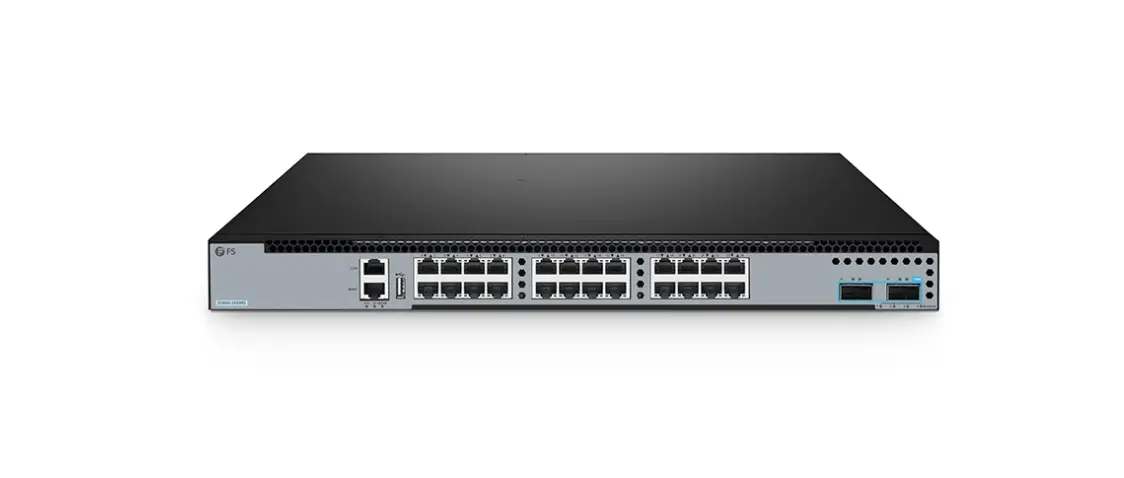
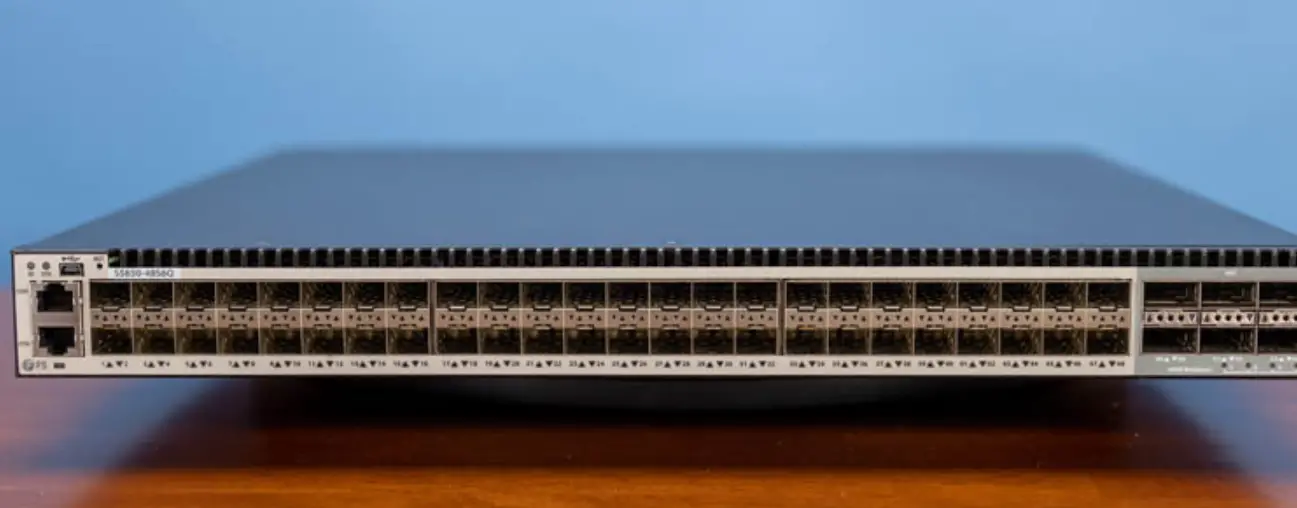
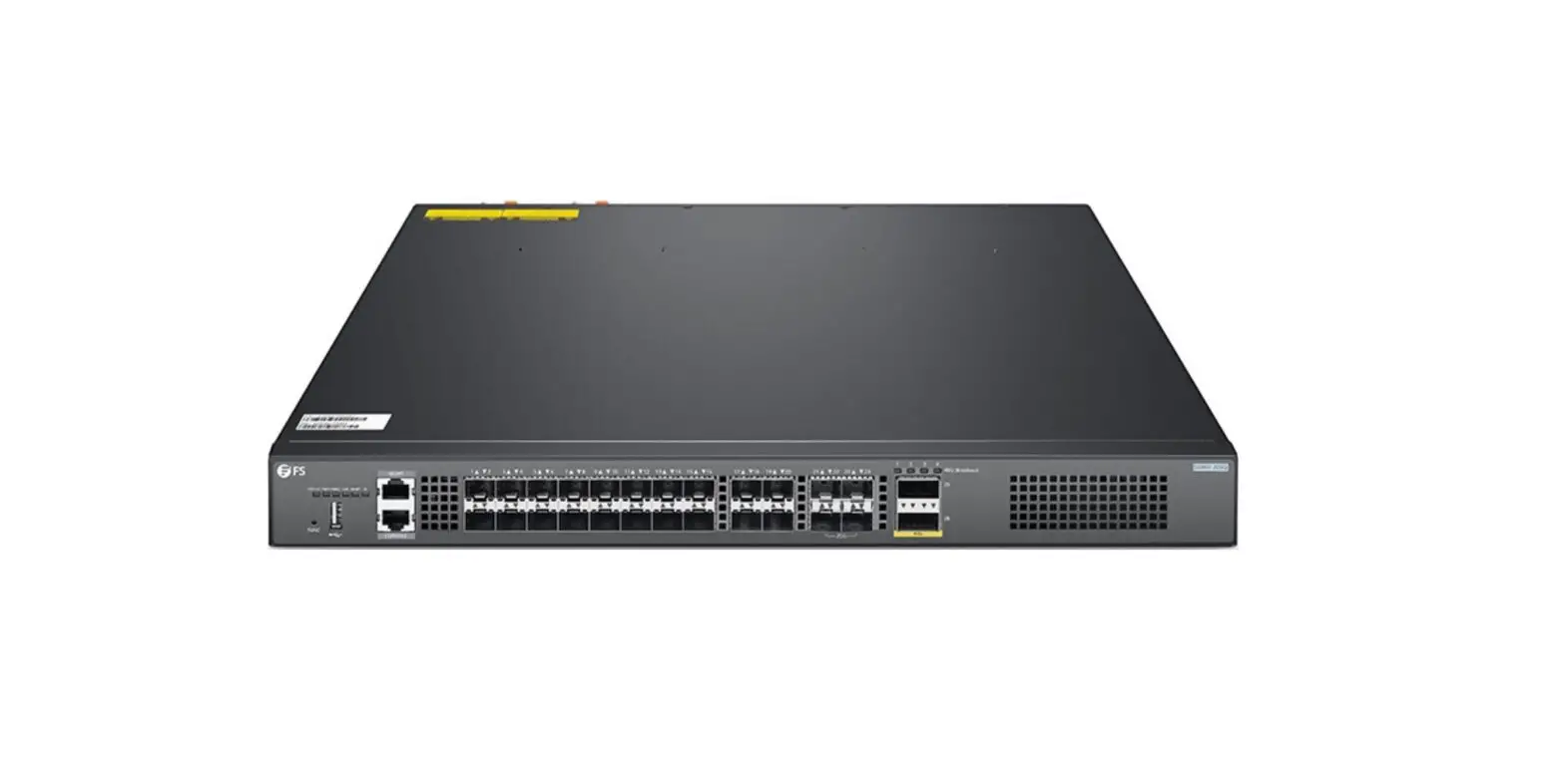
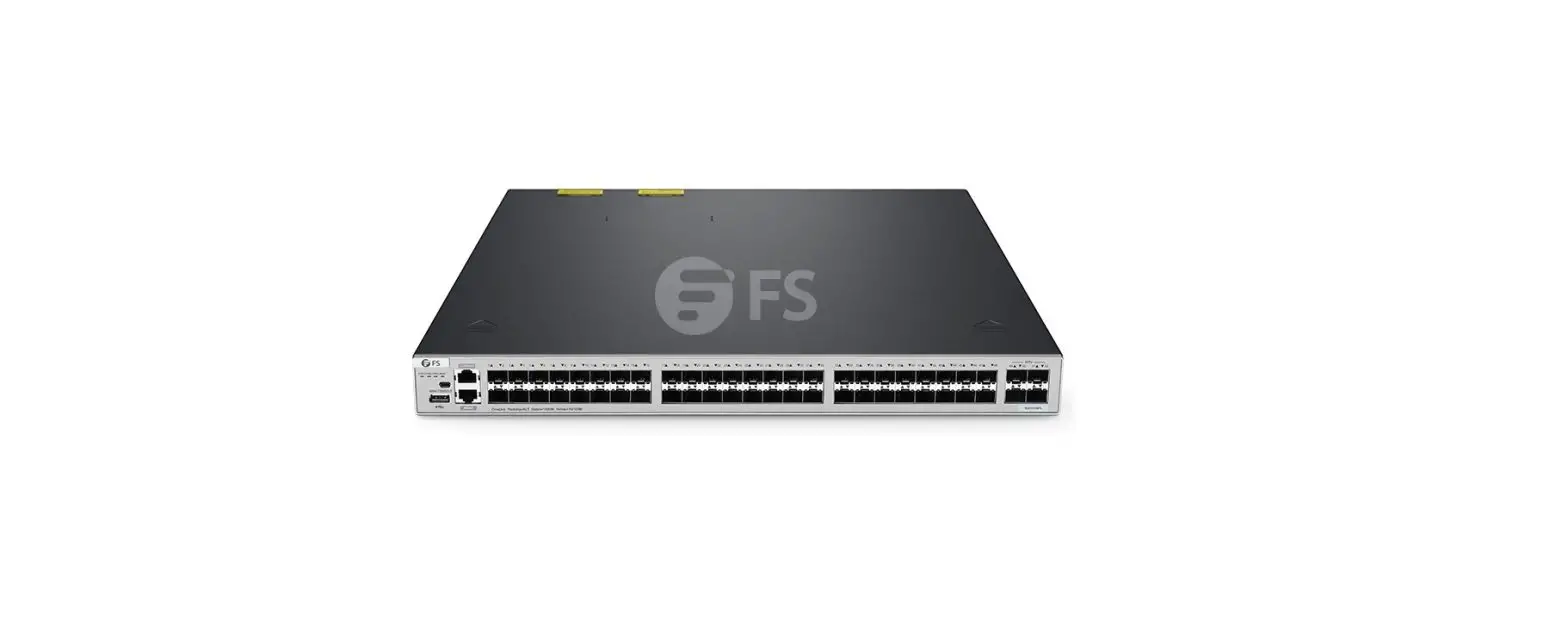
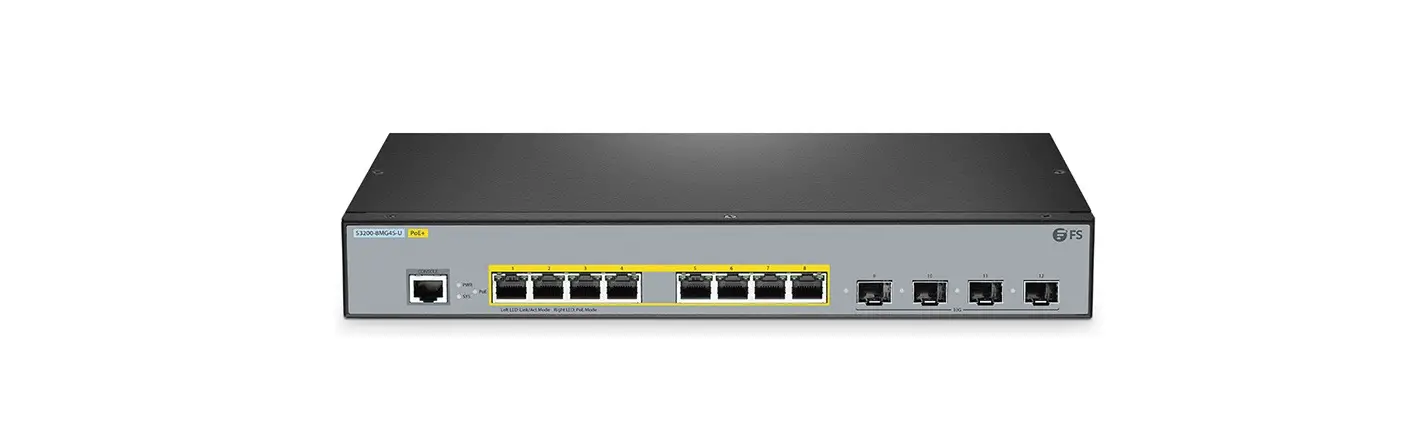
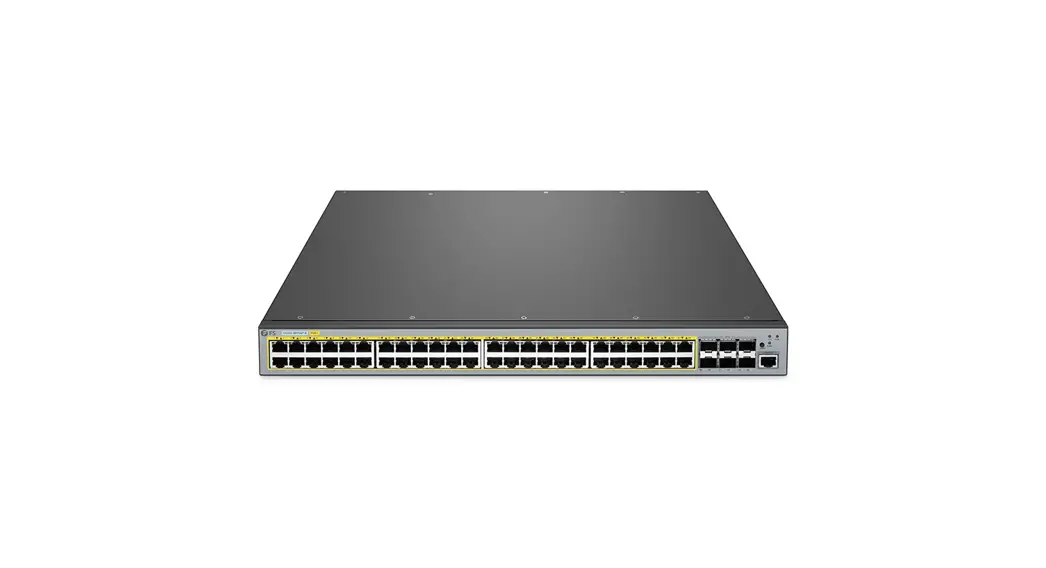
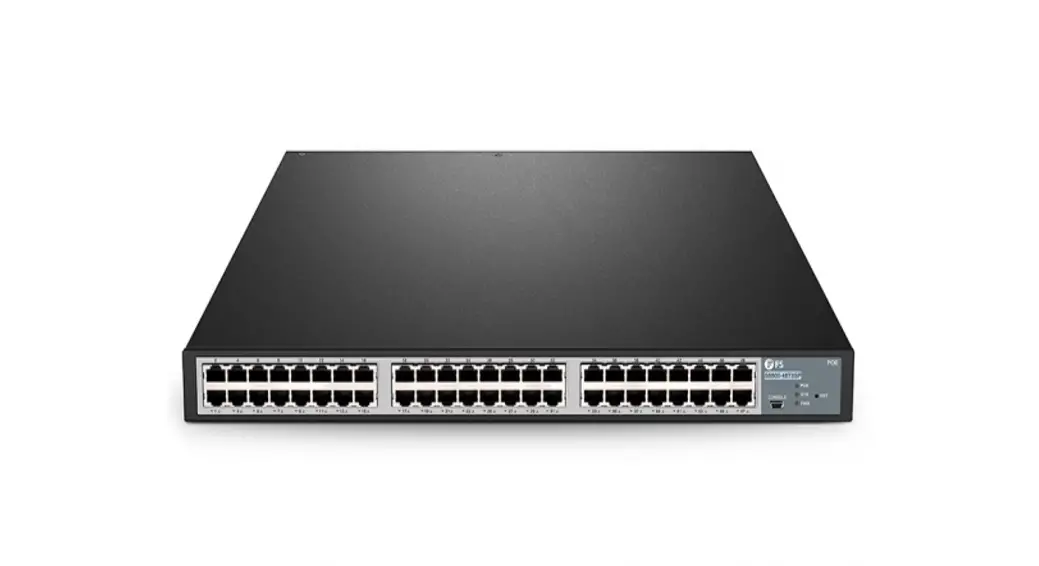
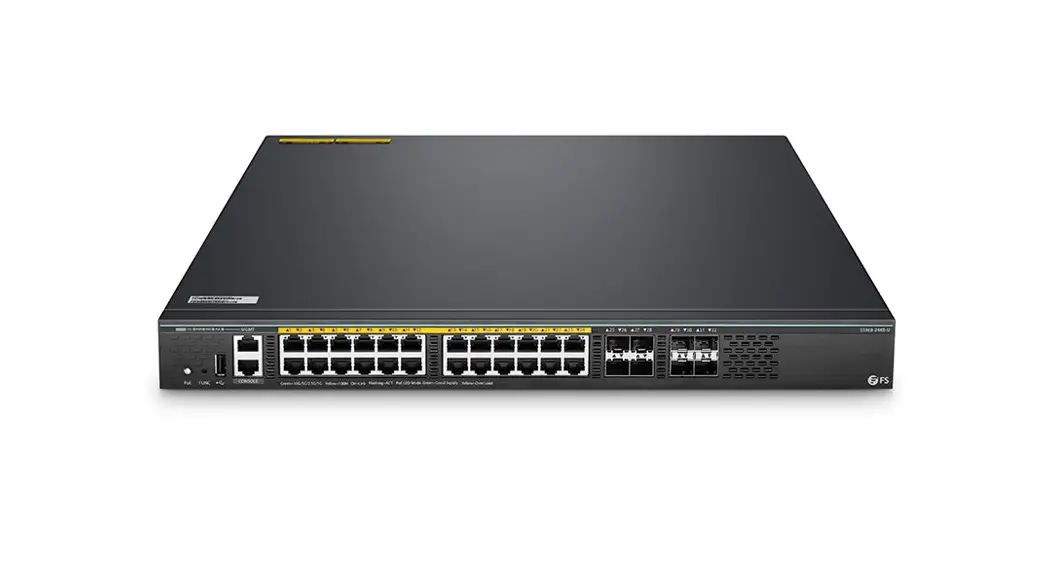
S5850-24XMG-U Ethernet L3-Switches
Product Information: – Product Name: S5850-24XMG-U – Product
Type: Ethernet L3 Switches – Quick Start Guide Version: V1.0 –
Accessories Included: – Console Cable x1 – Power Cord x1 –
Grounding Cable x1 – Sliding Rail x2 – Rear Mounting Bracket x2 –
Front Mounting Bracket x2 – Rubber Pad x4 – M4 Screw x12
Hardware Overview: Front Panel Ports: – RJ45 Console Port:
Used for serial management. – USB Management Port: Used for
software configuration backup and offline software upgrade. –
Ethernet Management Port: Out-of-band Ethernet management port. –
RJ45 Ports: Used for 10G connection. – QSFP 28 Ports: Used for 100G
connection. Front Panel LEDs: – SYS ID LED: Indicates the system
operating status and ID indication function. – MGMT LED: Indicates
the state of the management port. – POE LED: Indicates the state of
the power over Ethernet subsystem. – RJ45 LED: Indicates the state
of the RJ45 ports. – 100G LED: Indicates the state of the QSFP 28
ports. – 100G Breakout LED: Indicates the state of the breakout
ports. Back Panel: – Grounding Point: Used for grounding the
switch. – Hot-swappable Fans: Four fans that can be replaced while
the switch is running. – Hot-swappable Power Supplies: Two power
supplies that can be replaced while the switch is running.
Installation Requirements: Before installation, make sure
you have the following: – Phillips screwdriver. – Standard-sized,
19-inch wide rack with a minimum of 1U height available. – Category
5e or higher RJ-45 Ethernet cables for connecting network devices.
S5850-24XMG-U
POE+
CON
MGMT
SYS ID MGMT POE
1
2
3
4
5
6
7
8
9
10
11
12 13
14
15
16
17
18
19
20 21
22
23
24
25
26
100G
1
2
3
4 Breakout
S5850-24XMG-U
ETHERNET L3 SWITCHES
Ethernet L3-Switches Switchs Ethernet L3
Quick Start Guide V1.0
Quick Start Anleitung Guide de Démarrage Rapide
EN
Introduction
Thank you for choosing S5850-24XMG-U Series Switches. This guide is designed to familiarize you with the layout of the S5850-24XMG-U Series Switches and describes how to deploy them in your network.
S5850-24XMG-U POE+
CON
MGMT
SYS ID MGMT POE
1
2
3
4
5
6
7
8
9
10 11
12 13
14
15
16
17
18 19
20 21
22 23
24
S5850-24XMG-U
25
26
100G
1
2
3
4 Breakout
Accessories
S5850-24XMG-U
Console Cable x1
Power Cord x1
Grounding Cable x1
Sliding Rail x2
Rear Mounting Bracket x2
Front Mounting Bracket x2
Rubber Pad x4
M4 Screw x12
1
EN
Hardware Overview
Front Panel Ports
S5850-24XMG-U CON
S5850-24XMG-U POE+
CON
1
2
3
4
5
6
7
8
MGMT
SYS ID MGMT POE
USB MGMT
9
10 11
12 13
14
15
16
17
18 19
20 21
22 23
24
RJ45
25
26
100G
1
2
3
4 Breakout
QSFP 28
Ports
CON
USB
MGMT POE RJ45 QSFP 28
Description
A RJ45 console port for serial management A USB management port for software configuration backup and offline software upgrade An out-of-band Ethernet management port RJ45 ports for 10G connection
QSFP 28 ports for 100G connection
Front Panel LEDs
S5850-24XMG-U
S5850-24XMG-U POE+
CON
1
2
3
4
5
6
7
8
MGMT
SYS ID MGMT POE
SYS POE ID
MGMT
9
10 11
12 13
14
15
16
17
18 19
20 21
22 23
24
RJ45 LED
100G LED
25
26
100G
1
2
3
4 Breakout
100G Breakout
LEDs
SYS ID
State
Description
Green ON Orange ON
The switch has loaded the agent software code and is operating normally.
The system operating warning occurred.
OFF
The system operating or power supply failure occurred.
ON ID indication function is active. Blue
OFF ID indication function is not active.
2
EN
LEDs
MGMT
POE
RJ45
100G LED 100G
Breakout
State
Description
Green
ON
The port is linked on 100M/1000M.
Blinking The port is linked and there is data activity.
OFF
The port is linked off.
Green (ON)
The remaining power of the PSE subsystem is less than the alarm threshold.
Yellow (ON)
The remaining power of the PSE subsystem is greater than the alarm threshold.
OFF
The switch system is not started or the PSE subsystem is not working properly.
Green (ON)
The port is linked and the bandwidth could be 100M/ 1G/2.5G/5G/10G.
Link/Act
Green (Blinking)
The port is linked and there is data activity.
OFF
No link.
Green (left)
ON
The port is linked on 100G/25G bandwidth.
Blinking The port is linked and there is data activity.
Orange (right) OFF
Green
ON Blinking
ON Blinking
The port is linked on 40G/10G bandwidth. The port is linked and there is data activity. The port is linked off or has been split. The breakout port is linked to 10G/25G. The breakout port is linked and there is data activity.
OFF
The breakout port is linked off or has been split.
Back Panel
Grounding Point
4 Hot-swappable Fans
2 Hot-swappable Power Supplies
3
EN
Installation Requirements
Before installation, make sure that you have the following conditions ready:
Phillips screwdriver. Standard-sized, 19″ wide rack with a minimum of 1U height available. Category 5e or higher RJ-45 Ethernet cables for connecting network devices.
Site Environment:
Make sure that the temperature of installation site is maintained at 0°~50°. Make sure that the relative humidity of installation site is maintained at 10%~90%. The installation site must be free from leaking, dripping water, heavy dew or humidity. Keep the installation site dust-free. The installation site must be well ventilated. Ensure that there is adequate air flow around the switch. Make sure that the switch is level and stable to avoid any hazardous conditions. Make sure that the rack and working platforms are well earthed.
Mounting the Switch
Desk Mounting
S5850-24XMG POE+
CON MGMT
SYS ID MGMT
1
2
3
45
6
7
8
9
10 11
12 13
14 15
16
17
18 19
20 21
22 23
24
25
26
100G
1
2
3
4 Breakout
1. Attach four rubber pads to the bottom of switch. 2. Place the switch on a desk.
4
Rack Mounting
EN
22
23
24
25
26
100G
1
2
3
4 Breakout
1. Secure the mounting brackets to the two sides of the switch with eight M4 screws.
22
23
24
25
26
100G
1
2
3
4 Breakout
2. Attach the switch to the rack with four M6 screws and cage nuts. 5
Rack Mounting-Single Switch Deployment
1. Fix the mounting bracket to the one side of the switch. And fix the rear mounting bracket to the rack with two M4 screws.
EN
2. Fix the sliding rail to the one side of switch with two M4 screws. And assemble the rear mounting brackets as the following picture.
25
26
100G
1
2
3
4 Breakout
3. Front rack installing: Fix the front mounting brackets to the two sides of the switch with eight M4 screws. 4. Fix the switch to the rack with M6 screws and cage nuts.
6
EN
Installing the Power Supply Module
PWR1 PWR1
1. Take a new power module out of the package and confirm the input mode and the input parameters of the power module match the requirements. 2. Remove the old power module and take the plane printed with power information as the top panel. Hold the handle of the power module with one hand, and hold the end with the other hand. 3. Insert it into the power module slot along the guide rail uprightly and slowly until it totally inserts into place (a “click” sound is heard), then make sure that the module is in good contact with the slot.
NOTE: 1. Insert the power module steadily. 2. Pay attention to the direction of insertion. 3. If the position is improper after inserting the power module, press the plug of the power module and hold on to the handle with one hand to slowly pull it out, then re-insert it.
7
EN
Grounding the Switch
1. Connect one end of the grounding cable to a proper earth ground, such as the rack in which the switch is mounted. 2. Secure the grounding lug to the grounding point on the switch back panel with the washers and screws.
CAUTION: The earth connection must not be removed unless all supply connections have been disconnected.
8
Connecting the Power
EN
1. Plug the AC power cord into the power port on the back of the switch. 2. Connect the other end of the power cord to an AC power source.
ConnecWtAinRNgINthG:eDSoFnPotPinostratlsl power cords while the power is on.
Connecting the RJ45 Ports
14 15
16
17
18 19
20 21
22 23
24
25
26
100G
1
2
3
4 Breakout
1. Connect one end of an Ethernet cable to the RJ45 port. 2. Connect the other end of the Ethernet cable to another network device.
9
EN
Connecting the QSFP 28 Port
17
18 19
20 21
22 23
24
25
26
100G
1
2
3
4 Breakout
1. Plug the compatible QSFP28 optical module into the QSFP28 port. 2. Connect one end of a fiber optic cable to the optical module. Then connect the other end of the cable to another fiber device.
ConnecWortAifinRbNgerINtohGp:etiLcaSaslFecrPabbPeleaosmrwstistwhiolluctaeuysee
eye damage. protection.
Do
not
look
into
bores
of
optical
modules
10
Connecting the Management Ports
Connecting the CONSOLE Port
EN
S5850-24XMG-U
POE+
CON
MGMT
SYS ID MGMT POE
1
2
3
4
5
6
7
8
1. Insert the RJ45 connector of the console cable into the console port of the switch. 2. Connect the DB9 female connector of the console cable to the serial port of the computer.
Connecting the MGMT Port
S5850-24XMG-U
POE+
CON MGMT
SYS ID MGMT
1
23
45
67
8
9
10 11
12 13
14 15
16
1. Connect one end of a standard RJ45 Ethernet cable to the MGMT port of the switch. 2. Connect the other end of the cable to a computer.
11
EN
Connecting the USB Port
S5850-24XMG-U
POE+
USB
CON
MGMT
SYS ID MGMT POE
1
2
3
4
5
6
7
8
9
10
11
12
Insert the Universal Serial Bus (USB) flash disk to the USB port for software and configuration backup and offline software upgrade.
12
EN
Configuring the Switch
Configuring the Switch via the Web-based Interface
Step 1: Connect your computer to the Management port of the Switch using the network cable. Step 2: Set the IP address of the computer to 192.168.1.x (“x” is any number from 2 to 254).
Internet Protocol Version 4 (TCP/IPv4) Properties General
?x
You can get IP settings assigned automatically if your network supports this capability. Otherwise, you need to ask your network administrator for the appropriate IP settings.
Obtain an IP address automatically
Use the following IP address:
IP address:
192 . 168 . 1 . 2
Subnet mask:
255 . 255 . 255 . 0
Default gateway:
. . .
Obtain DNS server address automatically
Use the following DNS server addresses:
Preferred DNS server:
. . .
Alternate DNS server:
. . .
Validate settings upon exit
Advanced…
OK
Cancel
Step 3: Open a browser, type http://192.168.1.1, and enter the default username and password admin/admin.
IE 8/9/10/11, Google Chrome, Firefox are supported admin ***** Login
Step 4: Click Login to display the web-based configuration page. 13
EN
Configuring the Switch via the Console Port
Step 1: Connect a computer to the switch’s console port using the console cable. Step 2: Start the terminal simulation software such as HyperTerminal on the computer. Step 3: Set the parameters of the HyperTerminal: 9600 bits per second, 8 data bits, no parity, 1 stop bit and no flow control.
Quick Connect
x
Protocol:
Serial
The port may be manually entered or selected from the list.
Port: Baud rate: Data bits: Parity:
COM3 115200 8 None
Flow Control DTR/DSR RTS/CTS XON/XOFF
Stop bits:
1
Name of pipe:
Show quick connect on startup
Save session Open in a tab
Connect
Cancel
Step 4: After setting the parameters, click Connect to enter.
14
EN
Troubleshooting
The Power Module Cannot Supply Power
All LEDs on the front panel, the fan module and the panel of the power module are off. The fan does not work. First disconnect the power cord of the power module, then check the following: 1. Check whether the cable connections of the rack are correct. 2. Check whether the connection between the power socket and the power cord is loose. 3. Check whether the connection between the power module and the power cord is loose. 4. Check whether the power module inserts into place.
Connecting the Switch Remotely Unsuccessfully
1. Test network connectivity through ping. 2. If the network is reachable, try restarting the switch. 3. Check whether the corresponding service enables.
The Optical Port Cannot Link up
1. Check whether the receiving and delivering of fiber optical cable connects correctly. 2. Check whether the wavelengths of optical modules of the interconnection are the same. 3. Check whether the distance of the interconnection is within the distance marked by the optical module. 4. Check whether the rates of the interconnection are the same or whether the mode of port rate is configured correctly for ports which support different rates. 5. Check whether the optical fiber type meets the requirements.
No Characters/Distorted Characters are Displayed on the Screen of the Terminal Device
1. Check whether the console cable is correctly connected. 2. Check whether the console cable is broken. 3. Check whether the console port of the switch is the same as the port of the terminal device. 4. Check whether the console port configuration of the terminal device is correct.
15
EN
Online Resources
Download https://www.fs.com/products_support.html Help Center https://www.fs.com/service/fs_support.html Contact Us https://www.fs.com/contact_us.html
Product Warranty
FS ensures our customers that any damage or faulty items due to our workmanship, we will offer a free return within 30 Days from the day you receive your goods. This excludes any custom-made items or tailored solutions.
Warranty: S5850-24XMG-U Series enjoy a 5-year limited warranty against defect in
5
materials or workmanship. For more details about warranty, please check at
https://www.fs.com/policies/warranty.html
Return: If you want to return item(s), information on how to return can be found at https://www.fs.com/policies/day_return_policy.html
16
DE
Einführung
Vielen Dank, dass Sie sich für Switches der Serie S5850-24XMG-U entschieden haben. Diese Anleitung soll Sie mit dem Layout der S5850-24XMG-U Serie Switches vertraut machen und beschreibt, wie Sie diese in Ihrem Netzwerk einsetzen können.
S5850-24XMG-U POE+
CON
MGMT
SYS ID MGMT POE
1
2
3
4
5
6
7
8
9
10 11
12 13
14
15
16
17
18 19
20 21
22 23
24
S5850-24XMG-U
25
26
100G
1
2
3
4 Breakout
Zubehör
S5850-24XMG-U
Konsolenkabel x1
Netzkabel x1
Erdungskabel x1
Schiebeschiene x2
Hintere Montagehalterung x2
Vordere Montagehalterung x2
Gummipad x4
M4-Schraube x12
17
DE
Hardware-Übersicht
Ports an der Vorderseite
S5850-24XMG-U CON
S5850-24XMG-U POE+
CON
1
2
3
4
5
6
7
8
MGMT
SYS ID MGMT POE
USB MGMT
9
10 11
12 13
14
15
16
17
18 19
20 21
22 23
24
RJ45
25
26
100G
1
2
3
4 Breakout
QSFP 28
Port
CON
USB
MGMT POE RJ45 QSFP 28
Beschreibung
Ein RJ45-Console-Port für die serielle Verwaltung Ein USB-Verwaltungsport für die Sicherung der Softwarekonfiguration und die Offline-Aktualisierung der Software Ein Out-of-Band-Ethernet-Management-Port RJ45-Ports für 10G-Verbindung
QSFP28 Ports für 100G-Verbindung
LEDs an der Vorderseite
S5850-24XMG-U
S5850-24XMG-U POE+
CON
1
2
3
4
5
6
7
8
MGMT
SYS ID MGMT POE
SYS POE ID
MGMT
9
10 11
12 13
14
15
16
17
18 19
20 21
22 23
24
RJ45 LED
100G LED
25
26
100G
1
2
3
4 Breakout
100G Breakout
LED
SYS ID
Status Beschreibung
Grün
AN
Der Switch hat den Softwarecode des Agenten geladen und arbeitet normal.
Orange AN Die Systembetriebswarnung wird angezeigt.
AUS
Das Betriebssystem oder die Stromversorgung ist ausgefallen.
AN Die ID-Anzeigefunktion ist aktiv. Blau
AUS Die ID-Anzeigefunktion ist nicht aktiv.
18
DE
LED
MGMT
POE
RJ45
100G LED 100G
Breakout
Status
Beschreibung
Grün
AN Der Port ist mit 100M/1000M verbunden. Blinkt Der Port ist verbunden und es gibt Datenaktivität.
AUS
Der Port ist nicht verbunden.
Grün (AN)
Die verbleibende Leistung des PSE-Teilsystems liegt unter der Alarmschwelle.
Gelb (AN)
Die verbleibende Leistung des PSE-Teilsystems ist größer als die Alarmschwelle.
AUS
Das Switch-System ist nicht eingeschaltet oder das PSE-Subsystem arbeitet nicht ordnungsgemäß.
Grün The port is linked and the bandwidth could be 100M/ (AN) 1G/2.5G/5G/10G.
Link/Act Grün Der Port ist verbunden und die Bandbreite kann (Blinkt) 100M/1G/2,5G/5G/10G betragen.
AUS Kein Verbindung.
Grün (links)
AN Der Port ist mit einer 100G/25G-Bandbreite verbunden. Blinkt Der Port ist verbunden und es gibt Datenaktivität.
Orange AN Der Port ist mit einer Bandbreite von 40G/10G verbunden. (rechts) Blinkt Der Port ist verbunden und es gibt Datenaktivität.
AUS Grün
Der Anschluss ist nicht verbunden oder wurde geteilt. AN Der Breakout-Port ist mit 10G/25G verbunden. Blinkt Der Breakout-Port ist verbunden und es gibt Datenaktivität.
AUS
Der Breakout-Port ist nicht angeschlossen oder wurde geteilt.
Rückseite
Erdungspunkt
4 Hot-swap-fähige Lüfter
2 Hot-swap-fähige Netzteile
19
DE
Installationsvoraussetzungen
Vergewissern Sie sich vor der Installation, dass Sie die folgenden Voraussetzungen erfüllt haben:
Kreuzschlitzschraubendreher. Ein 19″-Rack in Standardgröße mit einer Mindesthöhe von 1 HE ist verfügbar. RJ-45-Ethernet-Kabel der Kategorie 5e oder höher für den Anschluss von Netzwerkgeräten.
Standortumgebung
Achten Sie darauf, dass die Temperatur am Aufstellungsort zwischen 0°C und 50°C gehalten wird. Achten Sie darauf, dass die Luftfeuchtigkeit am Aufstellungsort zwischen 10% und 90% liegt. Der Aufstellungsort muss frei von Leckagen, Tropfwasser, starkem Tau oder Feuchtigkeit sein. Halten Sie den Aufstellungsort staubfrei. Der Aufstellungsort muss gut belüftet sein. Stellen Sie sicher, dass um den Switch herum ein ausreichender Luftstrom herrscht. Stellen Sie sicher, dass der Switch waagerecht und stabil steht, um gefährliche Bedingungen zu vermeiden. Stellen Sie sicher, dass das Gestell und die Arbeitsbühnen gut geerdet sind.
Montage des Switches
Montage auf einem Tisch
S5850-24XMG POE+
CON MGMT
SYS ID MGMT
1
2
3
45
67
8
9
10 11
12 13
14 15
16
17
18 19
20 21
22 23
24
25
26
100G
1
2
3
4 Breakout
1. Bringen Sie vier Gummipads an der Unterseite des Switches an. 2. Stellen Sie den Switch auf einen Tisch.
20
Rack-Montage
DE
22
23
24
25
26
100G
1
2
3
4 Breakout
1. Befestigen Sie die Montagehalterungen mit acht M4-Schrauben an den beiden Seiten des Switches.
22
23
24
25
26
100G
1
2
3
4 Breakout
2. Befestigen Sie den Switch mit vier M6-Schrauben und Käfigmuttern am Rack. 21
Rack-Montage – Einsatz eines einzelnen Switches
1. Befestigen Sie die Montagehalterung an der einen Seite des Switches. Befestigen Sie die hintere Montagehalterung mit zwei M4-Schrauben am Rack.
DE
2. Befestigen Sie die Gleitschiene mit zwei M4-Schrauben an der einen Seite des Switches. Montieren Sie die hinteren Montagehalterungen wie in der folgenden Abbildung gezeigt.
25
26
100G
1
2
3
4 Breakout
3. Montage des vorderen Racks: Befestigen Sie die vorderen Montagehalterungen mit acht M4-Schrauben an den beiden Seiten des Switches. 4. Befestigen Sie den Switch mit M6-Schrauben und Käfigmuttern am Rack.
22
DE
Installation des Stromversorgungsmoduls
PWR1 PWR1
1. Nehmen Sie ein neues Stromversorgungsmodul aus der Verpackung und stellen Sie sicher, dass der Eingangsmodus und die Eingangsparameter des Stromversorgungsmoduls den Anforderungen entsprechen. 2. Entfernen Sie das alte Leistungsmodul und nehmen Sie die mit Leistungsinformationen bedruckte Fläche als Oberseite. Halten Sie den Griff des Leistungsmoduls mit einer Hand, und halten Sie das Ende mit der anderen Hand. 3. Setzen Sie das Modul aufrecht und langsam entlang der Führungsschiene in den Steckplatz ein, bis es vollständig einrastet (ein “Klick”-Geräusch ist zu hören), und vergewissern Sie sich, dass das Modul gut im Steckplatz sitzt.
HINWEIS: 1. Setzen Sie das Leistungsmodul gleichmäßig ein. 2. Achten Sie auf die Einschubrichtung. 3. Wenn die Position nach dem Einsetzen des Leistungsmoduls nicht korrekt ist, drücken Sie auf den Stecker des Leistungsmoduls und halten Sie es mit einer Hand am Griff fest, um es langsam herauszuziehen, und setzen Sie es dann wieder ein.
23
DE
Erdung des Switches
1. Schließen Sie ein Ende des Erdungskabels an eine geeignete Erdung an, z. B. an das Rack, in dem der Switch montiert ist. 2. Befestigen Sie die Erdungslasche mit den Unterlegscheiben und Schrauben am Erdungspunkt an der Rückwand des Switches.
ACHTUNG: Der Erdungsanschluss darf erst dann entfernt werden, wenn alle Stromanschlüsse getrennt wurden.
24
Anschließen der Stromversorgung
DE
1. Stecken Sie das Netzkabel in den Netzanschluss auf der Rückseite des Switches. 2. Schließen Sie das andere Ende des Netzkabels an eine Netzstromquelle an.
ConnecWtAinRNgUtNhGe: SScFhPliePßeonrStise das Netzkabel nicht an, wenn das Gerät eingeschaltet ist.
Anschließen der RJ45-Ports
14 15
16
17
18 19
20 21
22 23
24
25
26
100G
1
2
3
4 Breakout
1. Schließen Sie ein Ende eines Ethernet-Kabels an den RJ45-Port an. 2. Schließen Sie das andere Ende des Ethernet-Kabels an ein anderes Netzwerkgerät an.
25
DE
Anschließen des QSFP28-Ports
17
18 19
20 21
22 23
24
25
26
100G
1
2
3
4 Breakout
1. Stecken Sie das kompatible optische QSFP28-Modul in den QSFP28-Port. 2. Schließen Sie ein Ende eines Glasfaserkabels an das optische Modul an. Schließen Sie dann das andere Ende des Kabels an ein anderes Glasfasergerät an.
ConnecAWtuAignReNgnUstcNhhGue:tzLSainFsePdrisePtrBoaohrhltersnunkgöennnevnonzuopAtuisgcehnesnchMäoddeunlefünhoredne.rSLcichhatuweenllSeineleniitcehrtno. hne
26
Anschließen der Management-Ports
Anschließen des CONSOLE-Ports
DE
S5850-24XMG-U
POE+
CON
MGMT
SYS ID MGMT POE
1
2
3
4
5
6
7
8
1. Stecken Sie den RJ45-Stecker des Console-Kabels in den Console-Port des Switches. 2. Verbinden Sie die DB9-Buchse des Console-Kabels mit dem seriellen Port des Computers.
Anschließen des MGMT-Ports
S5850-24XMG-U
POE+
CON MGMT
SYS ID MGMT
1
23
45
67
8
9
10 11
12 13
14 15
16
1. Schließen Sie ein Ende eines standardmäßigen RJ45-Ethernet-Kabels an den MGMT-Port des Switches an. 2. Schließen Sie das andere Ende des Kabels an einen Computer an.
27
DE
Anschließen des USB-Ports
S5850-24XMG-U
POE+
USB
CON
MGMT
SYS ID MGMT POE
1
2
3
4
5
6
7
8
9
10
11
12
Stecken Sie die USB-Flash-Diskette (Universal Serial Bus) in den USB-Port ein, um die Software und Konfiguration zu sichern und um die Software offline zu aktualisieren.
28
DE
Konfigurieren des Switches
Konfigurieren des Switches über die webbasierte Schnittstelle
Schritt 1: Schließen Sie den Computer mit dem Netzwerkkabel an den Verwaltungsport des Switches an. Schritt 2: Stellen Sie die IP-Adresse des Computers auf 192.168.1.x ein. (“x” ist eine beliebige Zahl
zwischen 2 und 254.)
Internet Protocol Version 4 (TCP/IPv4) Properties General
?x
You can get IP settings assigned automatically if your network supports this capability. Otherwise, you need to ask your network administrator for the appropriate IP settings.
Obtain an IP address automatically
Use the following IP address:
IP address:
192 . 168 . 1 . 2
Subnet mask:
255 . 255 . 255 . 0
Default gateway:
. . .
Obtain DNS server address automatically
Use the following DNS server addresses:
Preferred DNS server:
. . .
Alternate DNS server:
. . .
Validate settings upon exit
Advanced…
OK
Cancel
Schritt 3: Öffnen Sie einen Browser, geben Sie http://192.168.1.1 ein, und geben Sie den Standardbenutzernamen und das Standardkennwort admin/admin ein.
IE 8/9/10/11, Google Chrome, Firefox are supported admin ***** Login
Schritt 4: Klicken Sie auf Login, um die webbasierte Konfigurationsseite anzuzeigen. 29
DE
Konfigurieren des Switches über den Console-Port
Schritt 1: Schließen Sie einen Computer über das Console-Kabel an den Console-Port des Switches an. Schritt 2: Starten Sie die Terminalsimulationssoftware wie HyperTerminal auf dem Computer. Schritt 3: Stellen Sie die Parameter von HyperTerminal ein: 9600 Bits pro Sekunde, 8 Datenbits, keine
Parität, 1 Stoppbit und keine Flusskontrolle.
Quick Connect
x
Protocol:
Serial
The port may be manually entered or selected from the list.
Port: Baud rate: Data bits: Parity:
COM3 115200 8 None
Flow Control DTR/DSR RTS/CTS XON/XOFF
Stop bits:
1
Name of pipe:
Show quick connect on startup
Save session Open in a tab
Connect
Cancel
Schritt 4: Nachdem Sie die Parameter eingestellt haben, klicken Sie auf Connect, um die Verbindung herzustellen.
30
DE
Fehlersuche
Das Leistungsmodul kann keinen Strom liefern
Alle LEDs auf der Vorderseite, dem Lüftermodul und dem Bedienfeld des Leistungsmoduls sind aus. Der Lüfter funktioniert nicht. Ziehen Sie zunächst das Netzkabel des Netzmoduls ab und überprüfen Sie dann Folgendes: 1. Prüfen Sie, ob die Kabelanschlüsse des Racks korrekt sind. 2. Prüfen Sie, ob die Verbindung zwischen der Netzsteckdose und dem Netzkabel locker ist. 3. Prüfen Sie, ob die Verbindung zwischen dem Netzmodul und dem Netzkabel locker ist. 4. Prüfen Sie, ob das Netzmodul einrastet.
Fehlgeschlagene Fernverbindung des Switches
1. Testen Sie die Netzwerkkonnektivität mittels Ping. 2. Wenn das Netzwerk erreichbar ist, versuchen Sie, den Switch neu zu starten. 3. Prüfen Sie, ob der entsprechende Dienst aktiviert ist.
Der optische Port kann keine Verbindung herstellen
1. Prüfen Sie, ob der Empfang und die Ausgabe des Glasfaserkabels richtig angeschlossen sind. 2. Prüfen Sie, ob die Wellenlängen der optischen Module der Verbindung übereinstimmen. 3. Prüfen Sie, ob die Entfernung der Verbindung innerhalb der vom optischen Modul markierten Entfernung liegt. 4. Prüfen Sie, ob die Raten der Verbindung gleich sind oder ob der Modus der Portrate für Ports, die unterschiedliche Raten unterstützen, richtig konfiguriert ist. 5. Prüfen Sie, ob der Typ der optischen Faser den Anforderungen entspricht.
Auf dem Bildschirm des Endgeräts werden keine Zeichen/verzerrte Zeichen angezeigt
1. Prüfen Sie, ob das Console-Kabel richtig angeschlossen ist. 2. Prüfen Sie, ob das Console-Kabel unterbrochen ist. 3. Prüfen Sie, ob der Console-Port des Switches mit dem Port des Endgeräts übereinstimmt. 4. Prüfen Sie, ob die Konfiguration des Console-Ports des Endgeräts korrekt ist.
31
DE
Online Ressourcen
Download https://www.fs.com/de/products_support.html
Hilfecenter https://www.fs.com/de/service/fs_support.html
Kontakt
https://www.fs.com/de/contact_us.html
Produkt-Garantie
FS garantiert seinen Kunden, dass wir bei Schäden oder fehlerhaften Artikeln, die auf unsere Verarbeitung zurückzuführen sind, eine kostenlose Rückgabe innerhalb von 30 Tagen nach Erhalt der Ware anbieten. Dies gilt nicht für Sonderanfertigungen oder maßgeschneiderte Lösungen.
Für die S5850-24XMG-U-Serie gilt eine beschränkte Garantie von 5 Jahren auf Material-
5
und Verarbeitungsfehler. Weitere Einzelheiten zur Garantie finden Sie unter
https://www.fs.com/de/policies/warranty.html.
Wenn Sie einen oder mehrere Artikel zurückgeben möchten, finden Sie Informationen zur Rückgabe unter https://www.fs.com/de/policies/day_return_policy.html
32
FR
Introduction
Nous vous remercions d’avoir choisi les Switchs de la Série S5850-24XMG-U. Ce guide est conçu pour vous familiariser avec la configuration du Switch et décrit comment procéder à son déploiement.
S5850-24XMG-U POE+
CON
MGMT
SYS ID MGMT POE
1
2
3
4
5
6
7
8
9
10 11
12 13
14
15
16
17
18 19
20 21
22 23
24
S5850-24XMG-U
25
26
100G
1
2
3
4 Breakout
Accessoires
S5850-24XMG-U
Câble Console x1
Câble d’Alimentation x1
Câble de Mise à la Terre x1
Rail Coulissant x2
Support de Montage Arrière x2
Support de Montage Frontal x2
Pad en Caoutchouc x4
Vis M4 x12
33
FR
Aperçu du Matériel
Ports du Panneau Frontal
S5850-24XMG-U CON
S5850-24XMG-U POE+
CON
1
2
3
4
5
6
7
8
MGMT
SYS ID MGMT POE
USB MGMT
9
10 11
12 13
14
15
16
17
18 19
20 21
22 23
24
RJ45
25
26
100G
1
2
3
4 Breakout
QSFP 28
Ports
CON
USB
MGMT POE RJ45 QSFP 28
Description
Port console RJ45 pour la gestion en série Port USB de gestion pour la sauvegarde de la configuration du logiciel et la mise à jour du logiciel hors ligne. Port de gestion Ethernet hors bande Ports RJ45 pour la connexion 10G
QSFP28 ports pour la connexion 100G
Indicateurs LED du Panneau Frontal
S5850-24XMG-U
S5850-24XMG-U POE+
CON
1
2
3
4
5
6
7
8
MGMT
SYS ID MGMT POE
SYS POE ID
MGMT
9
10 11
12 13
14
15
16
17
18 19
20 21
22 23
24
RJ45 LED
100G LED
25
26
100G
1
2
3
4 Breakout
100G Breakout
LED
SYS ID
Statut
Description
Vert ALLUMÉ Le switch a chargé le logiciel et fonctionne normalement.
Orange ÉTEINT
Bleu
ALLUMÉ
ALLUMÉ ÉTEINT
Le système signale un avertissement de fonctionnement. Le système ou l’alimentation électrique présentent une défaillance. La fonction d’indication de l’identité est activée.
La fonction d’indication de l’identité n’est pas activée.
34
FR
LED
MGMT
POE
RJ45
100G LED 100G
Breakout
Statut
Description
ALLUMÉ Le port est relié à 100M/1000M. Vert
Clignote Le port est relié et les données sont transmises.
ÉTEINT Vert (ALLUMÉ)
Le port n’est pas relié.
La puissance restante du sous-système PSE est inférieure au seuil d’alarme.
Jaune (ALLUMÉ)
La puissance restante du sous-système PSE est supérieure au seuil d’alarme.
ÉTEINT
Le système de commutation n’est pas activé ou le sous-système PSE ne fonctionne pas correctement.
Vert
Le port est relié et la capacité de la largeur de bande peut
(ALLUMÉ) atteindre 100M/1G/2,5G/5G/10G.
Link/Act
Vert (Clignote)
Le port est relié et les données sont transmises.
ÉTEINT Le port n’est pas relié.
Vert
ALLUMÉ Le port est relié à une largeur de bande de 100G/25G.
(Gauche) Clignote Le port est relié et les données sont transmises.
Orange ALLUMÉ Le port est relié à une largeur de bande de 40G/10G. (droite) Clignote Le port est relié et les données sont transmises.
ÉTEINT Vert
ALLUMÉ Clignote
Le port est désactivé ou a été divisé. Le port breakout est relié à 10G/25G. Le port breakout est relié et les données sont transmises.
ÉTEINT
Le port breakout est désactivé ou a été divisé.
Panneau Arrière
Point de Mise à la Terre
Ventilateur Remplaçable à Chaud
2 PSU Remplaçables à Chaud
35
FR
Exigences d’Installation
Avant l’installation, assurez-vous que vous disposez des éléments suivants :
Tournevis phillips. Rack de taille standard, 19″ de large, avec une hauteur minimum de 1U disponible. Câbles Ethernet RJ-45 de catégorie 5e ou supérieure pour la connexion des périphériques réseau.
Site de l’Installation
Veillez à ce que la température du site d’installation soit maintenue entre 0° et 50°. Veillez à ce que l’humidité relative du site d’installation soit maintenue entre 10 % et 90 %. Le site d’installation doit être exempt de fuites d’eau ou d’humidité. Maintenez le site d’installation à l’abri de la poussière. Le site d’installation doit être bien ventilé. Veillez à ce qu’il y ait une circulation d’air suffisante autour du switch. Assurez-vous que le switch soit à niveau et stable pour éviter tout risque. Assurez-vous que le rack et les plateformes de travail sont bien mis à la terre.
Installation du Switch
Installation sur Support
S5850-24XMG POE+
CON MGMT
SYS ID MGMT
1
2
3
45
6
7
8
9
10 11
12 13
14 15
16
17
18 19
20 21
22 23
24
25
26
100G
1
2
3
4 Breakout
1. Fixez quatre pads en caoutchouc à la base du switch. 2. Placez le switch sur un support ou un bureau.
36
Installation en Rack
FR
22
23
24
25
26
100G
1
2
3
4 Breakout
1. Fixez les supports de montage aux deux côtés du switch à l’aide de huit vis M4.
22
23
24
25
26
100G
1
2
3
4 Breakout
2. Fixez le switch au rack à l’aide de quatre vis M6 et d’écrous à cage. 37
Installation en Rack – Déploiement d’un Seul Switch
1. Fixez le support de montage sur l’un des côtés du switch. Et fixez le support de montage arrière au rack avec deux vis M4.
FR
2. Fixez le rail coulissant sur l’un des côtés du switch avec deux vis M4. Assemblez les supports de montage arrière comme sur l’image suivante.
25
26
100G
1
2
3
4 Breakout
3. Installation du support frontal : Fixez les supports de montage frontaux aux deux côtés du switch à l’aide de huit vis M4. 4. Fixez le switch au rack avec des vis M6 et des écrous à cage.
38
FR
Installation du Module d’Alimentation
PWR1 PWR1
1. Retirez un nouveau power module de son emballage et confirmez que le mode et les paramètres d’entrée du power module correspondent aux exigences. 2. Retirez le module d’alimentation en place et prenez le panneau imprimé avec les informations d’alimentation comme panneau supérieur. Tenez la poignée du module d’alimentation d’une main, et tenez l’extrémité de l’autre main. 3. Insérez-le dans l’emplacement du module d’alimentation le long du rail de guidage, verticalement et lentement, jusqu’à ce qu’il s’insère complètement en place (un “clic” se fait entendre), puis vérifiez que le module est bien en contact avec l’emplacement.
NOTE : 1. Insérez fermement le module d’alimentation. 2. Faites attention au sens d’insertion. 3. Si la position est incorrecte après l’insertion du module d’alimentation, appuyez sur le bouchon du module d’alimentation et tenez la poignée d’une main pour le retirer lentement, puis réinsérez-le.
39
FR
Mise à la Terre du Switch
1. Connectez une extrémité du câble de mise à la terre à une terre appropriée, telle que le rack dans lequel le switch est monté. 2. Fixez la cosse de mise à la terre au point de mise à la terre sur le panneau arrière du switch à l’aide des rondelles et des vis.
ATTENTION : La connexion à la terre ne doit pas être retirée avant que toutes les connexions d’alimentation soient déconnectées.
40
Connexion de l’Alimentation
FR
1. Branchez le câble d’alimentation CA dans le port d’alimentation situé à l’arrière du switch. 2. Connectez l’autre extrémité du câble d’alimentation à une source de courant alternatif.
ConnecATtiTnEgNTtIhONe :SNFePpPasobrrtasncher les câbles d’alimentation lorsque l’appareil est sous tension.
Connexion au Ports RJ45
14 15
16
17
18 19
20 21
22 23
24
25
26
100G
1
2
3
4 Breakout
1. Connectez une extrémité d’un câble Ethernet au port RJ45. 2. Connectez l’autre extrémité du câble Ethernet à un autre périphérique réseau.
41
FR
Connexion au Ports QSFP28
17
18 19
20 21
22 23
24
25
26
100G
1
2
3
4 Breakout
1. Branchez le module optique QSFP28 compatible sur le port QSFP28. 2. Connectez une extrémité d’un câble à fibre optique au module optique. Puis connectez l’autre extrémité du câble à un autre dispositif à fibre optique.
ConnecAdTtiriTencEtgNeTmtIhOenNet :SdLaFensPsfalPeissocoerratifiuscxelsasdeerspmeuovdeunlet scaoupsteiqrudeessoléusdioensscoâcbulelasiràefis.bNree oppatsiqreugeasradnesr
protection oculaire.
42
Connexion des Ports de Gestion
Connexion du Port CONSOLE
FR
S5850-24XMG-U
POE+
CON
MGMT
SYS ID MGMT POE
1
2
3
4
5
6
7
8
1. Insérez le connecteur RJ45 du câble de console dans le port console du switch. 2. Connectez le connecteur femelle DB9 du câble de console au port série de l’ordinateur.
Connexion au Port MGMT
S5850-24XMG-U
POE+
CON MGMT
SYS ID MGMT
1
23
45
67
8
9
10 11
12 13
14 15
16
1. Connectez une extrémité d’un câble Ethernet RJ45 standard au port MGMT du switch. 2. Connectez l’autre extrémité du câble à un ordinateur.
43
FR
Connexion au Port USB
S5850-24XMG-U
POE+
USB
CON
MGMT
SYS ID MGMT POE
1
2
3
4
5
6
7
8
9
10
11
12
Insérez le dispositif USB (Universal Serial Bus) dans le port USB pour la sauvegarde du logiciel et de la configuration et la mise à jour du logiciel hors ligne.
44
FR
Configuration du Switch
Configuration du Switch à l’Aide de l’Interface Web
Étape 1 : Connectez l’ordinateur à n’importe quel port RJ45 du switch à l’aide du câble réseau. Étape 2 : Définissez l’adresse IP de l’ordinateur sur 192.168.1.x (“x” est un nombre quelconque compris
entre 2 et 255).
Internet Protocol Version 4 (TCP/IPv4) Properties General
?x
You can get IP settings assigned automatically if your network supports this capability. Otherwise, you need to ask your network administrator for the appropriate IP settings.
Obtain an IP address automatically
Use the following IP address:
IP address:
192 . 168 . 1 . 2
Subnet mask:
255 . 255 . 255 . 0
Default gateway:
. . .
Obtain DNS server address automatically
Use the following DNS server addresses:
Preferred DNS server:
. . .
Alternate DNS server:
. . .
Validate settings upon exit
Advanced…
OK
Cancel
Étape 3 : Ouvrez un navigateur Web, entrez http://192.168.1.1, puis entrez le nom d’utilisateur et le mot de passe par défaut : admin/admin.
IE 8/9/10/11, Google Chrome, Firefox are supported admin ***** Login
Étape 4 : Cliquez sur Login pour afficher la page de configuration basée sur le Web.
45
FR
Configuration du Switch à l’Aide du Port Console
Étape 1 : Connectez un ordinateur au port de console du switch à l’aide du câble de console. Étape 2 : Démarrez le logiciel HyperTerminal sur l’ordinateur. Étape 3 : Réglez les paramètres de l’HyperTerminal : 9600 bits par seconde, 8 bits de données, pas de
parité, 1 bit d’arrêt, pas de contrôle de flux.
Quick Connect
x
Protocol:
Serial
The port may be manually entered or selected from the list.
Port: Baud rate: Data bits: Parity:
COM3 115200 8 None
Flow Control DTR/DSR RTS/CTS XON/XOFF
Stop bits:
1
Name of pipe:
Show quick connect on startup
Save session Open in a tab
Connect
Cancel
Étape 4 : Après avoir défini les paramètres, cliquez sur Connect pour entrer.
46
FR
Dépannage
Le Module d’Alimentation ne Fournit pas de Courant
Les indicateurs lumineux du module de ventilation et du panneau du module d’alimentation sont éteints. Le ventilateur ne fonctionne pas. Débranchez d’abord le câble d’alimentation du module d’alimentation, puis vérifiez les points suivants : 1. Vérifiez si les connexions des câbles du rack sont bien effectuées. 2. Vérifiez si la connexion entre la prise de courant et le câble d’alimentation est desserré. 3. Vérifiez si la connexion entre le module d’alimentation et le câble d’alimentation est desserrée. 4. Vérifiez que le module d’alimentation est bien inséré en place.
Échec de la Connexion à Distance du Switch
1. Testez la connectivité du réseau par ping. 2. Si le réseau est accessible, essayez de redémarrer le switch. 3. Vérifiez si le service correspondant est activé.
Le Port Optique ne Peut pas Établir de Liaison
1. Vérifiez si la connexion du câble à fibre optique est bien effectuée. 2. Vérifiez si les longueurs d’onde des modules optiques de l’interconnexion sont les mêmes. 3. Vérifiez si la distance de l’interconnexion est conforme à la distance indiquée par le module optique. 4. Vérifiez si les débits de l’interconnexion sont les mêmes ou si le mode de débit du port est configuré correctement pour les ports qui prennent en charge des débits différents. 5. Vérifiez si le type de fibre optique répond aux exigences.
Aucun Caractère ou des Caractères Déformés sont Affichés sur l’Écran du Terminal
1. Vérifiez si le câble de la console est correctement connecté. 2. Vérifiez si le câble de la console est endommagé. 3. Vérifiez si le port de console du switch est le même que celui du dispositif terminal. 4. Vérifiez si la configuration du port de console du terminal est correcte.
47
FR
Information en Ligne
Téléchargez
https://www.fs.com/fr/products_support.html
Centre d’Assistance https://www.fs.com/fr/products_support.html
Contactez-nous
https://www.fs.com/fr/contact_us.html
Garantie du Produit
FS garantit à ses clients que tout article endommagé ou défectueux dû à sa fabrication pourra être retourné gratuitement dans un délai de 30 Jours à compter de la date de réception de la marchandise. Cela exclut les articles fabriqués sur mesure ou les solutions personnalisées.
Garantie : Le Switch de Série S5850-24XMG-U bénéficie d’une garantie limitée de 5 ans
contre tout défaut matériel ou de fabrication. Pour plus de détails sur la garantie, veuillez
5
consulter le page :
https://www.fs.com/fr/policies/warranty.html
Retour : Si vous souhaitez retourner un ou plusieurs articles, vous trouverez des informations sur la procédure de retour à cette adresse : https://www.fs.com/fr/policies/day_return_policy.html
48
Compliance Information
FCC
Note: This equipment has been tested and found to comply with the limits for a Class A digital device, pursuant to part 15 of the FCC Rules. These limits are designed to provide reasonable protection against harmful interference when the equipment is operated in a commercial environment. This equipment generates, uses, and can radiate radio frequency energy and, if not installed and used in accordance with the instruction manual, may cause harmful interference to radio communications. Operation of this equipment in a residential area is likely to cause harmful interference in which case the user will be required to correct the interference at his own expense.
CE
FS.COM GmbH hereby declares that this device is in compliance with the Directive 2014/30/EU and 2014/35/EU. A copy of the EU Declaration of Conformity is available at www.fs.com/company/quality_control.html
Die FS.COM GmbH erklärt hiermit, dass dieses Gerät mit der Richtlinie 2014/30/EU und 2014/35/EU konform ist. Eine Kopie der EU-Konformitätserklärung finden Sie unter www.fs.com/de/company/quality_control.html. FS.COM GmbH déclare par la présente que cet appareil est conforme à la Directive 2014/30/UE et 2014/35/UE. Une copie de la Déclaration UE de Conformité est disponible sur https://www.fs.com/fr/company/quality_control.html
FS.COM LIMITED 24F, Infore Center, No.19, Haitian 2nd Rd, Binhai Community, Yuehai Street,Nanshan District, Shenzhen City
FS.COM GmbH NOVA Gewerbepark Building 7, Am Gfild 7, 85375 Neufahrn bei Munich, Germany
UKCA
Hereby, FS.COM Innovation Ltd declares that this device is in compliance with the Directive SI 2016 No. 1091 and SI 2016 No. 1101
49
IC
IC VOC-CLASS A English: This device contains licence-exempt transmitter(s)/receiver(s) that comply with Innovation, Science and Economic Development Canada’s licence-exempt RSS(s). Operation is subject to the following two conditions: (1) This device may not cause interference. (2) This device must accept any interference, including interference that may cause undesired operation of the device. The digital apparatus complies with Canadian CAN ICES-3 (A)/NMB-3(A). French: Cet appareil contient des émetteurs/récepteurs exempts de licence qui sont conformes aux RSS exemptés de licence d’Innovation, Sciences et Développement économique Canada. L’exploitation est soumise aux deux conditions suivantes : (1) Cet appareil ne doit pas provoquer d’interférences. (2) Cet appareil doit accepter toute interférence, y compris les interférences susceptibles de provoquer un fonctionnement indésirable de l’appareil. l’appareil numérique du ciem conforme canadien peut – 3 (a) / nmb – 3 (a).
50
Q.C. PASSED Copyright © 2022 FS.COM All Rights Reserved.
References
 FS.com - Data Center, Enterprise, Telecom
-
Quality Certification - FS.com
-
Ein weltweit führender Anbieter von Hochgeschwindigkeits-Konnektivitätsgeräten und -lösungen. - FS.com Deutschland
-
Contact Us - FS.com
-
Kontakt - FS.com Deutschland
-
Rückgaberecht - FS.com Deutschland
-
Ein weltweit führender Anbieter von Hochgeschwindigkeits-Konnektivitätsgeräten und -lösungen. - FS.com Deutschland
-
Technische Dokumente - FS.com Deutschland
-
Hilfezentrum - FS.com Deutschland
-
Fournisseur leader de solutions et matériels de connectivité à haut débit - FS.com France
-
Comment Nous Contacter - FS.com France
-
Politique de retour - FS.com France
-
Fournisseur leader de solutions et matériels de connectivité à haut débit - FS.com France
-
Documents techniques - FS.com France
-
Return Policy - FS.com
-
Products Warranty - FS.com
-
Technical Documents - FS.com
-
Help Center - FS.com
 FS.com - Data Center, Enterprise, Telecom
 Quality Certification - FS.com