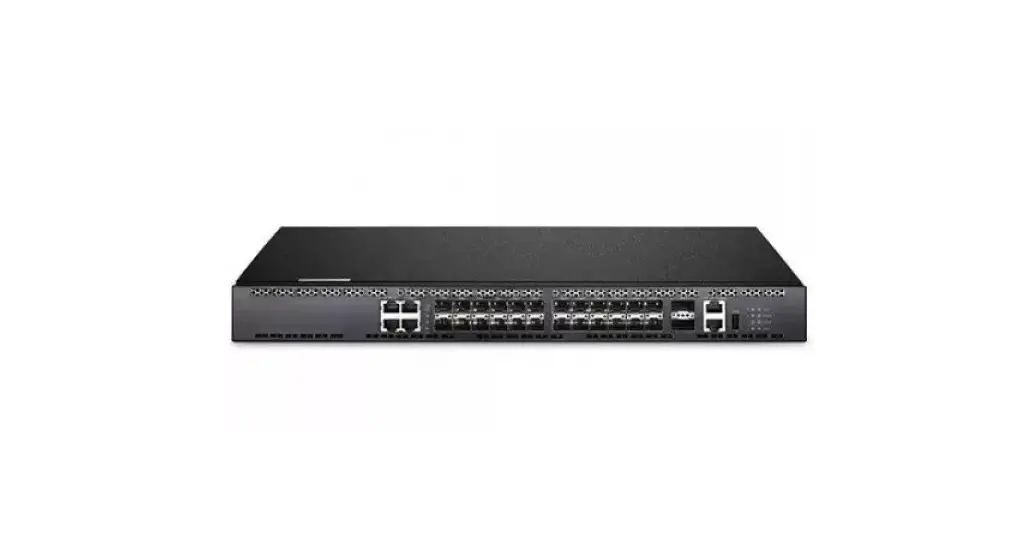
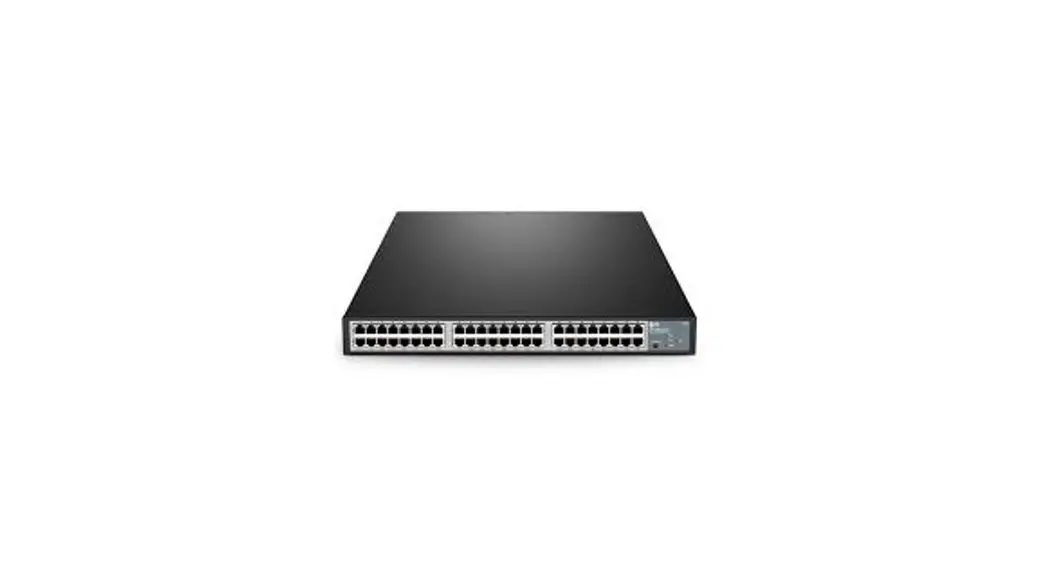
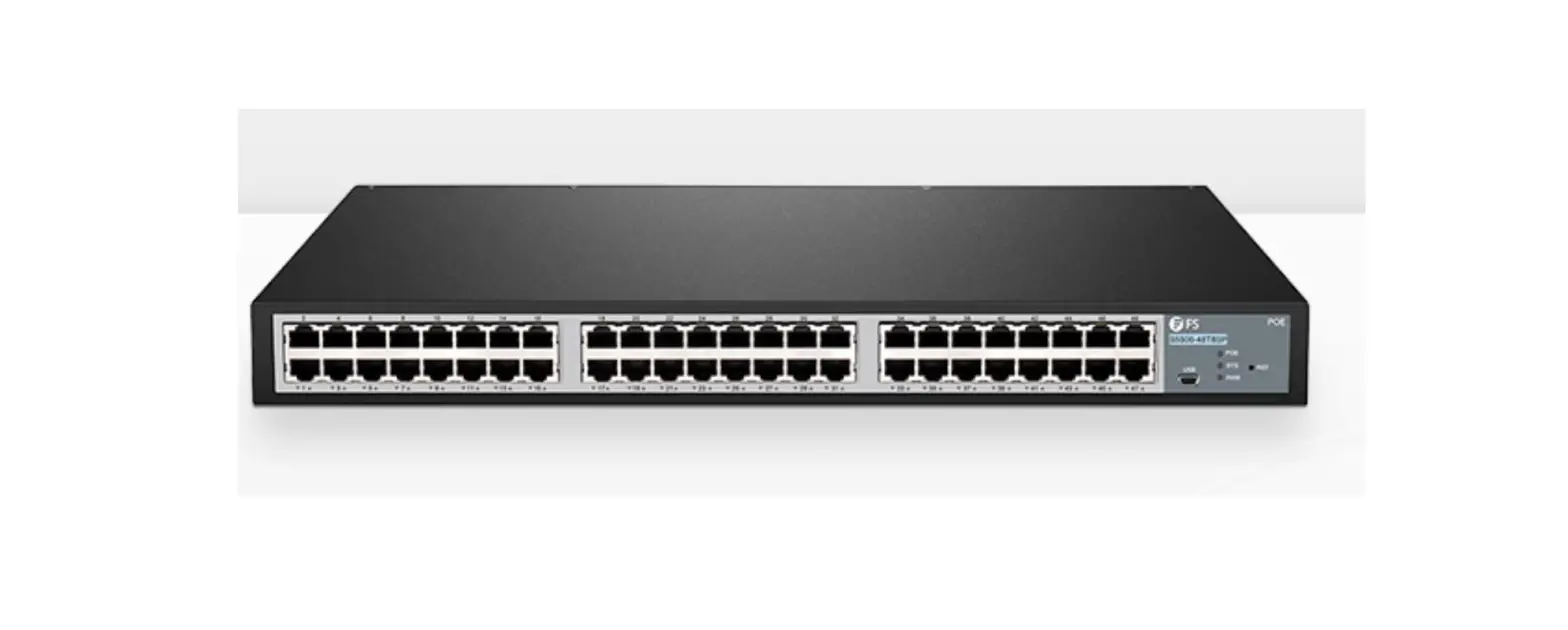
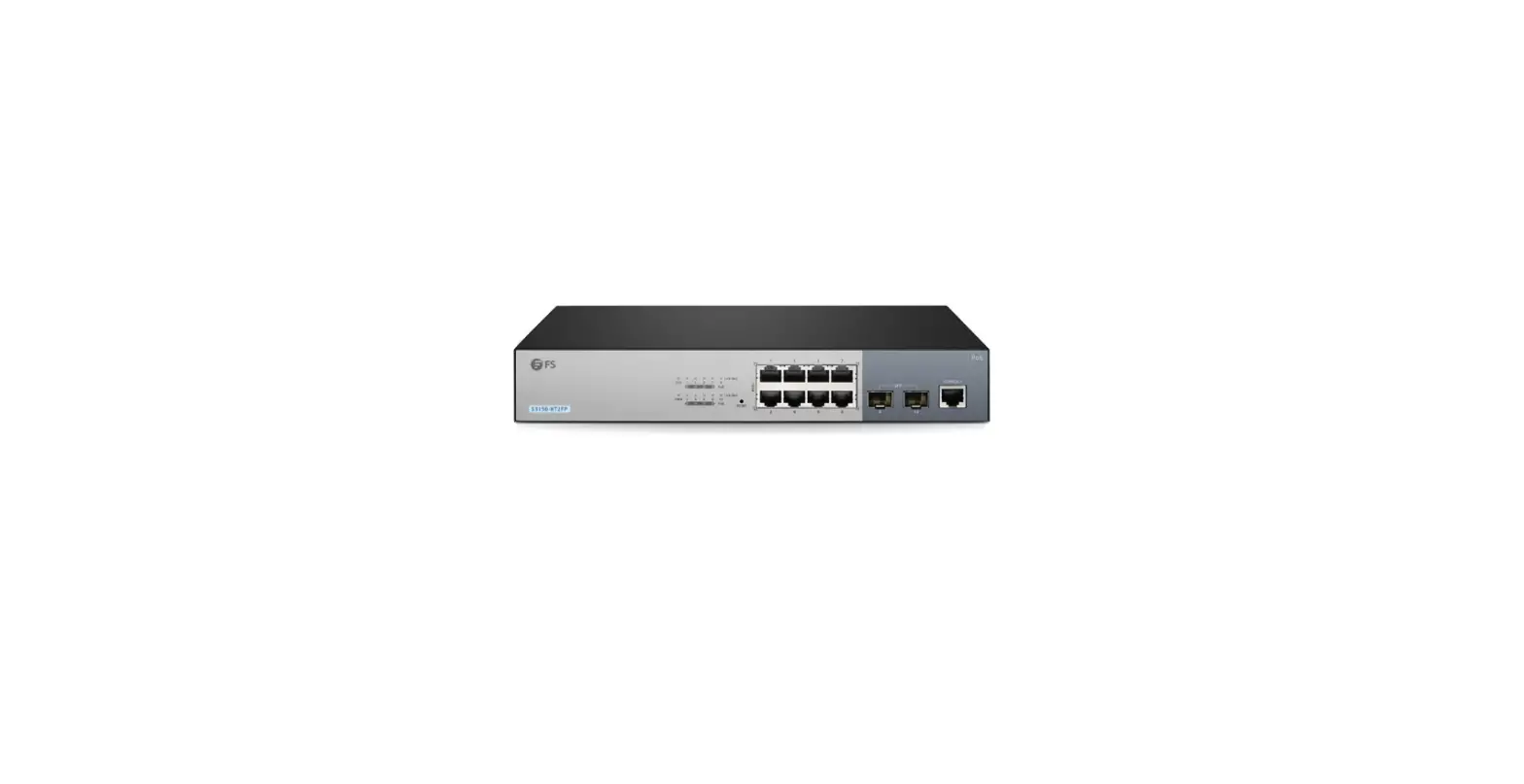
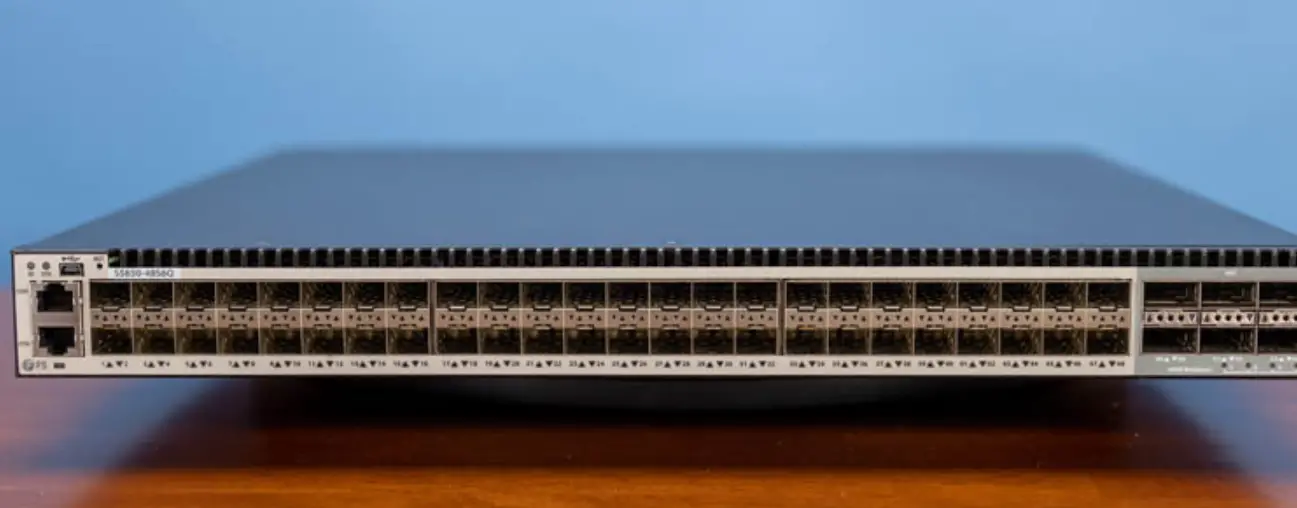
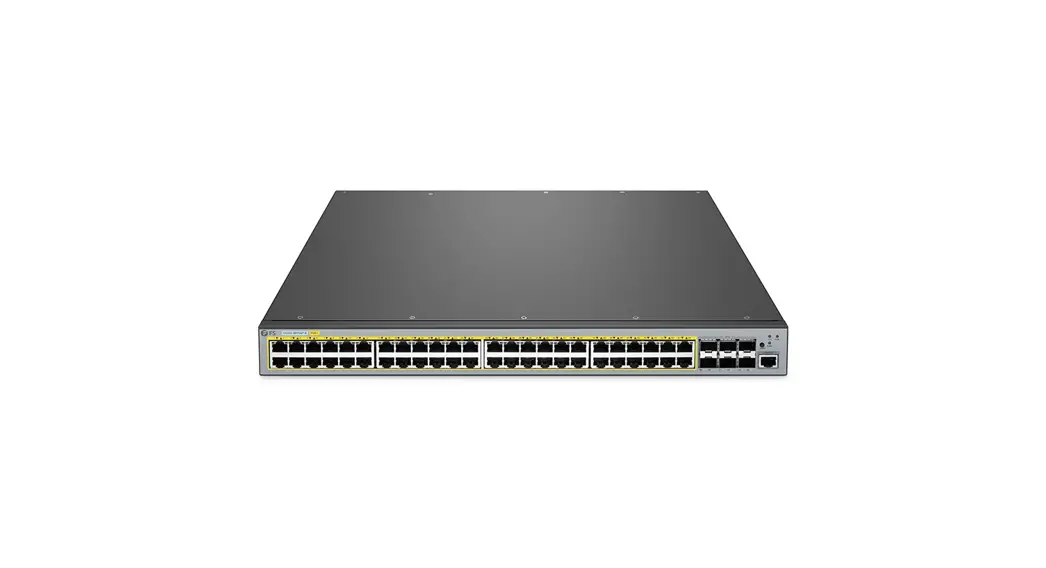
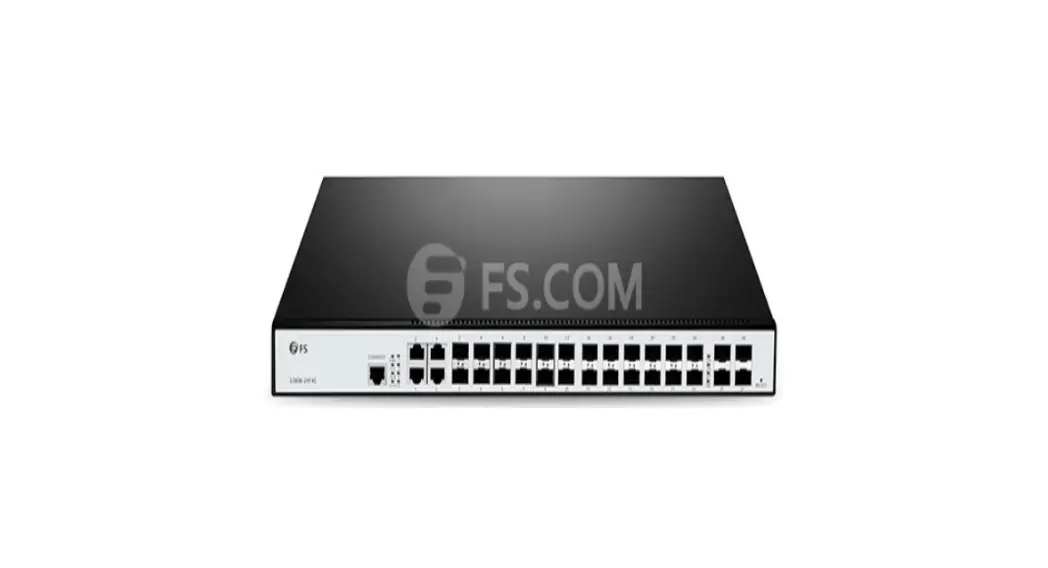
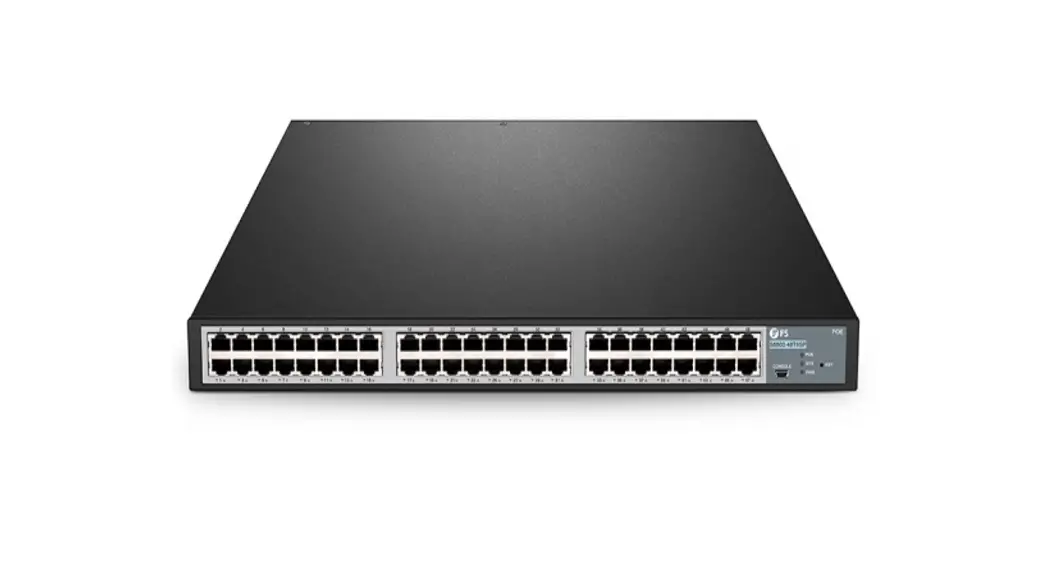
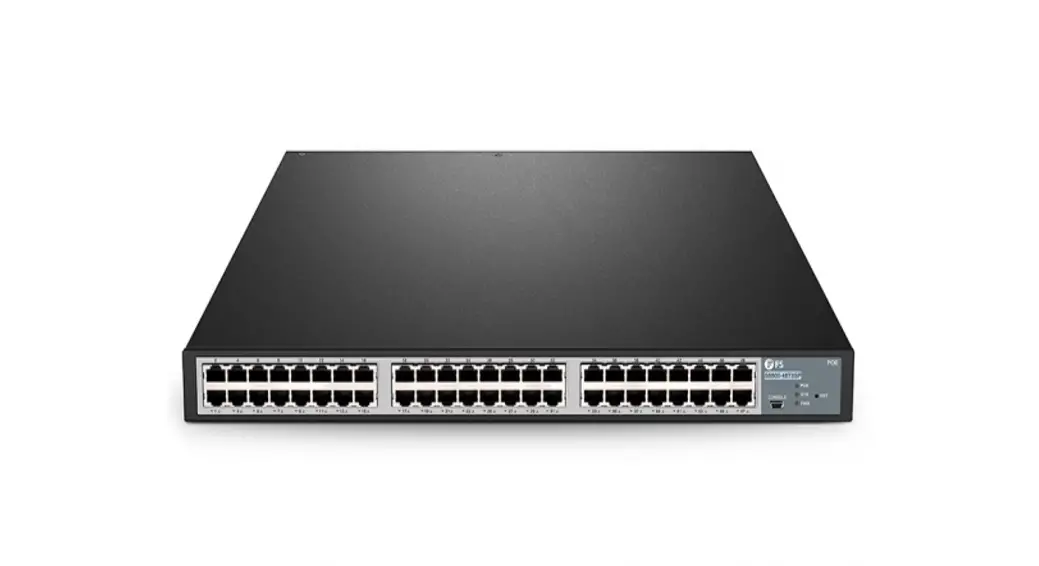
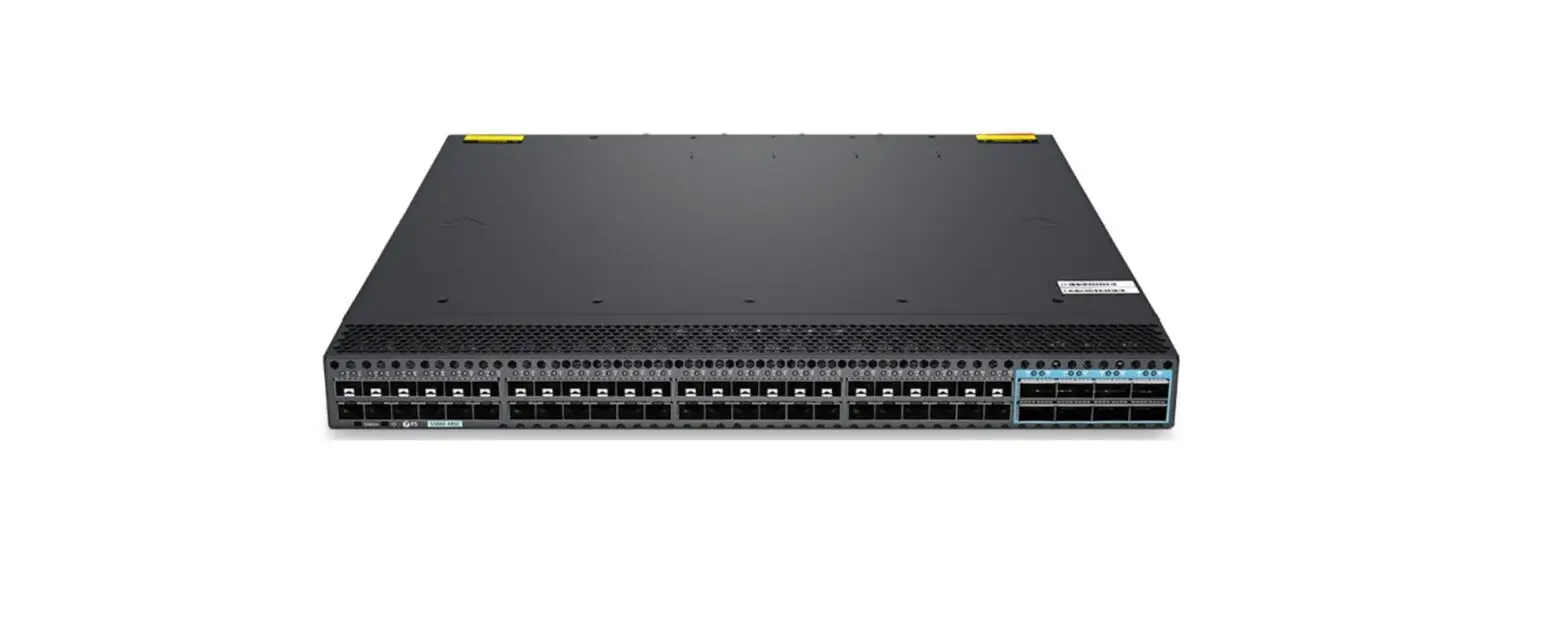
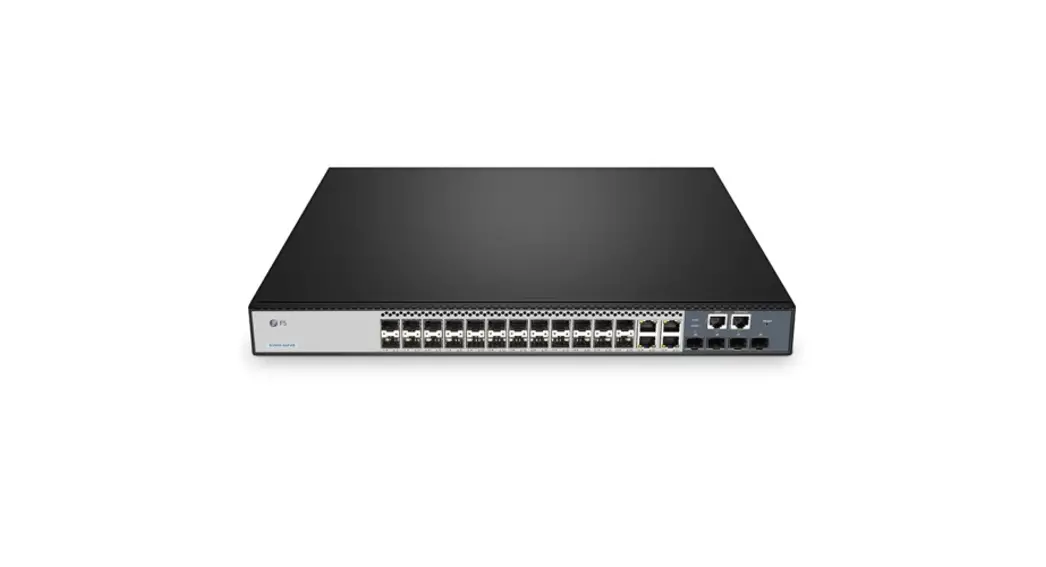
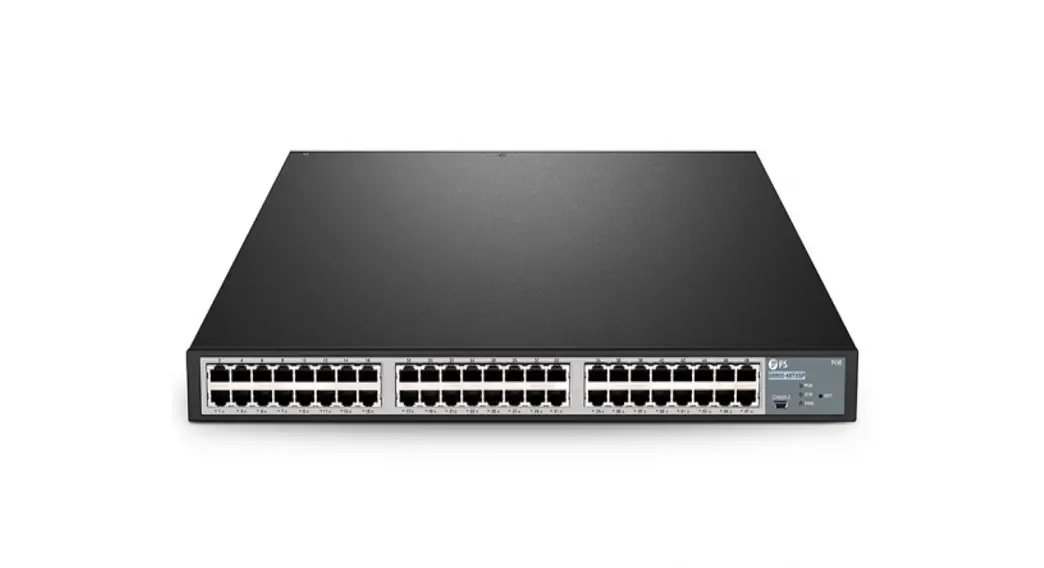
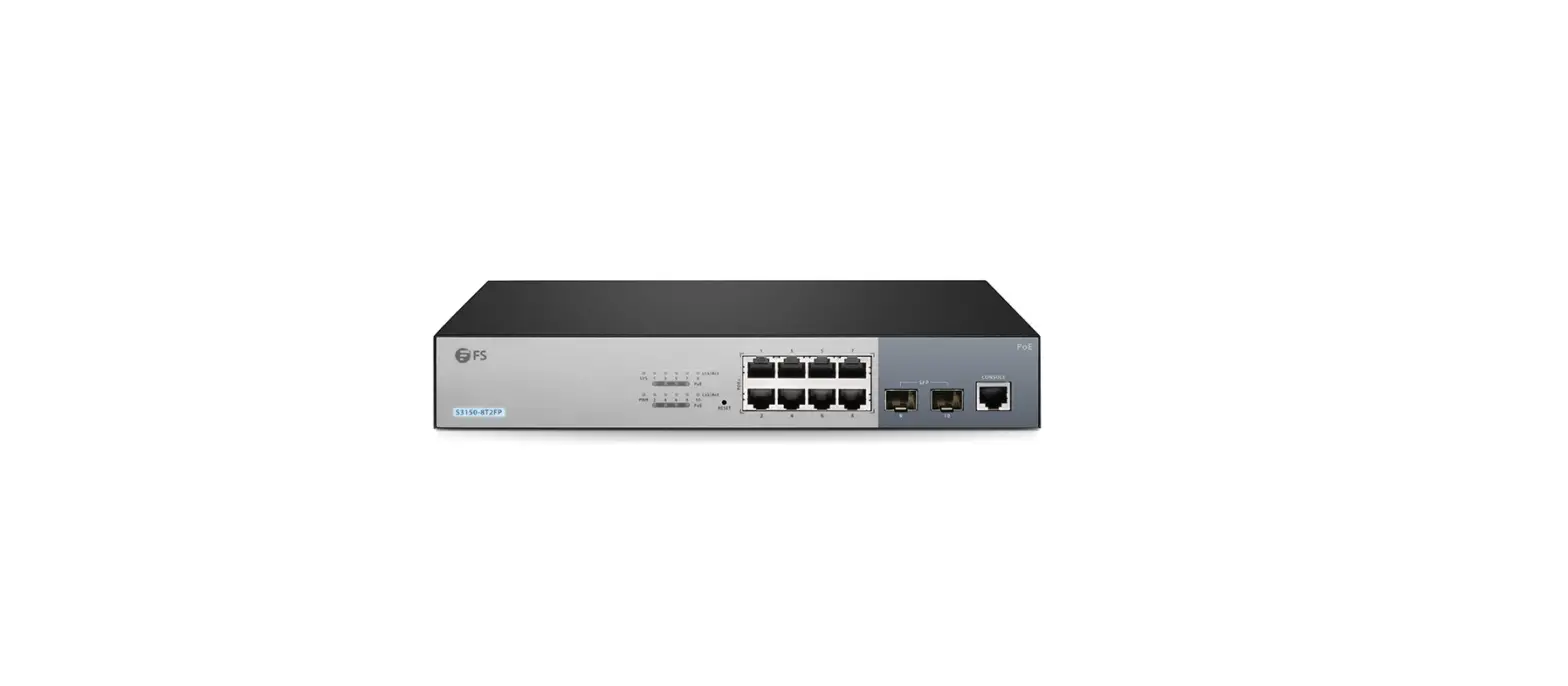
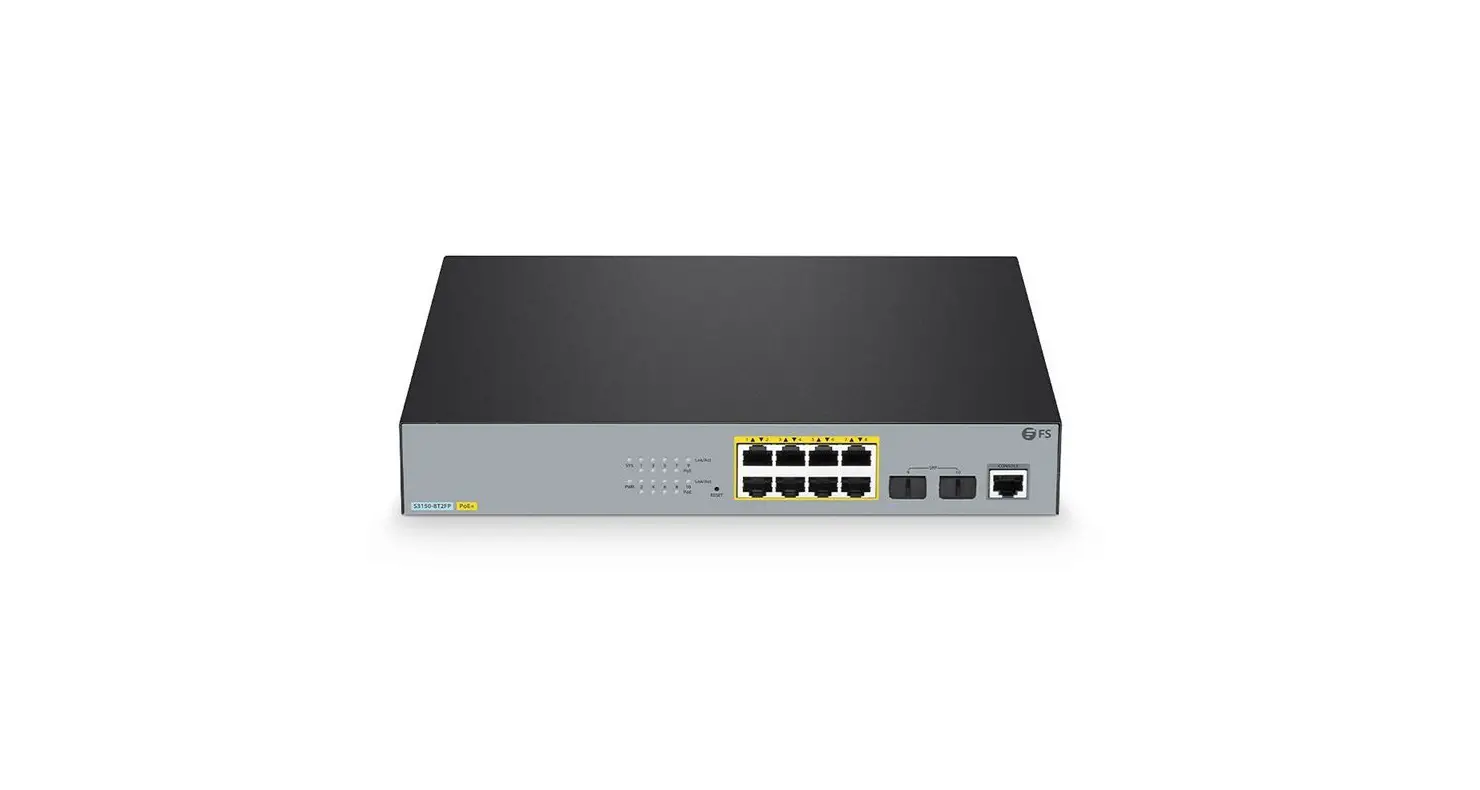
S5800-48F4S Multi Port Gigabit Ethernet Switch
S58 SERIES SWITCHES V7.2.2 FSOS SOFTWARE UPGRADE GUIDE
S5800-48F4S Switch FSOS Software Upgrade Guide
Model: S5800-48F4S
Website: www.fs.com
Contents
- I. S5800-48F4S SWITCH FSOS SOFTWARE UPGRADE GUIDE
- 1. Configuration Considerations
- 2. Introduction
- 3. Upgrade the Software System Versions
- 3.1 Upgrade by CLI Interface
- 3.1.1 Network Topology
- 3.1.2 Configuration Steps
- 3.1 Upgrade by CLI Interface
Product Information
The S5800-48F4S is a switch model from the S5800 Series. It
requires a system software upgrade when new features are added or
when the original performance needs optimization and the currently
running version is out of date.
Product Usage Instructions
1. Configuration Considerations
The upgrade guide is only applicable to the S5800-48F4S switch
model.
2. Introduction
To upgrade the switch, you need to load a high version of the
system software, upgrade through the CLI interface, WEB interface,
and restart.
3. Upgrade the Software System Versions
3.1 Upgrade by CLI Interface
3.1.1 Network Topology
Connect the PC and the switch to the network cable and the
console port as shown in the topology below:
3.1.2 Configuration Steps
- Connection Equipment
Connect one end of the RJ-45 network cable to the network card
interface of the PC and the other end to the network port of the
Switch-1. Connect one end of the console cable VGA to the VGA port
of the PC. One end of the RJ-45 is connected to the console port on
the front panel of the switch. - Download Configuration Software
After the connection is completed, we recommend using the super
terminal, putty or Secure CRT tool to configure the switch. - Switch on and Use Login Software
Energize the switch, then open the installed login software,
select the mode of serial port of login, Port through the device
manager to determine. Baud rate: 115200, Data bits: 8, Parity:
None, Stop bits: 1.Note: COM Number can be viewed through device
manager. [(right click on my computer > manage > device
manager > port (COM and LPT)]. If it displays an unrecognized
USB device, please download and install the corresponding
driver. - Login Switch
After completing the above steps, hitting the Enter key of the
keyboard will prompt you to enter the account password. At this
time, enter the default username and password: admin/admin to log
in to the switch. - Select the file to be uploaded on Tftp32 software
Install and open the software Tftp32 on PC, specify the current
directory as the directory corresponding to the file to be
uploaded, and select the current IP address of PC1 on the server
interface. - Download version file and upgrade version
CLI interface software upgrade means the user selects the file
to be upgraded on TFTP and uploads it to the device for upgrade.
After specifying the next file enabled by the system is completed,
the configuration is saved and restarted to take effect.To view the device space size, use the command:
S5850-32S2Q# show file systemThe output will show the file systems with their respective
sizes, used space, free space, and percentage of use.
S58 SERIES SWITCHES V7.2.2 FSOS SOFTWARE UPGRADE GUIDE
S5800-48F4S Switch FSOS Software Upgrade Guide
Model: S5800-48F4S
www.fs.com
1
S5800-48F4S SWITCH FSOS SOFTWARE UPGRADE GUIDE
Contents
1. Configuration Considerations………………………………………………………………………………………………………………………………. 1 2. Introduction………………………………………………………………………………………………………………………………………………………… 2 3. Upgrade the software system versions……………………………………………………………………………………………………………….. 3
3.1 Upgrade by CLI Interface………………………………………………………………………………………………………………………………………………………….3 3.1.1 Connection Equipment…………………………………………………………………………………………………………………………………………………. 3 3.1.2 Download Configuration Software…………………………………………………………………………………………………………………………………3 3.1.3 Switch on and Use Login Software…………………………………………………………………………………………………………………………………3 3.1.4 Login Switch………………………………………………………………………………………………………………………………………………………………….4 3.1.5 Select the file to be uploaded on Tftp32 software………………………………………………………………………………………………………….4 3.1.6 Download version file and upgrade version………………………………………………………………………………………………………………….. 5 3.1.7 Restart for Verification………………………………………………………………………………………………………………………………………………….. 7
3.2 Upgrade by WEB Interface……………………………………………………………………………………………………………………………………………………… 7 3.2.1 Configure the IP of management interface…………………………………………………………………………………………………………………….8 3.2.2 Login in the WEB Interface……………………………………………………………………………………………………………………………………………. 8 3.2.3 Upgrade the switch system file on the WEB Interface……………………………………………………………………………………………………. 8 3.2.4 View the current system version running on the WEB interface…………………………………………………………………………………….. 9
www.fs.com
I
S5800-48F4S SWITCH FSOS SOFTWARE UPGRADE GUIDE
1. Configuration Considerations
The upgrade guide suits for the model of switch as shown in table 1: Series
S5800 Series Table 1
Product Model S5800-48F4S
www.fs.com
1
S5800-48F4S SWITCH FSOS SOFTWARE UPGRADE GUIDE
2. Introduction
When new features are added or the original performance needs to be optimized and the currently running version is out of date, the device needs to be upgraded. In this case, you need to load a high version of the system software, upgrade through the CLI interface, WEB interface, and restart.
www.fs.com
2
S5800-48F4S SWITCH FSOS SOFTWARE UPGRADE GUIDE
3. Upgrade the Software System Versions
3.1 Upgrade by CLI Interface
3.1.1 Network Topology
3.1.2 Configuration Steps
(1) Connection Equipment
#Connect the PC and the switch to the network cable and the console port as shown in topology. Connect one end of the RJ-45 network cable to the network card interface of the PC and the other end to the network port of the Switch-1. Connect one end of the console cable VGA to the VGA port of the PC. One end of the RJ-45 is connected to the console port on the front panel of the switch.
(2) Download Configuration Software
# After the connection is completed, there we recommend the super terminal, putty or Secure CRT tool to configure the switch.
(3) Switch on and Use Login Software
#Energizing the switch, then open the installed login software, select the mode of serial port of login, Port through the device manager to determine. Baud rate: 115200, Data bits: 8, Parity: None, Stop bits: 1. (Reference below)
www.fs.com
3
S5800-48F4S SWITCH FSOS SOFTWARE UPGRADE GUIDE
NOTE: COM Number can be viewed through device manager. [(right click on “my computer” > “manage” > “device manager” > “port (COM and LPT)”]. If it displays an unrecognized USB device, please download and install the corresponding driver.
(4) Login Switch
#After completing the above steps, hitting the Enter key of the keyboard will prompt you to enter the account password. At this time, enter the default username and password: admin/admin to log in to the s witch.
(5) Select the file to be uploaded on Tftp32 software
#Install and open the software Tftp32 on PC, specify the current directory as the directory corresponding to the file to be uploaded, and select the current IP address of PC1 on the server interface.
www.fs.com
4
S5800-48F4S SWITCH FSOS SOFTWARE UPGRADE GUIDE
(6) Download version file and upgrade version
#CLI interface software upgrade means the user selects the file to be upgraded on TFTP and uploads it to the device for upgrade. After specifying the next file enabled by the system is completed, the configuration is saved and restarted to take effect.
View the device space size:
S5850-32S2Q# show file system
File Systems:
Type
Size
Used
Free
Use%
==================================================================================
flash:
887M
1.6M
880M
0%
flash:/boot 775M
47.0M
724M
6%
Upload OS files with FTP protocol S5850-32S2Q#copy mgmt-if ftp://192.168.1.2 flash:/boot User name [] admin Password [] Name of the FTP file to access [] FSOS-S5850-v7.2.2.r.bin Are you sure to overwrite flash:/boot/FSOS-S5850-v7.2.2.r.bin? [confirm] Download from URL to temporary file.
www.fs.com
5
S5800-48F4S SWITCH FSOS SOFTWARE UPGRADE GUIDE
Get file from ftp://[email protected]:21/FSOS-S5850-v7.2.2.r.bin Connected to 192.168.1.2 (192.168.1.2) 220 http://www.aq817.cn Name (192.168.1.2:admin): 331 Password required for admin. 230 User admin logged in. Remote system type is UNIX. Using binary mode to transfer files. 200 Type set to I. local: /tmp/recv2139 remote: FSOS-S5850-v7.2.2.r.bin 200 Port command successful. 150 Opening data connection for FSOS-S5850-v7.2.2.r.bin…………………………………………………………………………………………………………………… ………………………………………………………………………………………………………………………………………………………… 226 File sent ok 25398924 bytes received in 21.6 secs (1.2e+03 Kbytes/sec) Copy the temporary file to its destination. ………………………………………………………………………………………………………………………………………………………… ………………………………………………………………………………………………………………………………………………………… 25398924 bytes in 0.2 seconds, 124018 kbytes/second
Specify the FSOS-S5850-v7.2.2.r.bin file as the file for the next system restart S5850-32S2Q(config)# boot system flash:/boot/FSOS-S5850-v7.2.2.r.bin
Save configuration and restart S5850-32S2Q(config)#write S5850-32S2Q# reboot Building configuration… Reboot system? [confirm] enter Restarting system.
www.fs.com
6
S5800-48F4S SWITCH FSOS SOFTWARE UPGRADE GUIDE
(7) Restart for Verification
#After the restart is complete, check the current device system running version. S5850-32S2Q# show version FSOS Software, S5850-32S2Q, Version 7.2.2 Copyright (C) Fiberstore Inc. All rights reserved. The current running image is flash:/boot/FSOS-5850-v7.2.2.r.bin
S5850-32S2Q uptime is 0 days, 0 hours, 57 minutes Hardware Type is 32S2Q Hardware Version is 2.0 SDRAM size 1024M Flash size 2048M EPLD Version is 1.2 BootRom Version is 8.1.1 System serial number is CG170728002977N005 Current Web Version is 6.2.27
3.2 Upgrade by WEB Interface
Network Topology
www.fs.com
7
S5800-48F4S SWITCH FSOS SOFTWARE UPGRADE GUIDE
Configuration Steps 3.2.1 Configure the IP of management interface
It needs to enter the CLI interface to open the switch configuration management port IP address and open the HTTP service in WEB interface software upgrade. S5850-32S2Q#config S5850-32S2Q(config)#management ip address 192.168.1.1/24 S5850-32S2Q(config)#service http enable 3.2.2 Login in the WEB Interface
Sure that the IP addresses of PC and switch as the same network segment, enter the management port IP address: 192.168.1.1 in the URL field of the browser, and then enter the default username and password: admin/admin
3.2.3 Upgrade the switch system file on the WEB Interface After entering the switch WEB interface, select “System Management > File Management > upload image”, then click “Use Image”
www.fs.com
8
S5800-48F4S SWITCH FSOS SOFTWARE UPGRADE GUIDE
NOTE: Select the file to be upgraded on the WEB interface, please do not close the upgrade page or power off the device during the upgrade. 3.2.4 View the current system version running on the WEB interface
www.fs.com
9
S3910 SERIES SWITCHES DATASHEET
www.fs.com
10
 久久精品国产亚洲av蜜臀|婷婷色国产精品视频一区|AV 在线 高潮喷吹|国产精品自在在线午夜精华在线|国产亚洲日韩一区二区三区|最新无码网站在线观看
 FS.com - Data Center, Enterprise, Telecom