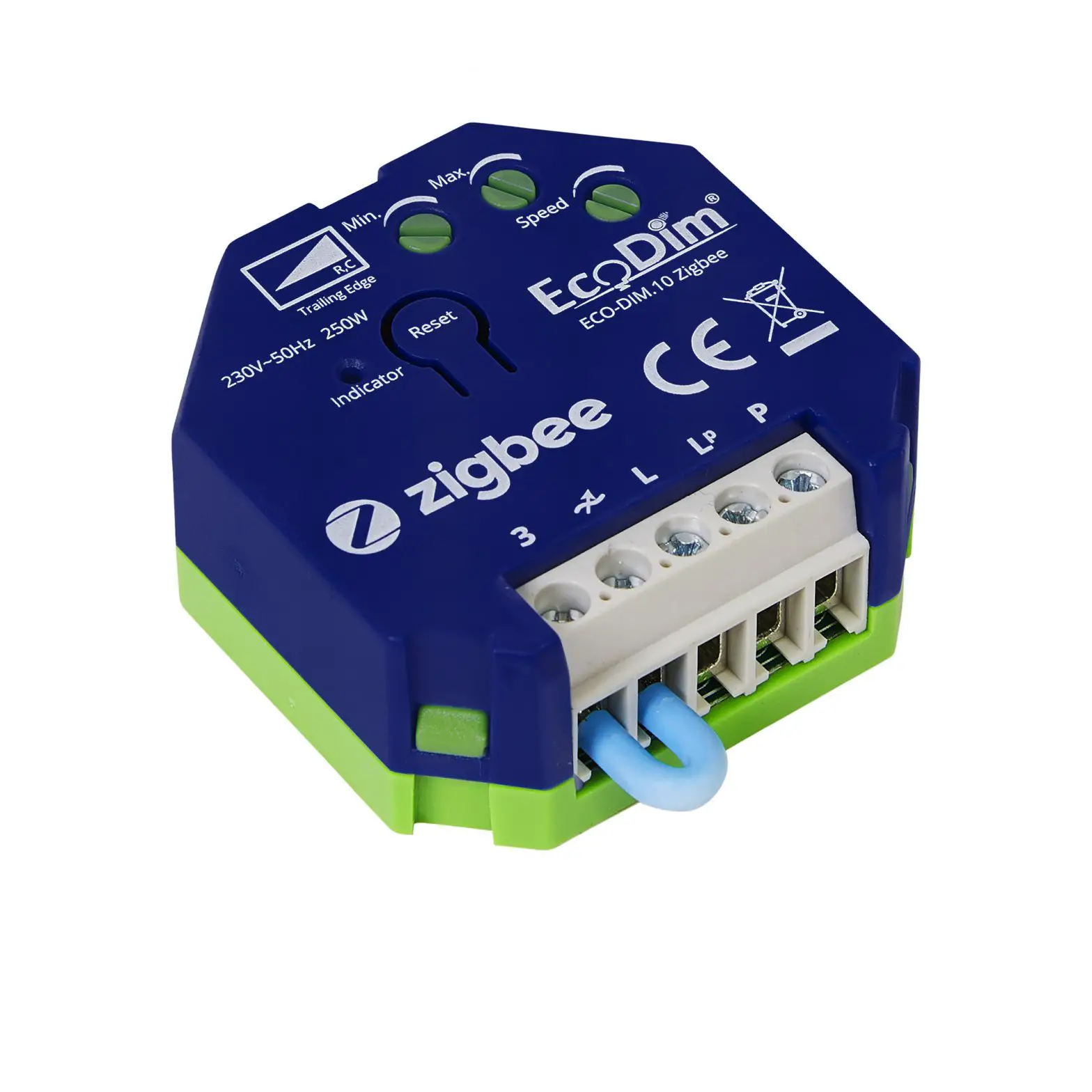
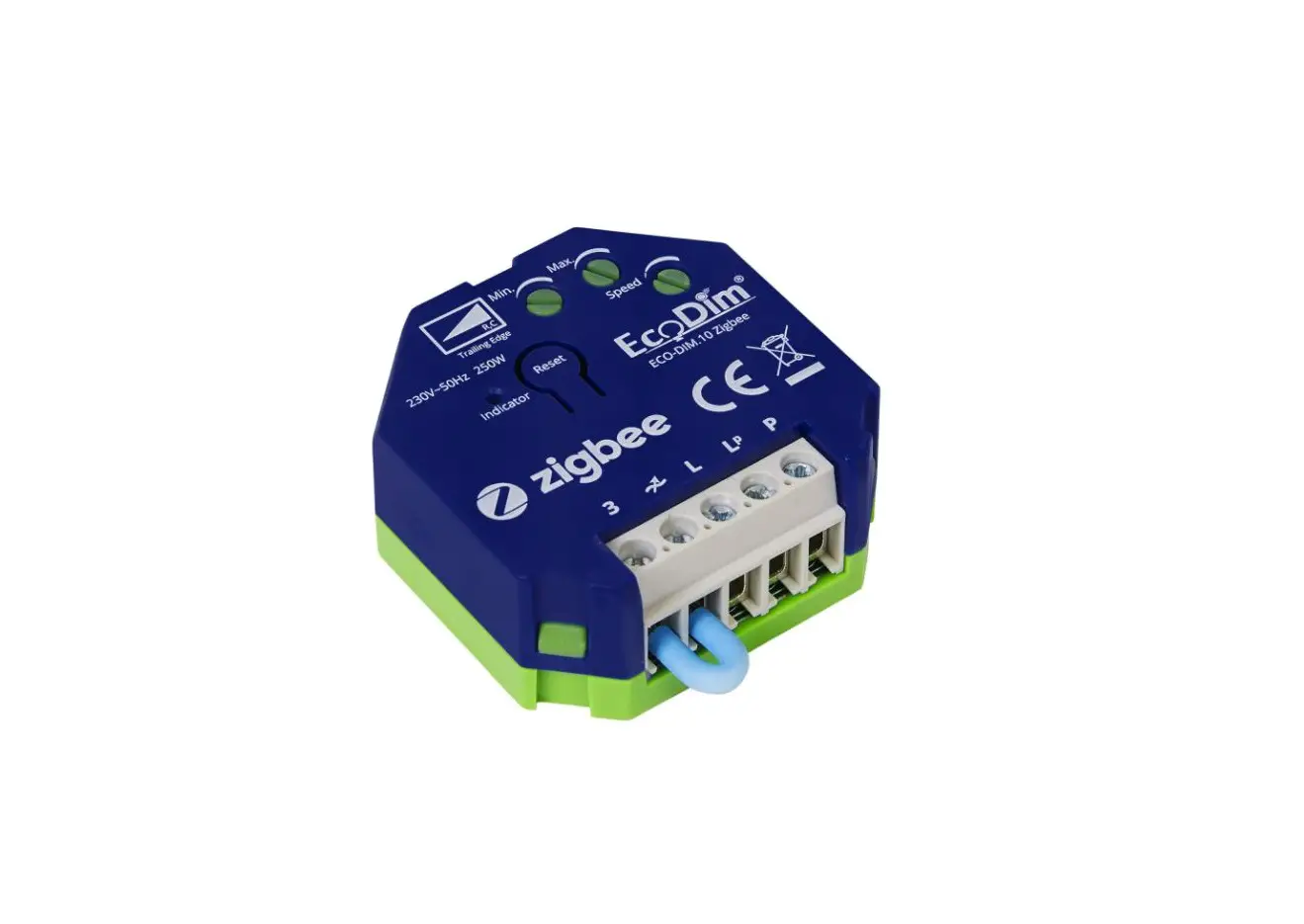
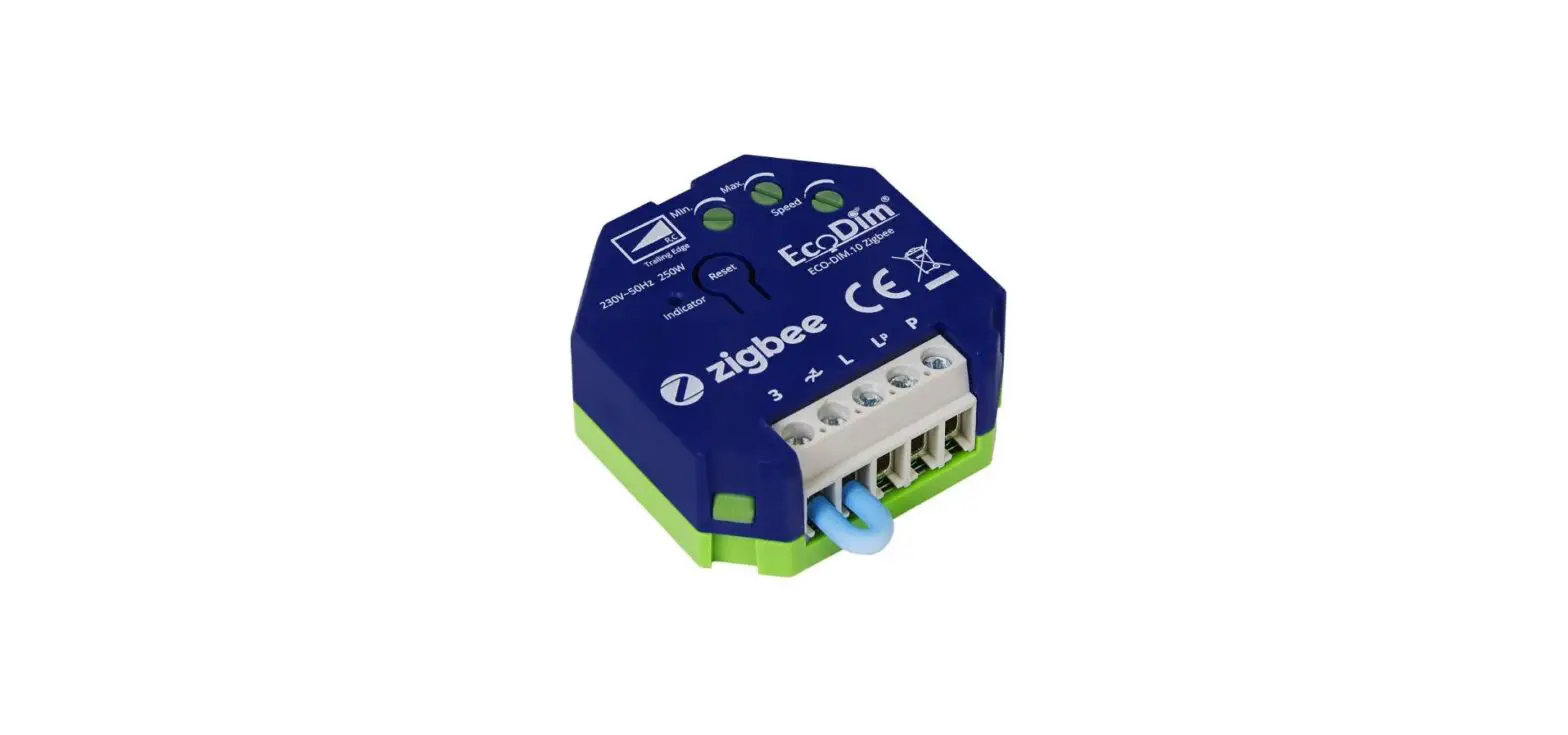
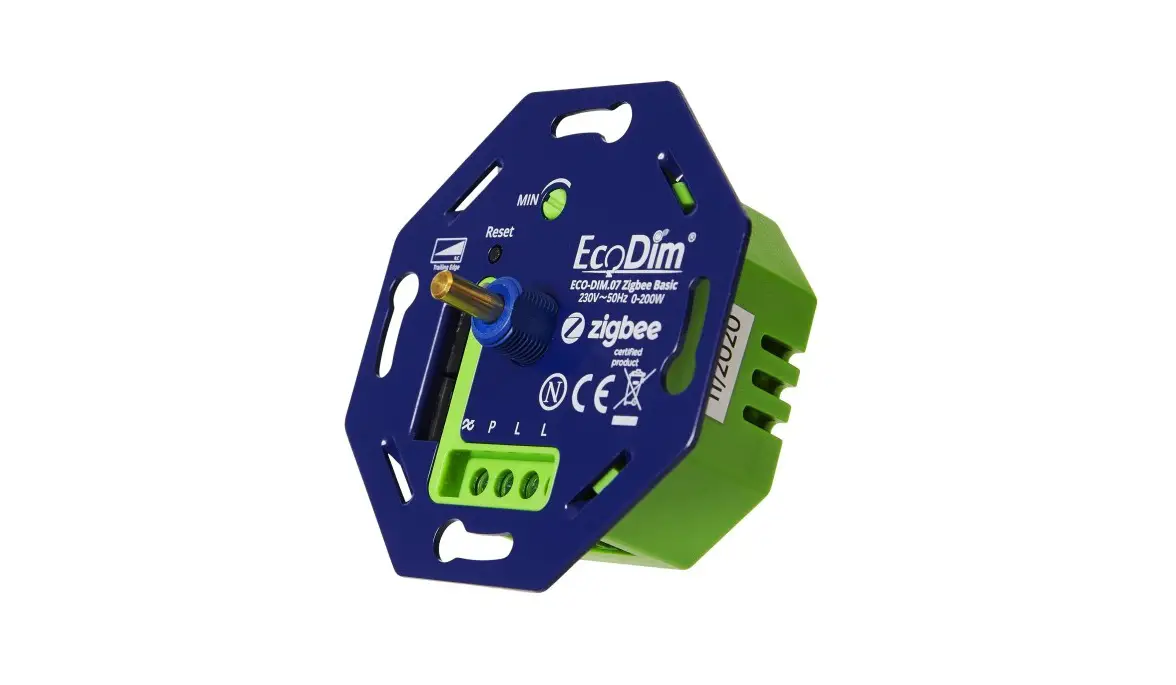
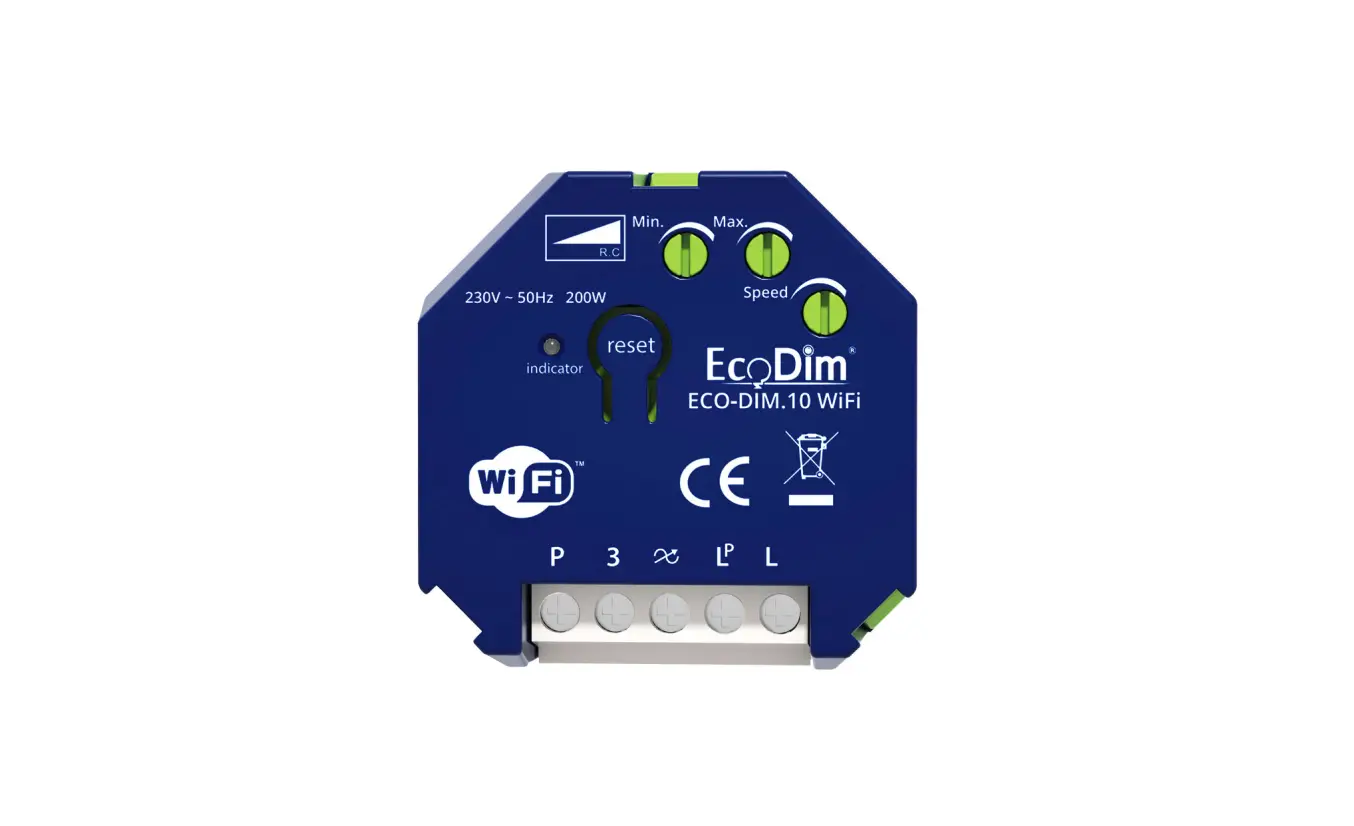
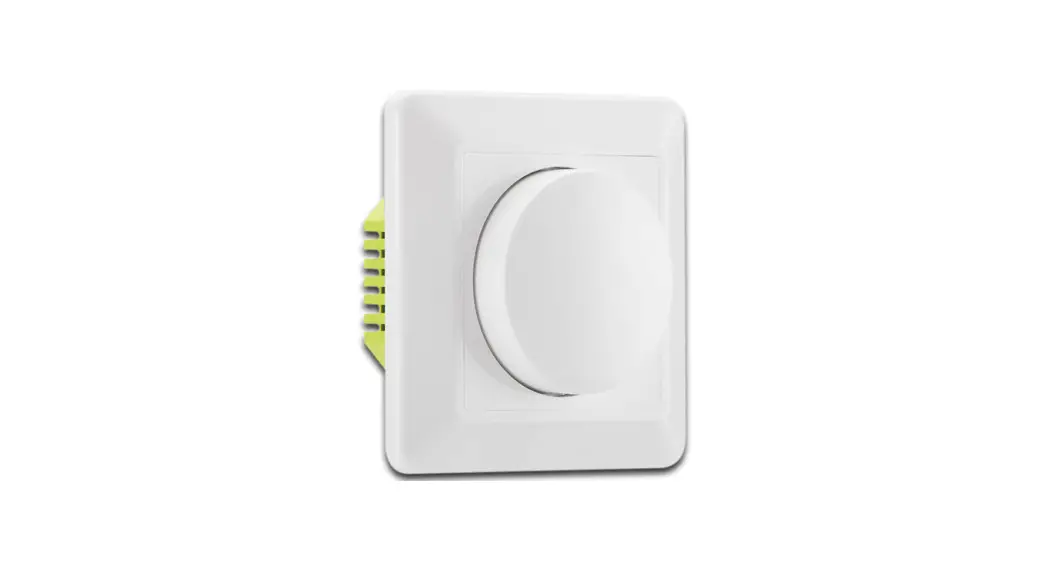
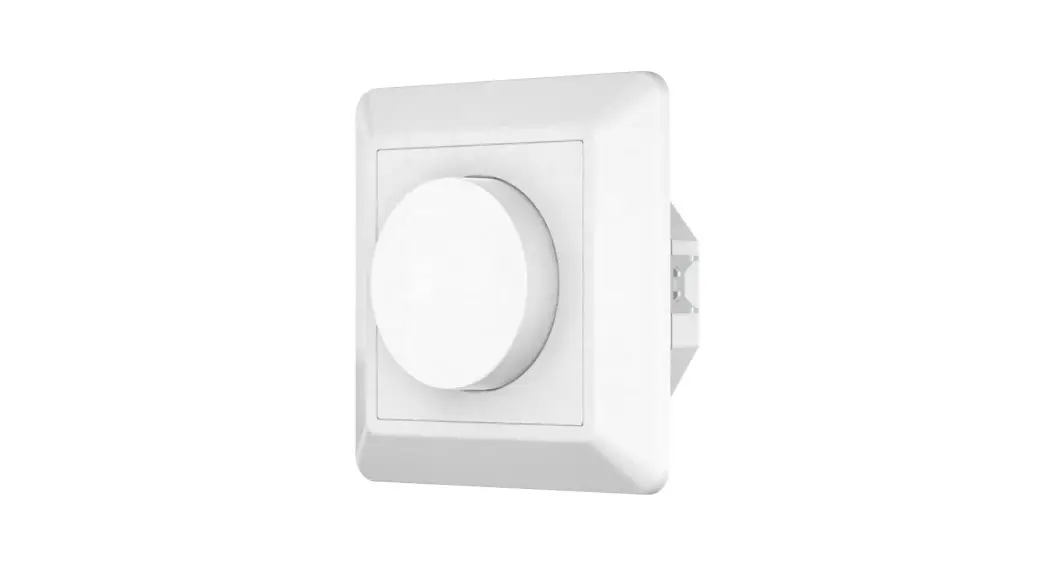
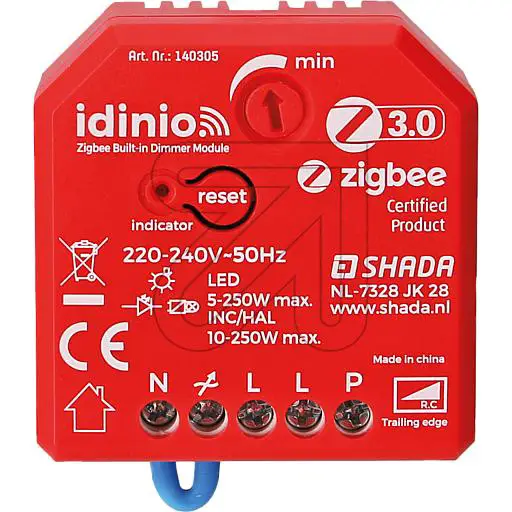
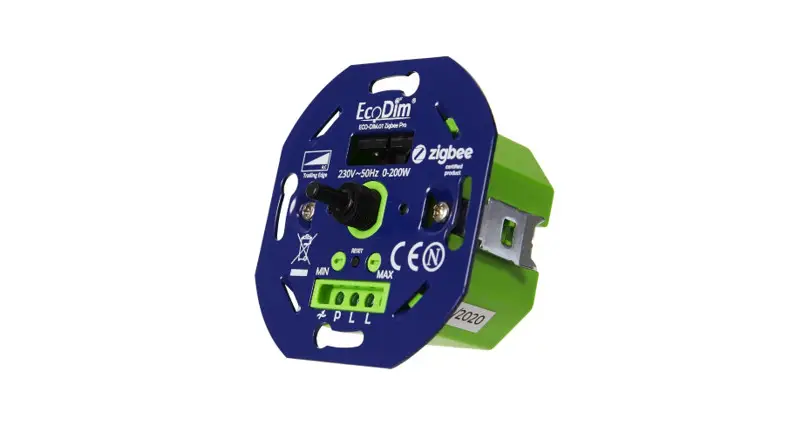
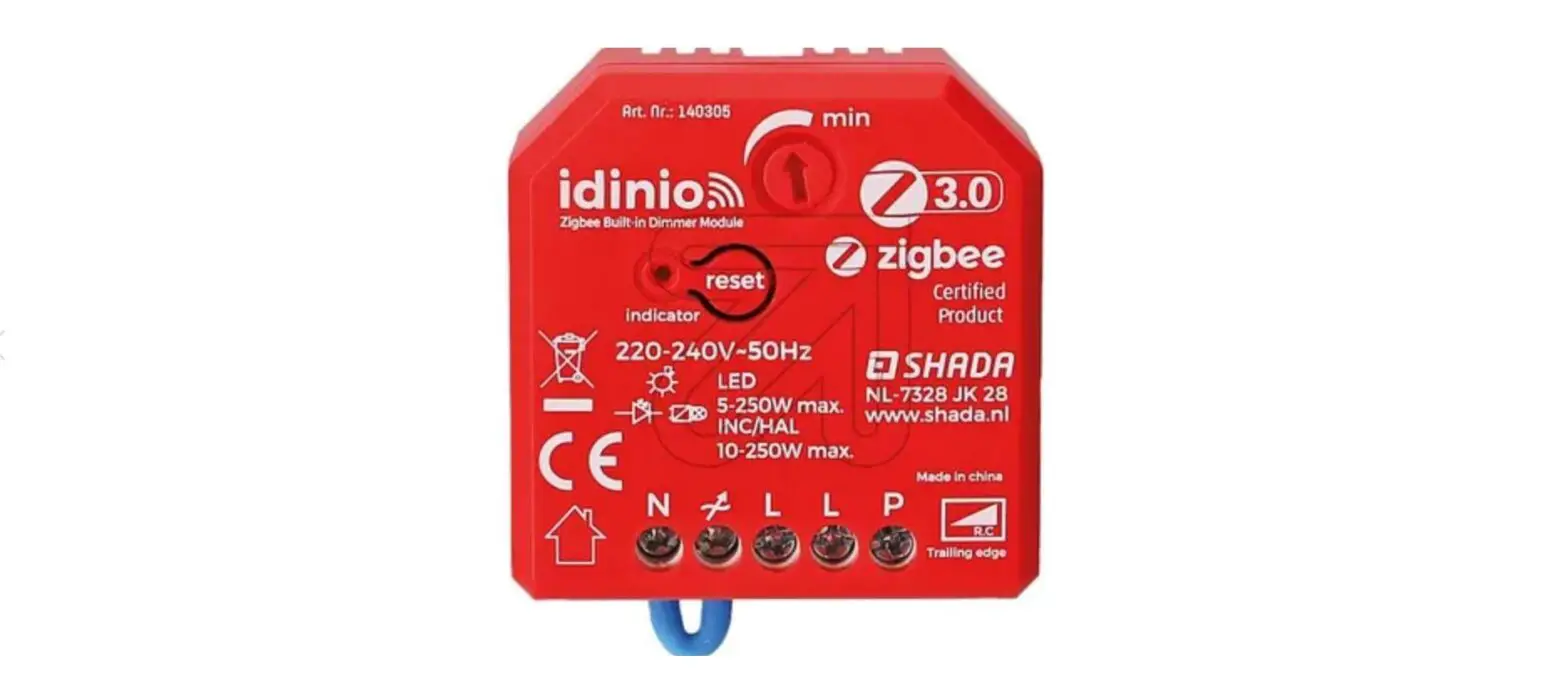
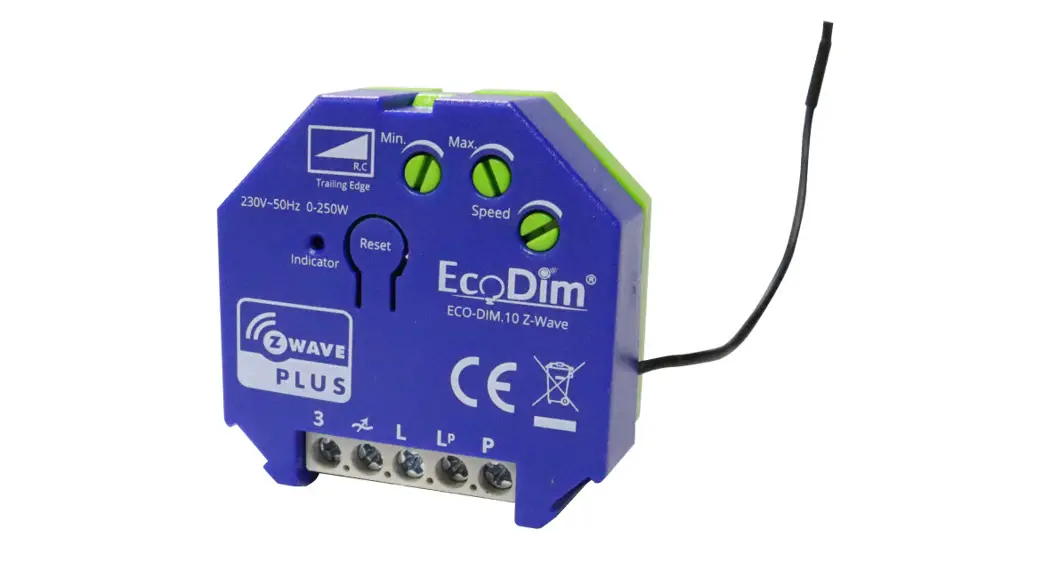
ECODIM.13 Zigbee Led Inline Dimmer 250W
Product Information:
Product Name: Inline Wi-Fi Dimmer
Item Number: ECODIM.13 INLINE WIFI
Weight: 70.6g
Rated Input Voltage: Not specified
Power Range: Not specified
Type of Load: Not specified
Dimming: Yes
Ambient Temperature (Ta): Not specified
Dimensions: Not specified
Warnings:
- Hazard of electric shock, explosion, or arc flash. Turn off all
power supplying this equipment. Use a voltage tester of appropriate
rating. - Hazard of fire. Failure to follow instructions can result in
death, serious injury, or equipment damage.
Voice Control Setup (Optional):
Google Assistant:
- Open the Google Home app and sign in to your Google
account. - Tap + and select Set Up Device > Have Something Already Set
Up? - Select Tuya Smart from the list or type Tuya Smart in the
search bar. - Type in your App login details.
- Tap Link Now > Authorise.
Amazon Alexa:
- Open the Amazon Alexa app and sign in to your Alexa
account. - Tap More > Skills & Games.
- Search for Tuya Smart and tap `enable’.
- Enter your account details and tap `link now’.
Product Usage Instructions:
Wiring:
Connect the wires to the L and N terminals.
Setting up the App:
- Download the Tuya Smart app.
- Tap `create new account’ or `log in to account’.
- Follow the in-app prompts and tap `OK’.
Connecting to the App:
To connect your in-line dimmer to the app, you must first enter
pairing mode. The app requires a 2.4GHz Wi-Fi network.
- Press and hold the reset button on the dimmer for 5 seconds, or
turn the light switch at the wall off, then on-off-on-off-on at 1
second intervals (for circuit without an accessible light switch,
use the isolating switch). - The indicator light on the in-line dimmer will start to blink
rapidly (approximately 8 times every 5 seconds). The light
connected to the in-line dimmer will pulse. - Open the app. Tap + > Add Device > Auto Scan. The
discovery process will begin. - When your product is discovered, tap `next’.
- Confirm your Wi-Fi details and tap `confirm’. This will begin
the pairing process, which will add your in-line dimmer to the
app. - Once pairing is complete, you can edit your in-line dimmer name
(optional). - To finish the pairing process, tap `done’. Note: If the pairing
process doesn’t work, and you are certain that the password for
your 2.4GHz Wi-Fi network is correct, try pairing in AP mode.
Minimum Brightness Setting:
Press the reset button twice and hold then release till the
connected light blinks once, push the button again to adjust the
brightness, double press to confirm and exit, timeout 1min.
Inline Wi-Fi Dimmer
Item Nr.: ECODIM.13 INLINE WIFI
DANGER
HAZARD OF ELECTRIC SHOCK, EXPLOSION OR ARC FLASH Turn off all power supplying this equitment Use a voltage tester of appropriate rating.
Failure to follow these instructions will result in death or serious injury.
WARNING
HAZARD OF FIRE Failure to follow these instructions can result in death, serious injury, or equitment damage.
SPECS
Rated input voltage: Power range:
Type of load: Dimming: Ambient temperature (Ta): Dimension:
220-240Vac, 50Hz 5-250W @ 220-240V LED 10-250W @ 220-240V INC, HAL LED Retrofit I Incandescent-halogen APP Control / Voice Control -10¥j+40¥ 79.85*47.75*27mm
Item weight:
70.6g
WIRING
L N
SET UP THE APP
1. Download the Tuya Smart app. 2. Tap `creat new account’or `log in to account’. 3. Follow the in-app prompts and tap `OK’.a
CONNECT TO THE APP
To connect your in-line dimmer to the app, you must first enter pairing mode. The app require a 2.4GHz Wi-Fi network. Activatw Pairing Mode:
Press and hold the reset button on the dimmer for 5 seconds, or turn the light switch at the wall (For circuit without an accessible light switch, use the isolating switch) off, then on-off-on-off-on at 1 second intervals.
The indicator light on the in-line dimmer will start to blink repidly(appox. 8 times every 5 seconds). The light connected to the in-line dimmer will pulse.
PAIRING YOUR PRODUCT
1. Open the APP.Tap + > Add Device > Auto Scan. The discovery process will begin.
2. When your product is discovered, tap `next’.
3. Confirm your Wi-Fi details and tap `confirm’. This will begin the pairing process, which will add your in-line dimmer to the app.
4. Once pairing is complete, you can edit your in-line dimmer name(optional).
5. To finish the pairing process, tap ` done’ Note: If the pairing process doesn’t work, and you are certain that the password for your 2.4GHz Wi-Fi network is correct, try pairing in AP mode.
7. Minimum Brightness Setting: Press the reset button twice and hold then release till the connected light blink once, push the button again to adjust the brightness, double press to confirm and exit, timeout 1min.
VOICE CONTROL SETUP OPTIONAL
Google Assistant 1. Open the google home app and sign in to your google account. 2. Tap+ and select Set Up Device > Have Something Already Set Up? 3. Select Tuya Smart from the list or type Tuya smart in the search bar. 4. Type in your App login details. 5. Tap Link Now > Authorise.
Amazon Alexa 1. Open the Amazon Alexa app and sign in to your Alexa account. 2. Tap More > Skills & Games. 3. Search for Tuya Smart and tap `enable’. 4. Enter your account details and tap `link now’.