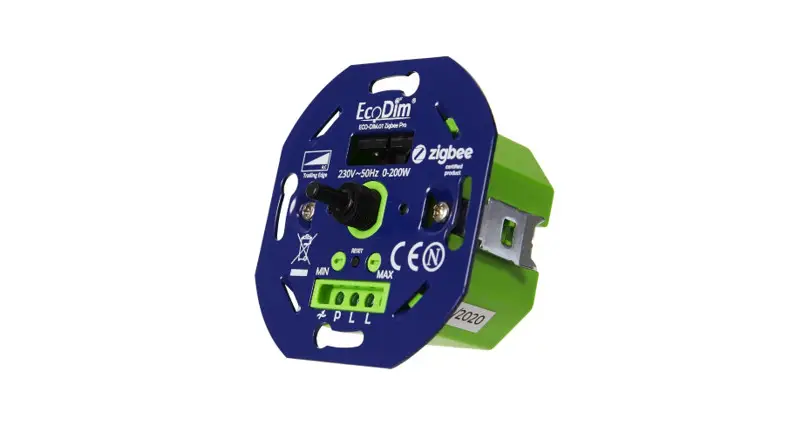
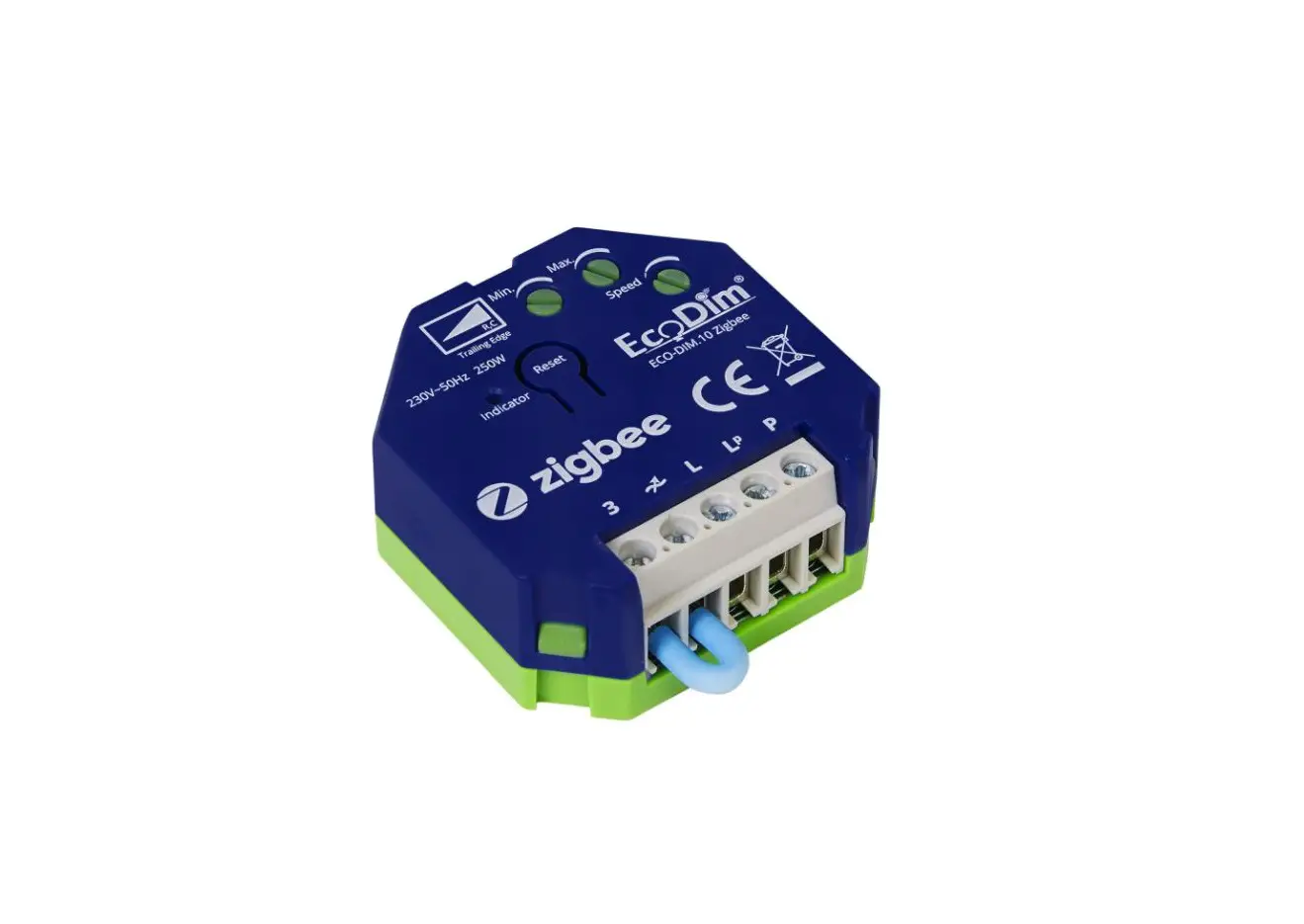
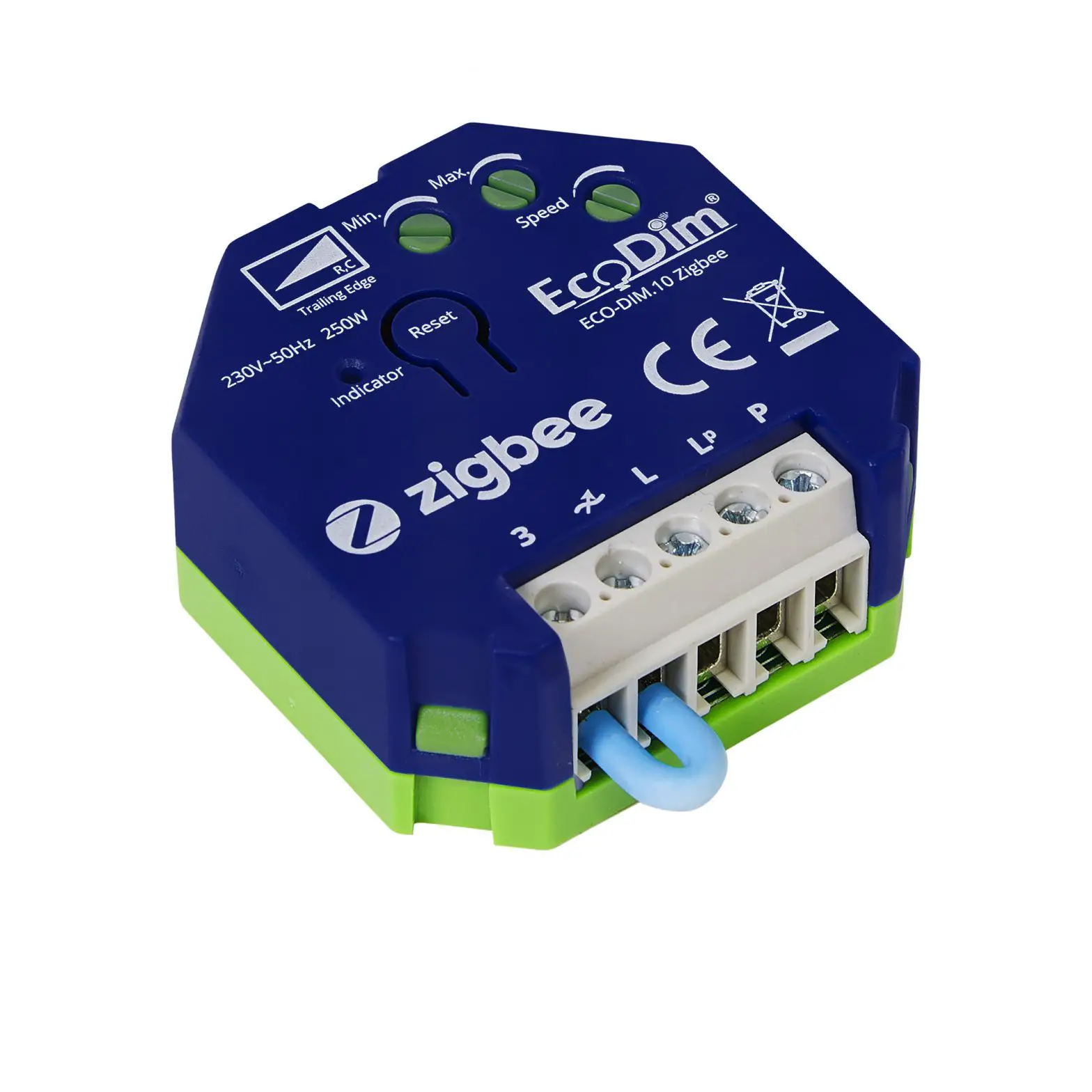
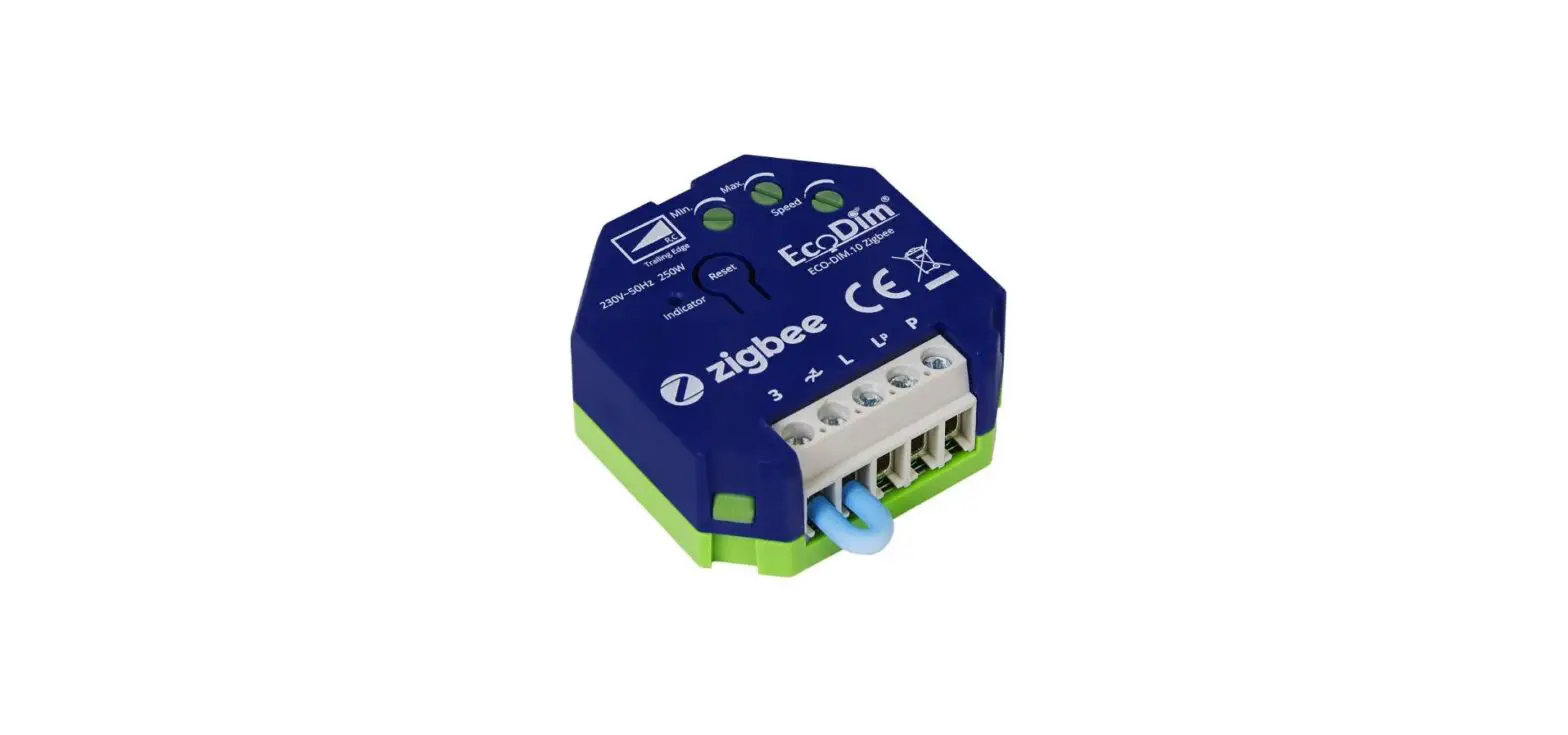
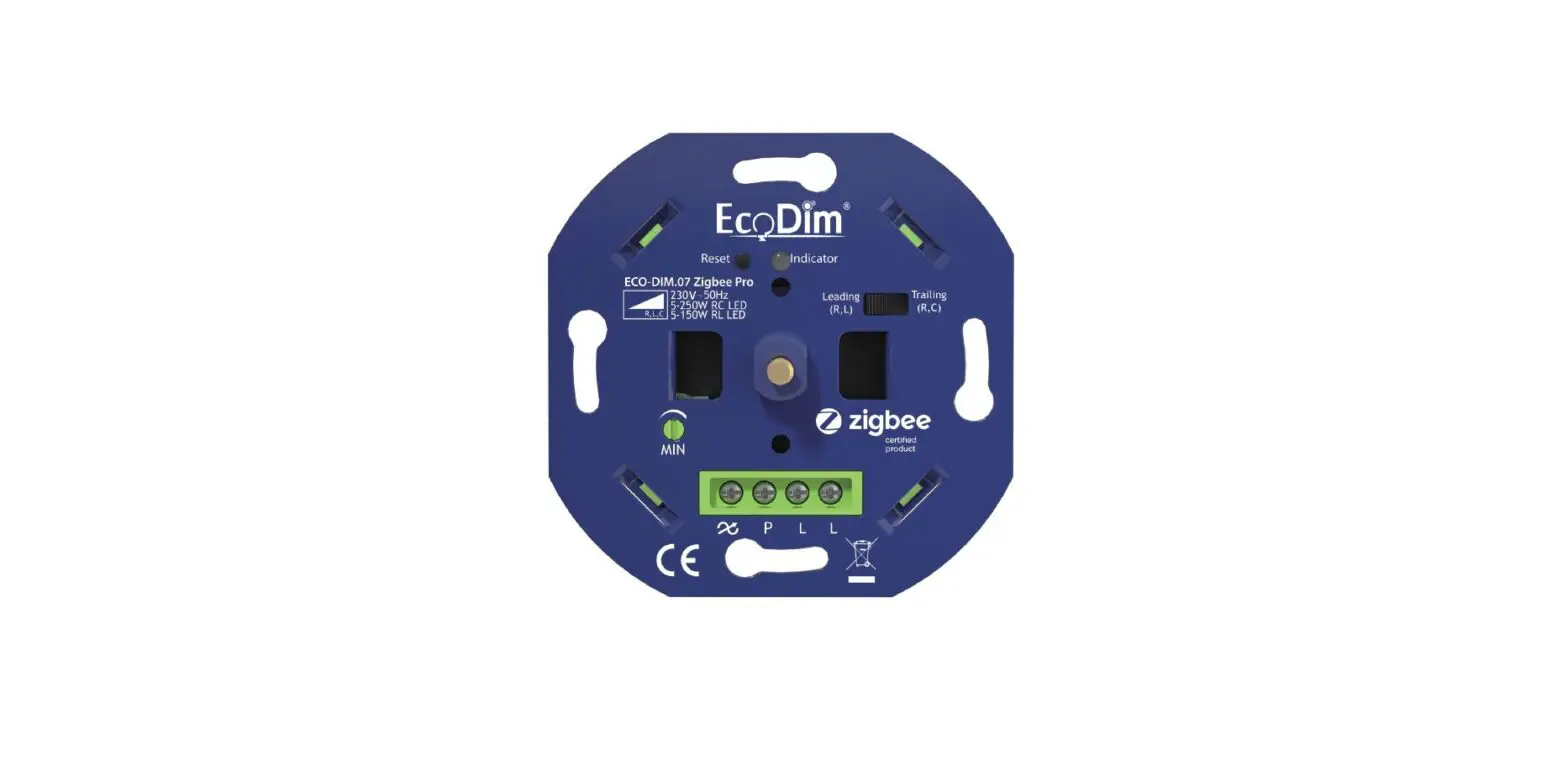
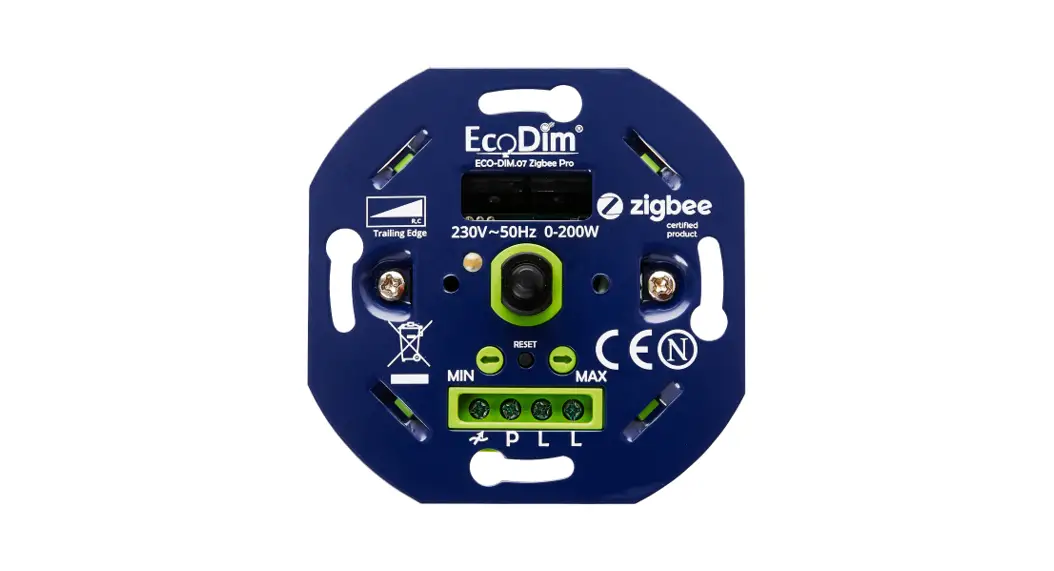
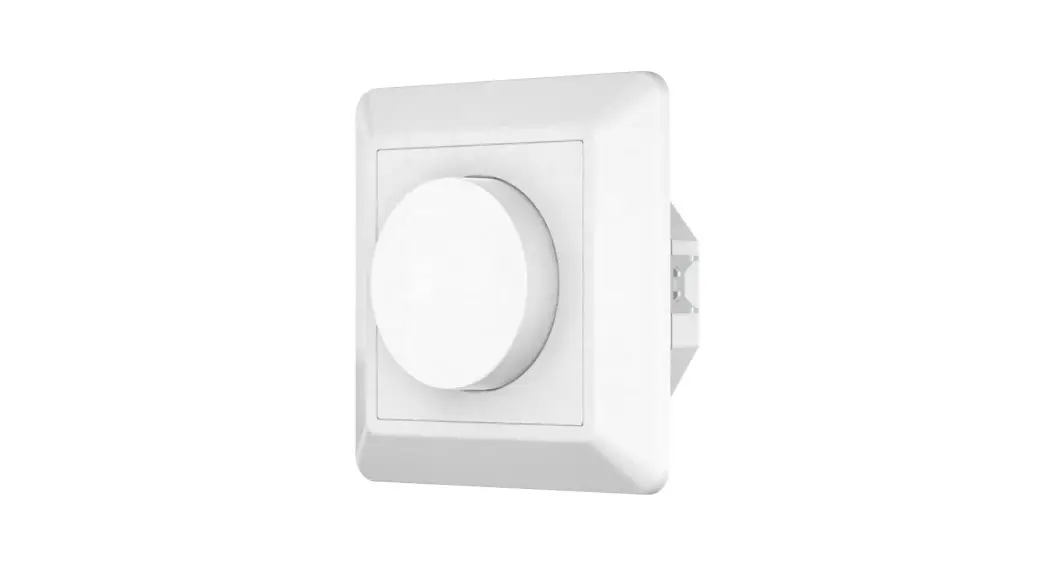
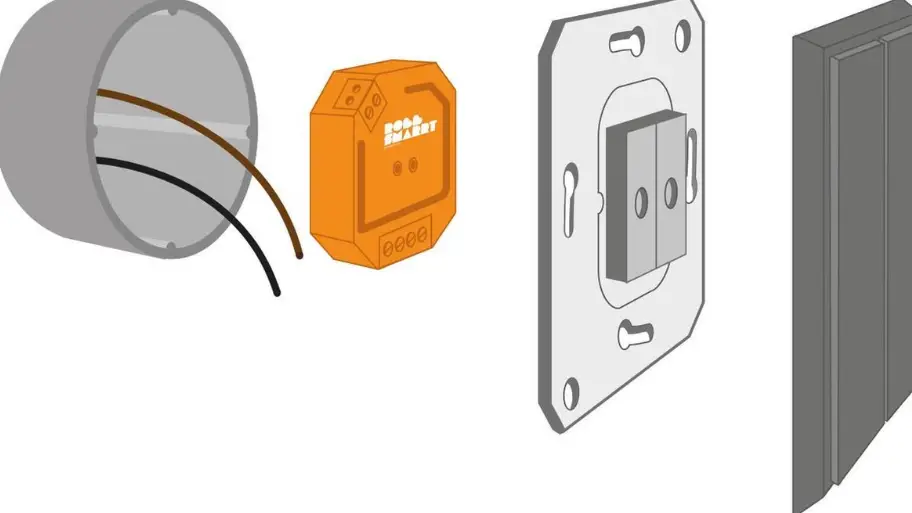
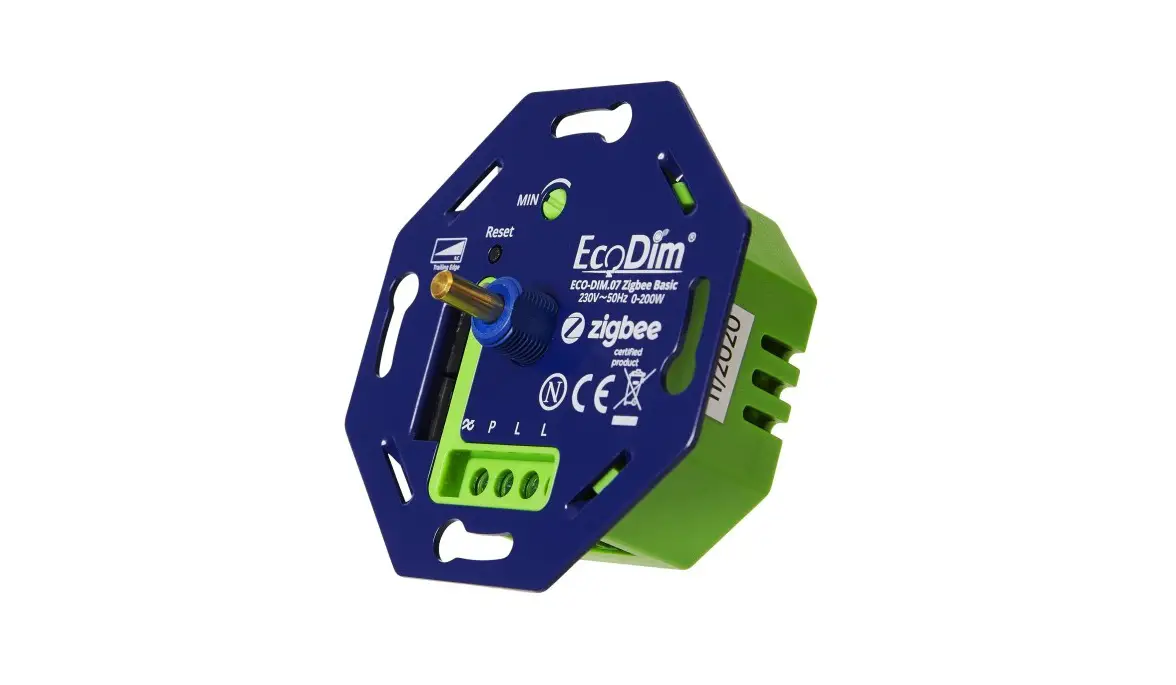
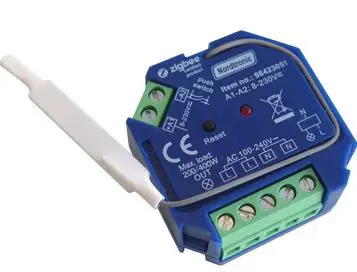
ECODIM.13 Inline Zigbee Dimmer
Product Information
The Inline Zigbee Dimmer (Item Nr.: ECODIM.13 INLINE ZIGBEE) is
a device that allows you to control the brightness of compatible
lights wirelessly using Zigbee technology. It is designed to be
used with a compatible hub that supports Zigbee cluster.
Specifications:
- Rated input voltage: [insert rated input voltage]
- Power range: [insert power range]
- Type of load: [insert type of load]
- Dimming: [insert dimming capabilities]
- Ambient temperature (Ta): [insert ambient temperature
range] - Dimension: [insert dimension]
- Item weight: [insert item weight]
- Protection: [insert protection feature]
Product Usage Instructions
1. Minimum Brightness Setting
To adjust the minimum brightness setting of the connected
light:
- Press the reset button twice and hold until the connected light
blinks once. - Push the button again to adjust the brightness.
- Double press the button to confirm and exit.
- The timeout for this setting is 1 minute.
2. Zigbee Setting
Settings Include to the Network
Step 1: Remove the device from a previous Zigbee network
If the device has already been added to a Zigbee network and
needs to be removed:
- Press the reset button for 3 times.
- The connected light will step up and down for 3 times, and the
indicator starts blinking blue. - The indicator will stay solid for 10 seconds when the removal
succeeds. - The timeout for this step is 15 minutes.
Step 2: Add the device to a Zigbee network
To add the device to a Zigbee network:
- Option 1: From Reset Button
- Press the reset button for 9 times until the indicator stays in
red for 10 seconds. - Press the connected switch for 9 cycles on/off.
- The connected light will step up and down for 10 times when the
pairing succeeds.
- Press the connected switch for 3 cycles on/off.
- The connected light will step up and down for 3 times when the
pairing succeeds.
Reset All Configuration
To reset all configurations of the device:
- Press the reset button for 7 times.
- The connected light will step up and down for 7 times.
TouchLink
If the device is already on a Zigbee network and needs to enable
TouchLink:
- Remove the device from the Zigbee network before enabling
TouchLink. - Bring the remote within 10cm of the smart dimmer and set the
remote into TouchLink commissioning. - The connected light will blink 10 times when TouchLink
succeeds, and the indicator will stay solid for 10 seconds.
Find and Bind
To find and bind the device with a remote on the same Zigbee
network:
- Press the reset button for 5 times.
- The connected light will step up and down for 5 times, and the
indicator starts blinking. - Press the connected switch for 5 cycles on/off.
- The connected light will step up and down for 5 times when the
pairing succeeds. - The timeout for this step is 3 minutes.
Note:
a. When both devices (Dimmer and remote) are not included in the
Zigbee Network, each dimmer can link with one remote max.
b. When both devices are included in the same Zigbee network,
each dimmer can link with a maximum of 30 remotes.
c. For more detailed instructions on finding and binding the
remote, please refer to the manual.
Inline Zigbee Dimmer
Item Nr.: ECODIM.13 INLINE ZIGBEE
DANGER
HAZARD OF ELECTRIC SHOCK, EXPLOSION OR ARC FLASH Turn off all power supplying this equitment Use a voltage tester of appropriate rating.
Failure to follow these instructions will result in death or serious injury.
WARNING
HAZARD OF FIRE Failure to follow these instructions can result in death, serious injury, or equitment damage.
SPECS
Rated input voltage: Power range:
Type of load: Dimming: Ambient temperature (Ta): Dimension: Item weight: Protection:
220-240Vac, 50/60Hz 5-250W @ 220-240V LED 10-250W @ 220-240V INC, HAL LED Retrofit I Incandescent-halogen APP Control / Voice Control -10¥j+40¥ 79.85*47.75*27mm 70.6g Overload (300W)
WIRING
L
N
COMPATIBLE HUB
· Homey · Wink
· SmartThings · Homee
· Philips Hue · Futurehome
· Google Home · Amazon Alexa · Aduro Smart · Trust Smart Home
SUPPORT ZIGBEE CLUSTER
1) Input Cluster
– 0x0000: Basic – 0x0003: Identify
– 0x0006
– 0x0008
2) Output Cluster
– 0x0019: OTA
– 0x0004: Groups – 0x0b05
– 0x0005: Scenes
OPERATION
1. Minimum Brightness Setting Press the reset button twice and hold then release till the connected light blink once, push the button again to adjust the brightness, double press to confirm and exit, timeout 1min.
2. Zigbee Setting
Settings Include to the network
Step 1
2
From Reset Button
From External Switch
Remove the device from a previous Zigbee network If it has already been added to
Press reset button for 3 times. The connected light will step up and down for 3 times, indicator starts blinking blue and stay solid for 10s when Succeeds, timeout 15mins.
Press the connected switch for 3 cycles on/off. The connected light will step up and down for 3 times when succeed.
Reset All configuration will be reset 1 after the device is reset or removed from the network.
Press the reset button for 9 times, till the indicator stays in red for 10s.
Press the connected switch for 9 cycles on/off , the connected light will step up and down for 10 times when succeed
TouchLink If the device is on a ZigBee network, remove the device before enabling TouchLink.
Find and Bind Make sure the device and remote are added to the same Zigbee network.
Press the reset button for 5 times. The connected Press the connected switch for 5 cycles on/off. The
1
light will step up and down for 5 times, indicator connected light will step up and down for 5 times when
starts blinking and stays solid for 10s when pairing succeed.
is succeds. Time out 3 mins.
2
Bring the remote within 10cm of the smart dimmer and set the remote into TouchLink commissioning. The connected light will blink 10 times when TouchLink succeeds and the indicator stay solid for 10s .
Note:
a. When both devices (Dimmer and remote) are not included in the Zigbee Network, each dimmer can link with one remote
max.
b. When both devices are included in the same Zigbee network, each dimmer can link with max 30 remotes.
Press the reset button for 7 times, The connected Press the connected switch for 7 cycles on/off. The
1
light will step up and down for 7 times, indicator connected light will step up and down for 7 times
starts blinking, time out 3 mins.
when succeed
Set the remote into find and bind mode and enable it to find and bind commisioning. Please refer to the
2
manual for instructions.