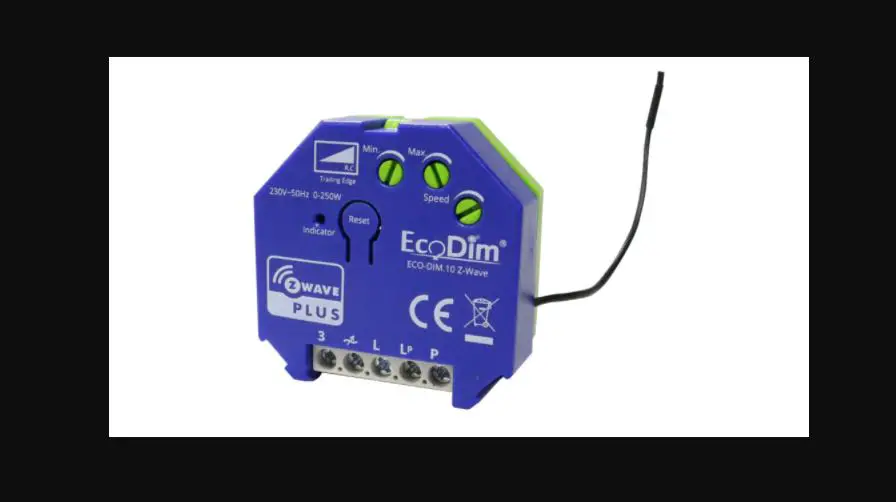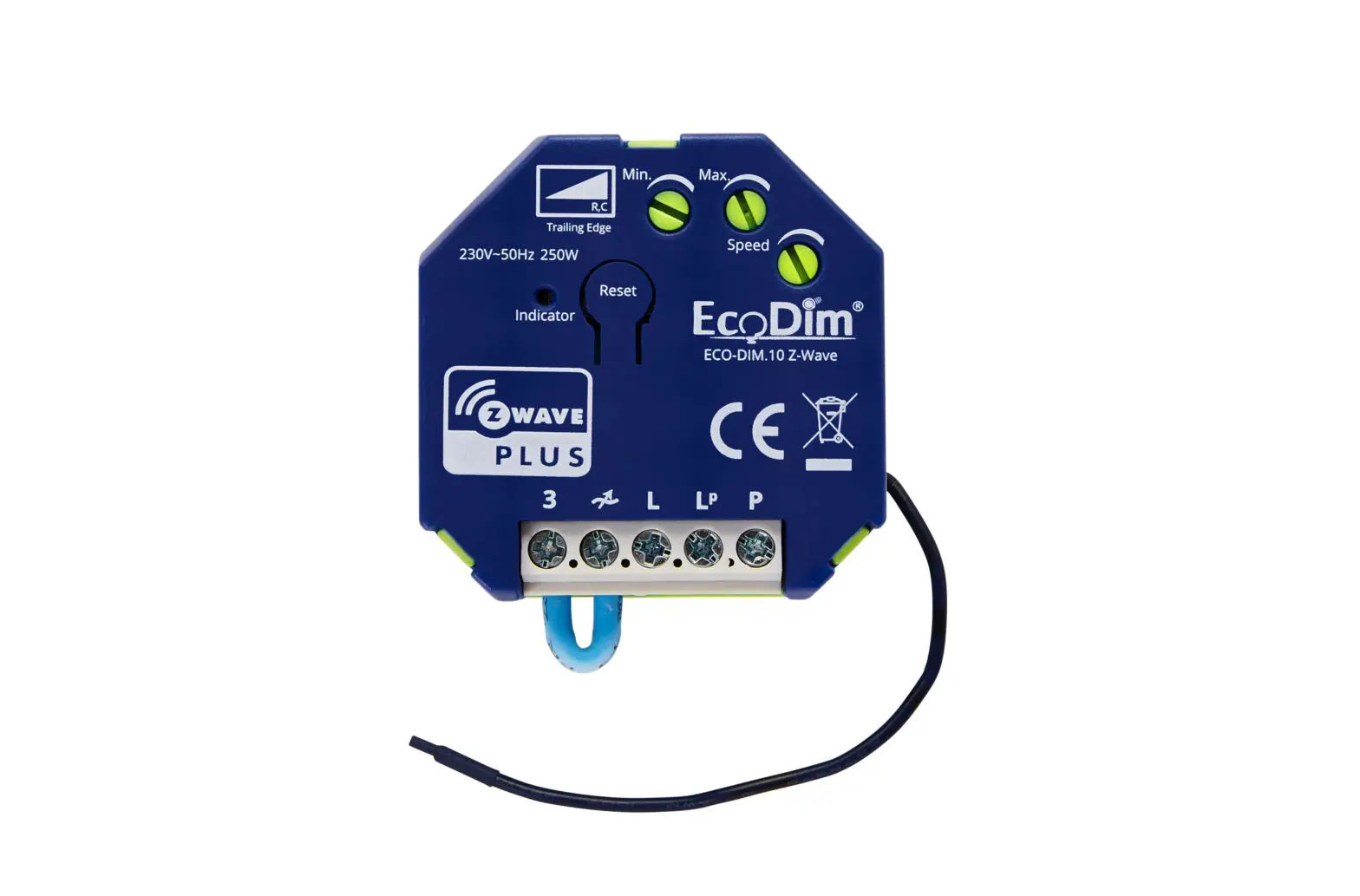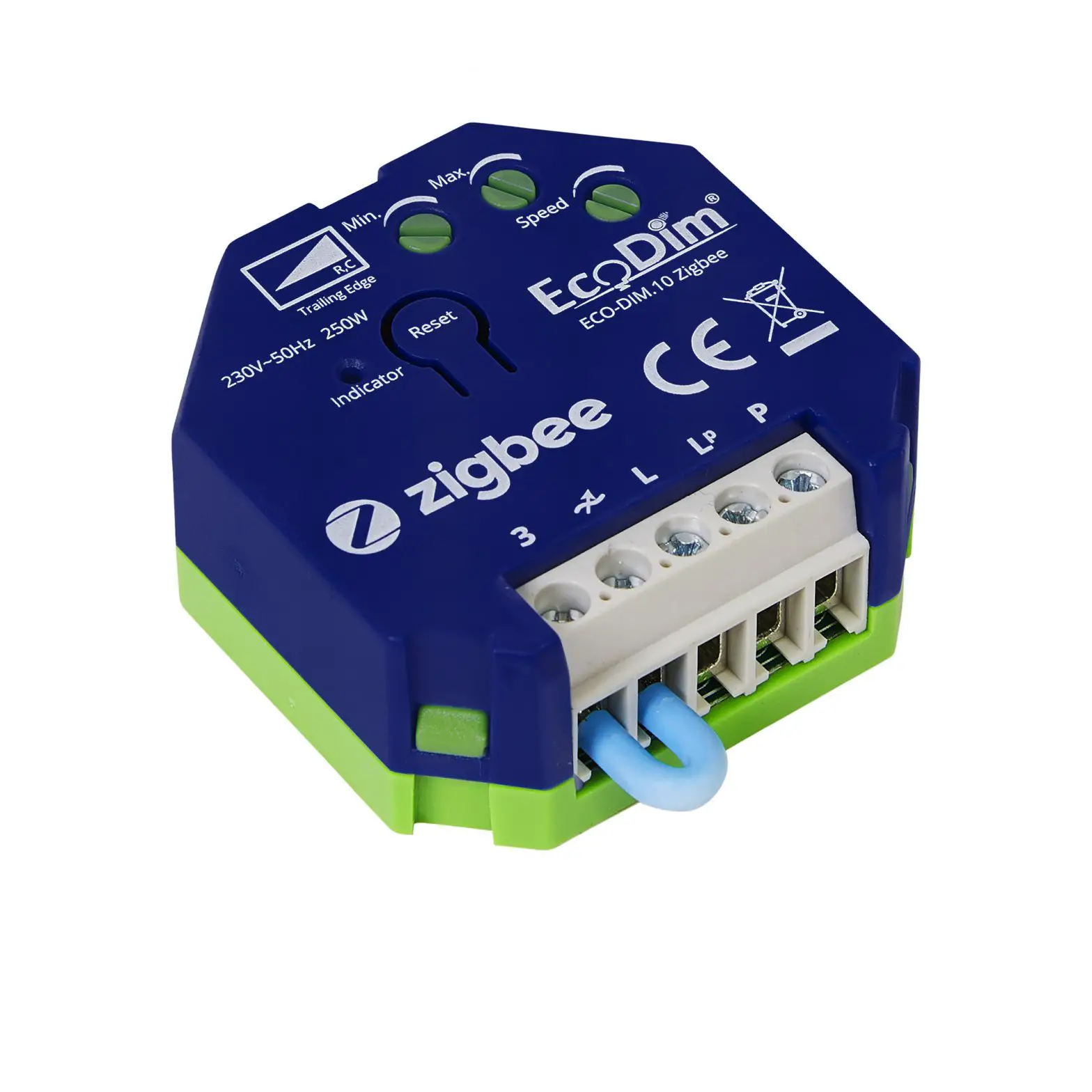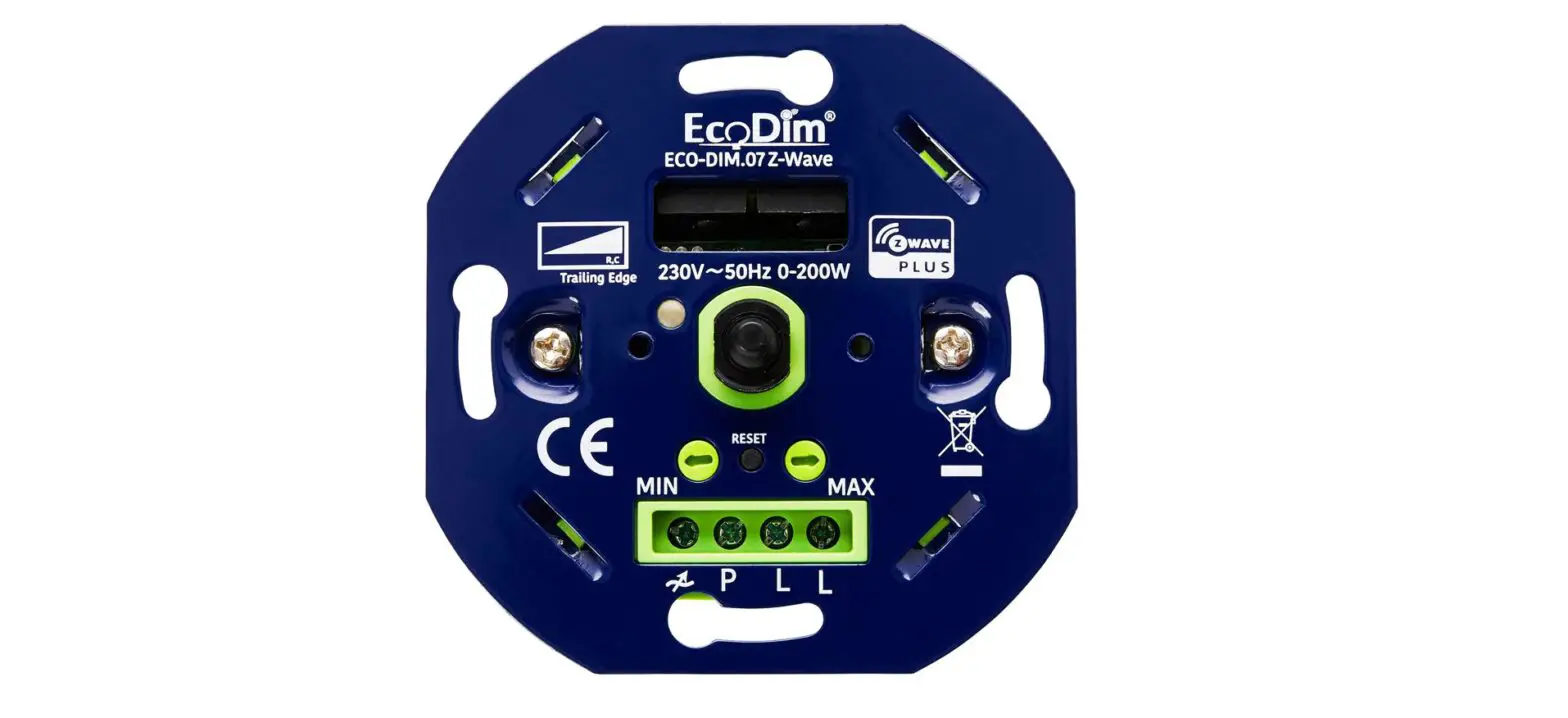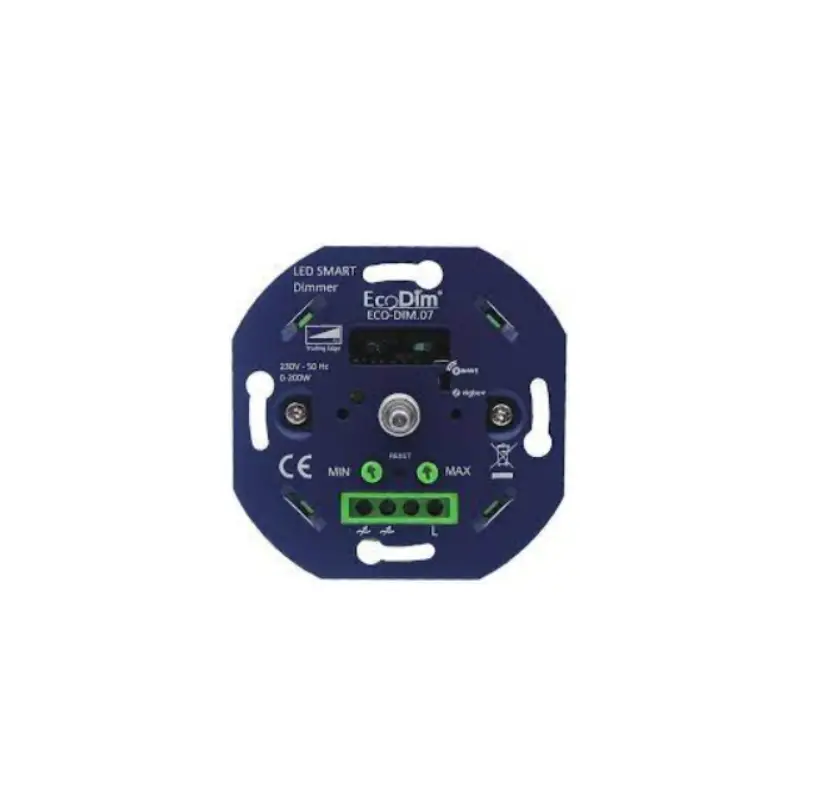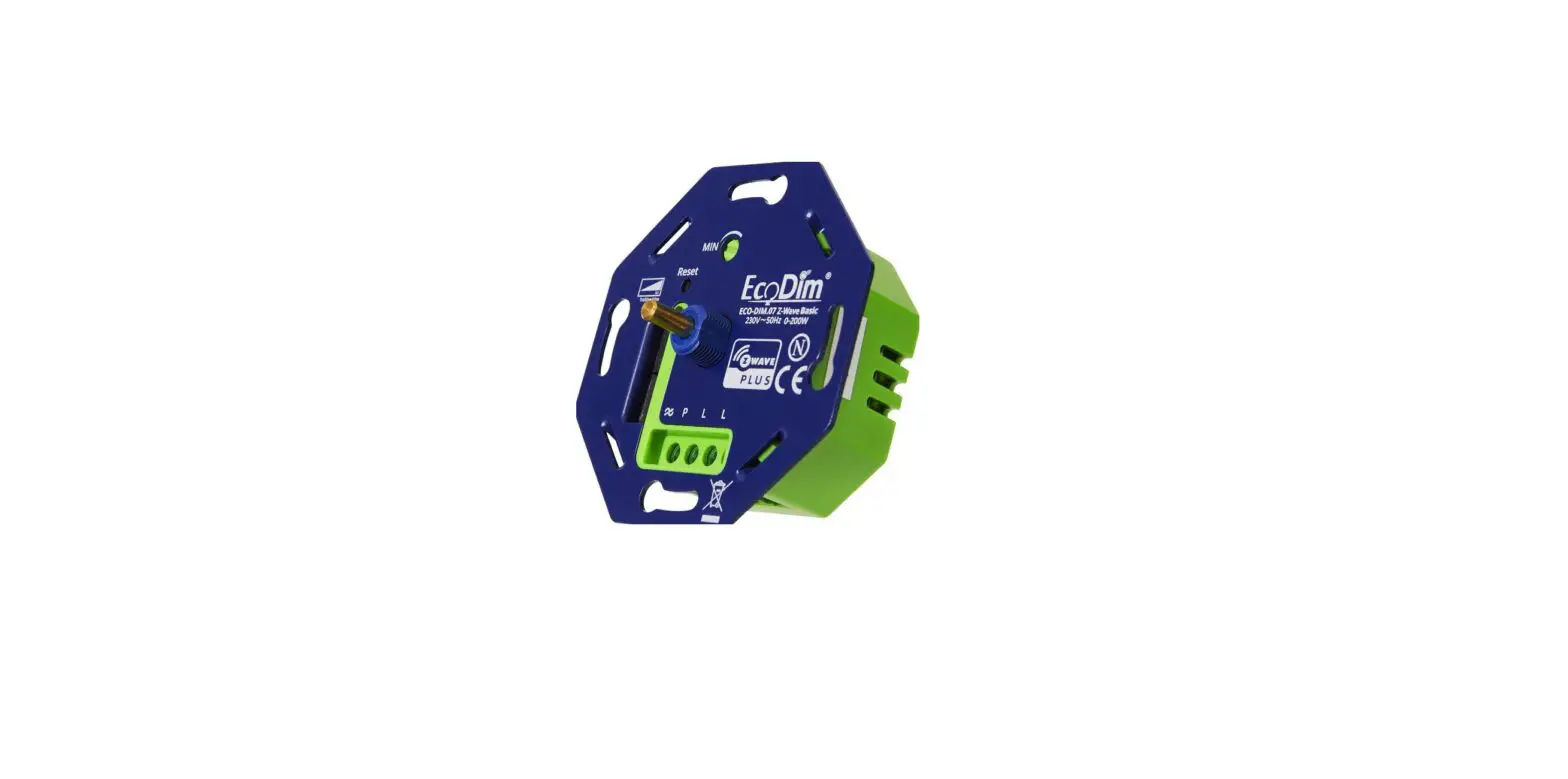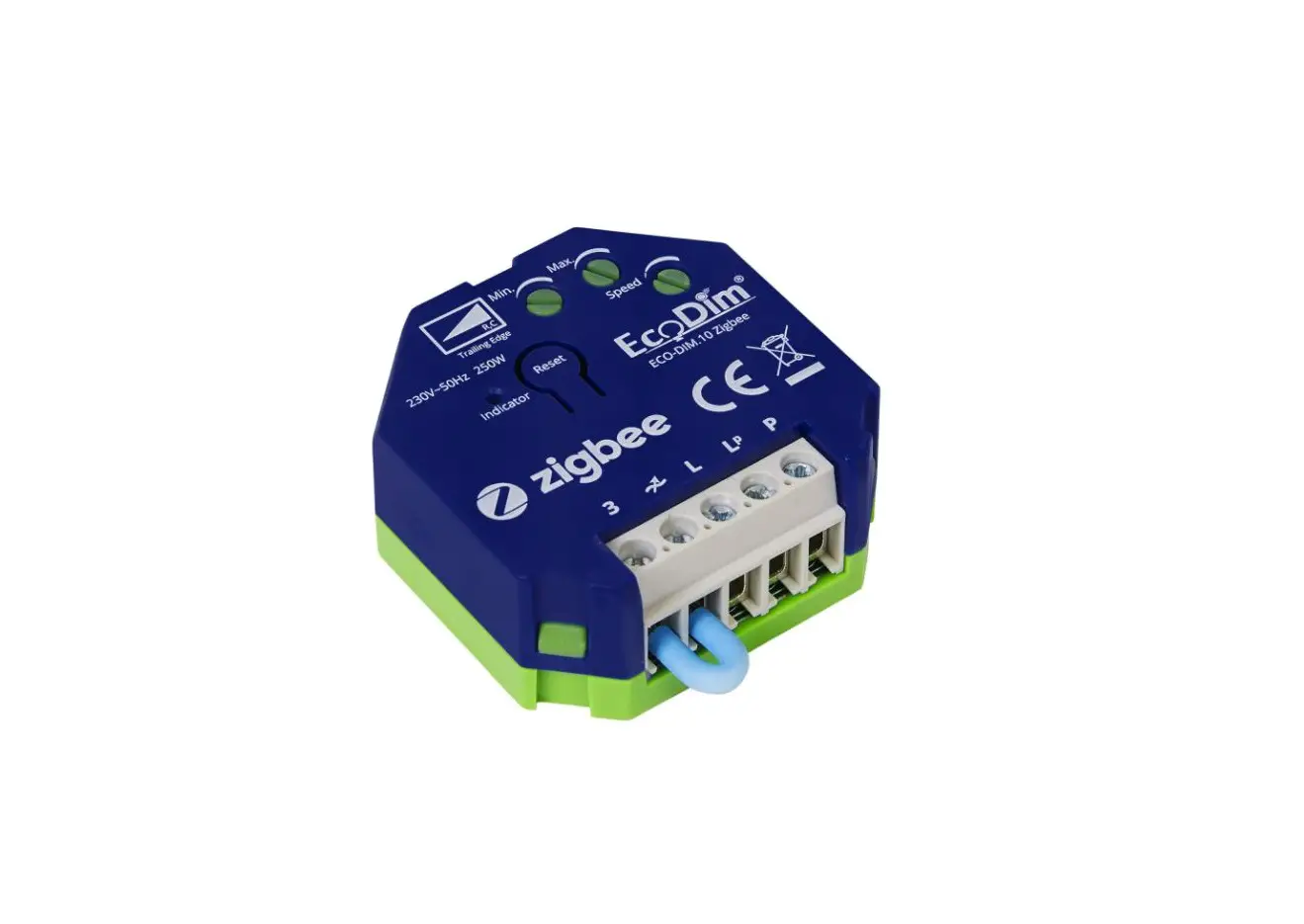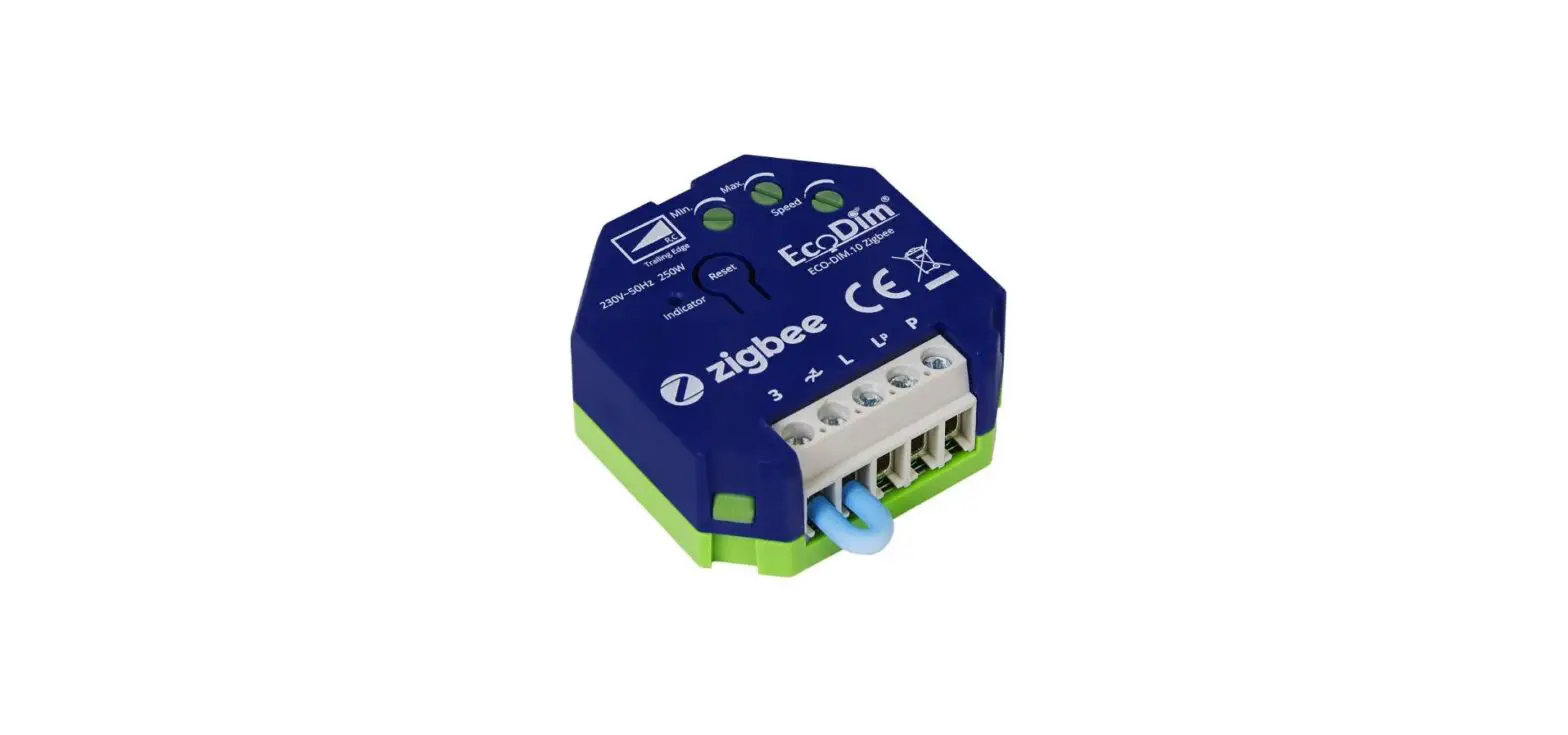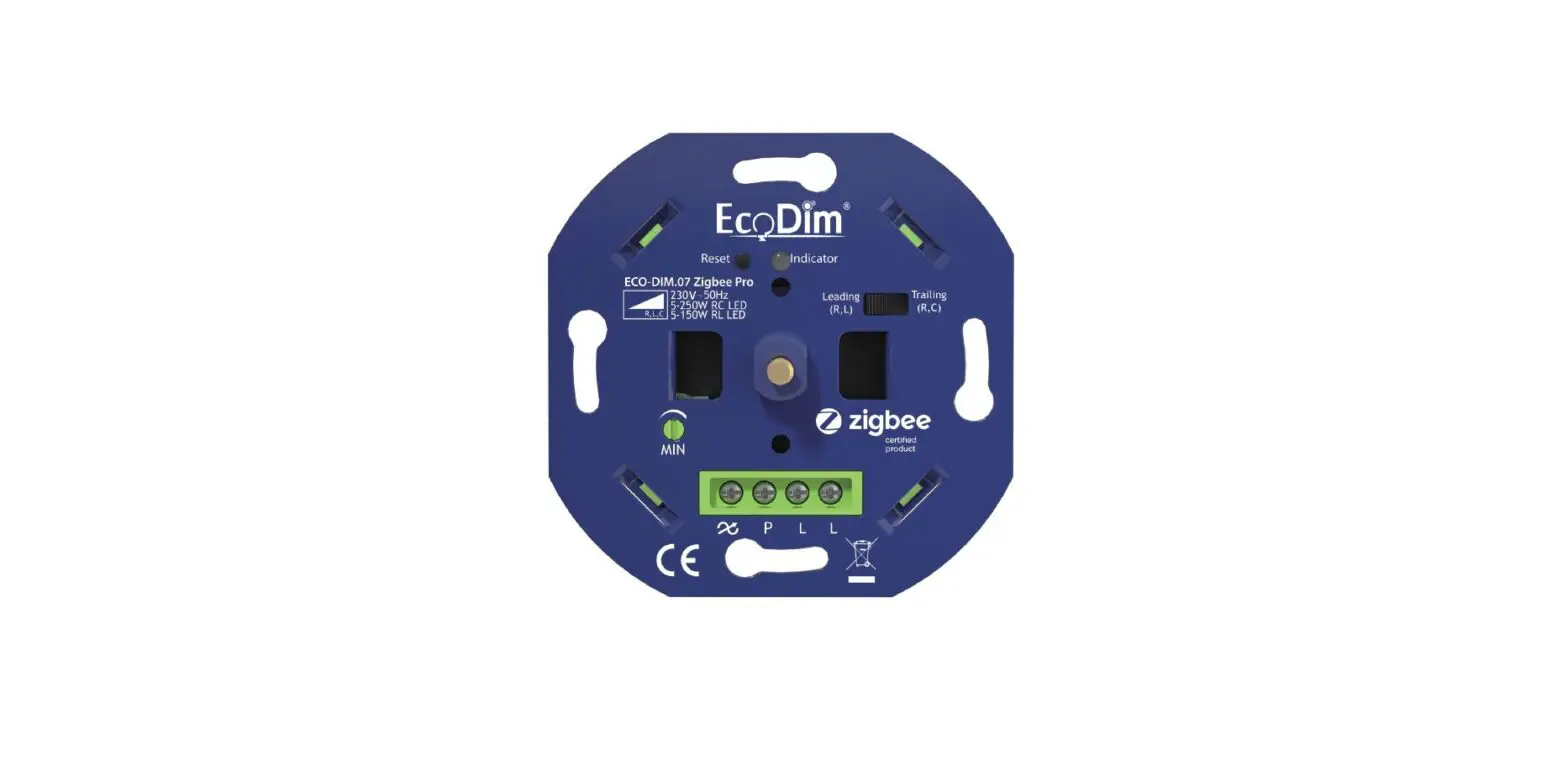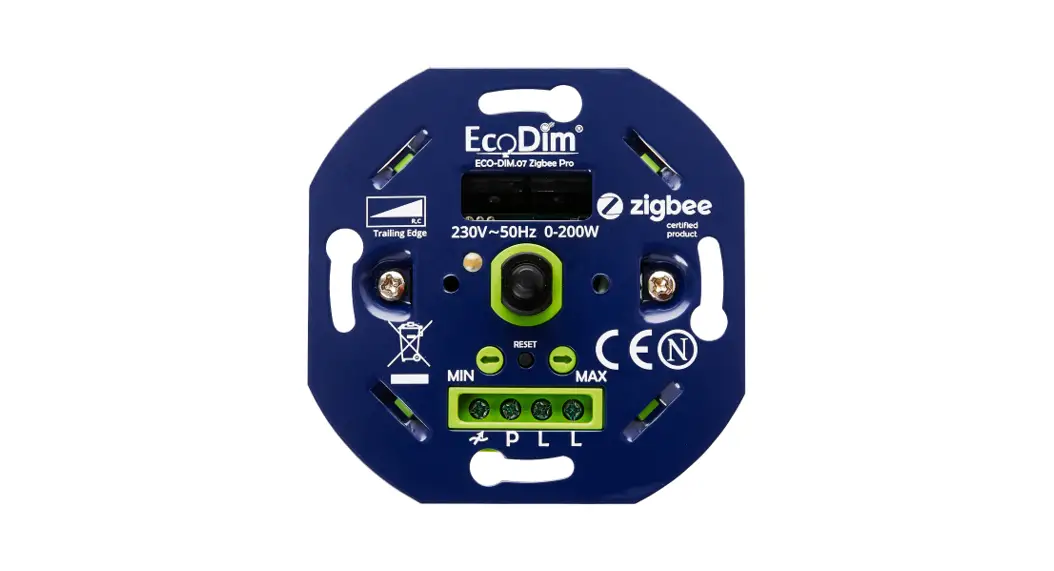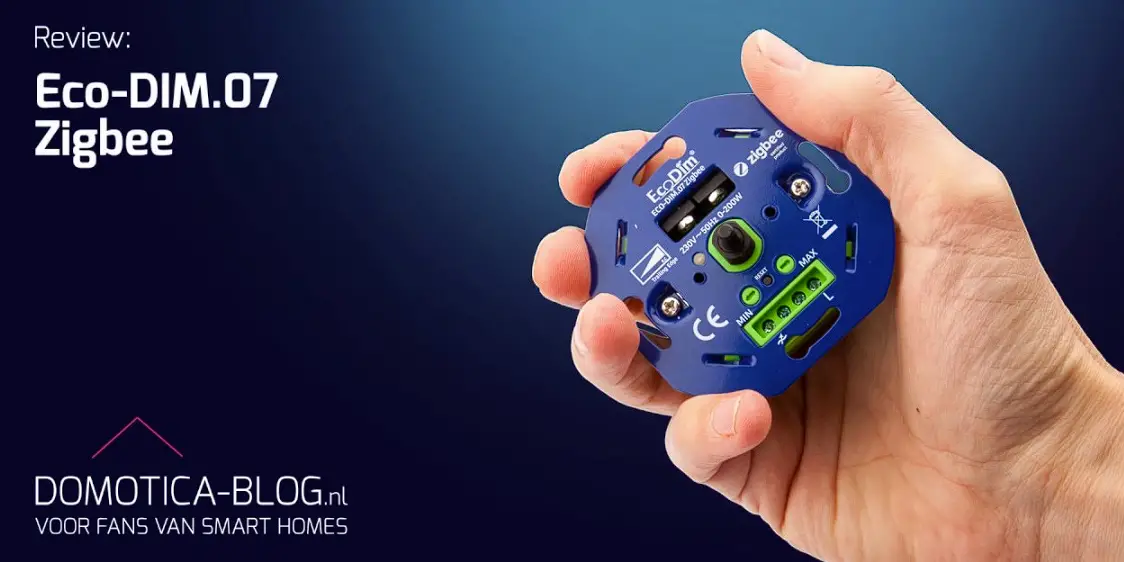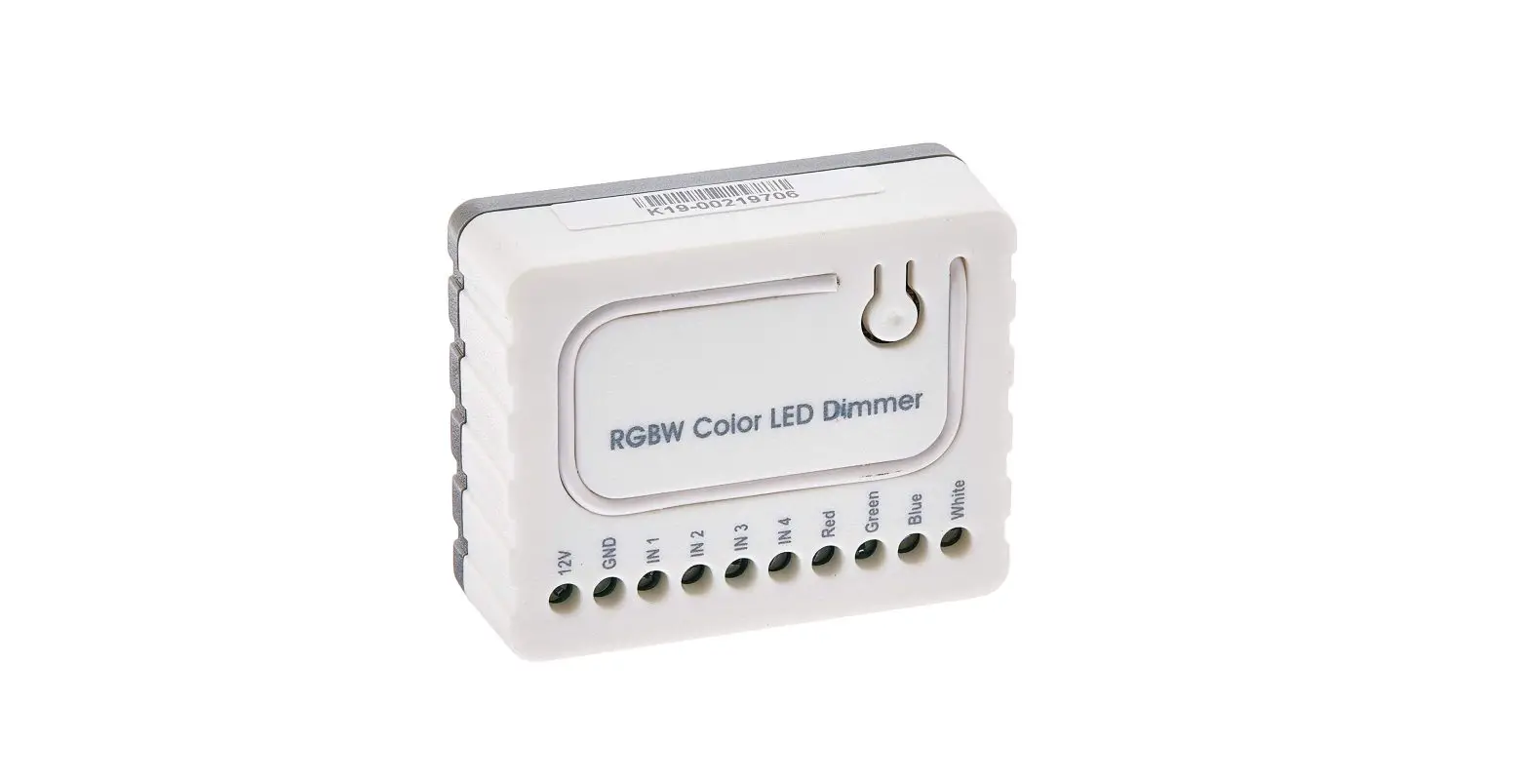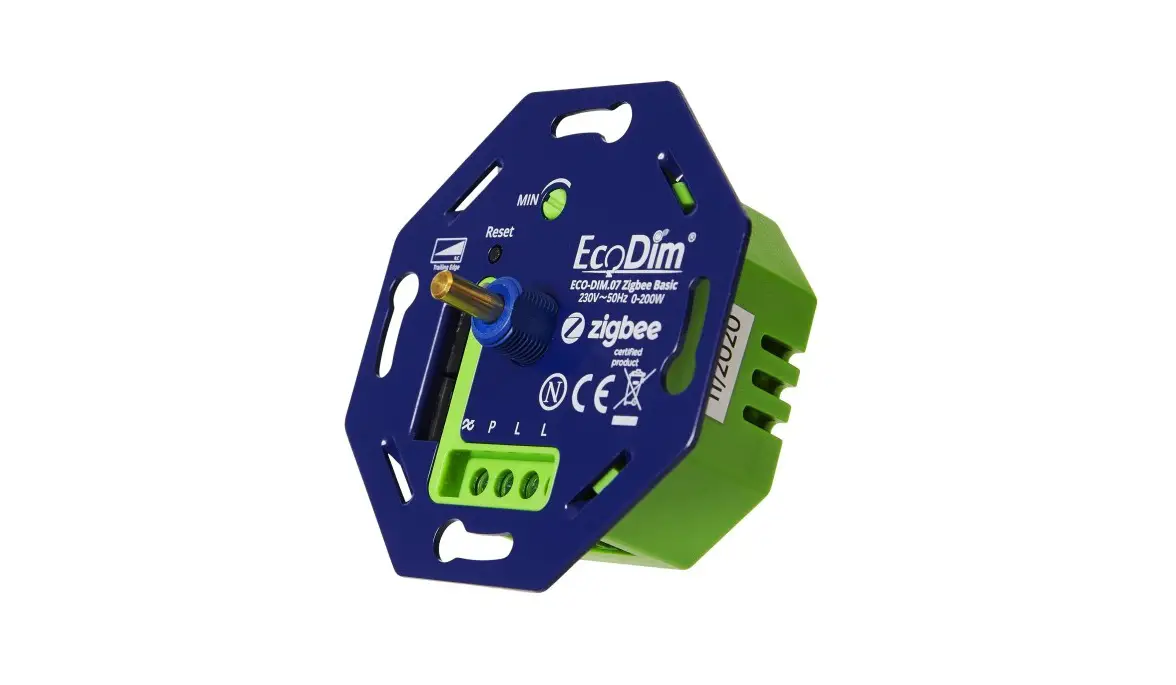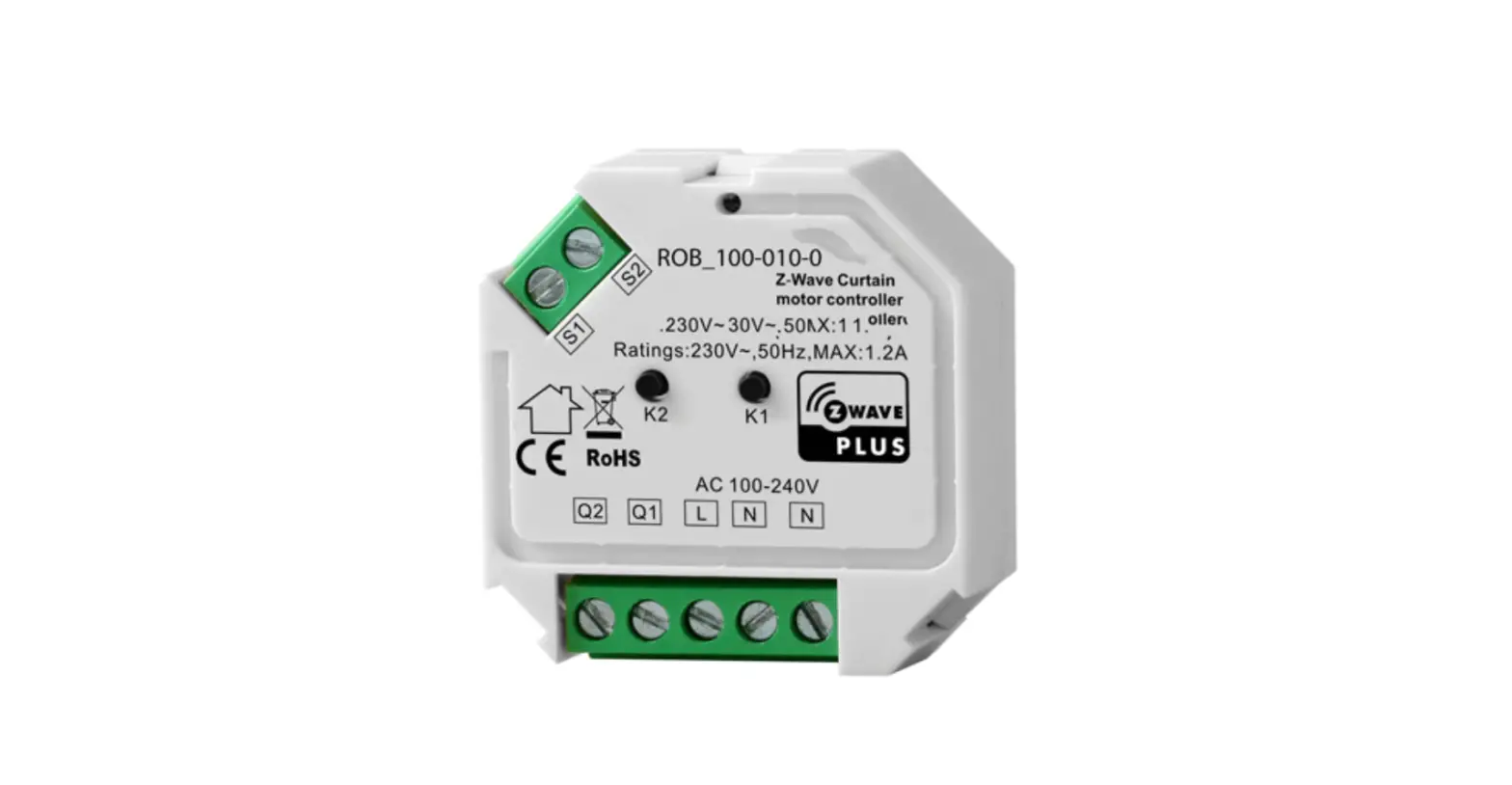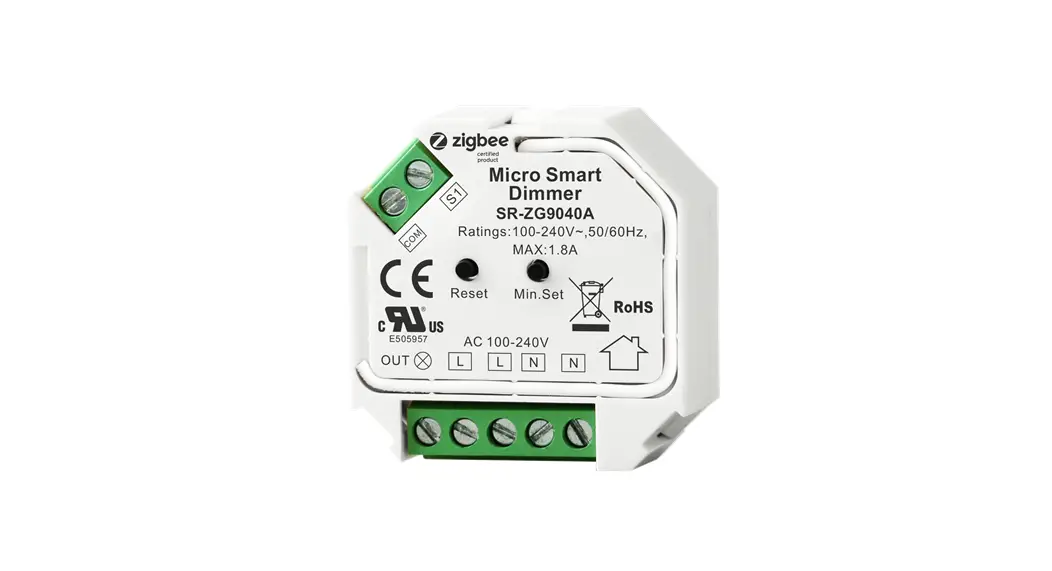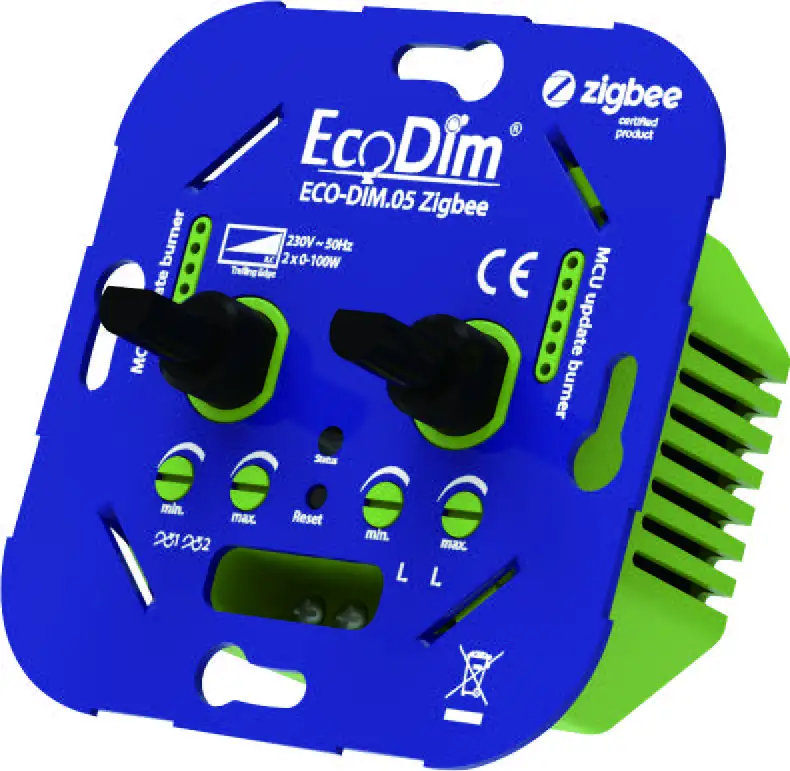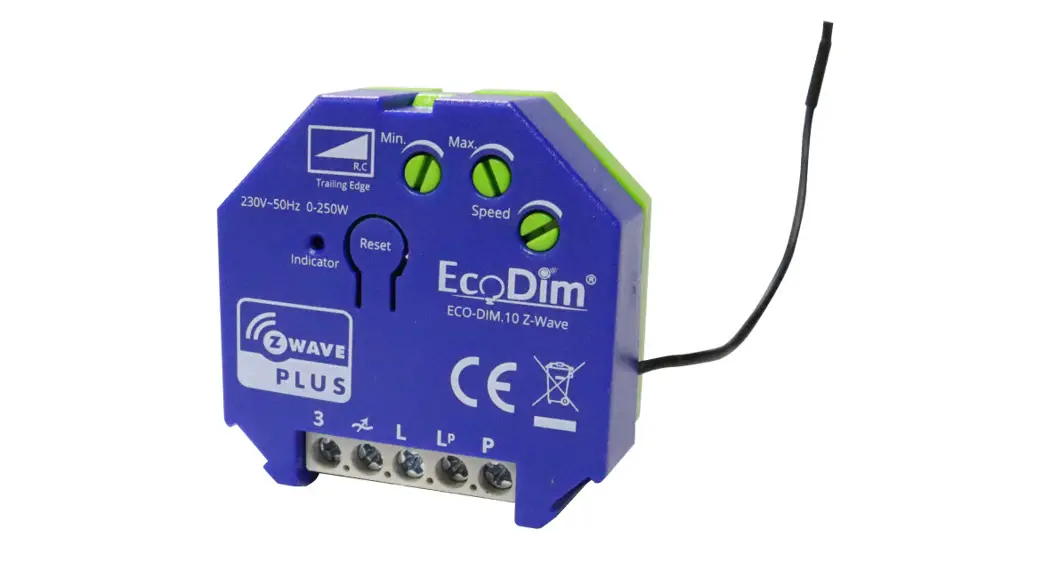
 Smart LED dimmer Z-Wave 250W
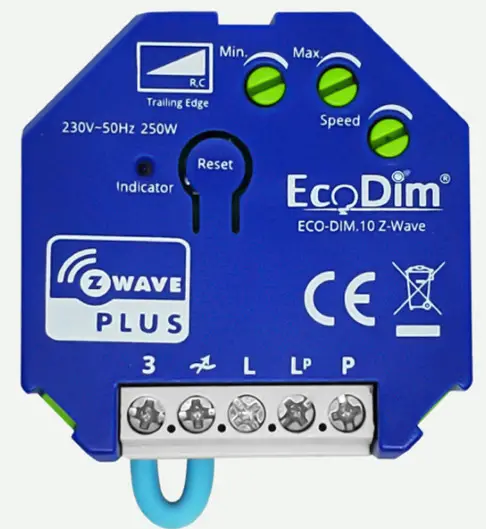
Eco-Dim.10 Z-Wave
USER MANUAL
Please read this manual carefully before installation.
Important!
- It is dangerous if people without proper training work on an electrical installation!
- There may be a dangerous voltage at the output of the dimmer!
- When working on the wiring always switch off the mains voltage. Failure to observe this warning may result in death or serious injury!
- Read the instructions carefully. Incorrect installation may damage the dimmer beyond repair.
Smart Dimmer Module 250W LED
Item NO. Eco-Dim.10 Z-Wave

- The Dimmer controller can be included and operated in any Z-Wave™ network with other Z-Wave certified devices from other manufacturers. All
non-battery operated nodes within the network will act as repeaters regardless of vendor to increase the reliability of the network. - Capable of measuring the power consumption of the connected device in real-time via smartphone, which allows you to save on electricity bills.
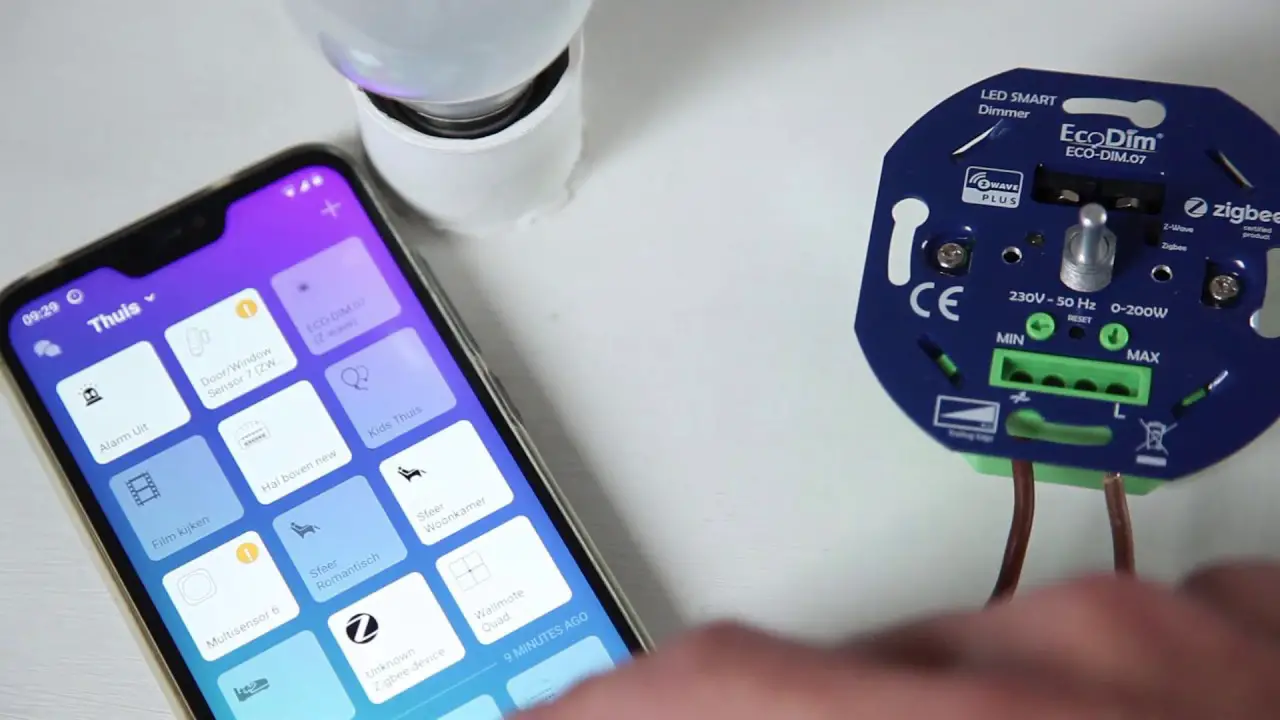
- Voice support (Amazon Alexa & Google Assistant / Homey)
- Works with push-button (momentary switch)
- Support Repeater Role, Firmware OTA and SmartStart.
- Suitable for 250W LED
- Saves and restores the last status after a power failure
- MIN and MAX light adjustment and dimming speed
- Suitable for 90% of all LEDs
- Does not require a neutral line, 3 wire connection available
- Soft start system
- Noiseless dimming
Specifications
| Input voltage | 230 Vac, 50Hz |
| Power (load) | 250W LED |
| 250W Halogen light bulbs | |
| Suitable for | Led-, halogen-, incandescent bulbs |
| Type dimmer | R,C Phase cut |
| Working temperature | 40 °C |
| Operation | Push Dimming by Momentary Switch |
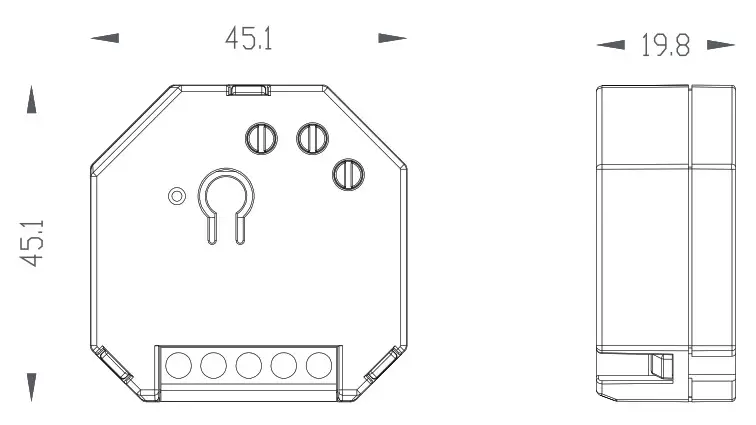
| Dimensions | 45.1*45.1*19.8mm |
| Weight | 35.4g |
Installation
- Turn off the power
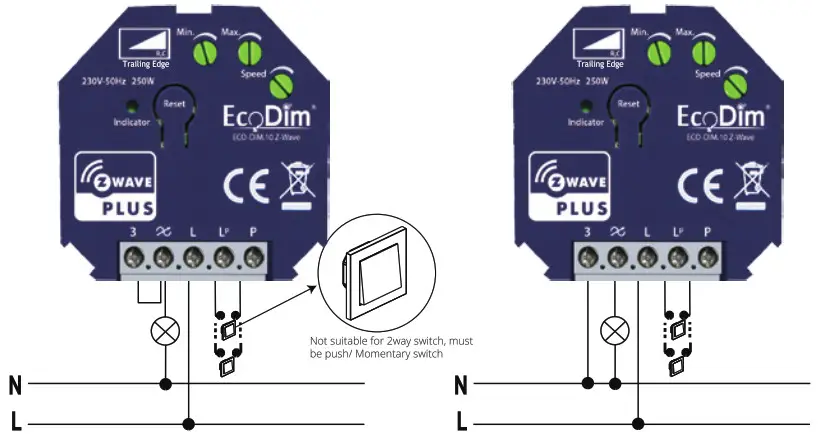
To prevent electrical shock and/or equipment damage, disconnect electrical power at the main fuse or circuit breaker before installation and maintenance. Be aware that even if the circuit breaker is off, some voltage may remain in the wires — before proceeding with the installation, be sure no voltage is present in the wiring. Take extra precautions to avoid accidentally turning the device on during installation. - Connect the device exactly according to the diagrams shown below This dimmer is available for 2wire and 3-wire systems. please note if it is 2wire, N and Load port must be connected to make stable dimming.

- Turn the power back
Operation
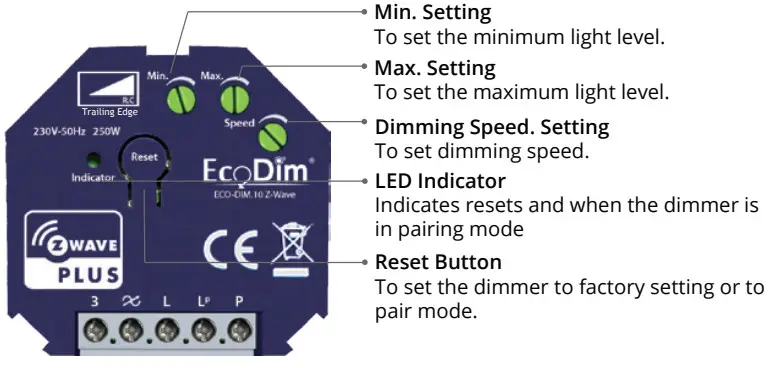
1) Min./Max./Dimming Speed adjustment
For the SMART dimmer to work optimally or suitable for your preference, you can adjust the brightness at the Min. and Max. level and also the dimming speed with the MIN./MAX./Dimming Speed adjustment.
MIN adjustment: Switch on the lights. When the lights are on, insert a screwdriver in MIN and turn to the left. When the light becomes unsteady, turn slightly back to the right so that the light remains steady.
MAX adjustment: Switch on the lights. When the lights are on, insert a screwdriver in MAX and turn to the right. When the light becomes unsteady, turn slightly back to the left so that the light remains steady.
Dimming Speed adjustment: Insert a screwdriver in Speed, clockwise to increase the dimming speed when you push the momentary switch, vice versa.
Z-Wave Setting
1). SmartStart Inclusion
SmartStart enabled products can be added to a Z-Wave network by scanning the Z-Wave QR Code present on the product with a controller providing SmartStart inclusion. No further action is required and the SmartStart product will be added automatically within 10 minutes of being switched on in the network vicinity.
A. Add the dimmer controller DSK into the primary controller SmartStart Provisioning List.
(If your controller does not support SmartStart inclusion, please refer to the manual for your controller for non-SmartStart inclusion.).
B. Power cycle once for the dimmer controller.
C. The dimmer controller will send the “Explorer Auto inclusion” frame to start SmartStartInclusion.
D. Wait a moment, the dimmer controller should be added to the controller.
Note: The dimmer controller will SmartStart Inclusion when it is removed from a Z-Wave network.
The Dimmer has a DSK string, you can key in first five digit to increment the SmartStart process or you can scan QR code. The QR code can be found on the Dimmer controller or in the box.
DSK: 65286-19008-32952-20593- 44872-18102-41266-46651
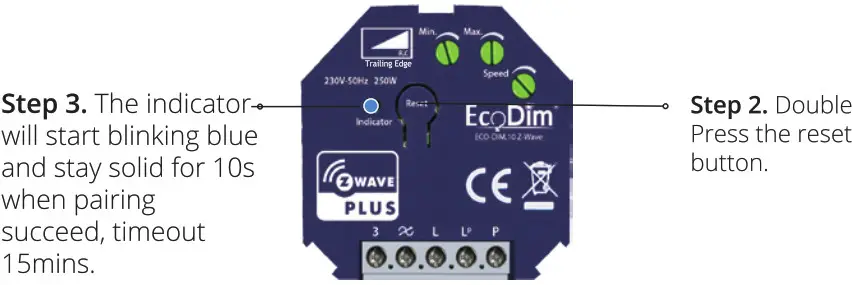
2). Add to the Z-Wave Network (Classic Inclusion)
Step 1. Remove the device from the previous Z-Wave network if it has already been added to, otherwise pairing mode will fail.
 3). Remove from a Z-Wave Network
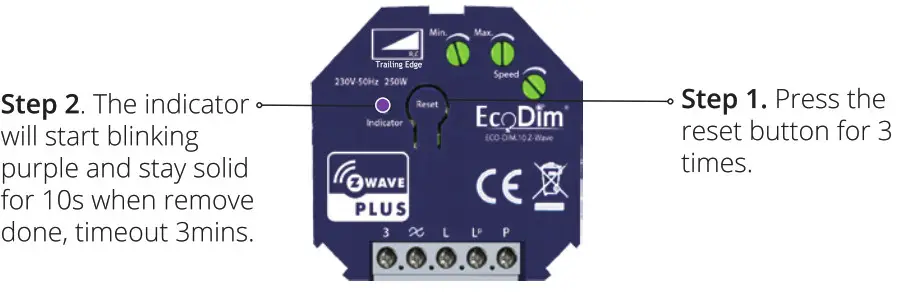
Method 1. From your Z-Wave hub interface, chose to remove or exclude the device as instructed.
Method 2. Remove from the Device, see below instructions.
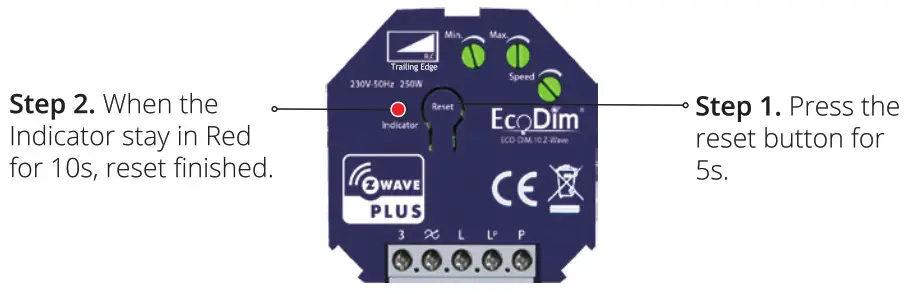
Factory Reset
Please Note:
This procedure should only be used when the primary controller is inoperable.
All configuration will be reset after the device is reset or remove from the network.
INDEX- Z-Wave Information
Technical Data
| Z-Wave Frequency | Z-Wave Frequency |
| Wireless Range | up to 100m outside, on average up to 40m inside buildings |
| SDK | 6.81.03 |
| Explorer Frame Support | Yes |
| Device Type | Light Dimmer Switch |
| Generic Device Class | GENERIC_TYPE_SWITCH_MULTILEVEL |
| Specific Device Class | SPECIFIC_TYPE_POWER_SWITCH_MULTILEVEL |
| Role Type | Always On Slave(AOS) |
| Rounting | Yes |
Supported Command Class
The function of the Dimmer as a security and non-security device is identical. When a node includes in an S0 or S2 Z-Wave network, the node supports S0 or S2 unauthenticated class, S2 authenticated and so do the supported CCs.
| Supported Command Classes | Non-Secure Not Included | Non-Secure Included Secure | Secure |
| COMMAND_CLASS_ZWAVEPLUS_INFO_V2 | Yes | Yes | |
| COMMAND_CLASS_TRANSPORT_SERVICE_V2 | Yes | Yes | |
| COMMAND_CLASS_SECURITY_2_V1 | Yes | Yes | |
| COMMAND_CLASS_SECURITY_V1 | Yes | Yes | |
| COMMAND_CLASS_SUPERVISION_V1 | Yes | Yes | |
| COMMAND_CLASS_VERSION_V2 | Yes | Yes | |
| COMMAND_CLASS_MANUFACTURER_SPECIFIC_V2 | Yes | Yes | |
| COMMAND_CLASS_ASSOCIATION_GRP_INFO_V1 | Yes | Yes | |
| COMMAND_CLASS_ASSOCIATION_V2 | Yes | Yes | |
| COMMAND_CLASS_POWERLEVEL_V1 | Yes | Yes | |
| COMMAND_CLASS_SWITCH_MULTILEVEL_V2 | Yes | Yes | |
| COMMAND_CLASS_CONFIGURATION_V1 | Yes | Yes | |
| COMMAND_CLASS_METER_V3 | Yes | Yes | |
| COMMAND_CLASS_FIRMWARE_UPDATE_MD_V4 | Yes | Yes | |
| COMMAND_CLASS_DEVICE_RESET_LOCALLY_V1 | Yes | Yes |
Note for special commands
1) Z-Wave Plus™Info Command Report
| Parameter | Value |
| Z-Wave Plus Version | V1.10 |
| Role Type | ZWAVEPLUS_INFO_REPORT_ROLE_TYPE_SLAVE_ALWAYS_ON |
| Node Type | ZWAVEPLUS_INFO_REPORT_NODE_TYPE_ZWAVEPLUS_NODE |
| Installer Icon Type | ICON_TYPE_GENERIC_LIGHT_DIMMER_SWITCH |
| User Icon Type | ICON_TYPE_GENERIC_LIGHT_DIMMER_SWITCH |
2) Association Group Info Command
Association is different to Inclusion. The Inclusion function of a device “includes” the device into a network, allowing it to communicate with other network devices. The association function “associates” two devices, enabling them to communicate directly without the need for a central controller.
a) Association Group Name Command Report
| Association Groups | Group Name | Max Nodes | Description |
| Group 1 | Lifeline | 5 | The ASSIC of Lifeline: 4C 69 66 65 6C 69 6E 65 1. When press and hold down the “Reset” button for 4S to reset the dimmer, send “Device Reset Locally Notification CC” to associated devices of this group to report factory reset information. 2. When load state changes, send “Switch Multilevel Report CC” to associated devices of this group. |
| Group 2 | Basic Set | 5 | Basic Set: 42 61 73 69 63 20 53 65 74 1. Short press the knob turn on the dimmer Sends Basic Set(0xFF) to associated devices 2. Short press the knob turn off the dimmer Sends Basic Set(0x00) to associated devices |
| Group 3 | Switch Multilevel | 5 | Switch Multilevel: 53 77 69 74 63 68 20 4D 75 6C 74 69 6C 65 76 65 6C 1. “Anti-Clockwise the knob” Sends Switch Multilevel Set(to decrease the brightness and keep associated devices in sync with this device) to associated devices 2. “Clockwise the knob” Sends Switch Multilevel Set(to increase the brightness and keep associated devices in sync with this device) to associated devices |
| Association Groups | Group Name | Max Nodes | Description |
| Group 4 | External Button | 5 | External Button: 45 78 74 65 72 6E 61 6C 20 42 75 74 74 6F 6E 1. External Button hold send Switch Multilevel Start Level Change (Switchover dimmer Up/Down) 2. External Button release send Switch Multilevel Stop Level Change |
b) Association Group Info Command Report
| Parameter | Team No. | Value |
| Profile | Group 1 | General: Lifeline, Profile MSB=0x00,Profile LSB=0x01 |
| Profile | Group 2 | General: Lifeline, Profile MSB=0x20,Profile LSB=0x01 |
| Profile | Group 3 | General: Lifeline, Profile MSB=0x20,Profile LSB=0x02 |
| Profile | Group 4 | General: Lifeline, Profile MSB=0x20,Profile LSB=0x03 |
c) Set and unset associations
(Note:All association information will be cleared automatically once the dimmer is excluded
from a network.)
The primary controller/Gateway send packets to the dimmer using “ Command Class
ASSOCIATION”
d) Association Group Command List Command Report
| Team No. | Command List Support | |
| Group 1 | COMMAND_CLASS_SWITCH_MULTILEVEL (0x26) | SWITCH_MULTILEVEL_REPORT (0x03) |
| COMMAND_CLASS_DEVICE_RESET_LOCALLY(0x5A) | DEVICE_RESET_LOCALLY_NOTIFICATION(0x01) | |
| COMMAND_CLASS_METER(0x32) | METER_REPORT(0x02) | |
| Group 2 | COMMAND_CLASS_BASIC(0x20) | BASIC_SET(0x01) |
| Group 3 | COMMAND_CLASS_SWITCH_MULTILEVEL(0x26) | SWITCH_MULTILEVEL_SET(0x01) |
| Group 4 | COMMAND_CLASS_SWITCH_MULTILEVEL(0x26) | SWITCH_MULTILEVEL_SET(0x01) |
Basic Command
Basic CC is maps to Multilevel CC
Basic Set = 255 maps to Multilevel Switch Set = 255
Basic Set = 0 maps to Multilevel Switch Set = 0
Basic Set = 1-99 maps to Multilevel Switch Set = 1-99
Basic Get/Report maps to Multilevel Switch Get/Report.
Configuration Command Parameters
The Dimmer offers a wide variety of advanced configuration settings. The below parameters can be accessed from the main controller’s configuration interface.
| Parameter | Size | Default Value | Description |
| 1 | 1 | 0 | State After Power Restored: The state the switch should return to once power is restored after power failure. 0 – Off. 1 – On. 2 – Returns to level before Power Outage |
| 2 | 1 | 1 | Notification when Load status change: The Dimmer will send a notification to the associated device (Group Lifeline) when the status of the Dimmer load is changed. 0 – The function is disabled. 1 – Send Switch Multilevel Report. |
| 3 | 1 | 5 | Default dimming speed,unit is second. Valid value:0-100 0 – Instantly. 1 – Fast. … 100 – Slow. |
| 5 | 1 | 0 | Enable or Disable external switch to pair network. 0 – Disable. 1 – Enable. |
| 6 | 1 | 0 | Setting dimming way. 0 – Linear dimming. 1 – Logarithmic dimming. |
| 7 | 1 | 0 | Setting default brightness when turn on the dimmer from off status. Setting of 0 means that the dimmer will use parameter 1. Valid value:0-99 |
| 8 | 1 | 0 | Setting delay time when turn off, unit is second. Valid value:0-60 |
You can find the full list of Z-Wave commands on our website.www.ecodim.nl/downloads-smart-dimmer


https://www.ecodim.nl/eco-dim07-zigbee-z-wave-smart-led-dimmer.html

EcoDim
Dr. Huber Noodtstraat 89
7001DV Doetinchem
[email protected]
+31 (0)314 844691
 Downloads smart dimmer -