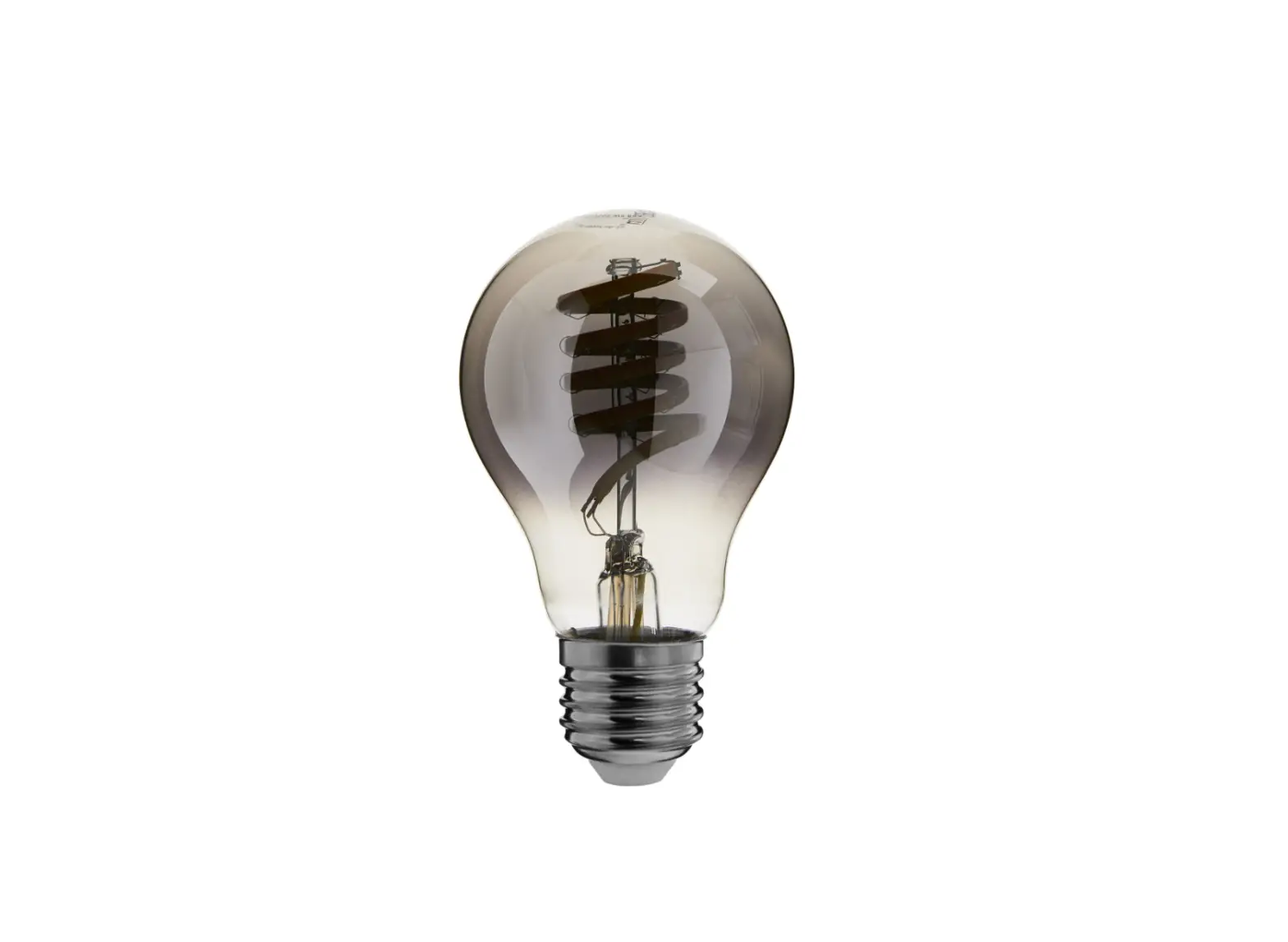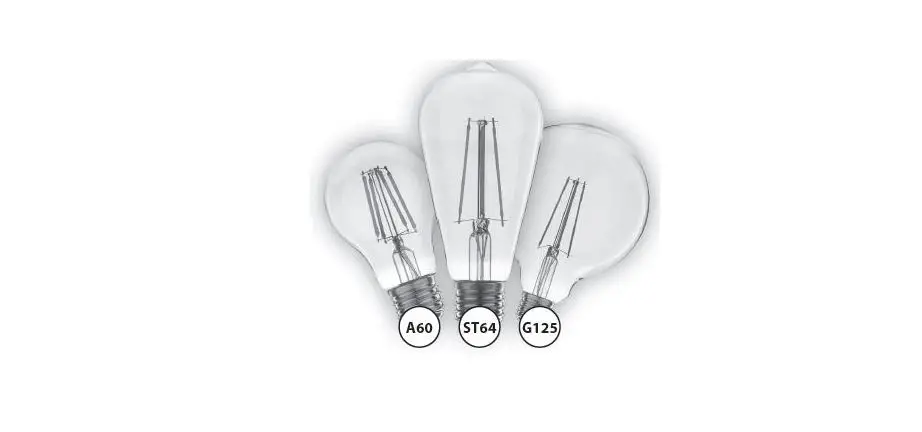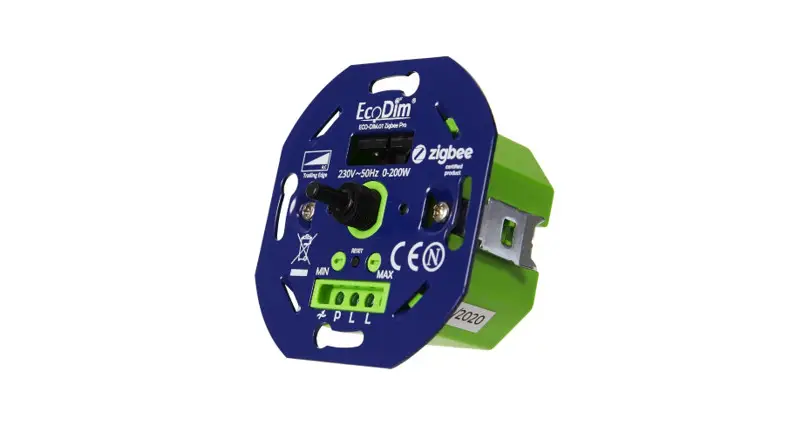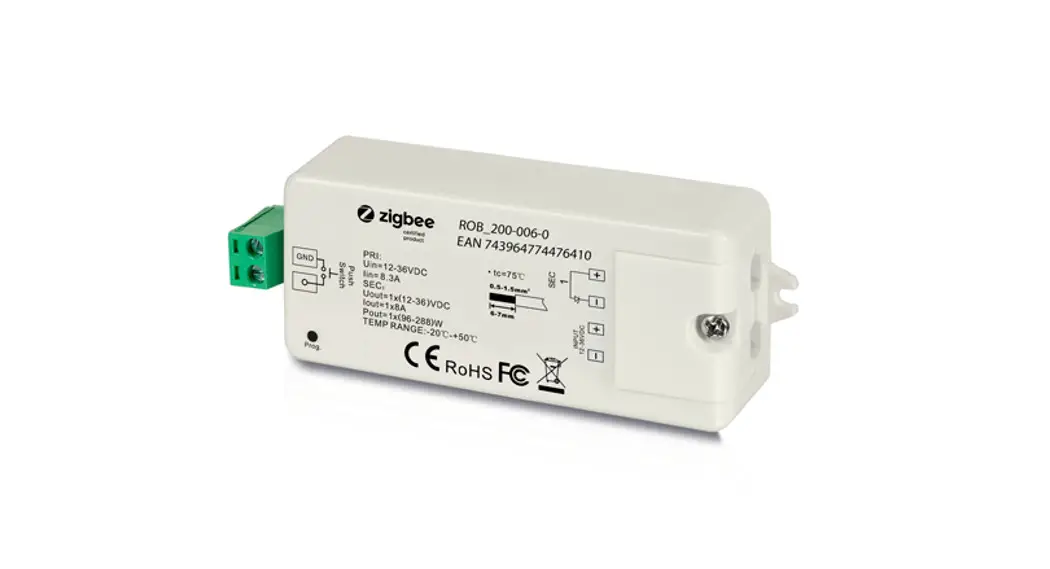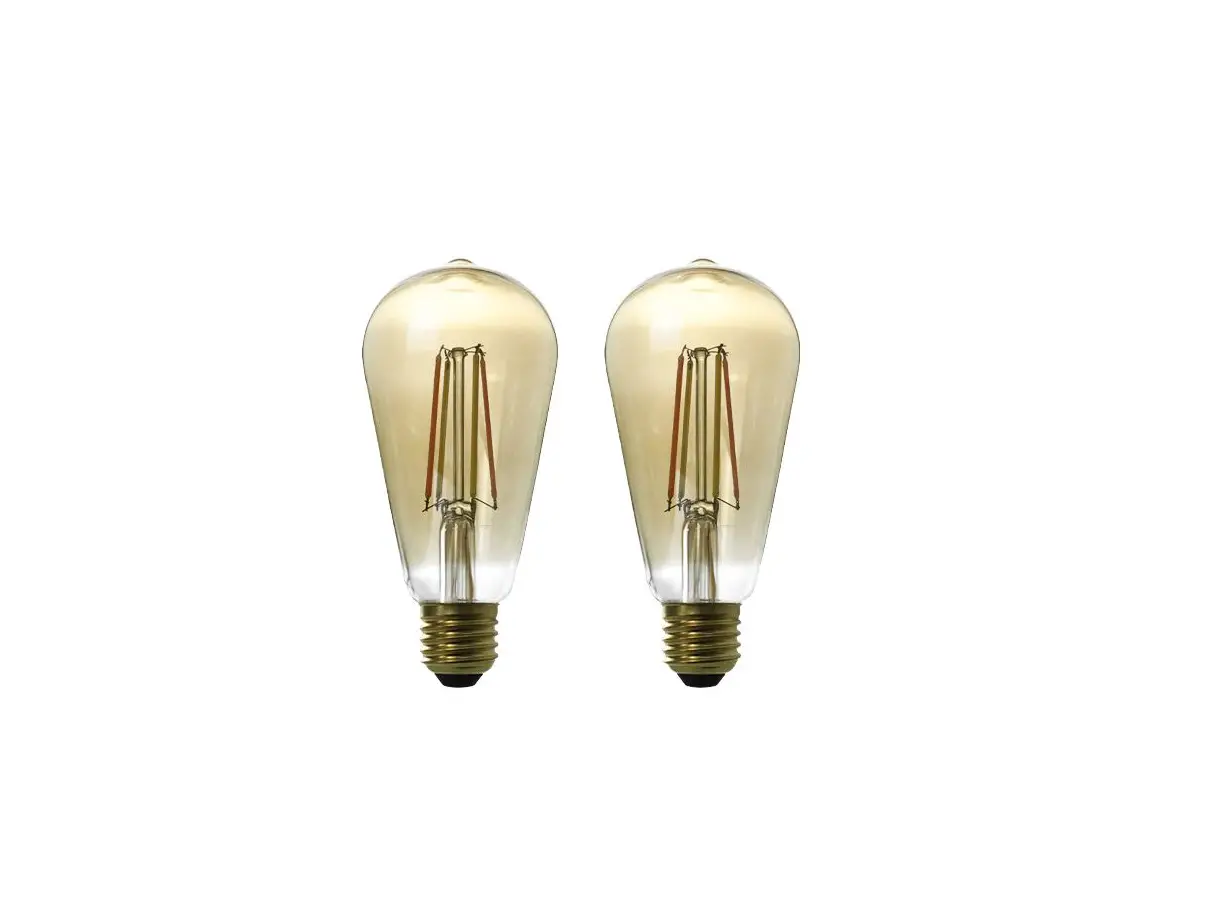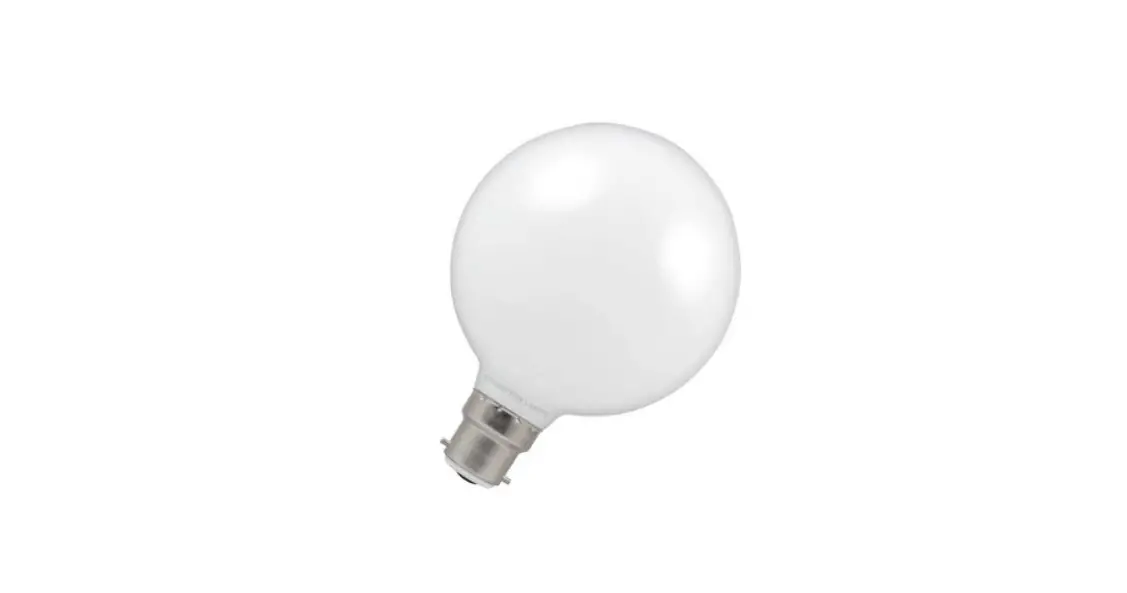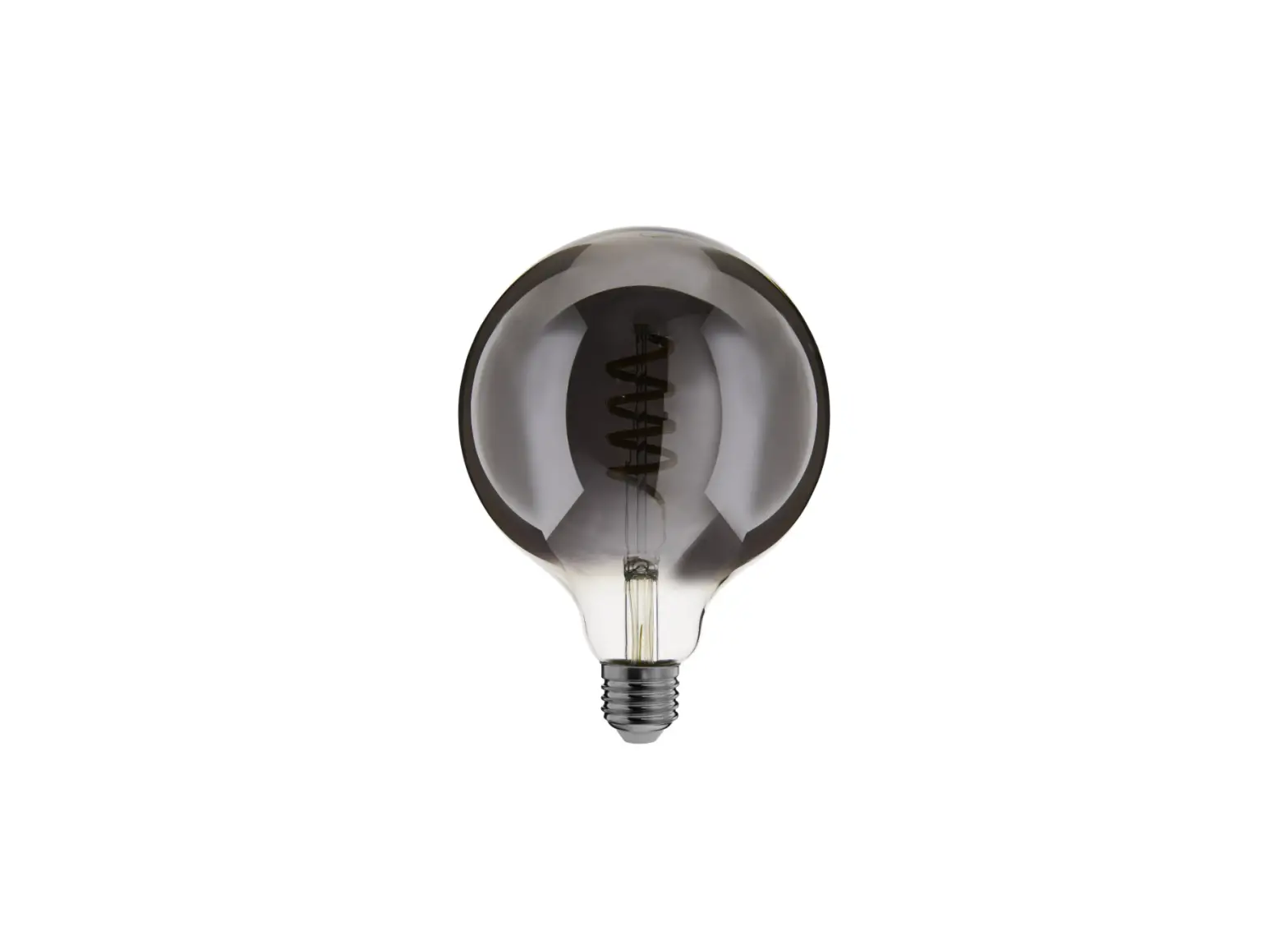
Eco-Dim Zigbee LED Filament Globe G125
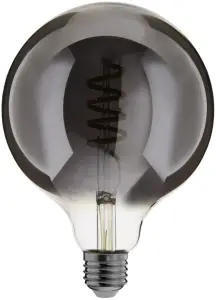
How to connect the ECO-DIM Zigbee led filament globe (G125) to a Samsung Smartthings HUB
- Make sure you have a Samsung smartthings hub and that you installed it correctly
- Make sure that the ECO-DIM Zigbee led filament globe (G125) is built-in and connected as described in the light installation manual (included in the box)
- Make sure the light is turned on (lights are on)
- If you have not yet installed the Samsung Smartthings app, do so. You can download it for free in the Google Play Store or in the Apple App Store
- Create an account and link it to your Samsung Smartthings Bridge.
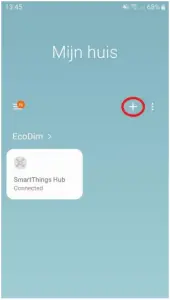
- Open the Samsung Smartthings app and click on the “+” sign

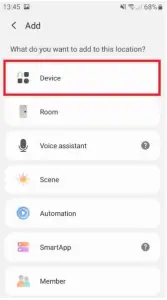
- Then click on “Device”

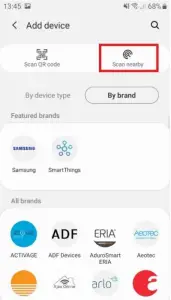
- Put the ECO-DIM Zigbee led filament globe (G125) in pairing mode (refer to the manual supplied with the ECO-DIM Zigbee led filament globe (G125)) and then click in the Samsung Smartthings app on “Scan nearby”

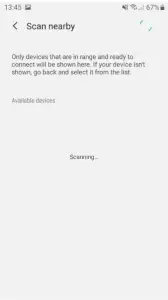
- The Samsung Smartthings app will now search for nearby devices

- The light will be found as “Light”. You can now change the name of the light by clicking “Change name”.
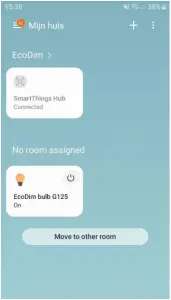
- You can now go back to the homepage of the Samsung Smartthings HUB. Here you can then add the light to a room of your choice
- You have now completed the installation of the ECO-DIM Zigbee led filament globe (G125)!