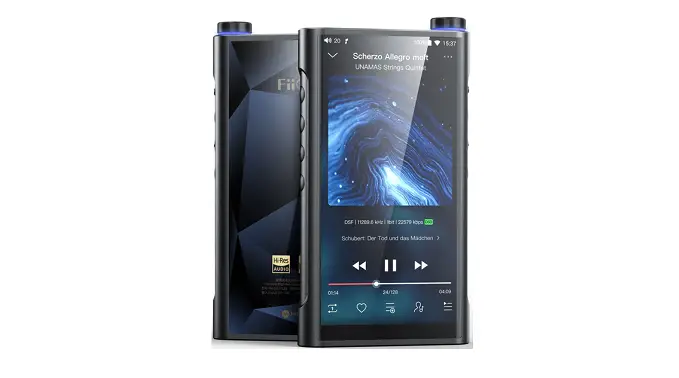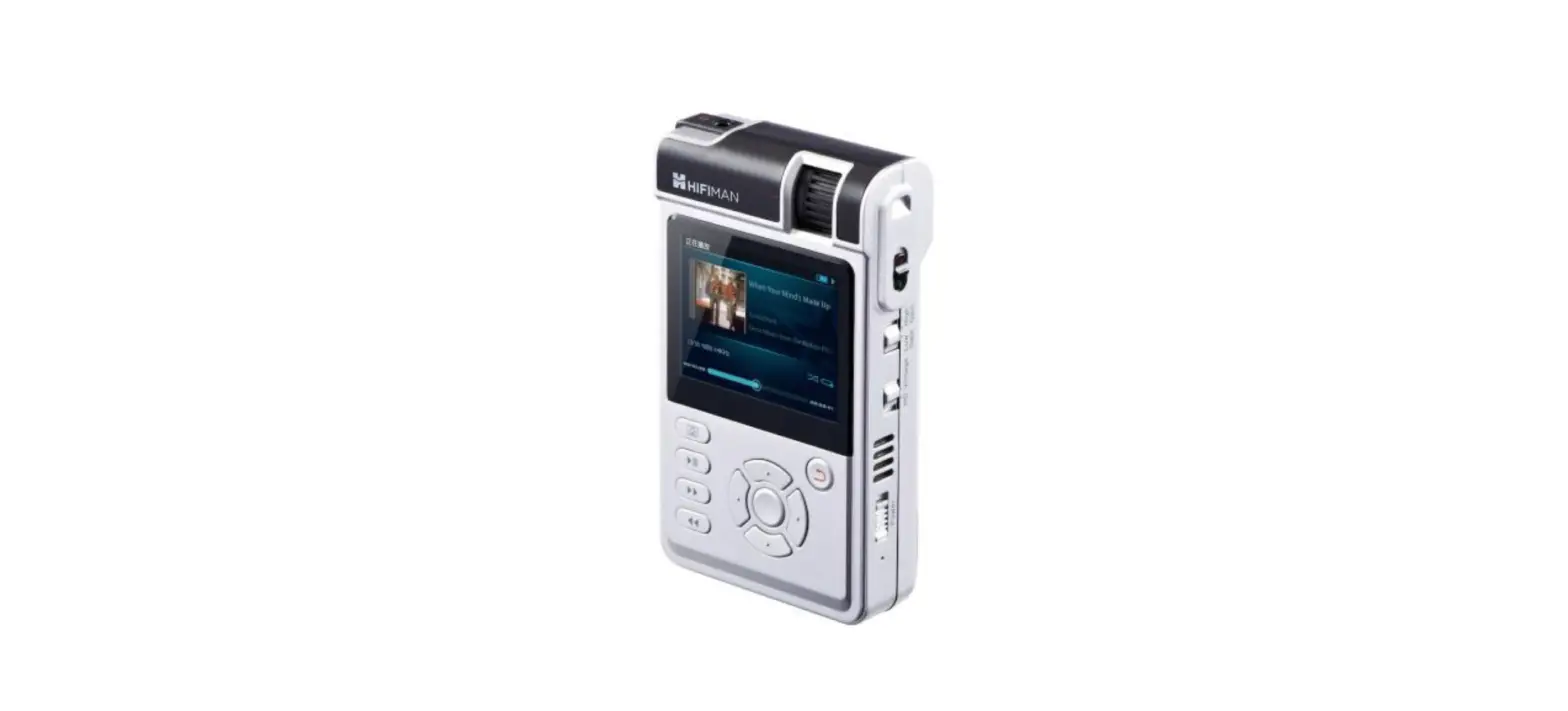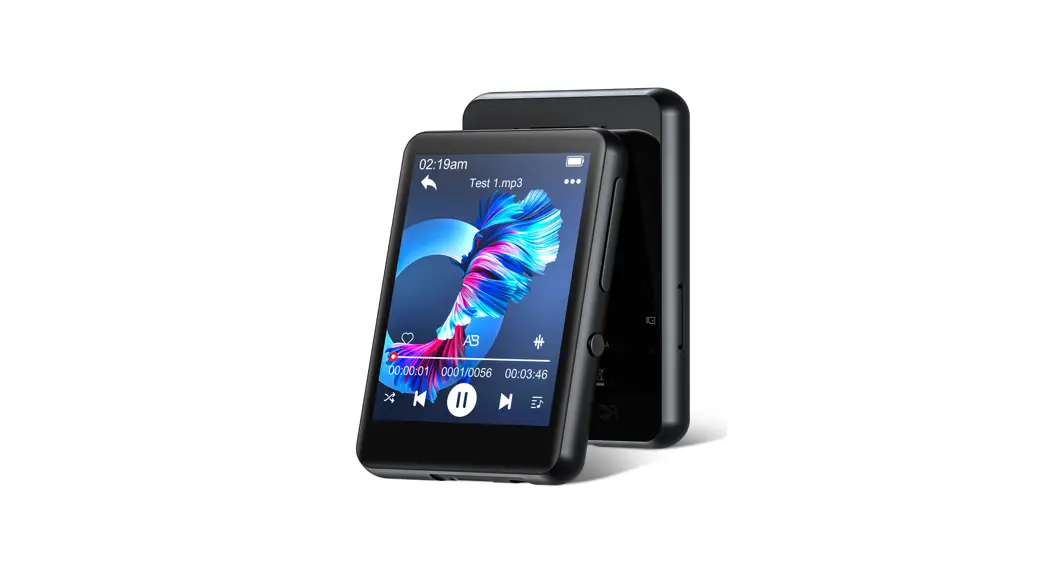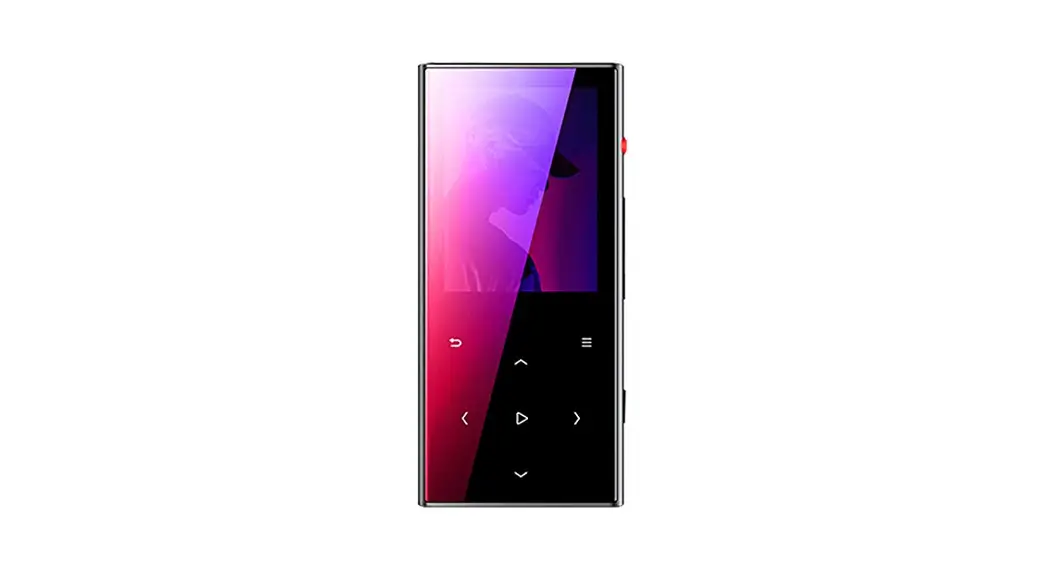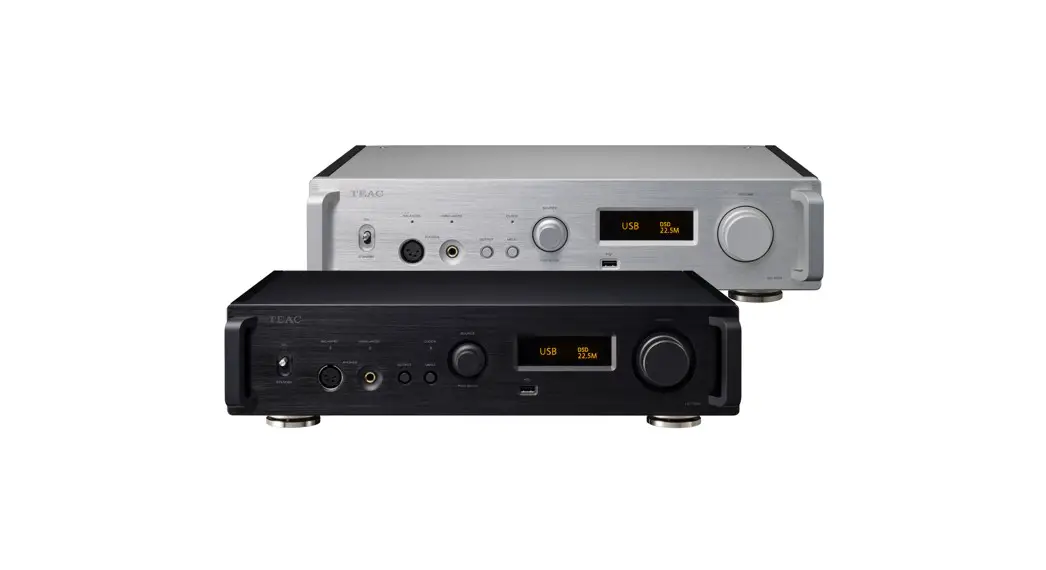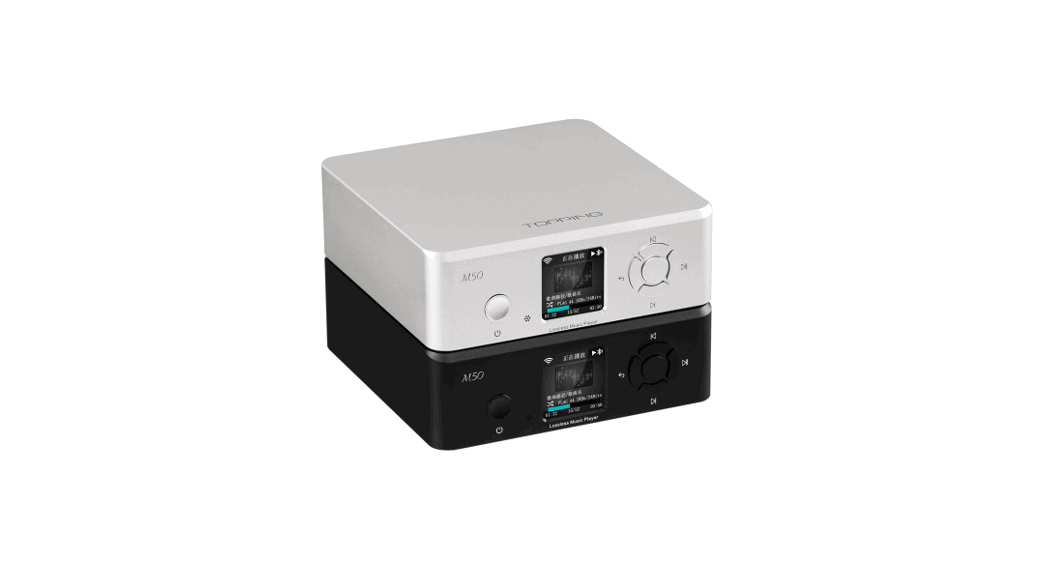

TOPPING M50 Lossless
Music Player
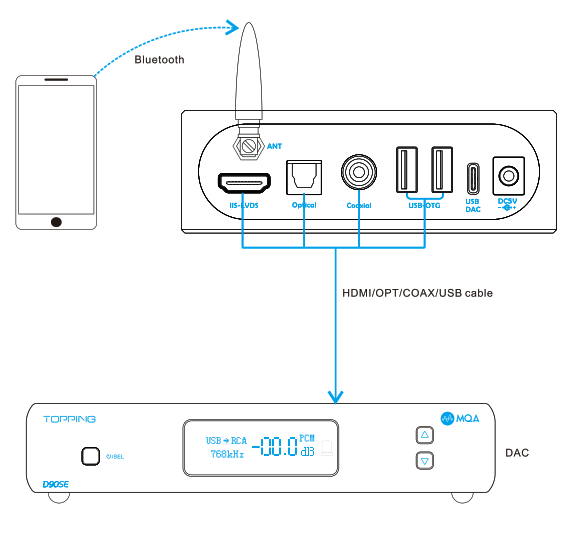 | 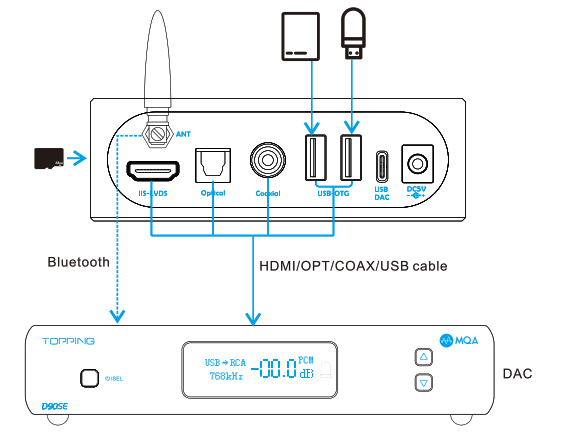 |
| Bluetooth input | USB Storage Device/HDD/TF card |
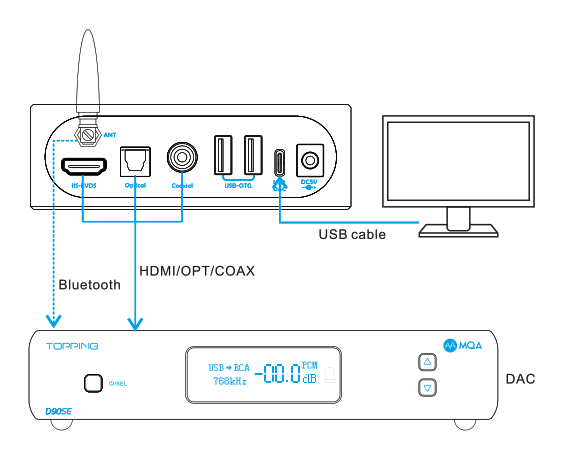 | 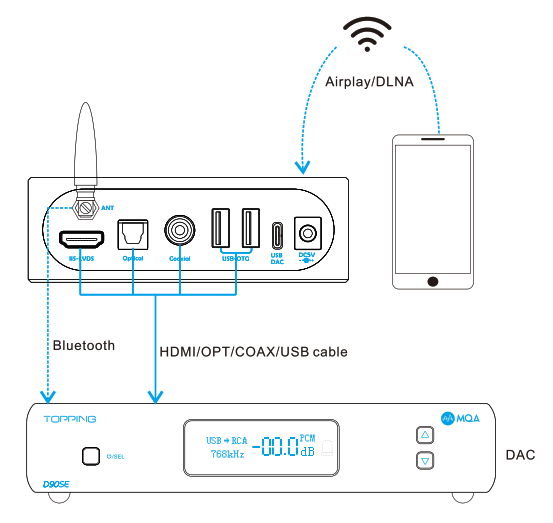 |
| Connect to PC and use as USB Bridge | Airplay/DLNA |
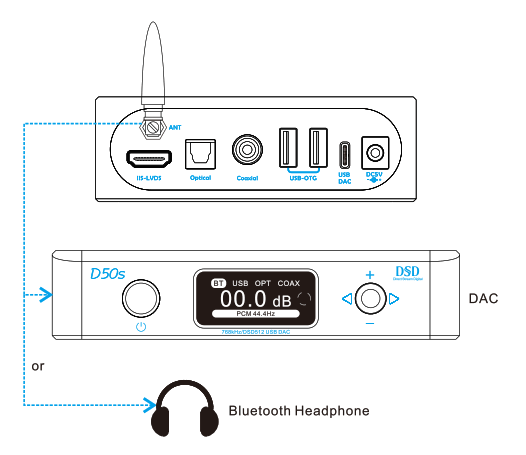 | 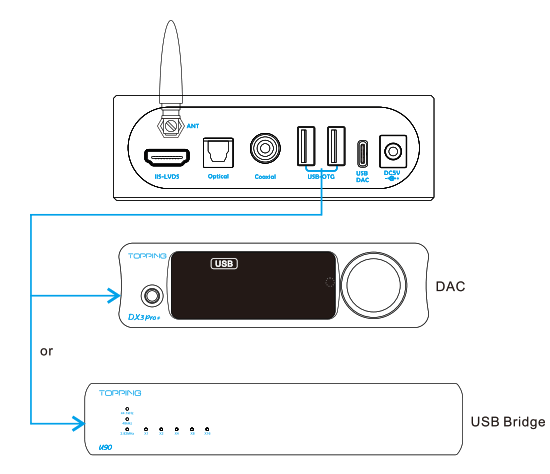 |
| Bluetooth Output | USB-OTG Output |
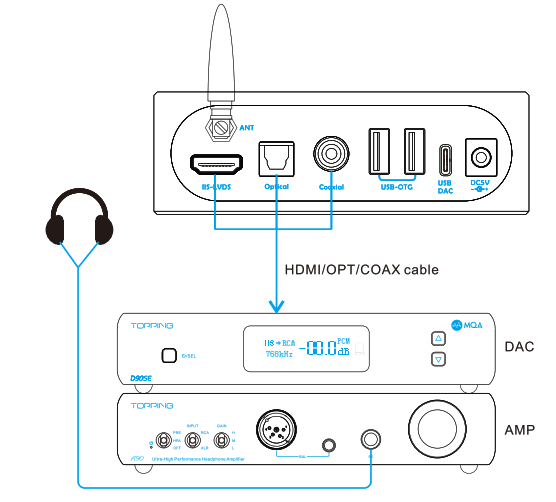 | |
| SPDIF/lls output | |
Thank you for purchasing the Lossless music player M50! M50 is a lossless music player that supports a wide range of music formats. It can access SD card / U disk / hard disk, can be connected wirelessly via Bluetooth, Airplay, and DLNA, and can also be connected to a computer as a USB bridge. We hope it could bring you more fun at enjoying music. Now we recommend you read this manual so that you can use all the features of the M50 correctly.
Contents list
| Measured | 11.9cm x 11 cm x 3.8cm | |
| Weight | 440g | |
| Power input | DC5V/1A (DCbase 5.5.2.1) | |
| Signal input | USB-OTG*2, USB DAC, TF card slot, Bluetooth, WiFi | |
| Signal input | Bluetooth, USB-OTG, Optical, Coaxial, IIS | |
| Standby power consumption | <0.5W | |
| Power consumption | <1.5W | |
| TF card capacity | up to 256 GB | |
| USB | Hard disk driver | up to 4 TB |
| File system | Support FAT/FAT32/NTFS | |
| Bluetooth | Input preference order | LDAC > AAC > SBC |
| Output preference order | LDAC > APTX > AAC > SBC | |
Front panel
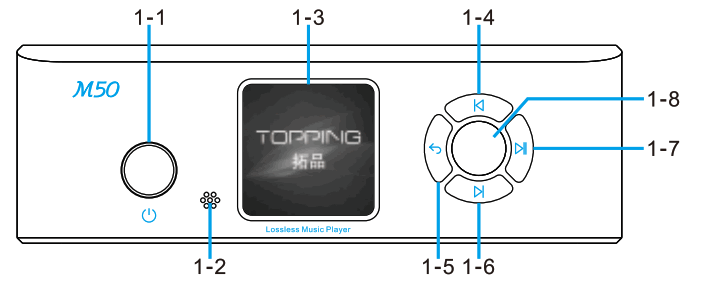
- Power button Press and hold to power on/off. In the on state, a short press turns the screen off. You can press any button on the front panel to light up the screen.
- Remote control receiver Please point the top of the remote control at it when using the remote control
- Display
- Previous
• In the playback interface, short press to play the previous track, press and hold to rewind.
• In other interfaces, short press to move to the previous item, press and hold to move quickly. - Back Short press to move to the previous menu, press and hold to go back to the main menu.
- Next*
• In the playback interface, short press to play the next track, press and hold to fast forward.
• In other interfaces, short press to move to the next item, press and hold to move quickly. - OK/Play/Pause
• In the playback interface, short press to play/pause
• In other interfaces, short press to make a selection - Playback menu* Press to enter the playback menu with en in the playback interface
*Depending on the input, some buttons may be disabled under the playing interface.
Rear panel
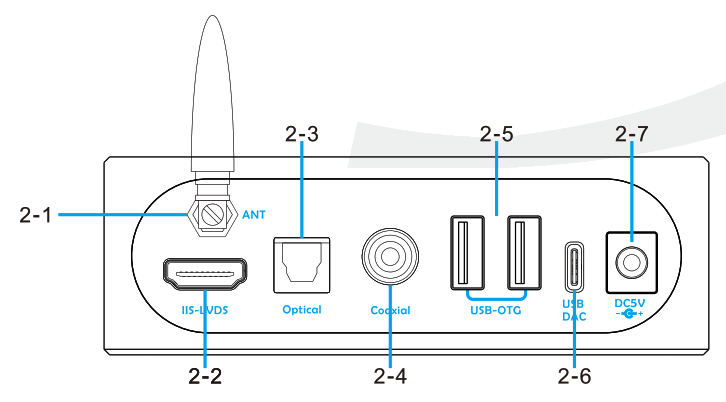
- Bluetooth input/output
- IIS output
- Optical SPDIF output
- Coaxial SPDIF output
- USB-OTG port
• Can connect a USB storage device or HDD (hard disk driver) to play music files.
• Can output to the USB DAC. Note that only one USB DAC can be connected at the same time. - USB DAC port
• In DAC mode, the M50 can be connected to a computer and used as a USB Bridge.
• In USB mode, you can access the TF card inserted in the M50 on your computer. Set it here: (Main Interface – System Settings – USB Mode] - Power input (DC5,
Side panel
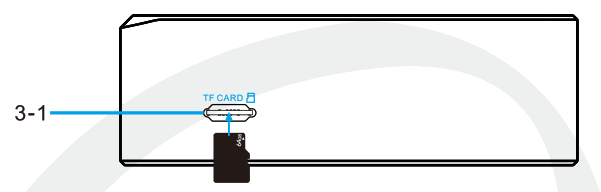
- TF card slot
• This slot is only for the standard TF card(Micro SD) and supports a capacity up to 256GB.
• Insert: insert a TF card until is clicks into place. Make sure to insert the TF card in the correct direction.
• Remove: push the TF card into the TF card slot. The TF card will pop out.
Remote control
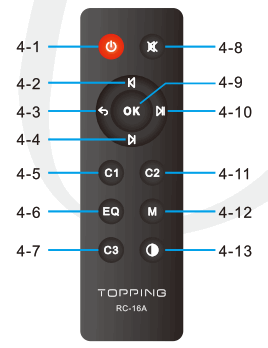
| 4-1 Standby 4-2 Previous. 4-3 Back 4-4 Next* 4-5 Invalid button 4-6 Equalizer setup 4-7 Invalid button | 4-8 Invalid button 4-9 OK 4-10 Play/Pause 4-11 Invalid button 4-12 Playback menu* 4-13 Brightness |
Deypnendrriifinegoanctehe input, some buttons may be disabled under the
Support range
| Supported Audio Formats | APE | Fast | 8kHz-384kHz/16bit-24bit (CUE supported) |
| Normal | 8kHz-384kHz/16bit-24bit (CUE supported) | ||
| High | 8kHz-384kHz/16bit-24bit | ||
| Extra high | 8kHz-96kHz/16bit-24bit | ||
| WAV | 8kHz-384kHz/16bit-32bit (CUE supported. DTS not supported) | ||
| FLAC | 8kHz-384kHz/16bit-24bit (CUE supported) | ||
| AIFF | 8kHz-384kHz/16bit-32bit | ||
| M4A | 8kHz-384kHz/16bit-24bit | ||
| WMA | 8kHz-96kHz/16bit-24bit | ||
| WMA Lossless | 8kHz-96kHz/16bit-24bit | ||
| Mp2 | 8kHz-48kHz/16bit | ||
| Mp3 | 8kHz-48kHz/16bit (CUE supported) | ||
| AAC | 8kHz-48kHz/16bit | ||
| OGG | 8kHz-48kHz/16bit | ||
| DSD64-DSD256 | |||
| DFF | DSD64-DSD256 | ||
| *Above all 64k files do not support | |||
| USB DAC IN | PCM 44.1kHz-384kHz/16bit-32bit | ||
| DSD DSD64-DSD256 (Native) , DSD64-DSD128 (Dop) | |||
| USB-OTG OUT | PCM 44.1kHz-384kHz/16bit-32bit | ||
| DSD DSD64-DSD256 (Native) . DSD64-DSD256 (Dop) | |||
| BT IN | SBC/AAC/LDAC | ||
| BT OUT | SBC/AAC/APTX/LDAC | ||
| OPT/COAX OUT | PCM 44.1kHz-192kHz/16bit-24bit | ||
| DSD DSD64 (Dop) | |||
| IIS OUT | PCM 44.1kHz-384kHz/16bit-32bit | ||
| DSD DSD64-DSD256 (Native) | |||
Playback
Bluetooth
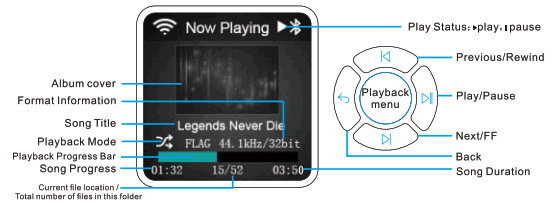
- In [Main Interface – NET settings – Bluetooth setting] , turn on and connect the Bluetooth.
- Note the Hiby link function in [Bluetooth setting] needs to be booed off first because using the Hiby link function needs to occupy Bluetooth.
- The picture above shows the playback interface when the M50 is used as a Bluetooth receiver. the M50 can also be used as a Bluetooth transmitter to connect to a Bluetooth DAC or Bluetooth headphone
USB Storage Device/HDD/TF card
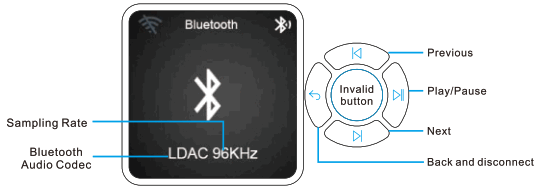
- Plug your USB
storage device/HDD into the USB-OTG port or insert the TF card into the TF card slot. Folders and music files are displayed on [Main Interface – Music Browser] when loading is complete. Then you could select songs to play. - Playback menu
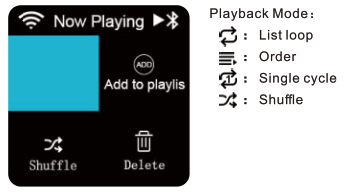
You can add this song to My Favorite/Playlist, or delete it, and you can also set the Playback Mode.
 Connect to PC and use as USB Bridge
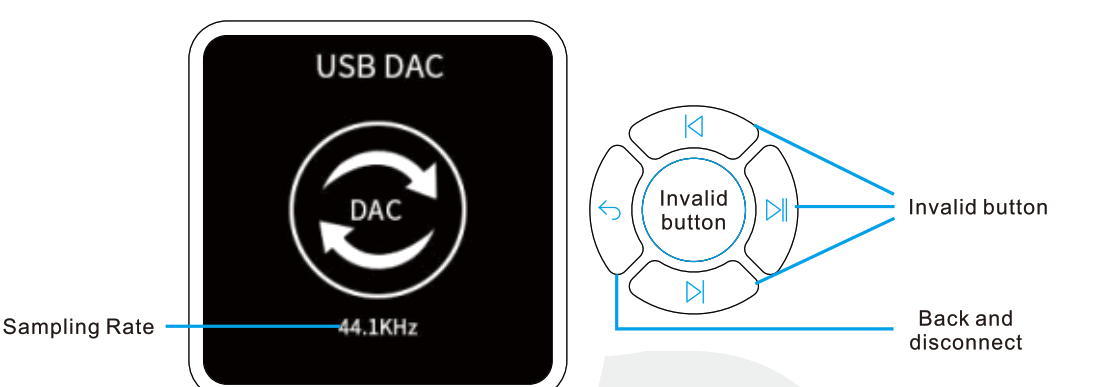
- In [Main Interface – System Settings – USB Mode], set the USB mode of the M50 to “DAC” and connect to the computer via the USB DAC port.
- Only able to control previous/next/play/pause on the computer.
Airplay/DLNA
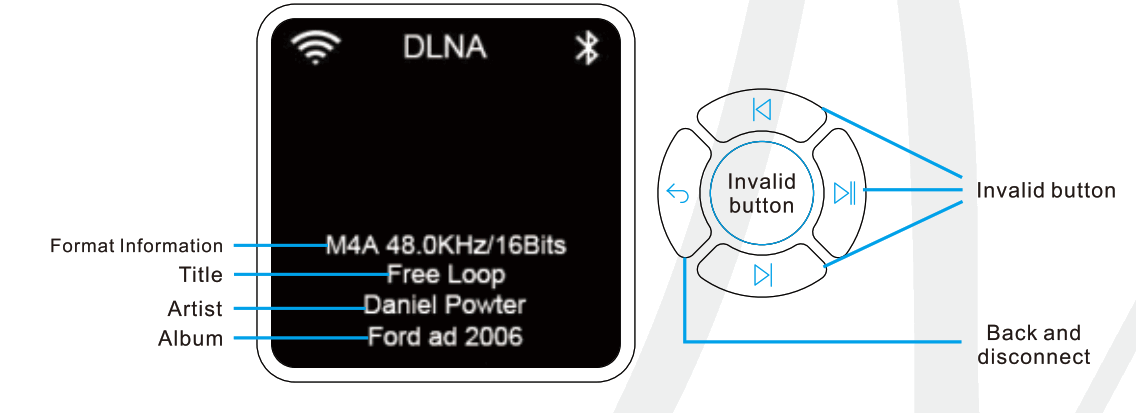 | 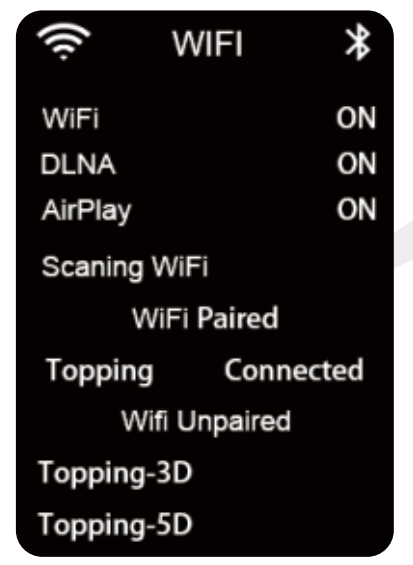 |
- In (Main Interface – NET Settings – WiFi Setting] , use WiFi on and connect.
- Turn on the Airplay or DLNA function in [WiFi Setting] according to your usage needs.
- Connect the Mobile Phone/Tablet to the same network as M50.
- Tap the AirPlay icon on the iOS device and select M50 from the displayed devices. For Android devices, open the app that supports DLNA playback and select M50 as the receiving device.
- Play the music file on the Mobile Phone/Tablet. Note: Only able to control previous/next/play/pause on a mobile phone.
Output
| BT OUT | USB-OTG OUT | SPDIF/IIS OUT | |
| BT IN | X | √ | √ |
| USB Storage Device/HDD/TF card IN | √ | √ | √ |
| USB DAC | √ | X | √ |
| Airplay/DLNA | √ | √ | √ |
- Output priority: Bluetooth > IIS > USB-OTG > SPDIF
- SPDIF output or IIS output can be selected through [Main Interface – Play Settings – Output Mode] If you need to use USB-OTG output, please do not set it to IIS output.
Operation
Hiby Link [Main Interface – NET Settings – Bluetooth Setting – Hiby Link)
Install the HiByMusic app on your Android or iOS smartphone and you can control the M50 from afar using Bluetooth, for browsing, playing, skipping tracks, adjusting volume, etc.
EQ Setting (Main Interface- Play Settings – EQJ
- Press the “Previous” on the “Next” button to switch the EQ mode: Off/Custom/Heavy/Metal/Blues/Vocal/Dance/Pop/Jazz/Classic/Rock
- If chose the custom mode, press the OK button to enter the custom setting, then press the “Back” or “Play Menu” button to switch the frequency, and press the “Previous” or “Next” button to change the boost. Finally, press the OK button to save the settings. Firmware Update [Main Interface – System Settings-
Firmware Update] Download the firmware to the TF card, and then select this option to upgrade the firmware.
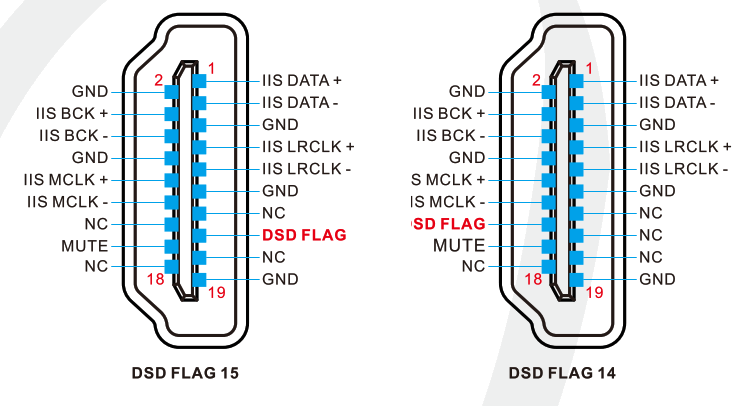
IIS Settings [Main Interface – Play Settings – IIS Phase/IIS DSDR/DSD Flag] IIS Phase: STD / REV
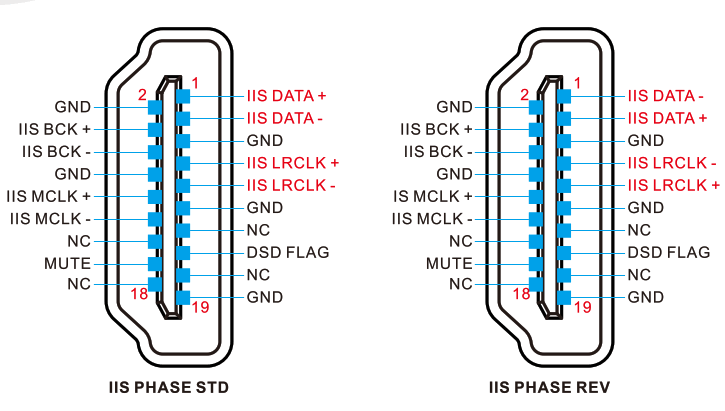
Ile DSDR. LIRCLK/ DATA
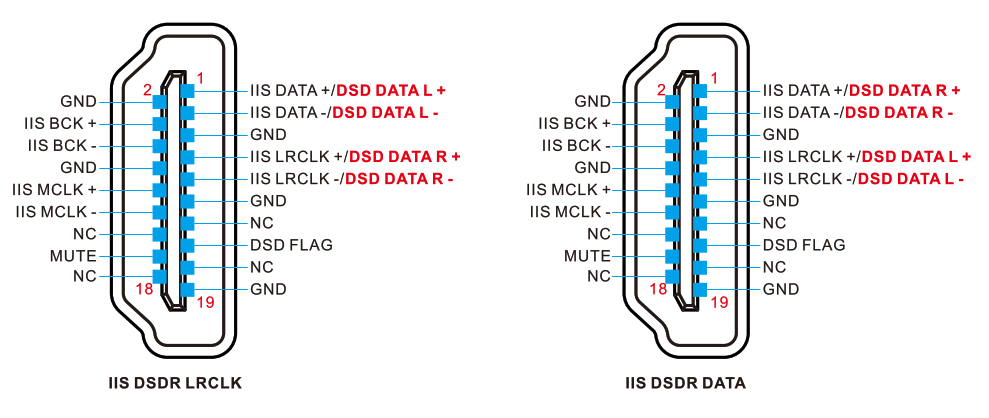
DSO Flag: Pln15/ M16