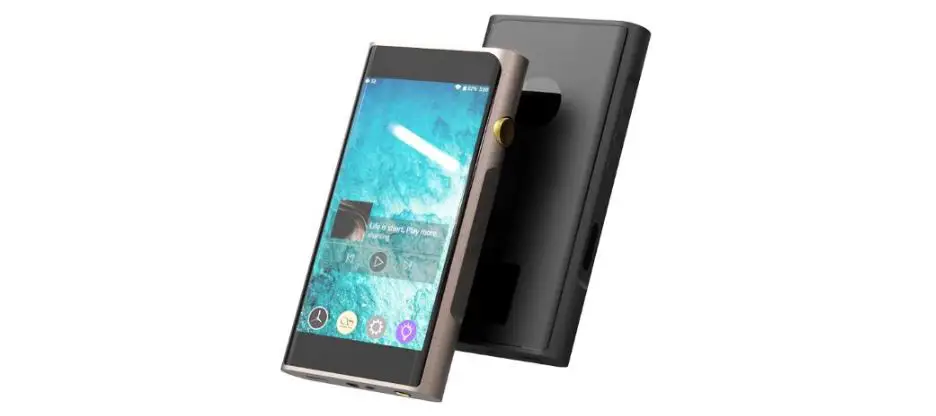
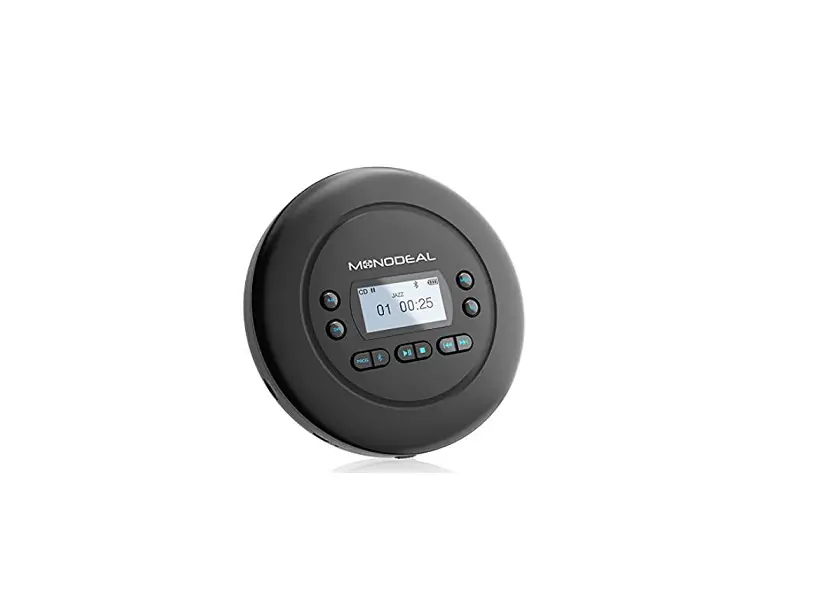
M3 Ultra Portable Music Player
Product Information:
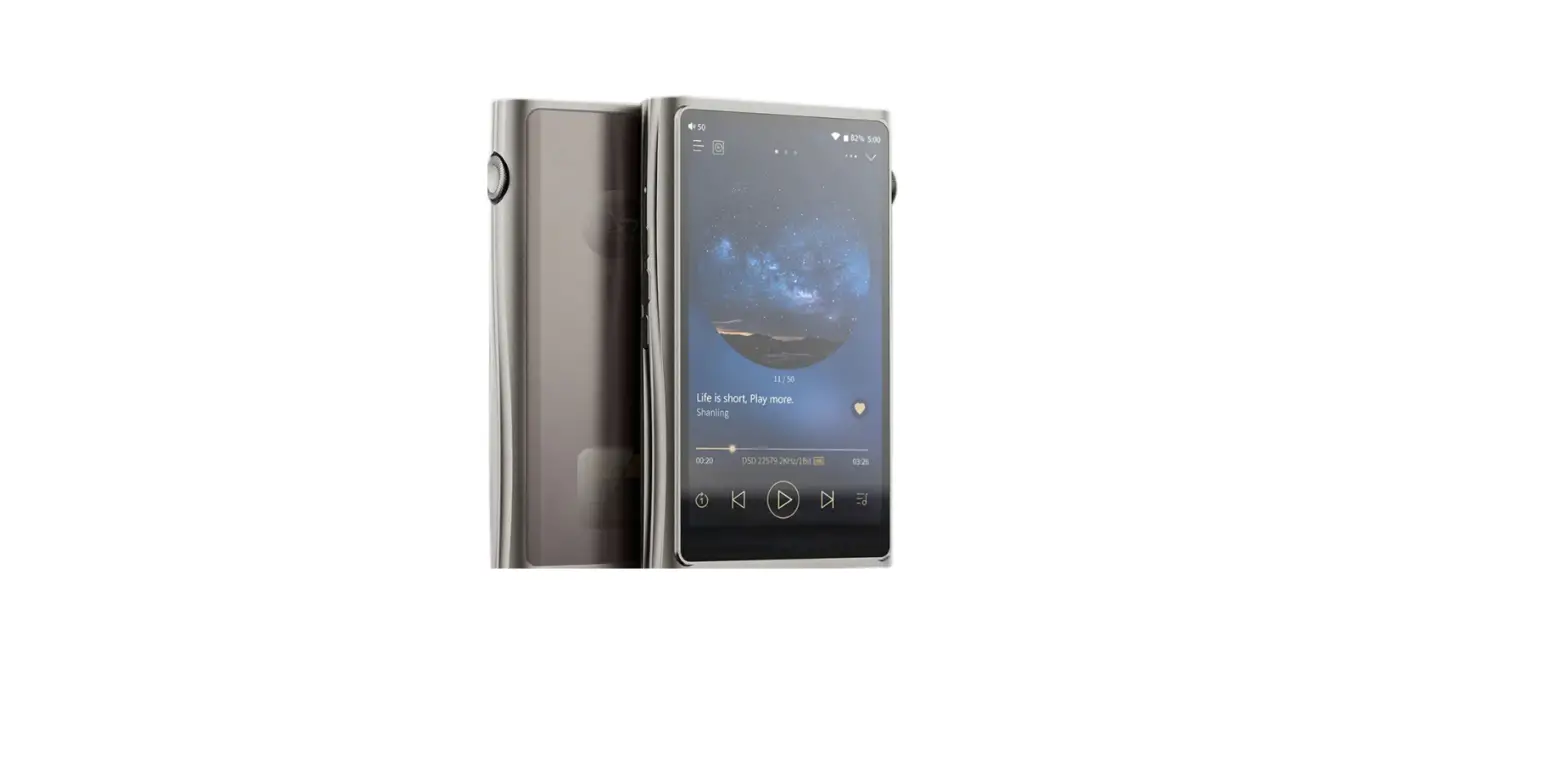
The product is the M3 Ultra, a portable music player with a
4.2-inch touch screen (768 x 1280 resolution). It features a Type-C
USB data port, USB/DAC functionality, and a microSD card slot. The
device supports microSD cards up to 2TB in capacity. It also has a
BAL (4.4mm Balanced Headphone output) and a 3.5mm Headphone/Line
output. The product complies with various safety regulations,
including GB 8898-2011, GB/T 9254.1-2021, RoHS 2.0, SJ/T 11364, and
GB/T 26572.
Product Usage Instructions:
Inserting MicroSD card:
- Lift the card cover by pulling on the marked edge of the card
cover. - Insert the microSD card in the same orientation as pictured.
Press until the card clicks into place.
Power ON / OFF / Screen Locking:
- To power on, press and hold the power button for 2 seconds. The
status indicator will light up, and the device will turn on. - To power off, press and hold the power button for 2 seconds.
The display will show the Power Off and Restart selection windows.
Click on Power Off to shut down the device. - To lock the screen, while the device is powered on, short press
the power button. The screen will turn off, and the device will be
locked. Press the power button again to unlock the device.
(Settings – General – Navigation mode)
- Gesture mode:
- To return to the previous screen, slide to the right from the
left edge of the screen or slide to the left from the right edge of
the screen. - To go back to the main screen, slide up from the bottom of the
screen. - To access multitasking, slide up from the bottom of the screen
and keep your finger touching the screen.
Note: For more detailed instructions and updates, please visit
the official website at https://en.shanling.com.
Security Instructions:
- Don’t repair, disassemble, or modify the device without
permission. - Avoid using the device in extremely hot, cold, dusty, or humid
circumstances. Also, avoid any exposure to liquids. - The device may get warm during charging.
- Prevent the device from falling, friction, or crashing against
hard objects during use to avoid surface scratches, battery
disconnection, data loss, or other hardware damages. Also, avoid
violent vibration or impact. - Enjoy music at a proper volume to avoid impairing hearing and
damaging the sound system. Before plugging headphones into the
device, turn down the volume. - Don’t clean the device with chemicals or detergents as it may
damage its surface and top coating. - Don’t disconnect the device during formatting or transferring
files to avoid program errors. - The USB port is only for data transmission or charging. Avoid
using the device when it is charging. - When the device is not in use, charge it regularly to guarantee
battery life. - Replace the battery only with ones of the same type as the
original ones to avoid the risk of explosion. - Never expose the battery to sunlight, fire, or other extremely
hot circumstances. - Download update files from the official website and update the
device according to the instructions.
Quick Start Guide
1.
2.
3. 4.
5.
6.
7. /
8. USB
9.
10. 11. 12. CCC 13. –M3 Ultra
: GB 8898-2011; GB/T 9254.1-2021
(Pb) (Hg) (Cd) (Cr,VI) (PBB)
(PBDE)
PCBA
SJ/T 11364
GB/T 26572
X GB/T 26572
“X”RoHS 2.0
Type-C USB
USB/DAC
microSD
Micro SD
4.2 (768 x 1280)
/
/
BAL
4.4mm
3.5mm/
Micro SD
1.
2. Micro SD
// 1. : 2 2. : 2″”””
“” 3. :
– –
1. : : :
2. : : :
3.
: : :
// 1. :
2. :
3. :
QC3.0USBUSB
Micro SD 1. Micro SD2TB 2. Micro SDMicro SD
1. 2.
OTA WiFi ” – – “””
Micro SD 1. – – M3 Ultra
“””TF” 2. ” – – ”
1. DC5V 2A 2. 3. “”12
4. 5.
1 1 USB AType-C1 1 1
ENGLISH
Security Instructions
1. Don’t repair, disassemble or modify the device without permission.
2. Please don’t use this device in extremely hot, cold, dusty or humid circumstances. Avoid any exposure to liquids.
3. This device might get warm during charging.
4. Prevent device from falling, friction, or crashing against hard objects during use, otherwise surface scratch, battery disconnection, data loss or other hardware damages will be caused. Please also avoid violent vibration or impact.
5. Please enjoy the music in a proper volume to avoid impairing your hearing and damaging the sound system. Before plugging your headphones into the device, please firstly turn down the volume.
6. Don’t clean this device with chemicals or detergents, otherwise its surface and top coating may be damaged.
7. Don’t disconnect this device during formatting or transferring files. otherwise, a program error may occur.
8. The USB port is only for data transmission or charging. Please try to avoid using this device when it is charging.
9. When this device is not in use, please charge it regularly to guarantee battery life.
10. Please replace the battery only with ones of the same type as the original ones, as improper replacement will bring the risk of explosion.
11. Never expose battery to sunlight, fire or other extremely hot circumstances.
12. P l e a s e d o w n l o a d u p d a t e f i l e f r o m o u r o f f i c i a l s i t e https://en.shanling.com, and update accordingly to the instruction.
Names of Parts
Type-C USB data port
USB/DAC
microSD
Status indicator
Micro SD card slot
4.2 inch touch screen (768 x 1280)
Previous selection button Play/Pause button Next selection button
Volume control wheel Power/Lock button
BAL
4.4mm Balanced Headphone output
3.5mm Headphone/ Line output
Inserting MicroSD card
1. Lift the card cover by pulling on the marked edge of the card cover.
2. Insert the card in the same orientation as pictured. Press until the card clicks into the place.
Operation Instructions
Power ON / OFF / Screen Locking
1. Power on: press and hold power button for 2 seconds, status indicator lights up and device turns on.
2. Power off: press and hold the power button for 2 seconds. The display shows the “Power Off” and “Restart” selection windows. Click on “Power Off” to shut down the device.
3. Screen lock: while the device is powered on, short press power button to lock screen and turn off display. Press power button again to unlock device.
Navigation mode (Settings – General – Navigation mode)
1. Gesture mode Return to the previous: slide to the right from the left edge of the screen or slide to the left from the right edge of the screen. Back to the main screen: slide up from the bottom of the screen. Multitasking: slide up from the bottom of the screen and keep your finger touching screen.
2. Floating box mode Return to the previous: click the floating ball on the screen. Back to the desktop: press and hold the floating ball on the screen. Multitasking: double click on the floating ball on the screen.
3. Virtual buttons mode : Return to the previous. : Back to the main screen. : Multitasking.
Previous / Next / Play & Pause
1. Previous : Short press to jump to previous song or to beginning of current song. Long press for fast rewind in currently playing song.
2. Next : Short press to jump to next song. Long press to fast forward in currently playing song.
3. Play & pause buttons : short press to play or pause playback.
Volume Control
Turn the wheel clockwise to increase the volume, turn the wheel counterclockwise to decrease the volume.
Charging
Supports QC3.0 fast charge and standard USB charging. When the USB cable is connected, display shows battery charging icon and power level. The status indicator lights up red while charging, it turns off when battery is full.
Micro SD Card Port
1. The port is only for the standard Micro SD card and supports a capacity up to 2TB.
2. Open the Micro SD card cover, insert the Micro SD card into the card slot in the indicated direction and press it gently until it locks inside. Press again to remove the card.
Firmware Update
1. When updating the firmware, please make sure that M3 Ultra is fully charged.
2. Do not do operate the player during the update process.
Over-the-Air Update
While connected to local Wi-Fi network, device will automatically check for new firmware update. To check for new firmware manually, go to menu “Technical Support – Firmware Update – Online Update” and click on “Check for Update”.
Micro SD Card Update
1. Please download firmware update from Shanling’s official website. Copy latest firmware file into root directory of Micro SD card.
2. Go to “Technical Support – Firmware Update – Local Update”, choose the path to firmware file and click update.
Common Problems
1. It is recommended to use DC5V 2A adapter. Using the adapter with higher voltage may damage M3 Ultra.
2. Unable to start M3 Ultra, it may be caused by low power or exhausted battery, please recharge and then start up again.
3. If the system do not react or keeps crashing, hold the power button for 12 seconds to initiate forced restart.
4. If there is noise from headphones, headphone’s output interface may not be connected correctly, please try to insert it again.
5. When there is no sound, try to use different pair of headphones or different cable and make sure the system volume is set correctly.
Attached Accessories
Quick start guide: 1 Warranty card: 1 USB A to Type-C cable: 1 Front protective film: 1 Rear protective film: 1
Qualcomm aptX is a product of Qualcomm Technologies, Inc. and/or its subsidiaries. Qualcomm is a trademark of Qualcomm Incorporated, registered in the United States and other countries. aptX is a trademark of Qualcomm Technologies International, Ltd., registered in the United States and other countries.
MQA (Master Quality Authenticated) is an award-winning British technology that delivers the sound of the original master recording. The master MQA file is fully authenticated and is small enough to stream or download. The M3 Ultra includes MQA technology, which enables you to play back MQA audio files and streams, delivering the sound of the original master recording. The M3 Ultra Now Playing screen shows green or blue dot next to MQA logo to indicate that the unit is decoding and playing an MQA stream or file, and denotes provenance to ensure that the sound is identical to that of the source material. It shows blue dot to indicate it is playing an MQA Studio file, which has either been approved in the studio by the artist/producer or has been verified by the copyright owner. It shows magenta dot, when in the USB mode, which confirms that the product is receiving an MQA stream or file. This delivers the final unfold of the MQA file and displays the original sample rate. Visit mqa.co.uk for more information. MQA and the Sound Wave Device are registered trade marks of MQA Limited © 2016
1. 2.
3.
4.
5.
6. 7. MicroSD MicroSD 8. USB 9.
10.
11.
12. https://en.shanling.com
M3 Ultra”” “” “” “”
Type-C USB
USB/DAC
microSD
MicroSD
4.2(768 x 1280)
/
/
BAL
4.4mm
3.5mm/
Micro SD
1.
2. Micro SD
/ 1. :
2. :
3. :
( – – ) 1. :
: :
2. : :
:
3. : : :
/
1. :
2. :
3. / :
QC3.0USB USB
MicroSD
1. MicroSD2TBMicroSD
2. MicroSDMicroSD
1.
2.
OTA
Wi-Fi
MicroSD
1. shanlingweb microSD
2. “- -”
1. DC5V,2A
2. 0
3. 12
4.
5.
1 1 USB A to Type-C1 1 1
/Company: Shenzhen Shanling Digital Technology Development Co.,Ltd.
/Address : 10 No.10, Chiwan 1 Road, Shekou Nanshan District of Shenzhen City, China.
QQ/QQ Group:
667914815; 303983891; 554058348
/Telephone: 400-630-6778
/E-mail:
/Official Website: www.shanling.com
(): 08:00-12:00; 13:30-17:30
,, Due to continuous improvement, every specification and design is subject to change at any time without further notice.
 Homepage | Experience the best sound with MQA | MQA
 深圳山灵数码科技发展有限公司
 Shenzhen Shanling Digital Techno