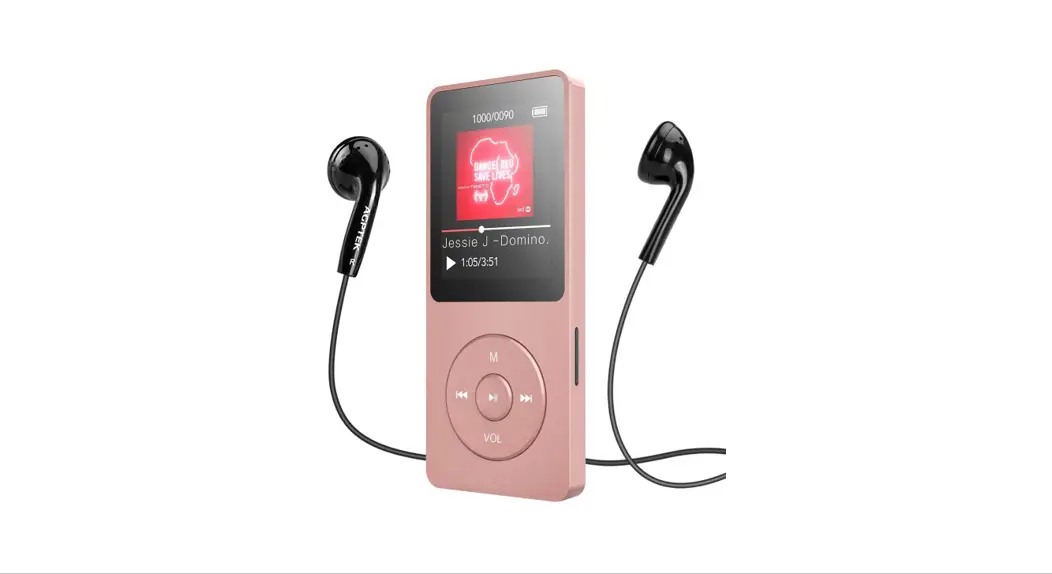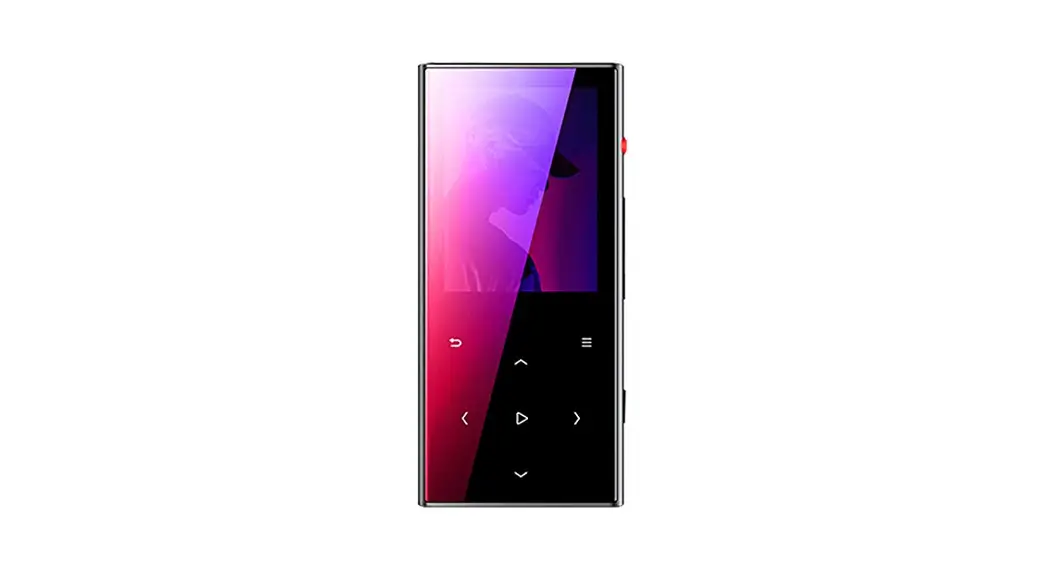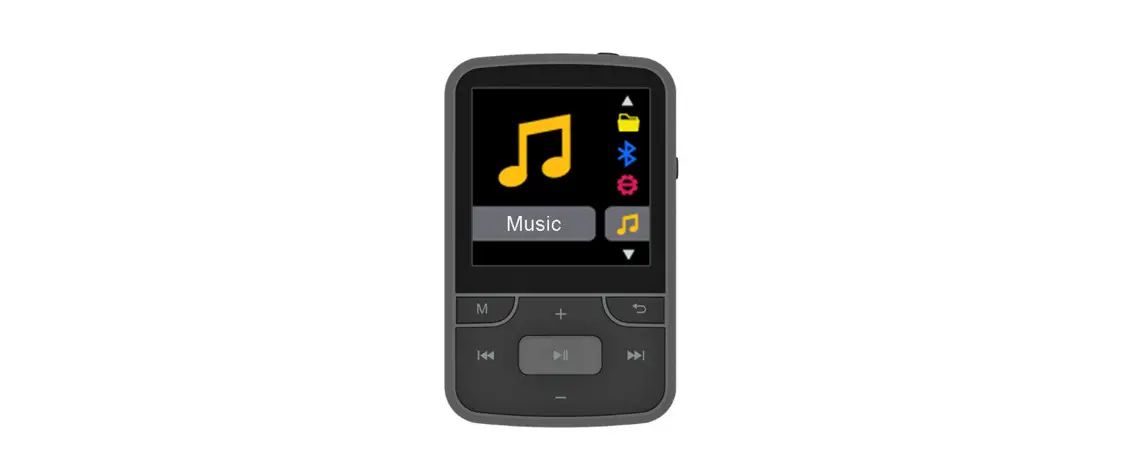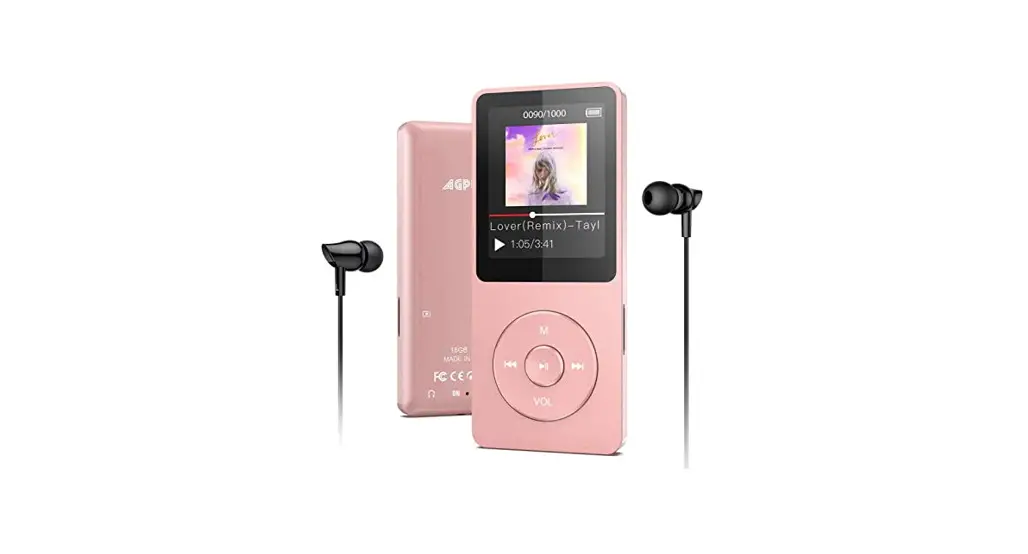
 A02T MP3 Music Player
User Manual
Thank you for purchasing AGPTEK MP3 Player. Please read the manual carefully before using the product. Specifications are subject to change without prior notice.
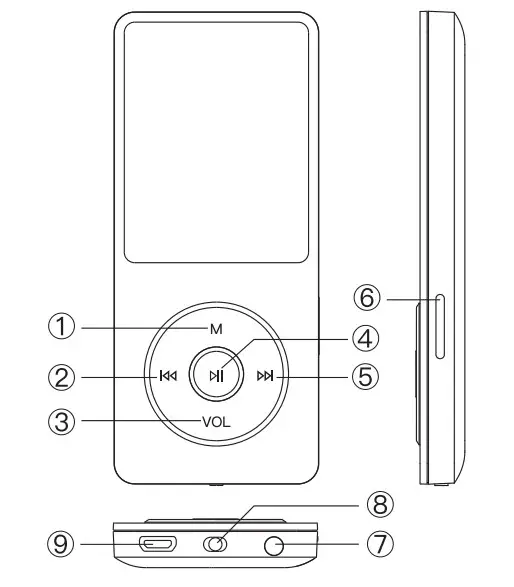
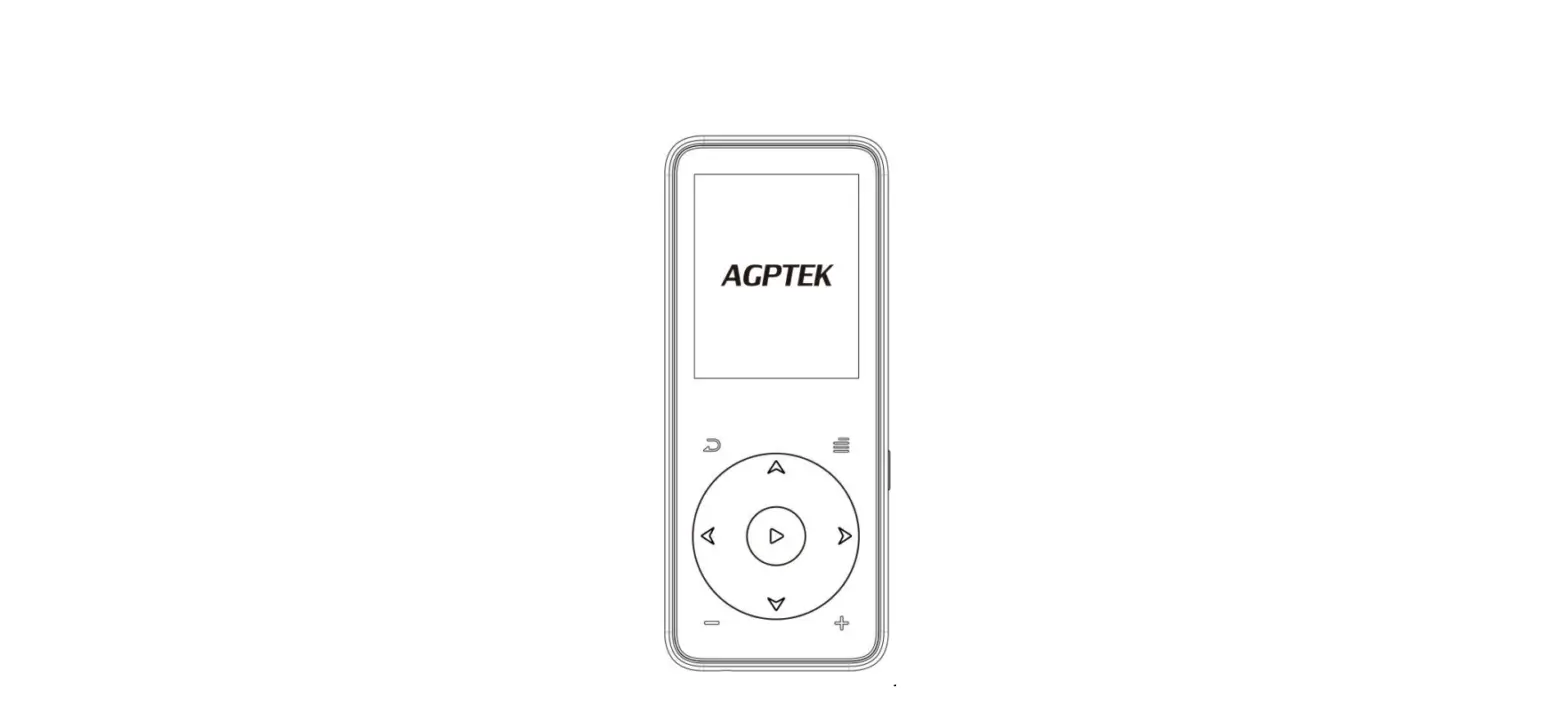
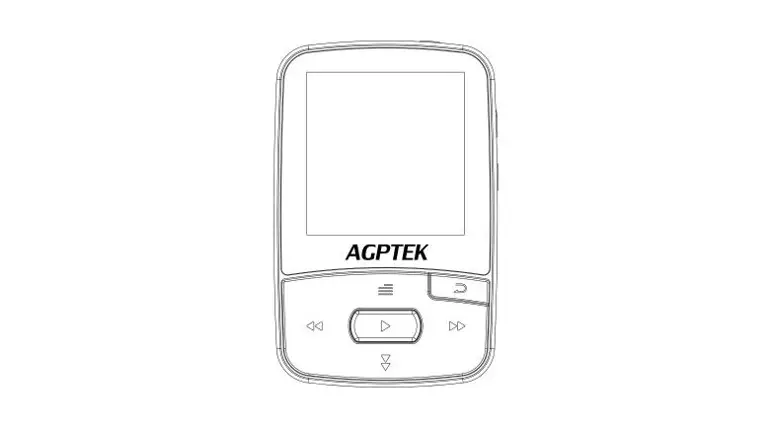
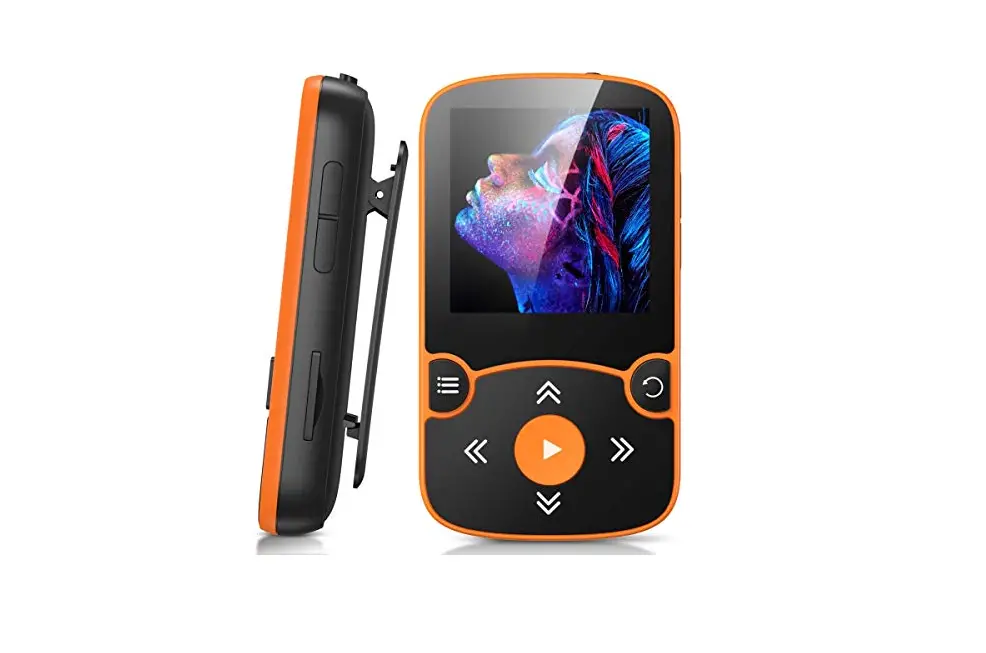
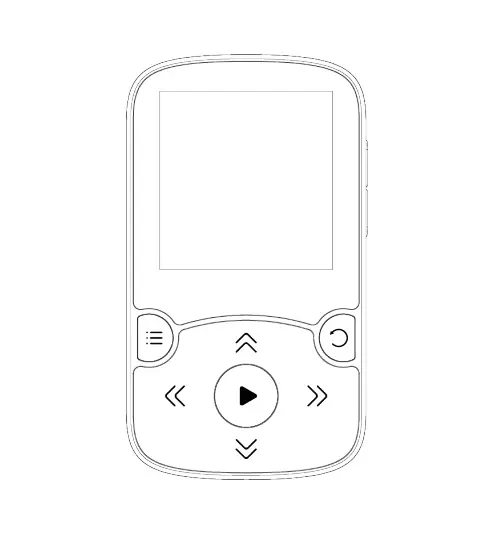
- Menu button/Scroll up/Volume+
- Previous/Rewind/Back button
- Back button/Scroll down/Volume –
- Play /Pause/Enter/Power on/ off
- Next/Fast forward
- Card slot
- Earphone jack
- Power slider
- USB port
Charge the Player
- By USB cable
The USB cable can both be used for data transfer and charging the player - By connecting to a computer or charger(Not included)
Please note: The specifications of the charger must meet the following requirements or any accident or failure that happened will be regarded as man-made damage.
Input: AC110-240V 50/60Hz Max:1 00mA
Output: DC5 0-5.5V 500mA-800mA
Power On/Off
Slide the power switch to “Right” to power on, and to “Left” to power off.
Standby status: hold the play button for 3 seconds to power on/off.
Screen Lock/unlock
Press and hold the M button to lock or unlock the screen.
Main interface
Each time you press the button  /
/ , it will bring you to one of its 9 different functions, including Music, Radio, Folder, Setting, Record, Tools, Pictures, EBook, and Video.
Play Music
- Your resume takes you back to the song or audio file that you are playing now.
- Update Card data update all songs in the external Mirco SD card or the internal memory of the player.
Volume Adjustment
Press and hold the ” VOL ” button. When you see the volume icon, press to increase the volume and press the 4 buttons to lower the volume.
Submenu
While it’s on the music playing interface, press the button M to access to the submenu.
- Shuffle, Click the button to turn on the shuffle mode.
- Bookmarks, choose to add, delete or go to bookmark.
- Speed, adjust the speed from 8(Slowest)to +8(Fastest)
- Language learning, choose to set A-B Repeat, Replay Times, Replay Interval.
“A–B Repeat”(only available when the music is playing)
1) Choose the option “A-B Repeat” with a buttonto confirm the starting time A(A is flashing)
2) Then click the buttonagain to set the ending time B(B is flashing). Click button pp] again and the passage from time A to B will be repeated automatically. The icon for the A-B indication will appear on the screen.
3) Click the button again to back to normal playback.
FM Radio
Select “FM Radio” on the main menu, and click the button to access to its function. A related list will show including “Station list”, “Manual tune”, “Auto tune” and “FM recording” Click the button M/ VOL to select. Press the button to go back.
While on the radio playing screen, press button M to go to its submenu.
- Choose “Start FM radio recording” to save the radio you want to record, find the saved recordings in the “FM recording”.
- “Tuner Region”, choose from Common /Japan/ European Band.
- “FM Recording”, all saved recordings will be listed here.
- Radio Background: Choose to open or close
- Save to Presets
- Clear Presets
- Automatic Tuning: Automatically search for radio stations Please note: You can only listen to a mono radio station on this player
Settings
- Timing Power off: Choose “Shut down sleep timer” to turn off this function or set the sleep timer between 1-99(minutes).
- Sleep timer: When there is no operation on the device, the device will shut off automatically when reaching the setting time.
- Display settings: Set the Brightness, Backlight timer, and Screen saver of your player.
- Date and Time: Click the button to switch. Click the button M / VOL to set. Click the button to save your settings.
- Format Device/Factory Settings: Format the device/SD card or restore the player to factory default settings.
Note: Before formatting the device, please back up the file so as not to lose any flies.
Information: Check player information and disk space about your player.
Recordings
Select “Record” on the main interface, click the button to access its function, then a related list will show as “Start Voice Recording”, “Recordings library”, “Storage”(only available with the card inserted), “record Format” and”Record bitrate”.
New features:
Recording Source: the recording source can choose a microphone and line-in.
Note: line-in has 2 functions.
Playback Function: when the machine plays, connect MP3 and speakers with LINE INline to play music.
Recording Function: tum on the recording Line-in function, connect two MP3s with LINE
INline or connect other devices with output functions (such as mobile phones) with MP3 to record audio flies.
Tools
Select “Tools” on the main interface, and click the button to access to its function. A related list will show “Calendar”, “Stopwatch” and “Alarm”.
Video
This player can only support the amv. the format in 160*1 28, you should convert video flies by format conversion software first.
- Press the button to access its functionality. You will need to choose from the local folder or card folder if the memory card is inserted.
- Press the button to watch videos. Press the button / to go to previous/next video or hold the button / to fast backward/forward.
- When it’s on the video playing interface, hold down the button M to access to its submenu, including Brightness, Repeat, Delete video, and Update card data. Set according to your preference.
Ebook
Find “Ebook” on the Home menu with the button to access to its function.
While it’s on the text-playing interface, press the button /to turn the pages. Press the button to play automatically, and press again to stop.
Submenu. While it’s on the text playing interface, hold down button to enter its submenu and set your preference, including Playsetting Brightness, Page color, Delete ebook, Bookmark select, Delete bookmark, Add bookmark, Select page, Local folder and Card folder (Only available when TF card inserted).
Pictures
Find “Pictures” on the Home menu, and click the button to access to its function.
Click to view pictures, and click /to go to the previous/next picture.
When it’s on the picture viewing interface, press the button M to access to its submenu, including Brightness, Backlight timer, Slideshow settings, Delete picture, and Update playlist. You can set it according to your preference.
Trouble Shooting
a. How to re-choose the language?
Find this icon in the main interface, and click buttonto access to its menu, scroll down to the last menu (the menu at the bottom is “Factory settings” in English). Click the button to enter and choose the first (upper) option which means “Yes”, click the button again to confirm and restore to factory settings, the player will power on automatically and then you can choose the language again.
b. Can’t turn on the player; the screen of the player goes blank/black; the player is crashed or has a firmware bug.
- Power off the player and try again.
- Slide the power switch to the “Left” side to turn off the player, then hold the play button for 1 0 seconds to reset the player.
- Update the firmware. Please visit http://www.agptek.com/support/download.html/ or www.agptek.com/blog to download the firmware and update.
c. Disk error
If the screen says “Disk error’, please format the player. Find it in”settings”>”Format device”.
d. Songs can’t be recognized by the player Please check if the song is in the wrong format or has been encrypted, or the song format is not supported by this player.
Find the supported audio format below:
MP3:
Bitrate: 8Kbps-320Kbps,
Sampling rate: 8MHz-48MHz;
WMA:
Bitrate: 5Kbps-384Kbps,
Sampling rate: 8MHz-48MHz;
APE:
Bitrate: 800Kbps-1000Kbps(FAST normal compressed),
Sampling rate: 8MHz-48MHz;
WAV:
Bitrate: 32Kbps-384Kbps,
Sampling rate: 8MHz-48MHz;
FLAC:
Bitrate: 1000Kbps-1200Kbps(LO-L8),
Sampling rate: 8MHz-48MHz
Specifications:
| Screen | 1.8″ TFT screen |
| Weight | 29g |
| Dimension | 39*7.8*90mm |
| Flash memory | 8G/16G |
| Audio format | MP3/WAV/APE/WMA/FLAC etc. |
| Video format | 128*160 AMV(converted video) |
| Recording format | MP3/WAV/ACT |
| Recordingdistance | 5-8 meters |
| Playing time | 70 hours at medium volume by earphone |
| Battery | 3.7V/460 rnAh |
| Charging time | 1.5 hours |
| SD card expansion | Up to 128G |
Email: [email protected].
For a detailed user manual, please visit: http://www.agptek.com/support/download.htm