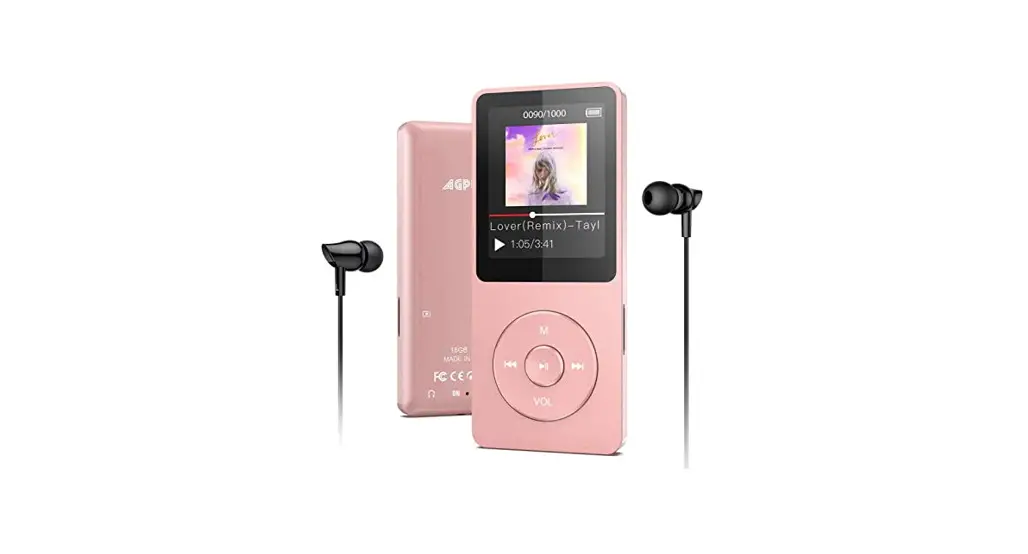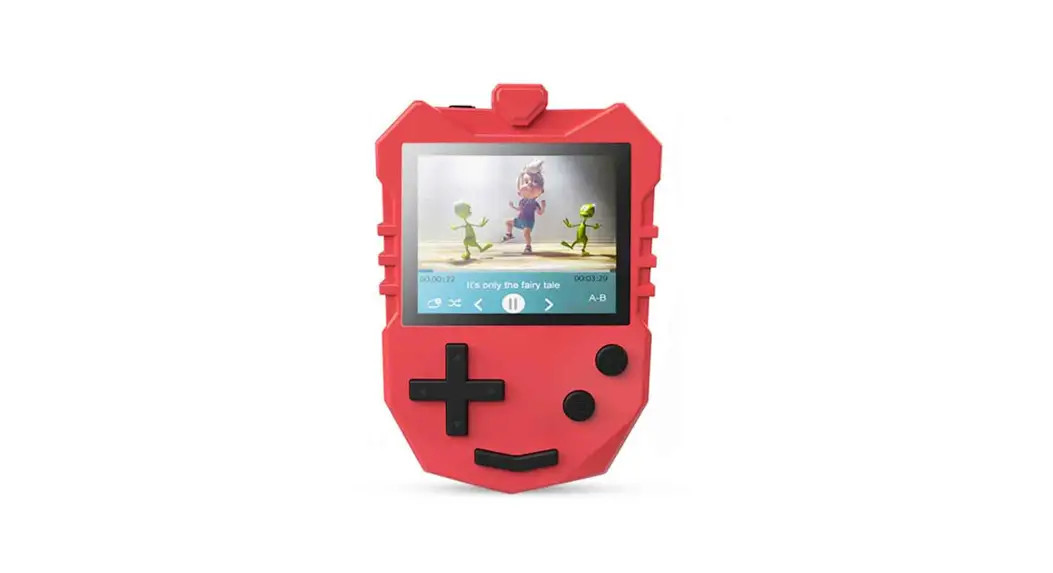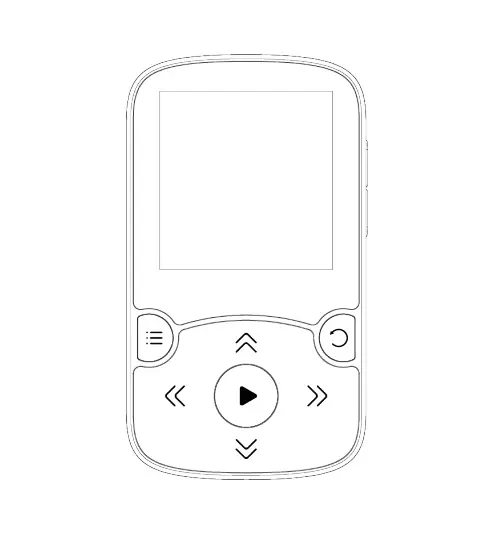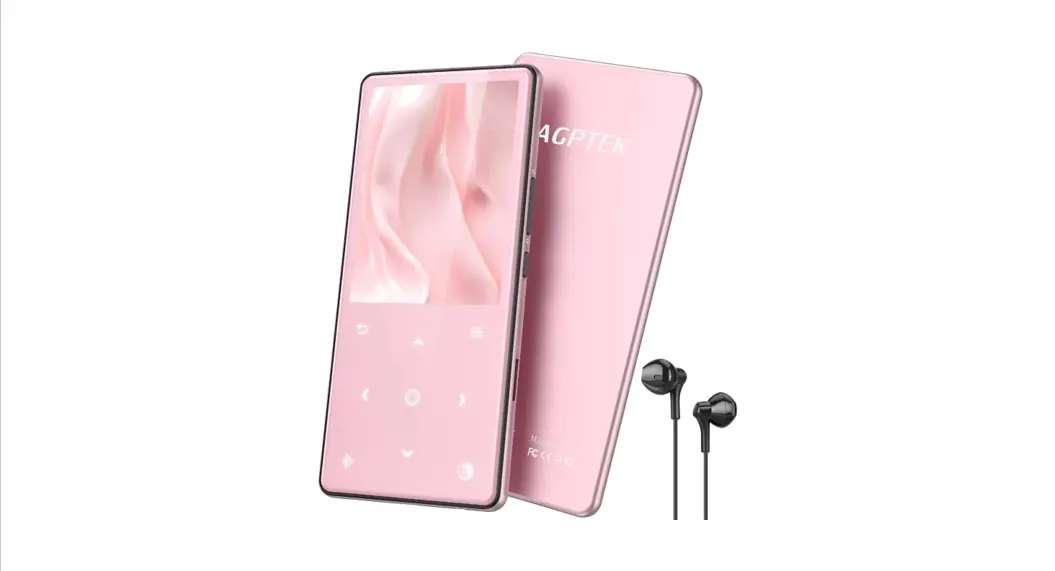

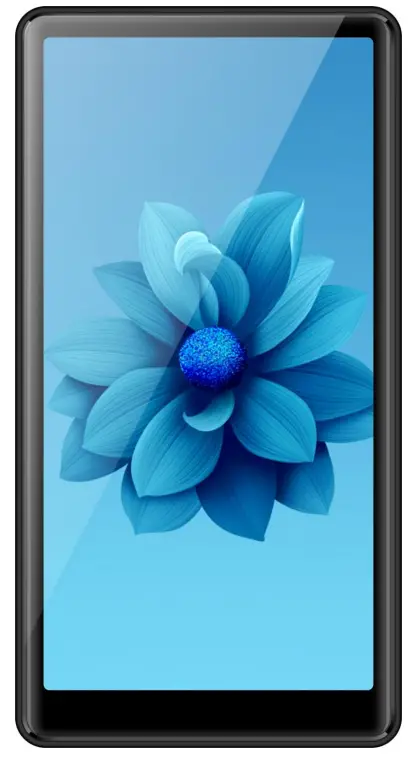
MP4 Music Player
Model: T02S
Use This Manual
Please read this manual carefully before using this product. All illustrations in this manual are for reference only, please refer to the actual product.
Notice
- It is recommended to back up the personal data stored in this product in time.
- Over-voltage, power cable strain, bending, or squeezing by heavy objects is not allowed to avoid overheating or fire disaster.
- Do not expose the product to moisture or rain. It may cause equipment failure or even be hard to repair because of water and moisture penetration.
- If the actual setting and using method of this product are inconsistent with this manual due to firmware upgrade, please contact us.
Open The Package
Appearance & Buttons Introduction
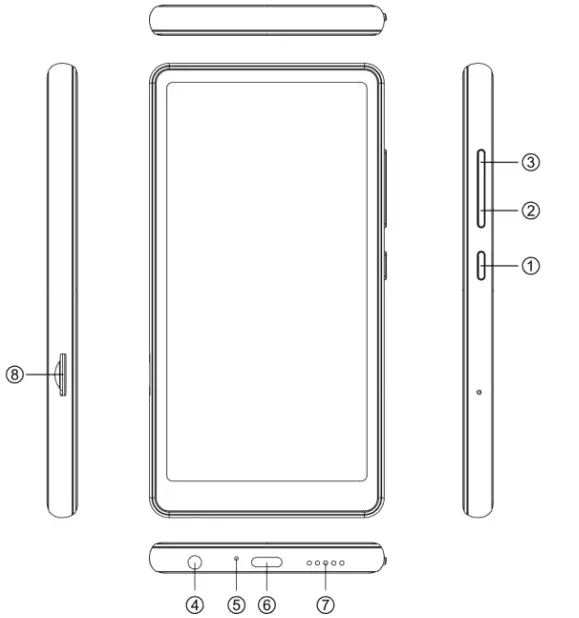
| 1. Power On/Off; Screen On/Off 2. Volume3. Volume+ 4. Earphones Jack | 5. Mic 6. Type-C Port 7. Speaker Holes 8. TF Card Slot |
Basic Operation
- Power (Screen) On/Off: Hold the power button ① to turn on/off the player. Short press the button ① to turn on/off the screen.
- Main Interface Introduction:
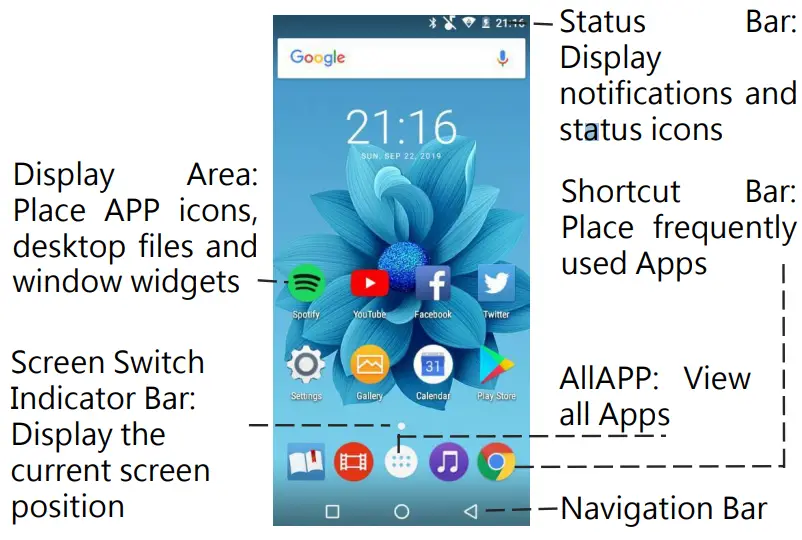
a. Status Bar: When entering the specific function menu, the top column of the interface is the status bar which displays this information: time, battery level, Bluetooth, WiFi.
b. Function Icons: In the main interface, the system comes with 20 icons. Directly click the icon to enter various functions or related settings for this device. - Volume Adjustment: Press button ③ to increase the volume. Press the button ② to decrease the volume.
- Virtual Function Keys Operation: At the bottom of the screen, display the navigation bar.

 Hide these virtual function key icons (The hidden navigation bar will appear when you set it).
 Display background hidden file interfaces.
 Return to the main interface
 Return to the previous menu.
Charge The Device
When the battery level is too low, the system will pop up a low power prompt. Please charge the device in time, otherwise, the device will automatically shut down.
Enable to charge the device via a charger (5V/1A) or via the USB interface of a computer.
Notes
- After the device is operated for a long time, especially in a high-temperature environment, it is a normal phenomenon that the surface might be hot. When you feel it is hot, please stop charging, turn off some functions as well as move the device to a cool place. Avoid prolonged contact with hot surfaces.
- If you do not use the device for a long time, please charge and discharge it at least once a month to prevent damage caused by excessive battery consumption.
[Recommendation]: In order to ensure the smooth and long-term use of this product, it is recommended that you buy a special charger for digital products.
Configuration Of New Device
Connect To Wi-Fi Network
- Swipe down from the status bar to open the notifications bar or find “Wi-Fi” in Settings.
- Turn on the“Wi-Fi” switch and the system will list all detected WiFi networks.
- Tap the Wi-Fi network you want to connect to. If you select an encrypted network, you will need to enter a password for access connection.
Connect To Bluetooth
- Swipe down from the status bar to open the notifications panel or find “Bluetooth” in Settings.
- Turn on the “Bluetooth” switch. Enter the Bluetooth settings interface and search for the Bluetooth address.
- Tap the name of the Bluetooth address you want to connect to and perform a pairing connection.
Screen And Display
Home Screen
Recognize the home screen
Basic Operation Of Screen
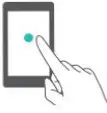 | Tap: Touch the target once. Eg: tap to confirm the selection or open the APP. |
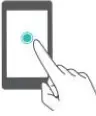 | Long Press: touch the target for more than 2 seconds. Eg: long-press the blank area on the home screen to enter the editing state of the home screen. |
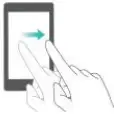 | Swipe: swipe your finger on the screen. Eg: swiping up and down or left and right on the screen, allows you to scroll through files, navigate to other home pages, or perform other actions. |
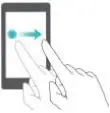 | Drag: Long press the target and move it to another location on the screen. Eg: on the home screen, drag a window widget or icon to any location. |
Lock And Unlock Screen
Set screen lock style and password You can set the screen lock password for your device to protect your private information.
Set the screen lock password
If you forget your password, you need to reset your device and clean up the data before use it again. Please keep your screen lock password safe.
- Open the Settings.
- Click Security > Screen Lock.
- You can choose to swipe, set a pattern, PIN code, or password to unlock the screen.
Notification And Status
Recognize the status bar According to the status bar, you can know the notification information and running status of the device in real-time. When there are notifications, light up the device screen and swipe down from the status bar to view various messages.
Open notification bar icon When the notification bar is turned on, you can quickly set the screen brightness, WiFi, Bluetooth, airplane mode, do not disturb mode, auto-rotation, location information, and screenshot.
Screenshot
- Swipe down from the top of the main interface to open the notification bar and click the screenshot icon to take a screenshot.
- Simultaneously press and hold the volume- button and power button with fingers and tap the screen to take a full-screen screenshot.
System Functions And Settings
Settings
Find the Setting icon on the main screen and click it to enter the setting function:
 Wireless & network
- Wireless network: After the Wi-Fi is turned on, the device will automatically search for the connectable wireless network.
- Bluetooth: After turning on Bluetooth, the device will automatically search for connectable Bluetooth devices. Connect Bluetooth speakers and Bluetooth headphones only.
- Airplane mode: The network will be automatically turned off after the airplane mode is turned on.
- More: Data usage and VPN.
Device
- Display: You can set the brightness, wallpaper, sleep time, font size, and rotation.
- Navigation bar: You can choose the display mode of the navigation bar.
- Sound & notification: You can select the mode and sound effect of the prompt tone as needed.
- Apps: You can see all the software added to the device. Click the corresponding software to see the related information, or you can choose to unload the software. The software that comes with the device cannot be unloaded.
- Storage & USB: You can view the used storage and the storage space occupied by Apps.
- Battery: You can set the intelligent power-saving mode and check the electricity usage.
- Memory: You can check the running memory of the device and the average memory usage of each application.
Personal
- Language & input: Language and input methods can be set.
- Location: The location can be opened or not as required by the software.
- Security: You can set the screen lock mode and device administration to set application permissions.
- Accounts: You can manage account information of related software.
- Google: Enter to set the relevant content of Google Chrome.
- Backup & reset: You can choose to back up the data in the device, reset the network settings, reset DRM and restore to the factory settings.
Note: All data in your device will be cleared when you restore to the factory settings. Please make a backup before doing that.
System
- Date & time: The date and time can be automatically determined via connecting to the network, or the time and date can be set manually. PS: You need to connect to Wi-Fi first to automatically synchronize the date & time. Otherwise, you need to set it manually: click“automatic date & time” and select“off” to continue setting the date and time.
- Schedule power on & off: You can set the scheduled power on & off time according to your need. After the setting is completed, click“Done” at the top right of the screen.
- Accessibility: You can set captions, magnification gestures, large text, high contrast text, auto-rotate screen, speak passwords, text-to-voice output, color inversion, color correction.
- About MP4: You can view the related information of the player.
System Functions
Video
- Find the video icon on the main interface and click it to select the video you want to play.
- Fast forward and rewind can be achieved by pulling the progress bar during playback.
- Click on the top right corner
 to select“Stop” and “Loop”.
 - Tap the screen to pause and play.
 to select“Stop” and “Loop”.
FM Radio
- Plugin the wired earphones, find the FM radio icon on the interface, click it to enter the FM radio function.
- The player will automatically search for radio stations.
- Click“
 ” on the interface to adjust to the next or previous channel. Click“
 ” on the interface to adjust the channel by selecting up and down.
 - Click “
 ” on the interface to collect the channel being played.
 - Click“
 ” in the upper right corner of the interface to select to start FM recording and FM recordings library.
 - Click “
 ” in the upper right corner to select to play via headphones or speaker. Click on ” ” in the upper right corner to select a radio station.
 ” on the interface to adjust to the next or previous channel. Click“
 ” on the interface to adjust the channel by selecting up and down.
 ” on the interface to collect the channel being played.
 ” in the upper right corner of the interface to select to start FM recording and FM recordings library.
 ” in the upper right corner to select to play via headphones or speaker. Click on ” ” in the upper right corner to select a radio station.
Music
Find the music icon in the main interface.
- You will see “
 “. Enable to choose the desired classification. There are artists, albums, songs, playlists.
 - In the music playback interface: click“ ”to play or pause
- Click “” to play the next or previous song.
- Click “
 ” to view the music being played and enter the playlist.
 - Click “
 ” to set the music loop.
 - Click “
 ” to set the repeat mode.
 - Click “” to select party shuffle, add to playlist, use as a ringtone, delete, sound effects (can set equalizer), library.
- Click “
 ” to quickly find music.
 “. Enable to choose the desired classification. There are artists, albums, songs, playlists.
 ” to view the music being played and enter the playlist.
 ” to set the music loop.
 ” to set the repeat mode.
 ” to quickly find music.
Sound Recorder
- Find the sound recorder icon on the interface and click it to enter the recording function.
- Click “
 ” to start recording.
 - Click “
 ” to pause the recording.
 - Click “
 ” to end the recording.
 - Click “ ” to view the recording file.
 ” to start recording.
 ” to pause the recording.
 ” to end the recording.
Gallery
- Find the gallery icon on the main interface and click it to view the imported or downloaded images.
- When the current picture is being displayed, click “” in the upper right corner to select to delete,
- Edit: Select the picture to be edited. There is a pencil icon in the lower-left corner of the screen. After clicking, you can select the filter, picture border, crop, graffiti, color, etc. After editing the picture, click“Save” in the upper left corner of the screen to save it. If you need to go back, you can click the return icon at the top of the screen.
Calendar
- Find the calendar icon on the main interface, click it to view the current date.
- Click ” ” at the top right corner of the screen to add new events in the selected date, search the date when the event was created, clear events, go to the specified date, settings.
- Settings: Click to enter, you will see the general settings option, which can be set as needed.
- Click on ”
 ” at the top right corner of the screen to go to the current date.
 ” at the top right corner of the screen to go to the current date.
Clock
- Alarm clock: Set the alarm time according to your need. Click “
 ” to add an alarm. Click “
 ” in the lower right corner to set the alarm time, alarm volume, etc.
 - Time: Click “
 ” to select the time zone that needs to be added. Click “” to set the clock style and automatic home clock.
 - Countdown: You can set the countdown time according to your need. After setting the time, click “
 ” to start the countdown.
 - Stopwatch: Click “” or the circular area on the screen to start or pause the timing. Click “
 ” to restart the timing. Click “
 ” to share the timing results.
 ” to add an alarm. Click “
 ” in the lower right corner to set the alarm time, alarm volume, etc.
 ” to select the time zone that needs to be added. Click “
 ” to start the countdown.
 ” to restart the timing. Click “
 ” to share the timing results.
Voice Search
When connect to the network, open the voice search. Use voice to input what you want to search for so that you can automatically search for the relevant content in Google Chrome.
FAQ
- The computer does not display the USB symbol when transferring files. A: Since the device is a 32-bit Android system, the computer cannot display the USB symbol. However, you can open“Computer” or“My Computer”in your computer to view the disk name“AGP-T02S” and continue the transmission.
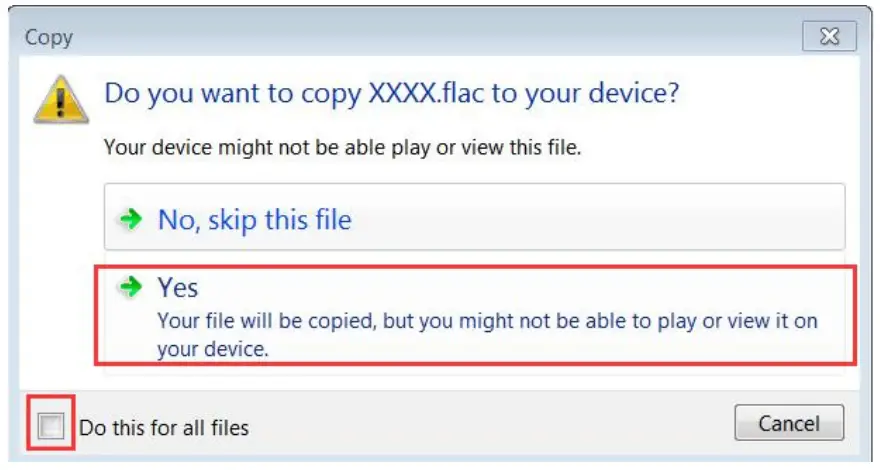
- The computer reminded me that the format is not supported during the transmission of files.

A: Due to system reasons, some formats may cause the computer to pop up the “format not supported” window when transferring files. In fact, they can be supported. When this window pops up, please select “Yes” and “Execute the operation on all files”.
The transmission will continue without appearing in this window. - The navigation bar will disappear after opening some applications.
A: When the navigation bar disappears, you can check whether the navigation bar is hidden. Steps: Settings > Navigation bar > Hide navigation switch, and select Close. If there is no problem with the navigation bar setting, you can pull down from the status bar to open the notification bar, and the navigation bar will appear. You can choose to exit and return. - Some video formats cannot be opened in the built-in video software?
A: The built-in video software of this device has limited decoding capability. It can download third-party video software for playback. In addition, files in Rmvb format are copyright protected, so this device cannot support this format.
Specifications
| Size | 151.3×78×8.5mm | ||
| Screen | 6″ screen, resolution: 960×480 | ||
| Internal Storage | 2G/16G (Detailed information is in accordance with the final product) | ||
| Music Format | MP3/OGG/FLAC/AAC/WMA/WAV/APE (Some formats require third-party APP support) | ||
| Video Format | RM/AVI/3GP/FLV/MP4/DAT/MKV/MPG/MOV/TS (Some formats require third-party APP support) | ||
| Picture Format | JPG、BMP、GIF、PNG | ||
| Lyric Format | LRC | ||
| Ebook | PDF、TXT、EPUB、FB2 | ||
| USB connectivity | TYPE-C | ||
| Card Expansion | TF card, up to 128GB expansion | ||
| Playtime | Music | Headset | 70 hours |
| Speaker | 13 hours | ||
| Video | Headset | 7 hours | |
| Speaker | 5.5 hours | ||
| Record | 20 hours | ||
| FM Radio | 20 hours | ||
| Compatible System | Android 6.0 or above | ||
| Charging time | 2.5 hours | ||
| Battery | Built-in 2000mAh polymer battery | ||
| Recommended d Charger | 5.0VDC 1000mA | ||
| Using Temperature | 0 ~ 45℃ | ||
If you have any problems, please feel free to contact us.
E-mails: [email protected].
Manufacturer: Shenzhen Wobolin Technology Co., Ltd.
Address: Factory A, No. 4, Baolong 3rd Road, Baolong
Industrial Zone, Baolong Community, Longgang Street,
Longgang District, Shenzhen.
 AGPtek Call Center, Mp3 player, Laptop Notebook Battery - agptek.com