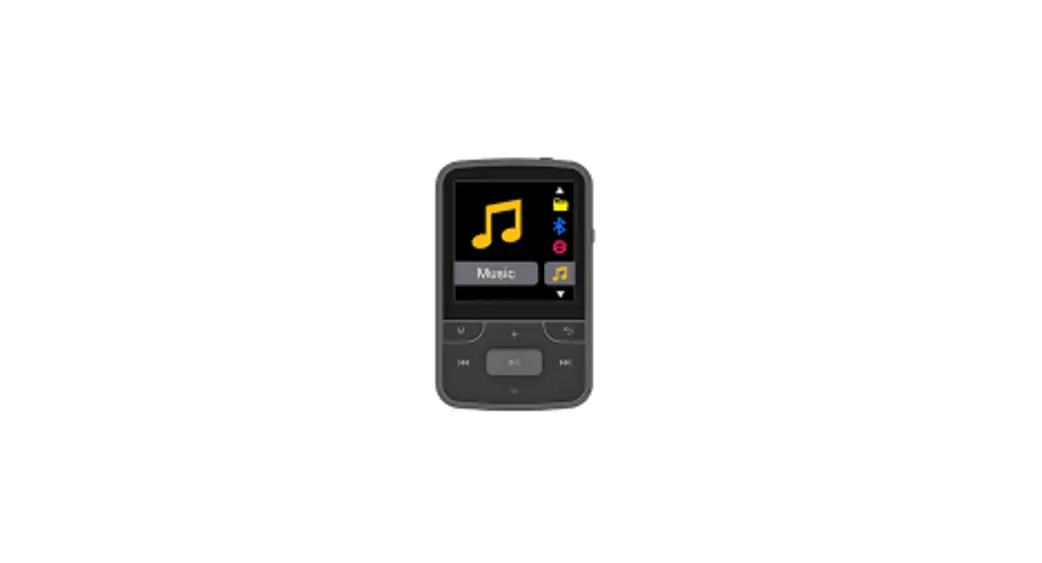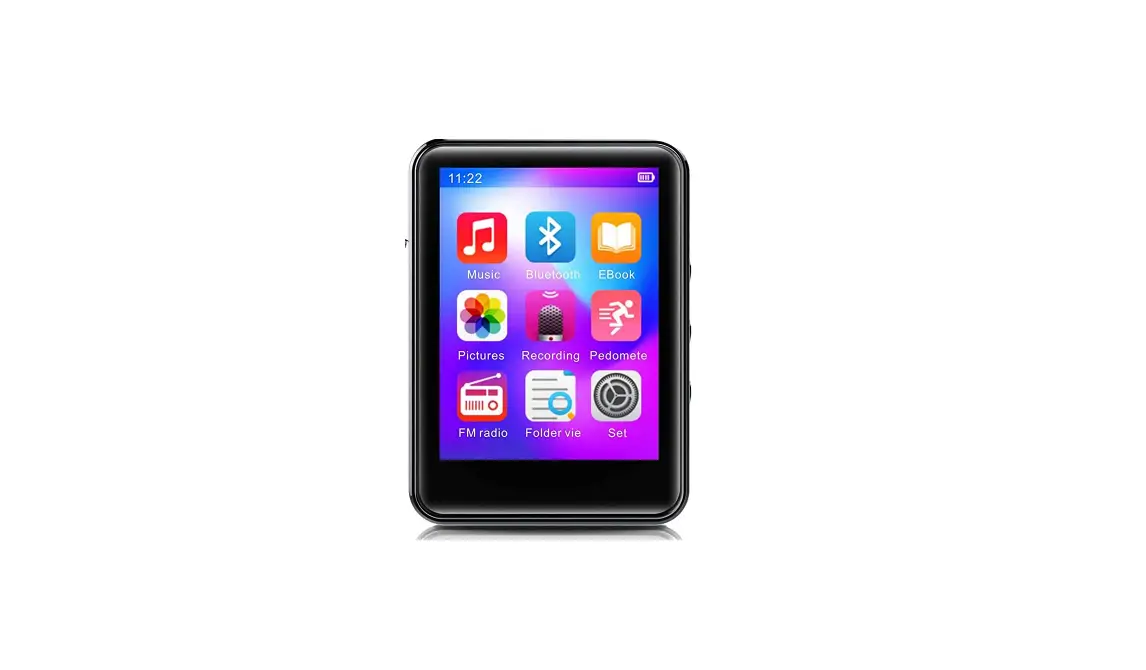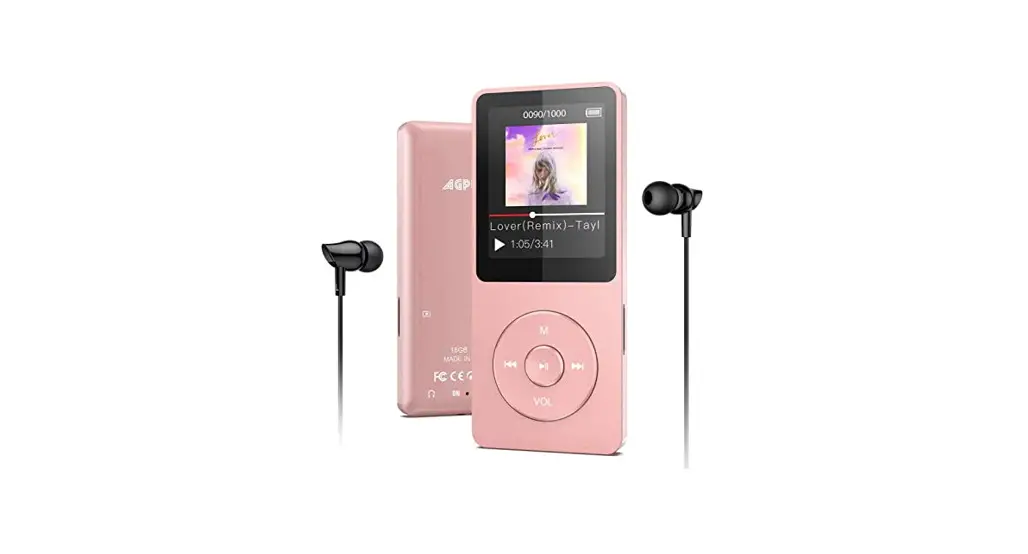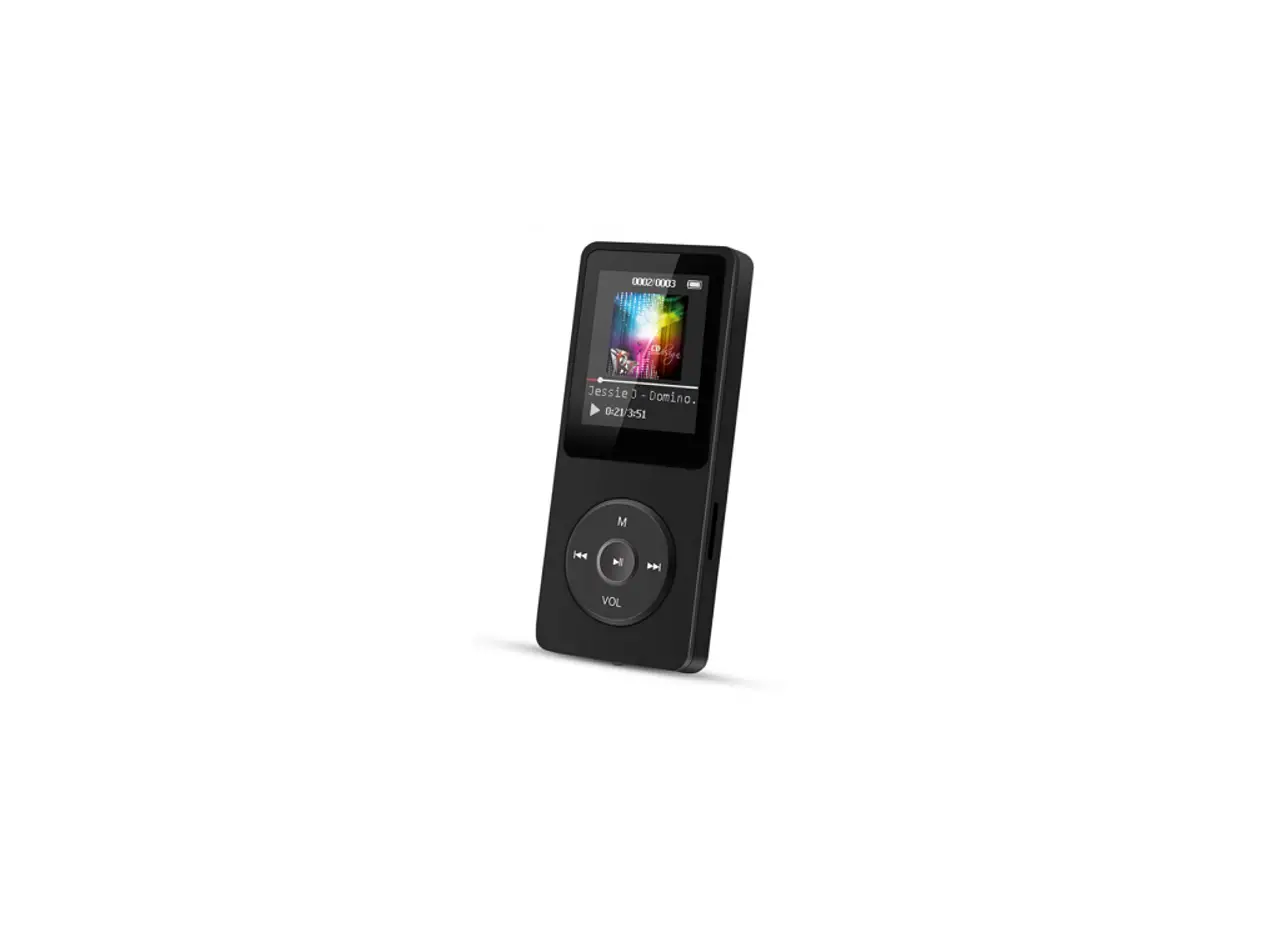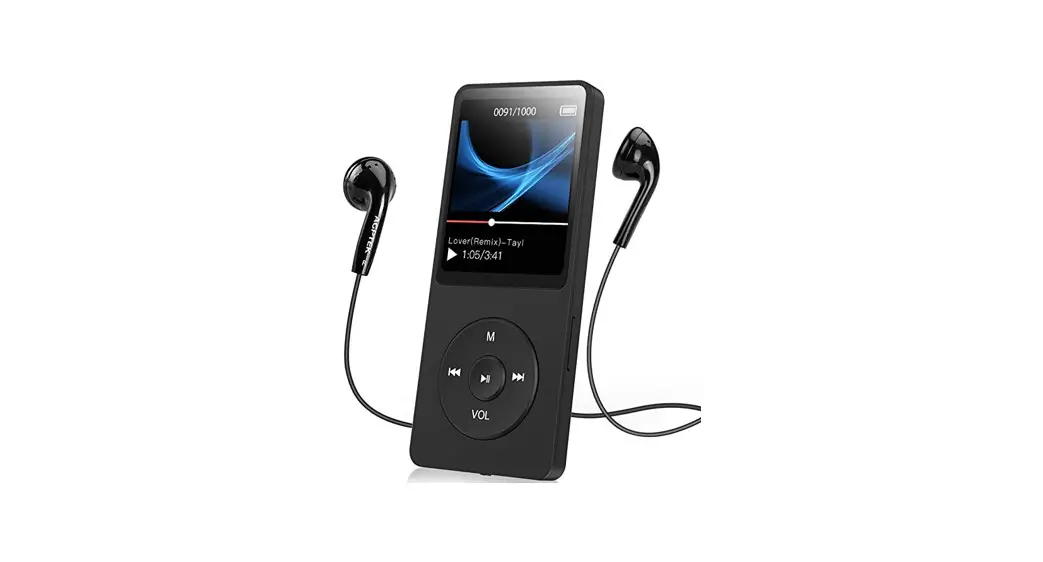

F3BT MP3 Player
User Manual
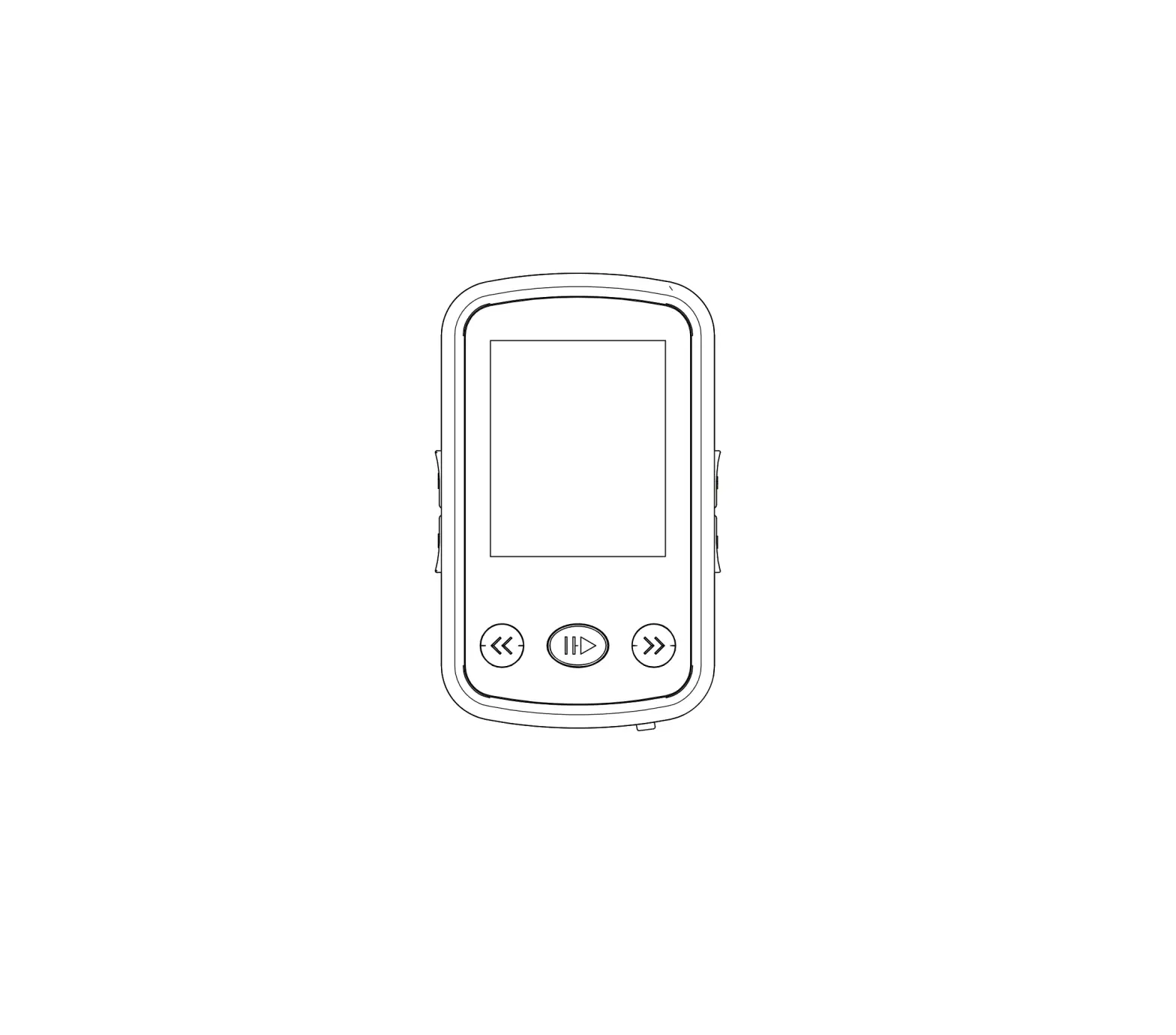
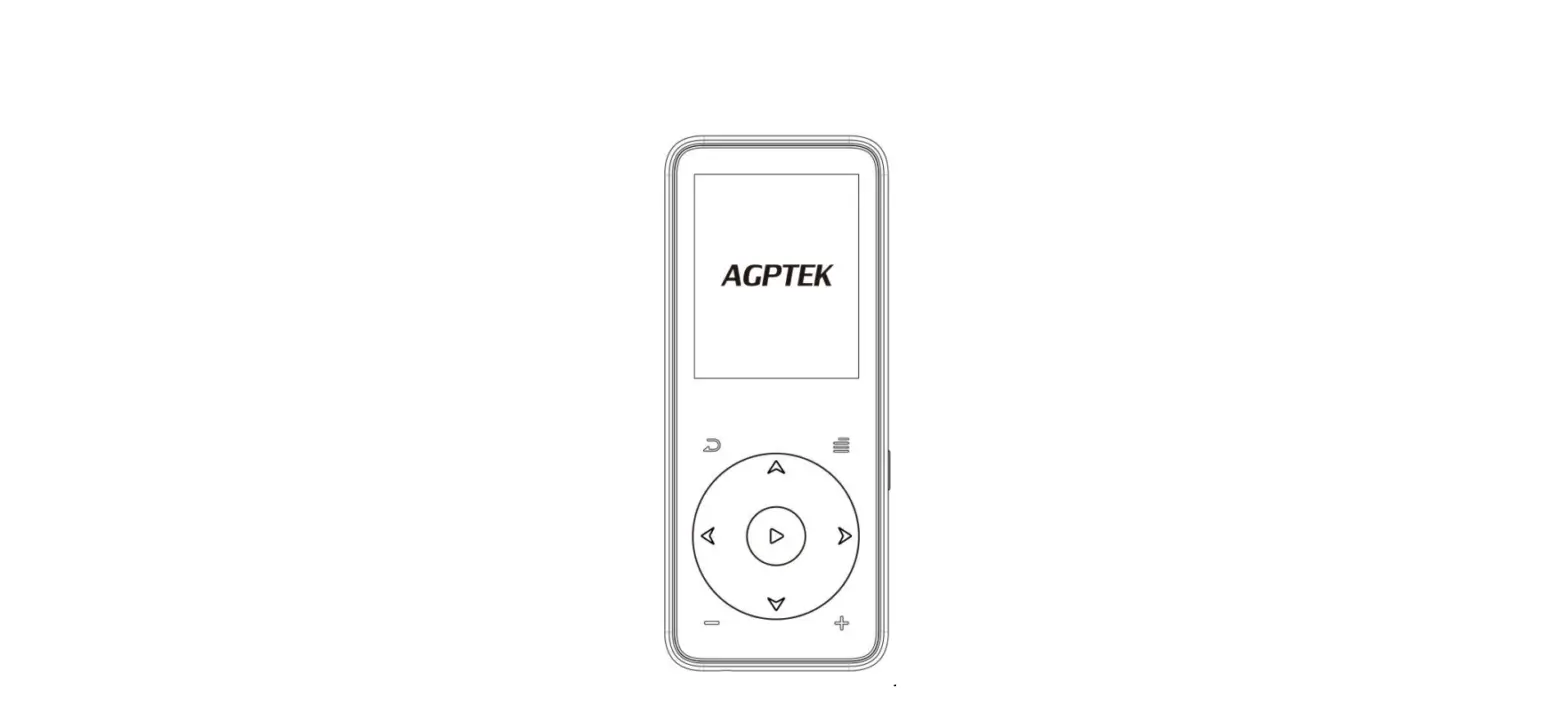
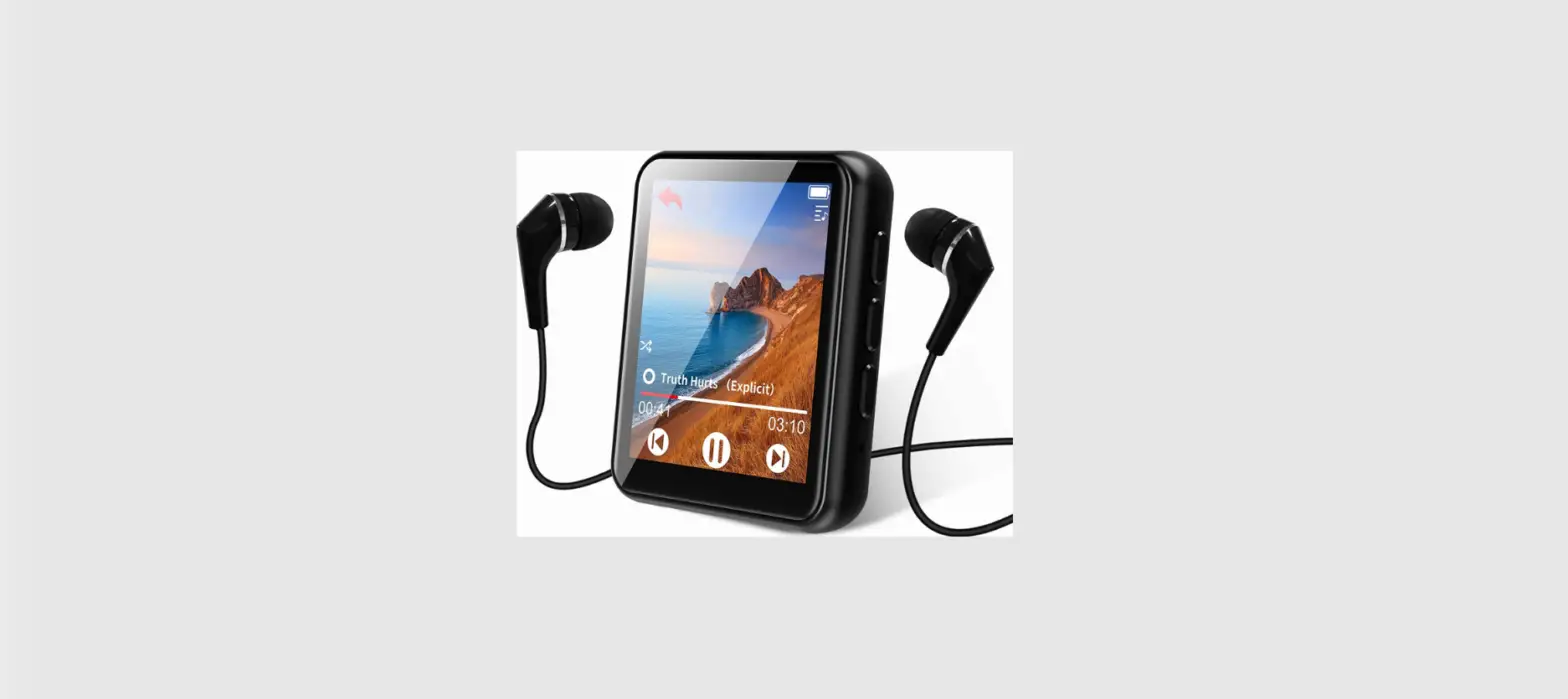
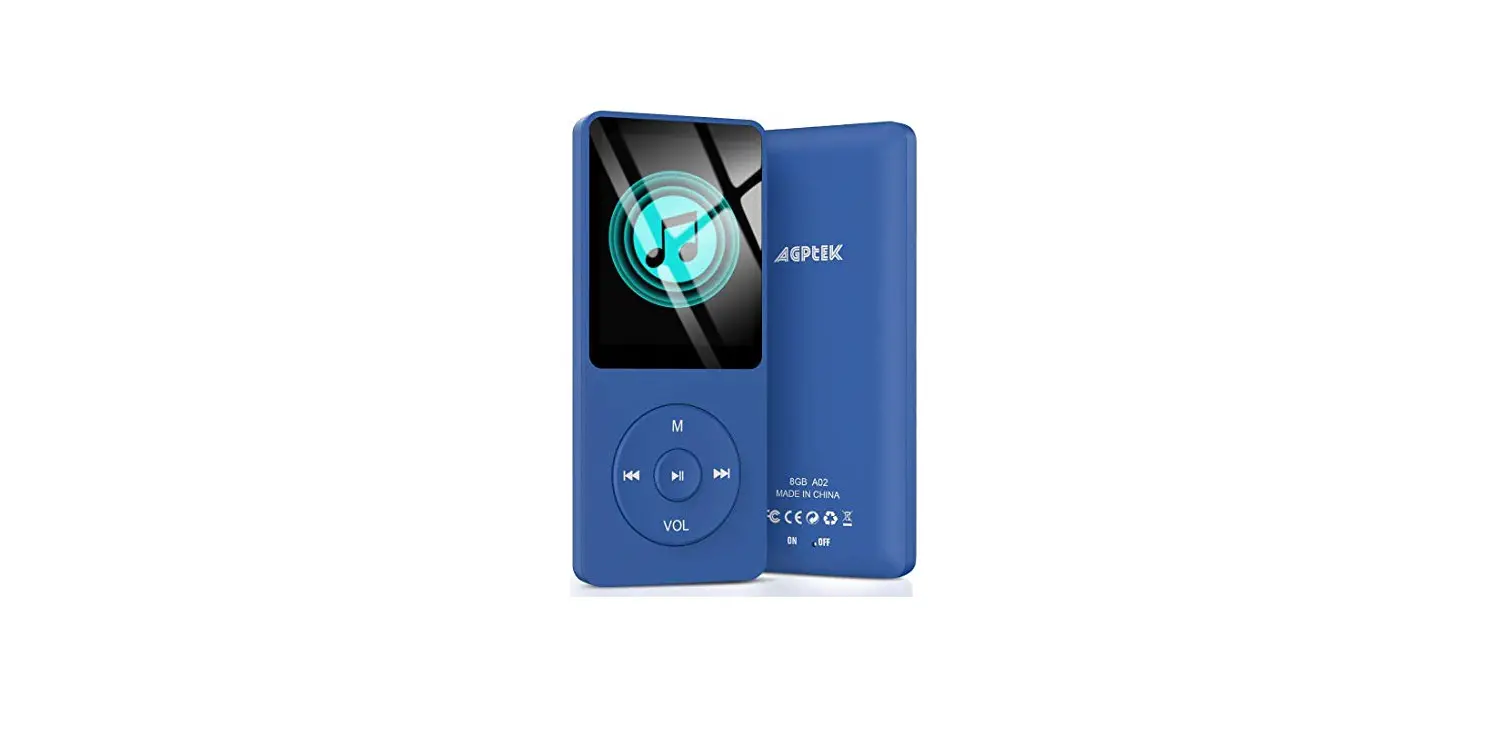
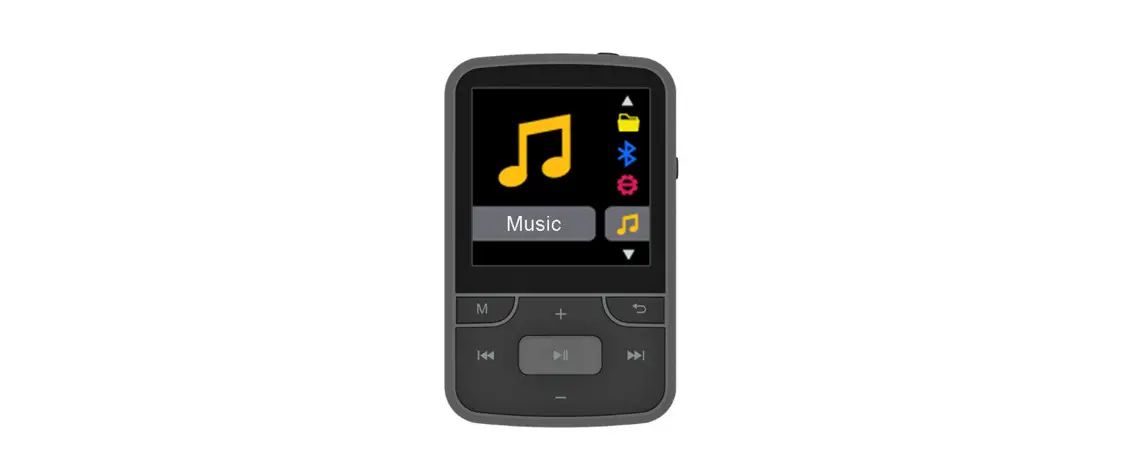
Unit overview
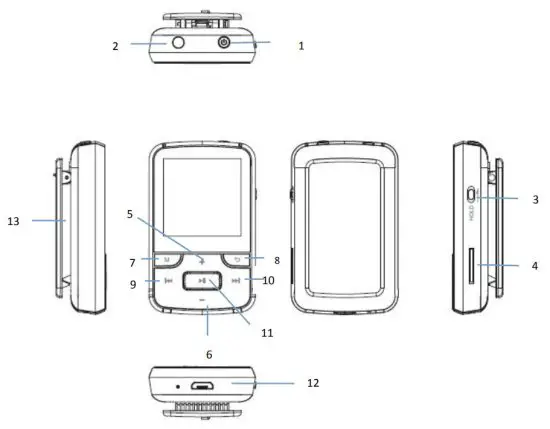
| 1. Power on-off | 8. Back/Exit to superior menu |
| 2. Earphone jack | 9. Previous and fast forward playing |
| 3. Hold/Unlock | 10. Next and fast backward playing |
| 4. Micro SD card slot | 11.Play/Pause/On-off/Enter |
| 5.Vol+/Scroll up | 12. USB Port |
| 6.Vol-/Scroll down | 13. Clip |
| 7. Main Menu |
Technical Specification
| Screen | 1.5 inch 128*128 TFT display |
| Flash memory | 8GB |
| Bluetooth version | Bluetooth 4.0 |
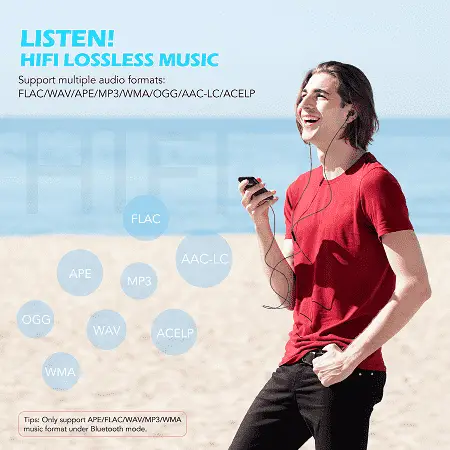
| Audio format | MP3/WMA/OGG/APE/FLAC/WAV/AAC-LC/ACELP |
| Recording format | FM/MIC record and WAV |
| Battery | Li-polymer rechargeable 300mAh |
| FM frequency | 87.5-108MHZ |
| Micro-SD card | Extend to 128GB |
| Photo format | JPG, BMP, and GIF |
| Charging time | 3 hours |
Basic Operation
Powering on the player
- Long press the power button and hold(about 3 seconds) to turn it on.
- Long press the power button and hold(about 3 seconds) to turn it off.
Battery Charging
When the battery indicator is on the screen, you must charge the device.
The device has two charge options:
a)You can charge the device via the USB connector.
b)You can also charge the device via a USB wall adapter(not supplied)
Note: The charging time should not exceed 4 hours. It is recommended to turn off the device before charging.
Press buttons definition
| Action | Basic operation |
| Short press | Press time is less than 1-2 seconds |
| Long press | Press time is more than 1-2 seconds |
| Hold | Keep pressing one button |
Note: Without special instruction, all pressing means short pressing in this user manual
FM RADIO
On the radio, menu press to enter below radio playing interface.
You can press /
/ search programs manually.
At the radio playing interface, press M and will show a related list including “Autotune”, “FM Record”, “Save to preset ”, “Clear preset”, and “FM bands”.
- Save to preset
The frequency points of the radio station are displayed with 30 frequency points reserved at most. - Clear preset
Press to clear preset stations.
 - Autotune Press to enter Autotune mode, it will show “Perform auto search? ”, press to confirm Yes or No. If choose Yes, it will be searched automatically and automatically save searched station in “ Station list”.
- FM record
When listening to the broadcast station program, press the M button to find the sub-menu”start FM radio record”, and press to start recording, and long press to quickly saved recording content in the formats of FM REC001/002…..WAV
You will find saved FM recording in the Record folder under the FOLDER menu. - FM bands
The player is defaulted to command band, if you are in Japan, you need to change to Japan Band”76-90Mhz., If you are in Europe, you need to set it to European band 87- 108Mhz.
MUSIC
Play your music
On the music menu, press to enter the music function, and by pressing + / – view the sub-menu from up to down: “Resume”, “Files” “playlists”.
Resume: play music from the last music stop point.
Files: Display all of the music files, Press to confirm your option, and start to play your music. Playlists: you can create a playlist or find music, you can seek and play music from “all songs” , ”Artists”, “Albums”, “Genres”
When the device is playing songs, press the M button to enter the below sub-menus, and press to enter the option you want.
- Play mode
Here appears 4 options, Play music from…, Repeat , Shuffle and Repeat Setting1 - Equalizer
Choose music mode as you want – Off, Rock , Funk, Hip-Hop, Jazz, Classical, Techno - Add to playlist
There are 3 options prepared for you, including “Playlist on the go [1]”, “Playlist on the go [2]” and “Playlist on the go [3]”, you can add the song which is playing to any one of these three as you like. - Remove from playlist
You can remove the song which is playing to any one of these three Playlists as you like. - Delete
It will show” …(song name)” delete? Press to choose yes to delete this song. - Bookmarks
It is marked by the stopping time as “hh:mm: ss”.So you can set the stopping time before you add it for continues playing next time conveniently.
BLUETOOTH
Open the Bluetooth of the device you want to connect with the player. Select Bluetooth on and off, press and select Bluetooth on.
Then select Search for device and click to search the nearby devices, all of the devices which has opened their Bluetooth will be listed. Select the device you want to connect to, then click to connect. After successfully connected, it will go back to the submenu:
Bluetooth on and off: Open device Bluetooth ;
Search for Device: choose from the available devices and select to connect
Device list: you can find all Bluetooth device
After connect Bluetooth successfully , Press  Back main menu .
In the end, you find music or radio on the main menu to play music or FM by Bluetooth receiver device.
RECORDER
On the record menu and press to enter voice recording. The following lists will show Start Voice Recording, Recordings Library, Recording Format, and Record Settings. Press+/-to navigate these lists.
- Quick Record: scroll to “Start Voice Recording”, press to start your recording, and long press to quickly save recording content.
- In recording library view recording files and delete all files.
- Tap to pause or stop recording,
- To play, go to “Recordings Library” and play as music
PICTURES
To view pictures, select Photo from the main menu and press the button to enter the photo browser.
Use the + or – button to scroll through your picture and select a photo you would like to view and press the button.
VIDEO
To watch movies, select VIDEO from the main menu and press the button to confirm. The video playback screen will be displayed
Movie playback controls
- PRE button: previous video/Rewind(hold)
- NEXT button: next video/Fast forward(hold)
- M button: Enter the video submenu
-Brightness
-Repeat
-Delete Video
-Create Playlist - button: Play/Pause
- VOL+ button: Increase volume
- VOL- button: Decrease volume
TEXT
On the ebook menu, press to enter Text. This player supports the TXT files.
FILES
On files, menu press to enter folder menu. Here you can check the files you have stored on the device including music, recording, and pictures Text.
When you play music under “Folder”, it will shuffle songs by folder if you turn shuffle on.
SETTING
On the setting menu and press to access the following settings: “Language”, “Display setting”, ”Power off”, “Information” Format device”, “Factory settings”.
Press to default your favorite setting.
- Setting sleep timer or Auto Turn Off under “Power off “.
When playing time is reach the sleep timer you set, the player will power off automatically - Choose the language according to your need
- Set brightness or Backlight timer under “ display setting “
- See information about your player under “Information”
- Set the backlight time of your player
- Format the device or restore it to the factory setting
FCC Caution
This device complies with part 15 of the FCC Rules. Operation is subject to the following two conditions: (1) This device may not cause harmful interference, and (2) this device must accept any interference received, including interference that may cause undesired operation.
Any changes or modifications not expressly approved by the party responsible for compliance could void the user’s authority to operate the equipment.
Note: This equipment has been tested and found to comply with the limits for a Class B digital device, pursuant to part 15 of the FCC Rules. These limits are designed to provide reasonable protection against harmful interference in a residential installation. This equipment generates uses and can radiate radio frequency energy and, if not installed and used in accordance with the instructions, may cause harmful interference to radio communications. However, there is no guarantee that interference will not occur in a particular installation. If this equipment does cause harmful interference to radio or television reception, which can be determined by turning the equipment off and on, the user is encouraged to try to correct the interference by one or more of the following measures:
- Reorient or relocate the receiving antenna.
- Increase the separation between the equipment and receiver.
- Connect the equipment into an outlet on a circuit different from that to which the receiver is connected.
- Consult the dealer or an experienced radio/TV technician for help.
*RF warning for Portable devices:
The device has been evaluated to meet general RF exposure requirements. The device can be used in portable exposure conditions without restriction.