SV12 360 Degree Surround Vision Camera System
SV12 User Manual & Install Guide
Document Ref. No.: DN3267
Version No.: 3.0.1
Document Date: April 2022
Table of Contents
- Glossary
- 1 Introduction
- 1.1 Welcome to Your New SV12
- 1.2 Important Safety and Handling Information
- 4 Maintenance and Troubleshooting
- 5 Customer Limited Warranty
Glossary
| Term/Abbreviation | Description |
|---|---|
| ACC | Accelerometer |
| AHD | Analog high definition. |
| CAN | Controller Area Network is a vehicle bus standard designed to allow microcontrollers and devices to communicate with each other in applications without a host computer. |
| DVR | Internal Wi-Fi 2GHz and 5 GHz. It allows DVR to be configured as a client or access point. |
| FlexFi | File Transfer Protocol is a standard network protocol used to transfer computer files from one host to another host over a TCP-based network, such as the Internet. |
| FTP | Frames per Seconds. |
| H.264 | Also known as MPEG-4 Part 10, Advanced Video Coding (MPEG-4 AVC), this is a video coding format that is currently one of the most commonly used formats for the recording, compression, and distribution of video content. |
| H.265 | Also known as HEVC video, High-Efficiency Video Coding. Due to the advanced technology, it required a 40% less bandwidth and storage space than H.264. |
| ICD / ICD2 | Interactive Control Display, purpose-built touch screen monitors for operating Gatekeeper Systems DVR’s. |
| IO | Input/output |
| LAN | |
| LCD Monitor | |
| MAC Address | |
| OSD | |
| HD/HDD | |
| TCP | TCP is one of the main protocols in TCP/IP networks which enables two hosts to establish a connection and exchange streams of data. TCP guarantees delivery of data and also guarantees that packets will be delivered in the same order in which they were sent. |
| UDP | UDP is a simple connectionless transmission model with a minimum overhead of protocol mechanisms. |
| USB | |
| UTC | Coordinated Universal Time is a time standard based on International Atomic Time with leap seconds added at irregular intervals to compensate for the Earth’s slowing rotation. It is the primary time standard by which the world regulates clocks and time. |
1 Introduction
1.1 Welcome to Your New SV12
Welcome to your new SV12 product. The SV12 is a specialized
device designed for specific purposes. Please read the manual
carefully before using the product.
1.2 Important Safety and Handling Information
It is essential to follow the safety and handling information
provided in the manual to prevent any damage or injury. Please read
the manual carefully before using the product.
4 Maintenance and Troubleshooting
The manual provides detailed information on maintaining and
troubleshooting the SV12 product. Please refer to the manual for
any maintenance and troubleshooting related issues.
5 Customer Limited Warranty
The SV12 product comes with a customer limited warranty. Please
refer to the manual for detailed information on the warranty terms
and conditions.
SV12 360° Surround Vision Camera System User Manual & Install Guide
Document Ref. No. : DN3267
Version No.
: 3.0.1
Document Date : April 2022
SV12 User Manual & Install Guide
TABLE OF CONTENTS
GLOSSARY ……………………………………………………………………………………………………………………………. 3
1 INTRODUCTION …………………………………………………………………………………………………………….. 5 1.1 WELCOME TO YOUR NEW SV12 …………………………………………………………………………………………………………………. 5 1.2 IMPORTANT SAFETY AND HANDLING INFORMATION…………………………………………………………………………………….. 5
2 WHAT’S INCLUDED ………………………………………………………………………………………………………… 7 2.1 CONTROLLER……………………………………………………………………………………………………………………………………………….. 8 2.1.1 IR Remote Controller ………………………………………………………………………………………………………………………. 8 2.2 SYSTEM SPECIFICATIONS ……………………………………………………………………………………………………………………………… 9
3 HARDWARE INSTALLATION ………………………………………………………………………………………….10 3.1 QUICK REFERENCE GUIDE FOR INSTALLATION ……………………………………………………………………………………………..10 3.2 INSTALLATION GUIDELINES …………………………………………………………………………………………………………………………10 3.2.1 Instructions for Mounting the System …………………………………………………………………………………………10 3.3 CALIBRATION ……………………………………………………………………………………………………………………………………………..12 3.3.1 Board Sheet …………………………………………………………………………………………………………………………………….12 3.3.2 Navigate through Video Processor Menu …………………………………………………………………………………..13 3.3.2.1 System …………………………………………………………………………………………………………………………………….14 3.3.2.2 Clock ………………………………………………………………………………………………………………………………………..16 3.3.2.3 Storage ……………………………………………………………………………………………………………………………………16 3.3.2.4 DVR ………………………………………………………………………………………………………………………………………….16 3.3.2.5 AVM …………………………………………………………………………………………………………………………………………16 3.3.2.6 Player……………………………………………………………………………………………………………………………………….17 3.3.2.7 Information …………………………………………………………………………………………………………………………….17 3.3.3 Handle Calibration ………………………………………………………………………………………………………………………..18 3.3.3.1 SVM2DHorizCalibrateTool_v1.2 Software overview ……………………………………………………….18 3.3.3.2 Calibration Tools……………………………………………………………………………………………………………………19 3.3.4 Importing Settings to Video Processor………………………………………………………………………………………..22
4 MAINTENANCE AND TROUBLESHOOTING……………………………………………………………………..24
5 CUSTOMER LIMITED WARRANTY…………………………………………………………………………………..25
Table of Contents
2 of 26
SV12 User Manual & Install Guide
GLOSSARY
Term/Abbreviation ACC AHD CAN
DVR FlexFi FTP FPS GPS
H.264
H.265 ICD / ICD2
IO LAN
LCD Monitor
MAC Address
Description
Accelerometer
Analog high definition.
Controller Area Network is a vehicle bus standard designed to allow microcontrollers and devices to communicate with each other in applications without a host computer.
Digital Video Recorder a device that records audio and video input from the cameras and stores it to a hard disk drive and/or an SD card for retrieval and viewing.
Internal Wi-Fi 2GHz and 5 GHz. It allows DVR to be configured as a client or access point.
File Transfer Protocol is a standard network protocol used to transfer computer files from one host to another host over a TCP-based network, such as the Internet.
Frames per Seconds.
Global Positioning System it is a radio navigation system that allows land, sea, and airborne users to determine their exact location, velocity, and time 24 hours a day, in all weather conditions, anywhere in the world.
Also known as MPEG-4 Part 10, Advanced Video Coding (MPEG-4 AVC), this is a video coding format that is currently one of the most commonly used formats for the recording, compression, and distribution of video content.
Also known as HEVC video, High-Efficiency Video Coding. Due to the advanced technology, it required a 40% less bandwidth and storage space than H.264.
Interactive Control Display, purpose-built touch screen monitors for operating Gatekeeper Systems DVR’s.
Input/output
Local Area Network it is a computer network that interconnects computing devices within a limited area such as a school, work area, or an office building.
Liquid Crystal Display Monitor it is a display screen that uses electronically modulated segments controlling a layer of liquid crystals and arrayed in front of a light source (backlight) or reflector to produce images and text.
Media Access Control address it is a unique identifier assigned to network interfaces for communications on the physical network segment.
3 of 26
SV12 User Manual & Install Guide
OSD HD/HDD
TCP UDP USB UTC
On-Screen Display an image superimposed on a screen commonly used to display information such as volume, channel, date/time, device status, etc. It also forms the basis of the menu system display which is used to configure the system settings of the digital video recorder.
Hard Drive a high-capacity, self-contained storage device containing a read-write mechanism plus one or more hard disks, inside a sealed unit. Also called hard disk drive.
TCP is one of the main protocols in TCP/IP networks which enables two hosts to establish a connection and exchange streams of data. TCP guarantees delivery of data and also guarantees that packets will be delivered in the same order in which they were sent.
UDP is a simple connectionless transmission model with a minimum overhead of protocol mechanisms.
Universal Serial Bus it is an industry-standard that defines the cables, connectors and communications protocols used in a bus for connection, communication, and power supply between computers and electronic devices.
Coordinated Universal Time is a time standard based on International Atomic Time with leap seconds added at irregular intervals to compensate for the Earth’s slowing rotation. It is the primary time standard by which the world regulates clocks and time.
Event Abbreviations.
When a recorded video is viewed in G4 Viewer+ the abbreviations displayed on the screen for events are specific to their default values.
SENSOR BRAKE WARNING LIGHTS STOP ARM DOOR LEFT TURN RIGHT TURN EXTRA1 EXTRA2
OSD NAME BK WN SA DR LT RT EX1 EX2
4 of 26
SV12 User Manual & Install Guide
1 Introduction
1.1 Welcome to Your New SV12
Congratulations on the purchase of your new Gatekeeper Systems SV12.
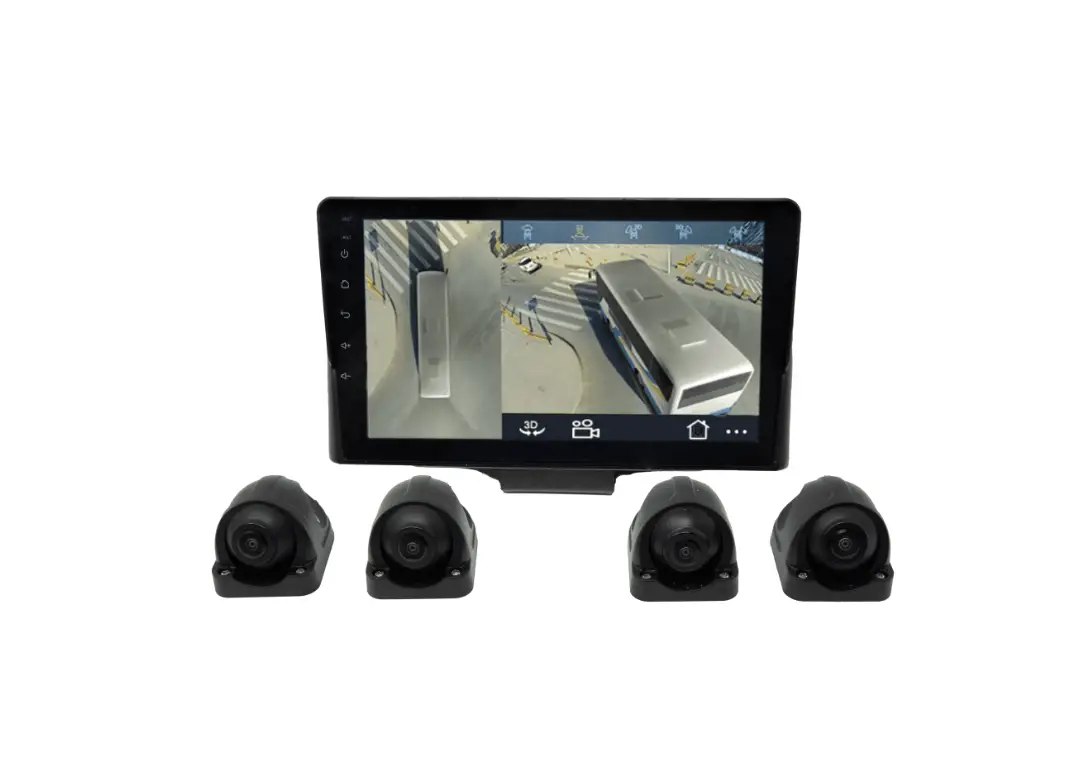
The 360° Surround Vision Camera System provides real-time and surround view of the vehicle for blindspot detection. With 4 channels 1080P wide-angle cameras and video processor, a high resolution panoramic real-time stitching scene is available on the display monitor. The display monitor is off when the vehicle is moving forward. As the vehicle is reversing or making side turns, the display monitor turns on and provides a split-screen display of a 360° stitching image and a rear, left, or right view. The 360° Surround Vision Camera System is easy to install and calibration is customizable to meet specific vehicle requirements.
To playback the recorded video or search for any sensor alarm triggers, the SV12 utilizes Gatekeeper’s custom video viewing software, “G4 Viewer Plus”. G4 Viewer Plus is an easy to use application that allows users to quickly find the video of interest and save as a clip in MP4 format. G4 Viewer Plus is available as a free download from Gatekeeper System website (www.gatekeeper-systems.com).
1.2 Important Safety and Handling Information
Before using the product, please ensure that you observe the safety precautions described below. Always ensure that the product is used correctly and by the listed instructions. Be sure to also check the manuals included with any other product accessories that you may use.
SAFETY AND INFORMATION SYMBOLS USED IN THIS MANUAL This symbol is intended to alert the user to the presence of uninsulated “dangerous voltage” that may be of sufficient magnitude to constitute a risk of electric shock to persons. This symbol is intended to alert the user to the presence of important operating and maintenance instructions in the literature accompanying this product. Failure to heed these warnings or instructions may damage the product or cause it to operate incorrectly.
This symbol indicates text of importance or special significance in the accompanying product literature. These may be important operating instructions or supplemental information.
This symbol draws the user’s attention to time-saving tips and helpful guidelines for using the product’s features.
This symbol draws the user’s attention to recommended best practices which should be observed when installing and using the product.
5 of 26
SV12 User Manual & Install Guide
The battery must be disconnected from the vehicle before working on the electrical system of the vehicle when installing, servicing or removing Gatekeeper products.
Preparing to Install Customers shall be responsible for addressing any systems on the bus that require attention as a result of disconnecting the bus battery. This includes, but is not limited to, entering a radio theft code, programming radio stations, etc.
Installing the product All Gatekeeper Systems employees or contractors who perform electrical work (e.g. installing, servicing or removing a SV12, installing a backup camera system, etc.) on a customer vehicle shall ensure that the battery in the vehicle is disconnected before work commences.
Operating the product The SV12 has an operating temperature range of -22°F to +155°F (-30°C to +70°C). It is good practice to ensure that the product is mounted in a suitable location which does not exceed acceptable temperature ranges during normal operations. Do not remove the cover of the product as this will void the warranty. When a system has shipped with a GPS antenna, please ensure that the GPS antenna is mounted externally on the roof of the bus with a clear view of the sky, and with the magnetic side facing down.
Updating the product Firmware updates (available from www.gatekeeper-systems.com) are system and product model specific. These firmware updates must be applied to the SV12 system only.
Repairing the product Your SV12 doesn’t have any user-serviceable parts. Do not open or disassemble it or attempt to repair it or replace any components. Disassembling the SV12 may damage it or may cause injury to you. If your product needs service, is damaged, or malfunctions, contact Gatekeeper Systems for assistance. If you attempt to open it, you risk damaging your product, and such damage isn’t covered by the warranty on your SV12.
If at any time there is a question about how to proceed, please contact Gatekeeper Systems immediately at either 1-888-666-4833 or 1-604-864-6187 for assistance. Review all available installation documentation, including technical bulletins. Additional resources, technical bulletins and product tutorials can be found at https://www.gatekeeper-systems.com/support/downloads/
6 of 26
SV12 User Manual & Install Guide
2 What’s Included
The following items are included as part of your basic product package.
SV12 Digital Video Processor (SV12 Assembly) A video processor to merge the image.
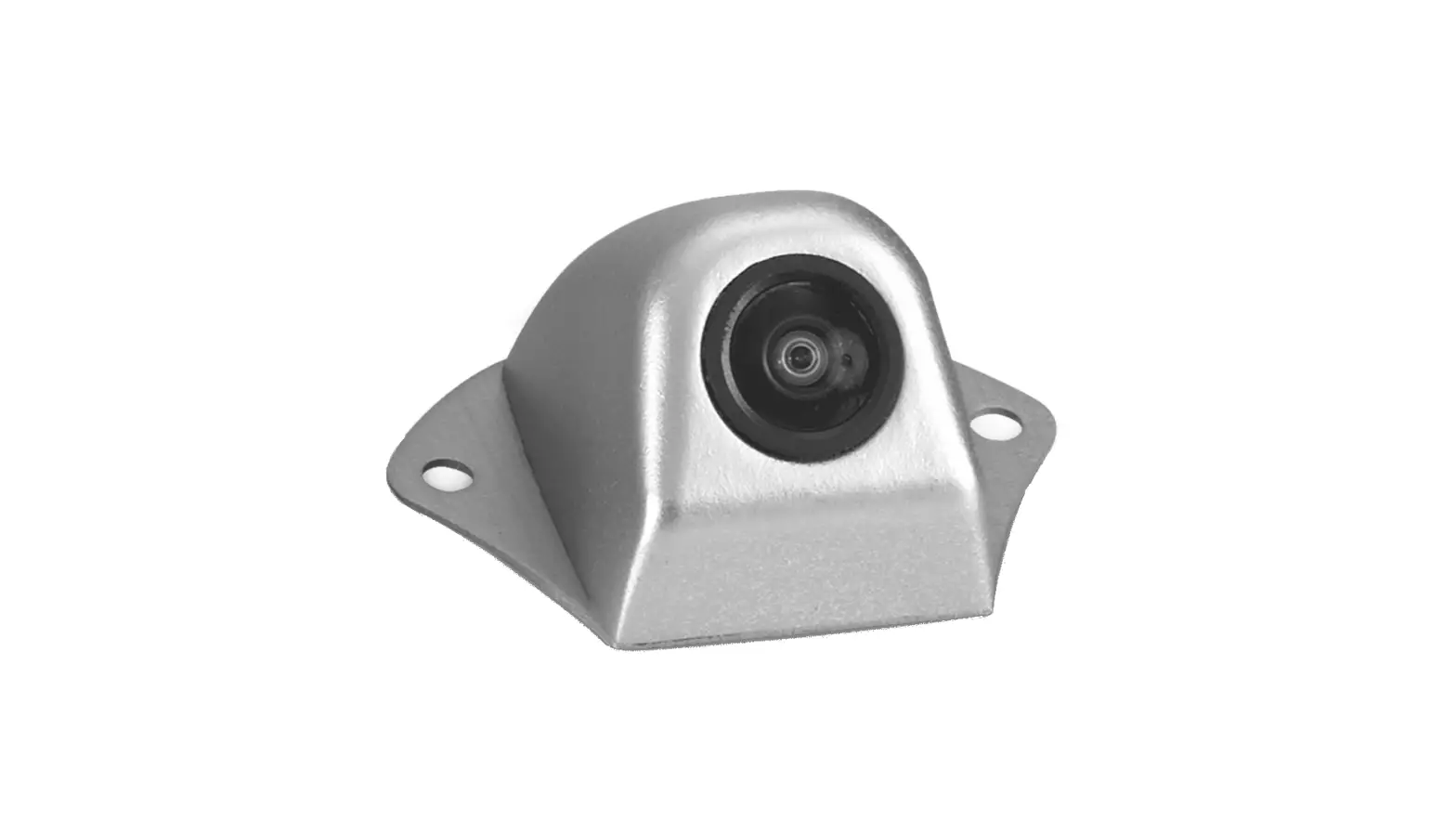
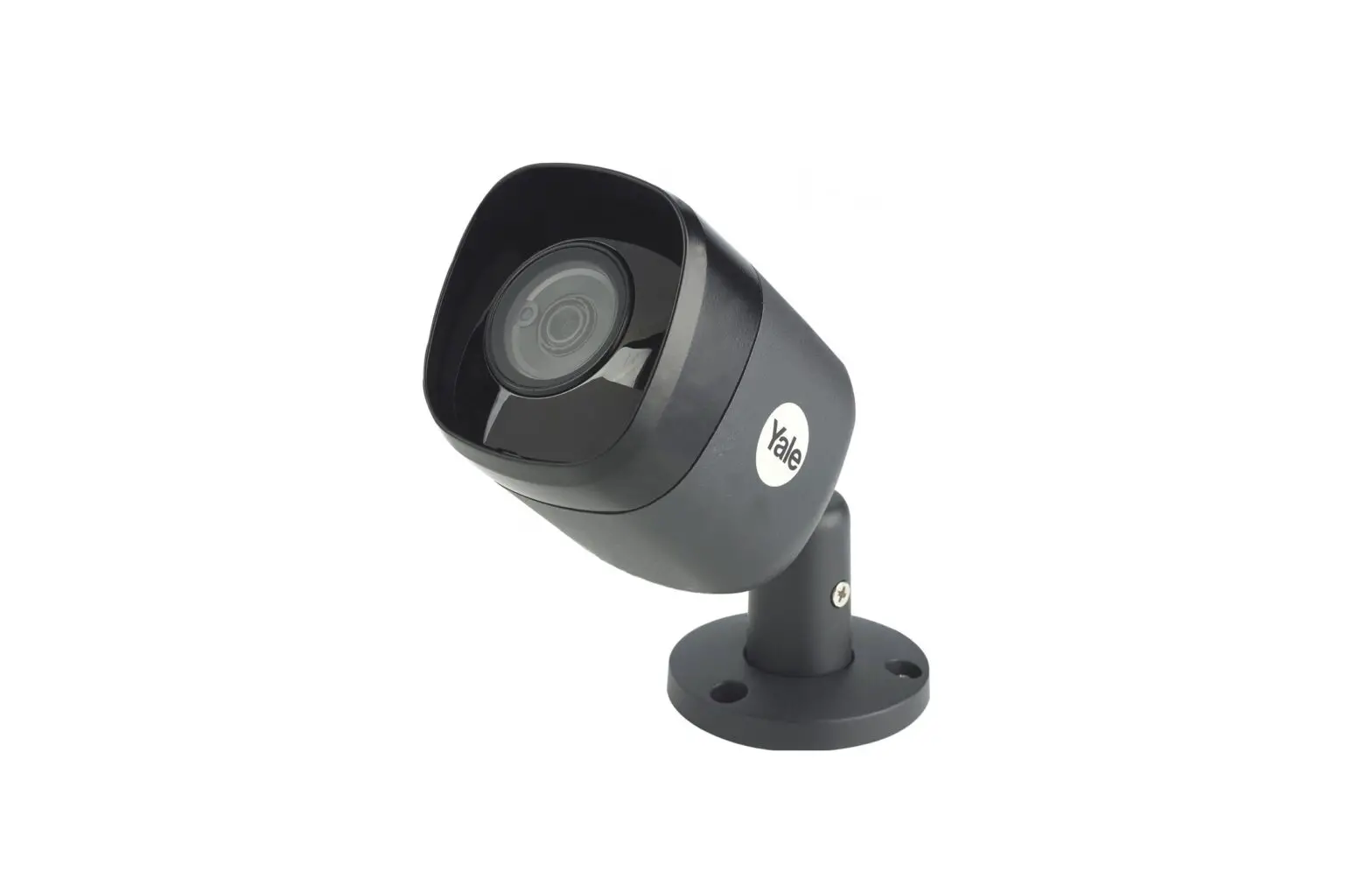
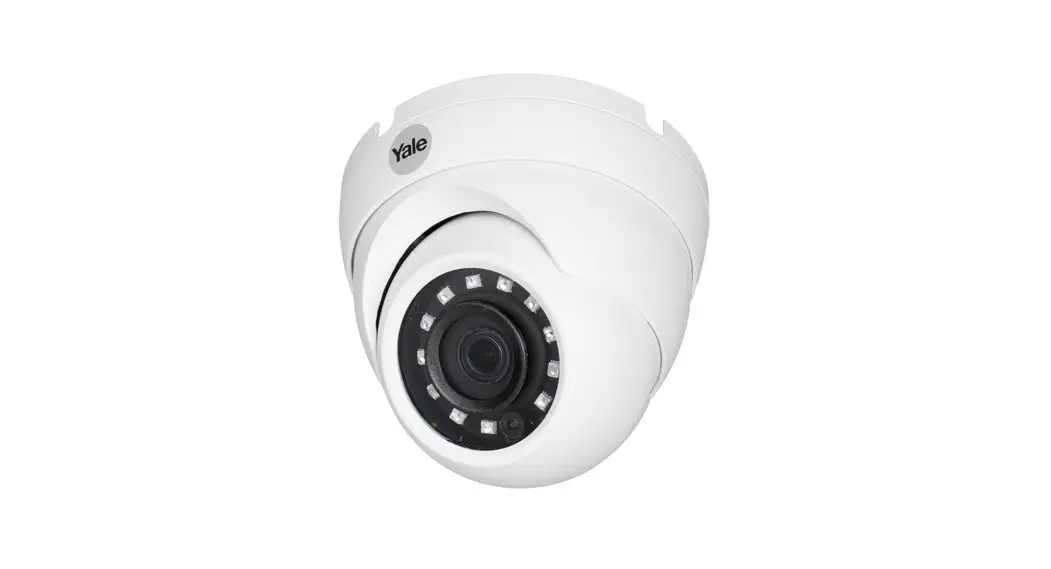
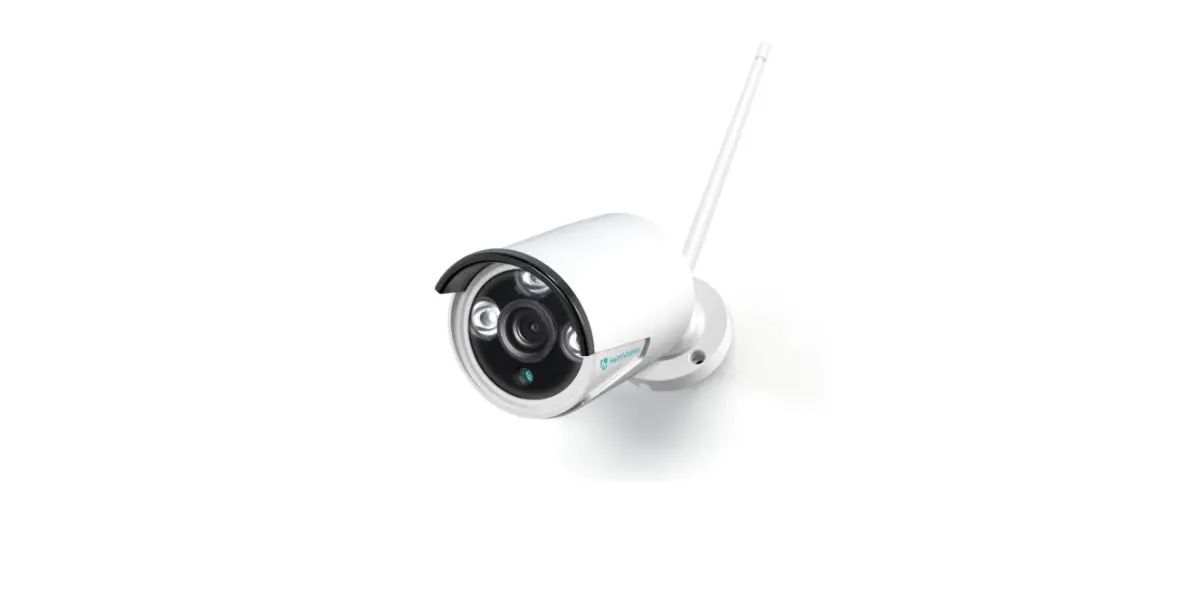
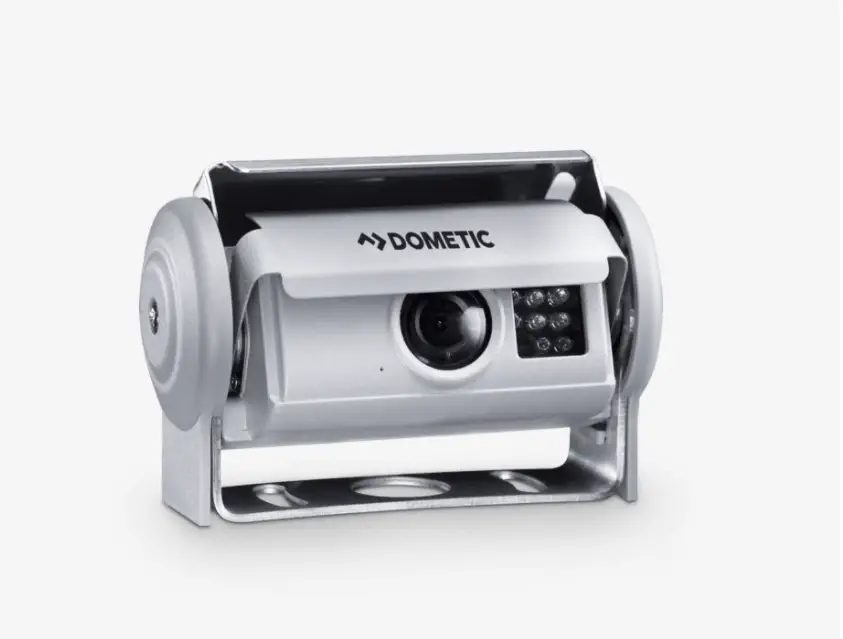
4 Cameras 1080P AHD 4 1080P AHD wide angle (190o) Cameras.
Sensor Cable (CAB000469) Power cable and the sensor wires.
IR Cable To receive the IR signal from the IR remote control.
HDMI to DVI
Video Processor to DVR
Fastening Screws
7 of 26
SV12 User Manual & Install Guide
To connect the cameras CAB000470
There are numerous customizable options and accessories which can tailor the product installation to fit your unique operating environment and requirements. Please contact Gatekeeper Systems for information on optional download kits and other accessories for use with your product.
2.1 Controller
2.1.1 IR Remote Controller
Arrow Keys: These buttons can be used to move the cursor or menu highlight to the left and right as well as up and down in order to select a button or menu item.
Menu: These two buttons provide a quick way to return to the main menu. Playback Control Keys: When you are viewing video playback, these keys will allow
you to easily Pause/Step through the video frame by frame, Play the video at normal
8 of 26
SV12 User Manual & Install Guide
speed, play the video at Slow speed (pressing repeatedly cycles through the available slow-motion speed settings), and Stop the video playback. View Mode: to change the view to full screen display or exit from full screen display. Numeric Keys: to enter the numeric values. Exit/ESC: To exit from the menu.
2.2 System Specifications
Specification Video Processor Video Input Video Output Video Resource Video Compression Video System Trigger Input
Trigger Display
Operating Temperature
4 Analog High Definition (AHD) channels 1 channel 1080P, 1 channel D1 1080P (1920 x 1080) H.264 NTSC / PAL Left turn, Right turn, Reverse signal Left turn split display of left side view and 360° stitching image
Right turn split display of right-side view and 360° stitching image
Reverse split display of rear view and 360° stitching image -22°F to +155°F (-30°C to +70°C)
Camera
Imaging Sensor Video System Resolution Minimum Illumination Operating Voltage Operating Current Operating Temperature IP Rating
1/2.9″ SONY CMOS NTSC / PAL 1080P (1920 x 1080) 0.1 Lux (day), 0 Lux (with IR) 12V (powered from video processor) <140mA DC 12V -22°F to +155°F (-30°C to +70°C) IP69K
9 of 26
SV12 User Manual & Install Guide
3 Hardware Installation
3.1 Quick Reference Guide for Installation
3.2 Installation Guidelines
3.2.1 Instructions for Mounting the System
Installation Requirements The device has an operating temperature range of -22°F to +155°F (-30°C to +70°C). Please ensure that the device is mounted in an area in which acceptable temperature ranges are experienced.
As part of installation best practices, it is recommended to mount the device in the vehicle cabin area where there is environmental control (i.e. heating and/or air-conditioning). This will extend the device operating life by not exposing it unnecessarily to adverse environmental conditions. Please take a moment to read and understand the following important installation conditions to ensure the Customer Warranty will not be voided.
10 of 26
SV12 User Manual & Install Guide
DO NOT remove any enclosures/covers associated with the device as this will void the warranty. Remove the In-Line Power fuse prior to jump-starting the vehicle. Select a solid ground connection for the device. DO NOT use any third-party accessories, unless approved by Gatekeeper Systems. The device is designed for interior use only. Do not install in areas that are exposed to excessive
moisture. Mount the device in a location that has good airflow and is not subject to excessive heat/cold
variations. Ensure that the device is mounted where it is not easily accessible by non-authorized personnel. Ensure that ALL provided Split Loom are used around exposed cables. Grommets are to be used
as directed by the install sheet. Failure to use provided Split Loom and Grommets will void the
warranty. Gatekeeper Systems provides Tek Screws with which to mount the SV12 these have been
tested and are approved for mounting. DO NOT plug in the cable to the processor until the wires have been connected
Connections
Plug the CAB000469 cable on the back of the device. The sensors on CAB000469 cable will connect to CAB000459.
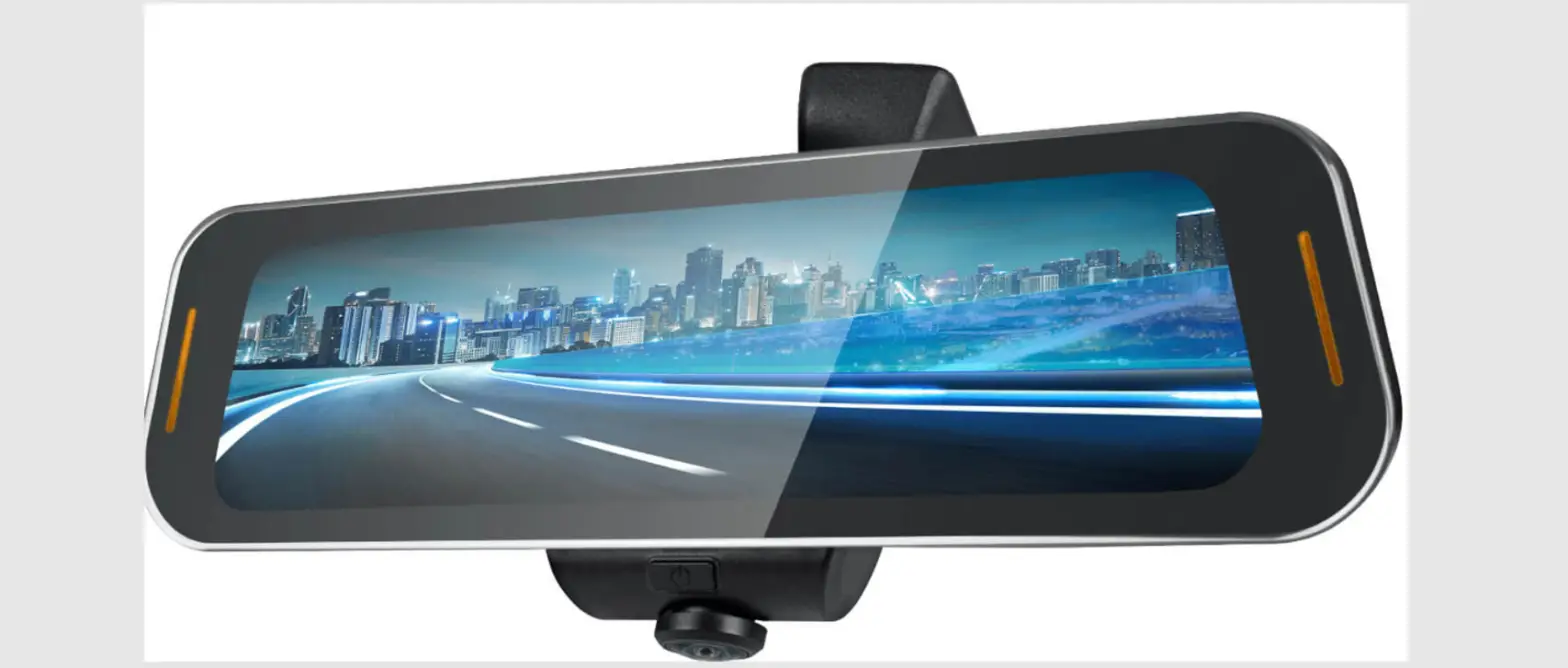
CAB000470 cable is to connect the cameras and the monitor. On the other end of the cable, you have four standard connectors to connect the four wide angle cameras (included in the package) and the D1 or AHD port to connect to the monitor, DVR, or the mirror display.
GND
(A) (Black)
Connect to the negative terminal of the battery, -12V. Typically, grounds are established in the fuse panel, and installers would need to connect there.
IGNITION
(B) (Yellow)
Connect to the vehicle ignition, +12V, the signal required to activate the device. Ensure that the provided 3 AMP fuse is used. Ignition is obtained from the “cold” side of the solenoid.
POSITIVE
(C) (Red)
CAB000470
Connect to the positive terminal of the battery, +12v. Ensure that the provided 15 AMP inline fuse is used. +12V is obtained from the “hot” side of the solenoid, or the cables that connect directly to the battery from the fuse panel
Wire Labelled as: CAM1 CAM2 CAM3 CAM4 CBVS Yellow USB
RS45
Connect to: Left Camera Right Camera Front Camera Rear Camera D1 quality Analog HD To transfer the files from and to
Sv12 Not in use
11 of 26
SV12 User Manual & Install Guide
IR Signal Receiver Mounting the cameras
To receive the signals from IR remote Controller
Make sure that the cameras are mounted perpendicular to the ground. Don’t mount the camera on the curve. Make sure to mount the cameras at the same height on the vehicle. All cables running through holes in sheet metal (ceiling, bulkhead, etc.) must be protected
with grommets.
3.3 Calibration
3.3.1 Board Sheet
1. We need 4 marking mats for the calibration. It is recommended to use a 100 x 100 cm mats.
2. Lay marking mats parallelly around the vehicle and make sure you can see the whole board sheet through the camera. Lay them as close as possible to the vehicle. Place the “A” marked corner closer to the vehicle. (Each camera must be able to fully see two marking mats clearly)
3. The calibration mats may need to be moved so that the mirrors do not block the view of the calibration mats. (Each marking mat must be fully visible to the camera, glare from sunlight on one or more of the mats can cause the camera to fail to properly see the mat). The pattern on the marking mat must be fully visible to the camera.
4. When calibrating the vehicle, it is recommended to have at least 10 feet of clearance around the outside of the vehicle. This is to permit the adjustment of calibration marking mats if required.
5. When calibration is taking place, take into account that different bus types place exterior equipment in different places (E.G., mirrors), the stairwell door open can also pose an obstruction hazard so that the camera will not have a clear line of site to one of the marking mats.
6. Calibrating outdoors, marking mats may be obscured by bright sunlight or dark shadows over one or more of the mats. Reposition the mats or move vehicle to another location.
12 of 26
SV12 User Manual & Install Guide
3.3.2 Navigate through Video Processor Menu
From the IR remote control, press menu. Using shift key select yes.
Enter the password, by default,
Password
000000
After the password is entered, using the shift key, to select the open-door icon and press enter. This will give the user access to the settings.
On the video processor, Navigate To Setting
To navigate through Setting menu, use the shift key from the IR remote control.
13 of 26
SV12 User Manual & Install Guide
3.3.2.1 System
On the video processor, Navigate To Setting System
System
AV
Audio video setting.
Default Setting: NTSC
Note To navigate through submenu use shift key. E.g. to go to Time and Display Icon from AV, use shift key.
To navigate through sub-sub-menu, use arrow keys. E.g. to change the settings of AV from NTSC to PAL, use the left arrow key.
Time and Icon Display
Keep this time display off. Otherwise, the recorded video will have two time and date stamps, one from DVR and one from video processor itself.
Default Setting: OFF
Vehicle Translucence
Default Setting: OFF
Front Camera Overlay
To draw the guide line on the display. Default Setting:
OFF
Back Camera Overlay
Default Setting: ON
14 of 26
SV12 User Manual & Install Guide
Vehicle Model Offset
Default Setting: ON
Video Output off Timer
Default Setting: OFF
Output Display Options Default Setting: OFF
Surrounded View Region
To show how much area should be displayed on the screen.
Default Setting: Normal
Video Ratio Surround View Mode
UART Function Prioritize Sensor
Default Setting: 1:2
To select the camera sides that will be displayed on the monitor. Default Setting:
LR+FB L = Left, R = Right, F = Front, B = Back
Default Setting: OFF
To give the priority to a particular camera. Available options:
Left Right Reverse None None If none is selected, the first trigged sensor will overtake the sensors triggered after it. E.G., If the vehicle is moving backward and then turns left, the back camera will be displayed on the screen. Default Setting: Reverse Note E.G., other than none, the system will give preference to the selected sensor regardless of which one active first.
15 of 26
SV12 User Manual & Install Guide
3.3.2.2 Clock
On the video processor, Navigate To Setting Clock
Clock
Calendar
Use the arrow keys to select the date and time and use numeric keys to change.
Click on the gear icon to save the setting.
Note Since the Sv12 unit will be tagged with DVR, gatekeeper recommend to use DVR’s time and date.
3.3.2.3 Storage
On the video processor, Navigate To Setting Storage
Storage
Storage
Note Sv12 will be using DVR’s storage to store the videos.
3.3.2.4 DVR
On the video processor, Navigate To Setting DVR
DVR
Not supported by gatekeeper.
For these settings, a USB drive is required to retrieve the setup files. Plug in the USB stick to the video processor.
We recommend performing this step indoors with controlled lighting. Make sure you have an equal amount of light on all sides of the vehicle.
On the video processor, Navigate To – Setting AVM
3.3.2.5 AVM
AVM Calibration
Length
Width Chess Position
To adjust the length of the vehicle in centimetres
To set the width of the vehicle in centimetres
To set the chess position.
16 of 26
SV12 User Manual & Install Guide
Grid Size
To set the size of the grid.
Unit
To set the measuring units.
Pattern
To set the pattern of the chess board sheet.
Auto Calibration
To adjust the auto calibration.
Gear icon
To navigate to the next setup, AVM option Setup.
Return icon
To go back to the previous menu.
After enter the values, click on the gear icon. It will navigate you to the AVM Option Setup.
Click on the Export icon to send the setup files to the USB.
Let the system finish exporting all the files before you pulled out the USB drive. Otherwise, you may lose some files.
Remove the USB from the video processor and plug it into a window-based pc. Copy the whole folder and paste it into your pc. Now open SVM2HorizCalibrateTool_v1.2 software.
3.3.2.6 Player
On the video processor, Navigate To Setting Player
Player
Not supported by gatekeeper.
3.3.2.7 Information
17 of 26
SV12 User Manual & Install Guide
On the video processor, Navigate To Setting Information
Information
CPU Version Current
Shows the current version of the CPU.
Update MCU Version
Load the right firmware files into the flash drive, then plug the flash drive into Sv12. It will pick the files. The gear icon will grey out until the system detects the right type of files. Then click the gear icon to update the firmware. Note The system will restart after the update.
Shows the current version of the MCU.
Update
Load the right firmware files into the flash drive, then plug the flash drive into Sv12. It will pick the files. The gear icon will grey out until the system detects the right type of files. Then click the gear icon to update the firmware. Note The system will restart after the update.
Network Setup
System Information
IP Address Wi-Fi switch
Wi-Fi Name Password
Shows the current version of the system. This menu can be used to save the current system setting and load the saved setting.
Enter the IP address for Wi-Fi.
Default Setting: ON
Enter the Wi-Fi name. Enter the password of the Wi-Fi. Then, click on the gear icon to save the settings.
3.3.3 Handle Calibration 3.3.3.1 SVM2DHorizCalibrateTool_v1.2 Software overview
18 of 26
SV12 User Manual & Install Guide File
Calibration
Open a file
Select to choose an exported file from AVM to calibrate.
3.3.3.2 Calibration Tools
3.3.3.2.1 Automatic Calibration
Import Settings to SVM2HorizCalibrateTool_v1.2
After the software is open. Plug-in the USB pen drive into your window-based pc. DO NOT format the USB pen drive. You must see a folder named calibrateXXX (in place of XXX there will be a number).
o File naming break down for example, a file name is calibrate20200203030329: calibrate means the file is exported from the video processing unit, 2020 is the year, 02 is the month, 03 is the date, then 03 03 23 is the time of the file modification.
Click on the “Open a file” icon. Then you will see a new window, browse your pen drive.
19 of 26
SV12 User Manual & Install Guide
Select the folder calibrateXXX from the pen drive that you want to calibrate. Click on the “Select Folder” button.
After uploading the file to SVM2DHorizCalibrateTool_v1.2 software, images from all cameras can be seen.
Click on the “Calibrate” button. SVM2DHorizCalibrateTool_v1.2 will calibrate the images.
3.3.3.2.2 Settings
After calibration, the blind spots need to be covered around the graphic model of the vehicle. Use the tools to increase or decrease the size of graphic model of the vehicle.
20 of 26
SV12 User Manual & Install Guide
Vehicle Step Width
Select the type of the vehicle. Bus Car
Default value: 1
Click on “-” to decrease the size of model vehicle. Click on “+” to increase the size of model vehicle.
Length
Click on “-” to decrease the size of model vehicle. Click on “+” to increase the size of model vehicle.
Rotate
Click on the rotate icons to rotate.
Arrow Keys
Click on the arrows to centre the vehicle model. Then press “Ok”. SVM2DHorizCalibrateTool_v1.2 will show the overview of the calibration.
Export
Select on “Export” to export the settings to the USB flash drive.
After exporting, open the USB flash drive
You must see a folder with name “importXXX”. When you open the folder, you must see pictures and the caliresultXXXX file.
Note the name of the file, it will help you wile importing to the video processing unit.
3.3.3.2.3 Manual Calibration
After exporting the files to SVM2DHorizCalibrateTool_v1.2 software, and after clicking on “Calibration”, sometimes the software will not calibrate by itself. The user needs to mark the points on the boards manually.
In the picture, top left corner, the software did not mark the marks on the mat. To finish the calibration, the user needs to mark them. Double click on the picture that is not marked. This will open the picture in the full screen.
21 of 26
SV12 User Manual & Install Guide
For Other Pattern Mats The cursor will change to the magnifier.
1. Select the “Tag Position” to 1. 2. Mark the 1st mark on the “A” corner of the mat that on the left side in the picture. 3. Then select the “Tag Position” to 2, and mark the 2nd mark on the “B” corner of the mat, 3rd mark
for corner “C”, and 4th mark is for the corner “D”. 4. Finish all 4 marks on the mat and move to the second mat. 5. Then repeat the steps from 1 to 4, but this time the but the “Tag Position” on “A” corner side of
the mat will be starting from 5.
After marking, press okay and move to Settings. For Chess Pattern Mats
Marks the corner of the mats as shown in figure.
3.3.4 Importing Settings to Video Processor
To import the settings to the processing unit, plug in the USB to the processing unit. On the video processing unit, click on the system, then click on the AVM. Click on the AVM option then click on the import. Then click on the .xml file and upload it. (Ensure you select the calibration result file that you saved to the USB drive, The original exported non-calibrated file will also show up as an option) Press on the gear icon(save).
22 of 26
SV12 User Manual & Install Guide The system will ask you for restart, press yes.
23 of 26
SV12 User Manual & Install Guide
4 Maintenance and Troubleshooting
Maintenance Whilst the SV12 is a dependable and robust piece of equipment, it is still a complex electronic device and as such, will require maintenance occasionally. To ensure optimal performance, Gatekeeper Systems strongly recommends that a proper Preventive Maintenance Schedule be set up and adhered to.
Besides that, it is recommended that the following seven basic maintenance steps be performed at least twice a year:
No.
Maintenance Item
Check ()
1
Check that there are no loose mounting screws and that the SV12 is still
securely mounted.
2
Wipe down the SV12 and cameras using a clean microfiber cloth.
3
Check cables on the back of the SV12 to ensure they have not vibrated loose.
Make sure that the cables do not show signs of wear, cracks, etc. If so, contact
your Gatekeeper Systems sales representative to arrange for replacements.
4
Check that the cameras are still positioned properly by playing back the
recorded video.
5
Check the system clock to ensure the proper date and time is shown. Be sure
to check that daylight savings time is set properly and the system time is not
out by an hour.
6
Verify that the settings for the SV12 and the cameras are still set properly.
7
The DVR should provide the time / date when recording and OSD. These
settings should be turned off so it should be the same as the rest of the
cameras on the DVR.
24 of 26
SV12 User Manual & Install Guide
5 Customer Limited Warranty
GATEKEEPER SYSTEMS USA INC. warrants that any product manufactured or supplied by Gatekeeper Systems USA Inc and found in the reasonable judgment of Gatekeeper Systems Inc to be defective in material or workmanship will be repaired or replaced by Gatekeeper Systems Inc without charge for parts and labor.
This warranty shall cover the following periods and Gatekeeper equipment:
· Interior Cameras – 5 Years · Exterior Cameras – 1 Year · G series DVR’s 3 Years · Gatekeeper Branded SD Cards 3 Years · Hard Drives & SSD 1 Year · 360° Surround Vision Camera System 1 Year · ITSS Health Monitoring Panel 1 Year
All Accessories and Other Products Not Identified above – 1 Year
The warranty periods commence on the date of shipment. During the period of the warranty the Company, at its discretion will repair and/or replace all improperly functioning equipment caused by a manufacturing defect. This warranty does not protect against accidental or intentional damage, vehicle electrical systems generating steady state or transients, voltages or currents exceeding product. specification, loss, acts of nature, water damage, or any other event that did not originate during the manufacturer of the product.
The Gatekeeper Systems product including any defective part must be returned to Gatekeeper Systems within the warranty period. The expense of delivering Company product to Gatekeeper Systems for warranty work will be paid by the customer. The expense of delivering Company product back to the customer will be paid by Gatekeeper Systems. Gatekeeper Systems’ responsibility in respect to claims is limited to making the required repairs or replacements and no claim of breach of warranty shall be cause for cancellation or rescission of the contract of sale. Proof of purchase complete with the serial numbers of the products purchased will be required by the customer to substantiate any warranty claim. All warranty work must be performed by an authorized Gatekeeper Systems service representative.
This warranty does not cover any Gatekeeper Systems’ product that has been subject to misuse, neglect, negligence, or accident, or that has been operated in any way contrary to the operating instructions as specified by Gatekeeper Systems either verbally, in writing, by instructions written on the product or in the Gatekeeper Systems Installation and Operating Manual. This warranty does not apply to any damage to the Gatekeeper Systems product that is the result of improper maintenance or to any Gatekeeper Systems’ product that has been altered or modified so as to adversely affect the products’ operation, performance or durability or that has been altered or modified so as to change its intended use.
Gatekeeper Systems Inc is not responsible for lost or missing video.
The warranty does not extend to repairs made necessary by normal wear or by the use of parts or accessories which are either incompatible with the Company product or adversely affect its operation, performance or durability. Gatekeeper Systems reserves the right to change or improve the design of
25 of 26
SV12 User Manual & Install Guide
any Company product without assuming any obligation to modify any product previously manufactured.
ALL IMPLIED WARRANTIES ARE LIMITED IN DURATION TO THE SPECIFIED PERIOD FOR EACH PRODUCT CATEGORY AS LISTED IN THIS DOCUMENT. ACCORDINGLY, ANY SUCH IMPLIED WARRANTIES INCLUDING MERCHANTABILITY,
FITNESS FOR A PARTICULAR PURPOSE, OR OTHERWISE, ARE DISCLAIMED IN THEIR ENTIRETY AFTER THE EXPIRATION OF THE APPROPRIATE WARRANTY PERIOD. GATEKEEPER SYSTEMS’ OBLIGATION UNDER THIS WARRANTY IS STRICTLY AND EXCLUSIVELY LIMITED TO THE REPAIR OR REPLACEMENT OF DEFECTIVE PARTS, AND GATEKEEPER SYSTEMS INC. DOES NOT ASSUME OR AUTHORIZE ANYONE TO ASSUME FOR THEM ANY OTHER OBLIGATION.
GATEKEEPER SYSTEMS INC ASSUMES NO RESPONSIBILITY FOR INCIDENTAL, CONSEQUENTIAL OR OTHER DAMAGES INCLUDING, BUT NOT LIMITED TO THE EXPENSE OF RETURNING THE COMPANY PRODUCT TO GATEKEEPER SYSTEMS INC. CORPORATE HEAD OFFICE, MECHANIC’S TRAVEL TIME, CUSTOMER LABOR EXPENSES, TELEPHONE OR TELEGRAM CHARGES, RENTAL OF LIKE PRODUCT DURING THE TIME WARRANTY SERVICE IS BEING PERFORMED TRAVEL, LOSS OF USE OF THE PRODUCT, LOSS OF TIME OR INCONVENIENCE.
WARRANTY SERVICE
To obtain warranty service, the purchaser must notify the Company during the warranty period. The Purchaser will discuss the defect or problem with a Company technician, and once the problem has been verified the Company will issue a return material authorization number (RMA) authorizing the purchaser to return faulty merchandise to the Company for repair or replacement as determined by the Company. It may be necessary for the customer to assist Gatekeeper Systems in assessing failed product. Gatekeeper Systems may require the customer to remove hardware, manipulate software and/or perform other diagnostic activities. Failure to assist in and allow remote diagnostic activities may result in a service fee being charged.
Advance replacements will be issued for the first 90 days from the date of shipment.
This Warranty applies to all Company products manufactured by Gatekeeper Systems and sold in the United States and Canada.
This warranty gives you specific legal rights, and you may also have other rights which vary from state to state.
USA OPERATIONS:
Gatekeeper Systems USA Inc. 7-200 Rittenhouse Circle Bristol, PA 19007 Tel – 1 604 864 6187 Fax – 1 604 864 8490 Toll Free – 1 888 666 4833
For technical support, contact Gatekeeper’s Customer Care Group at Toll Free (N.A.) 1-888-666-4833 or email [email protected] Gatekeeper also provides additional online training and support tools at: https://www.gatekeepersystems.com/support/
26 of 26
 Gatekeeper Systems - Protecting People in Transit